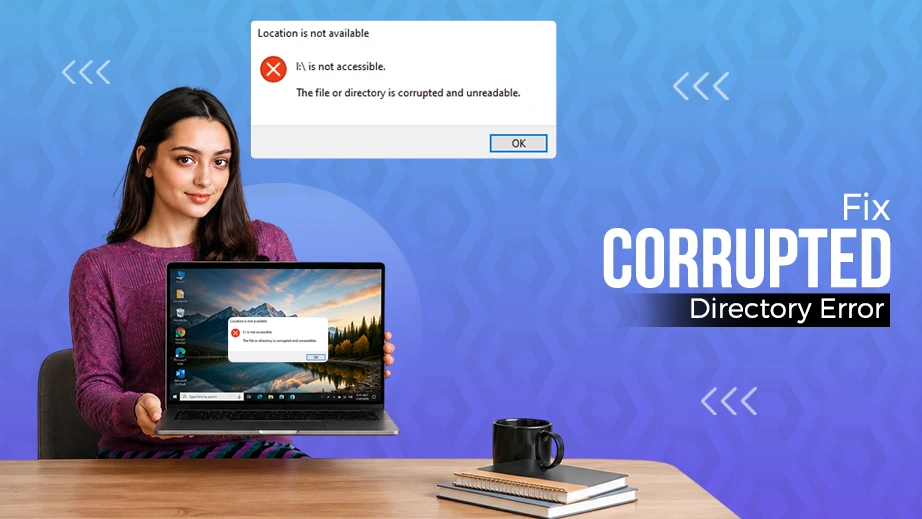
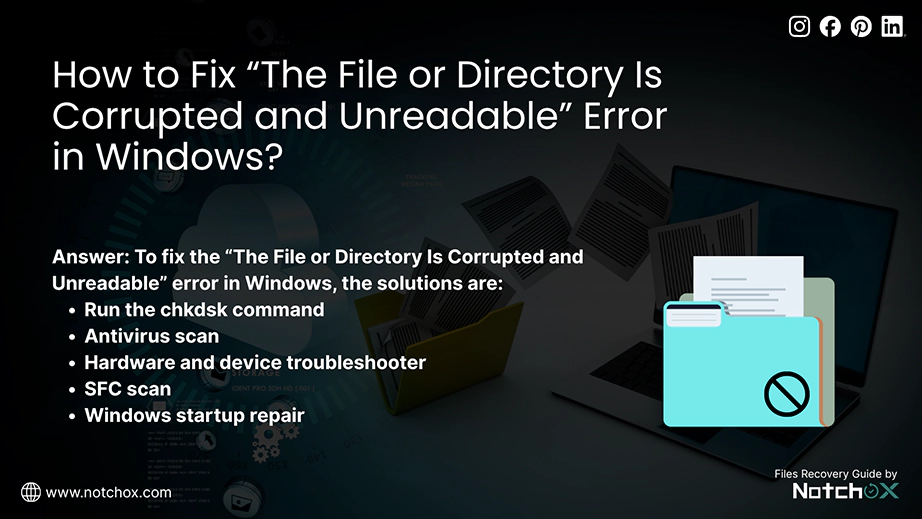
To fix the “The File or Directory Is Corrupted and Unreadable” error in Windows, the most effective solution is to run the chkdsk command to repair the file system. The other methods include running an antivirus scan, the hardware and device troubleshooter, SFC scan, and performing Windows startup repair.
This error triggers when Windows loses access to a drive’s file allocation table. Can be due to improper ejection, malware, bad sectors, or physical damage. Because we frequently receive queries from users worrying about lost data, this troubleshooting guide will explain safe data recovery methods, built-in Windows repair tools, and the step-by-step processes to fix the file or directory is corrupted and unreadable.
Quick Answer: To fix the “the file or directory is corrupted and unreadable,” use Windows built-in tools like Windows Defender scan, Hardware and Device Troubleshooter, Error Checking, Changing drive letter, or CMD scans like CHKDSK and SCF.
Before fixing the error, make sure to recover your files using Notchox Data Recovery Software!
How to Fix The File or Directory Is Corrupted and Unreadable?
Fixing the file or directory that is corrupted and unreadable requires repairing the file system corruption or resolving the drive communication glitches. You may not know the reason, but depending on whether the issue is minor or major, different tools are required. To determine, firstly, you could do the basic troubleshooting, and then if not fixed, use the advanced methods.
We have categorized these solutions from basic to advanced command-line methods.
Troubleshooting Steps:
Move the File to Another Location
When a file or directory is corrupted and unreadable, moving it to a new location forces Windows to reallocate its file path. This overcomes the sectors of drive corruption.
Note: If you cannot move the file due to an error, you must copy it instead.
Follow these steps to move or copy your files to a safe location:
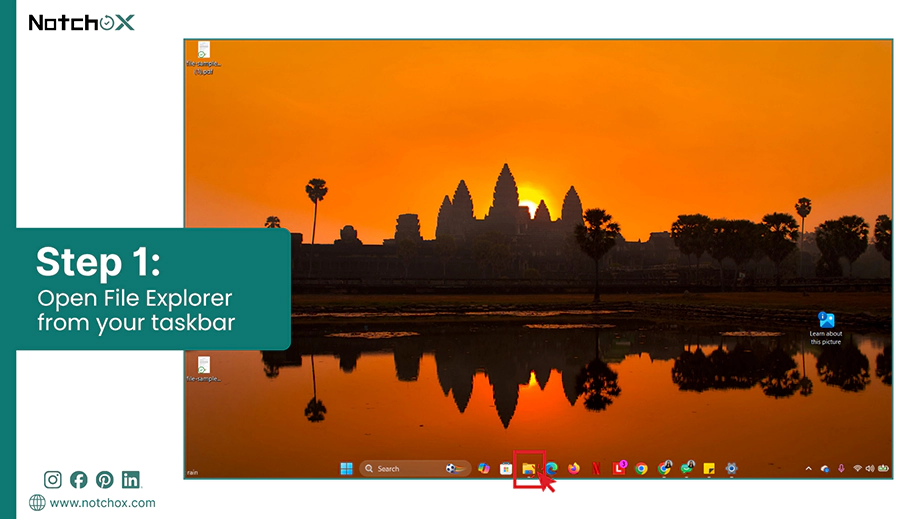
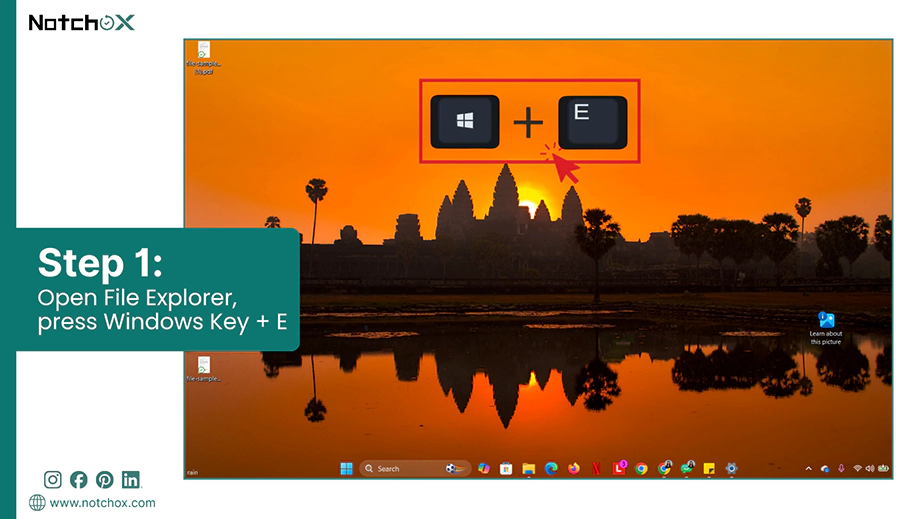
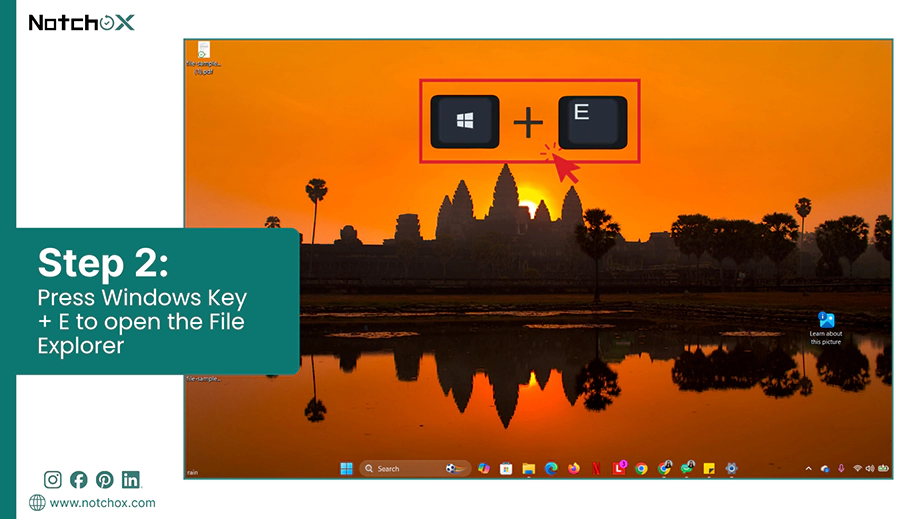
Press Windows Key + E or open the File Explorer from your taskbar.
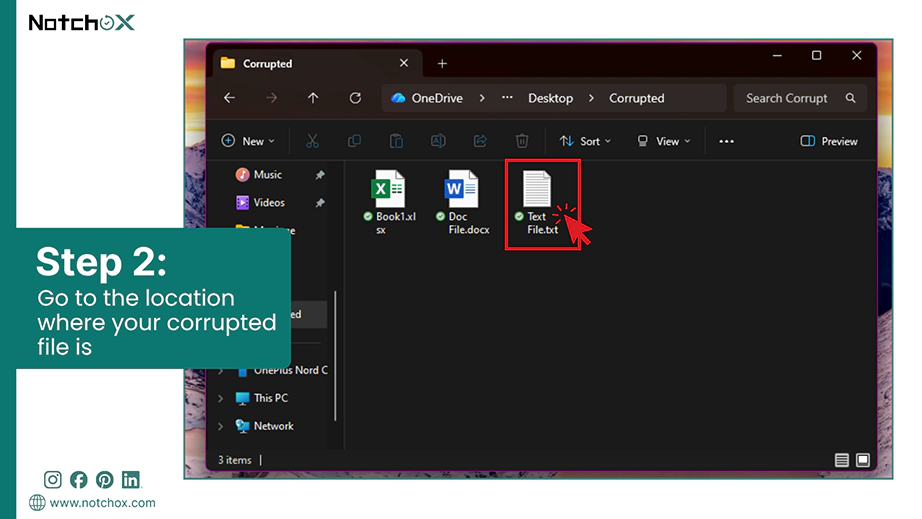
Go to the location where your corrupted file is.
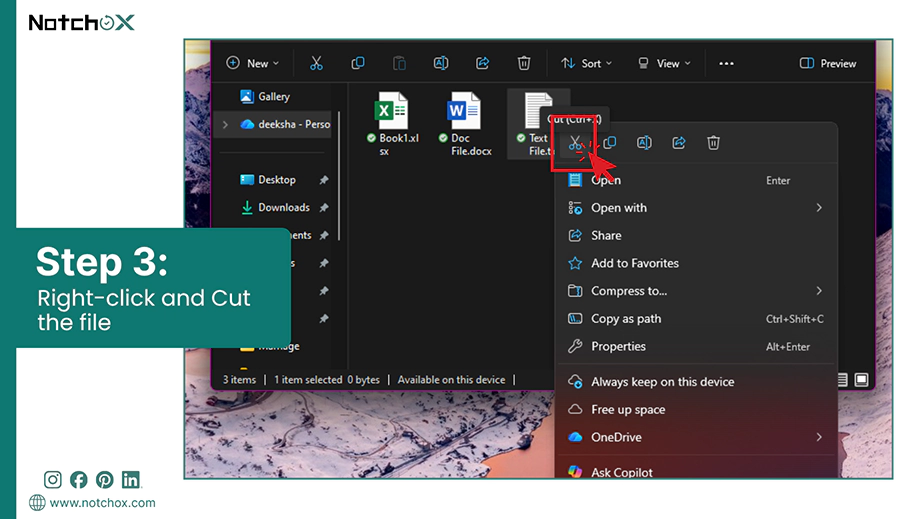
Right-click the file and select the Cut icon (✂) (or press Ctrl + X).
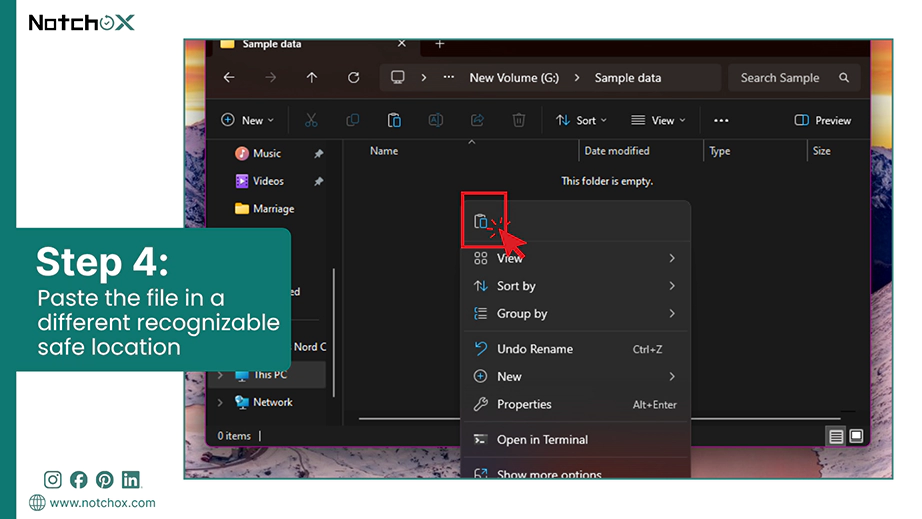
Open a different recognizable safe location for the file. Right-click and select Paste icon (📋) (or press Ctrl + V).
If you encounter an error, go back, right-click, and select Copy, then paste it in the new location.
Run a Virus or Malware Scan
If you have a reliable antivirus on your device, run a scan to diagnose damaged files repair. Viruses and malware can modify file permissions, causing the “the file or directory is corrupted and unreadable” error. Scanning unlocks restricted directories, allowing you to access them.
If you don’t have an antivirus, you can enable Windows Defender to scan.
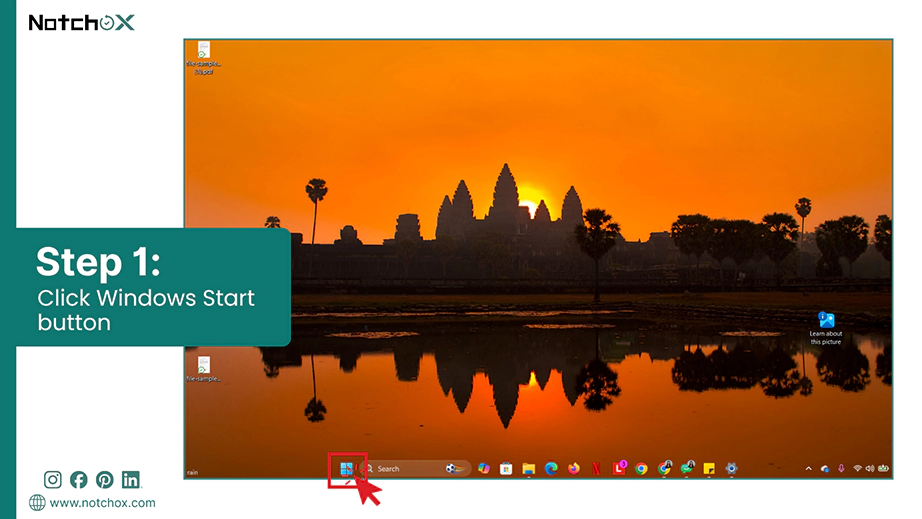
Click on the Windows Start button.
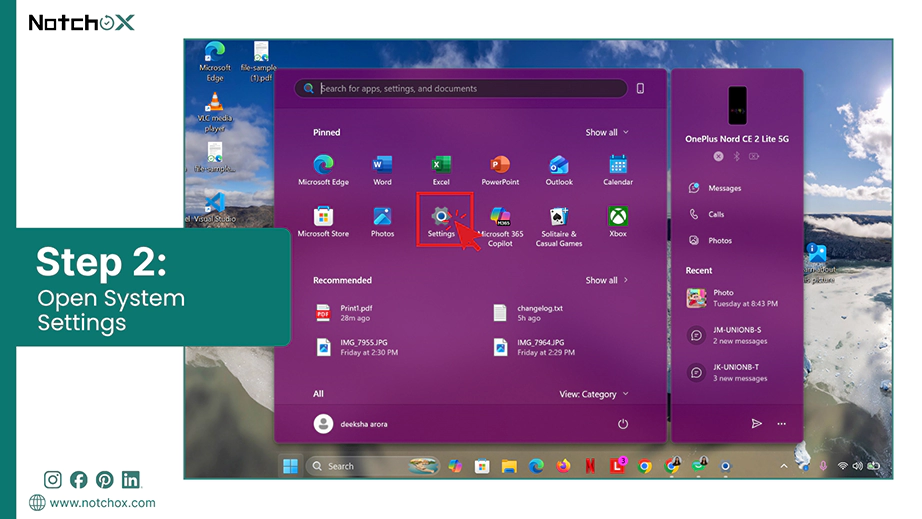
Select the Setting Gear icon to open the System Settings.
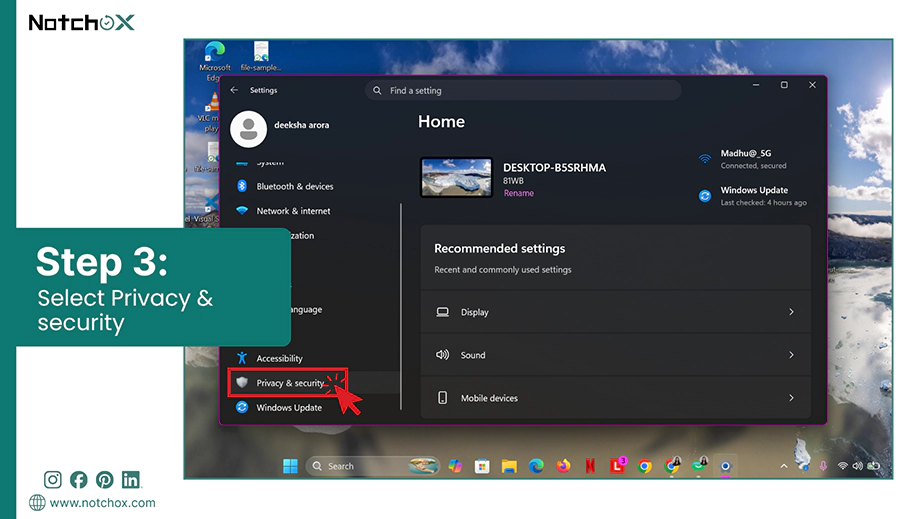
Next, go to the Privacy & Security tab.
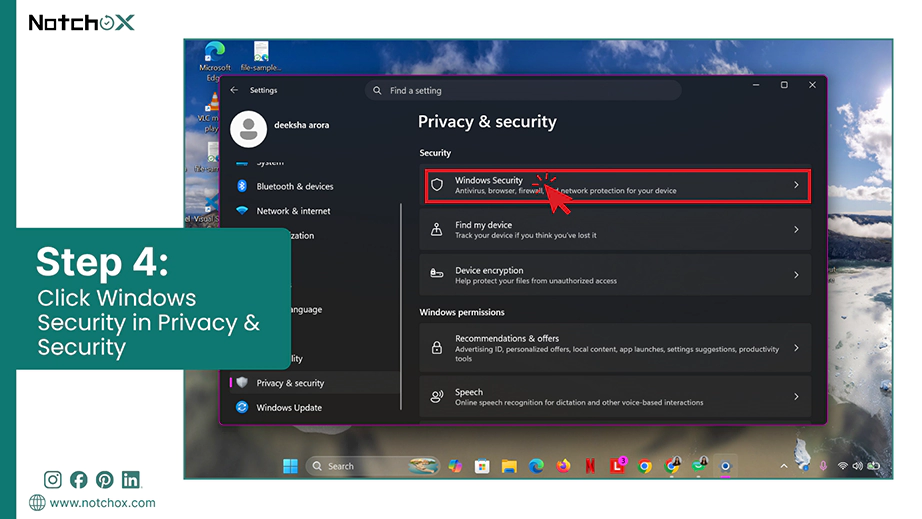
Under Security, click on Windows Security.
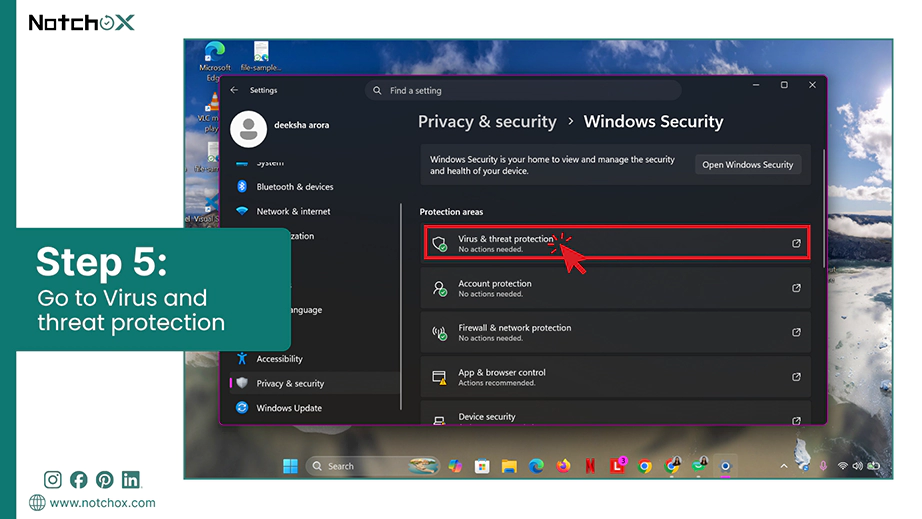
You will see Protection Areas. Choose Virus & threat protection.
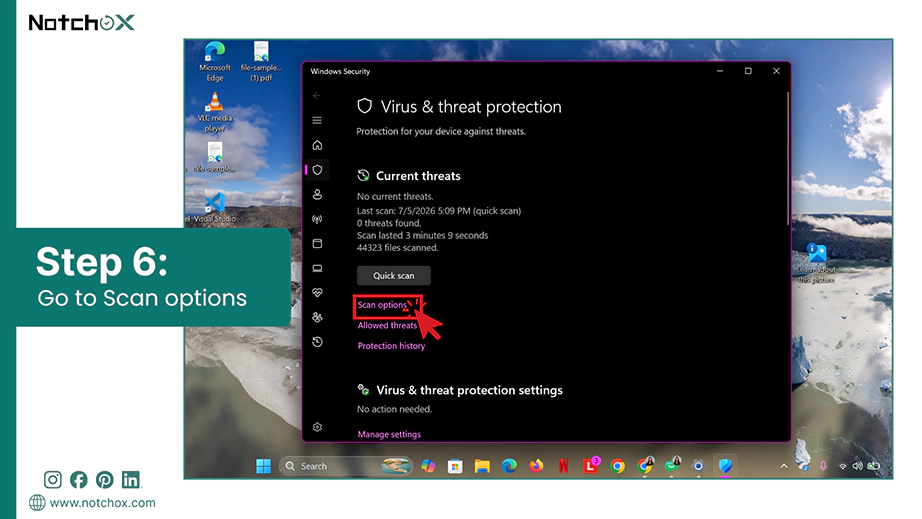
Click on Scan Option to access all the scans available.
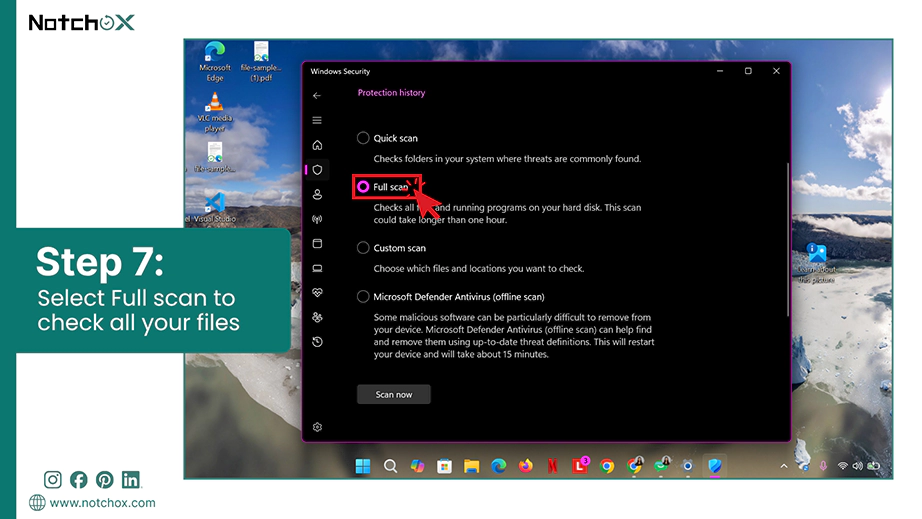
Select Full Scan that checks all your files and running programs on your hard disk.
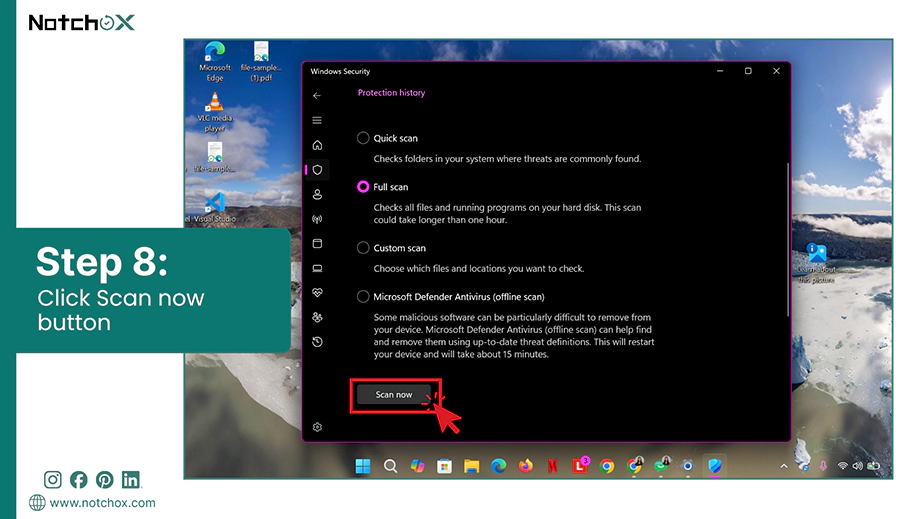
Click the Scan now button and wait for the process to complete.
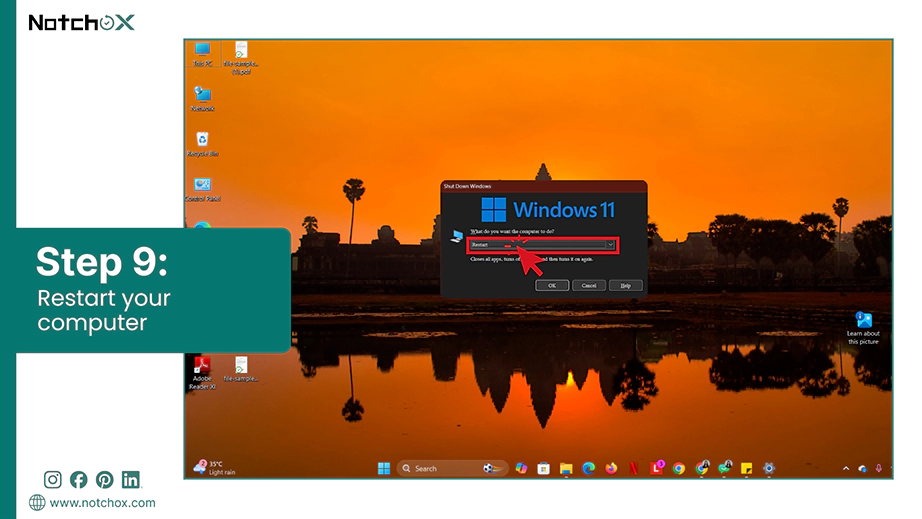
Once done, restart your computer.
Run the Hardware and Device Troubleshooter
Hardware communication glitches between the PC and the drive can cause a file system error. The Hardware and Device Troubleshooter makes Windows scan for hardware changes and reinstall fresh device drivers.
To run the Hardware and Device Troubleshooter in Windows, follow these steps:
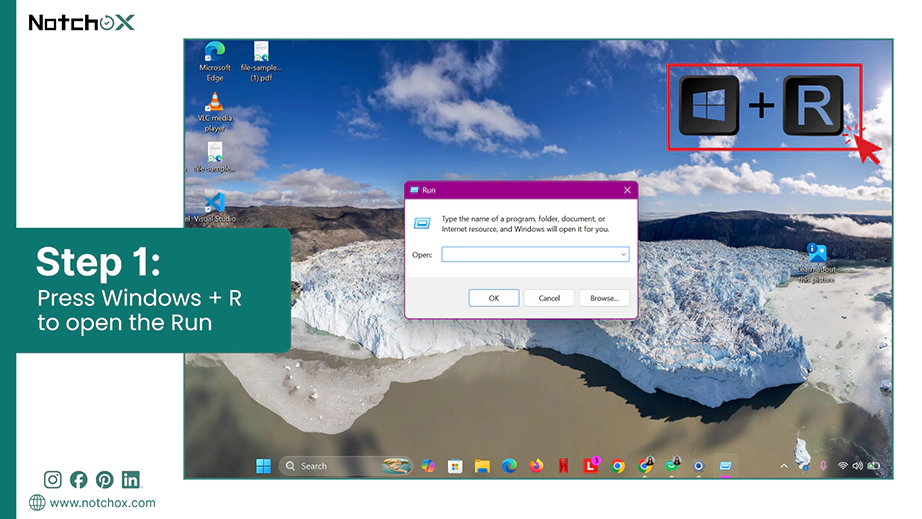
Press Windows Key + R to open the Run dialog box.
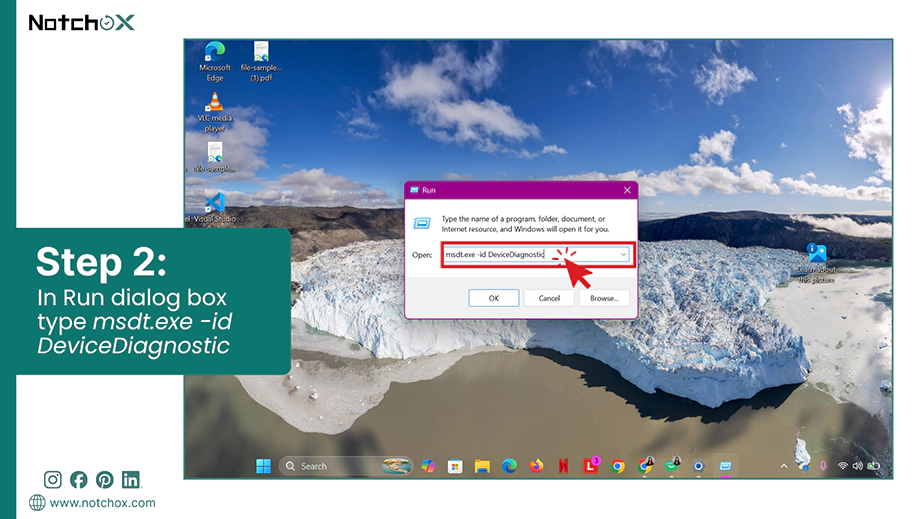
Type msdt.exe -id DeviceDiagnostic in the box and press Enter.
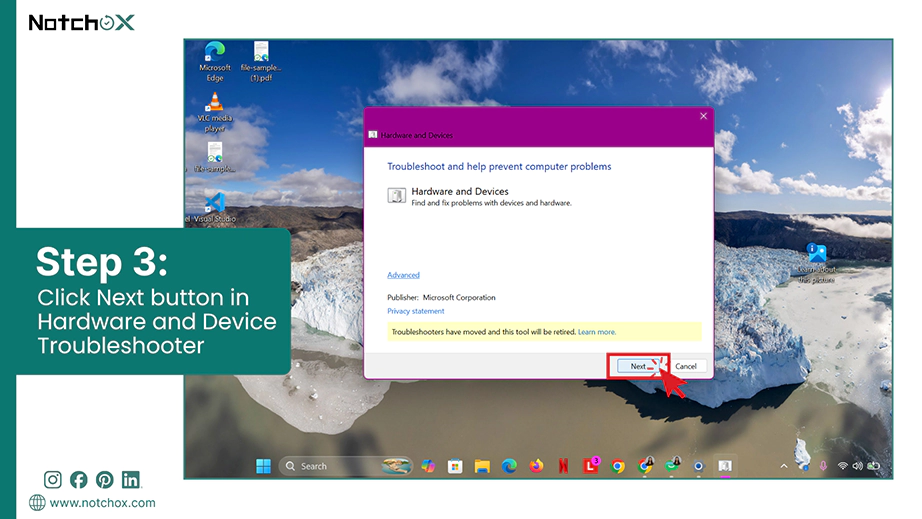
Hardware and Device Troubleshooter will open, click Next.
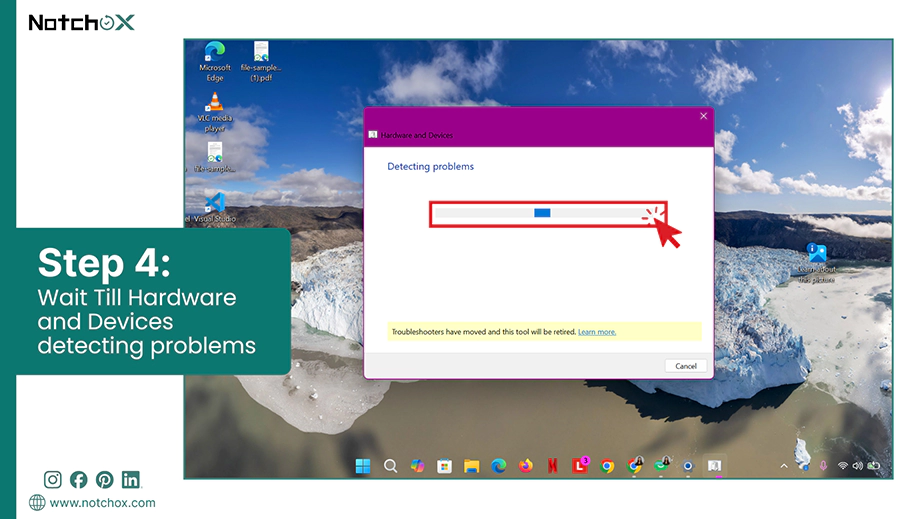
Wait for Windows to detect problems with your drives and ports.
In case any issue is found, select Apply this fix.
Restart your computer to apply the structural hardware changes.
Repairing via Windows Tools
Repairing Using Disk Properties
This is another Windows built-in utility that can scan the drive for system errors and fix them automatically. So, this can be used for damaged files repair and fix the file or directory is corrupted and unreadable. It is the safest method without using the command line.
Follow these steps to run the Windows disk repair tool.
Press Windows Key + E to open File Explorer.
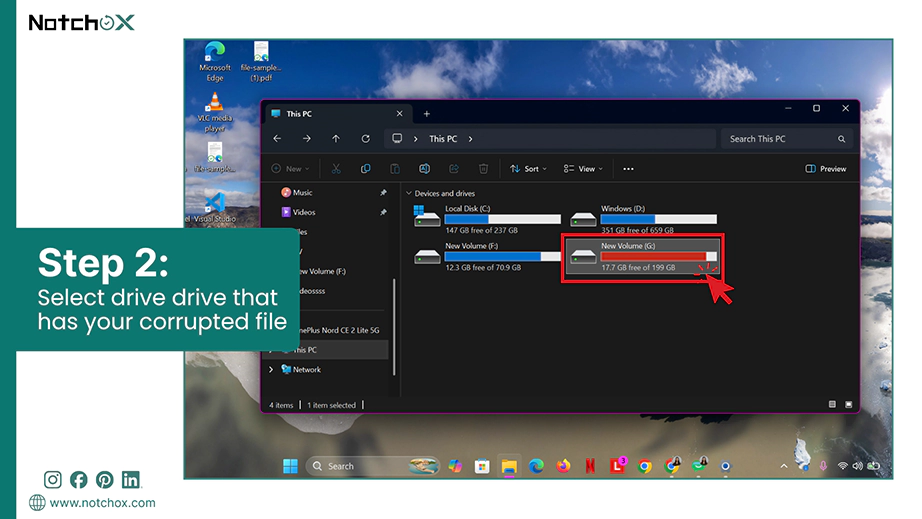
Go to the drive that has your corrupted file or directory.
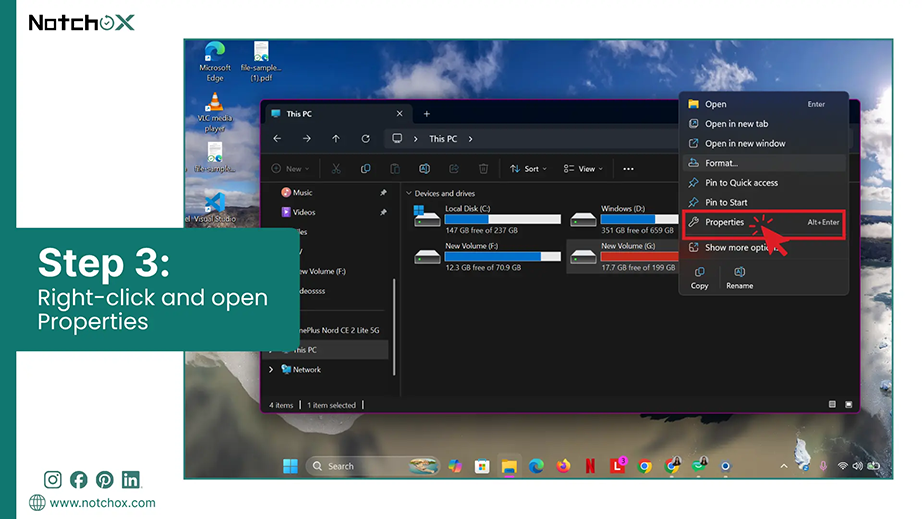
Right-click on the drive and select Properties.
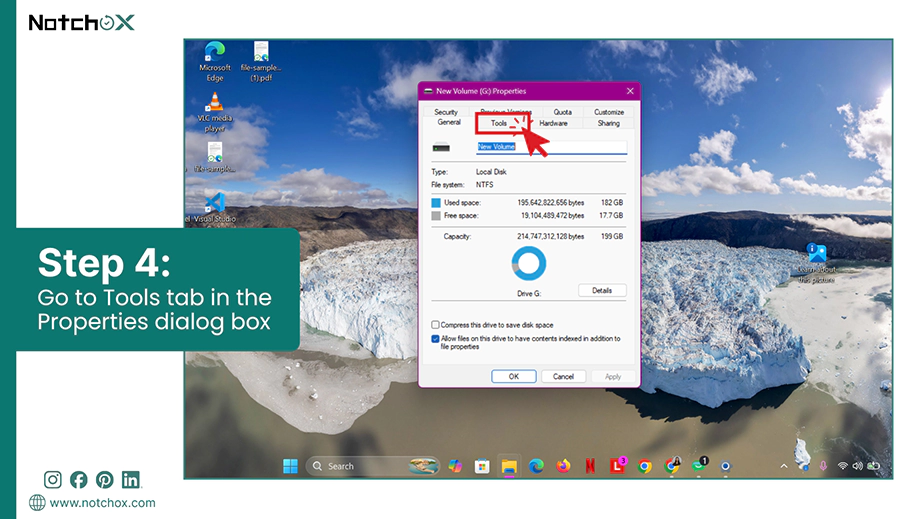
Click on the Tools tab at the top of the Window.
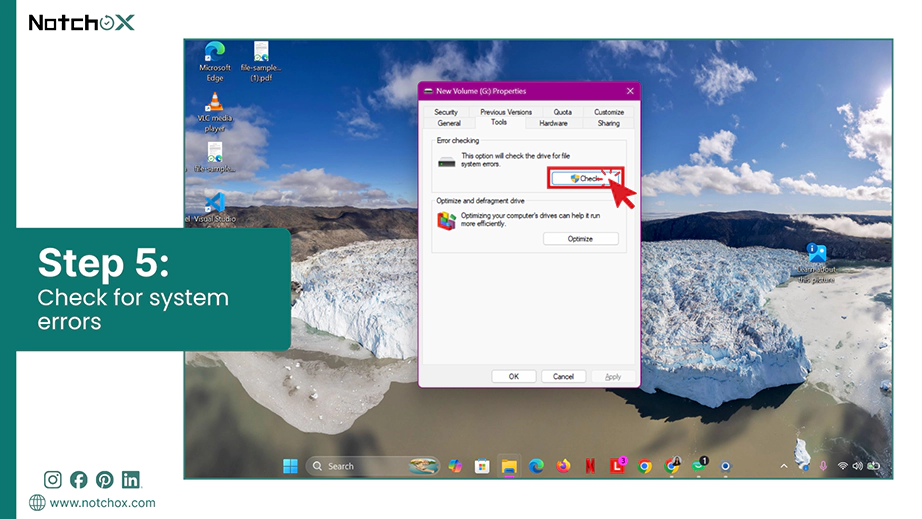
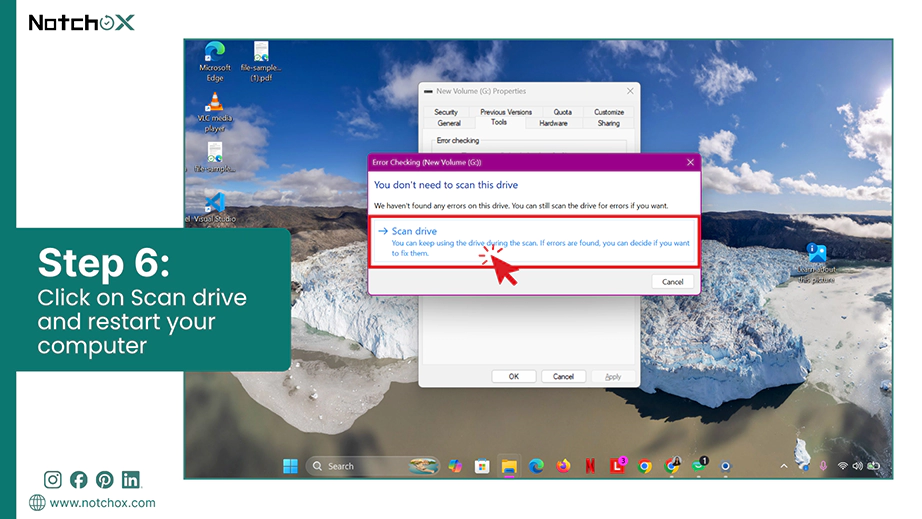
Under Error checking, click the Check button.
Click Scan drive (even if Windows says no errors were found).
If any error is detected, click Repair drive and restart your computer.
Identifying and Changing the Drive Letter in Disk Management
Forcing Windows to assign a fresh drive letter can re-initialize the drive’s communication with the operating system. Be it an internal drive or external hard drive unreadable fix, changing the drive letter works the same on both drives.
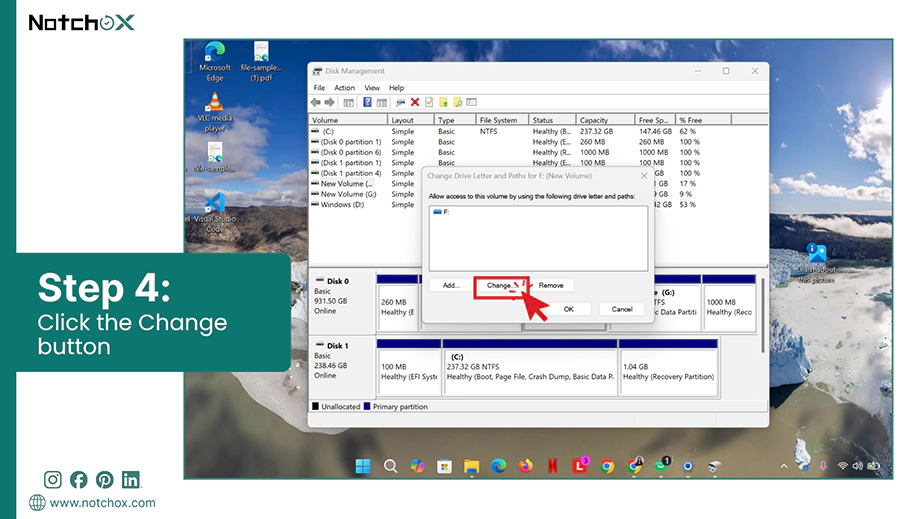
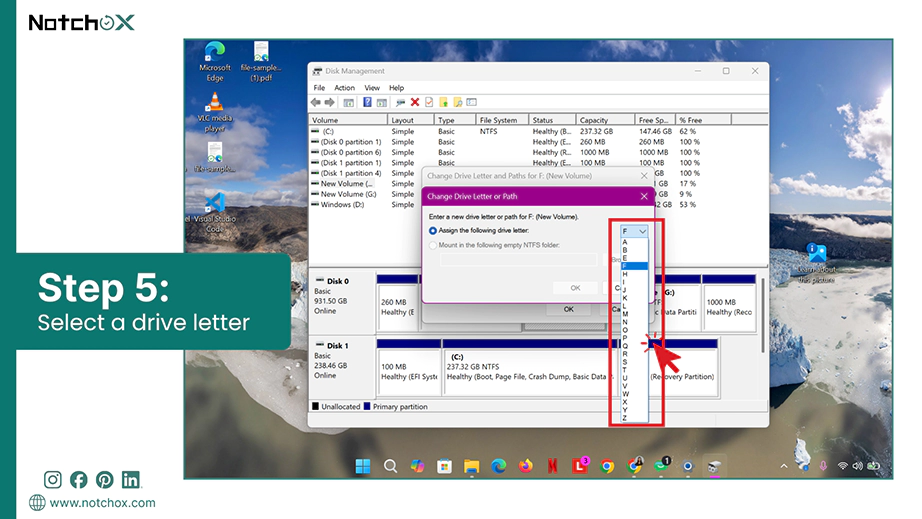
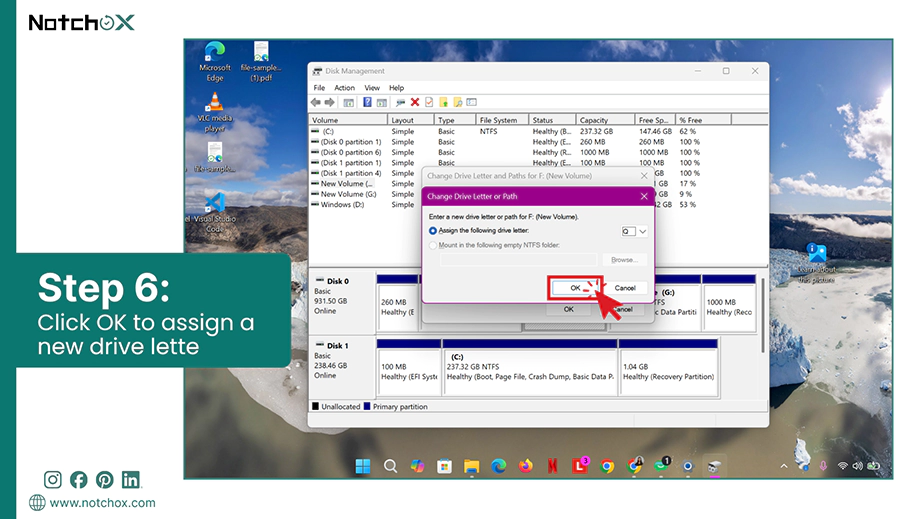
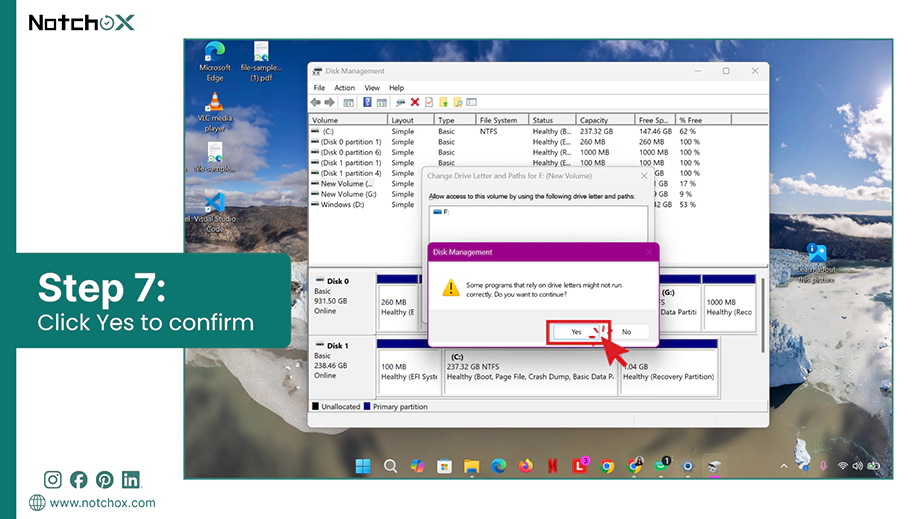
Let’s see the steps to fix the file or directory is corrupted and unreadable by changing the drive letter.
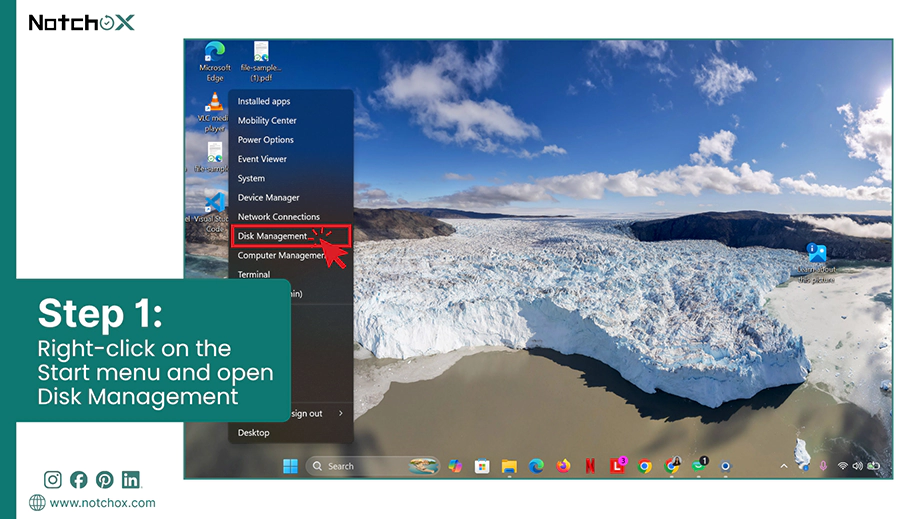
Right-click on the Start menu and select Disk Management.
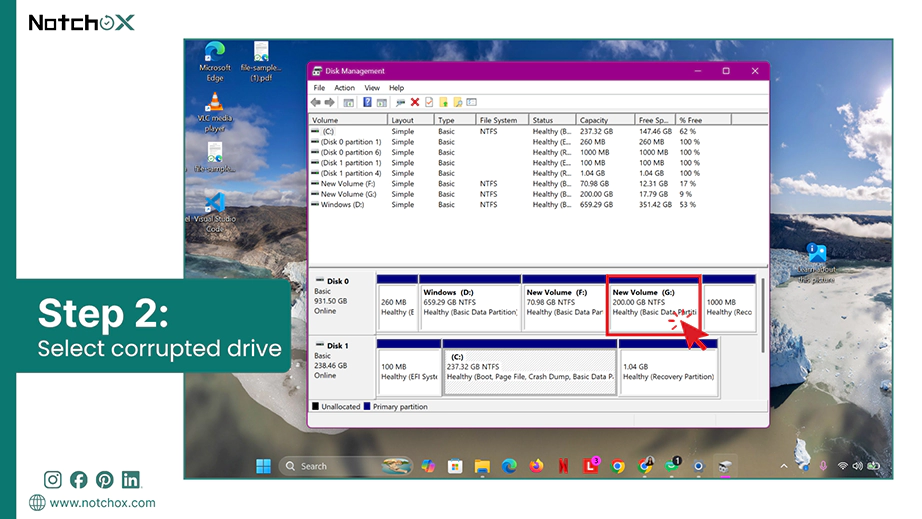
Look for your corrupted drive in the bottom volume list.
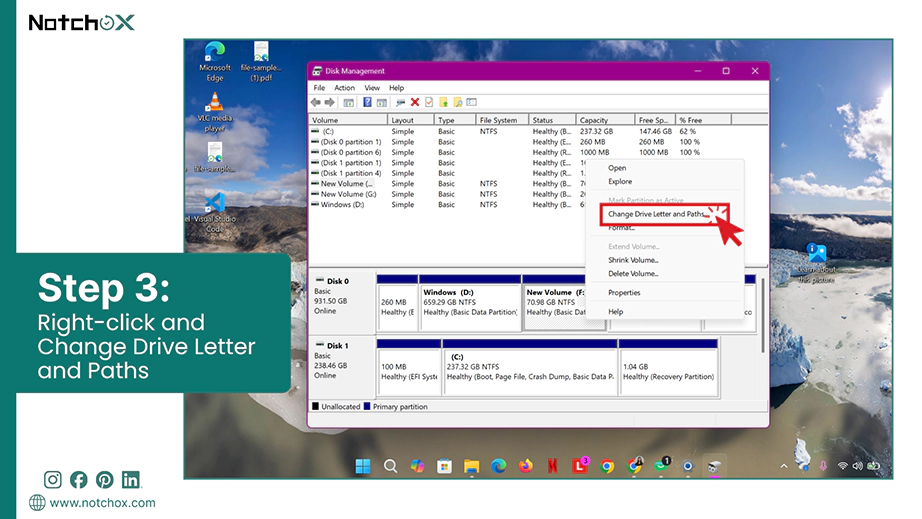
Right-click on the partition of that drive and select Change Drive Letter and Paths….
Click the Change… button.
Select and assign a new letter from the drop-down menu (avoid letters like C or D).
Click OK.
Confirm by clicking Yes on the warning message.
Repairing via Advanced Windows Command Line Tools
How to Fix via the chkdsk Command?
The CHKDSK command directly rebuilds the corrupted file structures that caused the file or directory is corrupted and unreadable error. It also helps in fixing cross-linked files and lost clusters.
To run CHKDSK on your device, follow these steps:
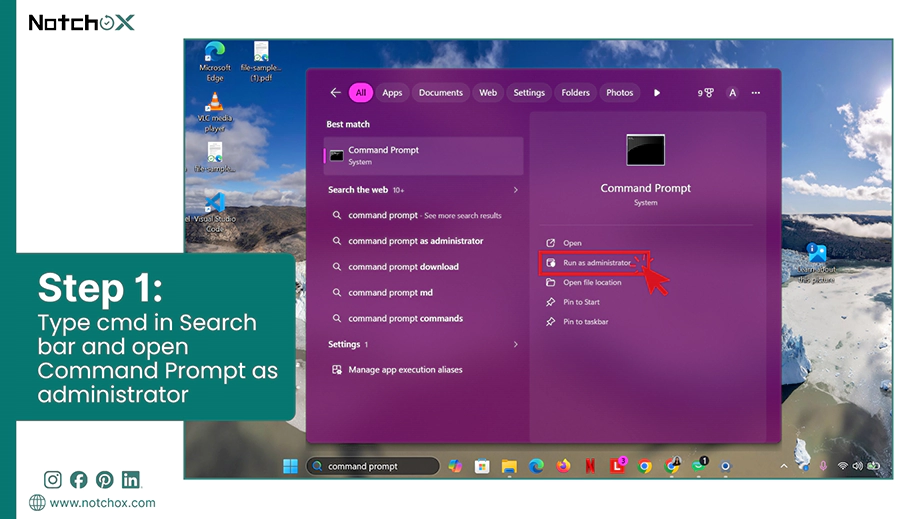
Type cmd in the Search bar. Select Command Prompt and click on Run as administrator.
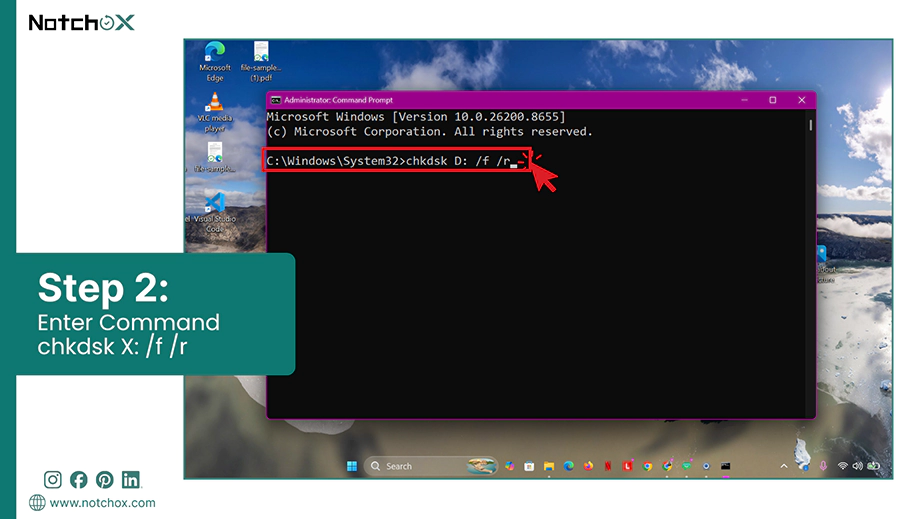
Type the following command exactly (replace X with your corrupted drive letter)
chkdsk X: /f /r
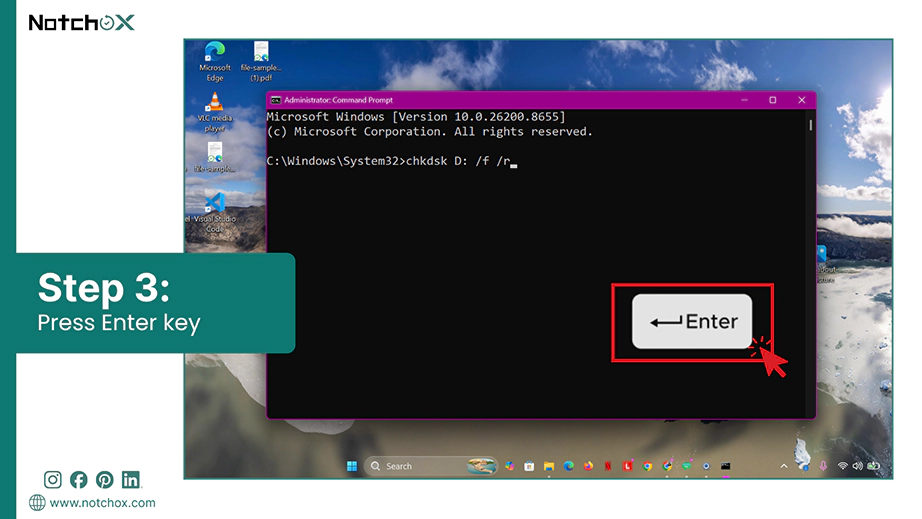
Press Enter.
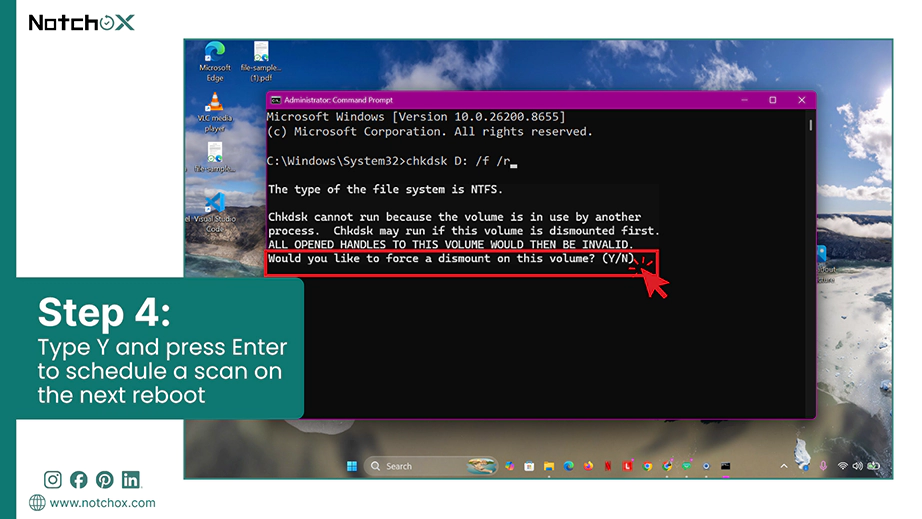
If the drive is in use, type Y and press Enter to schedule a scan on the next reboot or force dismount.
Restart your PC.
How to Fix Using the SFC (System File Checker) Scan Command?
The SFC scans critical operating system files and replaces the damaged components. So, if your directory is showing an error because of that, it will be fixed after the scan.
Steps to run the SFC command:
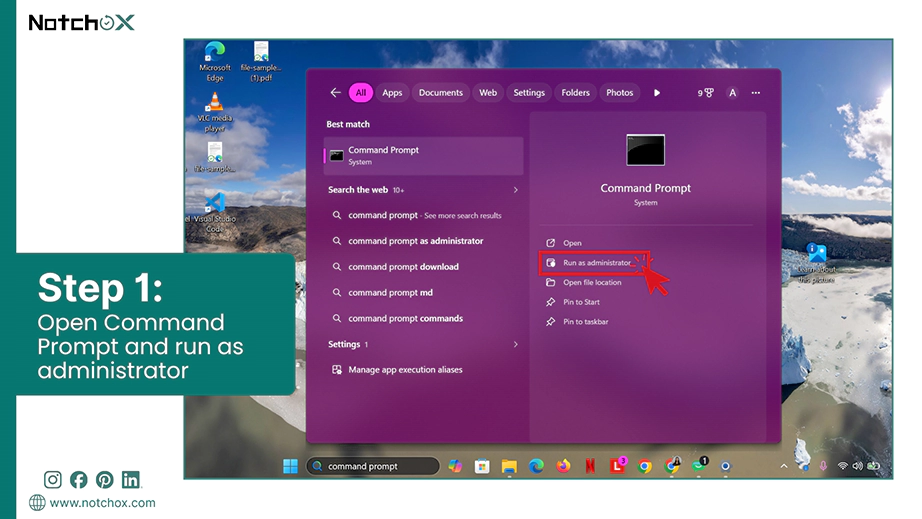
Open the Start Menu, type cmd, select Command Prompt, and click Run as administrator.
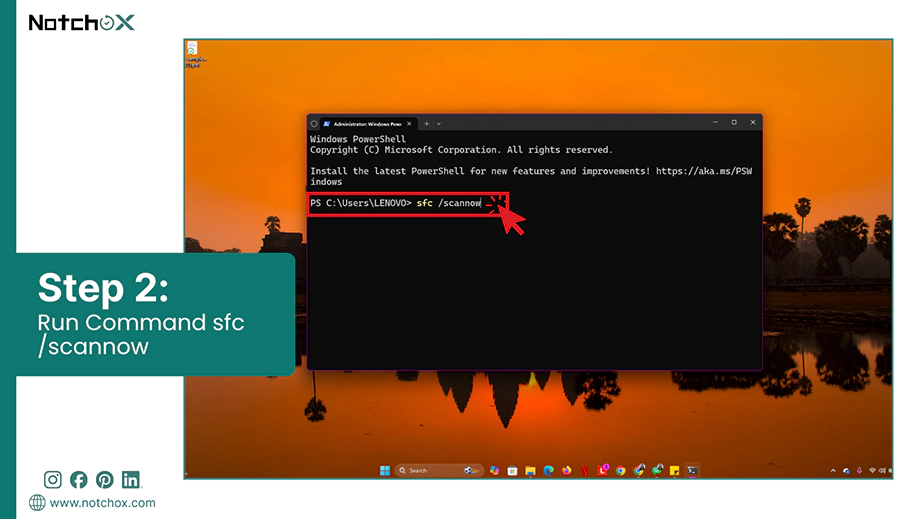
Type the following command exactly:
sfc /scannow
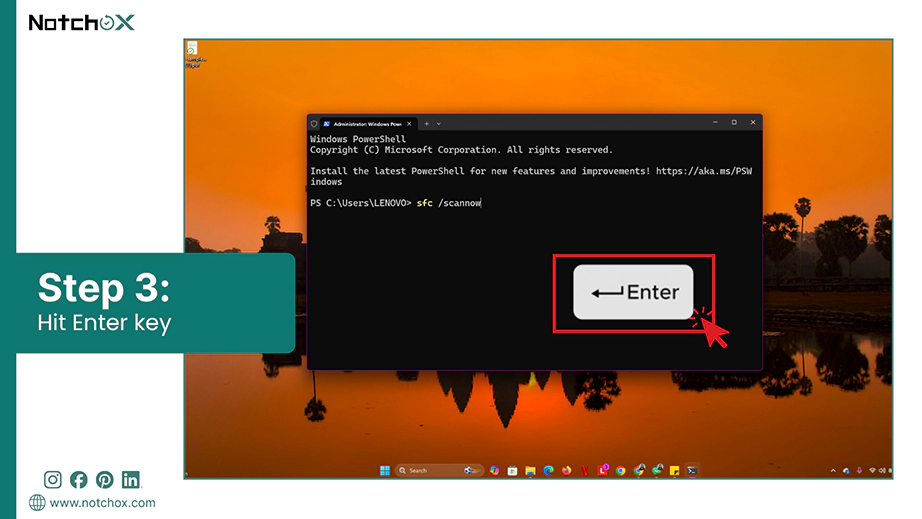
Press Enter.
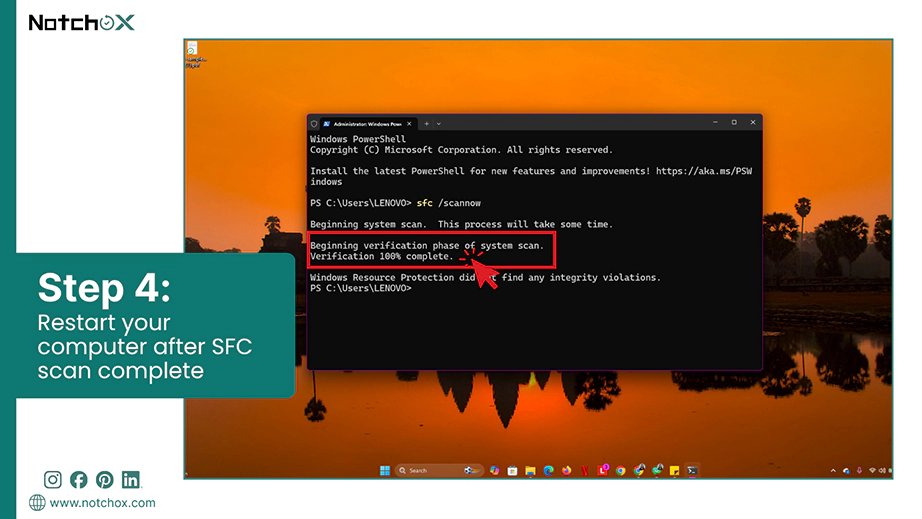
Once the scan is complete, review the final report to see if Windows fixed corrupted files.
Restart your computer to apply system repairs.
Performing Windows Startup Repair (Boot Devices)
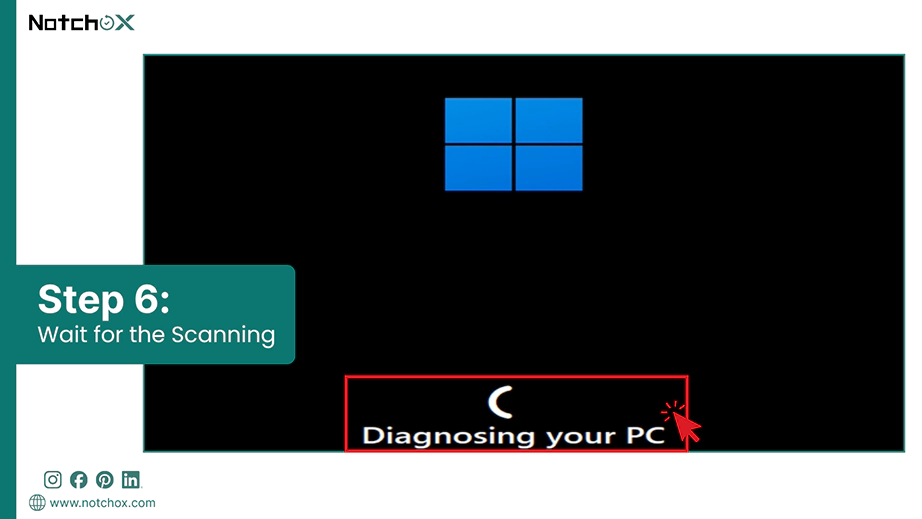
If the error is preventing you from accessing the drive, you should perform Windows Startup Repair because it fixes deeper system issues. After a successful Startup Repair, you can safely access your files and directories.
Step-by-step process to perform Windows Startup Repair.
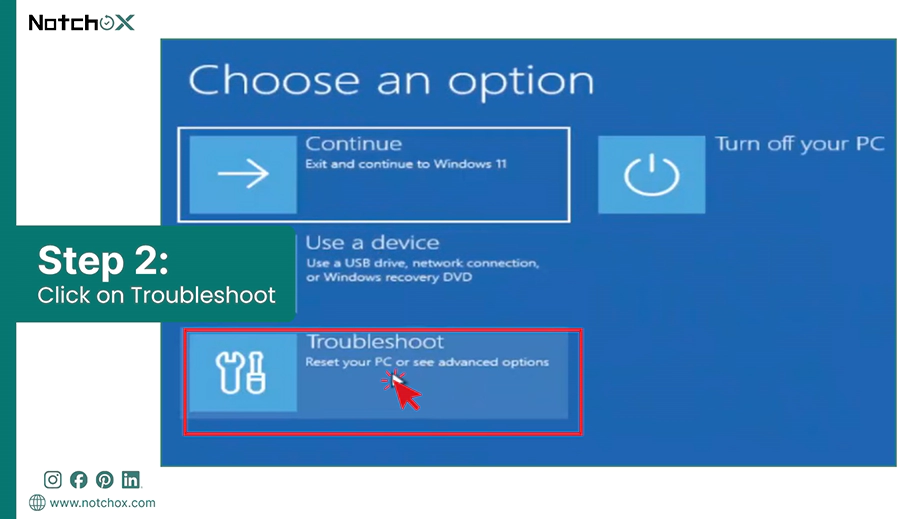
Enter the Windows recovery environment (WinRE) by:
Start your device and wait for the Windows logo.
As soon as the Windows logo appears, press and hold the power button till the device shuts down.
Again, turn on your device and repeat Step 1 (b).
The third time, your screen should display the Automatic Repair screen.
Click Troubleshoot.
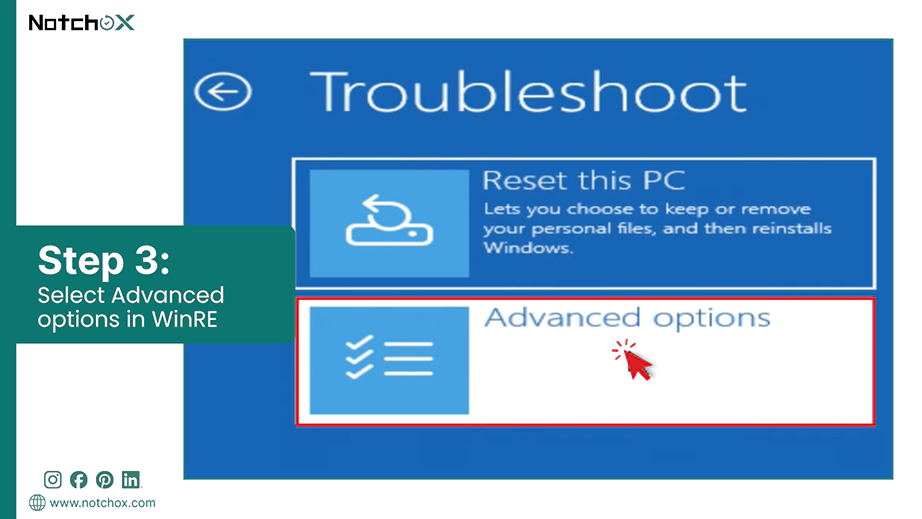
Select Advanced options.
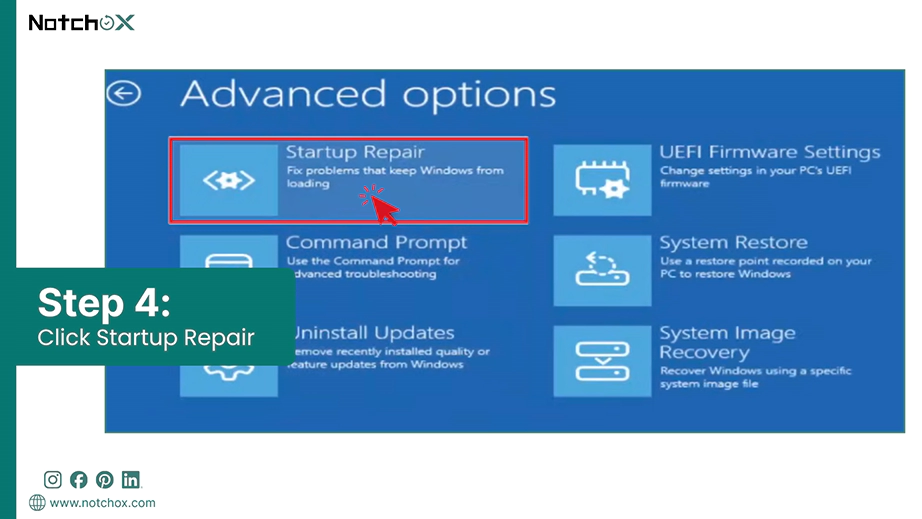
Click on Startup Repair.
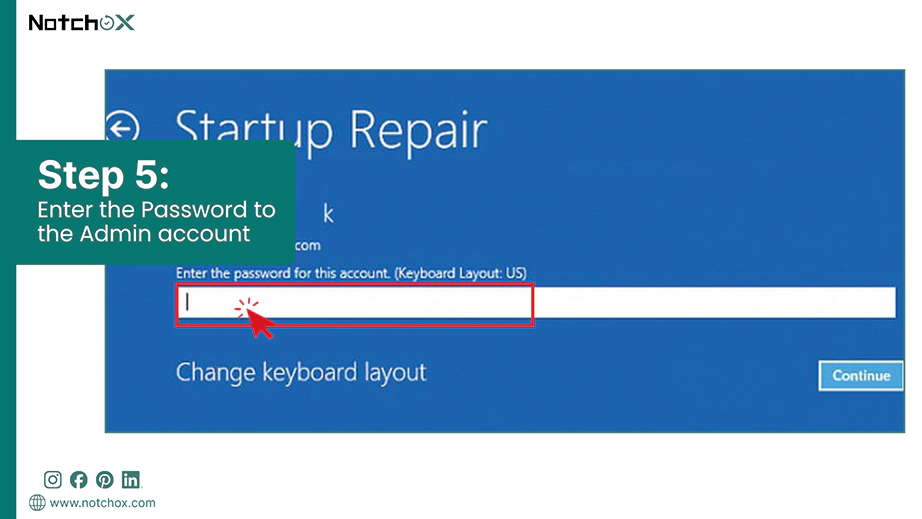
Choose your administrator account name and enter your password.
Wait for the scan to complete.
The system will automatically apply fixes and reboot your computer.
Formatting the Corrupted Drive
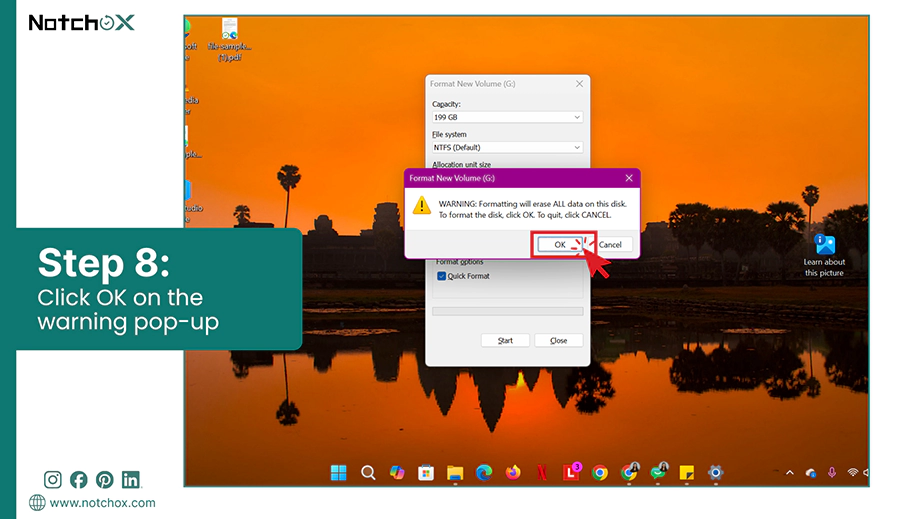
Formatting is the final way to fix the file or directory is corrupted and unreadable. What happens during formatting is that it will replace the damaged file system with a new file system and wipe away the corrupted data structures.
Here’s how to format your corrupted drive:
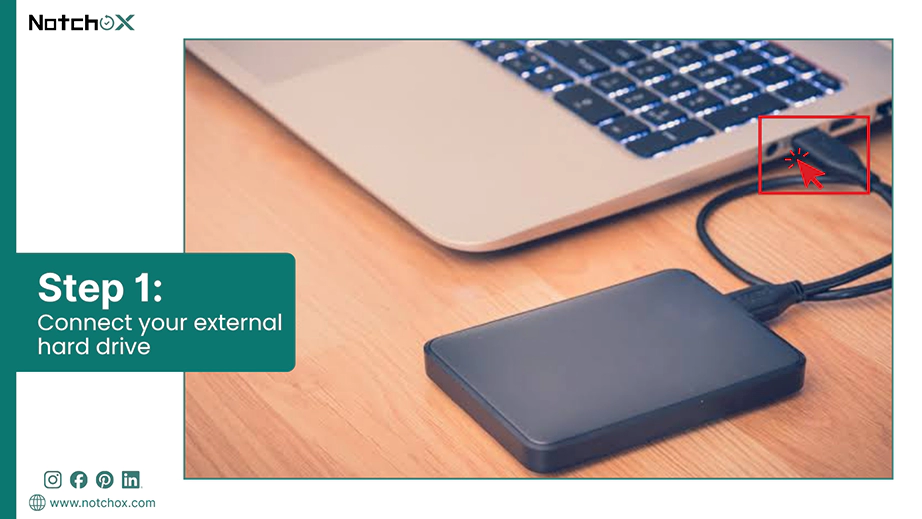
Connect your external hard drive, if it is the one you want to format.
Press Windows Key + E to open the File Explorer.
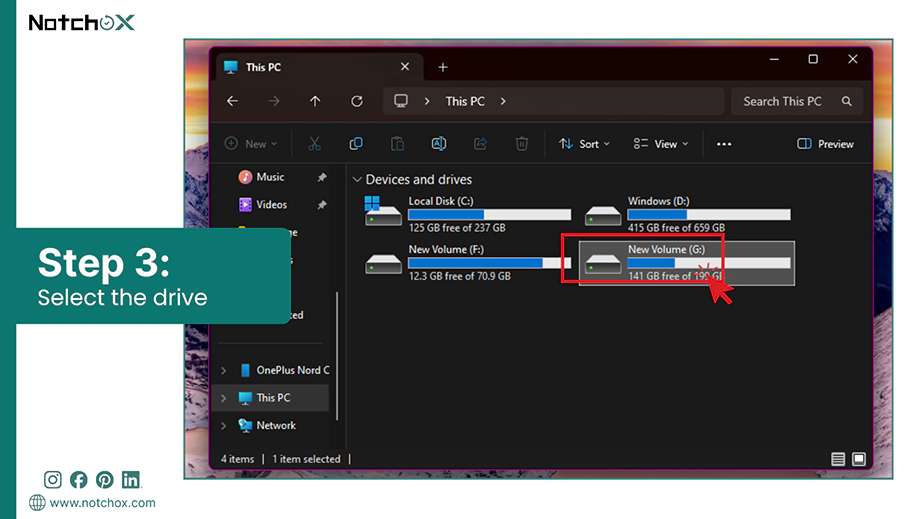
Go to This PC and select the drive you want to format.
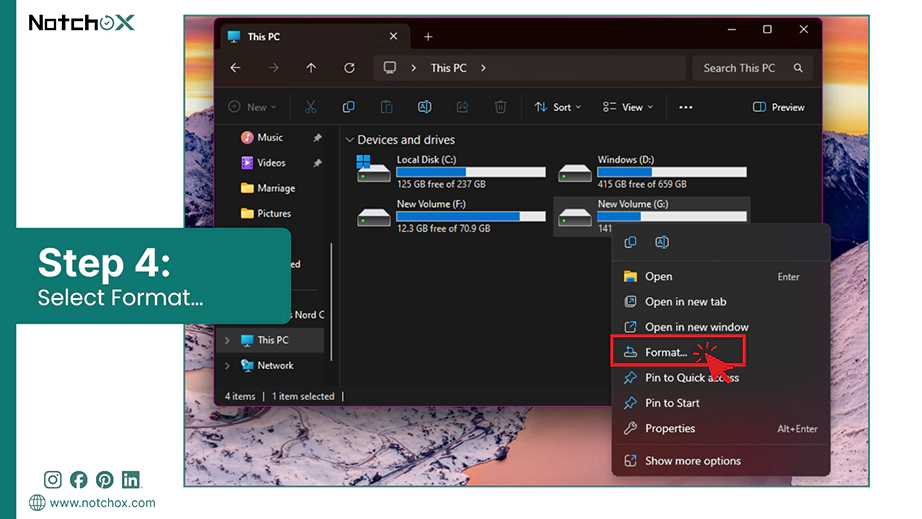
Right-click on the drive and select Format….
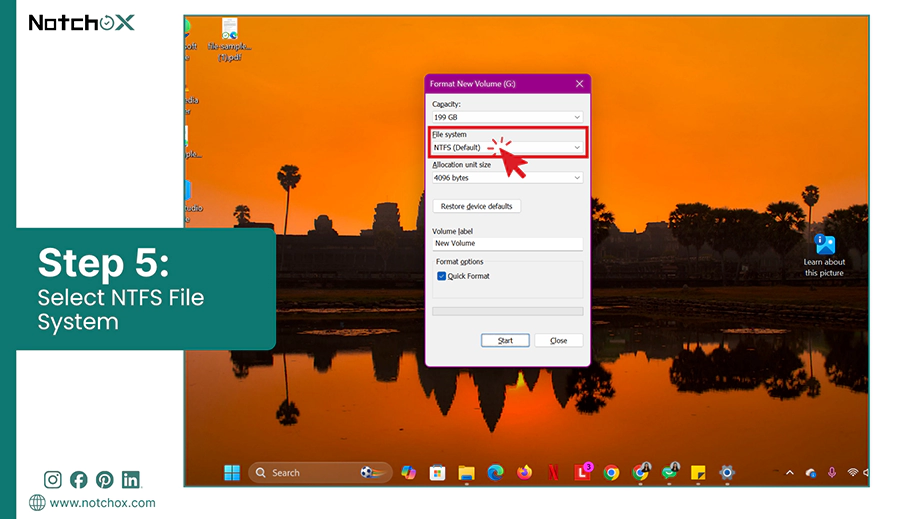
Choose the File System (NTFS for internal drives and exFAT for external drives).
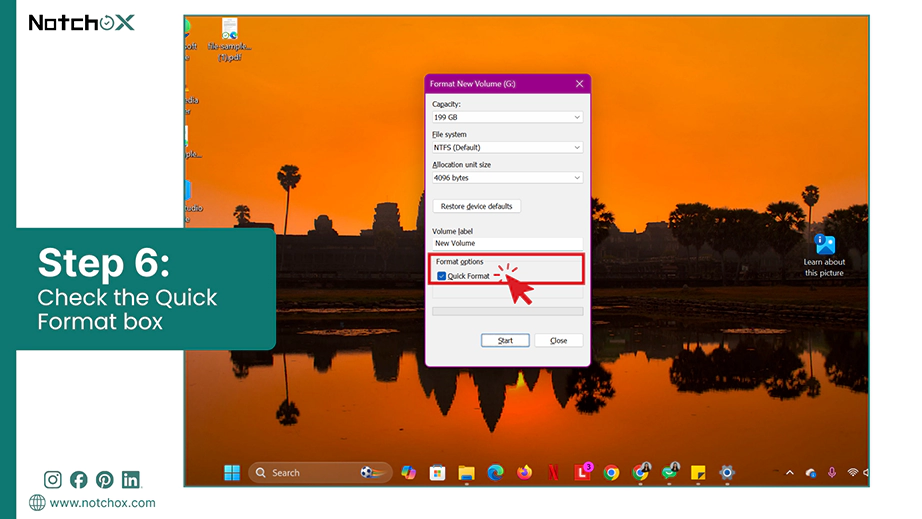
Check the box for Quick Format under Format options.
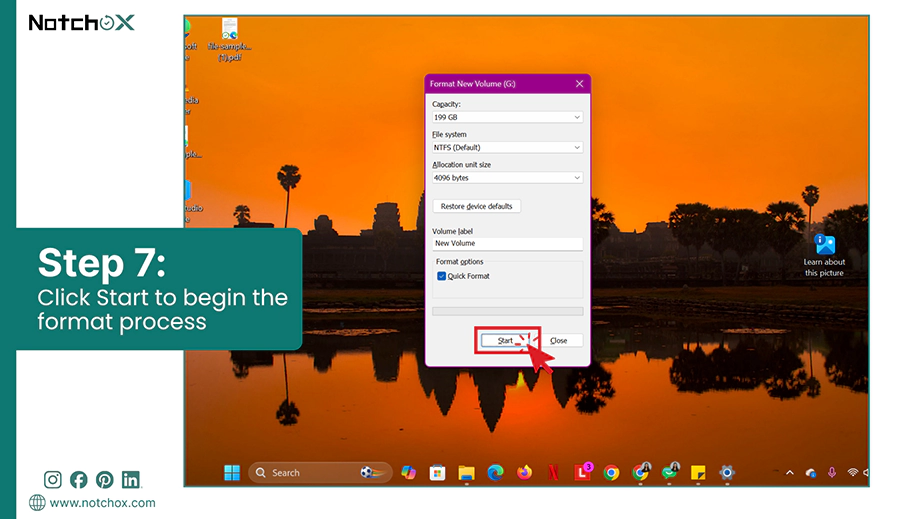
Start the format by clicking the Start button.
Then click OK to confirm.
Signs and Causes of “The File or Directory Is Corrupted and Unreadable” Error
When Windows cannot process a drive’s file system, it locks the folder path and makes it unreadable. Then shows an explicit error message. Understanding the early warnings and causes can help you prevent data loss before the failure occurs.
Signs of the Error “File or Directory Is Corrupted and Unreadable”
You will face one or more of the following system behaviours when a directory goes corrupt:
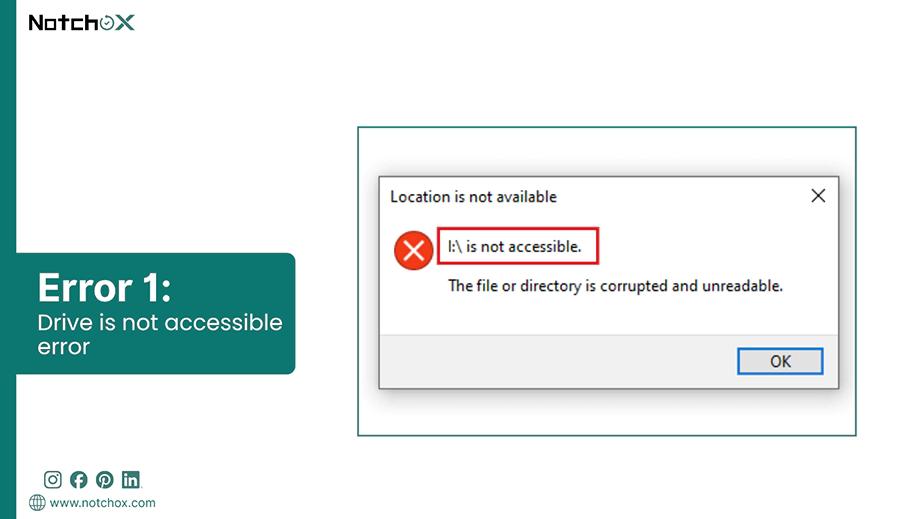
Error Pop Up like “the file or directory is corrupted and unreadable” or “Location is not available.”
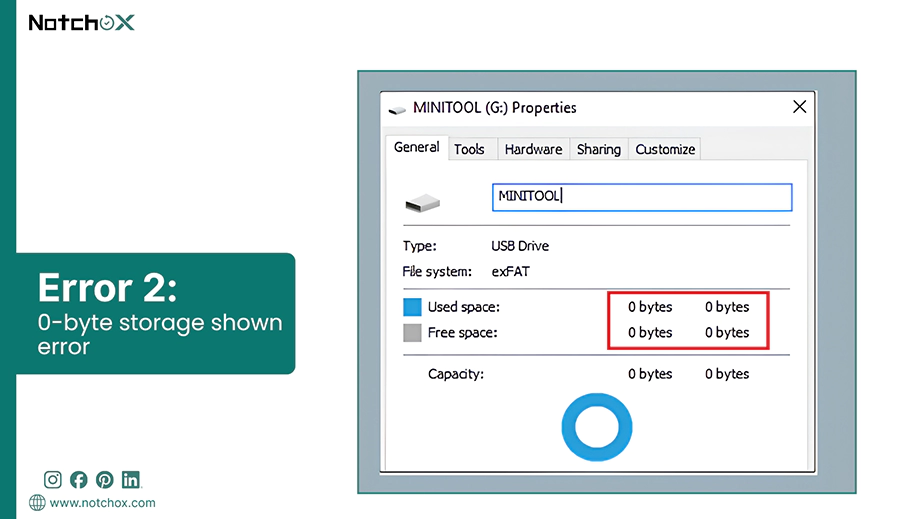
The drive properties window displays 0-byte storage.
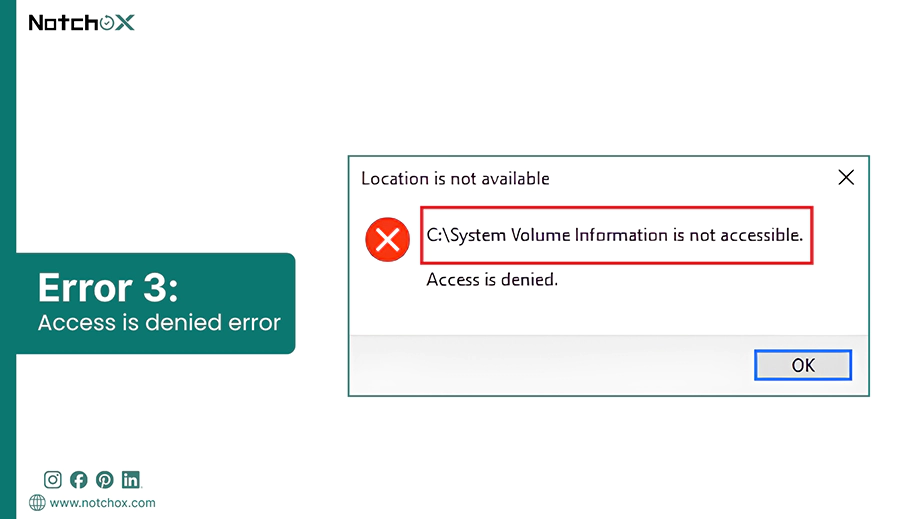
Access Denied prompts appear when you try to access files within a folder.
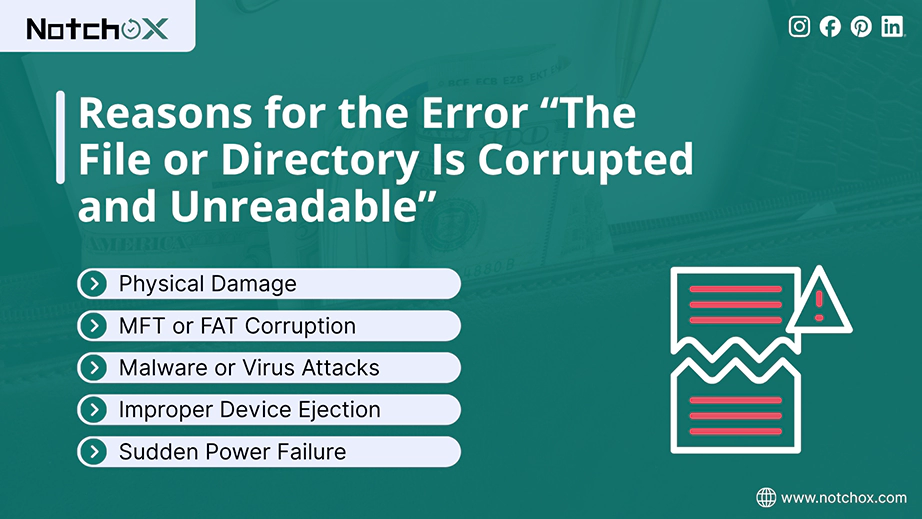
What are the Reasons for the Error “The File or Directory Is Corrupted and Unreadable”?
Physical Damage: Permanent damage to physical sectors of the drive makes them unreadable.
MFT or FAT Corruption: Damage to the Master File Table (MFT) or File Allocation Table (FAT) that Windows uses to track file locations.
Malware or Virus Attacks: Malicious software alters the drive partition tables and encrypts the files, making them unreadable.
Improper Device Ejection: Unplugging external drives while data is being transferred or altered.
Sudden Power Failure: Abrupt power failure causes a system crash that leaves data halfway written and broken.
How to Recover Lost Data When the File or Directory is Corrupted and Unreadable?
Repairing a corrupted file system always has a risk of data loss. Running commands like CHKDSK can sometimes also delete fragments of files during the fixing process. So, to protect your data, you should always extract your files using recovery software before trying any repair.
To safely recover your files from an unreadable directory, follow these steps:
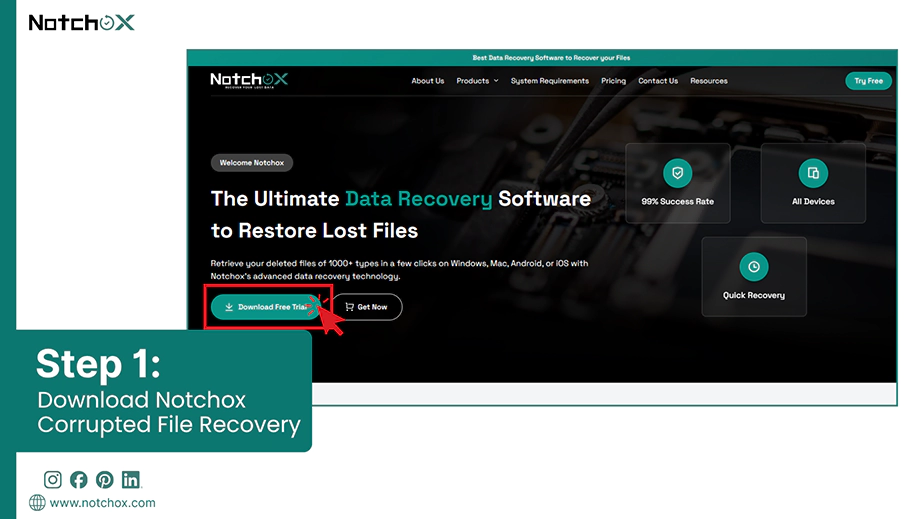
Step 1: Download and install Notchox Corrupted File Recovery Tool on a working drive. Make sure the external drive is connected to your computer if you are trying to recover files from an external hard disk.
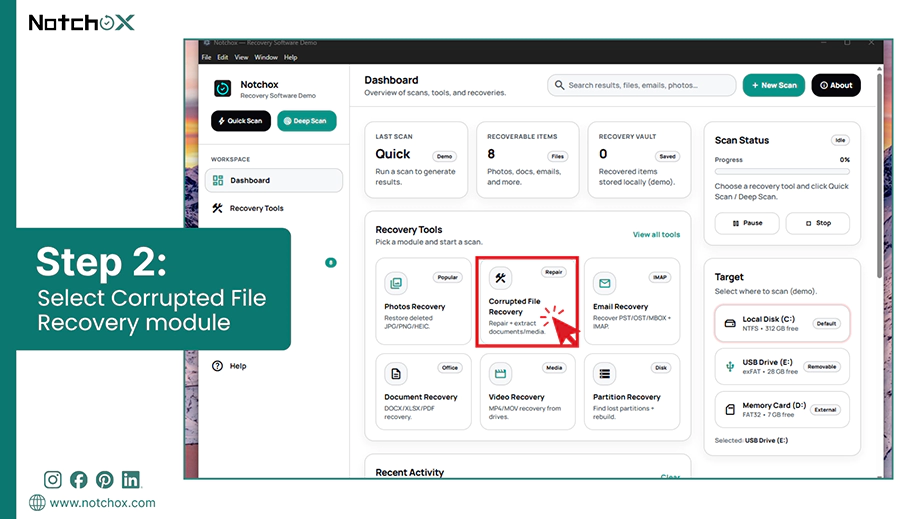
Step 2: Launch the application. From the Dashboard, select the Corrupted File Recovery module to recover corrupted files Windows.
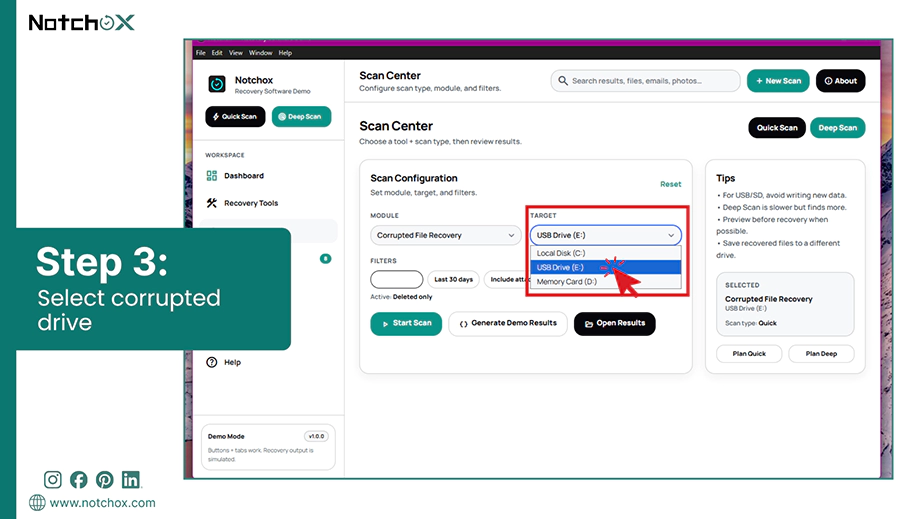
Step 3: You will see a Scan Center screen, select your target drive from the drop-down in Scan configuration.
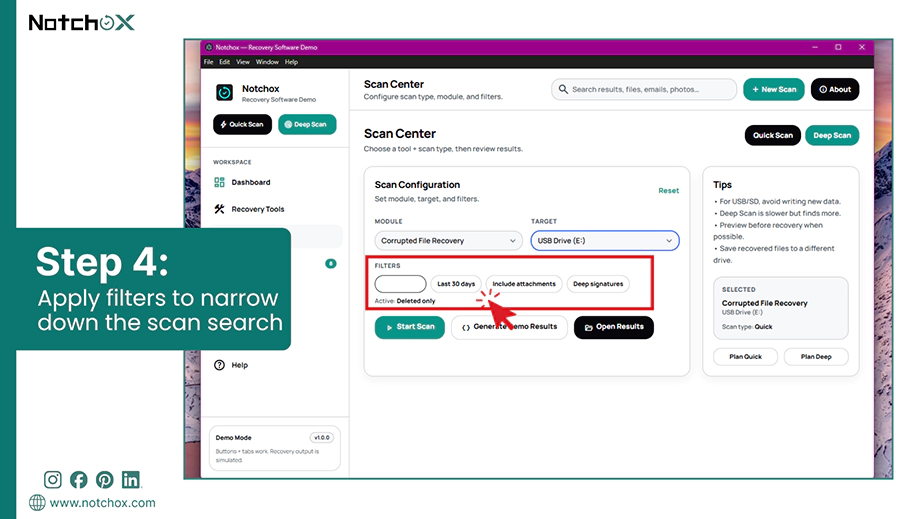
Step 4: Apply any filters like “Deleted only”, “Last 30 days,” or “Include attachments” if needed to narrow down the search.
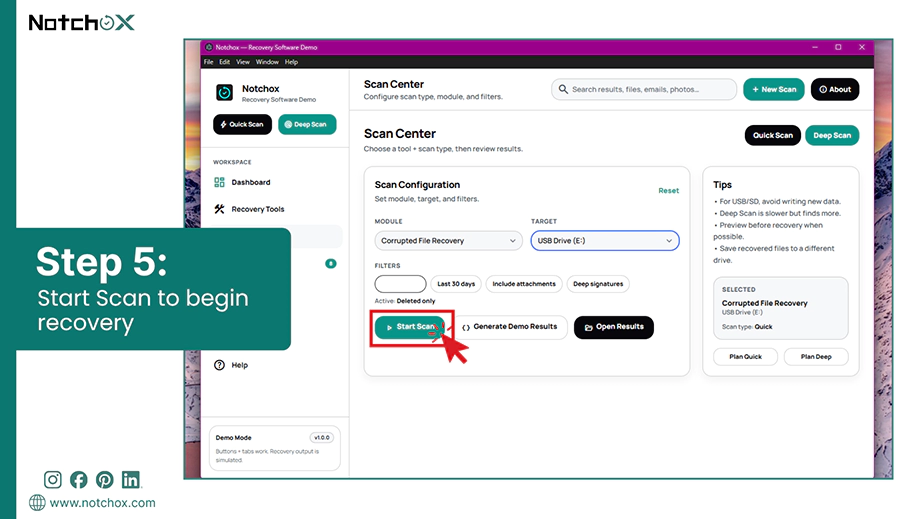
Step 5: Click the Start Scan button to run a scan that will detect and recover your corrupted files.
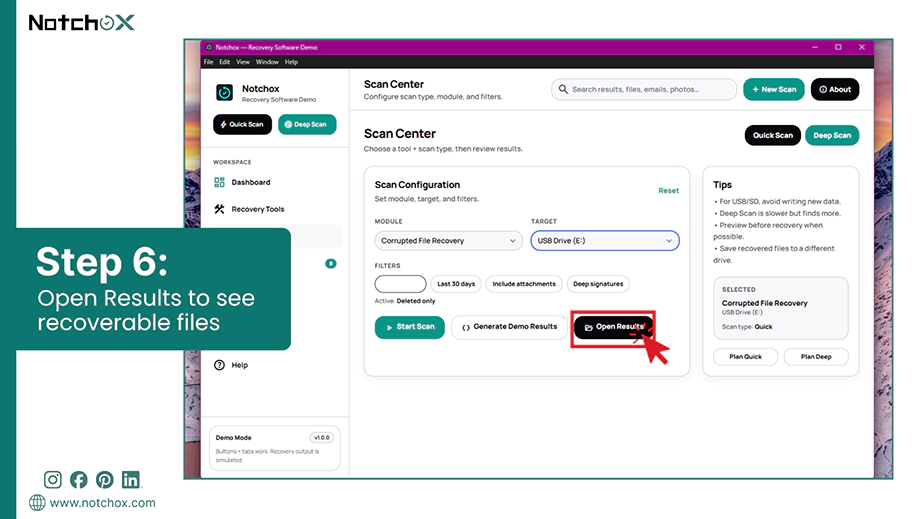
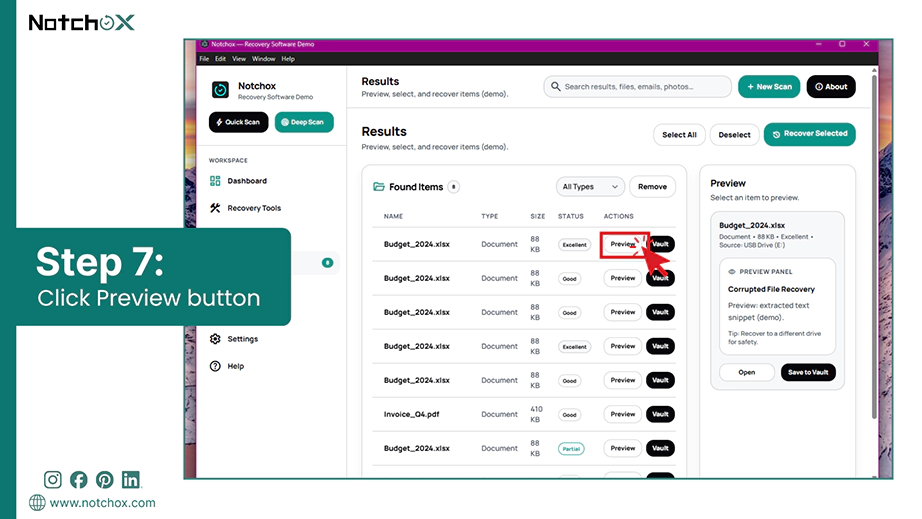
Step 6: Click the Open Results button, which will take you to the Results page. You can see the list of all the recoverable files with their names, type, status, and size.
Step 7: Notchox provides a free preview feature. So, you can click the Preview button next to the file you want to check to get a complete view of the file to decide if you want to keep it or not.
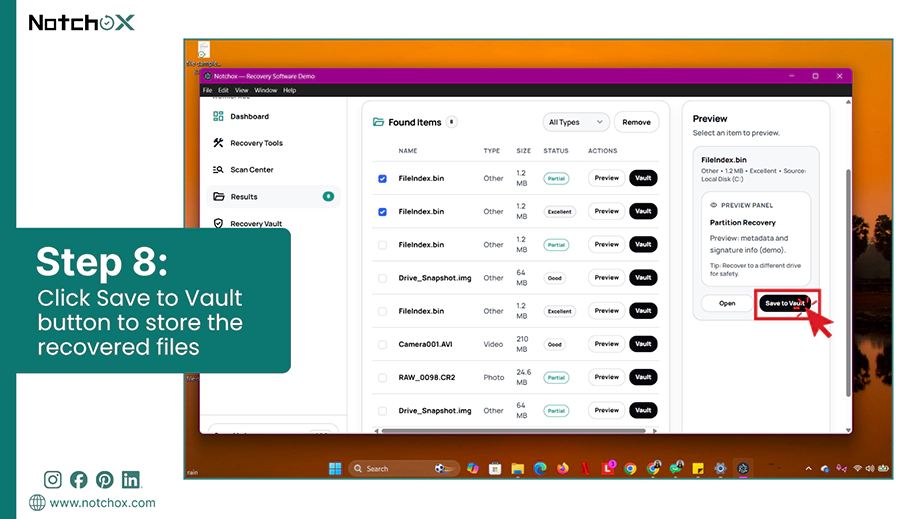
Step 8: Check the files you want to recover and click the Save to Vault button that will store the recovered files in safe storage.
Built with smart deep scanning algorithms, Notchox data recovery software lets you safely preview and recover files from crashed hard drive, corrupted drives, lost files, etc., with support for about 1000+ file formats.
Conclusion
To fix “the file or directory is corrupted and unreadable,” a correct troubleshooting sequence is required. This guide explained the steps for fixing the problem without any permanent data loss. Always remember that running command-line repair methods or formatting a volume comes with a risk of erasing files permanently. Prioritise data protection by extracting your files using Notchox recovery software before any repair methods.
Frequently Asked Questions (FAQs)
Q1: What does it mean when a file is corrupted?
Ans: When a file is corrupted, its internal data structure is either broken or unreadable. This happens due to software glitches, sudden power loss, etc.
Signs of file corruption:
The operating system fails to open a file
“Access Denied” error message
The file size might suddenly drop to 0 bytes
Q2: What is external hard drive unreadable fix?
Ans: An external hard drive unreadable fix refers to the troubleshooting methods used to restore access to an external storage device that Windows failed to read. To fix it, you can try reassigning a drive letter, running the CHKDSK command, or just formatting the drive to create a fresh file system if repair fails.
Q3: What is the Windows disk repair tool?
Ans: Windows include various built-in disk repair tools, such as Error Checking, using the Disk Properties. This tool scans the storage volume for logical errors and corruptions. It then fixes them without deleting any data, therefore, a user-friendly way to resolve minor issues.
Q4: How to fix the file or directory is corrupted and unreadable error?
Ans: To fix the file or directory is a corrupted and unreadable error in Windows, relocate the files to a new drive, run an antivirus scan, or use Hardware Troubleshooter. For deeper repairs, run the Error Checking tool and the CHKDSK command. If the repair methods fail, use data recovery software such as Notchox to extract your data and then perform a quick format to create a fresh file system.
Q5: What are the troubleshooting steps for a corrupted drive?
Ans: The troubleshooting steps for a corrupted drive:
Isolate your drive
Extract your data
Run error checking
Execute CHKDSK
Format the drive (if repair fails)
Q6: What to do if I don’t have any antivirus in my computer?
Ans: If you don’t have an antivirus, you can enable Windows Defender to scan. Go to System Settings > Privacy & Security > Windows Security > Virus & threat protection > Scan option > Full Scan > Scan now.
Q7: What are the command-line tools used to fix corrupted file systems?
Ans: Windows provides the following essential common line utilities to detect and repair corrupted systems:
CHKDSK (Check Disk)
SFC (System File Checker)
Q8: How to format a corrupted drive?
Ans: To format a corrupted drive: Open File Explorer and go to your corrupted drive. Right-click on it and select Format…, now configure the settings and check the Quick Format box. Finally, click the start button.
Q9: What are the reasons for “the file or directory is corrupted and unreadable” error?
Ans: This error shows up when Windows cannot read a drive’s file system index. The reasons for this are:
Physical damage to the drive
MFT or FAT corruption
Malware or virus attacks
Improper device ejection
Sudden power failure
Q10: What software to use to recover lost data when the file or directory is corrupted and unreadable?
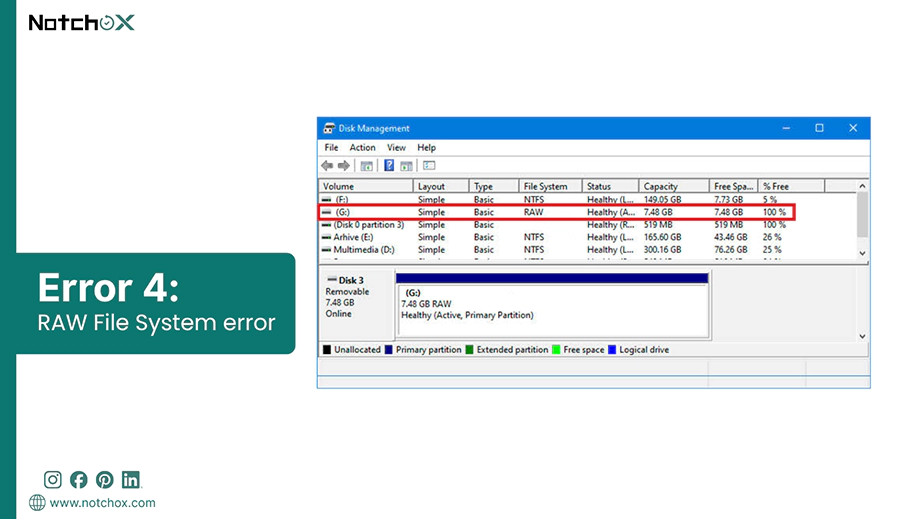
Ans: To recover lost data when the file or directory is corrupted and unreadable, one must use corrupted file recovery software. Notchox is highly recommended for this scenario. It deeply scans corrupted and unreadable drives, and can even recover data from a RAW partition. So you can preview and recover your files.
Q11: Can a corrupted drive be repaired?
Ans: Yes, a corrupted drive can be repaired if the damage is logical. Using CHKDSK or rebuilding the file system through formatting easily restores functionality. However, if the corruption is caused by physical hardware failure, the drive can not be repaired, it must be replaced.
Kajal Singh is a Data Recovery Writer at Notchox, specializing in data recovery, storage systems, RAID, and digital forensics. She writes technical processes, tools, and cases into clear, engaging articles, blogs, and guides. Kajal does thorough research, deep analysis, and collaborates with experts to produce high-quality and engaging content that is easy to understand for every reader.