You can stop Windows updates by pausing them in your Settings app for a maximum of 5 weeks or use Windows Update services, Group Policy Editor, and Registry Editor to stop them permanently. As Windows updates are important for keeping computers up to date, it is not recommended to stop auto update Windows for long.
This guide explains how to stop Windows updates without causing any trouble to your computer. We cover all the methods that can be used on Windows 10 and Windows 11. At the end, we will also see what happens when you stop turning off updates in Windows 10/11.
Quick Answer: The easiest method to stop Windows updates for up to five weeks is using the Settings app. For a longer-term break from Windows updates, you can disable background Windows Update service or use the Group Policy Editor to turn off automatic downloads permanently.
There are four verified ways to turn off Windows automatic updates. You can choose one depending on whether you want a quick temporary break or a permanent block. Microsoft designs Windows to download patches automatically, but you can stop these updates using native system settings, menus, advanced configuration folders, or open-source scripts.
Below are the four best methods explaining how to stop Windows updates for Windows 10 and 11:
Method 1: The Settings App (Temporary Pause)
You can stop Windows updates temporarily by pausing them directly in the Windows Settings app. This is the safest and easiest official method. You can block all updates for up to 3 to 5 weeks using Settings. Turning off Windows updates on Windows 11 is slightly different from Windows 10.
Turn Off Updates in Windows 10:
Windows 10 has a “Pause updates” feature in Settings that can be used to turn off Windows 10 updates. Though it does not actually cancel Windows updates, it just pauses them for up to 35 days.
How to stop the updates in Windows 10 using Settings:
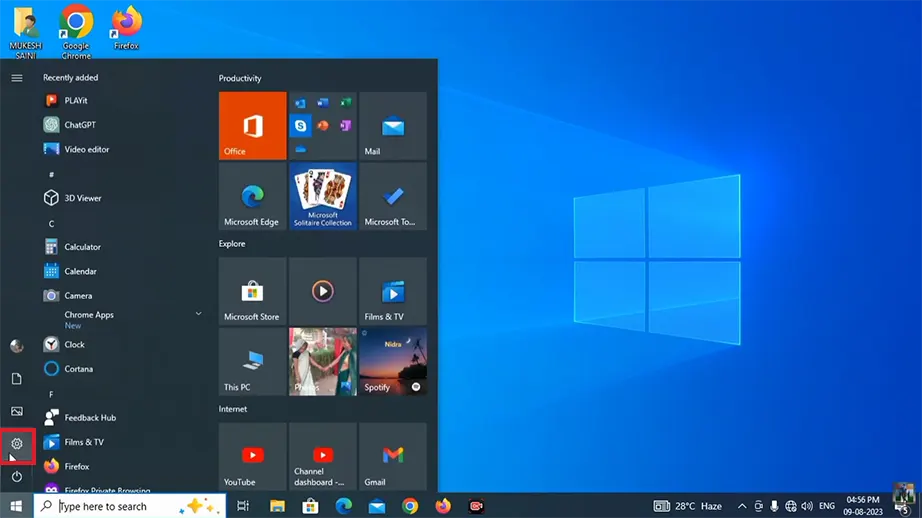
Click the Start menu and select the Settings gear icon (or press Win + I).
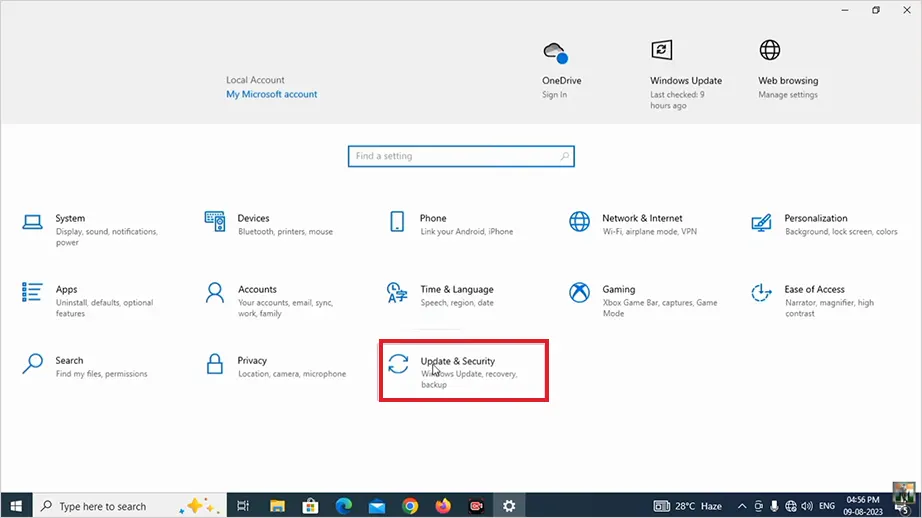
Click on Updates and Security.
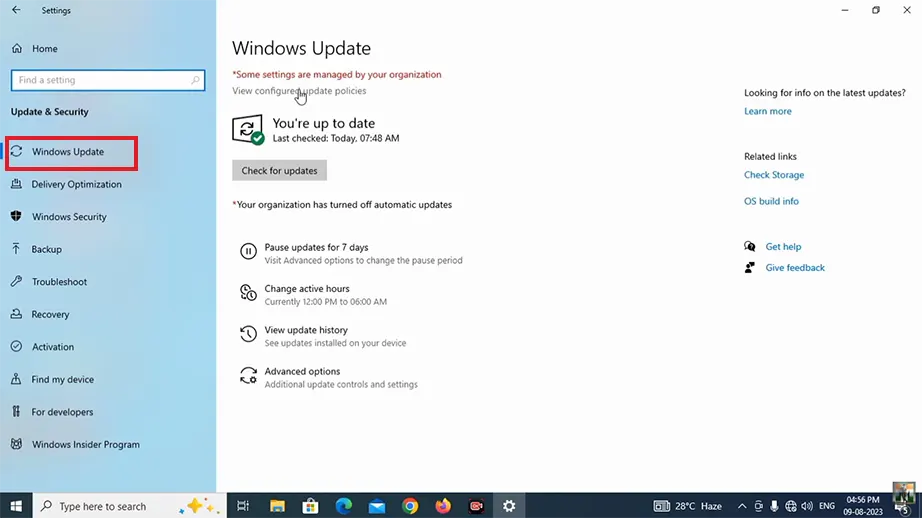
Choose Windows Update from the left sidebar.
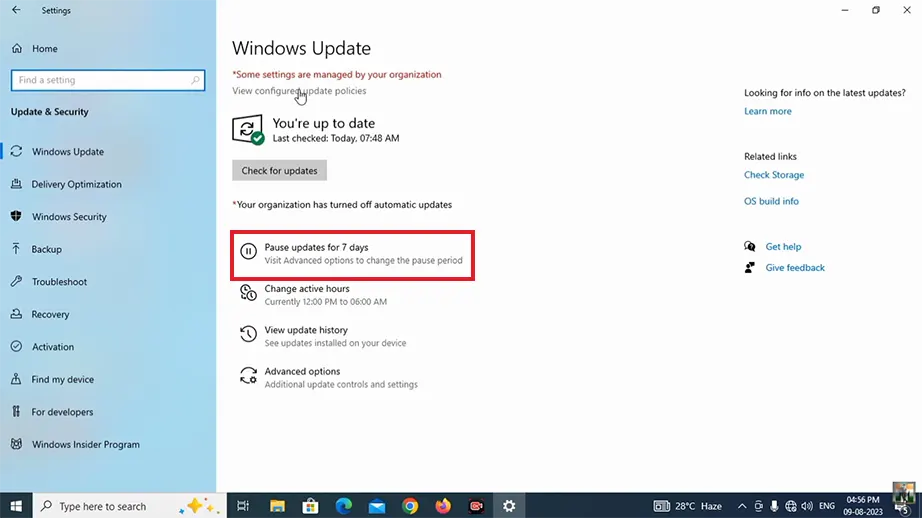
Click Pause updates for 7 days or Advanced options to select a specific date to switch off Windows 10 updates temporarily.
Turn Off Updates in Windows 11:
Windows 11 has the same Pause Windows updates feature in Settings with slight navigation differences. You can avoid Windows updates for a maximum of 35 days using this method.
How to stop updating Windows using Settings:
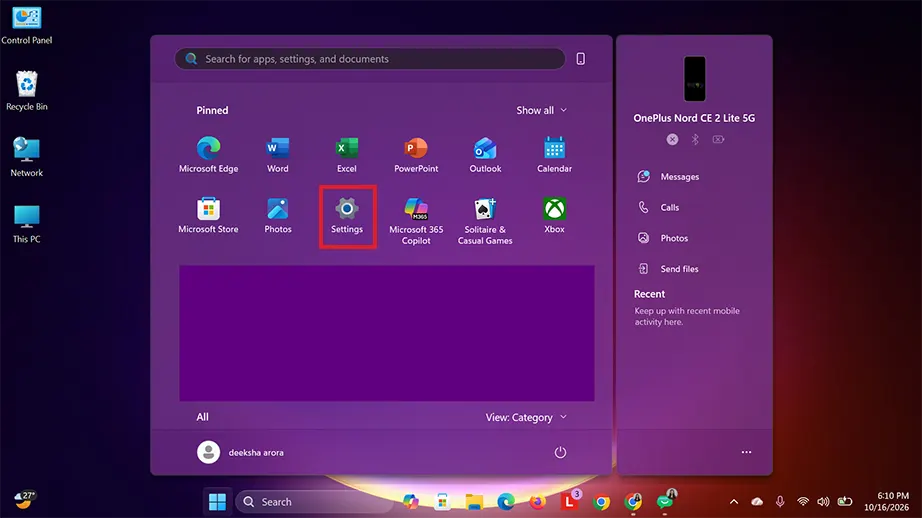
Click the Windows Start menu in the taskbar and select Settings to open.
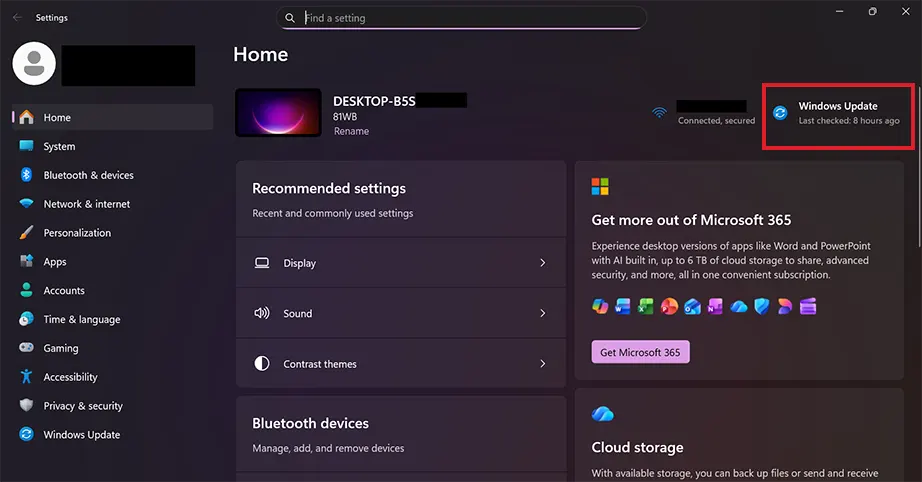
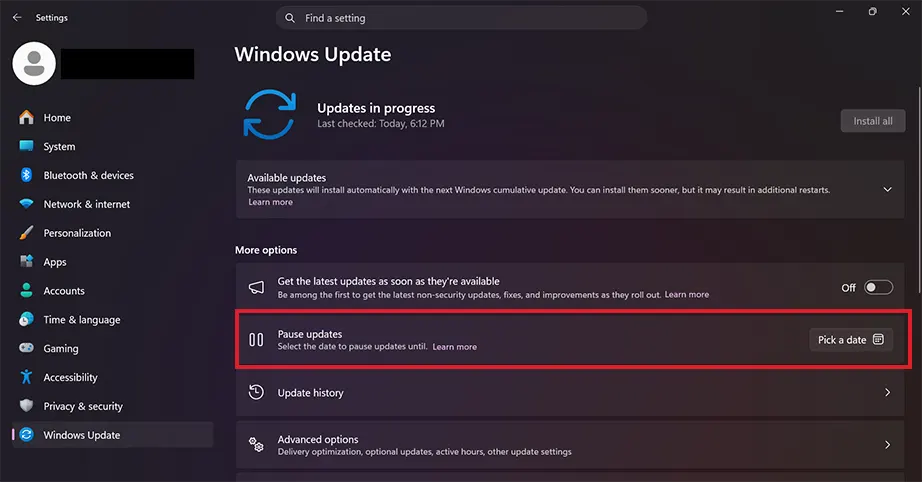
Click on Windows Update at the top-right or from the bottom of the left sidebar.
Under More options, you will find Pause updates with a date selection.
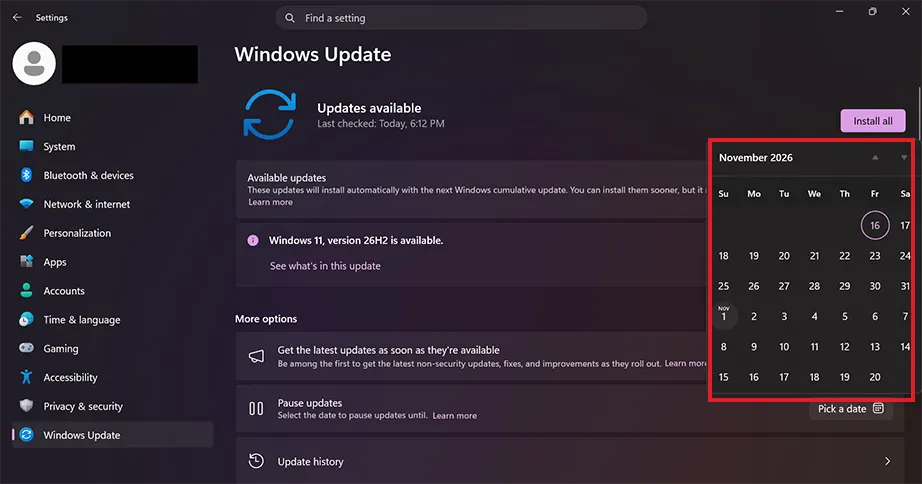
Click on Pick a date and select a date till when you wish to temporarily turn off Windows automatic updates.
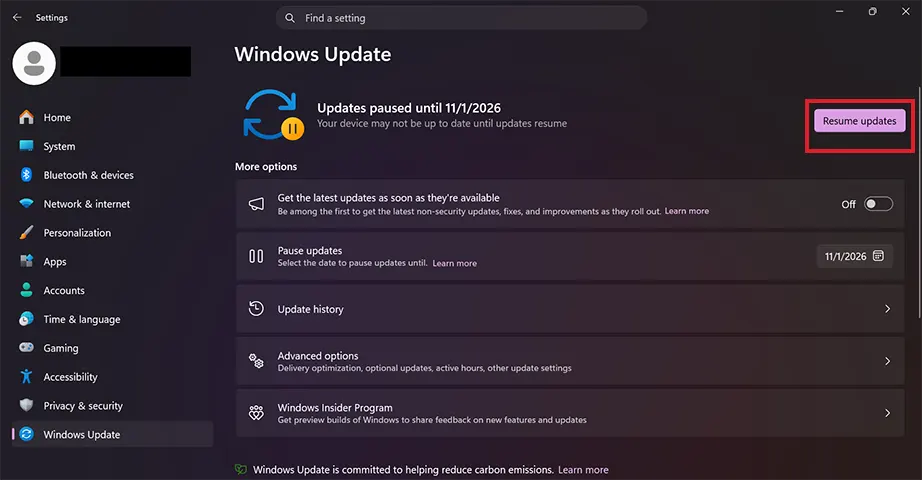
Once selected, you will see that the Check for updates button changes to Resume updates. This shows that auto update is disabled successfully.
Method 2: Disabling Windows Update Services
You can stop Windows updates by disabling the Windows Update services. Windows Update services are what check for, download, and install new software patches. When you turn it off, it cuts off the system’s communication with Microsoft’s update servers until you turn it back on.
How to prevent Windows Update by disabling the Windows Update Services:
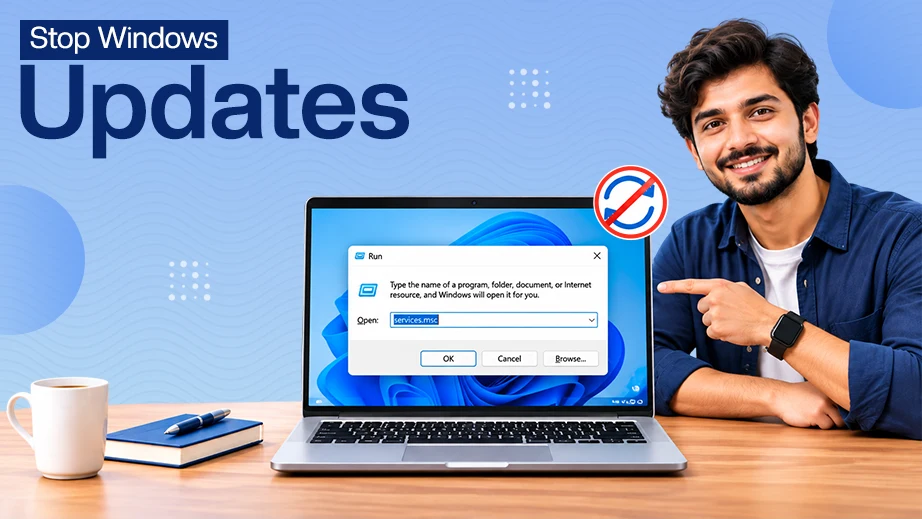
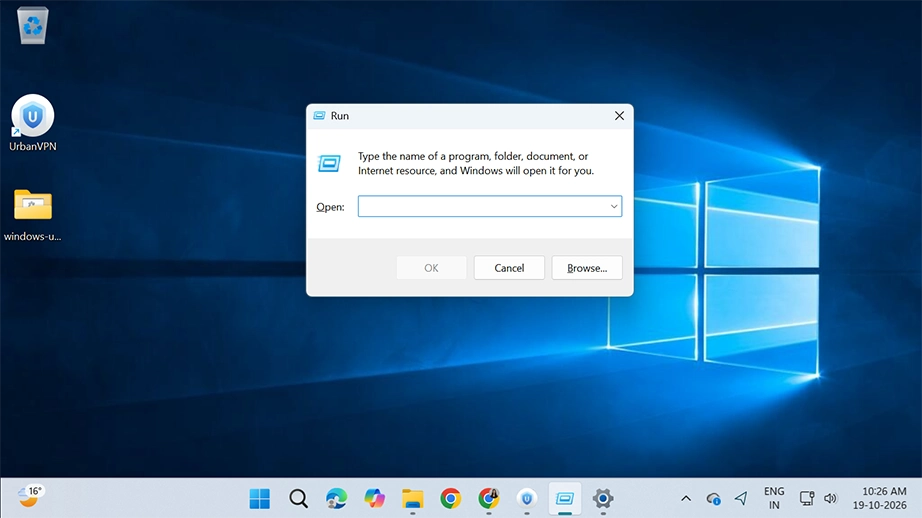
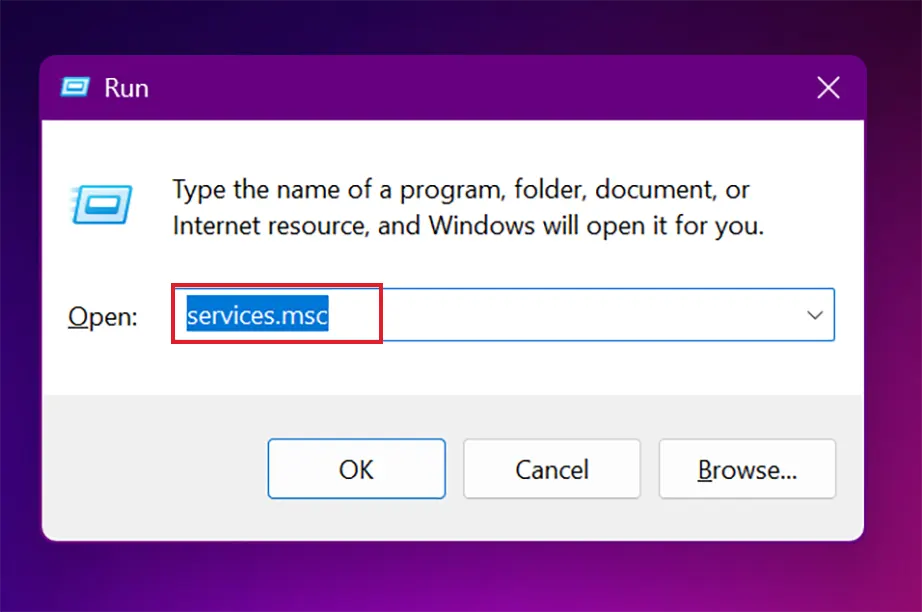
Press the Win + R keys to open the Run dialog box.
Type services.msc into the box and press Enter (or click OK).
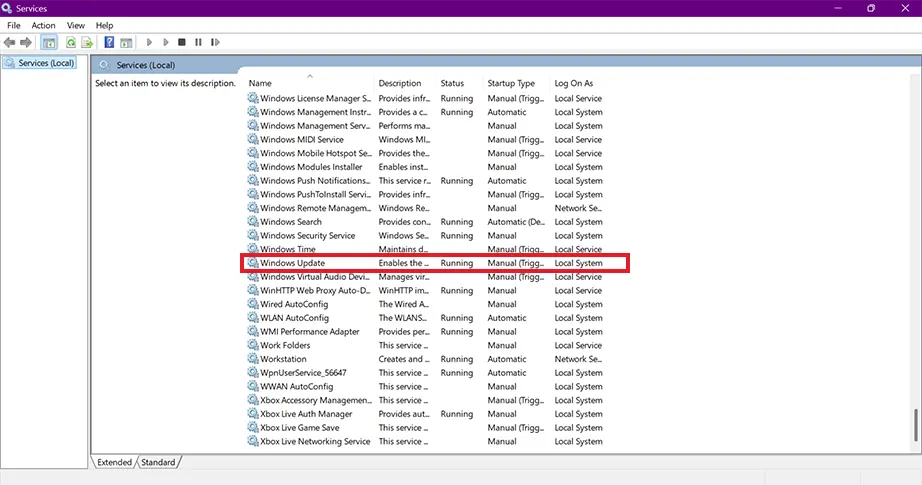
Scroll down in Services and find Windows Update.
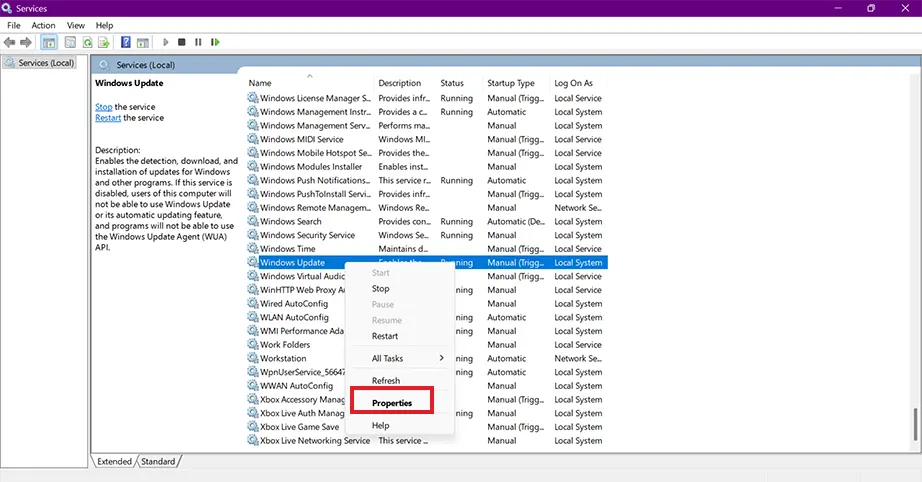
Right-click Windows Update and select Properties from the menu.
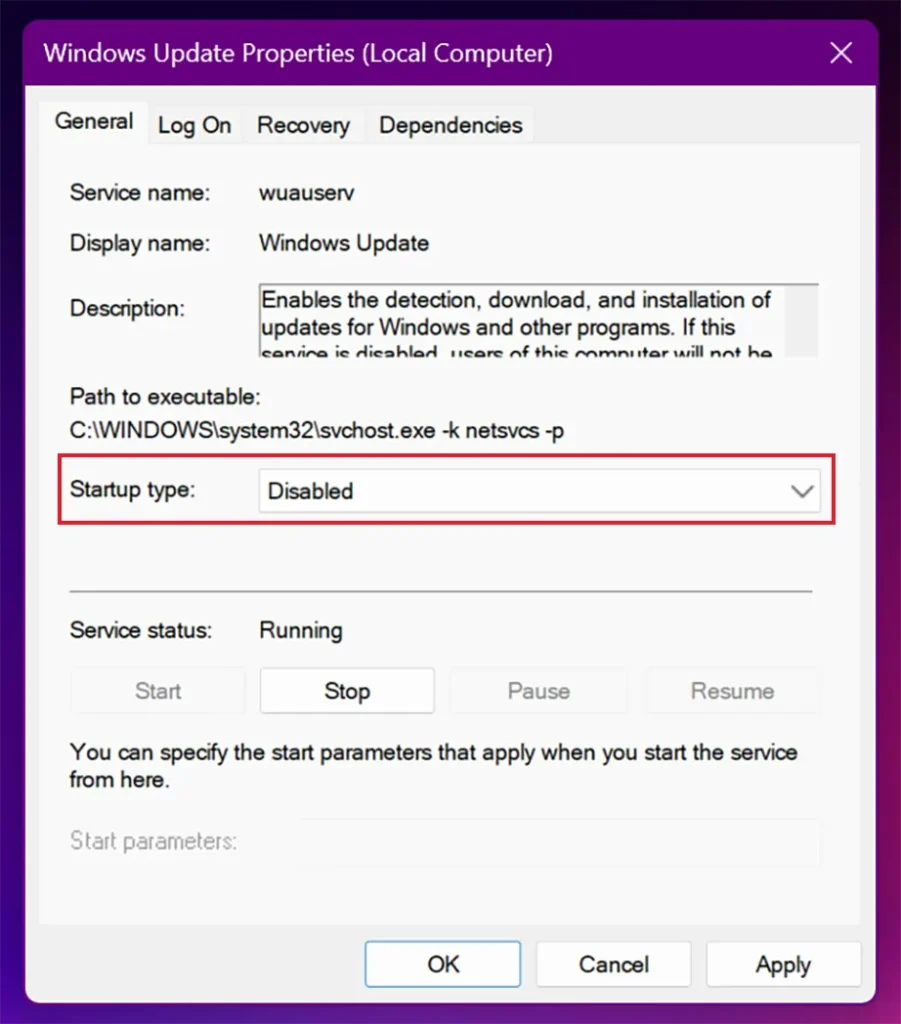
In the Properties window, change the Startup type from Enabled to Disabled.
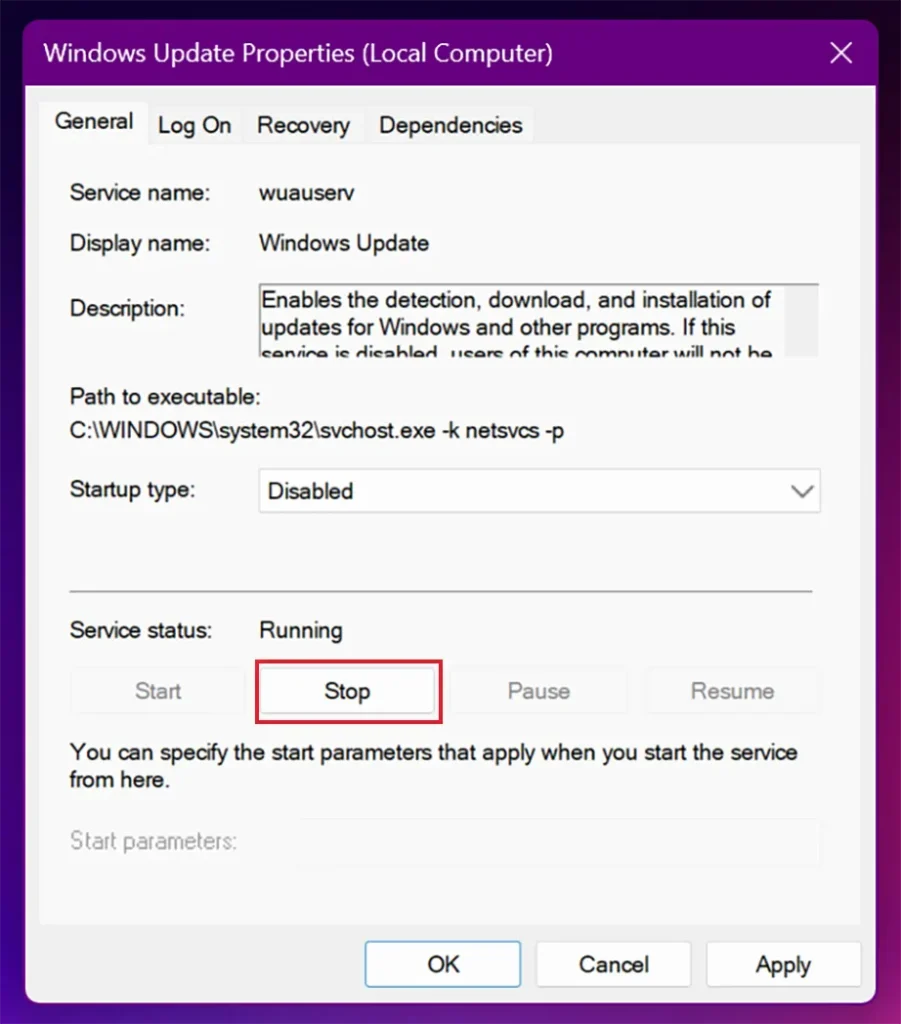
Then, just below that, under the Service status section, click the Stop button to shut it down immediately.
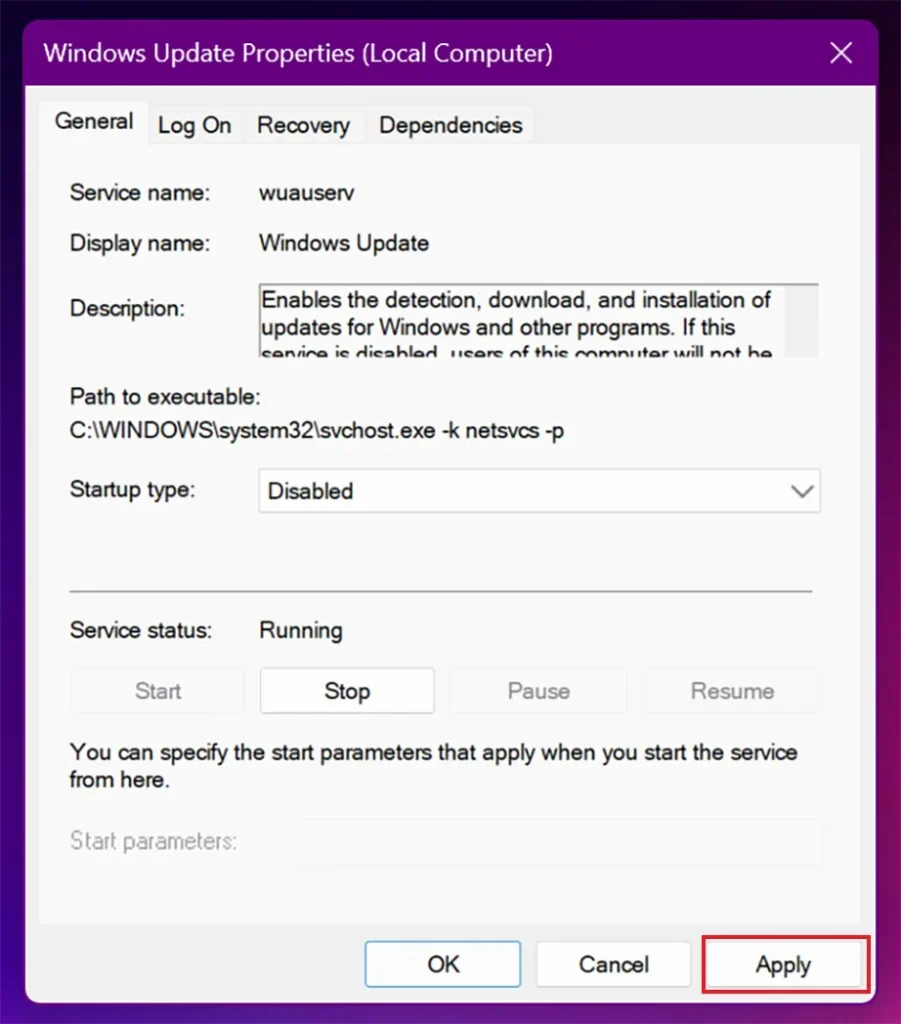
Click the Apply button.
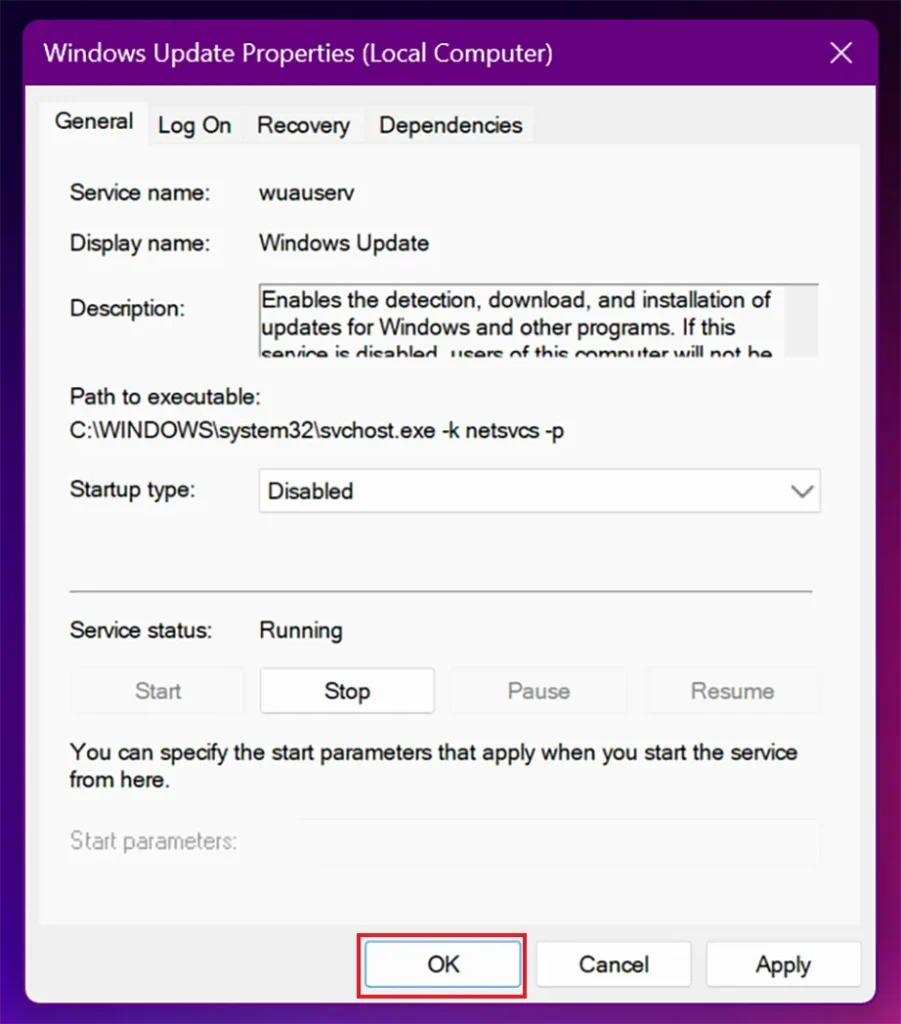
Click OK to save your new settings.
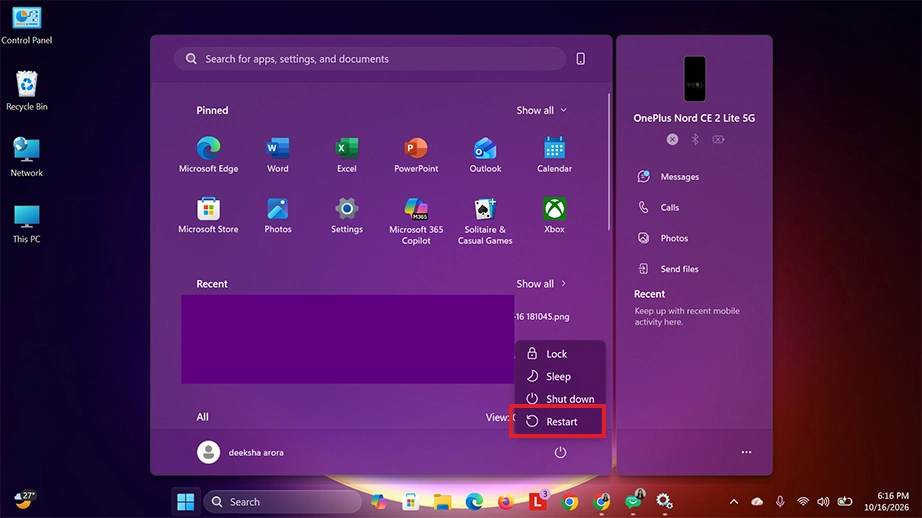
Restart your computer to completely finish the process.
Note: Windows rests background tasks during major system cleanups, so you may need to check back and repeat these steps if updates suddenly start downloading again in the future.
Method 3: Using Group Policy Editor
Stop Windows updates using the Local Group Policy Editor, which lets you change system rules to block automatic updates completely. This method is permanent but is only available for Windows Pro, Enterprise, or Education editions.
Note: Windows Home users do not have access to this tool.
How to turn off Windows updates using Group Policy Editor:
Press the Win + R keys on your keyboard to open the Run window.
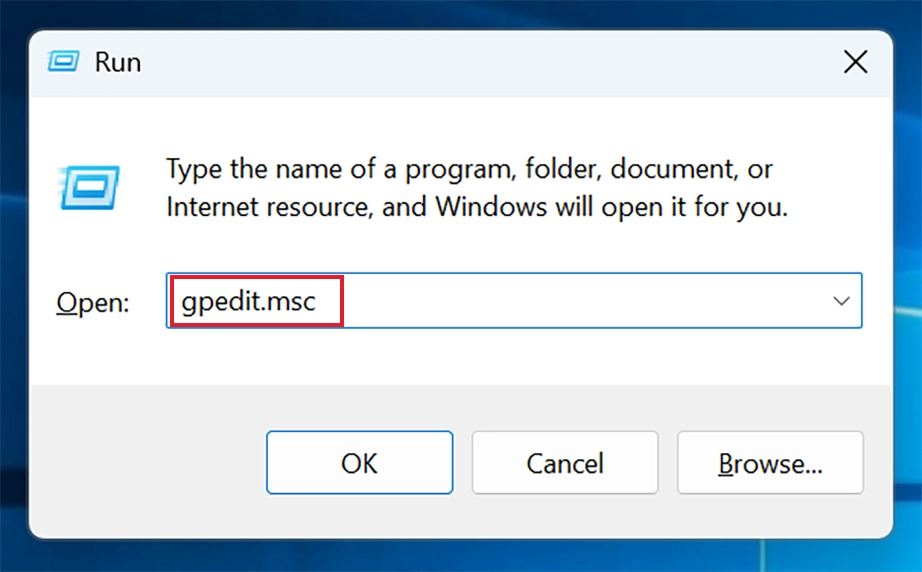
Type gpedit.msc and press Enter (or click the OK button) to launch the Group Policy Editor.
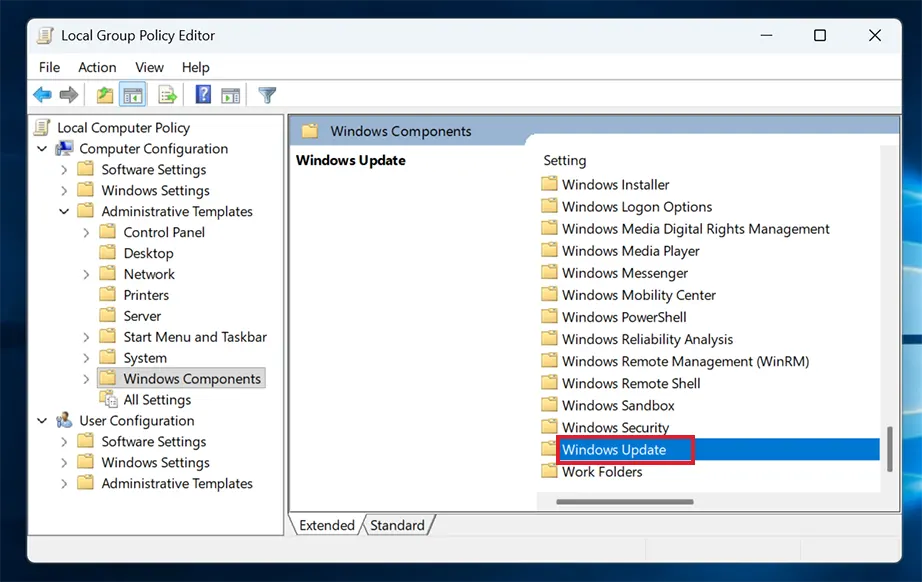
In the left sidebar, go through these folders:
Computer Configuration > Administrative Templates > Windows Components > Windows Update
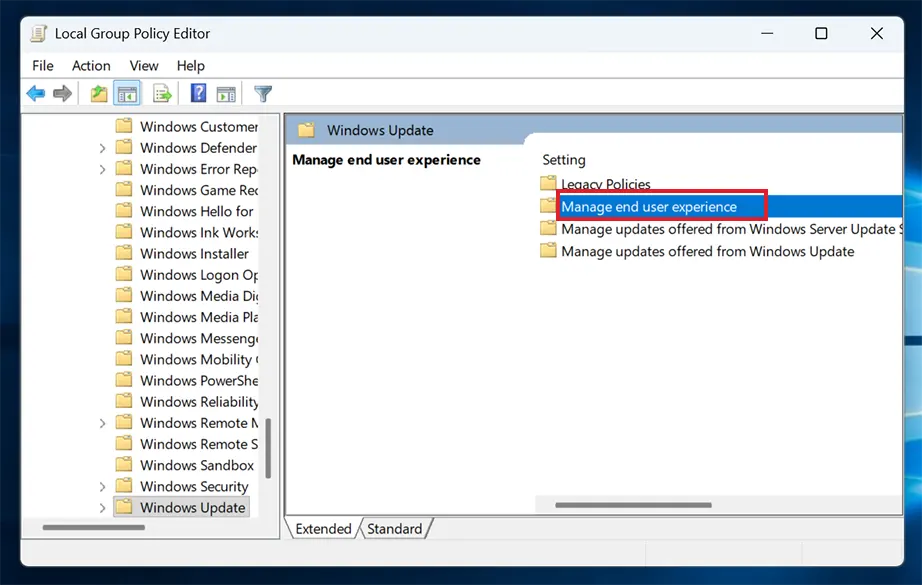
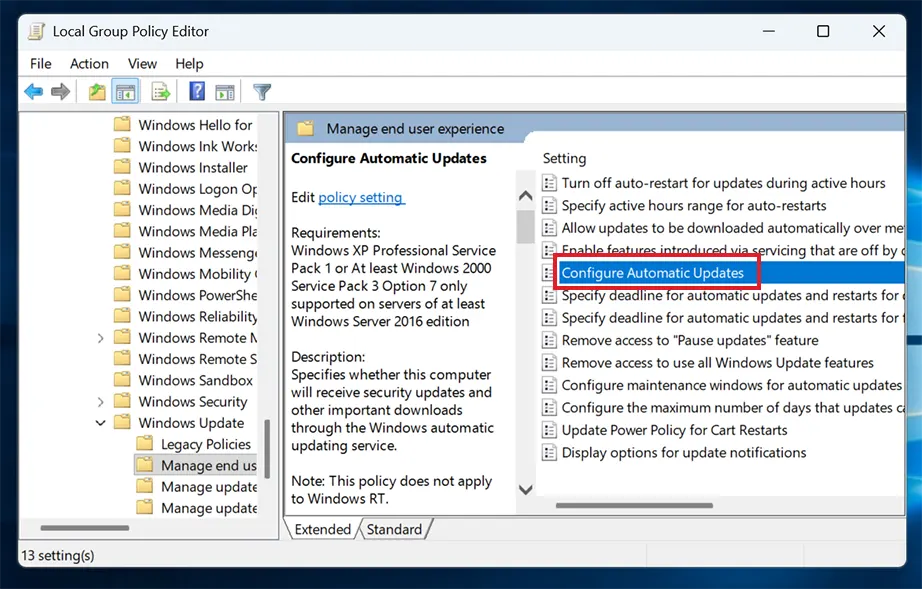
Note: On newer versions of Windows 11, click Manage end user experience inside the Windows Update folder.
Double-click the policy name Configure Automatic Updates in the right-hand panel.
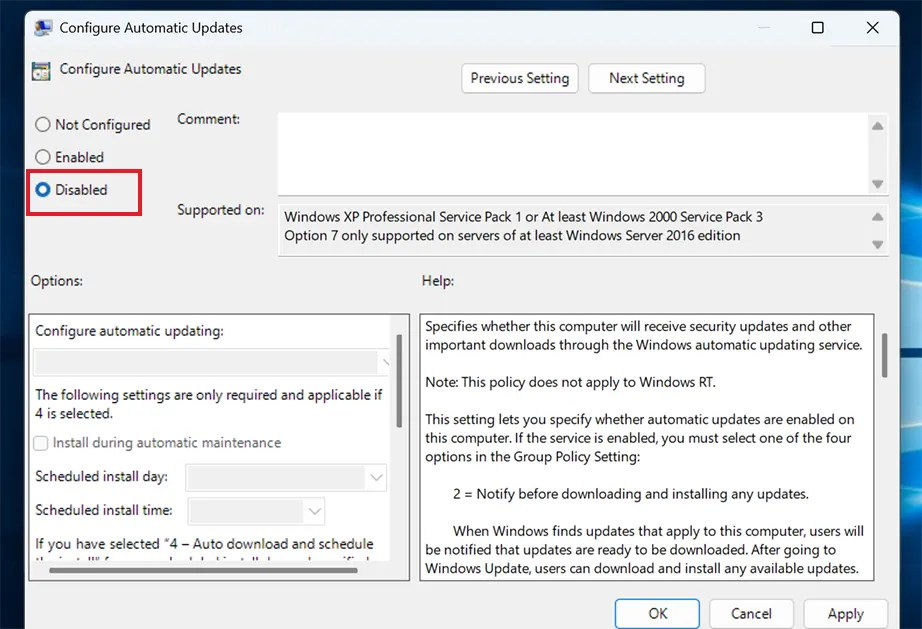
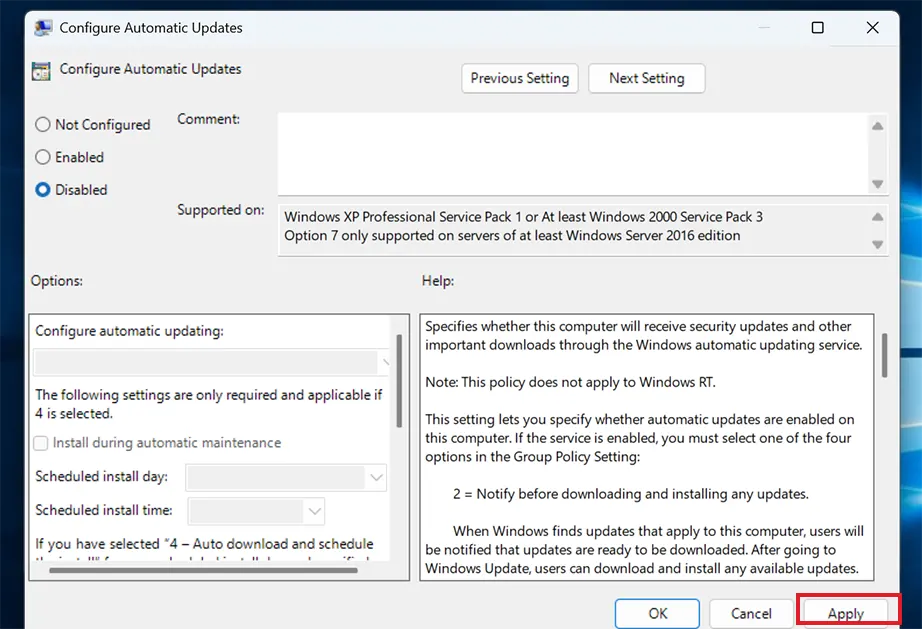
A new window will pop up. Click the toggle to set it to Disabled.
Click the Apply button.
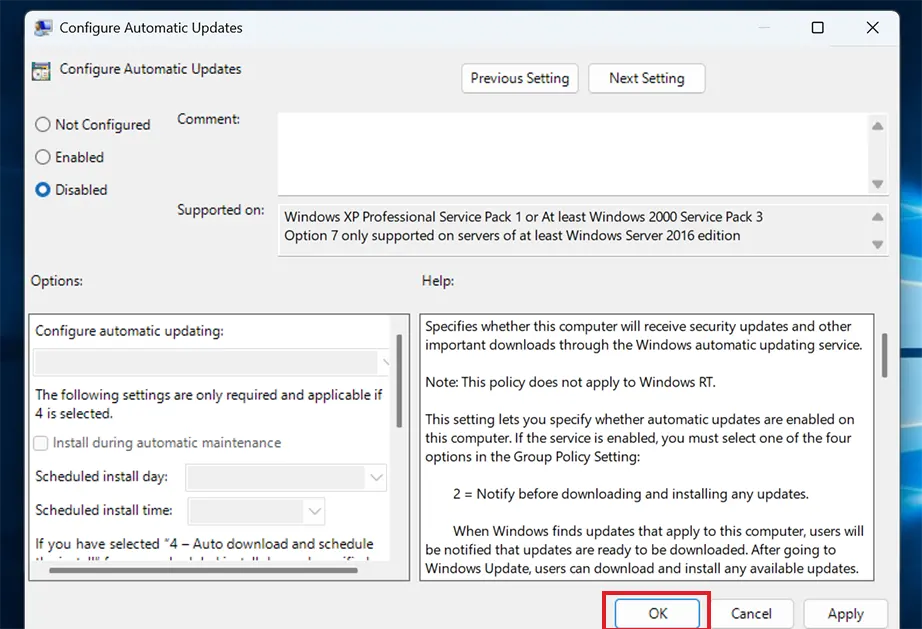
Click the OK button to save the changes.
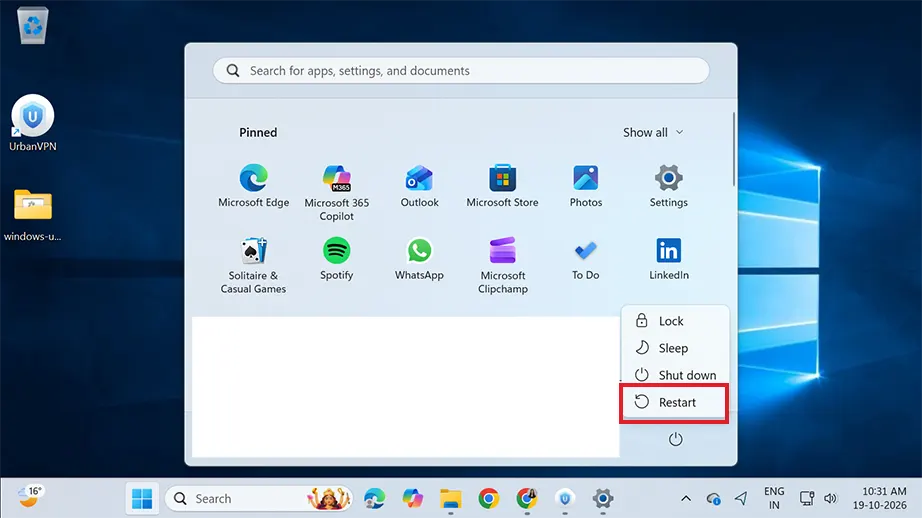
Restart your computer to lock the new policy into your system.
Important: Restarting your computer is required because Windows loads its core registry rules, system services, background policies, and all updated changes only during startup. It forces the operating system to read and apply newly created configurations.
Method 4: Modifying the Registry Editor
Registry Editor stores deep system configuration settings. You can modify this to stop auto update windows. This is a permanent method that works on all versions of Windows. Modifying the Registry Editor means you add a specific rule inside this database to turn off Windows automatic updates. And because editing the registry changes the core system rules, it is important to follow the steps exactly as recommended to avoid accidental changes to your operating system.
Note: Back up your registry before making changes because errors can cause serious system stability issues.
Steps to avoid Windows Update using Registry Editor:
Press Win + R on your keyboard to open the Run dialog box.
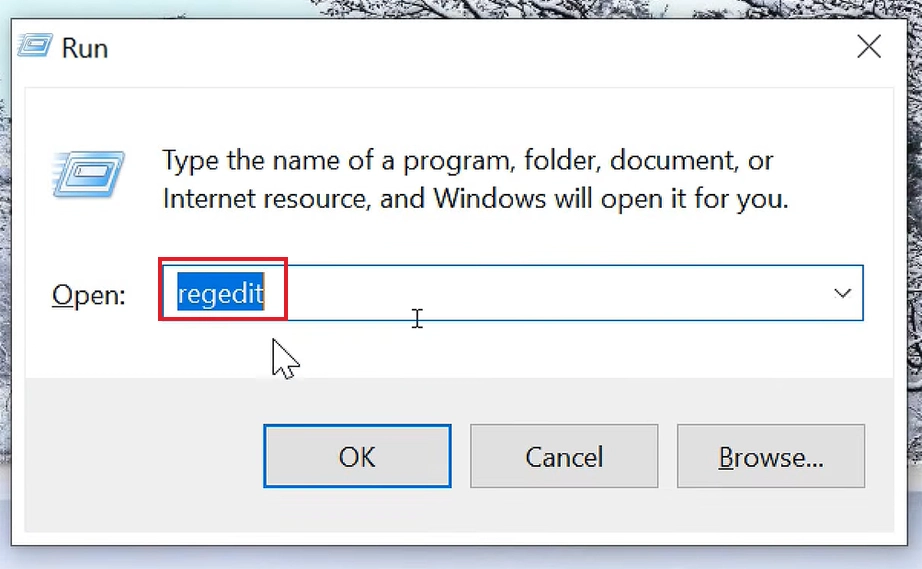
Type regedit into the box and press Enter (or click the OK button).
Click Yes if a security warning pops up.
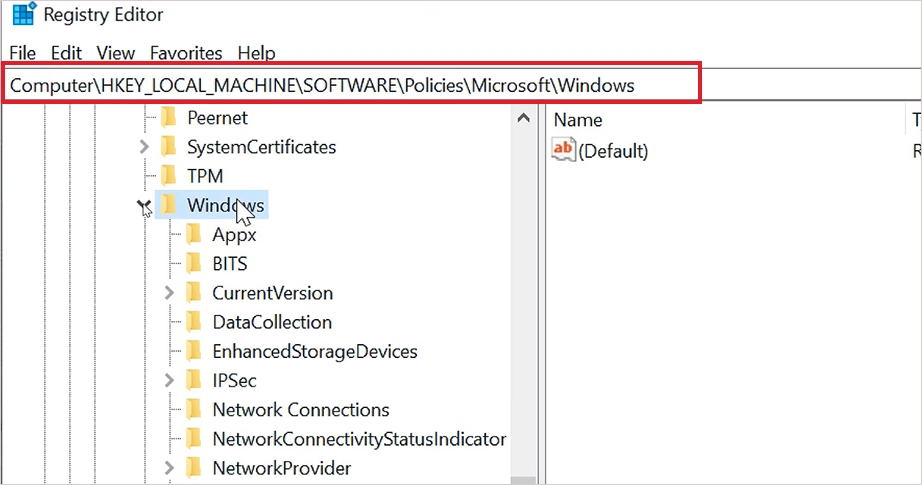
In the left-hand sidebar, click the small arrow to go to the following path:
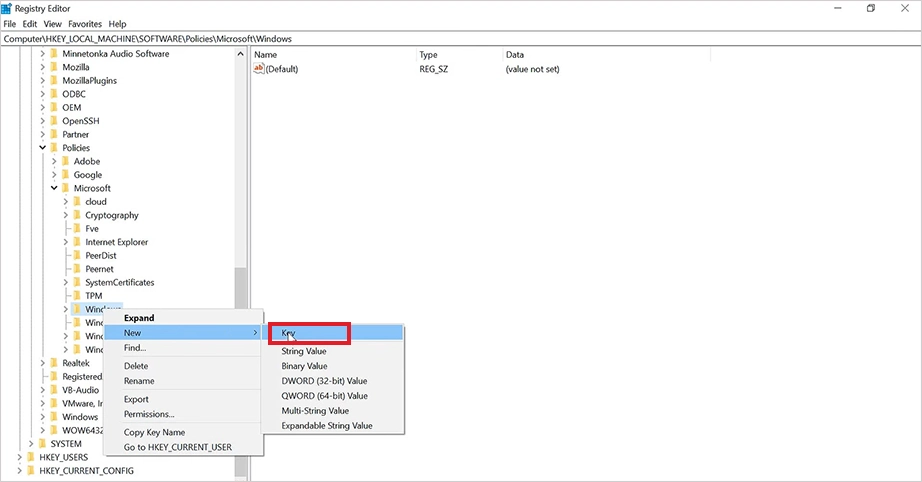
Right-click on the Windows folder in the left sidebar, hover over New, and select Key.
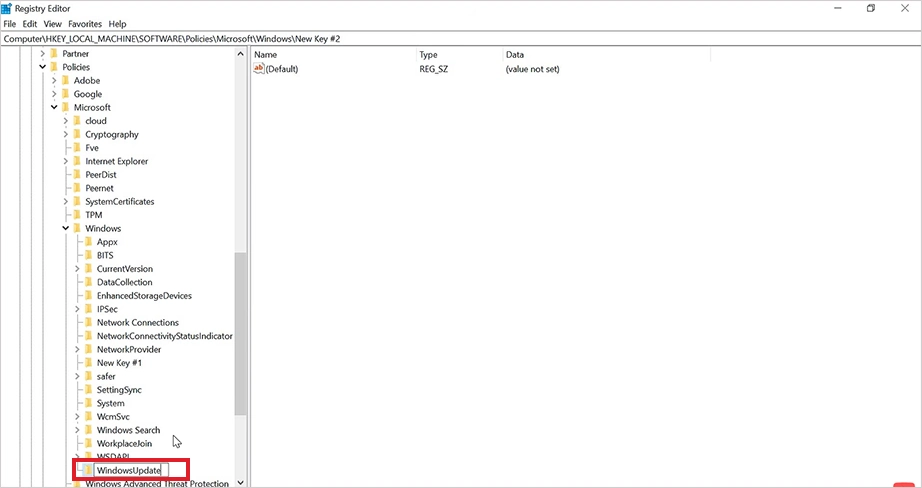
Name this new folder WindowsUpdate.
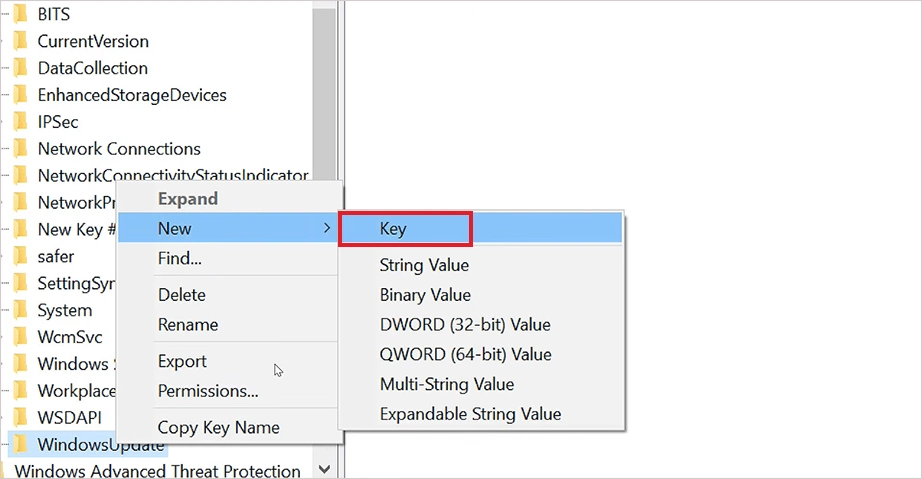
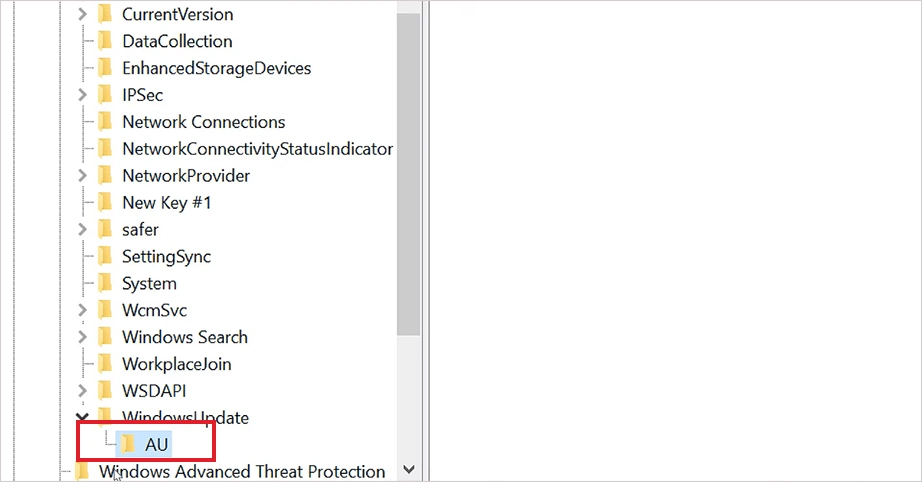
Right-click the newly created WindowsUpdate folder, select New, and click on Key.
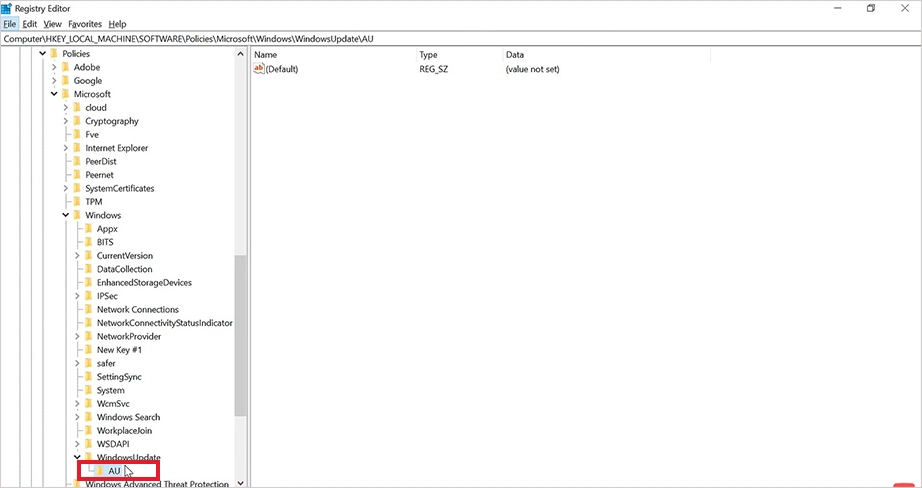
Name this folder AU (which stands for Automatic Updates).
Click on the AU folder to open it.
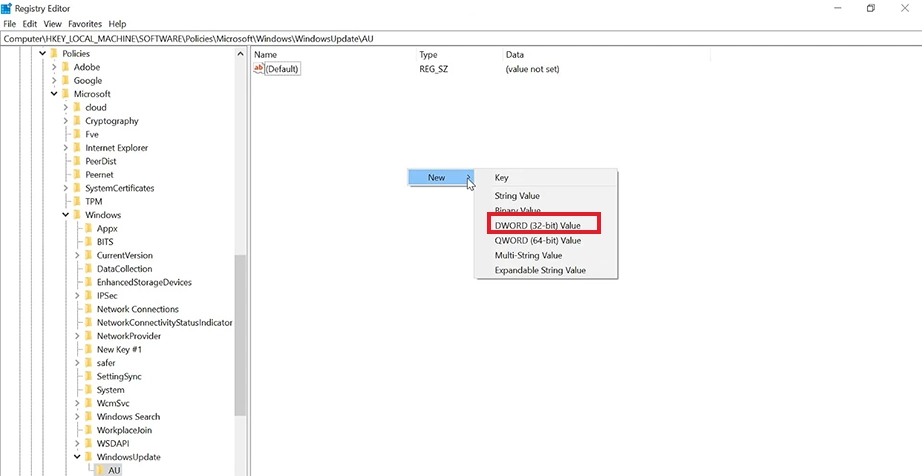
Right-click on an empty space, select New, and click DWORD (32-bit) Value.
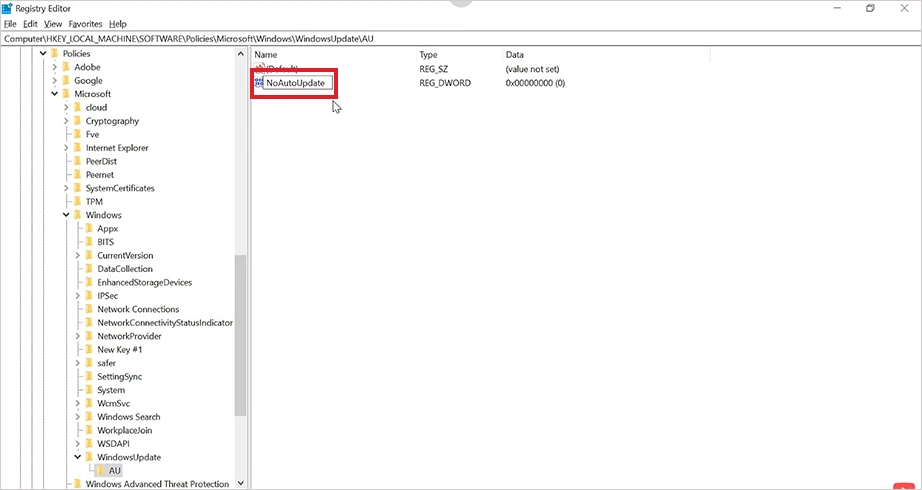
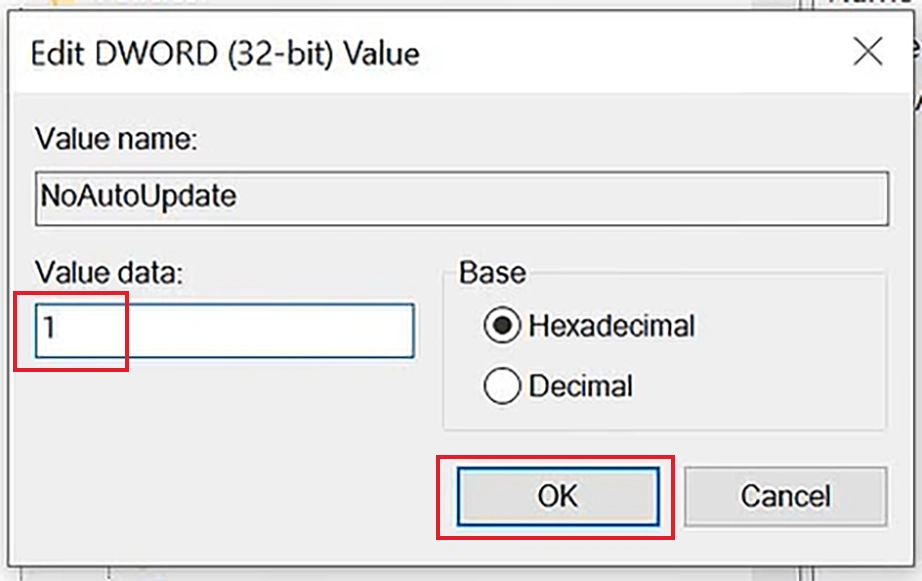
Name this new value NoAutoUpdate and press Enter.
Double-click NoAutoUpdate. A small window will appear. Change the number in the Value data box from 0 to 1, then click OK.
Close the Registry Editor window and restart your computer to apply the permanent changes.
Additional Method: Open Source Windows Update Disabler (GitHub)
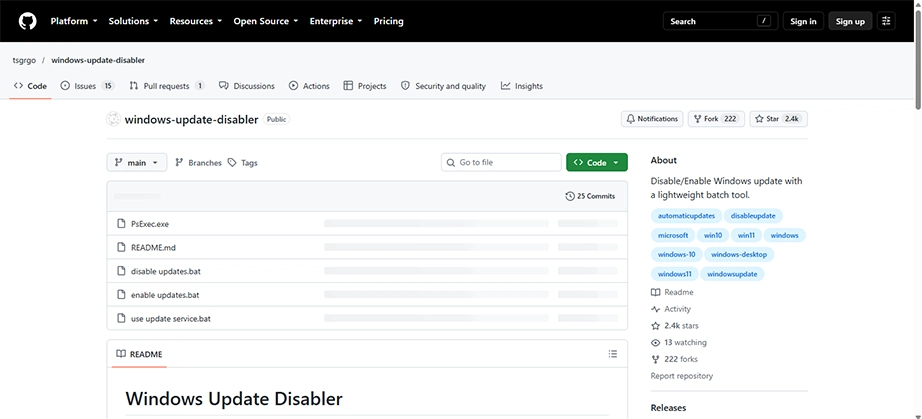
There’s an open-source Windows Update Disabler tool hosted on GitHub. They are built by individual developers and are not an Official method. This direct tool removes the need to go deep into manual registry edits or task scheduling.
How to stop update windows using the open-source Windows Update Disabler from GitHub:
Go to the official tsgrgo Windows Update Disabler Release Page.
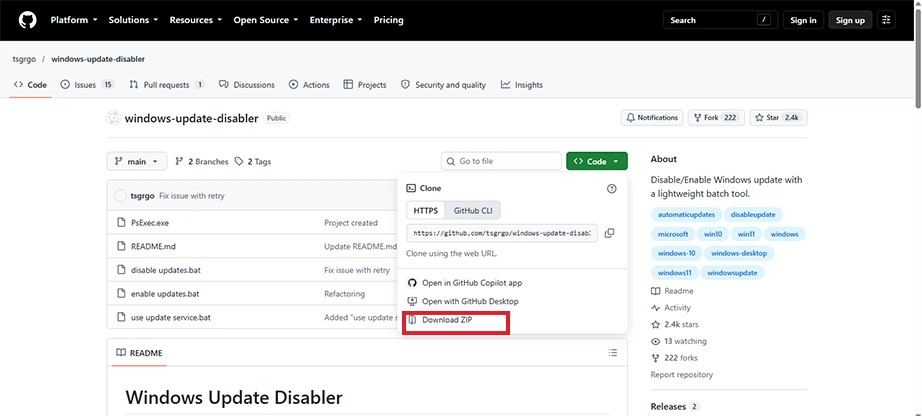
Download the ZIP file.
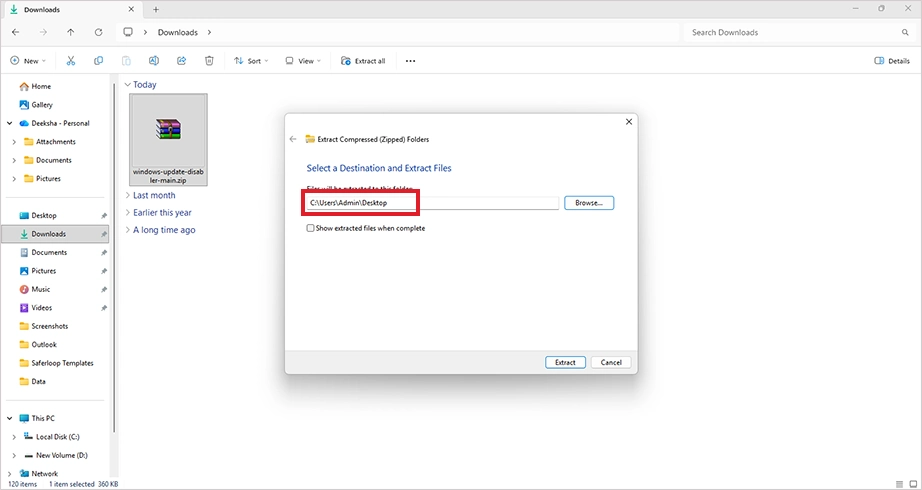
Right-click the downloaded folder and extract all the files to your desktop.
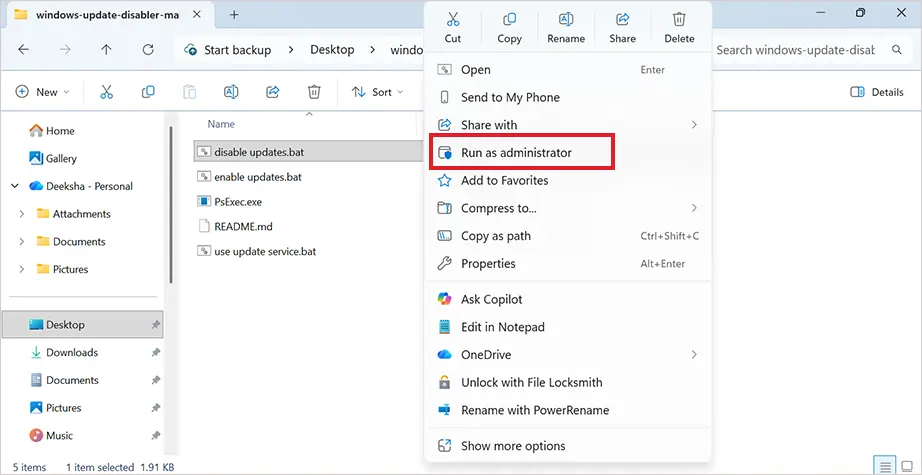
Open the extracted folder. Right-click the file named disable updates.bat and select Run as administrator.
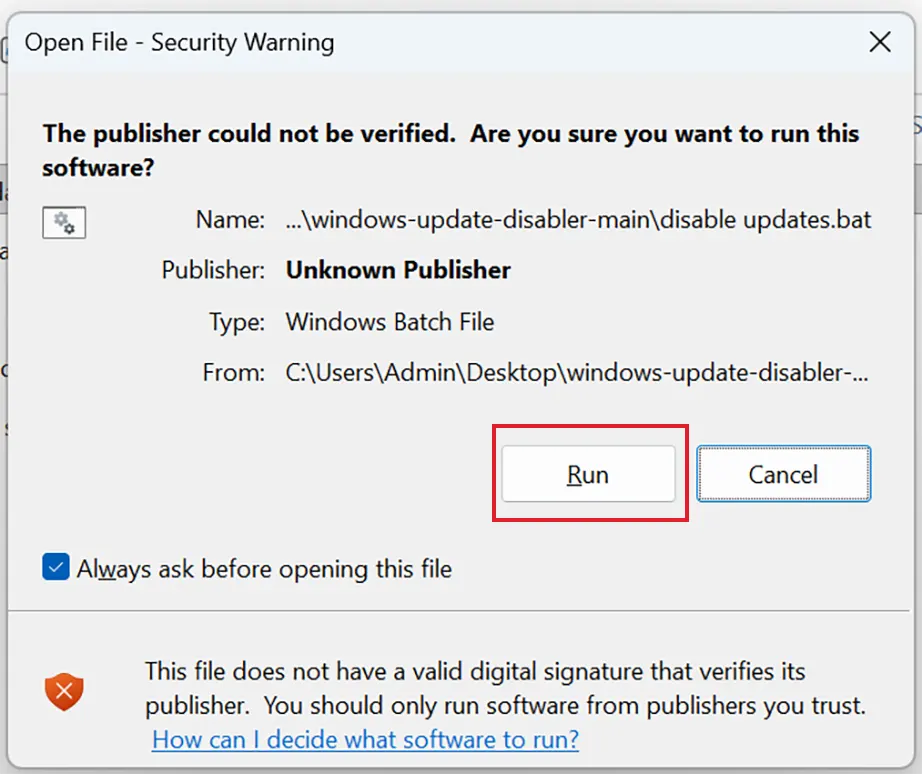
Click the Run button.
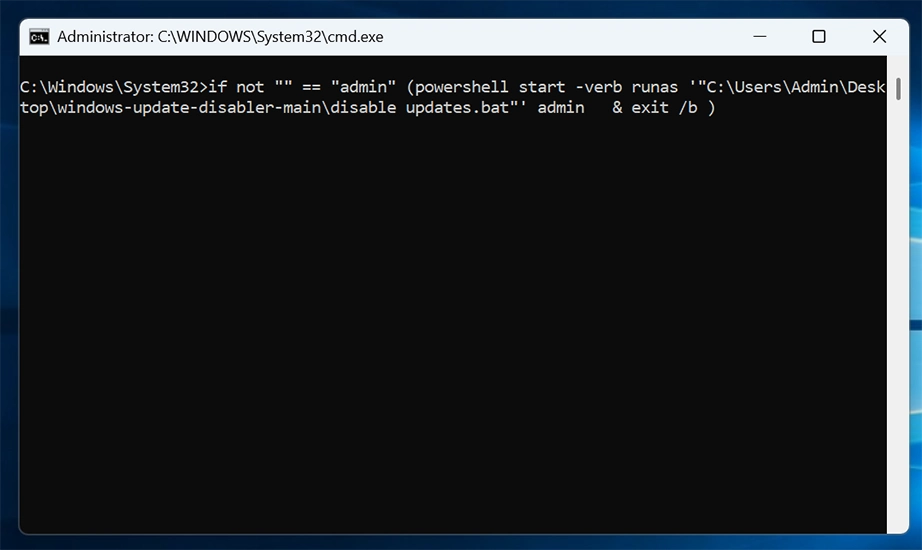
A command window will pop up and run the script automatically. This will disable background components.
Once it finishes, close the window. Restart your computer to complete the block.
What Happens When You Stop Windows Updates?
The operating system stops downloading new software files from Microsoft when you turn off Windows updates. The computer stays exactly as it is right now: no updates, no installation. It won’t get new features.
These are the visible effects after Windows Update is turned off, but there are numerous benefits and risks that come with it.
The Benefits
Many users choose to turn off Windows updates because they want to avoid bugs or sudden system changes.
No Unexpected Restarts:
Your computer/PC will never restart on its own once the auto update is disabled. So, even if you are in the middle of some important work, gaming, binge-watching, or a presentation, you won’t be interrupted.
Full Settings Control:
Windows will not change your default apps, layouts, or any custom settings without any update. You have complete control over your data and privacy since nothing is automatically downloading or updating in the background.
Protection from Buggy Updates:
New updates sometimes contain glitches that can cause application crashes, BSOD, Black Screens and Loading Issues. Skipping updates keeps your stable system running smoothly.
The Risks
Stopping Windows automatic updates stops the bad bugs and errors from changing your PC settings, but it also stops the good things from protecting it.
Security Risks:
Updates patch critical security loopholes or bugs detected. Without these patches, your computer is prone to hackers and viruses. Also, an outdated system won’t defend against the latest threats.
Broken Apps:
Newer games and software (like the Xbox app) need recent versions of Windows to launch. These apps will not work until you update Windows.
The Bottom Line
Windows updates should not be left paused for a long time, as it will lead to missing important updates. You can turn off updates in Win 10 and 11 for 35 days maximum using the Windows Settings app. Other methods include disabling Windows Updates services, using the Group Policy Editor, and modifying the Register Editor. The only recommended approach is to pause updates only when necessary and not permanently.
Frequently Asked Questions
How to Stop Windows Updates?
To stop Windows updates temporarily, use the Settings app. Go to the Windows Update tab and select Pause updates. From here, select the date you want the updates to be paused till (up to 5 weeks).
How do I permanently stop Windows updates?
To stop updates permanently, use Windows Update services, modify the Registry Editor (by adding a NoAutoUpdate rule), or use Group Policy Editor. Also, you can use open-source automated scripts to freeze all background tasks.
How can I stop Windows Update in progress?
Use the Services manager (services.msc) to stop any Windows Update in progress. Scroll and right-click on the Windows Update service and select Stop.
Are Windows updates really necessary?
Yes, Windows updates are highly necessary because they keep computers secure. There are features and interface changes that are optional, but monthly updates contain important security patches that fix system bugs. Skipping these updates makes your system open to newly created viruses and identity theft.
What happens if I stop Windows Update?
The PC remains in the same current state when you stop Windows Updates. The benefit of stopping Windows Update is that you get control over your machine with no unexpected restarts, but the risk is that your computer loses defence against hackers, and modern applications or software may not be compatible with your system.
Kajal Singh is a Data Recovery Writer at Notchox, specializing in data recovery, storage systems, RAID, and digital forensics. She writes technical processes, tools, and cases into clear, engaging articles, blogs, and guides. Kajal does thorough research, deep analysis, and collaborates with experts to produce high-quality and engaging content that is easy to understand for every reader.