Backing up your Mac data is important to protect your files in case of sudden system crashes or theft. By default, macOS relies on iCloud data recovery and Time Machine for backup. iCloud syncs individual files to accessible iCloud storage over the internet. Time Machine saves snapshots of the system to an external hard drive automatically once enabled.
These native options might not be perfect for everyone. To help you find the best Mac backup software according to your requirements, we have ranked the top software available based on their capabilities, pricing, and usage.
To help you find the best Mac backup software, we have thoroughly reviewed and ranked each tool based on real-world usage. This covers everything about the tools, such as basic and advanced features, pros and cons, pricing, etc. Each review will give you a clearer view of the backup programs for Mac in detail.
1. Apple Time Machine: The Best Free Mac Backup Software
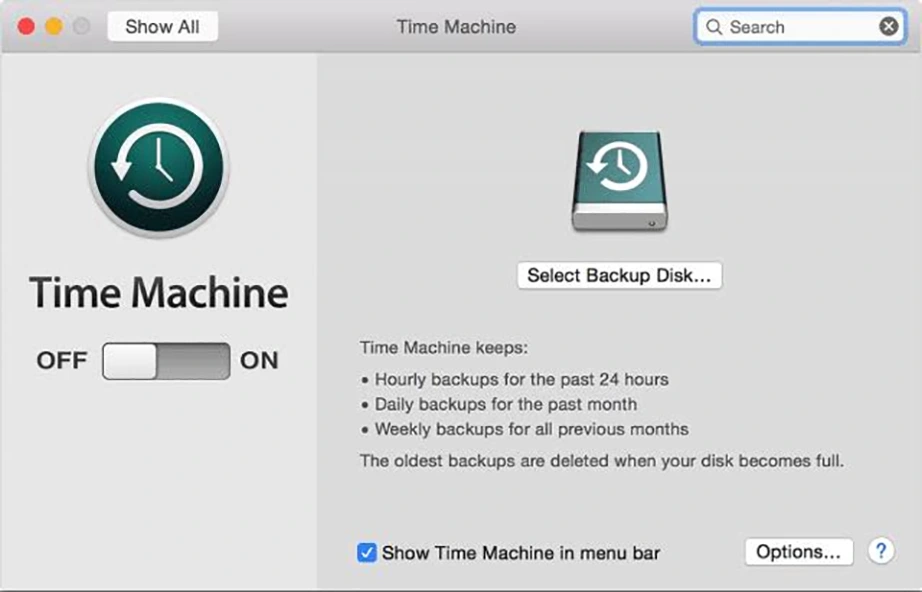
Apple Time Machine backup for Mac is the built-in best Mac backup software that is completely free. It has been a core part of macOS since 2007 with OS X Leopard. It has been supported on every single Mac since then, whether it is Intel-based or Apple Silicon hardware. It is designed with a set-and-forget philosophy, that means once you have turned on the backup, you can forget about it, and it will still continuously back up your data at scheduled intervals, with no need to check again and again.
Also, for this one drawback is that you need a compatible external storage drive for backup, it can be a USB drive, hard drive, or a Network Attached Storage (NAS) device.
Key Features:
Runs automatically in the background to back up any updated data.
It supports incremental backup, so it only copies the files and folders that have changed since the last backup.
You can either restore individual files or the complete system image.
Restoration across different Macs using macOS Migration Assistant.
Pros
Cons
Completely free
Requires external drive for backup.
Highly secure
No offsite protection
Native support by Apple
Plan Duration
Price*
Billing Frequency
Lifetime
$0
–
Note:iCloud might be considered for Mac backup. It works by syncing your active files across Apple devices in real time, but it does not store permanent historical system snapshots.
2. BackBlaze Personal Backup
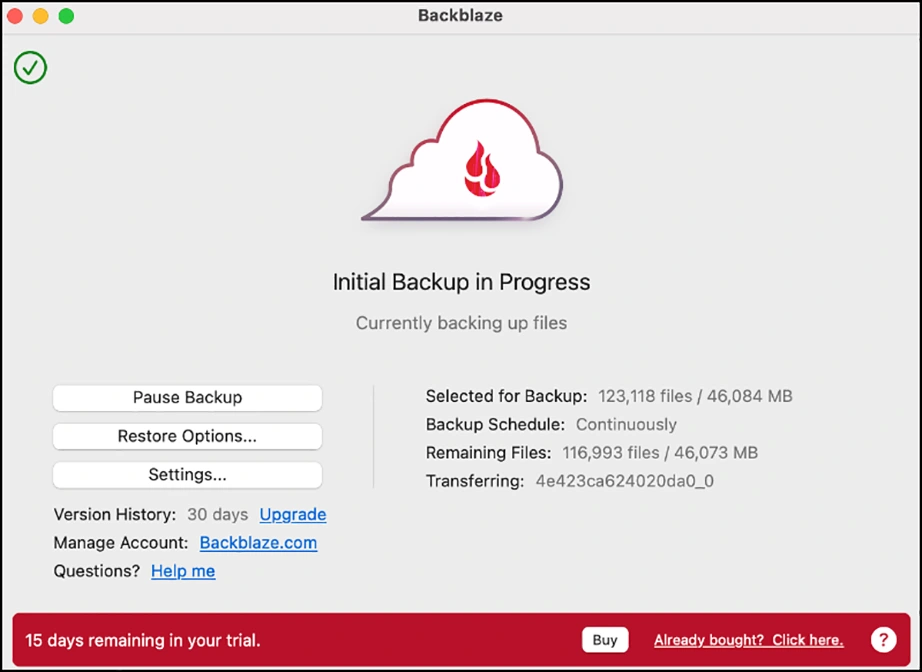
BackBlaze Personal is more of an off-site Mac backup software. It is an online cloud backup service and saves your files over the internet instead of a physical hard drive. It is completely automated and copies everything on your Mac by default. You do not have to pick any specific folders or manage anything manually.
It provides an option for encryption, so that only you can access your data.
Key features:
Saves files automatically without needing to click anything.
Gives access to cloud space with no limits on file sizes or drive capacity.
Keep your deleted files and older versions for 30 days (can be extended for 1 year or forever).
Uses less than 1% of your Mac’s CPU and memory so your computer never feels slow.
Lets you download your files from the web or a mobile app, or get a physical hard drive shipped straight to your door.
Pros
Cons
Unlimited storage.
First upload can take a few days if you have slow internet.
Easy setup
You must plug external drives in at least once every 30 days.
Lightweight software
Plan
Price*
Billing Frequency
Personal
$9
Paid monthly
$99
Paid yearly
Business
$9
Paid monthly
$99
Paid yearly
2-Years-Best Value
$189
Paid biannually
3. Carbon Copy Cloner
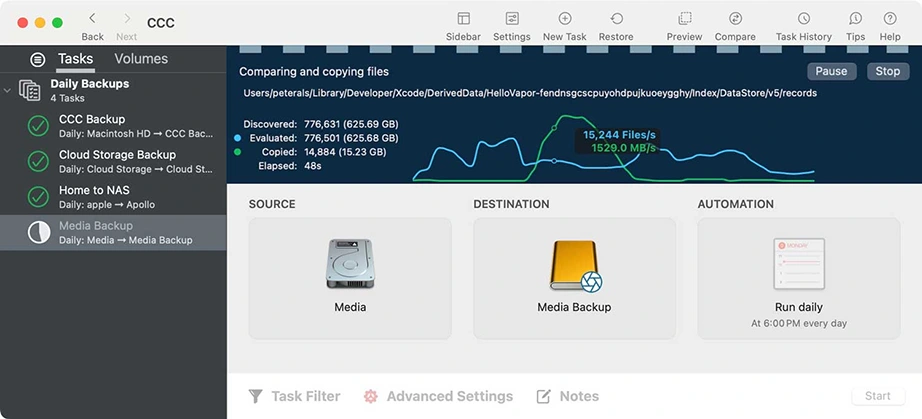
Carbon Copy Cloner (CCC) is the next best backup for Mac software. This gives more control over your data. This is not like standard tools, where you back up whole files, it gives you a smarter backup system with precision control. You can control when backups should run and should not, so you decide which files get copied and what to where, down to the individual folder level.
The application provides advanced customization but is very easy to understand with a backup volume setup assistant. If you need to pack up your laptop mid-task, you can easily pause and pick up where you left off without losing your progress.
Key features:
Downloads and saves physical copies of files stored on iCloud or OneDrive.
Uses smart file-system snapshots to preserve older versions of your data.
Gives Mac experts support to troubleshoot issues.
Pros
Cons
You can choose what to back up
Needs an external drive.
Pause a backup and resume at any time.
Download and save your online files too.
Plan Duration
Price*
Billing Frequency
Lifetime
$49.99
One-time purchase
4. SuperDuper!
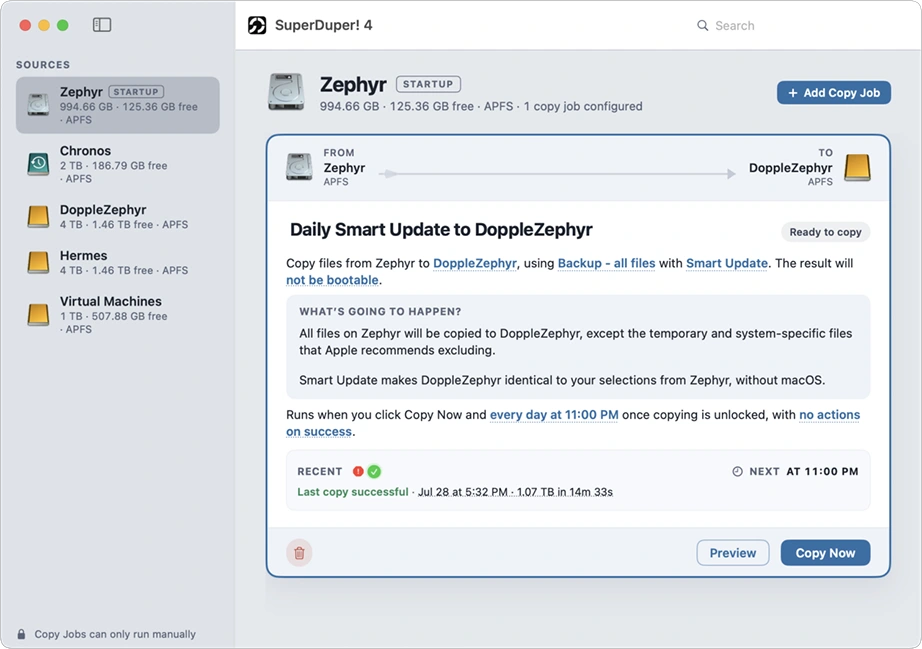
SuperDuper is another easy-to-use backup software for Mac. It is basically a cloning tool that duplicates your storage without any complicated configuration. You see no selective backup, no filters, no folder hierarchy, just a simple complete backup option. You need to click words to pick your sources and destinations.
Key features:
Copies the specific changes made to files since the last run.
Take a snapshot of the working drive before starting backup to ensure nothing is left.
Can be configured to perform automatically.
Pros
Cons
Very easy to use
Creates a one-to-one mirror rather than a continuous timeline.
Basic trial allows unlimited full drive manual copies.
Advanced features come with a paid license.
It does not support native backups to off-site cloud storage servers.
Plan Duration
Price*
Billing Frequency
Lifetime
$43.95
One-time purchase
5. Arq Backup
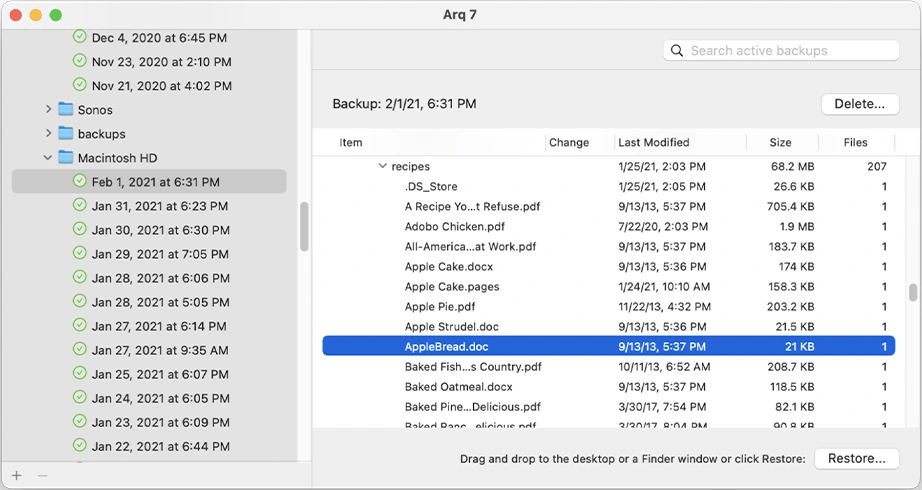
Arq Backup is a flexible and private backup software mac os. It does not ask you to use a specific subscription tier, but it lets you back up your files to a cloud account you already have. There is no restrictive file limit or vendor lock-in in between.
It is backup software for Mac to external hard drives; i.e., with Arq backup, you get offsite and multi-destination data protection.
Key features:
Integrates with a cloud account you already have, like Google Drive, OneDrive, Dropbox, or AWS.
Allows you to back up to an SFTP server, an external drive, or a NAS.
You get a multi-version timeline, using which you can go back in time to restore an uncorrupted iteration.
No limit on backup file types, data sizes, or external drive retention rules.
You can upload system data to several local and cloud storage providers at the same time.
Pros
Cons
There is no storage limit of its own.
It is only a file-level backup program.
Encryption makes data only accessible to authorised users.
No integrated cloud space.
Restoration right from the app, or downloading zip files.
Plan
Price*
Billing Frequency
Arq 7
$59.99
One-time purchase
Arq Premium
$69.99
Paid Yearly
6. IDrive for Mac
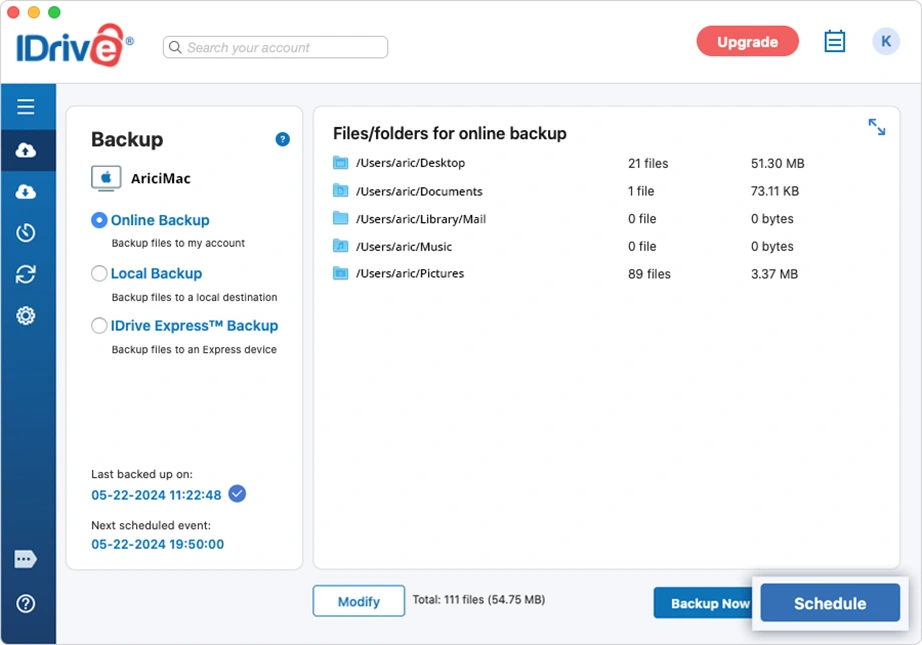
IDrive is a backup software for Mac that lets you secure an unlimited number of devices, including your Mac, PC, iPhone, and iPad, in a single account. It can be a good use as a central hub for all your family’s or business’s hardware. With an extremely easy UI, it makes backup management very easy.
You get incremental and selective backups with features such as notification alerts, pause and resume backups, backup status, and virtual machine support with IDrive for Mac.
Key Features:
You can schedule backups as per your needs.
Saves internet and RAM usage by doing incremental backups.
It has the option to pause, resume, check status, or halt backups at any time.
You can exclude data you do not want to upload.
It directly backs up your connected external hard drives or network drives (NAS) to cloud accounts.
You can set notification alerts for backups.
Pros
Cons
You can personally schedule backups.
Too many functions make it complicated.
Connects backups of many devices.
Initially slow backups.
Very clear interface.
Plan
Price*
Billing Frequency
Free
0
–
IDrive Mini (One-user)
$0.25
Paid Monthly
IDrive Personal (One-user, multiple computers)
$6.99
Paid Monthly
IDrive Team (5 users, 5 computers)
$6.99
Paid Monthly
IDrive Business (Unlimited users, multiple devices)
$13.99
Paid Monthly
7. ChronoSync
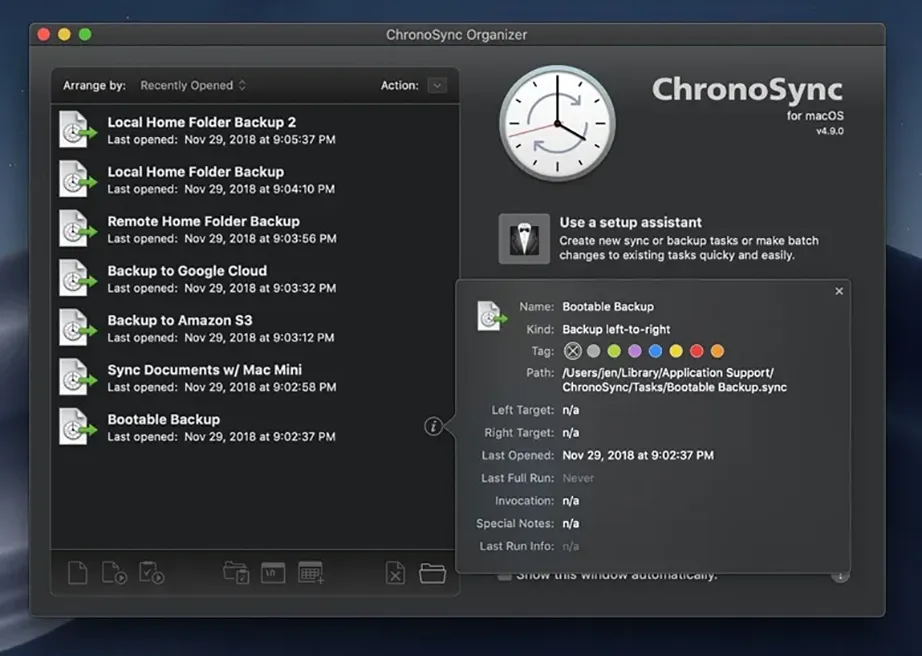
ChronoSync is a flexible backup utility for Mac that syncs file folders and manages bootable clones. It also keeps offsite copies of Mac data. ChronoSync is available on Econ Technologies website, with a companion monitoring tool available on the App Store.
This backup program Mac has an interactive interface where you can see folder tree layouts and manually select whichever specific files you want to copy or skip. Using ChronoSync, you can synchronise data:
Mac to Mac
Mac to iCloud
Mac to iPhone/iPad
Mac to Other Devices
Key Features:
It has smart scheduling capabilities. You can set the time of sync and automate backups.
Handles secure synchronization on the web with web servers via SFTP.
Cross-device compatibility to sync data across various devices.
Adapts to the Apple split system and data layout.
Pros
Cons
You buy the license once and receive regular updates for life.
There is no integrated cloud storage.
You get to see the data structure precisely.
It works across computers, clouds, network devices, and mobile devices.
Plan
Price*
Billing Frequency
Single
$49.99
One-time purchase
2-Pack
$79.99
One-time purchase
5-Pack
$174.99
One-time purchase
25-Pack
$749.75
One-time purchase
8. MSP360 Free Backup
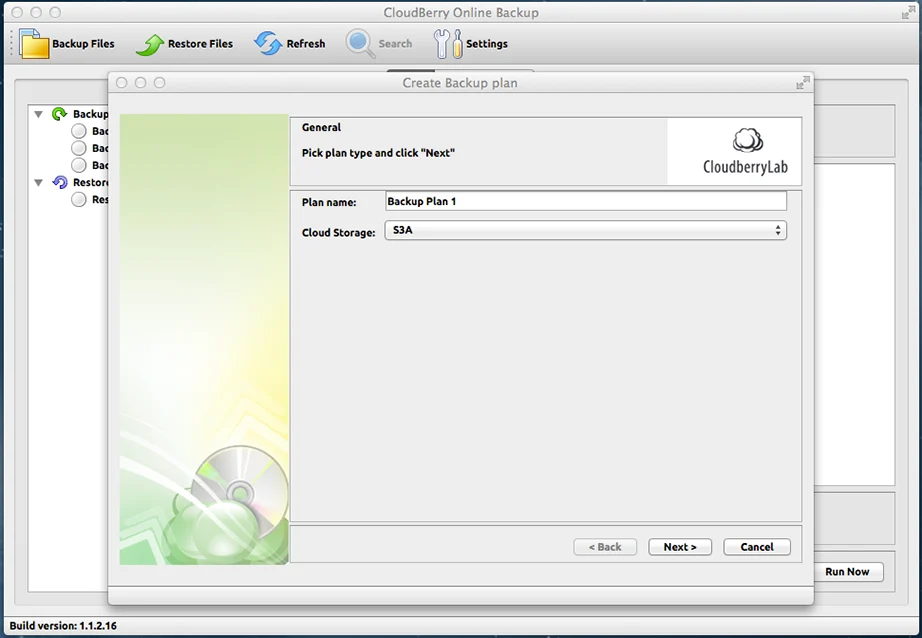
MSP360 Backup (formerly CloudBerry) for Mac is a no-cost file-level backup solution. It is a cross-platform solution that provides backups for Windows, Mac, and Linux computers. It is available for macOS 10.12 Sierra up to macOS 12 Ventura.
The software comes in both free and pro versions. The free one gives almost all required features, such as backup scheduling, file versioning, file-level backup, etc. Instead of providing its own storage servers, MSP360 acts as a smart dashboard that connects your Mac to public cloud or local hard drives.
Key Features:
It supports saving your system data to both local and cloud storage.
You get selective backup and recovery options.
It gives the option to create complete system drive clones.
Lets you define schedules: hourly, daily, weekly, etc.
It has an advanced Command Line Interface.
Pros
Cons
It allows backups completely free.
You need to pay cloud data fees separately.
It restricts the total amount of data you can back up.
To choose the best Mac backup software, you need to balance your storage budget with your backup requirements. Clearly, the free ones won’t give you advanced features like the paid ones. So, here are a few important things to keep in mind before you decide on the best backup utility for Mac:
Storage Location Choices
First, you must be clear about where you want your files to be saved, locally or over the internet. For example, you might need cloud storage to protect your data from accidental hardware damage.
Pricing Structure
Look carefully at the Mac backup utility’s pricing. Note if it is a one-time fee to own the software or if it is a monthly subscription plan. Go for a one-time lifetime license if available.
Supported Device Volume
Check how many different devices you are allowed to connect in a single plan, and whether the software provider charges extras for any additional devices.
File Retention Duration
Make sure you know exactly how long the system keeps your files in the backup. This is very important if you maintain backups for years.
Automation and Scheduling
Choose a Mac backup software that handles data backup automatically and allows you to schedule it, so that you do not have to click and enable it again and again. For example, Mac Time Machine backs up data automatically every hour without bothering you.
Device Volume Limits
Check for any data backup limits in the backup programs for Mac. Choose a plan with a sufficient volume limit for your data. For example, if you have 4TB of family videos to back up, a plan with a 2TB data limit will not work for you.
Data Security
Data security is the major factor you must check. Make sure it uses private keys to encrypt your files so that nobody else can open or read your personal files. To check the data security of backup programs for Mac, you will need to read the documents in detail.
File Version History
A Mac backup software that maintains file version history is highly preferred because you can easily undo mistakes you made days ago. You do not need to restore an older backup and do the work again.
Custom Support Channels
Good customer support is essential for on-time resolution. Make sure the company offers quick and human help or detailed guides in case a backup fails.
Summary: Mac Backup Software
To protect your data, it is important to have a reliable backup system. Apple Time Machine is the best Mac backup software that is free and officially provided by Apple. Then came Backblaze and Carbon Copy Cloner as the next best backup programs for Mac due to their supportive features and reliable backup service. In this blog, we have listed the top 8 backup programs for Mac, covering free, paid, and freemium backup options with the key features, pricing, and advantages and disadvantages.
When choosing mac os x backup software, always look for tools that provide automatic backup functionality, strong data privacy, and fit your budget.
* Prices may vary depending on the active promotional discount or subscription adjustments.
Frequently Asked Questions
What is the best Mac backup software?
Apple Time Machine is the best Mac backup software because it is free and provided by Apple. It keeps snapshots of your Mac data as backups and lets you go back to a specific date and time and restore the backup easily.
What’s the best way to backup my Mac?
The best way to back up a Mac is to set up an automated cloud backup. This backs up your files and folders on Mac without manual intervention, and the cloud servers make sure the data is secure even when hardware fails.
What is the fastest way to transfer data from old Mac to new Mac?
The fastest way to transfer data from an old Mac to a new Mac is restoring a system image or cloud backup.
Will Time Machine backup everything on my Mac?
Yes, according to Apple Support Time Machine Documentation, it automatically backs up almost your entire system, including installed apps, photos, videos, documents, emails, and contacts. It does not back up temporary system caches.
Deeksha Arora is a Data Protection & Recovery Writer focusing on writing accurate, informative, and easy-to-understand technical articles for Notchox’s readers. Her content on the prevention of data loss, understanding risks of device failures, and guides to fix problems helps readers make the right decisions and understand the technical terms easily. She works closely with Subject Matter Experts to ensure high usability and accuracy of her writing.