Deeksha Arora Oct 22, 2026
The Task Manager Mac equivalent is Activity Monitor. It gives a live preview of your computer’s internal operations. You can use it to diagnose performance issues and forcefully close unresponsive or frozen software.
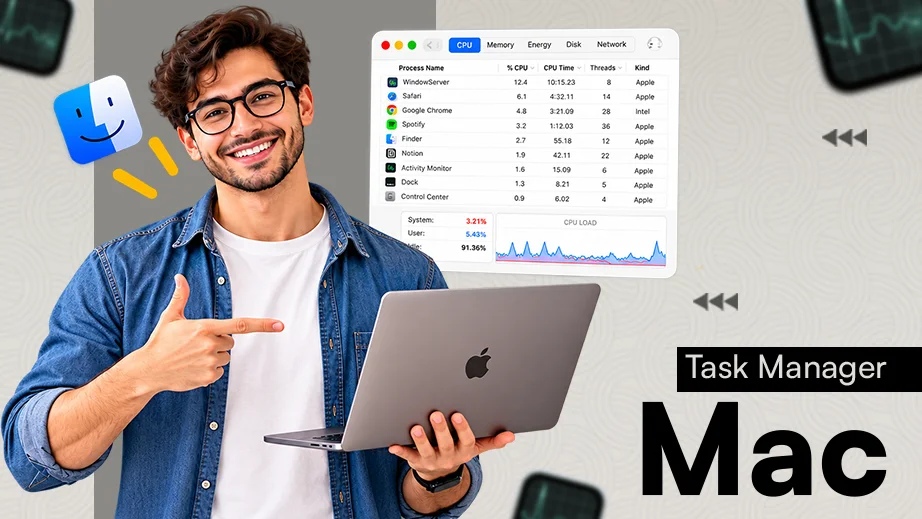
The direct Windows Task Manager Mac equivalent is Activity Monitor. This built-in system tool allows you to track hardware performance and forcefully terminate frozen applications. To open it instantly, press Command+Spacebar to launch Spotlight Search, type “Activity Monitor,” and press Return. Also, you can access it by opening Finder and going to the Applications > Utilities folder. In this guide, you will learn about Activity Monitor, which is the Task Manager for Mac, how to open it, and how to restore deleted files while force-quitting apps using Notchox data recovery software.
Tech Spotlight: Dave Plummer, the original Microsoft engineer who created the classic Windows Task Manager, recently took to X (formerly Twitter) to announce a brand-new native utility for Apple Users called Task Manager OG (TMOG).
Sharing his updates directly with followers on his X account, Plummer explained that he felt Apple’s default Activity Monitor falls short for advanced users. His new Swift-based utility brings a Windows-style management console to your Mac desktop.
The direct Windows Task Manager alternative for macOS is a built-in application called Activity Monitor. If you are switching from Windows to Mac, this is what you need to use whenever a program freezes, your system lags, or your computer begins to overheat.
Activity Monitor is Apple’s official tool for viewing system operations in real-time. Windows uses a single Task Manager window for this, but Activity Monitor constantly tracks every micro-process and hidden system framework currently active on your machine, also known as the process manager in Mac.
So if your screen freezes, you can look at this tool to see a clear diagnosis. Activity Monitor is primarily used for:
Fact: The tool was originally called Process Viewer before Apple rebranded it to Activity Monitor in 2003.
To open Mac Task Manager (known as Activity Monitor), you can use Spotlight search to find it, launch it via the Finder Utilities folder, or deploy it through Terminal commands. This built-in system utility is used to track your computer’s health by showing exactly how much CPU, memory, and battery power your apps consume. In this section, we will explain all five simple methods to access this tool, including helpful shortcuts and hands-free voice commands.
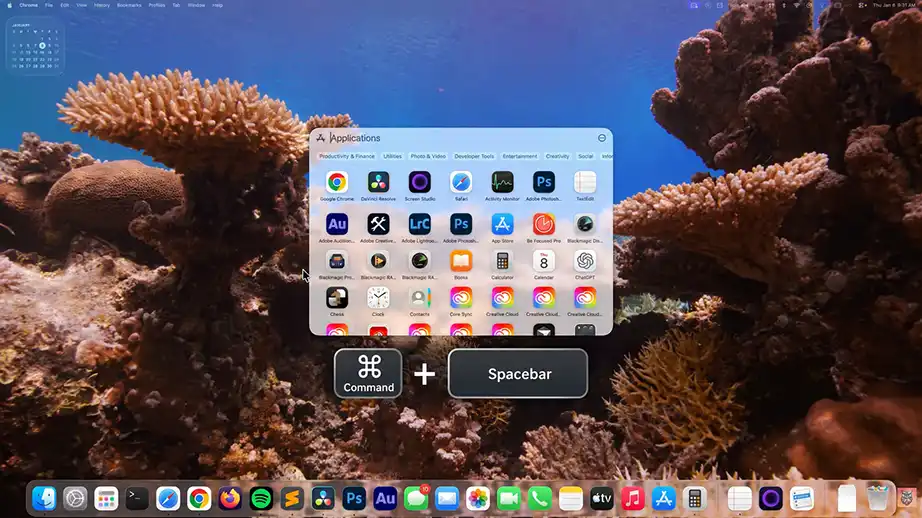
To open the MacBook Task Manager (Activity Monitor), Spotlight Search is the quickest option. You can find and launch any system app by searching for it. No need to go from folder to folder. This saves time when your Mac slows down or when an application stops responding.
How to open Task Manager on Mac using Spotlight Search:
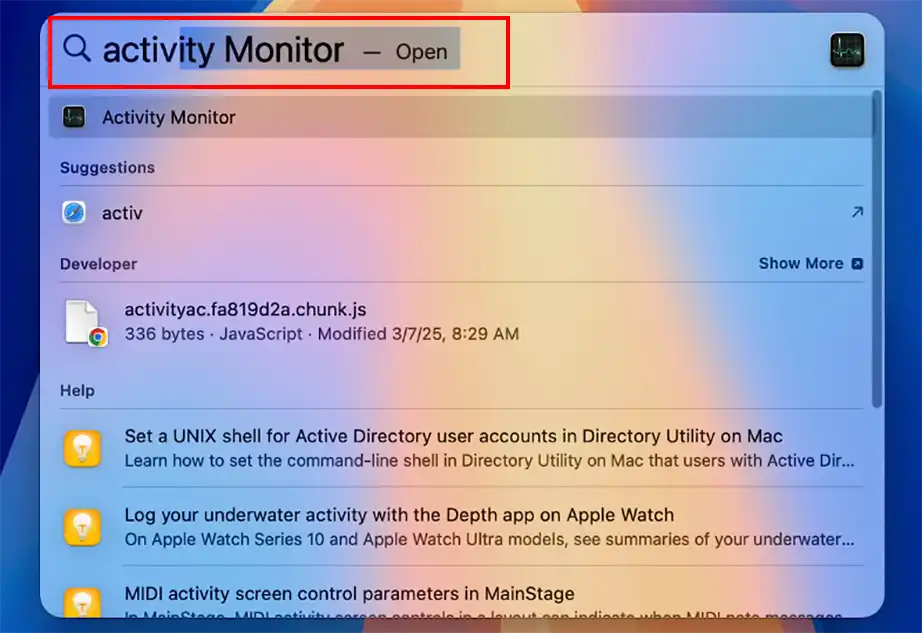
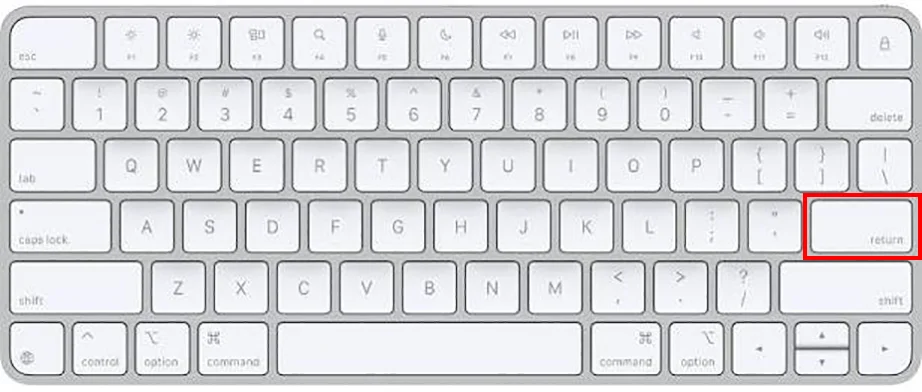
You can also manually open the macOS Task Manager, i.e., Activity Monitor, using the Finder application. This is kind of a traditional way in which you browse Mac’s built-in system tools directly from the application directory.
Steps to open Task Manager on MacBook using Finder:
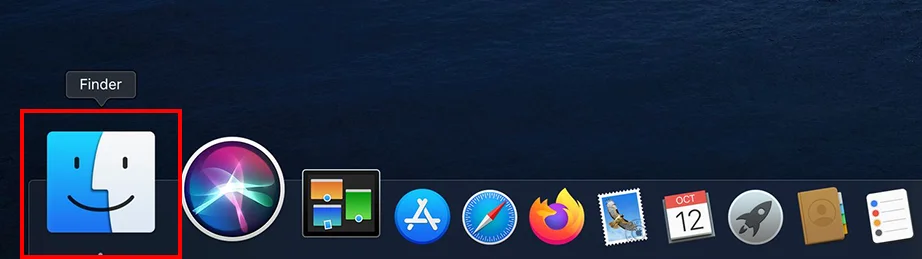
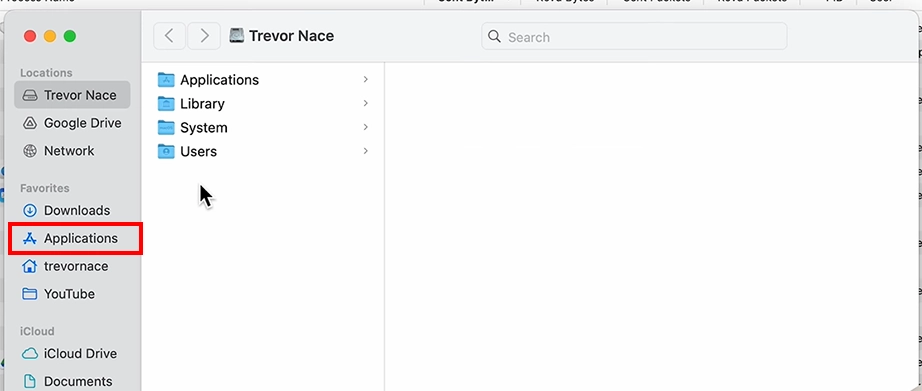
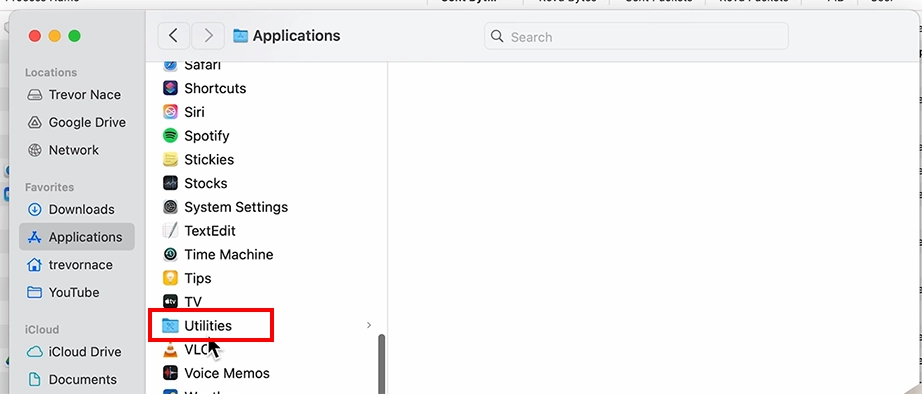
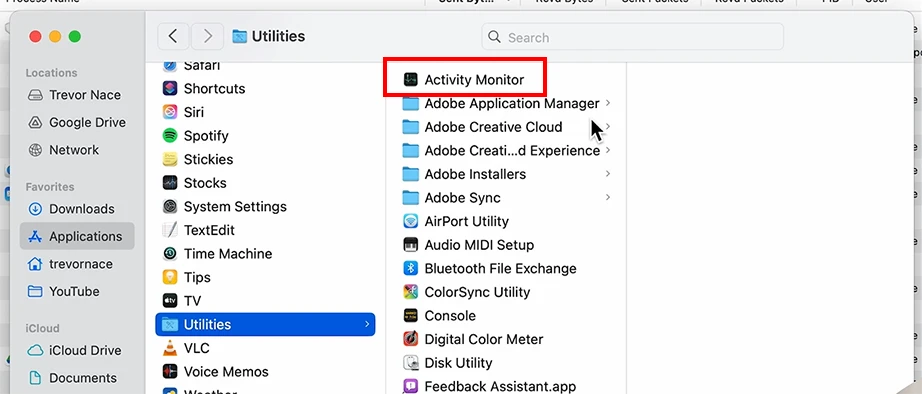
You can also pin Activity Monitor to the Mac Dock so that when you need it, you can instantly open it from there. This creates a permanent one-click desktop shortcut for Activity Monitor. It is best if you frequently need to check system performance or close frozen applications.

Using voice commands is another quick way to access your Task Manager Mac (Activity Monitor). Siri can scan your system and launch built-in tools on command. You may use this method if your hands are busy or if your Mac’s screen is partially lagging and making it difficult to do so manually.
Here is how to open Task Manager in Mac using Siri voice command:

Terminal is an advanced method to open Task Manager in macOS. It bypasses the standard macOS graphical interface. Using this, you can boot up diagnostic tools using short commands. Another advantage of this method is that, even if your desktop environment is frozen or if you need to manage system resources remotely, you can easily do that by using the Terminal.
open -a “Activity Monitor”
Though Windows users rely on Task Manager to kill broken tasks, the Task Manager Mac alternative does far more than just terminate frozen software. It shows you how the background tasks consume system resources and acts as your computer’s flight data recorder. You can pinpoint the specific app causing problems and analyse hidden memory leaks.
By understanding how to use its control tabs, you can optimize Mac’s speed and maintain long-term system health:
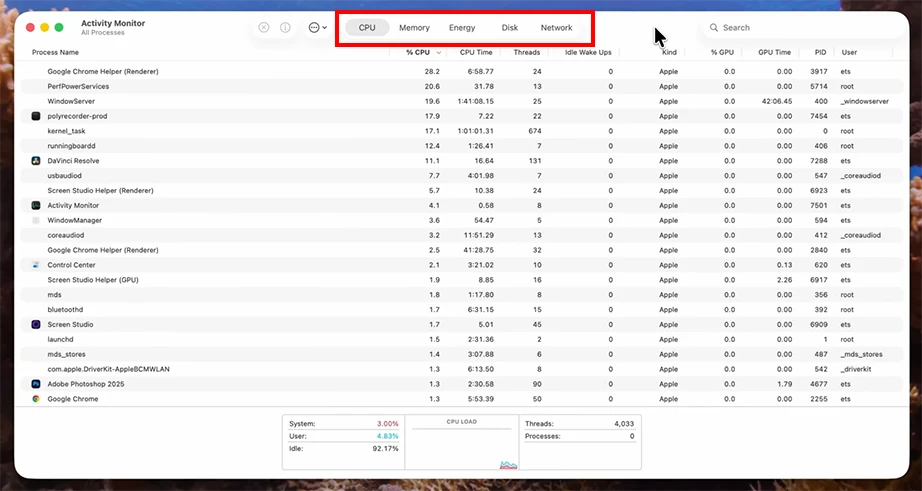
This tab displays the percentage of your processor’s total capacity currently used by each application. If your Mac’s fans start spinning loudly or the chassis feels hot, check this tab to find “runaway processes” (broken programs that are trapped in processing loops).
This tab monitors your Random Access memory (RAM). The most important term here is the Memory pressure Graph at the bottom. If the graph shows green, your Mac has plenty of room. If it shows yellow or red, it means your open applications are exhausting your RAM.
Perfect for MacBook users on the go, this section calculates an “Energy Impact” score for every open app. It tracks cumulative battery drain over time so you can catch apps that are secretly destroying your battery life.
The Disk tab displays how heavily apps are reading and writing to your solid-state drives (SSD), which helps flag misbehaving apps that are wearing down your hard drive life. The Network tab tracks all incoming and outgoing internet data.
When a specific app misbehaves and standard menus stop responding, you can terminate it directly through Activity Monitor. Simply locate the application or process on the main list, click the Stop button (octagon containing an “X”) located in the top toolbar, and choose between two distinct options: Quit or Force Quit.

The standard Quit option is a safe default; it closes the active process while giving it a chance to save. But Force Quit cuts off the process instantly and forcefully.
Shortcut: Press Command+Option+Escape to instantly force quit frozen apps on Mac.
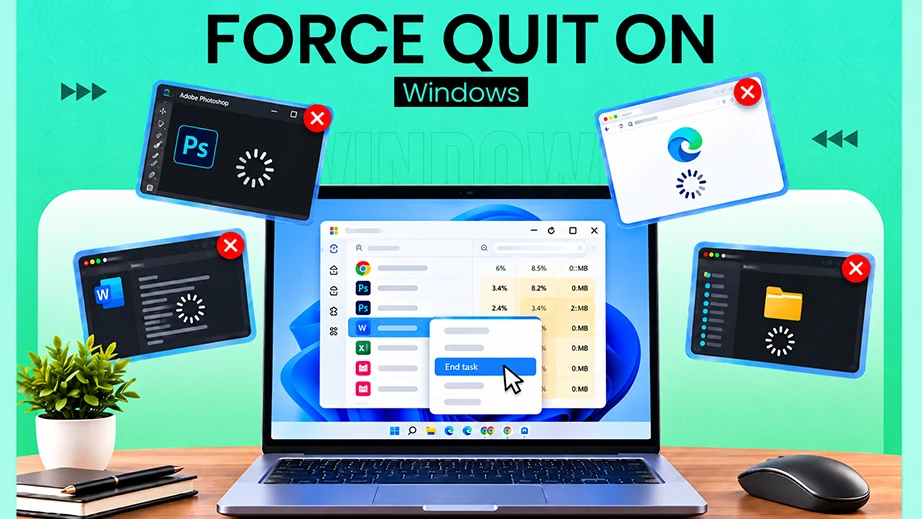
To completely clear these stubborn programs, you must close unresponsive processes directly inside Activity Monitor, your system’s built-in Task Manager Mac alternative. It gives a deep view into everything running behind the scenes on your PC. By selecting the exact process causing system lockup, you can force it to shut down directly at the root level.
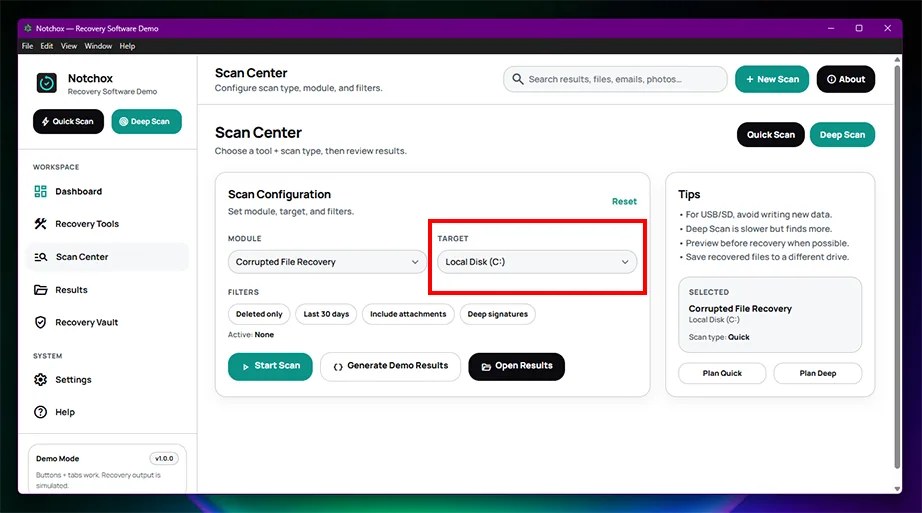
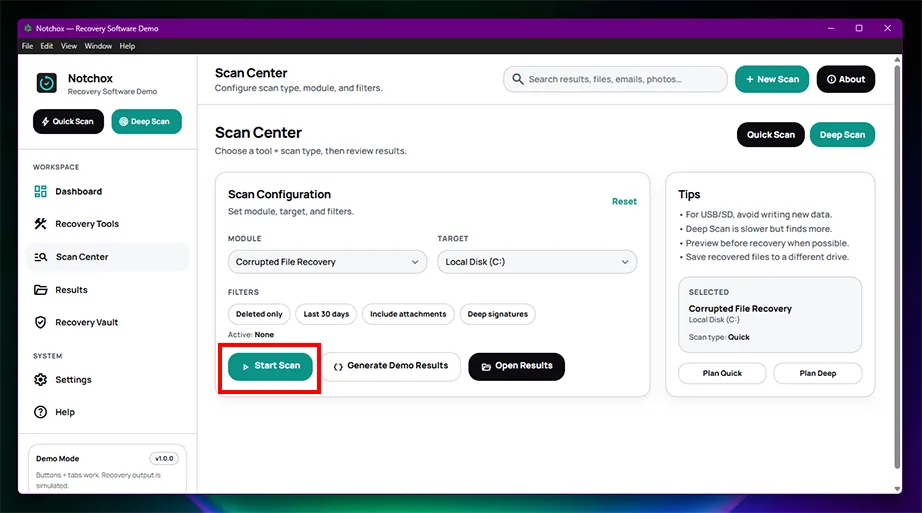
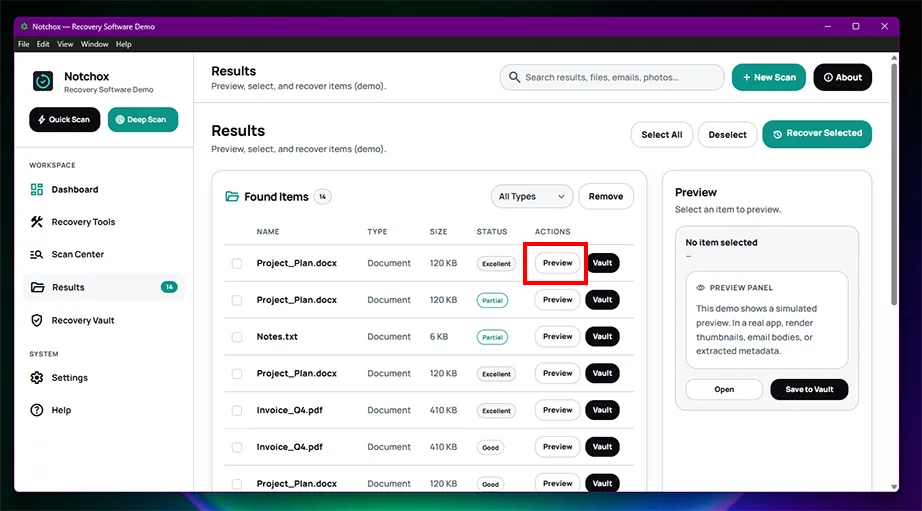
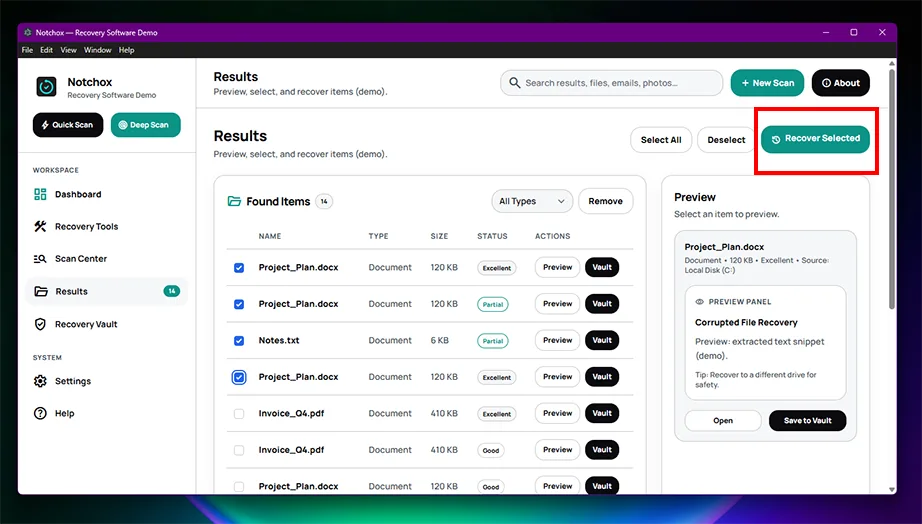
Forcing an application to shut down may cause you to lose unsaved documents and corrupt active data. Notchox Data Recovery Software provides secure recovery with its different modules, including corrupted file recovery, partition recovery, file recovery, and many more. It scans your internal as well as external storage to find and rebuild files left behind during a sudden app crash. So, instead of redoing hours of lost work, you can use Notchox to safely restore your deleted files on macOS.
The Task Manager Mac equivalent is Activity Monitor. It is a tool that lets you track system health and shut down frozen software. You can easily access this tool by pressing Command + Space for a quick Spotlight search, going through Finder to Applications and Utilities, asking Siri, or using Terminal commands. Once open, use its CPU, Memory, Energy, Disk, and Network tabs to identify heavy processes and background tasks.
When an application locks up, you can terminate it by using the global Command + Option + Esc Force Quit shortcut. Note that force quitting might result in losing your unsaved data. Run a quick scan using Notchox data recovery software to rebuild and restore your missing files.
The Task Manager Mac equivalent is Activity Monitor. It gives a live preview of your computer’s internal operations. You can use it to diagnose performance issues and forcefully close unresponsive or frozen software.
To open the Task Manager Mac alternative (Activity Monitor), use any of these system methods:
Getting to the Task Manager Mac equivalent on a MacBook requires using the built-in macOS Activity Monitor application. This is pre-installed on all Apple notebooks to help you manage system diagnostics and battery usage. You can access it using Spotlight Search, the Finder Utilities folder, Siri voice command, or Terminal commands.
To open Task Manager on Mac (Activity Monitor) using Finder:
You can use the voice command for Siri to open Task Manager Mac (Activity Monitor) when your keyboard and mouse are not working.
The equivalent to the Windows Ctrl+Alt+Delete shortcut on macOS is the Command+Option+Escape (Cmd+Opt+Esc) keyboard shortcut. Pressing these three keys simultaneously opens the “Force Quit Applications” window on your screen.
There is no direct key combination to open the full Activity Monitor. Pressing Command+Option+Escape opens a window to kill frozen apps. If you want a one-click shortcut for the full Activity Monitor, you can open Activity Monitor once and select the Keep in Dock option.
To force quit an app on Mac, use the global keyboard shortcut Command+Option+Escape to open the Force Quit menu. From there, select the name of the frozen application from the list and click the Force Quit button. Also, you can select the app inside Activity Monitor and click the top “X” stop icon.

Deeksha Arora is a Data Protection & Recovery Writer focusing on writing accurate, informative, and easy-to-understand technical articles for Notchox’s readers. Her content on the prevention of data loss, understanding risks of device failures, and guides to fix problems helps readers make the right decisions and understand the technical terms easily. She works closely with Subject Matter Experts to ensure high usability and accuracy of her writing.