To unfreeze your system, you must force quit on Windows. Force quitting sends a direct instruction to the operating system’s core to instantly cut off the stuck app’s memory and shut it down.
The most reliable ways to do this include quick keyboard shortcuts like Alt+F4 or Ctrl+Shift+Esc for the Task Manager. You can also use Windows Settings or Command Prompt to force quit Windows app. This article covers every possible method, helping you understand how to force quit on Windows in a very direct way.
Quick Fixes: How to force quit on Windows?
Method
Action
When to Use?
Shortcut
Press Alt+F4
When a single active window stops responding
Press Ctrl+Shift+Esc
Opening Task Manager directly to kill a stubborn process.
Press Ctrl+Alt+Delete
Total screen lockups where your mouse is not responding.
Windows 11 Taskbar
Right-click app icon + “End Task”
Terminate the app without opening menus.
Command Prompt
Type taskkill /imapp.exe /f
Text-based termination using the taskkill command when the desktop lags.
PowerShell
Type Stop-Process -Name “app” -Force
Advanced script-level process ending using the Stop-Process cmdlet.
Windows Settings
Apps > Installed Apps > Terminate
For Microsoft Store applications.
Custom 1-Click Tool
Double-click the custom desktop icon
Run an automated script to wipe out all unresponsive windows at once.
Quick Answer: To force quit on Windows, you can instantly kill any frozen application using several built-in methods. The fastest way is pressing the Alt+F4 shortcut or opening the Task Manager via Ctrl+Shift+Esc to end the task. If your mouse cursor is normally working, right-click on the taskbar and click End Task or use the Windows Settings to terminate it. Because hard closing can cause data loss, use Notchox Data Recovery software to rescue any lost or unsaved files.
The fastest way to force quit on Windows is by using keyboard shortcuts. You have a few great choices here, such as Alt+F4 to close a single window, Ctrl+Shift+Esc to go to the Task Manager, or Ctrl+Alt+Delete if your desktop locks up. But shortcuts aren’t your only option.
You can also kill an app using your mouse by enabling the Windows 11 Taskbar “End Task” feature or by using the Windows Settings. WE also have a Command Prompt command to do this, and a handy hack to create a shortcut to clear everything at once. Let’s look at these ways on how to force quit on Windows in detail.
Method 1: Using Shortcut Keys
Windows lets you override frozen processes instantly using shortcut keys. It’s the quickest way to regain control of your desktop without rebooting your computer. The following are the three shortcuts you can use to force close Windows applications.
Shortcut 1: Alt+F4
The fastest way to force quit Windows app is the Alt+F4 shortcut key command. This keyboard combination is like pressing the standard close button (X) without actually clicking it.
How to use it: Click on the frozen application window to make sure it is selected. Press and hold the Alt key and tap the F4 key simultaneously.
When to use it: Use this when a single application stops responding, but your mouse cursor and desktop are still functioning normally.
Shortcut 2: Ctrl+Shift+Esc
You can get direct Task Manager access using Ctrl+Shift+Esc. So, if a program is completely locked up and ignoring basic close commands, you can use this one. It overrides the immediate system screen and shows us Task Manager.
How to use it: Press Ctrl+Shift+Esc all at the same time. The Task Manager window pops up; find the frozen app under the “Processes” tab, right-click it, and select End task.
When to use it: Use this when an app refuses to close with Alt+F4 or when background processes are slowing down your operating system.
Shortcut 3: Ctrl+Alt+Delete
The last emergency shortcut is Ctrl+Alt+Delete. It is to be used when your entire screen freezes and your mouse cursor stops moving completely. This command works at a hardware level to break through software lockups.
How to use it: Press the Ctrl, Alt, and Delete keys together. Your computer will open a full-screen security menu. From here, you can click Task Manager to close the unresponsive program, or use the Power icon in the bottom right corner to safely restart your PC.
When to use it: Use this as a last option when your keyboard stops responding to other inputs and your desktop environment is frozen.
Method 2: Using the Windows 11 Taskbar “ End Task” Feature
The Windows 11 taskbar has a hidden developer feature called End Task. It lets you kill frozen programs and force quit windows directly from your desktop. Normally, the taskbar only lets you close programs by hovering over or right-clicking the application’s icon. Using this built-in feature, you add a direct command right to your mouse clicks. It is the fastest mouse-only method to restore system performance when individual windows stop responding.
How to force quit on Windows using the Taskbar:
Step 1: Enable the “End Task” Feature
Before you can use this shortcut, you must turn it on in your system settings:
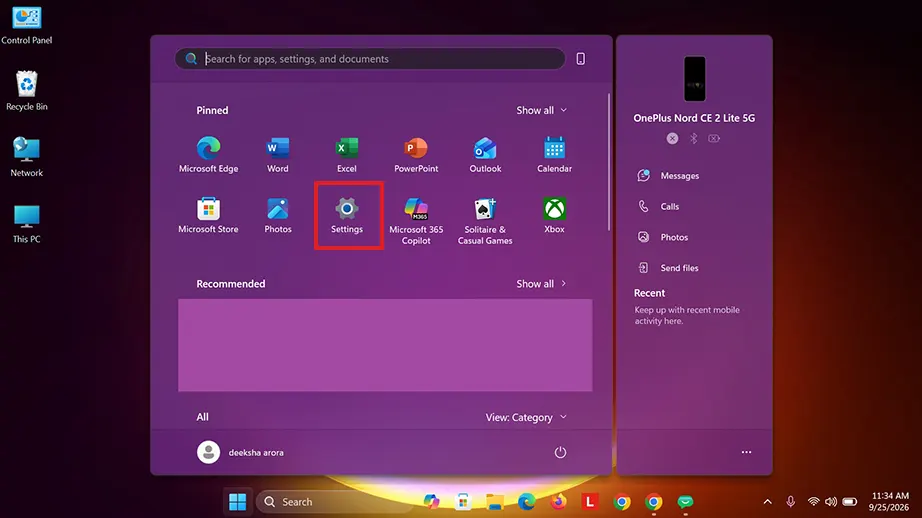
Open the Start Menu and click on Settings (or press Windows Key + I).
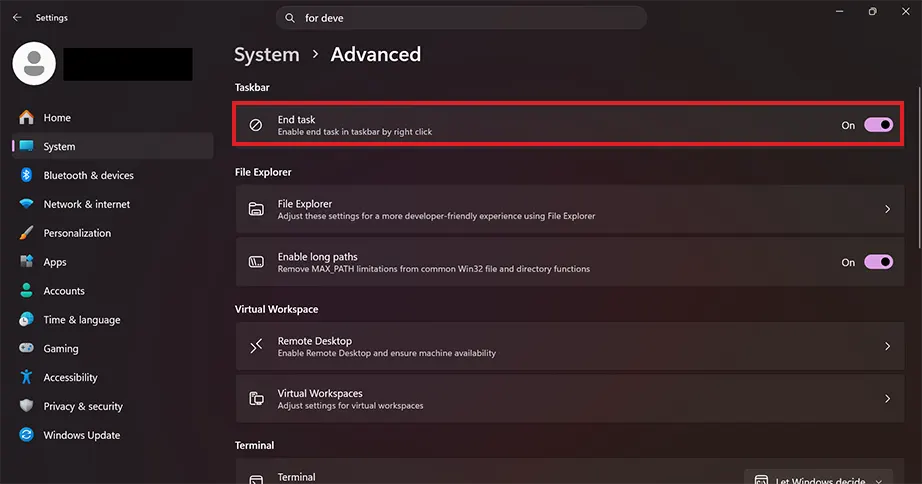
Click on Settings in the left sidebar, then scroll down and click Advanced.
Locate the End Task toggle switch and turn it on.
Step 2: Kill the Frozen Program
Once enabled, you can terminate any broken application directly from the bottom of your screen:
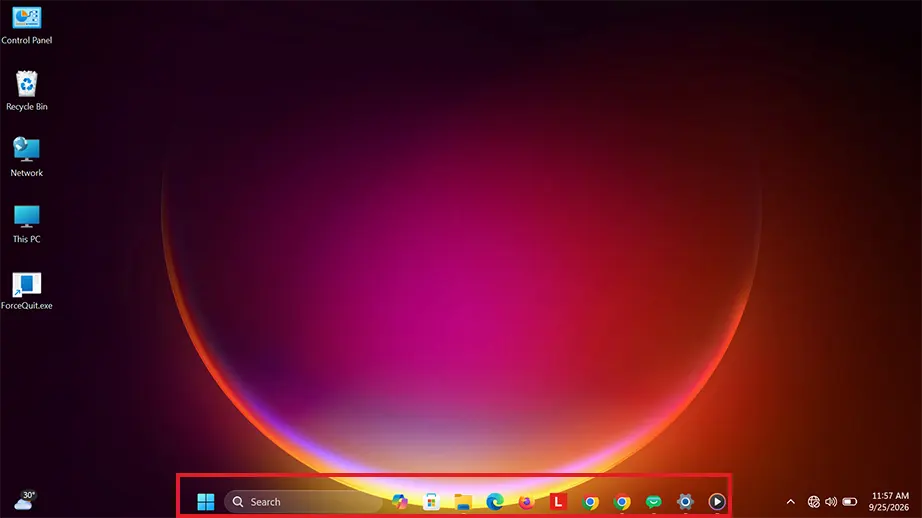
Move your mouse cursor down to the Windows 11Taskbar.
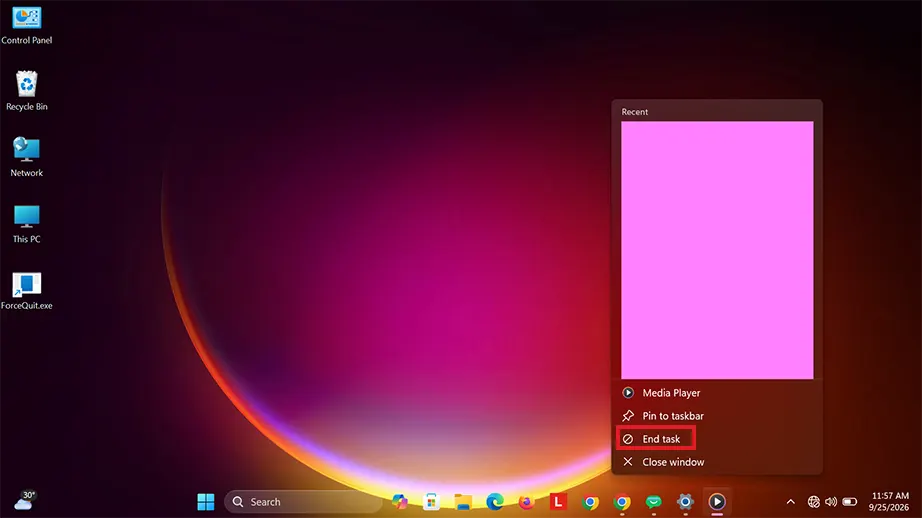
Right-click on the icon of the frozen or unresponsive application and click on the new End Task option at the bottom of the pop-up menu to force quit app windows.
Method 3: Force Quitting via Command Shell (CMD) or PowerShell
If graphical windows freeze completely, you can use Windows command-line tools, Command Prompt (CMD) and PowerShell, to force-quit a Windows application. These tools let you communicate directly with the operating system’s core using text commands.
Force Quitting Apps via Command Prompt (CMD)
The Command Prompt is a traditional Windows tool that uses the taskkill utility to stop any running application by its name or identification number. You just need to enter a few commands in the terminal window to force quit windows.
Press the Windows Key + R to open the Run dialog box.
Type cmd into the box and press Enter to open the Command Prompt window.
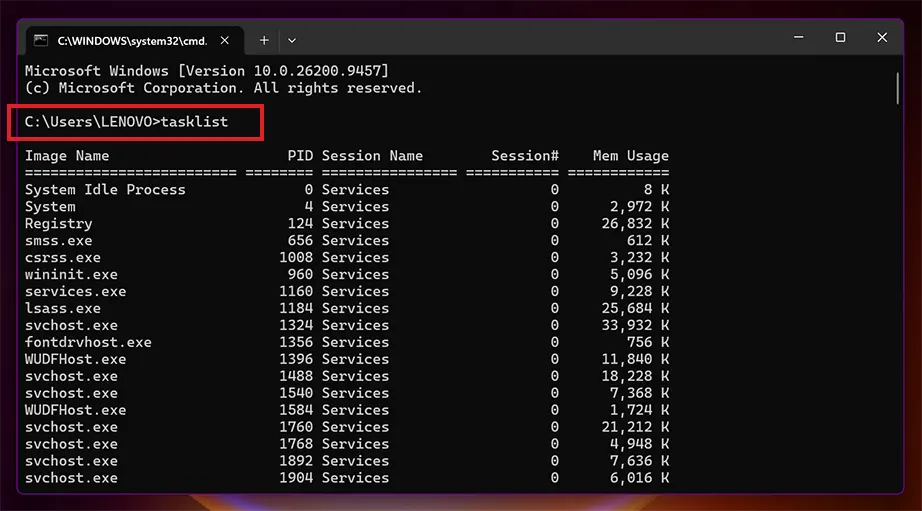
Type tasklist and press Enter to view a complete list of all active programs and their system names (like chrome.exe or excel.exe).
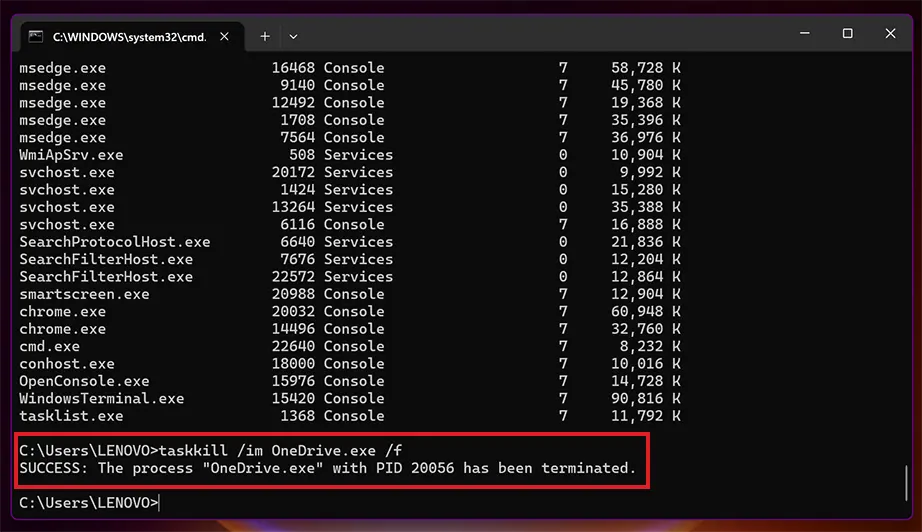
Type taskkill /im programname.exe /f (replace programname.exe with the name of your frozen app) and press Enter to force it to close immediately.
Force Quitting Apps via PowerShell
PowerShell is an advanced management environment in Windows. It uses modern commands called “cmdlets” to stop unresponsive background processes and software instantly.
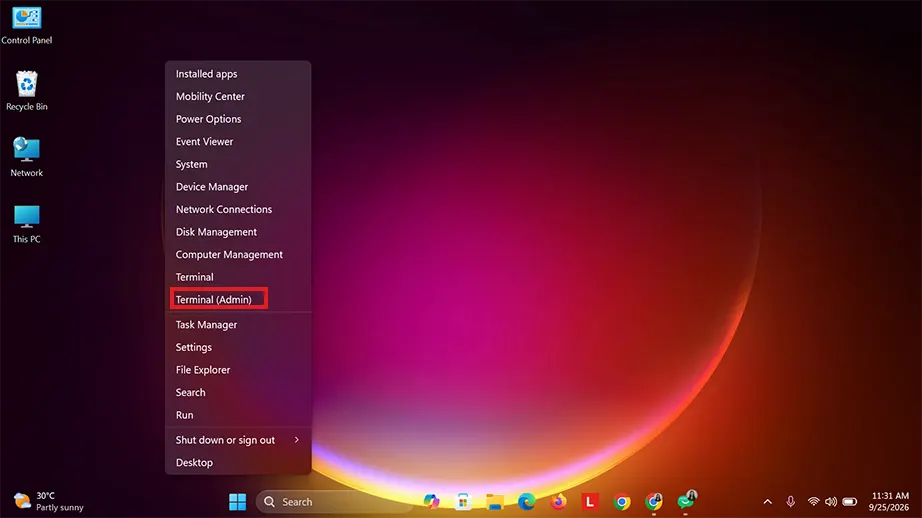
Right-click the Start Menu button (or press Windows Key + X) and select Terminal or Windows PowerShell.
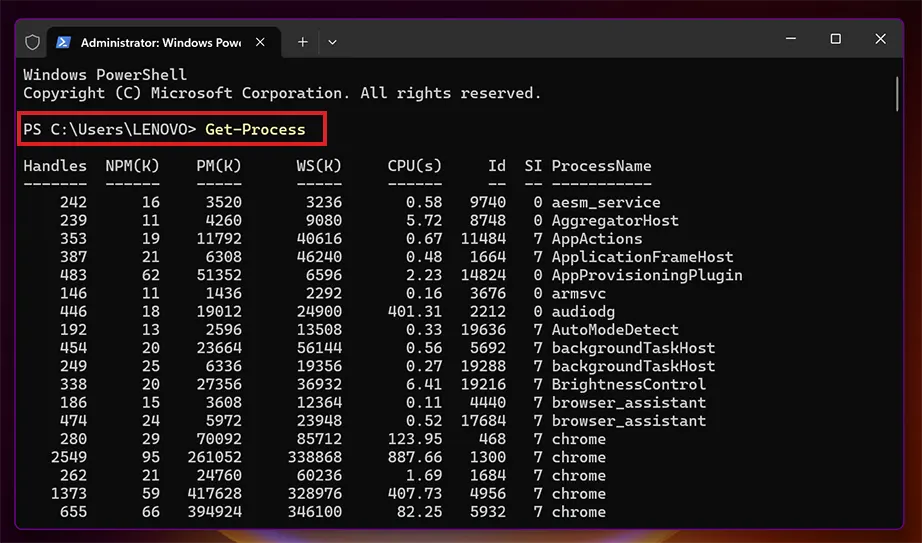
Type Get-Process and press Enter to see a detailed list of all running tasks on your computer.
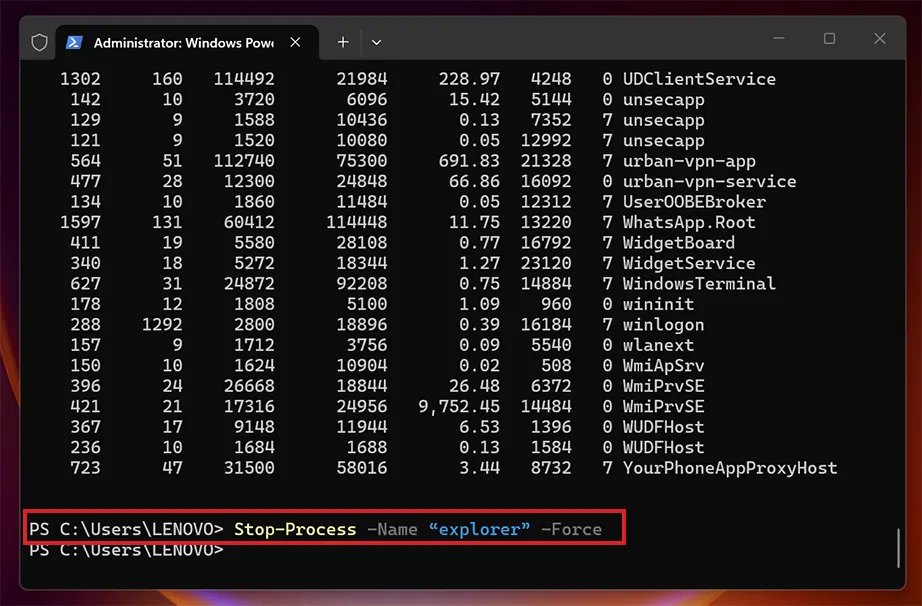
Find the name of the frozen app in the list. Then type Stop-Process -Name “programname” -Force (replace programname with the app’s name, leaving off the .exe extension). Press Enter to execute the command and force quit app windows.
Method 4: Using Windows Settings
Windows Settings has a troubleshooting tool called Terminate that lets you force quit apps safely. When a program from the Microsoft Store freezes, standard close buttons fail because the background process stays locked up in a loop. By going to the installed apps list, you can tell Windows to completely shut down the application and all related processes. This method is quite effective because it does not require commands or keyboard shortcuts.
How to force quit an app on windows through Windows Settings:
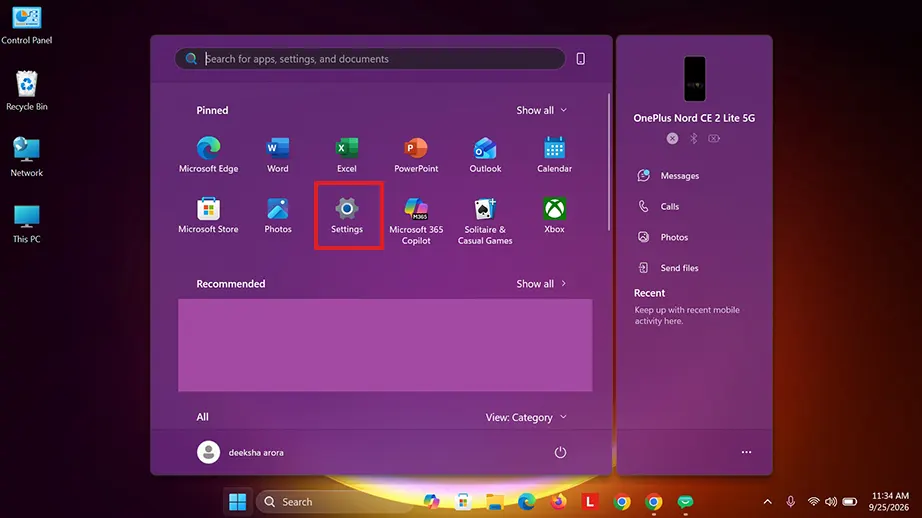
Click on the Windows Start menu and select Settings.
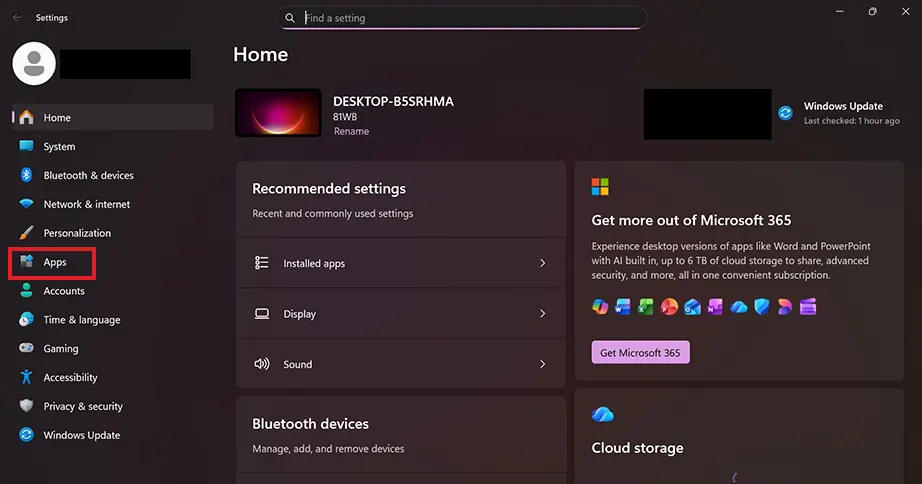
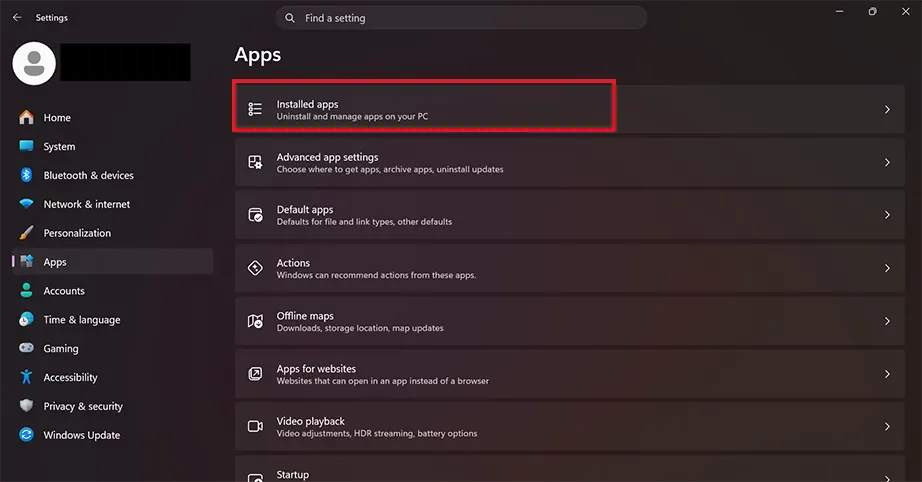
Click on Apps in the left-hand sidebar menu.
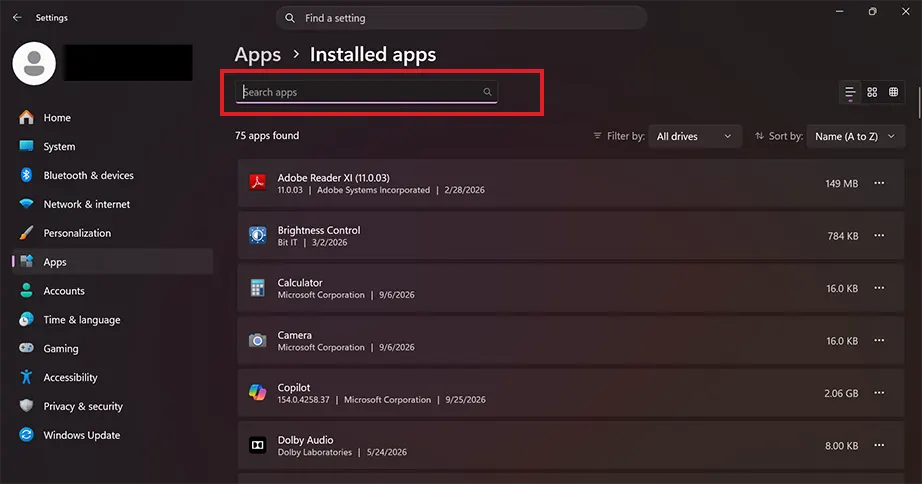
Click on Installed apps (or Apps & features depending on your Windows version) at the top of the list.
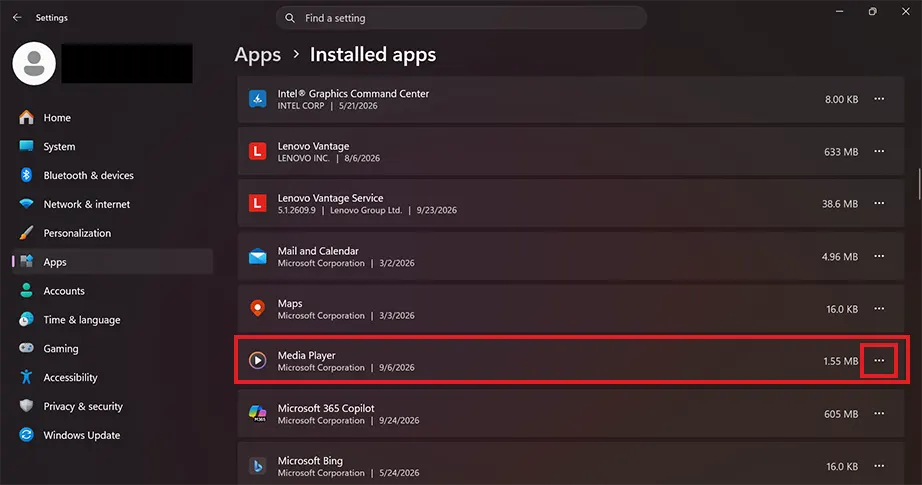
Scroll through or use the search bar to find the desired windows force quit application.
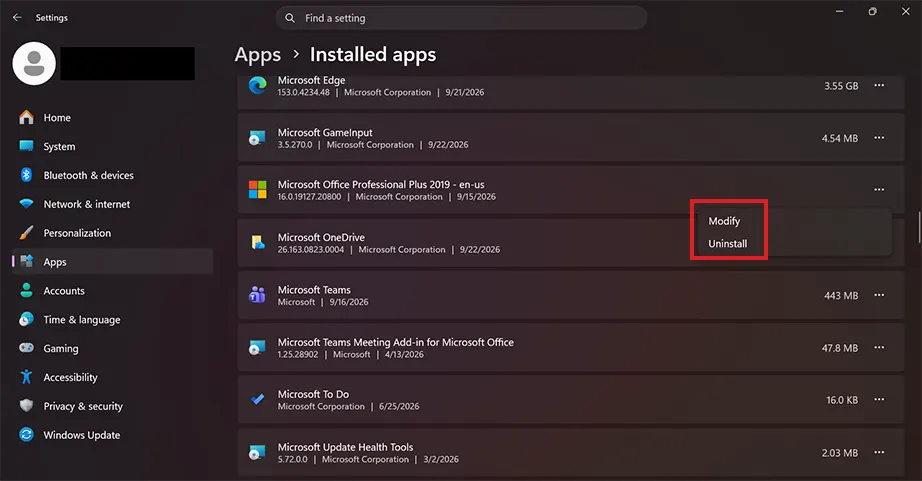
Click on the three dots (…) next to the app name.
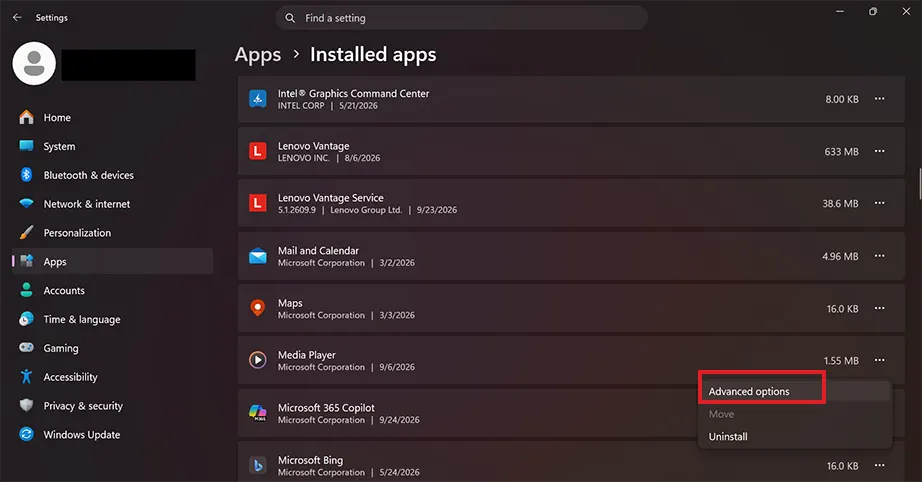
Select Advanced options from the drop-down menu.
Note: If “Advanced options” does not appear, this app is a traditional desktop program and must be closed using the Task Manager or keyboard shortcuts instead.
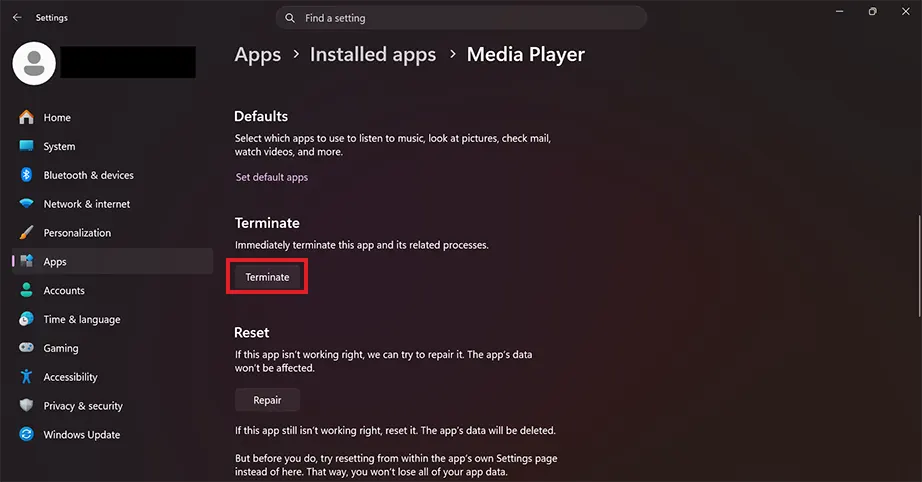
Scroll down the page until you find the Terminate section. Click the Terminate button.
Method 5: Creating a Custom “1-Click” Desktop Kill Shortcut
Instead of opening menus or typing commands every time a program locks up, you can build a custom desktop icon that force exit windows app. When you click on this shortcut, it automatically runs a background script that scans your system and stops every single application marked as “Not Responding.”
How to build a 1-click app killer shortcut:
Go to your desktop screen and right-click on any empty space.
Hover your mouse over New in the menu and select Shortcut.
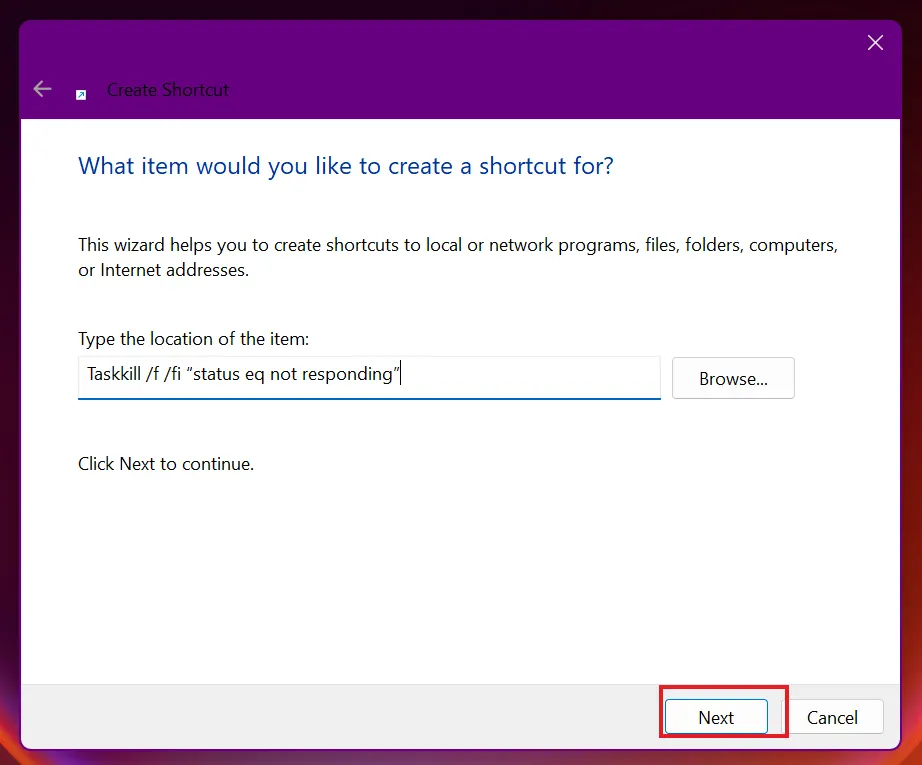
A window will pop up asking for the item’s location. Copy and paste the text command below into the text box:
Taskkill /f /fi “status eq not responding”
Click the Next button.
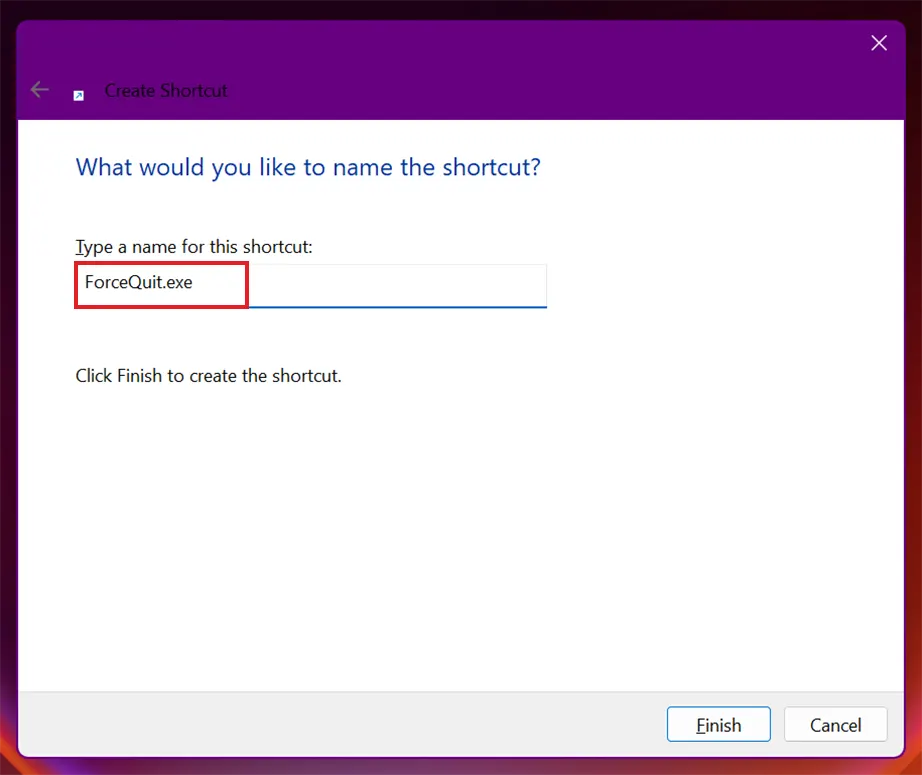
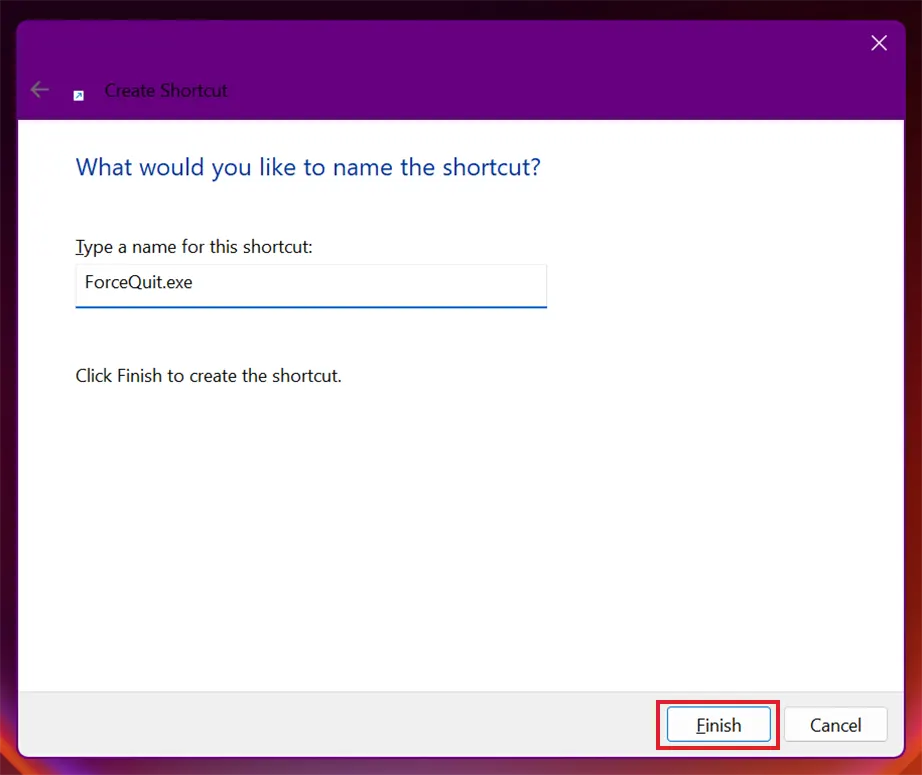
Type a name for your new tool in the box.
Click Finish. A new icon will appear on your desktop.
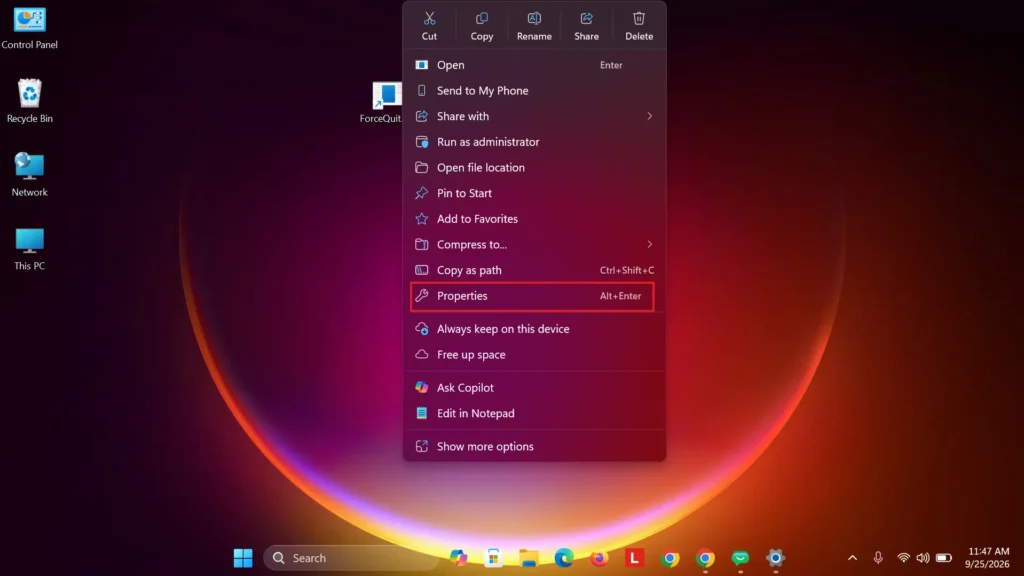
Right-click your newly created desktop icon and select Properties.
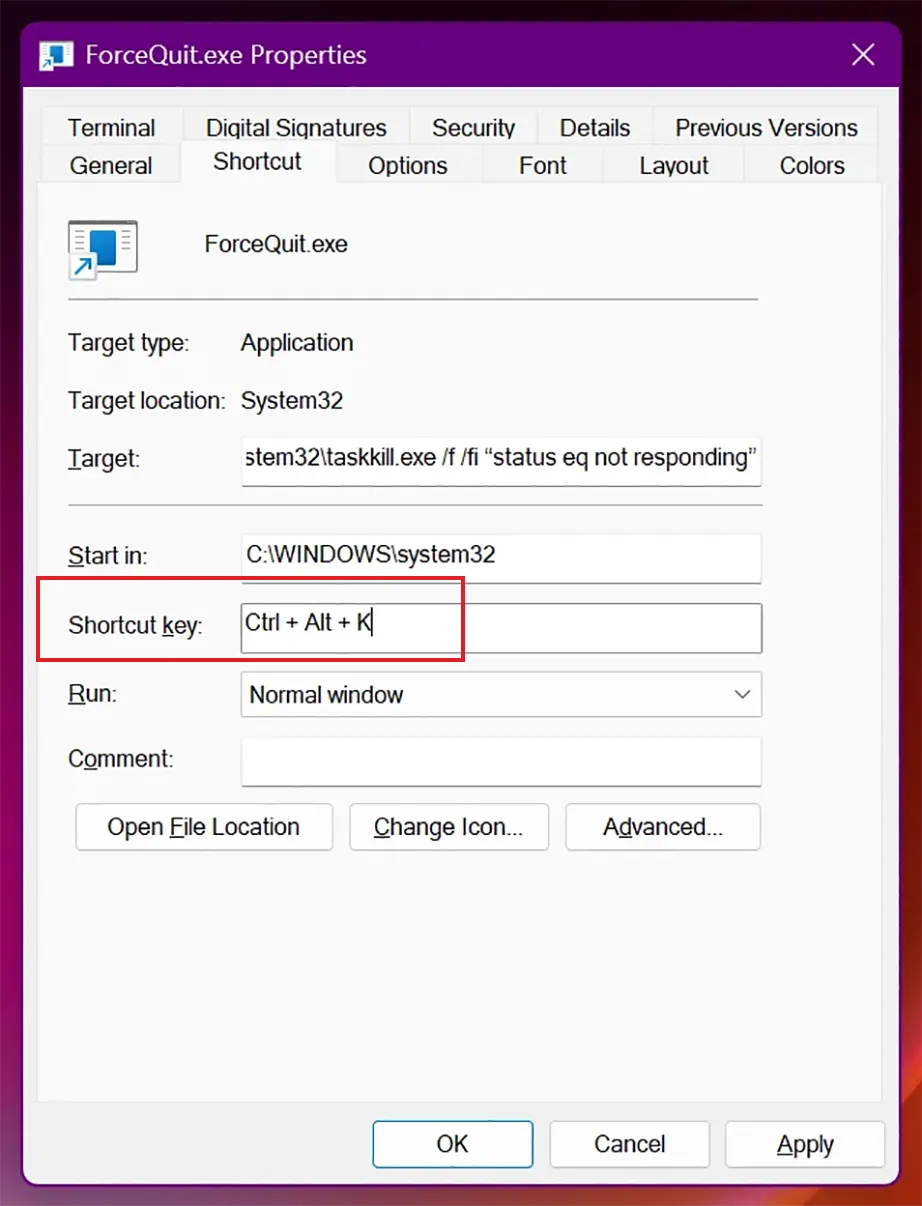
Click into the Shortcut key field.
Press a letter on your keyboard (for example, K). Windows will automatically generate a shortcut like Ctrl + Alt + K.
Note: Once your cursor is blinking inside the specific box, do not type the words “Ctrl” or “Alt”. Instead, simply press the letter K (or any letter you prefer) on your keyboard. Windows will automatically fill in the Ctrl + Alt + part for you.
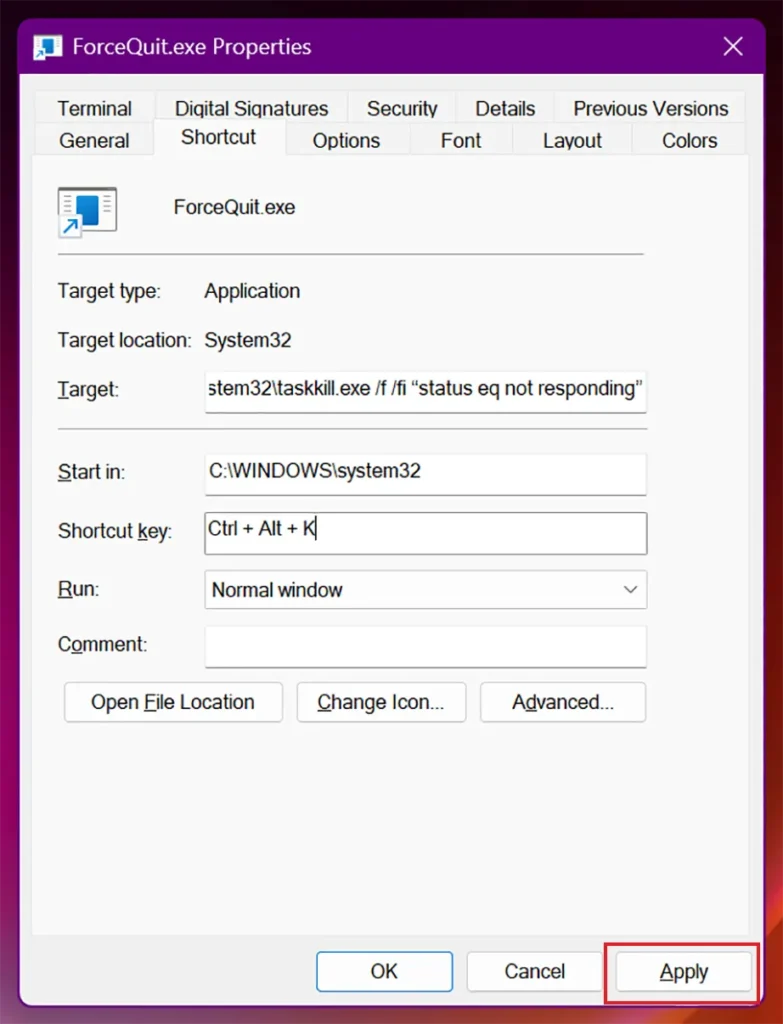
Click Apply and then OK. Now, whenever a program freezes, you can just press that key combination to force exit windows app.
How to Recover Unsaved Files After an Emergency Force Quit?
Force quitting an unresponsive program might lead to data loss because when you force close an app, Windows ends the process the very second without giving a chance to save your active progress. This means that documents or files you were working on are left corrupted or incomplete. Though some programs have an auto-save feature, it might fail during this. To recover the files, you need specialised data recovery software.
Using Notchox Data Recovery Software
Notchox Data Recovery Software is a powerful, user-friendly tool specifically designed to locate and recover deleted files on Windows that accidentally got deleted or lost due to a system crash, file corruption, etc. It runs a deep scan to safely extract your unsaved data.
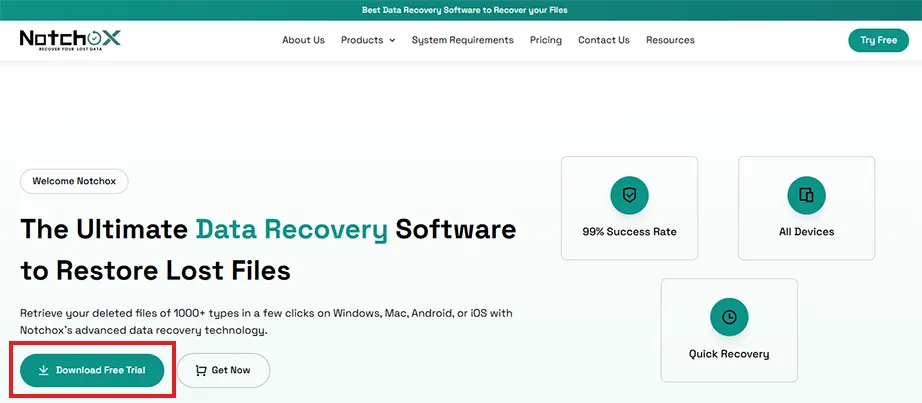
Download and install the software from the official Notchox website.
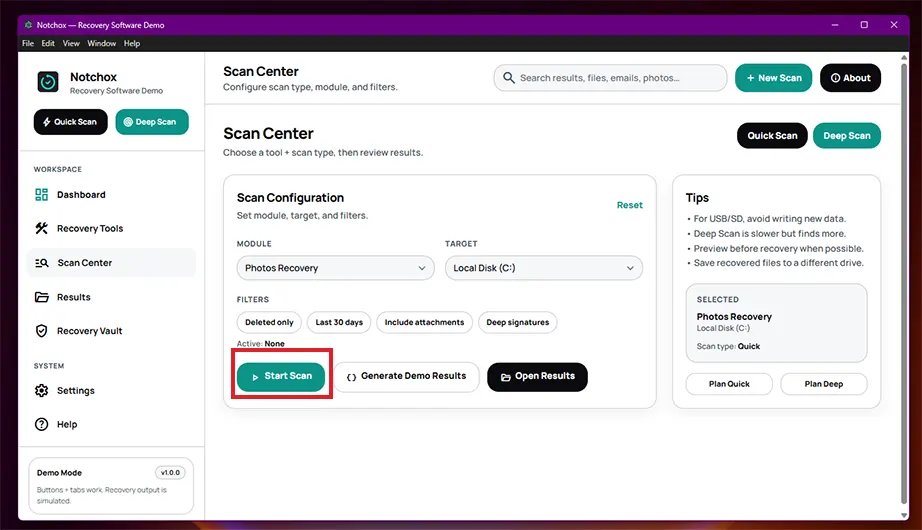
Choose the specific hard drive partition from the dropdown.
Click the Start Scan button to allow the software to search through the drive for remnants of the lost file.
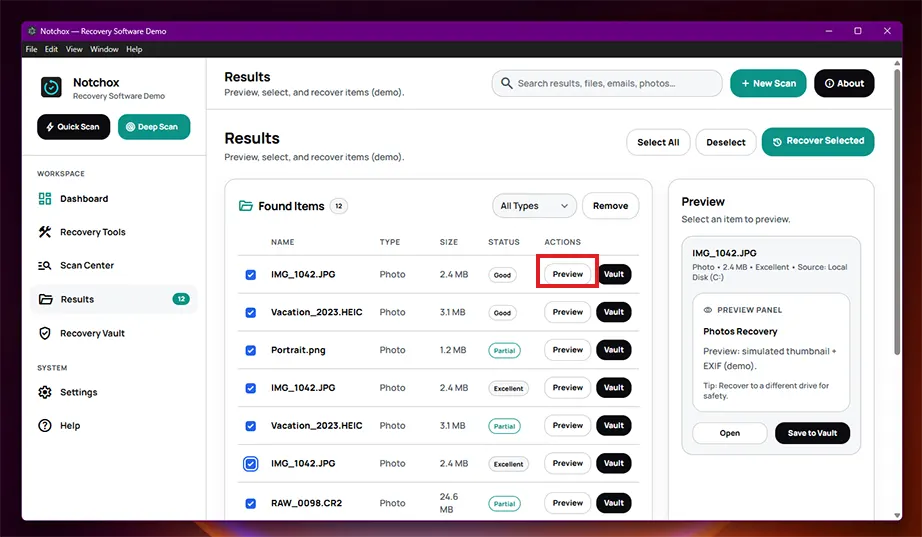
Browse through the list of found files once. Click the Preview button to verify that your document, photo, video, etc. is intact.
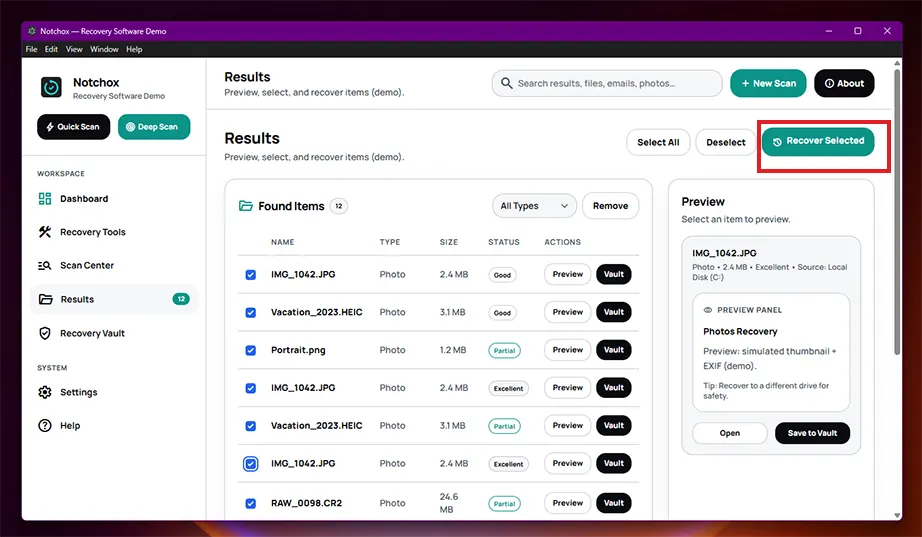
Select the files you want back, click Recover Selected, and save them to a new and secure location on your computer.
Quick Recap: Windows Force Quit
To force quit on Windows, you can use native shortcut keys like Alt+F4 for an instant close, Ctrl+Shift+Esc to open Task Manager, or Ctrl+Alt+Delete for a total system restart. If shortcuts fail, you can use mouse-only solutions like the Windows 11 Taskbar End Task feature, through Windows Settings, or run text commands in Command Prompt and PowerShell.
For long-term convenience, you can also build a custom 1-click desktop shortcut to windows force quit. Because abruptly terminating an active program can lead to sudden data loss or corrupted files, you can use Notchox Data Recovery Software to easily retrieve your files.
Frequently Asked Questions
How to force quit on Windows?
To force quit an application on Windows, follow these methods:
Keyboard shortcuts (Alt+F4, Ctrl+Shift+Esc, and Ctrl+Alt+Delete)
Windows 11 Taskbar “End Task” feature
Command Prompt (taskkill command)
PowerShell (Stop-Process command)
Windows Settings “Terminate” button
Custom 1-click desktop shortcut
Why is Alt+F4 not closing my frozen program?
Alt+F4 fails because the application is completely locked up in a system loop and is ignoring standard close requests from Windows.
Will force quitting a program damage my Windows computer?
No, force quitting a program won’t damage your computer hardware or Windows software. But it will erase any unsaved work inside the application.
How to manually force quit on Windows?
You can manually force to quit Windows by right-clicking the app on your Windows 11 Taskbar and selecting End Task, or by going to Settings > Apps > Installed apps, opening the app’s advanced options, and clicking Terminate.
How to force quit with a keyboard?
Press Alt+F4 to close the window instantly, or press Ctrl+Shift+Esc to open the Task Manager, where you can select the app and select End Task using your arrow keys and the Enter key.
Does Alt+F4 close all apps?
No, Alt+F4 does not close all apps. It only closes the single active window that is currently open and highlighted on your screen.
How do I unfreeze my laptop when control alt delete doesn’t work?
Press and hold down the physical power button of your laptop for 5 to 10 seconds until the screen goes off to force a hard shutdown. This will unfreeze your laptop and restart it again.
Kajal Singh is a Data Recovery Writer at Notchox, specializing in data recovery, storage systems, RAID, and digital forensics. She writes technical processes, tools, and cases into clear, engaging articles, blogs, and guides. Kajal does thorough research, deep analysis, and collaborates with experts to produce high-quality and engaging content that is easy to understand for every reader.