Backing up an external hard drive can save you in situations where your files become inaccessible. Backblaze drive stats for Q1 2026 suggest that the lifetime failure rate of hard drives is 1.39%, which makes maintaining backups even more important. Among the numerous methods to backup external hard drive, the most reliable are the ones Windows and Mac natively provide. These include Windows File History, Backup and Restore, OneDrive, and Mac’s Time Machine and iCloud.
Let’s begin with setting up external hard drive backups on Windows and Mac one by one so that you don’t lose your data permanently.
Quick Answer: Backup external hard drive on Windows by enabling File History and Backup and Restore and selecting the external hard drive. Alternatively, use OneDrive for cloud backup. On Mac, Time Machine gives a native and secure way for external hard drive backup. In case of no backups, restore data from the external hard drive using reliable data recovery tools such as Notchox.
To back up an external hard drive on Windows, you must connect the source drive along with a secondary destination drive or link it to a built-in cloud service like OneDrive. Windows has native toolsets like File History, Backup and Restore, and OneDrive sync that you can use to replicate files or create full storage copies without installing outside applications.
Here are step-by-step methods to backup external hard drive using Windows native tools.
Method 1: Using File History
Windows File History is the primary built-in backup utility in Windows. It takes snapshots of specific folders at regular intervals and saves them to a secondary local storage drive. This is an automatic process once turned on.
Steps to backup external hard drive Windows File History:
Plug your source external drive and your secondary backup drive into your Windows PC.
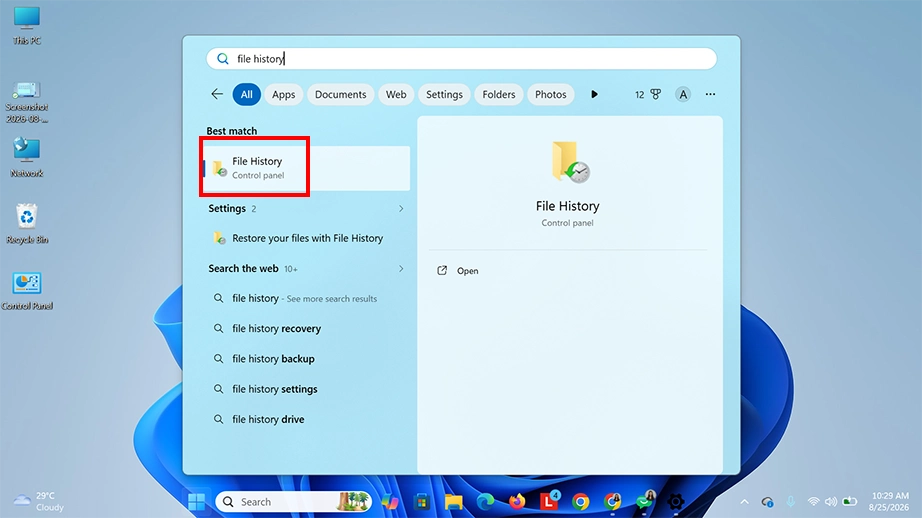
Open the Start Menu, Type File History, and select it from the results.
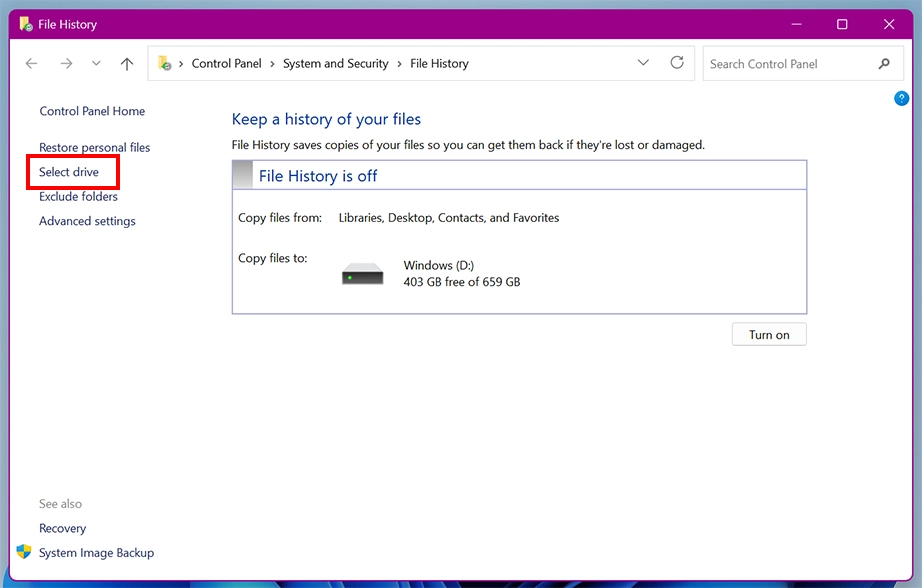
Click the Select drive option in the left-hand menu.
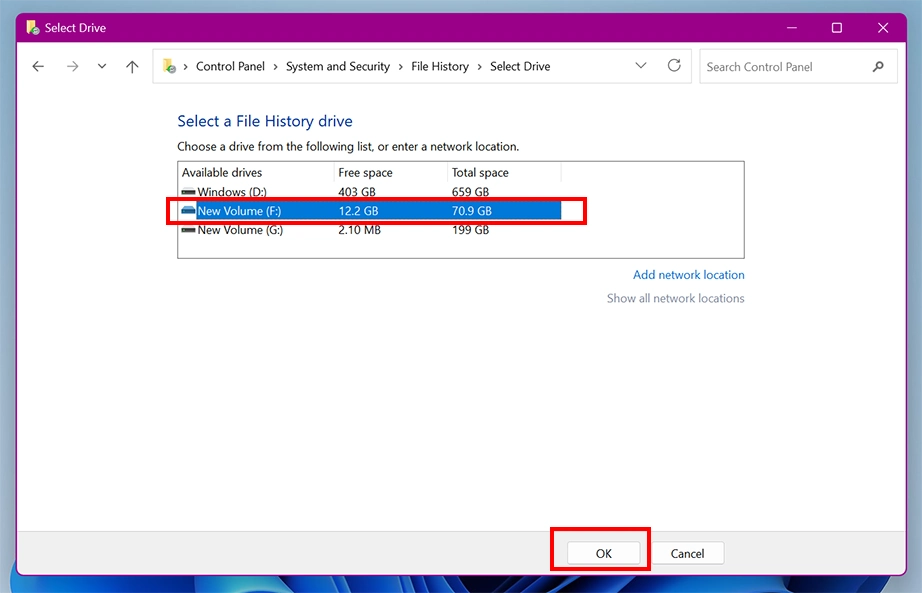
Choose your secondary backup drive, and click OK.
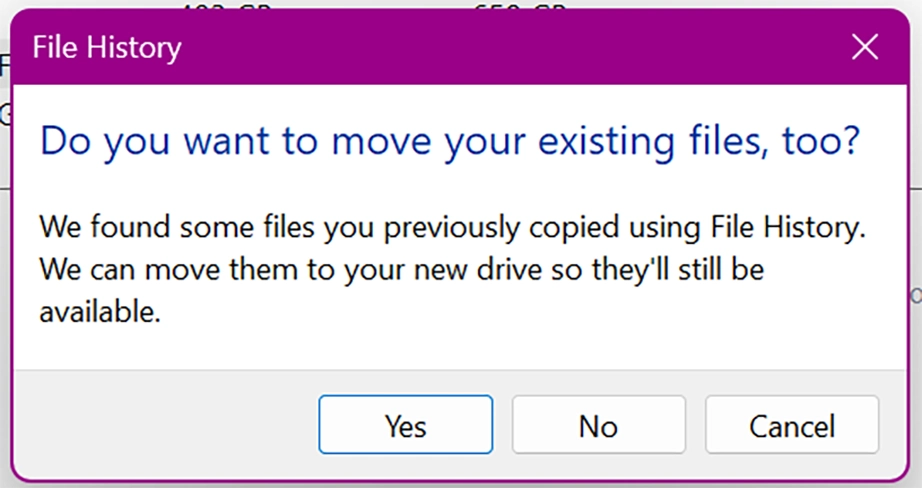
Note: If you already had a backup before, a prompt will ask you if you want to move your existing files too.
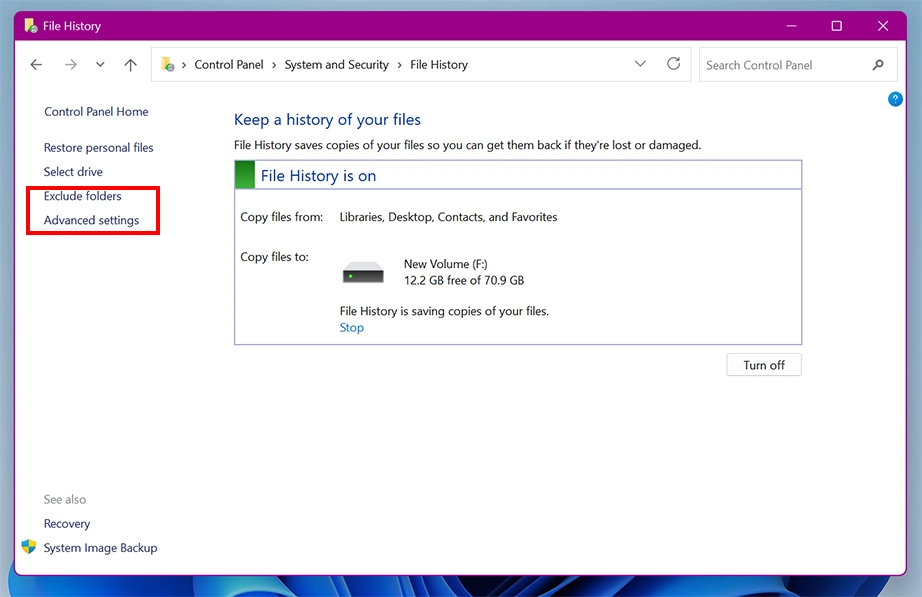
Click Advanced settings or Exclusions to verify that your connected external drive folders are marked for active backup.
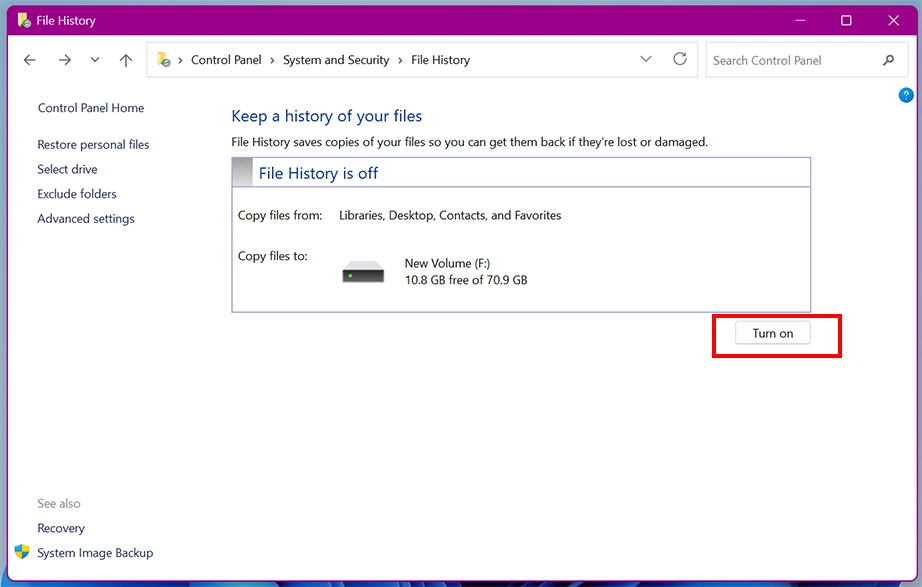
Click the Turn on button to start mirroring your selected external hard drive files immediately.
Method 2: Using Backup and Restore (Windows 7)
The Backup and Restore feature of Windows is a legacy feature built into Windows that creates scheduled block-level backups or individual folder trees. You can manually select the folders you wish to back up. This allows you to backup external hard drive to another drive without manually copy-pasting.
Here are the steps to backup external hard drive Windows:
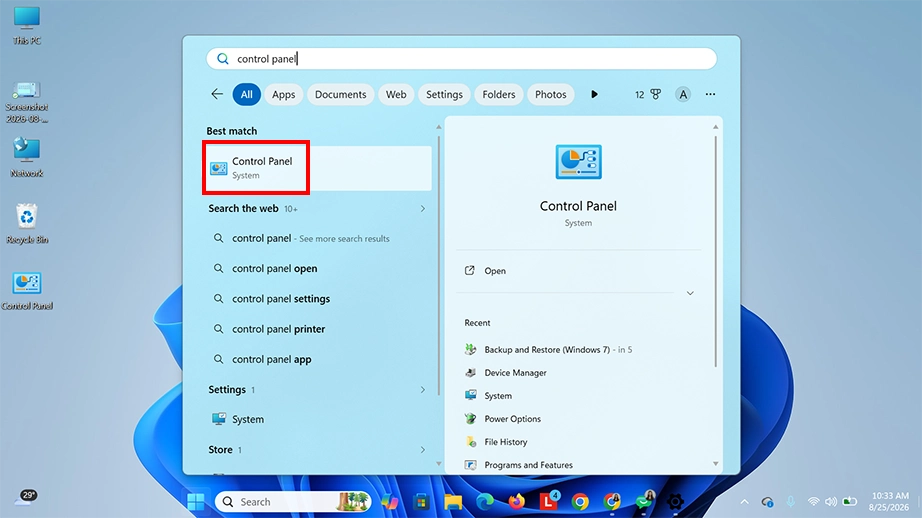
Press the Windows key, type Control Panel, and open the application.
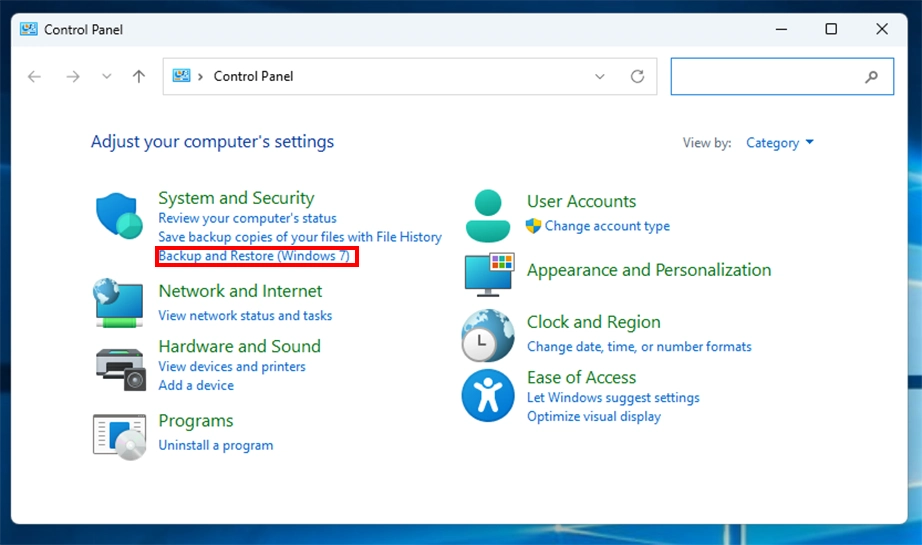
Under the System and Security header, click on Backup and Restore (Windows 7).
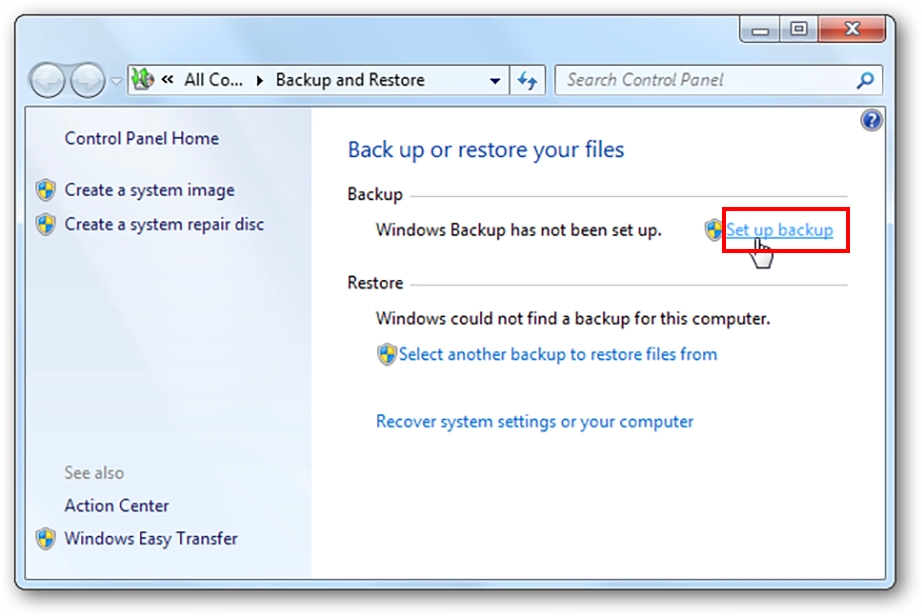
Click Set up backup located on the upper right side of the panel.
Wait for it to scan your system hardware, select your secondary hard drive from the list of available storage locations under the “Save backup on” menu, and then click Next.
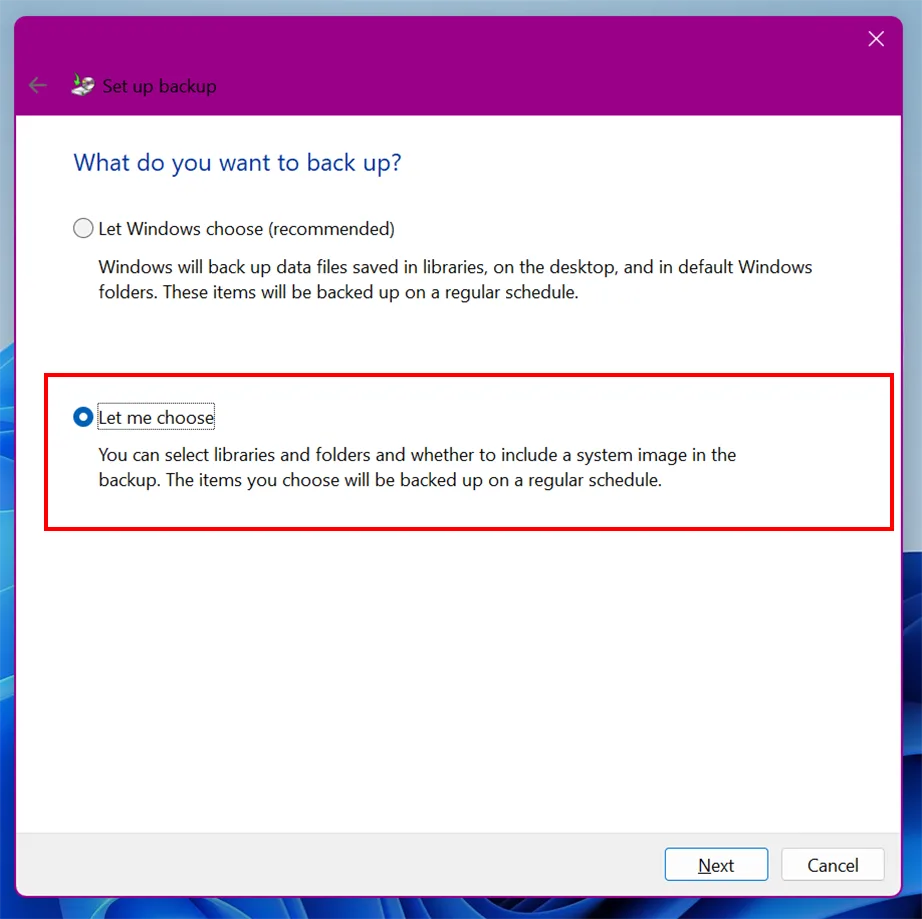
On the next screen, toggle the option that says Let me choose rather than letting Windows decide.
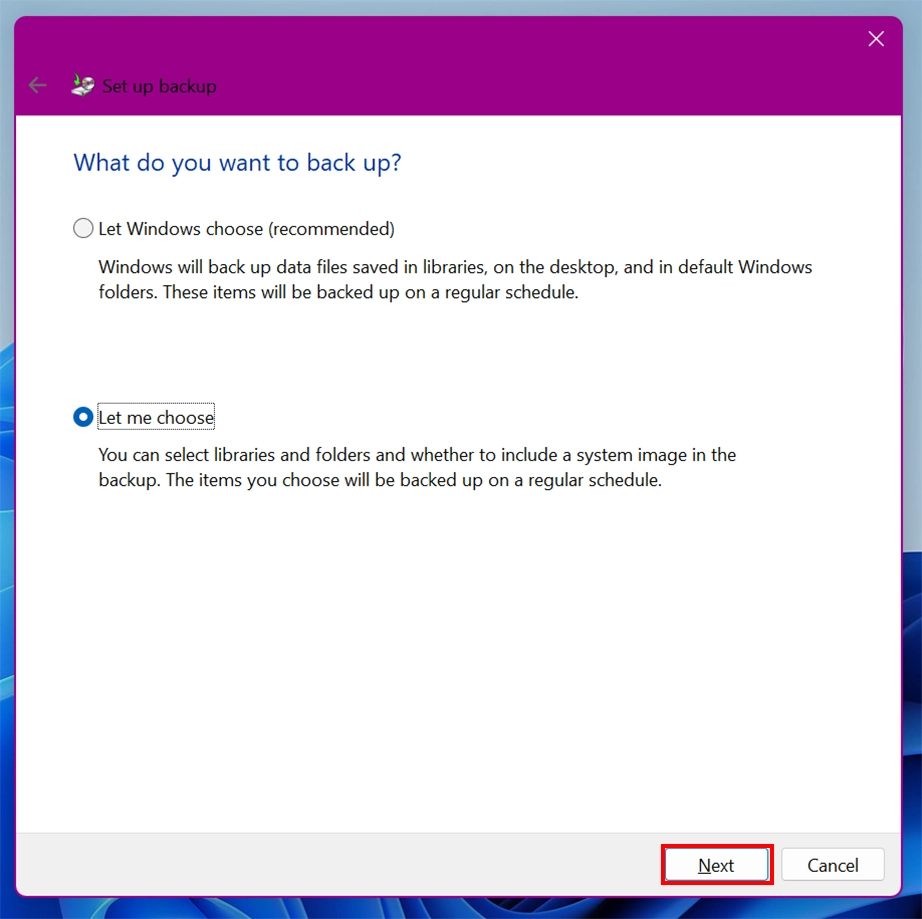
Then click Next so you can specify what needs to be saved.
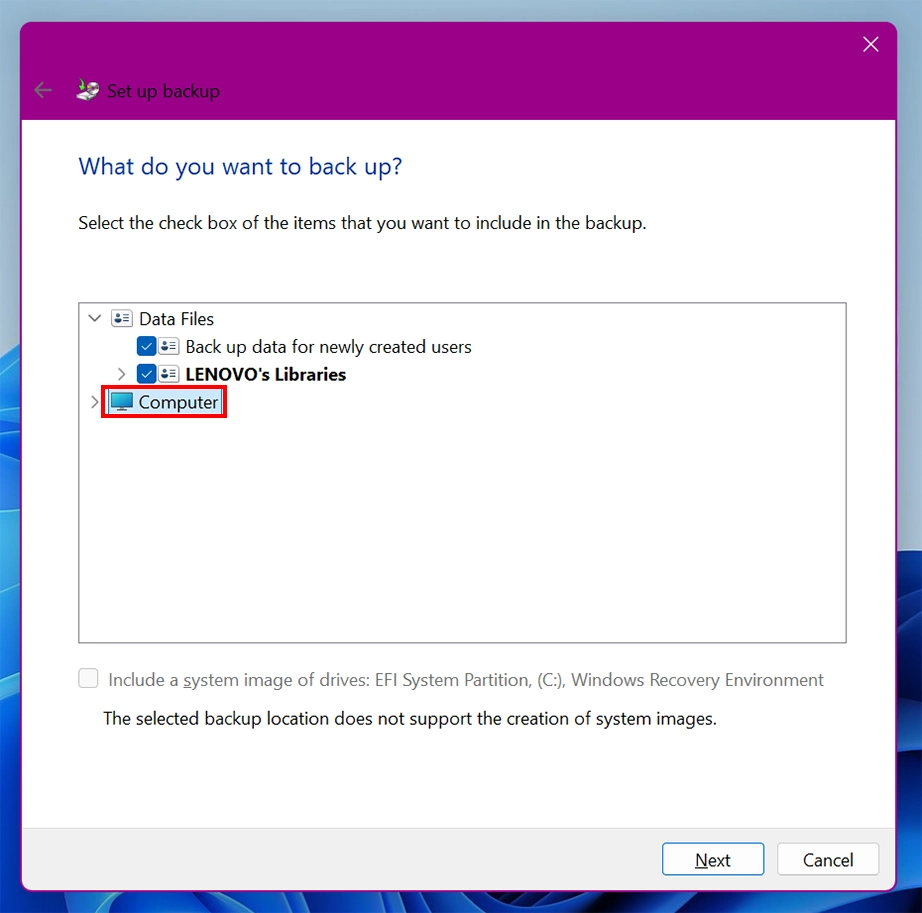
Expand the file directory tree by clicking the arrows next to Computer or This PC.
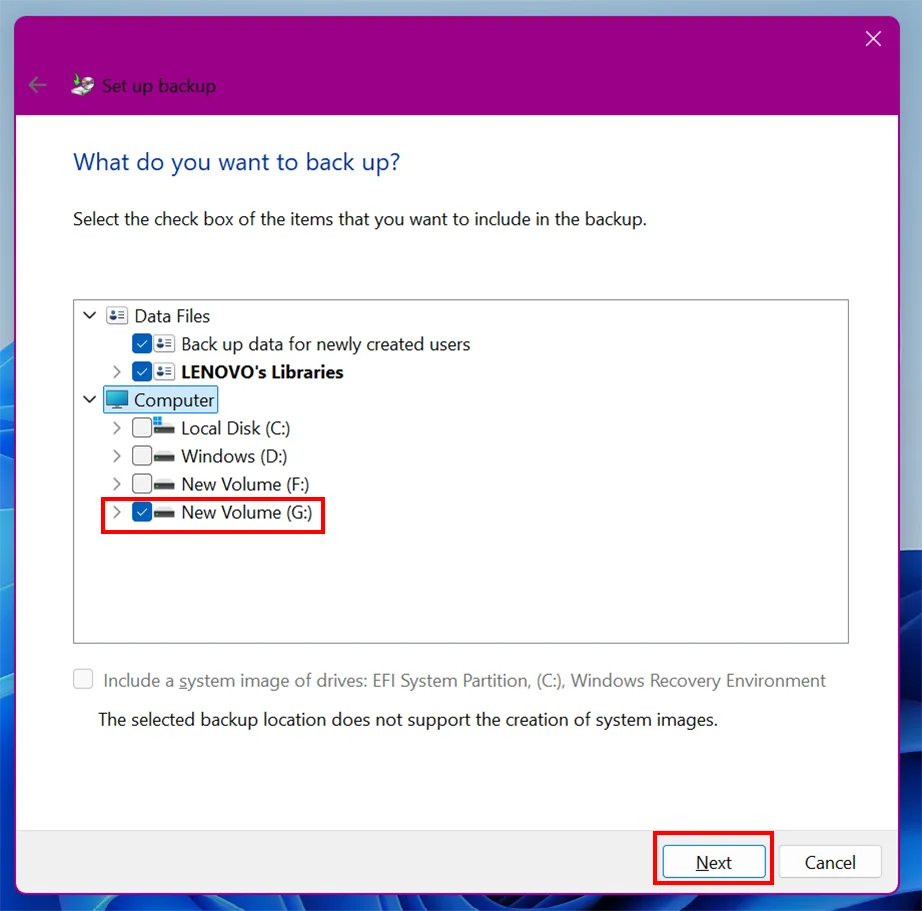
Select your primary external hard drive, check the box next to its drive letter to select all of its files, and click Next.
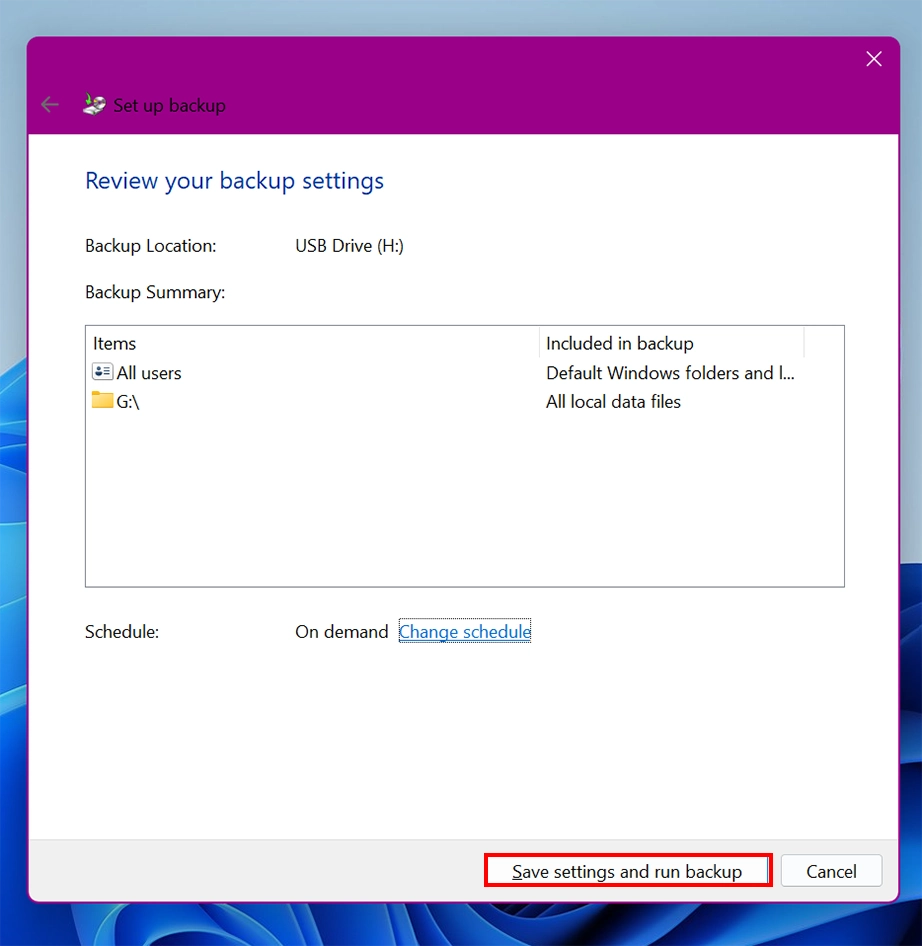
Carefully verify your source and destination settings on the summary page, click Save settings and run backup to initiate the initial file transfer.
Note: Click Change schedule if you want to alter how often the automated backup updates.
Method 3: Using OneDrive Folder Cloud Sync
Backup external hard drive to the cloud is another method to provide offsite data redundancy for your external media. By mapping folders from your external hard drive directly to the OneDrive sync, your files are automatically duplicated to secure and remote cloud servers whenever your computer connects to the internet. This aligns perfectly with the 3-2-1 backup strategy, a backup you have when your physical external drive suffers physical damage.
Steps to backup external hard drive to cloud on Windows:
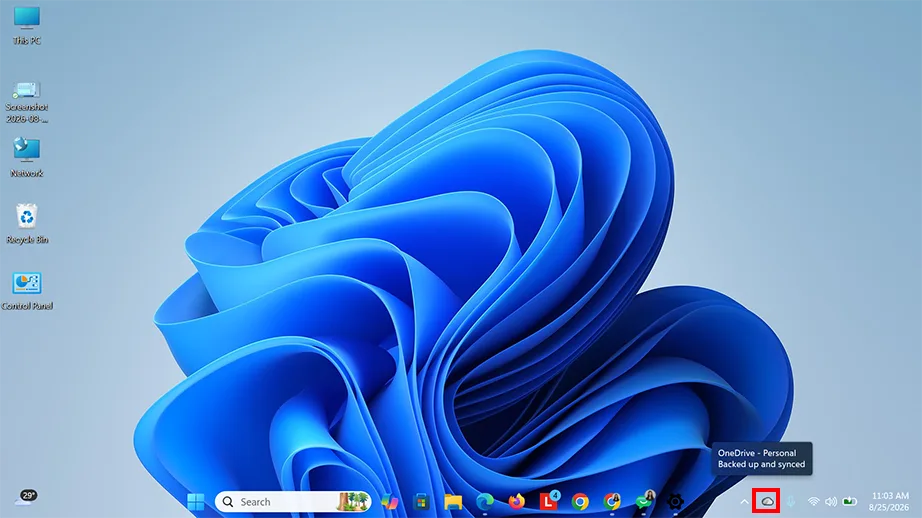
Click on the OneDrive icon in your Windows system tray.
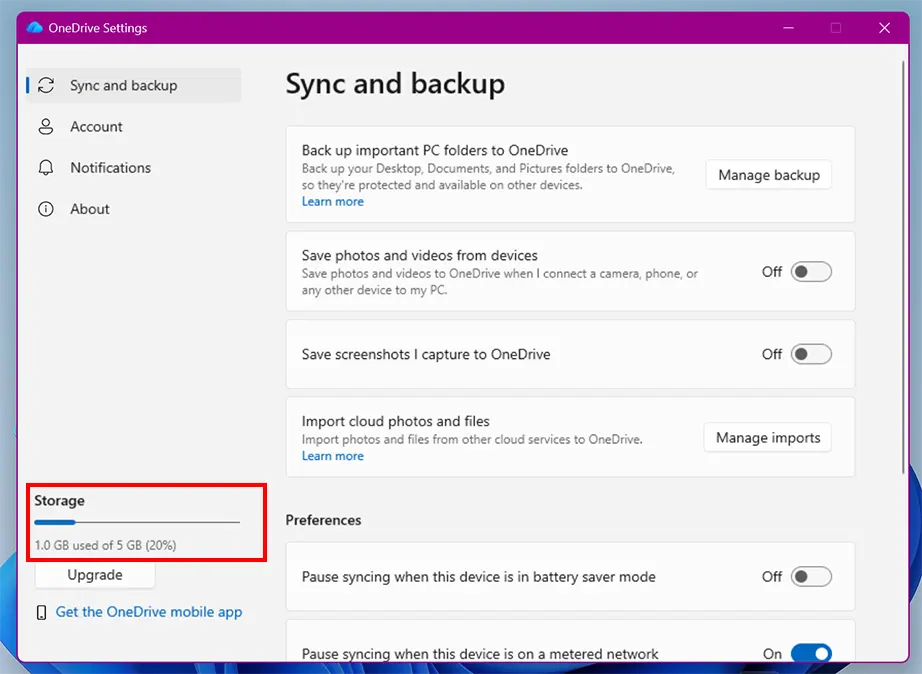
Open your account profile and verify that your available cloud storage space is larger than the total gigabytes or terabytes of data currently stored on your external hard drive.
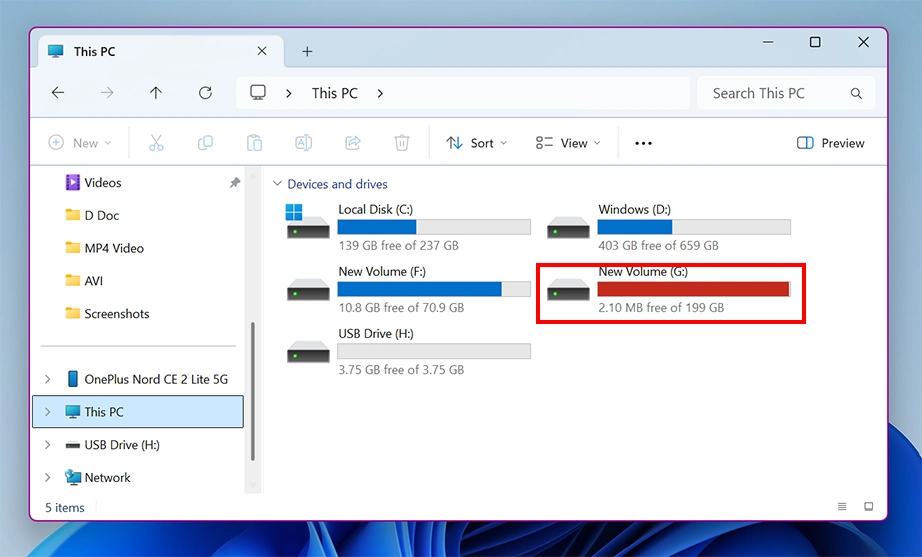
Connect your external hard drive to your PC. Open File Explorer (Windows Key + E) and locate the drive letter to ensure the OS recognises the file system.
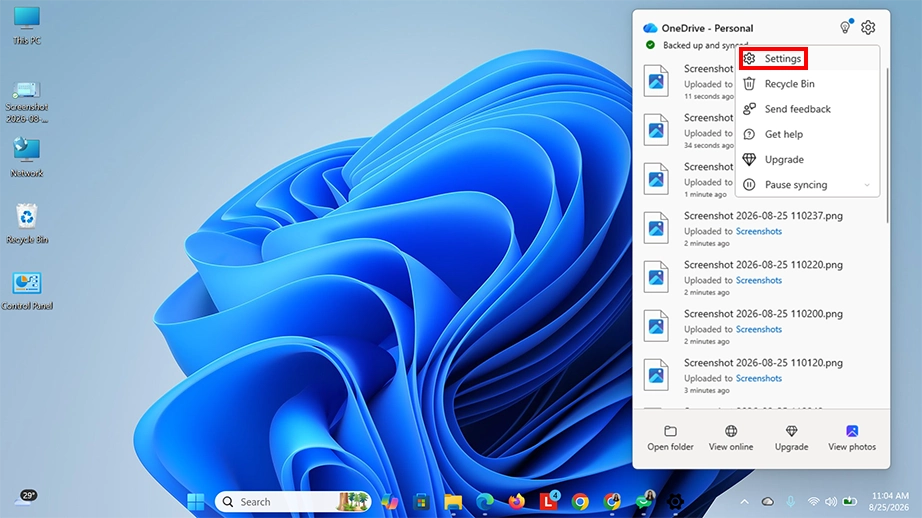
Right-click on the OneDrive cloud icon located in the bottom right of the taskbar, click the Settings gear icon, and select Settings from the contextual menu.
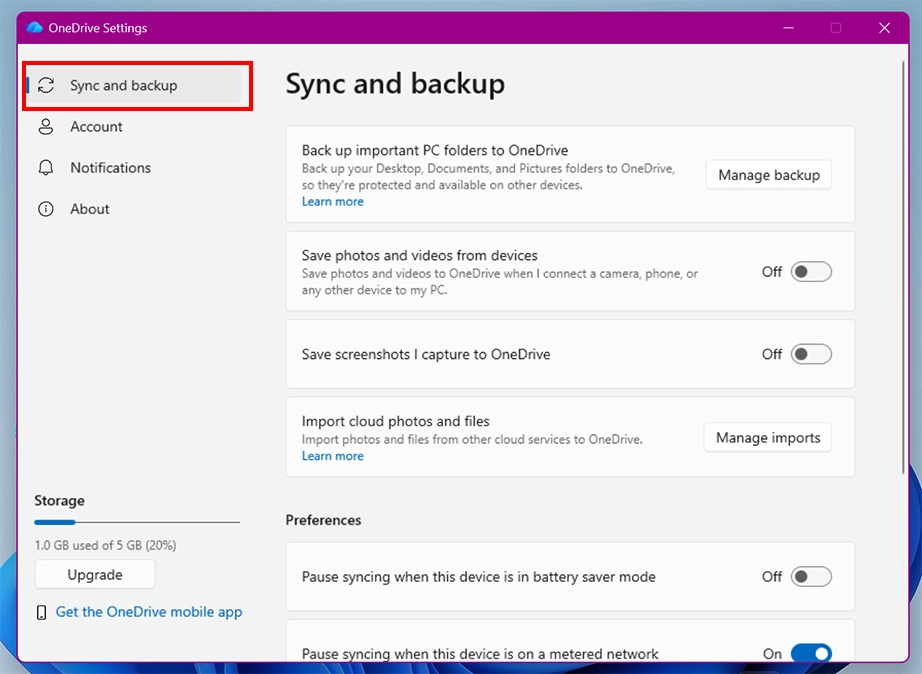
Look at the left-hand sidebar menu within the main OneDrive configuration interface. Click on the Sync and backup tab.
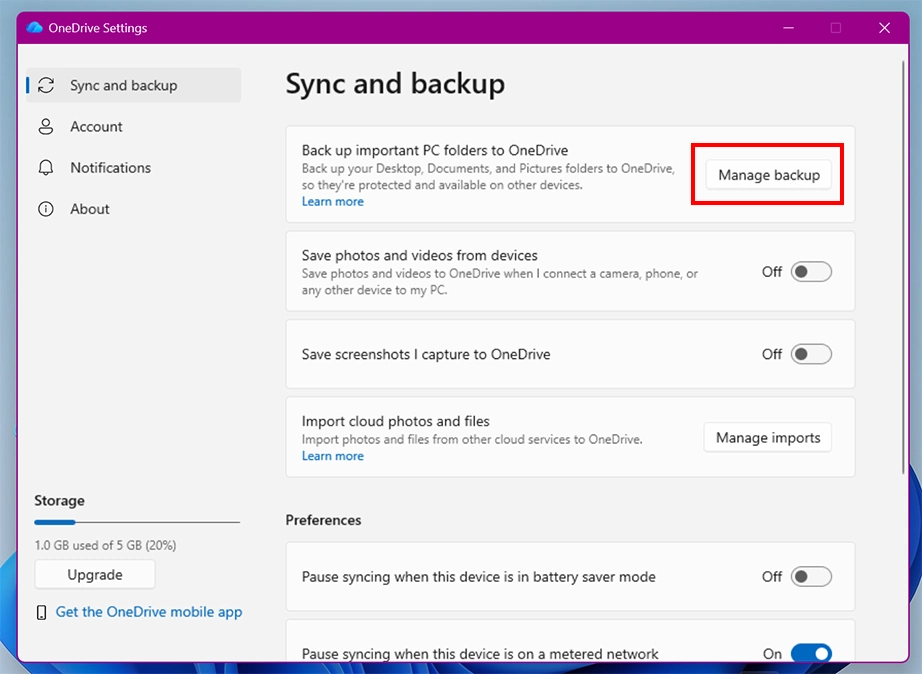
Click the Manage backup button in the main window panel.
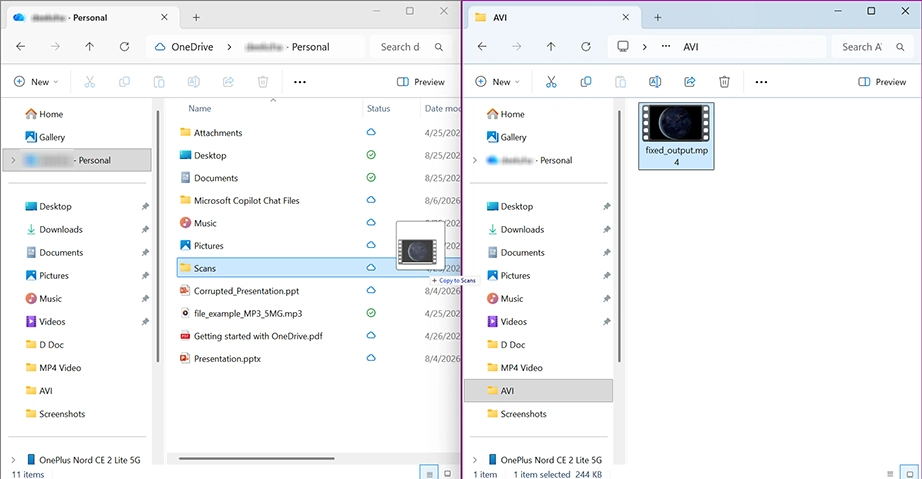
Click Add folder or manually drag data folders from your external hard drive into the OneDrive root synchronization folder inside File Explorer.
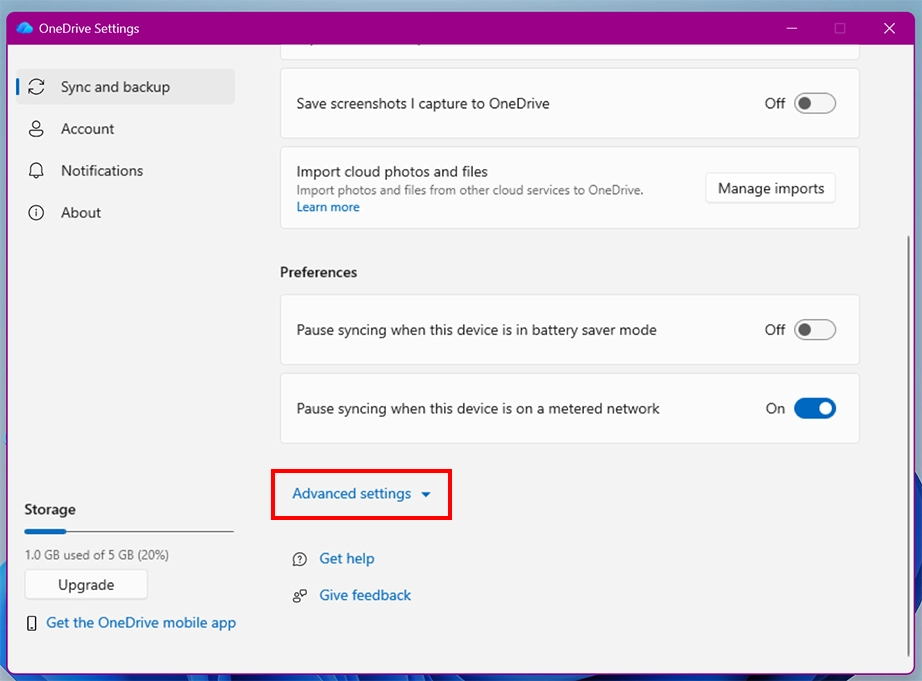
Return to OneDrive configuration settings and click on the Advanced settings dropdown menu. Verify that your file status is set to keep files locally if you want a dual copy.
OneDrive on Mac: OneDrive also allows backing up data from a Mac. Just go to OneDrive cloud or download the OneDrive sync app on your Mac and select the folders you want to back up.
How to Backup External Hard Drive on Mac?
For backups on macOS, the system provides built-in methods such as Time Machine for native backup and iCloud for cloud backup. Both provide support for backups of system files, applications, and system data. Though iCloud doesn’t provide external hard drive backup, you can still back up folders individually; we will see how.
Method 1: Using Mac Time Machine
Time Machine is a great feature that automatically backs up your Mac’s hard drive at regular intervals by default. You can set up Time Machine backup for your external drive from the exclusion list in your Time Machine settings. This is an excellent way to make sure you don’t lose any data and to have backup data if you ever are forced to do a clean install.
How to backup an external hard drive on a Mac with Time Machine.
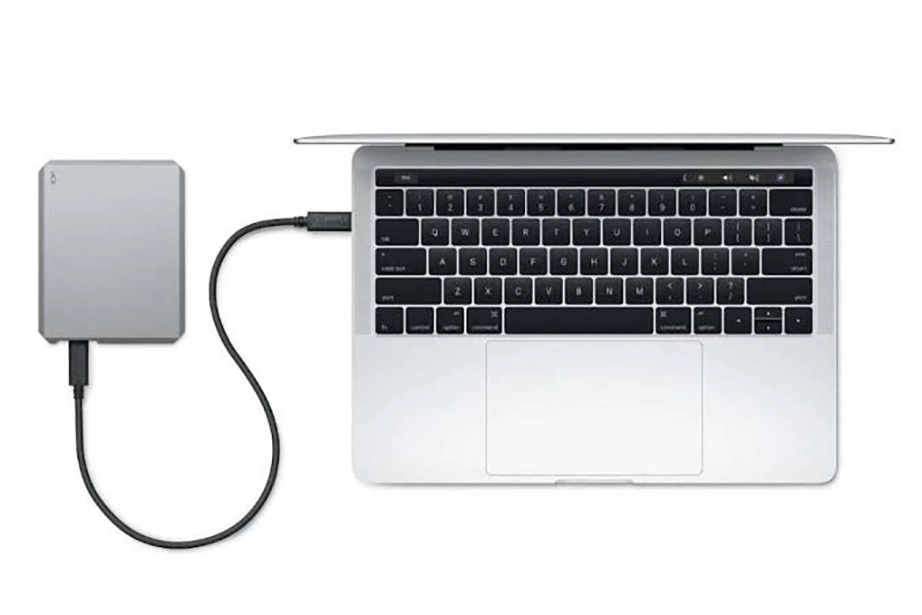
Connect your external drive to the Mac.
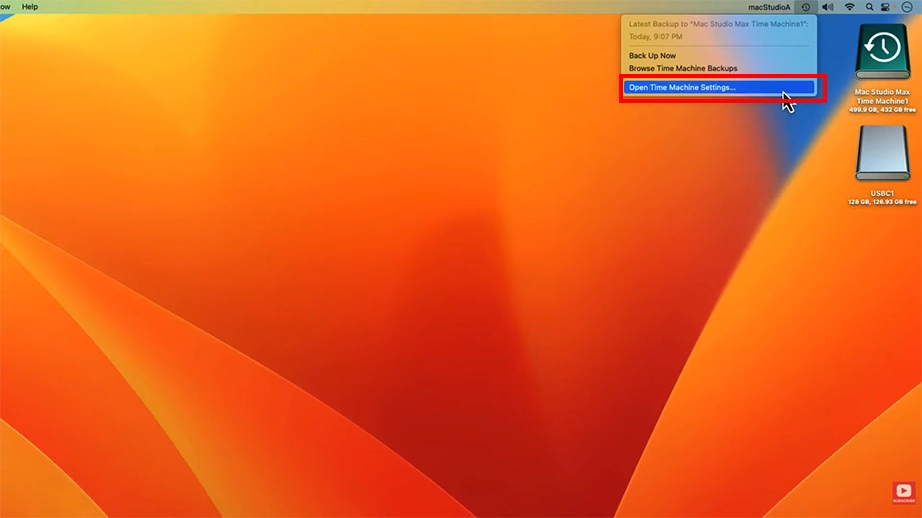
Click on the Time Machine icon on the Menu bar and select Open Time Machine Settings….
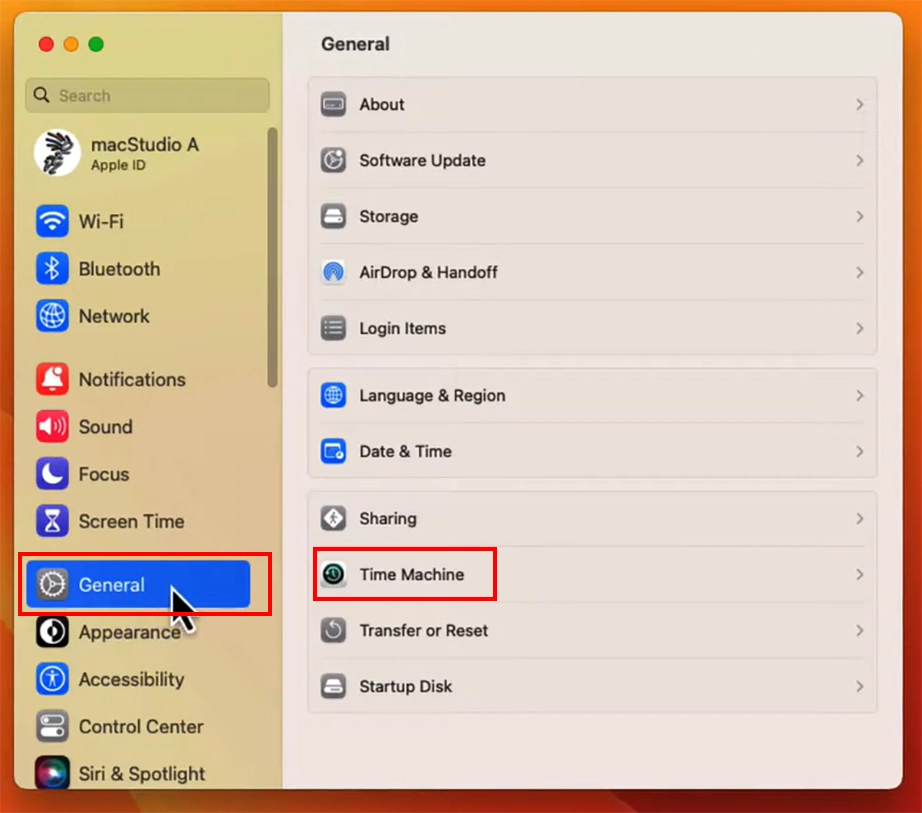
Note: You can also open this through System Settings > General tab > Time Machine.
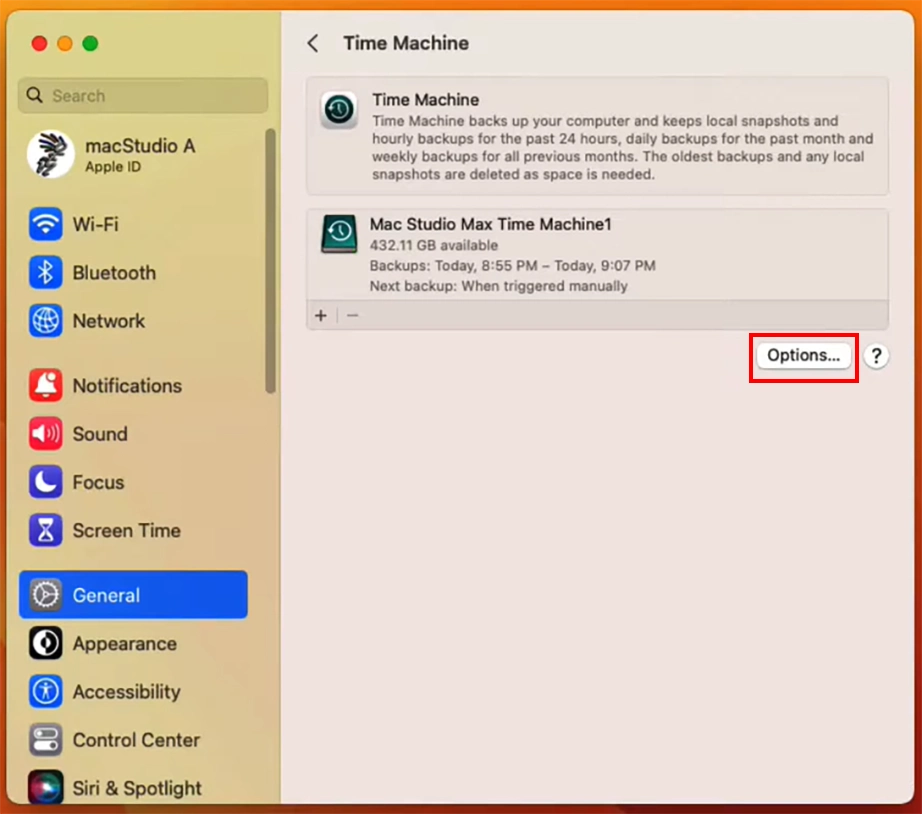
Click the Options button in the Time Machine settings.
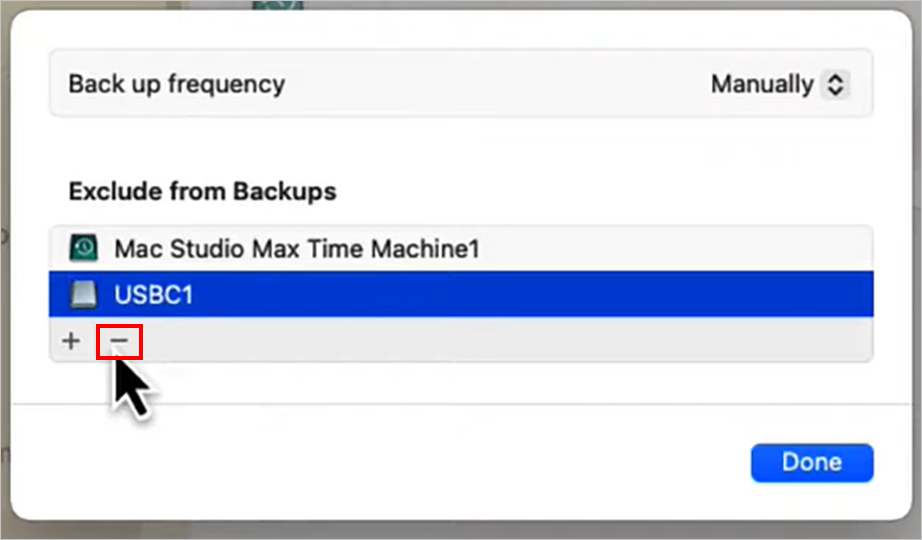
A backup window will pop up. Click on your external disk to highlight it. Then, click on the minus (-) button to remove it from the Time Machine excluded-from-backup list.
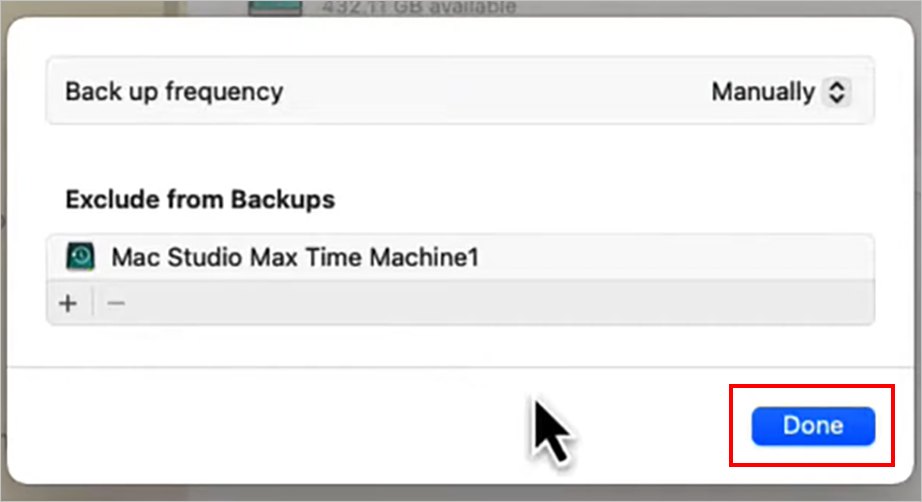
Click Done to apply the changes.
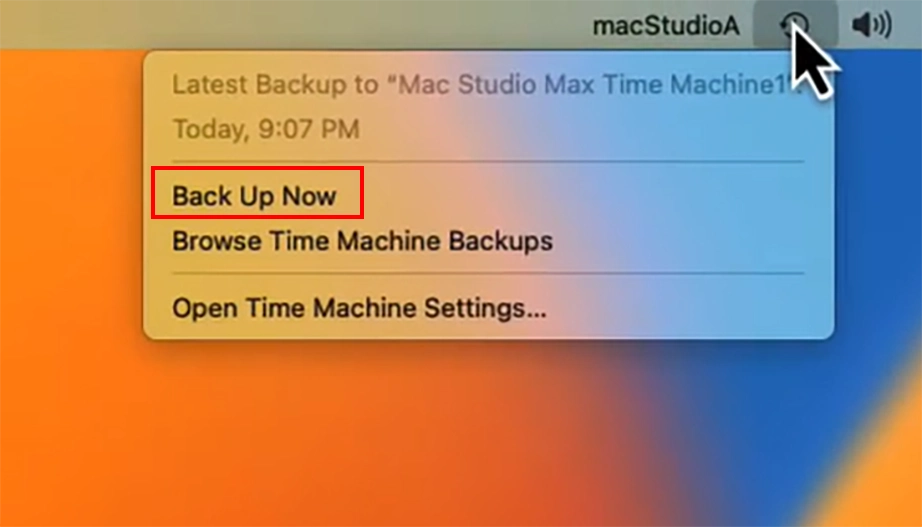
Now click on the Time Machine icon again and select Backup Now.
How to check that an external disk was added to Time Machine?
Click on the Time Machine icon and select Enter Time Machine.
Click on the latest backup. You will be able to see your external disk there.
Method 2: Using iCloud Drive Sync
iCloud is designed to sync specific files and folders (like Desktop and Documents) and device data. Apple does not allow external hard drives or files outside designated internal paths to be added to iCloud Drive. So, you cannot directly sync an external hard drive to iCloud Drive. But you can manually drag and drop files from the external hard drive to iCloud Drive to backup external hard drive Mac. This is only beneficial if you want to back up a few files, not a whole external hard drive.
Restoring Data From External Hard Drive
Whether you are not able to access the external hard drive data on Mac or Windows, or the hard drive is corrupted, there’s only one way to restore the data, i.e., using the external hard drive backup. In case of no backups, data recovery software only becomes your last option. They perform a deep scan to search the raw sectors of the drive, letting you restore data from an inaccessible, unreadable, or corrupted drive easily.
How to restore files from external hard drive using data recovery software:
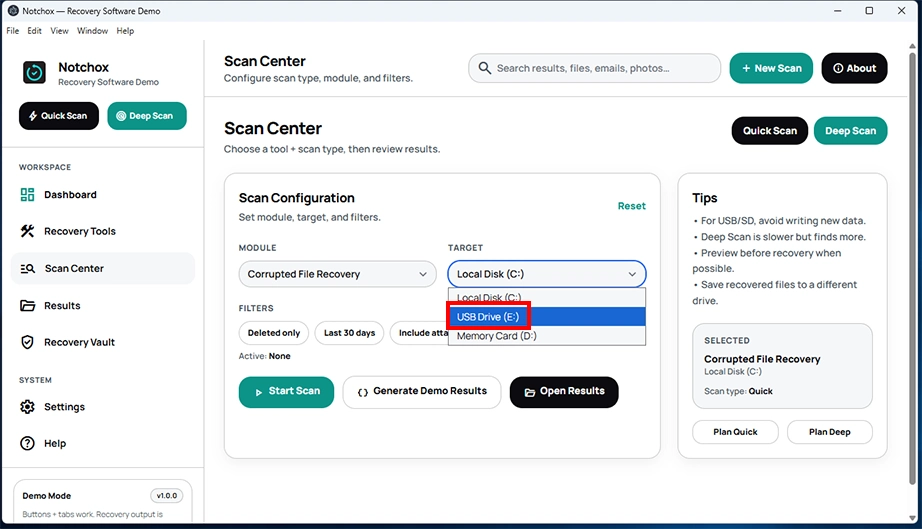
Select your external hard drive as the target drive from the drop-down menu on the home dashboard.
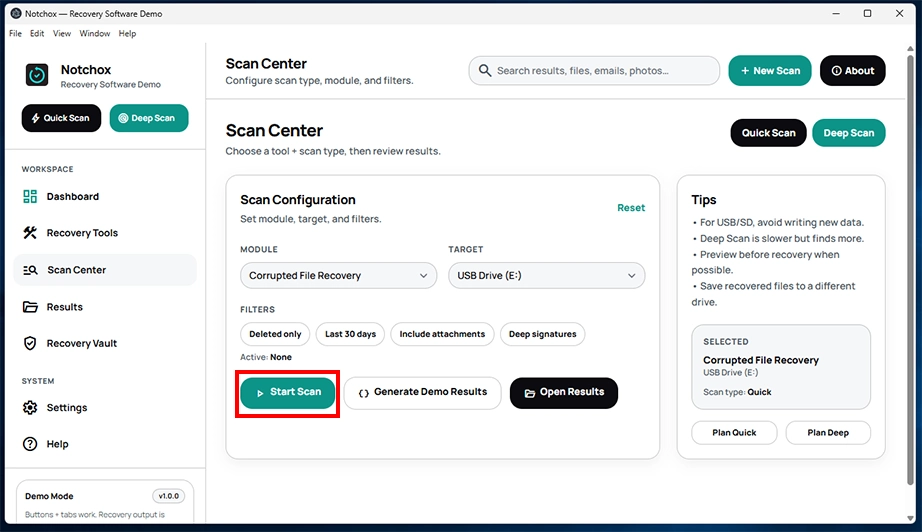
Click the Start Scan button to begin the data recovery scan on the drive. In case of severe corruption, go for Deep Scan.
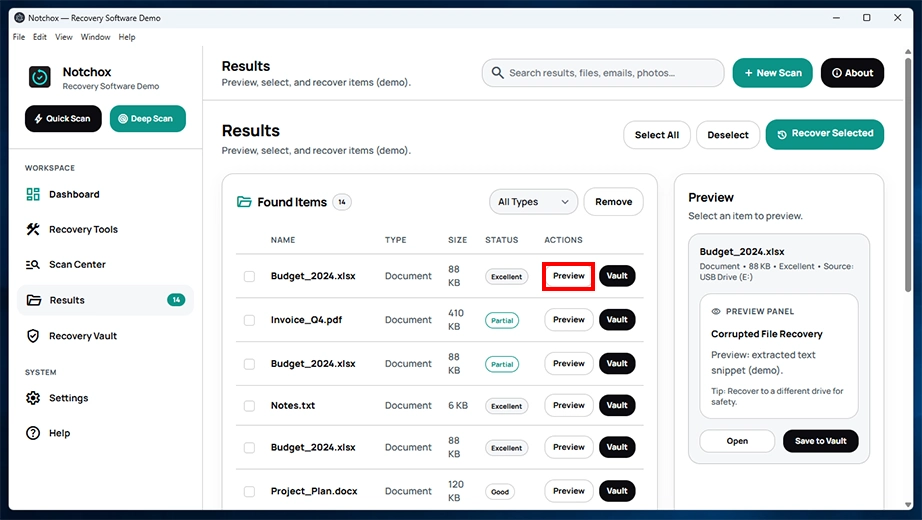
The scan will take a few minutes to an hour, depending on the size of your drive. Once the scan is complete, click on the Preview button next to recoverable items and check the integrity of the files.
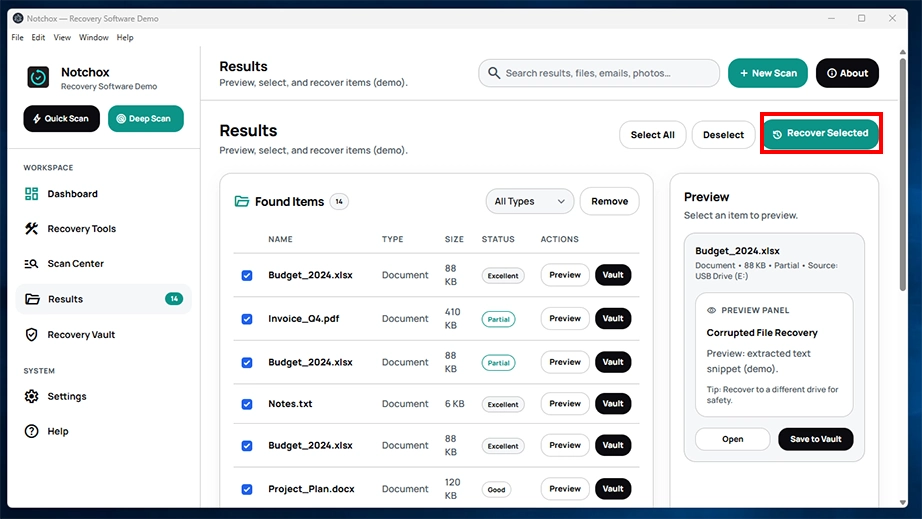
Once all are checked, select the files you want to restore and click on the Recover Selected button at the top right of the window.
Best Practices for External Drive Backup
There are a number of things you can do to maintain an external hard drive backup and keep it organized. This includes not stressing the drive with multiple functions at a single time, following proactive external hard drive backup strategies for emergencies, safe and secure usage of the hard drive, etc. Here are the best practices you need to follow to backup data from an external hard drive, keep it safe, and keep it working as long as possible.
Mitigate Future Risk
In case of lost data, the first step in recovery is to restore your drive data from a backup, especially in situations where the hard drive becomes inaccessible and your data is locked out. Maintaining a proper backup will help you mitigate future data loss risks.
Keep Your Drive Clean
Another way to keep your external hard drive safe is to keep it clean and safe. No external damage means fewer chances of permanent data loss caused by any physical issue. Keep your hard drive in a dry, safe, and well-ventilated place.
Keep Your Operating System Up to Date
This has more to do with your computer or laptop than your hard drive because what your hard drive connects to is also important in maintaining the data. We usually hit “remind me later” to major software update prompts we receive. Not updating the software for long will make versions and features clash, resulting in inaccessible data. So, always keep your operating system updated.
3-2-1 Backup Strategy
Implementing a 3-2-1 strategy means maintaining a minimum of three copies of data. Two of these copies must be saved on different types of media, such as an external hard drive or cloud. The third copy must be stored offsite, i.e., away from the primary location. This 3-2-1 backup strategy eliminates the chances of data loss, keeping your data accessible to you in any situation.
Fact: The 3-2-1 backup rule was invented by photographer and author Peter Krogh in 2009.
Summary
Backing up an external hard drive to another drive requires a lot of manual effort and requires double storage. Hence, to backup external hard drive, Windows provides built-in methods such as File History and Backup and Restore (Windows 7), which take snapshots of the system data and save them. Apart from these, Windows also features OneDrive sync, which lets you sync any internal or external hard drive backup to the cloud over the internet, giving you anytime, anywhere access to your data.
macOS has a built-in Time Machine to backup external hard drive along with the internal drive. This keeps versions of data saved for easy restoration.
In the end, following best practices to backup external hard drive is what matters so that if you are in such an emergency situation, you have a place to restore the data from.
Frequently Asked Questions
Q1: How to backup external hard drive?
Ans: To backup external drive, drag and drop the files from the external hard drive to another storage location. Also backup external hard drive data to cloud storage for secure and easy access.
Q2: How to backup an external hard drive to cloud on Windows?
Ans: Microsoft OneDrive syncs the data on the drive for cloud backup. It automatically syncs any changes in the data and saves it to its cloud service. Simply go to OneDrive backup settings, click the Manage button, and click Add folders or manually drag and drop the folders from the external hard drive for backup.
Q3: What is 3-2-1 backup strategy?
Ans: The 3-2-1 backup strategy means keeping 3 copies of data as backup, in which 2 of them are kept on distinct storage media, and one is saved offsite, keeping it away from the primary location.
Q4: How do local and cloud backup differ?
Ans: Local backups mean the data is backed up on the device itself and can be accessed from the native device only. This includes Windows File History or manual backups.
Cloud backup means storing a copy of data on a cloud server. It includes automatic sync, which saves and updates any changes in data to the cloud. Microsoft OneDrive and Mac iCloud are types of cloud backup services.
Q5: What is the best way to backup an external hard drive?
Ans: The best way to back up an external drive is using File History on Windows and Time Machine on Mac. They keep snapshots of the system data automatically once enabled. They are easy to access and don’t require any manual intervention.
Deeksha Arora is a Data Protection & Recovery Writer focusing on writing accurate, informative, and easy-to-understand technical articles for Notchox’s readers. Her content on the prevention of data loss, understanding risks of device failures, and guides to fix problems helps readers make the right decisions and understand the technical terms easily. She works closely with Subject Matter Experts to ensure high usability and accuracy of her writing.