Deeksha Arora Sep 9, 2026
Ans: Yes. A faulty or low-quality cable prevents stable data transmission and power delivery between the storage device and your computer. This leads to an I/O device error.
Seeing your drive connected but not able to access the files because of the I/O device error is something you can fix using basic troubleshooting and system methods. You just need to begin with the very basic physical connection check, and if the error persists, move on to software scans and driver updates.
This guide explains each step to restore your hardware connection, revive an uninitialized disk, and safely rescue your data. Also see how to use Data Recovery Software to rescue your important files before making any major system changes. Follow these proven methods to regain full access to your drive and protect your data.
Quick Answer: Try replacing the data cable or using a different port because a poor connection is the main reason for I/O device error. If not a hardware issue, run Check Disk on your drive to scan and fix any errors. Alternatively, updating the driver, operating system, and controller settings can fix the problem and restore your access to the drive.
An Input/Output (I/O) device error occurs when Windows is unable to read from or write data to a storage drive (internal or external). Windows 11 and Windows 10 show system alerts such as “The request could not be performed because of an I/O device error,” indicating an I/O error.
You can fix this issue by performing certain hardware checks, using Windows system tools, advanced software methods, and seeking professional help. To apply the correct fix, you must know what is causing the I/O device error:
Next, we will see various fixes designed to resolve the I/O device error using Windows Disk Management, Device Manager, command-line tools, and many more.
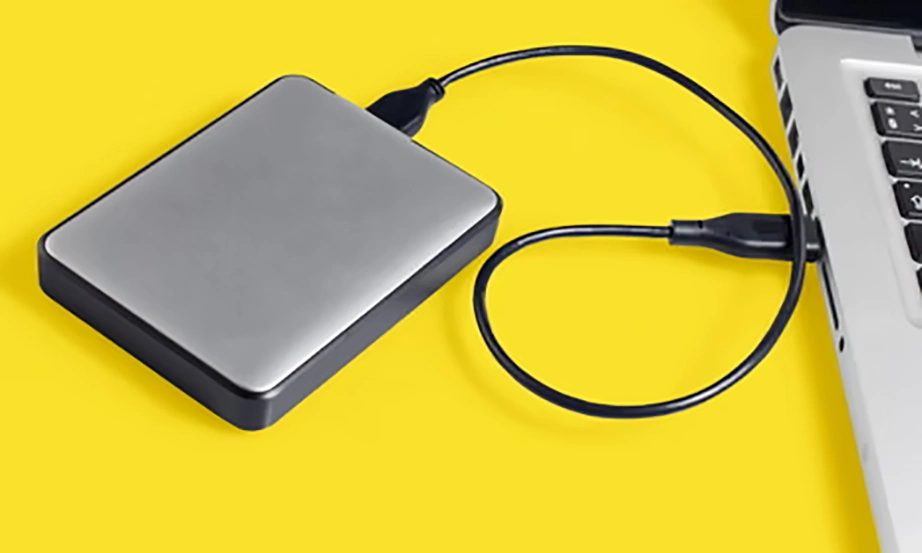
An I/O device error USB drive is frequently caused by basic physical communication failures between your computer and your storage hardware, especially when using an external hard drive, USB flash drive, SD card, etc.
Follow the instructions to check the physical connection:
After the cables, the next thing that might be malfunctioning is USB ports or an internal motherboard conflict. USB ports can have hardware degradation. To resolve this:
Fact: Rear computer ports connect directly to the motherboard. They provide more stable power and data transfer than the weaker ports on the front panel.
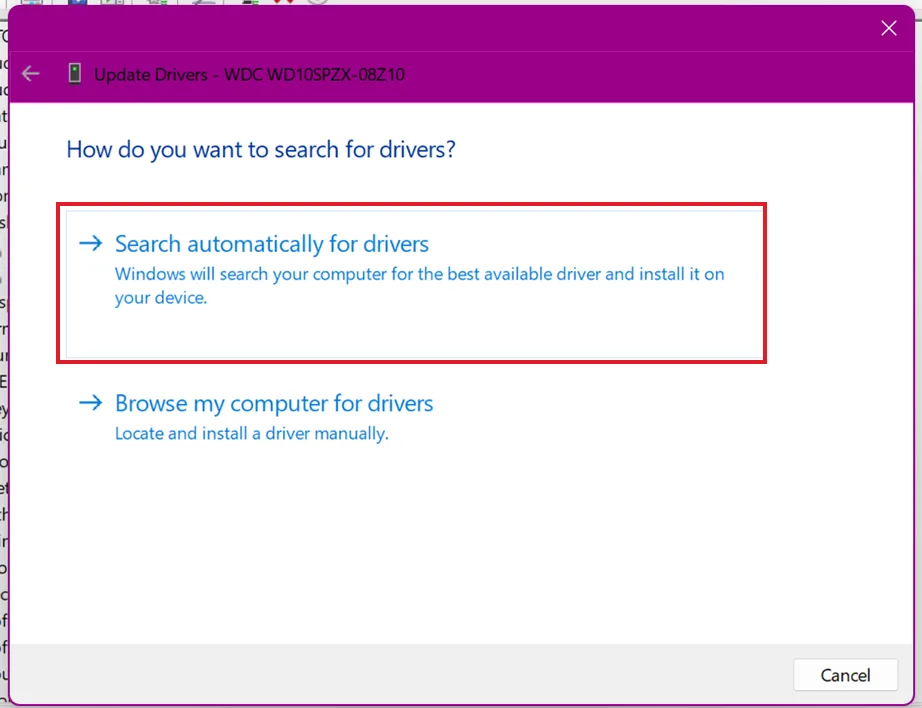
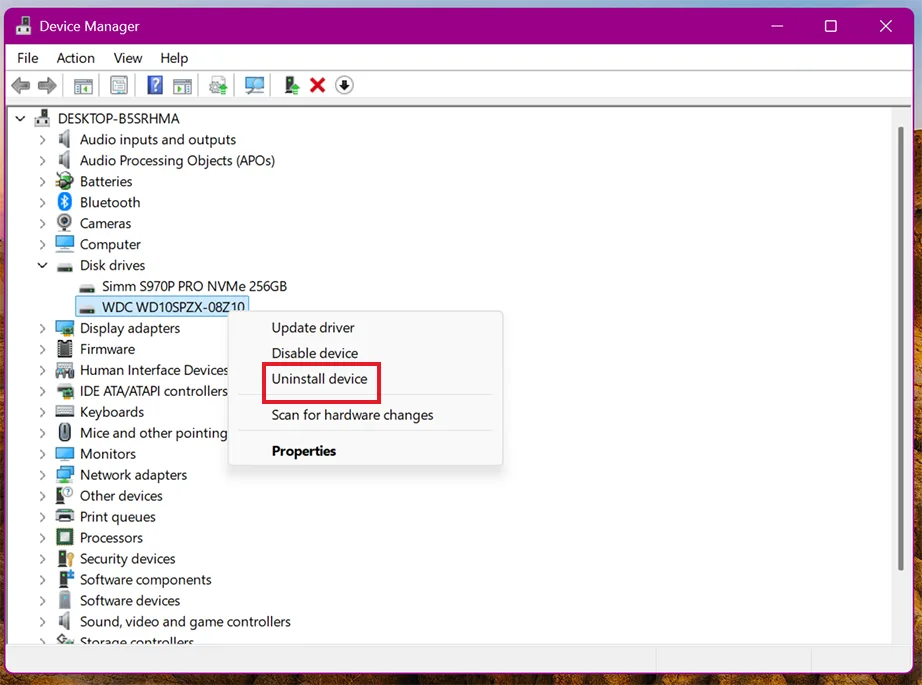
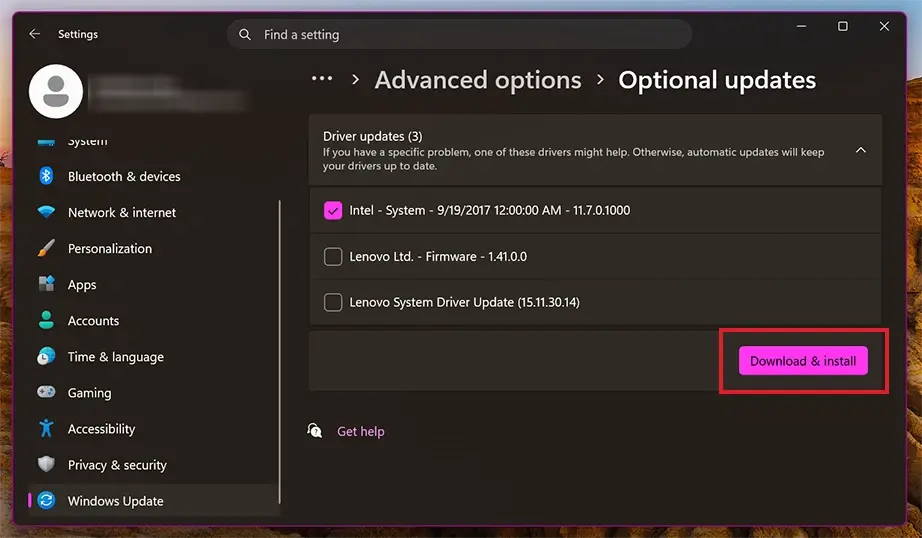
Outdated or incompatible device drivers can cause disruption in communication between Windows and storage media. To resolve this I/O device error hard drive, the driver must be updated using Device Manager.
Note: You must use Disk Management to identify unreadable volumes. Refresh and verify that your system successfully assigns hardware paths after the driver update.
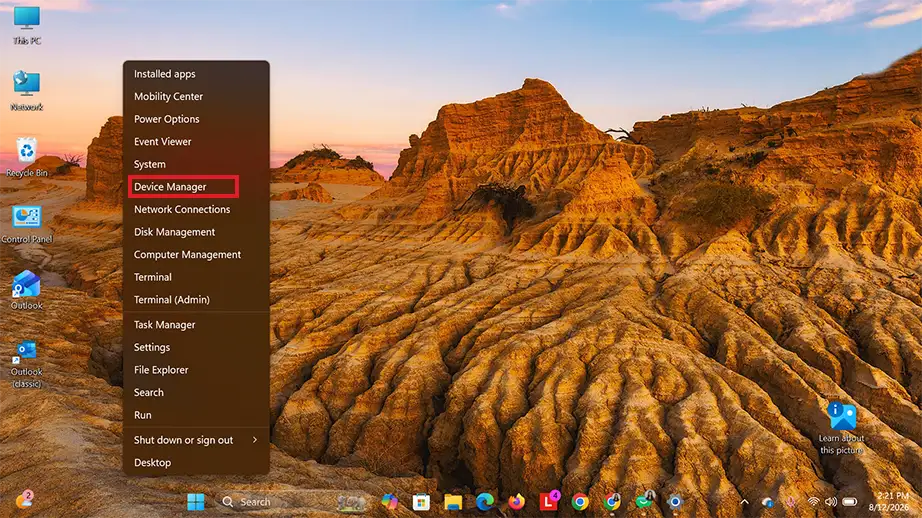
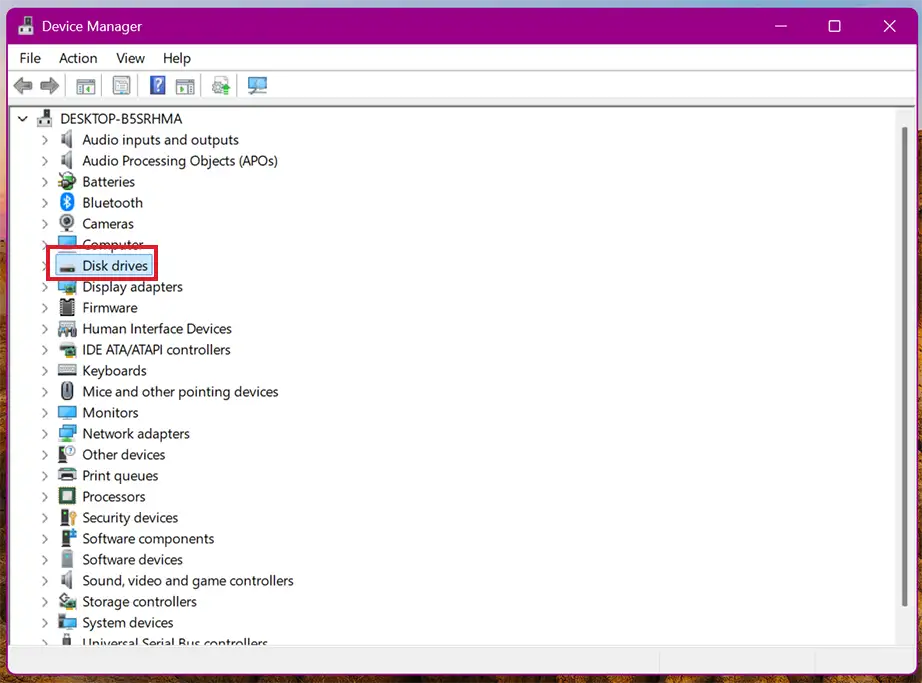
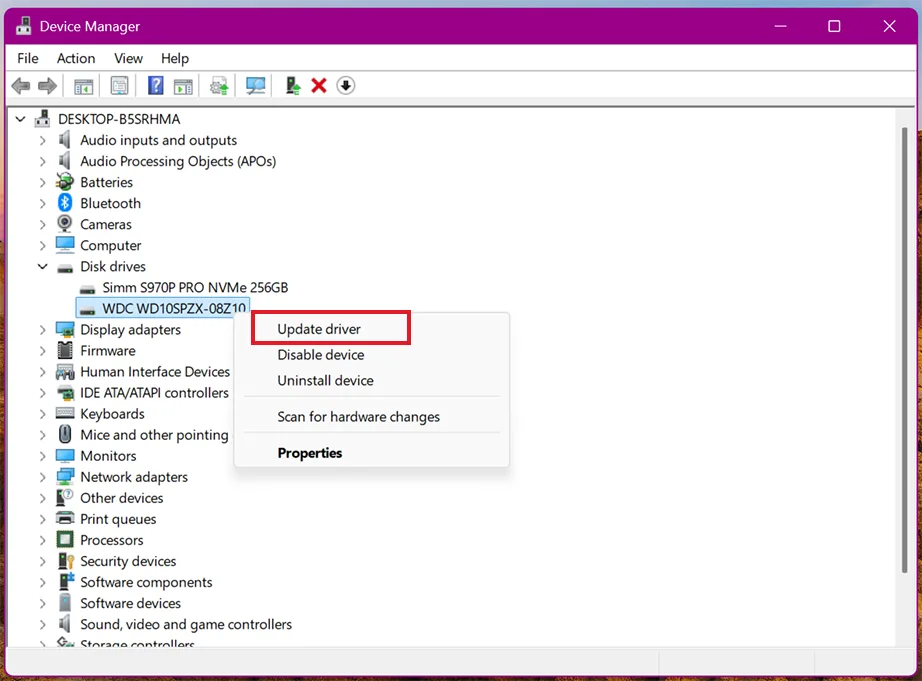
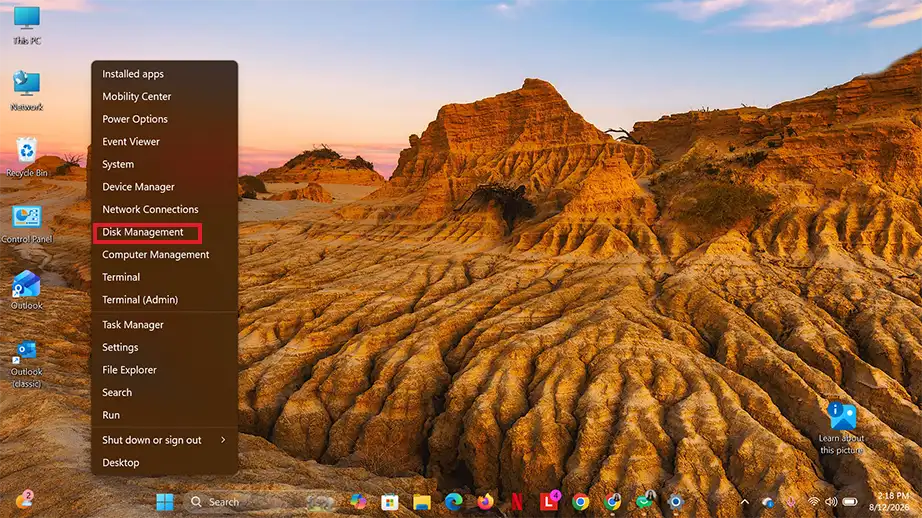
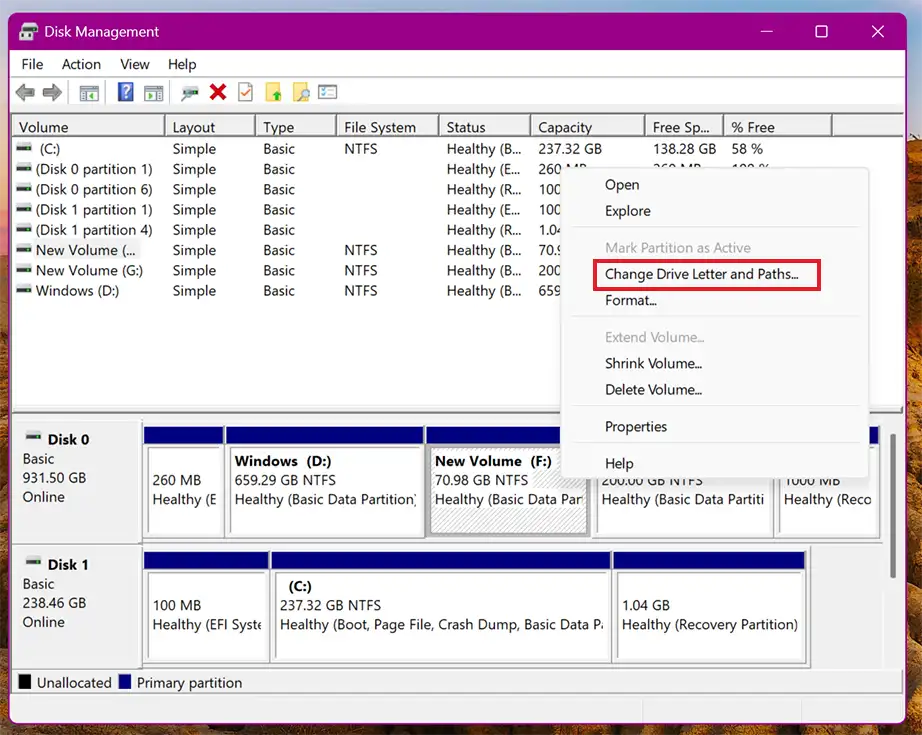
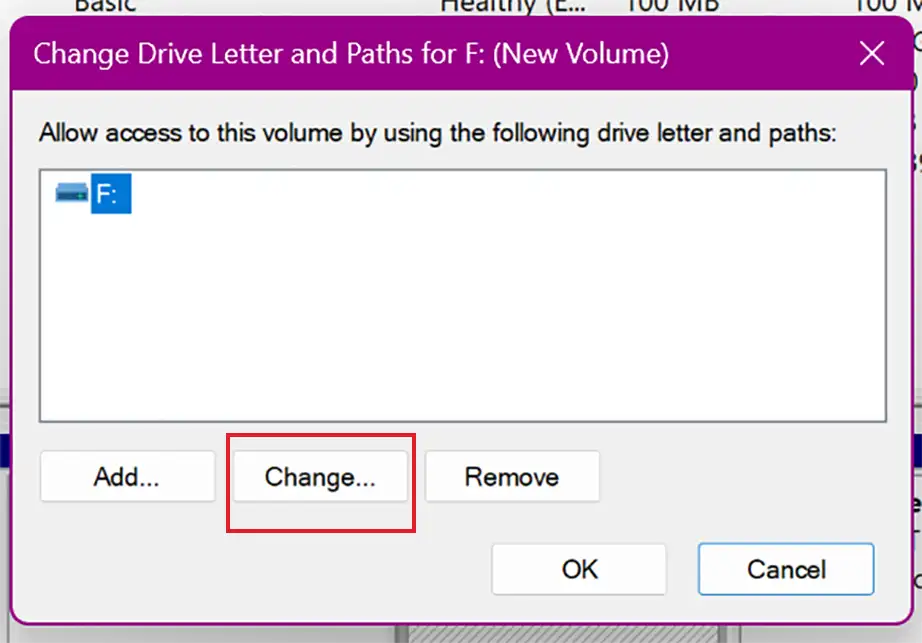
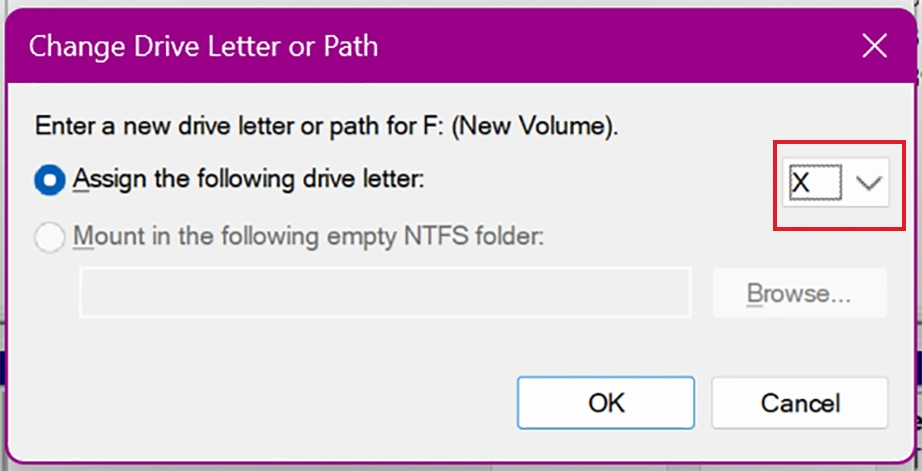
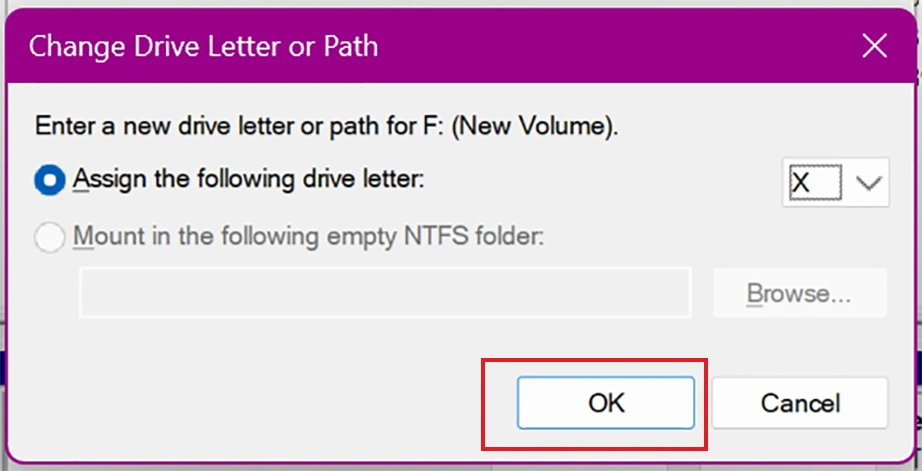
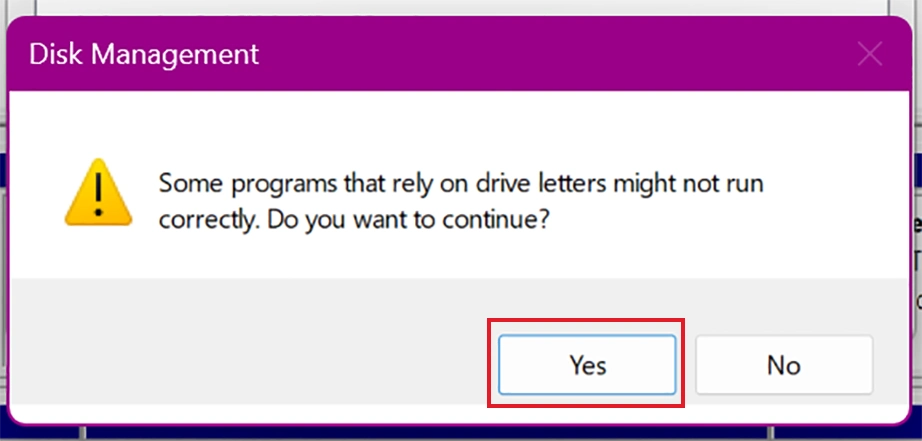
An I/O device error can sometimes occur from a conflict of drive letters. Windows assigns a drive letter that is already in use by another volume or fails to assign a path to your storage media. This path conflict can even cause an HDD not initialized I/O device error status in your console. To fix it, you need to change the drive letter in Disk Management.
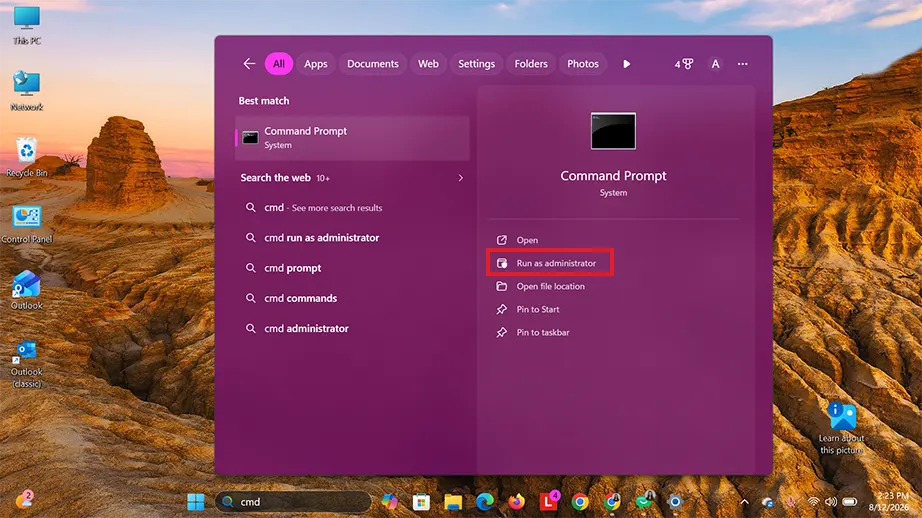
Check Disk is the best solution for logical file system corruption or bad sectors. This is a command-line tool that scans the entire drive and marks the corrupted areas as unusable. Also, it repairs structural file system errors.
Fun Fact: The Check Disk (chkdsk) tool is incredibly historic. It was originally created by Microsoft way back in 1980 for the early operating system 86-DOS.
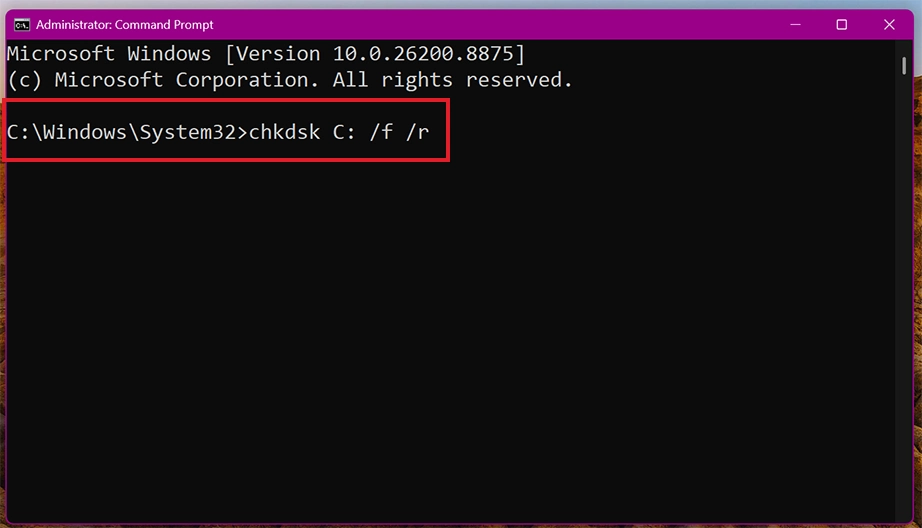
chkdsk X: /f /r
(The /f flag fixes structural errors, and the /r flag locates bad sectors and recovers readable data.)
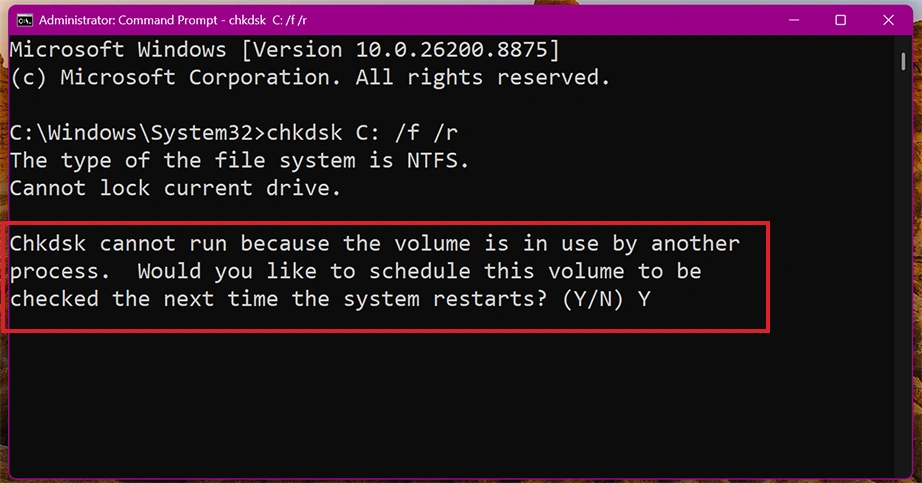
Note: Interrupting this repair phase can cause data loss.
Storage controlled by default runs in Direct Memory Access (DMA) mode. By changing it to Programmed Input/Output (PIO) mode, the continuous I/O device error can be fixed.
Note: PIO mode is not natively available or supported in any version of Windows 11.
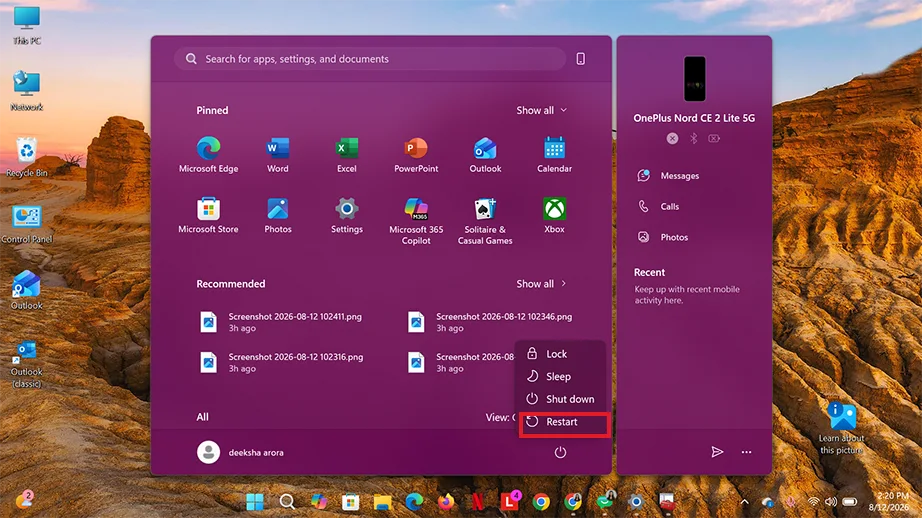
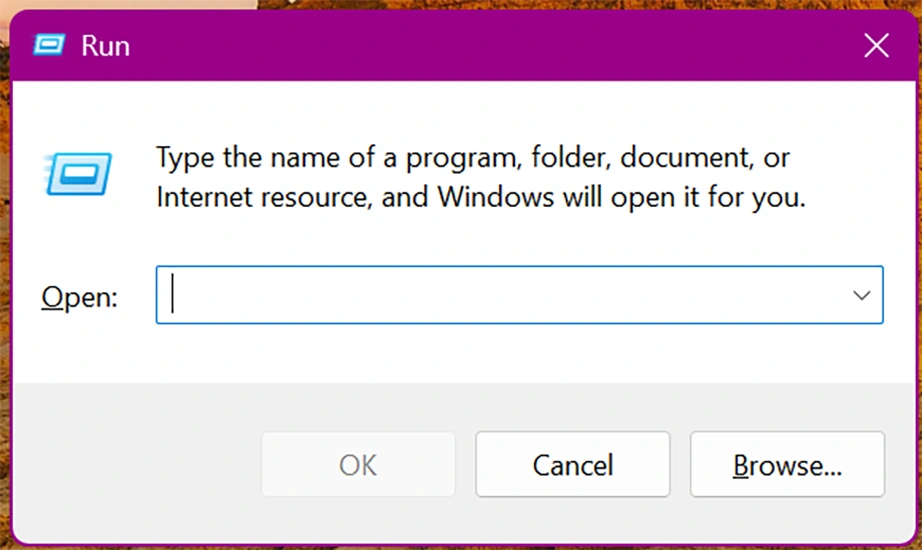
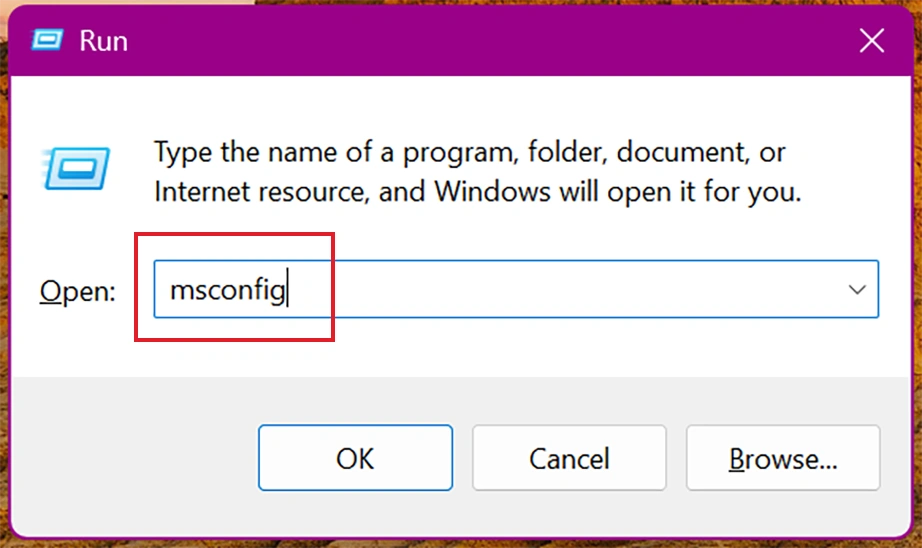
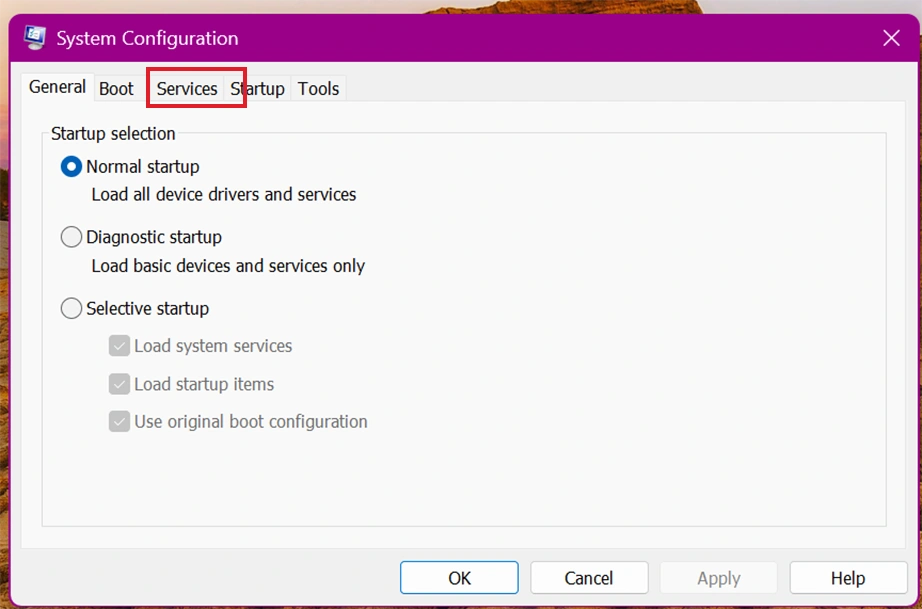
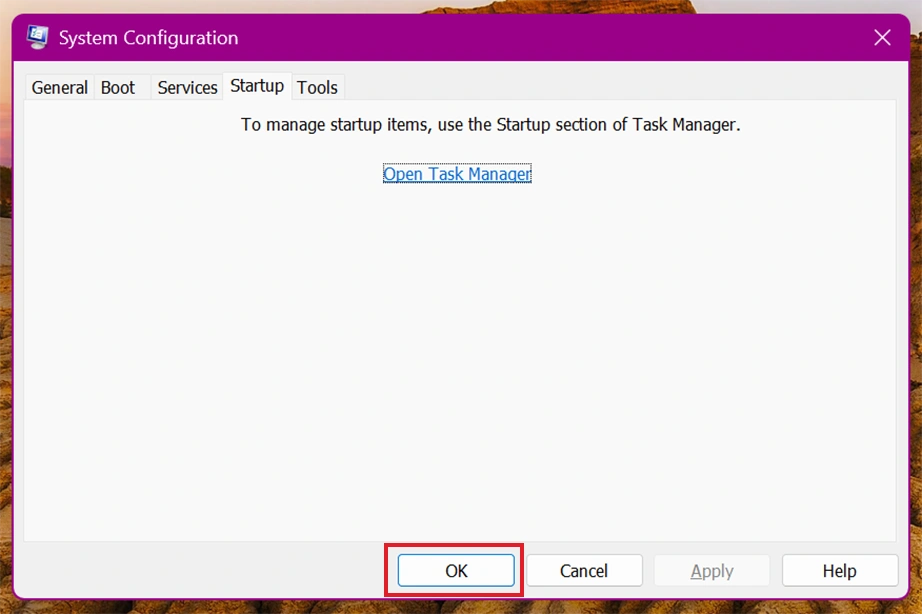
Sometimes, an I/O device error is not caused by failing hardware, but by third-party background applications, antivirus tools, etc., conflicting with your storage drivers. Perform a Clean Boot to start Windows 11 or 10 with a minimal set of drivers and startup programs.
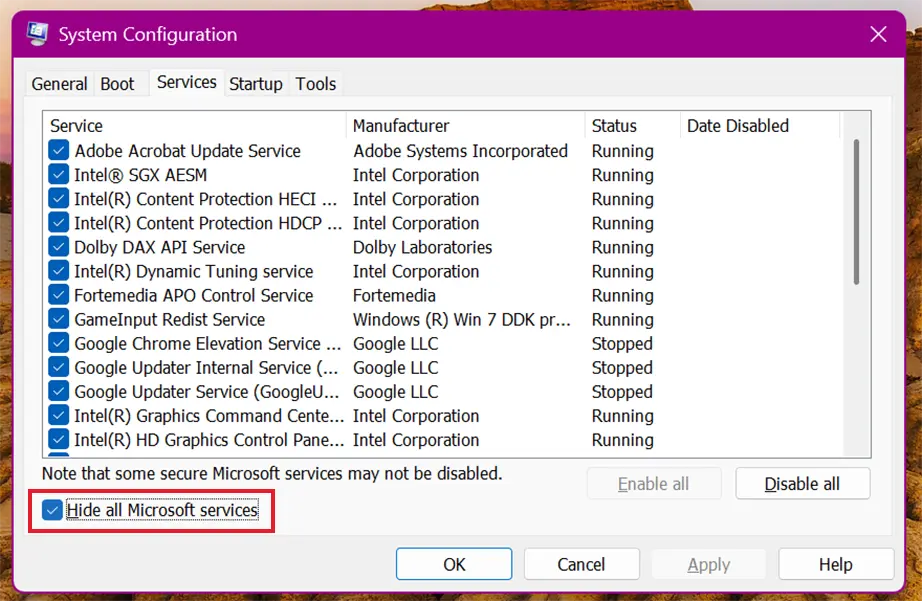
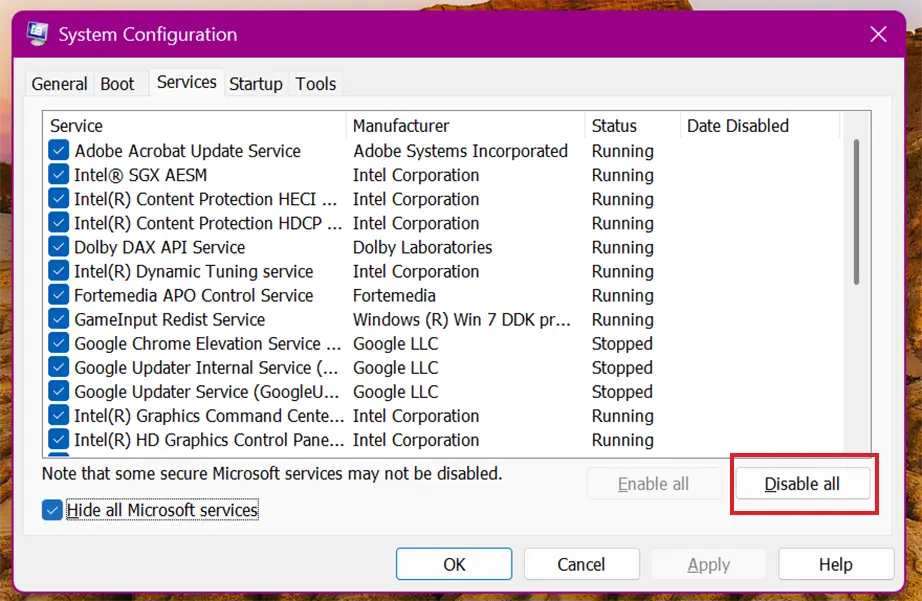
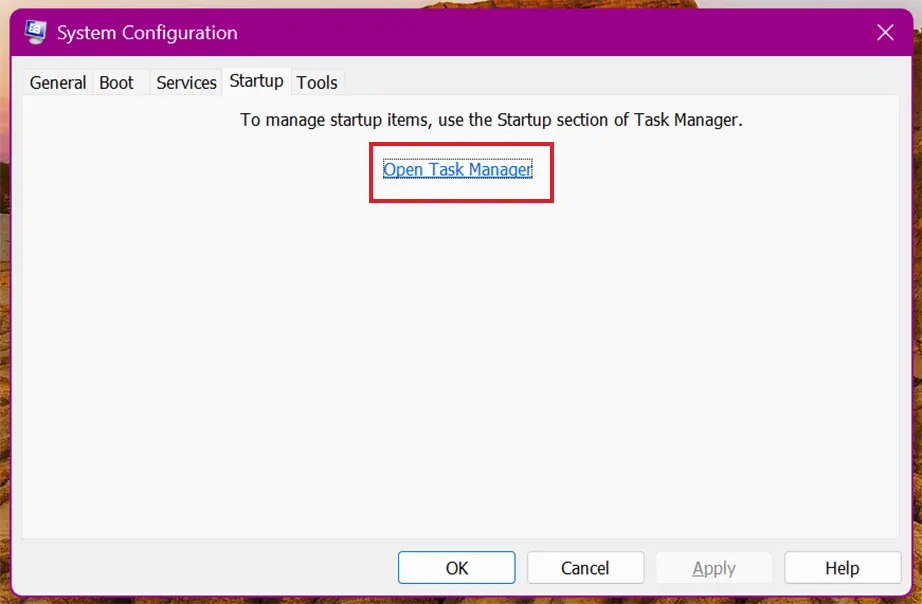
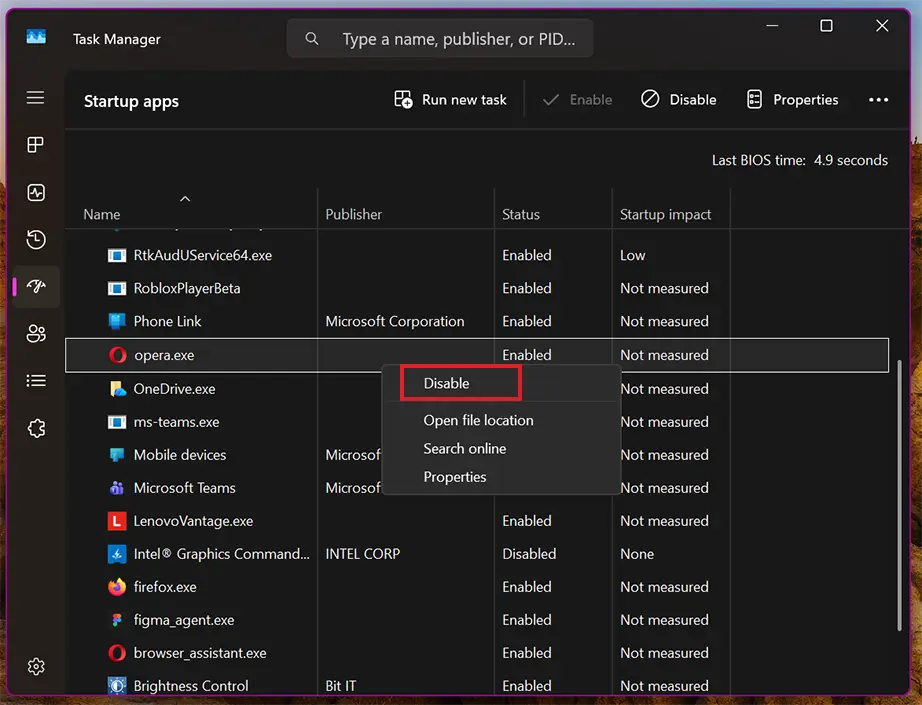
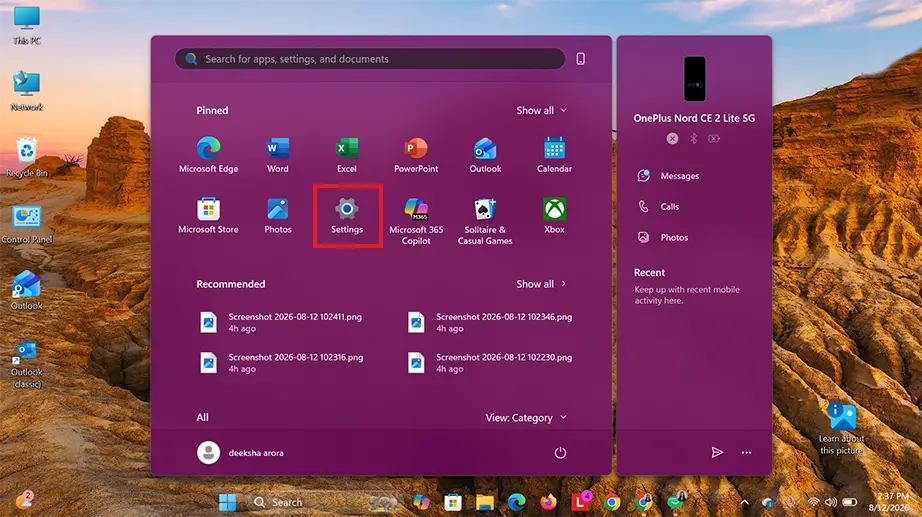
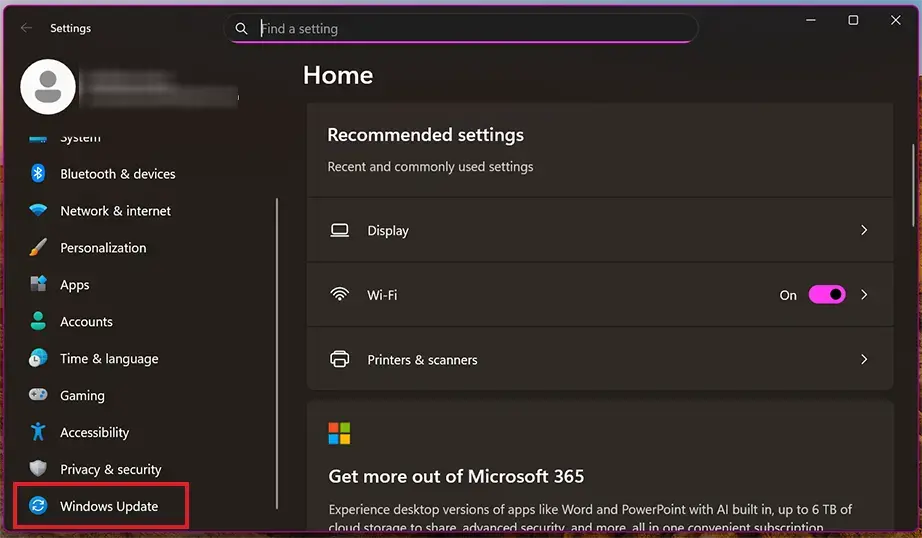
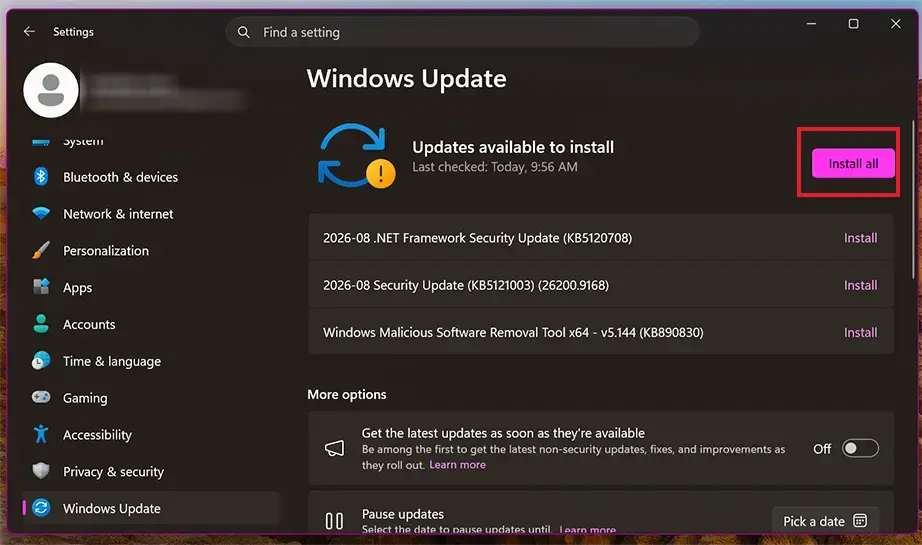
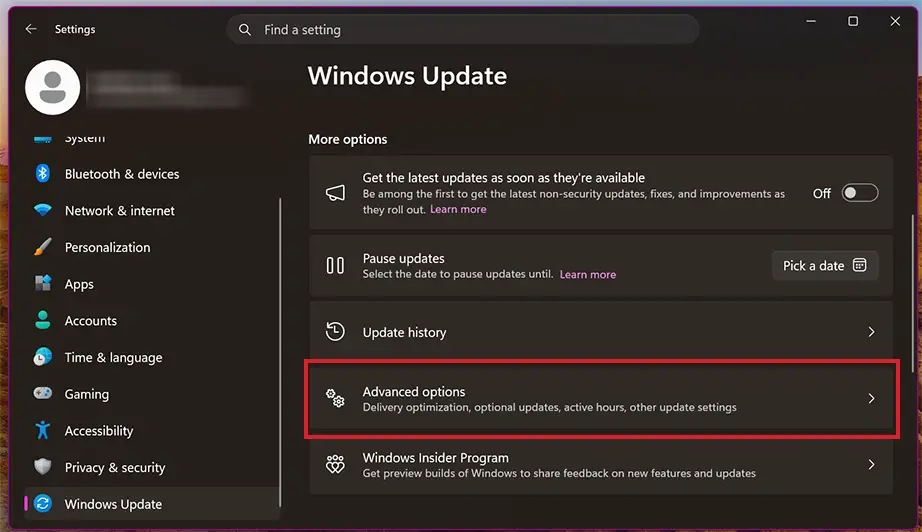
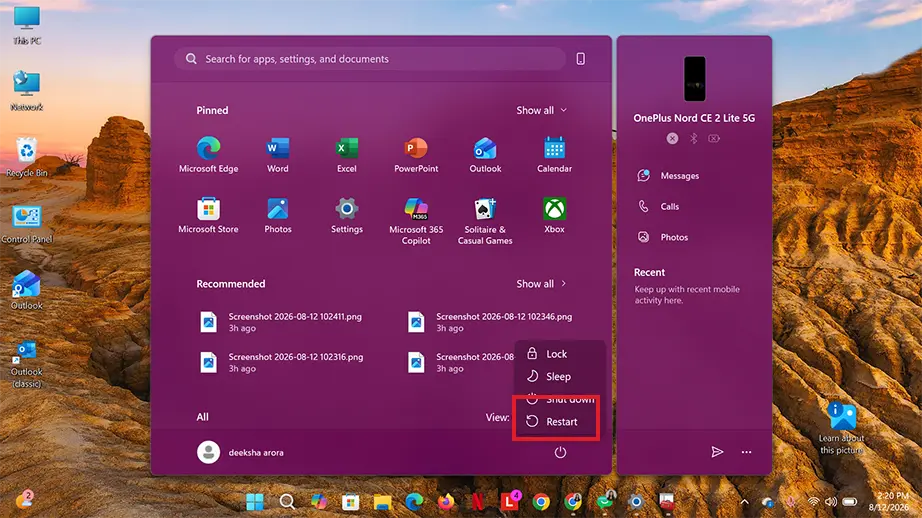
Updating Windows patches bugs and storage driver conflicts causing I/O device errors. Installing the latest updates safely restores connection protocols between your PC and malfunctioning storage hardware.
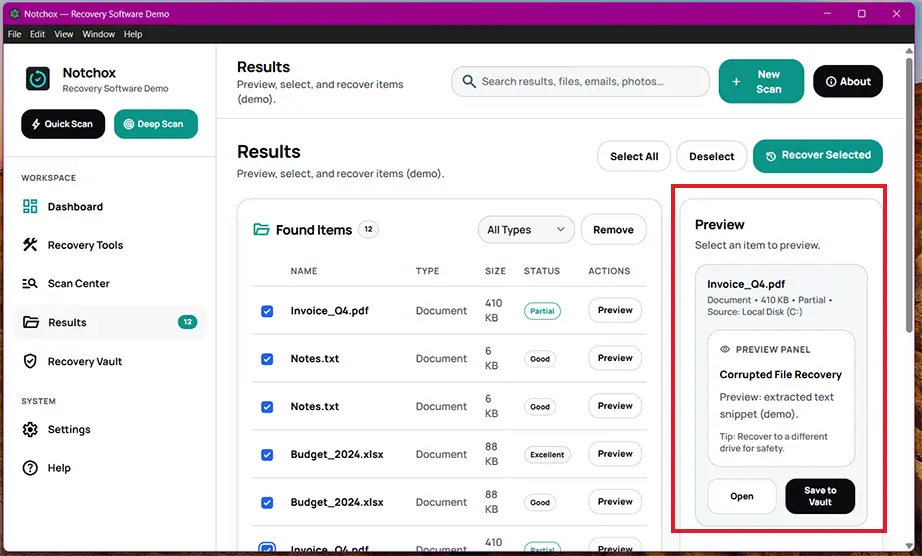
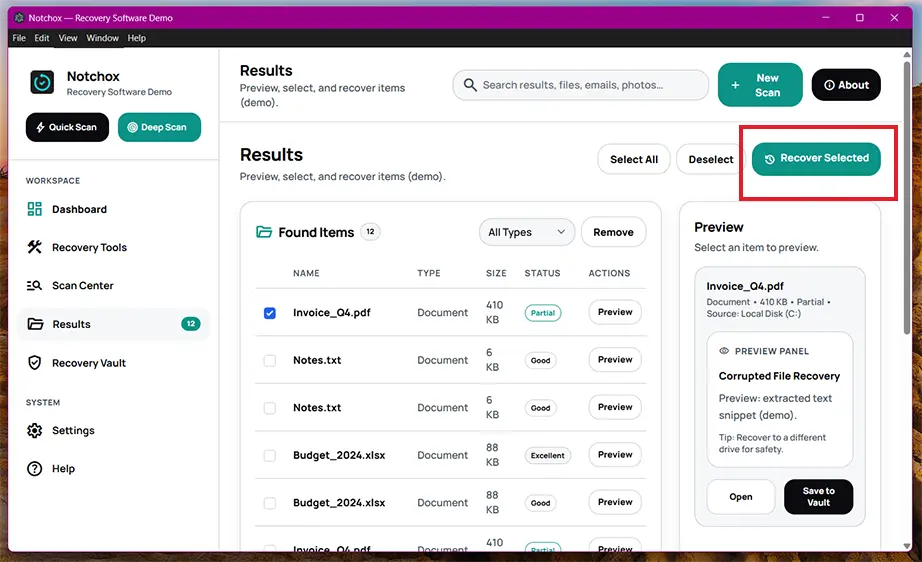
Securing your files is important whether you have fixed the I/O device error or not. Safely extracting your files before the fixes do not result in permanent data loss. Depending on your current system state, you can protect your digital assets by using the best data recovery software to scan corrupted partitions or by using existing backup images.
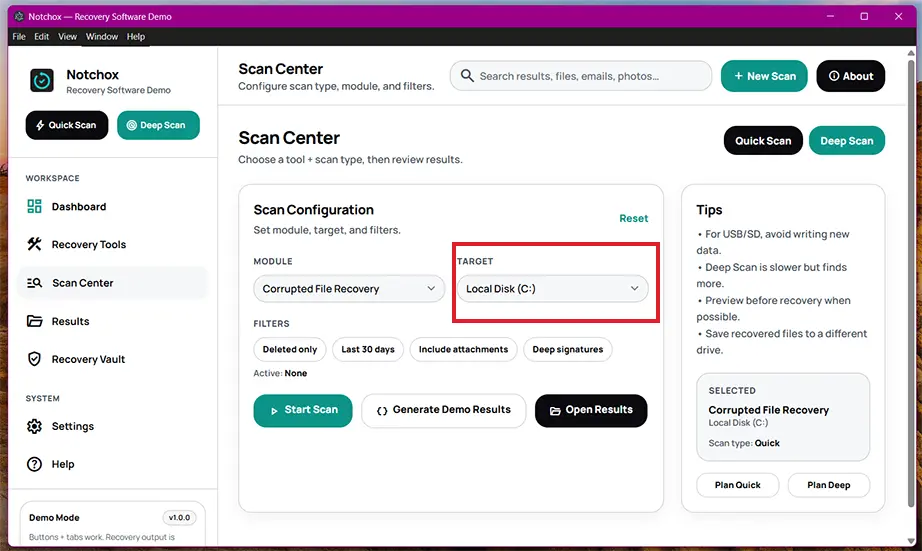
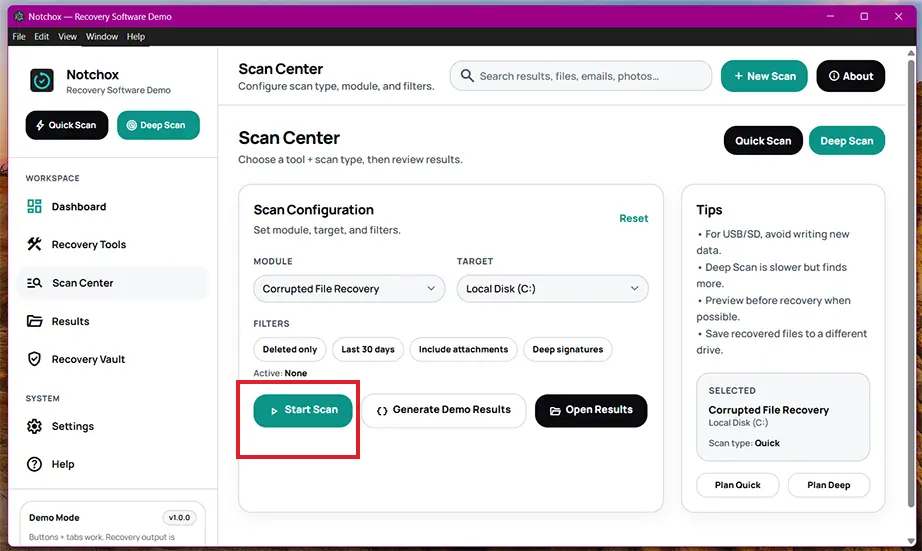
Notchox Data Recovery Software stands out as the ultimate leading solution for restoring data in extensive conditions, including I/O device errors, when the user is locked out of the storage drive. It bypasses the faulty Windows communication path directly to scan the drive and recover data.
Another way to restore your data is to use a backup. If you have enabled local system or cloud backup, the risk of data loss is very low. You can easily get your data back from the backup.
I/O device error is something you can fix with a little patient troubleshooting. Most of the time, the fix is as simple as swapping ports, a quick driver/ software update, or a system scan. We covered all the ways to fix I/O device error Windows 10 and 11 that give definite results.
Before you try to fix it, remember to keep a backup or restore your data safely using reliable data recovery software, because an I/O device error locks out your storage.
Ans: Yes. A faulty or low-quality cable prevents stable data transmission and power delivery between the storage device and your computer. This leads to an I/O device error.
Ans: I/O device error can be a sign of a dying hard drive. Recurring I/O errors signal severe physical hardware degradation or the collection of bad sectors. If the same error is seen across multiple different computers, your drive is likely failing.
Ans: You can resolve an I/O device error using these methods:
Ans: An I/O (Input/Output) error means that Windows is completely blocked from reading data from or writing data to an internal or external storage drive. The operating system recognizes that a device is plugged in, but the communication between the system and storage sectors is broken.
Ans: Your hard drive is failing if you notice any of these warnings:

Kajal Singh is a Data Recovery Writer at Notchox, specializing in data recovery, storage systems, RAID, and digital forensics. She writes technical processes, tools, and cases into clear, engaging articles, blogs, and guides. Kajal does thorough research, deep analysis, and collaborates with experts to produce high-quality and engaging content that is easy to understand for every reader.