Deeksha Arora Oct 29, 2026
NVMe and SATA SSDs have different speed limits and data paths. SATA SSD has a physical limit of 600 MB/s. NVMe gives extreme performance speeds up to 14,000+ MB/s.
Solid State Drive (SSD) is a fast type of computer storage. When buying or upgrading an SSD, there are two most common types of SSDs that you will see, i.e., NVMe and SATA.
SATA SSDs are highly reliable and use older technology with a physical limit of 600 MB/s. NVMe SSDs, being the modern ones, connect directly to the motherboard and have extremely fast speeds up to 14,000 MB/s. In this guide, you will see an NVMe vs SATA comparison, the data recovery process, and the difference between SATA and NVMe.
Comparison Table: NVMe vs SATA SSDs
| Feature | SATA SSDs | NVMe SSDs |
| Speed | Slower | Extremely Fast |
| Protocol | AHCI (Legacy, built for hard drives) | NVMe (Modern, built for flash memory) |
| Interface Connector | SATA III or M.2 (SATA variant) | M.2 PCIe slot |
| Data Highway | Narrow | Wide |
| Data recovery Success | Moderate | Difficult |
| Average Cost | Low | Medium |
| Common Use Cases | Cold storage media library management, web browsing, consumer apps | AI workloads, real-time applications |
| Best For | Maximizing storage capacity on budget | Maximising data transfer speed and AI processing |
Quick Answer: NVMe vs SATA: NVMe drives are roughly 6 to 25 times faster than SATA drives. Older SATA technology transfers data slowly because it transfers through a middleman connection on the motherboard. NVMe connects directly to the computer’s main processor, giving much faster processing speeds.
Selecting between NVMe and SATA SSDs is what determines your system’s speed. Comparing and picking the best one suited for your system is important because if chosen wrong, it can cause physical hardware damage and result in poor performance.
Here we compare NVMe vs SATA across 5 important parameters: speed and performance limits, compatibility, bandwidth, cost, and use cases. Use this quick comparison to choose which solid-state drive architecture aligns with your budget and performance requirements.
The SSD’s speed limit and data latency differ between SATA and NVMe that affects NVMe vs SATA performance. SATA has an older interface for legacy hard drives. NVMe has a modern design for rapid flash memory storage.
NVMe vs SATA SSD speed comparison:
Motherboard compatibility of the NVMe SATA SSD depends on the physical slot and connector type available on your device.
SATA SSDs come in two styles: 2.5-inch drives that connect by flexible data and power cables and M.2 sticks that connect directly to the motherboard. NVMe SSDs use the cable-free M.2 slot and need a motherboard that natively supports PCIe connectivity.
So, before buying, make sure to check the device’s user manual because the physical M.2 slot on the motherboard will only accept SATA drives and reject NVMe.
Bandwidth measures the size of the data pipeline. It tells how much data can flow through your drive at any given second. SATA SSDs restrict data flow to a limited, narrow bandwidth, whereas NVMe provides a wide, multi-lane flow for a massive amount of data transfer.
The cost difference between NVMe and SATA SSDs depends on whether you are buying consumer-grade storage or massive enterprise drives.
For everyday productivity and office work, SATA and NVMe perform almost the same.
NVMe (Non-Volatile Memory Express) is a storage transmission protocol designed for accessing fast flash memory solid-state drives. It was introduced in 2011 to replace the legacy protocol for mechanical hard drives.
SATA (Serial Advanced Technology Attachment) is a legacy computer bus interface. It was designed in 2000 to connect storage drives to the system motherboard to replace the bulky IDE ribbon cables.
SATA was the global industry standard for connecting mechanical hard drives and early-generation solid-state drives for over two decades. It uses a software protocol called AHCI to manage data transfer.
SATA technology faces a permanent speed limit known as the SATA III bottleneck. Its data pipeline is narrow because it was originally built for olds and spinning hard drives and not flash memory.
Recovering deleted data from solid–state drives (SSDs) is harder than recovering data from hard drives. This is because SSDs manage data electronically rather than mechanically. The files are wiped permanently after deletion. The chances of restoring the files depend on how the drive protocol handles the background cleanup tasks.
The TRIM command is an operating system instruction that tells an SSD which blocks of data are no longer needed so they can be cleaned for future use. On an SSD, writing new data needs to first erase the storage cells. That’s how SSD TRIM works: it erases deleted data in the background to keep the drive running at fast speed.
SATA drives handle TRIM commands using the AHCI protocol. Since the interface is slow, there is a short “forensic window” or delay, you can say, before the controller physically wipes the deleted sectors. If you pull out the drive or run recovery software immediately, you have a decent chance of rescuing the files.
NVMe uses a TRIM command called Asynchronous Dataset Management (Deallocate). It runs the background optimization instantly. This makes data recovery on NVMe difficult unless the drive is shut down the exact second data loss occurs.
Notchox Data Recovery Software lets users recover data from an SSD before the background optimization permanently destroys it. It uses an advanced scanning engine to scan through the SSD. Because NVMe and SATA execute commands after deletion, acting quickly is very important. Notchox bypasses corrupt partitions to safely restore the files directly from the drive’s memory cells.
Follow these steps to restore the lost data using Notchox:
Step 1: Download and install Notchox on a separate healthy drive. Never install it directly onto the SSD that lost the data because this can overwrite your deleted files.

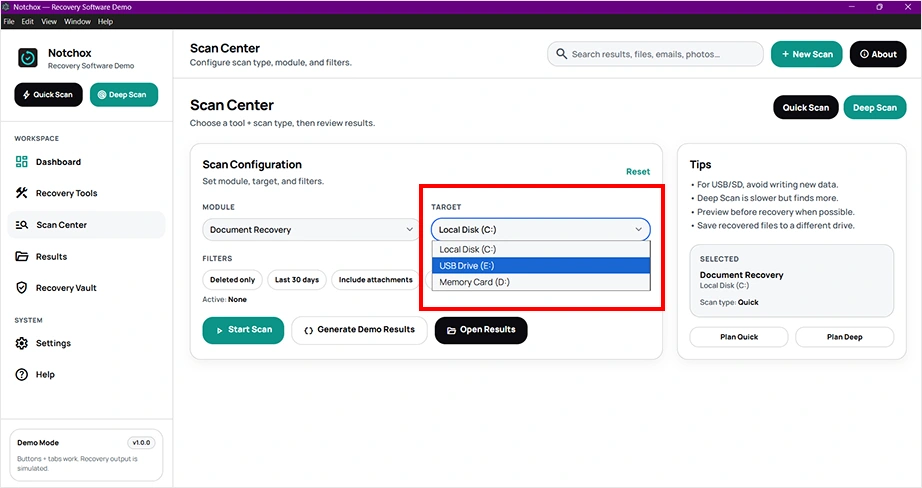
Step 2: Connect the external SSD (if any). Select the NVMe or SATA based SSD from the target drive dropdown.
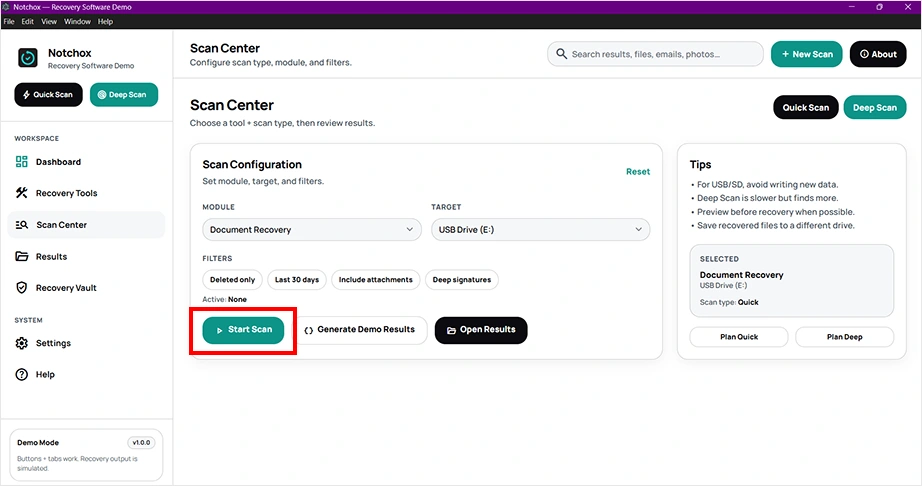
Step 3: Click the Start Scan button to begin the deep data recovery process.
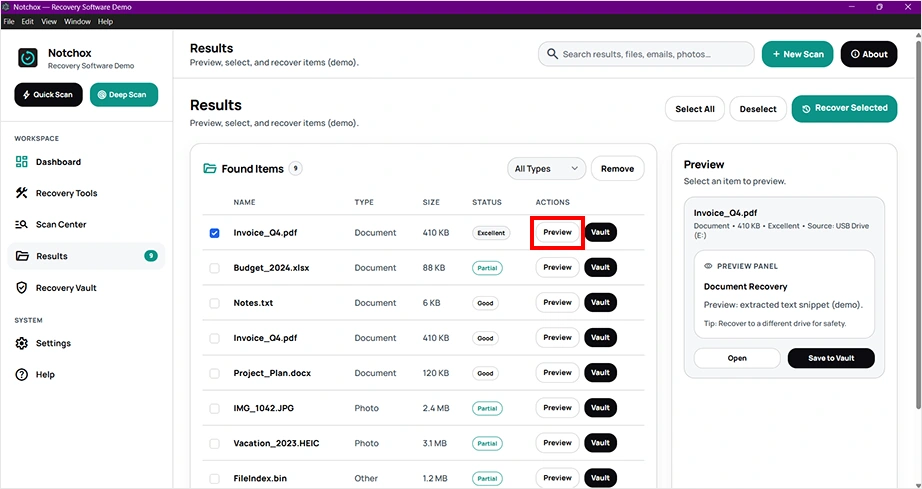
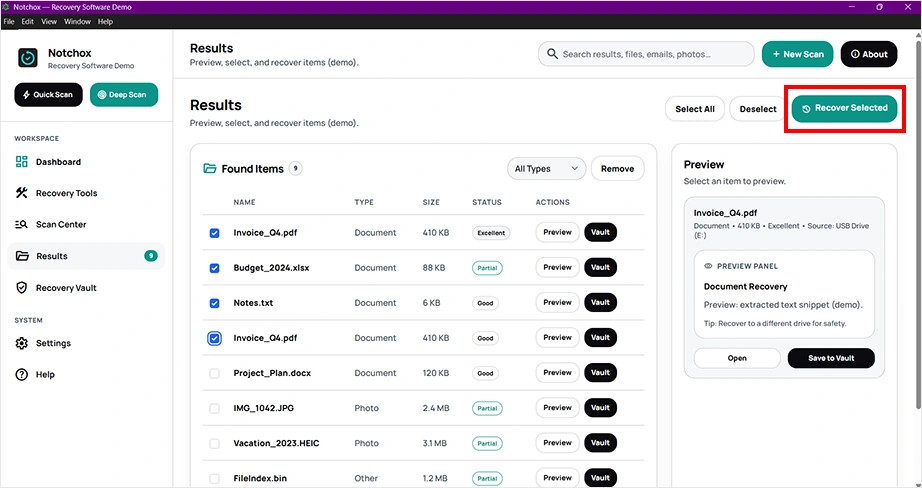
Step 4: When the scan is complete, use the Preview button to check the files before finalizing the restoration.
Step 5: Check the box in front of the files you want to restore to select them all. Click the Recover Selected button at the top to restore the files to a secure location.
The choice between NVMe vs SATA SSDs is to be made by matching your device’s motherboard compatibility with your daily performance needs.
Both architectures have TRIM commands that clear the deleted data blocks almost instantly. So, if you face unexpected data loss, tools like Notchox Data Recovery Software help restore recoverable data.
NVMe and SATA SSDs have different speed limits and data paths. SATA SSD has a physical limit of 600 MB/s. NVMe gives extreme performance speeds up to 14,000+ MB/s.
The main disadvantage of NVMe SSDs is the thermal output and premium pricing for top-tier generations. And because they transfer data at extreme speeds, NVMe drives run hot under heavy workloads.
Both SSDs last equally long. The lifespan of an SSD depends on the quality of the internal flash memory card and its Terabytes Written (TBW) rating.
No, you cannot plug a physical NVMe M.2 drive into a desktop SATA cable port or a SATA-only M.2 motherboard slot. NVMe needs native PCIe connectivity to communicate with the system CPU.
To know if your SSD is SATA or NVMe, you need to check the drive type in the Windows Task Manager.
You can also check Device Manager under “Storage controllers”. It will show an NVMe listing if one is present.
You should buy an NVMe SSD by default if your computer motherboard has an available M.2 slot. You should buy a SATA SSD only if you are upgrading an older laptop that does not have M.2 slots.
Yes, NVMe is better than SATA for modern gaming. Though older versions might still run smoothly on SATA, next-generation video games use advanced asset-streaming technologies like DirectStorage. This needs an NVMe SSD to stream high textures directly to the graphics card.
Data recovery is harder on NVMe because its architecture processes TRIM commands almost instantly using massive parallel processing lanes. When a file is deleted, the NVMe controller triggers a background process to clear the physical memory cells.

Kajal Singh is a Data Recovery Writer at Notchox, specializing in data recovery, storage systems, RAID, and digital forensics. She writes technical processes, tools, and cases into clear, engaging articles, blogs, and guides. Kajal does thorough research, deep analysis, and collaborates with experts to produce high-quality and engaging content that is easy to understand for every reader.