Restore contacts on iPhone by re-syncing your device settings, restoring older browser-based iCloud backups, linking external accounts like Google. For older iPhones, if your contacts are saved on your physical SIM card, you can easily extract them from the SIM card. On iPhone, your contacts are not actually saved inside the physical phone hardware, instead, they live on cloud servers and stream to your device in real-time. So, a simple glitch or software update can make your list look completely empty even though the data is safe. In this blog, we will see six easy step-by-step methods for how to restore contacts on iPhone without any technical issues.
Quick Answer: To restore contacts on iPhone firstly try refreshing the iCloud sync switch in your phone settings. If that didn’t work, log into iCloud.com to restore a saved web archive. You can also re-sync external Google or Yahoo accounts, reload a local Mac Finder or iTunes backup from your computer, or import contacts directly from the physical SIM card (only on older iPhones). Lastly, use Notchox Data Recovery Software to restore the contact file/folder from the iPhone.
There are 6 main methods for how to retrieve deleted phone numbers on iPhone. Here we will see how to restore contacts on iPhone using a simple iCloud switch in your settings, or roll back time using official iCloud website backups. We will also cover how to pull contacts from Google or Yahoo accounts, restore data using your computer, and import names from an old physical SIM card.
Method 1: Using the iCloud Settings Switch
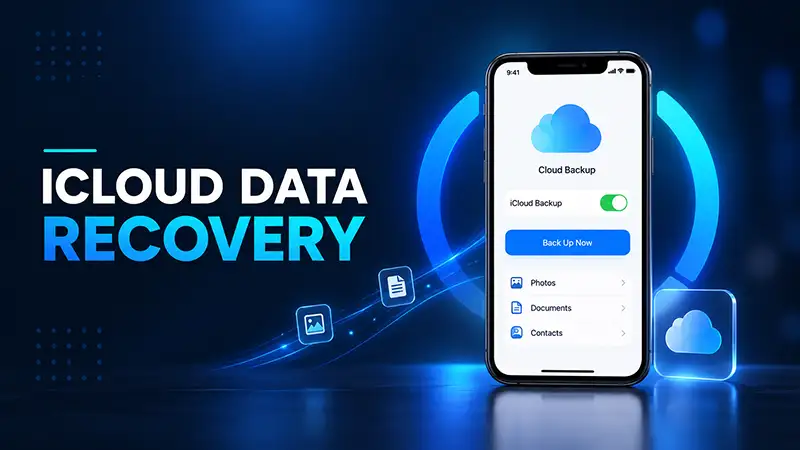
If your contacts suddenly disappear due to a minor software glitch, you can restore contacts from iCloud using the built-in iCloud sync switch in your settings. This method does not require a computer. It works by temporarily disconnecting your phone from Apple’s cloud server and reconnecting it. This refreshes the database and re-downloads your saved address book.
Steps for how to retrieve deleted contacts using the iCloud settings switch:
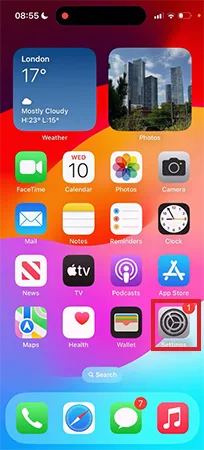
Open the Settings app on your iPhone.
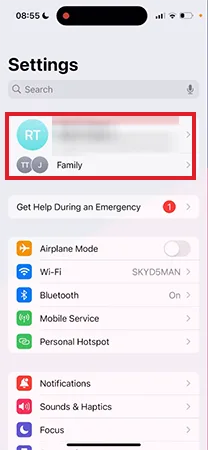
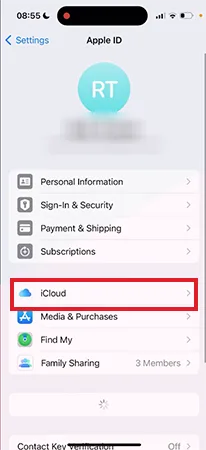
Tap [Your Name] at the very top of your settings screen.
Tap on iCloud.
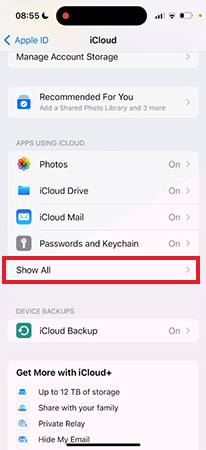
Under the Saved to iCloud (or Apps Using iCloud) section, tap on See All/ Show All.
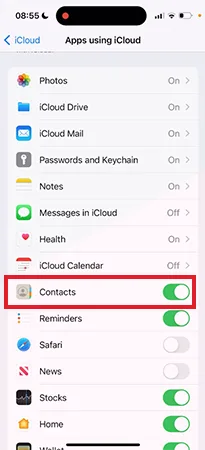
Locate Contacts in the list and switch the toggle from green to off.
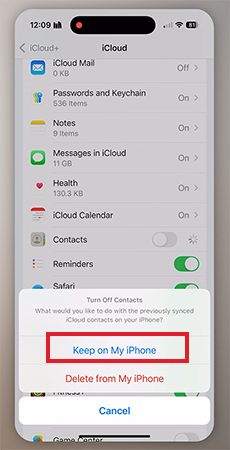
When a menu pops up asking what to do with your data, tap Keep on My iPhone to prevent losing any contacts currently on your screen.
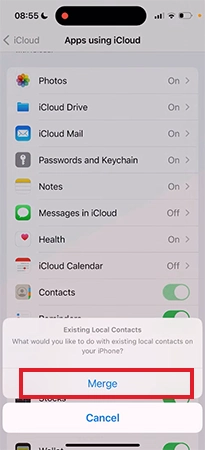
Wait 10 to 15 seconds for the system to process. Switch the Contact toggle back to On so it turns green again.
When prompted, tap Merge.
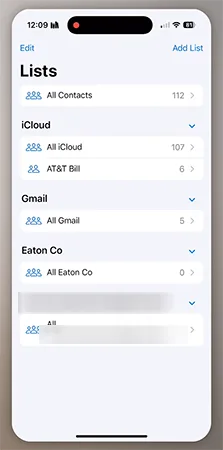
Open your native Contacts app and wait a few minutes for your address book to load.
Method 2: Restore Deleted Contacts via iCloud.com
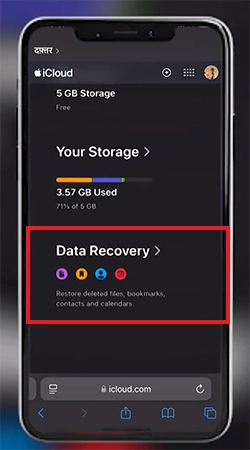
iCloud.com is the official web-browser version of Apple’s cloud storage service. You can access it from any computer or phone web browser by logging in with your Apple ID and restore contacts erased from iPhone. Apple regularly saves your data in iCloud, so if you accidentally delete a contact, you can easily restore it using the following steps:
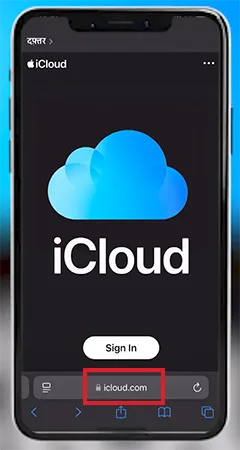
Open a web browser on your computer or phone and go to iCloud.com.
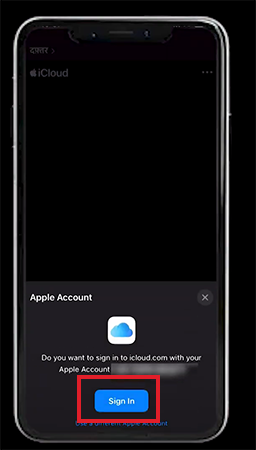
Log in using your Apple ID and password.
Scroll down and select Data Recovery.
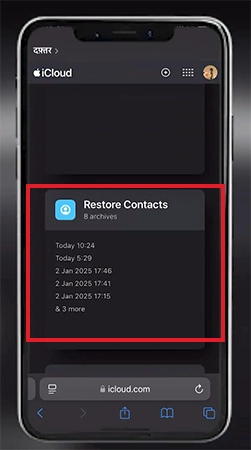
Click on the option that says Restore Contacts. A list of older archives will appear on your screen, organized by date and time.
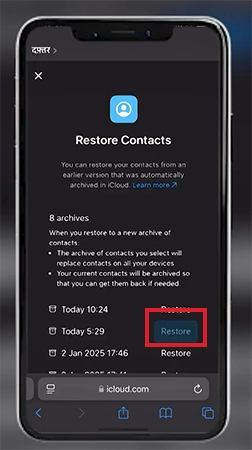
Select a date from before your contacts were deleted and click the Restore button.
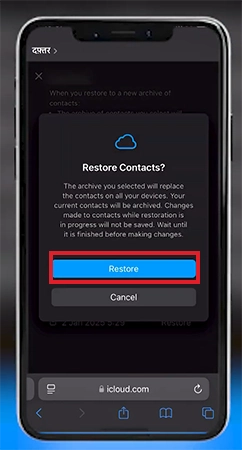
Click Restore again to confirm. Wait a few minutes for the archive to process, then check your iPhone. Your deleted contacts will automatically sync back onto your device.
Method 3: Restore iPhone Contacts from a Google or Yahoo Account
iPhone contacts originally created inside a Gmail or Google Account, when deleted, can be recovered using this method. Contacts suddenly disappear from your iPhone simply because the sync connection between Apple and your email account was turned off during a software update. By going into your device settings and re-enabling the sync toggle, you grant your iPhone permission to pull contacts back from the cloud.
How to restore contacts on iPhone from a Google/Yahoo Account:
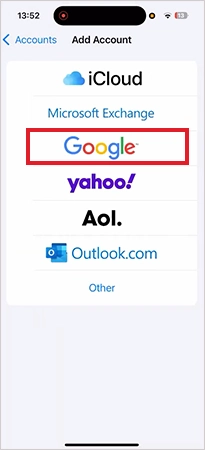
If it is not listed, tap Add Account, select Google, and log in with your Gmail email address and password.
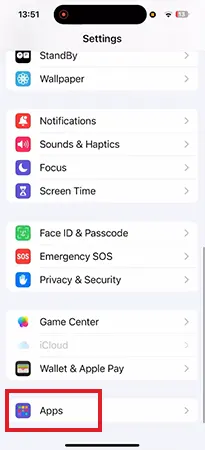
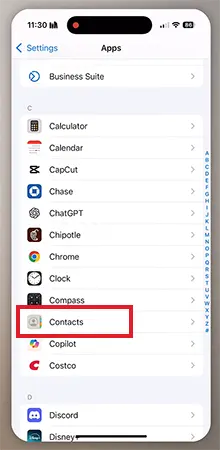
Go to your iPhone Settings app and scroll down to select Apps.
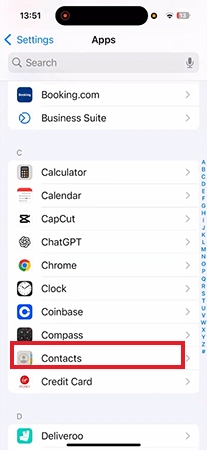
Find Contacts and tap on it.
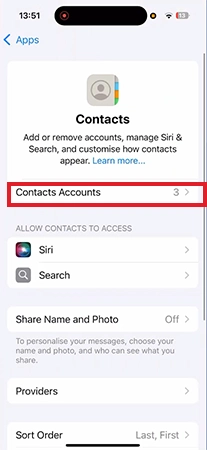
Tap on Contacts Accounts to view all email profiles linked to your device.
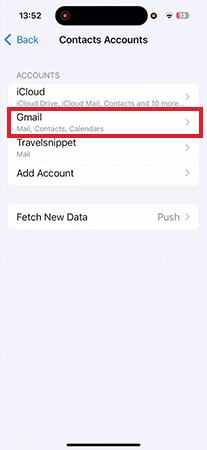
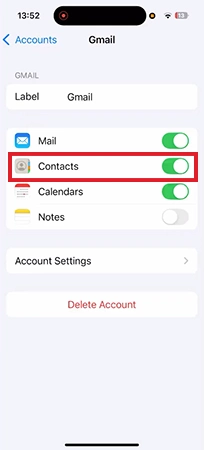
If your Gmail is already listed, tap Gmail.
If it is not listed, tap Add Account, select Google, and log in with your Gmail email address and password.
Turn the switch on next to Contacts.
If prompted by your iPhone, select Merge to combine the Google contacts with your existing local phone data.
Method 4: Recover Contacts Using an iTunes or Finder Backup
Mac Finder or iTunes backup can be used to restore your missing phone numbers if you regularly back up your device to a computer. It works by taking your iPhone’s entire system data back in time to a date when your contacts were still safely saved on your phone. You can also use this method to recover deleted files on macOS, since it takes the device back to the date of backup, restoring all the data.
How to recover lost numbers on iPhone using an iTunes or Finder backup:
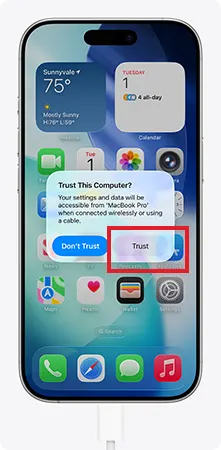
Connect your iPhone to your computer using a USB cable. If prompted on your iPhone screen, tap Trust This Computer and enter your passcode.
Open Finder or iTunes.
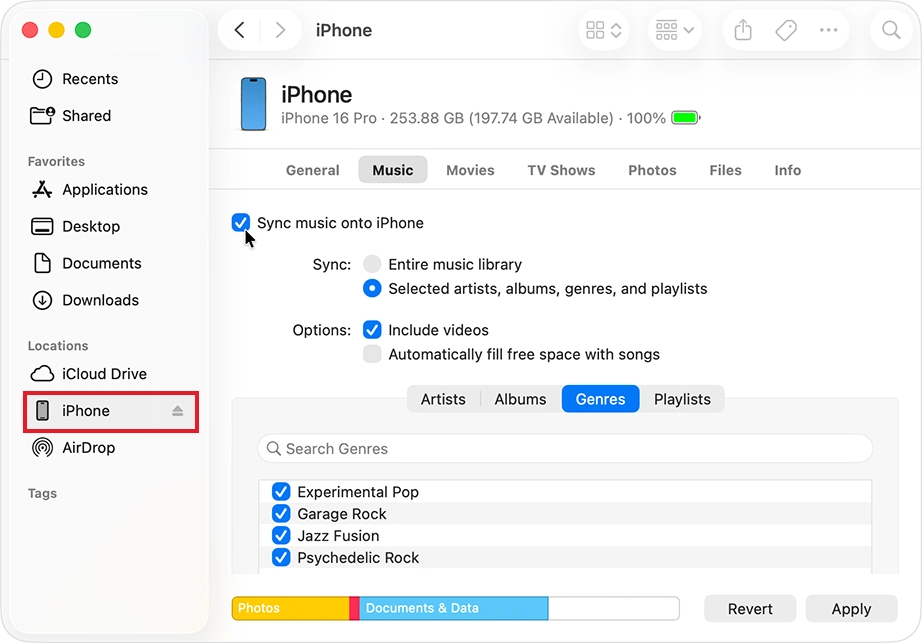
If you are using a Mac, open Finder and click your iPhone’s name in the left sidebar.
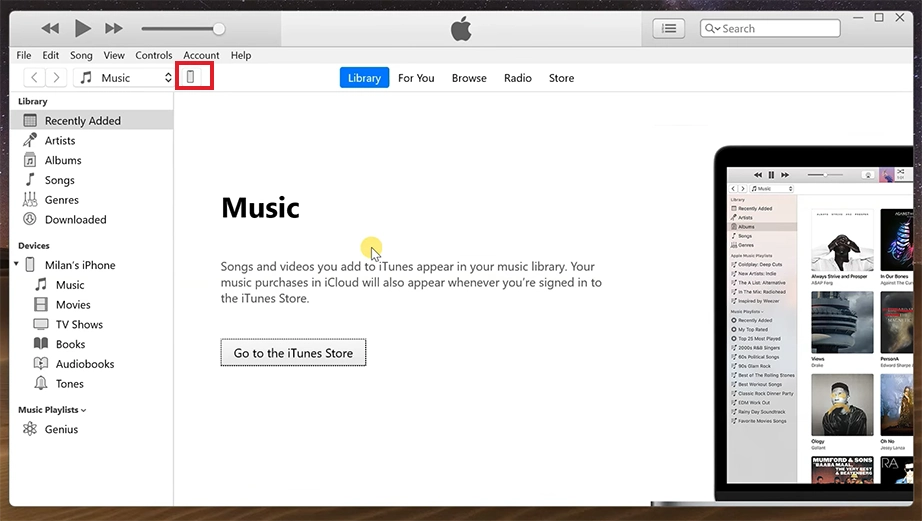
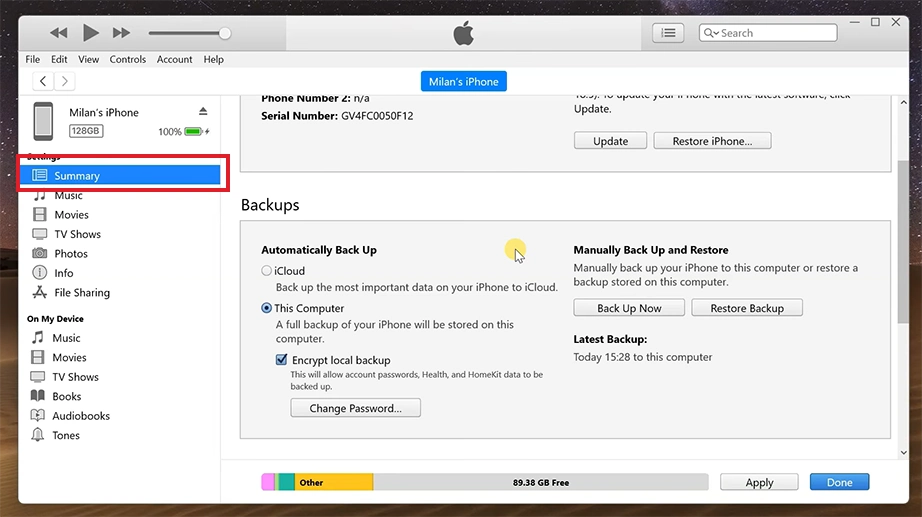
If you are using Windows or an older Mac, open iTunes and click the small iPhone icon in the top left corner.
Look at the main dashboard panel and go to the General tab (in Finder) or the Summary tab (in iTunes).
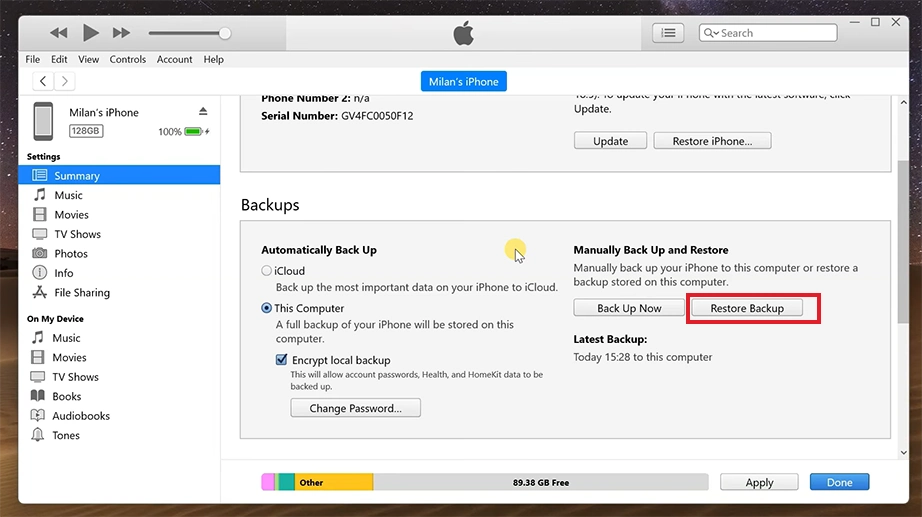
From the Backups section, click the Restore Backup button.
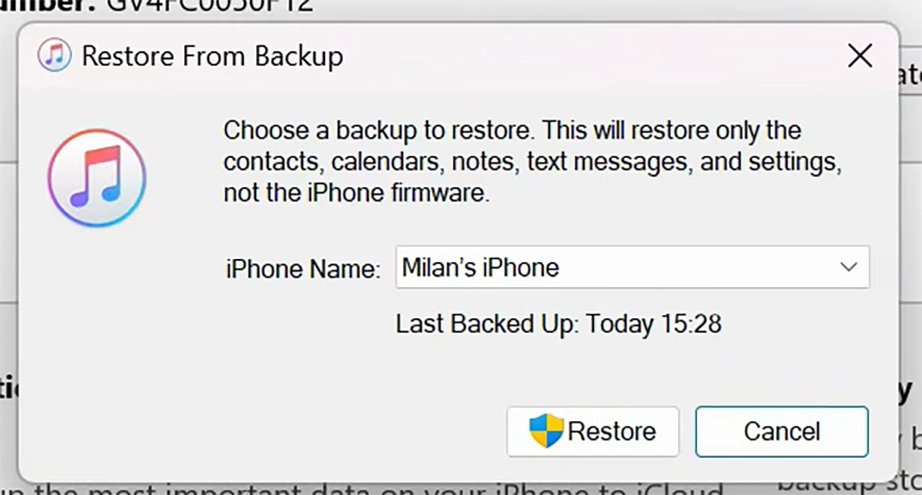
Select the file from before your contacts disappeared, click Restore, and keep your phone connected until the process completes.
Method 5: Import Contacts Directly from a Physical SIM Card
If you recently moved your cell phone services from an older phone to an iPhone, your contacts might still be saved inside the chip of your physical SIM card. iPhones do not save or store contact details directly onto a SIM card. But your iPhone can read an old SIM card and copy every phone number from it.
Note: If you live in the United States, Canada, Japan, Mexico, or the Middle East, Apple has completely removed the physical SIM card tray starting with recent models (from iPhone 14) to move completely to digital eSIMs. If you live in Europe, India, Australia, or other Asian markets, iPhones excluding iPhone 16 and iPhone 17 come equipped with a physical nano-SIM card tray.
How to recuperate contacts on iPhone using the physical SIM card:
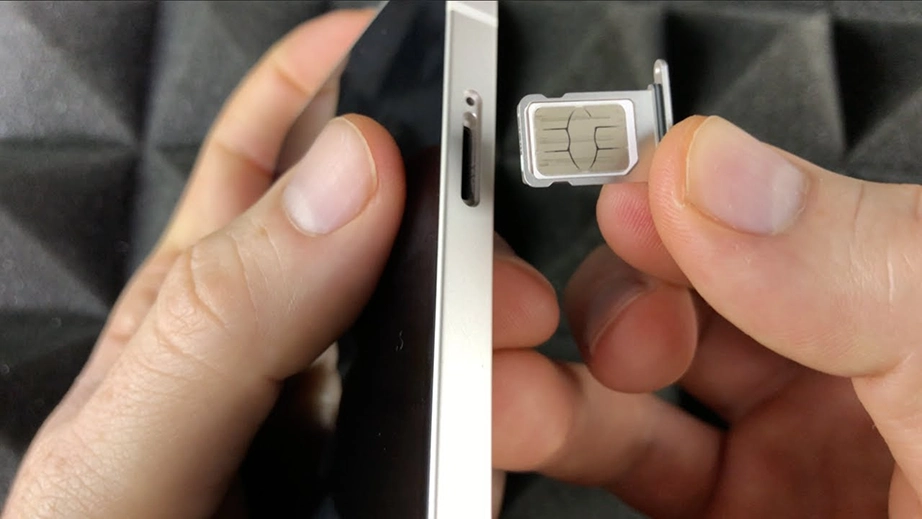
Use the SIM ejector tool to pop open the SIM tray on the side of your iPhone. Place your old SIM card safely inside the tray and slide it back into the phone.
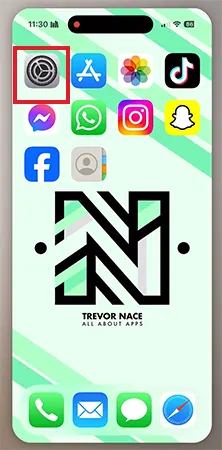
Unlock your iPhone and open the Settings app.
Scroll down the settings list and tap on Apps.
Select Contacts from the various apps listed.
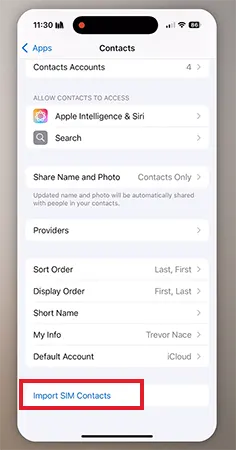
Look at the bottom of the screen and tap the option labeled Import SIM Contacts.
If the phone asks you where you want to save the contacts, tap iCloud (or your preferred email account like Gmail).
Method 6: Recover iPhone Data Using Notchox Data Recovery Software
Notchox Data Recovery is a desktop app designed to recover lost, deleted, corrupted, or missing files from multiple operating systems, including iOS. If your iPhone contacts were stored in a folder or file, you can use Notchox Data Recovery Software to retrieve them. It works by scanning the raw sectors of the computer or connected iPhone’s storage to look for file remnants and restores them.
Step-by-step device data retrieval with Notchox Data Recovery Software:
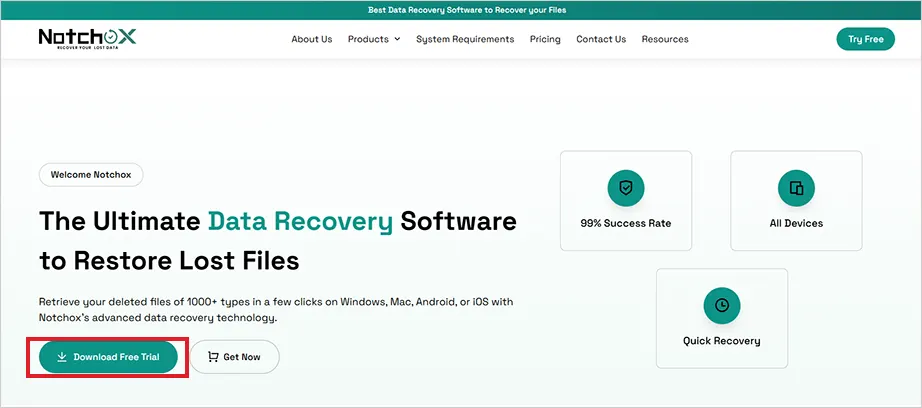
Visit the official Notchox website on your PC or Mac. Download the installer and complete the setup.
Connect your iPhone to the computer using a stable USB cable. Tap Trust This Computer on your iPhone.
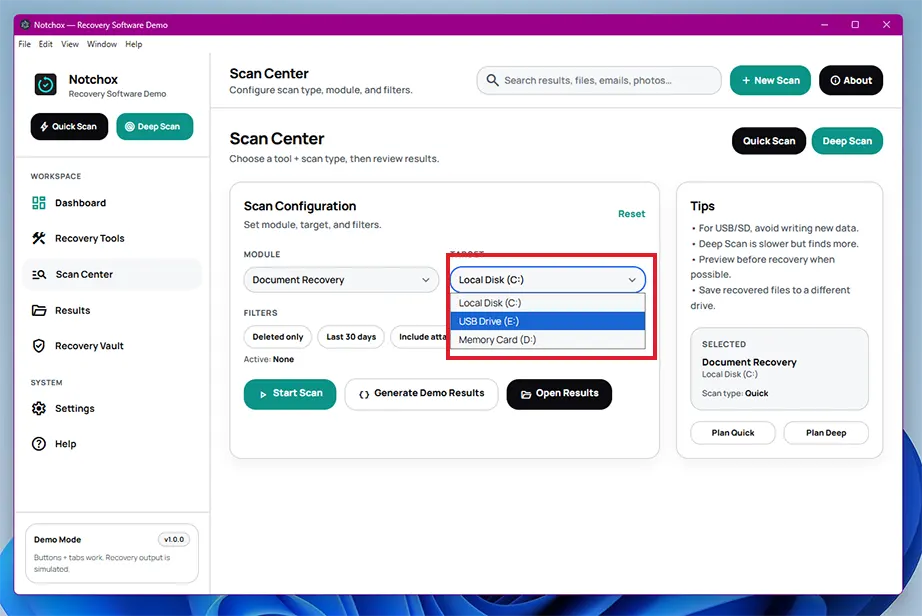
On the main home dashboard of the application, select the target drive, i.e., your connected iPhone, from which you want to restore data.
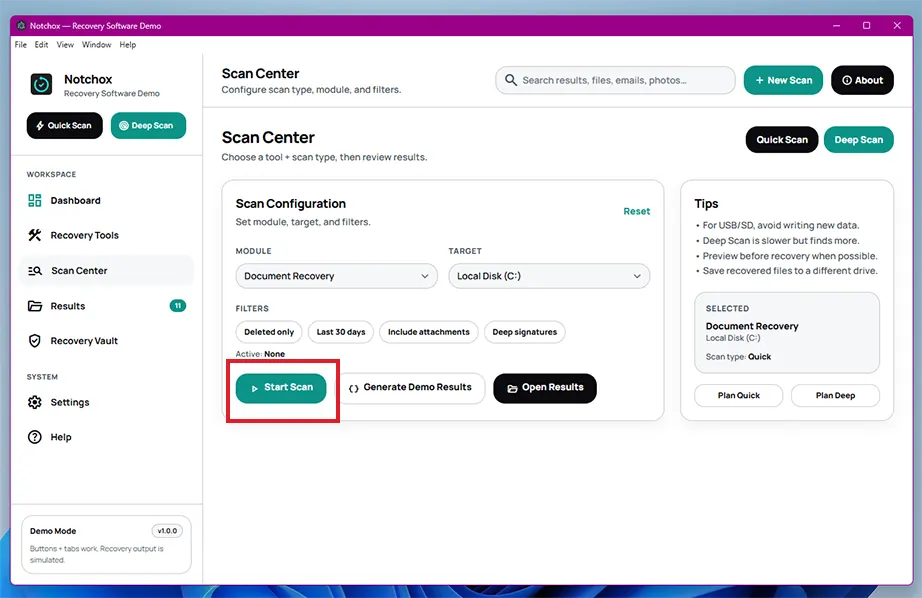
Click the Start Scan button to begin parsing the device for deleted file fragments.
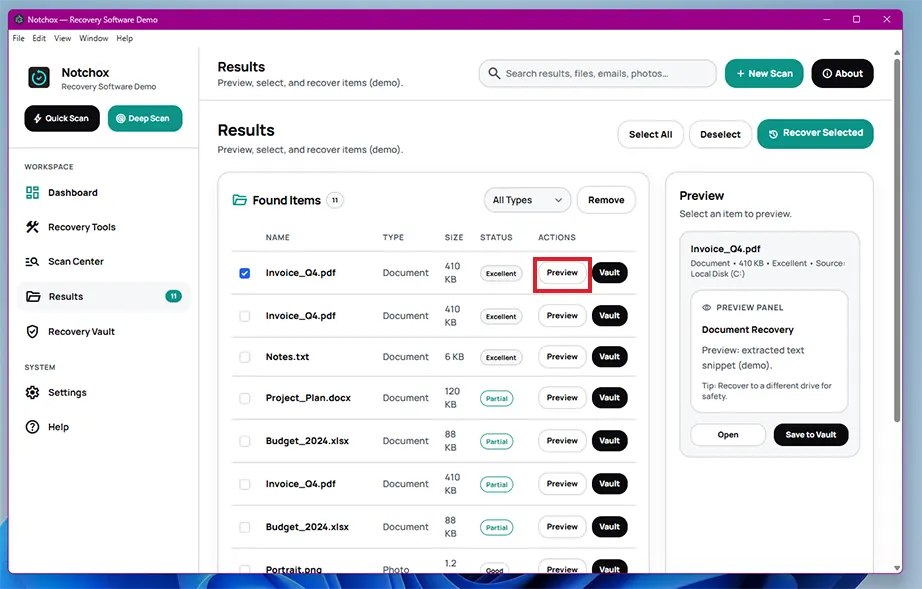
Once the scanning process is over, browse through the displayed results using the Preview button.
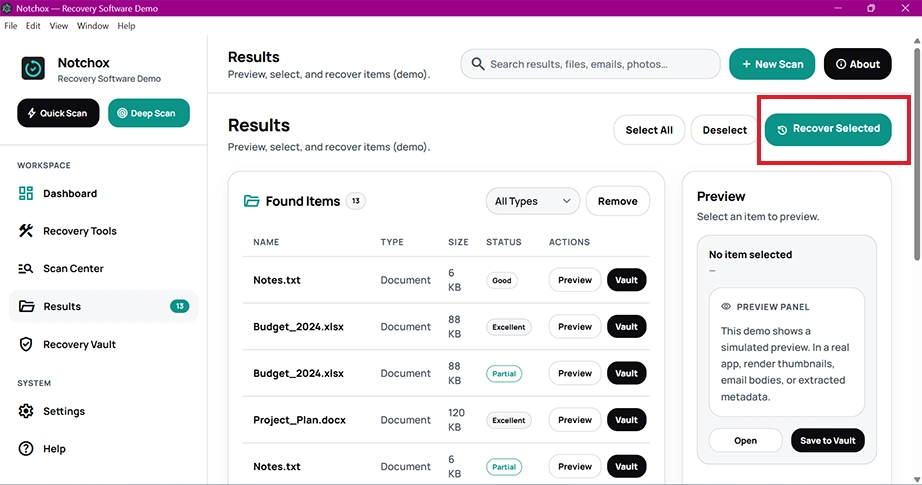
Check the selection boxes next to items you want to keep and click the Recover Selected button at the top to save them to a secure folder.
Conclusion
Since Apple stores contacts on the cloud network rather than permanent hardware storage, it is easy to get back your contacts on iPhone. So, when contacts go missing, you need to take a methodical approach, starting with checking your native cloud links before moving to external accounts or cloud backups. Just toggle the iCloud contacts off and on to refresh the syncing back to your phone. If that doesn’t help, move forward to restoring from iCloud.com or the Finder or iTunes backup. For contacts saved in a file or recovering any other deleted file from an iPhone, using Notchox Data Recovery Software is the best solution because it scans deep into storage sectors and bypasses system barriers to restore the files you need.
Frequently Asked Questions
How to restore contacts on iPhone?
Restore your missing contacts on iPhone by refreshing your cloud connection.
Open your iPhone Settings.
Tap Your Name.
Select iCloud.
Find Contacts and toggle it off.
Switch the toggle back on and select Merge.
How do you get back deleted contacts from iPhone?
You can get back deleted contacts by logging into iCloud.com on a computer web browser. Once signed in with your Apple ID, scroll down to the bottom and click on Data Recovery. Click Restore Contacts to view your saved history archives. Select a specific date from right before your contacts disappeared and click Restore to sync them back to your phone.
How do I get my contacts back on my iPhone using iCloud?
Follow these steps to pull your contacts back using iCloud:
Go to Settings > Your name > iCloud.
Tap See All under your apps list.
Toggle off Contacts and back on again.
Tap Merge.
How do you retrieve deleted contacts on iPhone using Notchox Data Recovery Software?
To recover deleted/ lost data using Notchox Data Recovery Software:
Open the application and connect your iPhone to the computer.
Select your iPhone as the target drive.
Click the Start Scan button.
Preview the recoverable files to check their integrity.
Select the files you wish to restore and click the Recover Selected button at the top.
How do I restore my contacts on my iPhone using Google/Yahoo?
To restore contacts on iPhone using Google/Yahoo:
Open your iPhone Settings.
Scroll down to tap Apps.
Select your Google or Yahoo profile.
Switch the Contacts toggle to the green On position.
Deeksha Arora is a Data Protection & Recovery Writer focusing on writing accurate, informative, and easy-to-understand technical articles for Notchox’s readers. Her content on the prevention of data loss, understanding risks of device failures, and guides to fix problems helps readers make the right decisions and understand the technical terms easily. She works closely with Subject Matter Experts to ensure high usability and accuracy of her writing.