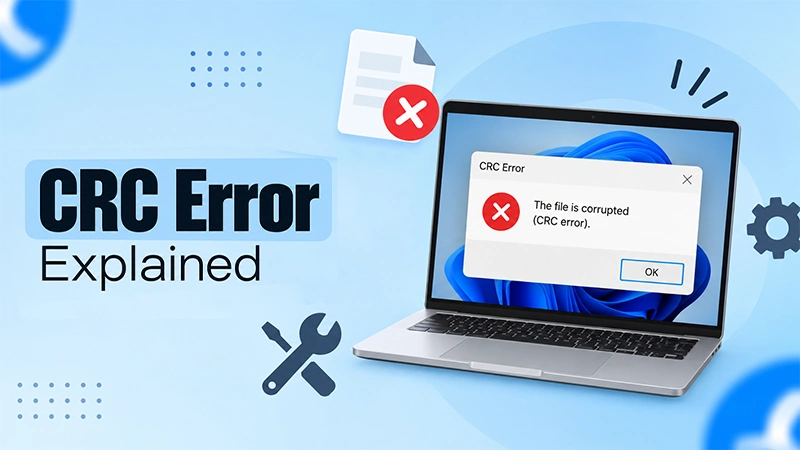
A CRC error stands for a Cyclic Redundancy Check error. It is triggered when the computer system, drive, or network detects a change in the data being sent and received. It calculates a checksum value at both ends and matches them. The mismatch in both values means that data has been corrupted or changed in transit.
What is a CRC error fix? To fix CRC errors, you can try changing the SATA/USB connection, running Windows CHKDSK, SFC, DISM, updating drivers, and running Mac First Aid. Since it is caused during transmission of data, it can be fixed by checking the communication path and driving internal errors.
Note: A CRC error indicates that the data in the file or drive has changed during transmission or storage. This is detected by matching the value of the checksum, which is calculated before and after transmission/storage. To detect and fix it, you can use CHKDSK, SFC scan, update drivers, and run Mac First Aid.
A CRC error (Cyclic Redundancy Check) is an automated system alert telling you that your data is corrupted. This is detected when a device reads or moves a file. It calculates a mathematical code and compares it to the file’s original code. If the two codes are different and do not match, your operating system blocks the process to protect your system from broken data.
This CRC error shows a hardware issue; it could be a damaged cable or a sudden system crash.
Let’s see how it works and where you find CRC errors.
How Does CRC Work?
A CRC works like a digital verification stamp. It does not look at a file’s text or images; it directly analyses the raw binary data blocks. Uses mathematical division to create a unique fingerprint for your files. This makes sure that not a single bit of information was changed or lost in the transfer.
The 3 Steps of How CRC Works:
Calculation: The system treats the file’s binary sequence as a large math polynomial and divides it by a fixed number to get a small remainder called a checksum. This is done right when a file is created or sent.
Attachment: The system then attaches this small checksum value to the end of your data block before saving or sending it.
Verification: Once the file is received, the system recalculates the math. If the new number does not match the attached checksum, it throws a CRC error.
Where Do You Find CRC Errors?
CRC errors happen when the data stored on a device or sent across a network fails a mathematical integrity check, i.e., the checksum value varies.
Windows Error Pop-Ups:
A dialog box pops up showing “Drive Is Not Accessible: Data Error (Check Redundancy Error)” when you try to open, copy, or access a file on a drive or partition.
Affected Hard Drives:
The error shows up when the entire drive is corrupted or misconfigured. It restricts you from even viewing the drive data.
File System Scan:
The drive file system scan result shows this error as a scan report after detection of any CRC error.
What Causes CRC Errors?
A CRC error happens when something changes or breaks your data while it is being written or sent. It is just like a scratch on a DVD; if the laser can’t read the data clearly, the system stops the process. This error is caused by:
Hardware-Related
Old or damaged hard drives can get these physical black spots on them. These permanently disturb your saved file blocks.
Poor-quality USB and SATA cables corrupt the data by losing connection while the files are being saved or sent.
A weak power supply means power disruption to your external drive. This causes the read/write heads to glitch in the middle.
Software and System
When the operating system suddenly crashes or freezes, it stops data writing midway, leaving the files incomplete.
Software bugs also alter the operating system registry, which makes files impossible to find.
External Factors
Cables, ports, and connectivity are the external factors that can cause CRC errors. Sometimes, even if the drive is physically good, there might be some connectivity issues between the drive and the system. Either the connections are loose, the ports are rusted/damaged, or the connecting wires are not reliable.
How To Fix a CRC Error?
Because the cause of a CRC error involves the drive disks and the files being accessed, there are various methods that can solve this problem. You need to start by changing the SATA/USB connection, i.e., the connection between the drive and the computer. If that is all good, you may need to run a Windows scan or Mac First Aid to detect and automatically fix the issue.
Fix 1: Changing SATA/USB Connection
The first and foremost check you should perform is checking the connection because if the drive isn’t connected properly, or the communication is broken, the computer will not be able to render the files on user command.
Disconnect and Connect: If a bad CRC error happens when you try to access your external drive, disconnect, reconnect, and restart the computer.
Switch the ports: Try connecting the cable or drive to a different port on the same device.
Replace the cable: Poor-quality cables might not work properly and lose connection in between. Replace it with a good-quality cable and try accessing/downloading/ reading the file again.
Test on another computer: If you have another working computer, connect the drive to it and access the files again.
Fix 2: Run the Windows CHKDSK Utility
The Windows CHKDSK tool fixes the CRC error caused by unsuccessful installation of a program, a registry configuration, or misconfigurations of files. CHKDSK is an inbuilt Windows tool to fix any mismatch, corruption, and such storage drive errors. Though it is a command-line tool, Windows does have a graphical equivalent of this for easy and direct scanning. This method solves some of the CRC errors caused by minor file system or sector issues.
Here is how to fix CRC errors using the command-line CHKDSK command:
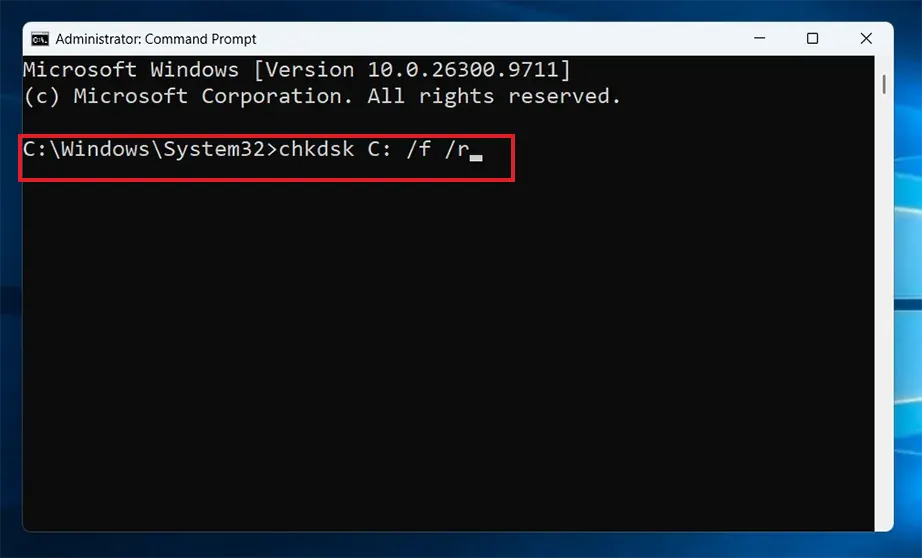
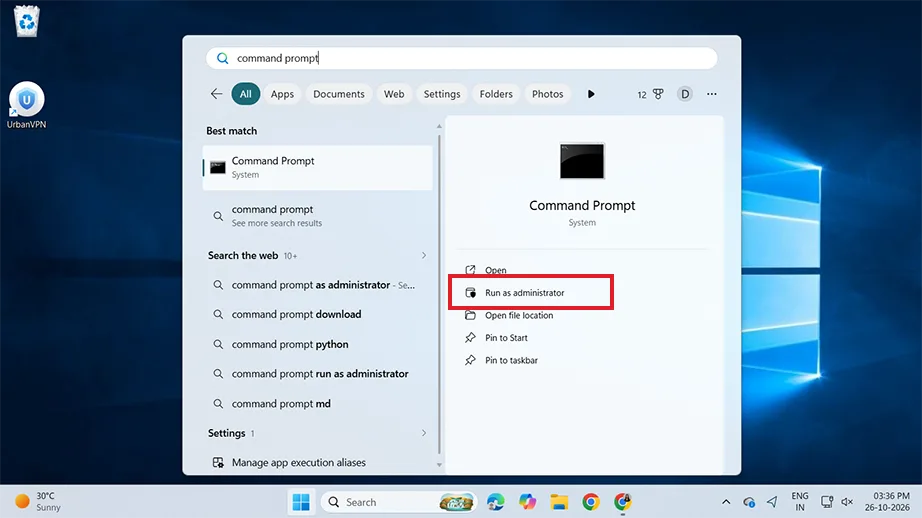
Open Command Prompt with administrative rights.
Enter the following command, replacing X with your drive letter, and press Enter:
chkdsk X: /f /r
The /f flag fixes logical errors, and /or locates bad sectors and recovers readable data.
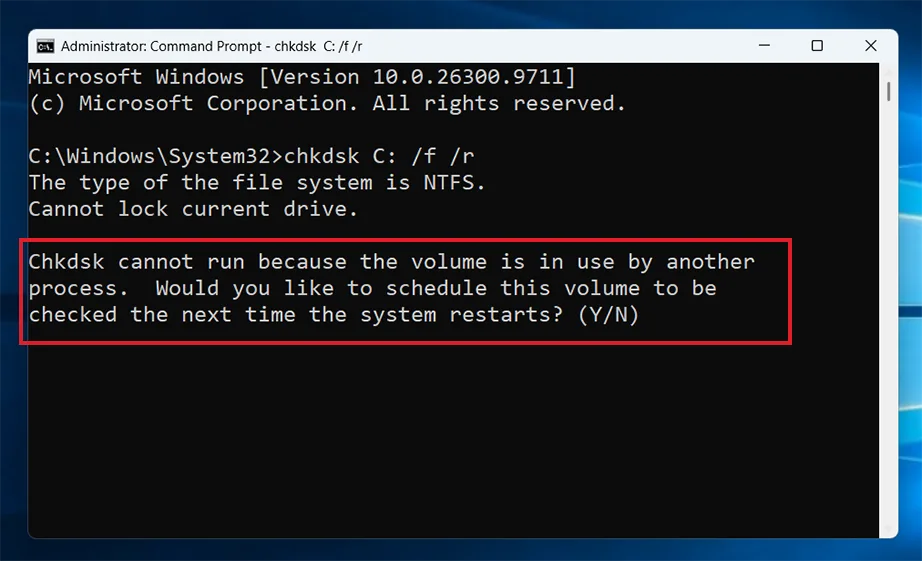
Note: Press Y and hit Enter. If you get prompted to reschedule the scan because the drive was busy, do so.
Steps to fix the CRC errors using the graphical equivalent of CHKDSK on Windows:
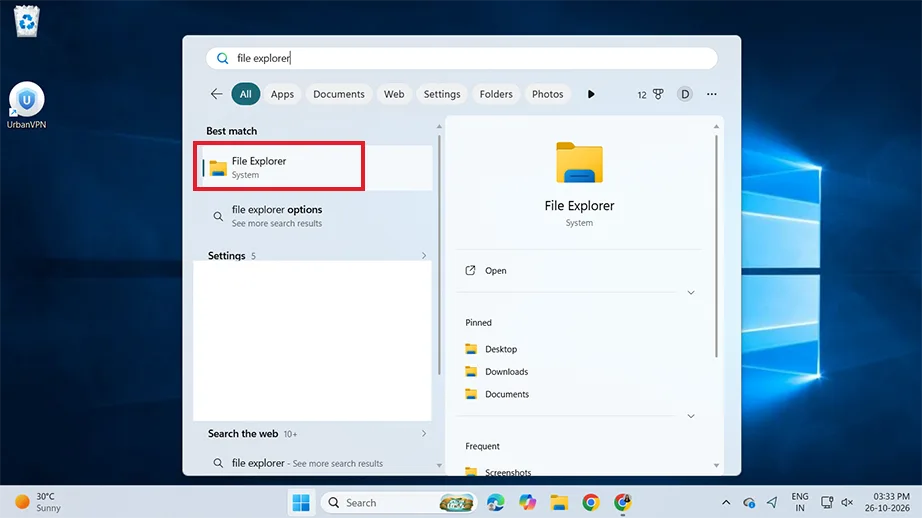
Open File Explorer on Windows.
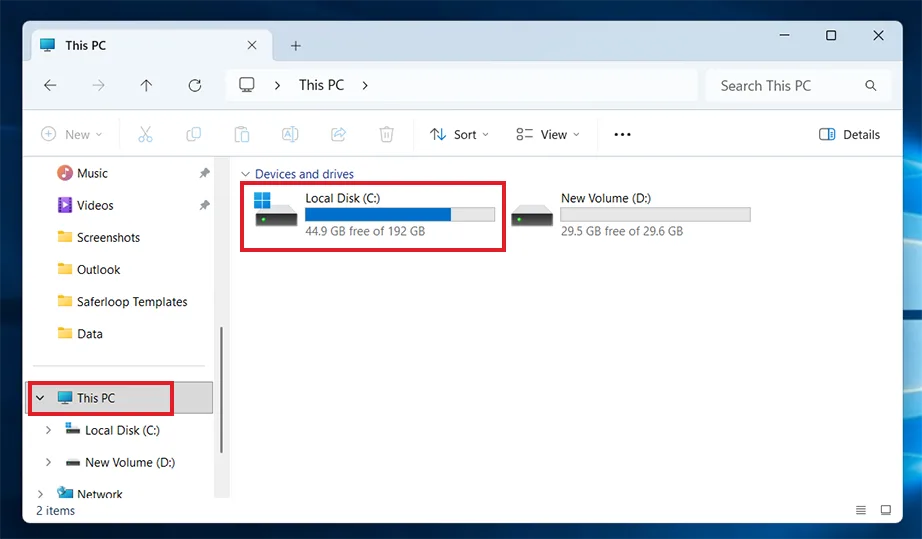
Click on This PC to access the specific drive.
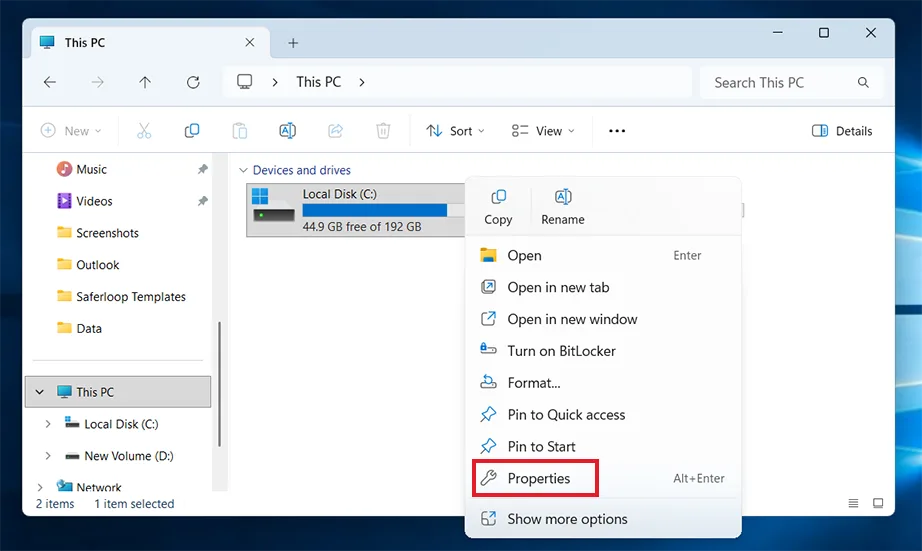
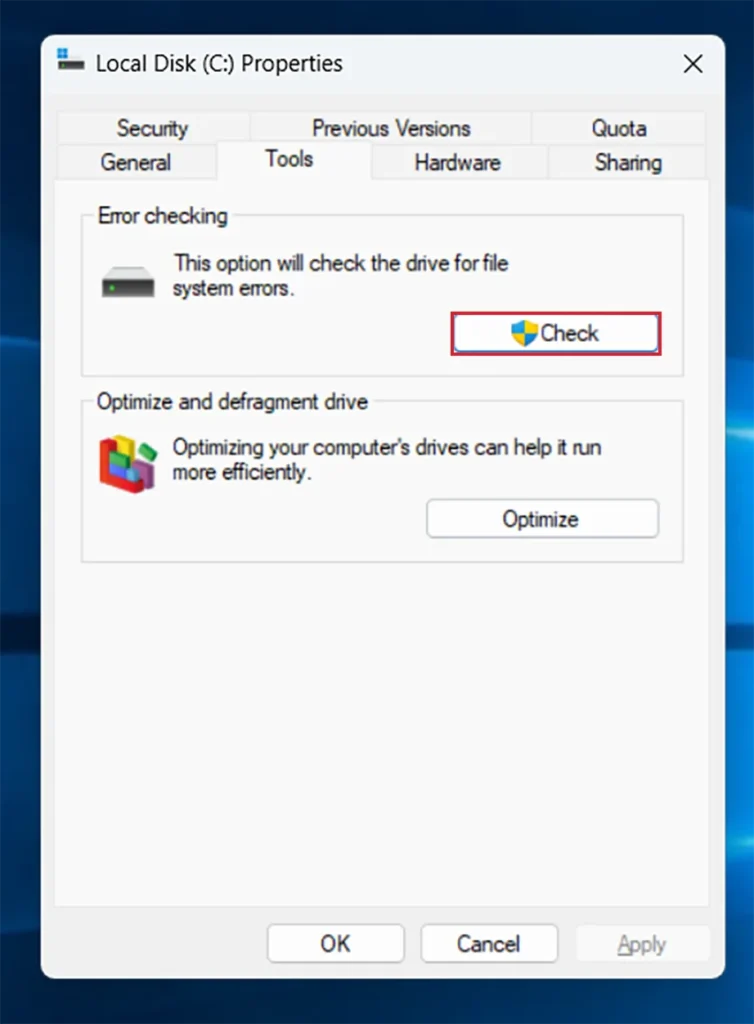
Right-click on the specific drive and select Properties from the context menu.
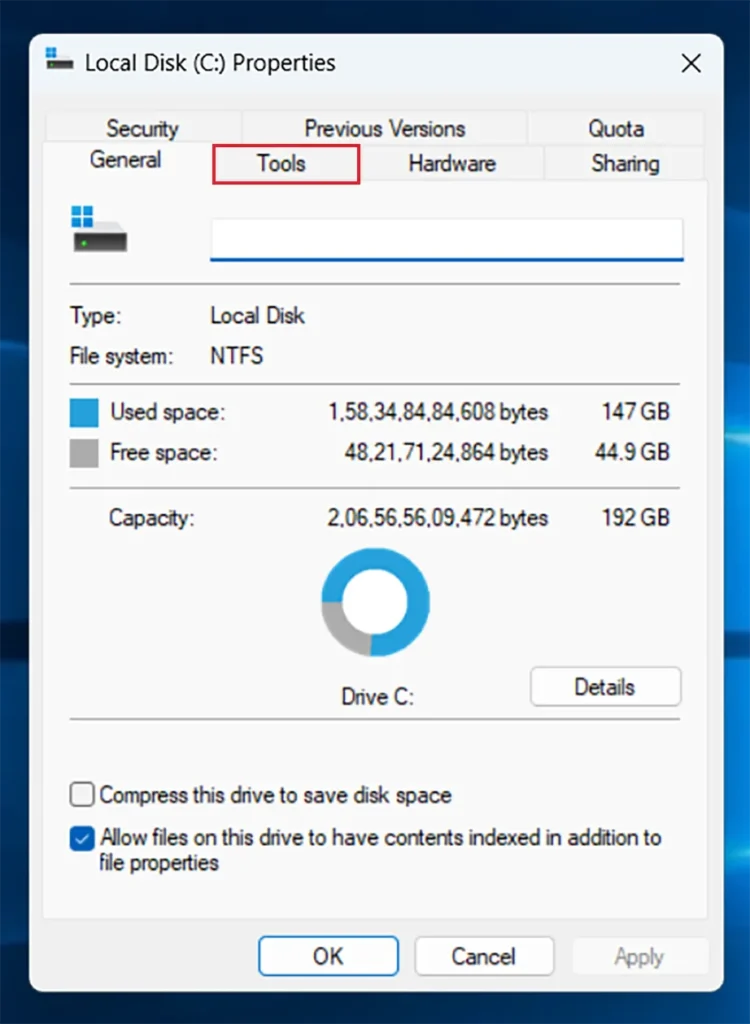
Go to the Tools tab.
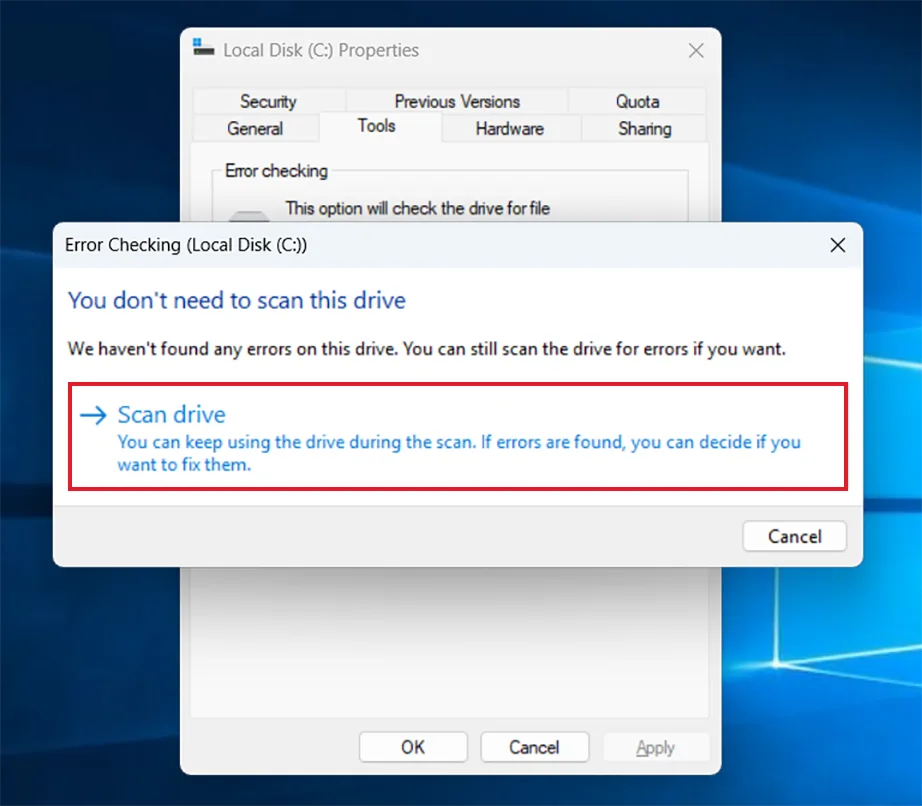
Click the Check button found under the Error Checking section.
Click on Scan Drive.
Fix 3: Perform an SFC Scan and DISM
The Windows SFC and DISM command lines fix any system file and system image errors on the drives. Any problematic system files and errors drive may have, they are scanned, detected, and automatically fixed without the need of any external tool download.
Steps to fix CRC failed, mismatched, or system file errors using SFC and DISM command lines:
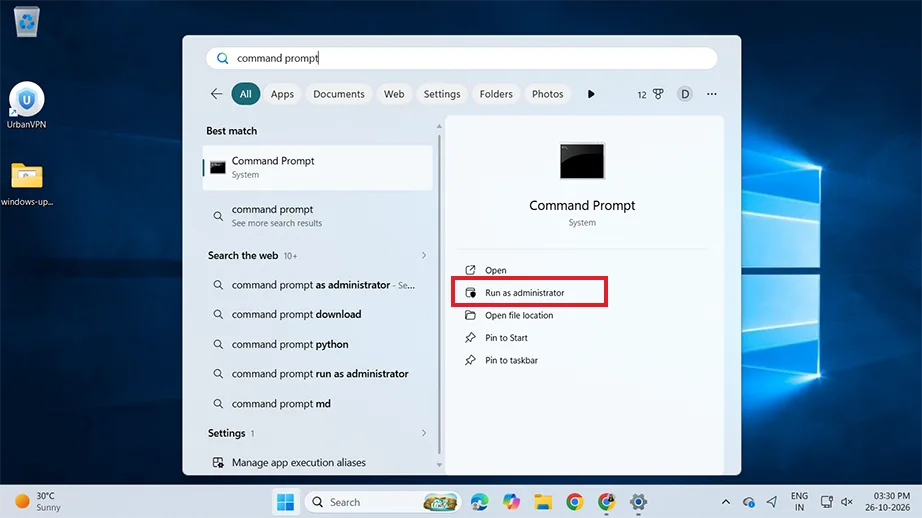
Press the Windows key and search for Command Prompt. Select Command Prompt and click Run as Administrator.
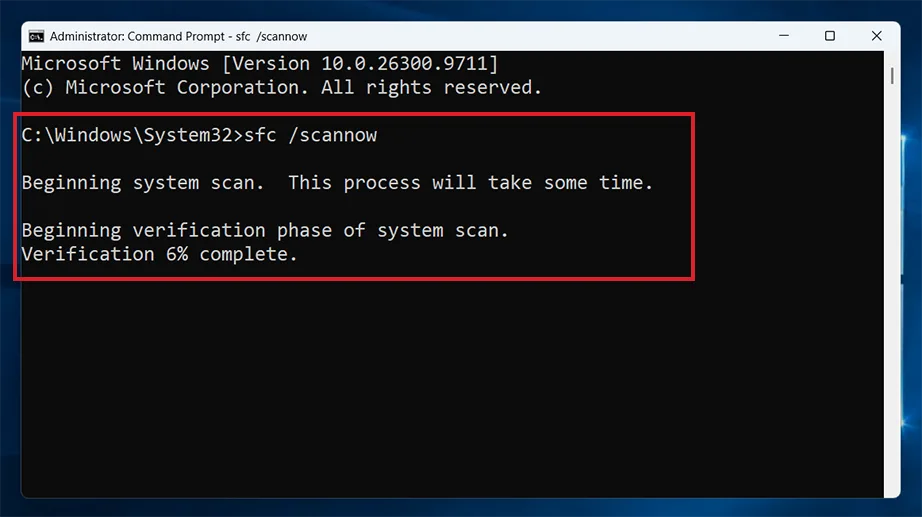
Type the following SFC command and press Enter for the computer to detect the system files:
sfc /scannow
Once the scan is complete, enter the following command lines and press Enter at the end of each one:
DISM /Online /Cleanup-Image /Scanhealth
DISM /Online /Cleanup-Image /Checkhealth
DISM /Online /Cleanup-Image /Restorehealth
Fix 4: Use First Aid in Disk Utility (macOS)
You can repair disk directory issues and file system CRC errors on Mac using First Aid in Disk Utility. macOS handles CRC-style data corruption differently than Windows. This scans the hard drive for bad sectors and file system inconsistencies and attempts to repair them.
Note: Make sure you have a backup of all your drive data, in case Disk Utility finds an error you can’t manually repair, or you need to recover damaged files.
Steps to run Mac First Aid to fix CRC error:
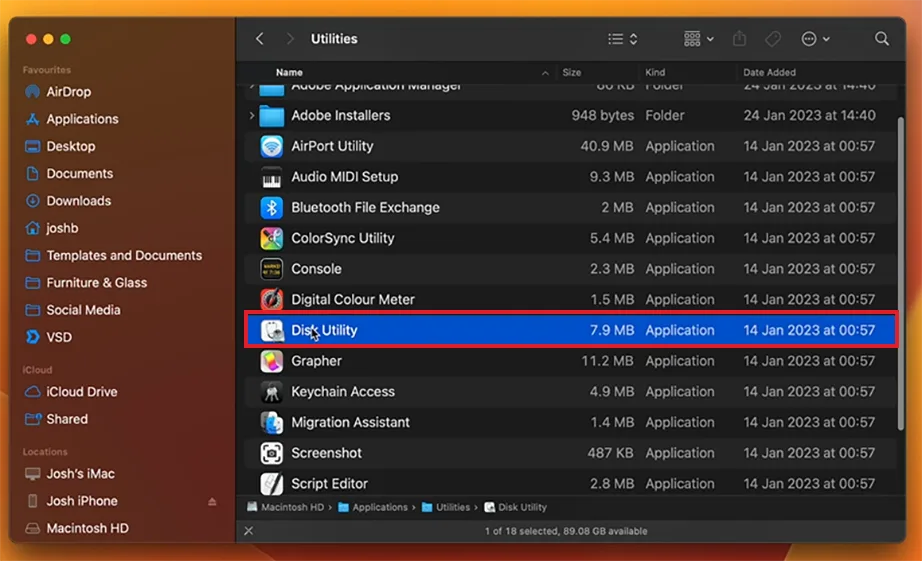
Open Disk Utility. You will find it in your Utilities folder.
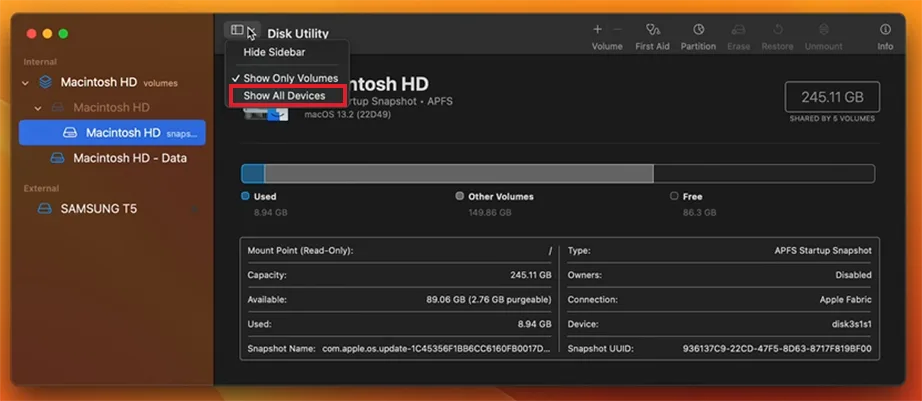
From the menu bar or toolbar in Disk Utility, click on View and select Show All Devices (If Available).
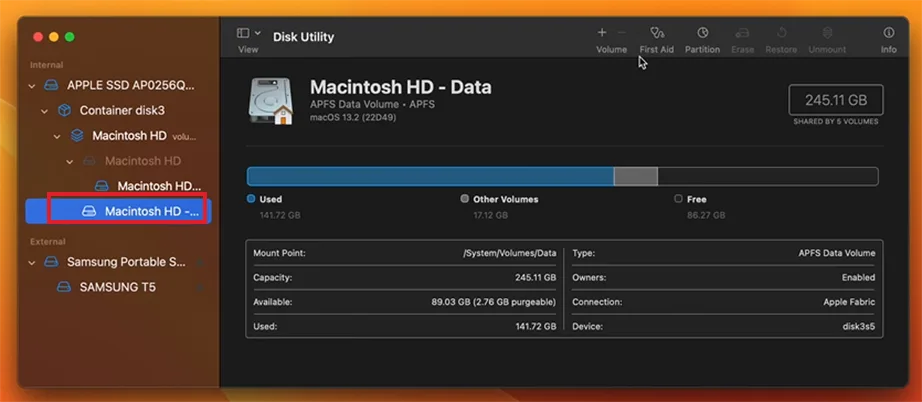
The sidebar shows all your internal and connected external hard drives to your Mac. Select the specific drive from here.
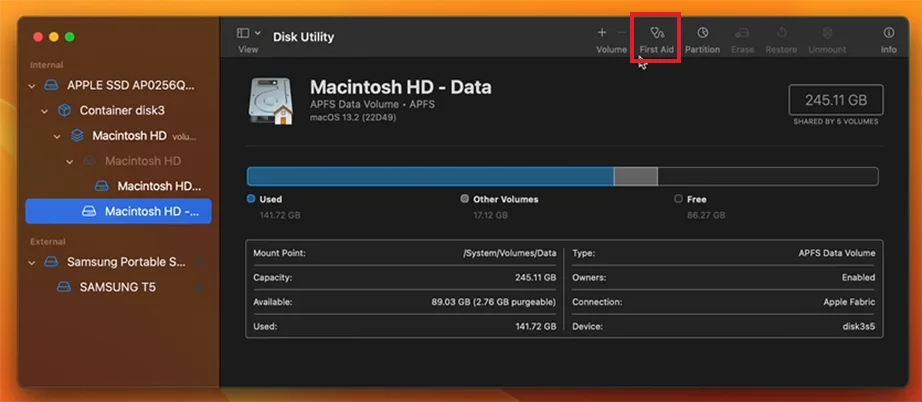
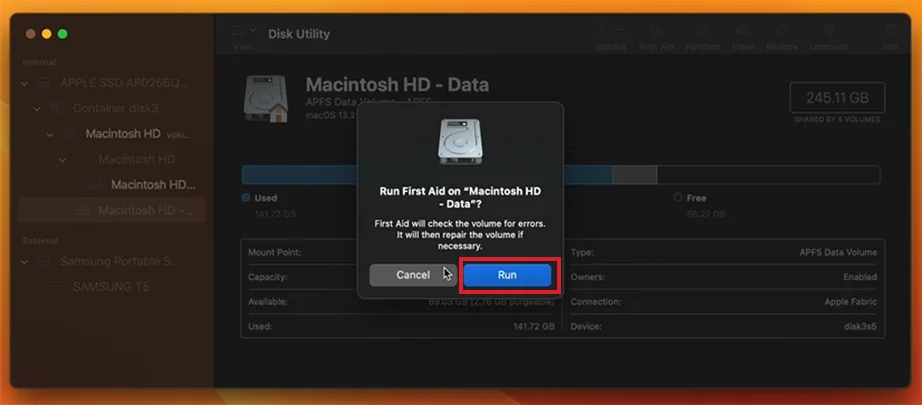
Click the First Aid button or tab.
Click Run or Repair Disk to begin checking the selected volume for errors.
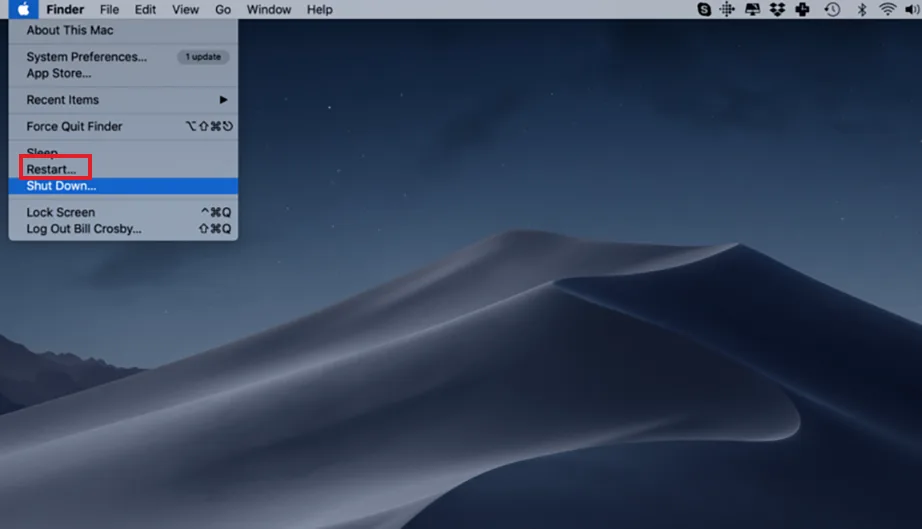
Once the process is complete, quit Disk Utility. You can now choose Restart… from the Apple menu to restart your Mac.
Fix 5: Update Storage Drivers
It is recommended to update your disk drivers regularly. If you have not updated your system for a long time, do so or install driver updates manually. This fixes the CRC errors because outdated or corrupt drivers cause communication issues between the operating system and the storage device.
Steps to update drivers to fix CRC errors:
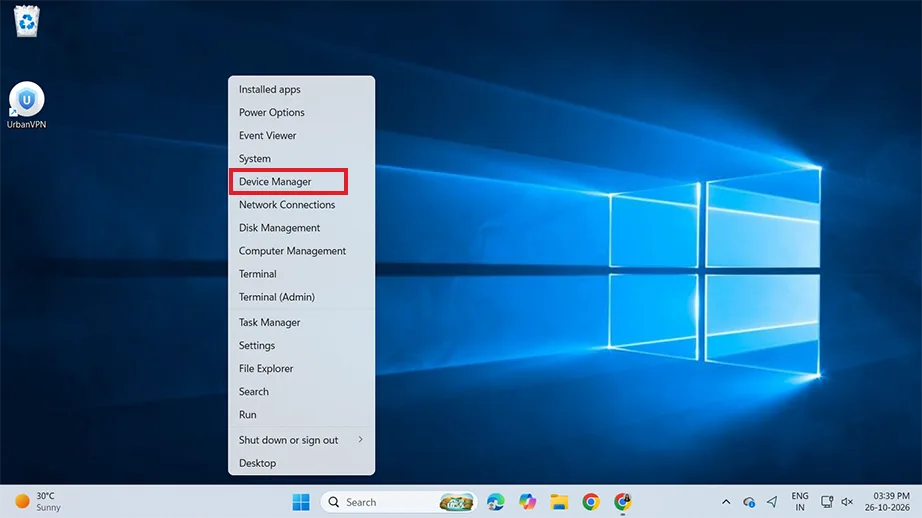
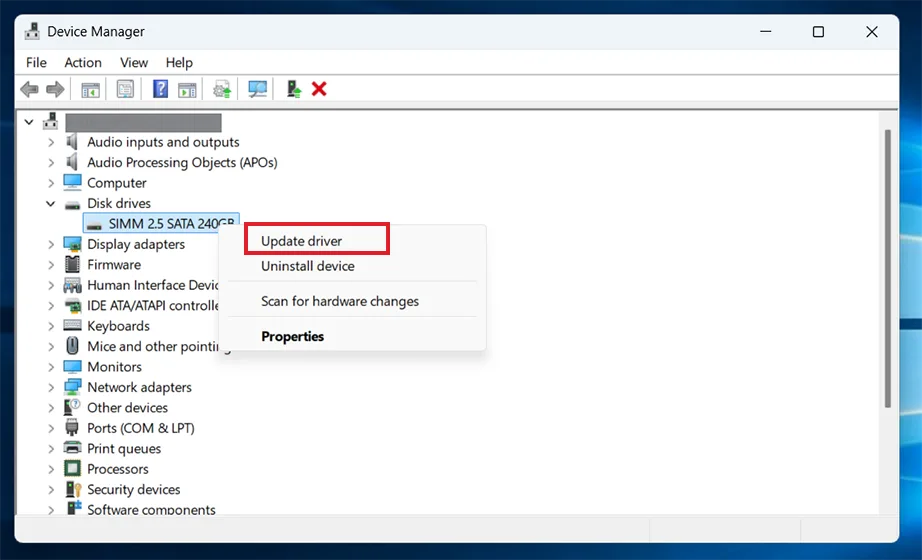
Right-click on the Windows button in the taskbar and select Device Manager (or search for Device Manager in the Windows search).
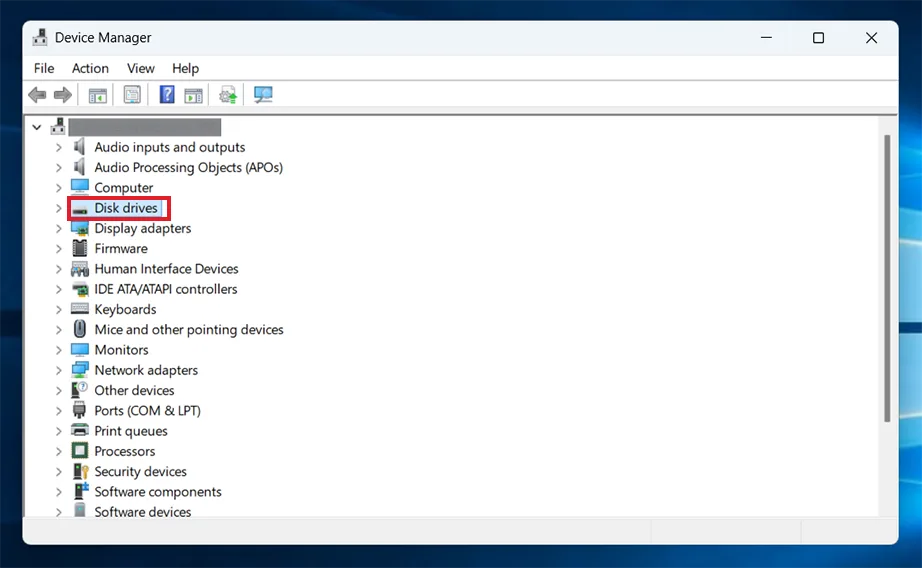
Double-click Disk drives or click the arrow before it to expand Disk drives.
Right-click on the specific drive and click Update driver.
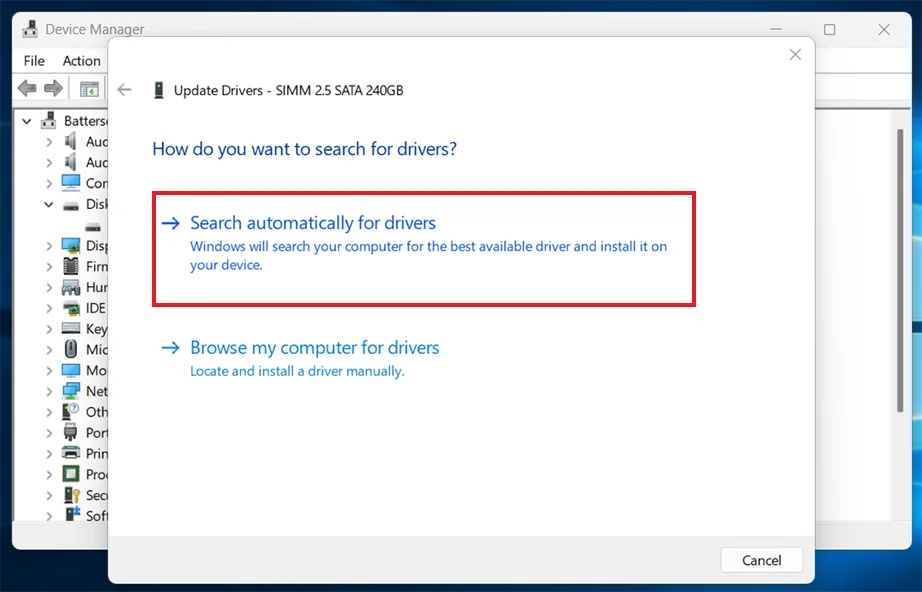
Select Search automatically for drivers.
Note: You may uninstall and reinstall the driver by right-clicking and selecting Uninstall driver. Then click the Action button and select Scan for hardware changes.
How to Prevent CRC Errors and Protect Your Data?
You can prevent CRC errors by keeping your data and drive safe. You need to follow certain practices that do not disrupt data transmission. Though it is important to avoid CRC errors, it is equally important to back up your files and recover any data possible in case of emergencies caused by CRC errors.
How Can You Prevent CRC Errors?
To prevent CRC errors, you need to keep the hardware connection and drive safe. You must maintain storage health with regular updates and protect data during transfers. Here are a few best practices to follow to prevent CRC errors:
Update drivers regularly to avoid conflicts between the driver and the operating system.
Regular system updates resolve any previous bugs or misconfigurations, keeping the system up to date.
Use reliable cables for drive connection and file transmission. Poor quality cables disrupt the data flow in between.
Eject drives safely. Removing a drive while data is still being written without properly ejecting it can corrupt the file system and trigger CRC mismatch or failure errors.
Always download files from reliable sources only.
Data Recovery Using Notchox Software
It is always beneficial to recover data from a drive facing CRC errors before trying any fixes. A CRC error means you cannot access, modify, or download the file. Data recovery software such as Notchox is specialised in file recovery during such scenarios. It scans the drive, bypassing the system limitations, and goes directly to the RAW sector to identify and restore the file. It is one of the most reliable ways to recover data from crashed hard drive or SSD in emergencies.
Restoring data using Notchox Data Recovery Software:
Visit the Notchox official website and download the recovery software according to your device specifications.
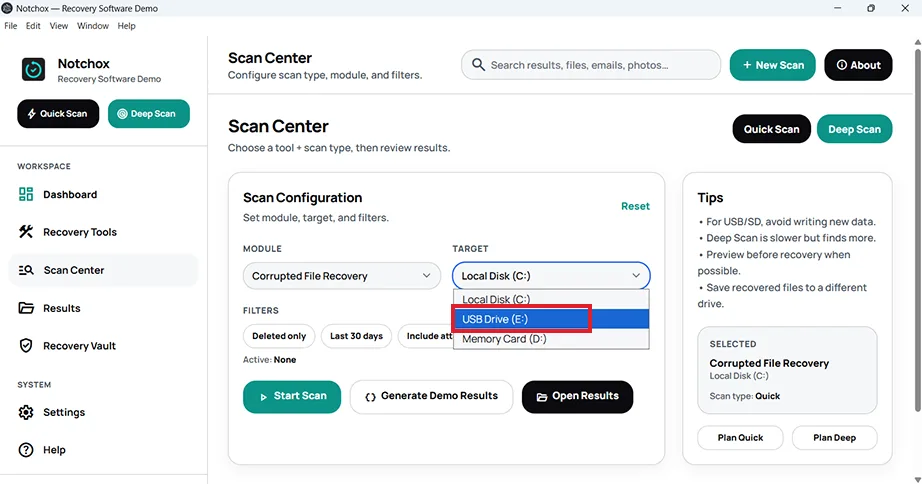
Select the target drive from the dropdown, selecting the drive showing a CRC error.
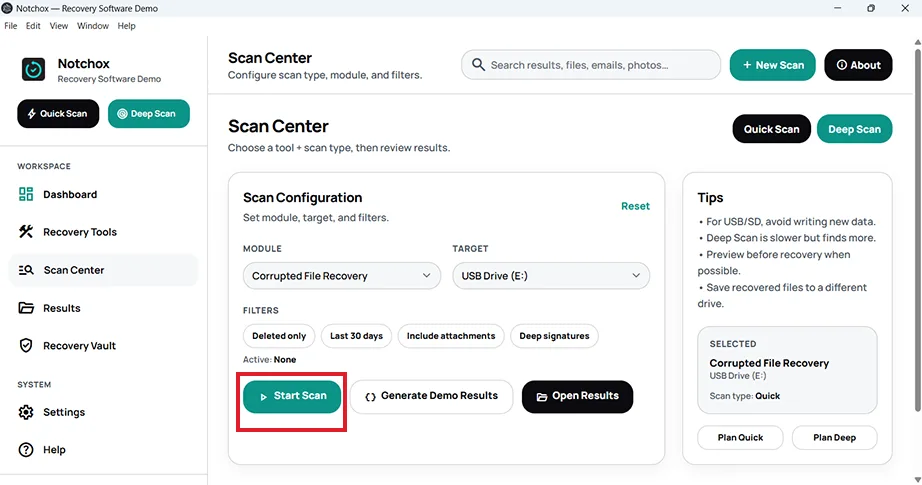
Click on the Start Scan button.
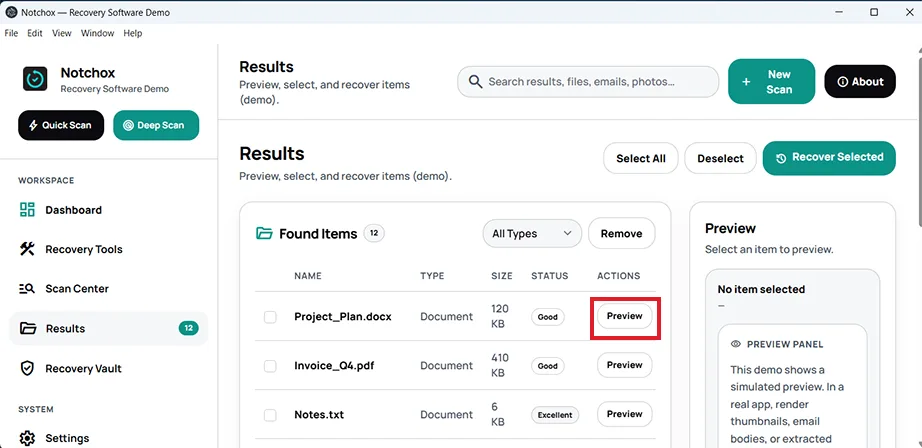
Once the scan is complete, select the file and click on the adjacent Preview button.
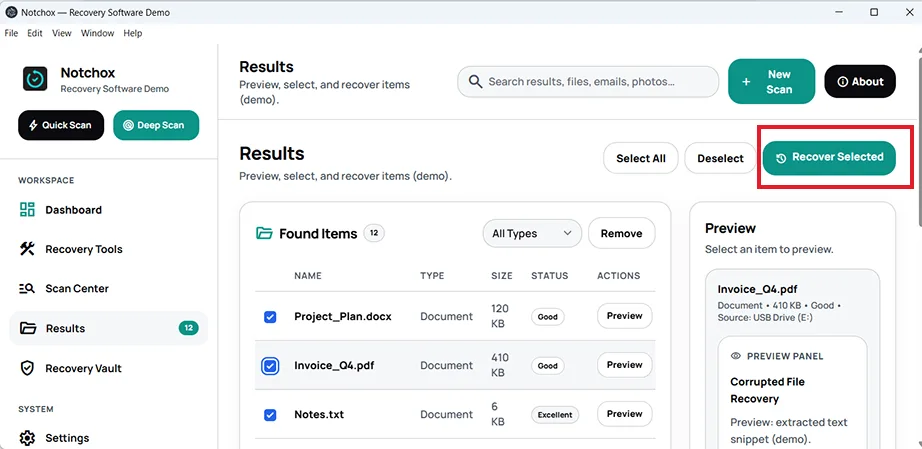
Now select the files you want to keep and click on the Recover Selected button on the top right of the window.
In Short: CRC Error
CRC error is an error triggered when the digital storage drive, such as an SSD, HDD, etc., detects that the file’s RAW data has been changed or corrupted. It is caused by poor connections and cables, improper drive ejection, or physical or internal damage to the drive.
The actual CRC errors meaning is that the data has been altered, it is not the same as it was before. Windows and Mac offer various built-in methods to fix CRC errors, such as CHKDSK, SFC, and DISM command-line tools, and Mac First Aid to automatically scan and fix any issues found.
At the end, you must practice proper drive removal, regular updates, and use reliable connectors to prevent CRC errors on the drive.
Frequently Asked Questions
What is a CRC Error?
CRC error (Cyclic Redundancy Check error) occurs when there’s a mismatch of data between the original data that was sent and the one received. This means that data has been altered, corrupted, or damaged. This might happen during transmission as well as storage.
What does c.r.c. stand for?
CRC stands for Cyclic Redundancy Check. This is an algorithm used to detect errors in data transmission.
What causes CRC?
A CRC error happens when the data received, or being read, with the checksum is different from the original. It does not match the value because the data got corrupted or altered.
How to check CRC error?
CRC error can be seen when you try to access a drive or file. A pop-up showing the message “Drive Is Not Accessible: Data Error (Check Redundancy Error)” appears. Using CHKDSK on Windows and First Aid on Mac can be used to check for CRC errors. It also attempts to fix it automatically.
How can I fix a CRC error?
A CRC error can be detected and fixed using:
Changing SATA/USB cables and ports.
Windows CHKDSK command to scan and fix the drive.
SFC and DISM command-line tools.
Updating storage drivers.
Mac First Aid in Disk Utility.
How does Notchox recover files from a drive?
Notchox bypasses the operating system errors and scans the RAW data on the drive. It looks for data remnants and restores them. Here is how to use Notchox to recover files:
Download and install Notchox data recovery software.
Deeksha Arora is a Data Protection & Recovery Writer focusing on writing accurate, informative, and easy-to-understand technical articles for Notchox’s readers. Her content on the prevention of data loss, understanding risks of device failures, and guides to fix problems helps readers make the right decisions and understand the technical terms easily. She works closely with Subject Matter Experts to ensure high usability and accuracy of her writing.