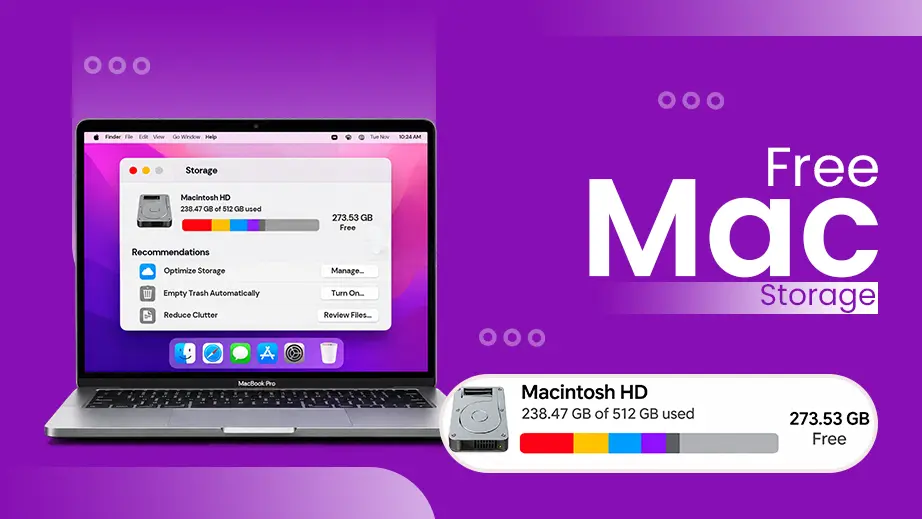
Setting an auto-empty Trash folder and using Apple’s built-in Storage Management tools is how to free up disk space on Mac safely. Freeing up disk space is important because the drive quietly fills up with hidden, unwanted data that slows down performance and triggers “disk full” warnings.
To save your Mac from this, you need this mix of quick automations and manual deep cleaning methods. This article covers the absolute best ways to clear your storage, giving your Mac performance a boost.
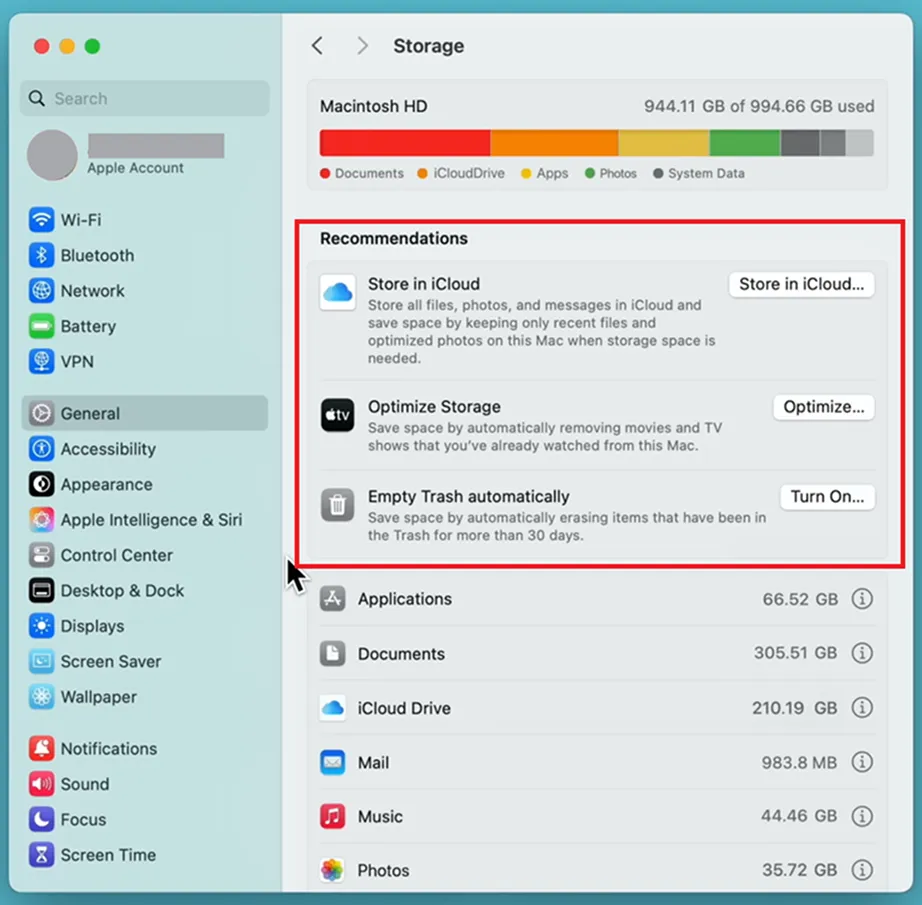
Quick Answer: To free up disk space on Mac, click the Apple menu > System Settings > General > Storage. Review the built-in Recommendations like Store in iCloud, Optimize Storage, and Turn On Automatic Empty Trash. You may also remove unused apps, their data, old backups, system cache, and large files permanently to make up space on Mac.
How to Free Up Disk Space on Mac: 10 Methods You Must Try
Here are 10 methods you must try to free up disk space on Mac. These include clearing the digital clutter like temporary cache files, unused applications, forgotten downloads, deleting large files, old backups, and more. This data build-up clearing is also important because it slows down processing speeds and might even lead to software crashes.
Here are step-by-step methods for how to free up disk space on Mac.
Method 1: Use the Built-In macOS Storage Management Tool
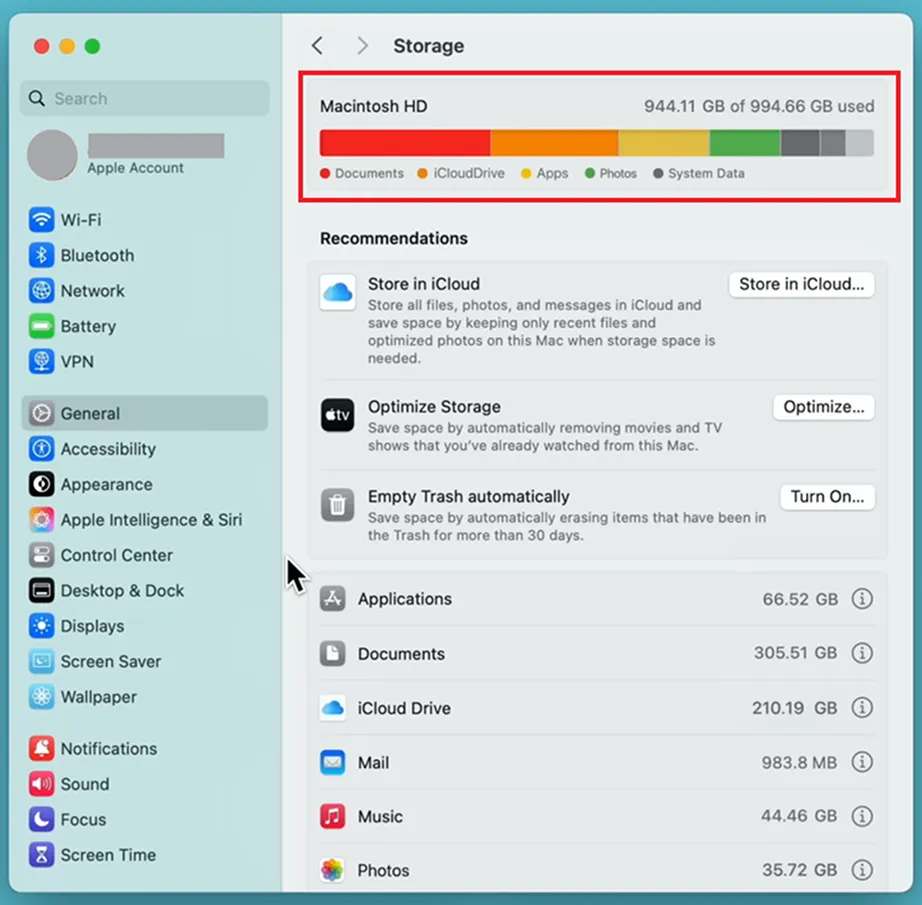
The best way to view, manage, and free up disk space on a Mac is using the native utility designed by Apple, i.e., the Storage Management Tool. Here you get total visibility over your hard drive. You need not search through folders or apps; this tool shows clear and color-coded categories like Applications, Documents, System Data, etc. You can tell at a glance what you need to delete.
Here is how to free up disk space on Mac using the Storage Management Tool:
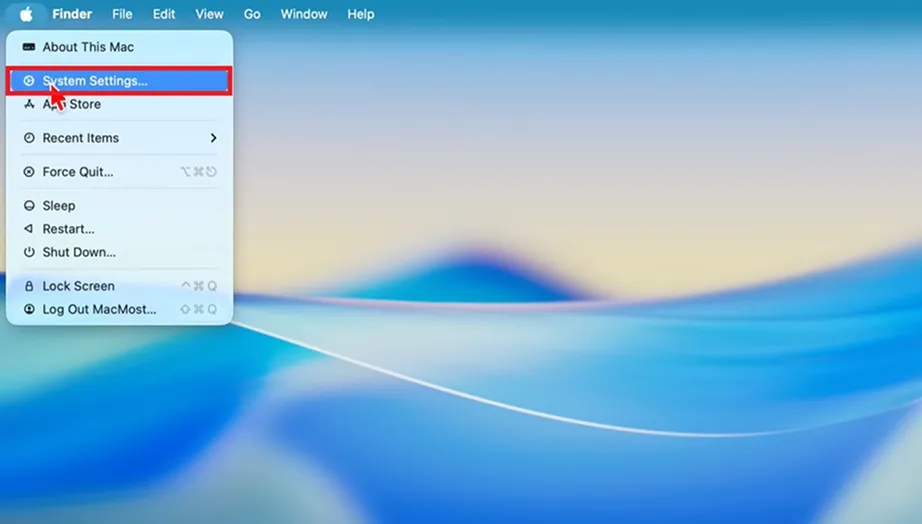
Click the Apple menu in the top left corner of your screen and select System Settings.
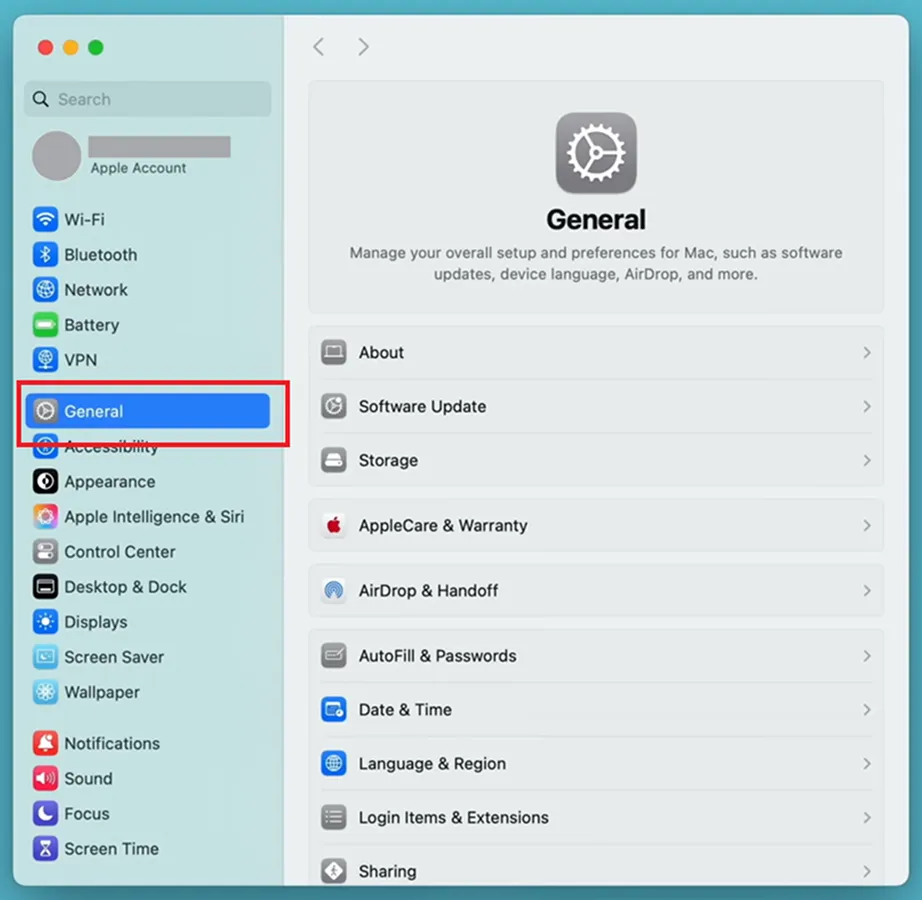
Choose General from the left sidebar.
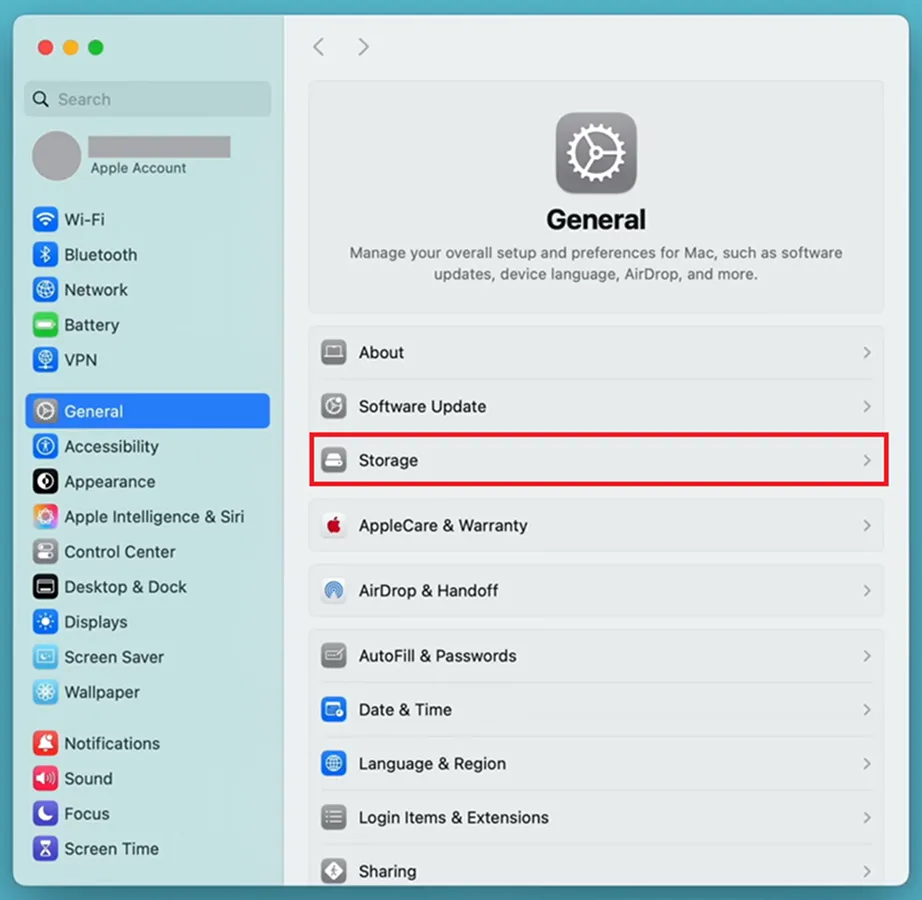
Select Storage on the right side.
Review the color-coded graph to understand storage occupancy.
Under the graph, choose options like Store iniCloud or Optimize Storage. You can manage storage directly from here by choosing any one.
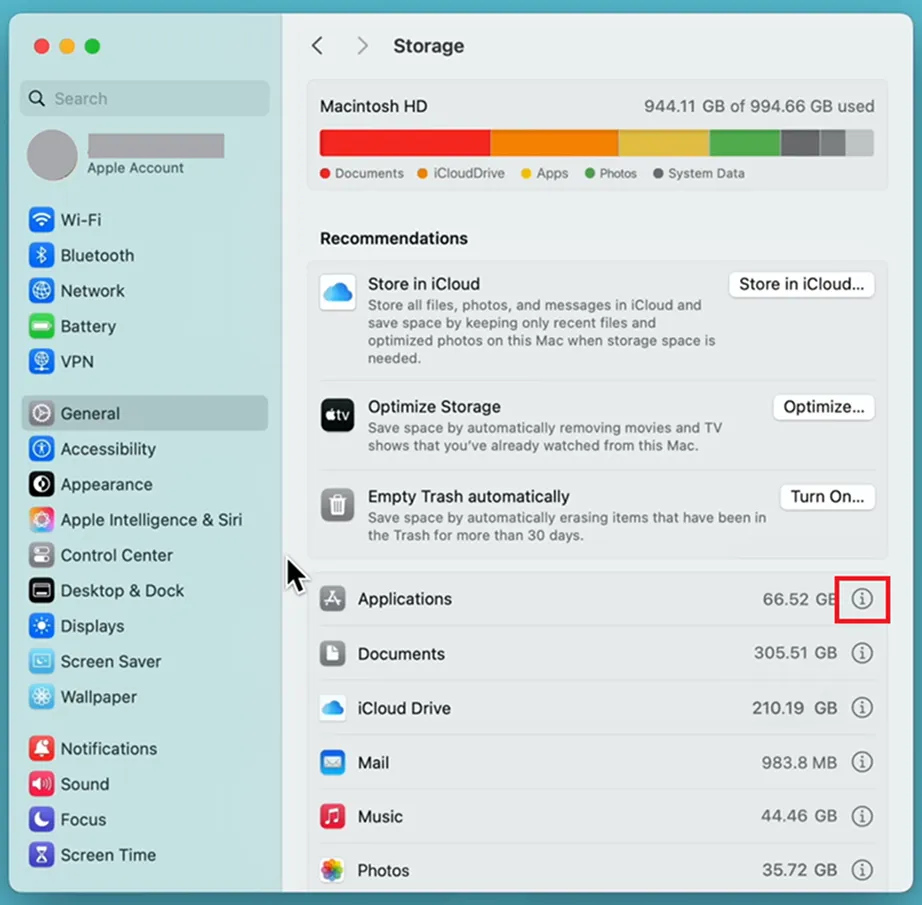
Delete Files Manually: Scroll down to the list of categories. Click theinfo (i) icon next to any item. Click Sort by size, select your files, and click Delete.
Method 2: Use the Optimize Storage Feature
The next method for how to clear disk space on Mac is using the Optimize Storage feature. It is a built-in macOS automation tool that makes space on disk by clearing out media files you have already watched and no longer need.
Automatically removes watched TV shows and moves purchases from the Apple TV app.
Manages email storage by keeping only recent attachments downloaded.
If you ever need those files or movies, you can access them from the cloud, ready there to re-download.
How to delete disk space Mac using the Optimize Storage feature:
Click the Apple menu and select System Settings.
Click on General.
Click Storage.
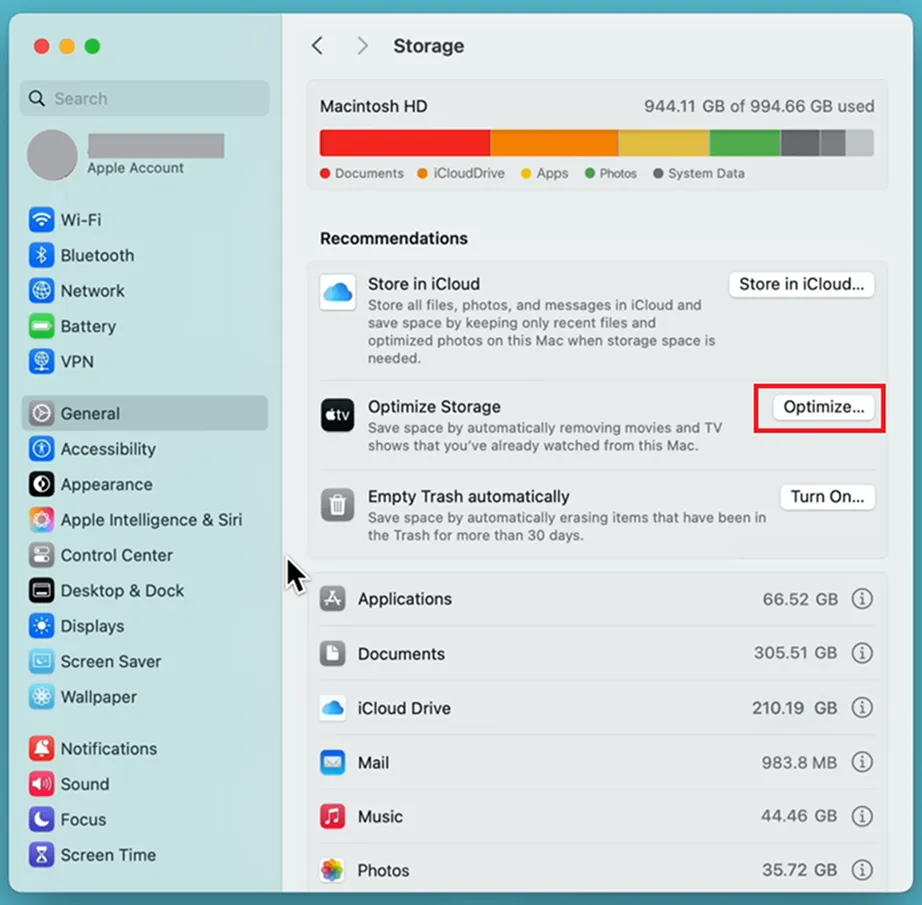
Click Optimize… under the Recommendations section.
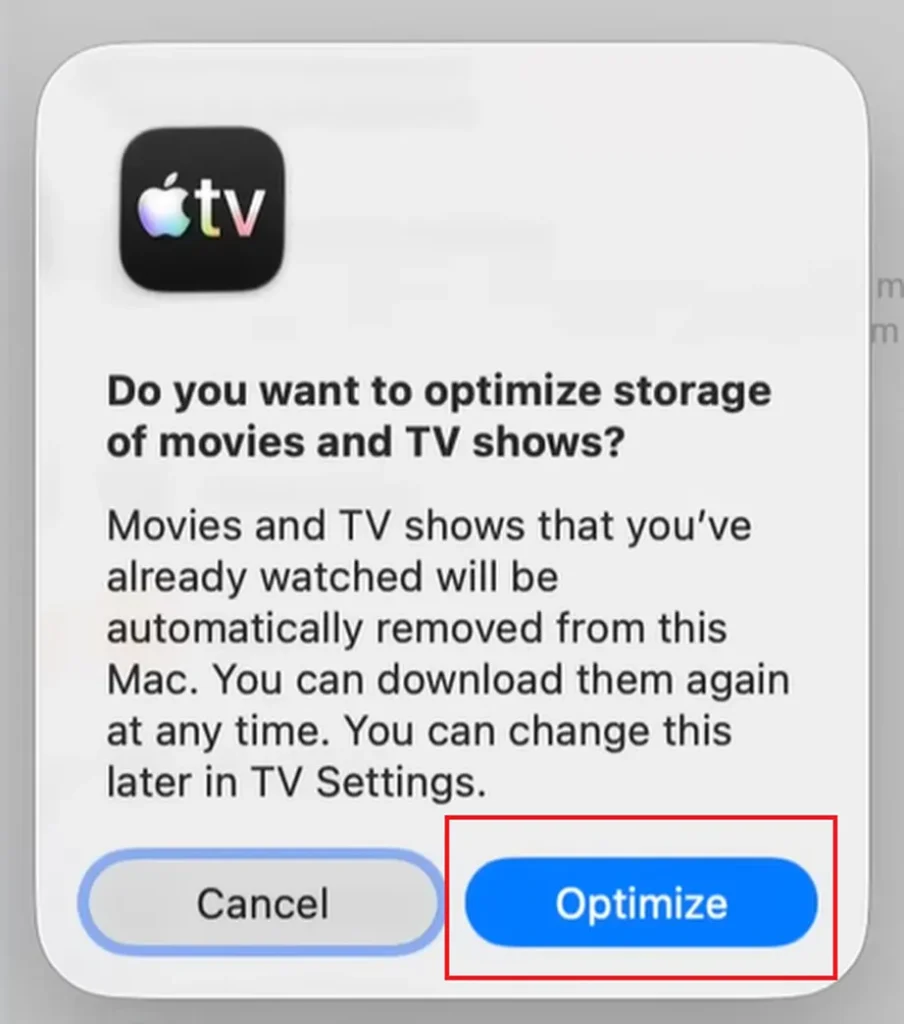
A pop-up will ask for confirmation. Click Optimize to allow macOS to automatically remove watched movies and TV shows.
You can also manage mail manually. If prompted, choose to only download recent email attachments to save extra space on your drive.
Method 3: Empty Your Trash and Bin Folders Permanently
When you delete anything from Mac, it goes to temporary storage called the Trash folder. Even though the data is deleted from Mac, it is still there in Trash; it does occupy that space on the drive until cleared from the bin.
Note: macOS can automatically permanently delete items from Trash after 30 days.
How to clear up disk space on Mac by setting Automatic Empty Trash:
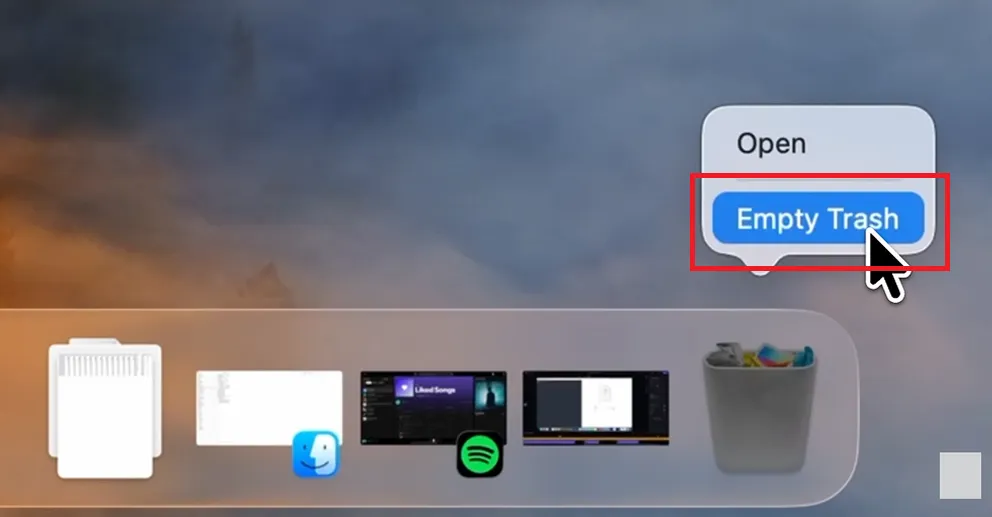
Right-click on the Trash icon at the extreme right of the dock.
Click on the Empty Trash option.
Select Empty Trash from the pop-up warning prompt.
Turn on Automatic Deletion:
Click on the Apple menu in the top-left corner of the screen and select System Settings.
Click on General.
Click Storage on the right-side pane.
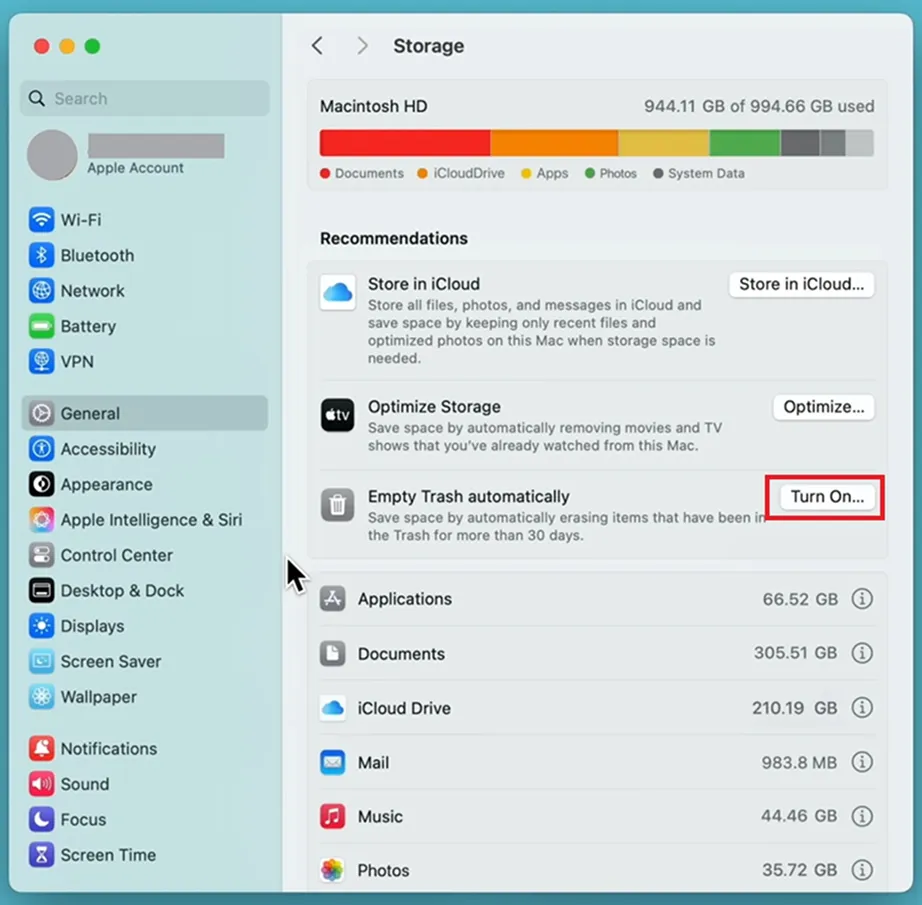
Find Empty Trash Automatically and click Turn On…. This will set it to clear items every 30 days.
Method 4: Automate File Management with iCloud
How to free up disk space on Mac? Enable iCloud so that if your Mac starts running low on local space, your older and rarely opened data goes to your iCloud storage. This data could be your photos, documents, messages, etc.
There are lightweight placeholder files that you can see on your desktop and in folders. When you click them to open, Mac automatically downloads the full version from the cloud.
Steps for how to clean disk space on Mac by enabling iCloud storage optimization:
Click on the Apple menu and select System Settings.
Select the General tab from the left pane.
Click Storage.
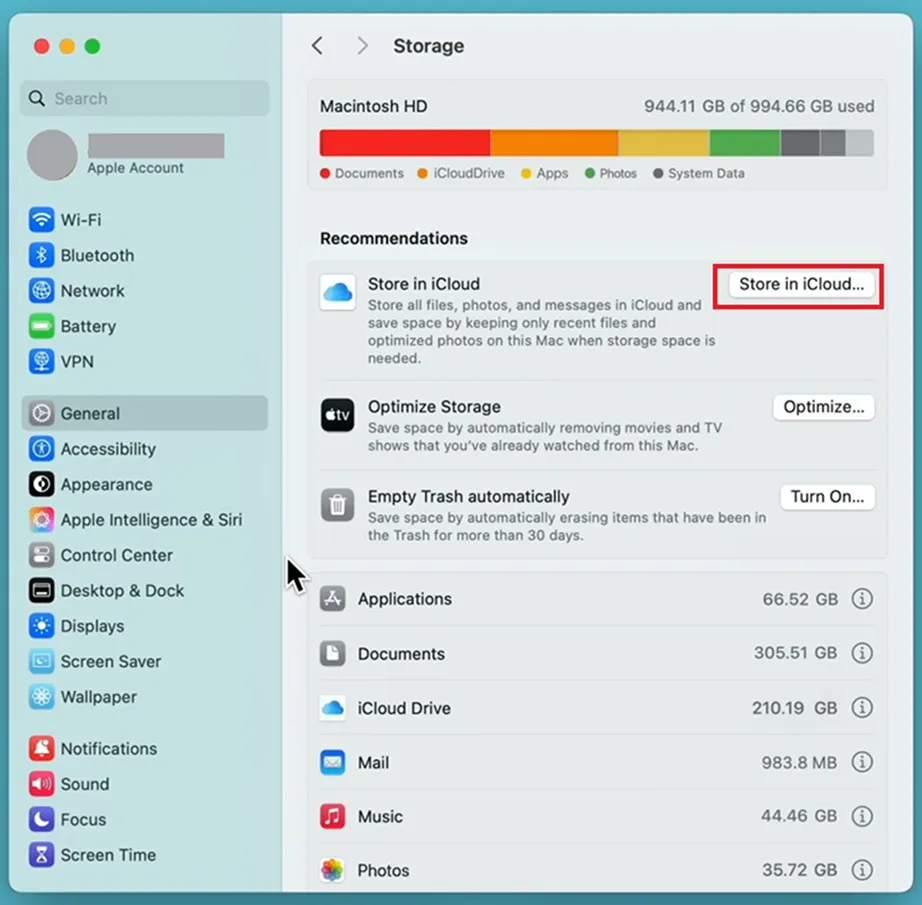
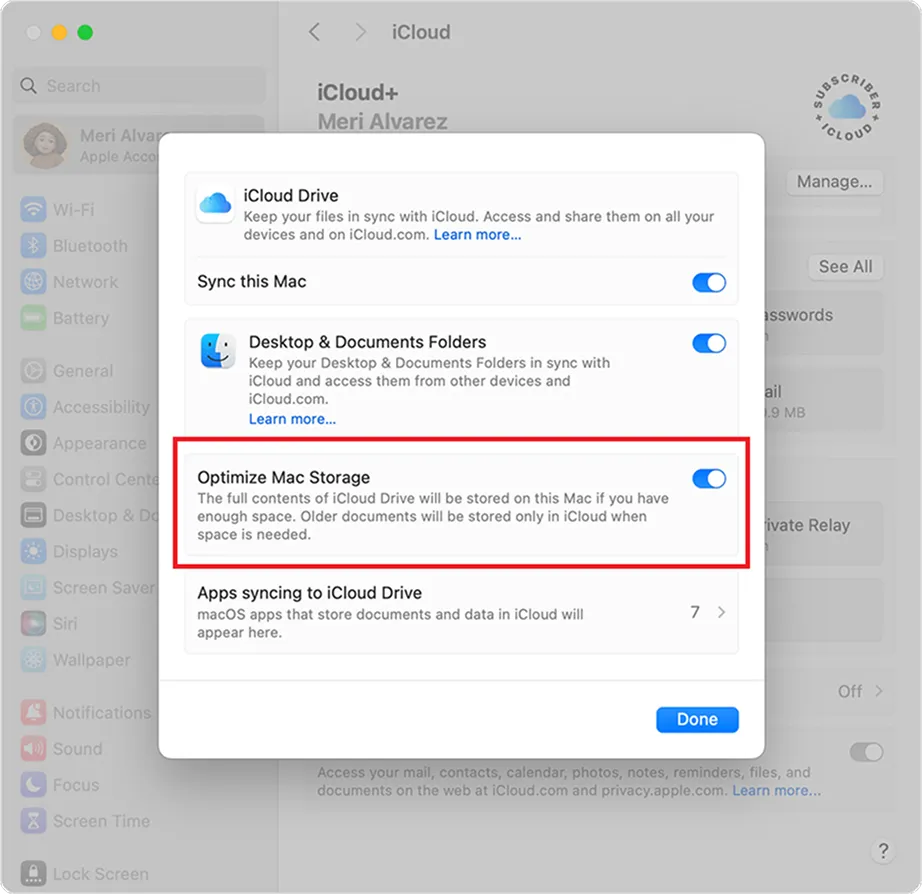
Click the Store in iCloud… button in the Recommendations section.
Toggle on Optimizing MacStorage.
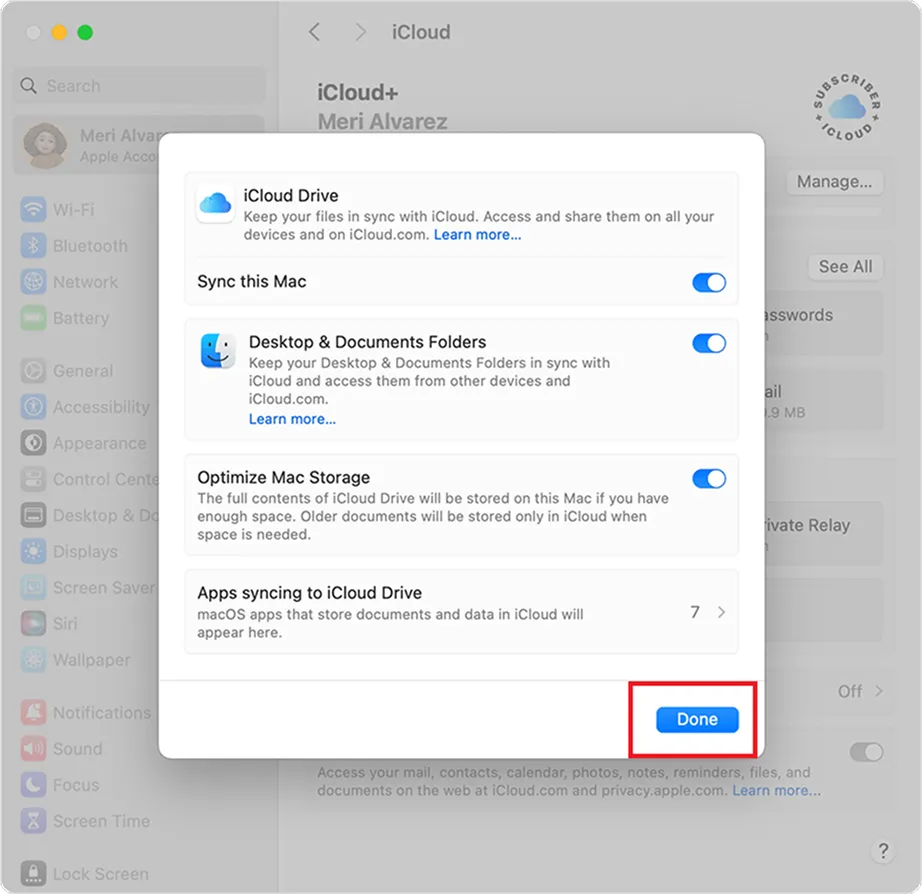
Click the Done button.
Note: Make sure you have enough cloud space. You can check it by the iCloud storage indicator at the top of your Apple ID profile settings.
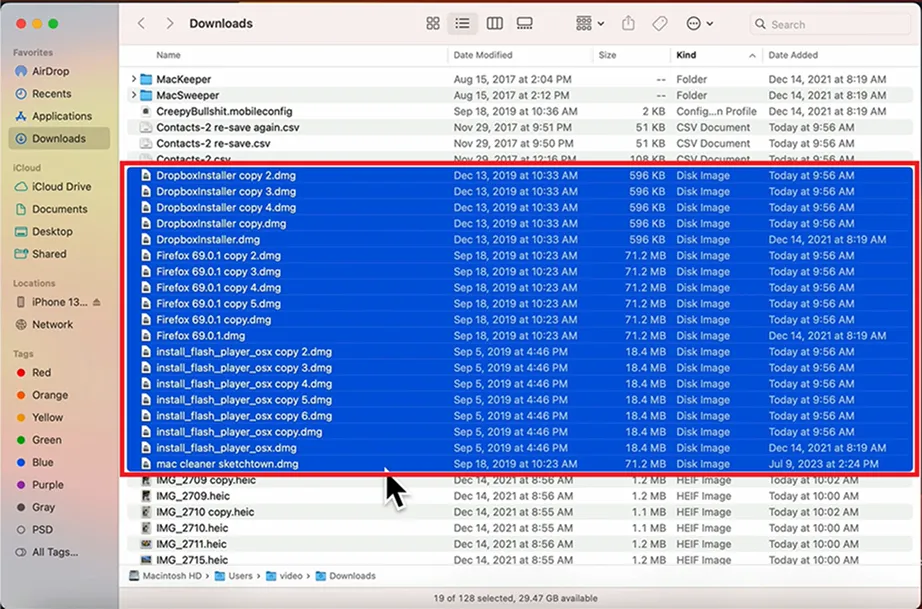
Method 5: Clear Downloads Folder
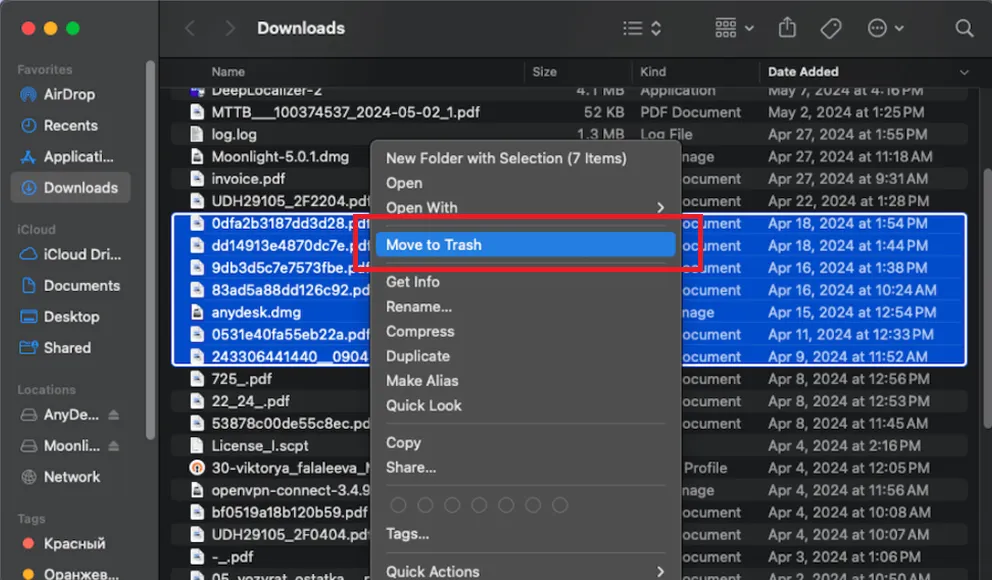
Clearing the Downloads folder is the next method for helping you with how to empty space on Mac. Every time you save an email attachment or download a PDF, it ends up here in the Downloads folder. This makes it the biggest storage space on Mac. Cleaning this folder takes less than a minute and frees up large amounts of disk space.
How to clean disk space on Mac by clearing the Downloads folder:
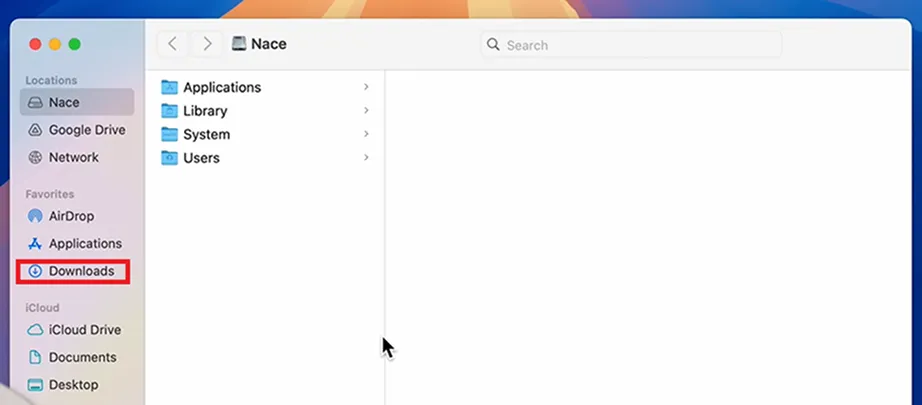
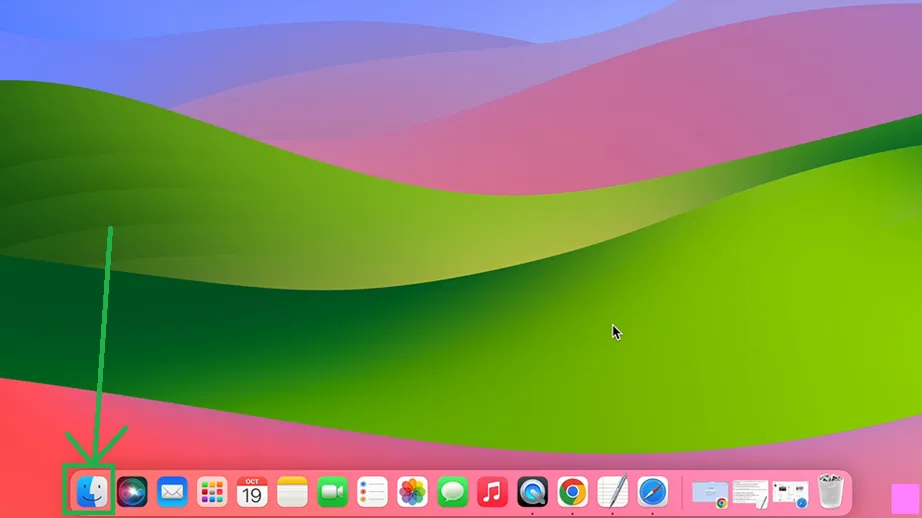
Click the Finder icon (the blue smiling face) on your Dock.
Click Downloads in the left-hand sidebar of the Finder window.
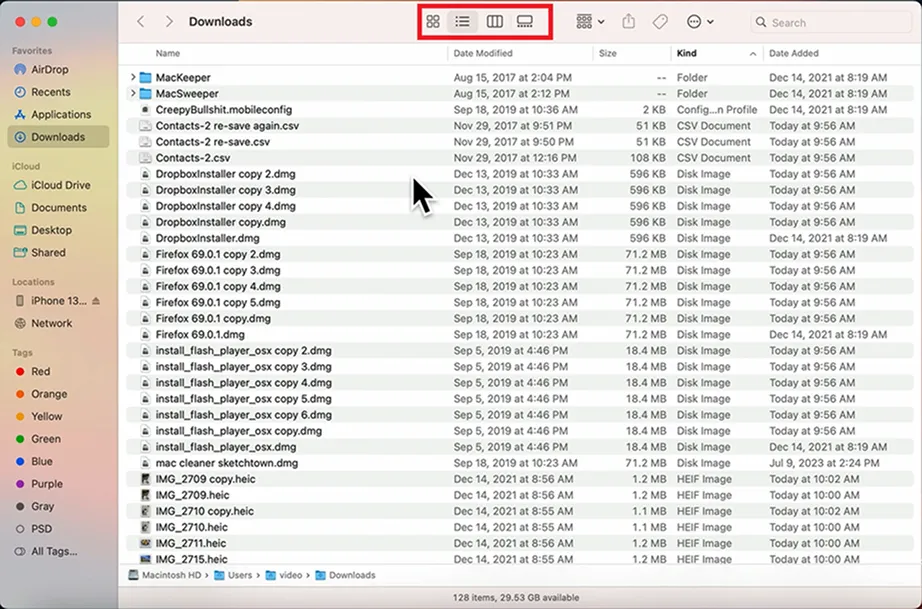
(Optional) Click the Group icon or List view button at the top of the window and sort your files by Size to see which files take the most space.
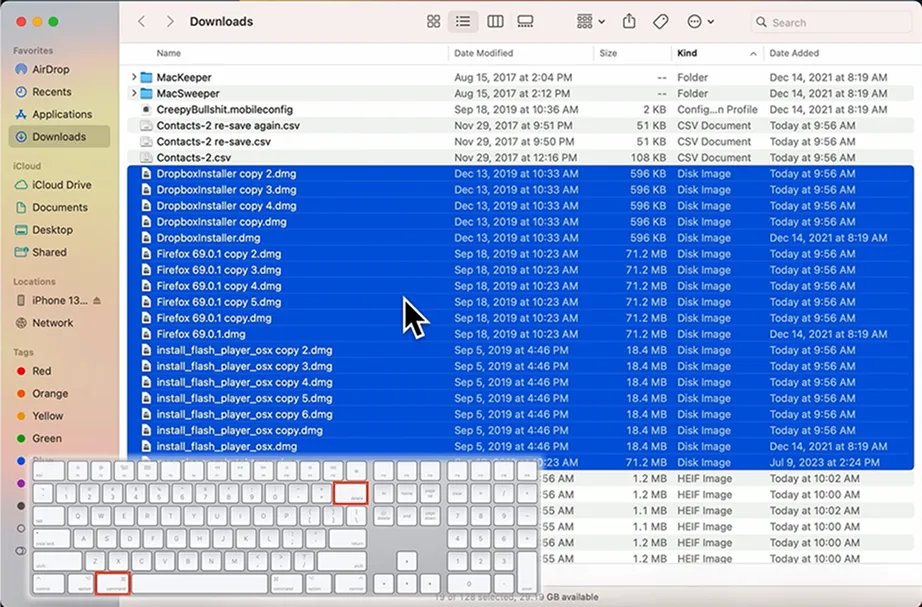
Hold the Command key and click the files to select them.
Either drag those files to the Trash icon on your Dock or simply right-click them and choose Move to Trash (press Cmd + Delete).
Method 6: Delete Large Files Manually
You can sort files by size and select the large files, i.e., the files taking up the most space on the disk, and delete them. Now the question arises: how to clean up space on Mac by deleting large files manually? Won’t it take too much time?
For this, the Finder tool filters your entire drive by size. So, it’s easy for you to spot the large files and delete them in seconds.
Here are the steps for how to free up disk space on Mac by deleting large files:
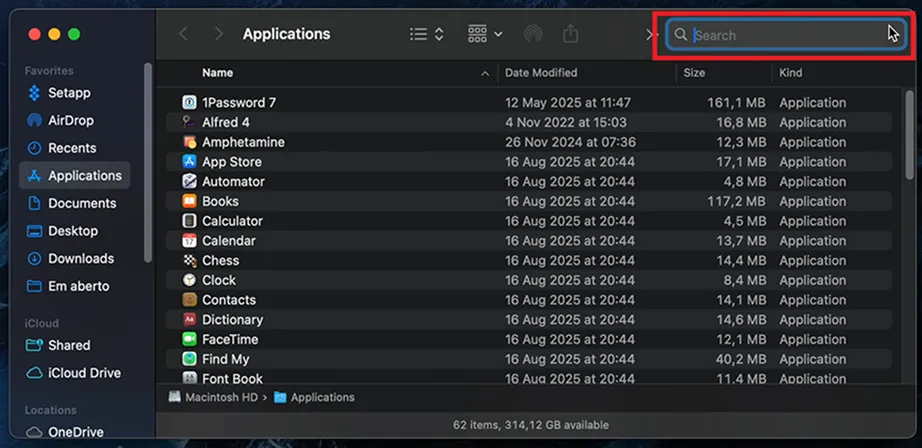
Click the Finder icon (the blue smiling face) on your Dock.
Click the search bar in the window.
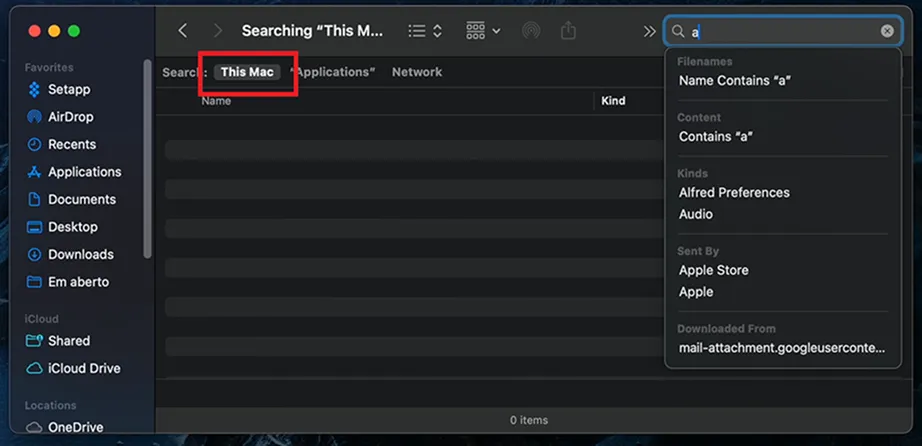
Set the scope to This Mac or a specific folder.
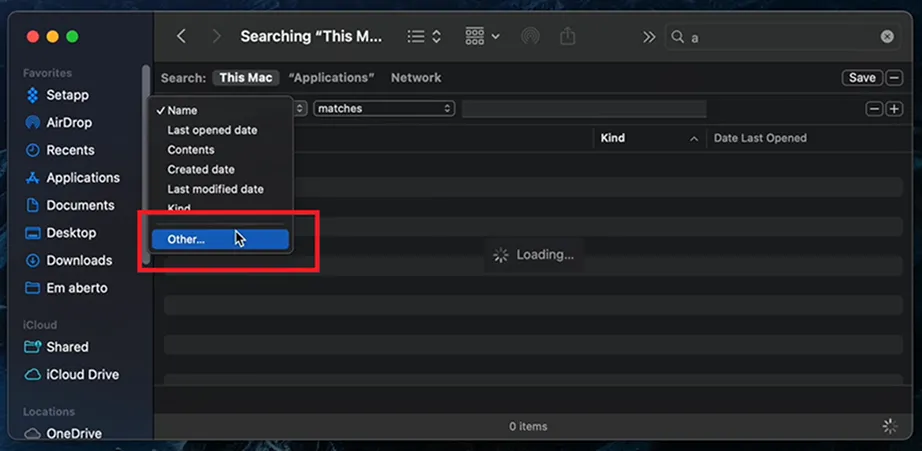
Click the first filter dropdown menu and select Other….
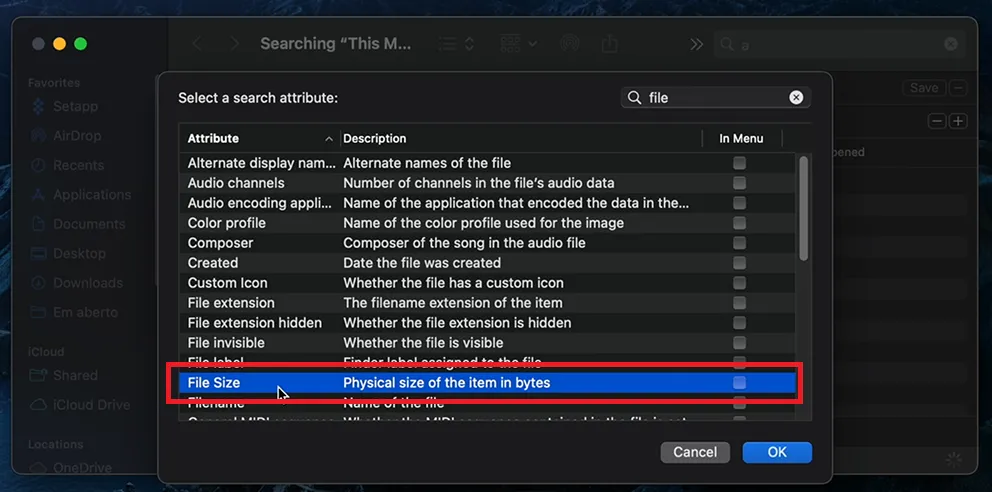
Type File Size in the search bar, and check the box next to it.
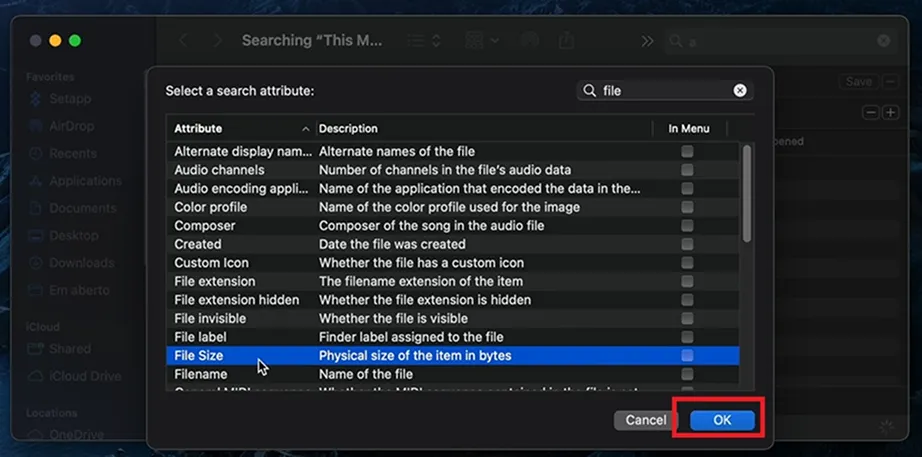
Click the OK button.
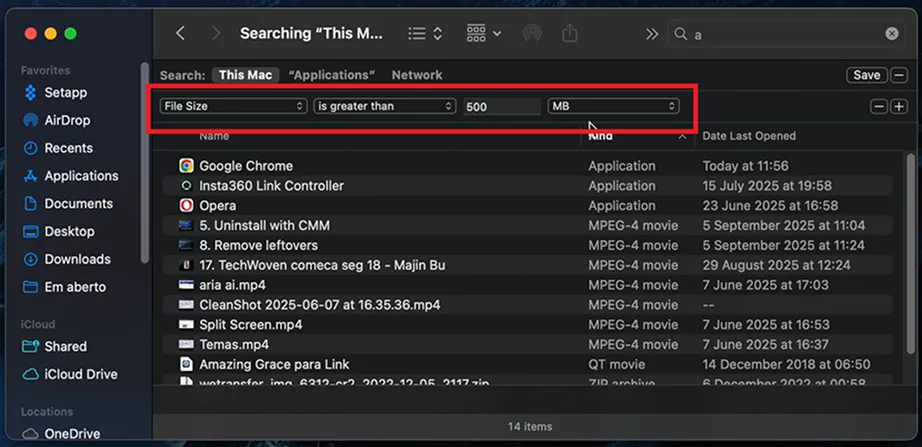
Set the middle dropdown to is greater than and type a large number like 100 or 500 into the blank box. Then change the final dropdown to MB or GB. This will list all the files that are larger than the mentioned size.
Select the file you want to delete, right-click it, and click Move to Trash.
Note: Remember to empty the Trash afterward to free up space.
Recover Accidentally Deleted Files Using Notchox
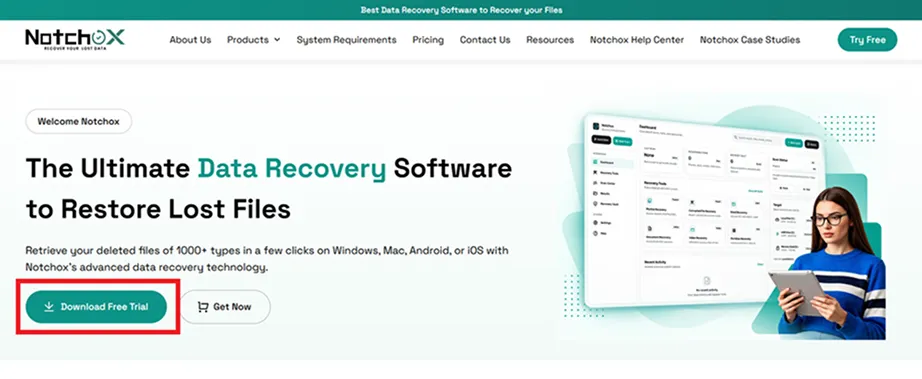
If you have accidentally deleted the wrong files, or emptied the Trash by mistake, you can recover them by using specialized data recovery software, Notchox. Notchox software is designed to scan through the storage drive and find data remnants. It then builds the data back to original and restores them. So, even if you have to recover data from a raw partition or just accidentally deleted files, Notchox is the best solution.
Recovering deleted files when you accidentally deleted files to free up space on Mac:
Visit the Notchox official website. Select data recovery software for Mac and install it on your device.
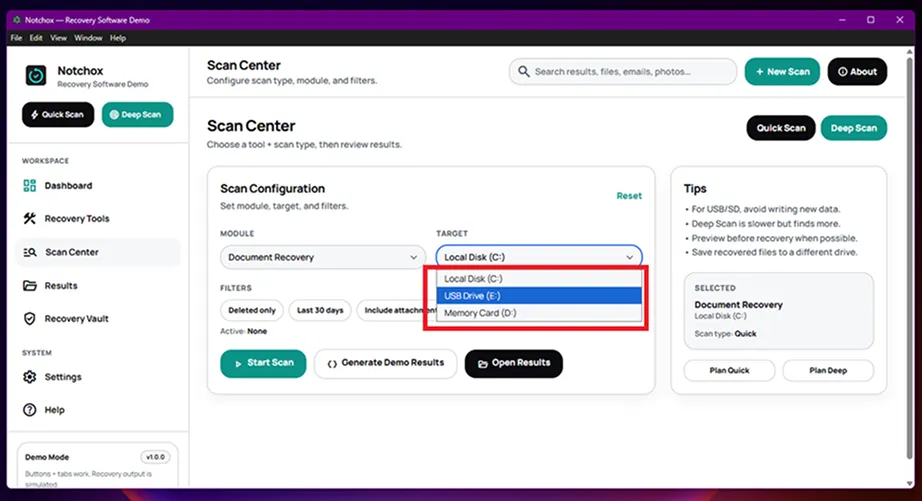
Select the target drive from the dropdown.
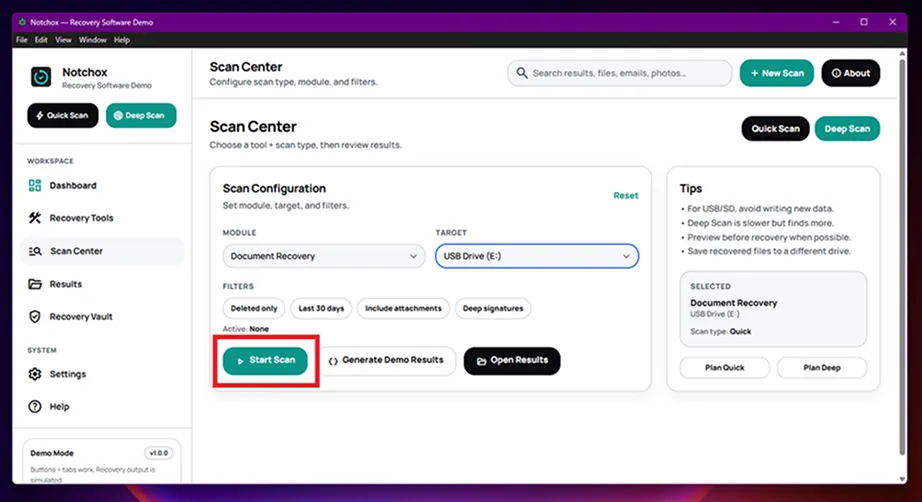
Click the Start Scan button to let the software run a deep scan on the selected drive.
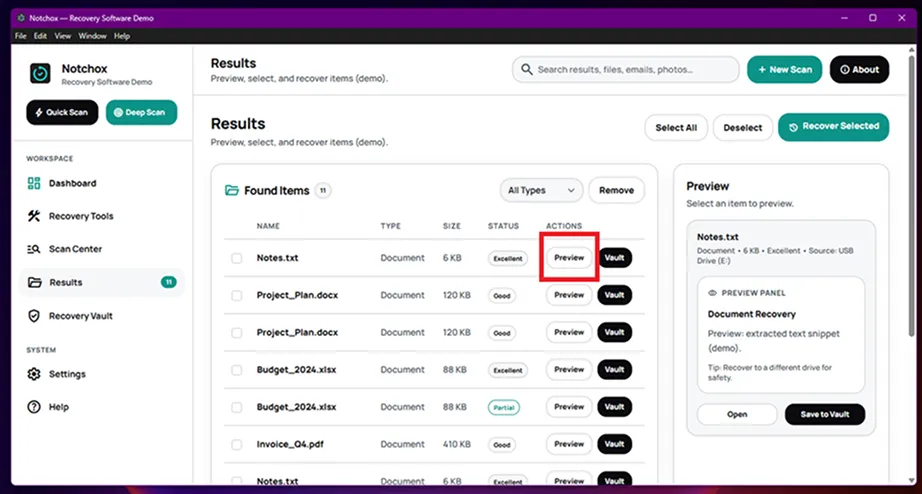
From the list of recoverable items, click the Preview button to check the integrity of the file before final recovery.
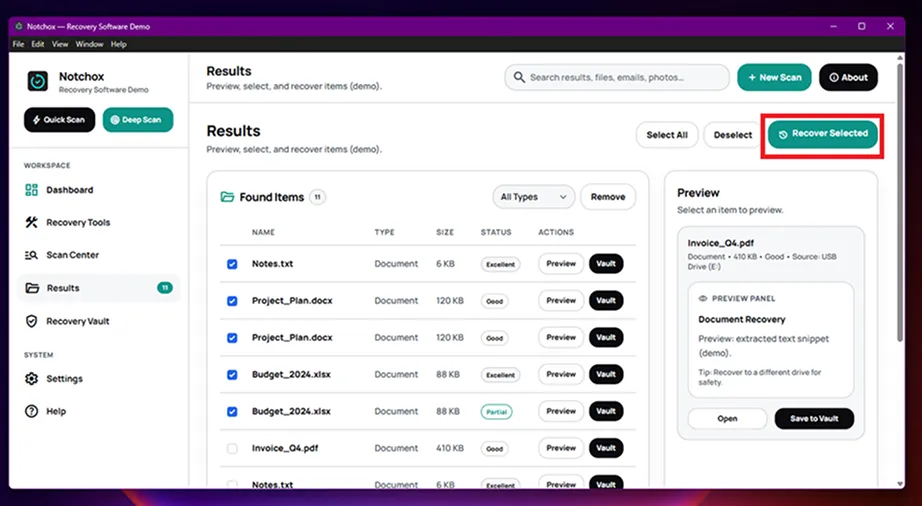
Now select the items by checking the box in front of the file name. Click the Recover Selected button.
Method 7: Clean System Data and Cache Files
System data and cached files also take up space on disk. You need to access hidden folders where macOS and your apps store temporary data to clear space on Mac.
These files are created to load apps faster, and old cache stays in these files indefinitely. Clearing these folders can manually refresh your system.
Steps for how to clear storage on Mac by cleaning system data and cache files:
Click the Finder icon (the blue smiling face) in your Dock.
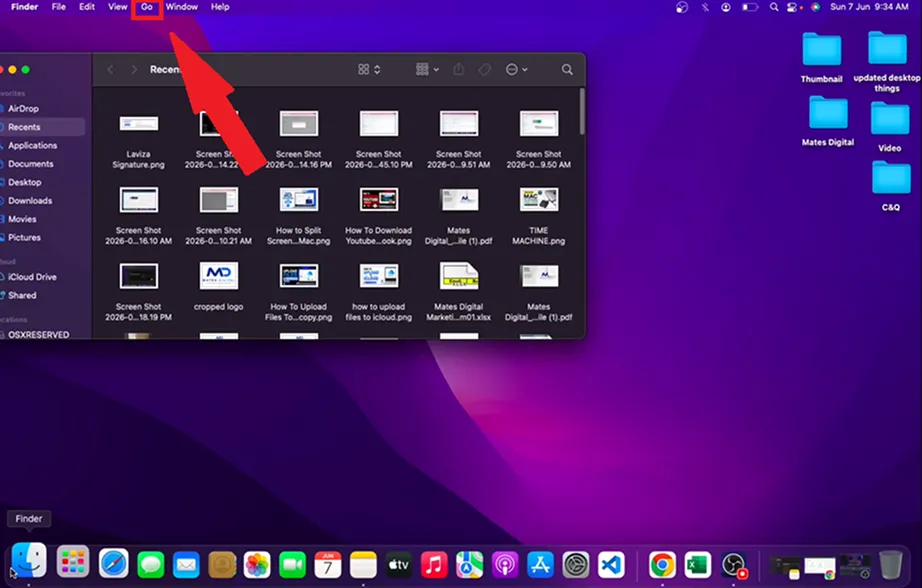
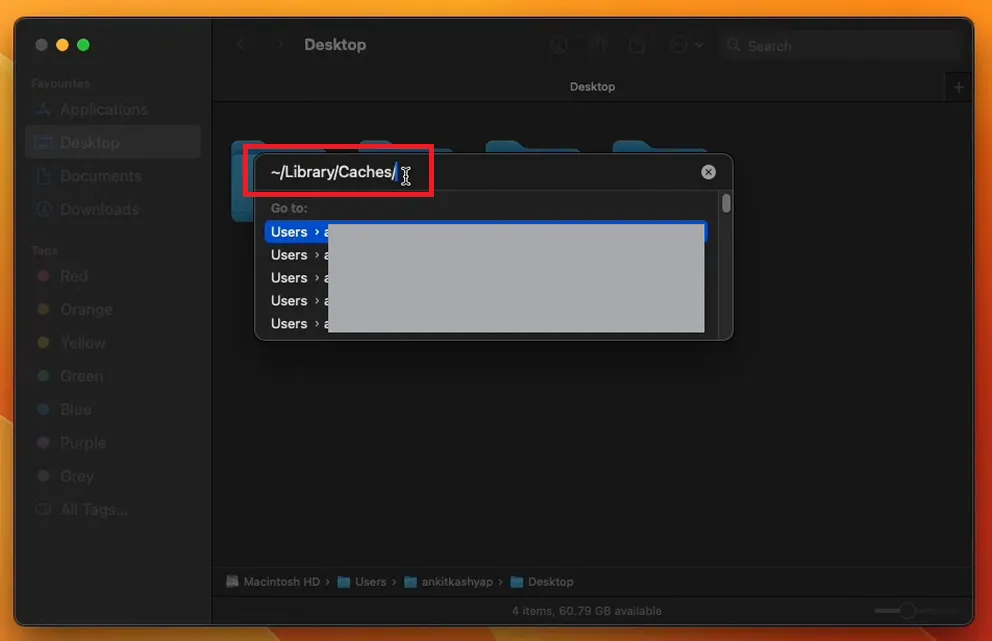
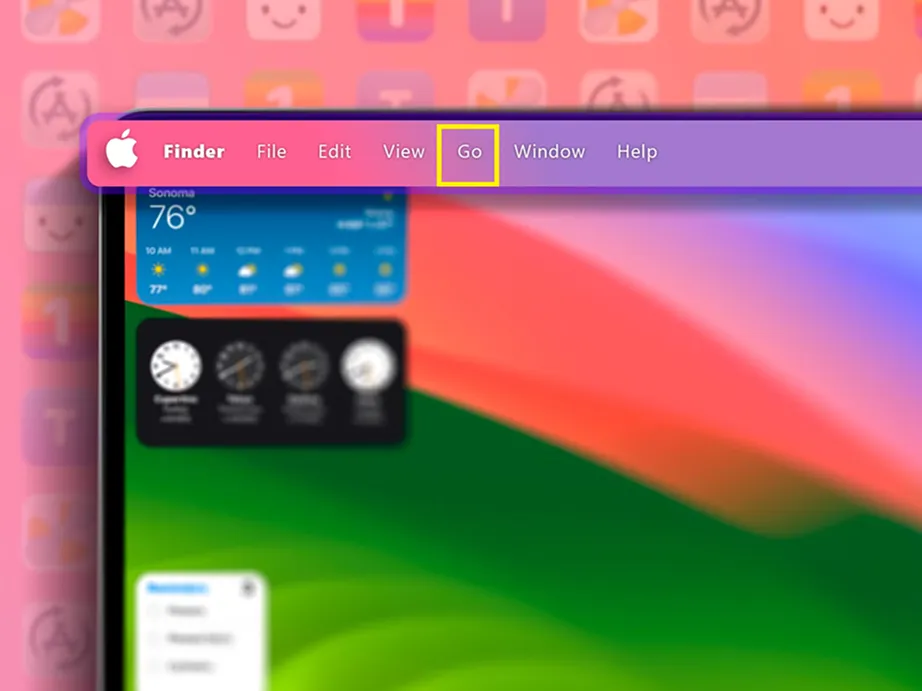
Click Go in the top menu bar.
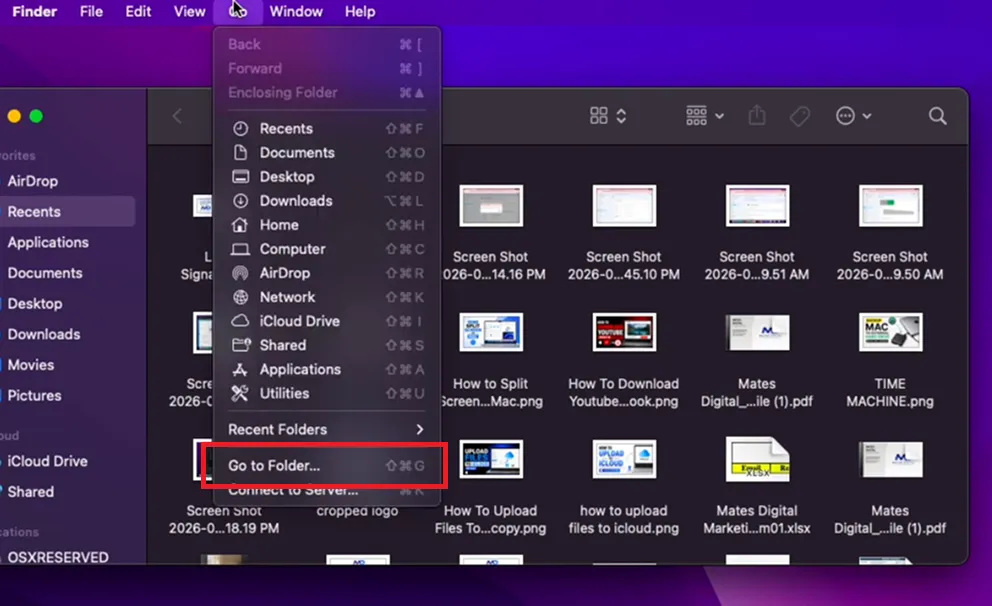
Press Command + Shift + G or select Go to Folder search.
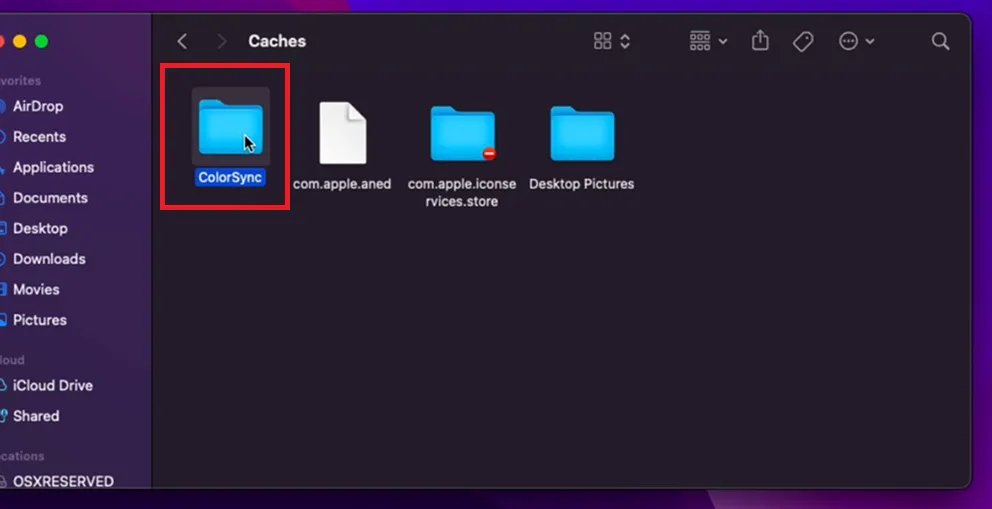
Type ~/Library/Cachesinto the search box and press Return. This will open your user cache folder.
Select the items belonging to apps you rarely use or have already uninstalled.
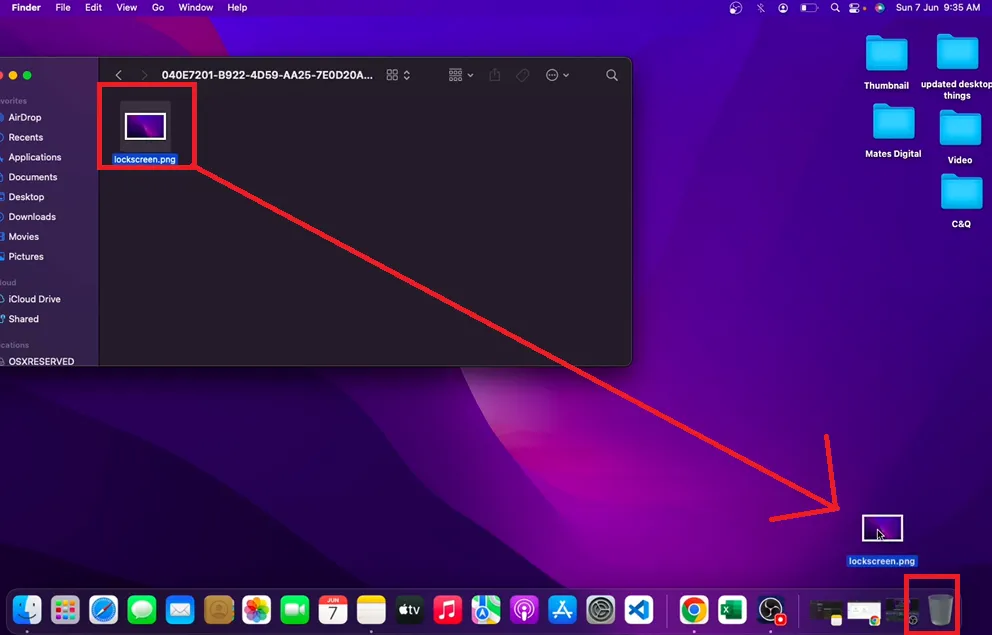
Right-click the selected files and click Move to Trash or simply drag the files to the Trash icon.
Important: Delete only the files inside subfolders, not the root Caches folder itself.
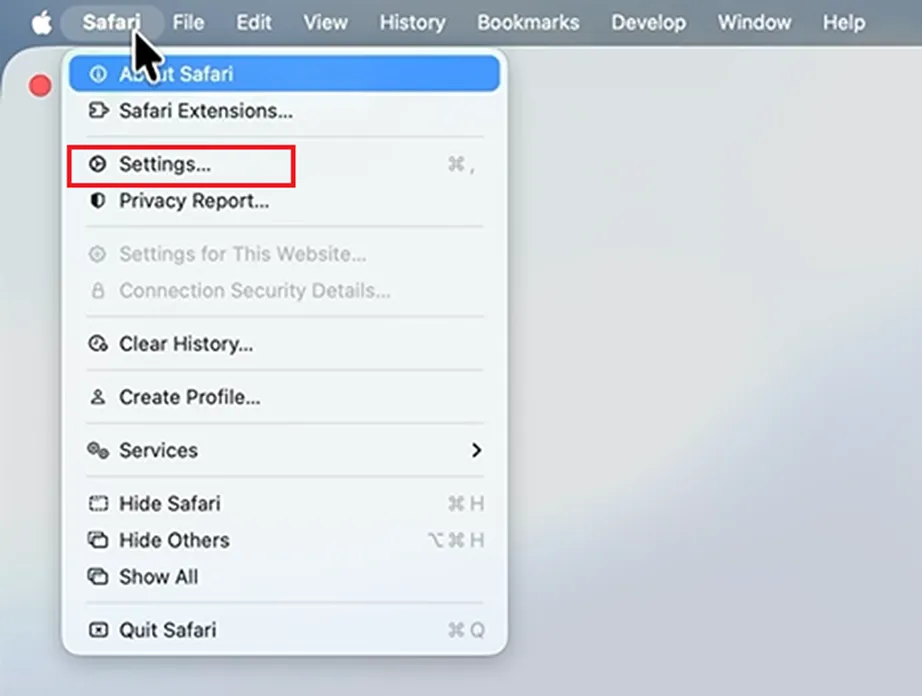
To clear Safari cache:
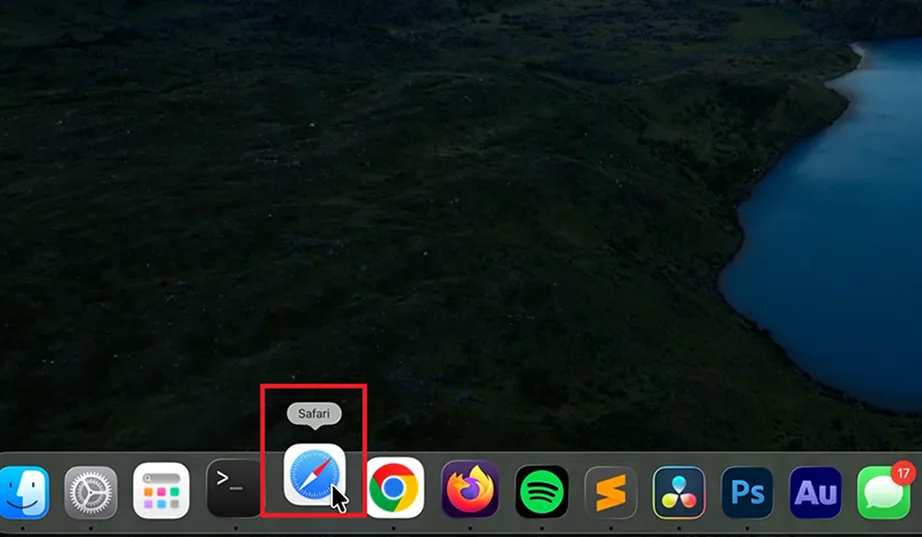
Open Safari from your Dock.
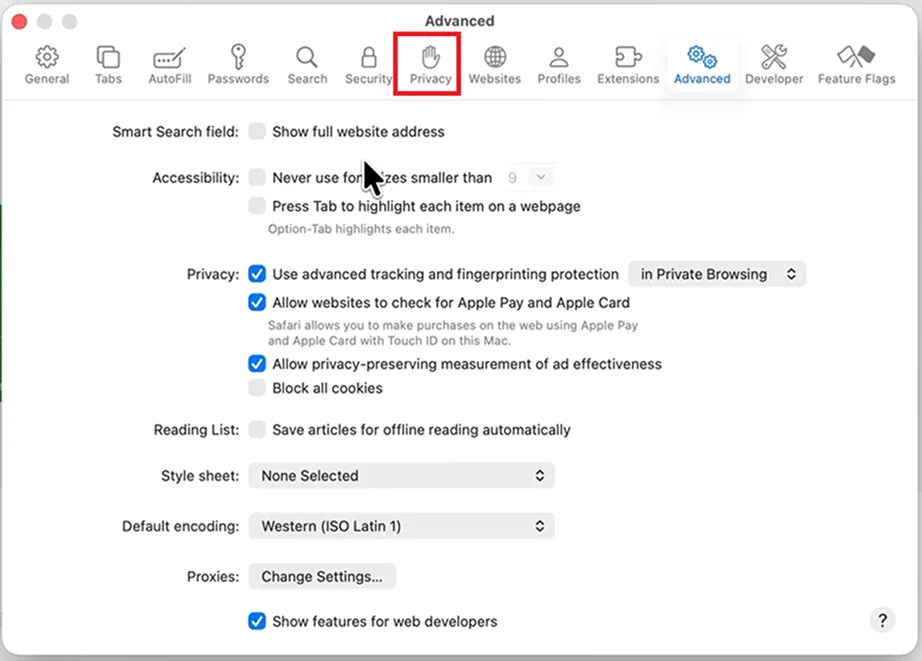
Go to Settings.
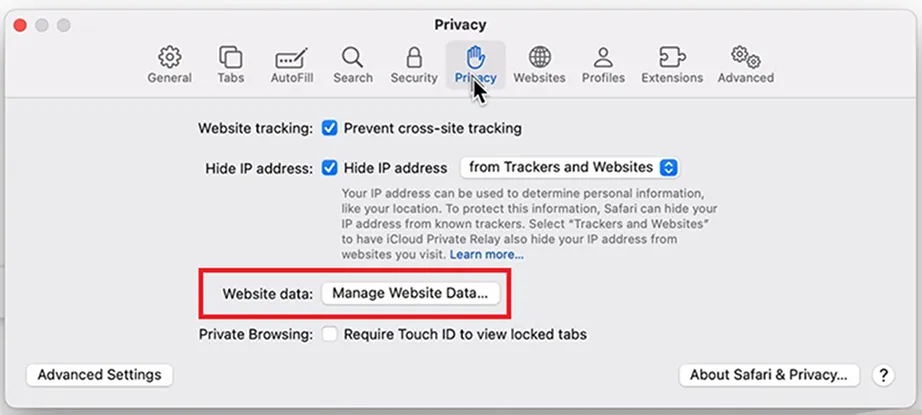
Click the Privacy tab.
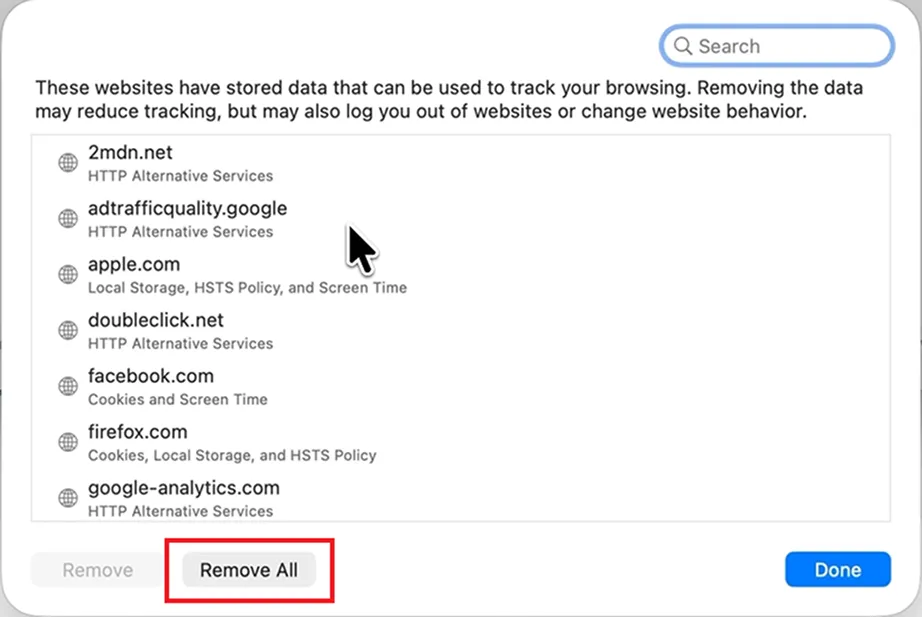
Click Manage Website Data….
Click the Remove All button to clear all Safari cache.
Method 8: Delete Old iPhone and iPad Backups
Access the device backup settings inside macOS to delete old iPhone and iPad backups. A single iOS backup is itself from 20 GB to 100 GB. So, if you upgraded your phone or now use iCloud backup, these old local files are of no use. Deleting them is one of the most effective ways to free up disk space on a Mac.
How to free up storage on Mac by deleting old iPhone and iPad backups:
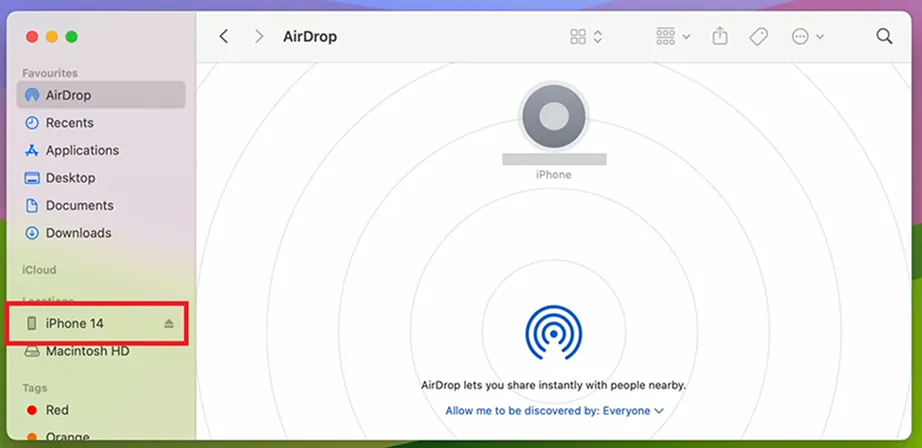
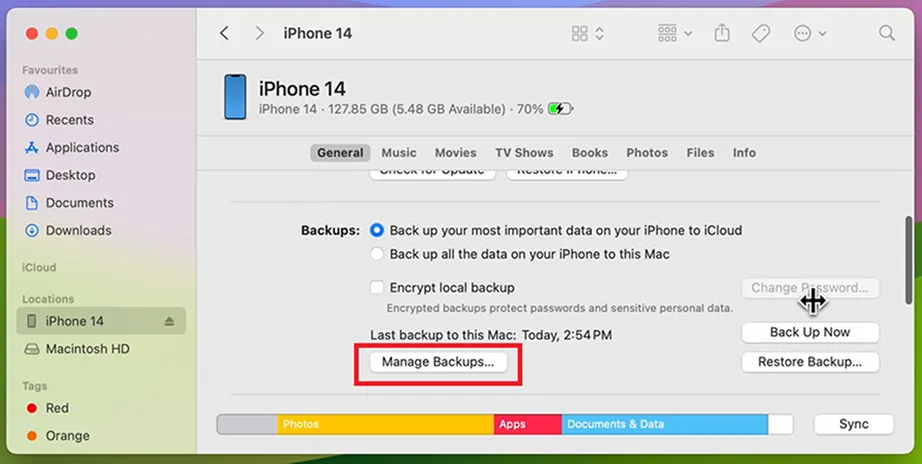
Open Finder from your Dock.
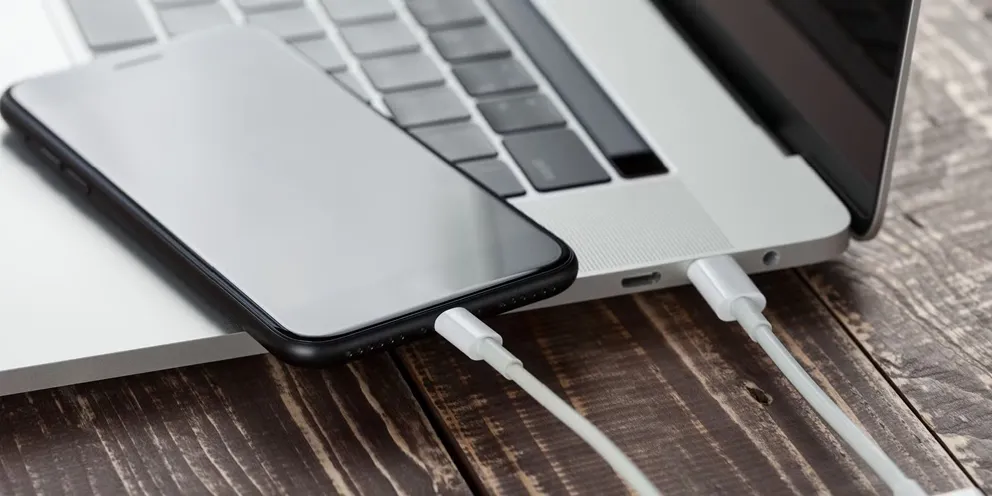
Connect your iPhone or iPad to your Mac.
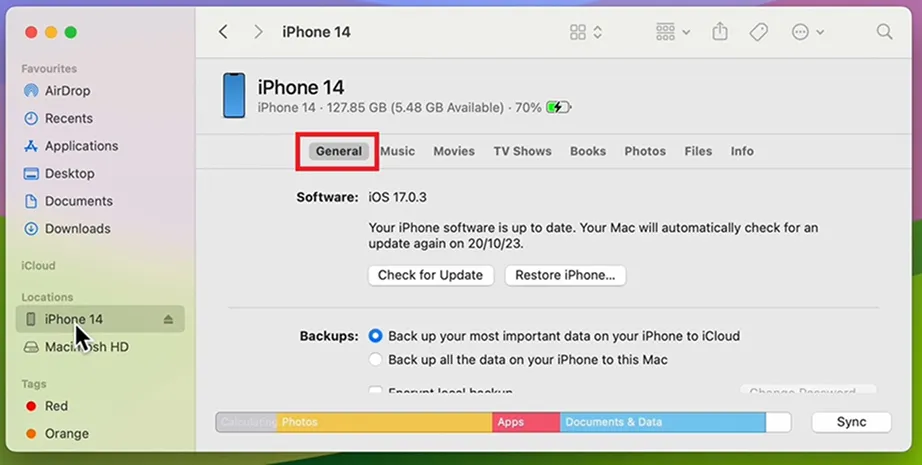
If your device is not selected, click on it under Locations.
Go to the General tab.
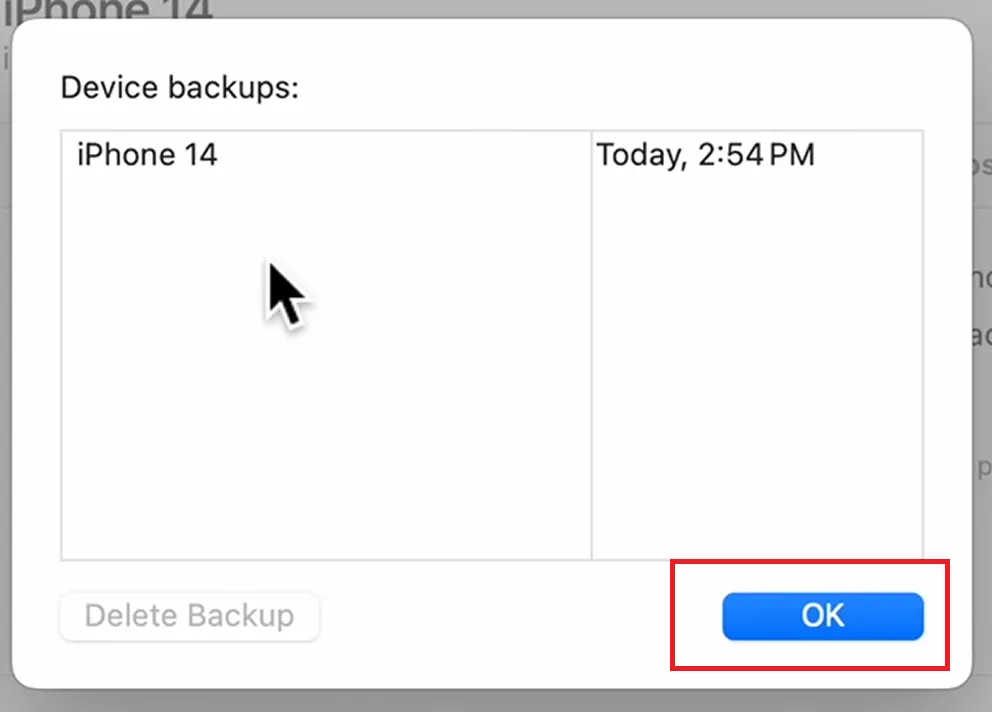
Click Manage Backups.
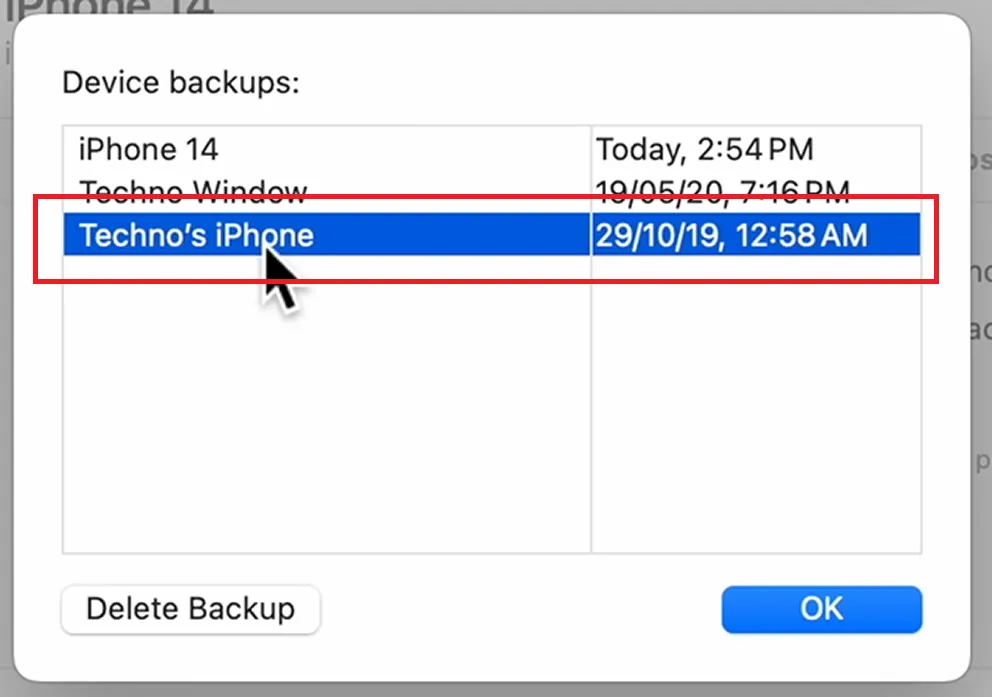
Select the backup from the list of all phone and tablet backups.
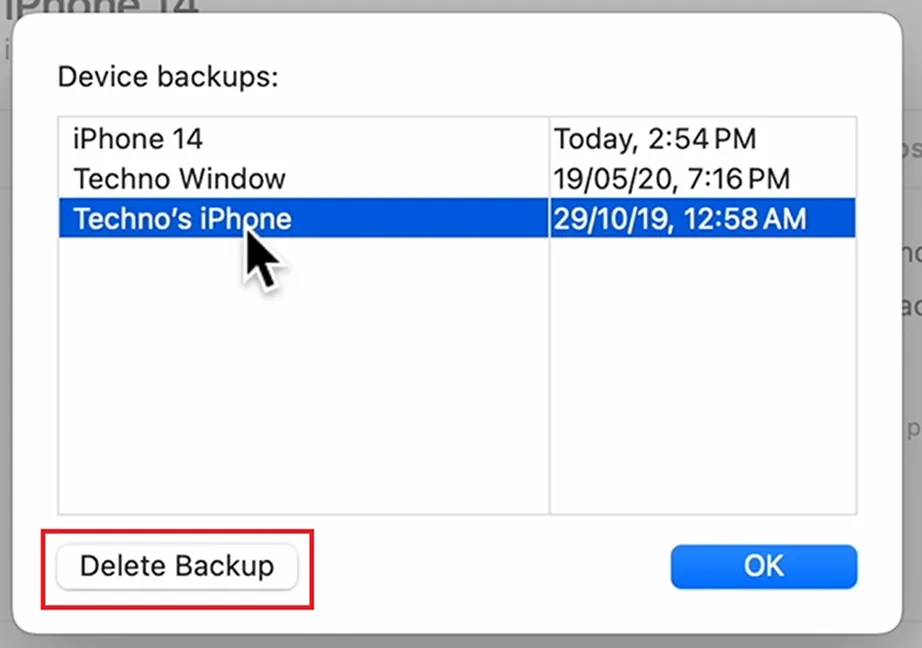
Click the Delete Backup button.
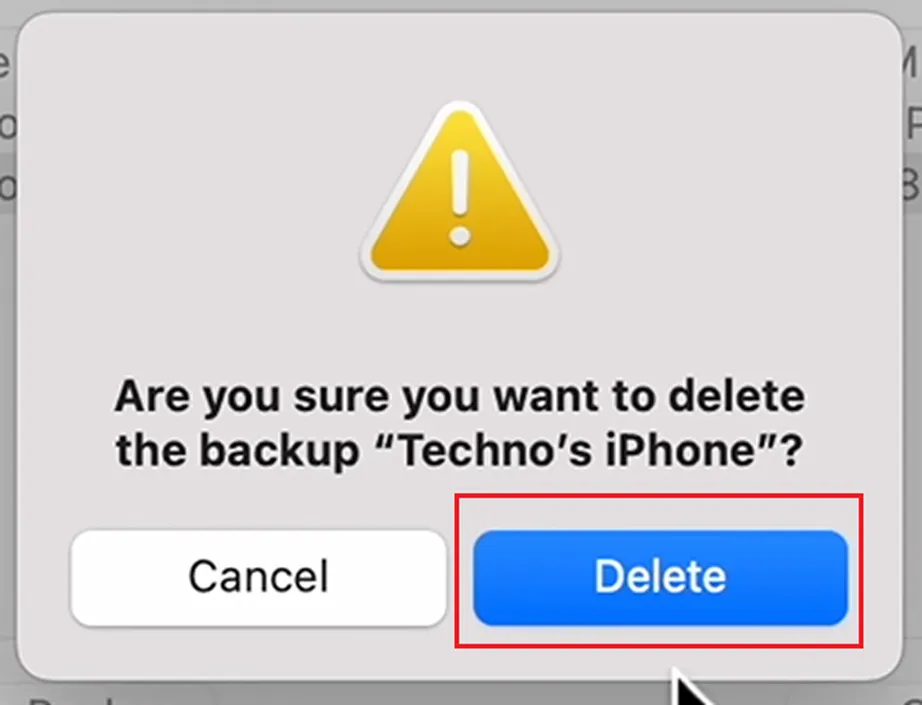
Click the Delete button on the warning prompt.
After you finish, click OK.
Method 9: Uninstall Unused Apps and Their Data
You may uninstall unused applications and their data to clear space on Mac. Simply drag the application icon to the Trash on your Dock. But remember this only deletes the application, not its leftover data. The data can be deleted by deleting the folders from your system library.
How to clear up space on Mac by uninstalling unused apps and their data:
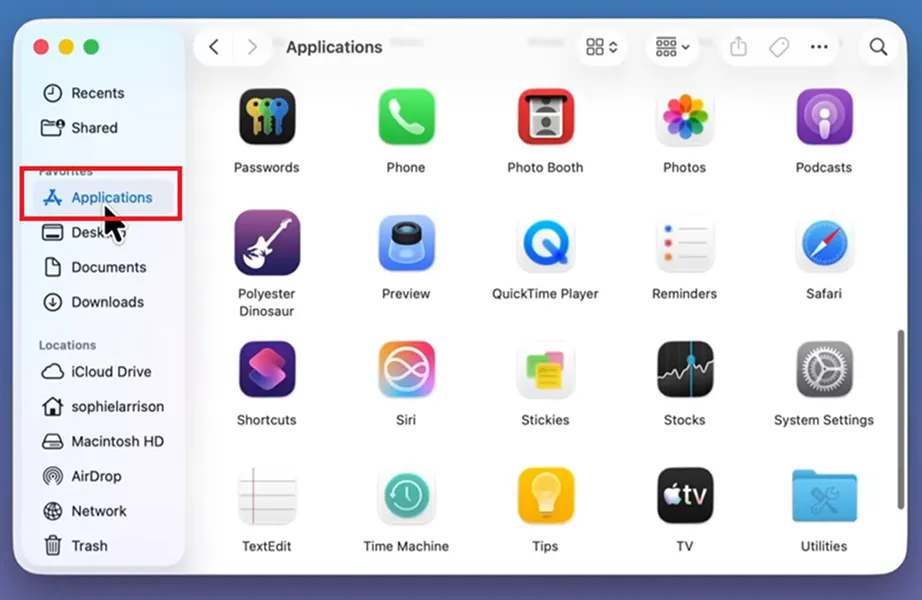
Open a new Finder window from your Dock.
Click Applications in the left sidebar.
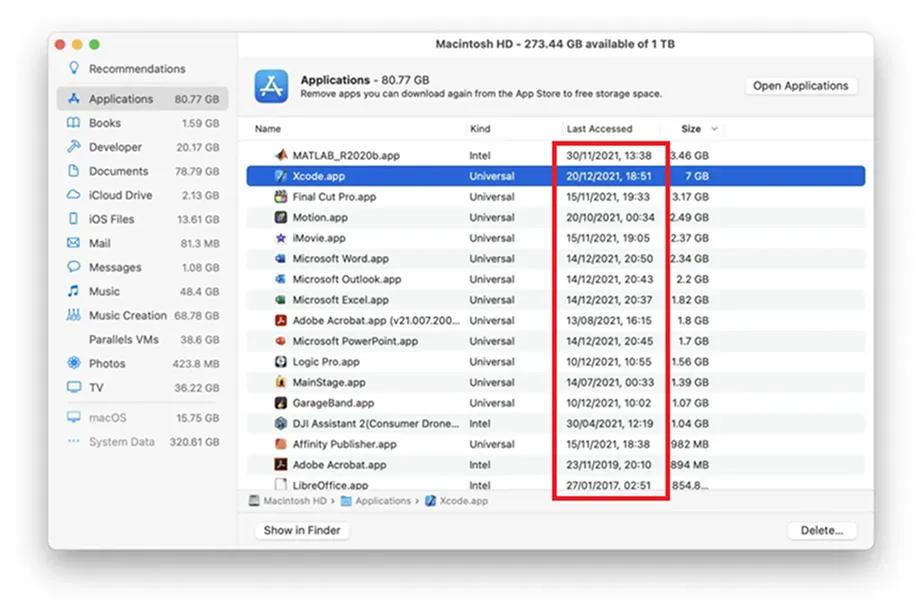
Go through the list of apps. Check the Last Accessed column to find unused apps.
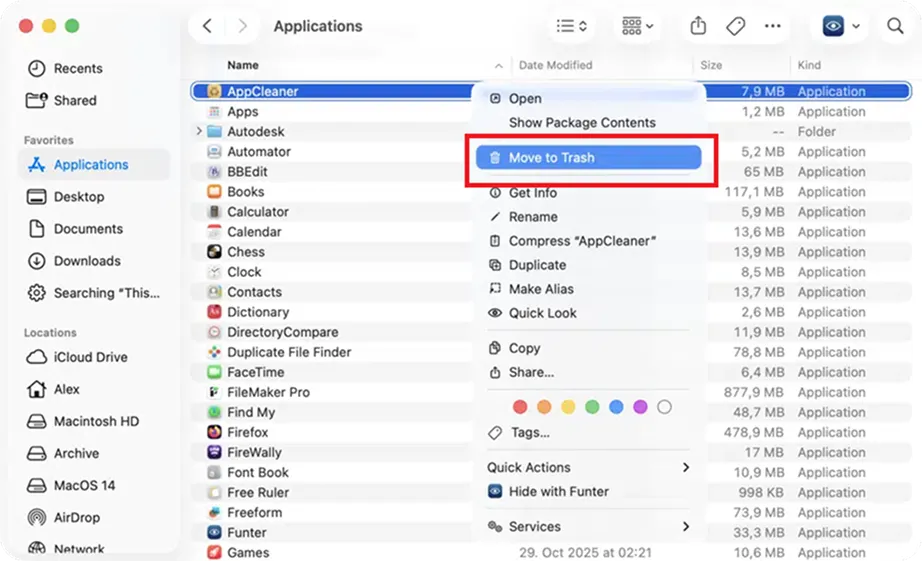
Right-click the app name and select Move to Trash.
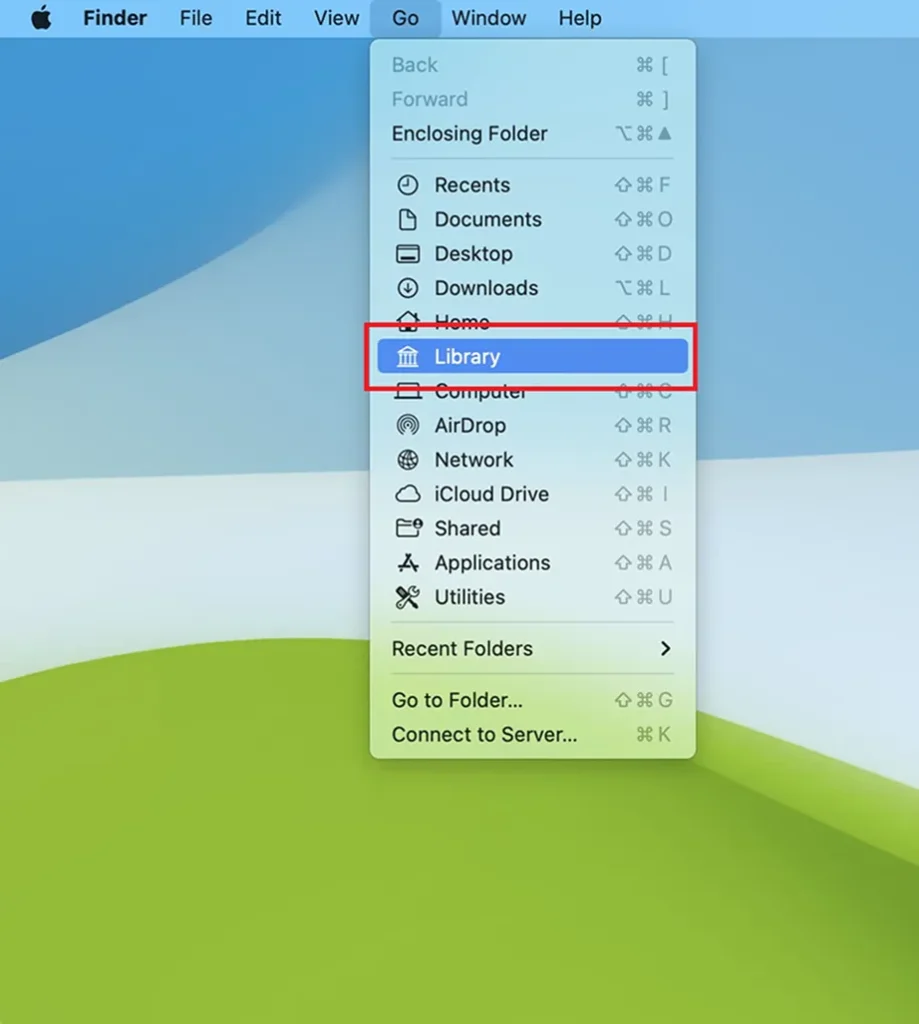
Click Go in the top menu bar.
Click Library from the dropdown.
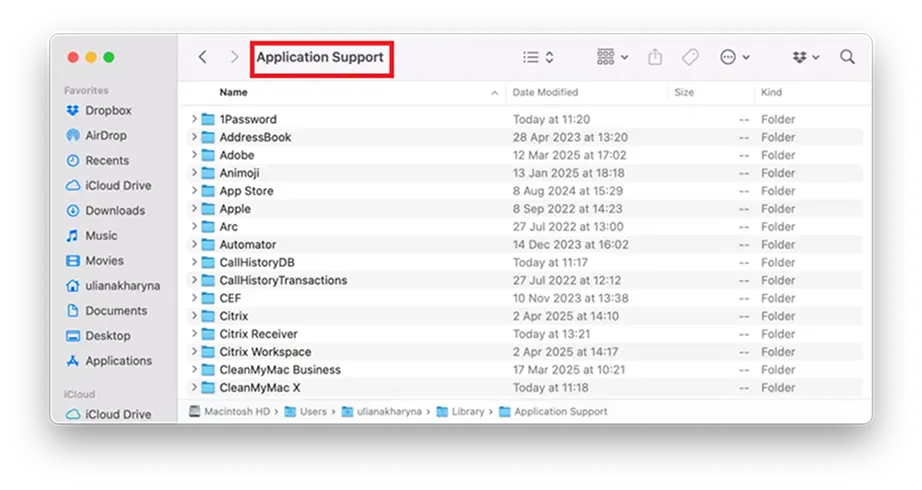
Open the Application Support folder inside the Library.
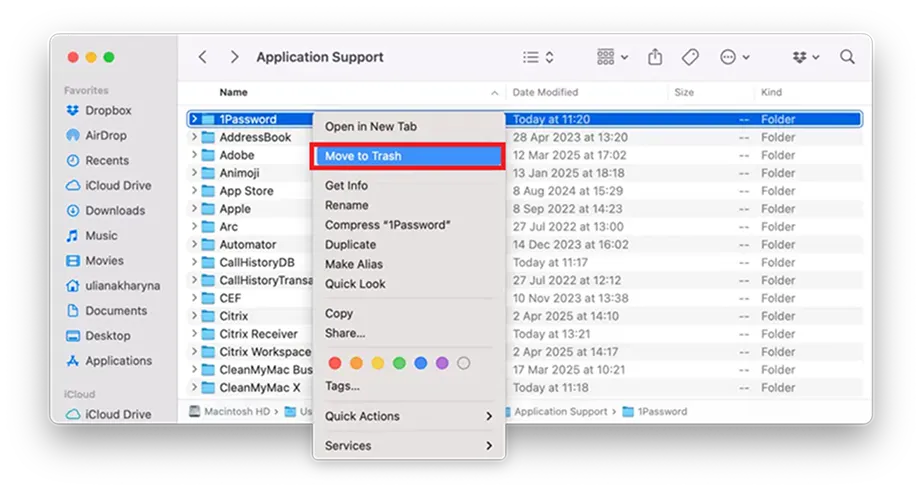
Look for the folders matching the name of the app you just deleted. Right-click them and choose Move to Trash.
Note: Remember you will need to empty your Trash to completely remove applications and data from your Mac.
Method 10: Transfer to External Storage
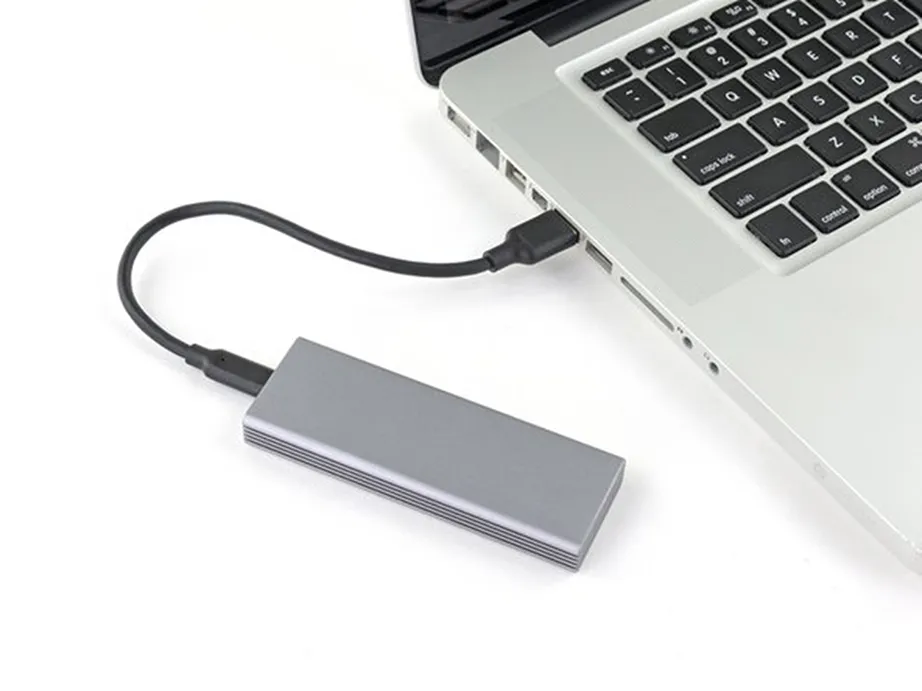
Another method you can use to make space on your Mac is by transferring data to external storage. It is similar to an external backup. You can use an external solid-state drive (SSD) or hard drive (HDD).
How to clean disk space on Mac by transferring data to external storage:
Connect your external SSD or HDD to your Mac’s USB or Thunderbolt port.
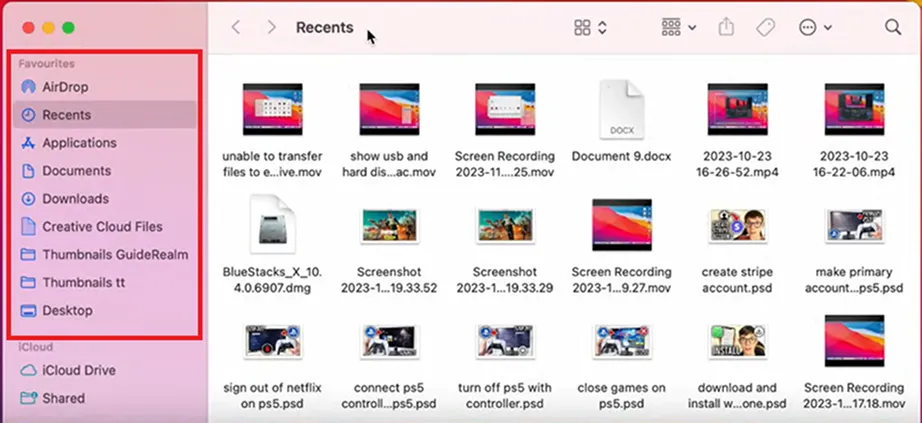
Open Finder from your Mac’s Dock.
Go to the folder that contains the files you want to transfer.
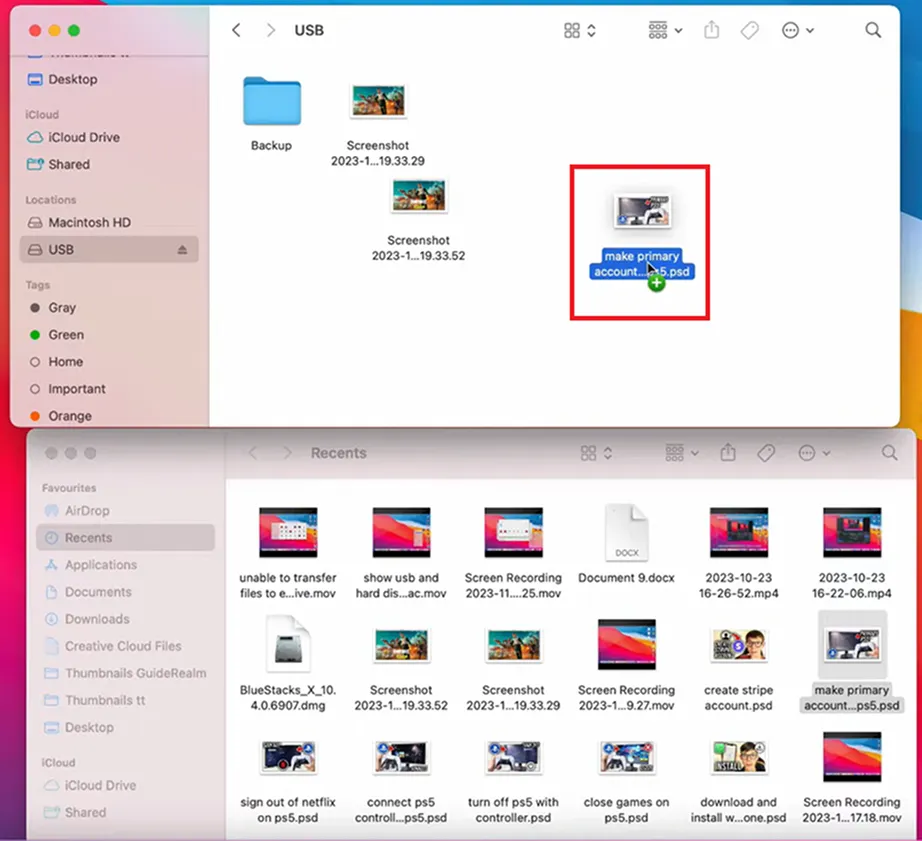
Drag and drop the files from Mac to External Storage.
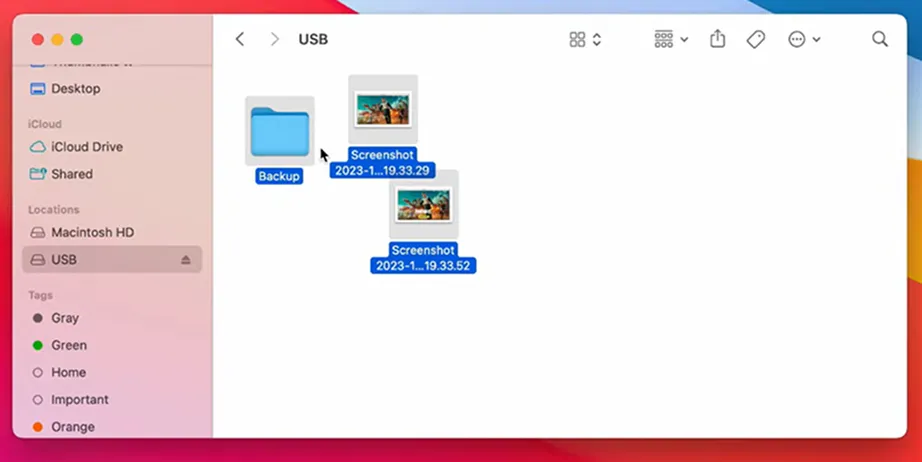
Once the transfer is complete, check the files moved to external storage to see if they open correctly.
Conclusion
There are various methods you can use to free up space on Mac, such as simply automating your built-in storage management tools, clearing out your cache files, removing unused apps, deleting old backups, and more. What you need to remember is to double-check your files before hitting delete.
If you ever accidentally delete important files, you can use Notchox data recovery software to safely scan the drive and recover lost files in just a few clicks.
Frequently Asked Questions
How to free up disk space on Mac?
To free up disk space on Mac:
Use a storage management tool
Use the Optimize Storage feature
Empty your Trash folder
Automate file management with iCloud
Clear the Downloads folder
Delete large files
Clear system data and cache files
Delete old iPhone/iPad backups
Remove unused apps and their data
Transfer data to external storage
How do I free up disk space on my Mac using the Storage Management tool?
Open the built-in tool by clicking the Apple menu and selecting System Settings.
Click General and then go to Storage.
From here, you can turn on features like Store in iCloud and Optimize Storage.
Will deleting cache files slow down my Mac?
Deleting cache files will make apps take a few extra seconds to launch but won’t make the Mac’s performance slow. Because the cached data is removed, the apps need to rebuild fresh data.
How much free space does a Mac need to run smoothly?
Generally, you should always keep 10% to 15% of your total storage drive free because Mac depends on this empty space to process temporary background data. It helps macOS run smoothly and update the system without freezing or crashing.
Can I recover files if I accidentally empty the Trash?
Yes, you can recover files if you accidentally emptied the Trash folder because the data still remains on the drive until overwritten. Use Notchox data recovery software to run a deep scan on the drive.
Select the target drive.
Click the Start Scan button.
Preview the recoverable files.
Restore and save the files to a separate location.
Why does my Mac say my disk is full?
Mac shows “Disk full” when it runs out of functional breathing room. A functional breathing room is the space that macOS needs to process temporary background data. This warning occurs due to a buildup of heavy application caches, system logs, downloads, and other data that have grown without your knowledge. You need to clear the disk space immediately.
Deeksha Arora is a Data Protection & Recovery Writer focusing on writing accurate, informative, and easy-to-understand technical articles for Notchox’s readers. Her content on the prevention of data loss, understanding risks of device failures, and guides to fix problems helps readers make the right decisions and understand the technical terms easily. She works closely with Subject Matter Experts to ensure high usability and accuracy of her writing.