Deeksha Arora Jun 10, 2026
Ans: You can recover files from a RAW drive using cloud storage backup (if any). In case of no backup, use data recovery software such as Notchox.
Facing a RAW Partition in your drive or disk? Want to recover data from RAW partition? How to fix a RAW Partition? Want to format RAW drive? Don’t worry. This article answers all your questions and explains how to recover data from RAW partition across Windows, Mac, and Linux by prioritising data recovery using tools like Notchox over immediate formatting. Also, learn to repair drive errors using Disk Management, Command Prompt, or terminal tools to restore accessibility to your files.
Quick Search: Don’t let a RAW partition crash your day. Recover files without formatting using Notchox partition recovery software. If not partition recovery software, the next best diagnosis is to format the drive using disk management or diskpart, then copy data from backup.
A RAW partition is the part of a hard drive, SSD, or USB that has lost or corrupted its file system (NTFS and FAT32) and is now unrecognisable to the Operating System (Windows/MacOS/Linux). Data in the drive is prone to numerous issues. Not only can data be lost or corrupted, but it can also become RAW. Meaning the data becomes unreadable to the OS.
For instance, you are copying data from your computer to a pen drive. Before the transfer finishes, you pull the USB drive out. The file system table didn’t finish updating. The next time you use it, it’ll say, “You need to format the disk in drive X: before you can use it.”
The following error messages indicate the File System corruption:
Due to power loss, improper ejection, cross-platform usage, and virus attacks, this can occur in an entire partition, a sector on a hard drive, or the whole drive. It’s important to diagnose and fix the issue immediately.
Yes, it’s totally possible to recover data from RAW partition using built-in tools, commands, and data recovery tools. Think of RAW partition as a book where the index (file system) is missing/ damaged. The chapters are still there, but you (OS) don’t know on what page the chapter is, so you can’t find them. But when you flip through pages, the chapters are still there. You just need to rebuild the index again.
Recover data from RAW partition using specialised recovery software like Notchox before formatting the drive to safely extract your files to another drive. Avoid formatting, writing new data, or running chkdsk to prevent data overwriting.
Be cautious: Cybersecurity news highlights that hackers use RAW disk reads to bypass EDR security solutions and steal files. An unexpected RAW partition could indicate an active cyberattack rather than simple corruption, making immediate recovery and drive reformatting essential.
Recovering data from RAW partition is possible using professional recovery software like Notchox. Designed to handle lost or damaged drive partitions, Notchox runs a deep scan, using intricate coding to precisely trace and recover data, bypassing errors to access areas of the drive inaccessible through Windows Explorer.
Key Features and Capabilities:
Download and install Notchox partition recovery software from the Notchox official website. Once installed, make sure the drive is connected to your computer.
The partition recovery process includes:
Yes, absolutely! In fact, if you have a recent backup (e.g., internal backup, cloud storage, external backup), you are in a great position. Simply format the RAW drive with a healthy file system and safely copy your files back.
When a drive becomes “RAW”, it means the file system is either gone or corrupted. Therefore, the data is unreadable to the operating system — closely related to the “file or directory is corrupted and unreadable” error. However, the actual data is still there.
If your backup data is up to date, don’t waste your time fixing the damaged RAW drive.
Note: If you do not have the backup, don’t format the drive before trying to recover the data.
Once data is recovered using backup or data recovery software, the next step is to fix the RAW partition and make it usable again. Fixing a RAW partition involves formatting the partition and making it usable again.
Here is how to fix RAW partition, categorized by whether you want to format it or repair it without formatting:
While the OS can’t read data from a RAW drive directly, the partition can be made usable again by formatting it with a new file system, though this process will delete any existing corrupted data on that partition. If that happens before you saved your files, you can still try to recover deleted files on Windows afterwards.
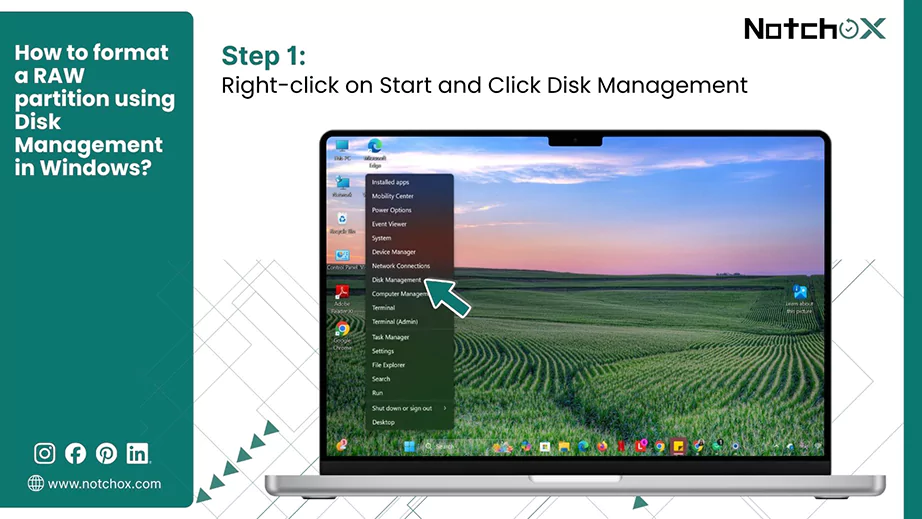
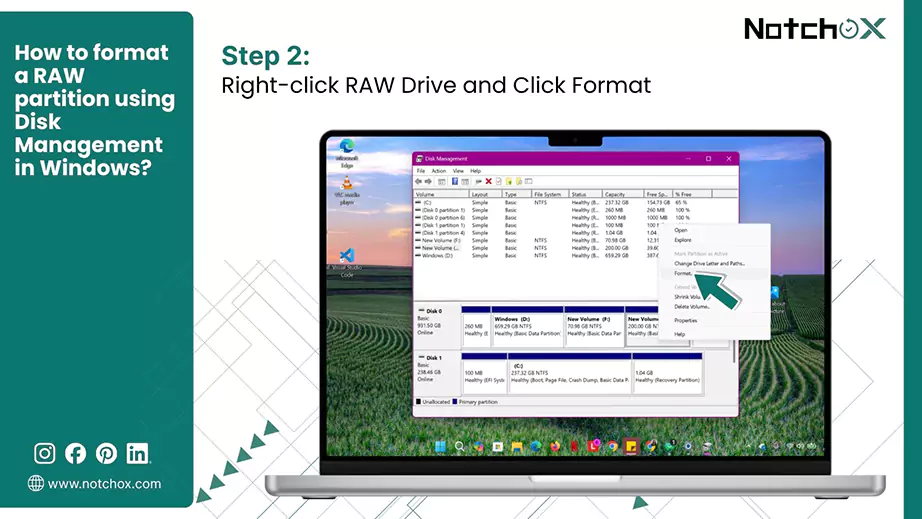
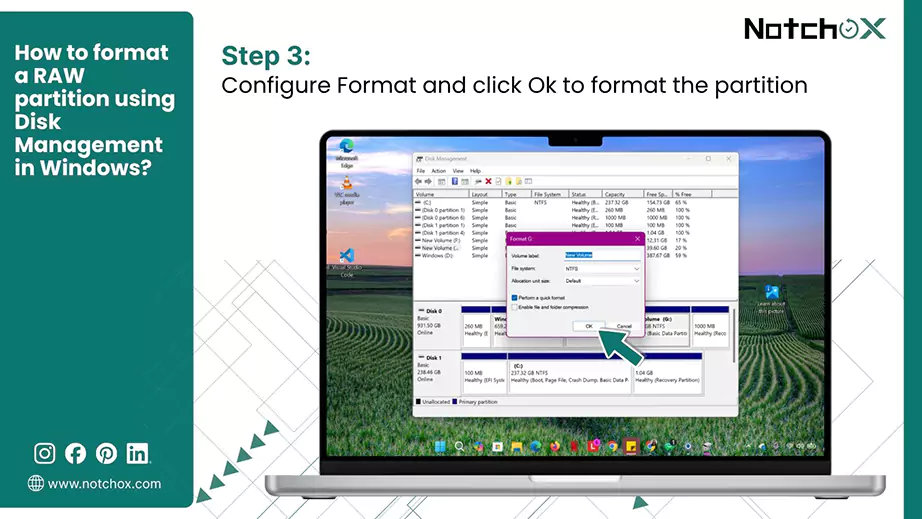
Use Disk Management once you have recovered the data. It is the best tool to reassign a usable file system (NTFS, FAT32, or exFAT) to a RAW drive or partition. Once formatted, the OS will recognize it again.
How to format a RAW partition using Disk Management?
In Windows:
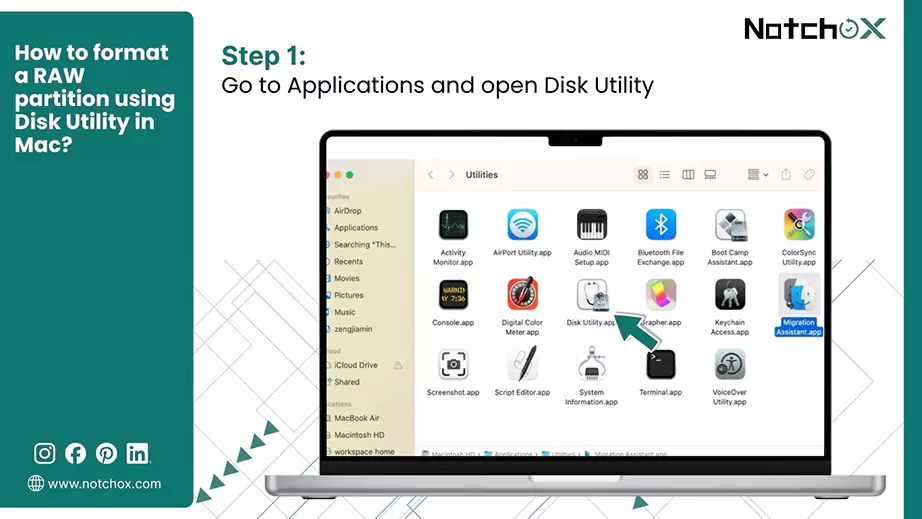
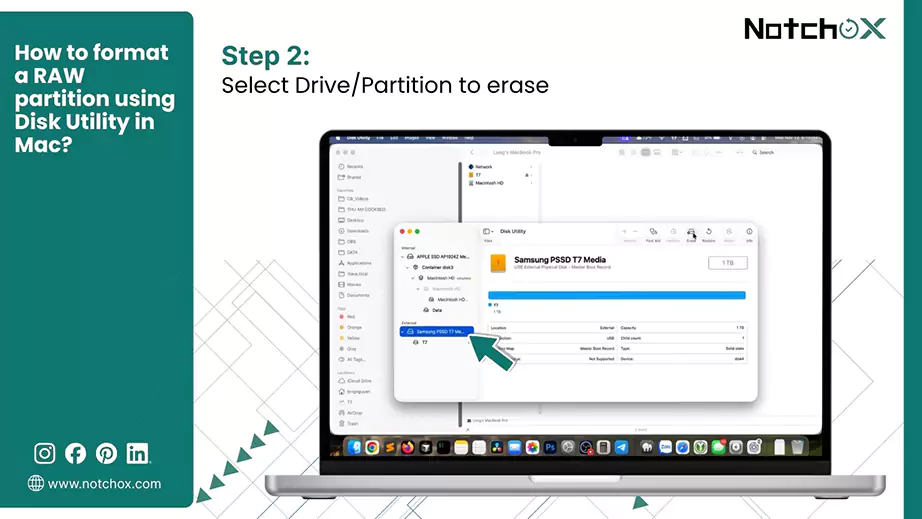
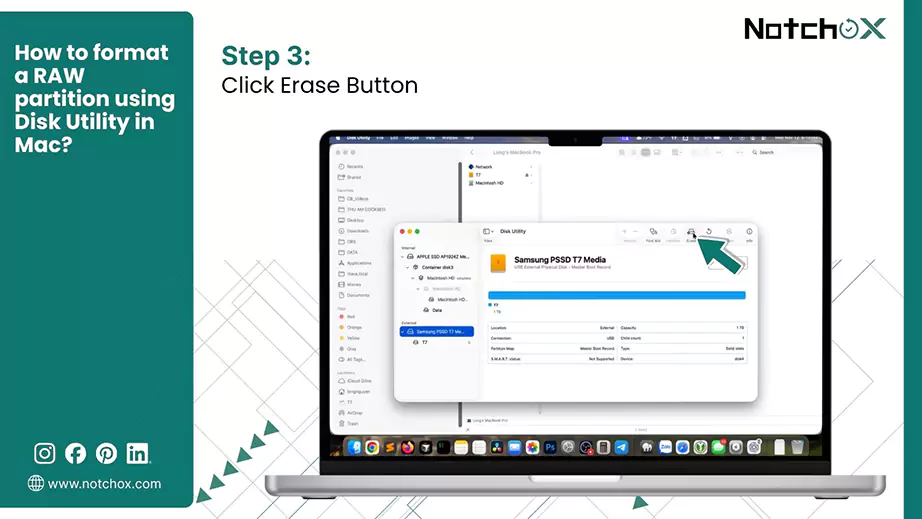
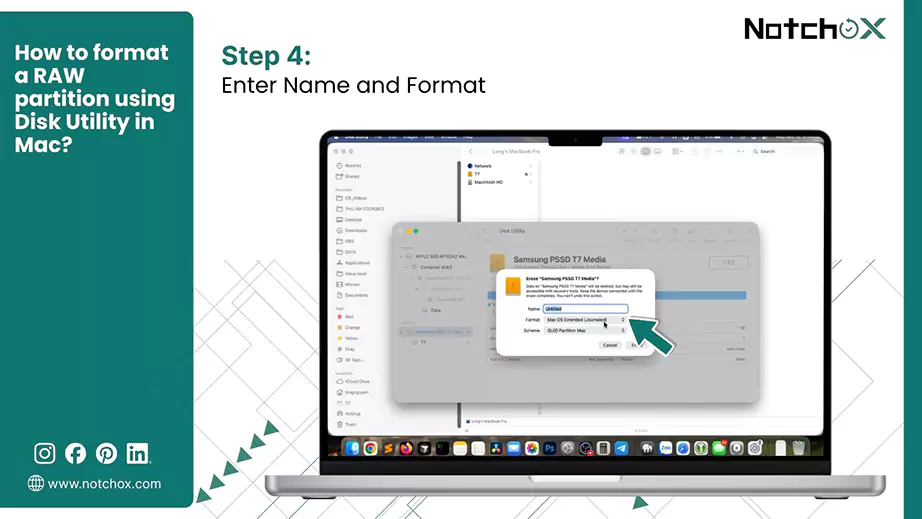
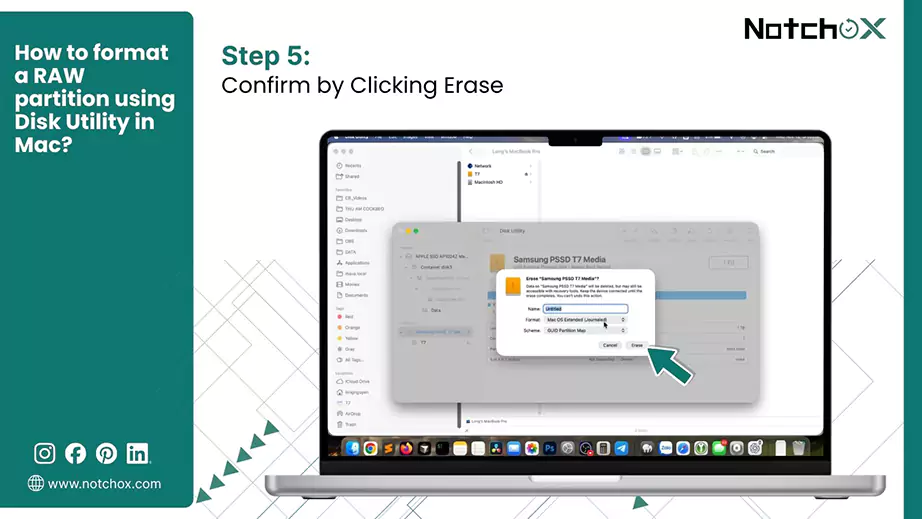
In Mac:
In Linux:
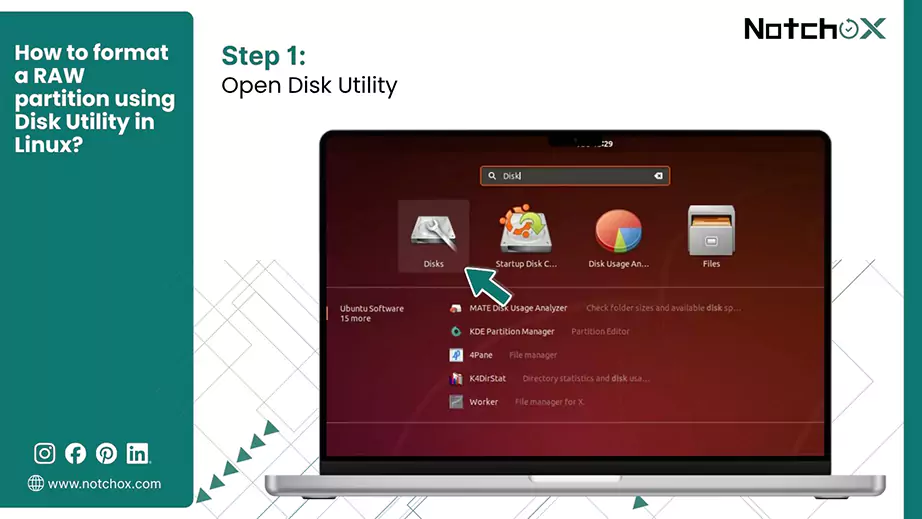
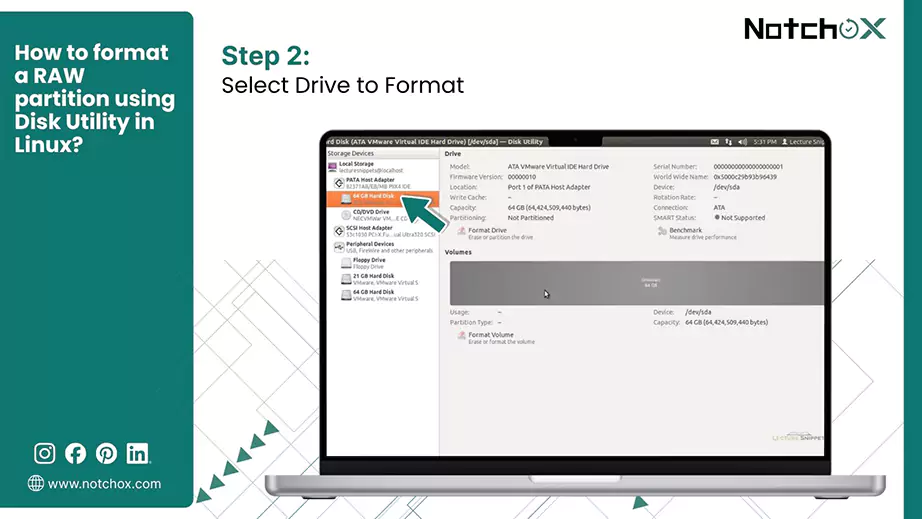
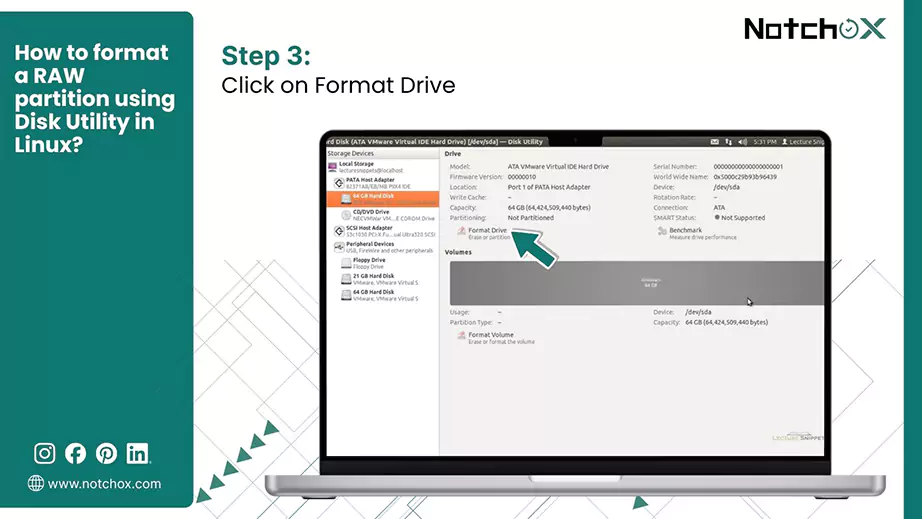
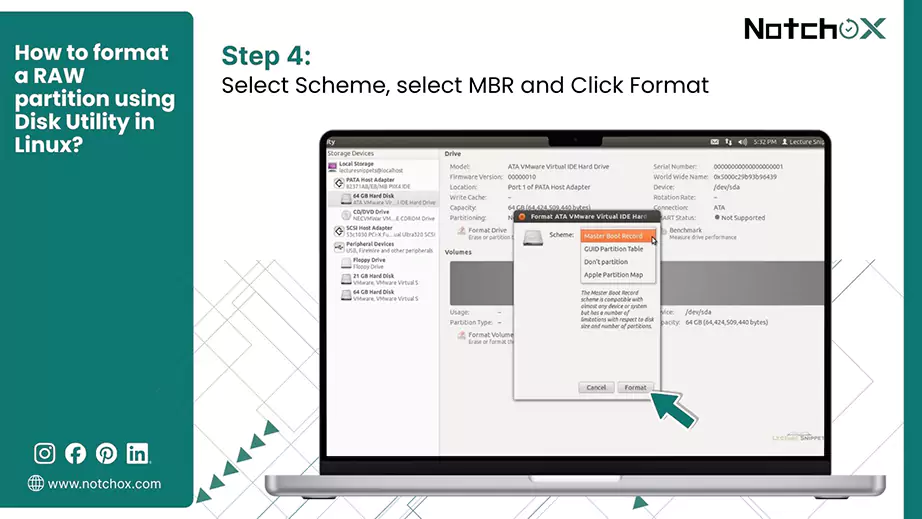
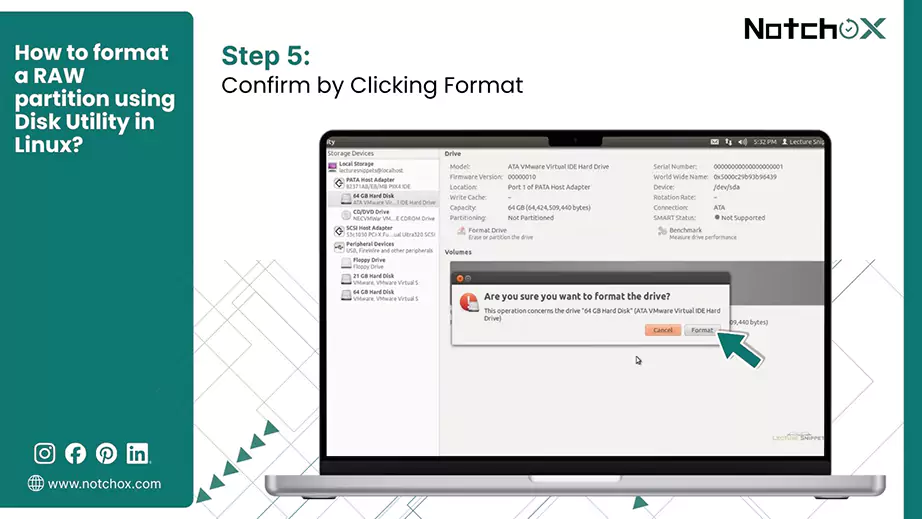
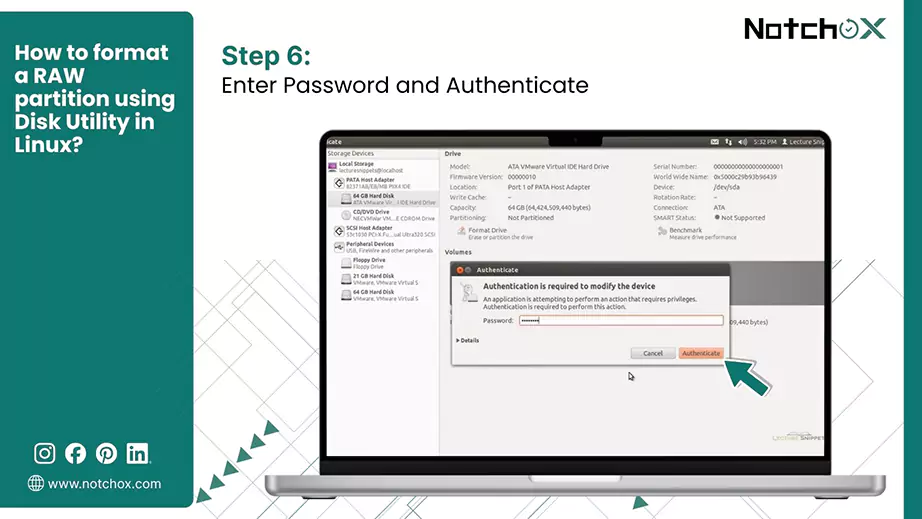
Once formatted, it will give you the option to make partitions of the drive.
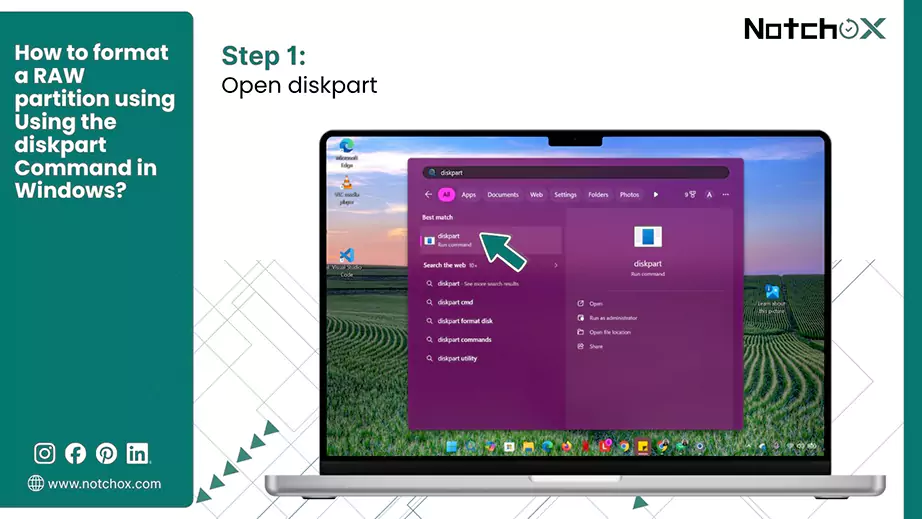
In case Disk Management fails, use diskpart to format a RAW partition. It formats by deleting all data and converts RAW into usable NTFS/FAT32 format.
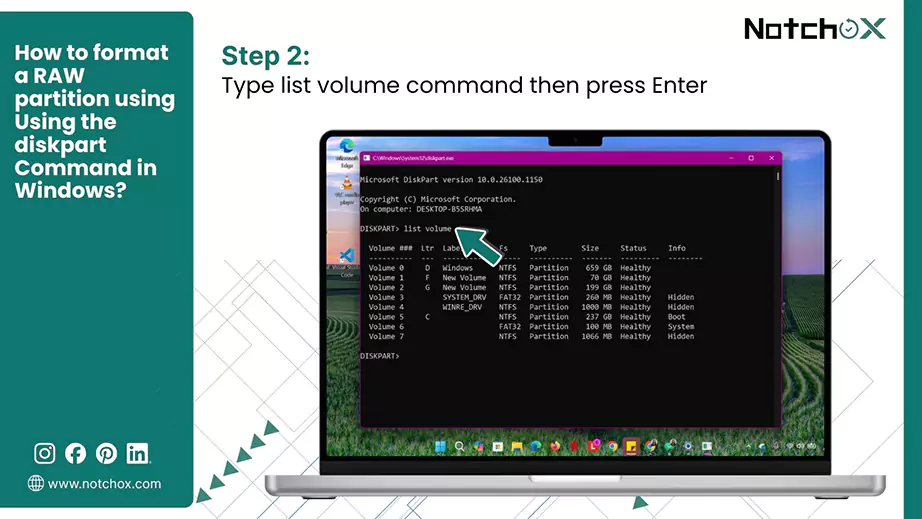
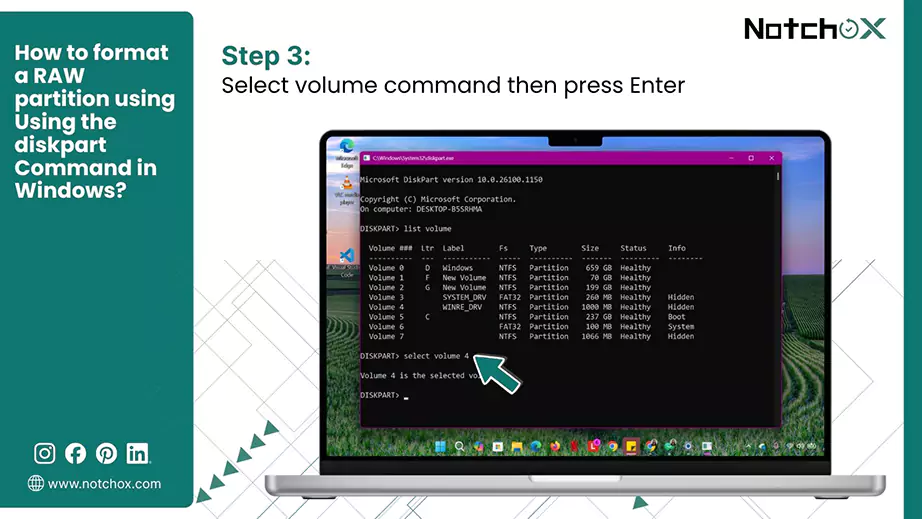
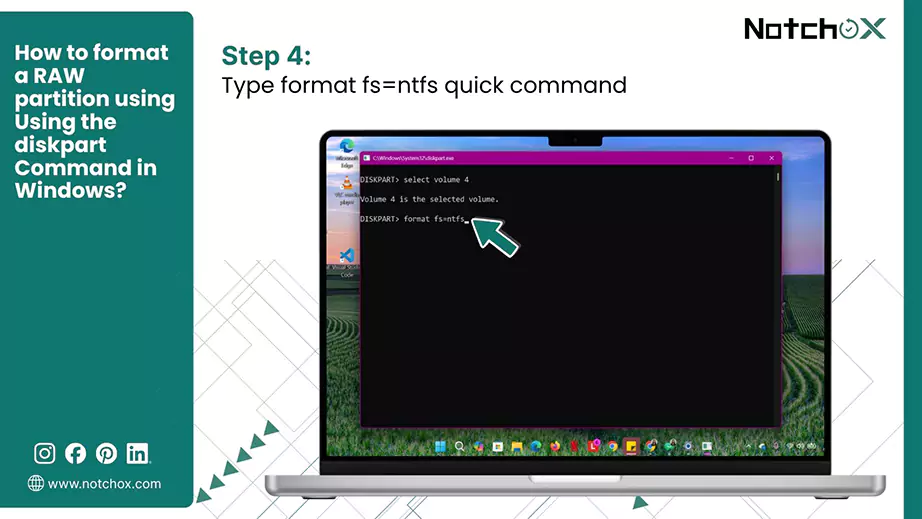
So there you have it, a complete breakdown of how to tackle the RAW partition. This article covered everything from what a RAW partition is to recovering your data on Windows, Mac, and Linux. Also explained how to fix it using Disk Management, Disk Utility, and terminal commands.
Remember the golden rule: Don’t format immediately! Always try to recover your files first.
And for the easiest, most reliable data recovery choice, Notchox – the best data recovery software.
Ans: You can recover files from a RAW drive using cloud storage backup (if any). In case of no backup, use data recovery software such as Notchox.
Ans: To fix a RAW drive without formatting, use a reliable specialised partition recovery software such as Notchox that offers data and partition recovery.
Ans: No, the chkdsk utility cannot fix a RAW drive because it requires a recognized file system (NTFS/FAT32).
Ans: To recover the RAW partition on Linux: open Disk Utility > Choose the Drive > Format Disk > Select master boot record > Click Format.
Ans: You can restore a RAW partition to NTFS using the diskpart command in Windows. It converts RAW to usable NTFS format.
Ans: To recover the RAW partition on macOS: Apps > Utilities > Disk Utility > Select Drive > Click Erase.
Ans: To use Disk Utility: Right-click Start > Disk Management > Right-click RAW drive > Format.

Deeksha Arora is a Data Protection & Recovery Writer focusing on writing accurate, informative, and easy-to-understand technical articles for Notchox’s readers. Her content on the prevention of data loss, understanding risks of device failures, and guides to fix problems helps readers make the right decisions and understand the technical terms easily. She works closely with Subject Matter Experts to ensure high usability and accuracy of her writing.