Kajal Singh Sep 18, 2026
Ans: Yes, you can recover deleted files from an SSD, but under certain conditions. If TRIM is disabled on your SSD, you can easily recover data using any specialised data recovery software such as Notchox.
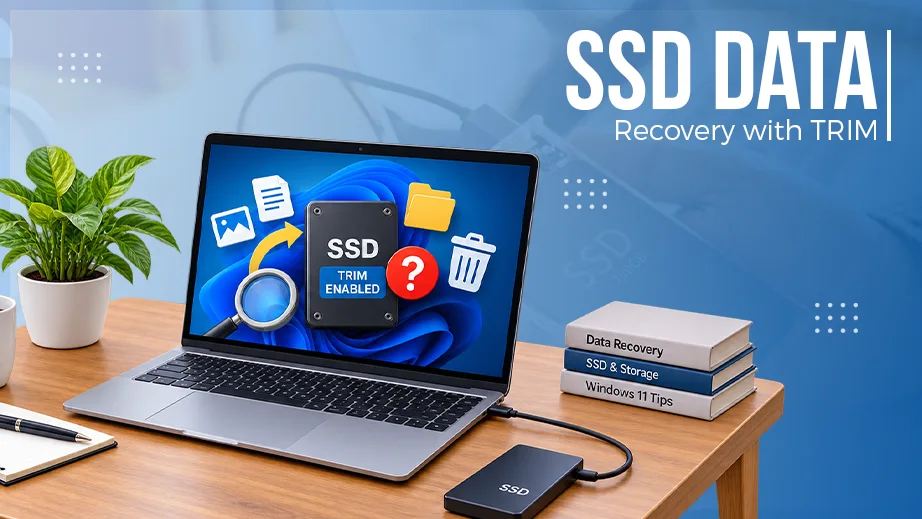
You can recover data from an SSD with the TRIM command enabled, but only under certain conditions. If you have an external SSD and immediately cut power to it or disconnect it, you can recover the data safely because TRIM deletes the data permanently as soon as it detects a deleted item. The TRIM command activates the SSD Garbage Collection process, and it immediately erases the drive space physically, making it impossible to recover the deleted data.
In this blog, we will explain everything you need to know about SSD data recovery in the TRIM environment and how TRIM affects data recovery. We will also see if it is possible to recover data from SSD with TRIM enabled. If yes, then how?
Note: Yes, you can recover data from SSD with TRIM enabled, provided the SSD is external and you immediately disconnected the power when the data was lost. Also, there are chances of data recovery if, during the data loss, the system was corrupted or suffered a power loss. This blocks the TRIM command from erasing the data blocks permanently, allowing you to recover data safely using specialised SSD data recovery software such as Notchox.
Yes, you can recover data from SSD with TRIM enabled, but success is never guaranteed. Traditional hard drives leave deleted files completely intact until overwritten. SSDs handle data deletion differently using the TRIM command. TRIM command alerts the SSD controller that specific data blocks are no longer needed so they can be prepared for wiping.
The technical truth is simple: TRIM enabled does not mean instant data destruction.
Data recovery depends entirely on whether the physical cells have been wiped. A time lag always exists between the deletion command and the actual physical erasure.
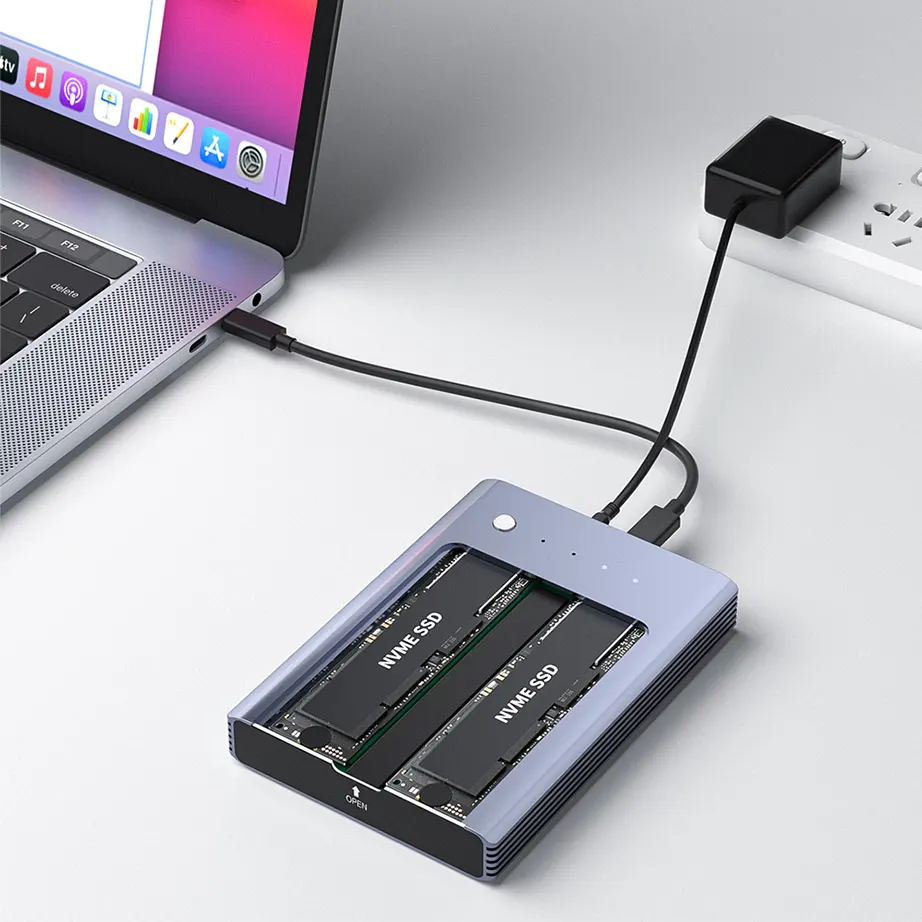
If you disconnect power immediately after data loss, the data survives. Also, if you use an external USB SSD, the bridge hardware blocks the TRIM signal entirely. In these specific exceptions, background garbage collection never triggers. Therefore, data recovery software can still successfully extract your files.
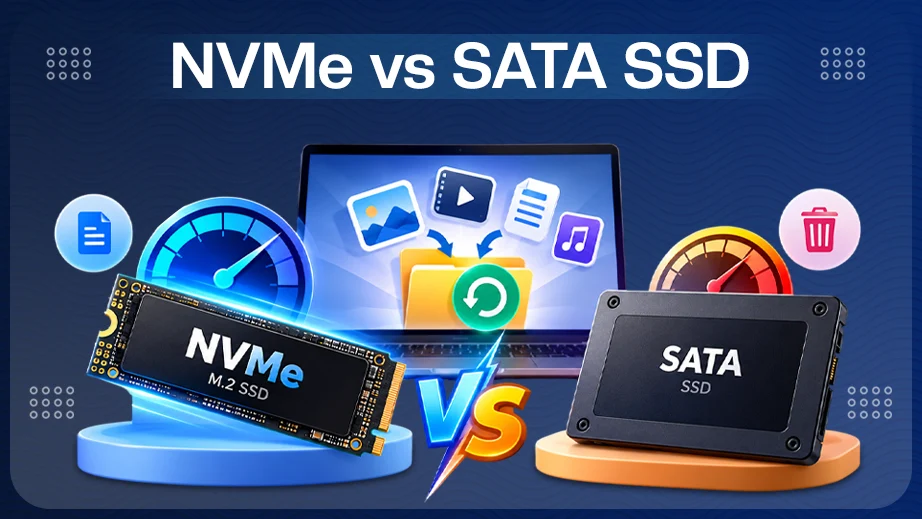
The TRIM command is a specialized Serial ATA (SATA) and NVMe command that allows an operating system to tell an SSD which blocks of data are no longer considered in use.
SSDs cannot overwrite existing data directly. Flash memory is organized into pages (where data is read and written) and blocks (groups of pages where data must be erased). To write new information to a previously used space, an SSD must first erase the entire block before rewriting individual pages. This is a slow process known as a Read-Modify-Write cycle.
Understanding how SSD TRIM works is important because it tells whether the deleted files are still physically there on your drive’s flash memory chips or if they have been completely erased.
When a file is deleted or overwritten on an SSD, the operating system sends a TRIM command to the SSD telling it that these data blocks are not needed and must be erased immediately.
The TRIM signal marks the blocks as invalid or free. The data blocks are made ready for overwriting and are shown to the system as empty.
SSD uses a mapping table to keep track of all data blocks and their data allocation. So, the mapping table is updated, and the SSD executes Garbage Collection in the background.
During idle periods, the Garbage Collection process runs in the background. It collects the free space and clears the blocks marked by the TRIM command.
The possibility to recover data from SSD with TRIM enabled depends entirely on one core technical factor: whether the drive’s firmware has physically erased the data blocks or simply marked them for deletion. If the TRIM command has been executed and background cleaning is complete, recovery is impossible, but if the process was interrupted or blocked, your data can still be fully restored.
The factors that determine your chances of a successful recovery include:
Data recovery becomes completely impossible the exact moment the SSD controller moves your files from a “marked for deletion” queue to physical erasure. Once the drive executes its hardware-level cleaning protocols, the electrical charges holding your data are released, leaving behind blank blocks that no software or lab equipment can reconstruct.
Let’s understand when SSD TRIM data recovery is not possible:
On internal SSDs with active TRIM execution, data recovery becomes impossible almost instantly after file deletion. When a file is deleted from an internal NVMe or SATA drive, the operating system bypasses any delays and immediately issues the TRIM command directly to the drive controller via the native PCIe or SATA bus.
Because the internal drive is connected directly to your computer’s brain, this “blackout” happens in less than a second.
If you try to use data recovery software right after, it will only read a blank wall of code because the drive firmware refuses to look at those unlinked blocks. The internal drive’s system is so fast and efficient that active TRIM execution deletes your data immediately.
Note: You can check the TRIM status on your computer using the command prompt.
How to check if TRIM is enabled Windows 11?
- Open Command Prompt as an administrator.
- Type the following command into the window and press Enter:
fsutil behavior query DisableDeleteNotify
If the output is 0, TRIM is enabled.
If the output is 1, TRIM is disabled.
To understand why data recovery software suddenly stops working on an SSD, you need to know how the drive’s internal brain handles it after it receives a TRIM command. SSD manufacturers use two rules for this: DZAT and DRAT.
Think of these two as two different instructions given to a librarian (the SSD controller) when someone asks to look at a book (a file) that was just thrown in the trash:
The moment the operating system sends a TRIM command for a specific block of data, the SSD controller updates its map. From that exact millisecond onward, if any software attempts to read those addresses, the controller instantly returns zeros (0x00).
This operates under the same principle, but instead of returning zeros, the controller returns a fixed and identical stream of dummy data for any read command.
DZAT and DRAT prevent data recovery by forcing the SSD controller to return an empty response whenever software tries to read the data blocks
Delayed recovery refers to the critical time windows between when a file is deleted and when the data becomes permanently unrecoverable. In a TRIM-enabled SSD, this window is controlled by an automated firmware process known as Garbage Collection.
Garbage collection is an autonomous hardware-level maintenance process managed by the SSD controller. This is needed because NAND flash memory cannot overwrite existing data directly; it must erase old data before writing new information.
Note: While an SSD can read and write data in small units called pages, it can only erase data in larger blocks called blocks.
Once deleted, TRIM marks those specific pages as “stale” or invalid. Garbage Collection then optimizes the drive by performing the following steps:
Data recovery from a TRIM-enabled SSD is possible only if the TRIM command was never sent by the operating system or was blocked from running. This means that if the physical blocks on the NAND flash memory chips have not undergone hardware-level erasure, the data remains accessible. It is that time; you can run data recovery software for SSD data recovery after TRIM.
For the TRIM command to work, the operating system must actively generate and transmit the command. There could be scenarios where the file system gets corrupted, a blue screen crash occurs, or a sudden power outage happens during data loss. And when this happens, the operating system fails to send the TRIM signal, thus not erasing your file permanently. So can data be recovered after TRIM? In this situation, yes.
External SSDs connected using standard USB enclosures or adapters block TRIM commands entirely. Most USB bridge chips fail to pass the necessary UASP (USB Attached SCSI Protocol) or NVMe passthrough commands from the operating system to the drive.
So, the SSD never receives the command to clear the data, resulting in an easy way to recover data from external SSD trim.
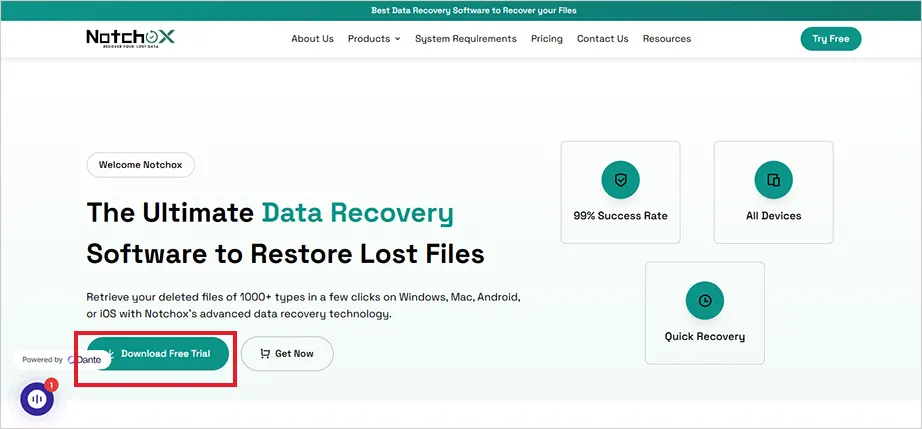
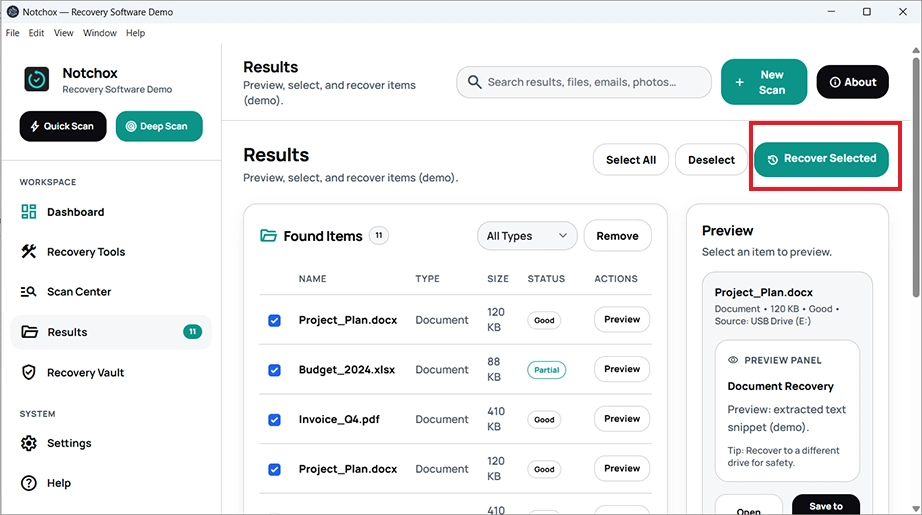
If your SSD is healthy and is recognized by the system, specialized data recovery software can help you recover data from SSD with TRIM enabled. Notchox data recovery software is one of the best data recovery software programs that uses advanced algorithms to deep-scan the drive for any remnants and reconstruct the data.
How to use Notchox data recovery software for SSD TRIM data recovery:
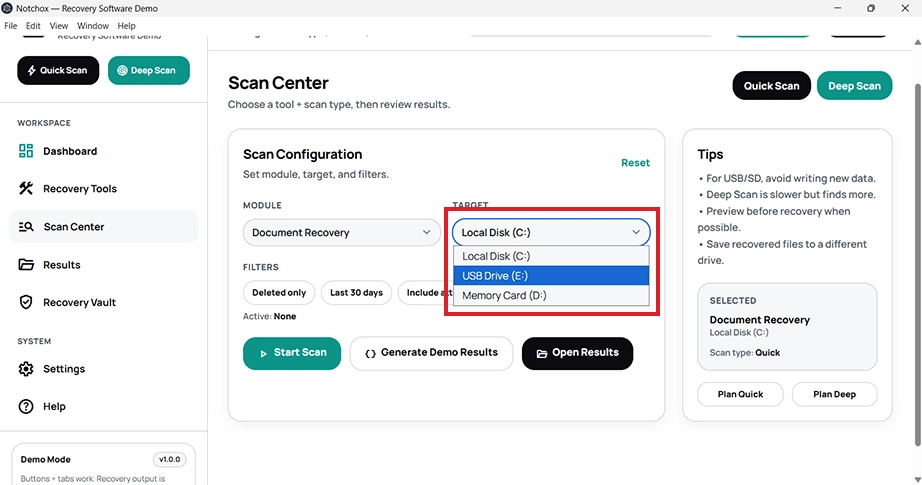
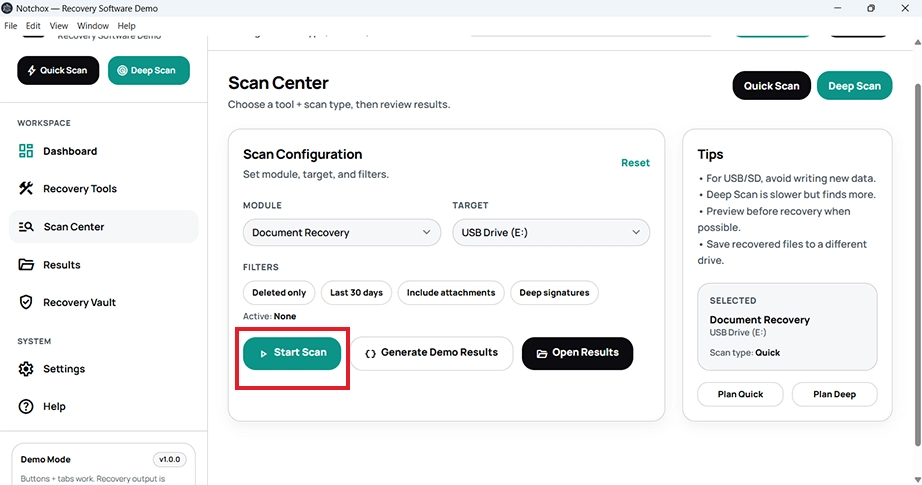
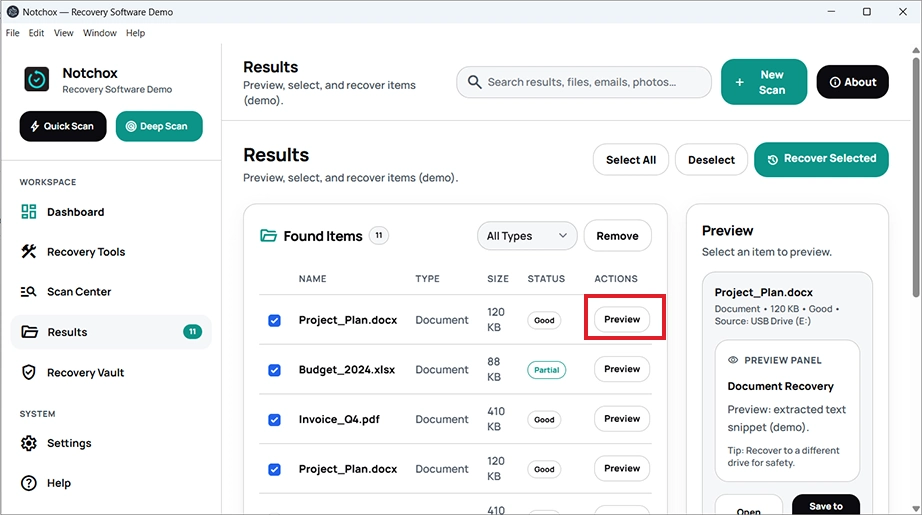
Now you know it’s comparatively easier to recover data from an SSD when TRIM is not enabled than to recover data from SSD with TRIM enabled. It’s the different internal working of the SSD that it does not store the data until overwritten. The TRIM command activates Garbage Collection in the background, which eventually permanently erases the data blocks, making recovery impossible.
For data to be recovered from an SSD with TRIM enabled, either it must be an external SSD that you disconnected immediately in a data loss situation, or there must have been system corruption or power loss that blocked the TRIM command from clearing the SSD.
Ans: Yes, you can recover deleted files from an SSD, but under certain conditions. If TRIM is disabled on your SSD, you can easily recover data using any specialised data recovery software such as Notchox.
Ans: To recover data from SSD with TRIM enabled, you should consider seeking professional data recovery services because the TRIM command actively erases the data blocks on an SSD permanently.
Ans: SSD TRIM command is a feature that triggers data deletion. It actively marks the deleted data block as empty or invalid and runs Garbage Collection to erase it permanently to improve the drive’s performance.
Ans: Since the TRIM command actively clears the data block permanently, TRIM makes it hard to recover data using data recovery software. Because once the data is overwritten by zeros or new data, data recovery programs cannot find the remnants of old data to recover.
Ans: To check if the TRIM command is enabled on Windows 11:
Ans: Enabling TRIM on an SSD improves its performance. It destroys the deleted data, freeing up space on the SSD.

Kajal Singh is a Data Recovery Writer at Notchox, specializing in data recovery, storage systems, RAID, and digital forensics. She writes technical processes, tools, and cases into clear, engaging articles, blogs, and guides. Kajal does thorough research, deep analysis, and collaborates with experts to produce high-quality and engaging content that is easy to understand for every reader.