You can absolutely recover deleted videos from your iPhone, and most of the time you can do it completely for free using Apple’s built-in features. So, if you accidentally deleted a video just moments ago or are not able to find an old MP4 file, there is always a clear step-by-step path to recover your files safely.
This article brings all the verified data recovery techniques available today, answering your how to recover deleted videos from iPhone queries. We will start with instant and native fixes like checking your Recently Deleted folder and Hidden album, explore advanced methods like iCloud web recovery and computer backups, and review what to do if you have no backup at all.
Let’s begin!
Quick Decision Reference Matrix
If Your Situation Looks Like This
Your Success Odds Are
Recovery Method
Video was deleted less than 30 days ago
High
Recently Deleted Album (Photos app)
Video disappeared, but you never hit delete
Moderate
Hidden Album
Deleted over 30 days ago, but iCloud Sync was on
High
iCloud.com Web Recovery
Video is gone, but you have an automatic cloud backup
High
iCloud.com Backup Restore
Video is gone, but you plug into a Mac or Windows PC
High
Mac Finder/ Windows iTunes Local Restore
Permanently deleted and have no backup at all
High
Notchox Data Recovery Software
Your iPhone is physically smashed or water damaged
Case-by-Case
Apple Support
Quick Answer: You can easily recover deleted videos from your iPhone using built-in features like the Recently Deleted folder or Hidden album (in case you are not able to find the video). If the files are deleted from there too, go to iCloud or a Mac/Windows computer backup.
For permanent deletion without backups, connect your iPhone to a PC and install Notchox data recovery software to run a deep scan.
You can easily recover deleted videos from your iPhone using Apple’s official and native recovery tools without spending any money. Depending on how long ago the video was deleted, you can restore it immediately using built-in features like the Recently Deleted album or by unhiding files in your Hidden album. If you have your iCloud backup active, you can also recover deleted media files easily. Let’s see how to retrieve deleted videos on iPhone using these methods.
Method 1: The Recently Deleted Album (Within 30 Days)
For videos deleted by mistake, the iPhone gives you a built-in recovery method: The Recently Deleted album. Whenever you delete media from your library, iOS does not erase it from your device immediately. It moves the files to a pre-deletion secure folder where they are kept safe for up to 30 days. So, next time you are thinking about how to recover deleted videos from iPhone? Just immediately check your Recently Deleted folder.
Here are the steps for how to restore videos on iPhone:
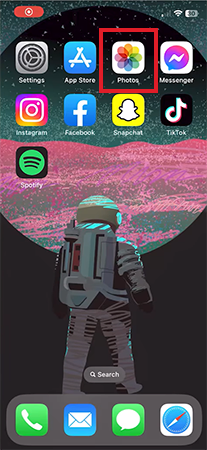
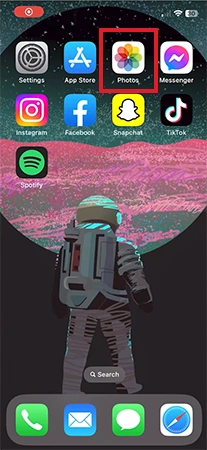
Tap the Photos icon on your iPhone home screen.
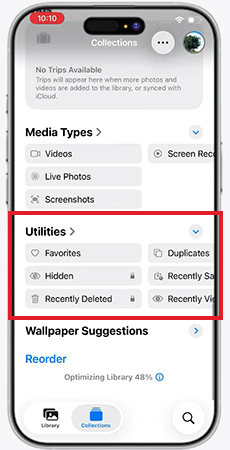
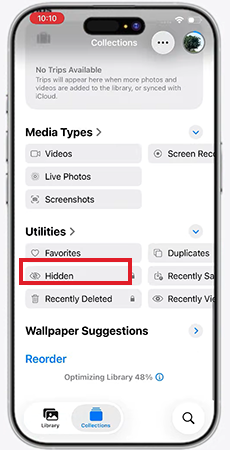
Swipe up until you see the Utilities section.
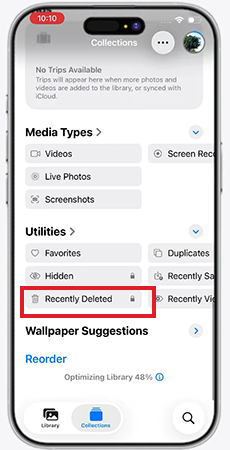
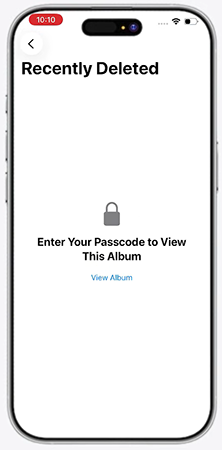
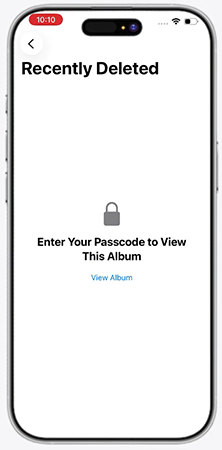
Tap the Recently Deleted album.
Unlock the album using your Face ID, Touch ID, or device passcode to view the contents.
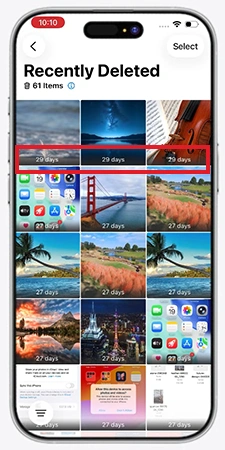
Browse through the thumbnails. Each thumbnail displays a countdown number (example, 29 days) showing how long you have left before it is permanently deleted.
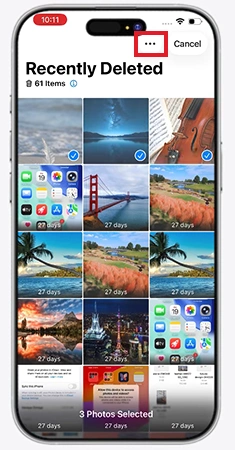
Tap the video you want to save, then tap Options (…) in the top corner of the screen.
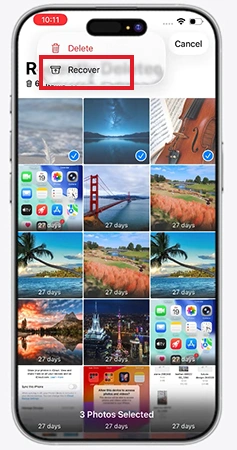
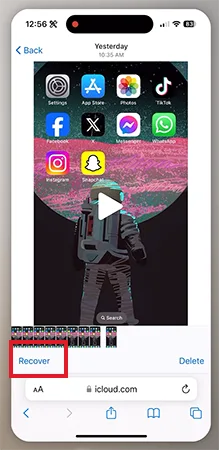
Once the videos are selected, tap Recover.
Method 2: Check the Hidden Album
This is an exceptional case in which the video you are looking for is not actually deleted but somehow hidden from your main camera roll. This might be due to accidental hiding or a background iCloud syncing glitch. This way, the video is hidden; it is completely removed from your main grid, albums, search results, and memory widgets, making it seem like it has been completely wiped away from your phone.
Before trying the backup or data recovery apps, you should check this folder to see if your video is sitting out of sight.
Tap the Photos app icon on your iPhone.
Scroll down to the bottom of the screen to find the Utilities section.
Tap on the folder labeled Hidden.
Unlock the secure folder by scanning your Face ID, using your Touch ID, or entering your iPhone device passcode.
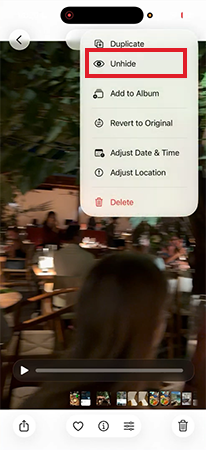
Browse through the hidden media files, tap the specific video you wish to restore, and then tap the More Options (…) button in the corner of the screen.
Tap the Unhide option from the pop-up menu.
The video will immediately leave the secure Hidden album and return to its original position within your main Photos library.
Method 3: Accessing iCloud.com Web Recovery
iCloud.com Web Recovery acts as an online hub for all data actively uploading via your Apple Account sync settings. If a video was deleted from your device while iCloud Photos was turned on, Apple temporarily routes that file to a specialised cloud repository.
Steps for how to recover deleted video on iPhone using iCloud web recovery portal:
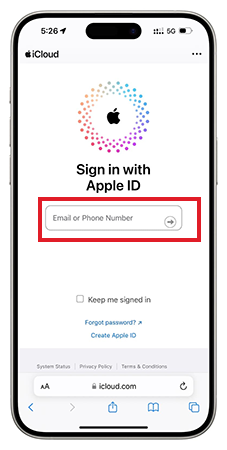
Open any web browser on your computer or alternative mobile device and go to iCloud.com.
Log in securely by inputting your primary Apple Account credentials.
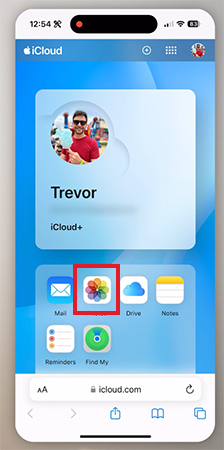
Locate the app grid on your cloud homepage dashboard and click or tap the Photos app icon.
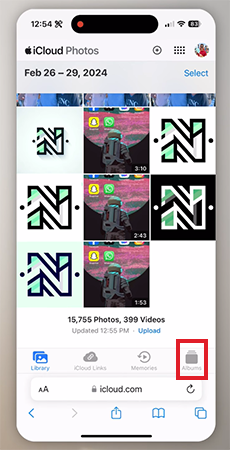
Look at the left side of the window to find your navigation panel, or on a mobile device, tap on Albums.
Note: If the menu is hidden, tap or click the Show Sidebar button (represented by a structural layout icon) in the upper-left corner.
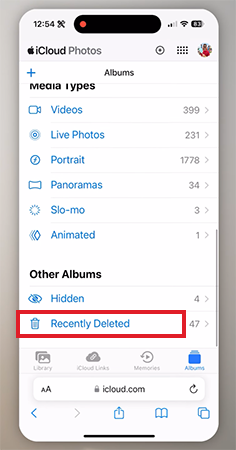
Click on the folder labeled Recently Deleted inside the active sidebar.
Scroll through the remaining video blocks, click on the specific file you need to recover, and tap or click the Recover button.
Method 4: Restoring from an iCloud Backup
If you cannot find your deleted video in the Recently Deleted folder, and you are sure that you have backed up that video, your next best option is to restore your iPhone using an official iCloud backup. Having an auto-backup turned on backs up an entire snapshot of your phone’s system data directly to the cloud.
Note: You can’t back up files to pull out a single video; you must restore your phone’s operating system to a specific point in time when that video still existed on your device.
Here are step-by-step instructions for how to recover deleted video in iPhone from iCloud backup:
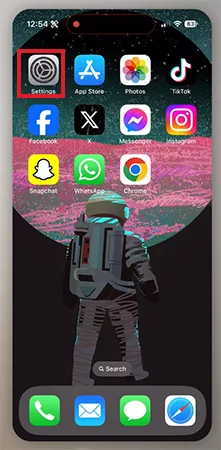
Tap the Settings app to open your iPhone settings.
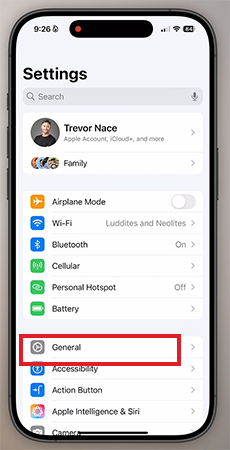
Tap General settings.
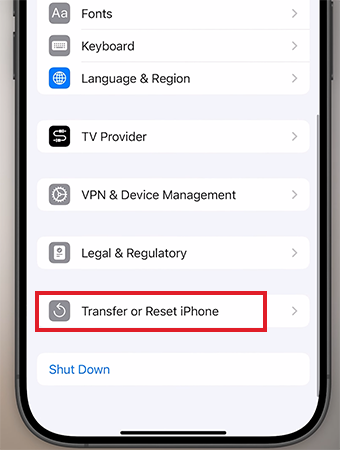
Scroll to the bottom to select Transfer or Reset iPhone.
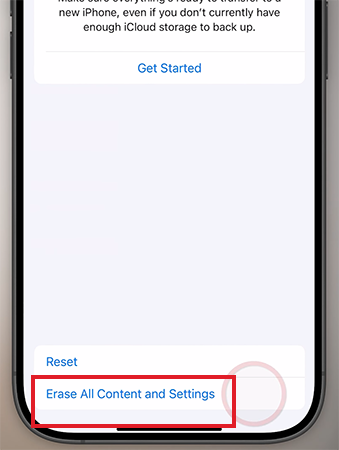
Now tap Erase All Content and Settings and wait for the process to finish.
Wait for your device to reboot to the primary factory “Hello Screen”. Swipe up and follow the introductory setup menus on your display to select your language, region, and manual wireless settings.
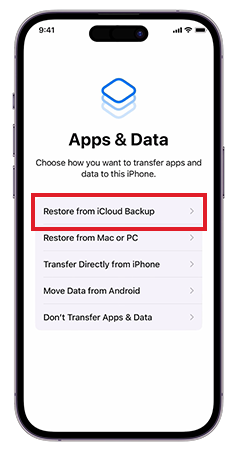
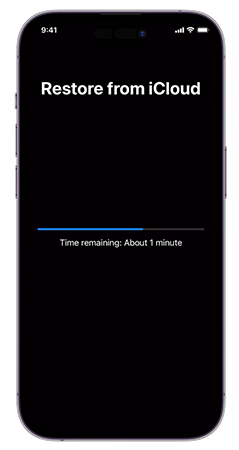
Continue through the network setup prompts until you reach the Transfer Your Apps & Data options screen. Tap Restore from iCloud Backup from the listed menu items.
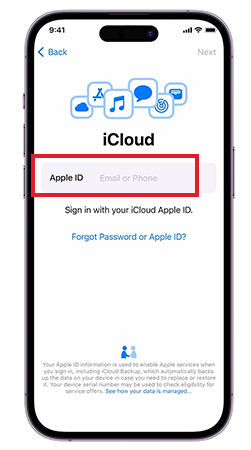
Log in using your registered Apple Account username and password to authenticate your cloud files.
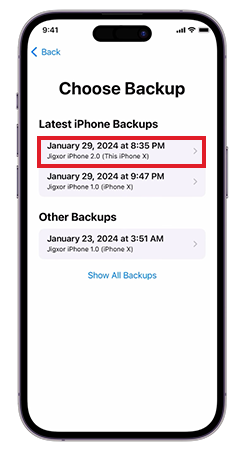
Look closely at the list of saved dates and file sizes, and select the specific backup containing your lost media.
Stay connected to a stable Wi-Fi network and wait for the system progress bar to finish loading completely. Once your phone restarts, your database is recovered, and your missing videos will automatically restore to your main Photos app.
Method 5: Restoring with a Mac Finder or Windows iTunes Backup
Previously backed up from your iPhone to a Mac via Finder or a Windows PC via iTunes, it stores a complete snapshot of your phone’s data on the hard drive that can be restored easily. Using this you can roll your iPhone’s entire operating system back to the exact date the backup was made, recover deleted photos on iPhone, videos, files, etc. straight out of your computer’s storage and back onto your phone.
Note: Restoring a local backup replaces the current data on your iPhone with the data from the backup date. Make sure to save any important recent photos or videos before starting.
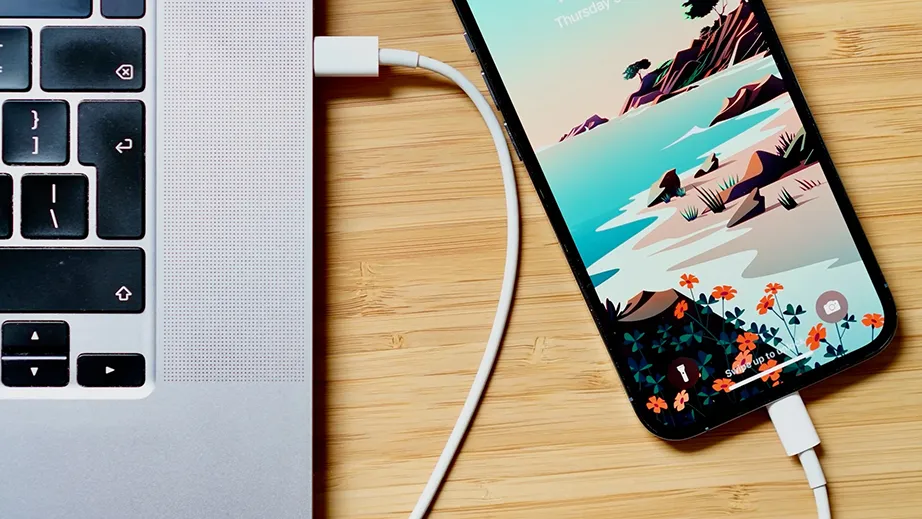
Use a compatible USB cable to connect your iPhone directly to your Mac or Windows computer.
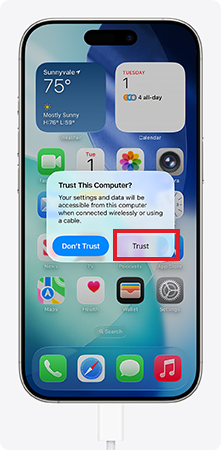
Unlock your iPhone screen. If a prompt appears asking to Trust This Computer, tap Trust and enter your device passcode.
Open the recovery interface:
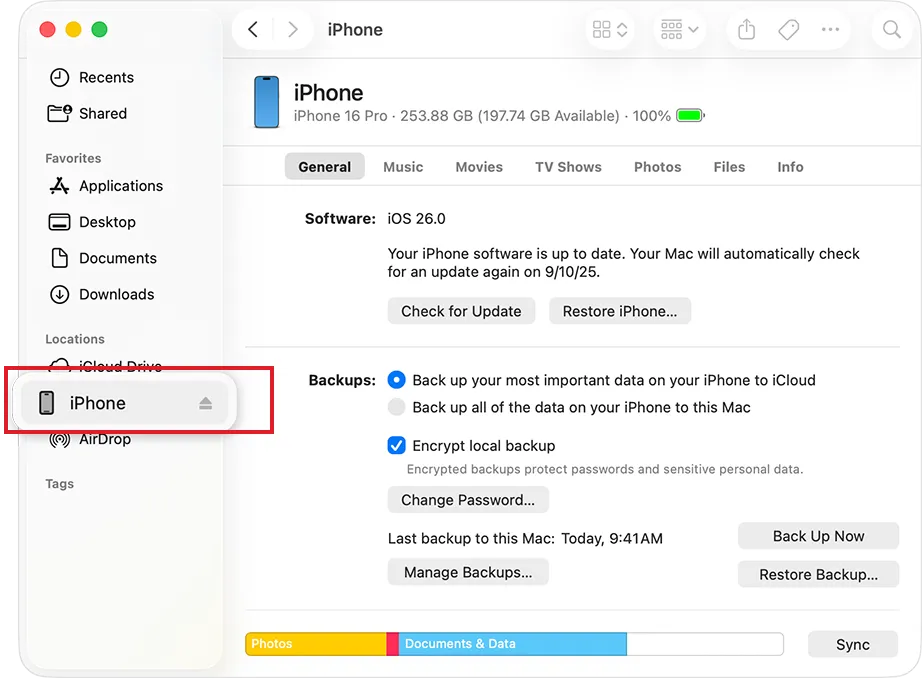
On macOS Catalina or later: Open a new Finder window and click on your iPhone’s name in the left-hand sidebar under Locations.
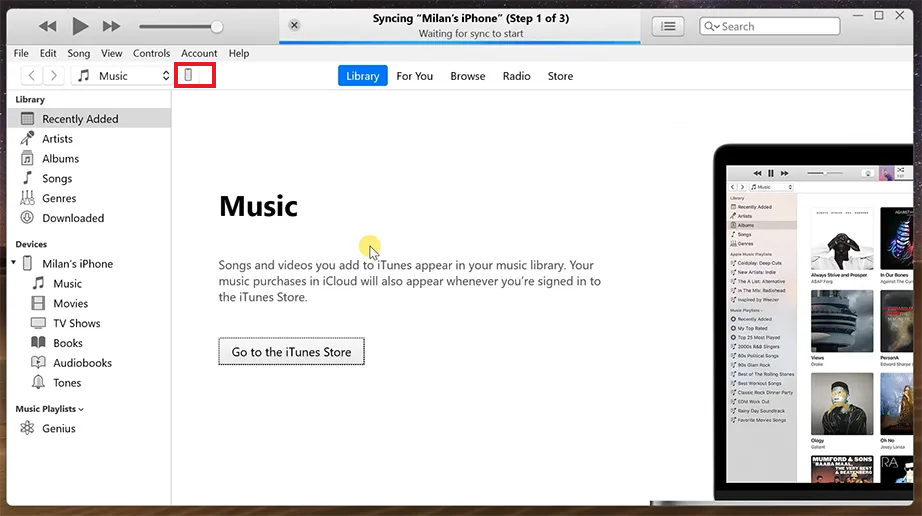
On Windows or older macOS versions: Open the iTunes application and click the small iPhone icon near the top-left corner of the window.
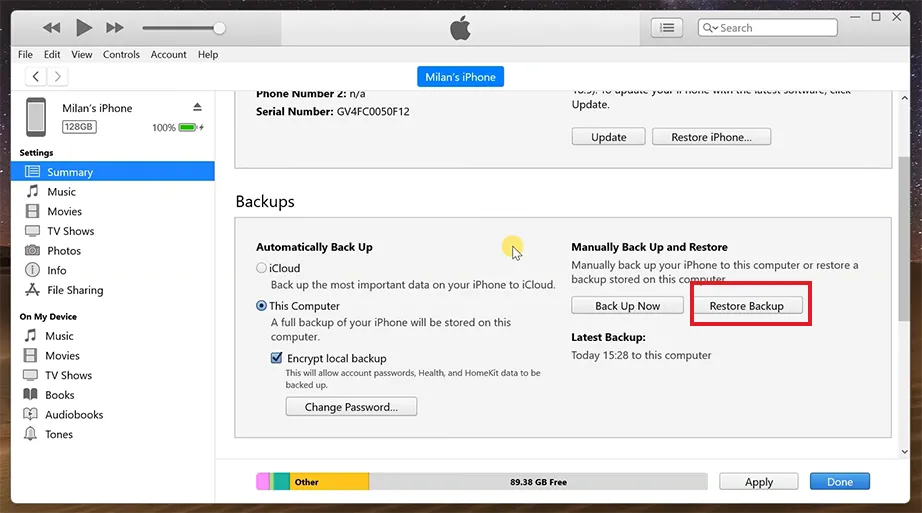
Find the General (Finder or Summary (iTunes) tab in the main dashboard view, then go to the Backups section and click Restore Backup.
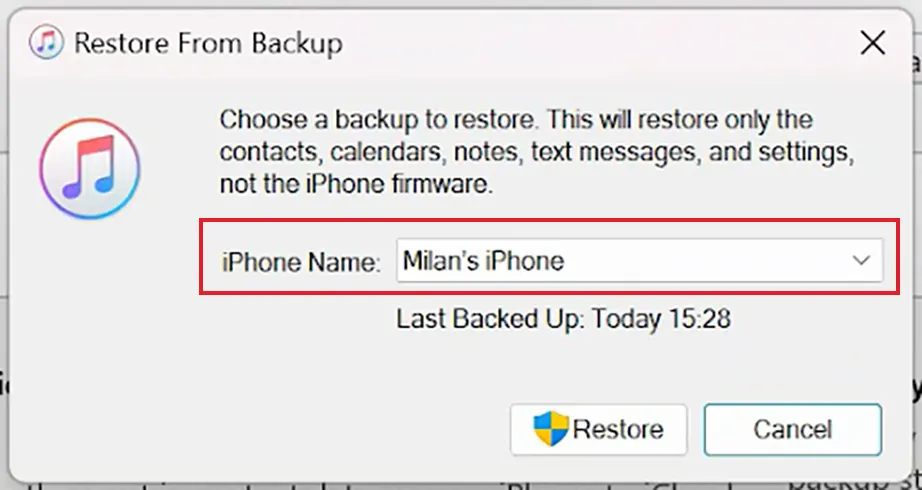
Look at the date and size of each available backup option from the drop-down menu. Choose the specific backup file that was created before your videos were originally deleted.
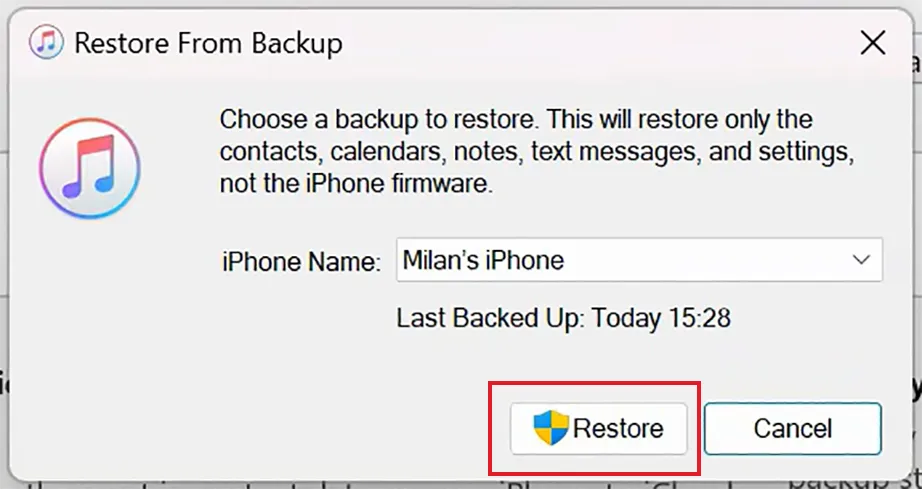
Click Restore to begin the process.
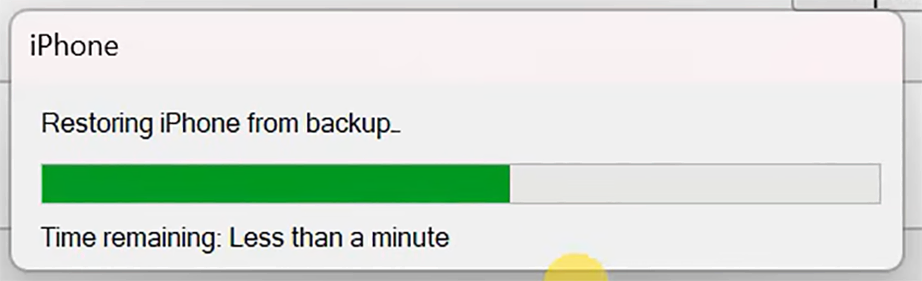
Keep your iPhone securely plugged into the computer while the progress bar fills up. Your iPhone will restart. Leave it connected until it boots up completely and syncs with your desktop screen.
What to Do When Videos are Permanently Deleted or No Backup?
Next comes the question: how to get permanently deleted videos back on iPhone. When your videos are permanently erased from the Recently Deleted folder, and you have absolutely no iCloud or computer backups, it can feel like your media is lost forever. But all hope is not lost.
This section covers your remaining possible ways to recover permanently deleted videos iPhone without backup, detailing how to safely deploy the best data recovery software and how to evaluate Apple Support channels to see if the advanced cloud systems can help in deleted video recovery.
Using Desktop Third-Party Data Recovery Software
Advanced desktop or mobile programs give a new secure way to recover deleted items. Specialised tools like Notchox Data Recovery Software directly communicate with your physical device, bypassing any standard iOS system visibility barriers. This software uses deep scanning algorithms to trace file remanence left on the iPhone’s storage.
Here are step-by-step instructions on how to recover deleted videos from iPhone using Notchox data recovery software:
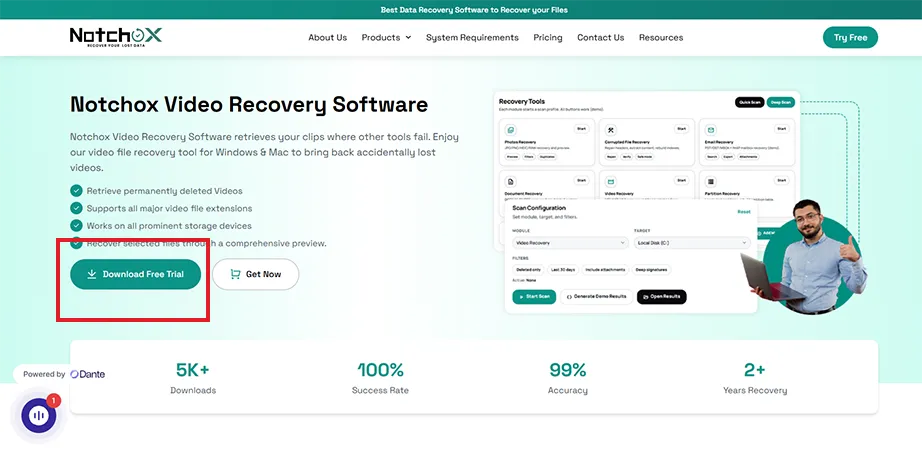
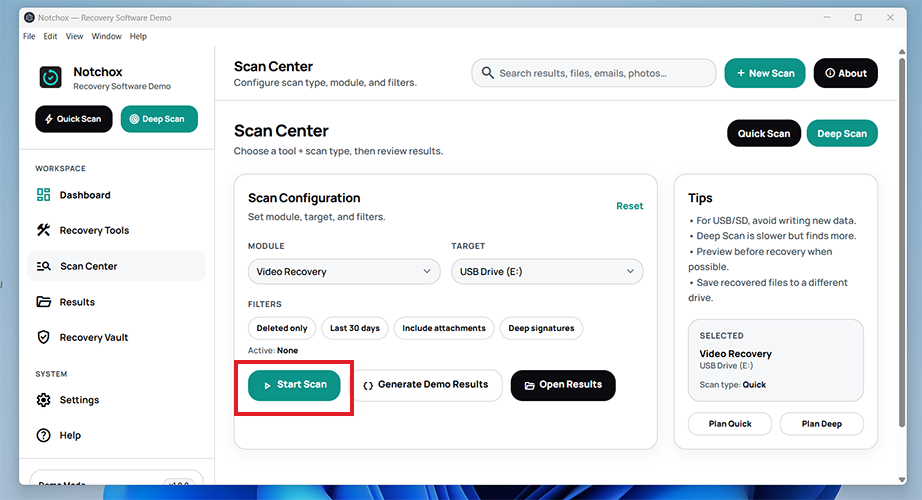
Download and install the verified installation file for the Notchox video recovery software onto your Windows or macOS computer.
Open the program and plug your iPhone directly into the computer using a reliable USB or USB-C cable.
Unlock your iPhone and tap Trust This Computer on the system prompt.
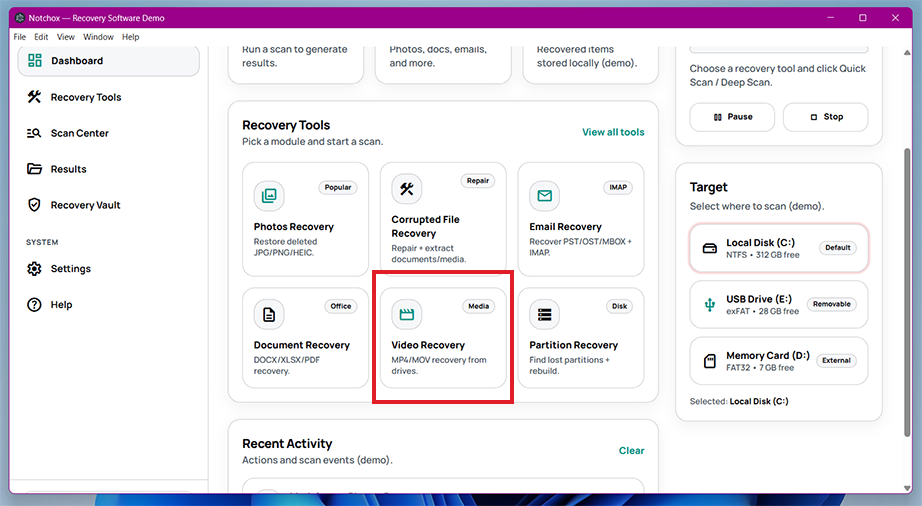
On Notchox’s main dashboard interface, select the Recovery Module.
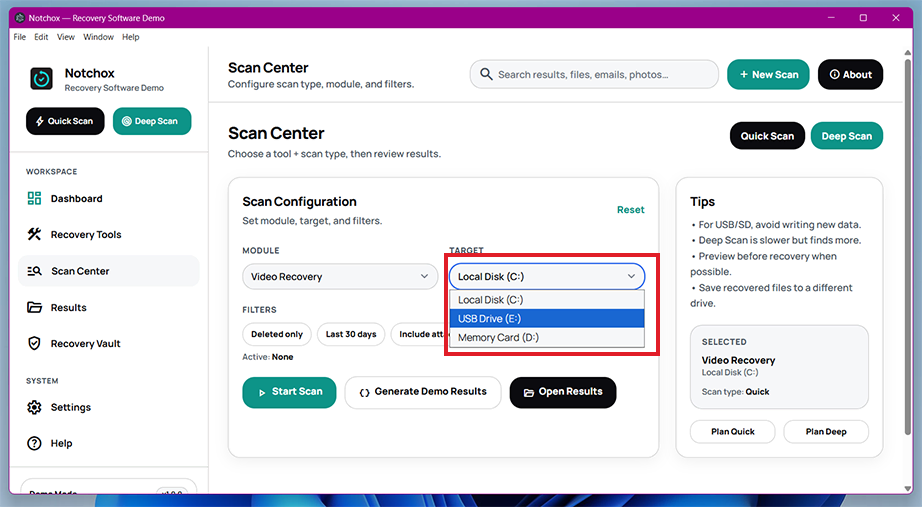
Select the target drive from the drop-down list. Select your iPhone here.
Apply filters if needed to narrow down the search and save time. For example, if you want video files to be recovered, select video only. Click the Start Scan button.
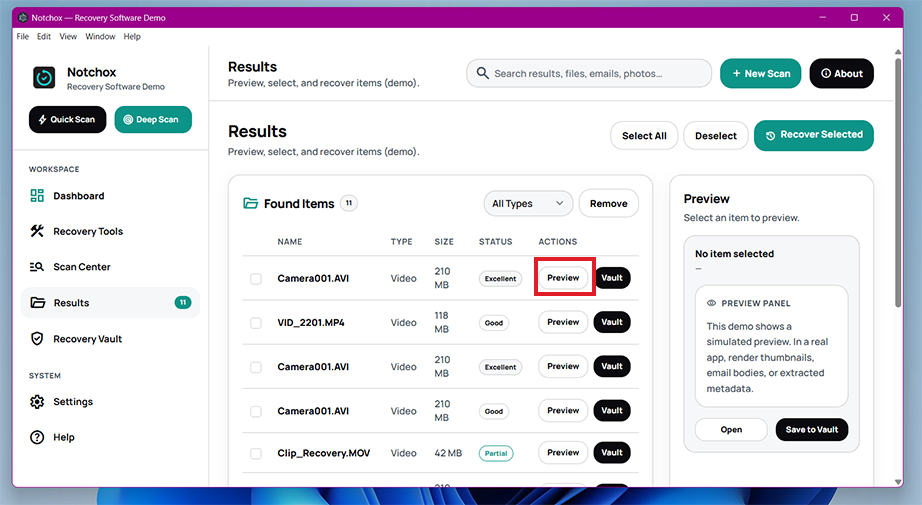
Once processing completes, click the Preview button next to each item to have a look at it in the preview pane.
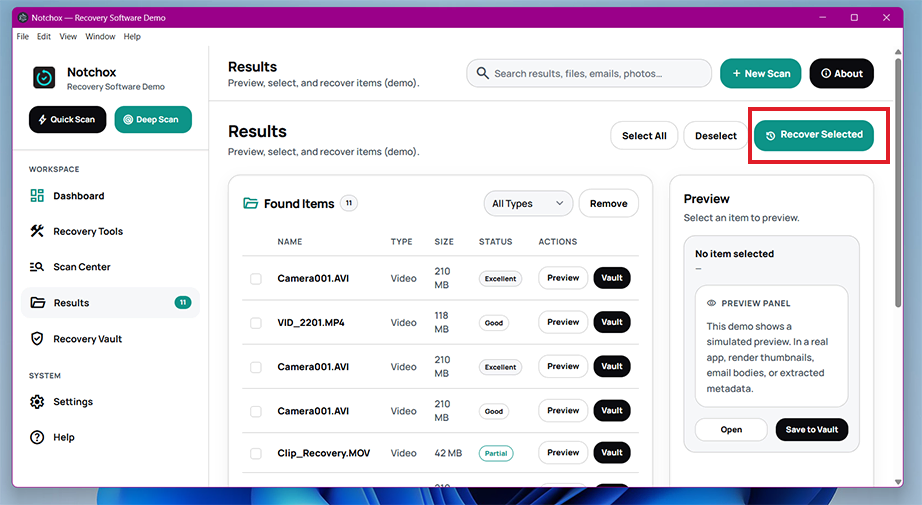
Check the box next to the files to be restored, and click the Recover Selected button on top.
Contact Apple Support for Data Recovery
Reaching out to Apple Support in case you are not able to recover deleted data from native methods on iPhone might help you to get back your deleted videos on iPhone. But it is important to understand exactly what Apple’s technical staff can and cannot do to save you time and manage expectations.
Under specific scenarios, Apple Senior Advisors have back-end administrative access to temporarily restore recently deleted cloud data storage repositories, but this depends on how and when the media was removed.
When It Is NOT Applicable (Apple Cannot Help)
Before reaching out, check if your situation falls under these technical limitations where Apple cannot help you with deleted video recovery:
If iCloud Photos was turned off when you deleted the video, it was only saved in your physical iPhone chip.
If the device went through an Erase All Content and Settings reset, and no prior backup exists.
If a video was permanently cleared from the cloud Trash or standard backup databases more than 30 days ago.
Scenario 1: You Recently Emptied the iCloud “Recently Deleted” Album (Within 30 Days)
If you have iCloud Photos turned on, deleted a video, and then manually Deleted All inside the Recently Deleted folder, Apple Support can help you with how to get back deleted videos.
Visit the official Apple Support Portal on a web browser or open the pre-installed Apple Support App on another iOS device.
Tap iPhone, and select More or the Apps & Features category.
Choose Photos & Camera Roll as your specific issue topic.
Select Chat or Call to connect with a live support representative.
Scenario 2: Physical Hardware Damage (Broken Screen, Water Damage)
In case of physical damage or complete non-functionality, your data is safe on the internal logic board, so Apple can help redirect you to specialists to rescue your files.
Use the Apple Contact Portal to book a live appointment at the Genius Bar inside your closest physical Apple Store location.
Explain to the technician that you need to extract data from the logic board. While Apple retail stores do not carry out physical chip-level data extractions in-house, they will refer you to your specific third-party data recovery labs.
Using these specific Apple-recommended recovery services ensures that any physical teardowns performed to retrieve data will not void your remaining AppleCare or Hardware Protection.
Strategies to Prevent Future Data Loss
After successfully recovering deleted media files, you need to protect them from future mishaps. Following these smart habits and using automated tools takes only a few minutes, but it completely removes the risk of accidental deletion.
Maintaining automatic daily iCloud backups ensures your system snapshots remain completely current.
Enabling iCloud Photos settings pushes every new video instantly to cloud storage.
Restricting phone access with Face ID prevents accidental deletions by other people.
Review your storage optimization settings regularly to stop iOS from offloading original files.
Always double-check your Photos trash before choosing to empty the folder permanently.
Summarising iPhone Video Recovery
As you have seen, your iPhone provides multiple built-in layers of protection to help you get it back, such as the Recently Deleted folder, iCloud recovery portal, Mac Finder, or Windows iTunes Backup. And if not native recovery methods, you can always rely on Notchox data recovery software to restore deleted media files from any device.
The single best way to make sure you never have to face this situation again is to be proactive. By turning on automated cloud backups, you can relax knowing your memories are completely secure.
Frequently Asked Questions
Q1: Can I recover videos from my iPhone?
Ans: Yes, you can recover videos from an iPhone. Most files can be easily restored using built-in iOS features like the Recently Deleted album or cloud backups. Even if a video is permanently deleted, third-party software or professional Apple support channels can recover the remaining data.
Q2: How do you recover deleted videos on iPhone?
Ans: To recover deleted videos on iPhone:
From Recently Deleted album: Open the Photos app > Go to Utilities > Tap Recently Deleted folder > Select the video and tap Restore.
From iCloud’s Recently Deleted folder: Visit iCloud.com > Click the Photos app > Recently Deleted folder > Select files and click Restore.
Q3: How to get permanently deleted videos back on iPhone?
Ans: To restore permanently deleted videos back on iPhone, use Notchox data recovery software, and getting your video back is just 4 simple steps:
Download and install the software on your device.
Connect the iPhone to the PC and select it as the target drive.
Click the Start Scan button to begin the recovery process.
Preview and restore the files to a secure location.
Q4: How to undelete a video on iPhone?
Ans: Deleted videos from the Photos app on an iPhone go directly to the Recently Deleted album:
Open the Photos app on your iPhone.
Scroll down to Utilities and tap the Recently Deleted album.
Select the files you want to restore.
Tap on the Restore button.
Q5: How to find deleted video on iPhone?
Ans: The deleted video on iPhone goes to a temporary storage folder called Recently Deleted. To open the Recently Deleted folder, open the Photos app, scroll down to Utilities, and find the Recently Deleted album. Remember, deleted videos and photos stay there for 30 days only.
Q6: Is there a way to recover deleted videos from my iPhone for free?
Ans: Yes, you can absolutely recover deleted videos from your iPhone for free. Apple provides free, built-in methods like retrieving files from the Recently Deleted folder within 30 days, checking your Hidden album, or restoring an existing backup for free via iCloud, Mac Finder, or Windows iTunes.
Kajal Singh is a Data Recovery Writer at Notchox, specializing in data recovery, storage systems, RAID, and digital forensics. She writes technical processes, tools, and cases into clear, engaging articles, blogs, and guides. Kajal does thorough research, deep analysis, and collaborates with experts to produce high-quality and engaging content that is easy to understand for every reader.