iCloud data recovery is your go-to option when important files, photos, or documents suddenly vanish from your iPhone, iPad, or MacBook. Whatever may be the reason for deletion, Apple’s ecosystem is built to keep your files there even after getting deleted, for a chance to restore the files. Getting your files back is straightforward once you know where to look. This guide explains the step-by-step methods to successfully master the iCloud data recovery process, showing you how to retrieve everything from recently deleted media to permanently deleted files using native cloud portals, system backups, and advanced recovery solutions.
Quick Answer: iCloud data recovery lets you restore deleted files, photos, documents, and more within a 30-day window. You can retrieve them using app-specific Recently Deleted folders, the web-based iCloud recovery portal, or full system backups. If no backups exist, tools like Notchox Data Recovery Software can scan your drive directly to rescue missing files.
According to Apple’s latest data, over 850 million average weekly users now rely on services like iCloud and Apple Pay globally. iCloud data recovery is what saves you when you accidentally delete a photo, contact, file, etc. from your iPhone or Mac. It is like Apple’s built-in safety net that saves your data by continuously syncing and storing safety archives so you can undo your mistakes and recover lost data. Getting your data back is entirely automated and takes only a few quick steps.
How to Recover Your iCloud Data Immediately:
For Recently Deleted (Under 30 Days): Open your Photos, Notes, or Voice Memos app, go straight to the “Recently Deleted” folder, and tap “Recover”.
For Missing Files, Contacts, Calendars, or Bookmarks: Log in to the official iCloud Data Recovery Portal, click your data category, and select “Restore” for the files or date you need.
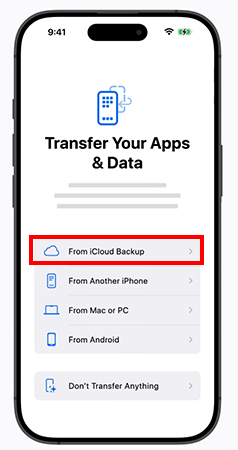
For a Completely Lost or Broken Device: Turn on your new or reset iPhone, proceed through the setup screen, and choose “Restore from iCloud Backup” to reinstall everything as it was.
What Type of Data Can You Recover from iCloud?
iCloud automatically categorizes and backs up your device data to prevent permanent data loss from accidental deletion or hardware failure. This allows you to target and restore specific data sets directly to your device without performing a full factory reset. If you lose data, it falls into one of these four major categories that can be restored:
Files
iCloud Drive saves your PDFs, zip files, and documents under Files. If you delete or change a project in native apps like Pages, Numbers, or Keynote, you can download earlier versions or missing files from Files.
Contact
Losing a phone number is resolved through database rollbacks. Apple archives your address book, letting you select and restore a previous version of your contact list across all devices.
Calendar
If a shared meeting, calendar event, or any reminder is deleted, iCloud restores your schedule. You can select the snapshot from a specific timestamp to restore it back.
Bookmark
Safari browser data is tracked and saved across your Apple account. If you accidentally clear your browsing history or remove saved links, iCloud restores them.
Note: You can access the iCloud Recovery Portal from any Windows PC web browser to restore your data.
How to Get Your iCloud Data Back?
Recovering lost data from your Apple account is an automated process built directly into Apple’s cloud architecture. Whenever files, images, videos, or documents are modified or removed, iCloud safeguards your history by keeping a copy of your data from live device storage. This gives you a way to recover deleted iCloud files and keep your records safe.
Method 1: Using the iCloud Data Recovery Portal
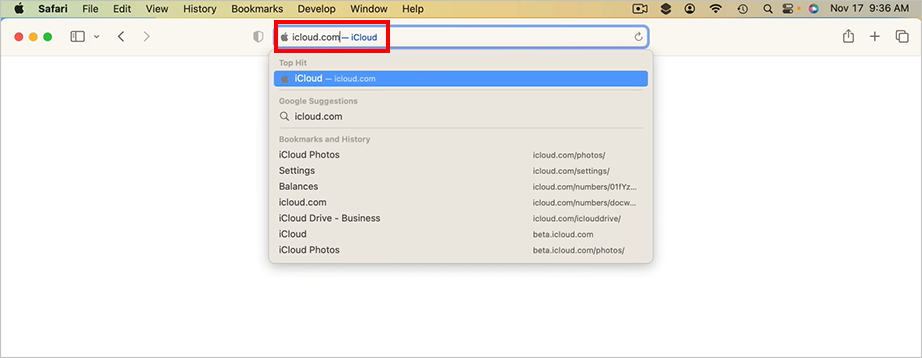
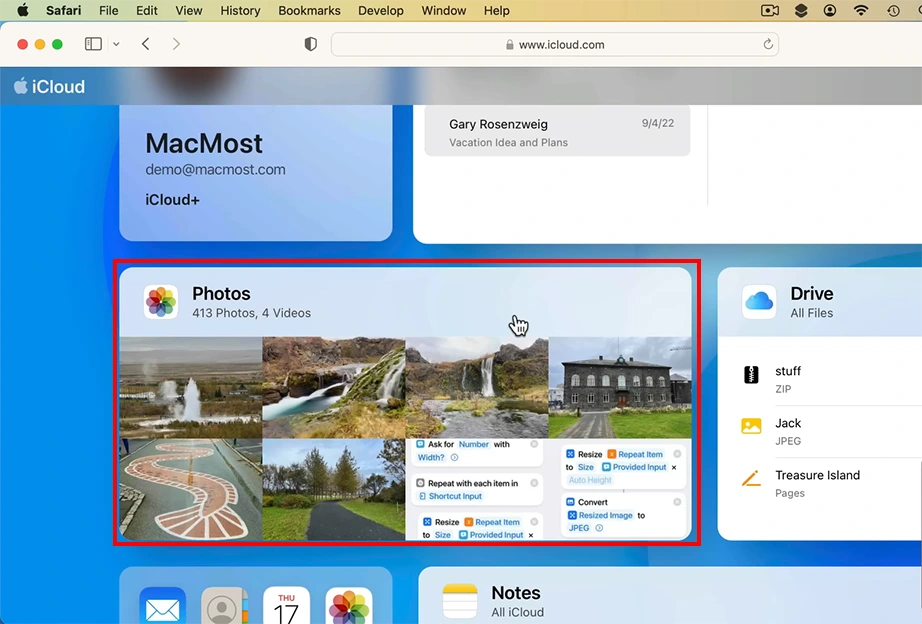
The iCloud data recovery portal is a web-based dashboard hosted by Apple that lets you manage and restore synced data databases apart from your physical devices. This is easy to access on any desktop browser and recover lost data from iCloud.
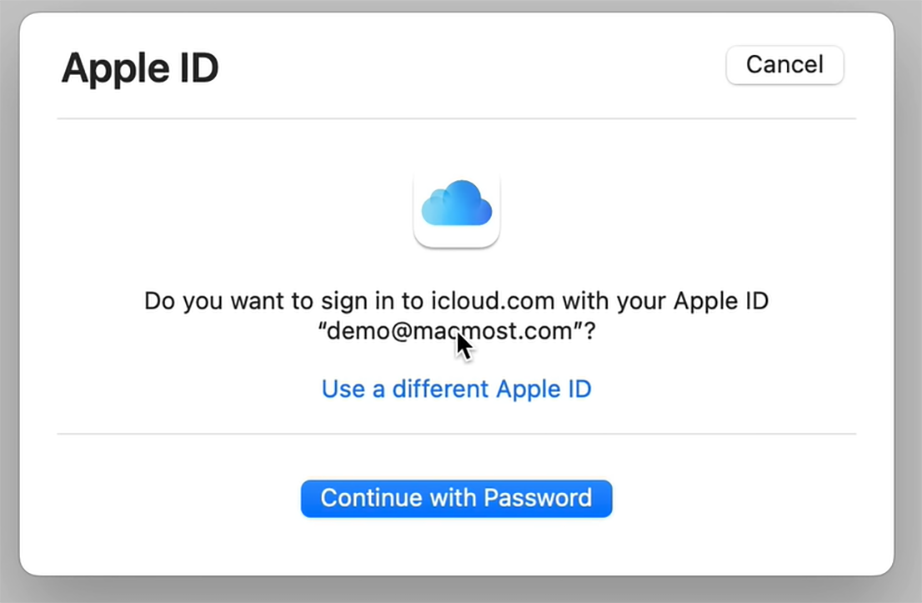
Log in using your personal Apple Account credentials and complete any two-factor authentication.
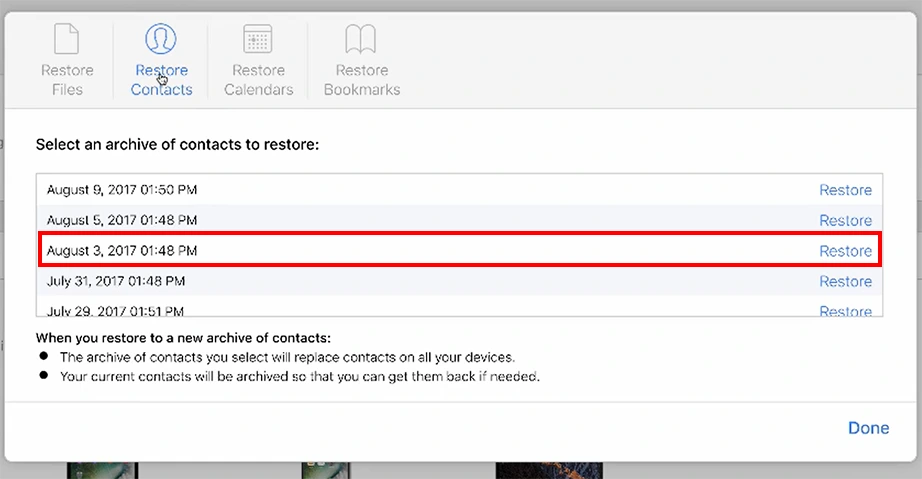
Choose a category by clicking on either Restore Files, Restore Contacts, Restore Calendars, or Restore Bookmarks to recover data from iCloud.
Select the version from the available archives.
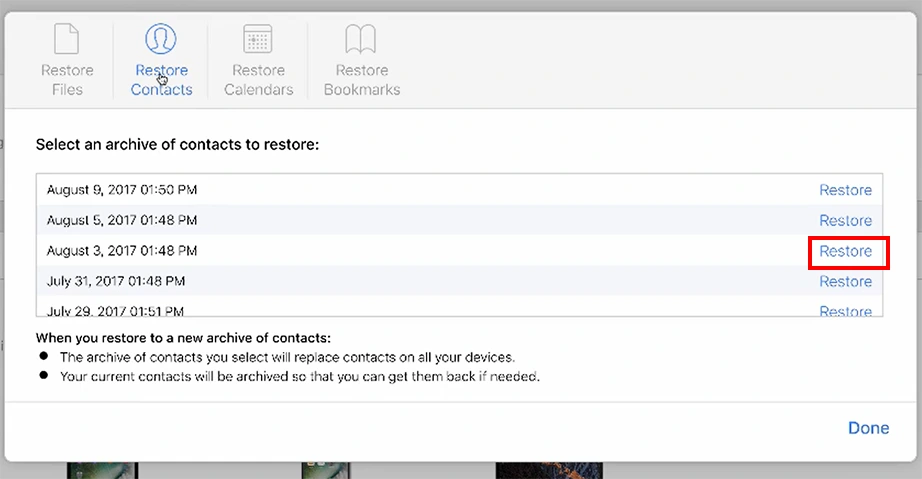
Click the Restore next to the specific archive or individual file you want to restore.
Click the Restore button to confirm the restoration and automatically push the recovered data to your connected Apple ecosystem devices.
Method 2: Recovering Media Directly on an iPhone or iPad
iCloud data recovery is slightly different on iPhone or iPad. This is a device-centric method; it targets application-specific data caches that remain stored on your cloud profile but have stopped displaying on your device or were accidentally deleted.
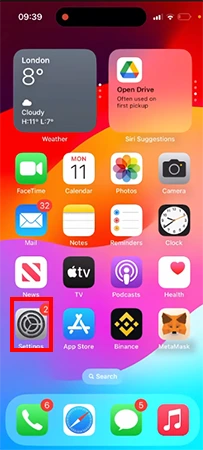
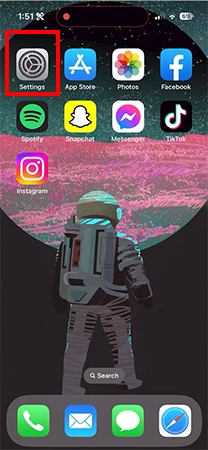
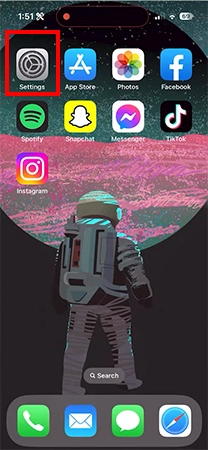
Open the Settings app on your iOS or iPadOS device.
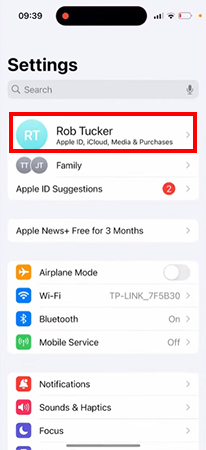
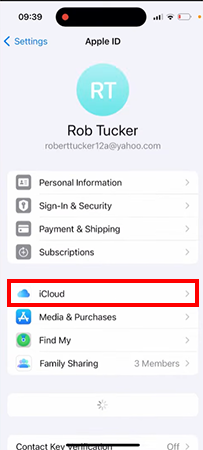
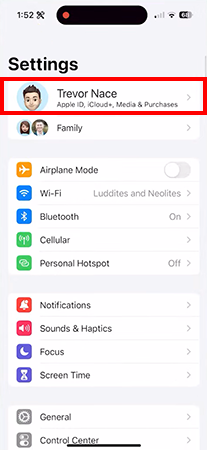
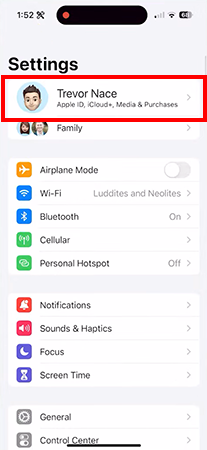
Tap your Apple Account profile name located at the very top of the menu screen.
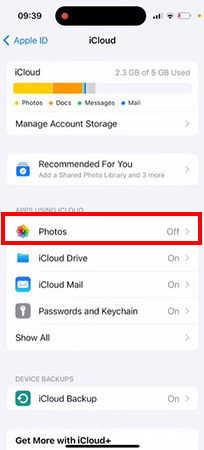
Select iCloud and then tap See All under the Apps Using iCloud section.
Select the specific app.
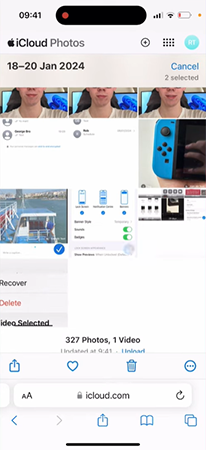
Go to the desired folder and select the files to be recovered.
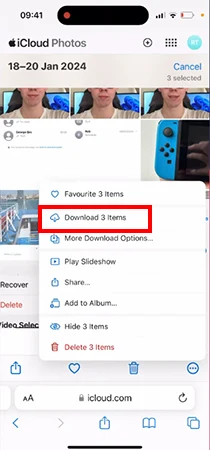
Select your missing media files and tapOptions (…) > Download to restore them to your active device library.
Method 3: Recovering Deleted Files from iCloud Recycle Bin
The iCloud Recycle Bin keeps your deleted files for 30 days, giving you a way to recover deleted iCloud data before they are removed from the cloud ecosystem. You can recover photos from iCloud, videos, documents, etc.- basically anything that was stored on the device and synced with iCloud before deletion.
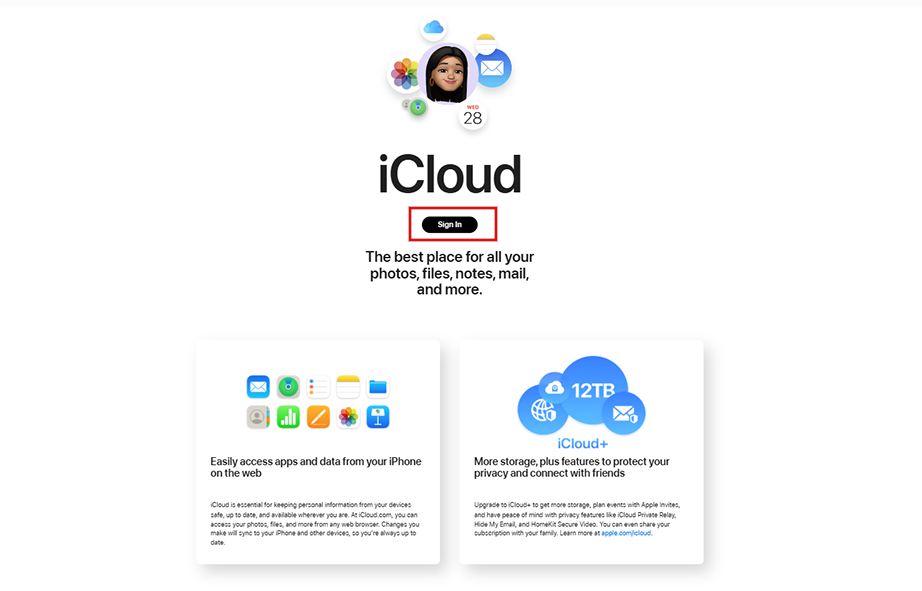
Open a web browser and go to iCloud Drive.
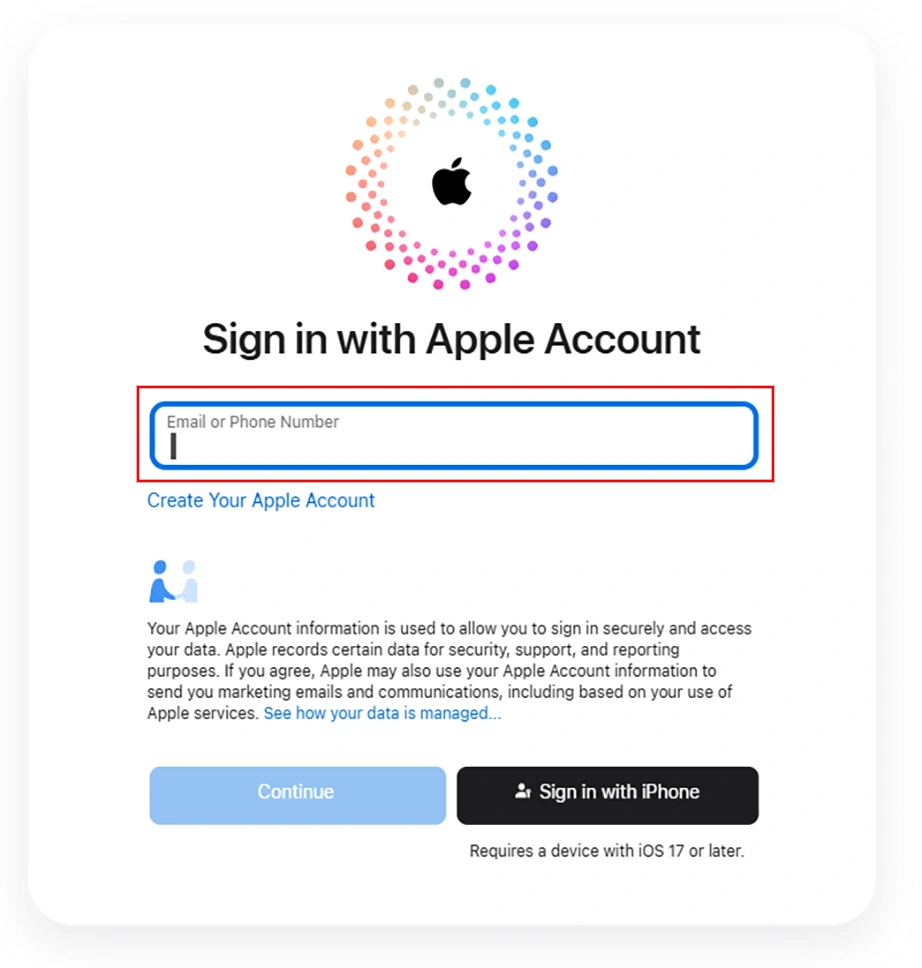
Sign in using your Apple Account credentials and complete the identity verification prompt.
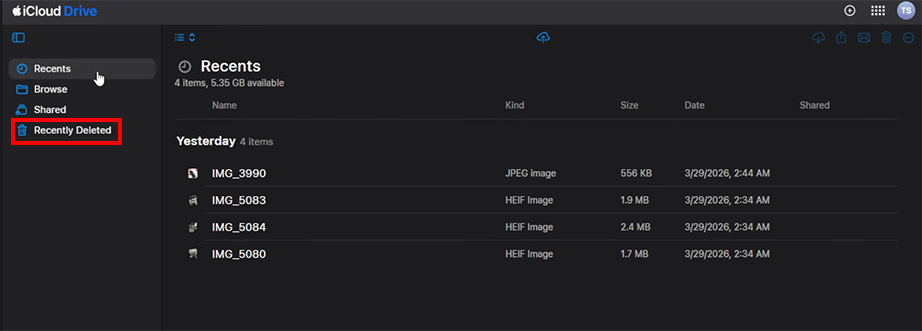
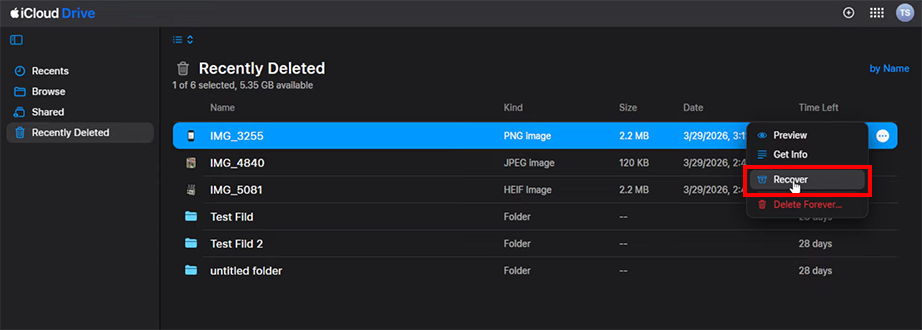
From the left sidebar, select the Recently Deleted folder.
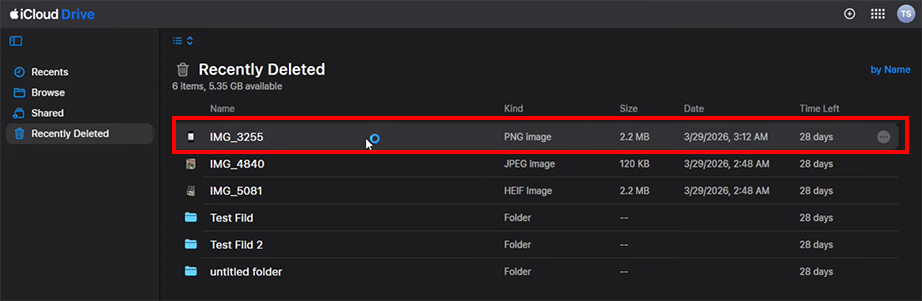
Look for your specific PDFs, documents, photos, or folders you want to restore and select them.
Right-click and click the Recover button at the top to send the files back to their original location in iCloud Drive.
Method 4: Performing a Full Device Restore From iCloud Backup
A full device restore is a system-wide recovery method used when you lose data from an Apple device. This process completely overwrites your current hardware by extracting a previously saved data version from Apple’s backup server.
Tip: Always verify your backup date before starting a factory reset.
Open the Settings app on your iPhone.
Click on your profile at the top.
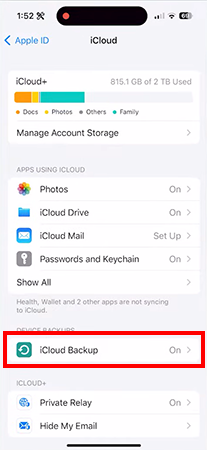
Select iCloud and then go to iCloud Backup. Check under All Devices Backups to ensure a backup exists from before your data loss.
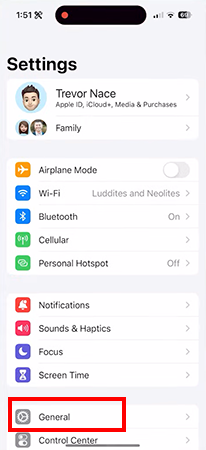
Go back to the main Settings menu and select General.
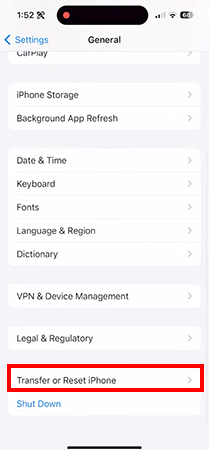
Scroll down and tap Transfer or Reset iPhone.
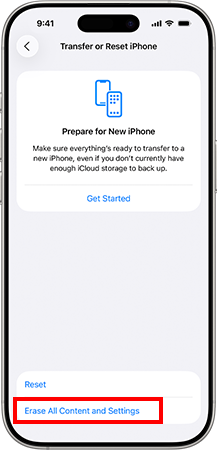
Tap Erase All Content and Settings, then enter your device passcode and Apple Account password to confirm the factory reset.
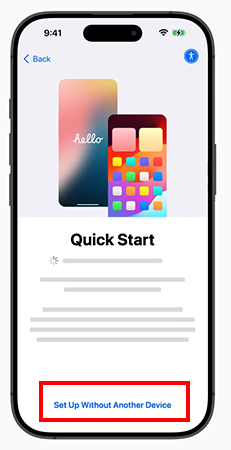
Wait for the device to restart and display the multi-language Hello setup screen.
Follow the on-screen prompts to select your language, region, and connect to a secure Wi-Fi network.
Once you reach the Apps & Data screen, select Restore from iCloud Backup.
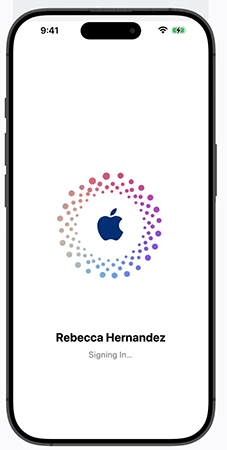
Sign in with your Apple Account.
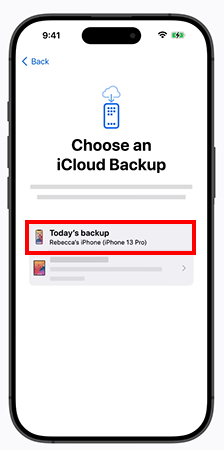
Choose the specific backup file date you verified before and keep the device plugged into power until the progress bar completes.
Advanced iCloud Recovery Options
When recycling bins or standard syncs fail to return your lost files, you must look into advanced extraction procedures for iCloud data recovery. It is possible to recover iCloud data without backup snapshots by checking hidden temporary local caches. So, if you have a locked Apple account or a device that lacks cloud storage files, here’s what can help you get your files back.
Method 1: Using a 28-Character Recovery Key
If you have Apple’s Advanced Data Protection enabled, your cloud files use end-to-end encryption. This means Apple cannot assist you with account resets. If you lose your password, you must use your pre-generated physical key to manually decrypt your data on Apple’s servers.
Tip: Store your 28-character recovery key safely in printed form too.
Open the Settings app on your iPhone or iPad.
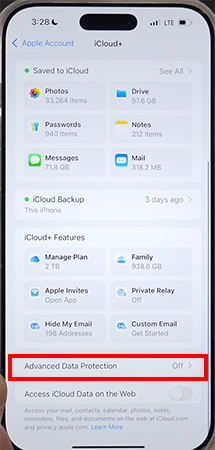
Enter your Profile and go to iCloud.
Scroll down and tap Advanced Data Protection.
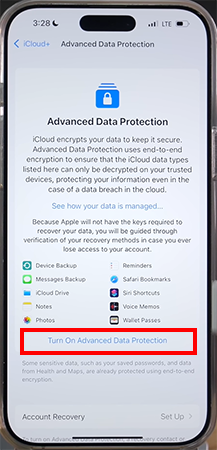
Tap Turn on Advanced Data Protection.
Now follow the on-screen instructions to review your recovery methods and enable Advanced Data Protection.
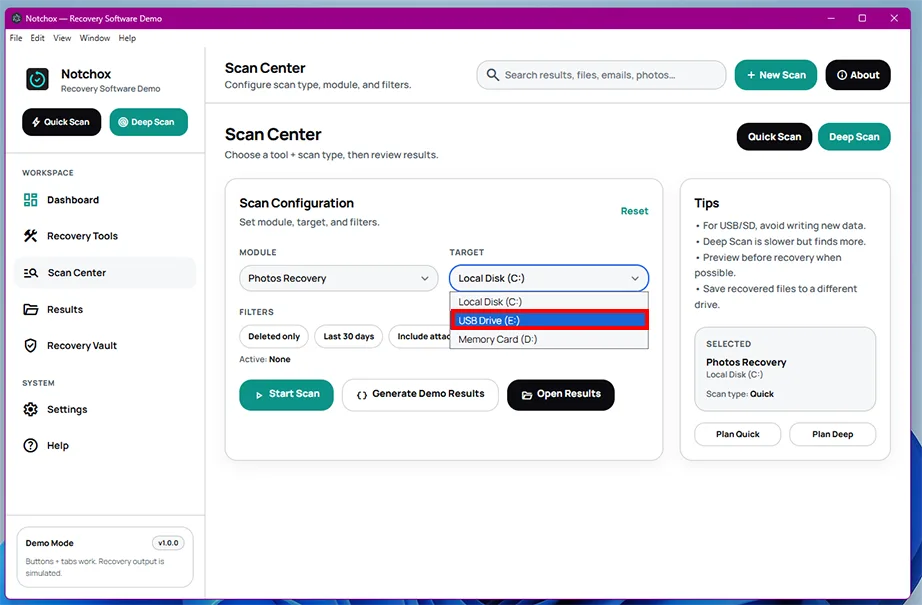
Method 2: Using Notchox Data Recovery Software for Deleted Files
Specialised data recovery tools such as Notchox are needed to recover files when no recovery method works. This tool scans the raw storage sectors on your desktop or device connections to pull back data before it is overwritten.
Launch the software and select your drive to recover the deleted files from.
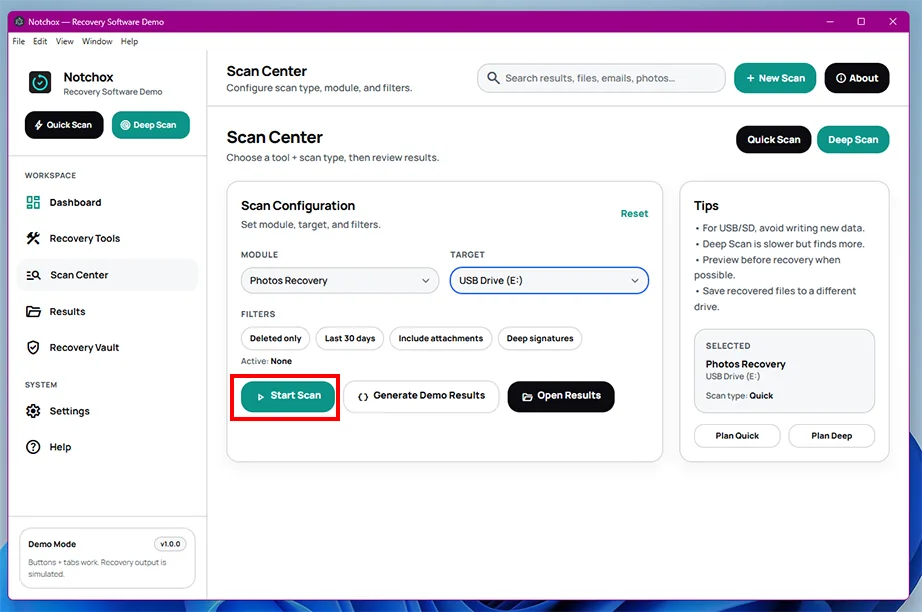
Click the Start Scan button to let the advanced algorithm crawl the device storage and recover deleted files.
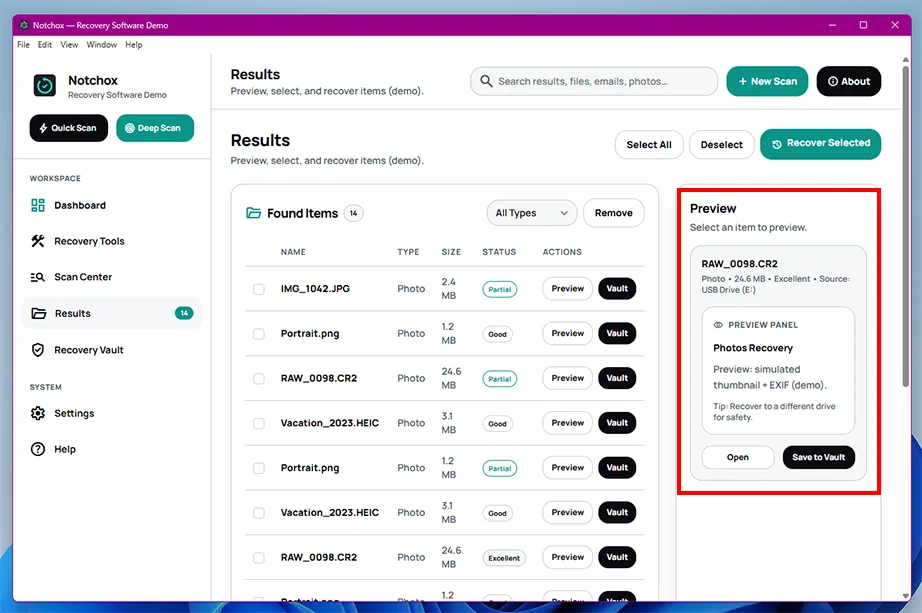
Use the pre-recovery Preview window to check the recoverable files. And select the ones you wish to restore.
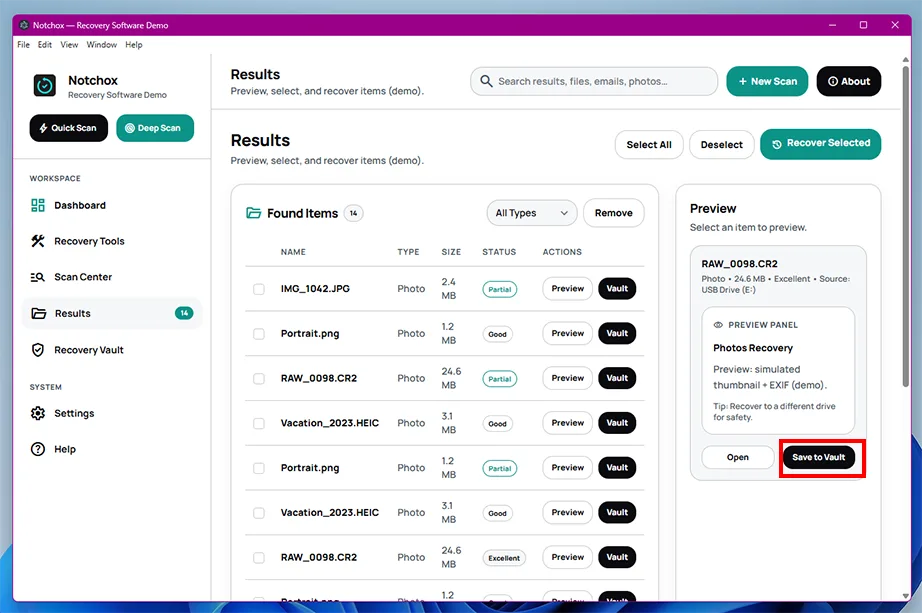
Click the Save to Vault button to export them securely to your computer.
Wrapping Up iCloud Data Recovery
For a macOS or iOS user, iCloud data recovery is an incredible trustful source engineered to get back your deleted or locked data without any third-party apps or software.
Here is a quick recap for the core methods of iCloud data recovery:
The 30- day Window: Apple stores your recently deleted photos and files temporarily for 30 days for restoration.
The Web Portal: You can use icloud.com to roll back lost contacts, calendars, bookmarks, notes, etc.
Full Restores: Run full cloud backups for total device memory backup restoration.
Advanced Fallbacks: Security encryption keys and tools like Notchox software restores data even without cloud backups.
Frequently Asked Questions
Q1: Can iCloud data be recovered?
Ans: Yes, iCloud data is highly recoverable. Apple automatically retains your deleted files for 30 days in a temporary folder. For older or permanently deleted items, you can use the web-based iCloud Data Recovery Portal or restore your phone from an older system backup.
Q2: Can Apple help me recover my iCloud?
Ans: Apple can help you regain access if you forget your password, but cannot recover permanently deleted files for you. If you have Advanced Data Protection turned on, Apple doesn’t hold your encryption keys, meaning data recovery is entirely in your hands.
Q3: What is the iCloud data recovery process?
Ans: iCloud data recovery is Apple’s built-in system for rescuing lost files from cloud servers. It works through three main pathways:
Checking the localised Recently Deleted folder on your device.
Select Restore from iCloud Backup on your iPhone’s setup screen.
Q4: How to recover data from iCloud?
Ans: To recover data from iCloud:
Visit the iCloud data recovery portal.
Sign in using your Apple ID credentials.
Select the files you want to restore and click the Download button.
Q5: Can I recover deleted iCloud files?
Ans: Yes, you can easily recover deleted iCloud files from the Recycle Bin and use reliable data recovery tools such as Notchox.
Go to the official iCloud website.
From the left sidebar, go to the Recently Deleted folder.
Locate your deleted files and select them.
Click on the Restore button to return them to their original destination on the device.
Q6: Is it possible to recover iCloud data without backup?
Ans: Yes, you can download iCloud data without a backup using the data recovery software.
Download and install Notchox data recovery software on your Apple device.
Select the target drive from the software dashboard to deep scan.
Now click the Start Scan button to begin the recovery process.
Preview the recoverable files to check their integrity, then restore them to a secure drive.
Q7: Can I restore everything from an iCloud backup?
Ans: Yes, you can restore the entire system data from an iCloud backup. You need to erase all content from your iPhone, and once the phone is restarted, from the Apps & Data screen, select Restore from iCloud Backup.
Kajal Singh is a Data Recovery Writer at Notchox, specializing in data recovery, storage systems, RAID, and digital forensics. She writes technical processes, tools, and cases into clear, engaging articles, blogs, and guides. Kajal does thorough research, deep analysis, and collaborates with experts to produce high-quality and engaging content that is easy to understand for every reader.