Deeksha Arora Aug 19, 2026
Ans: To recover deleted files, check your system’s Recycle Bin or Trash folder. If files aren’t there, you can restore them using the local system backups or specialised third-party data recovery software.
When you delete a file, its actual data remains on your storage drive until new information overwrites it. Therefore, you should immediately avoid unnecessary computer use to maximise your chances of successful recovery.
Just knowing how to recover deleted files is not enough; knowing the type of storage drive also matters here because traditional HDDs leave deleted blocks untouched until needed, and SSDs use automated background commands that erase blocks much quicker, which makes recovery more challenging. But it is rarely impossible to get your data back.
This guide covers all the methods, including using the Recycle Bin, native and cloud backups, and even additional data recovery software to restore your deleted files.
Quick Answer: The best way to recover deleted files is to check your operating system’s Recycle Bin/ Trash. If not there, check your local backup history or cloud storage, which often keep deleted items in their own bins. When native options fail, you can use data recovery software such as Notchox to scan the drive and safely retrieve your deleted data.
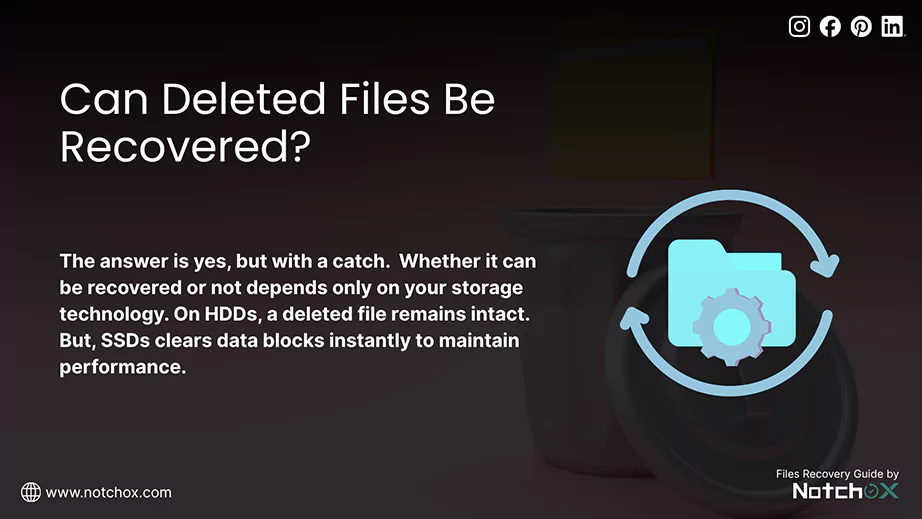
The short answer is yes, but recovering deleted files is a race against time. When you delete a file, it does not get permanently deleted. Instead, it is just hidden from your operating system. But whether it can be recovered or not depends only on your storage technology.
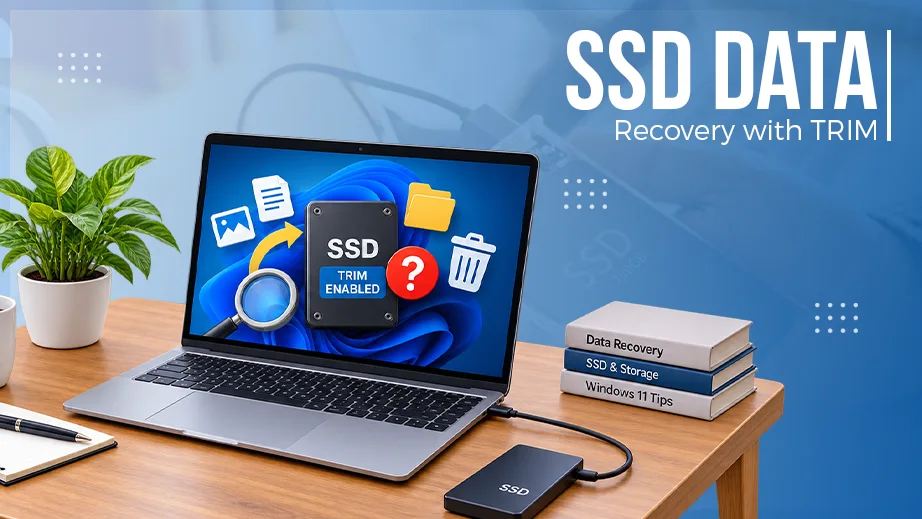
As the saying goes, “Data is the new oil,” and losing it can feel catastrophic. On traditional Hard Disk Drives (HDDs), a deleted file remains intact on the platter. The operating system just marks its space as “free,” i.e., you can recover the data until new files overwrite it. Modern Solid State Drives (SSDs) use a feature called TRIM that clears data blocks instantly to maintain SSDs’ performance.
So once TRIM executes, happens in no time, and that’s exactly how SSD TRIM works to make file recovery nearly impossible.
Depending on how long ago you deleted the file and what device you used, you can recover the deleted file. Restore them from your device’s built-in Recycle Bin or Trash, from backups, or native file recovery tools. And if you think files were deleted permanently, you must stop saving new data to your drive and use specialised data recovery software to scan the drive and restore any possible data left.
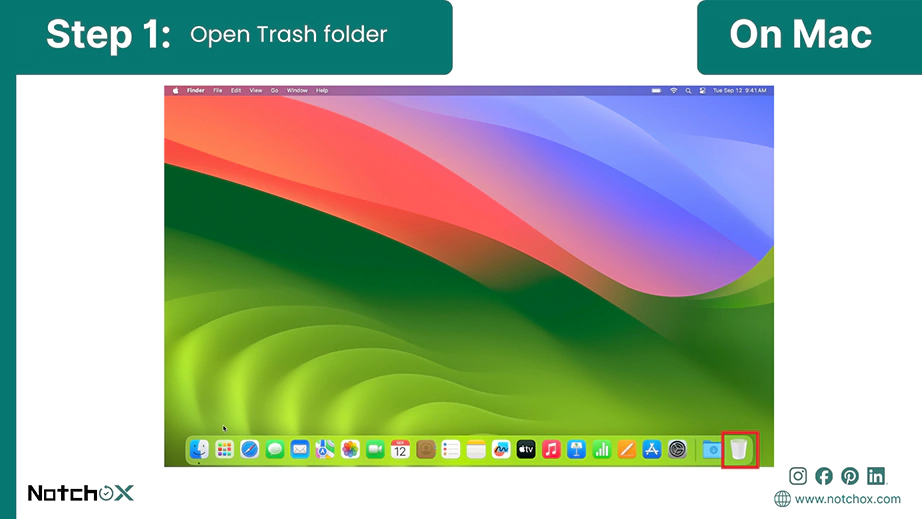
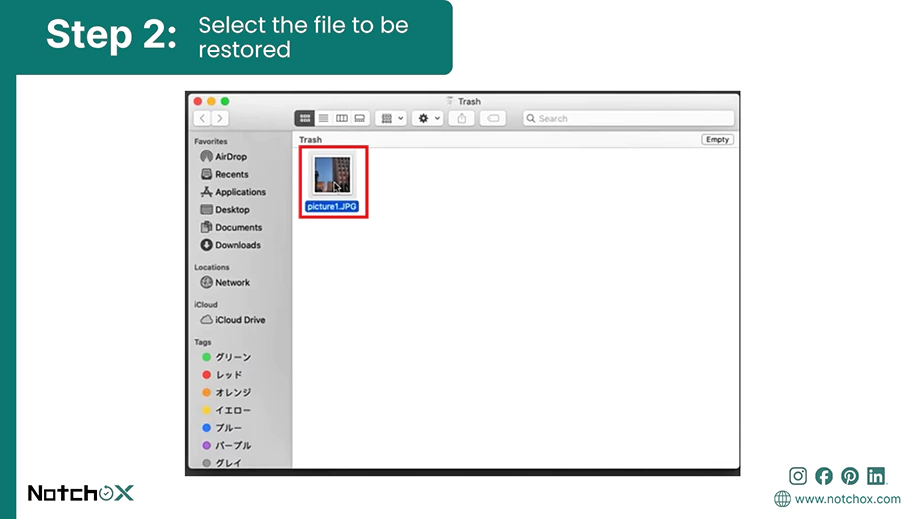
The easiest way for users looking for how to recover a deleted file is to restore it directly from your device’s Recycle Bin or Trash because this is where the deleted files go first. They stay there until manually deleted. The steps to restore them depend on the device you use.
Note: By default, the Mac Trash never empties automatically. You can manually set auto-empty trash from System Settings.
On macOS, the Trash folder is like a temporary holding zone that keeps your deleted files before they are manually permanently deleted. You can easily put back the deleted files in a few clicks. For detailed Mac-specific recovery methods, see our guide on how to recover deleted files on Mac.
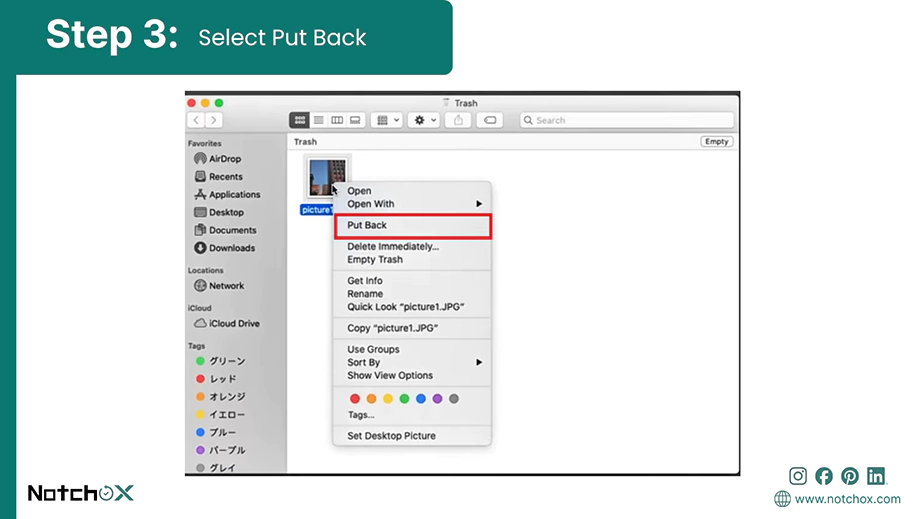
Fun Fact: Apple introduced the “Trash” icon in 1984 with Lisa OD, changing digital file deletion forever.
How to recover deleted files from Recycle Bin on Windows?
Just like Mac, Windows too has a safe temporary storage folder for deleted files, the Recycle Bin. This can be used if you are looking for how to recover recently deleted files on Mac. If you act before the bin is permanently emptied, your data can be restored easily.
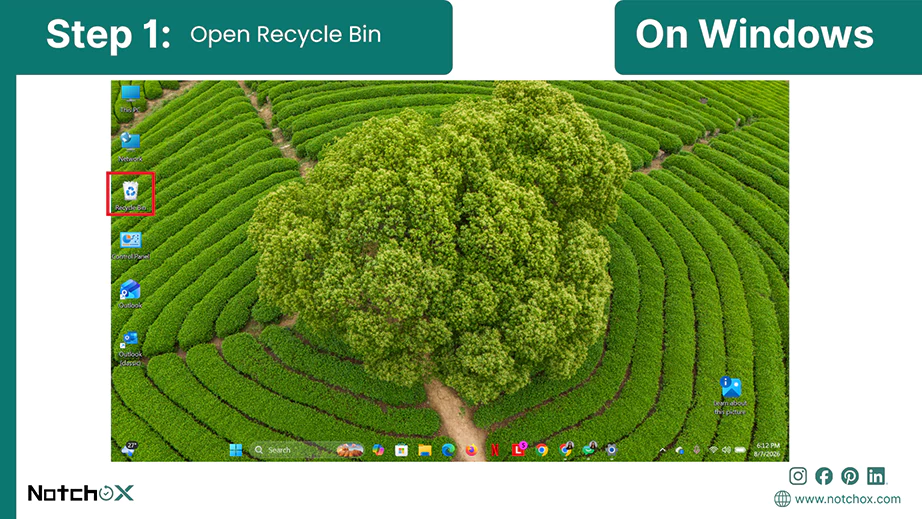
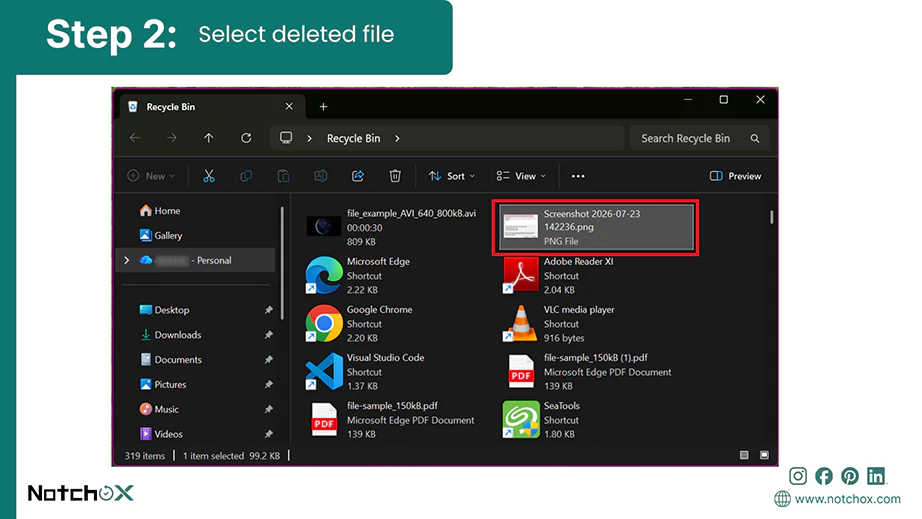
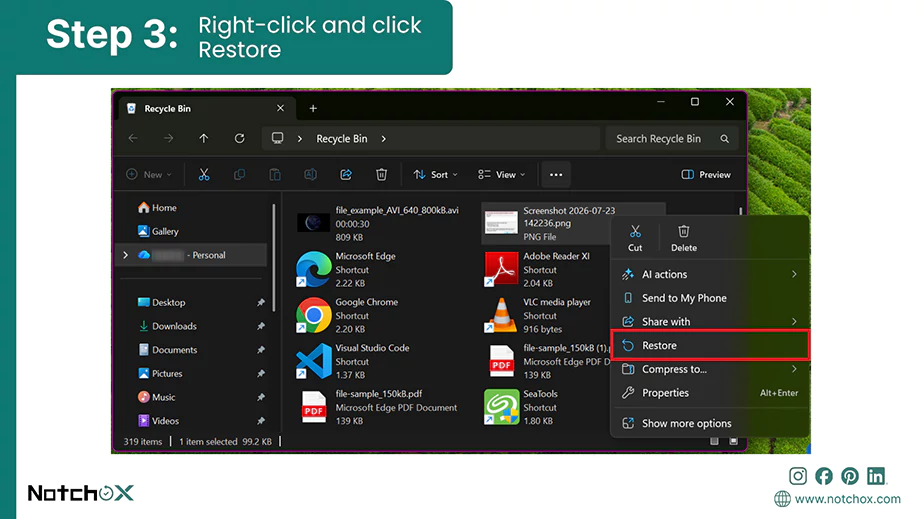
If you regularly empty your trash or have your drive wiped, your next best answer to how to recover deleted files is BACKUPS. So, you can have two kinds of backups: native and cloud. Native backups are preferable because they come at no cost, while cloud backups come with charges.
Below, I’ve shared steps to restore from your backup on different devices.
Cloud storage services like Google Drive, OneDrive, and iCloud sync your files to the internet secure and convenient to restore. If you delete a file from your computer and it is already synced with your cloud storage, you can restore it by logging into the cloud provider’s web dashboard.
In case the file is completely missing from the drive, it might be there in the cloud’s dedicated secondary storage area due to data retention policies. When a file is deleted from a shared folder or synced across multiple devices, cloud servers don’t erase it immediately. They quarantine the item in the cloud recycle bin or deleted items folder for a 30-day grace window, providing a solution for how to recover deleted files from Google Drive, OneDrive, and iCloud in case of permanent deletion.
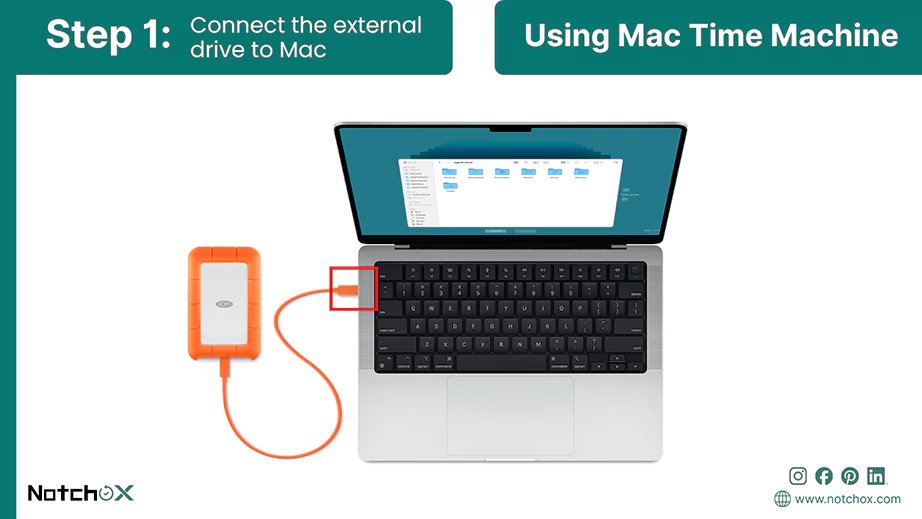
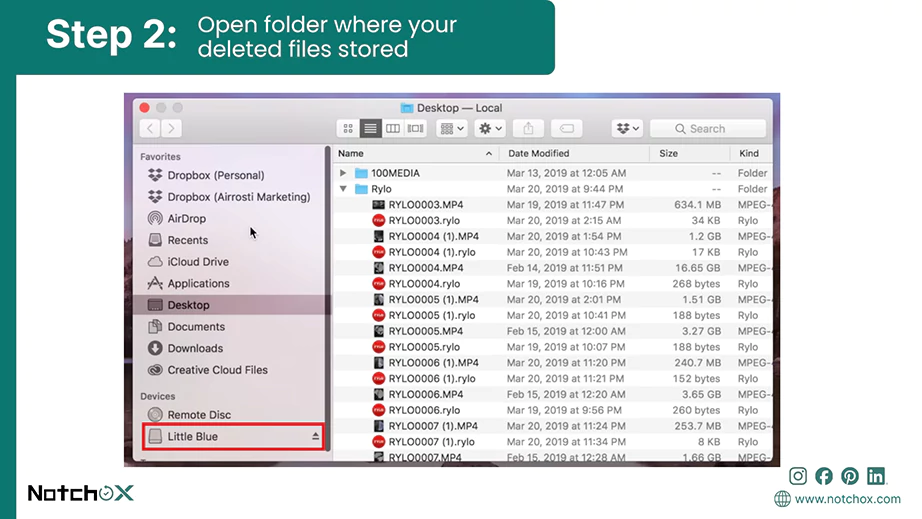
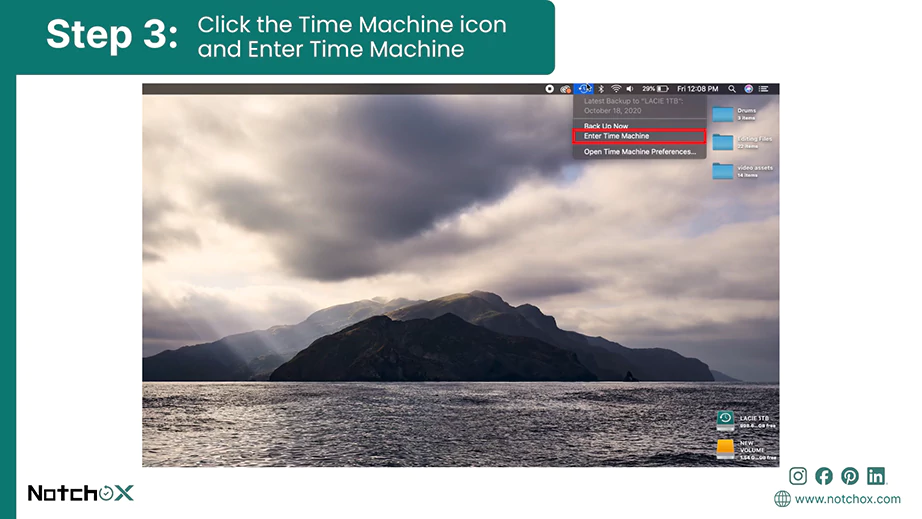
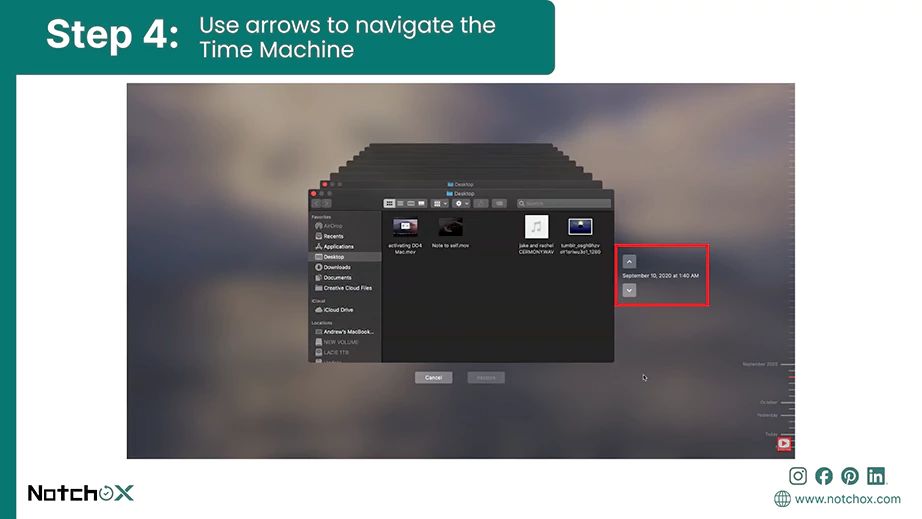
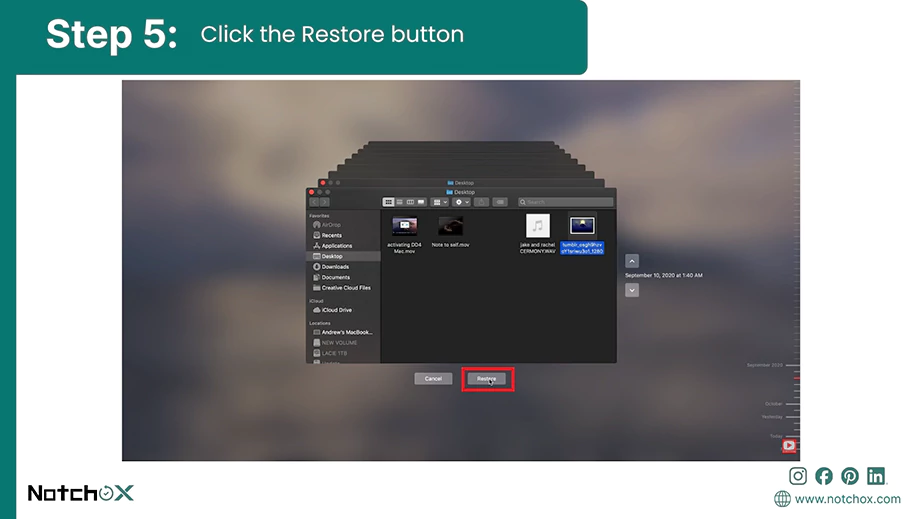
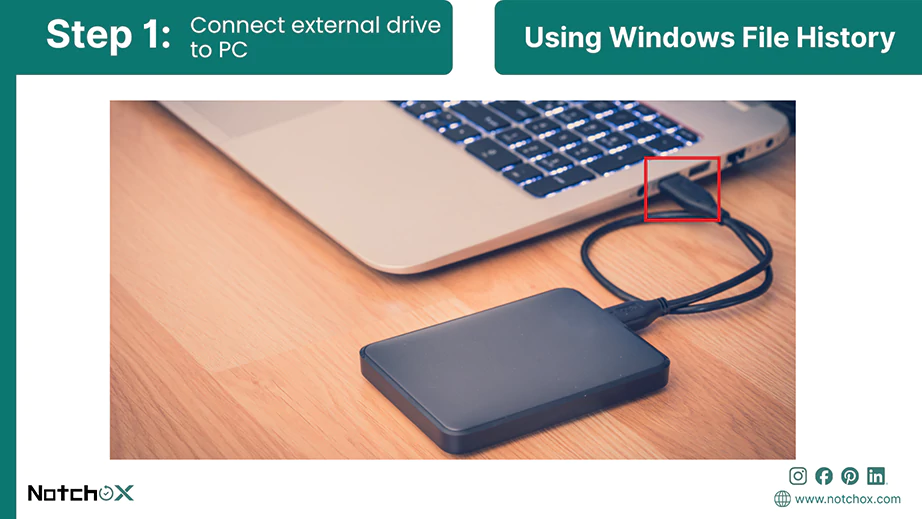
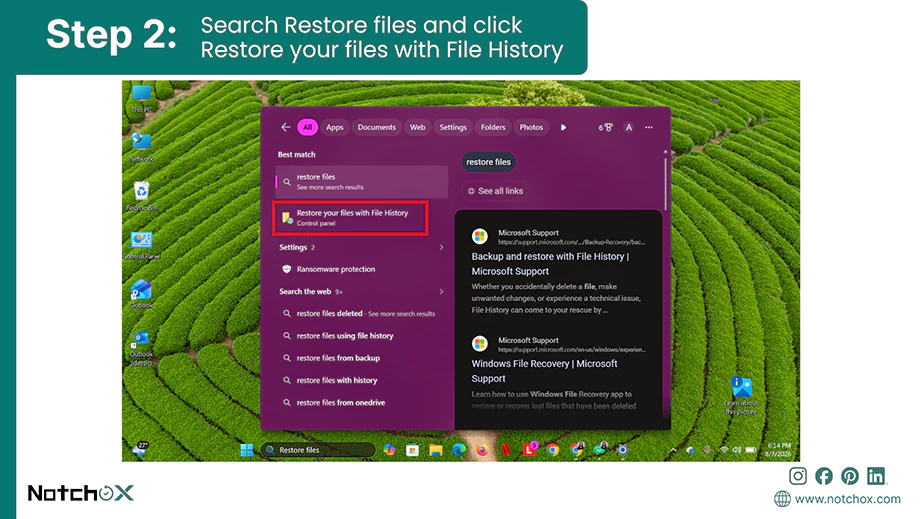
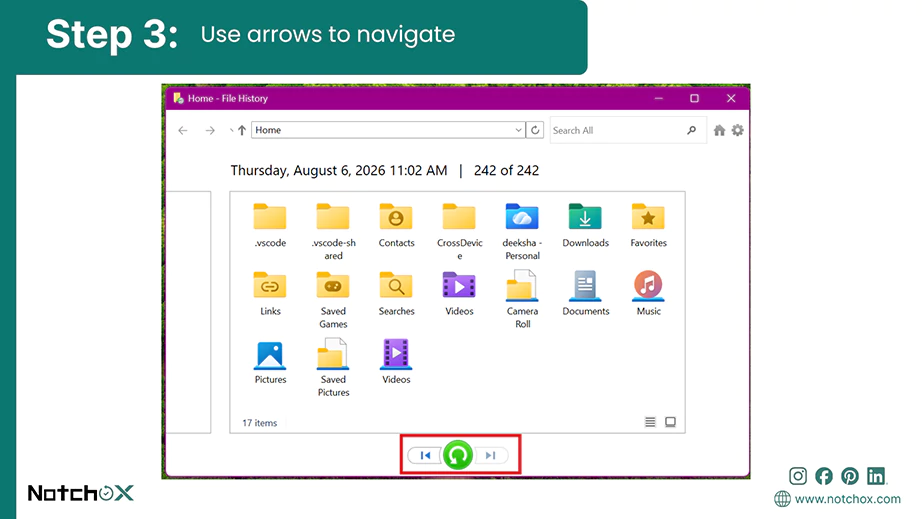
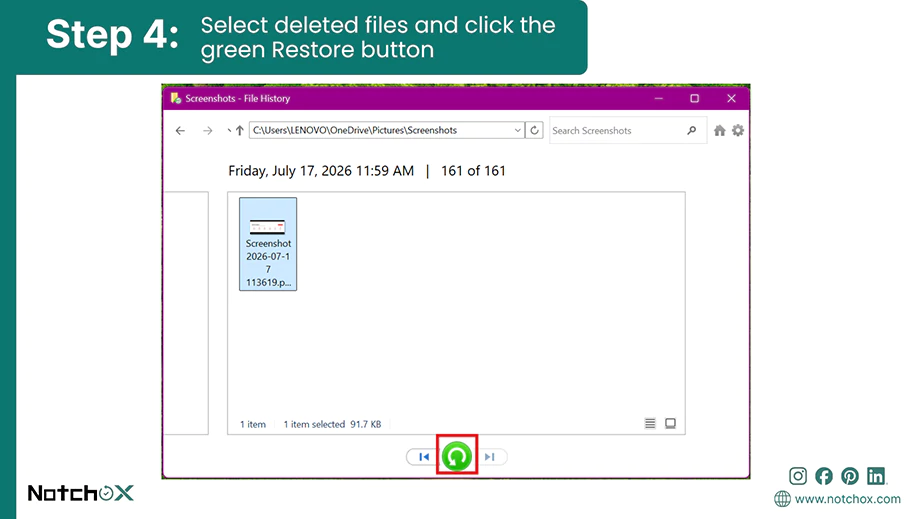
System utilities like Windows File History and macOS Time Machine protect your entire drive. There are built-in individual file recovery options too. If you did not set up an external backup, you can still roll back using Version History and Temporary Files.
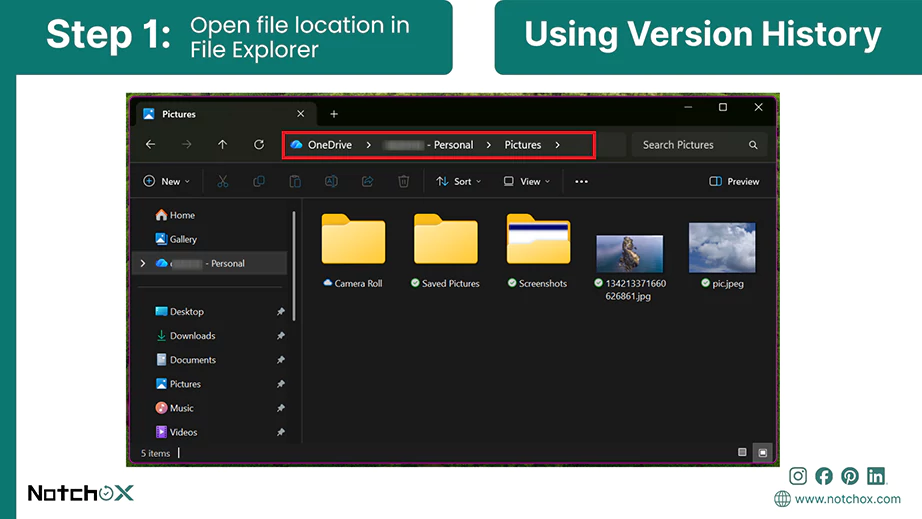
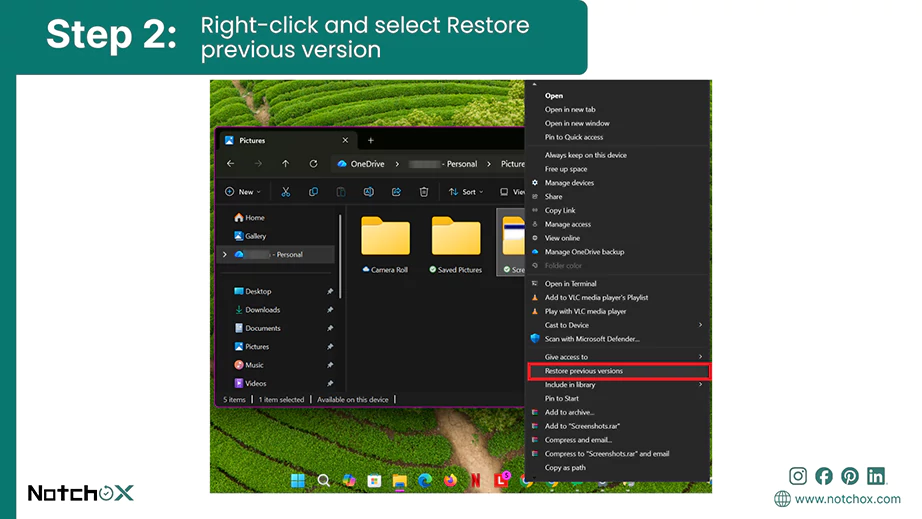
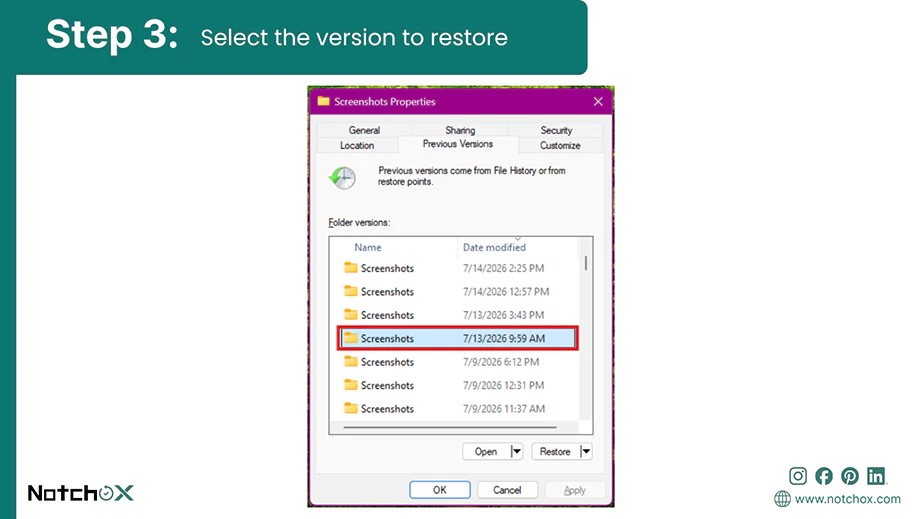
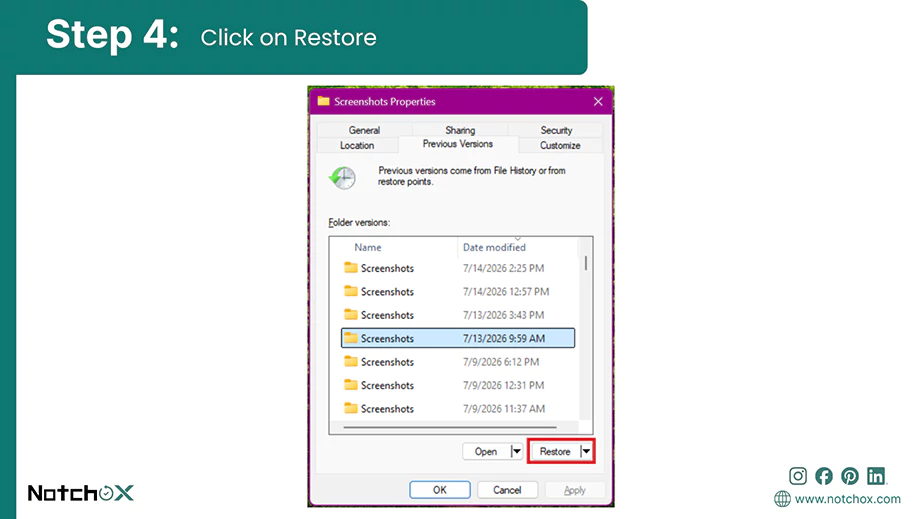
Version History tracks changes made to specific documents and folders. So if a file is deleted from a folder, you can go back to the previous version when the file was there and restore it.
Windows applications cache data across a few standard hidden directories, i.e., temporary files. Here’s how to recover deleted files on Windows.
MacOS sandboxes application caches and uses a hidden root directory for system temporary files.
Your standard backups fail, and your files are still unrecoverable by native methods. Use data recovery software; these tools don’t just browse your folders; they bypass the operating system’s surface instructions to scan the raw sectors of your storage drive. By piecing together scattered fragments, recovery software can rebuild file structures and recover deleted files being the best solution for deleted files recovery.
How to recover deleted files using Notchox Data Recovery Software?
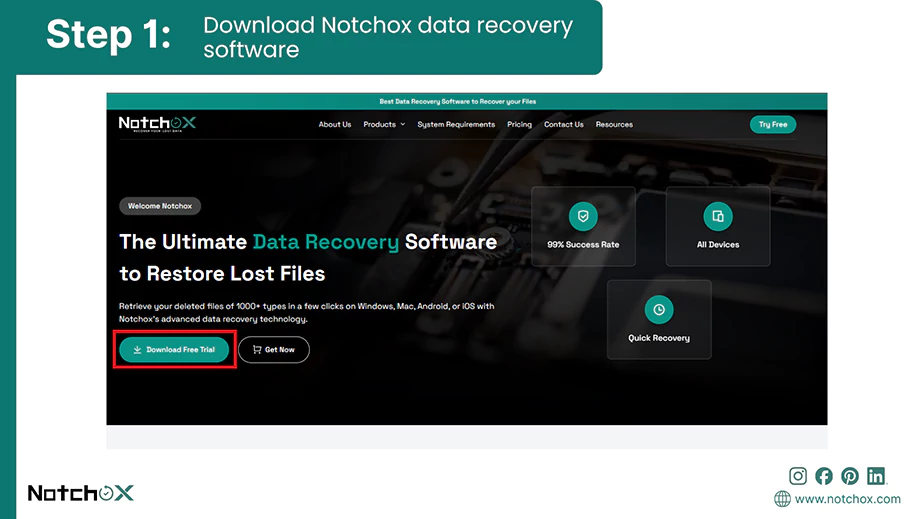
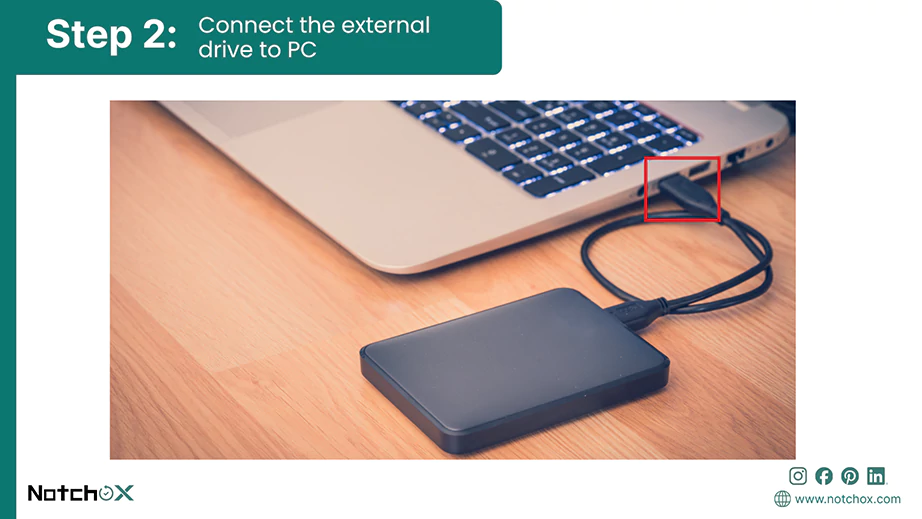
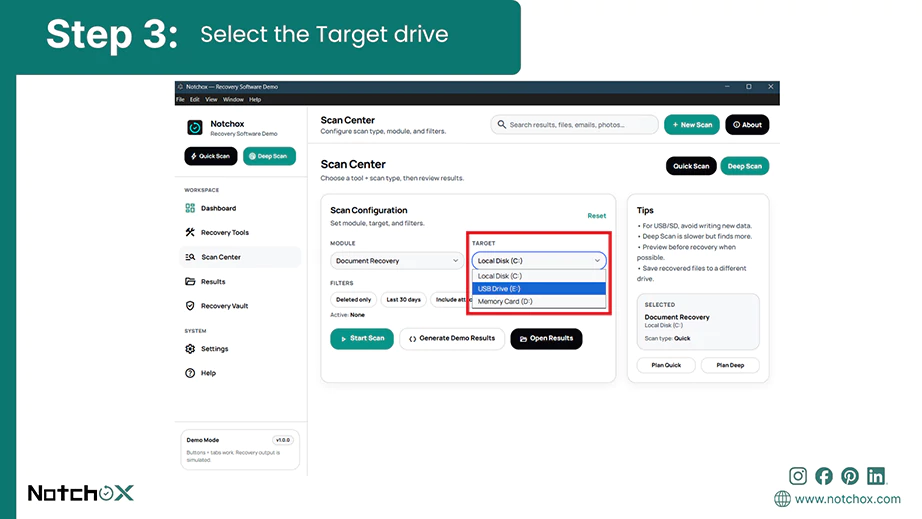
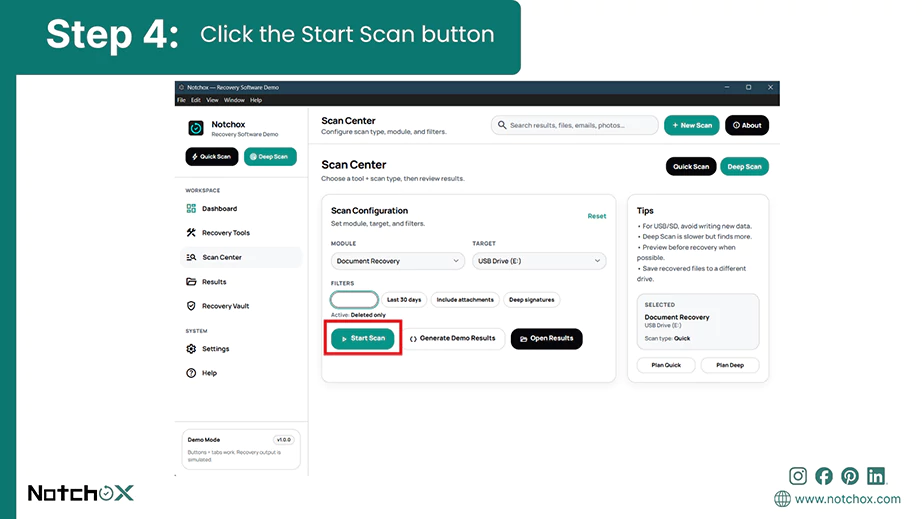
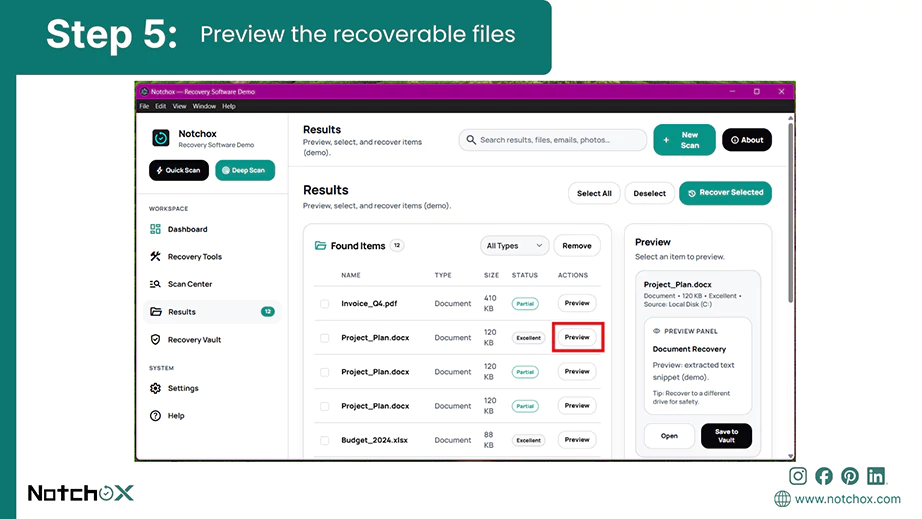
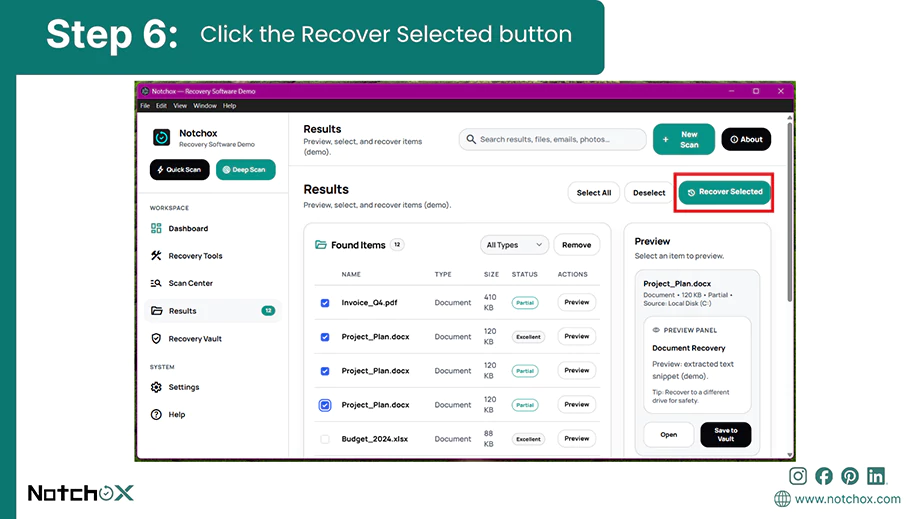
No single data recovery method works for every situation, as the right approach depends on how your data got deleted and the type of storage drive you are using. To save you time and prevent accidental data overwriting, you must match your problem with the correct method. Use the decision table below to diagnose your scenario and find your reliable path to recover deleted files.
Data Recovery Decision Table
| Data Loss Scenario | Storage Media | Recommended Recovery Method |
| Normal Deletion | Any Drive | Using Recycle Bin / Trash |
| Emptied Recycle Bin/Trash | Traditional Hard Drive (HDD) | Using Backup or Recovery Software |
| Permanent Deletion | Any Drive | Using Local Backups |
| Cloud Deletion | Google Drive / OneDrive / iCloud | Using Cloud Recycle Bin or Recovery Software |
| Overwritten Files | Local hard Drive | Using Version History / Temp Files |
| Accidental Drive Formatting | Healthy Drive | Data Recovery Software |
| Physical Drive Failure | Broken Hardware | Professional lab Service |
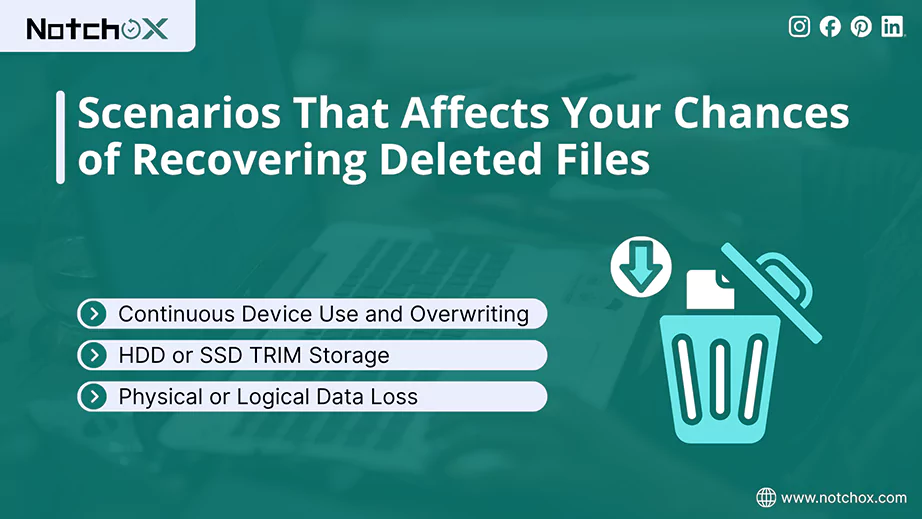
The success of any data recovery attempt is never guaranteed. Your chances of successfully getting your missing data back depend on immediate actions, your drive’s specific technology, and the type of damage the storage media has suffered.
This single most important factor under your control is how you treat your storage drive the moment you realize data is missing.
The next most important factor is your storage media.
Fact: TRIM doesn’t run to delete data safely; it runs exclusively to keep flash memory writing fast.
Finally, you must distinguish between system errors and actual hardware damage to choose the right data recovery method.
| Logical Data Loss | Physical Data Loss |
| Accidental deletion | Physical drop |
| Formatting | Liquid and water damage |
| Malware and Virus attacks | Wear and tear |
| Software crashes |
Data can be recovered by one of the methods in case of logical data loss. But physical damage to the drive requires professional lab service.
Do-it-yourself (DIY) data recovery methods give an easy fix for accidental deletions and software glitches, it has strict limitations too. Trying a DIY recovery under the wrong conditions can turn a minor issue into permanent data loss.
The main warning to stop DIY recovery is the presence of any physical damage or unusual drive sounds. These indicate that internal components of the hard drive are incapable of functioning naturally, which means trying to run it will cause permanent data loss.
Another sign is constant non-detection or disconnection of the drive. When you face such situations, your only safe option is professional data recovery. Cleanroom laboratories use specialised tools to safely preserve the drive and restore the data.
To sum up, it is important to take action as soon as you realise your files are deleted. By stopping the drive right away, you protect your data from being overwritten. For software issues being the deletion reason, built-in data recovery methods and professional software give an easy recovery. But for physical drive failures, DIY data recovery is risky. Such drives need professional data recovery services. Moving forward, keeping data backups is a good practice to prevent file deletion in the future.
Ans: To recover deleted files, check your system’s Recycle Bin or Trash folder. If files aren’t there, you can restore them using the local system backups or specialised third-party data recovery software.
Ans: Open the Recycle Bin on your Windows desktop, locate the deleted file, right-click on it, and select Restore.
Ans: Once the Recycle Bin or Trash is emptied, use native recovery tools or data recovery software to restore the files deleted from the Recycle Bin/ Trash.
Ans: Permanently deleted files can be retrieved by checking automated system backups like Windows File History or Mac Time Machine. If backups are not available, you must use specialised data recovery software to scan and restore deleted files.
Ans: No, a standard format only deletes the system directory map that makes the storage space look empty. The data still remains on the drive and can be rescued with recovery software as long as you don’t write new data over them.
Ans: Yes, trusted recovery tools are perfectly safe if downloaded from official sources. Just avoid using the affected drive unnecessarily and save recovered files to a different drive to prevent overwriting the data.
Ans: Yes, you may still be able to recover deleted files without a backup. If the file is no longer in the Recycle Bin or Trash, you can try data recovery software to scan the affected drive. Your chances depend on whether the deleted data has been overwritten and, on an SSD, whether TRIM has affected the deleted data.

Deeksha Arora is a Data Protection & Recovery Writer focusing on writing accurate, informative, and easy-to-understand technical articles for Notchox’s readers. Her content on the prevention of data loss, understanding risks of device failures, and guides to fix problems helps readers make the right decisions and understand the technical terms easily. She works closely with Subject Matter Experts to ensure high usability and accuracy of her writing.