Best Data Recovery Software to Recover your Files
Share
Resources » Datarecovery » Cloud Storage » How to Recover Deleted Files From Google Drive?

How to Recover Deleted Files From Google Drive?

Written By   Kajal Singh
|
Trenton Hogan
Reviewed By  Trenton Hogan
| Updated On July 8, 2026
How to Recover Deleted Files From Google Drive

Google Drive is extensively used by over 2 billion users and companies of all sizes for file management as a core component of Google Workspace. They are used for cloud storage, real-time collaboration, file sharing, and sharing drives to manage team-owned content.

This article outlines several methods to recover deleted files from Google Drive, ranging from restoring files from the Google Drive Trash bin to recovering files using the Google Admin Console.

Quick Answer:

Google Drive provides built-in tools like Trash and Version History to restore files within 30 days. Beyond this, Notchox Data Recovery Software helps to recover deleted files from Google Drive. This requires having used Google Drive for Desktop. It scans your computer’s local storage to recover cached or synced copies of the file.

Is it Possible to Recover Deleted Files from Google Drive?

Is it Possible to Recover Deleted Files from Google Drive

Yes! You can easily recover the deleted Google Drive files. Google Drive is actually forgiving. The deleted file from Google Drive isn’t gone forever. Whether you accidentally trashed a document or it’s been a couple of weeks, here’s how to get your files back before they are permanently purged.

Drive is increasingly targeted by ransomware, prompting Google to enhance its protection mechanism. In late 2025, Google introduced AI-powered ransomware detection that pauses drive sync during mass encryption, for easy restoration.

Note: Remember back in December 2023, many users reported missing files? Google officially rolled out a fix for that issue, which involves running the desktop app with specific arguments to restore data.

What are the Immediate Recovery Methods to Recover Deleted Files From Google Drive?

Recovery Methods to Recover Deleted Files From Google Drive

Not finding your files on Google Drive can create panic, but the platform does provide a robust mechanism for swift recovery. If the files were removed mistakenly, the trash folder keeps it for 30 days. Immediate action is important, as recovery chances diminish after this period.

This section explores rapid, native methods to recover deleted files from Google Drive.

Method 1: Google Drive Trash (on Desktop)

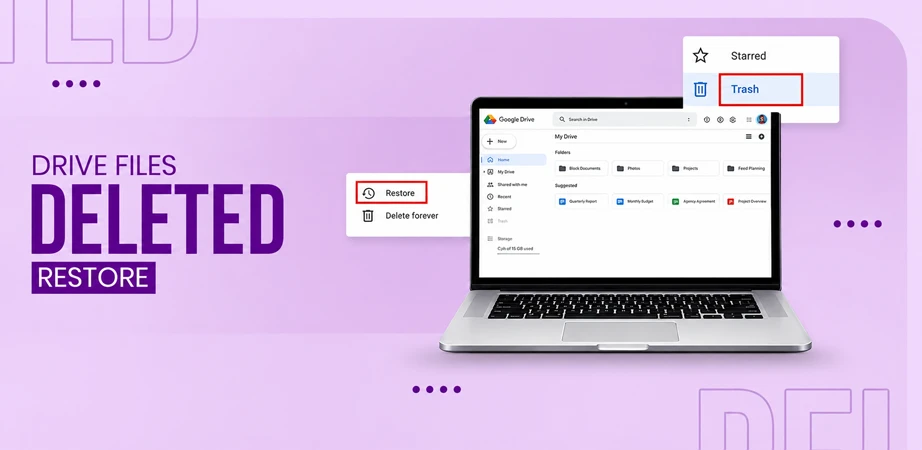
The deleted files are kept in the Trash folder for 30 days from the date of deletion, and can be recovered until permanently deleted. Here’s how you can recover files from Google Drive Trash.

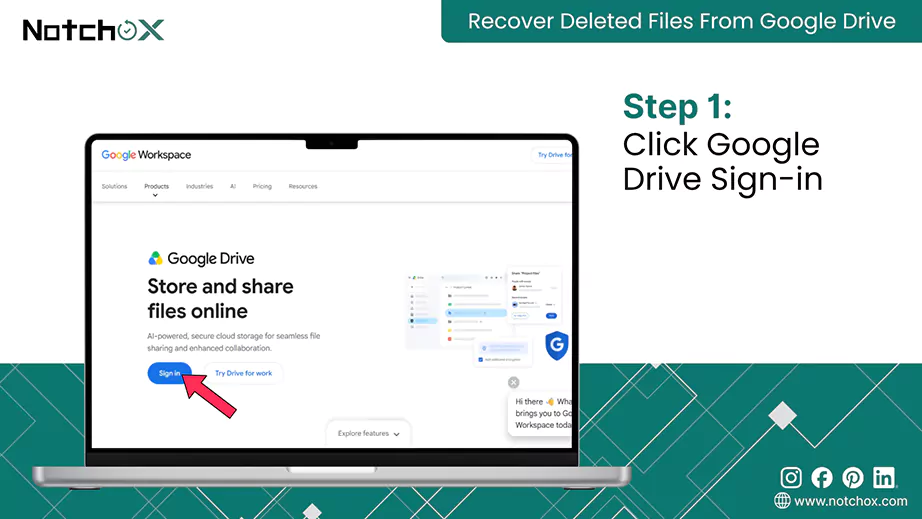
  1. Go to the Google Drive website and sign in.
    Click Google Drive Sign in
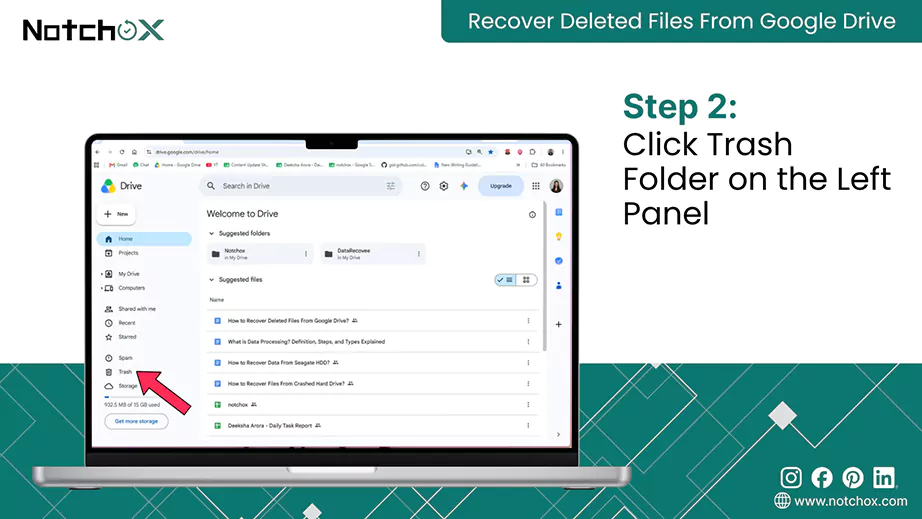
  2. On the left panel. Click Trash.
    Click Trash Folder on the Left Panels
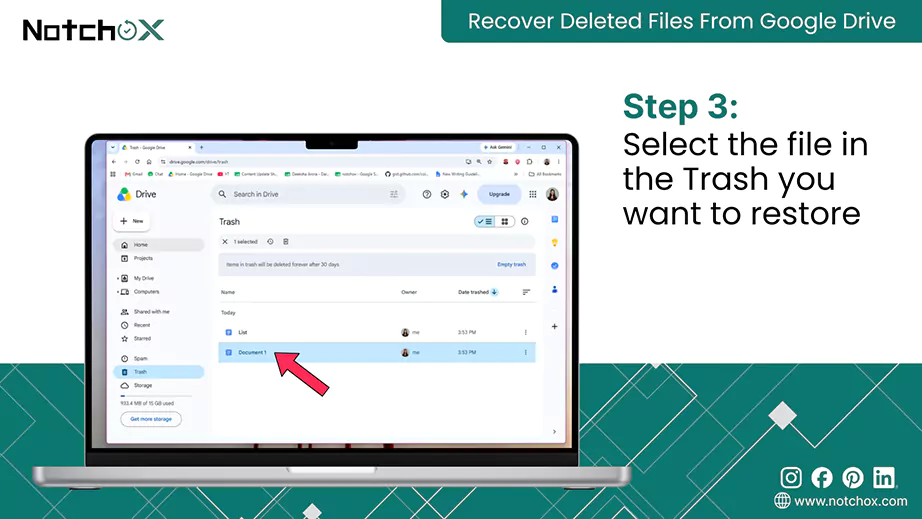
  3. You can see all your deleted files in the Trash. Select the file you want to restore.
    Select the file in the Trash you want to restore
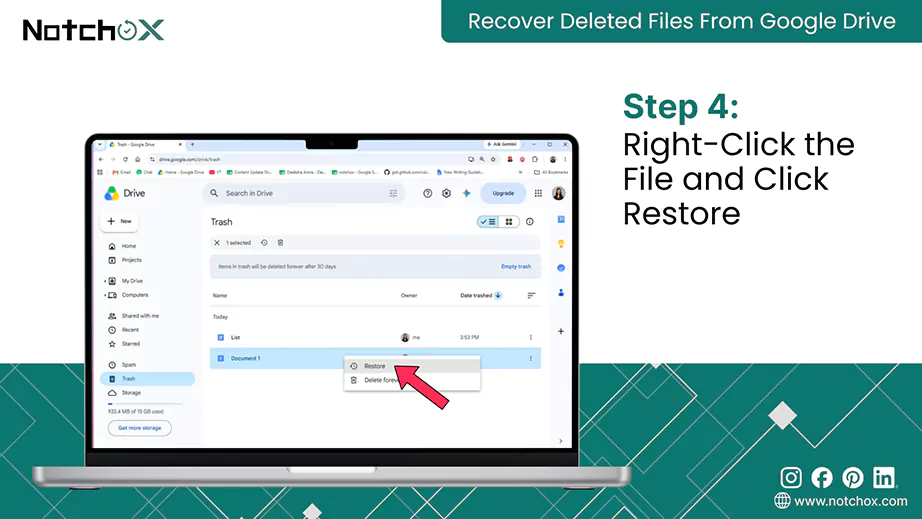
  4. Right-click on the file and click Restore.
    Right Click the File and click Restore

Method 2: Google Drive Trash (on Android/ iOS)

If you’ve deleted something recently on your Google Drive app on your phone, you can recover the files yourself. Here’s how?

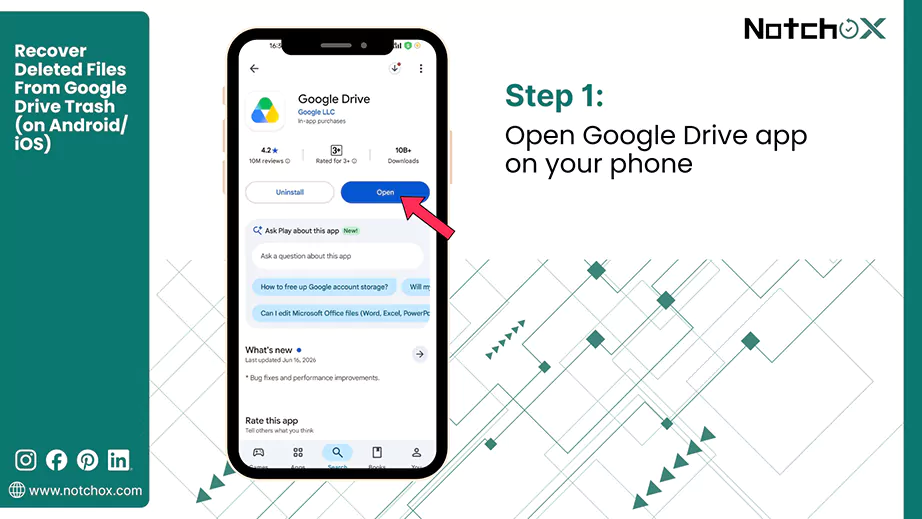
  1. Open the Google Drive app on your phone, install it and sign in to your Google account.
    Open Google Drive app on your phone
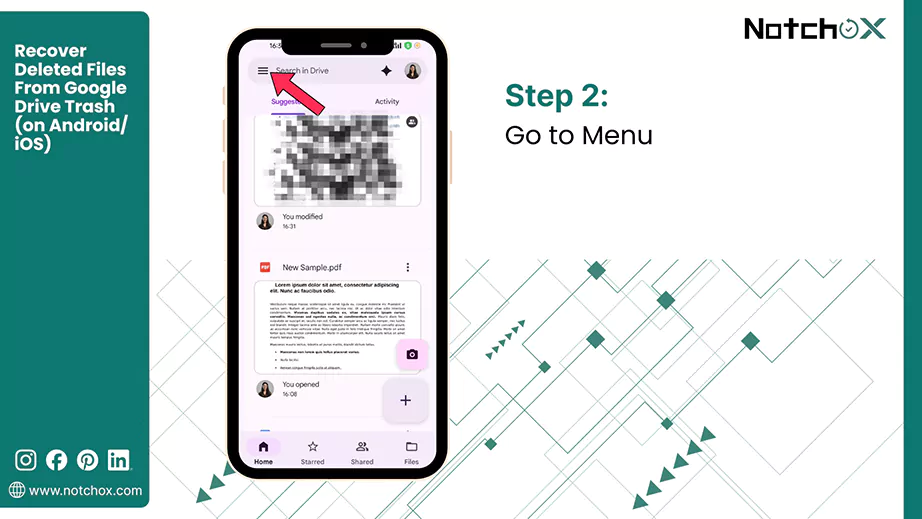
  2. Tap Menu.
    Go to Menu
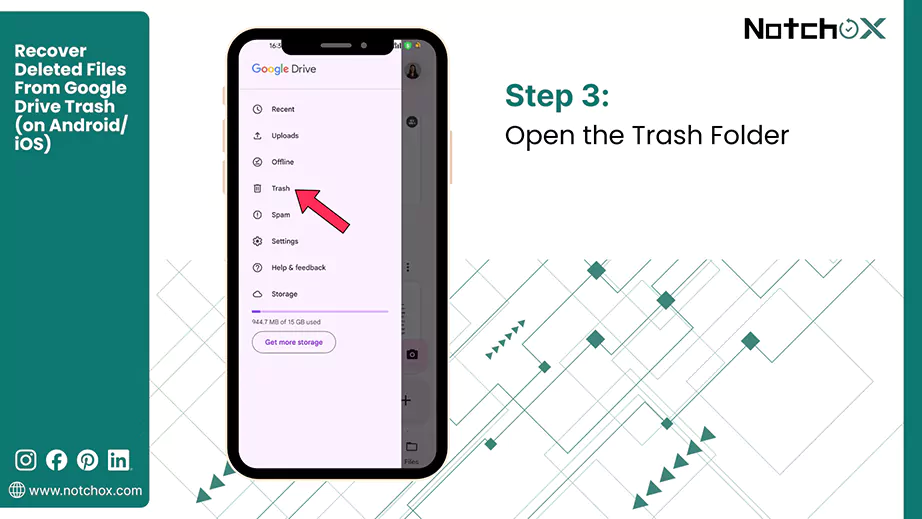
  3. Go to the Trash folder.
    Open the Trash Folder
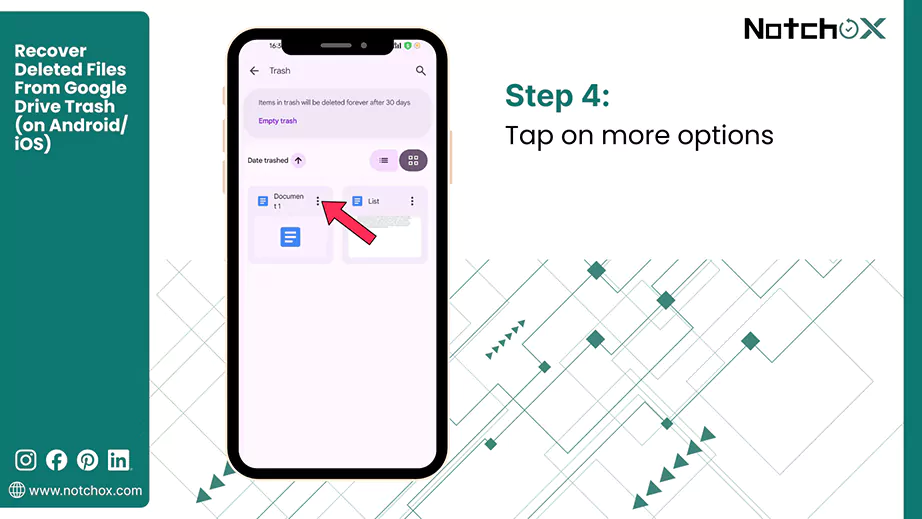
  4. Next to the files you want to recover, tap Options (⋮).
    Tap on more optionsss
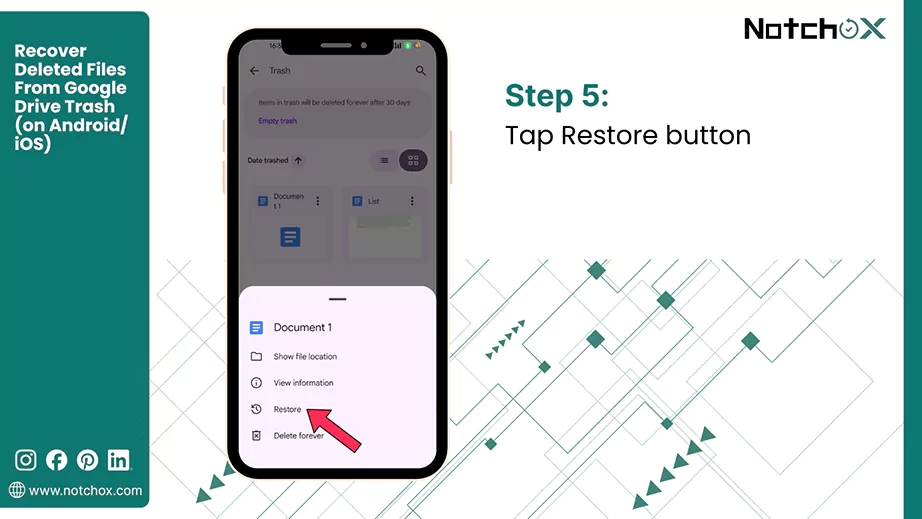
  5. Select Restore.
    Tap Restore button

Method 3: Search for Orphaned Files

Orphaned files in Google Drive are files that have lost their parent folder. Not having a parent folder makes the files hard to find. For example, the shared folder you added files to is deleted by the owner.

Let’s see how you can locate orphaned files in Google Drive.

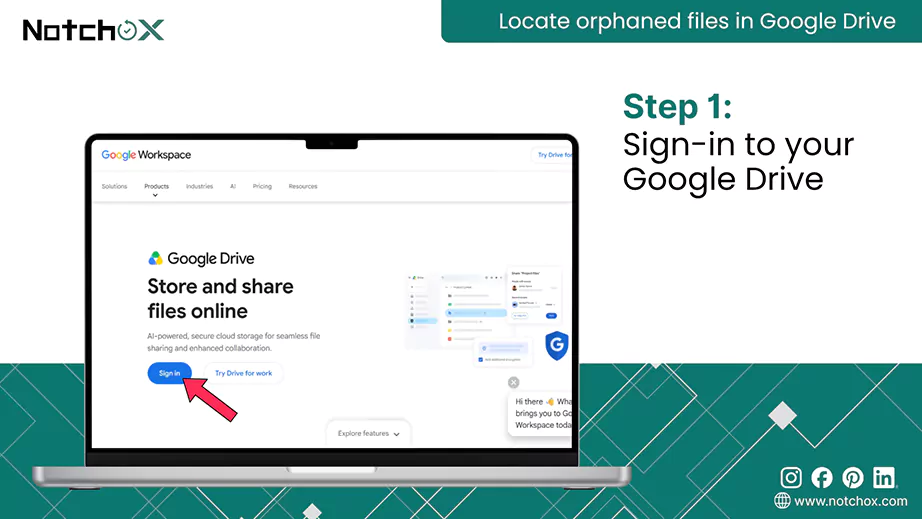
  1. Go to the Google Drive website and sign in.
    Sign in to your Google Drive
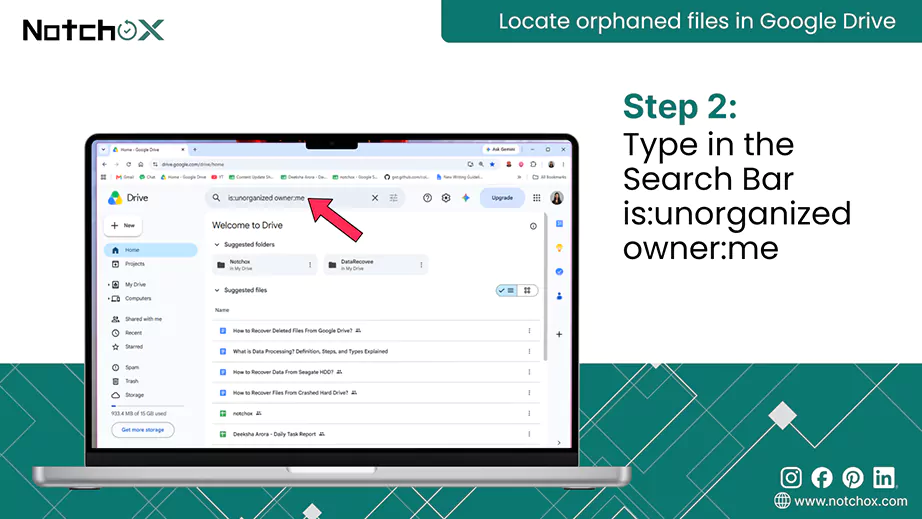
  2. In the Search Bar, enter is:unorganized owner:me.
    Type in the Search Bar is unorganized owner me
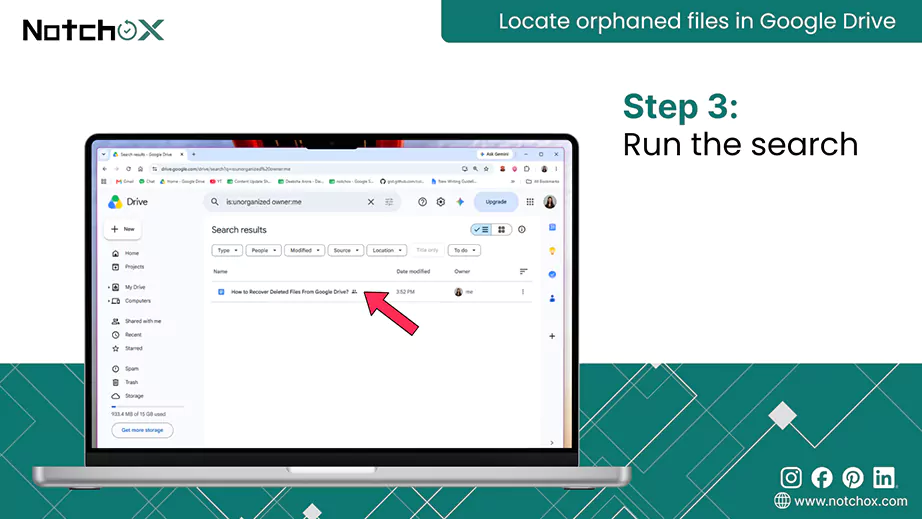
  3. Run the search. If any orphaned files are there, they will be listed.
    Run the searchh
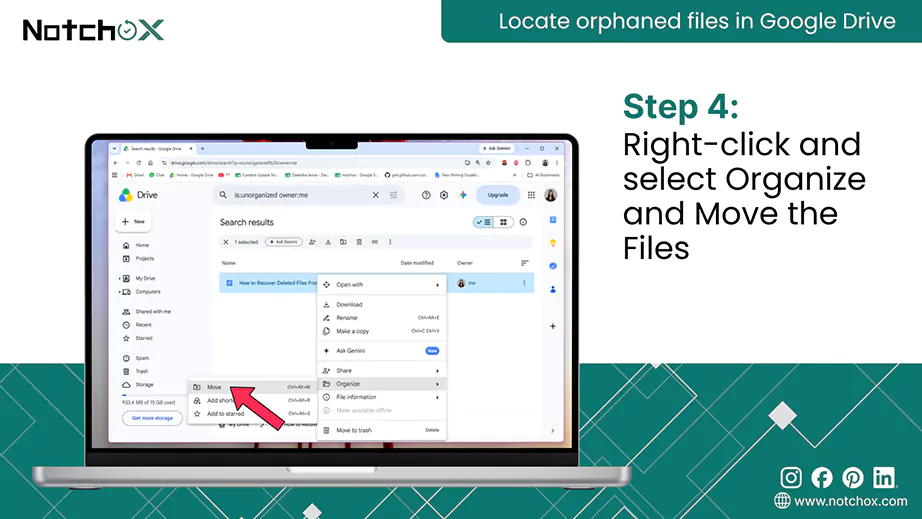
  4. Right-click on the orphaned files and select Organize. Now, click Move and select the folder where you want to keep the files.
    Right click and select Organize and Move the Files

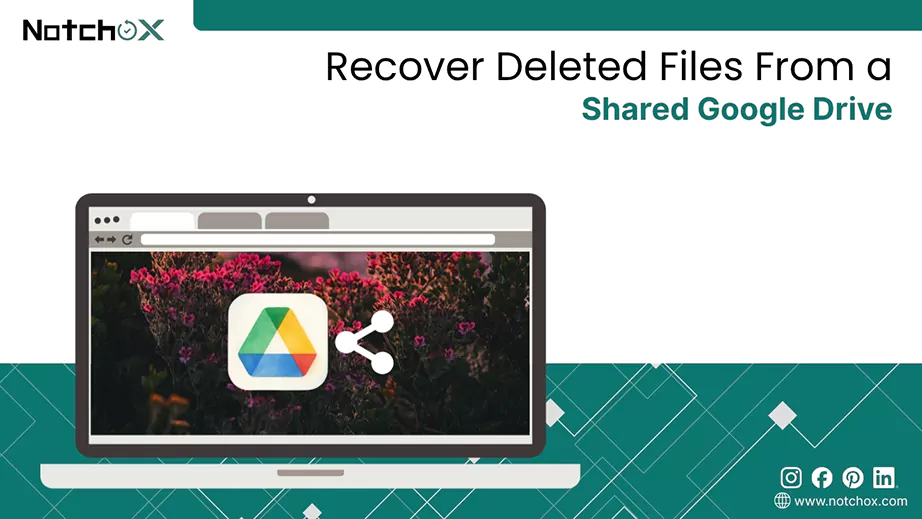
Method 4: Shared Google Drive

Recover Deleted Files From a Shared Google Drives

Unlike “My Drive”, files in the shared drive belong to the team. It supports 50,000+ members and has a robust permission level. 

If the file is owned by you in the shared drive, when deleted, it’ll be found in your Trash folder. You can recover them using the method discussed previously.

If the file is owned by some other member in the shared drive, you can ask the owner to recover the file from their trash and share.

If still not recoverable, you can go to Google Drive Help to request file recovery. We will discuss this step-by-step in the upcoming section.

What are the Advanced Recovery Methods to Recover Deleted Files From Google Drive?

If basic methods like checking the trash folder don’t work, advanced techniques can help to recover deleted files from Google Drive by scanning traces before they are overwritten.

These advanced methods include Google Drive Support, Version History, and Google Takeout. In extreme cases like formatting or corrupted partitions, data recovery tools can recover lost files.

Method 1: Contact Google Support

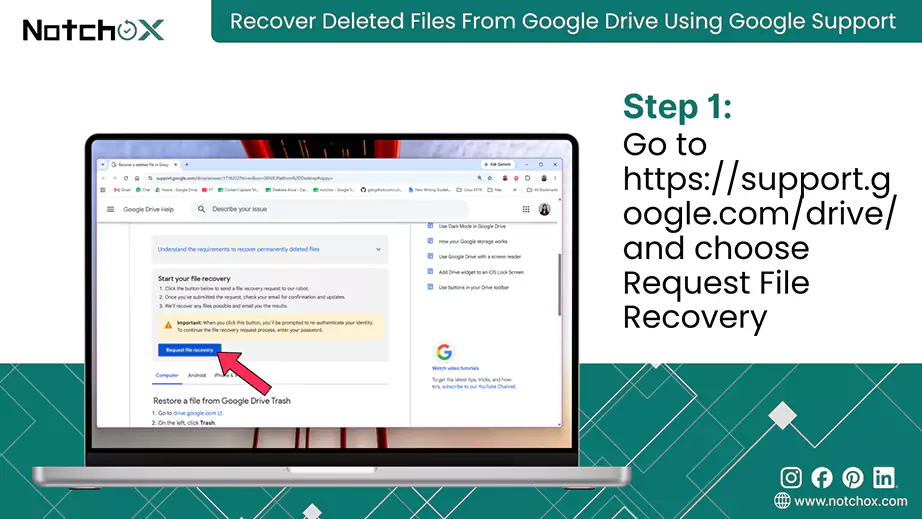
  1. Go to the Google Support page and choose Request File Recovery.
    Go to the Google Support page
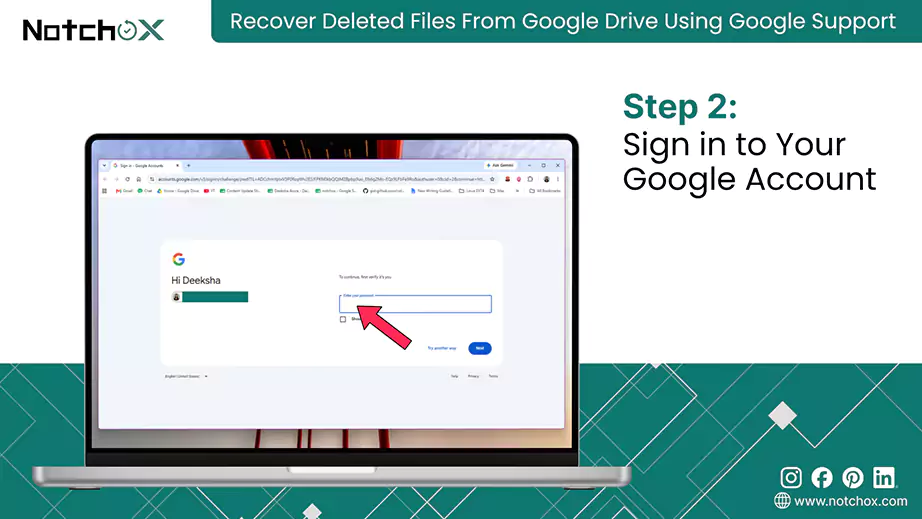
  2. This will ask you to sign in. Sign in to your Google Drive account.
    Sign in to Your Google Account
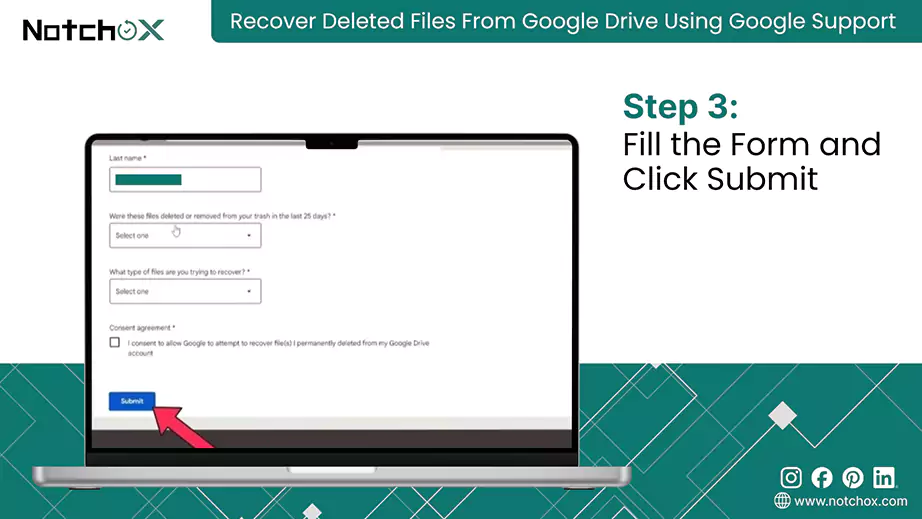
  3. Fill in the form, answering a few questions like what type of file you are trying to recover, and click Submit.
    Fill the Form and Click Submit
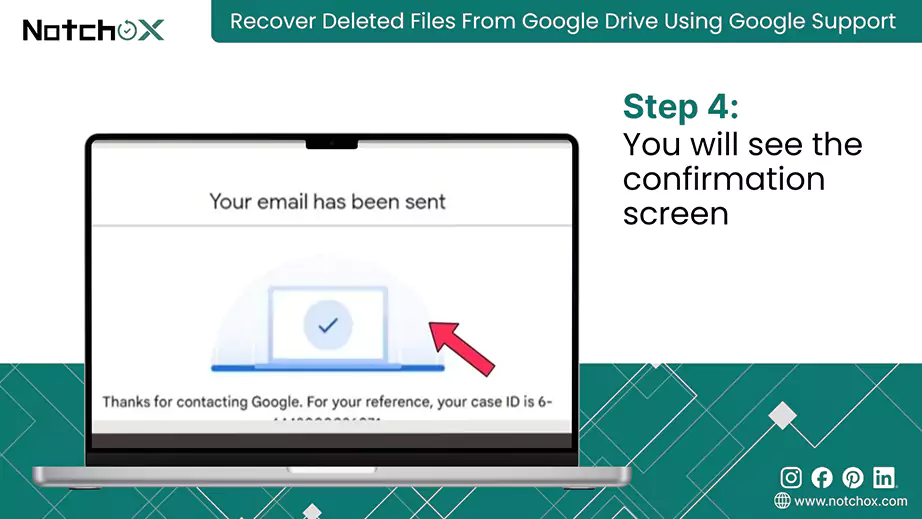
  4. You will see a “Your email has been sent” thank you screen.
    You will see the confirmation screen
  5. Next, you will receive a confirmation email in your Gmail.
  6. You will be notified about the recovery via mail.

Method 2: Google Drive Version History to Recover Overwritten Files

Google Docs/Slides/Sheets

Google offers a free cloud-based productivity suite: Docs, Slides, and Sheets. They are used to create documents, presentations, and spreadsheets. They enable real-time collaboration and automatic saving to Google Drive. Each change you make is saved as a new version, which can be recovered if needed.

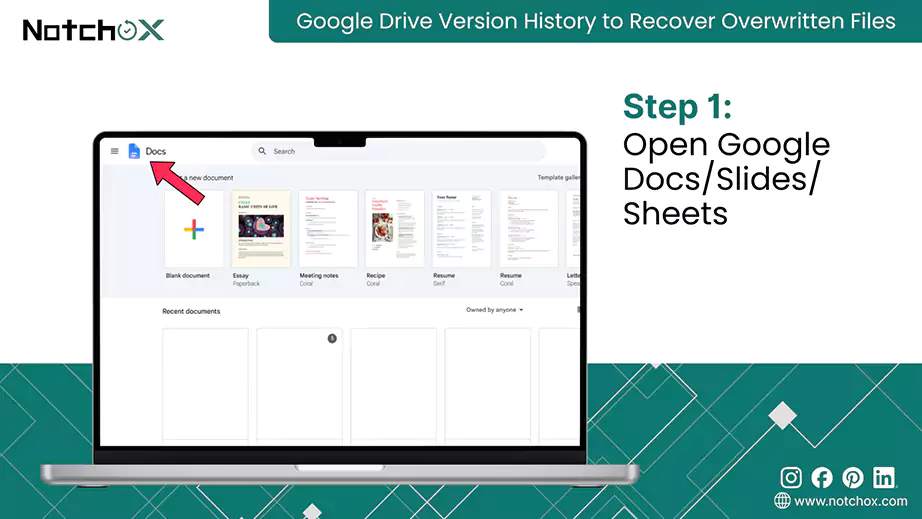
  1. On Google Docs/Slides/Sheets on your computer, open the file you want to restore previous versions. Here we are taking an example of Google Docs.
    Open Google Docs Slides Sheets
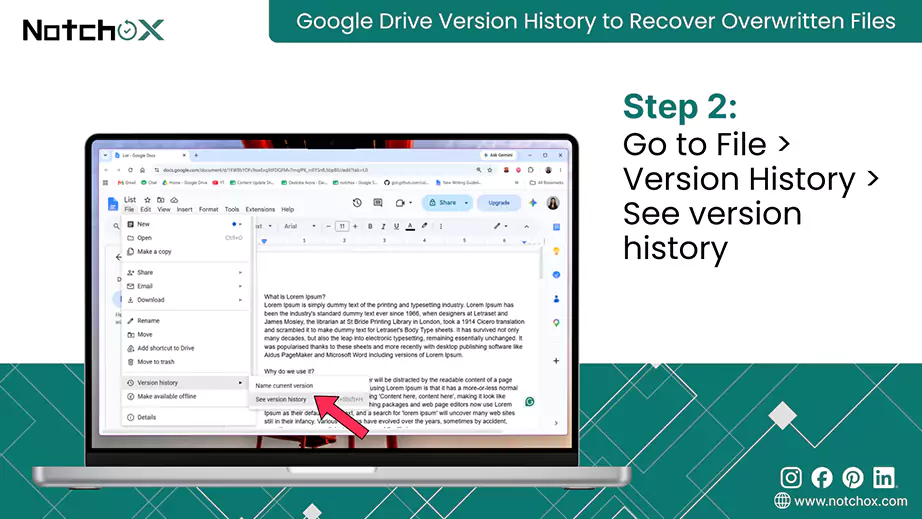
  2. Go to the File menu. And click Version history > See version history.
    Go to File Version History See version history

    Tip: You can also name the version history here. File > Version history > Name current version

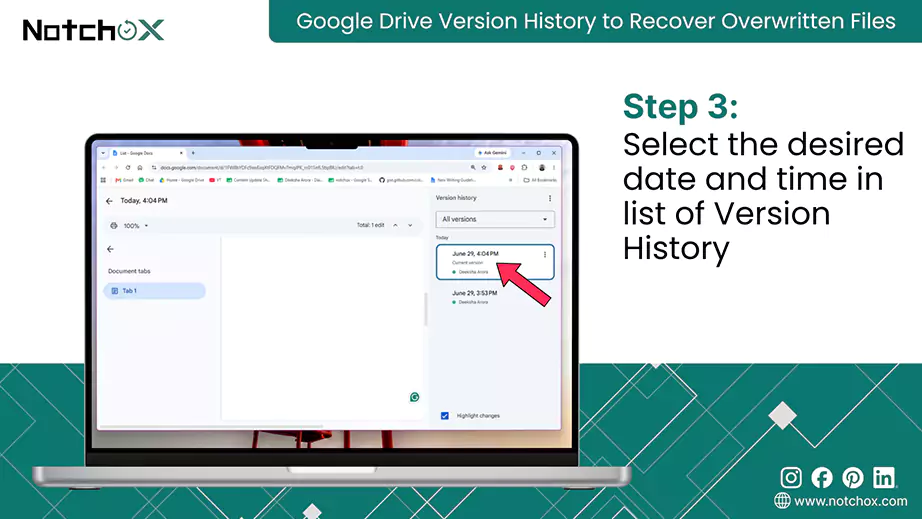
  3. The version history panel opens on the right side. Select the desired date and time, and you can view that particular document version.
    Select the desired date and time in list of Version History
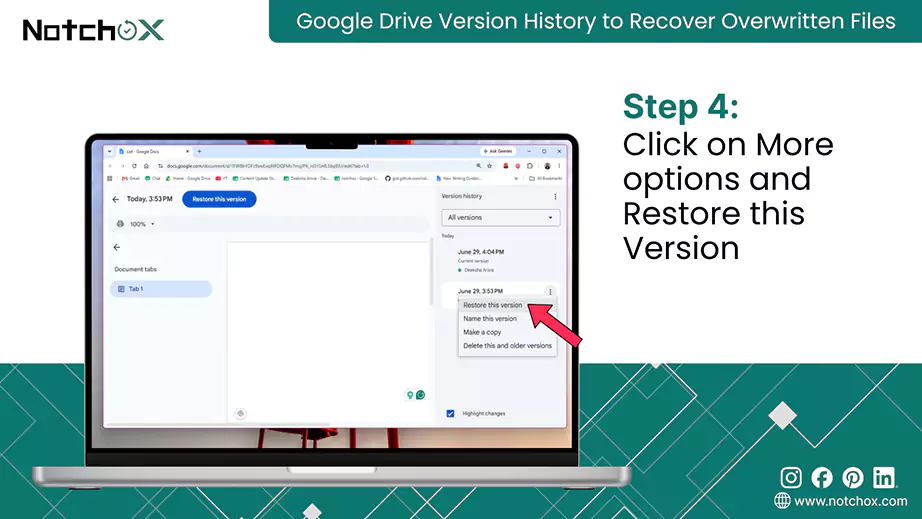
  4. To restore, click on More options (⋮) and click Restore this version. That version of the document will be restored, and you can edit and share it.
    Click on More options and Restore this Version

Shortcut: To directly open version history in Google Docs, press Ctrl + Alt + Shift + S (Windows) or Cmd + Option + Shift + H (Mac).

Non Google Files

For the non-Google files, such as PDFs and images, the way to recover version history is different from the one mentioned above.

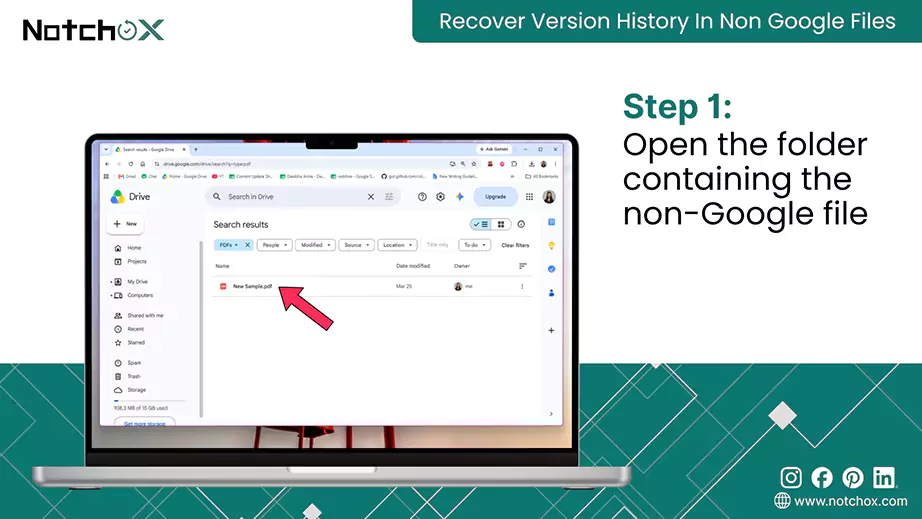
  1. In Google Drive, open the folder containing the non-Google file, whose version history you want to recover.
    Open the folder containing the non Google files
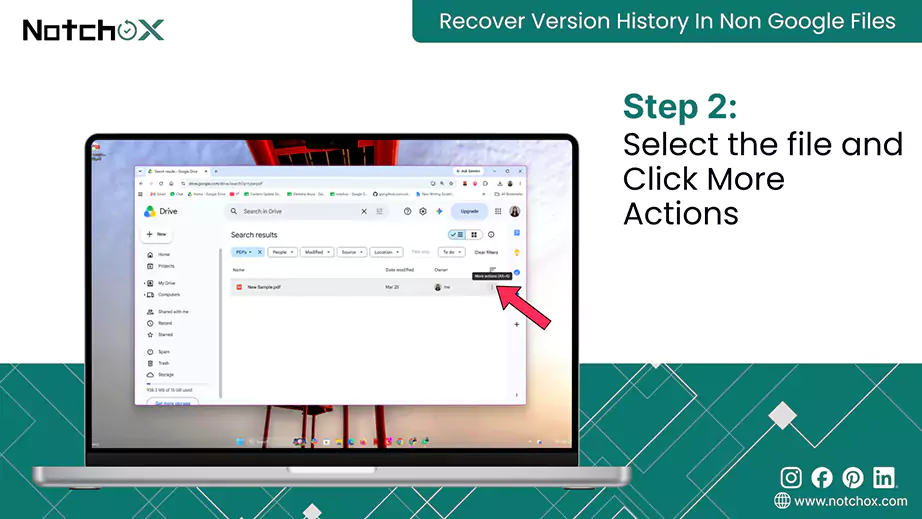
  2. Select the file and click More actions (⋮).
    Select the file and Click More Actions
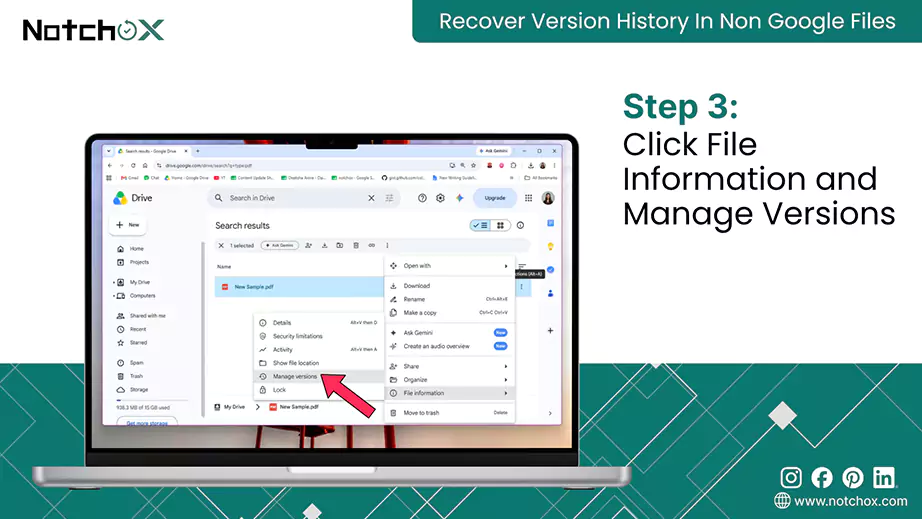
  3. Click File Information and select Manage Version. All the versions of the file selected appear.
    Click File Information and Manage Versions
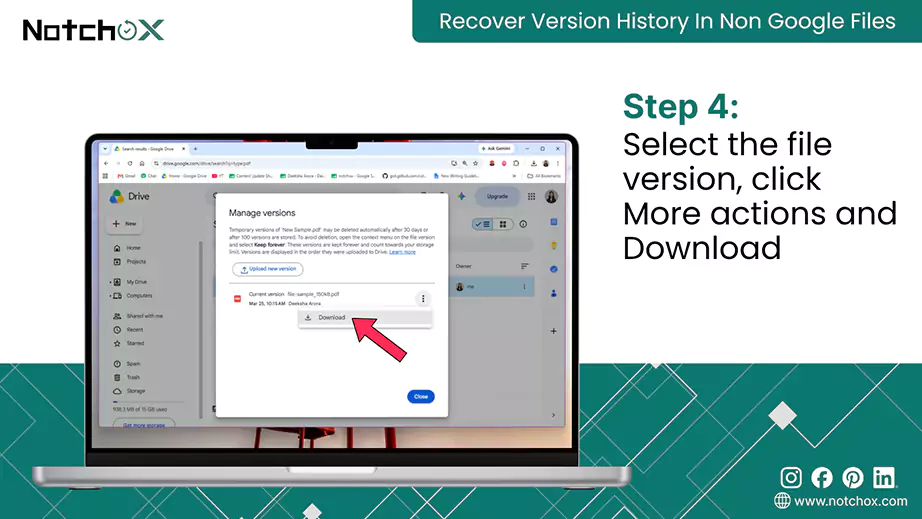
  4. Select the file version you want to recover and click More actions (⋮) and click Download.
    Select the file version click More actions and Download

Method 3: Google Takeout Download

Google Takeout is a free service by Google that allows users to export a copy of their data from Google tools such as Gmail, Photos, YouTube, and Drive into a downloadable archive file. Here, we’ll see how Google Takeout can be used to recover deleted files from Google Drive.

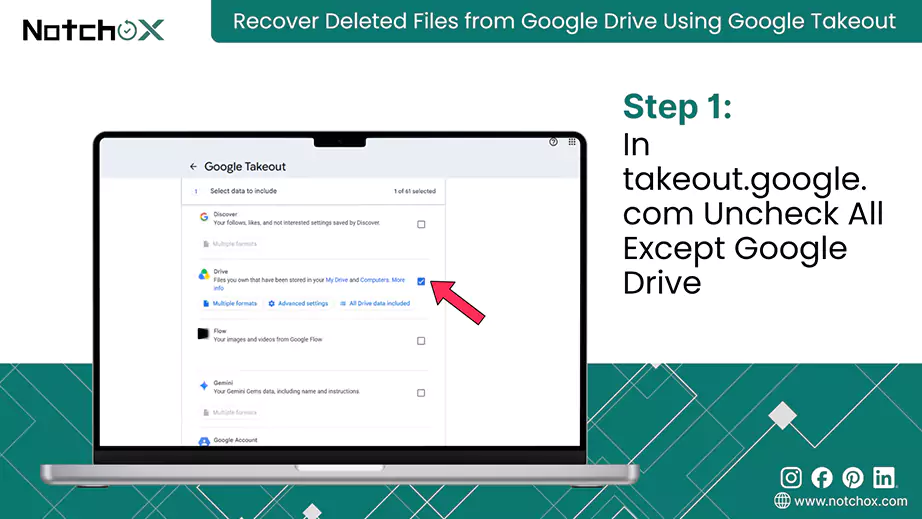
  1. Visit takeout.google.com and uncheck all the checkboxes except “Drive” and click Next step.
    In takeout.google.com Uncheck All Except Google Drive
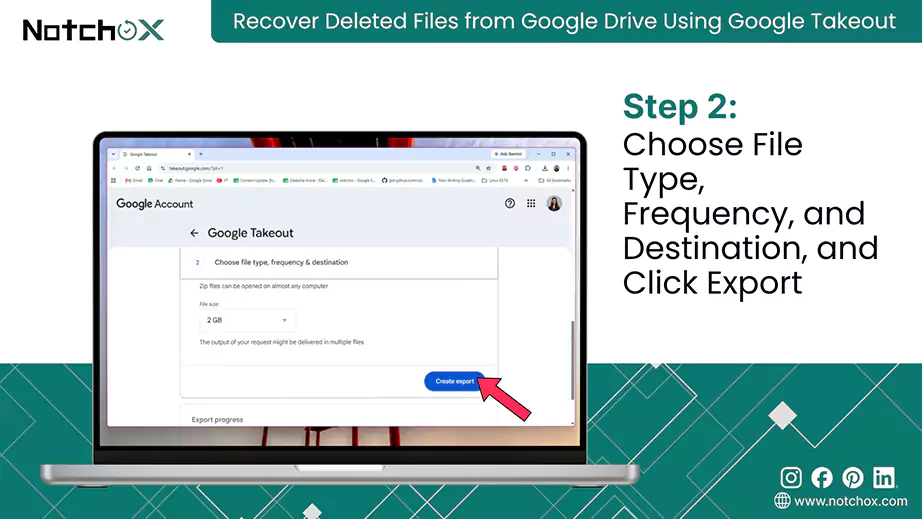
  2. Customize your archive format.You get to choose file type, frequency, and destination. Click the Create export button.
    Choose File Type Frequency and Destination and Click Exports
  3. When your export data is ready, you get an email from Google with the download link.
  4. Download your export data and extract the files from the zipped folder to your computer.

Note: If you’re in the Advanced Protection Program, your archive data will take 2 days to prepare.

How can Admin Recover Deleted Google Drive Files?

How can Admin Recover Deleted Google Drive File

Google Workspace admins hold unrestricted access to all organizational data. If a user account is deleted, the admin can restore the user or data from the user account within 20 days, can restore deleted shared drives, and manage Google Vault.

Method 1: Use the Admin Console

Google Admin Console is a web interface to manage the Google Workspace account, services, and devices. It can be used to recover Google Workspace Data (Email/Drive) within 25 days after a user empties the trash.

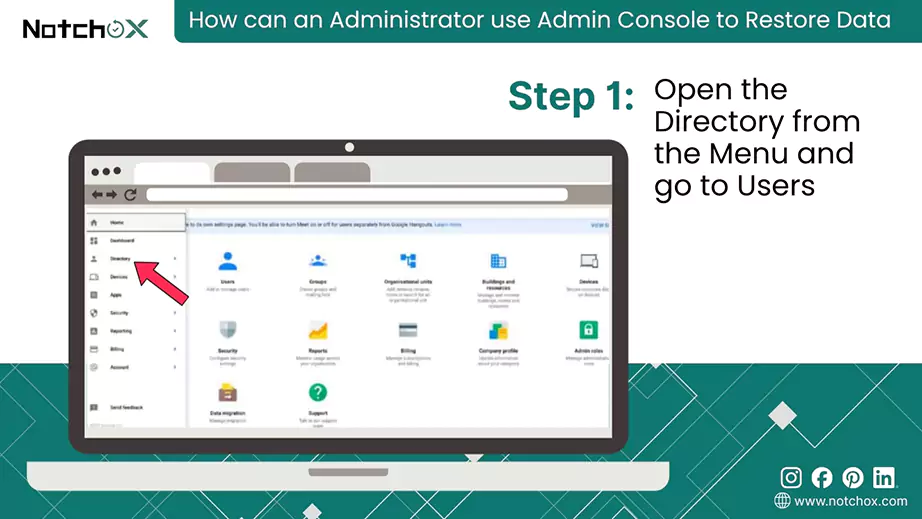
  1. Sign in to your Google Admin console. Open the Directory from the Menu (☰) and go to Users.
    Open the Directory from the Menu and go to User
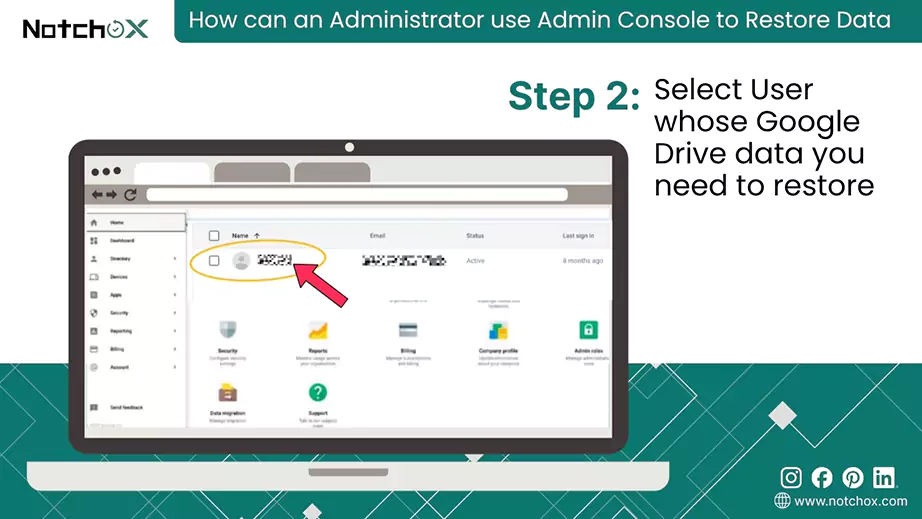
  2. Locate the user whose Google Drive data you need to restore.
    Select User
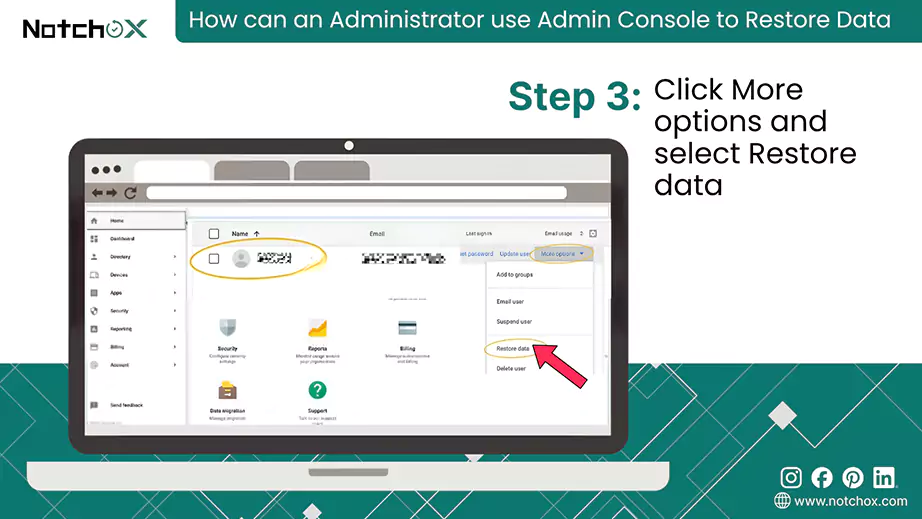
  3. Click More options and select Restore data.
    Click More options and select Restore data
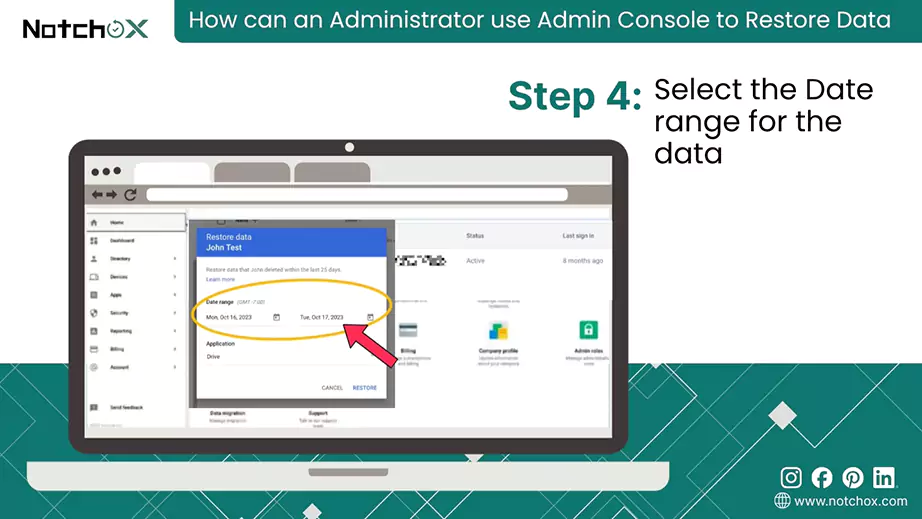
  4. The restore data pop-up opens with a date range selection. Select the Date range for the data you want to restore.
    Select the Date Range
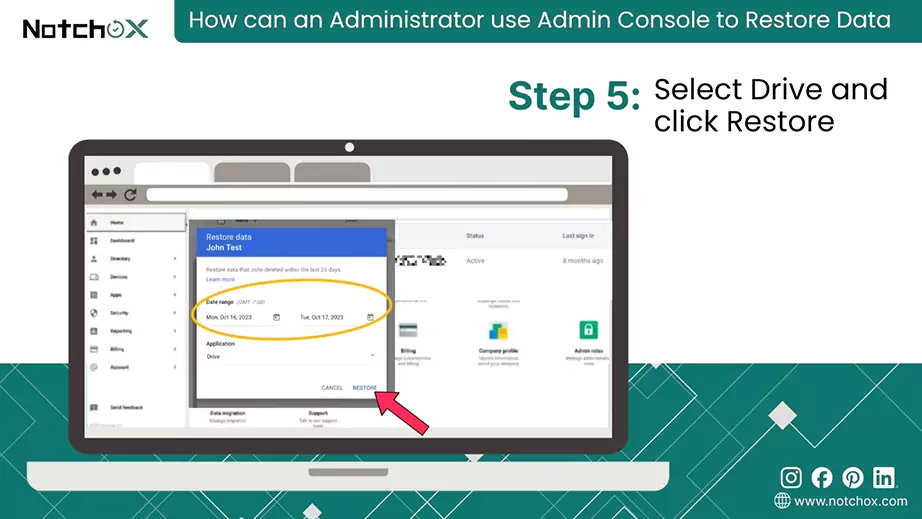
  5. Under Application, select Drive and click Restore.
    select Drive and click Restores
  6. Files are restored to their original location.

Method 2: From a Shared Drive

How Can We Restore Files from a Shared Drives

Administrators can use the admin console to restore the files that were deleted from the shared drive only within 25 days.

  1. Sign in to your Google Admin console. From the Menu (☰) and go to Apps > Google Workspace > Drive and Docs.
  2. Click on Managed shared drives.
  3. Select the shared drive. Click More options and selectRestore.
  4. Select the Date range for the data to be restored.
  5. Click Restore data.

Method 3: Transferring Ownership of Google Drive

How Can We Restore Google Drive Files by Transferring Ownership

Google account administrators have the privilege to manage deleted accounts, transfer ownership, and recover files from them within 20 days. This section lists the steps to recover files from a deleted account by transferring ownership of the Google Drive files.

  1. Go to Admin console, under Directory, click Users.
  2. In add a filter bar, select Recently deleted.
  3. Select the user and click Recover.
  4. From the Menu (☰) and go to Apps > Google Workspace > Drive and Docs.
  5. Click on Transfer ownership to transfer all the files of the user to another user.
  6. Enter the Gmail ID of the new owner and click the TRANSFER FILES button.

Method 4: Google Vault

How Can We Restore Google Drive Files by Using Google Vault

Google Vault is an Information Governance and e-discovery tool for Google Workspace designed to search, hold, retain, and export users’ Google Workspace Data. With Vault, the admin can restore deleted data (Gmail/Drive), even if removed from trash. Let’s see how.

  1. Go to Google Vault and select the Matters pane.
  2. Click Create to make a dedicated, organized space for data management.
  3. Enter a Matter name and click the Create button.
  4. Next, go to the Search tab and enter the data needed for the search.
  5. In the Service select “Drive”, Source select “Held data”, Entity select “Specific Accounts”, and enter the email ID.

    Optional:

    • You may check the “include items from shared drives” to expand the range of search.
    • Select the date modified range.
    • Enter the query terms and version date.
  6. Click the Search button to list all the files satisfying the search conditions.
  7. From the search results, look for the file you want to recover. Click on the Export button to export the files.
  8. You will be prompted to create the export if it doesn’t exist.
  9. You can see the status of the exported files in the Export tab.
  10. Once done, you can Download the exported files.

Why are Third-Party Data Recovery Tools Becoming Necessary?

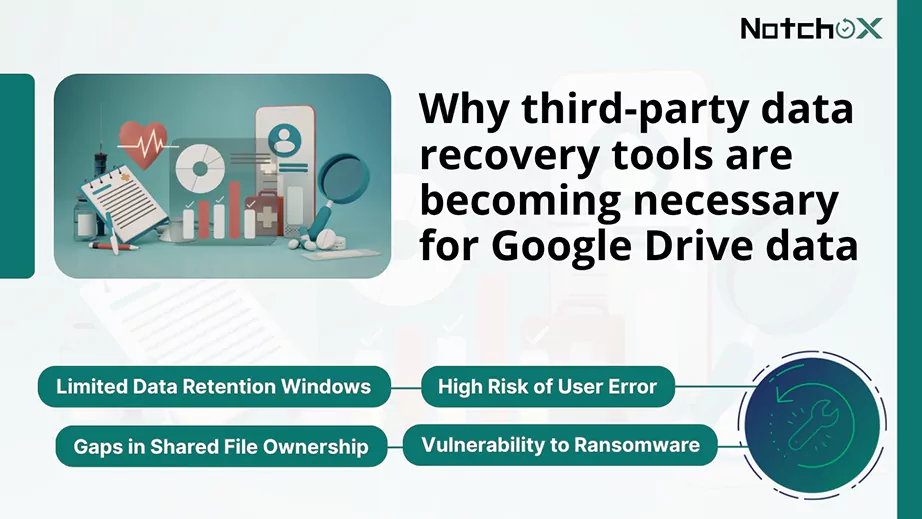
Why third party data recovery tools are becoming necessary for Google Drive data

Google’s native data retention policy, prevalence of human error, and rise of cyber threats have created a storm for data loss. Therefore, the organization relies on third-party backup and data recovery solutions rather than the sole Google native tools.

Once files are gone from Google Drive’s trash, typically after 30 days, they are permanently deleted.

Why third-party data recovery tools are becoming necessary for Google Drive data:

  1. Limited Data Retention Windows: Microsoft Windows has limited data retention, generally a span of 30-180 days for active users. User Identifiable Information (EUII) is for 180 days, and 30-90 days for standard data/backup recovery.
  2. High Risk of User Error: Humans are prone to errors, causing data loss and accidental deletion. As users create, move, and manage large amounts of data, simple mistakes due to accidents, fatigue, distractions, etc., lead to the deletion of data.
  3. Vulnerability to Ransomware: Ransomware is a type of malicious software that can damage/manipulate a victim’s data. Statista shows the root causes of ransomware, highlighting how vulnerable organizational data is to evolving threats.
  4. Gaps in Shared File Ownership: When creators leave, they retain ownership of shared files. Without proper transfer, the “orphaned” files are hidden and get deleted when the user account is deleted.

Protect your business data from “30-day purge” and accidental deletion. Try Notchox today for automated and secure data recovery of Google Files!

Final Verdict

Recovering deleted files from Google Drive is highly possible, usually within 30 days, via the trash folder and advanced methods for permanent deletion. Immediate actions include checking the Trash and restoring, or reviewing version history. For permanent deletion, users can contact Google Support, and admins can use the Admin Console within 25 days. Don’t rely on the 30-day trash policy; contact us here to get hands on the best data recovery software and never lose a file again!

Common Questions

Q1: Can I recover deleted photos from Google Drive?

Ans: Yes, you can recover deleted photos from Google Drive within 30 days by accessing the trash.
Q2: How long do files stay in Google Drive trash?

Ans: Files stay in Google Drive trash for 30 days before getting permanently deleted.

Q3: How can I recover overwritten files on Google Drive?

Ans: You can recover overwritten files on Google Drive via Version History.

Q4: Is Google Drive available offline?

Ans: Yes, Google Drive supports offline access.

Q5: How to recover Google Drive permanently deleted files after 30 days?

Ans: After 30 days, files are generally inaccessible, though you can try contacting support or a reliable third-party data recovery tool.

Published by
Kajal Singh

Kajal Singh is a Data Recovery Writer at Notchox, specializing in data recovery, storage systems, RAID, and digital forensics. She writes technical processes, tools, and cases into clear, engaging articles, blogs, and guides. Kajal does thorough research, deep analysis, and collaborates with experts to produce high-quality and engaging content that is easy to understand for every reader.
Related Posts

Link copied successfully!