Ans: You can prevent hard drive crashes by backing up regularly, avoiding physical damage, maintaining proper ventilation for the system, and using data protectors.
How to Recover Files From Crashed Hard Drive?
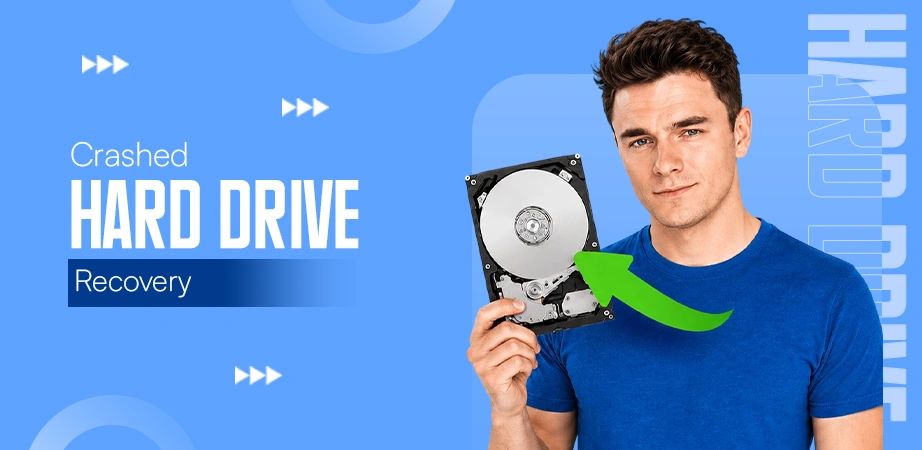
A crashed hard drive means data is inaccessible due to physical damage or logical corruptions (file system errors), causing boot failure and slow performance. But recovery is possible; for logical issues, use data recovery software or chkdsk, and for physically damaged drives, consider seeking professional help or clean room repair to prevent permanent loss. Let’s unpack the topics one by one.
- What are the Steps to Recover Files From Crashed Hard Drive?
- Is It Possible to Recover Files From Crashed Hard Drive?
- How to Recover Files from Crashed Hard Drive using Data Recovery Software?
- How Can One Recover a Logically Damaged Drive Using Windows Methods?
- How to Recover a Physically Damaged Hard Drive?
- Best Data Recovery Practices and Prevention Tips
- Conclusion
- Frequently Asked Questions (FAQs)
Quick Answer:
Using Notchox Data Recovery Software to execute an advanced deep scan is the best way to recover files from a crashed hard drive. Notchox bypasses shattered partition tables and recovers fragmented raw data back into files in real time. This completely skips risky manual cloning and safely extracts your data instantly.
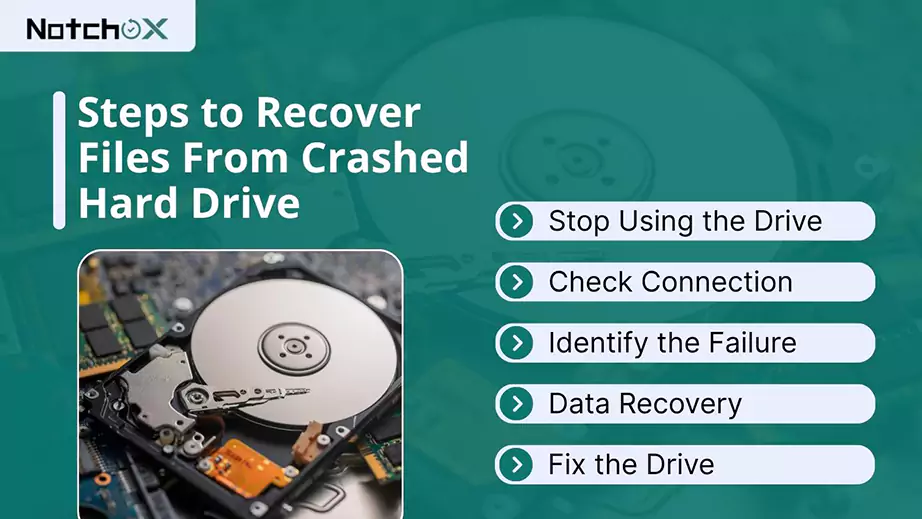
What are the Steps to Recover Files From Crashed Hard Drive?

Recovering files from a crashed drive involves immediate action to prevent further data loss, diagnosing if failure is due to a logical or physical issue, and using built-in methods or data recovery software. For your query How to Recover Files From Crashed Hard Drive follow the steps mentioned below:
Overview of the Process:
- Stop Using the Drive: As soon as you find the drive is misbehaving or something is not right, immediately stop using the drive and cut the network connection, as this may cause data overwriting and you may lose your data permanently.
- Check Connection: If your Hard drive is external, check your connection, if it’s just a bad cable issue. Unplug it, swap to another USB cable, or plug it into a different port.
- Identify the Type of Failure: There could be two reasons for hard drive failure: logical, when the computer sees it, but says “needs to be formatted,” and physical, when it makes a clicking, grinding, or buzzing sound.
- Data Recovery: If the damage is logical, you can use the data recovery software before you fix the drive itself.
- Fix the Drive: Once the data is recovered and moved safely, proceed with fixing the drive. You can use DIY methods like built-in tools, or the last option remaining is to clean the drive.
Is It Possible to Recover Files From Crashed Hard Drive?

Yes, it is often possible to recover files from a crashed hard drive, depending on whether the damage is physical or logical.
- Physical (Hardware Failure): The drive starts making a sound, indicating there is physical damage. A specialised recovery service is required to fix the damage.
Inside a hard drive, magnetic plates spin at high speed with a tiny head that reads the data. If the drive is shaken, heated, or damaged, this head can’t read/write, resulting in a head crash.
- Logical (Software/FileSystem Failure): The drive works mechanically but can not be accessed. Data is likely to be recoverable using software.
When a software glitch, a virus attack, or an improper shutdown messes up the file system. The files are still there, but the computer can no longer find them, often resulting in a “ file not found” error or asking to format the file.
Recovery is possible in both, but the methods are different. Physical failures require cleanroom repairs by professionals, while logical failures can be resolved using DIY data recovery software.
How to Recover Files from Crashed Hard Drive using Data Recovery Software?
Data recovery software works by scanning hard drives for “orphaned” data, files marked as deleted but not yet overwritten, or by identifying file signatures to build lost data directly from sectors.
Among modern solutions, Notchox has emerged as a top-tier data recovery tool. With advanced algorithms, it offers comprehensive and efficient recovery, while keeping the device’s health intact, often outperforming traditional recovery tools in complex data scenarios.
Here we will see Notchox’s approach to recover files from crashed Hard Drive. Notchox handles data recovery through a simple 4-step process:
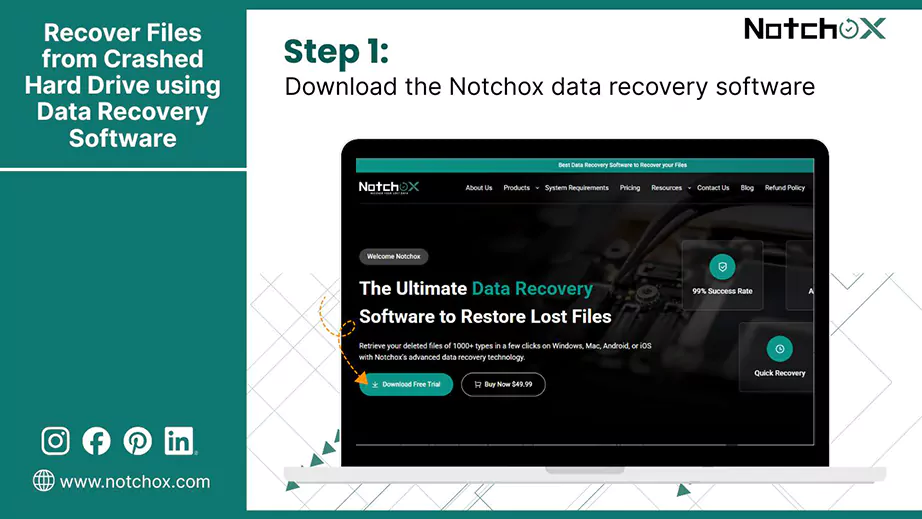
- Download and Install: Download the Notchox data recovery software from the official website and follow the guided prompts to install.

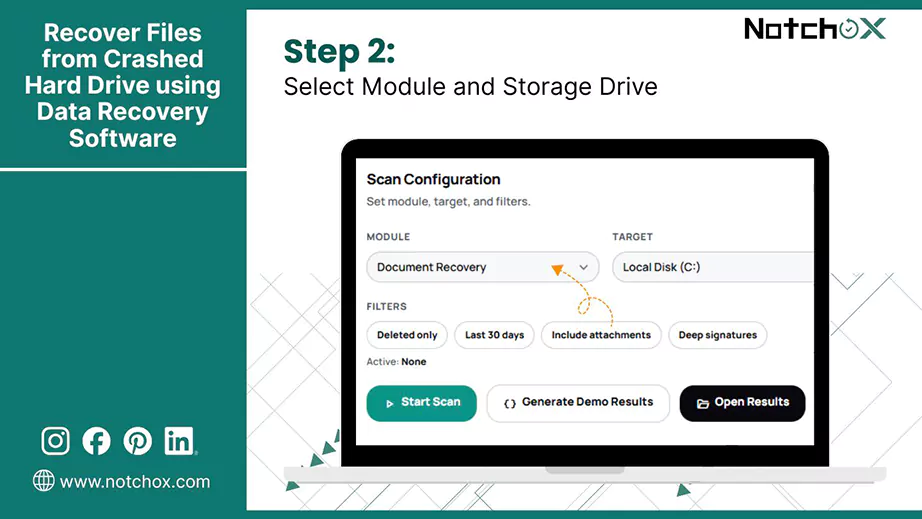
- Select Module and Storage Device: Select the recovery module and choose the targeted drive (Local Disk, USB Drive, etc.). Apply filters: deleted only/last 30 days/include attachments/deep signatures.

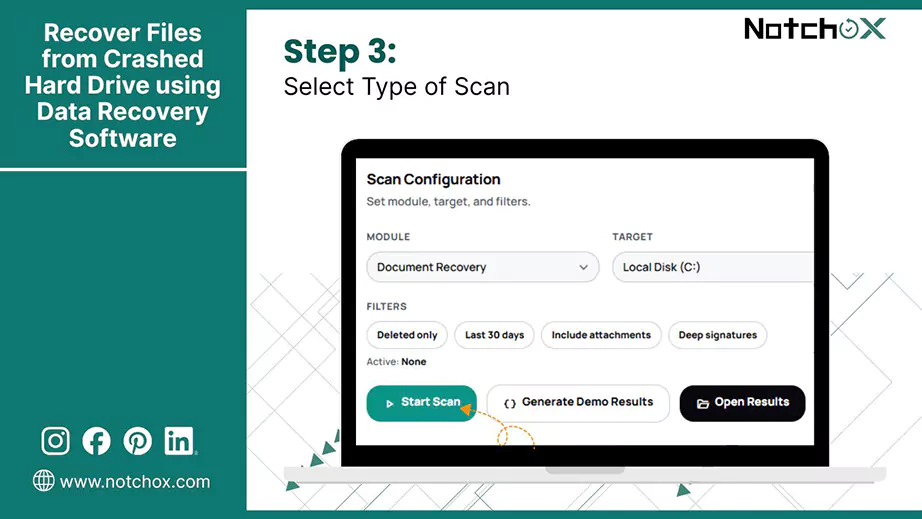
- Scan for Lost Files: Choose “Quick Scan” or “Deep Scan” and click Start Scan. The scan will take a few minutes to complete.

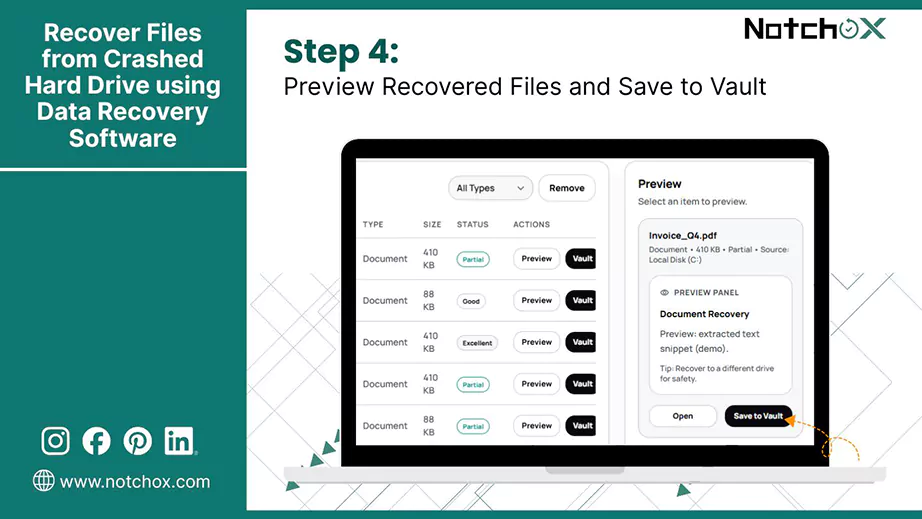
- Review and Recover: Once the scan is complete, click Open Results to preview the recovered files. Select the files to keep and click Save to Vault to save the restored files.

How Can One Recover a Logically Damaged Drive Using Windows Methods?
Locally damaged drives often hold data intact, but a corrupted file system prevents access. Windows allows ways to repair these errors and restore functionality.
Method 1: Check Disk (chkdsk)
chkdsk is a built-in utility used to find and repair file system errors and identify “bad sectors.” Using chkdsk /r attempts to locate bad sectors and recover any readable information from them.
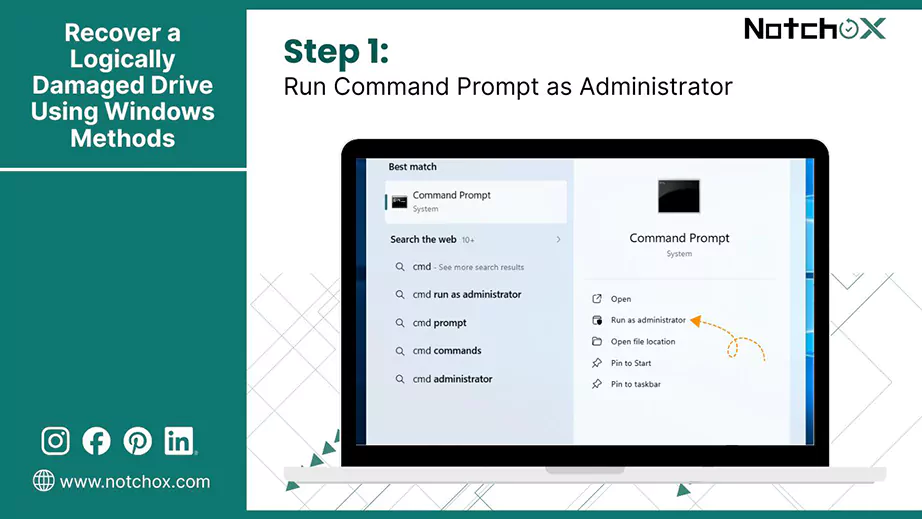
- Open Command Prompt as Administrator: Search for “cmd” in the Start Menu, under Command Prompt, choose Run as Administrator.

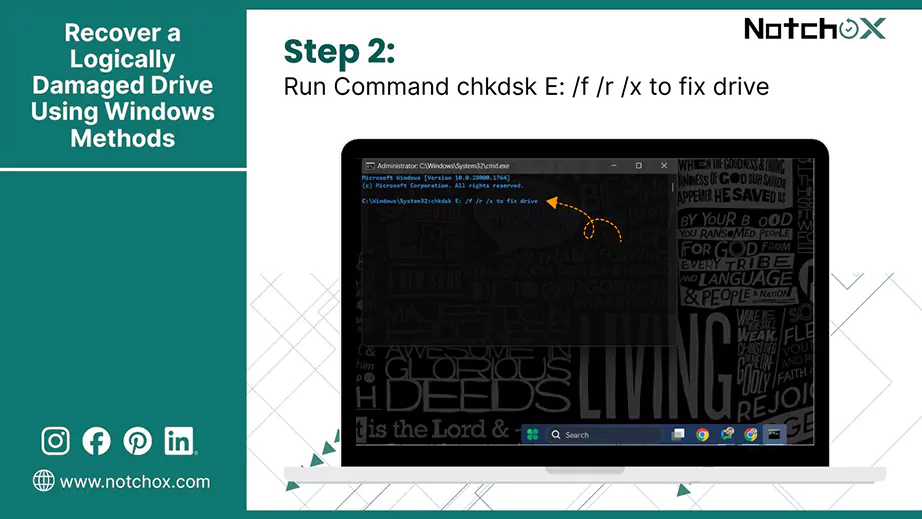
- Run the Command: Type “chkdsk X: /f /r /x” and press Enter, replacing “X” with the letter of the damaged Drive.

- Wait for Completion: Allow the scan to complete, which may take several hours, depending on drive size and damage.
Method 2: Defragmenting HDD
Defragmenting a logically damaged hard drive can sometimes resolve issues by rearranging scattered file clusters and rearranging file systems.
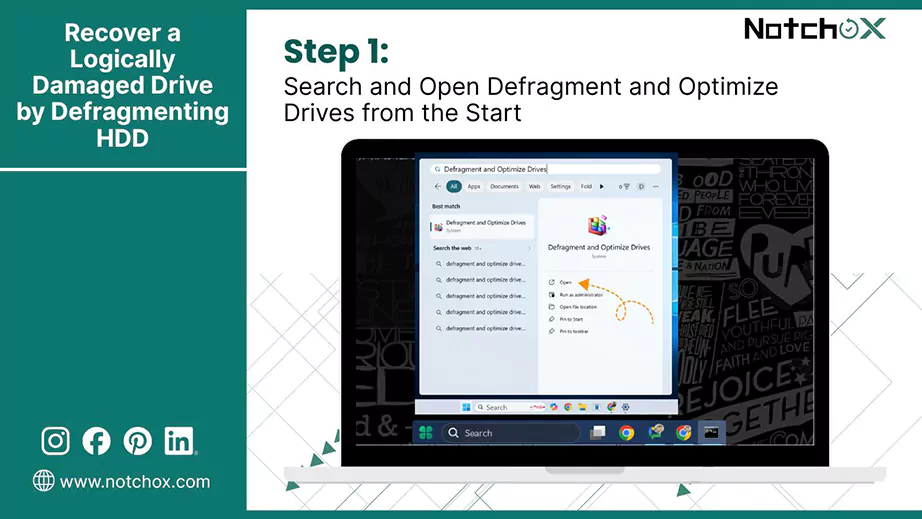
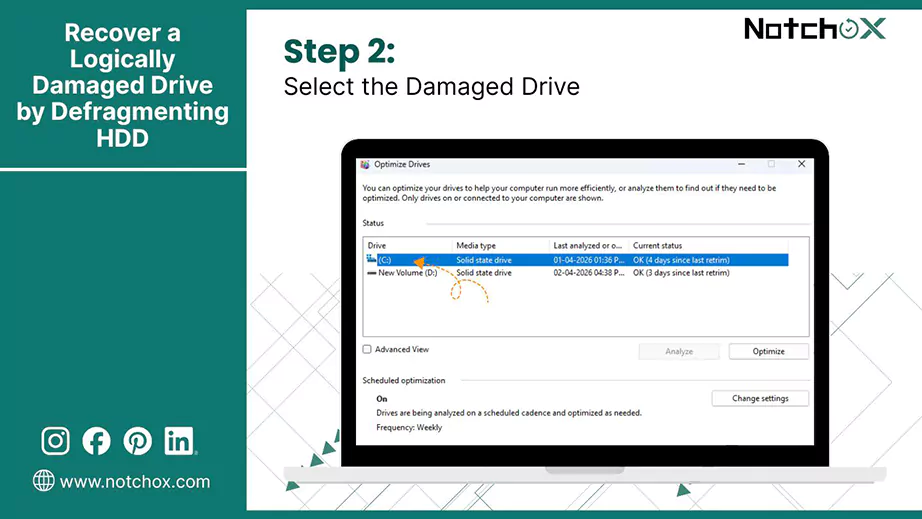
- Defragment and Optimize Drives: On Windows, search for “Defragment and Optimize Drives” and press Enter. Optimizing the drive system will open.

- Select Drive: From the available drives, choose the damaged drive to optimize.

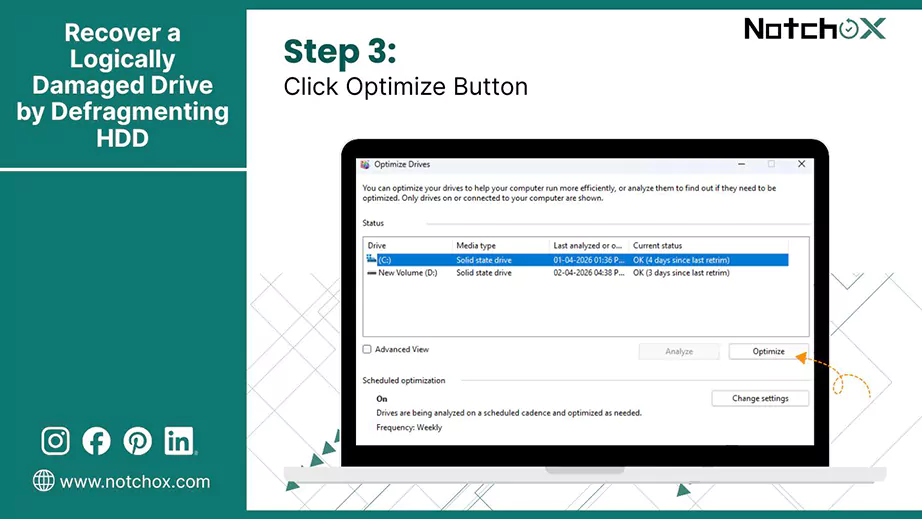
- Optimize: Click Optimize to start the process.

- Wait to Complete: Wait for the tool to reorganize the files. This may take a few minutes.
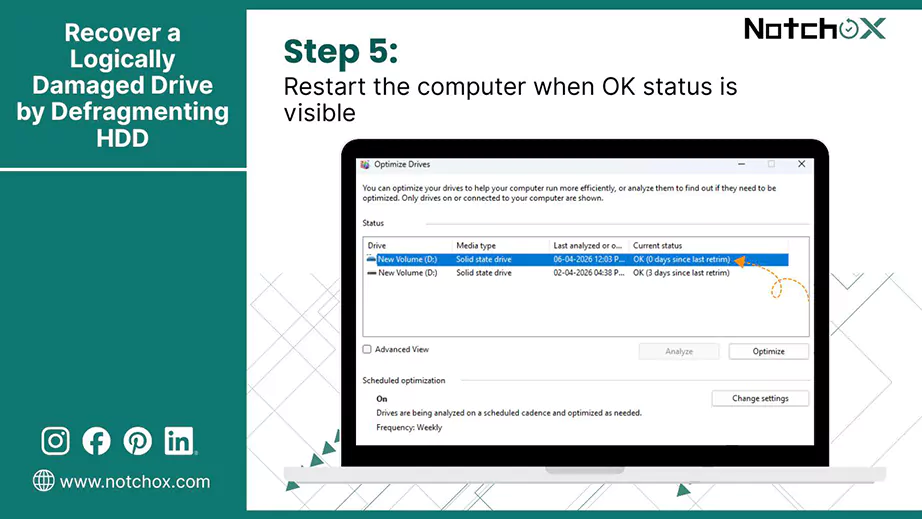
- Restart: Once the system shows “OK”. Restart your computer.

Method 3: Windows PowerShell
Windows PowerShell allows for repairing a damaged drive using direct commands that take the volume offline to fix issues logged in the corrupt file, a faster alternative to the chkdsk command.
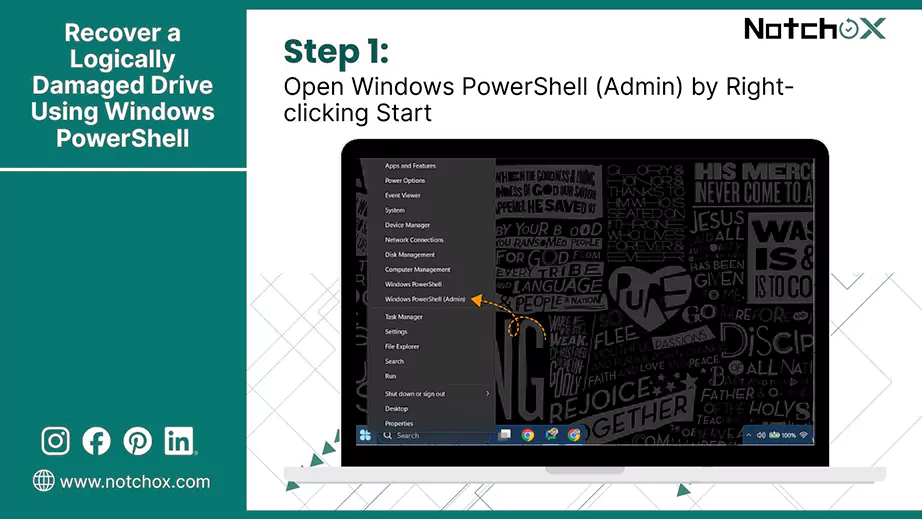
- Open PowerShell as Administrator: Right-click on Start and select Windows PowerShell (Admin) and press yes on the confirmation box to open.

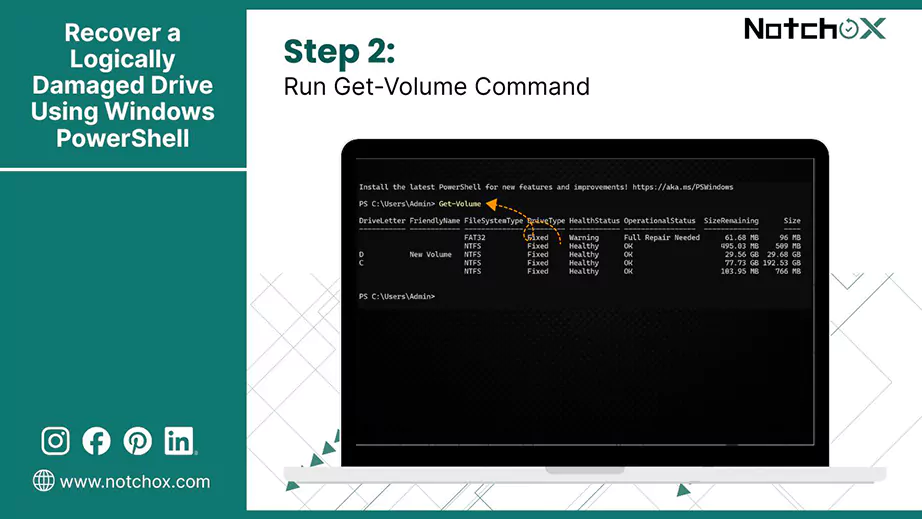
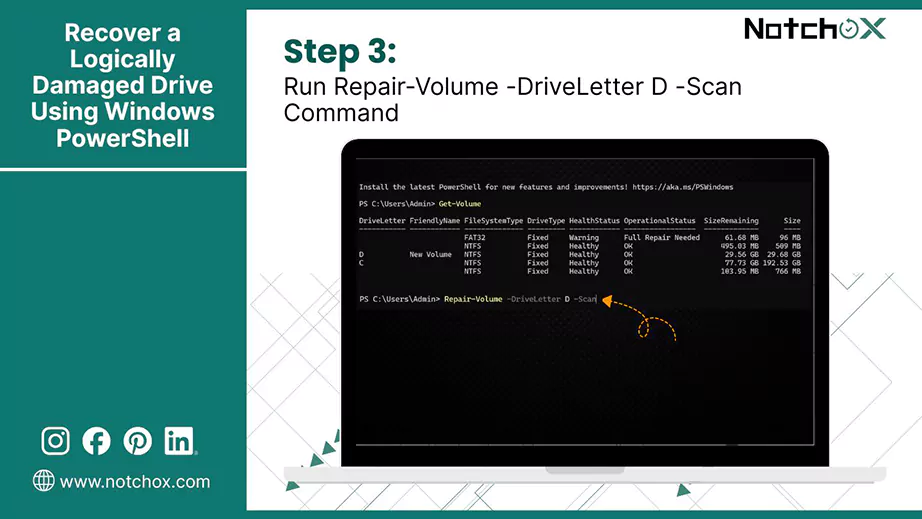
- Identify the Drive Letter: If you don’t know the corrupted drive, type “Get-Volume” and press Enter to list all drives and identify the letter of the corrupted drive.

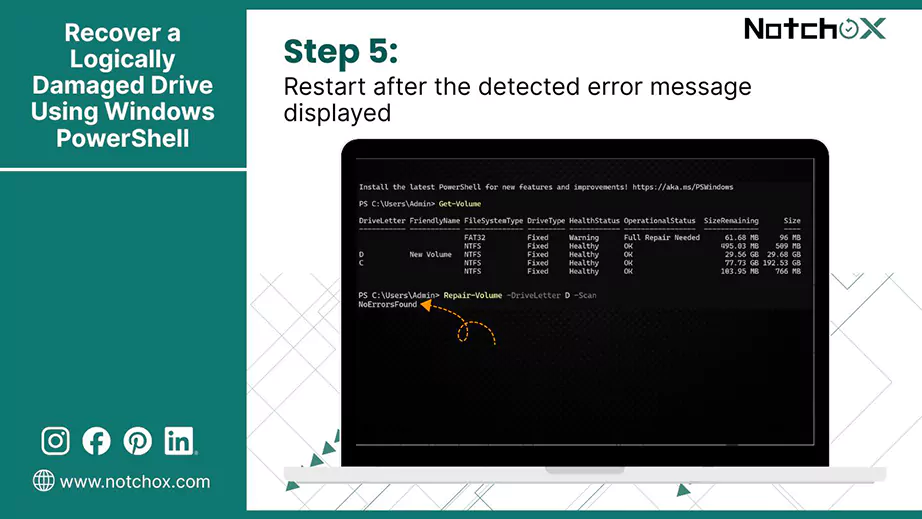
- Scan for Errors: Run “Repair-Volume -DriveLetter X -Scan”, replacing ”X” with the letter of the damaged drive to scan for issues.

- Repair the Drive: Wait for the repair process to complete.
- Restart: Once the repair is complete, the detected errors message will display. If it is a system drive, it may require a restart.

Method 4: Recovery Troubleshooting

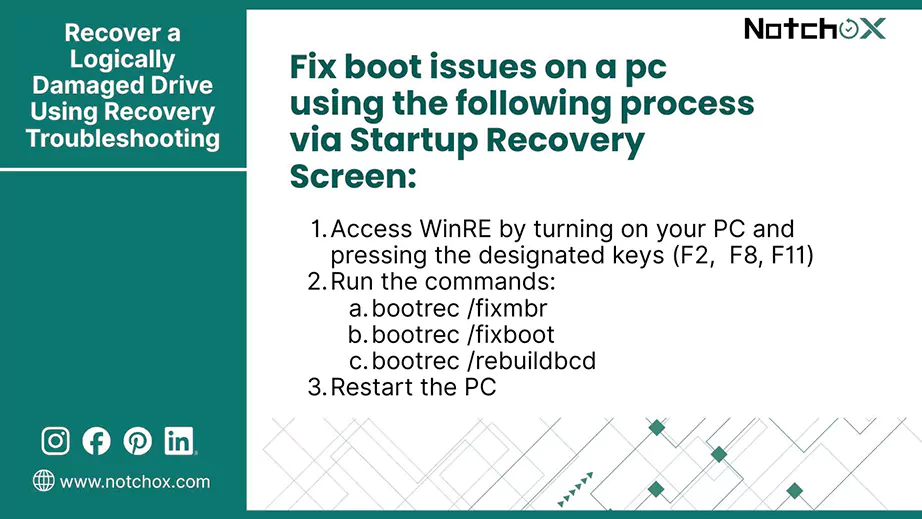
You can fix boot issues on a pc using the command prompt via the Startup Recovery Screen.
- Access WinRE, the startup screen, by turning on your PC and pressing the designated keys (F2, F8, F11).
Note: The designated key to access WinRE at startup varies by manufacturer.
HP: F11
ASUS: F9 or F12
Dell: F12 or BIOS
Lenovo: F11 or the Novo Button
Acer: Alt+F10
MSI: F3Tapping F8 immediately after turning on the computer can also open boot options.
- Go to Advanced Options and select Troubleshoot. Then click on Command Prompt.
- Run the commands:
- bootrec /fixmbr
- bootrec /fixboot
- bootrec /rebuildbcd
Sequentially pressing Enter for each.
- Restart the PC to confirm the fix.
Method 5: Disk Imaging and Cloning
Using Disk Imaging and Cloning to create a 1:1 copy of the failing drive prevents further data degradation. You could mount a virtual drive from this data and attempt recovery on it stress-free.
- Prepare the Hardware: Connect the crashed hard drive and a new healthy drive of equal or larger size to store the clone on.
- Select the Cloning Tool: Choose from available tools designed for handling bad sectors and clone the drive.
- Run Imaging/Clone Process: Run the tool to copy data directly from the crashed drive to the healthy drive. This creates a “virtual” drive (copy).
- Initiate “Ignore-Errors” Mode: Ensure software is set to create a clone even when encountering bad sectors.
How to Recover a Physically Damaged Hard Drive?

When the computer fails to start up, is not operating correctly, makes a clicking noise, or remains silent even when the power is on, these are the warning signs that the drive might be physically damaged.
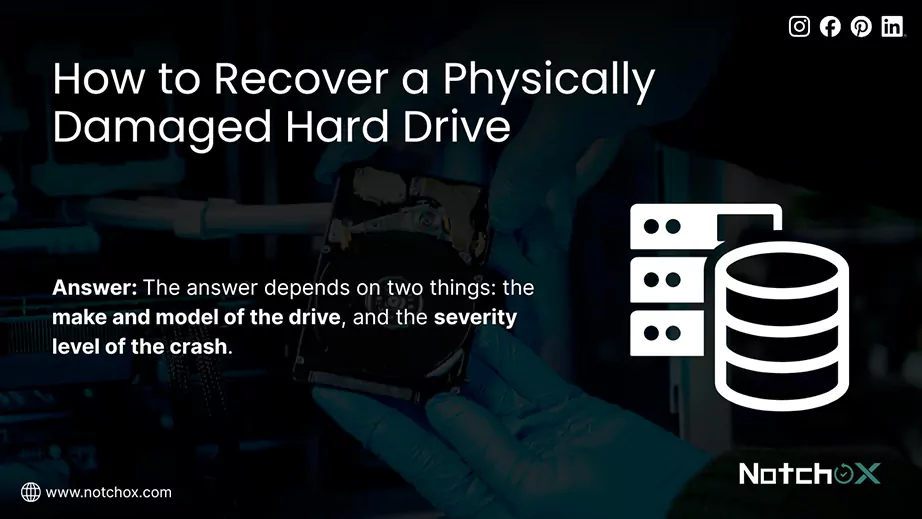
But the question remains the same: “Is the data recoverable from physically damaged drives?” The answer depends on two things: the make of the drive, and the severity of the crash.
Make and Model of the Drive:
- Data Recovery Likelihood: Some drives are designed in a way that makes recovery easier or harder. Many manufacturers, including Dell, HP/Hitachi, Hynix, Inland, and Intel, show recovery rates of nearly 100%.
- Part Availability: Some manufacturers have hard-to-source components, making it difficult to find “donor parts” needed for mechanical repair.
Severity Level of the Crash:
- Minor (C1): Minor crashes are often just barely visible. Data is recoverable most of the time.
- Moderate (C2): Visible damage such as a head crash. Recovery is possible in some instances, often using professional imaging of the drive, sector-by-sector.
- Severe (C3): When read/write heads have scraped the magnetic coating of the platters. Once the data layer is physically gone, it is unrecoverable.
Never open a physically damaged drive to save the chances of recovering the data. Consider seeking professional help to try to get the data back safely.
Best Data Recovery Practices and Prevention Tips

The process doesn’t end at data recovery and drive fix. Continuously practicing data loss prevention tips and following best data recovery actions are also required. Here are practices and tips for data recovery.
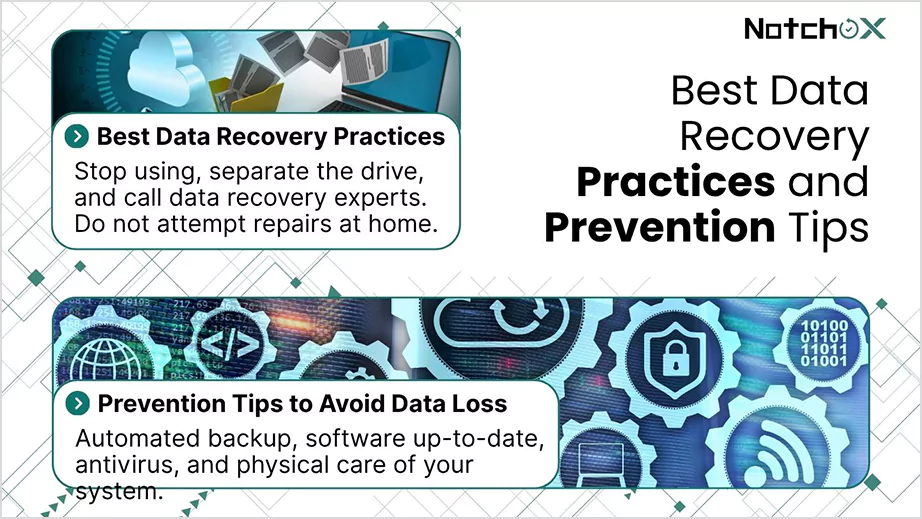
Best Data Recovery Practices
- Stop using the drive immediately after detecting an improper function of the drive.
- Physically separate the drive from the device in case of a crashed hard drive.
- Data recovery experts use specialised tools and methods to safely extract data from physically damaged drives.
- Do not attempt repairs at home because it often causes irreversible damage to the delicate integral components.
Prevention Tips to Avoid Future Data Loss
- Scheduling automated backup to cloud or off-site storage eliminates human error and makes sure data is recoverable.
- Regularly updating the OS and maintaining software up-to-date prevents system crashes. Therefore, decreasing the chances of data loss.
- Install a robust antivirus to detect and block any malware or threats to your data.
- Make your system secure and use unique and strong passwords, and multi-factor authentication to protect your data from unauthorized access.
- Take physical care of your system and keep computers/ PC clean, dry, and well-ventilated to prevent any physical hardware failure.
Conclusion
We’ve seen that recovering data from a crashed hard drive is highly achievable if the crash is logical, but risky if physical. The most crucial step is to stop using the drive immediately to prevent further data loss. For minor issues, data recovery software (like Notchox) and creating a backup clone offer the best DIY results. However, if the drive is physically damaged or clicking, only professional intervention can guarantee data safety. Finally, to prevent future stress, implement a robust backup and use external drives or cloud services.
Frequently Asked Questions (FAQs)
Q1: How can I avoid a hard drive crash?
Q2: Is it possible to recover data from a crashed hard drive?
Ans: Data recovery is often possible from a crashed hard drive using reliable data recovery tools such as Notchox.
Q3: How to recover data from a hard drive that is not detected?
Ans: Recover data from a hard drive that is not detected by checking cables (if externally connected) or using data recovery tools like Notchox.
Q4: How to recover broken HDD data?
Ans: For physically broken HDD data, seek professional data recovery help.
Q5: How to fix a logically crashed hard drive?
Ans: To fix a crashed hard drive, use DIY methods for logical issues such as chkdsk, defragmenting HDD, Windows PowerShell, recovery troubleshooting, disk imaging, cloning, and data recovery software, as explained in this article.
Q6: How much does Notchox charge for data recovery?
Ans: Notchox offers three pricing tiers: Personal for $79.00 (1 device), Pro for $149.00 (5 devices), and Business for $499.00 (unlimited devices), all offering lifetime licenses.
Q7: How to retrieve data from a hard drive that won’t boot?
Ans: Remove the hard drive and connect it to a working computer using a USB enclosure and an adapter cable. The drive is detected as an external drive, which you can use to copy and access the data.
- Android
- Audio recovery
- Datarecovery
- iPhone
- Linux
- Mac
- Photo & Video Repair
- Photo recovery
- Software Reviews
- Video Recovery