Photo recovery is highly successful on any device if you act quickly. To recover deleted photos without losing quality, check your local system’s trash bins first. If photos are not there, don’t worry, your raw data is still hidden in the memory sector until overwritten.
But if your pictures were permanently deleted from your mobile, you must stop using it and use a trusted recovery tool like Notchox to safely retrieve the hidden data. This Notchox guide provides the exact steps to safely extract your images now.
Quick Answer: To recover deleted photos fast and safe, use the Notchox Photo Recovery Software that recovers deleted data from any device. It works as a cross-device solution for iPhones and Androids.
How to Recover Deleted Photos Fast and Safe?
To recover deleted photos fast and safely from any smartphone, you must match your recovery strategy to how it was lost and where it was stored. Data deletion happens in stages. If you try to recover the photos before the new data overwrites the storage drive, your photos are almost always recoverable.
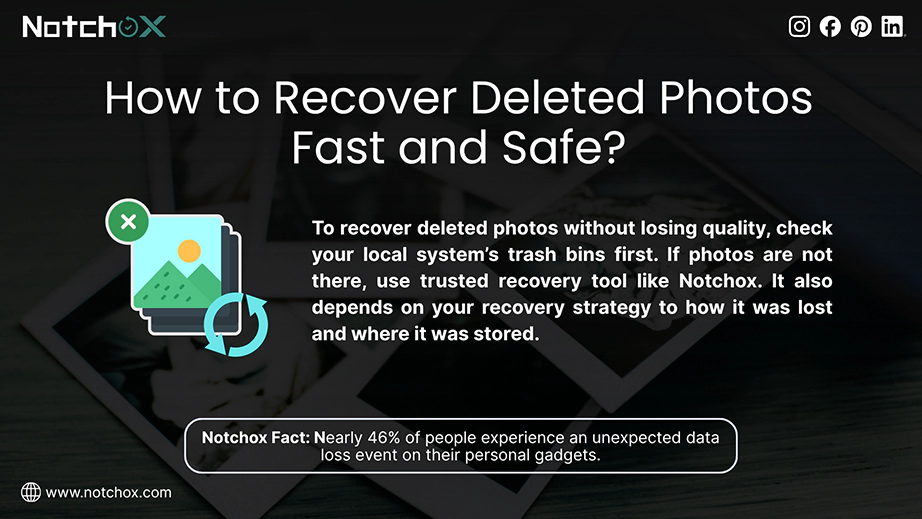
Studies show that nearly 46% of people experience an unexpected data loss event on their personal gadgets. The good news is that with the right guide, you do know how to recover deleted data safely.
This guide is broken down into specific device and system methods on how to get back deleted pics:
Instant brand software solution
Recovery on an Android device
Recovery on iPhone
Section 1: Notchox Photo Recovery Software Method
The fast and most reliable solution to how to recover deleted screenshots or images from any mobile is to use Notchox Photo Recovery Software. By using this advanced recovery solution, you can eliminate the manual troubleshooting steps and recover deleted photos fast and safe.
How to recover permanently deleted photos using Notchox?
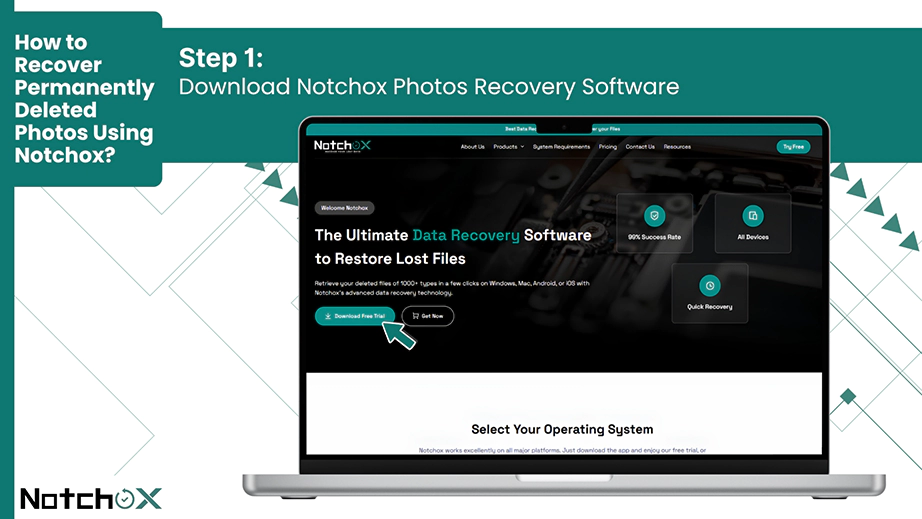
Step 1: Download the software safely from Notchox’s website on a computer drive. Never install the program directly onto the partition or drive that lost the photos, as this will overwrite the deleted sectors.
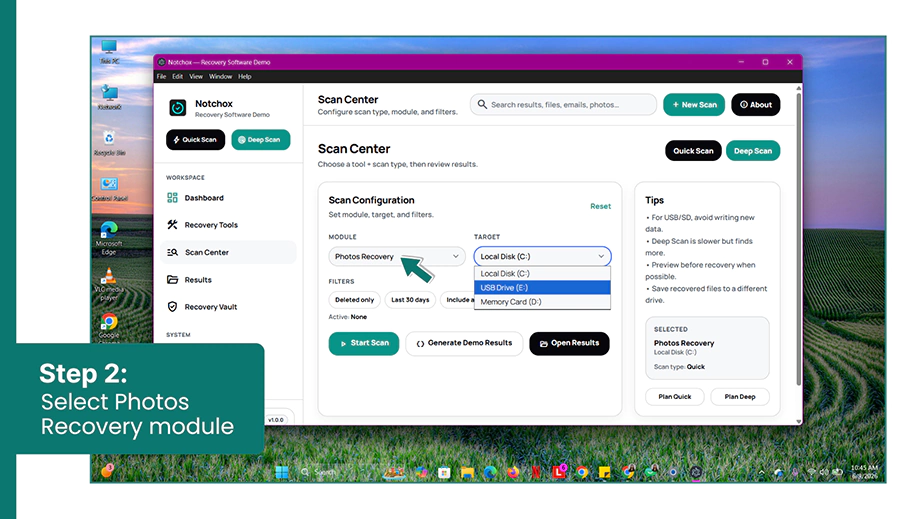
Step 2: Open Notchox after the installation. In its dashboard, select the Photos Recovery module.
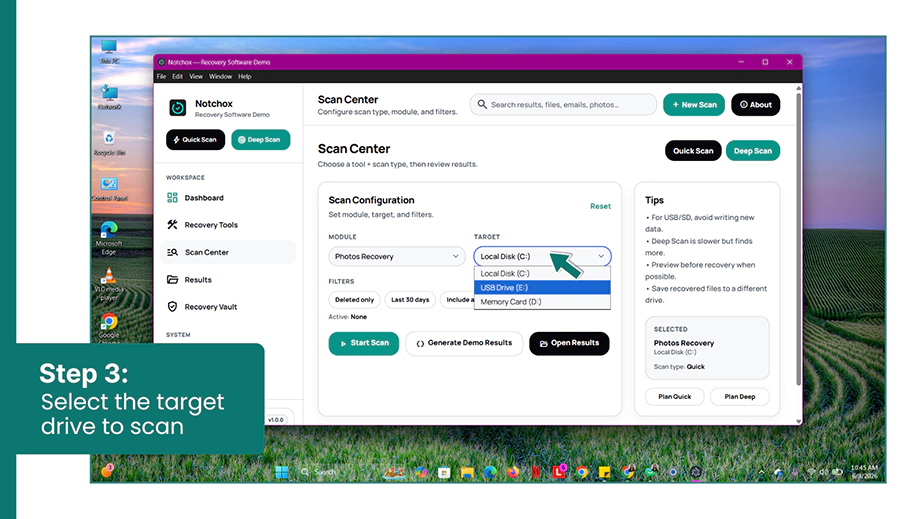
Step 3: Connect your smartphone to the computer and select the target drive to scan. You can connect mobile devices like digital camera cards, HDD, SSD, CCTV, drones memory cards to your computer to run Notchox scan on them. Select a Target Drive to scan.
Note: Notchox can recover 1000+ file types. You can recover a wide range of photo file formats, which include BMP, GIF, PNG, JPEG, JPG, TIFF, PSD, Adobe EPS, and more.
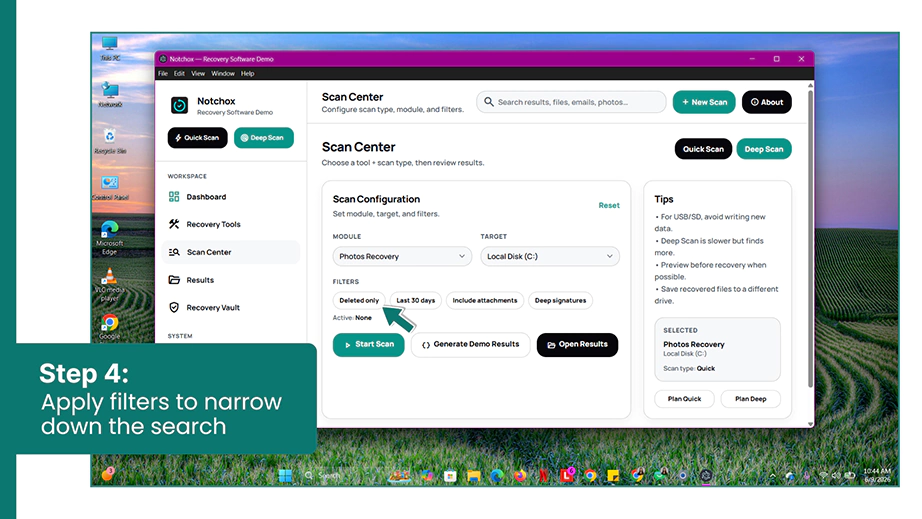
Step 4: Before the scan, apply filters to narrow down the search and save time. Here we want to recover the deleted only photos, so apply the “Deleted only” filter.
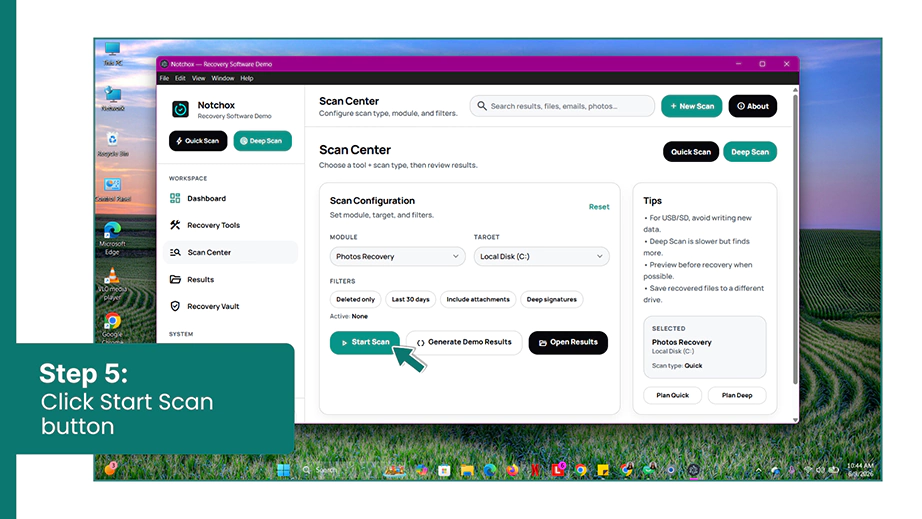
Step 5: Run a deep scan. Click the Start Scan button, and Notchox will automatically run a signature scan to find recent deletions, followed by a file carving process to recover the photos.
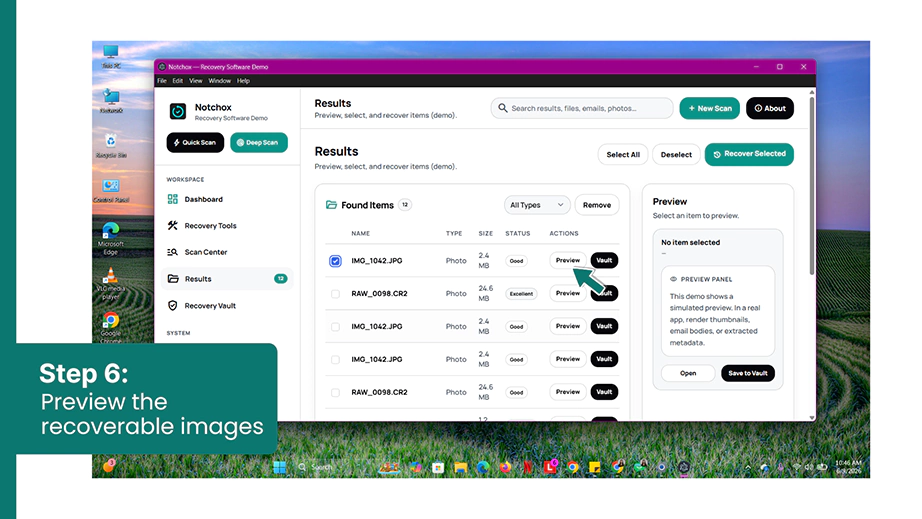
Step 6: Preview the recoverable photos. Click on any discovered file name and select Preview to verify the image quality.
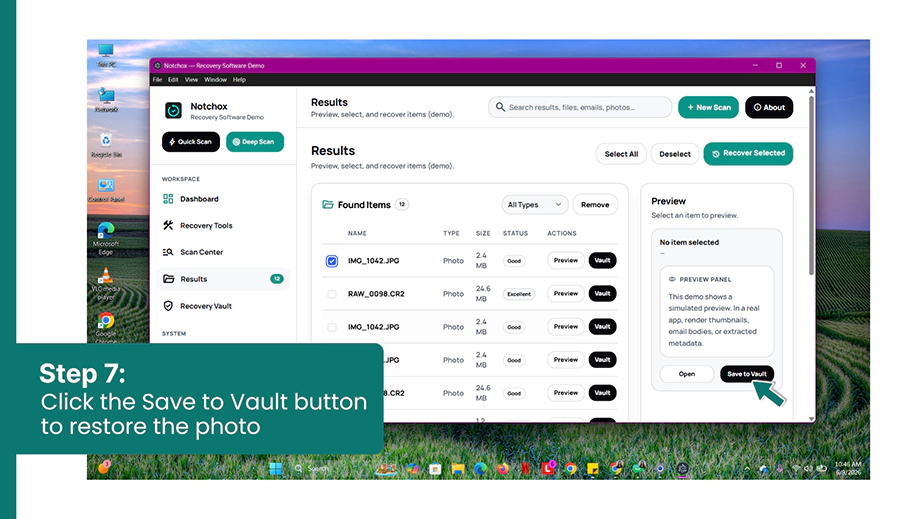
Step 7: Recover the photos. Check the boxes next to the pictures you want to restore and click Save to Vault to recover the files to a separate safe location.
Recovering deleted pictures on Android storage requires a specific approach depending on various factors: how long the file was deleted, where the photo was stored, whether the photo backup exists, etc. Because Android filesystems are constantly updating data in the background, daily activities like downloading apps, streaming videos, taking new photos, or screenshots can overwrite those hidden photo sectors.
How to recover erased photos from an Android device?
Method 1: Restoring Images via Recently Deleted Trash
Almost every Android device has an internal fallback folder that keeps the deleted files before they vanish permanently. It is found in the Recently Deleted or Trash folder. If you erased a photo recently, it is most probably there in this native folder.
Follow these steps to retrieve your photos from the “Recently Deleted” folder:
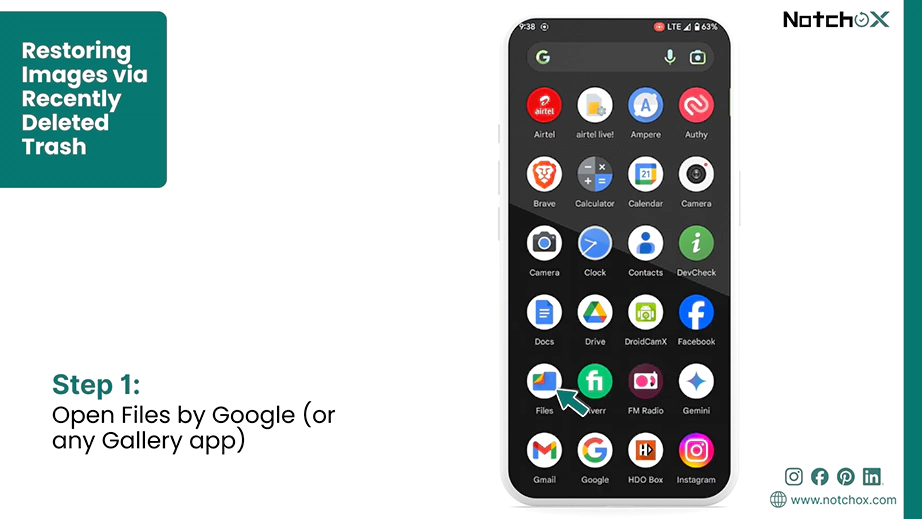
Step 1: Open the Gallery app or the pre-installed Files by Google on your Android phone.
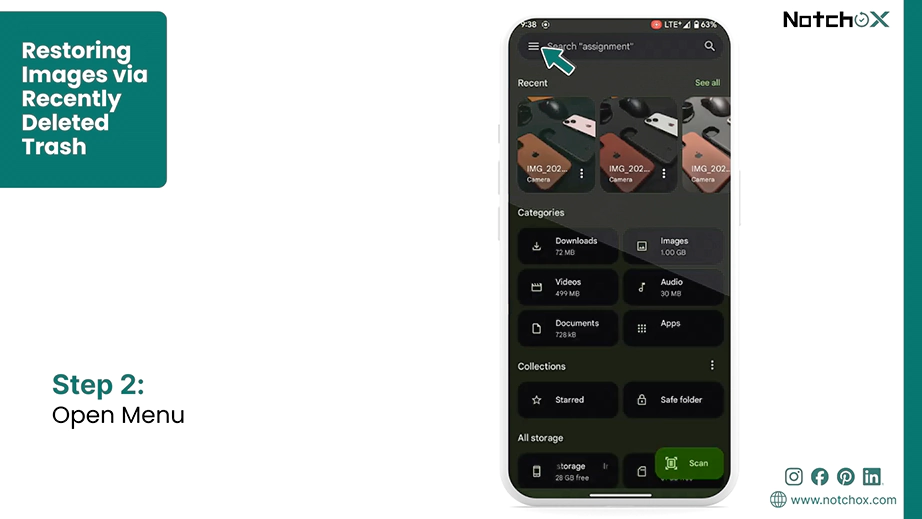
Step 2: Tap on the hamburger menu (☰) icon at the top-left corner of the screen.
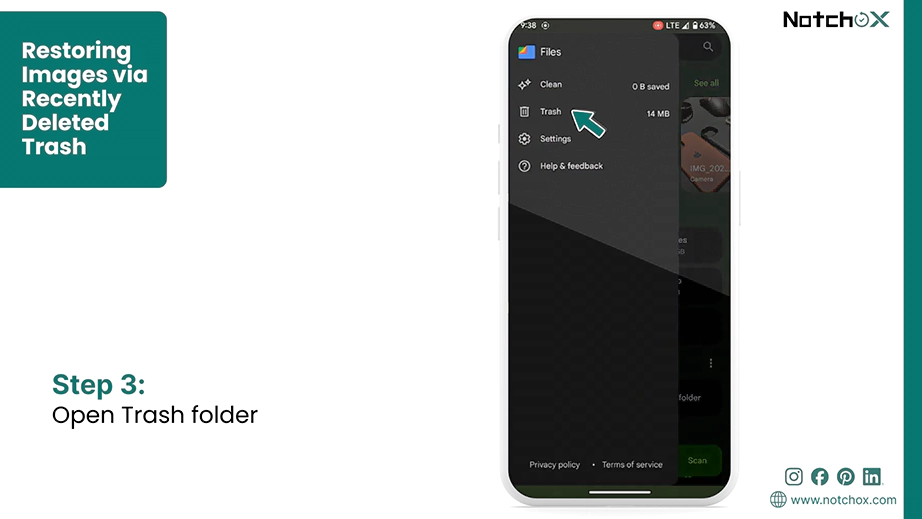
Step 3: Look for the Recently Deleted or the Trash folder.
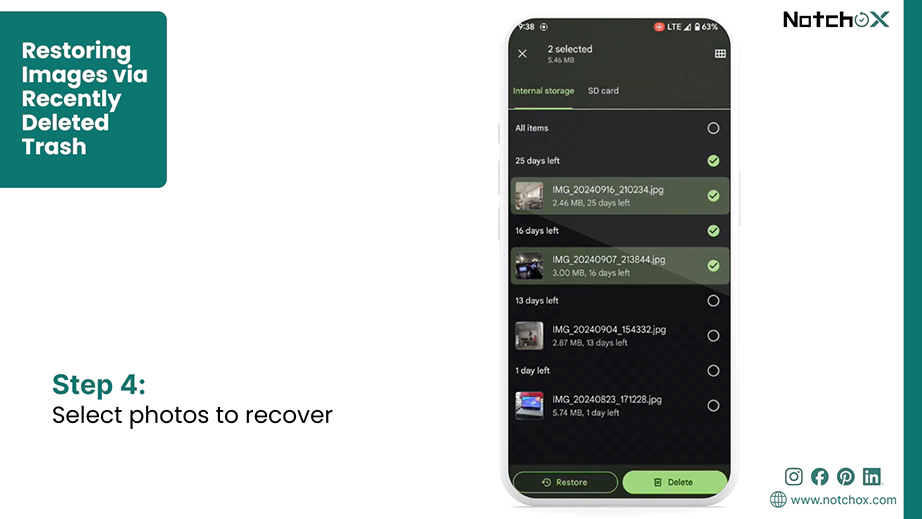
Step 4: Select the deleted photos you want to restore. Tap and hold the photo to select.
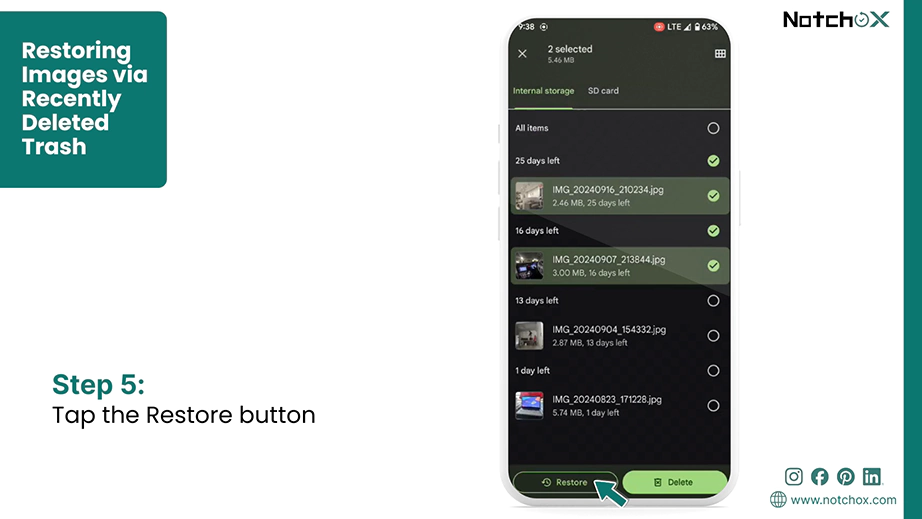
Step 5: Tap the Restore button at the bottom.
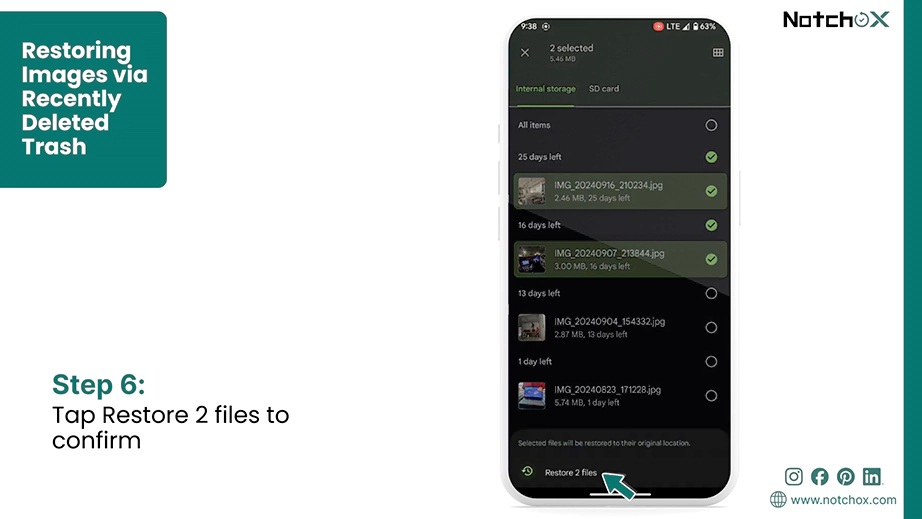
Step 6: Tap Restore X file(s) to confirm.
This will restore your deleted photos to the past location or the gallery of your Android device.
Method 2: Downloading from Google Photos
Google Photos is a smart cloud storage and gallery application created by Google. If your smartphone uses its auto-sync feature, you can restore photos from Google Photos’ Trash. Deleting a photo moves it into the Trash bin.
Note: Google Photos is not just for Android devices! You can download and use the official Google Photos app on both iPhone and Android. If you had the app installed and auto-sync turned on on your iPad or iPhone, you can use these exact same steps to recover deleted photos fast and safe.
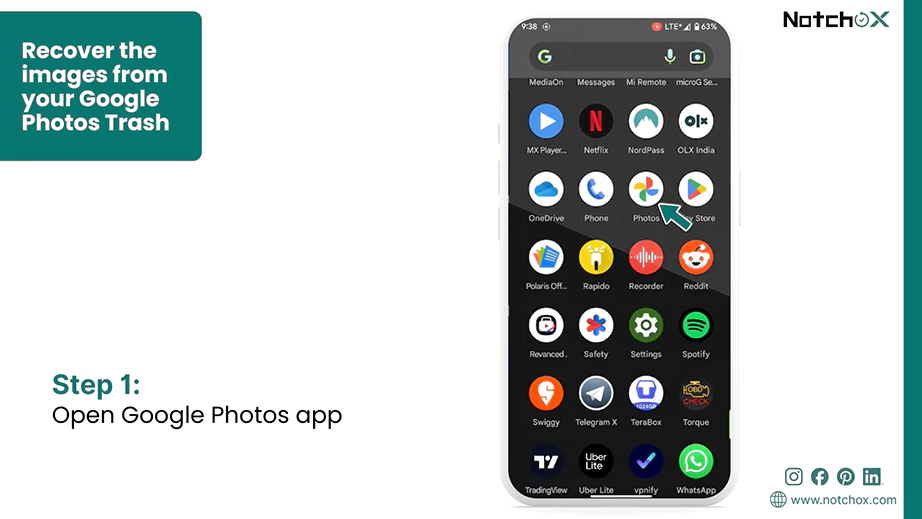
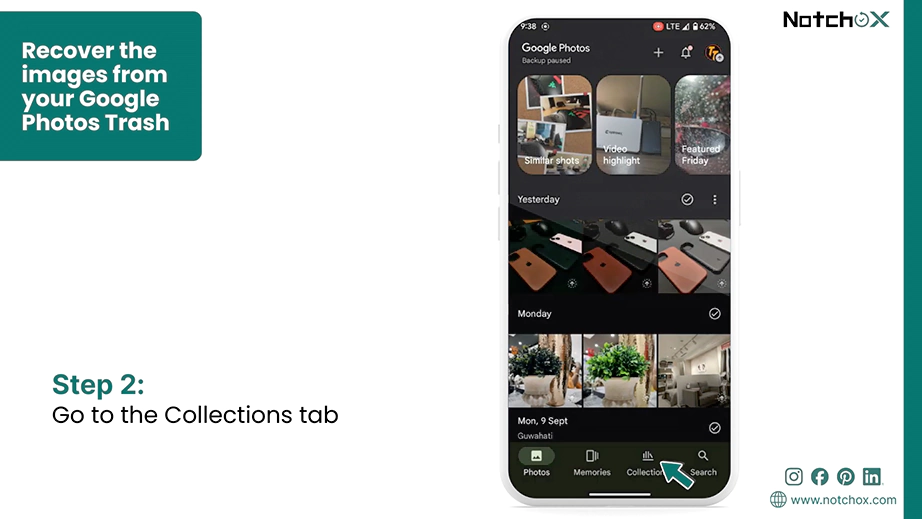
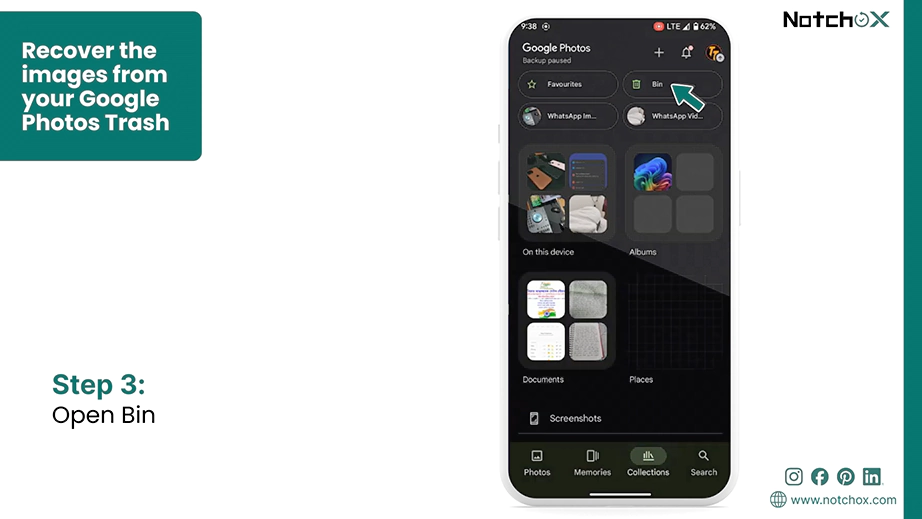
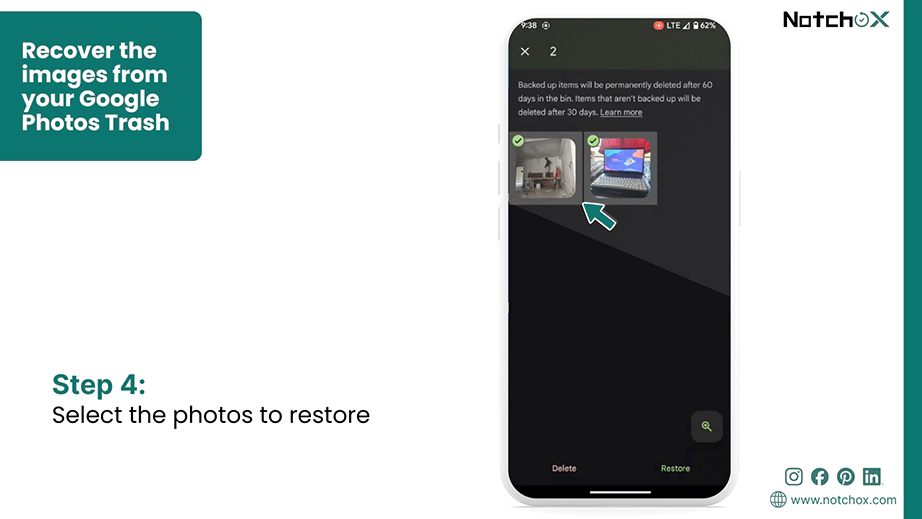
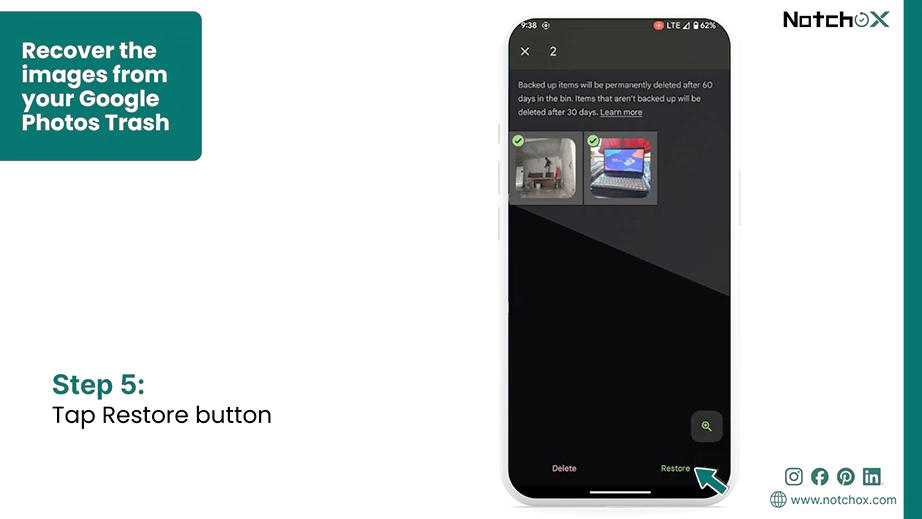
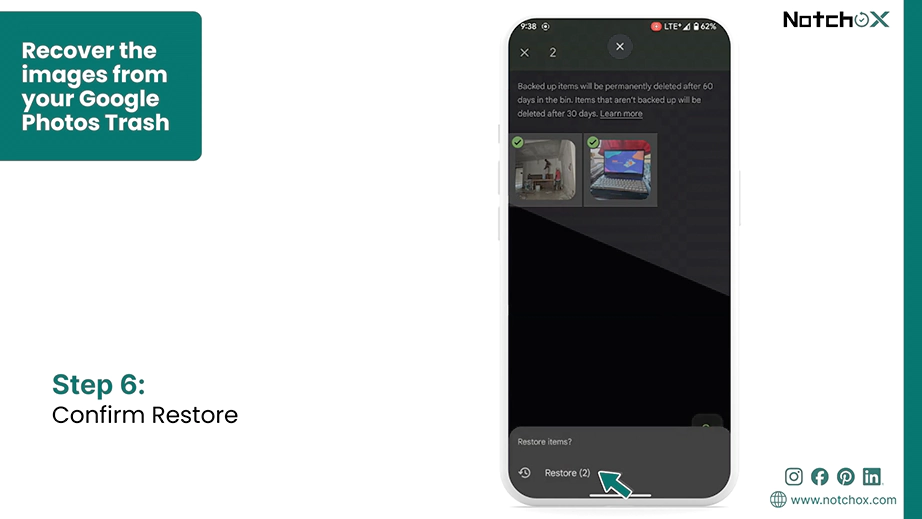
Use this method to recover the images from your Google Photos Trash:
Step 1: Open the Google Photos application on your Android Phone.
Step 2: Tap the Collections tab from the main navigation layout.
Step 3: Tap on the Bin icon (🗑).
Step 4: Select the photo you want to restore. Tap and hold the photo to select.
Step 5: Tap on the Restore button to push it back to your phone’s active timeline grid.
Step 6: Tap Restore (X) to confirm.
This way, you can restore your deleted photos on Android via Google Photos.
Section 3: iPhone and iPad Photo Recovery Methods
To recover deleted photos from an iPhone or iPad, you can use built-in system fallbacks, cloud repositories, or the local backup. Your deleted image files are moved into hidden directories before their data is overwritten.
Apple moves your erased pictures into a locked system archive for a full 30 days before permanently deleting them. This directory is encrypted and hidden away from your primary camera roll. It requires user authentication to access. So, no app or third-party background software can modify or delete the pictures.
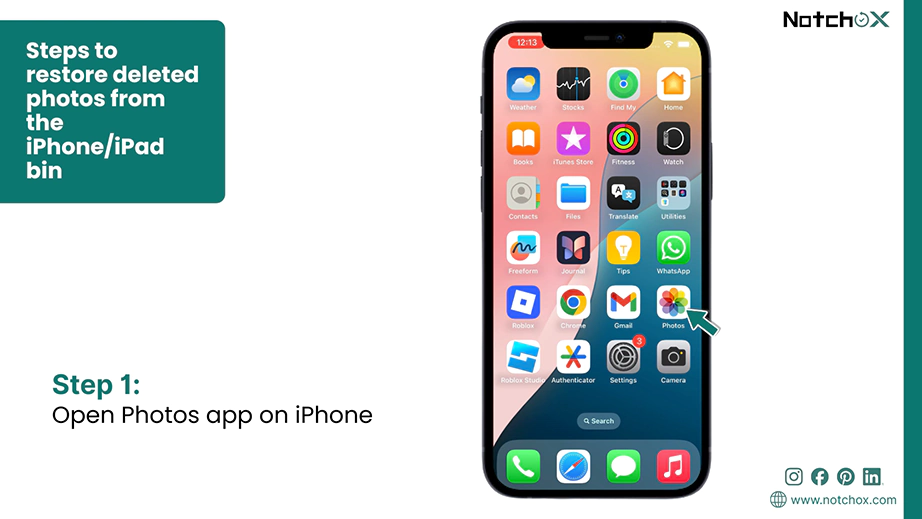
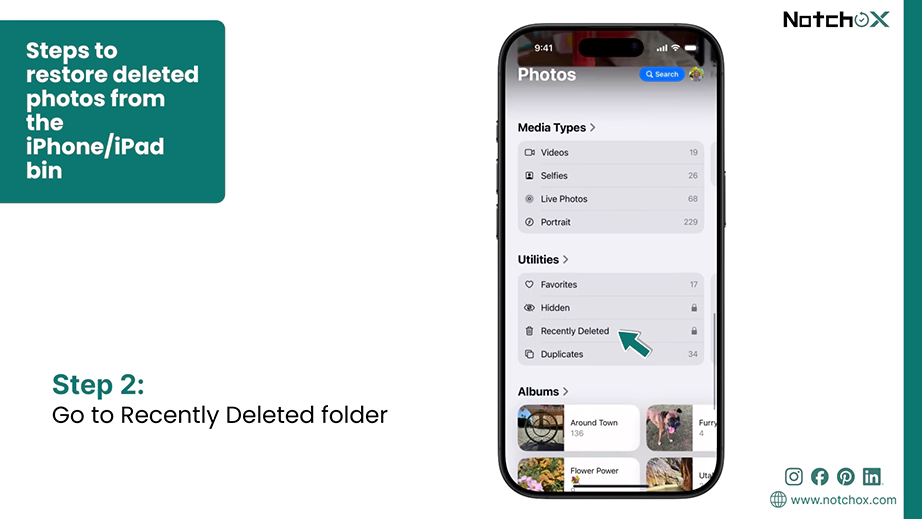
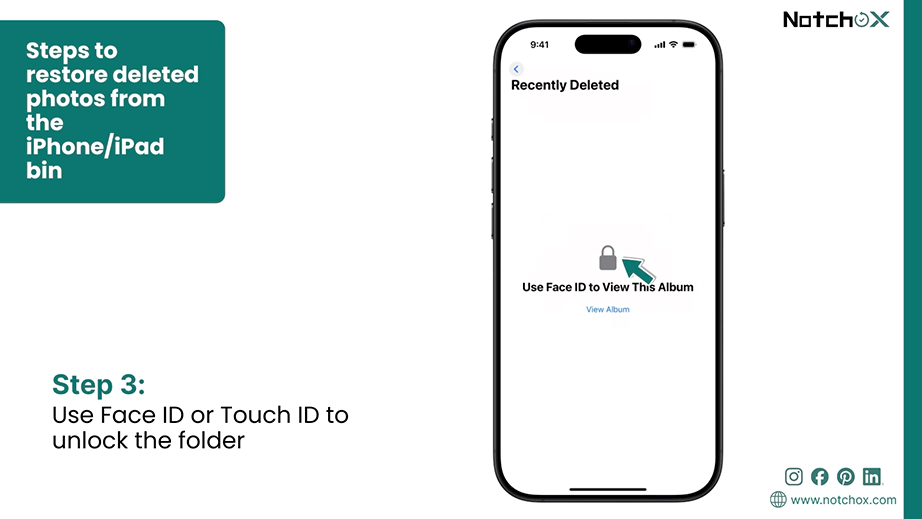
Follow these direct steps to restore deleted photos from the iPhone/iPad bin:
Step 1: Tap the native Photos app on your iPhone home screen.
Step 2: Scroll all the way to the bottom and under the Utilities menu, select the Recently Deleted folder.
Step 3: Use your Face ID or Touch ID to unlock the secure album.
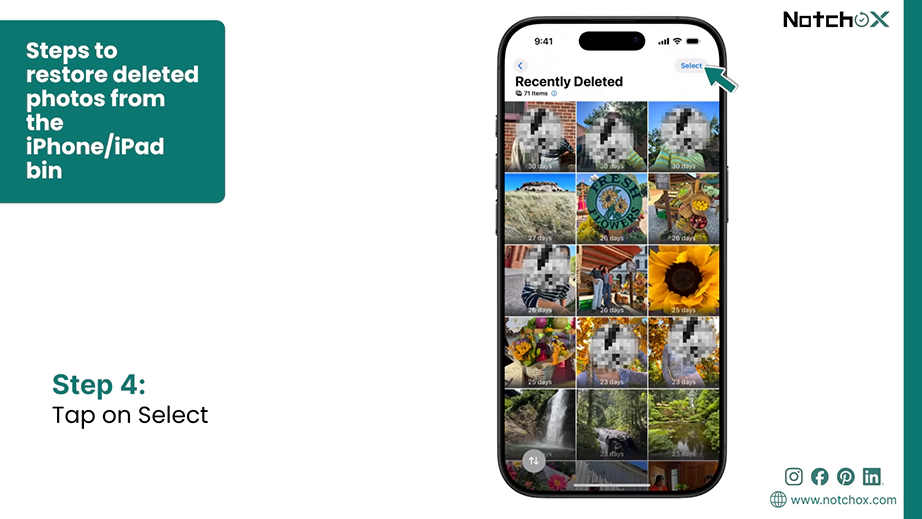
Step 4: Tap Select at the top right. Check the specific thumbnails you want to restore.
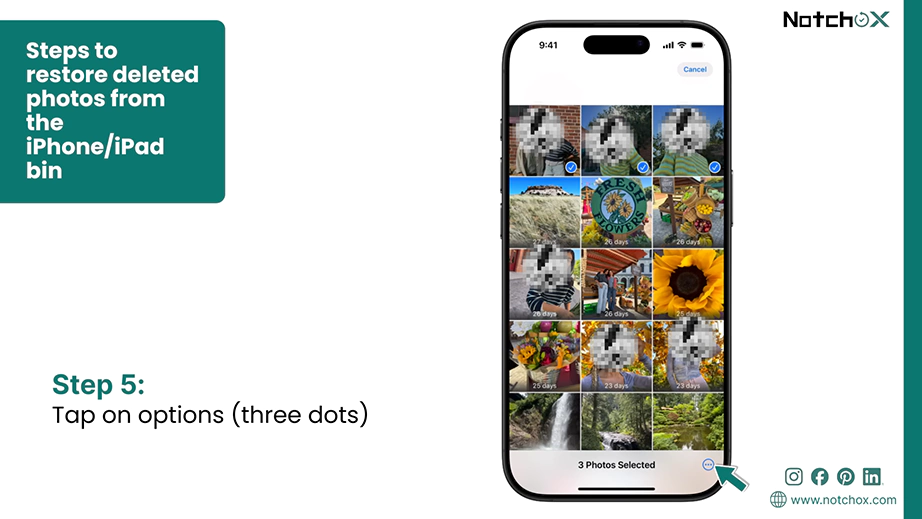
Step 5: Tap on the three dots(• • •) at the bottom right corner.
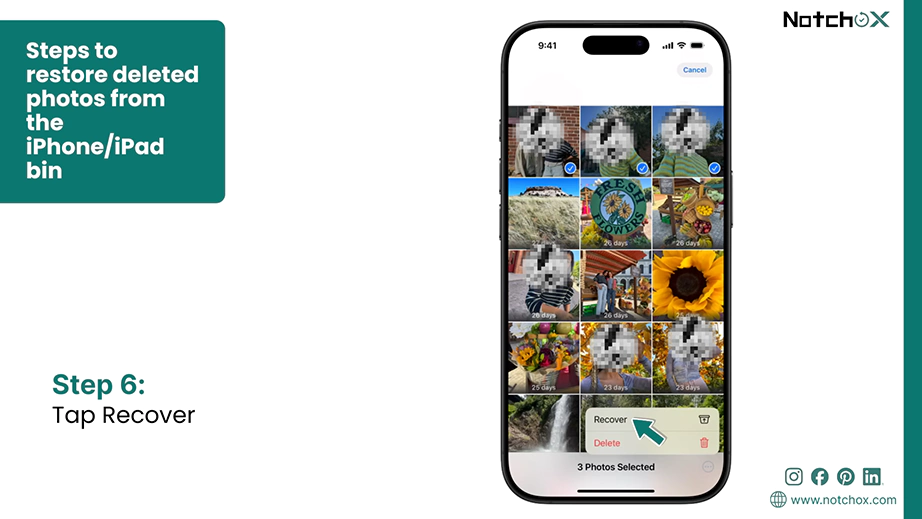
Step 6: Tap Recover to restore the selected photos to the camera roll.
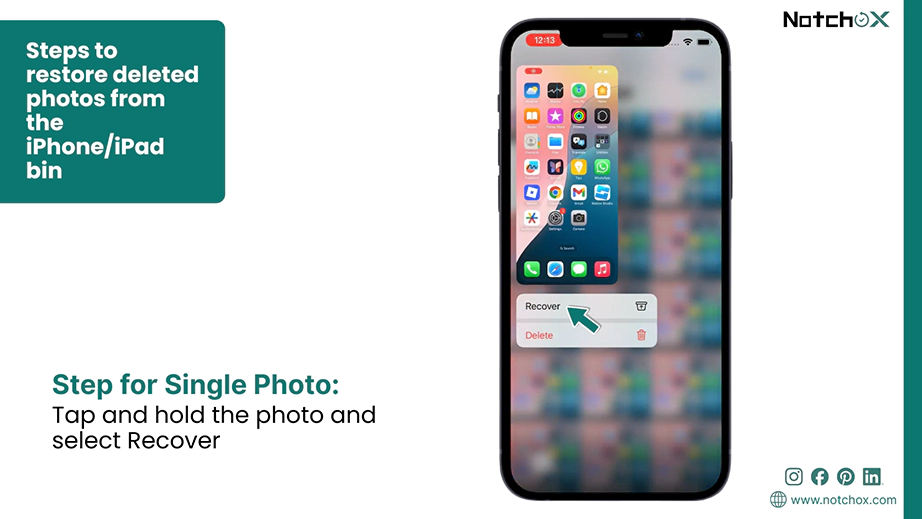
Note: To simply recover a single photo, tap and hold the photo and select Recover.
Method 2: Recover Erased Photos from iCloud
iCloud Photos is Apple’s cloud storage platform that securely uploads and syncs your photos and videos across all your Apple gadgets. If you delete a photo from your phone’s gallery while the iCloud sync is active, it stays in the cloud bin for 30 days.
This is how to recuperate deleted pictures from iCloud:
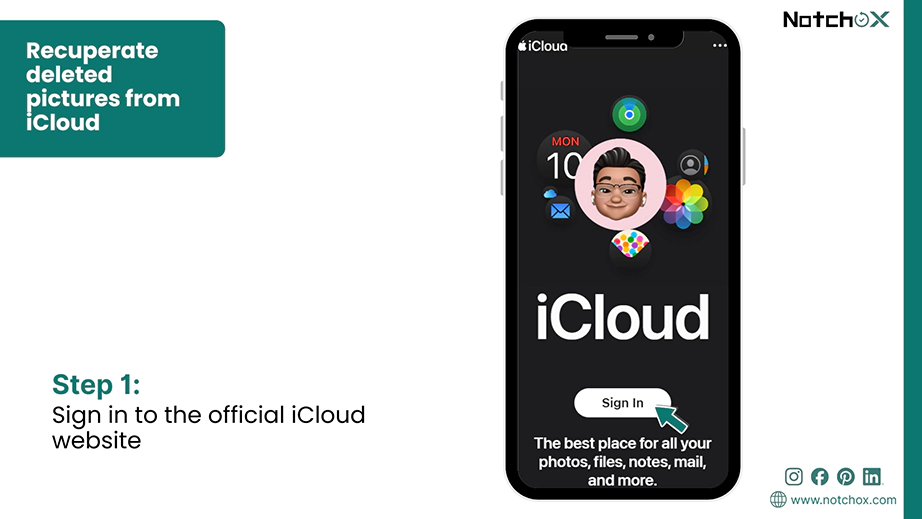
Step 1: Open an internet browser and sign in to the official iCloud website using your Apple ID credentials.
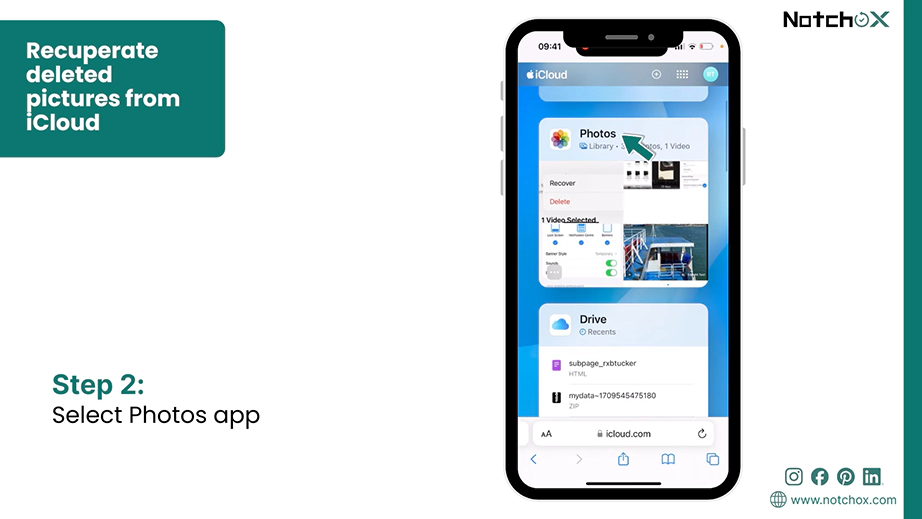
Step 2: Click on the Photos app icon from the main account dashboard layout.
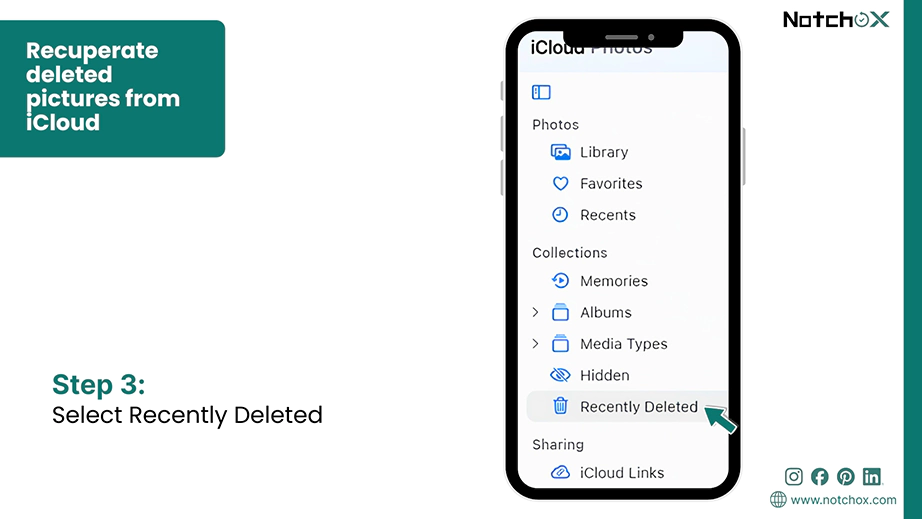
Step 3: Look at the left sidebar menu and select Recently Deleted.
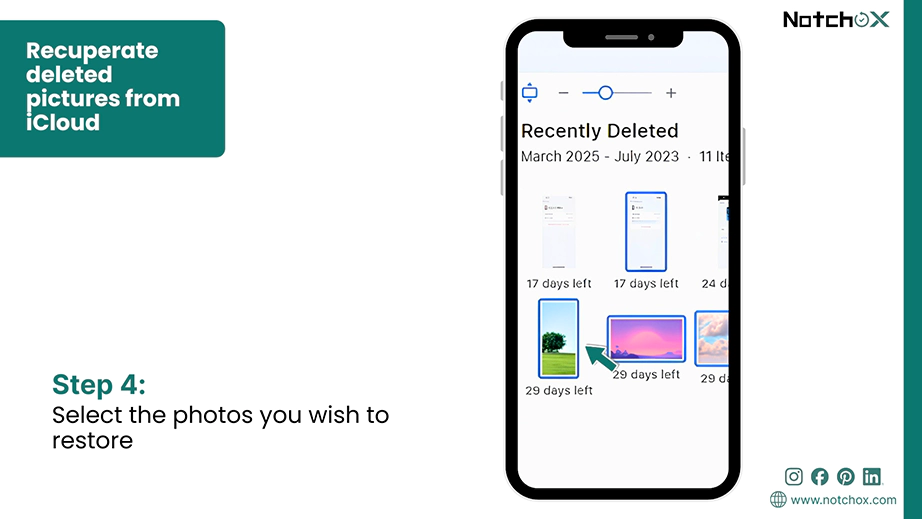
Step 4: Tap to select the photos you wish to restore.
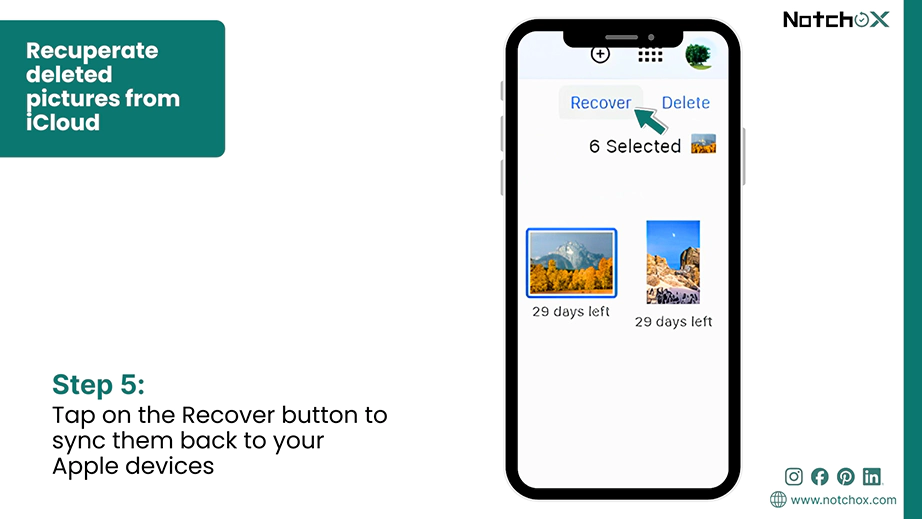
Step 5: Tap on the Recover button located at the top right of the screen to sync them back to your Apple devices.
Method 3: Rolling Back Data Using Finder/iTunes Backup
If your photos are completely gone from the phone’s local trash and cloud bin, you can restore them by rolling back your device data to an older system snapshot stored on your desktop. Rolling back your device system to a previous calendar point completely replaces your current data with the previous one. This process restores every single picture that was saved inside the camera roll folder at the exact time the backup was created.
Follow these steps to roll back your data:
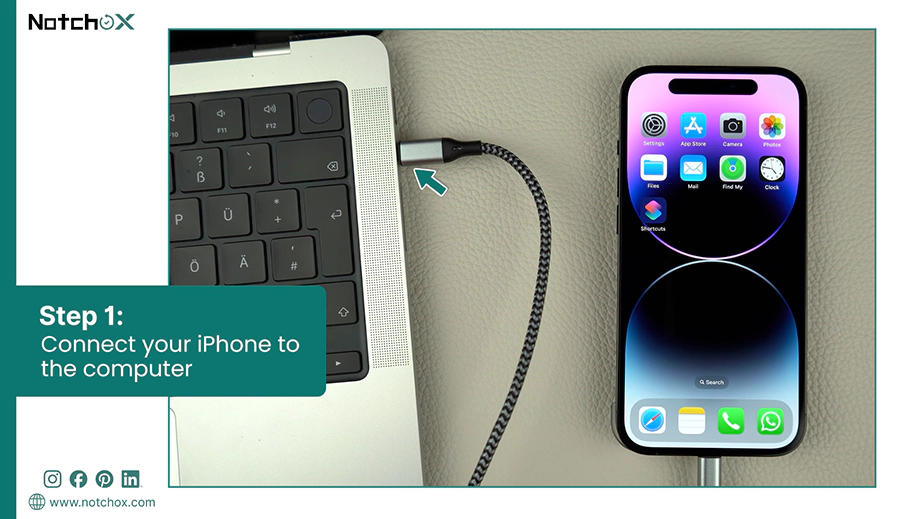
Step 1: Connect your iPhone or iPad to your computer using a USB cable.
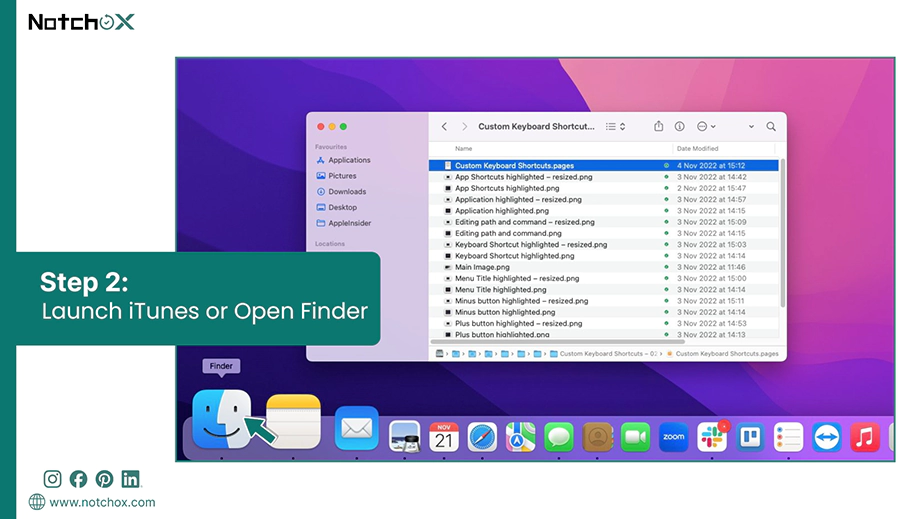
Step 2: Launch iTunes. If you are using a modern Mac running macOS Catalina or newer, open a standard Finder window.
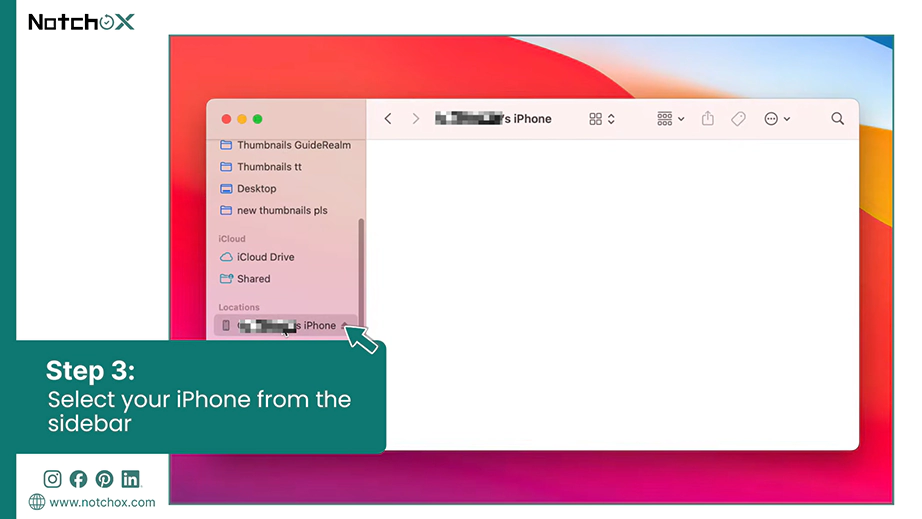
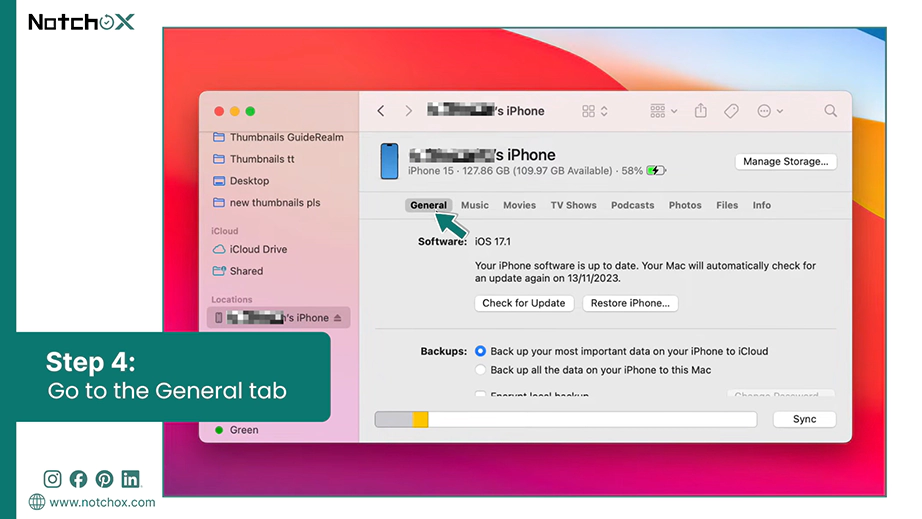
Step 3: Select youriPhone or iPad when it appears on the sidebar in Finder or iTunes.
Step 4: Go to the General or Summary tab.
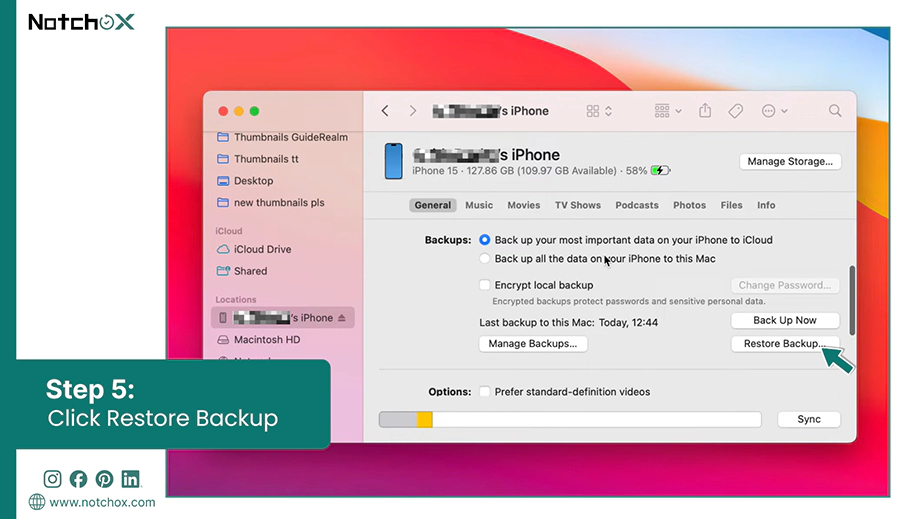
Step 5: Click the Restore Backup… button in the Backup section box.
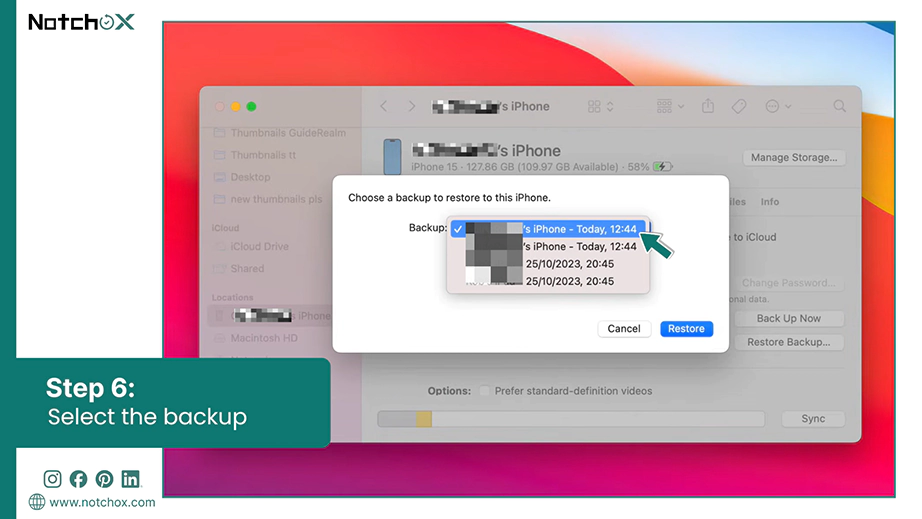
Step 6: Next, look at the time stamp options and from that, select a backup file created before you accidentally deleted the photos.
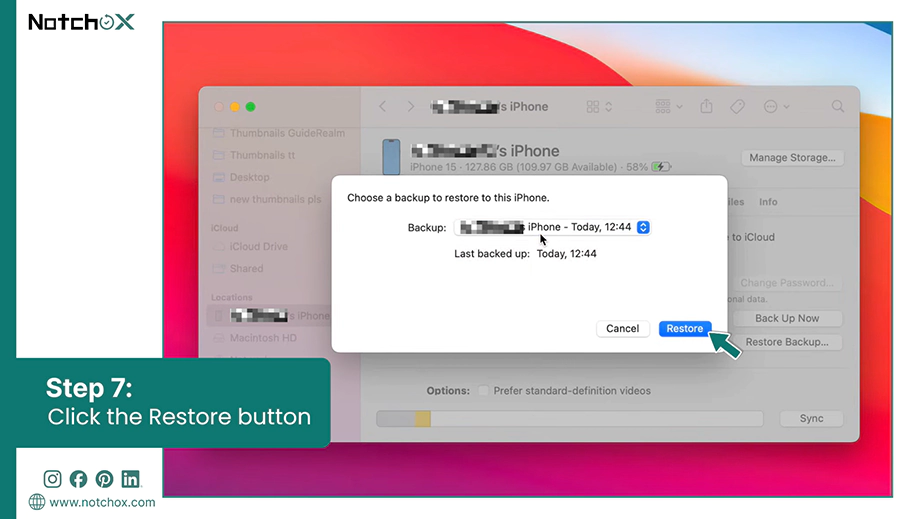
Step 7: Click Restore and leave the phone plugged in until the system reboot finishes completely.
Note: Relying solely on your device’s auto-sync can be risky. Research shows that only 42% of people manage to get their files back using standard backups because those files are often outdated or incomplete. This is why using direct recovery software like Notchox is the safest way to recover your data.
Final Takeaway
Recovering your important photos is fast and safe across Android and iPhone when you use the right steps. Starting with your “Recently Deleted” folders or cloud backups is always the best first move. If those folders are empty, tools like Notchox Data Recoverycan deeply scan your device to rescue your files. We have carefully mapped out the step-by-step process for how to recover deleted pictures from any device with maximum speed and absolute safety.
If you remember nothing else from this guide, just keep the number one rule of data recovery in mind: stop using your device the second you realize a photo is missing because every new action can overwrite your lost photos.
Frequently Asked Questions (FAQs)
Q1: How to recover deleted photos on iPhone?
Ans: Open your Photos app, tap the Albums tab at the bottom, scroll down to the Recently Deleted folder. Select your pictures and tap Recover. If the 30-day timer has expired and the Trash is empty, log in to iCloud to look into cloud trash or connect your computer to let Notchox search the phone’s storage.
Q2: How to recover deleted pictures on Android?
Ans: Open your Gallery or Files app and go to the Trash/Recently Deleted folder. Select your photos and tap the Restore button. If the photos are gone from your phone, check your Google Photos app trash box. If you still can not find them, stop using the phone immediately and run a scan using the Notchox Data Recovery tool.
Q3: Can I recover permanently deleted photos from my phone?
Ans: Yes, you can absolutely recover permanently deleted photos from your phone. Connect your phone to the computer and run the Notchox photo recovery software to scan your phone’s storage and recover deleted photos fast and safe.
Q4: How to recover deleted photos from Google Photos after 60 days?
Ans: Once 60 days pass, Google permanently deletes its online trash folder. But if those pictures were originally captured or saved on your phone, you can recover them using Notchox Photo Recovery Software. Just connect your phone to the computer and run a deep scan by Notchox.
Kajal Singh is a Data Recovery Writer at Notchox, specializing in data recovery, storage systems, RAID, and digital forensics. She writes technical processes, tools, and cases into clear, engaging articles, blogs, and guides. Kajal does thorough research, deep analysis, and collaborates with experts to produce high-quality and engaging content that is easy to understand for every reader.