Deeksha Arora May 12, 2026
Ans: To recover a photo on Android, immediately check the trash folder. Deleted files usually stay there for 30-60 days.
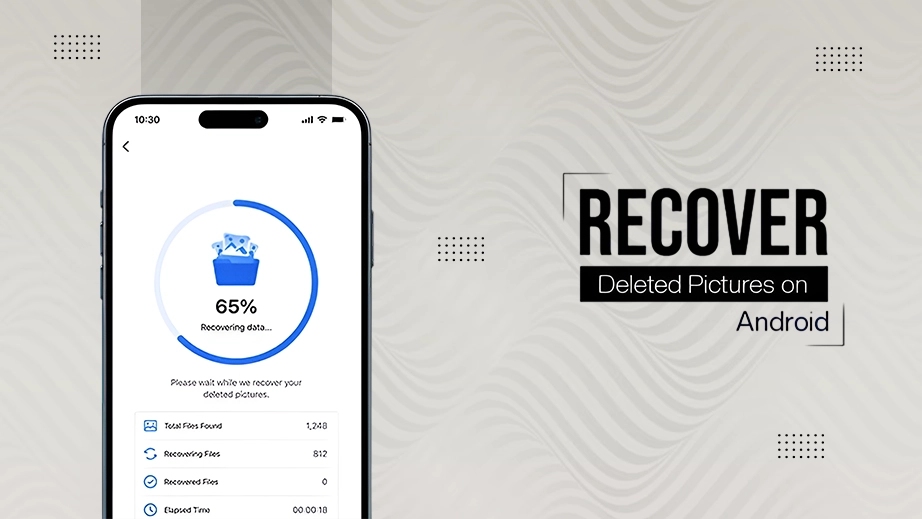
We’ve all been there, looking at thousands of photos in our phone gallery, trying to declutter and accidentally deleting that “not wanting to delete” photo.
Whether it’s been deleted 5 seconds ago or 30 days back, your pictures aren’t gone forever.
Here is the guide on how to recover deleted pictures on Android – even without a backup.
Quick Answer:
To recover deleted pictures on Android, first check the gallery app trash or Google Photos, OneDrive, or Device Native Cloud Storage, where files usually remain for 30-60 days. If not found, use data recovery software like Notchox to scan device storage. For permanently removed files, turn off Wi-Fi/data immediately to avoid overwriting and use data recovery tools.
When a photo is deleted, the system just marks the space as “available” for new data. The photos are still there. If you act quickly, you can recover them before being overwritten by new apps or photos.
Check the Trash folder first because recently deleted photos stay there for 30-60 days when deleted. If backed up, restore via Google Photos, OneDrive, or native cloud services (e.g., Samsung Cloud). Without backups, use SD card file managers or third-party recovery apps like Notchox to recover lost images.
Following, you’ll see the best, easy methods and detailed steps to recover deleted pictures from checking your cloud to using specialized recovery software.
When the picture or video is deleted from the Gallery app, it is usually moved to the Trash or Recently Deleted folder, where it can be retained for a limited time. Here’s how you can recover deleted pictures on Android from the Gallery App Trash:
Step 1: Open your Android phone’s default Gallery app.
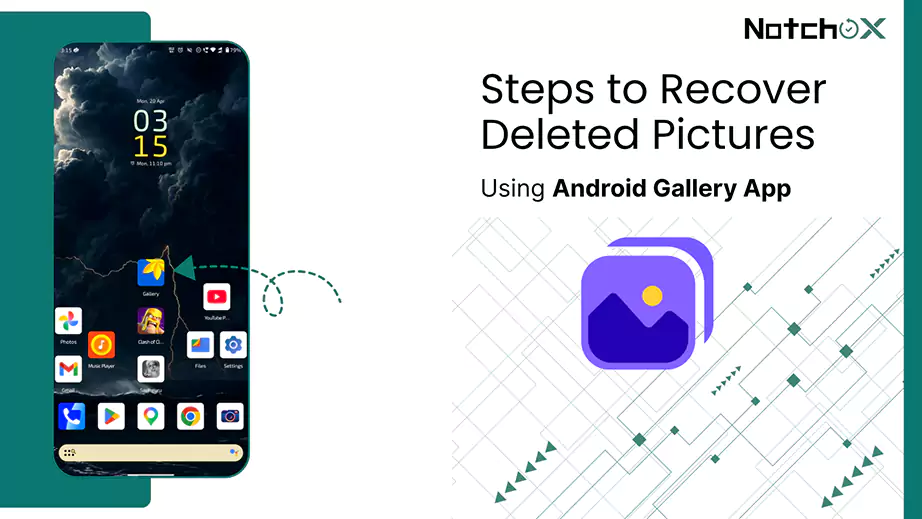
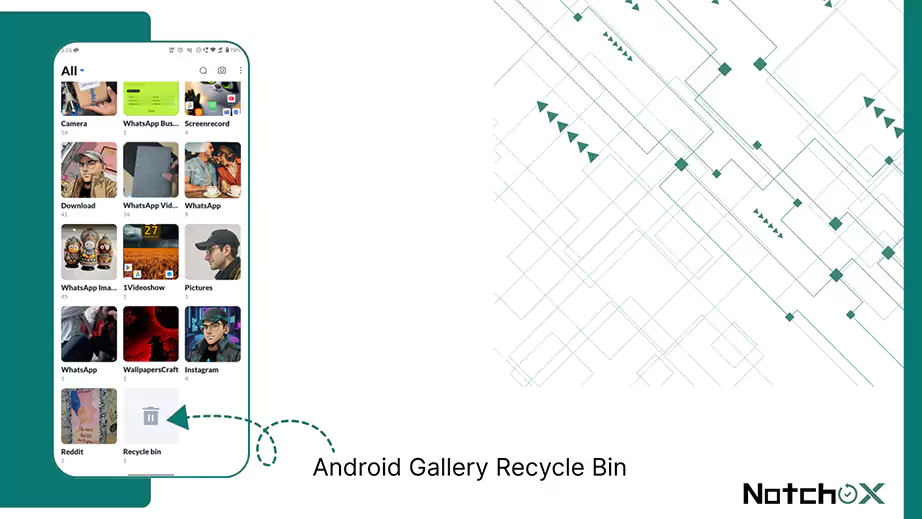
Step 2: Go to the Recycle Bin section (in some Android devices, it is named as Trash).
Step 3: Select the Photos: Select the photos you want to recover from the Recycle Bin or Trash and tap Restore at the bottom of the screen.
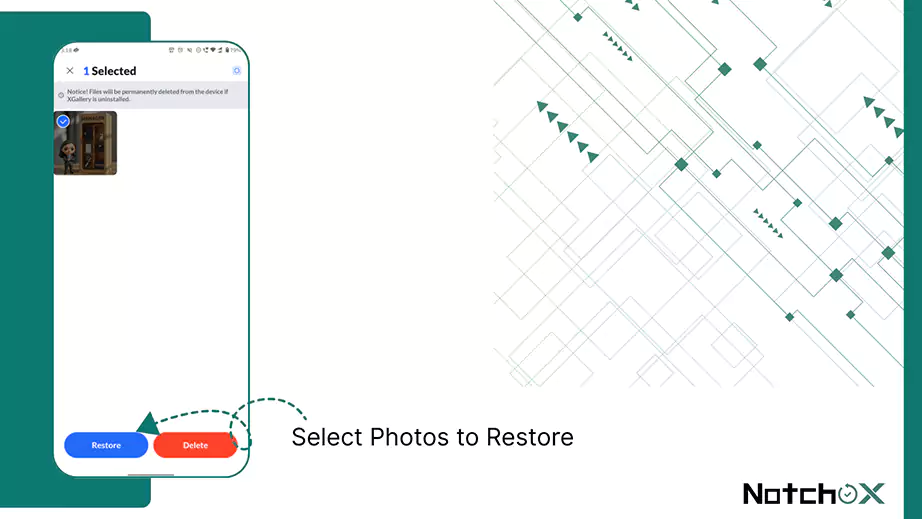
Note: Photos/videos are generally stored in trash for 30-60 days, depending on the Android device brand.
If your Android was backing up, your pictures aren’t really gone. They’re just somewhere in backup, waiting for you to recover them or delete them permanently. There are 3 types of backup in an Android device:
Google Photos is a cloud-based storage and editing app available on Android, iOS, and the web. It provides 15 GB of free storage that allows automatic backup and access from anywhere.
Google Photos automatically backs up all the photos and videos on your device until it is manually turned off. Your deleted photos from the gallery can be found in the Google Photos backup.
Considering Google Photos backup is on. Let’s see how to regain deleted pics from Google Photos backup.
Step 1: Open Google Photos app on your Android device.
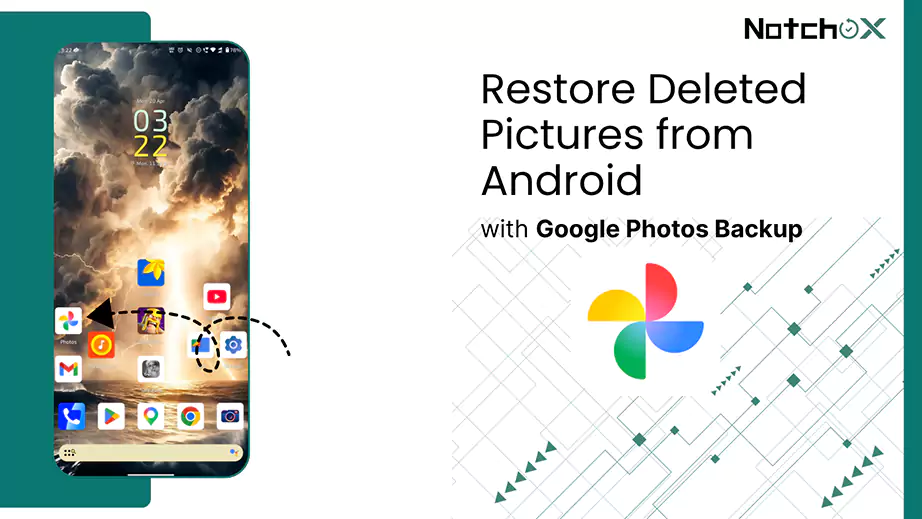
Step 2: Locate the required photos by scrolling down to the exact timestamp it was taken.
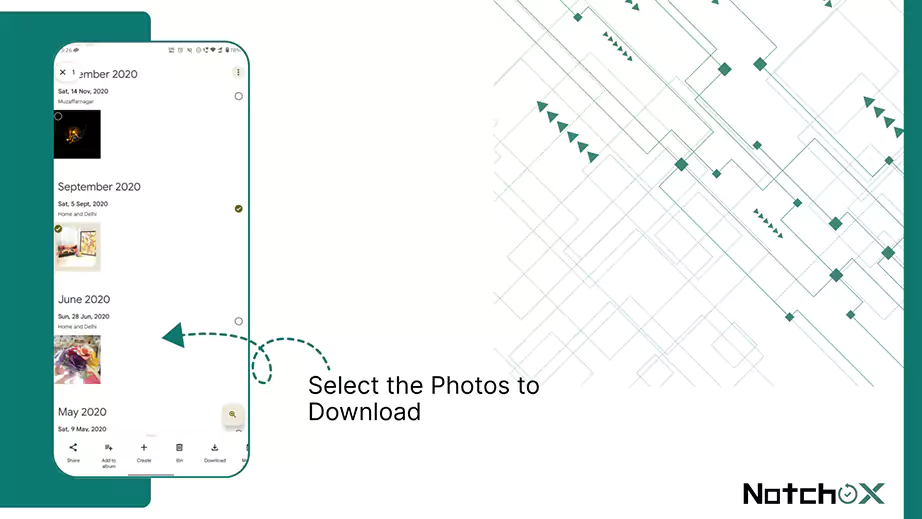
Step 3: Hold to select the photo. Tap the download button available at the bottom of the screen.
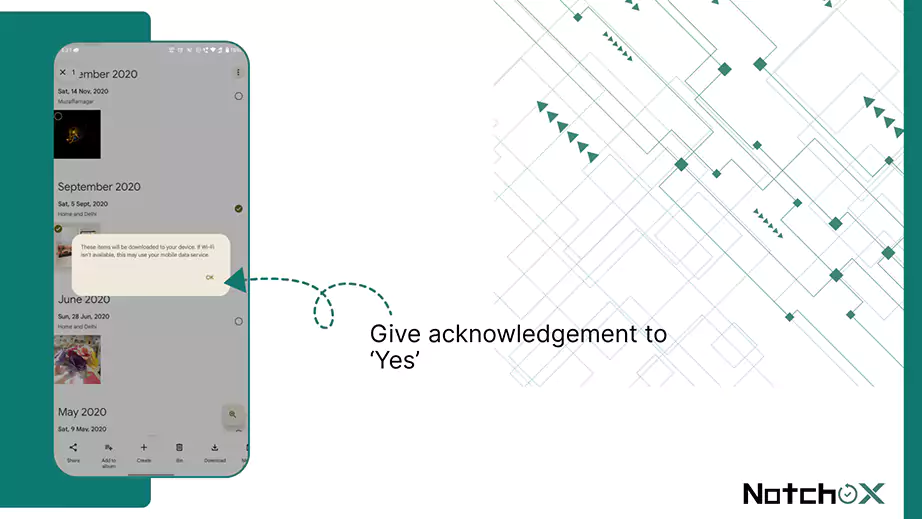
Step 4: Give acknowledgement to ‘Yes’ when the popup appears, and the photo will be restored successfully on your device.
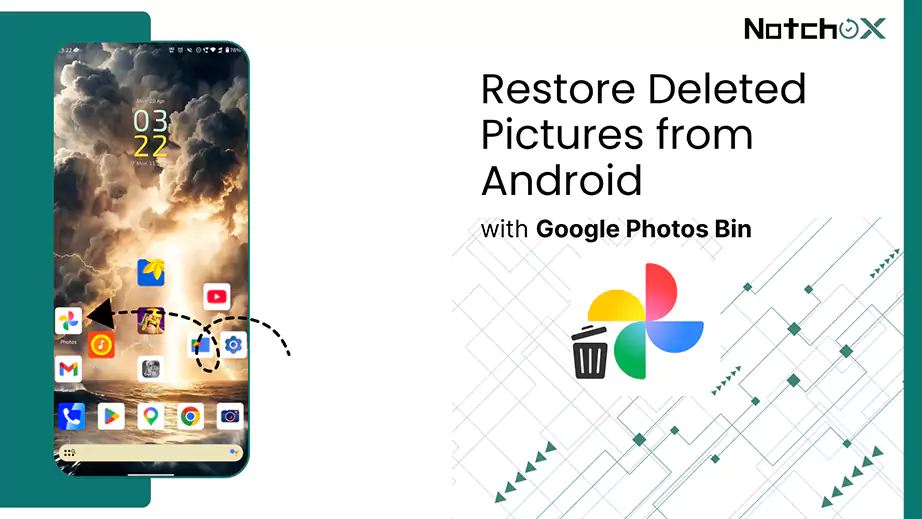
Google Photos’ bin stores photos and videos for 30 days. If a photo/video was backed up before deletion, it remains in the trash for 60 days. You can recover by following these steps:
Step 1: Open Google Photos on your Android device.
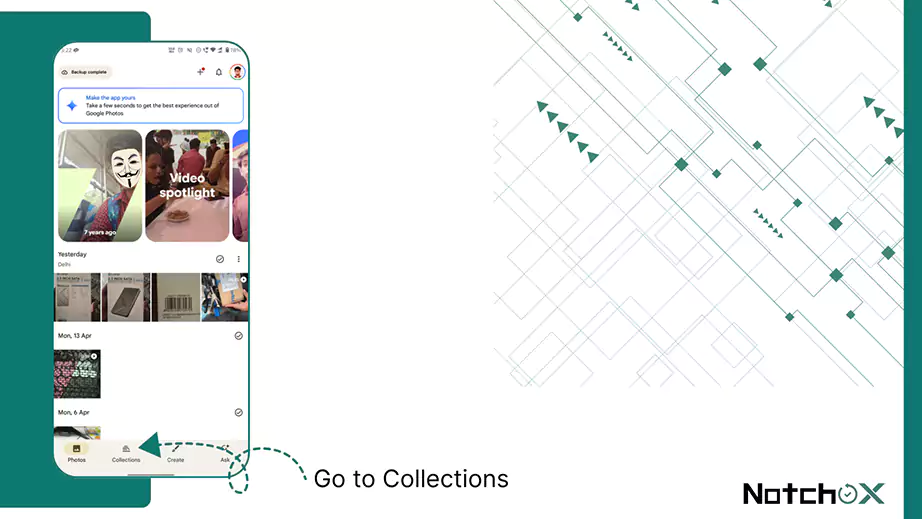
Step 2: At the bottom, tap Collections.
Step 3: In collections, you’ll find the Bin folder. Tap Bin to see recently deleted photos.
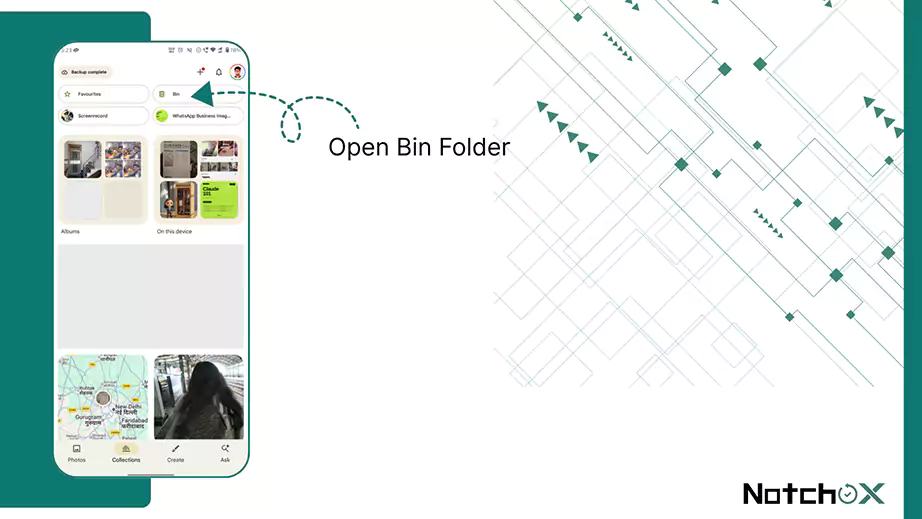
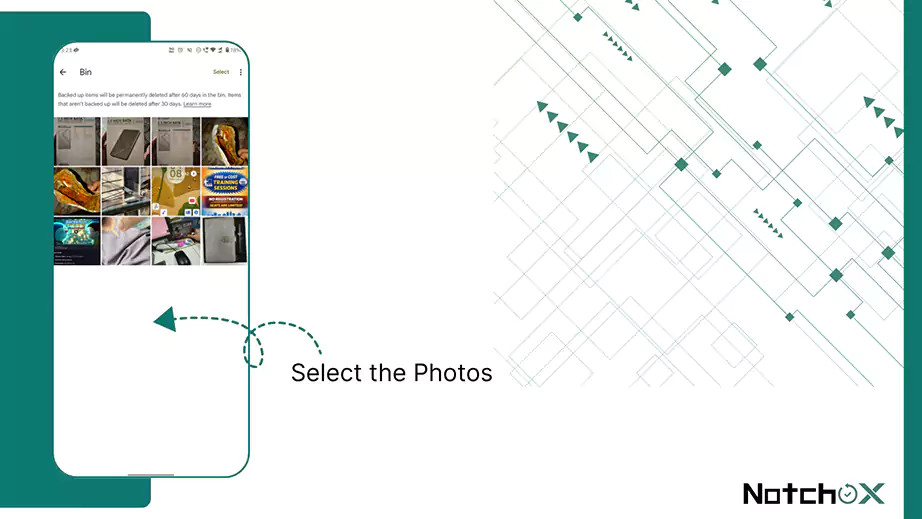
Step 4: Trash will contain all the deleted photos and videos. Find and hold the photo to be restored.
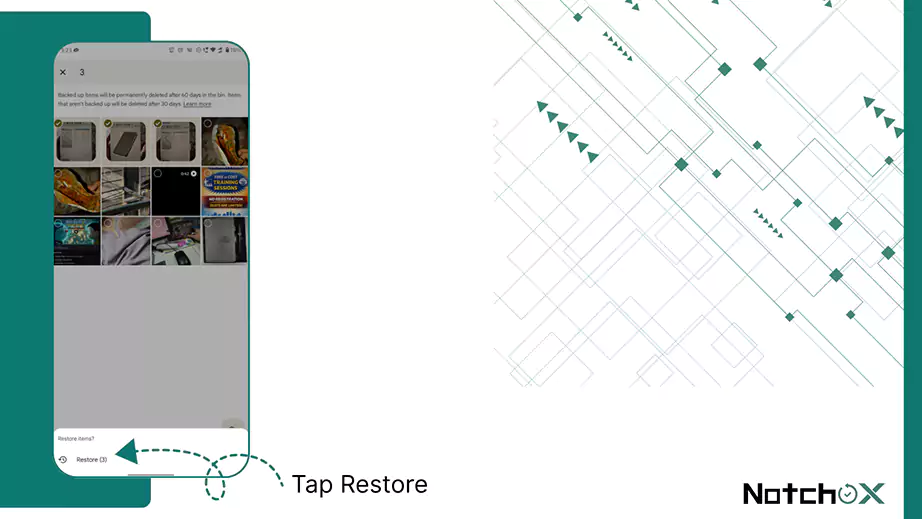
Step 5: At the bottom, tap restore. The photo will be back in the original album and the phone’s gallery app.
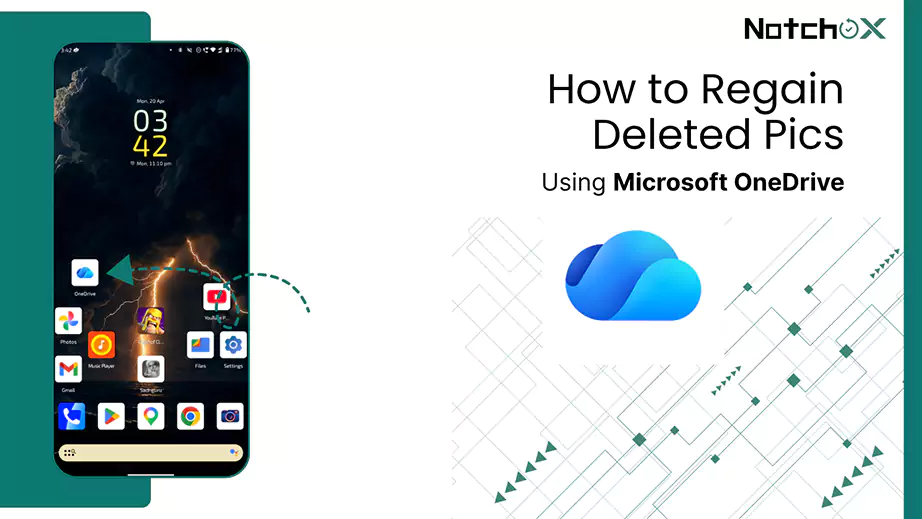
Microsoft OneDrive is a Microsoft cloud storage service that allows store and share files, photos and videos. If you accidentally deleted a photo from OneDrive, it can be restored from OneDrive Recycle Bin. It allows 30 days to restore deleted photos/videos.
Step 1: Open the OneDrive app on your Android phone. And if it’s not installed on your phone then go to Play Store > Search “Onedrive” > Install Microsoft Onedrive.
Step 2: Freshly installed app needs permission to access device’s photos. Tap on Allow access to photos.
Step 3: Go to “Me”, the profile section at the top left corner of the screen, and select the Recycle bin.
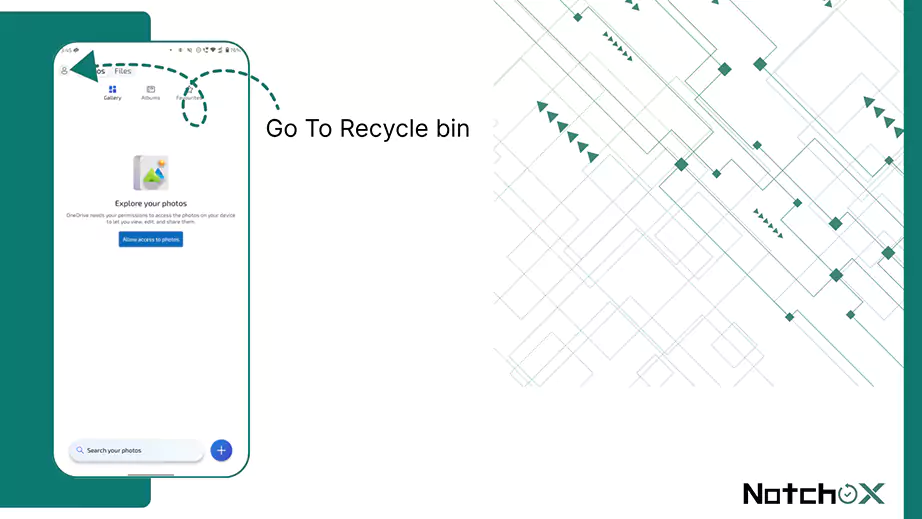
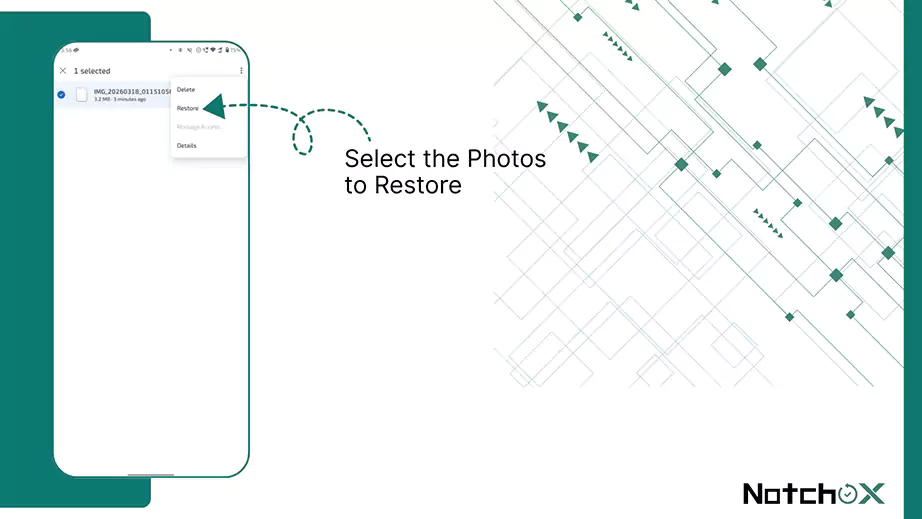
Step 4: Find and select the photos to be restored.
Step 5: Tap on the three dots available on the top right corner and tap Restore. That’s how to regain deleted pics in Microsoft OneDrive.
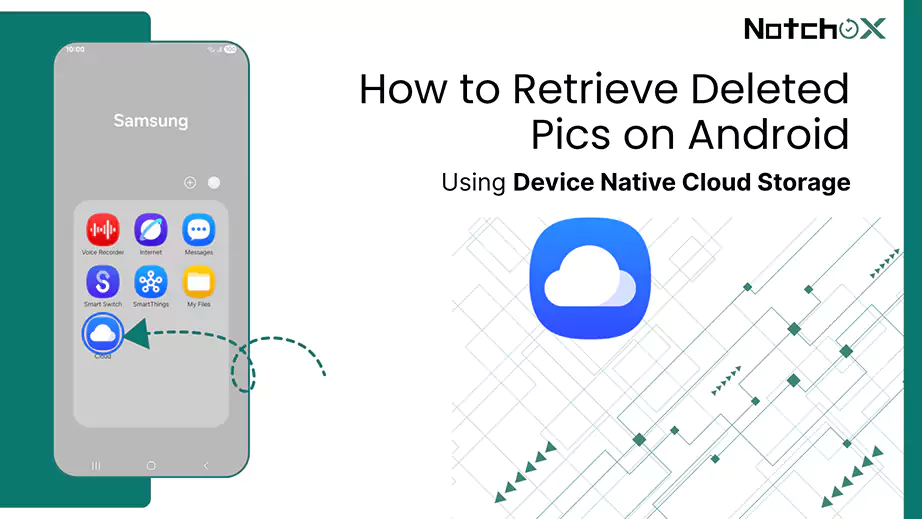
Every Android brand provides its users with native cloud storage. For example, Samsung Cloud, Xiaomi Cloud, OnePlus Cloud, etc. Keeping the backup lets your photos on the device sync with the cloud.
For understanding, let’s see how to retrieve deleted pics on Android with Samsung Cloud storage.
Step 1: Open the Cloud app on your Samsung mobile.
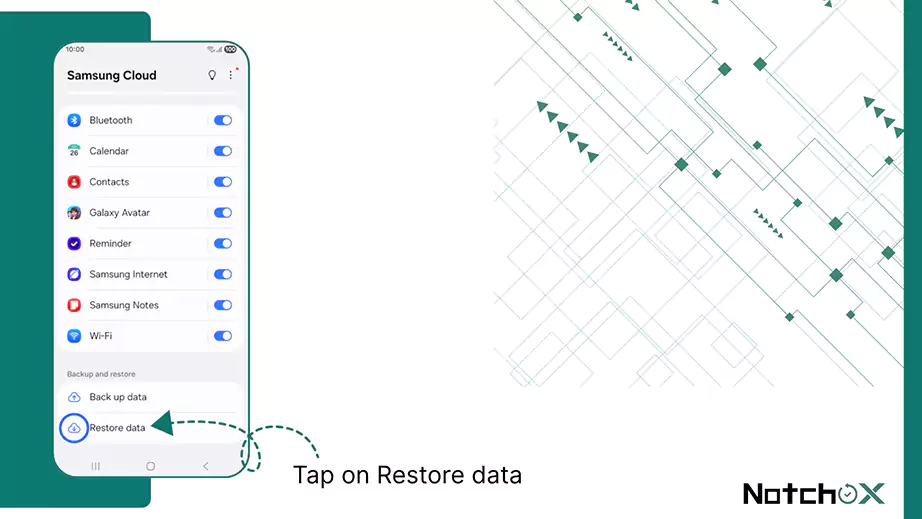
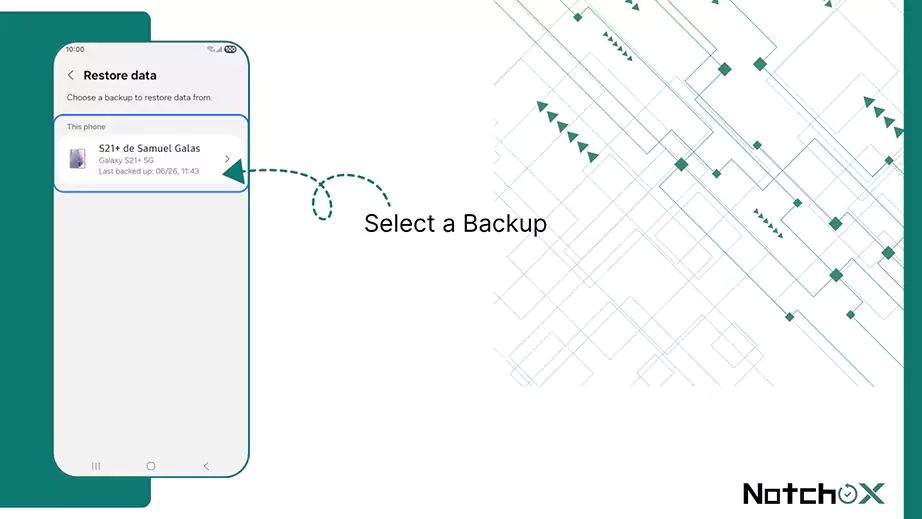
Step 2: In the Cloud app, tap on Restore data.
Step 3: Select the desired backup to restore pictures from..
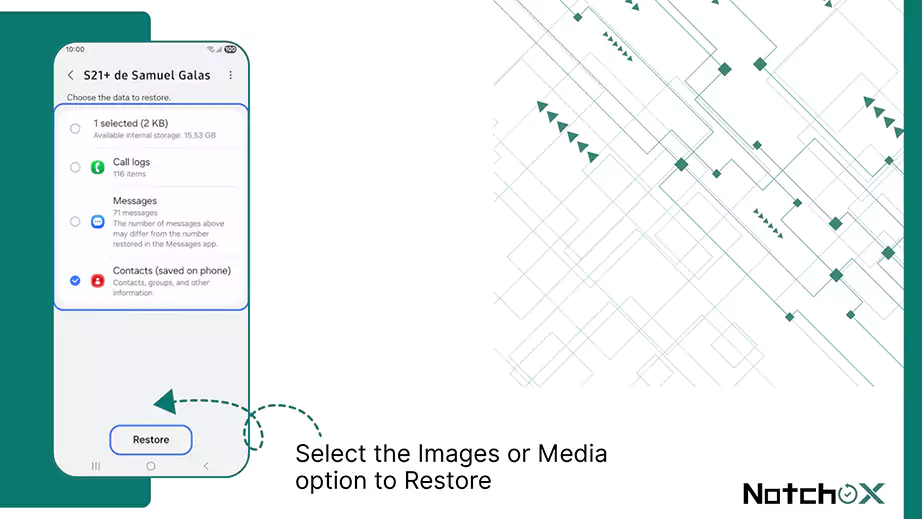
Step 4: From here, select the Images or Media option (if available) and tap restore.
Recovering deleted data without backup is one of the most common concerns of users these days. Because cleaning up storage, clearing cached files, and deleting duplicate photos may accidentally lead to the unwanted deletion of photos needed. Here is a quick guide on ways to recover deleted photos without any backup.
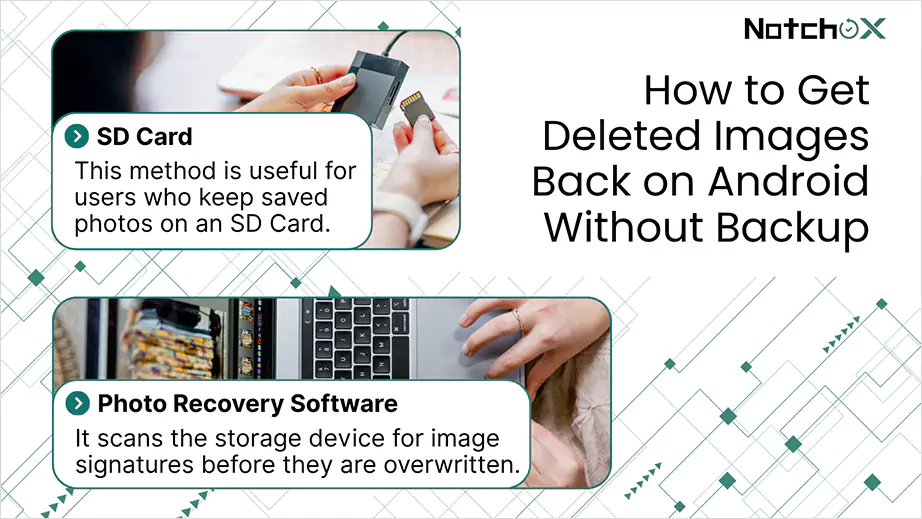
An SD Card is a removable storage device used to extend a phone’s storage. This method is useful for users who keep saved photos on an SD Card.
In case photos are deleted from the SD Card, don’t take any action on it. Avoid overwriting the data on the SD Card. Use any Photo Recovery software to recover the photos from the SD Card. In the following section, we’ll see how to restore deleted pictures from Android using photo recovery software/app.
Photo recovery software/app lets you restore deleted photos on various devices in different formats. It scans the storage device for image signatures before they are overwritten.
Notchox is considered to be the best photo recovery software for Android, due to its:
Now let’s see how to recover deleted pictures on Android using Notchox photo recovery software.
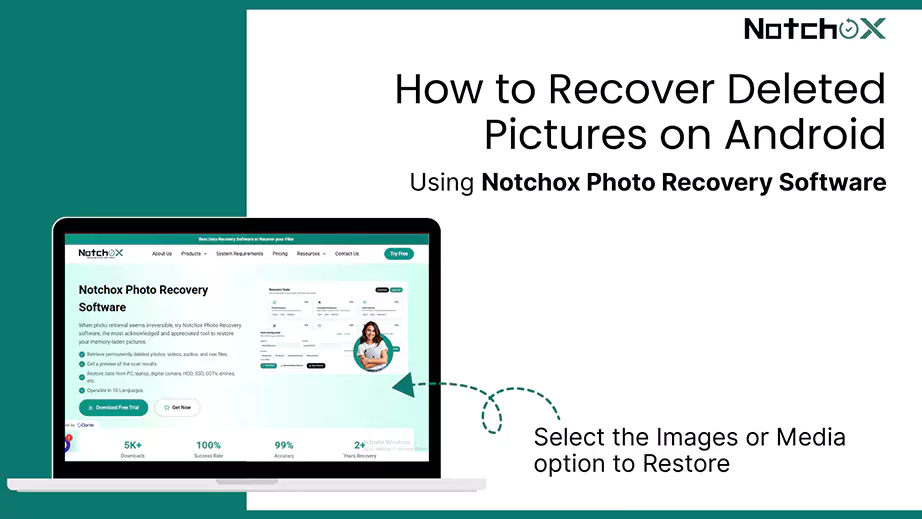
Step 1: Download and Install the Software
Visit Notchox’s official website and download the Photo Recovery Software. Install the software on your device by either clicking Download Free Trial or Get Now (select this option if the user wants the lifetime package).
Step 2: Configurations Setup
Run the app by clicking the downloaded Notchox extension. In opening screen, select module “Photos Recovery.”
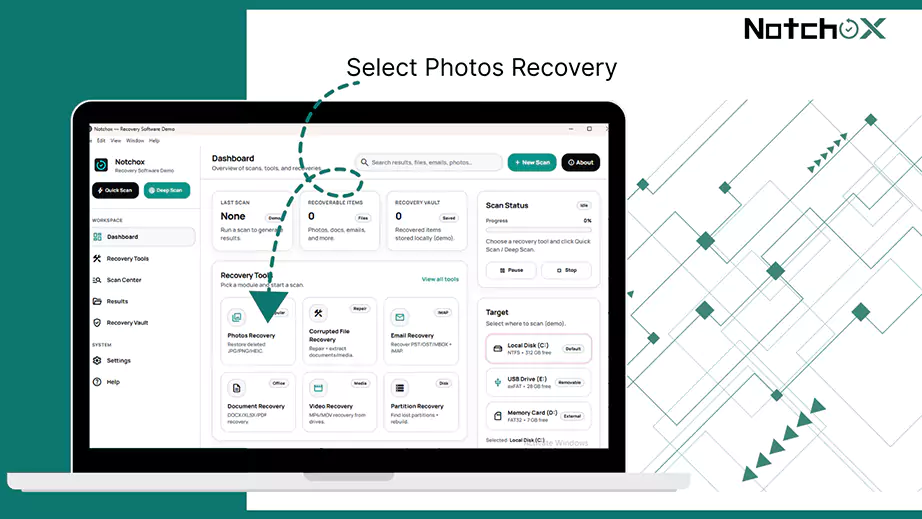
Step 3: Start Scan
Connect your Android device to the PC through an USB cable and choose the target drive as USB Drive. Apply filters (if needed).Click the Start Scan.
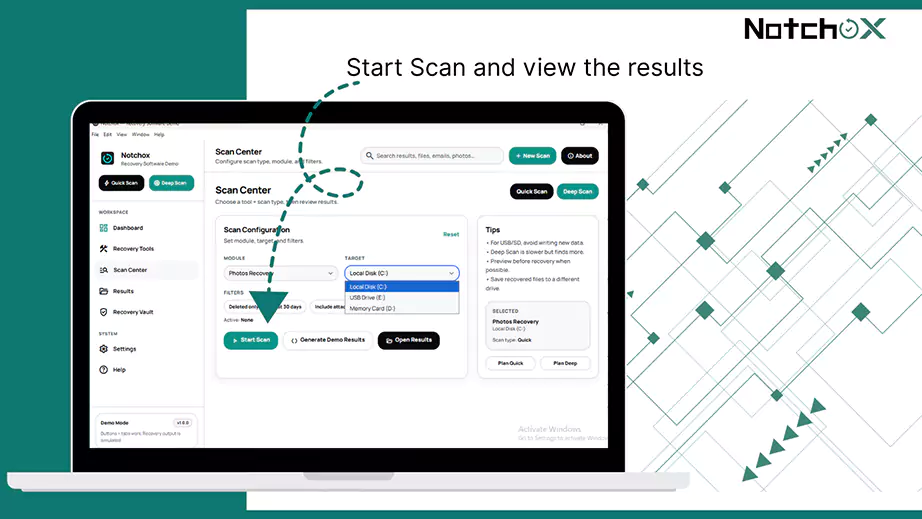
Once the scan finishes, you can view the results. Notchox software shows the recovered photos with file type, sizes, status and names to identify the correct images.
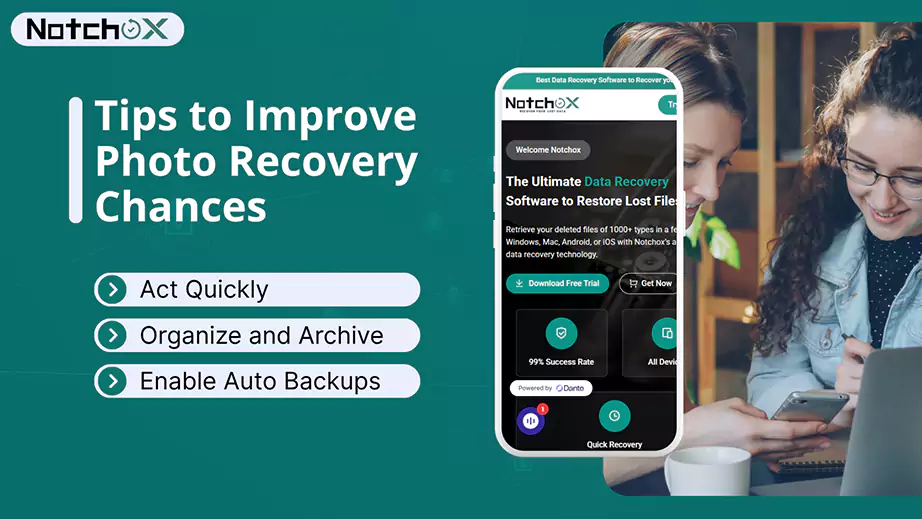
Accidentally deleting photos from your Android phone is stressful, but acting fast can save them. Deleted photos rarely disappear from Android devices; they’re probably loitering around in trash or hidden temporary spaces, waiting to be overwritten. This section provides actionable tips to improve the chances of recovering photos.
Accidentally deleted photos can be recovered from the Trash/Bin folder, which holds files for 30-60 days. This article covered how to recover deleted pictures on Android, shares a step-by-step process to recover deleted photos on Android, covering both scenarios, with and without a backup.
Choose your preferred solution depending on the nature of your device and photo loss. In case of a permanently deleted photo rescue, go for a reliable photo recovery software like Notchox.
Ans: To recover a photo on Android, immediately check the trash folder. Deleted files usually stay there for 30-60 days.
Ans: Deleted photos are still saved on an Android device. Most Android devices move deleted photos to trash; if not trash, you may find them in Google Photos backup.
Ans: It is possible to recover pictures deleted from an SD card on Android using data recovery software, provided that they haven’t been overwritten by new data.
Ans: Use specialized photos recovery softwares like Notchox to scan storage. Act immediately to prevent new data from overwriting deleted file remnants. If a recovered image comes back damaged, you can also fix corrupted JPEG photos.
Ans: No, recovery is unlikely if the device remained active. New data overwrites old files, and trash folders only retain photos for 30–60 days.

Deeksha Arora is a Data Protection & Recovery Writer focusing on writing accurate, informative, and easy-to-understand technical articles for Notchox’s readers. Her content on the prevention of data loss, understanding risks of device failures, and guides to fix problems helps readers make the right decisions and understand the technical terms easily. She works closely with Subject Matter Experts to ensure high usability and accuracy of her writing.