“Gone in a click, but definitely not forgotten – time for a quick recapture!”
Ever happen that you took a screenshot, maybe a meme, some menu, a cool place to visit, a video call capture, or some ticket you needed later, and now it’s accidentally deleted? Don’t panic. Whether you are on a Windows, Mac, iPhone, or Android, your data is still lurking somewhere.
Here’s a lowdown on how to recover deleted screenshots before they are gone forever.
Quick Answer: Recover deleted screenshots using Notchox, the best data recovery software from any device, in just 4-simple steps:
What are the Ways to Recover Deleted Screenshots on Windows?
To recover a deleted screenshot on windows methods like checking the recycle bin, using ctrl+z or using window backup features like file history. Well, There are 2 situations of accidental screenshot deletion: recently deleted and permanently deleted.
Here, we’ll discuss how you can recover deleted screenshots in both of these situations on Windows.
How to Recover Recently Deleted Screenshots?
Recently deleted refers to the files that have been moved to the Recycle Bin, but have not been permanently deleted. Recovering such files is easier.
Method 1: Using “Ctrl+Z” (Undo)
Ctrl + Z is the command to backtrack your recent action. Here’s a quick step-by-step guide on how to recover screenshots using undo.
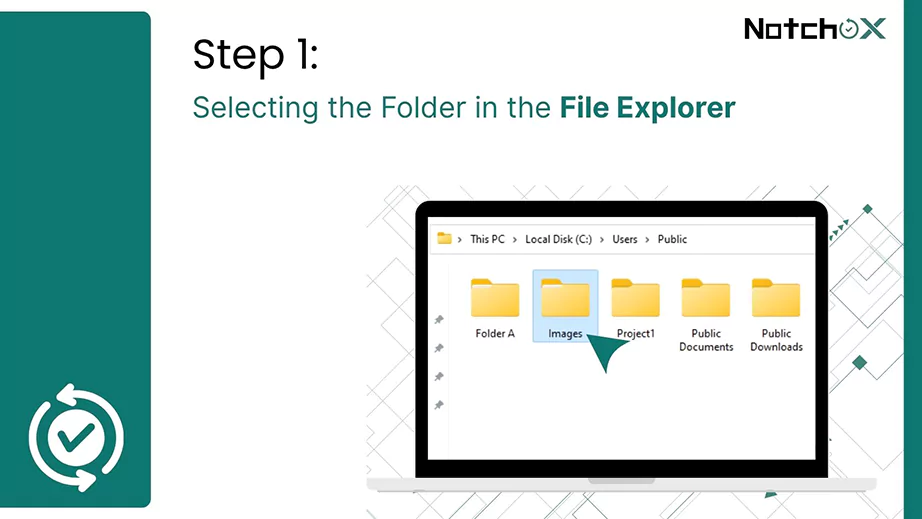
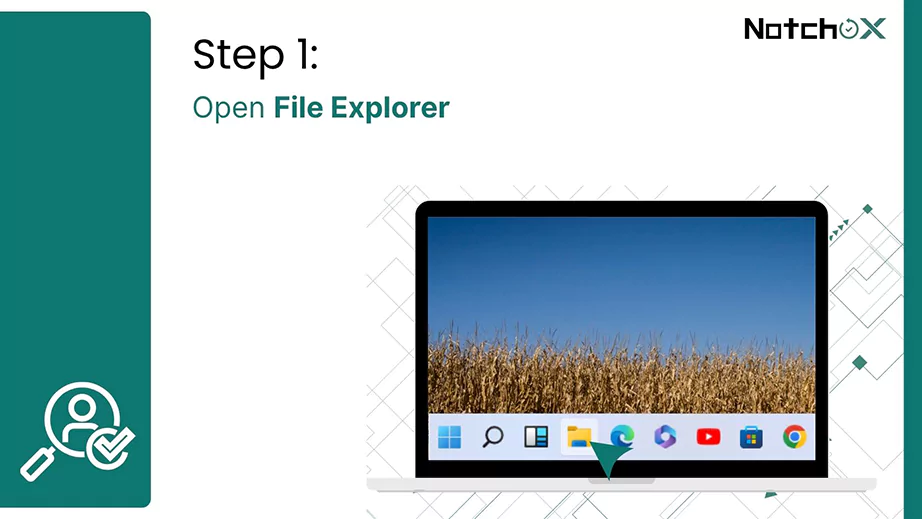
Open the “File Explorer” on your computer and navigate to the folder from which the screenshot was deleted.
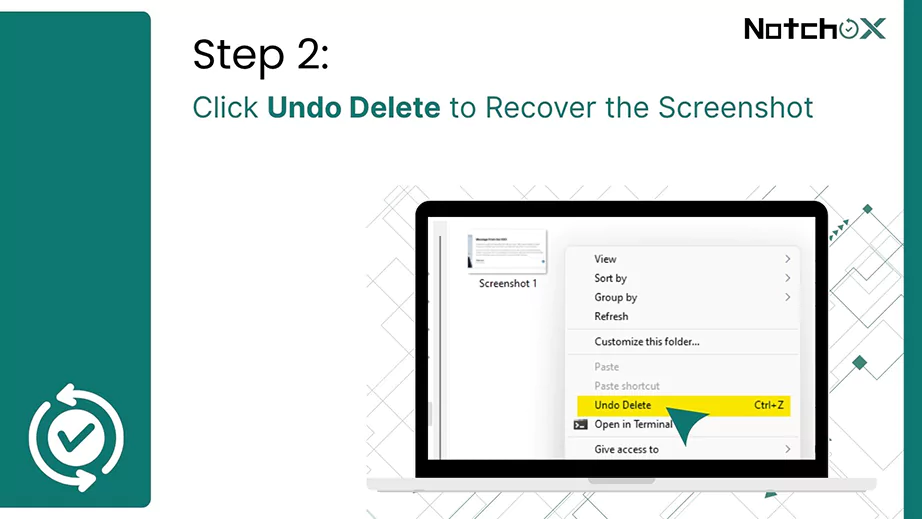
Next, press “Ctrl+ Z” or right-click anywhere in the folder and select Undo Delete (Ctrl + Z) to recover the deleted screenshot.
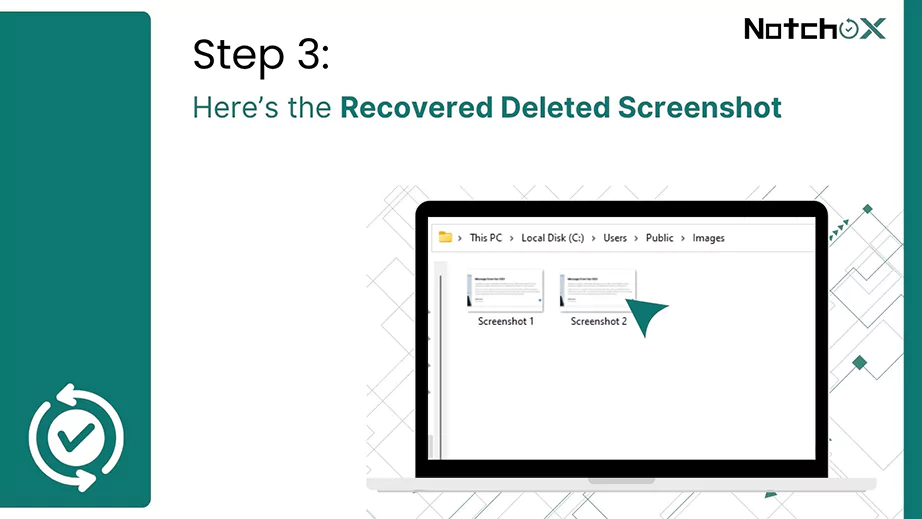
The deleted screenshot will be recovered in the folder.
Note: This screenshot recovery method using Ctrl + Z will only work if the screenshot was recently deleted. It will not work if you have taken any other action after deleting the screenshot.
Method 2: Searching Screenshot
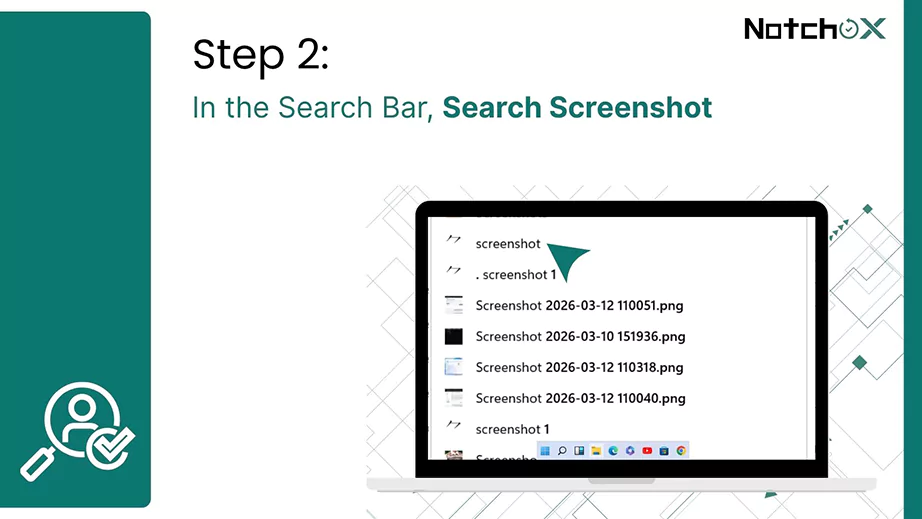
In Windows, each screenshot method saves the screenshot in a different location. If you don’t know the location where it is saved, you can use this method to search.
Open the “File Explorer” on your computer.
In the Search Bar, type “Screenshot” and press Enter.
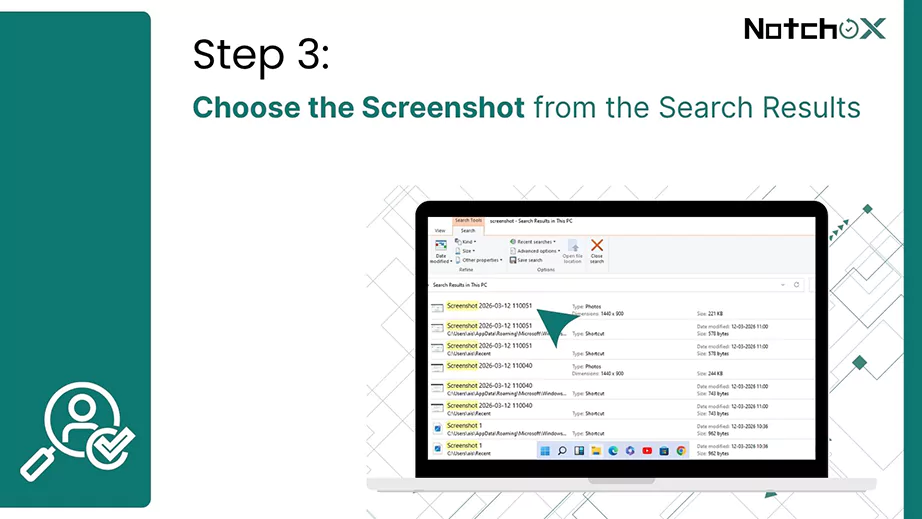
Choose the screenshot you want and double-click to open it.
The screenshot will be recovered.
Method 3: Restoring from the Recycle Bin
All deleted files go to the Recycle Bin. So, if you’ve accidentally deleted the screenshot, there is a high probability that it will be there in the Recycle Bin.
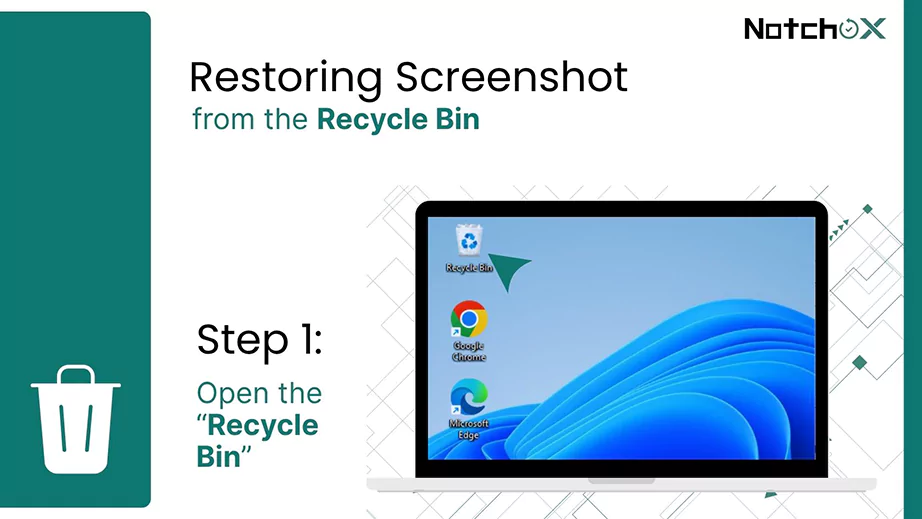
Open the “Recycle Bin” from the desktop on your computer.
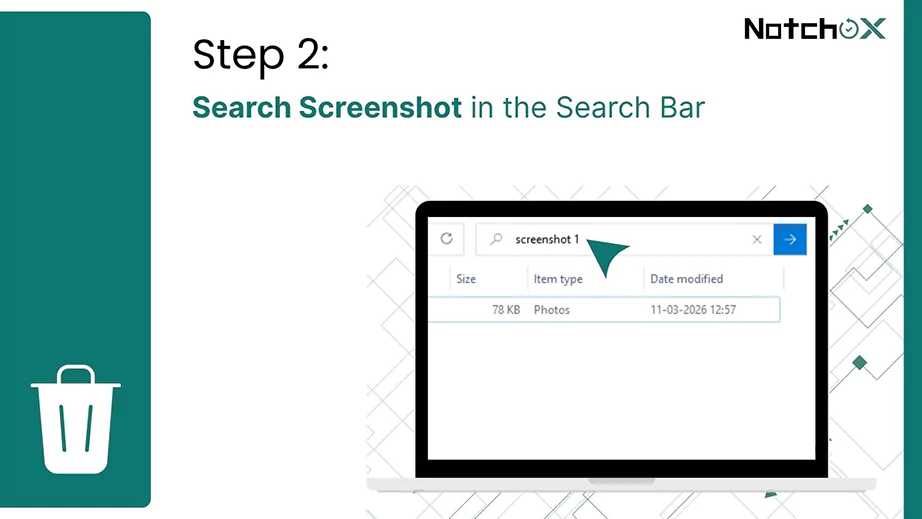
Search for the deleted screenshot.
Tip: You can right-click and select Sort by > Date Deleted. This will sort the files based on recency, and you can see your recently deleted screenshot at the top of the list. Alt Text: Sort by Date Deleted
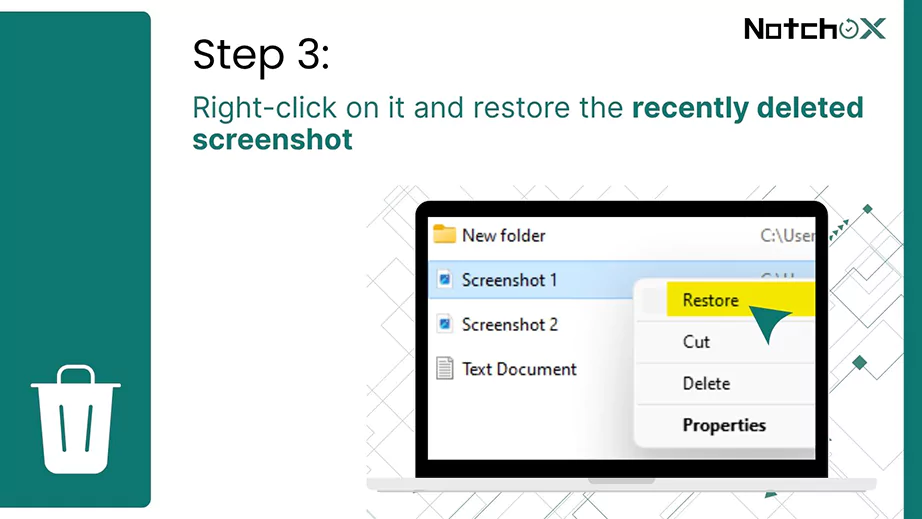
Select the screenshot. Right-click on it and choose Restore.
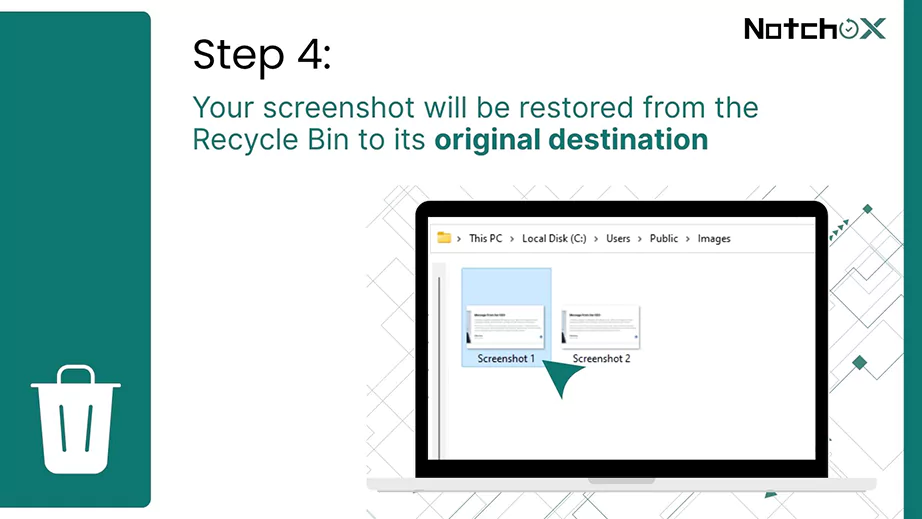
Your screenshot will be restored from the Recycle Bin to its original destination.
Method 4: Hidden Screenshots
Screenshots may not appear because they are hidden by the system or you, which prevents them from being displayed in the folder.
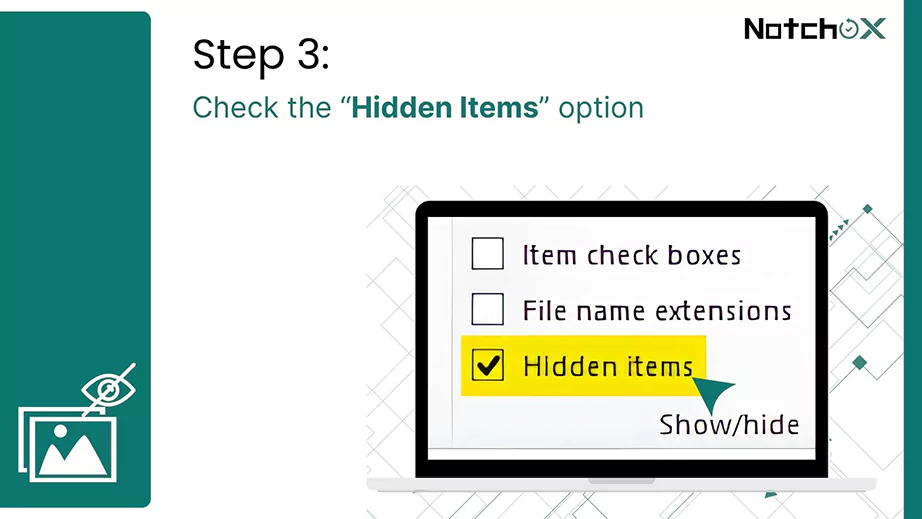
Checking the “Hidden Items” option will list the hidden screenshots, too, when searched.
Here are the steps to recover hidden screenshots:
Open the “File Explorer” on your computer.
Switch to the View tab.
Check the “Hidden Items” option.
All the hidden screenshots will be accessible now.
How to Recover Permanently Deleted Screenshots?
Accidentally deleting a screenshot can make you panic, especially when you can’t find it in the Recycle Bin. The “Permanently” deleted screenshots may not always be gone. The OS simply makes the storage space available.
The deleted files are still there on your device until they’re overwritten by new information. There are two methods to recover permanently deleted screenshots on Windows.
Method 1: Windows File Recovery
Windows File Recovery is a free command-line interface by Windows that lets you restore all types of deleted files from storage. Since it is a CLI, it doesn’t have any GUI; it can only be operated from the Windows Command Prompt/PowerShell.
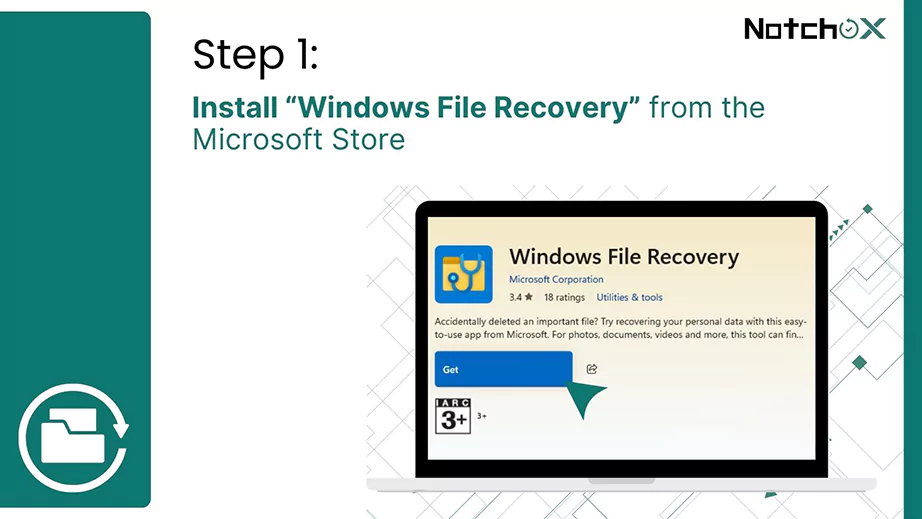
Download and install “Windows File Recovery” from the Microsoft Store.
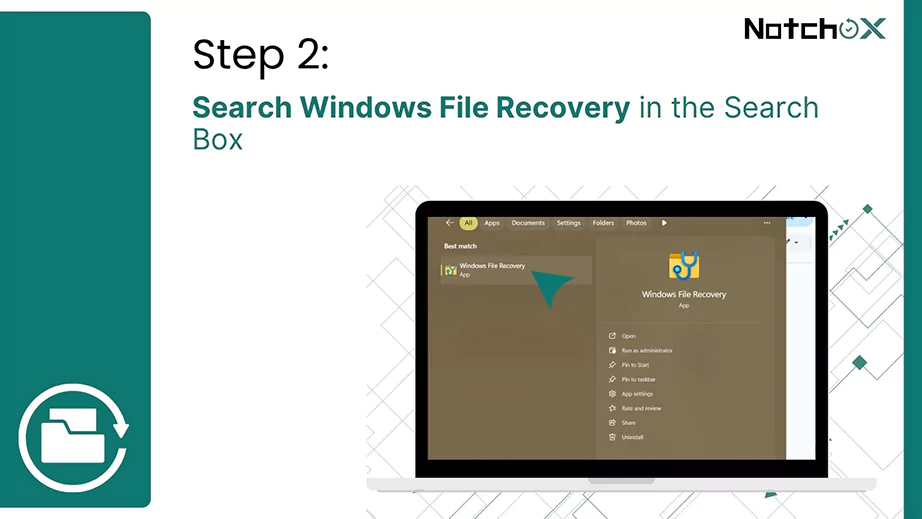
Type Windows File Recovery in the Search Box and press Enter.
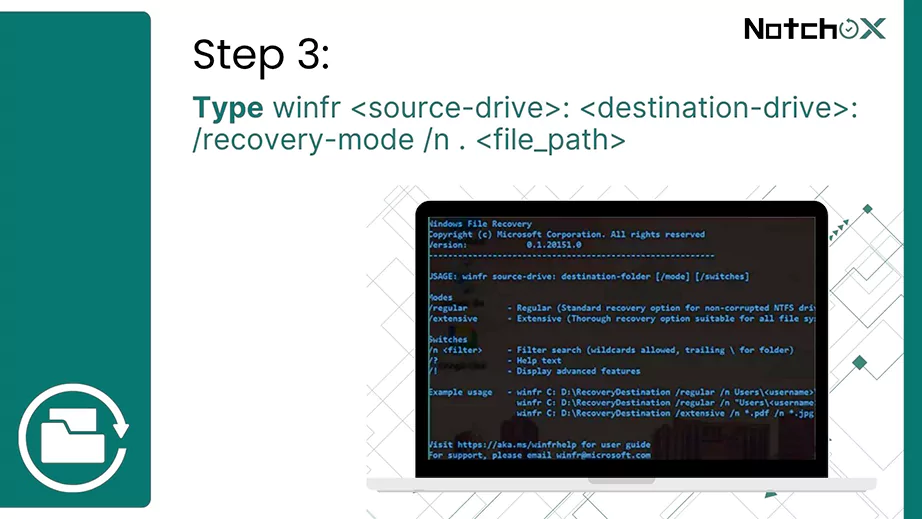
Type winfr <source-drive>: <destination-drive>: /recovery-mode /n . <file_path> and press Enter.
For example, winfr C: D: /regular /n \Users\ais\Pictures\Screenshots\ and press enter. This will recover the screenshots folder to drive D (ais is the username here).
Confirm with Y and press Enter.
This method provides a robust CLI solution for restoring screenshots.
Method 2: File History
Windows File History is an automatic backup tool in Windows 10 and 11. It is designed to back up files like documents, images, videos, music, etc. You can restore the previous version of files or permanently deleted files with this.
Note:File History must be enabled to recover with this method.
Configure File History:
Ensure to connect the external drive or network location to save your backup.
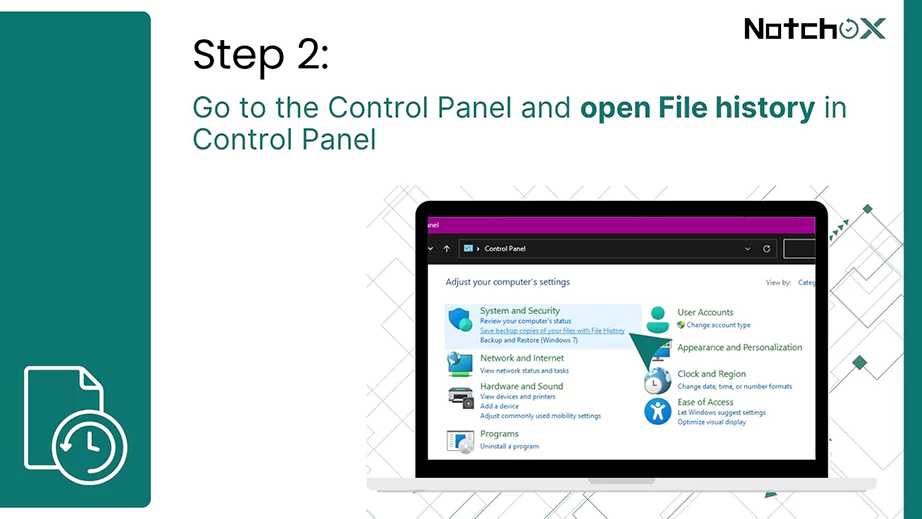
Go to the Control Panel. Under System and Security, select Save backup copies of your files with File History.
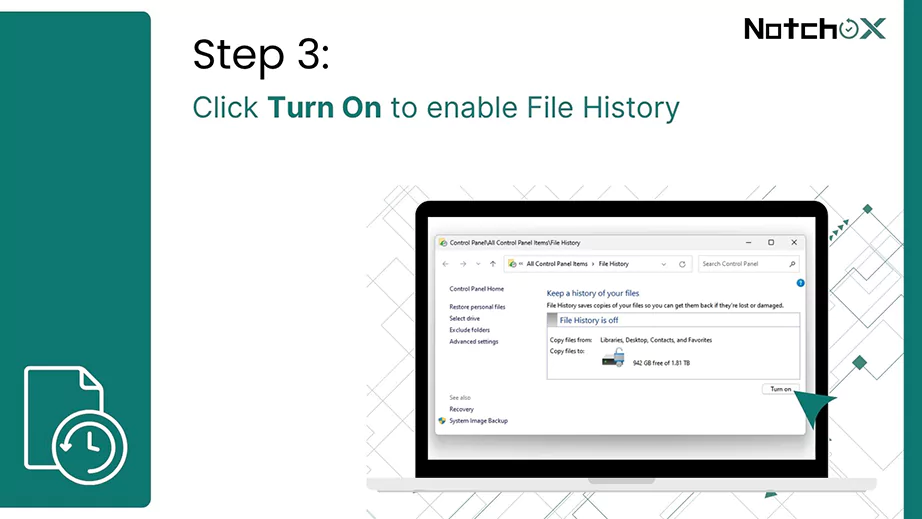
Click Turn On to enable File History.
Restore Files with File History:
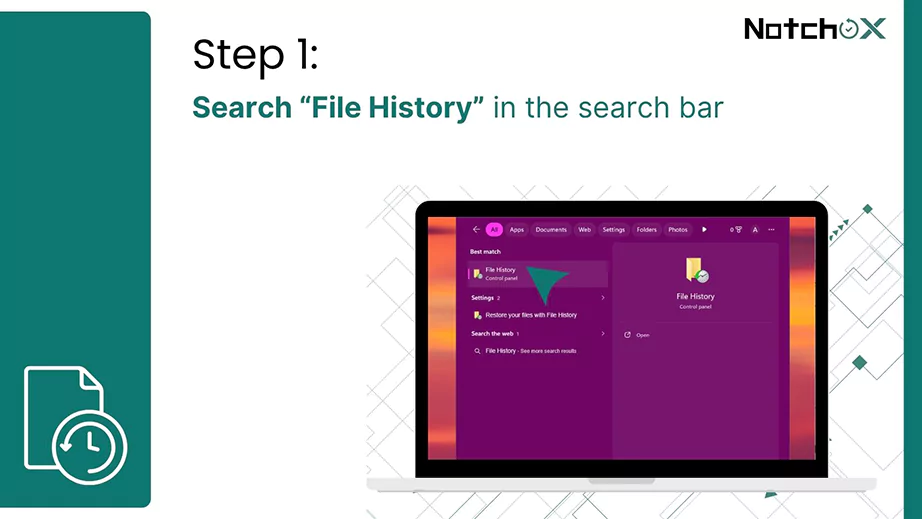
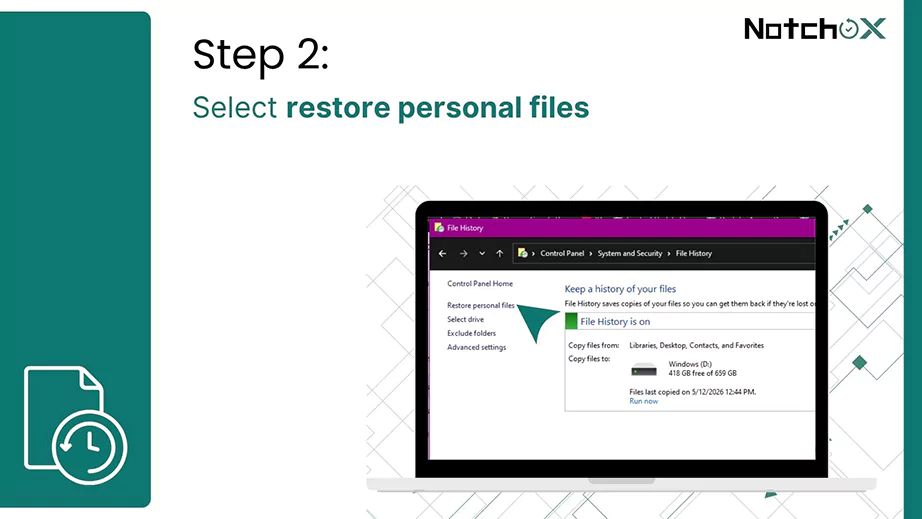
Search “File History” in the search bar and press Enter. File History in the Control Panel will open.
From the left side panel, select restore personal files.
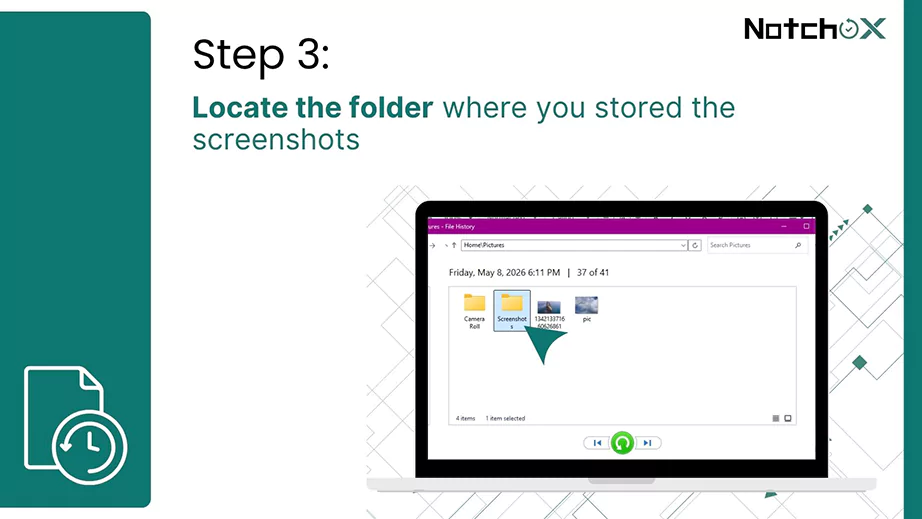
Locate the folder where you stored the screenshots.
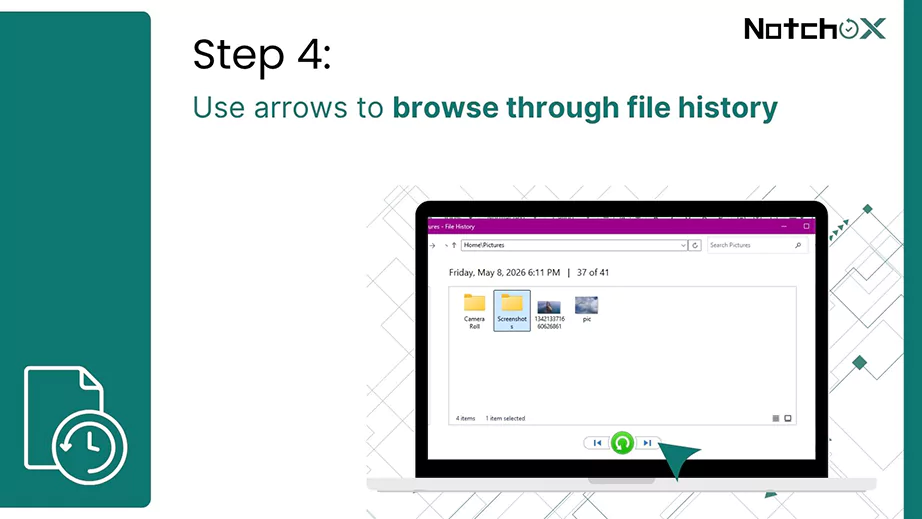
Click the arrows at the bottom of your window to check previous backups and find the date your screenshot was still there.
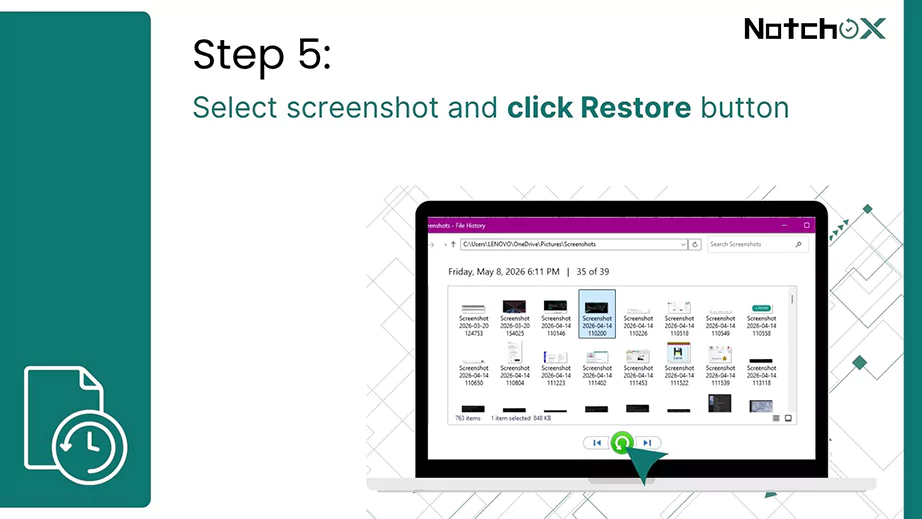
Select the screenshot you want to restore and click the green restore button at the bottom. The screenshot will be restored to its original location.
Alternate Method
Open the screenshots folder. Right click > Properties > Previous versions. Select the version you want to restore and click restore.
Ways to Recover Deleted Screenshots on Android
Losing screenshots can be frustrating. Whether it’s in the cloud, drive or deep in storage, here is how to recover deleted screenshots on Android.
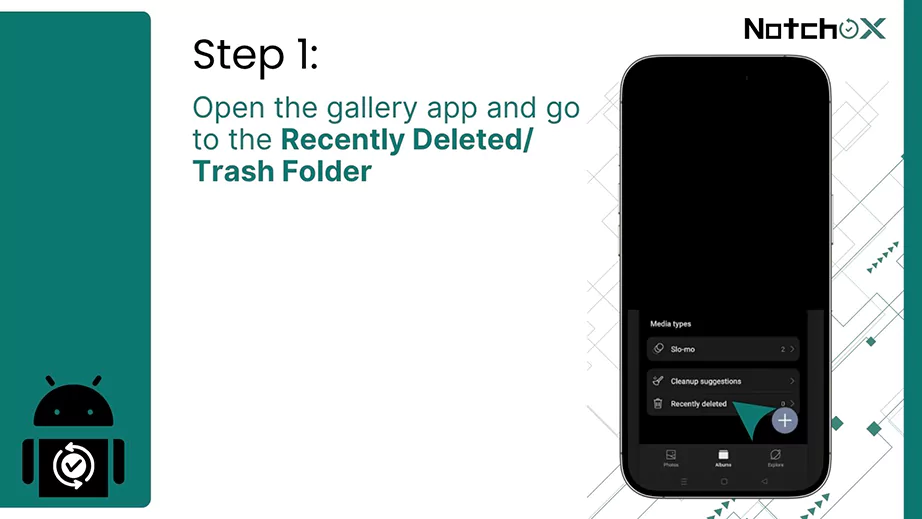
Method 1: From Recently Deleted/ Trash Folder
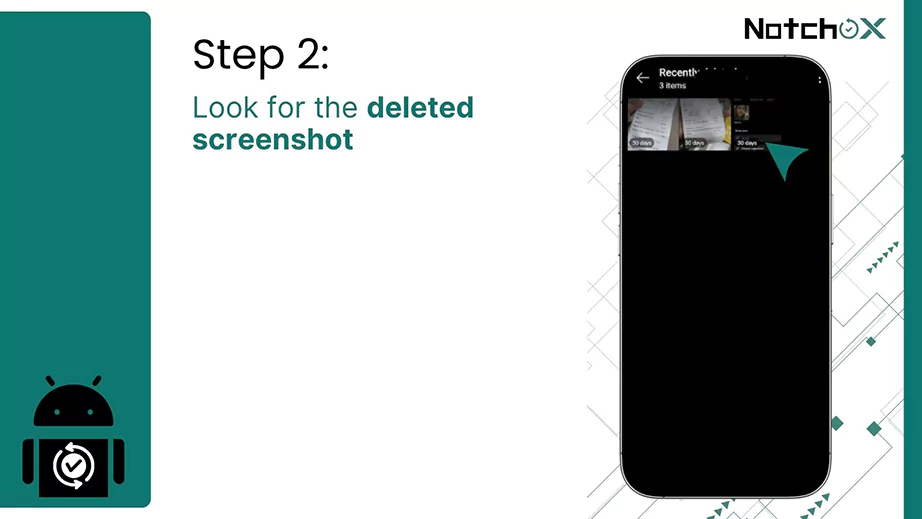
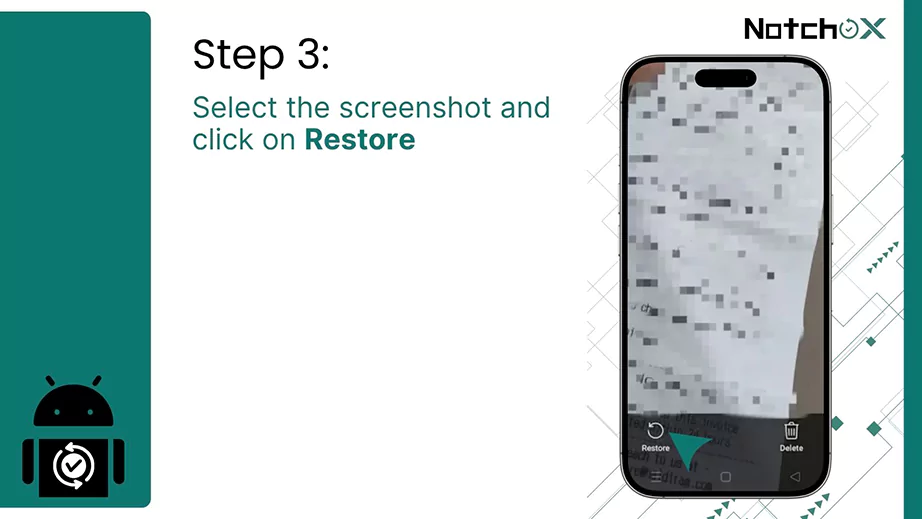
Every Android device has a Recently Deleted/ Trash Folder in the gallery app. This is where your deleted images, videos and screenshots go when deleted. Here are the steps to recover deleted screenshots:
Open the gallery app and go to the Recently Deleted/ Trash Folder.
Look for the deleted screenshot.
Select the screenshot and tap on Restore.
Your deleted screenshot will be restored to the original location.
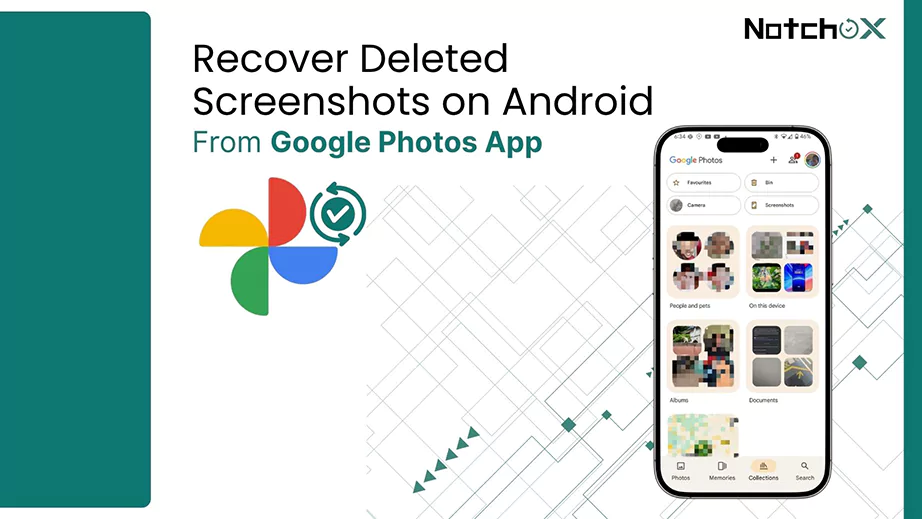
Method 2: From Google Photos App
Google Photos App is a cloud-based storage app by Google for media files. It offers 15GB of free storage and allows automatic backup. If you have turned on the Automatic backup, your files are stored in the Google Photos App.
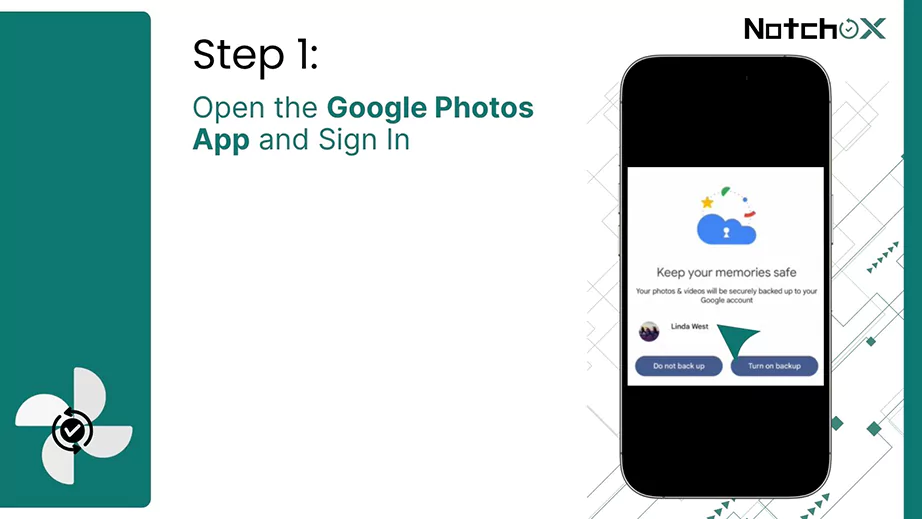
Open the Google Photos App and Sign In.
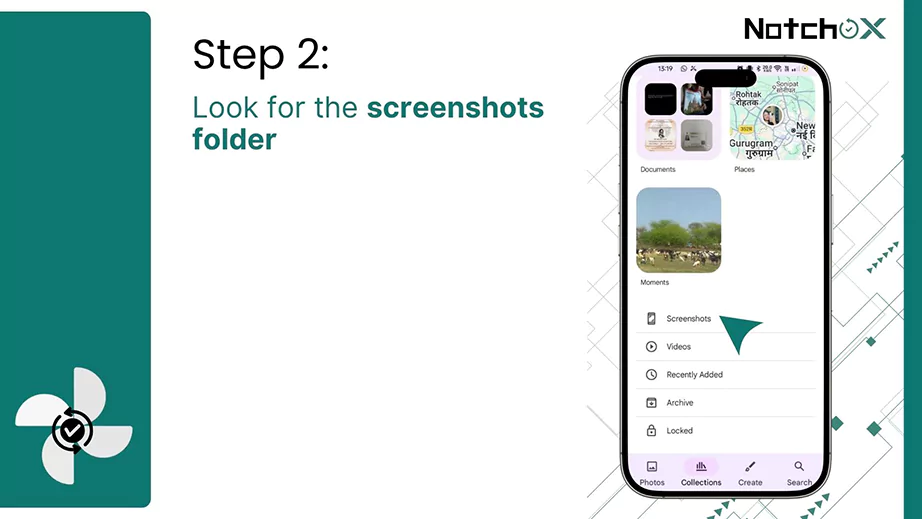
Look for the screenshots folder.
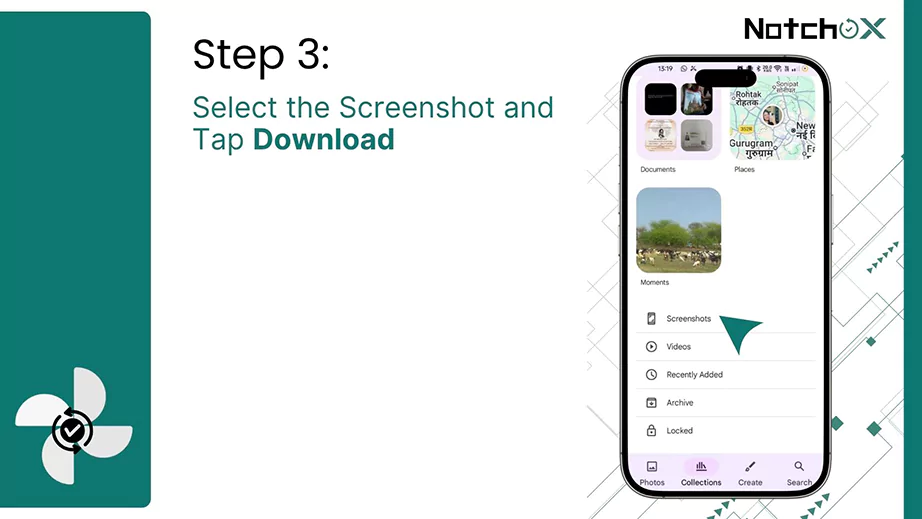
If the backup is on, you may find the screenshot. Select the screenshot you want to restore and tap download.
The screenshot will be downloaded to your phone.
What are the Ways to Recover Deleted Screenshots on Mac?
If a screenshot on iOS is accidentally deleted, it’s not gone-gone. Accidentally deleted screenshots on iOS devices are rarely gone forever. This section covers how to recover deleted screenshots on an iPhone and a MacBook.
Here is how to recover your screenshots before they vanish into the digital abyss forever.
How to Recover Deleted Screenshots on Mac?
Method 1: Recover from Trash
All of your deleted files, including screenshots, videos, documents, etc., end up in the trash. To retrieve the deleted screenshots from Trash, follow these steps:
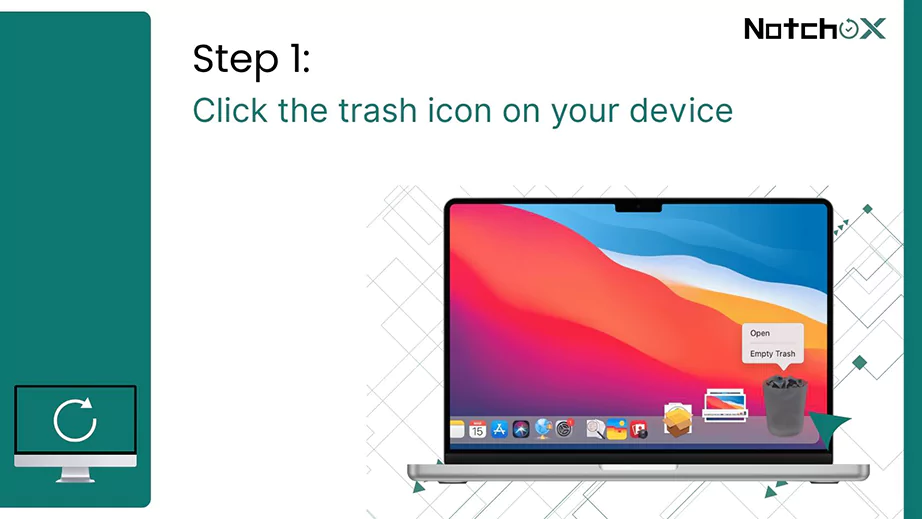
Click the trash icon on your device.
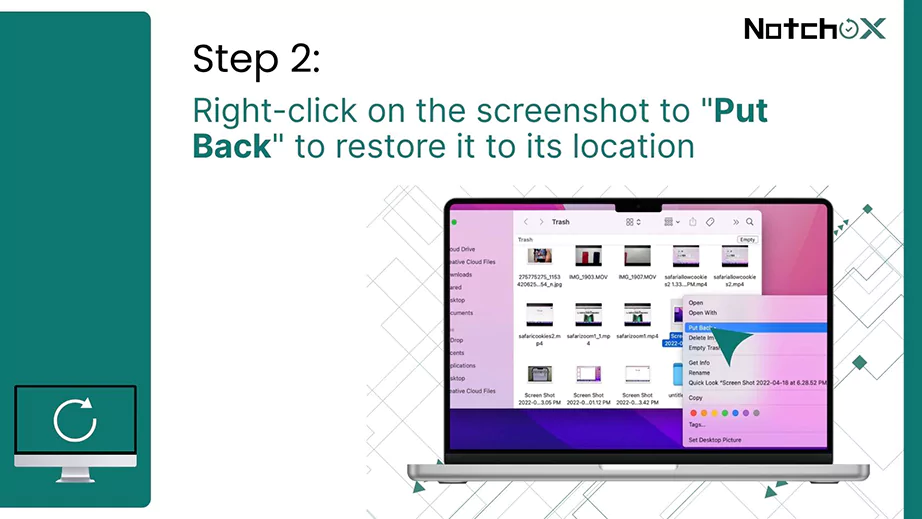
Find the screenshot and right-click on it. Select “Put Back” to restore it to its location.
In this way, you can restore screenshots after accidentally deleting them.
Method 2: Mac Time Machine
Mac has built-in software that automatically backs up apps, music, images, videos, etc., to an external drive. So, in case you have deleted something, you may find it with the help of the Time Machine. To successfully restore the data with Time Machine, make sure the Time Machine is configured.
Plug in your external hard drive to your MacBook.
Open the Finder window where the screenshot was last stored.
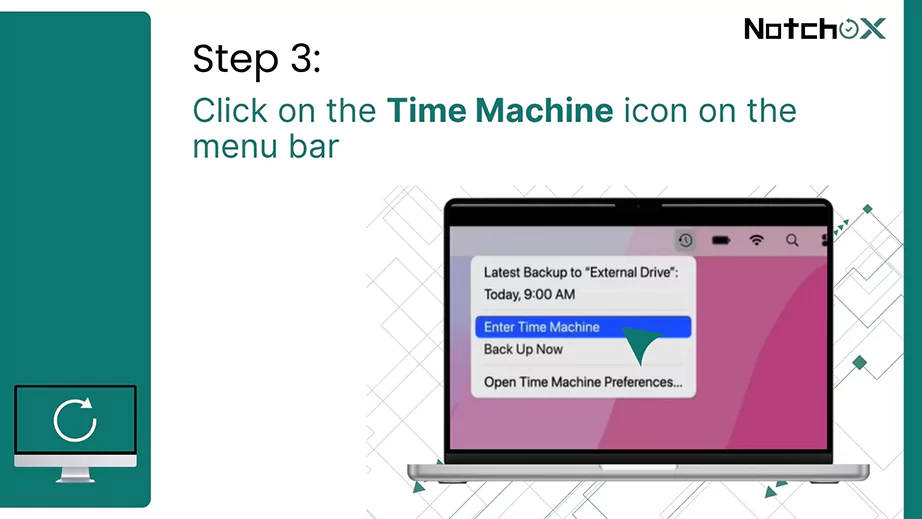
Click on the Time Machine icon on the menu bar. Select the Browse Time Machine Backup.
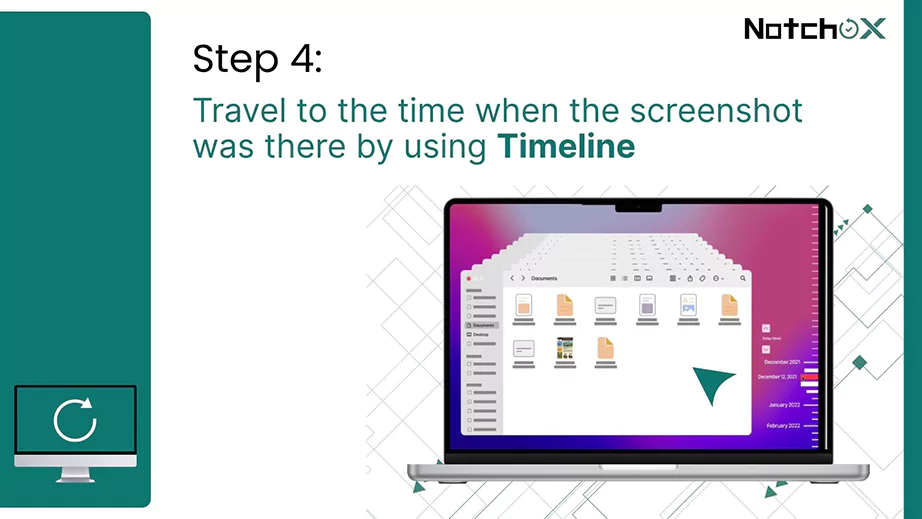
On the right side of your screen, you can see the timeline. Travel to the time when the screenshot was there.
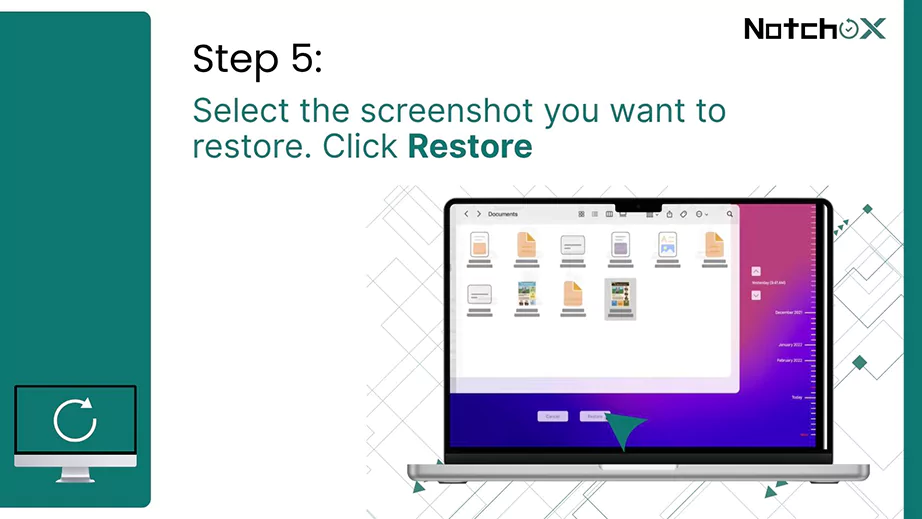
Select the screenshot you want to restore. Click Restore. This will restore the screenshot to the actual location.
Method 3: Using Undo
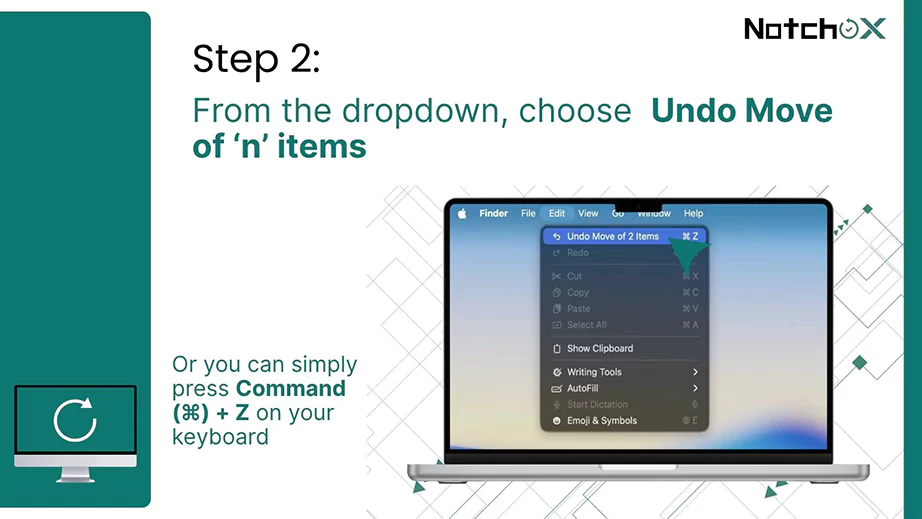
Sometimes, when you accidentally delete the screenshot, you can immediately restore it using the Undo command on your MacBook. You simply need to follow these steps:
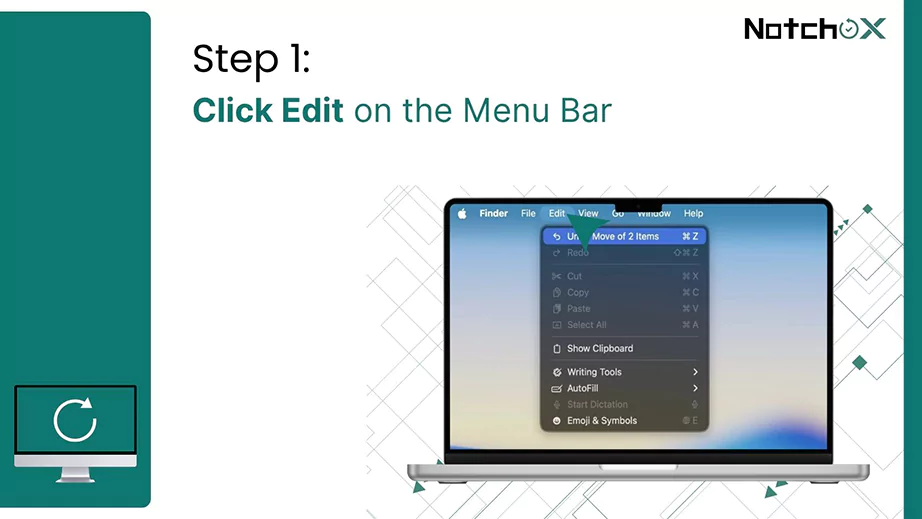
On the Menu Bar, click Edit.
From the dropdown, choose Undo Move of n items. This will bring the screenshot back to its original location.
Or you can simply press Command (⌘) + Z on your keyboard.
Method 4: iCloud
iCloud is Apple’s built-in cloud-based service that automatically syncs and stores the backup across all Apple devices.
Tip:iCloud can be used to recover data on both iPhone and MacBook.
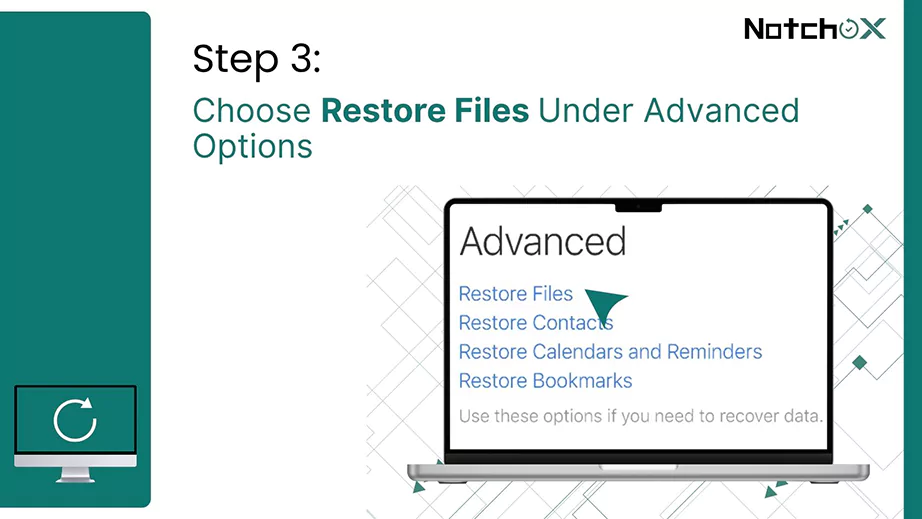
Open any web browser and visit iCloud.com. Sign in with your Apple Account.
Go to Account Settings under your profile photo.
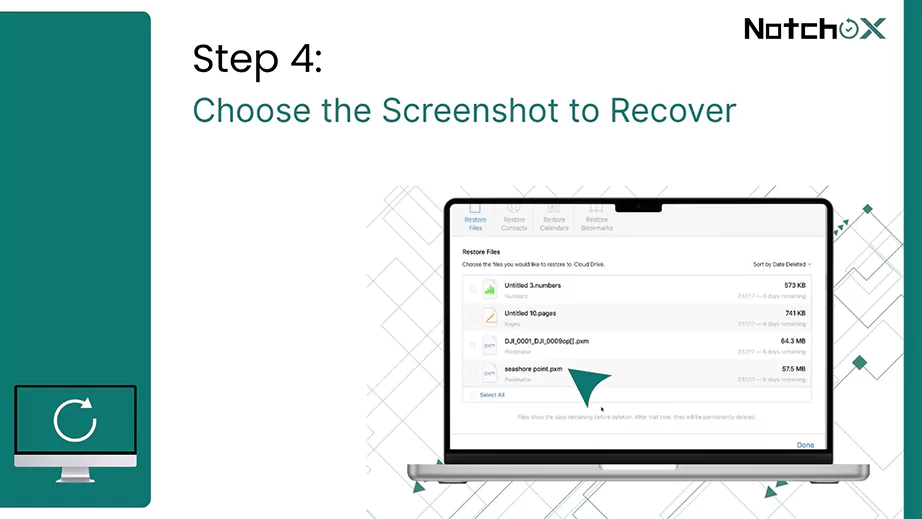
Under advanced options, choose Restore Files.
Now, select the required screenshot and recover.
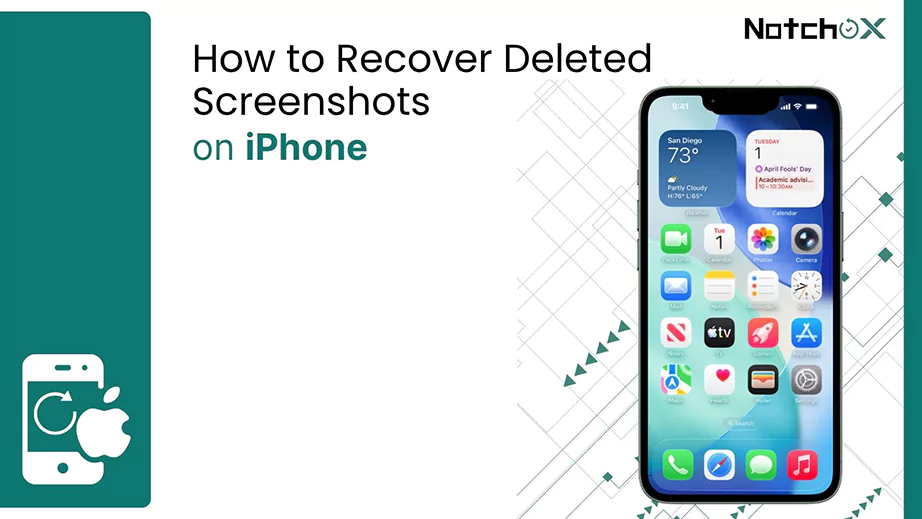
How to Recover Deleted Screenshots on iPhone?
Recovering recently deleted screenshots on iPhone is straightforward. Here are the 2 methods to recover deleted screenshots: from the recently deleted folder, or even if it is removed from the recently deleted folder.
Method 1: Recently Deleted Folder
When you accidentally delete a screenshot, it is not immediately permanently deleted; it is moved to the Recently Deleted folder. iPhone allows only 30 days to recover items from the recently deleted folder; after that, they will be permanently deleted. Here is the step-by-step guide to recover a screenshot from a recently deleted folder on the iPhone.
Open the Photos app, and tap the Collections tab at the bottom.
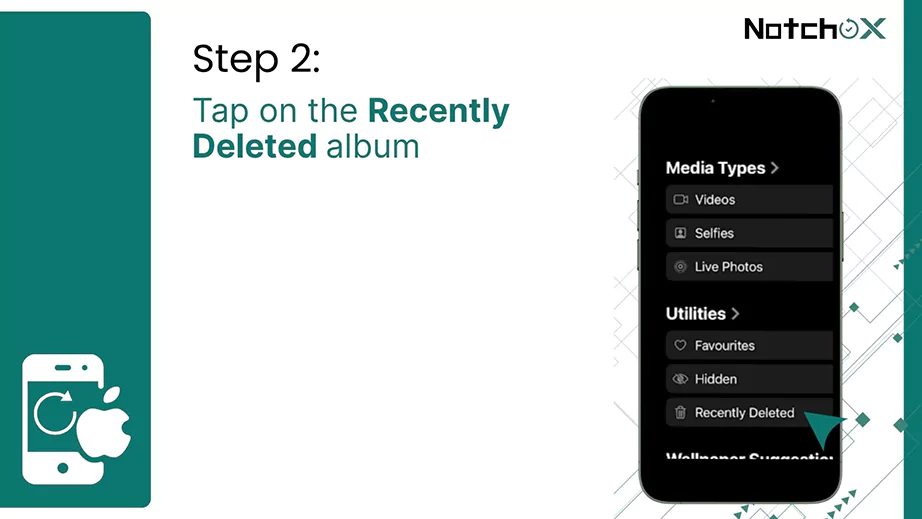
Scroll down to the Utilities section and tap on the Recently Deleted album.
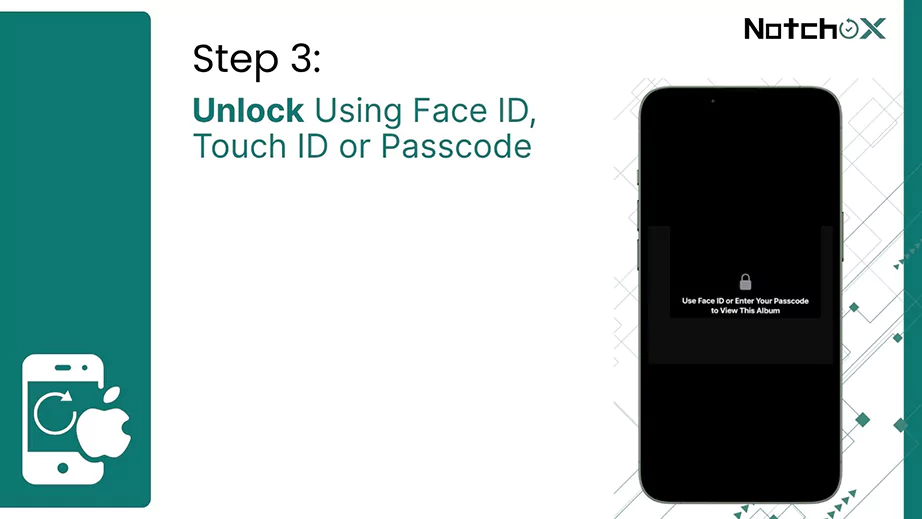
Use your Face ID, Touch ID, or Passcode to open it.
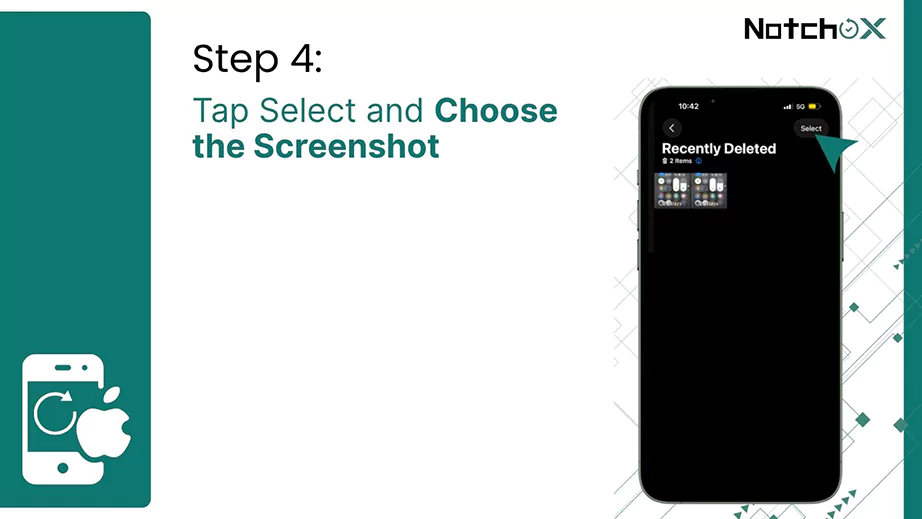
At the top right corner, tap Select, and choose the screenshot to be restored.
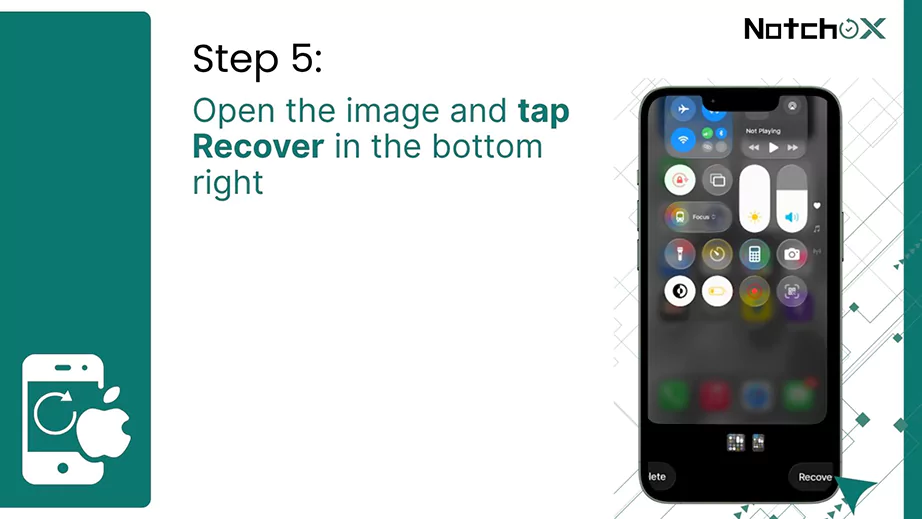
Open the image and tap Recover in the bottom right.
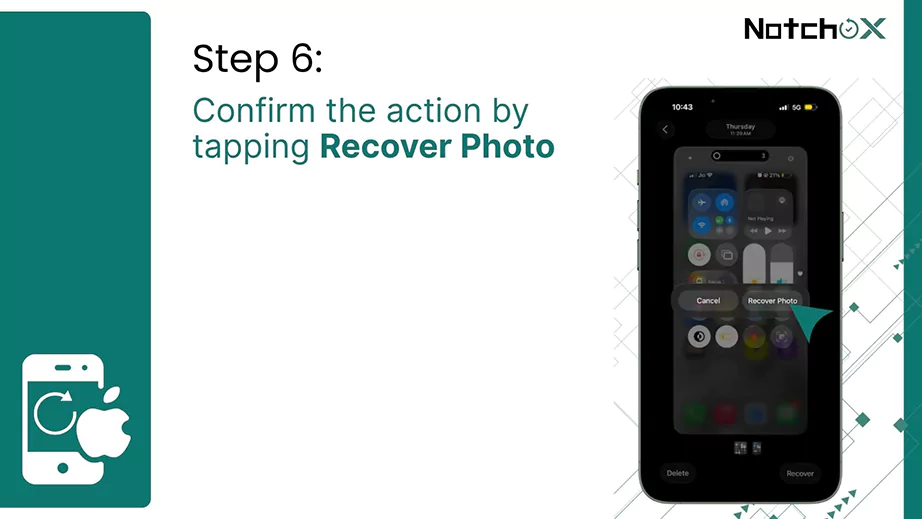
Confirm the action by tapping Recover Photo. The screenshot will be returned to your library.
Method 2: Finder Backup
Restoring data from the Finder Backup is the reliable method to restore data that has been removed from the Recently Deleted album, provided the backup exists for the date before the deletion.
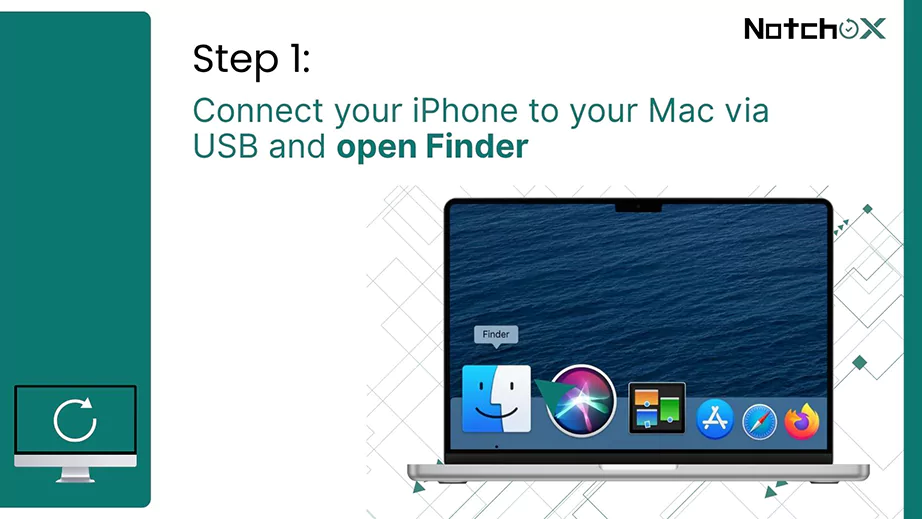
To restore a deleted screenshot, connect your iPhone to your Mac via USB and open Finder.
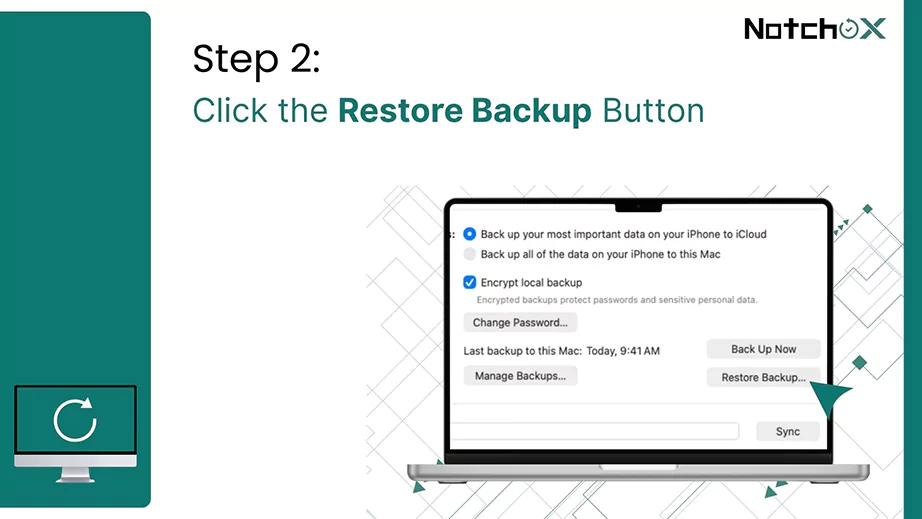
Click the Restore Backup button.
Select the most relevant backup and click restore.
Note:This will replace all your current data in the iPhone with the backup data; any new data will be lost.
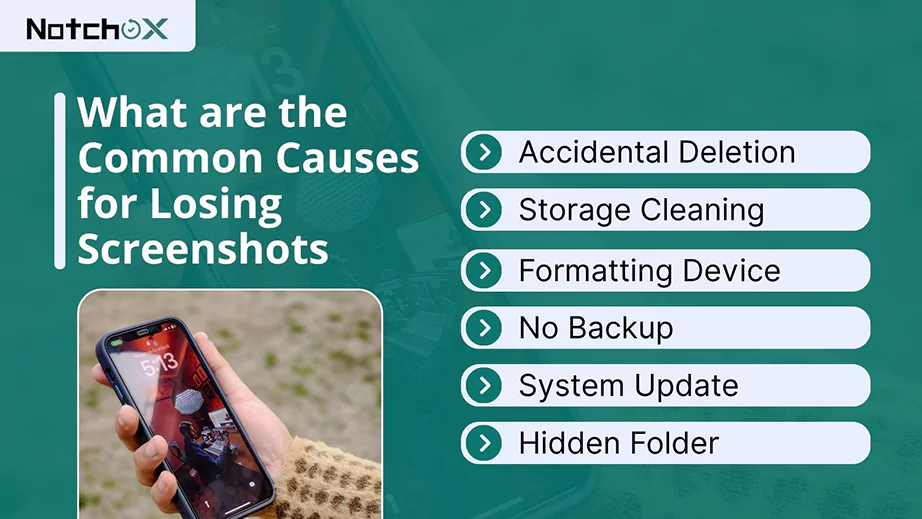
What are the Common Causes for Losing Screenshots?
Whether you are using a phone or a laptop, screenshots are easy to lose. Let’s see the most common reasons why your screenshots play hide-and-seek and how they might have vanished.
Accidental Deletion: It sounds obvious and is the number one cause. Sometimes our thumbs move faster than our brains, and we may accidentally delete the screenshot instead of sharing or moving.
Storage Cleaning: When your storage gets low, you might choose to delete duplicate files or unopened files just to save time. Even third-party cleaning apps can mark the screenshots folder as junk and may accidentally delete them.
Formatting Device: Formatting wipes everything, so no surprise if your screenshots are lost after formatting. This is a total reset that turns the phone into a fresh state.
No Backup: If you don’t use cloud services, you are solely on local storage, which increases the chances of accidental deletion.
System Update: Sometimes, Android or Windows updates can move folders around and may lead to the undiscovery of your screenshots and data.
Hidden Folder: If a .nomedia file is present in the screenshots folder, Android will act as if the images don’t exist and won’t show in the gallery.
Now that you know the common file deletion causes, let’s look at the best practices for data loss prevention.
Best Practices to Prevent Data Loss
Screenshots are essential for capturing quick information, but they can accidentally become cluttered or be deleted from device memory. To keep them safe, it is necessary to follow a consistent savings routine.
Use The Correct Keyboard Shortcut
To avoid accidental deletion of screenshots in Windows, the best Keyboard shortcut to use is Windows key + PrtScn. This automatically saves your full-screen capture to Pictures > Screenshots.
Enable Backup and Sync
To prevent accidental deletion, enable backup. For Android, you can use Google Photos, and for iPhone and MacBooks, you can use iCloud. So in case your screenshot is deleted from the device, you can recover it from the backup drive.
Rename Immediately
Screenshots are usually named generically (Screenshot_2026-03-12-12-28.png), making them hard to find later. So, immediately renaming them to something searchable (Web_homepage_image) helps in easier recovery.
Organize and Move Immediately
Cluttered folders may lead to mass deletion, so organizing them immediately, for example, moving them immediately to a folder named XYZ Screenshot or Data Screenshot, will save them from accidental bulk deletion by cleaning apps.
Conclusion
Accidental deletion, system error, or updates, whatever the reason may be, this article explains how to recover deleted screenshots on iPhone, Android, MacBook, and Windows. This article has covered a solution for your deleted screenshot recovery and also lists the best practices for data loss prevention.
For cases when files are permanently removed from the Recycle Bins, professional data retrieval services like Notchox can assist in recovering critical data and provide expertise for complex data loss scenarios.
Frequently Asked Questions (FAQs)
Q1: Can I recover deleted screenshots?
Ans: Check the Trash or recently deleted folder. Many gallery apps have a trash bin where the deleted photos are stored temporarily.
Q2: How can I see my screenshot history on Mac?
Ans: You can see and restore screenshot history on a Mac using Time Machine. You can easily navigate to any day before deletion, provided the backup is done prior to the deletion date.
Q3: Are deleted screenshots saved?
Ans: Yes, the deleted screenshots are saved temporarily for 15-30 days, depending on the device.
Q4: Best Software to recover deleted screenshots?
Ans: Notchox is the best software for photo recovery, supporting all types of images like BMP, GIF, PNG, JPEG, JPG, TIFF, PSD, Adobe EPS, etc.
Q5: How can the screenshots be lost or deleted?
Ans: Screenshots are commonly due to accidental deletion, emptying the recycle bin, or automatic deletion by a cleaning app.
Q6: Can I recover deleted photos from iCloud on Mac?
Ans: Yes, you can recover deleted photos from iCloud on a Mac:
Deeksha Arora is a Data Protection & Recovery Writer focusing on writing accurate, informative, and easy-to-understand technical articles for Notchox’s readers. Her content on the prevention of data loss, understanding risks of device failures, and guides to fix problems helps readers make the right decisions and understand the technical terms easily. She works closely with Subject Matter Experts to ensure high usability and accuracy of her writing.