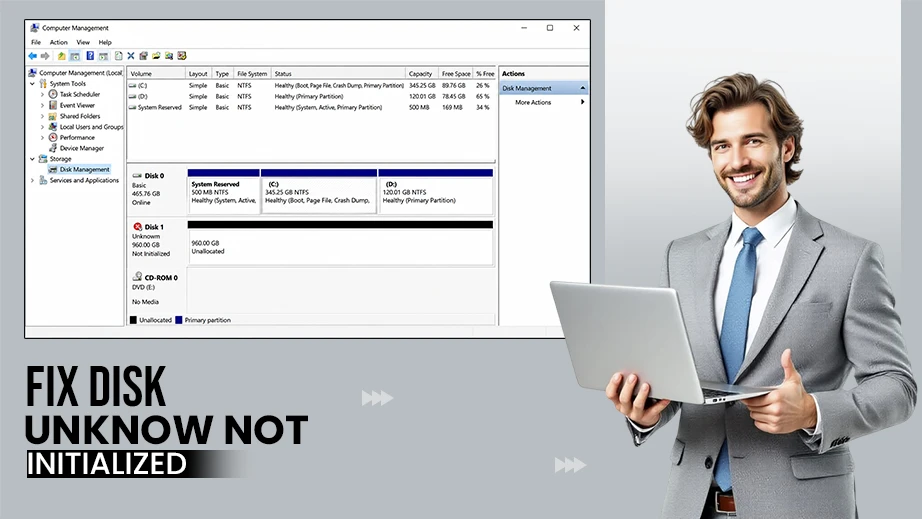
“Disk Unknown Not Initialized” means the operating system detects the storage hardware but cannot access its partition table or master boot record. To fix this, you must isolate logical errors from physical failures. Start by checking the physical connection, swapping tables, and updating the storage controller drivers in Device Manager.
If the drive is responsive but structurally corrupted, you can rebuild its partition scheme using the Diskpart command-line tool. In this article, you will see more such ways to fix a Disk Unknown Not Initialized error. We give you a step-by-step diagnostic roadmap covering everything you need.
Quick Answer: Fix a Disk Unknown Not Initialized error by systematically troubleshooting the hardware and software layers. Start by power cycling and reconnecting the cables, then try updating your storage controller drivers in Device Manager. If the issue persists, rebuild the partition table using the Diskpart tool, or directly initialize the disk into MBR or GPT. Finally, if the drive still remains uninitialized, immediately use Notchox Data Recovery Software to restore your valuable files.
How to Fix a Disk Showing Unknown and Not Initialized: Step-by-Step
Do you know how to get your drive working again after the “Disk Unknown Not Initialized” error? You must check the physical cable issues before moving to resolving deep system glitches. By following this troubleshooting sequence, you will definitely be able to fix your drive by rebuilding broken data layouts. Let’s begin with step-by-step methods to get your storage drive running perfectly.
Real-World Drive Reliability: Cloud storage giant Blackblaze, which continuously monitors over 340,000 production drives globally, reported an Annual Failure Rate (AFR) of 1.36% for 2025.
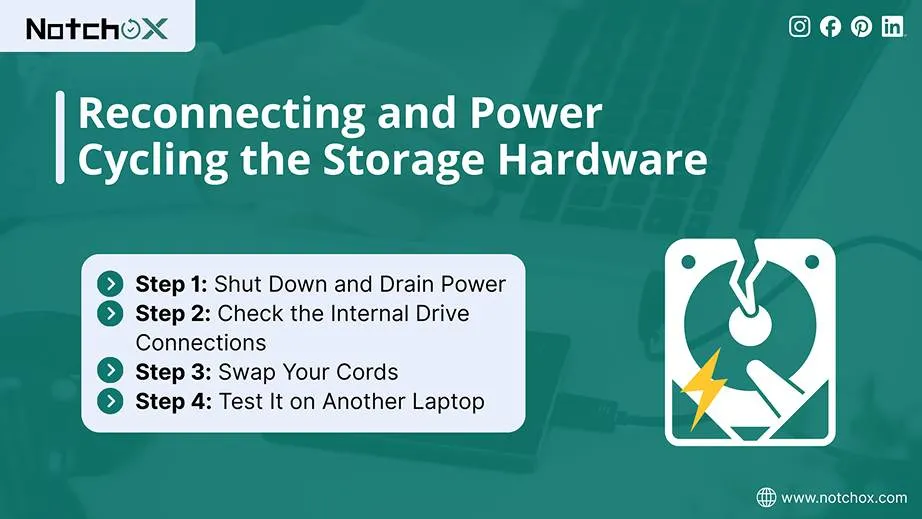
Fix 1: Reconnecting and Power Cycling the Storage Hardware
One major reason for a Disk Unknown Not Initialized error is a loose connection between the motherboard and storage media, an I/O device error, or voltage fluctuations.
Shut Down and Drain Power:
Turn off your PC, unplug the main power cable (in case of a desktop computer), and hold the power button for 10 seconds to drain system electricity.
Caution: Only open your laptop chassis if you have technical experience. Otherwise, seek professional assistance to prevent severe internal component damage.
Check the Internal Drive Connections:
Open the computer case. Unplug the SATA or NVMe data and power cables from the motherboard and then put them back again. This will fix any loose connections.
Swap Your Cords:
Grab a different USB or SATA cable because cords might not be working, and they don’t even show any warning signs for that.
Test It on Another Laptop:
Plug it into another computer to see if it works there. If it does, your drive is totally fine, and your PC is just acting up.
Fix 2: Updating Storage Controller Drivers
Okay, so if checking your cables didn’t work, your computer’s drive is probably acting totally confused. A storage controller driver is like the essential software translator between the Windows operating system and your hard drive’s hardware firmware. If the driver becomes unstable, missing register keys, or system corruption prevents Windows from reading the drive’s partition layout, resulting in a Disk Unknown Not Initialized error. Updating or resetting these drivers will make Windows rebuild a pathway to the device.
Follow these instructions to update and reinstall your storage drivers safely:
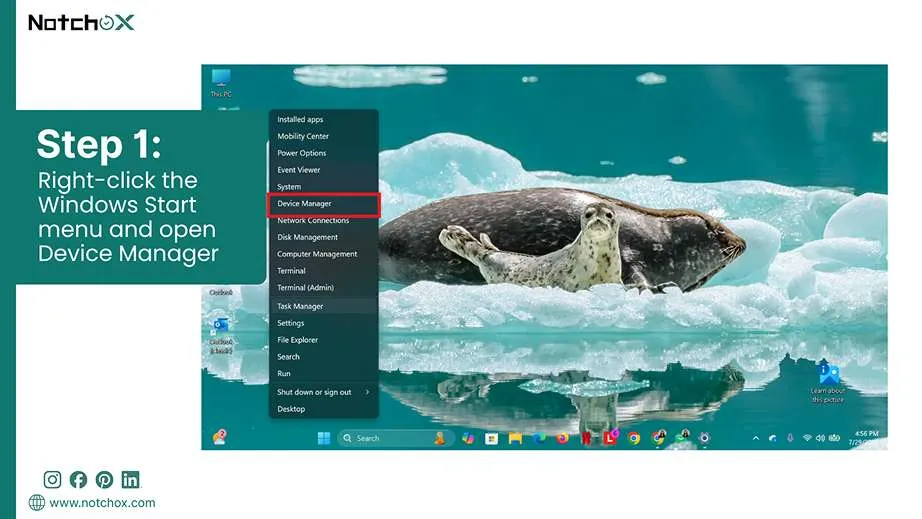
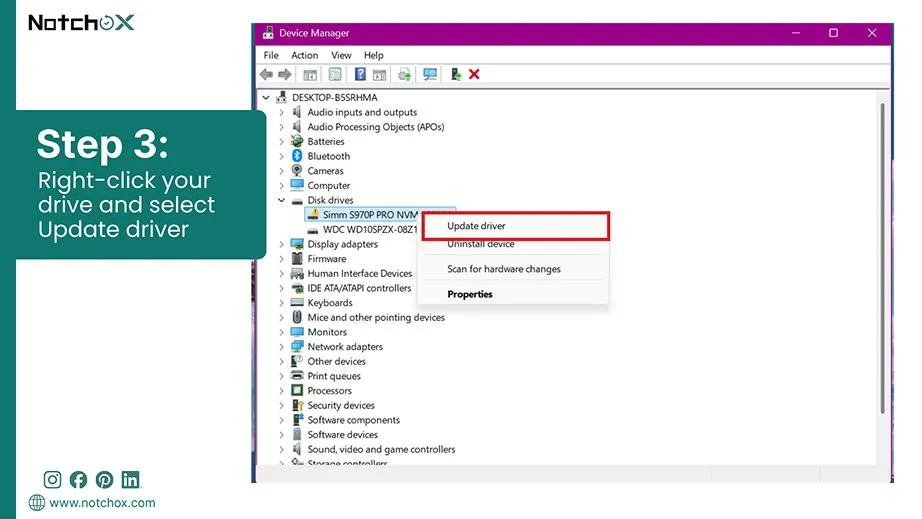
Right-click the Windows Start menu button and select Device Manager from the pop-up list.
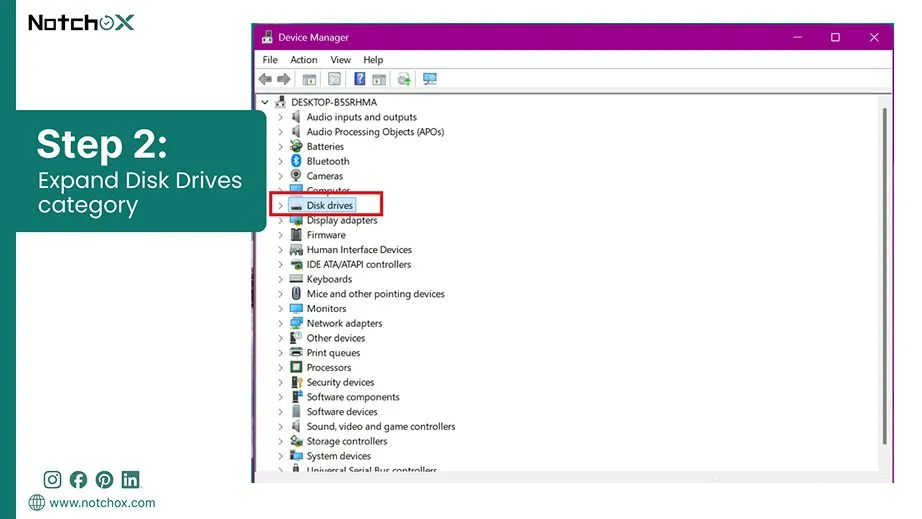
Expand the Disk drives category by clicking the arrow next to it.
Locate your uninitialised drive. It might show a yellow warning triangle (⚠️). Right-click your drive and select Update driver.
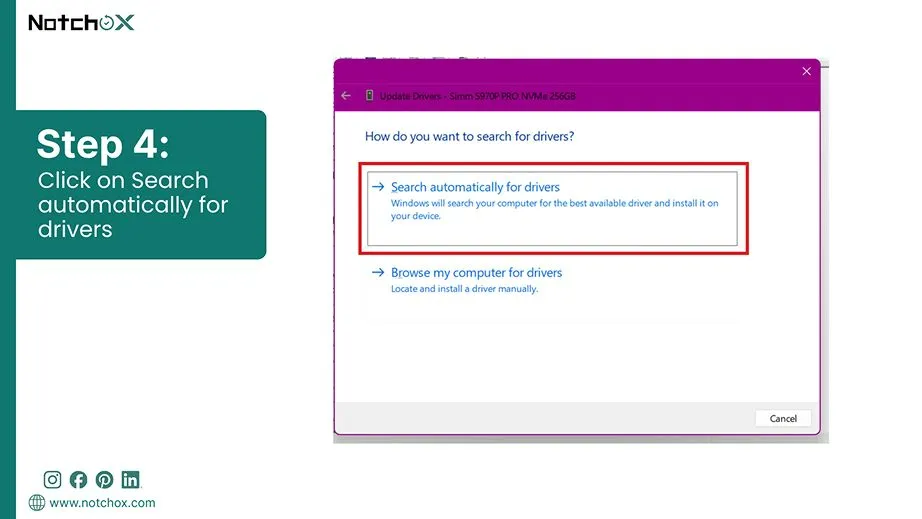
Choose Search automatically for drivers to let Windows check for newer software.
If the update fails, right-click the drive again and select Uninstall device. Then confirm the prompt to remove the glitching software wrapper.
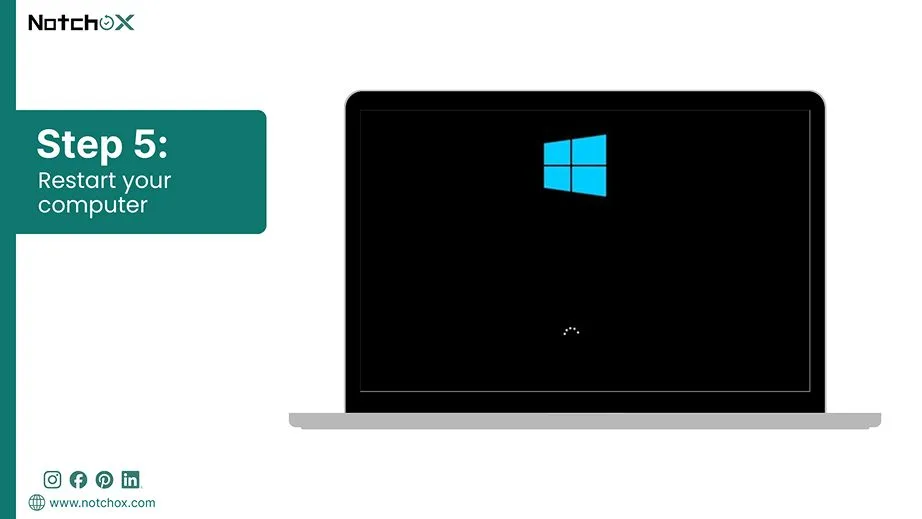
Restart your computer completely. Upon rebooting, Windows will automatically detect the drive and install a fresh driver copy.
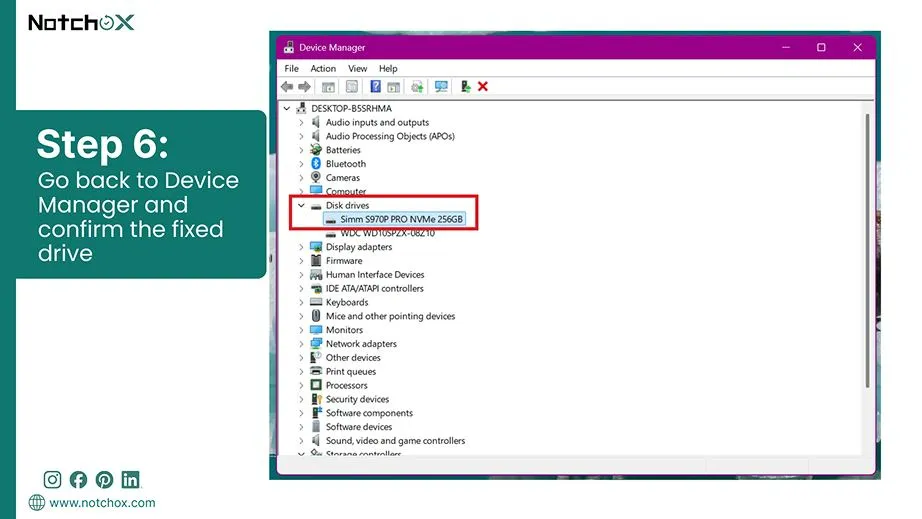
Go back to Device Manager and confirm if they are correctly shown now.
Fix 3: Rebuilding the Partition Table (Diskpart)
A corrupted partition table or a damaged Master Boot Record (MBR) might also result in a disk unknown not initialized error because the partition table serves as the drive’s internal map. To repair the corrupted partition table, use the Windows Diskpart tool. Because Diskpart bypasses the standard graphical limitations of Disk Management, it can successfully force-rewrite partition paths.
Here’s how to check and rebuild your drive structure using Diskpart:
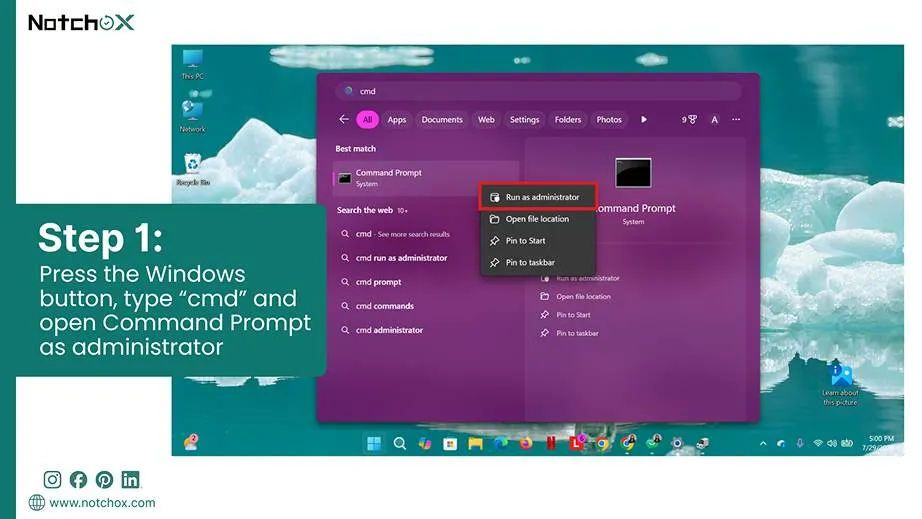
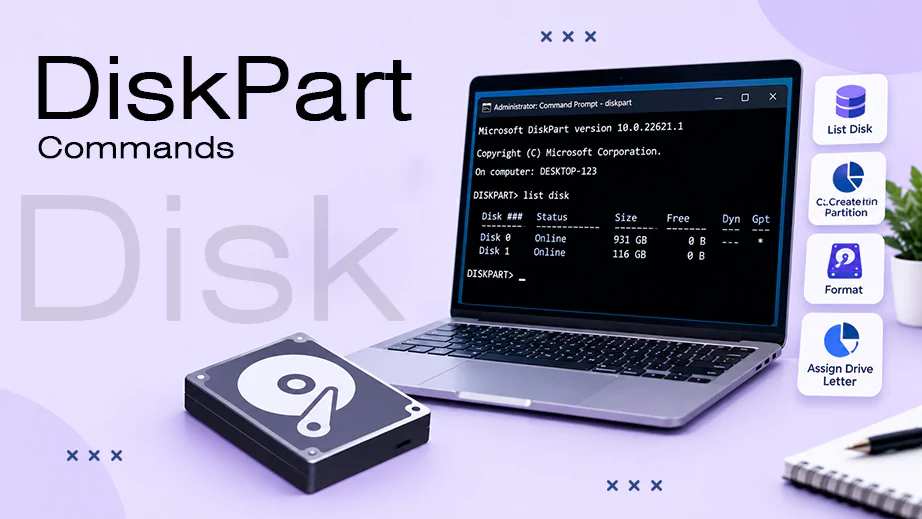
Press the Windows key, type “cmd,” right-click Command Prompt, and select Run as administrator to grant full system privileges.
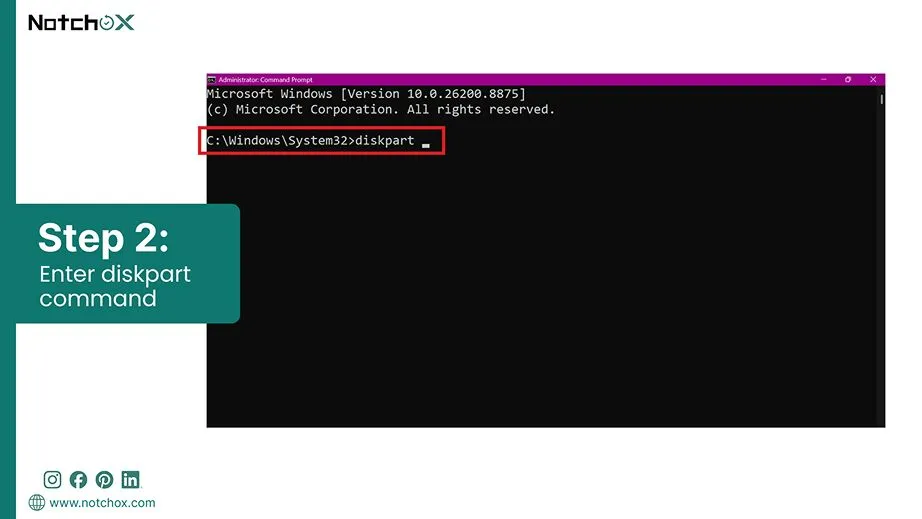
Type diskpartinto the console window and press Enter to initialise the command-line storage tool.
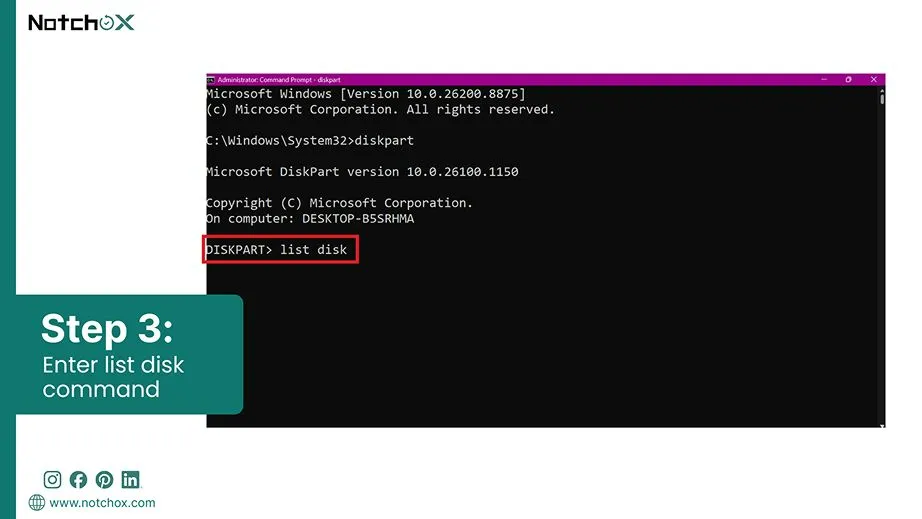
Type list disk and press Enter. Locate your uninitialised drive by checking the listed storage capacity and note its assigned number.
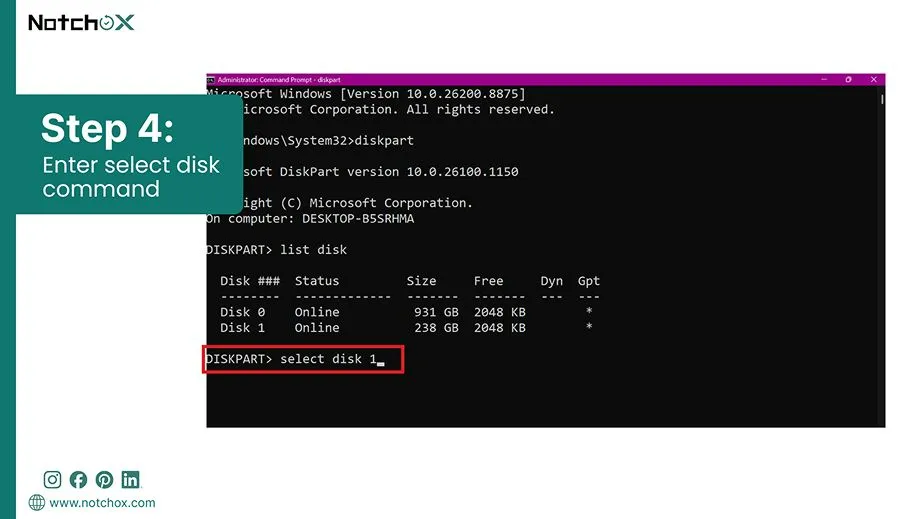
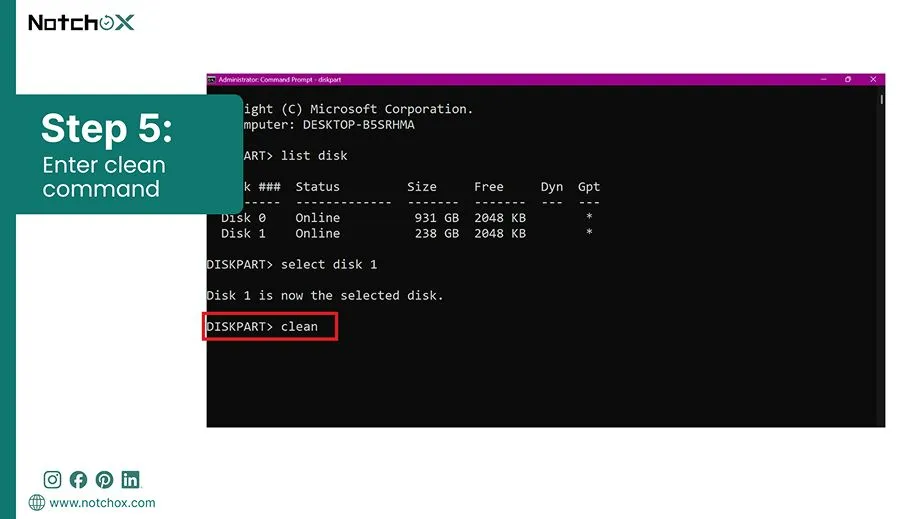
Next, type select disk X (replace X with your actual drive number) and press Enter to select that drive.
Now, to clear the corrupted partition table and erase conflicting partition headers, type cleanand press Enter.
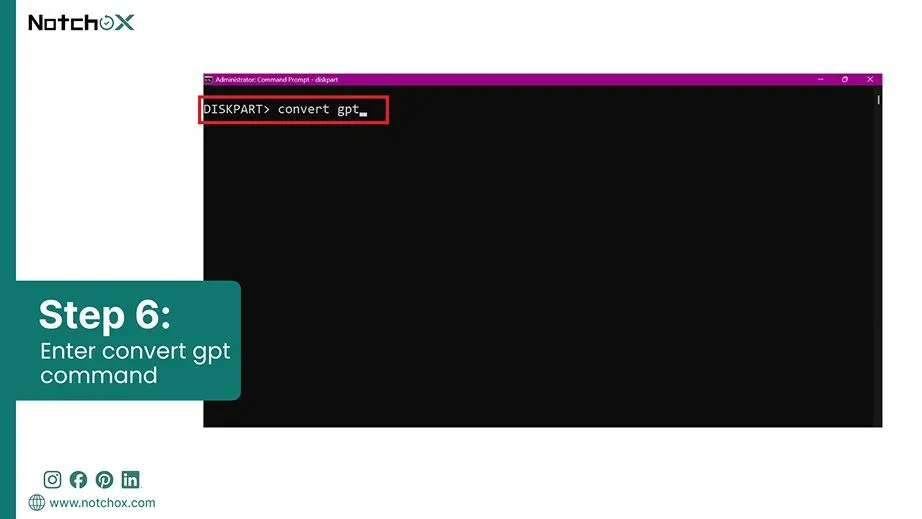
Type convert gpt(or convert mbr for older systems) and press Enter to write a new partition table onto the drive.
Fix 4: Initialising the Disk
Initialising a disk is the process of applying a compatible partition framework onto a drive so Windows can communicate with it. It fixes the Disk Unknown Not Initialized error by forcefully clearing broken headers and writing a new MBR or GPT structural map.
Steps to initialise your disk and partition it for immediate use:
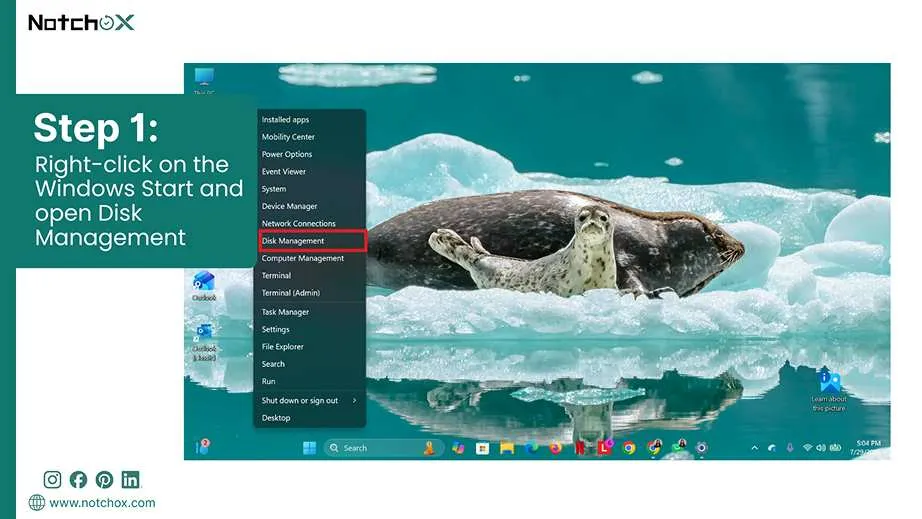
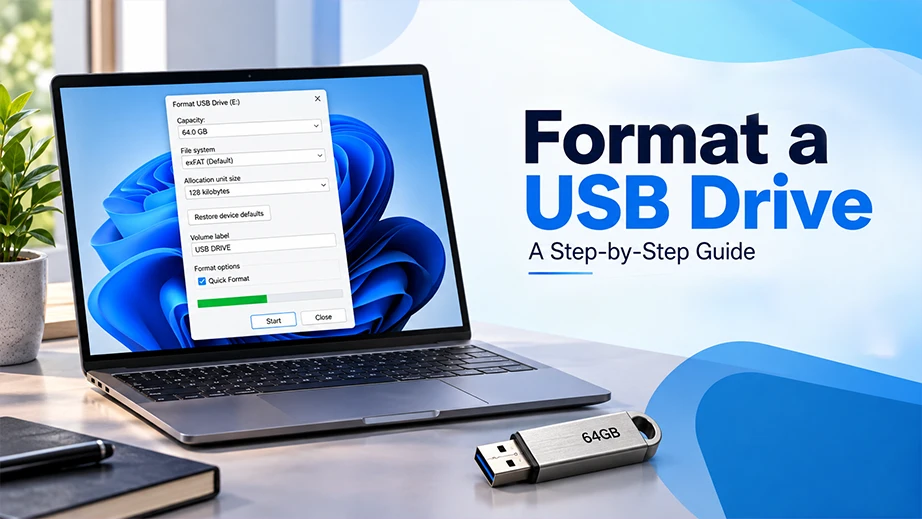
Right-click on the Windows Start button and select Disk Management from the power user menu list.
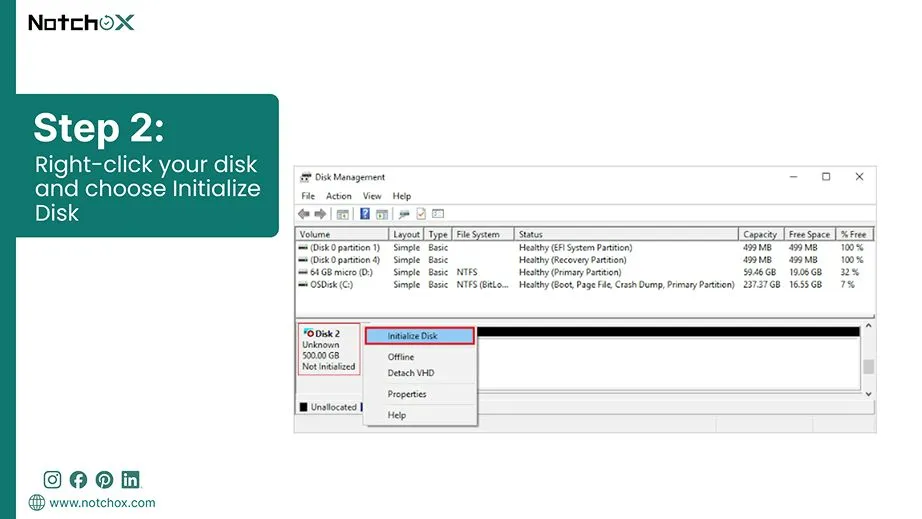
Here you will find your drive marked with an arrow or labeled as Disk Unknown, Not Initialised. Right-click the name block and select Initialise Disk.
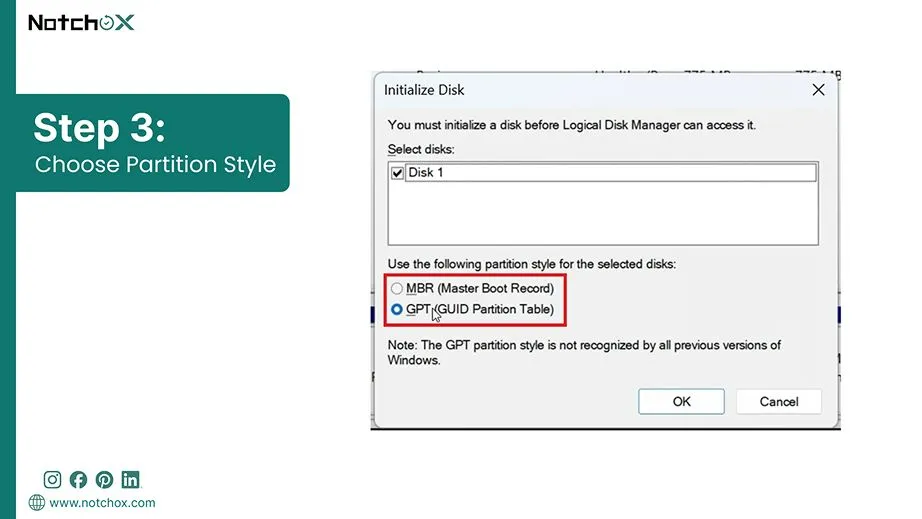
In the pop-up window, check the box for your disk and choose between GPT (highly recommended for modern systems and drives over 2TB) or MBR (for older systems).
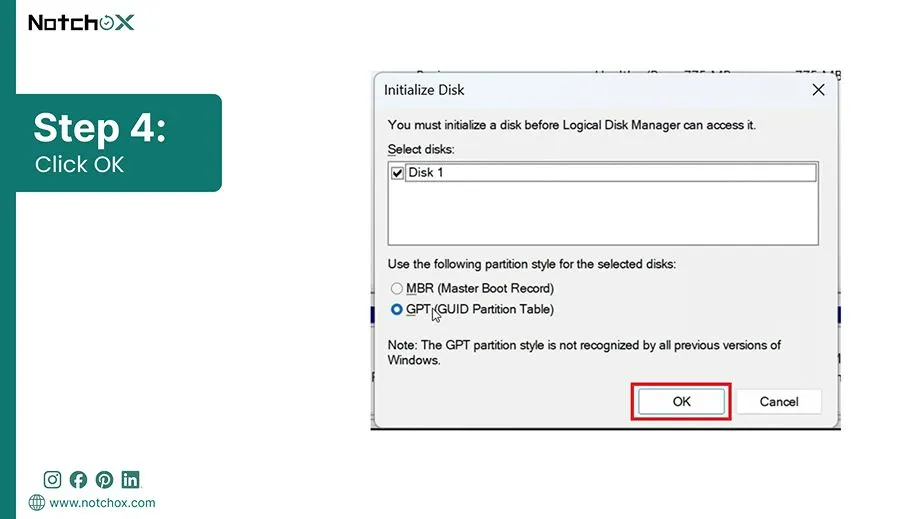
Click OK to let Windows apply the chosen partition style. This will change the drive status to Online with “Unallocated” space.
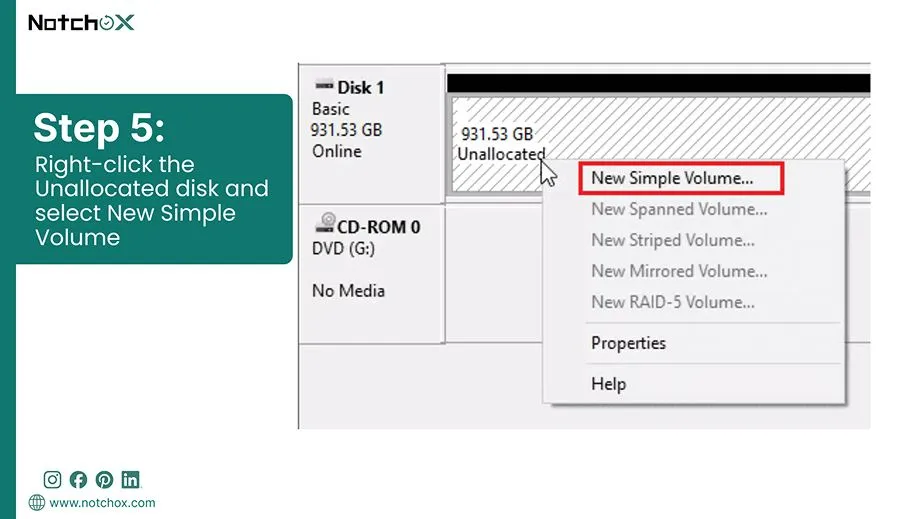
Right-click the Unallocated black bar space next to the disk name and choose New Simple Volume.
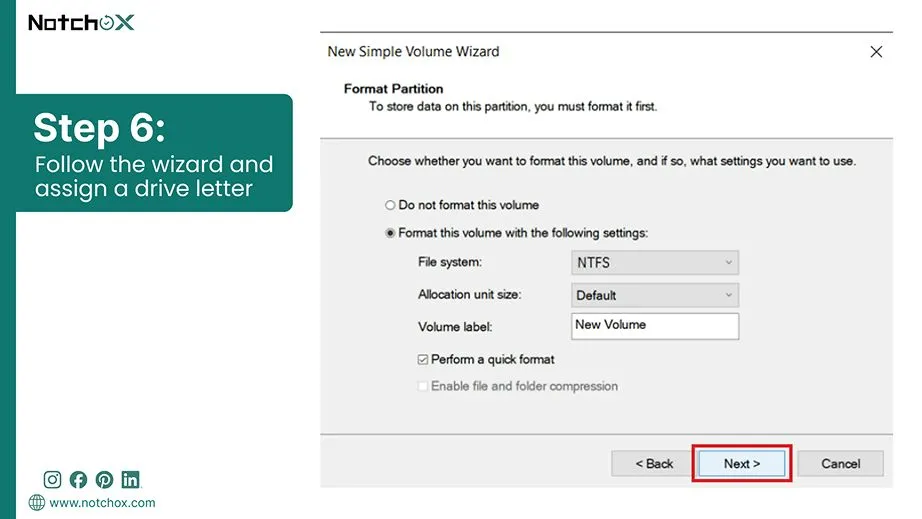
Follow the wizard to format it (NTFS format) and assign a drive letter.
Fix 5: Use Data Recovery Software as a Backup Plan
When your drive refuses to cooperate and these standard Windows fixes all fall short, using data recovery software may help recover your important files. Initializing a disk or trying command-line repairs can save the system, but they also risk permanently cutting off access to your files.
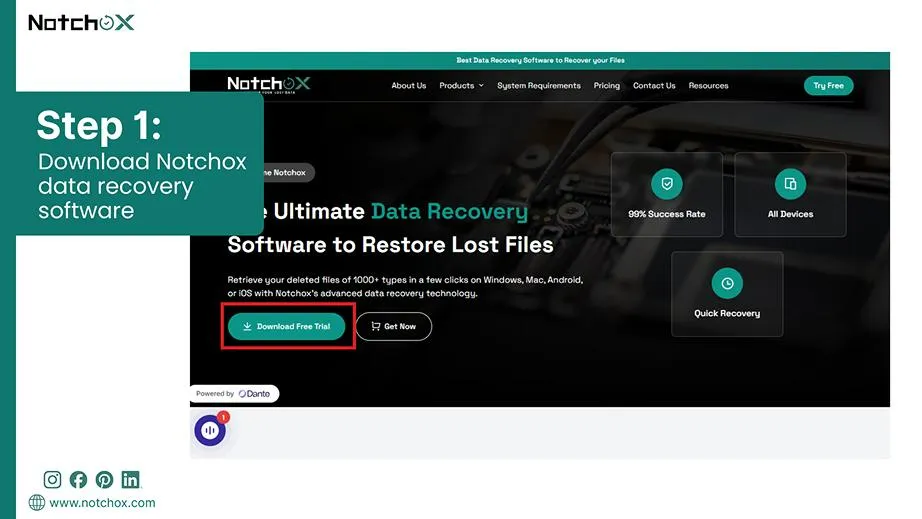
Download Notchox Data Recovery Software for your device onto a healthy working drive. Never install data recovery tools onto the problematic disk, as this can overwrite the files you want to save.
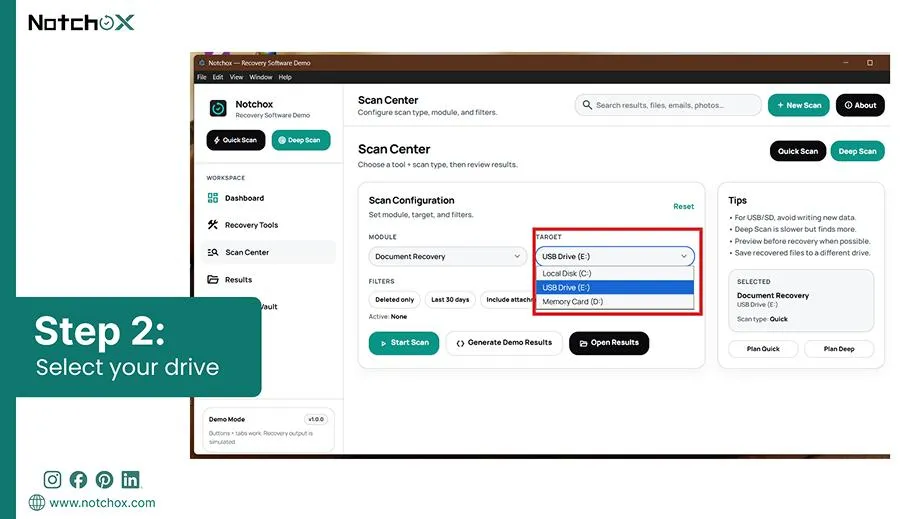
Launch the application and locate your drive under the target drive storage list even if Windows marks it as unknown or unallocated.
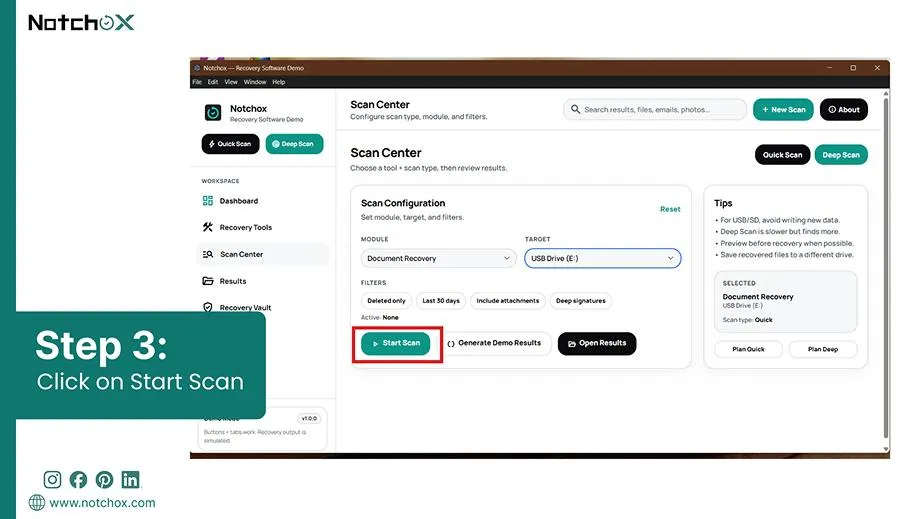
Choose deep scan and click the Start Scan button to allow the software to read the drive.
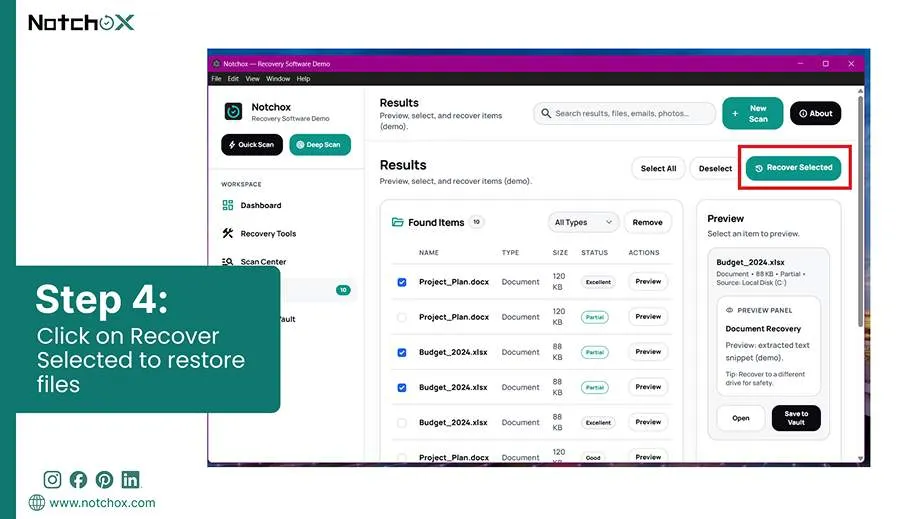
Once the scan finishes, preview the files, check integrity, and save the extracted data onto a separate healthy storage device.
Note: If you have a clicking or beeping drive, or it doesn’t show up on any computer, that means it’s a physical hardware issue. You must consult professional data recovery services.
What does “Disk Unknown Not Initialized” Mean?
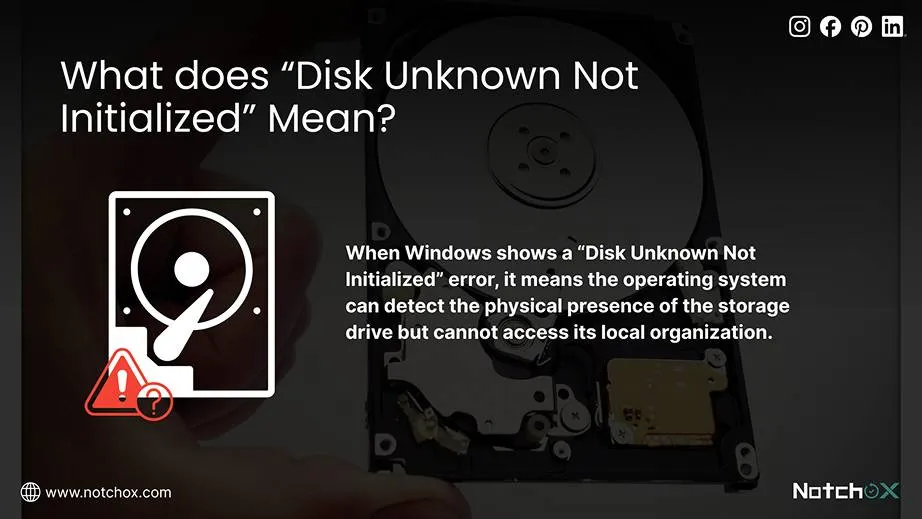
When Windows shows a “Disk Unknown Not Initialized” error, it means the operating system can detect the physical presence of the storage drive but cannot access its local organization. In the previous section, we saw emergency fixes like power-cycling your cables, forcing driver updates, and more. But why exactly did we have to take those specific steps?
We did this because your operating system has lost its foundational map. And without a readable structure, Windows cannot determine where data boundaries begin or end. Thus, making the entire storage space completely inaccessible.
To understand why those fixes work, we have to look at the logical and physical errors causing the breakdown:
What is the Problem?
How Common?
Will You Lose Your Files?
What Does It Actually Mean?
Bad USB Cord or Port
Very Common
No Risk
The power cord or laptop plug is loose which is blocking the connection.
Broken Outer Case/ Hub
Very Common
No Risk
The USB hub is dead but the drive inside is safe.
Corrupted Drive Map
Common
Low Risk
A sudden unplug affected the drive’s internal index.
Outdated Computer Software
Occasional
No Risk
Windows has a temporary glitch.
Physical Hardware Failure
Less Common
High Risk
Internal parts of the drive are broken.
Uninitialized vs Unallocated Disk Drive States
Remember how in our step-by-step fixes, we looked at how Windows Disk Management displays your drive? We did that because checking the visual state of your storage media is the only way to diagnose whether your drive requires a software adjustment or immediate data rescue.
Uninitialized Disk State
An uninitialized disk indicates a structural failure. Windows cannot read the drive because the master partition table itself is missing or blank (can be corrupted too). The operating system sees the storage as empty and cannot interact with it.
Unallocated Disk State
An unallocated disk is healthy and fully recognized by your computer. It has a valid partition table (MBR or GPT). But when you see “Unallocated,” it means the drive has raw space that has not been assigned a file system (NTFS) or a specific drive letter. This is why our previous fix focused on simply creating a “New Simple Volume” here.
The Role of the Partition Table: MBR vs. GPT
When we walked through the Diskpart and Disk Management fixes, you noticed that Windows makes you choose between two weird acronyms: MBR and GPT. Why did we have to choose one just to get the drive online?
This is because the partition table is a master map stored at the beginning of the drive. It tells how the operating system divides and accesses the storage.
Master Boot Record (MBR)
The Master Boot Record (MBR) standard stores its partition map in just one single location at the start of the drive. If a power surge or sudden unplugging corrupts the block, the entire layer is damaged. Because MBR completely tracks redundancy, Windows finds a total blank slate and instantly gives a “Disk Unknown Not Initialized” error.
GUID Partition Table (GPT)
Unlike MBR, the GUID Partition Table (GPT) prevents initialization failures with built-in structural redundancy. It writes a partition table at the beginning of the drive and a mirror backup copy at the end. If the front one gets corrupted, Windows can read the backup map to self-heal the drive.
So now you know why we picked those settings!
Concluding Drive Diagnostics
So this is how you fix the Disk Unknown Not Initialized error. First, you know to rule out loose cables or dead USB ports. If those are fine, you know how to get into Device Manager to fix your storage drive or use Diskpart to clear out logical glitches.
And remember MBR vs GPT. Choosing GPT means your drive can automatically self-heal. But if you have tried everything and your drive is still refusing to cooperate. Use Notchox data recovery software to scan the drive and restore data from external hard drive not showing up safely.
Frequently Asked Questions
Q1: Can I initialise a disk without losing data?
Ans: No, initialising a disk leads to data loss because it overwrites the drive’s master partition mapping structure. Use reliable data recovery software like Notchox to recover all the drive data before attempting initialisation.
Q2: Why does my hard drive show “Disk Unknown Not Initialized”?
Ans: A hard drive may show “Disk Unknown Not Initialized” when Windows cannot detect a valid disk signature or partition information. This can happen because of disk corruption, connection problems, or hardware failure.
Q3: How do I fix a Disk Unknown Not Initialized using Diskpart?
Ans: You can fix logical table corruption by using the built-in Windows tool to rewrite the partition.
Open Command Prompt as an administrator.
Type diskpart.
Run list disk to find your target drive number.
Type select disk X (replace X with the drive number).
Type clean to clear the corrupted partition markers.
Type convert gpt to write a fresh, healthy partition map.
Q4: What causes a hard drive to suddenly become uninitialized?
Ans: The most common causes for a drive to become uninitialized include power drops, unsafe drive disconnection, file system corruption, and failing mechanical components.
Kajal Singh is a Data Recovery Writer at Notchox, specializing in data recovery, storage systems, RAID, and digital forensics. She writes technical processes, tools, and cases into clear, engaging articles, blogs, and guides. Kajal does thorough research, deep analysis, and collaborates with experts to produce high-quality and engaging content that is easy to understand for every reader.