Deeksha Arora Jul 28, 2026
Ans: Yes, Recuva is the best free alternative for Windows users. It lets you scan and save your deleted files completely free of charge without any forced subscription upgrades.
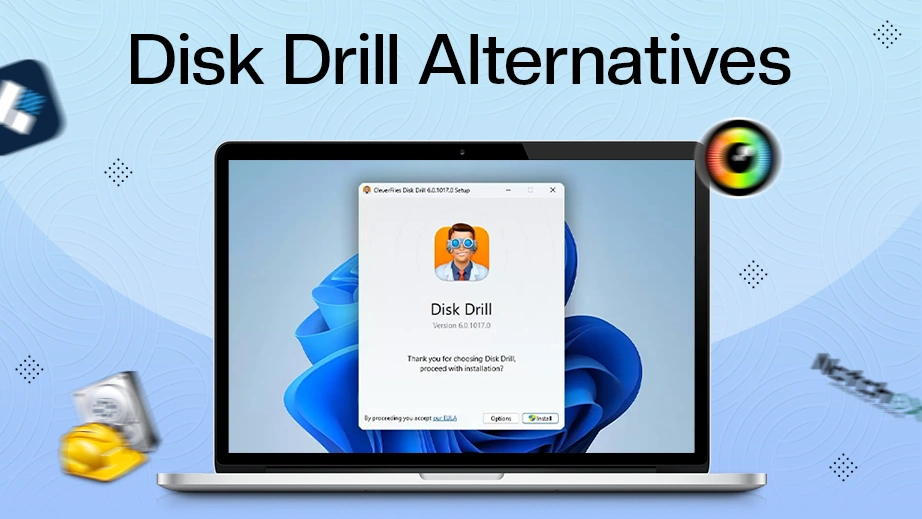
The best Disk Drill alternatives for recovery are Notchox, Recuva, and EaseUS Data Recovery Wizard. While many tech experts suggest that Disk Drill is the best recovery solution, just because it works for others does not mean it is the optimal choice for your device or budget.
Our team tested over thirty recovery software to find the most dependable solution. In this blog, we will break down the 10 best Disk Drill alternatives with their pros and cons, features, ease of use, and cost options to help you find the absolute best fit for your data recovery.
Quick Answer: The best Disk Drill alternatives for 2026 are Notchox Data Recovery, Recuva, and EaseUS Data Recovery Wizard. While Disk Drill has various strong features, it does have a few drawbacks. To overcome these, these alternatives give a much better success rate, faster recovery, and budget-friendly pricing plans.
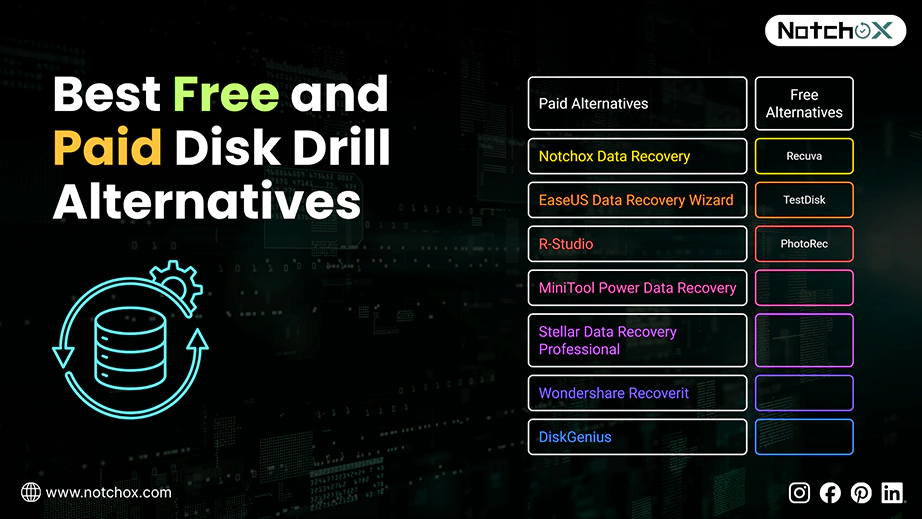
Notchox Data Recovery is the best-paid Disk Drill alternative due to its high success rate and advanced file recovery. Recuva and PhotoRec are the best free alternatives to Disk Drill because they let you scan and save your files without any charge.
Many data recovery software programs claim to be free, but hide your files behind a paywall when you try to save them. To save your time, here is the verified list of top choices categorised into free and paid software:
Disk Drill Alternatives
| Paid Alternatives | Free Alternatives |
| Notchox Data Recovery | Recuva |
| EaseUS Data Recovery Wizard | TestDisk |
| R-Studio | PhotoRec |
| MiniTool Power Data Recovery | |
| Stellar Data Recovery Professional | |
| Wondershare Recoverit | |
| DiskGenius |
Before picking a data recovery tool, you need to look past basic marketing claims because data loss is a huge financial risk. The average cost for data loss in the United States reached a record of $10.22 million according to the IBM Cost of a Data Breach Report.
Here is a quick look at how the Disk Drill alternatives stack up against each other, so you can pick the best for your data recovery.
| Software Tool | Logo | Pricing Type | Supported OS | Best For | Free Data Limit | Interface | RAID Support |
| Notchox Data Recovery |  | Paid (Free Trial) | Win, Mac, Android, iOS | All types of recovery | Preview only | Graphic | Yes |
| Recuva |  | Free | Windows | Personal file recovery | Unlimited | Classic List | No |
| EaseUS Data Recovery Wizard |  | Paid (Free Trial) | Windows, macOS | Damaged media repair | 2GB | Modern Simple | Yes |
| R-Studio |  | Paid (Free Trial) | Win, Mac, Linux | IT experts | Preview only | Text & Charts | Yes |
| TestDisk |  | Free | Win, Mac, Linux | Fixing unbootable drives | Unlimited | Text Minimal | No |
| PhotoRec |  | Free | Win, Mac, Linux | Media scrapping | Unlimited | Text Minimal | No |
| MiniTool Power Data Recovery |  | Paid (Free Trial) | Windows | Folder scans | 1GB | Clean Layout | Yes |
| Stellar |  | Paid (Free Trial) | Windows, macOS | File recovery | 1GB | Modern Tech | Yes |
| Wondershare Recoverit |  | Paid (Free Trial) | Windows, macOS | Extensive high-quality recovery | Preview only | Modern | Yes |
| DiskGenius |  | Paid (Free Trial) | Windows | Combines recovery | Small files only | Complex Tools | Yes |
The best overall Disk Drill alternatives are Notchox Data Recovery, Recuva, and EaseUS Data Recovery Wizard, not just because they give the highest file recovery rates, but because of their offered features, pricing, and performance.
Disk Drill freezes during large scans and forces you to take an expensive upgrade just to save your recovered data. The software listed below solves these issues by giving you cheaper pricing and better data recovery. Let us look at each tool one by one to find the right fix for your specific device.
Notchox Data Recovery Software is a lightweight yet powerful recovery tool that solves Disk Drill’s heavy system lag with its fast scans. It uses advanced algorithms to bypass corrupted drive sectors without freezing your entire device. It is widely considered an exceptional recovery tool because it offers deep-scan data recovery for 1000+ file formats and advanced file reconstruction. You can easily deploy Notchox on standard desktop hardware to scan file structures (NTFS, FAT32, exFAT) across internal drives, external USB drives, memory cards, virtual machines, etc.
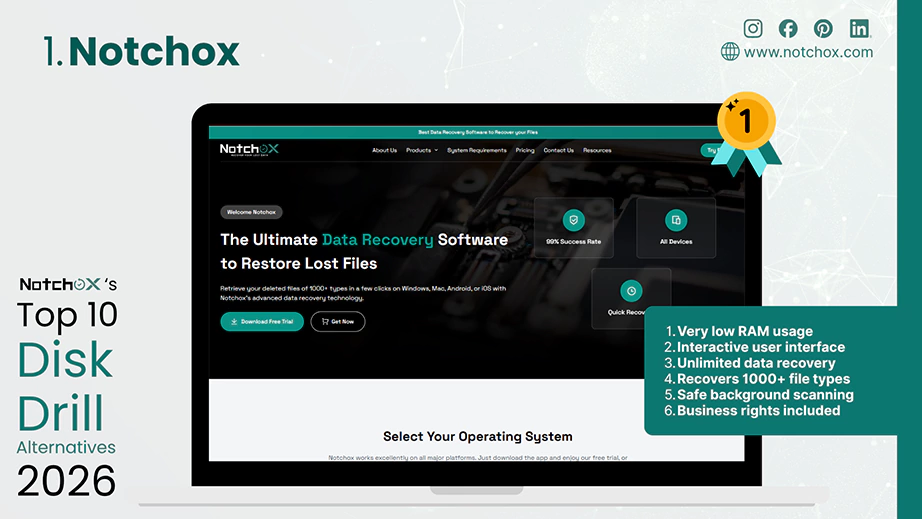
| Pros | Cons |
| Very low RAM usage | Does not run on Linux |
| Interactive user interface | RAID fixes come with the business tier only |
| Unlimited data recovery | |
| Recovers 1000+ file types | |
| Safe background scanning | |
| Business rights included |
Features and Ease of Use
Though Disk Drill has been a famous name in data rescue, it often slows down modern computers and requires separate licenses for your different devices. Notchox solves this by providing a lifetime license that works smoothly across your device. So, when you are looking for a longer run, Notchox definitely proves better and more reliable than Disk Drill.
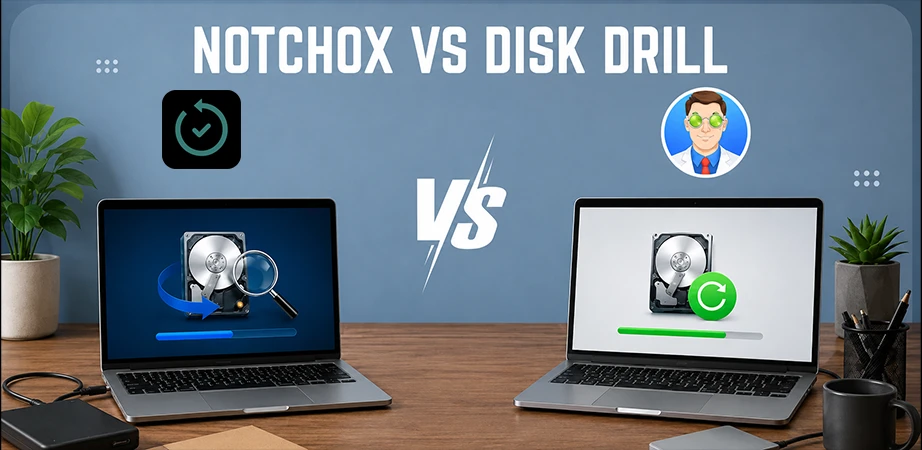
Below is Notchox vs Disk Drill, we compare both the software side-by-side to show exactly where one stands out.
| Category | Notchox | Disk Drill |
| Success rate | 99% | Comparatively low |
| System Resource | Ultra lightweight | Heavy. Can slow down older systems and freeze during full-drive scans |
| Licensing Model | Single lifetime license | Individual licenses |
| Scan Speed | Fast | Fast |
| Mobile Integration | Scans connected Android and iOS smartphones flawlessly | Desktop Only |
| Extra Features | Corrupted file recovery and partition recovery | Health monitors and duplicate file finders |
| Pricing Structure | Budget-friendly. Starts with a $79 personal plan. | Premium pricing. Start from $89 per year. |
| Pre-Recovery Preview | Yes | Yes |
| File Format Support | 1000+ | 400 |
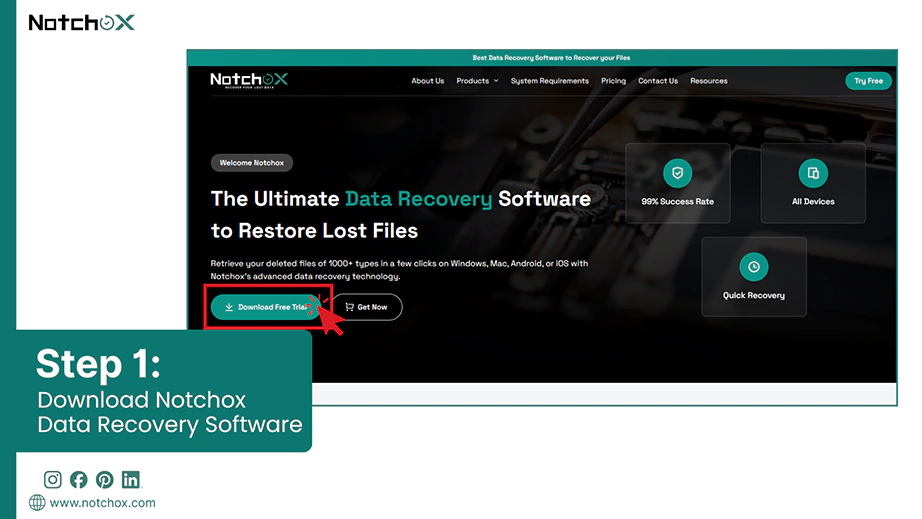
Notchox lets you recover your lost data in just a four-step process. You can download Notchox from its official website and install it on your device. With its interactive, user-friendly UI, the recovery process becomes much easier.
Step 1: Download and Install: Download the software version compatible with your device and install it. Connect if recovering data from an external drive or device.
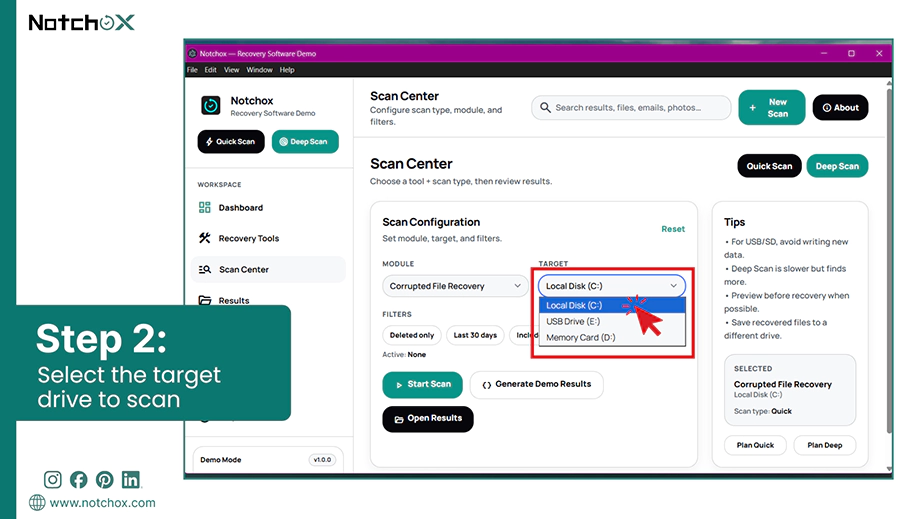
Step 2: Select Target Drive: Select the drive that needs to be scanned. Notchox can recover data from corrupted, formatted, or unreadable drives.
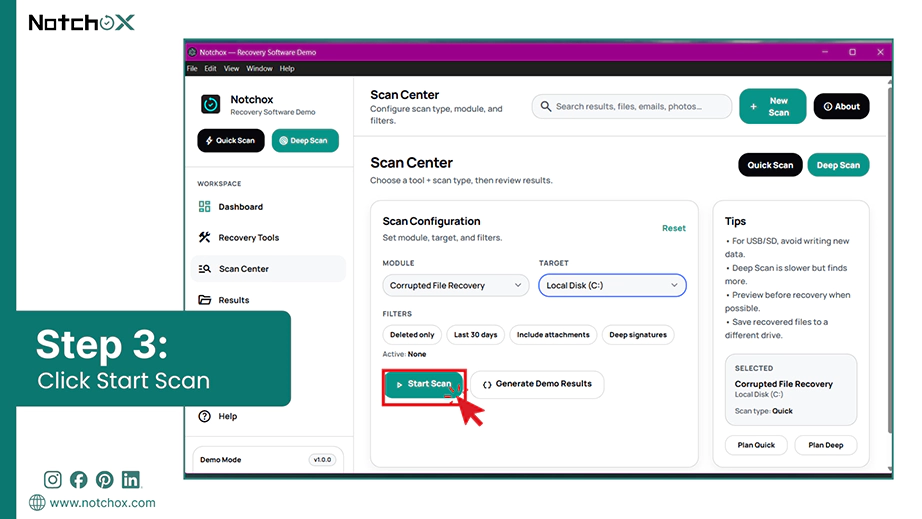
Step 3: Scan Now: Click the Start Scan button to start the recovery process. You can select a quick or a deep scan as per the data loss type.
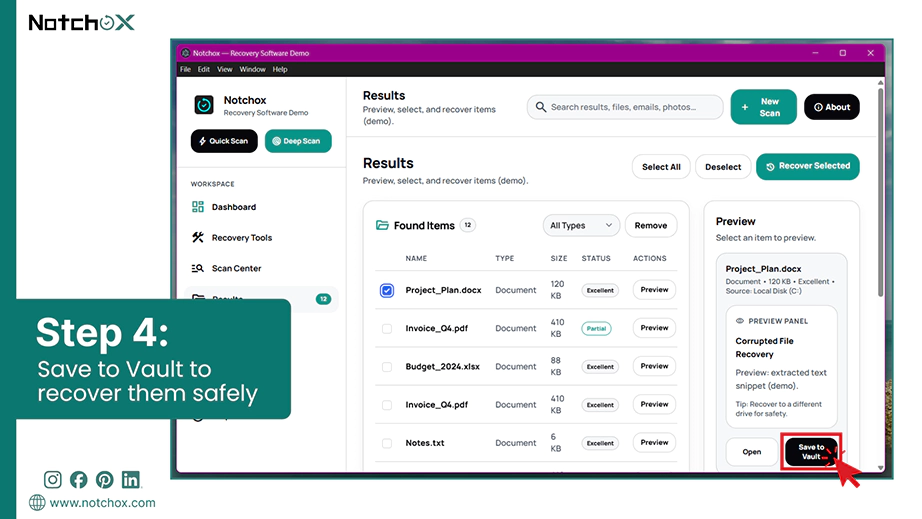
Step 4: Recover: Once the scan is complete, you can preview the recoverable files, select them, and Save to Vault to recover them safely.
Recuva is the best free data recovery software alternative to Disk Drill for Windows users. It offers completely unrestricted data scanning and file saving. Developed by CCleaner, it is a perfect data recovery software for recovering recently deleted files, photos, videos, documents, and more.
It lacks the modern visual interface of Disk Drill, but performance-wise, it uses a highly efficient scanning engine that runs perfectly on older or low-spec computers without any system lag. This is the go-to choice for budget-conscious users who are looking for data recovery tools for Windows to undelete files.
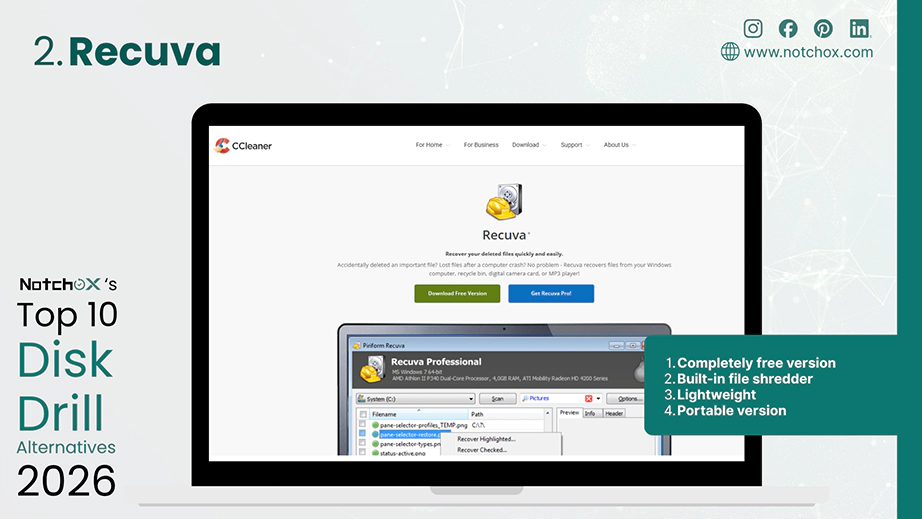
| Pros | Cons |
| Completely free version | Windows only |
| Built-in file shredder | Outdated user interface |
| Lightweight | |
| Portable version |
How Does It Work?
EaseUS Data Recovery Wizard is a reliable choice with 99.7% success rate when recovering files from storage failures, deleted partitions, or system crashes. It is globally accessible with support for over twenty world languages. It comes with NAS (Network Attached Storage) data recovery and enterprise-grade deployment tools with a clean interface that requires zero technical experience.
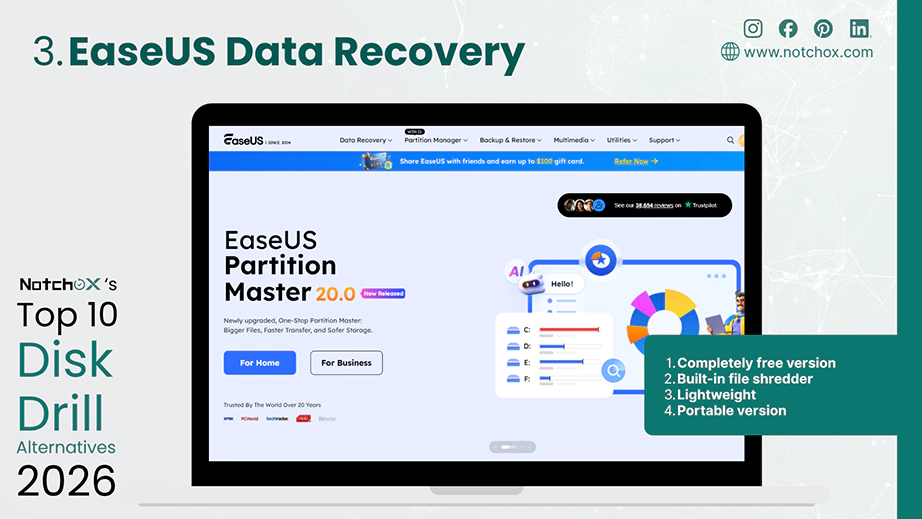
| Pros | Cons |
| 99.7% rescue rate | Paid plans cost more than standard tools |
| Fixes broken items | Free tier stops at 2GB |
| Saves network drives |
How Does It Work?
R-Studio is another professional-grade tool built specifically to recover files from broken RAID networks and heavily damaged server systems. It is not designed to be some simple, pretty consumer tool, but it can read deeply broken data structures that make other programs freeze or fail. It is more recommended for IT experts, technicians, and power users.
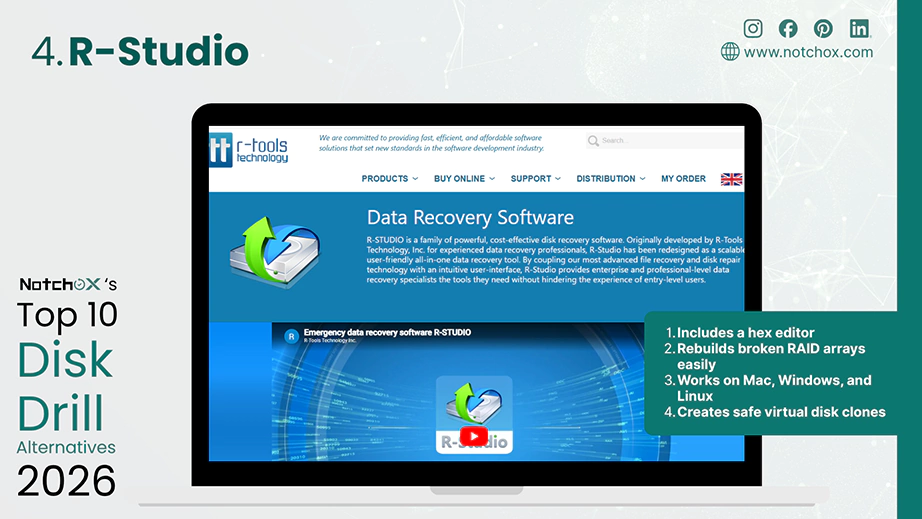
| Pros | Cons |
| Includes a hex editor | Complex to understand |
| Rebuilds broken RAID arrays easily | No free recovery tier |
| Works on Mac, Windows, and Linux | Visually outdated |
| Creates safe virtual disk clones | Licenses are expensive |
| No mobile phone scanning support |
How Does It Work?
TestDisk does not look like your average data recovery software; there are no buttons, colors, mouse pointers, basically, there is no GUI. It runs inside a text-based terminal window. But behind that simple screen sits the powerful engine. And because this is completely open-source, there are absolutely no premium paywalls or hidden data limits.
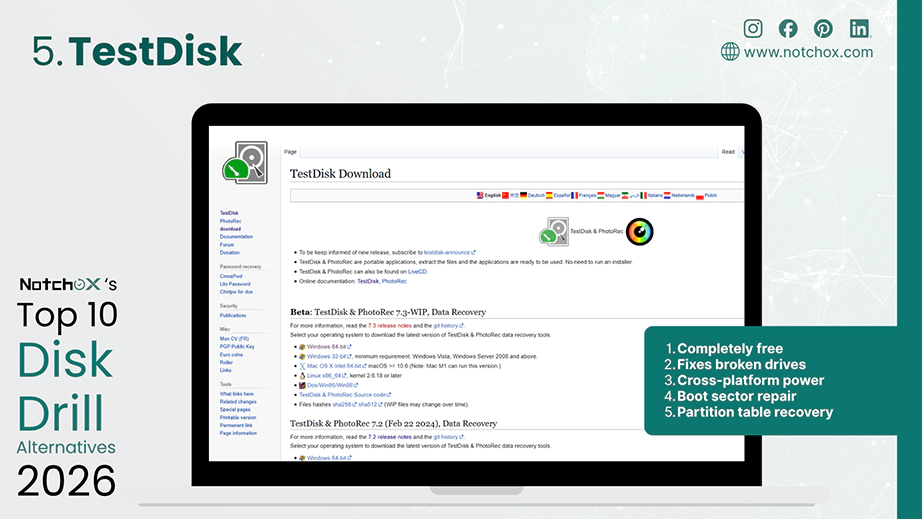
| Pros | Cons |
| Completely free | No visual interface |
| Fixes broken drives | No file preview tool |
| Cross-platform power | |
| Boot sector repair | |
| Partition table recovery |
How Does It Work?
It is definitely not a tool we recommend for casual users who just want to undelete a Word document, but if your entire hard drive has vanished and refuses to boot, then TestDisk is one of the most reliable tools you can have to recover your data.
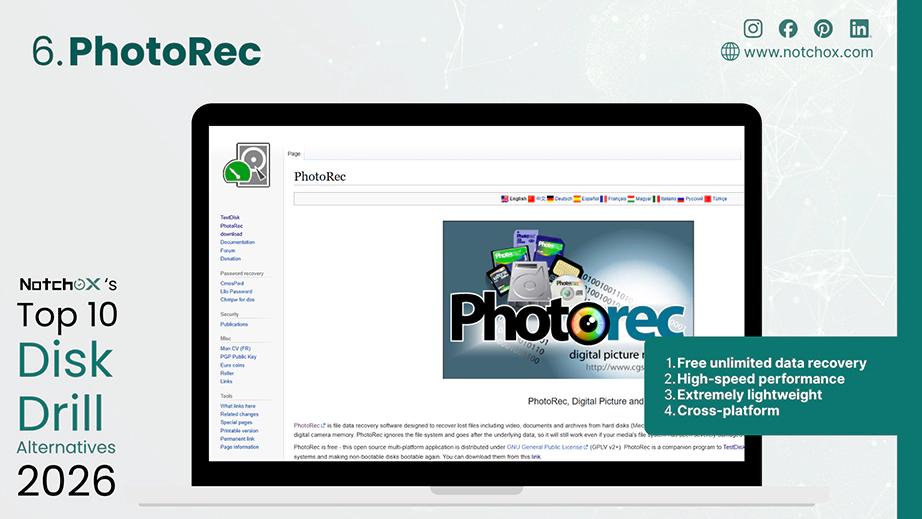
PhotoRec is another free data recovery software that uses powerful signature-based file carving to restore over 480 different file formats without any hidden data limit. It is one of the fastest data recovery tools because, with no GUI, it only focuses on raw performance. While standard software wastes system memory loading heavy menus, this tool directly carves out your storage to recover data only.
| Pros | Cons |
| Free unlimited data recovery | No file preview |
| High-speed performance | Loses original file name |
| Extremely lightweight | No automated repair |
| Cross-platform |
How Does It Work?
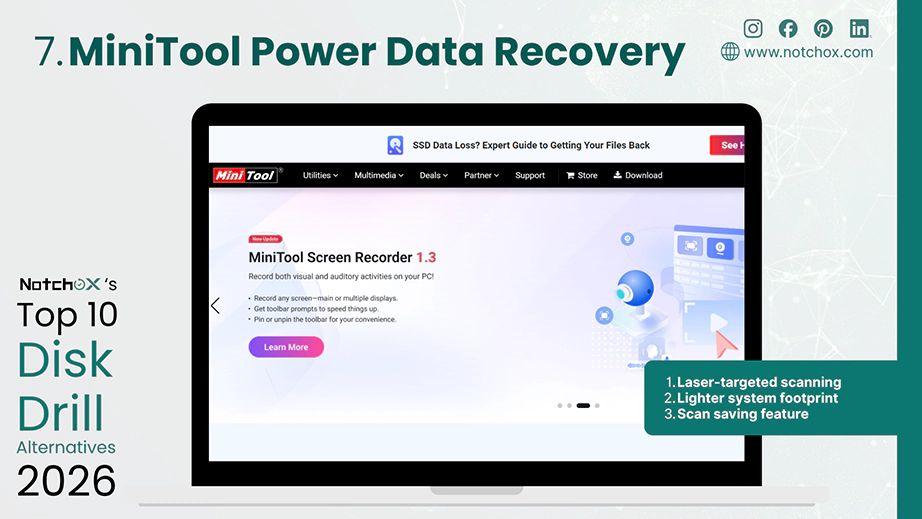
MiniTool Power Data Recovery is a target-specific recovery tool designed exclusively for Windows computer systems and compatible with external storage devices. Users can skip full-drive deep scans by targeting exact folders like the Desktop or the Recycle Bin.
When put side-by-side with Disk Drill, MiniTool Power Data Recovery focuses on saving you time through target-specific scanning options. But there’s one drawback too: MiniTool Power Data Recovery is strictly locked into the Windows ecosystem, whereas Disk Drill offers support for both Windows and Mac.
| Pros | Cons |
| Laser-targeted scanning | No Native Mac or mobile version (redirects to Stellar) |
| Lighter system footprint | Free trial stops saving file after 1GB |
| Scan saving feature | Frequent ads |
How Does It Work?
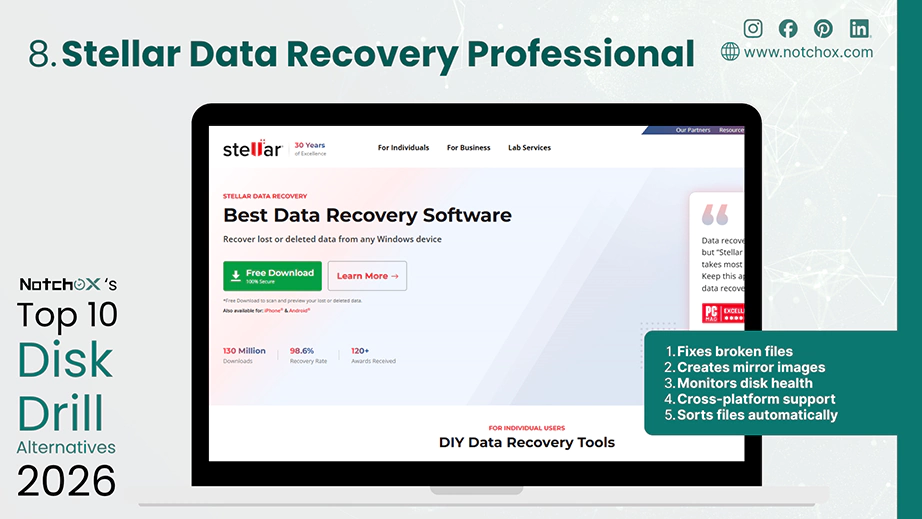
Stellar Data Recovery Professional is a premium Disk Drill alternative because it includes specialised built-in repair tools that automatically fix unreadable and corrupted photo and video files during the recovery process. Disk Drill just recovers the files regardless of their condition, but Stellar can scan, repair, and recover files. It is a good choice for users who need their recovered media to work perfectly.
| Pros | Cons |
| Fixes broken files | No mobile phone support |
| Creates mirror images | Free tier limits to 1GB |
| Monitors disk health | Interface looks technical |
| Cross-platform support | |
| Sorts files automatically |
How Does It Work?
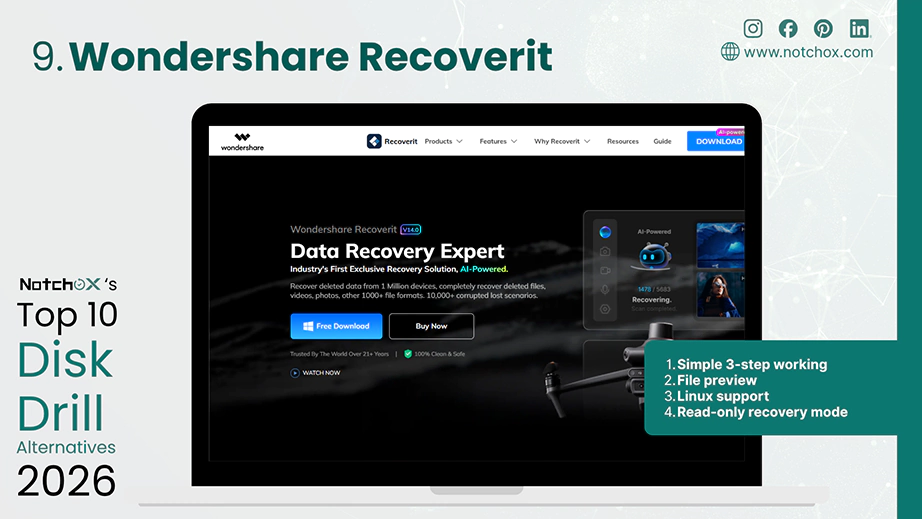
Wondershare Recoverit is one of the best Disk Drill alternatives with the most intuitive visual and AI-powered data recovery. It uses a simplified three-step graphic interface: select, scan, and recover, perfect for everyday users to pull back files without a headache.
Highlight: Wondershare Recoverit offers a patented Advanced Video Recovery engine designed specifically to fix 4K and 8K video clips back together automatically.
This software offers a huge advantage over Disk Drill when it comes to recovering media from modern hardware (like cameras, drones, DSLRs). Standard recovery tools may break video fragments, but Recoverit matches and saves fragments together into a single working file.
| Pros | Cons |
| Simple 3-step working | Comparatively slower performance |
| File preview | High price |
| Linux support | Heavy RAM consumption |
| Read-only recovery mode |
How Does It Work?
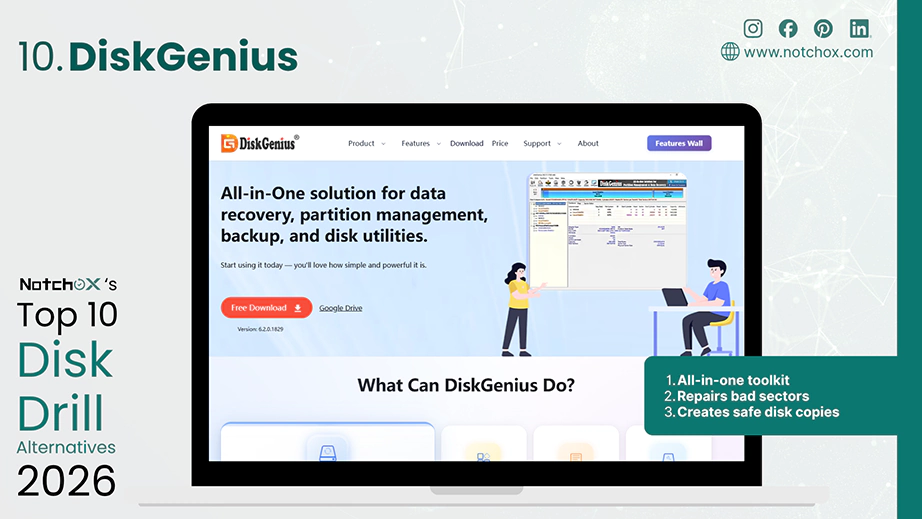
DiskGenius is an all-in-one alternative to Disk Drill because it comes packed with partitioning tools, bad sector repairs, and even a data cloning feature. If you are leaning towards Disk Drill because it’s shiny, you are missing such powerful tools.
Disk Drill is fine for clicking “scan” and hoping for the best, but you need to try DiskGenius. It is like a tech-support expert for your PC. It will look for lost or deleted files, and in case it finds broken files, it will fix and recover them.
| Pros | Cons |
| All-in-one toolkit | Windows only app |
| Repairs bad sectors | No phone support |
| Creates safe disk copies |
How Does It Work?
More to know: According to a security study by Grand View Research, the encryption segment makes up to 20.6% of the data loss prevention market. This proves that simply finding deleted files isn’t enough anymore, you need a tool that reconstructs your data safely.
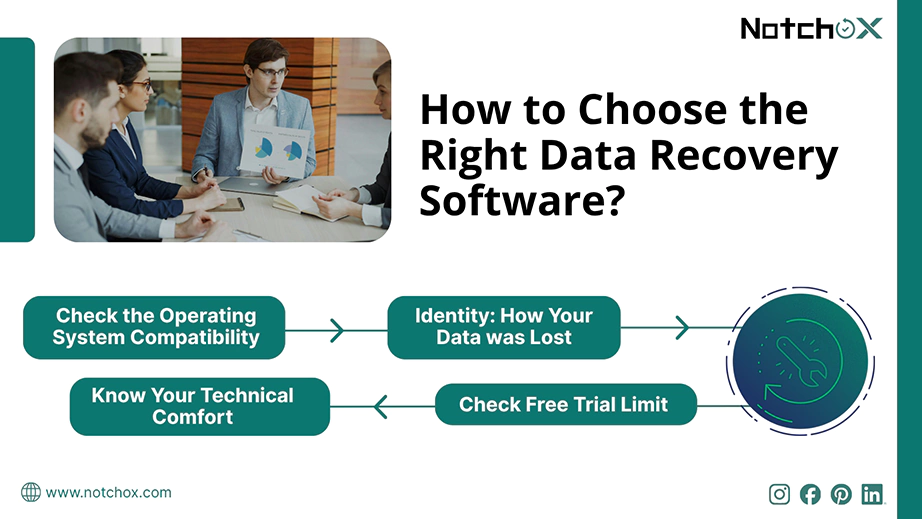
To choose the right data recovery software, you must match the tool to your computer system, type of file loss, technical comfort, and budget. Always prioritize read-only scanning engines that protect your files from being accidentally overwritten during the recovery process.
Never buy a software license until you double-check that it runs on your computer system.
Different data disasters require different levels of software power.
Most recovery tools say they are “free,” but they actually have hidden limits.
Pick a Disk Drill alternative that matches your computer skills so you don’t accidentally make your data loss worse.
When looking for a replacement, always look past fancy details that brands advertise and focus on how well a tool handles raw data. Your goal should be selecting a data recovery tool that offers a scanning engine that runs safely without freezing your device.
If you accidentally deleted your data, a light-weight recovery software is enough for your needs. But if you have a major data loss scenario, it is highly worth investing in a professional-grade tool like Notchox and EaseUS Data Recovery Wizard that can rebuild broken file fragments.
Ans: Yes, Recuva is the best free alternative for Windows users. It lets you scan and save your deleted files completely free of charge without any forced subscription upgrades.
Ans: Notchox Data Recovery and EaseUS Data Recovery Wizard for Mac are the top Disk Drill alternatives for macOS. They are built to fully support Apple’s native APFS files.
Ans: Notchox is better than Disk Drill. You get a lightweight, budget-friendly data recovery software that lets you use a single lifetime licence.
Ans: Yes, completely open-source tools like PhotoRec and TestDisk have absolutely no data limits. They let you find and save as many gigabytes of data as you want across Windows, Mac, and Linux for zero dollars.
Ans: Yes, there are several better recovery software programs than Disk Drill. You can use Notchox for any type of recovery across any device. Recuva is a free data recovery software (Windows only).
Ans: Yes, Pirifora Recuva is completely free data recovery software with no hidden file recovery limits. Though Recuva is free, it offers a $24.95/year professional version.

Deeksha Arora is a Data Protection & Recovery Writer focusing on writing accurate, informative, and easy-to-understand technical articles for Notchox’s readers. Her content on the prevention of data loss, understanding risks of device failures, and guides to fix problems helps readers make the right decisions and understand the technical terms easily. She works closely with Subject Matter Experts to ensure high usability and accuracy of her writing.