Deeksha Arora Jun 29, 2026
Ans: During formatting, your computer deletes the file directory index and makes a new file system structure. Additionally, it scans for physical hardware errors to mark and isolate bad storage sectors.
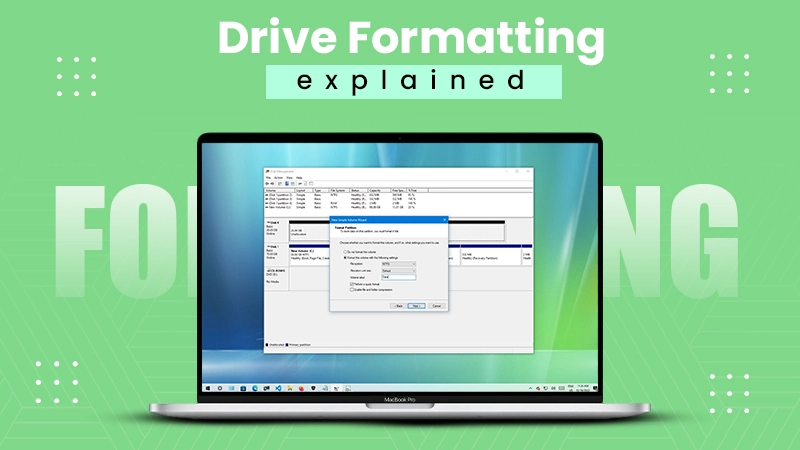
Formatting drive storage is like erasing the index of a book and rebuilding the blank pages for a new story. During the formatting process, the computer erases the existing file allocation table, verifies sector health, and applies a brand-new file structure to handle future data. It is the fastest way to resolve compatibility bugs and restore optimal drive read/write performance. Read to understand deeply what happens during formatting and how to format a hard drive or internal drive on Windows and Mac properly.
Quick Answer: When you format a drive, your computer completely clears the existing file system directory map. It makes all previous files invisible to the operating system and marks the storage as vacant. It then installs a fresh file system architecture (such as NTFS, exFAT, APFS, etc.) for drive rules. Finally, it scans the storage for any corrupted sectors to block and isolate.
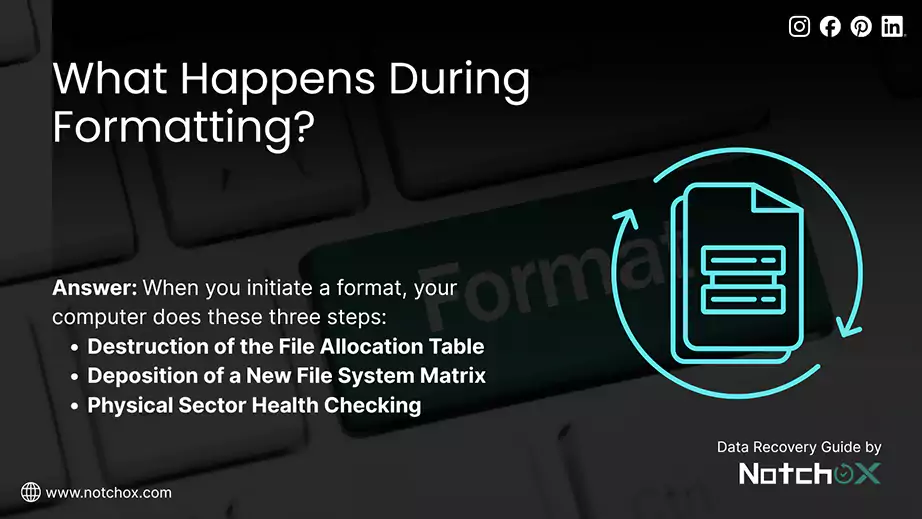
When you initiate a format, your computer does not just blindly delete files; it completely re-architects how the storage drive communicates with the operating system. The process performs in two layers: structural rebuilding and physical optimization.
Destruction of the File Allocation Table
Deposition of a New File System Matrix
Physical Sector Health Checking
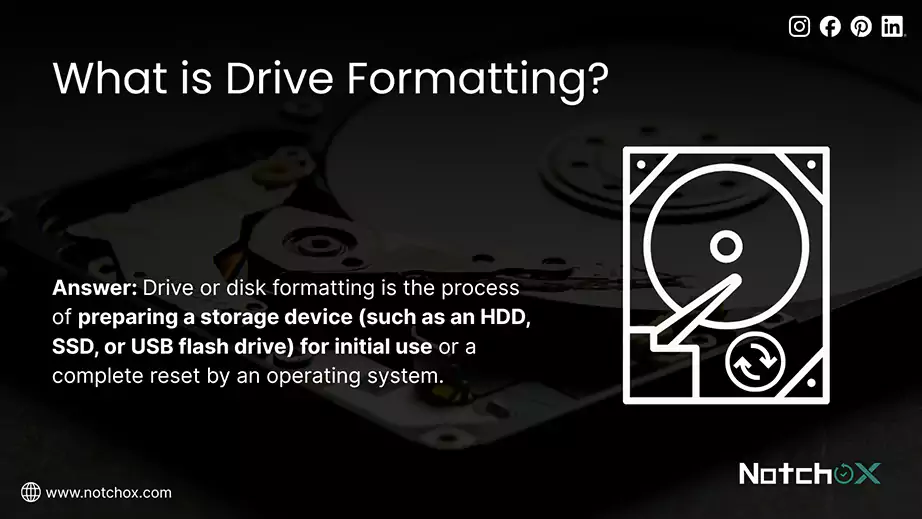
Drive or disk formatting is the process of preparing a storage device (such as an HDD, SSD, or USB flash drive) for initial use or a complete reset by an operating system. This sets the drive with a specific storage architecture, such as NTFS, FAT32, or exFAT, according to the operating system. It also scans the drive for errors to prevent future data loss. That’s why formatting is the instant solution to fix a corrupted drive and resolve system errors.
Behind the scenes, formatting does two main things, as discussed: wipes the existing file directory to make old data invisible (the data still remains there and can be recovered) and installs a brand-new file system so the computer can safely read and write new data.
Let’s understand in detail:
Every use of the drive creates system cache, and constant writing and deleting cause the drive to slow down. Formatting recreates the file systems and removes references to the files.
Malware often hides within system directories, which makes antivirus detection impossible. Formatting the drive completely renews these infected system files. Clears out the entire directory structure. Because it resets the drive structure, it removes some types of viruses and malware.
Formatting does not instantly shred every file. It just deletes the file allocation index. Due to this, the digital pathway pointing to your data breaks and makes the space appear completely blank. The old files still remain there until new data blocks physically overwrite them. It is much like what happens when you delete a file — the content stays put; only the pointers to it vanish.
Therefore, it is possible to recover data after accidental quick format using data recovery tools because the data is still there.
Every drive needs a set of rules to organise its data, known as a file system. Formatting makes a new structural matrix (such as NTFS for Windows and APFS for Mac) for the drive. This basically tells the OS how to write, modify, save, index, and secure all future files.

Many users confuse these four terms. But they handle storage sectors and data destruction differently.
Deleting is a surface-level action meant for daily file management. It removes files from your immediate location without changing the drive’s health or file system.
Erasing is a targeted security action. When you erase, you select files/folders and permanently destroy them without affecting the rest of the drive.
Wiping is the ultimate data security protocol. It is used when selling or recycling a storage drive to make sure there is no personal information left on it.
Before we define reformatting, you must know what formatting is. The structural overhaul that clears out a storage device to fix the system is called formatting. Reformatting means formatting a drive once again. It fixes bugs, changes languages, and prepares for a fresh OS. What does reformatting a hard drive do?
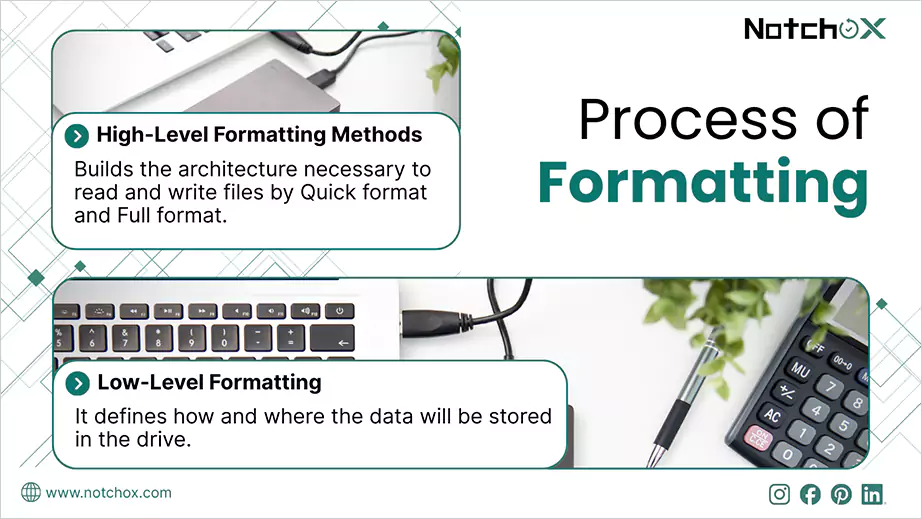
The formatting process happens in phases and methods depending on how deeply you want to rest the storage media.
High-level formatting is the standard process performed by modern operating systems to make a drive ready for data storage. It builds the architecture necessary to read and write files. It is designed to wipe the slate clean, so your OS can start storing files again.
A Quick Format does exactly what the name implies: it finishes in a few blinks of an eye. It does not go to the drive to scrub away your actual files. Instead, it just targets only the system’s index file (like the MFT).
Case Study: There was a photographer who accidentally hit “Quick Format” on an SD card containing the client’s wedding photographs. Just then, the camera showed 0 files. However, because it was just a quick format, data recovery software was able to scan and recover all the deleted photographs.
A full format is a much heavier operation. It removes the file index and then goes to every storage sector on the drive and replaces all the existing data with binary zeros (a process called zero-filling). On the other hand, it also forces the computer to read and verify the hardware integrity of every block.
It operates at a layer beneath your operating system. It is a highly specialised process that defines how and where the data will be stored in the drive.
True low-level formatting can be done only once at the factory by the manufacturer (like Seagate, Western Digital, or Samsung). Once the physical layout of the drive’s tracks is stamped, user software can not recreate them.
The disk formatting is done once the structure of the disk has been prepared. Partitioning is the process of defining the boundaries and sizes of the storage space before any file system is applied.
The Multi-OS Use Case: This is incredibly useful for users who want to run both Windows and macOS. A user can partition a single 1 TB drive into two distinct 500 GB partitions. Format Partition 1 using the NTFS file system for Windows and Partition 2 using the APFS file system for Mac. The two sides operate independently, so in case one gets corrupted, the other one remains safe.
Now that you know what happened behind the scenes, it is time to look at how to safely execute the process on your computer, i.e., how can I format a hard drive or an internal drive? Whether you are using Microsoft Windows or Apple macOS, both platforms feature built-in utility software that handles the entire formatting process in just a few clicks.
Note: Formatting completely changes your drive’s index system and makes current files inaccessible. Make sure to back up your critical data before proceeding to drive format.
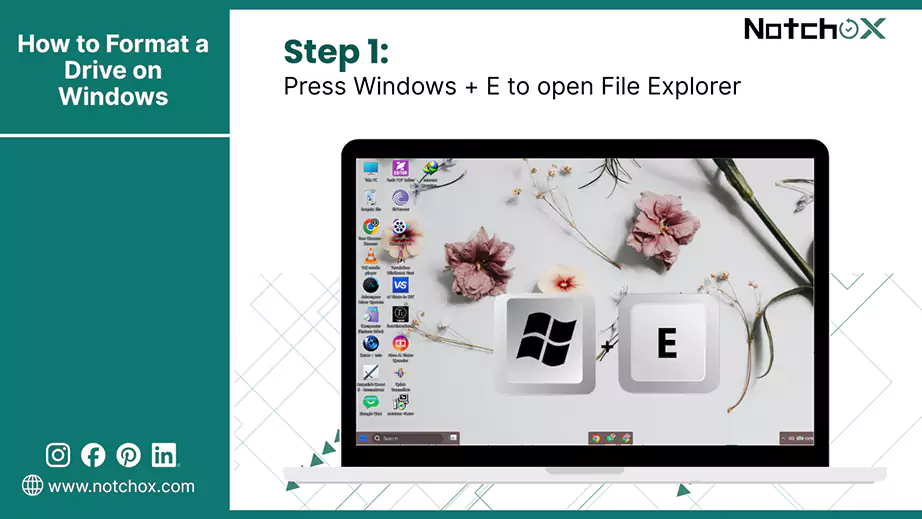
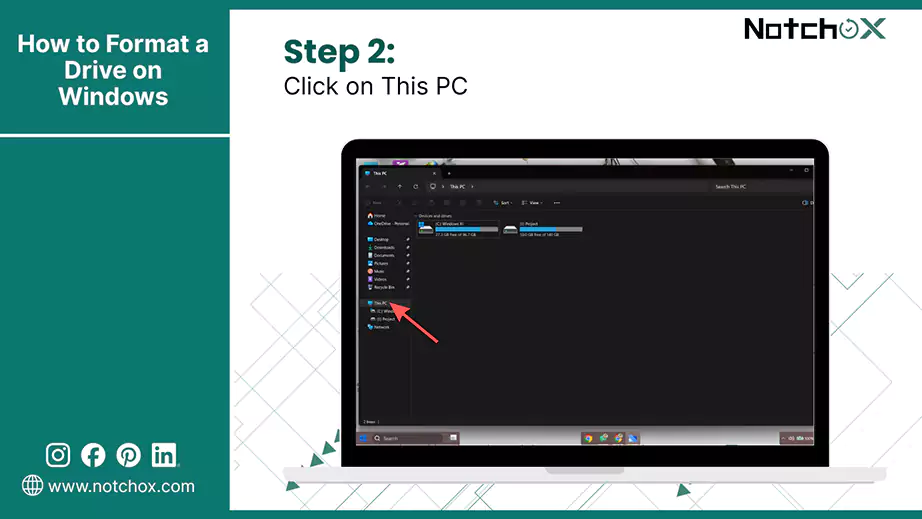
Use this common method for standard external or internal drives, SSDs, and USB drives formatting (Quick Format) in Windows
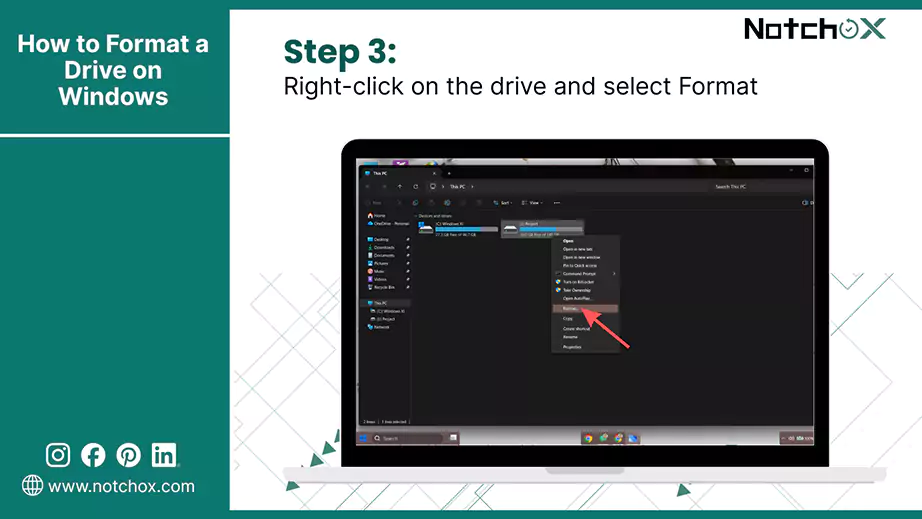
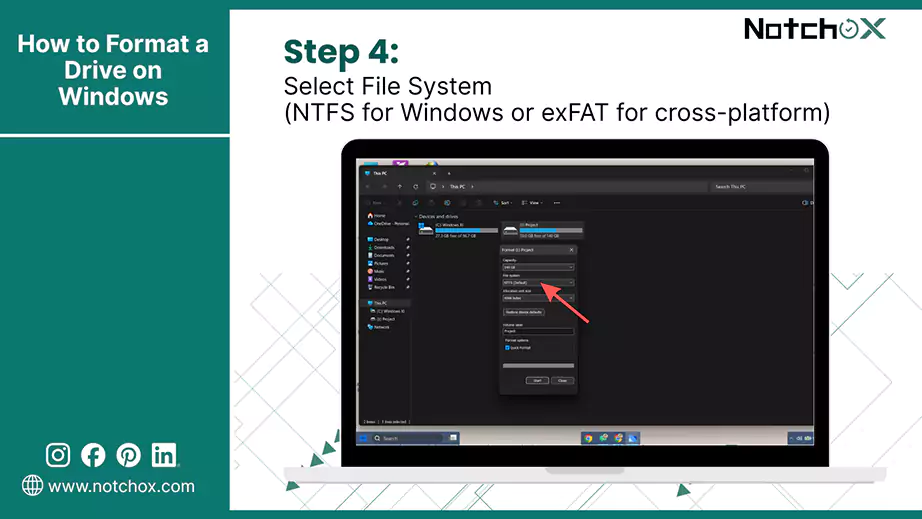
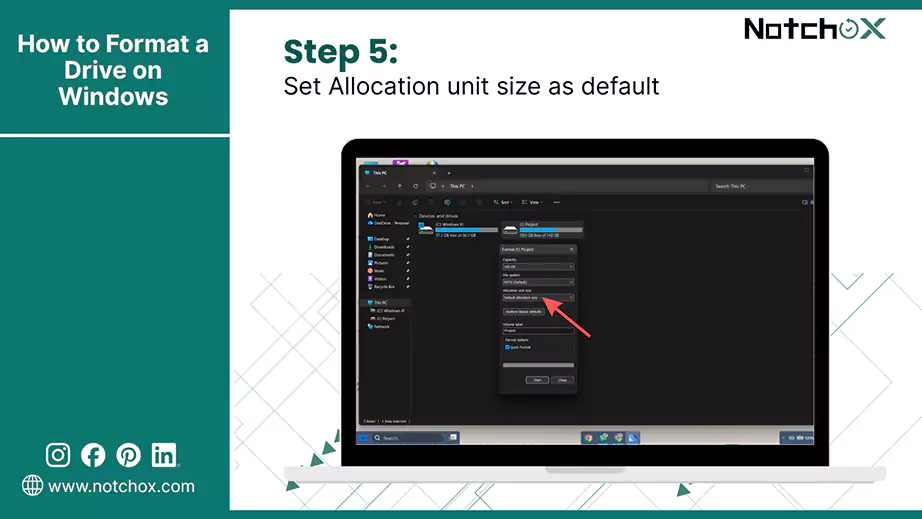
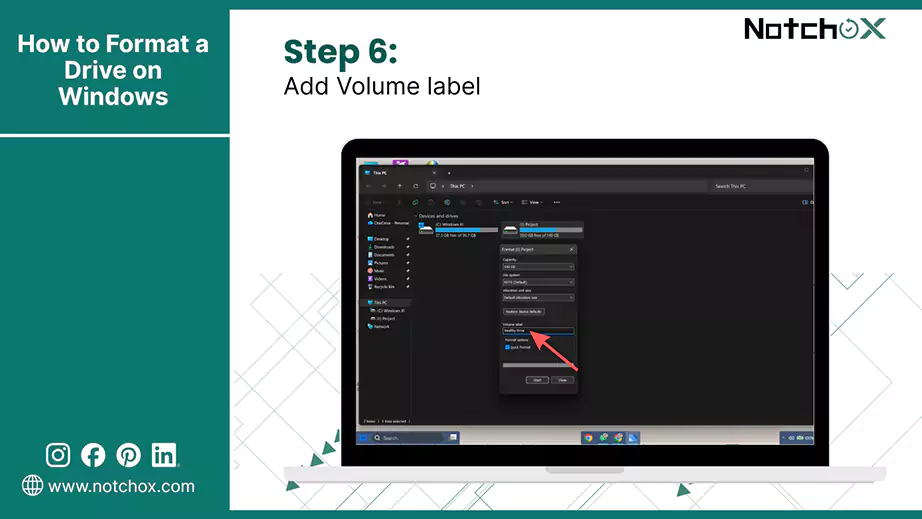
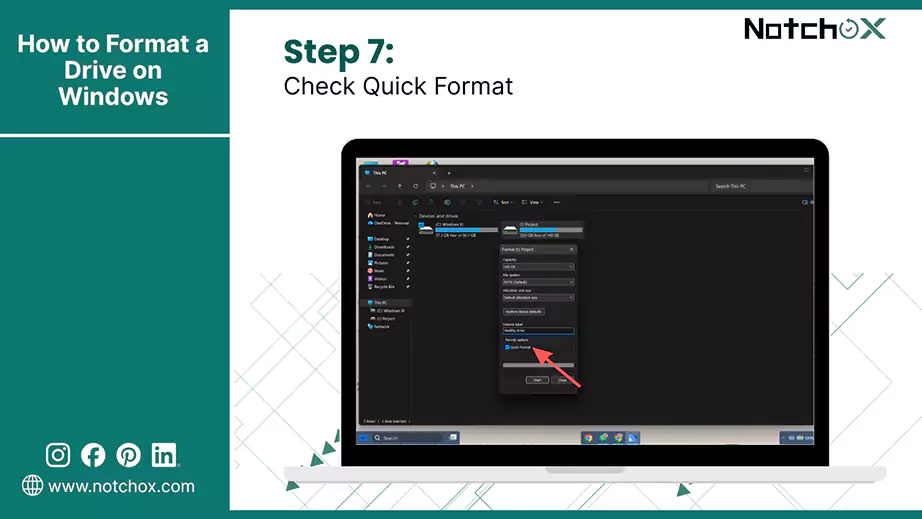
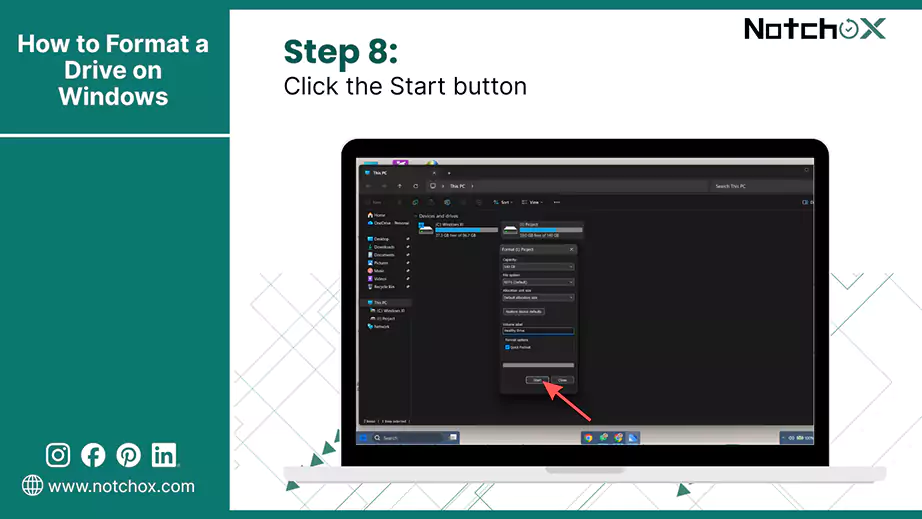
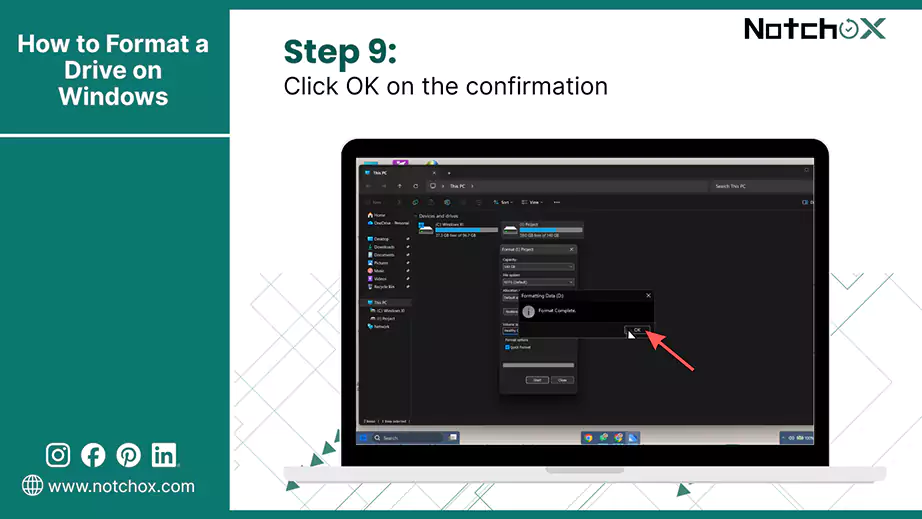
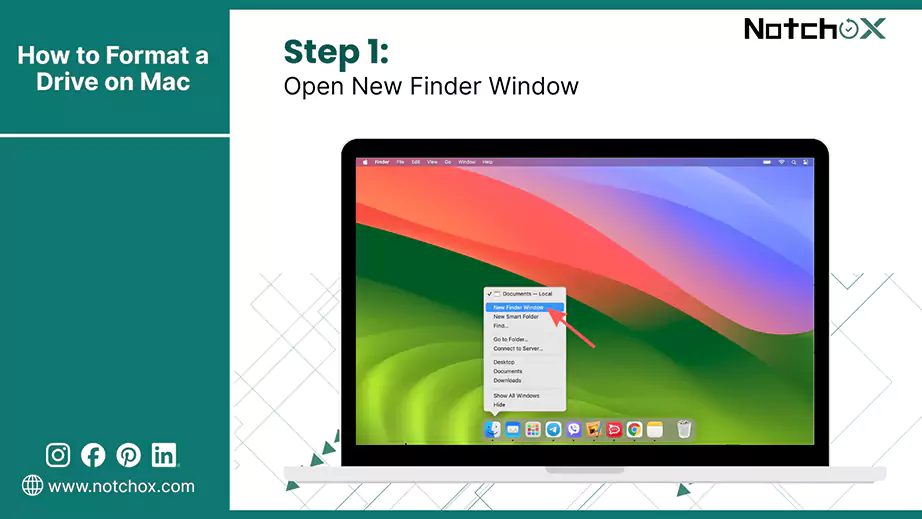
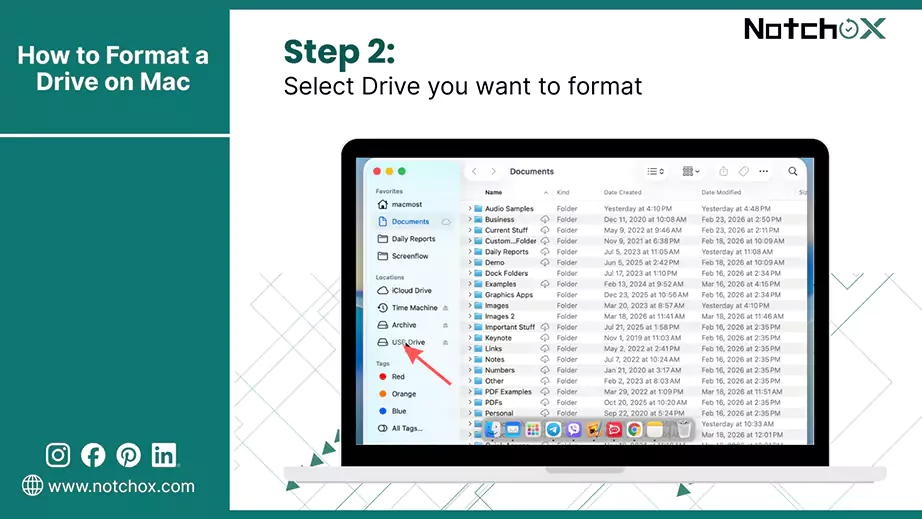
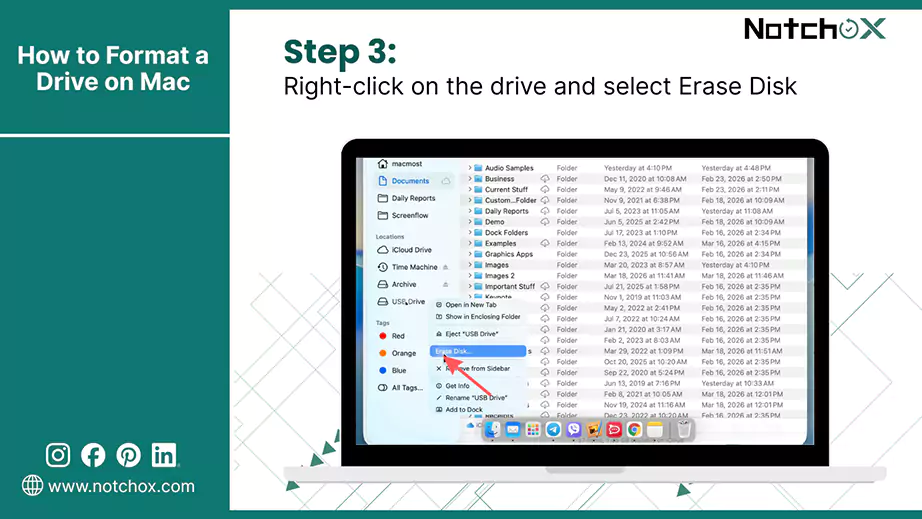
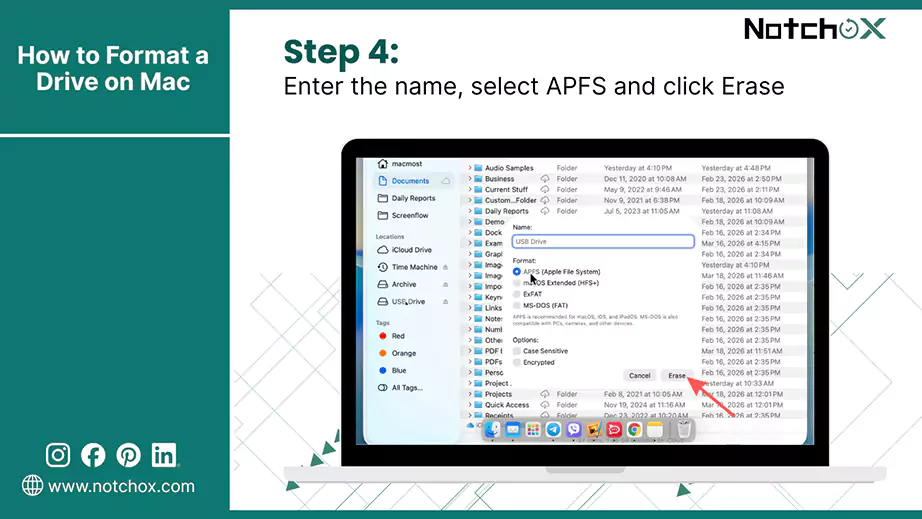
Use this method to format any drive using Apple’s built-in storage management application.
Now you know more about disk formatting than many tech users. When you format a drive, your computer completely deletes the existing file allocation index and installs a brand new file system architecture. With this Notchox guide, you now understand what happens during formatting and how exactly the operating system clears out that old file allocation index, reconstructs a new file system, and makes the drive a fresh one.
Ans: During formatting, your computer deletes the file directory index and makes a new file system structure. Additionally, it scans for physical hardware errors to mark and isolate bad storage sectors.
Ans: On Windows: Open File Explorer > Right-click on your drive > Select Format > Choose File System > Check Quick Format > Click Start.
On Mac: Open Finder > Right-click on your drive > Select Erase Disk > Choose the Name and Format protocol > Click Erase.
Ans: The time a drive formatting takes depends on what type of format it is.
Quick Format: Takes a few seconds to 2 minutes regardless of the drive capacity.
Full Format: Takes anywhere from 20 minutes to several hours because it performs a deep scan of physical storage.
Ans: A full format erases everything, but a quick format only deletes the reference to files.
Quick Format: No. It only deletes the path reference to your files and marks the space “empty.” The original data stays on the drive until overwritten.
Full Format: Yes. It overwrites all storage blocks with zeroes and makes the data completely unrecoverable.
Ans: Yes, you can recover data after a quick format, but not after a full format. In full format, all the physical sectors are overwritten with zeros or random numbers, destroying the previous files permanently.

Kajal Singh is a Data Recovery Writer at Notchox, specializing in data recovery, storage systems, RAID, and digital forensics. She writes technical processes, tools, and cases into clear, engaging articles, blogs, and guides. Kajal does thorough research, deep analysis, and collaborates with experts to produce high-quality and engaging content that is easy to understand for every reader.