Deeksha Arora Jul 9, 2026
Ans: Methods to fix MP4 video not playing:
- Switch media player
- Change the file extension
- Clear media player cache
- Media file repair
- Hex editing
- Re-encode the video file
- Online video repair
If your MP4 won’t play or shows an error code, you are likely facing file corruption or outdated media issues. The quickest way to fix an MP4 video that won’t play is to open it in an alternate media player, such as VLC, try changing the file extension, clearing the cache, or using a Hex Editor. Here, you will see step-by-step processes to diagnose, repair, and play unplayable MP4 on both Windows and Mac.
Quick Answer: To fix MP4 video not playing, you can switch to a versatile media player like VLC to overcome system limitations, or just manually try changing the file extension. However, if the file is severely broken, using a dedicated tool like Notchox Data Recovery Software can instantly recover corrupted files back to the original quality.
You can fix an unplayable MP4 video by troubleshooting player software, updating system codecs, or repairing corrupt file data. The methods elaborated below are tried and tested by the Notchox experts and work efficiently for the MP4 not playing issues.
PC’s built-in players, like Windows Media Player or macOS QuickTime, may lack modern components needed to read modern or modified MP4 files. So, switching to a different media player will resolve the software-specific playback error. A fun fact is, our team recommends these methods in the first place, when we face such issues, and it works in literally minutes.
Note: QuickTime Player can play MP4 files on Mac, but only if the video inside the MP4 container was encoded using compatible formats (like H.264, H.265/HEVC).
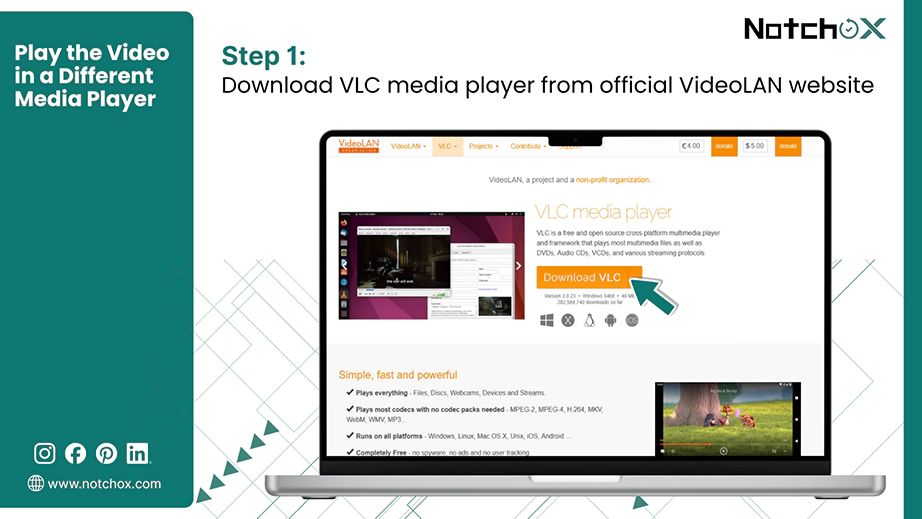
Step 1: Download a Different Media Player: Pick a different Media Player. Here, we will download the free and open-source VLC Media Player.
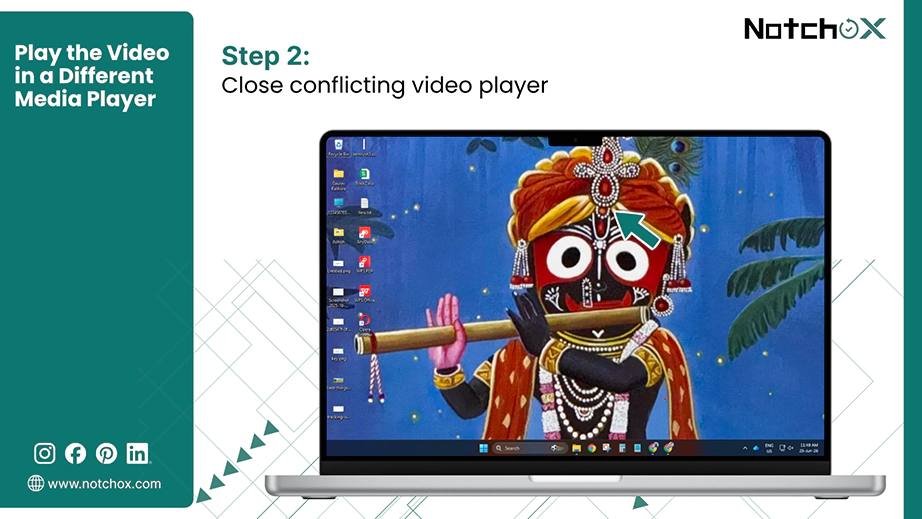
Step 2: Close Conflicting Software: Shut down your native video player that was not able to play the video completely before launching the new application.
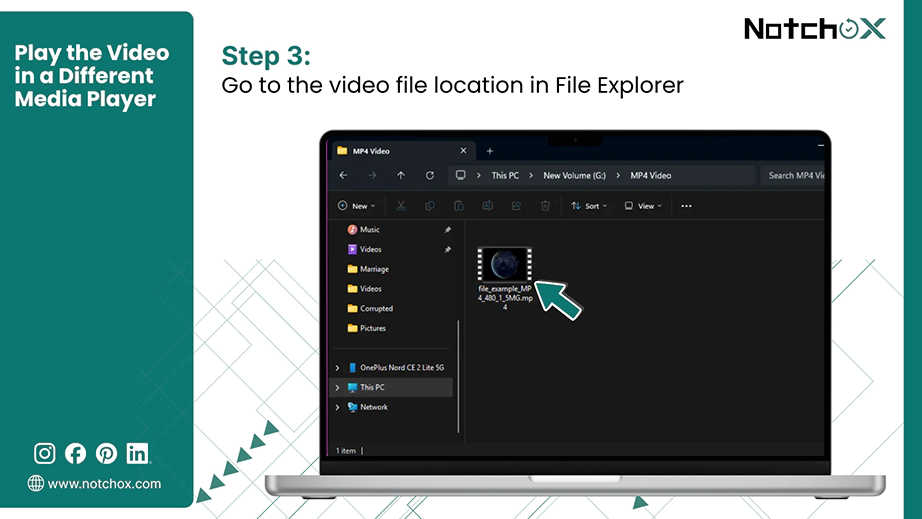
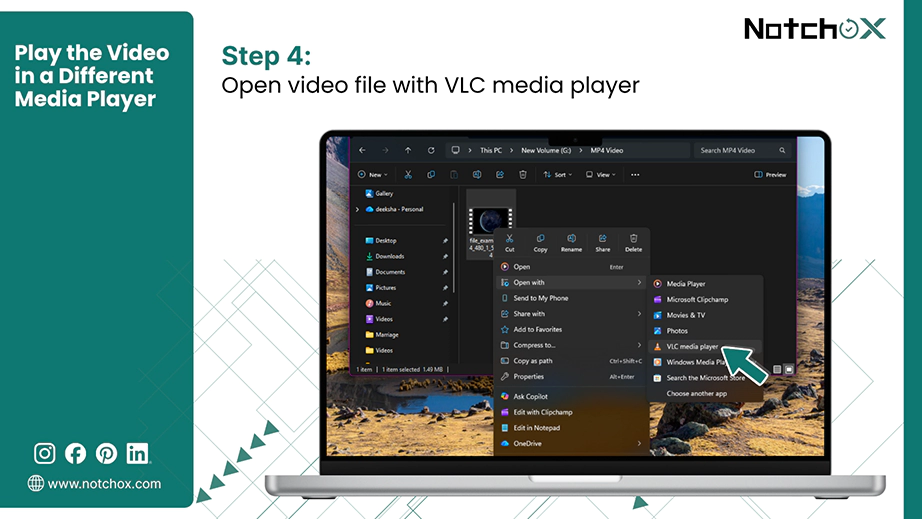
Step 3: Open the File:
Another quick way to fix MP4 not playing is to manually change the extension of the video file, which forces the video player to run a fresh scan of the file structure. This works because sometimes the issue might not be in the file; it’s the container type that does not match the actual data. The same mismatch is behind most file format not supported errors.
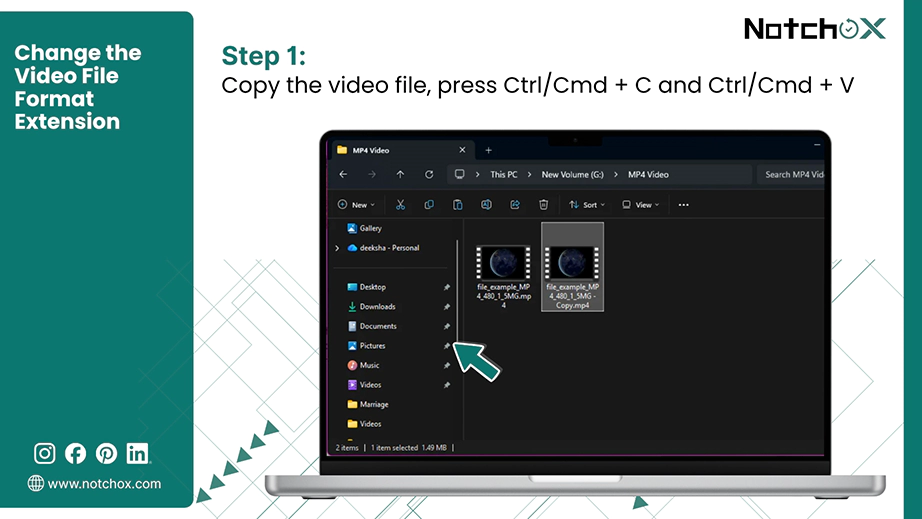
Step 1: Make a File Copy: Duplicate the broken file first, so that you have a backup before modifying its data. Simply select the file and press Ctrl/Cmd + C and Ctrl/Cmd + V.
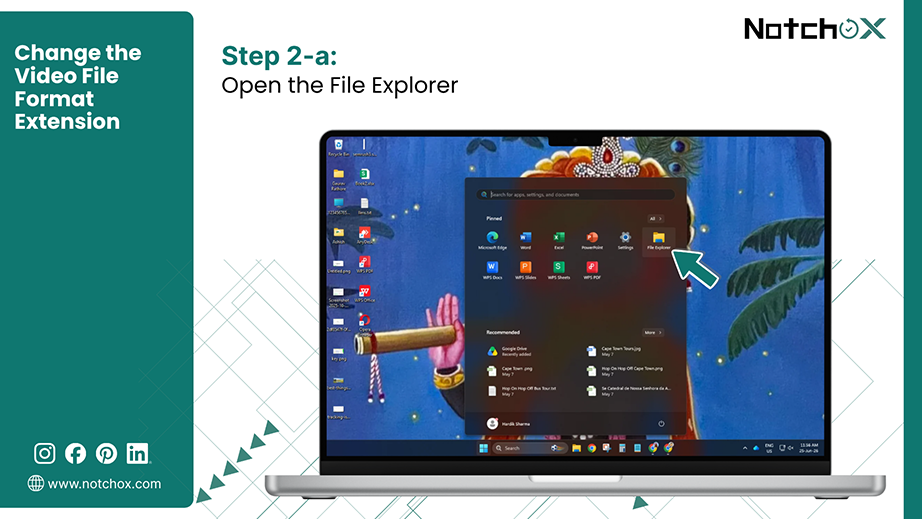
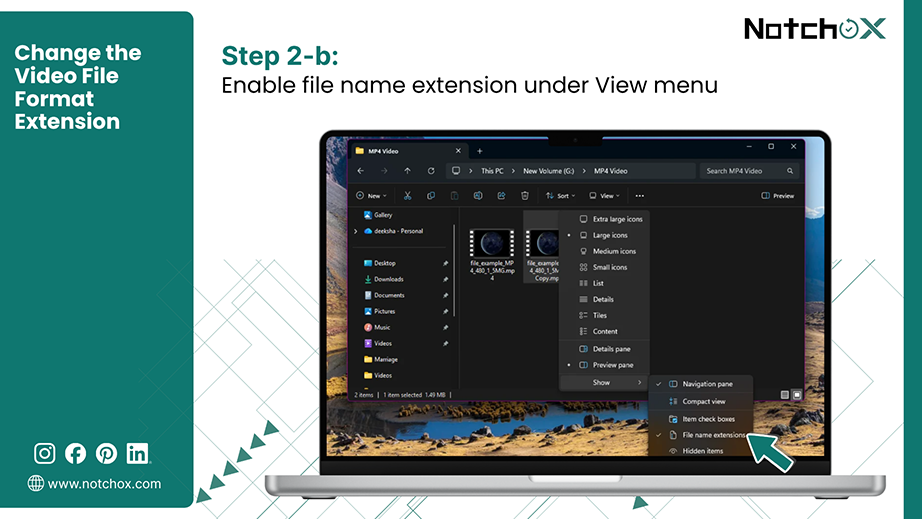
Step 2: Reveal Extension:
On Windows:
On Mac:
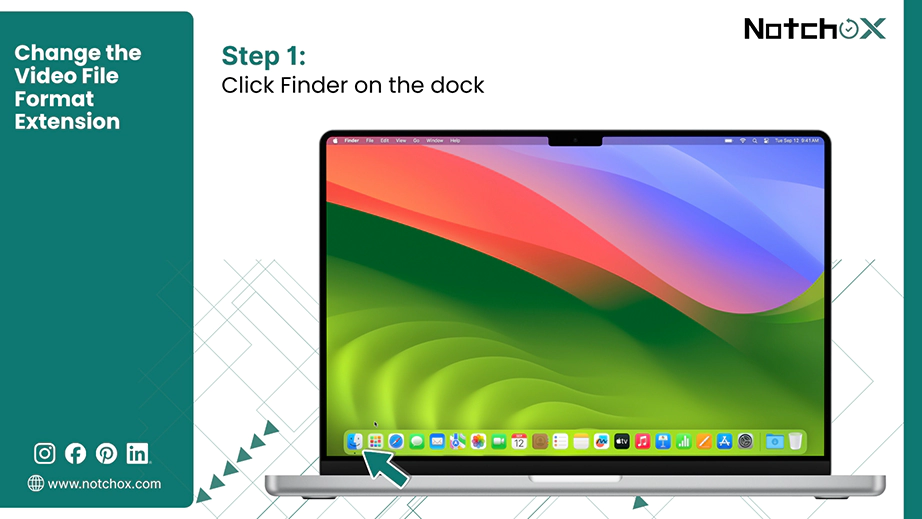
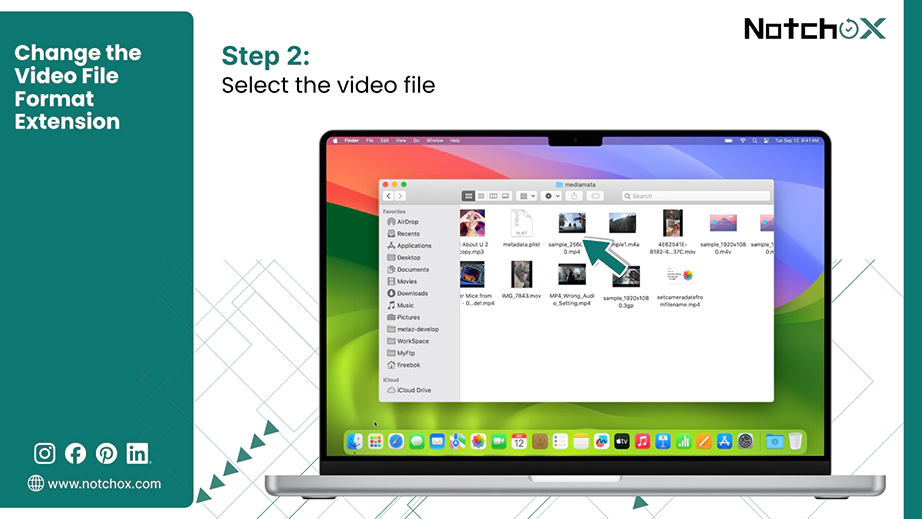
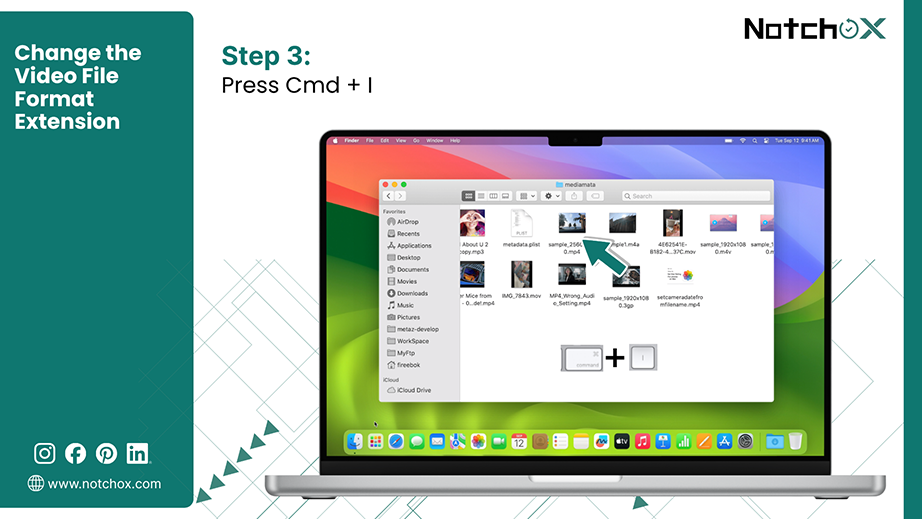
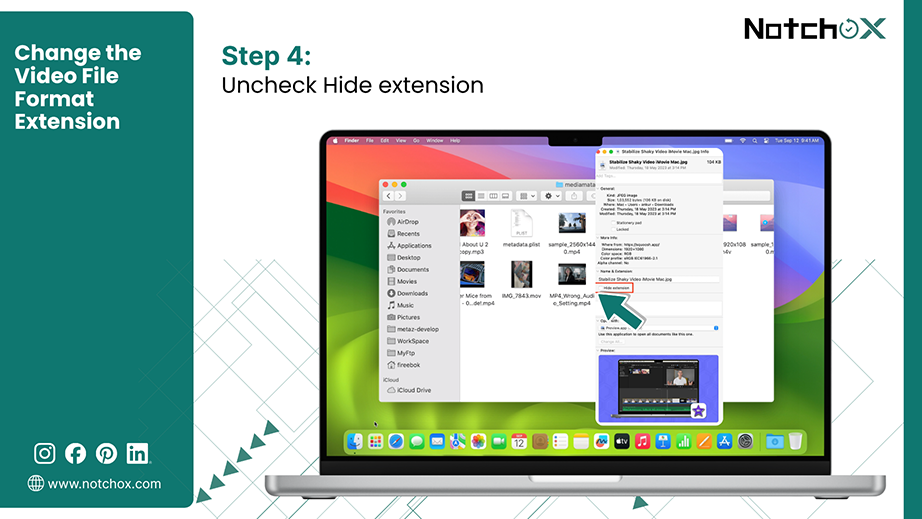
Step 3: Rename the Extension:
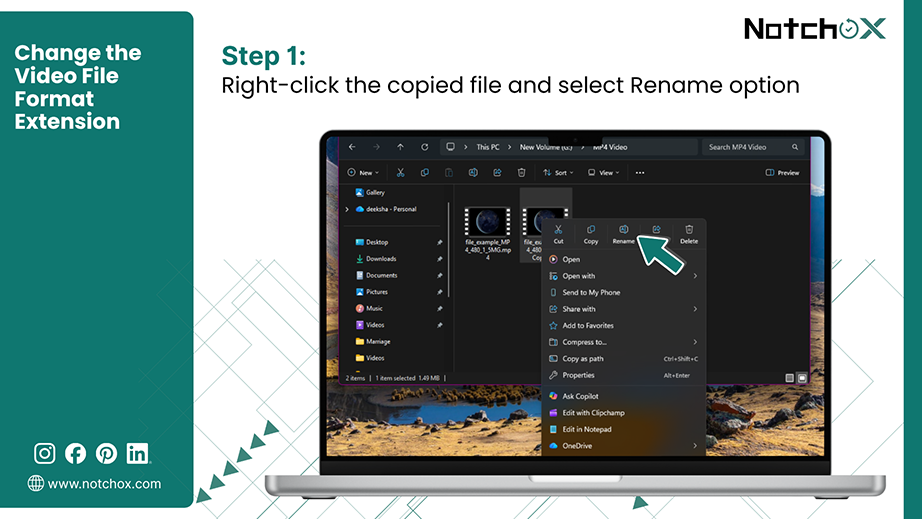
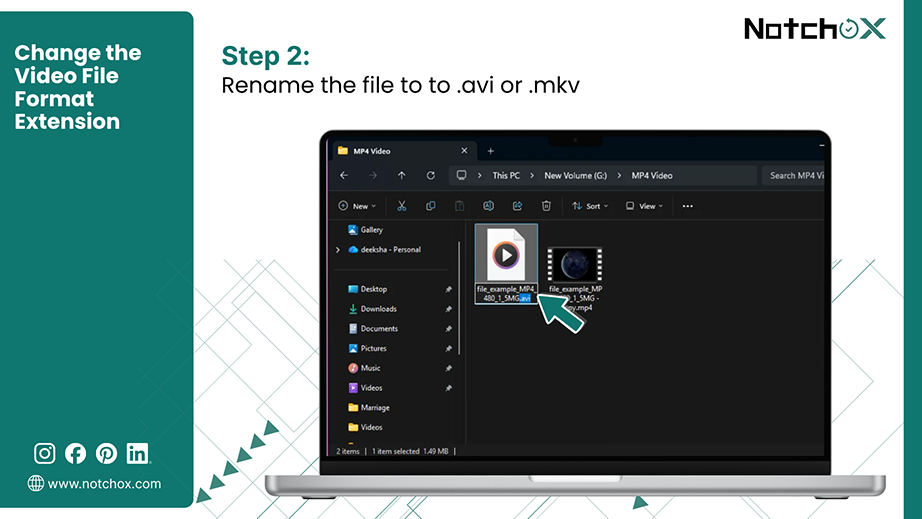
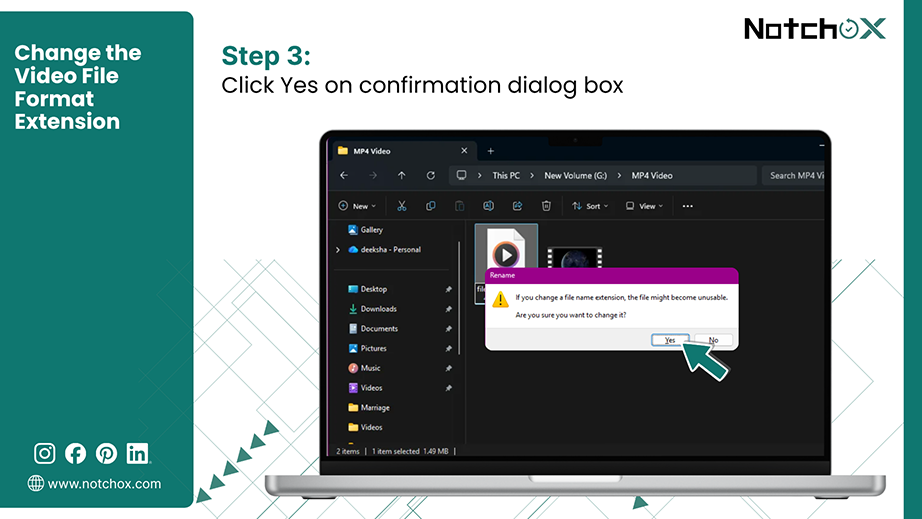
Note: Changing the file extension does not guarantee a fix for a corrupted video file.
Collected temporary data and cached files can prevent your system from processing the video correctly. Clearing these files forces a clean session; therefore, it is a solution to fix corrupted MP4 files. Moreover, this method is recommended by our experts within the team to completely avoid the upcoming MP4 not issues.
Clear VLC Media Player Cache:
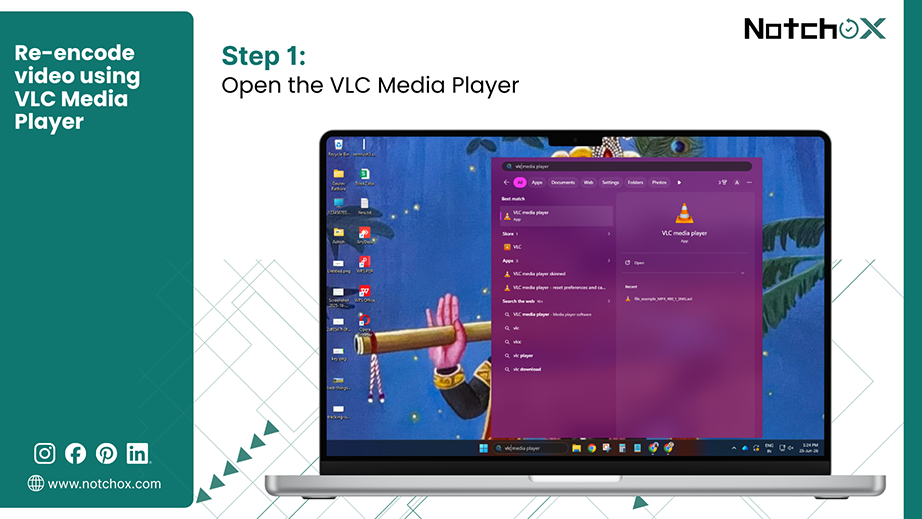
Step 1: Open VLC Media Player.
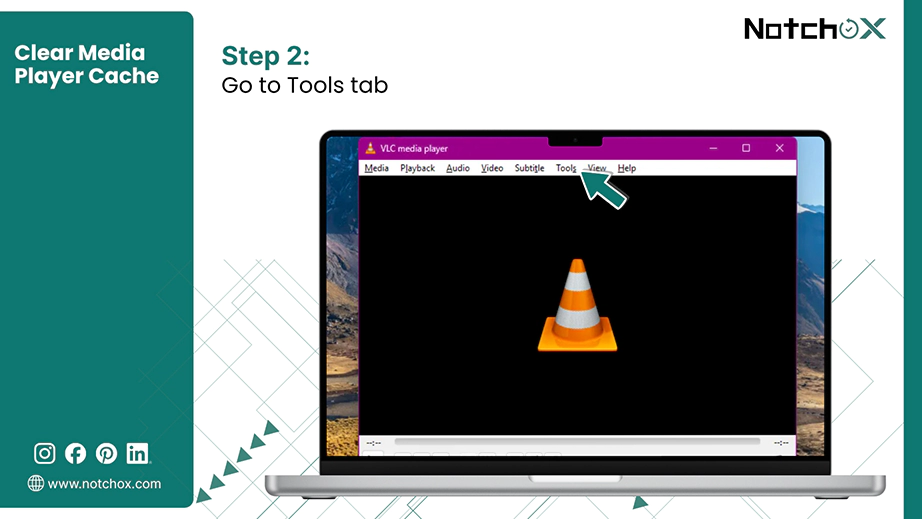
Step 2: Go to the Tools menu.
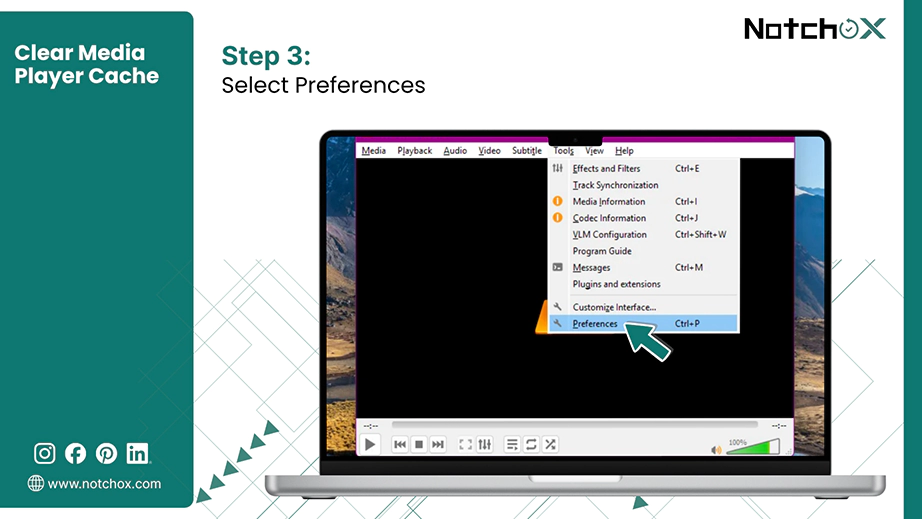
Step 3: Click Preferences.
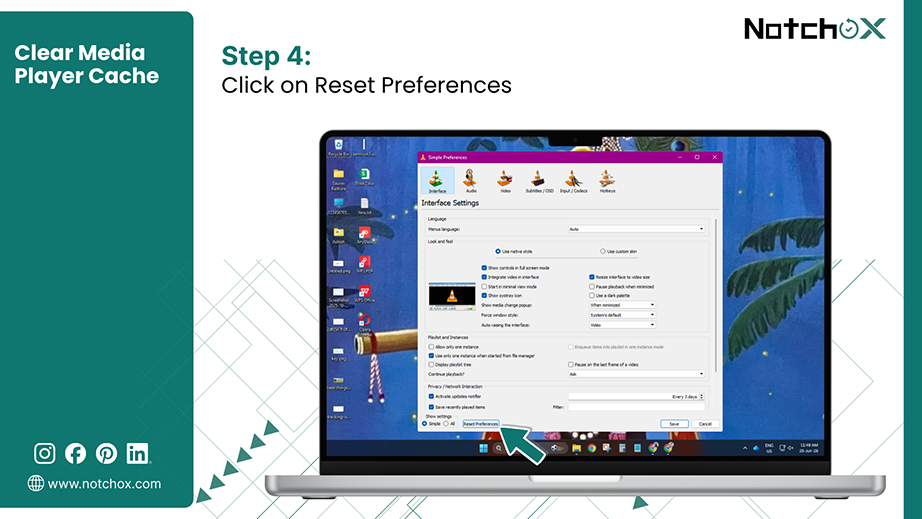
Step 4: Click on the Reset Preferences button at the bottom to delete all the internal cache.
Clear Windows Media Player Cache:
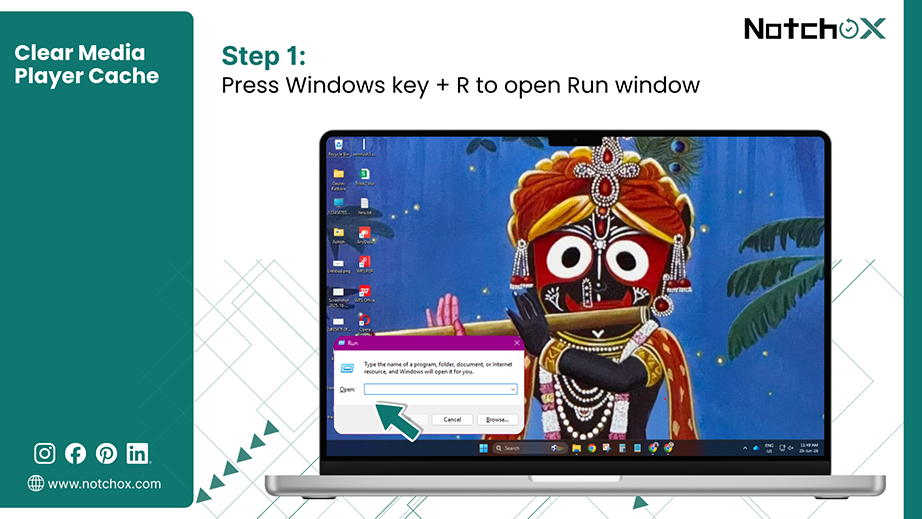
Step 1: Press Windows key + R to open the Run dialog box.
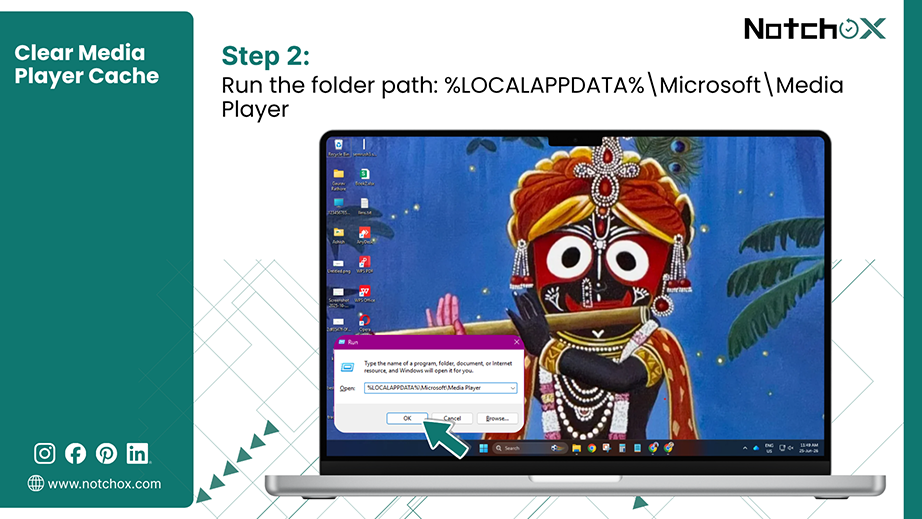
Step 2: Type “%LOCALAPPDATA%\Microsoft\Media Player” and press Enter.
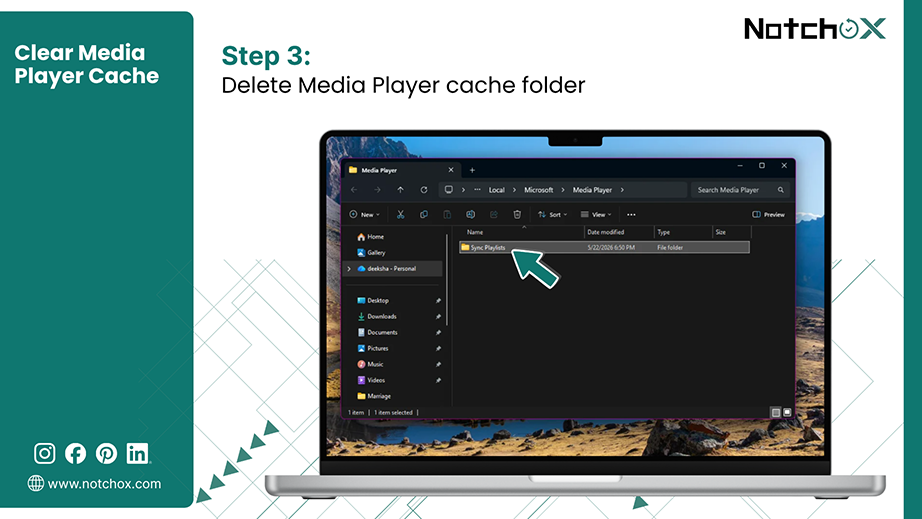
Step 3: Select all the files and press the Delete key. This deletes all the files from within this folder to clear the cache.
Clear QuickTime cache on Mac:
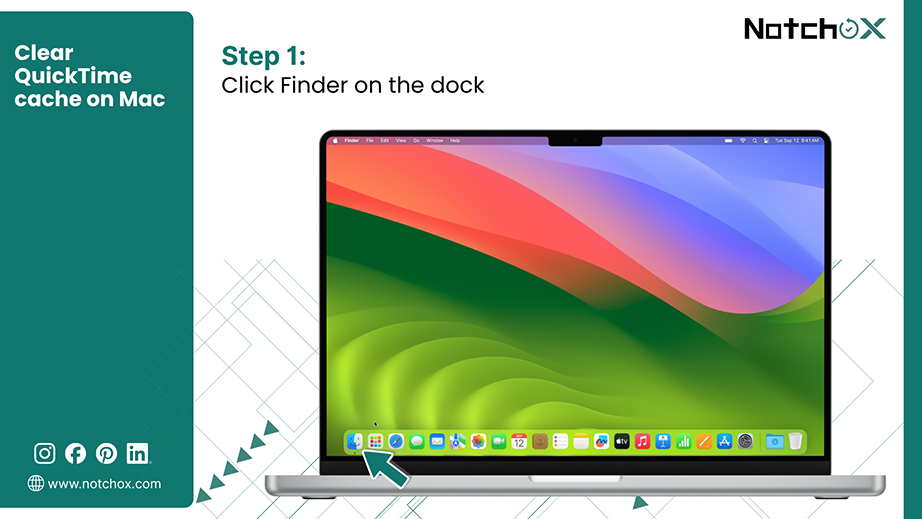
Step 1: Open Finder from the dock.
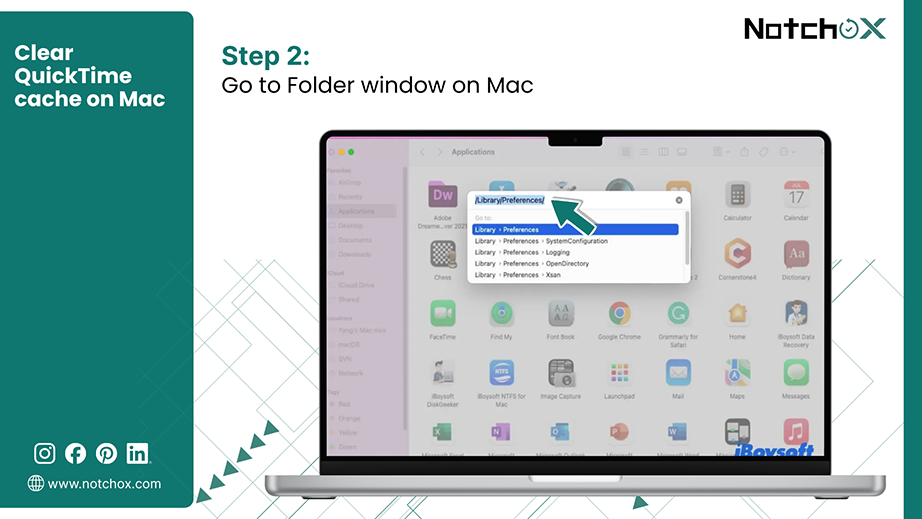
Step 2: Press Cmd + Shift + G to open the Go to Folder window.
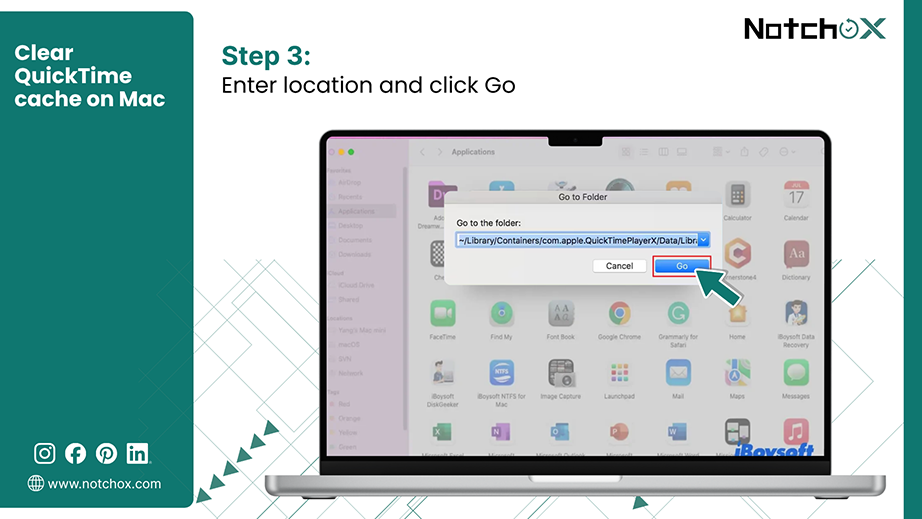
Step 3: Paste “~/Library/Caches/com.apple.QuickTimePlayerX” and click Go (or press Return key).
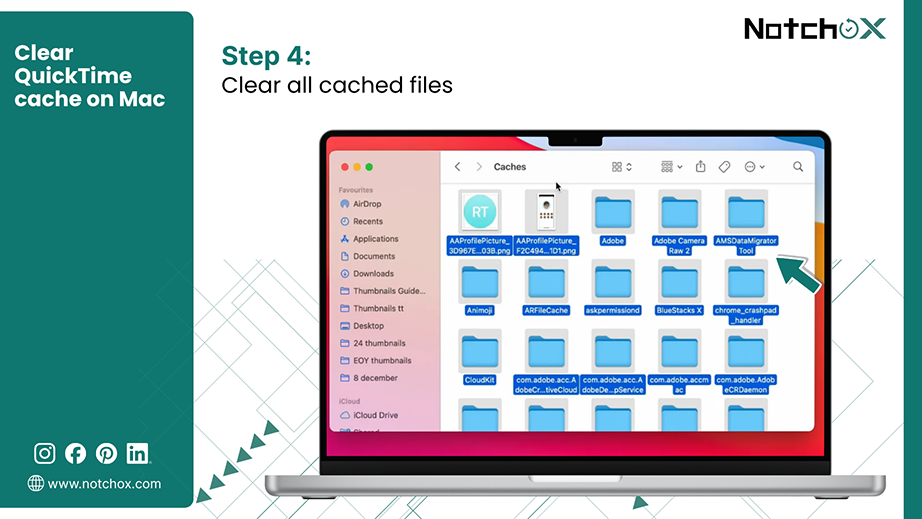
Step 4: Delete all the contents of this folder.
Still thinking about how to fix corrupted video files without paying anything? VLC Media Player has a hidden built-in feature designed to repair corrupted MP4 video file data automatically. It runs a quick diagnostic scan to repair MP4 video file data in just a few clicks.
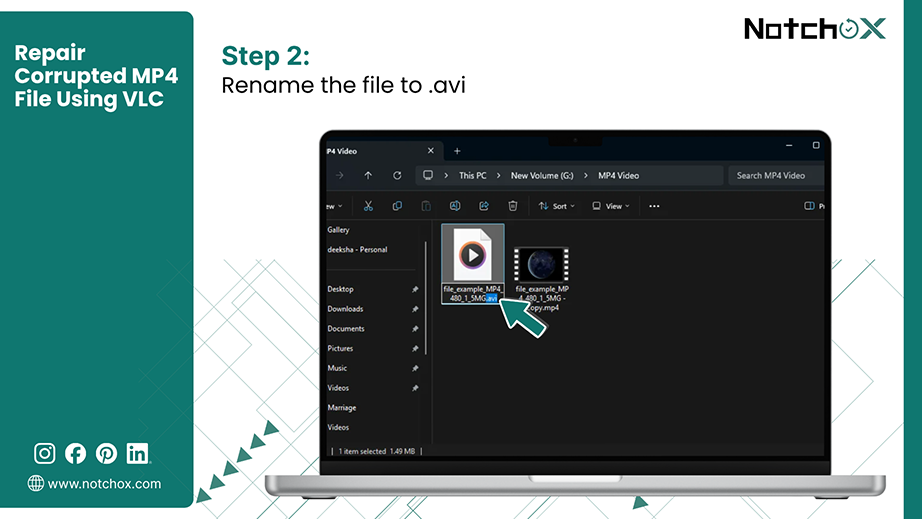
Step 1: Right-click on your video file to fix, and select Rename.
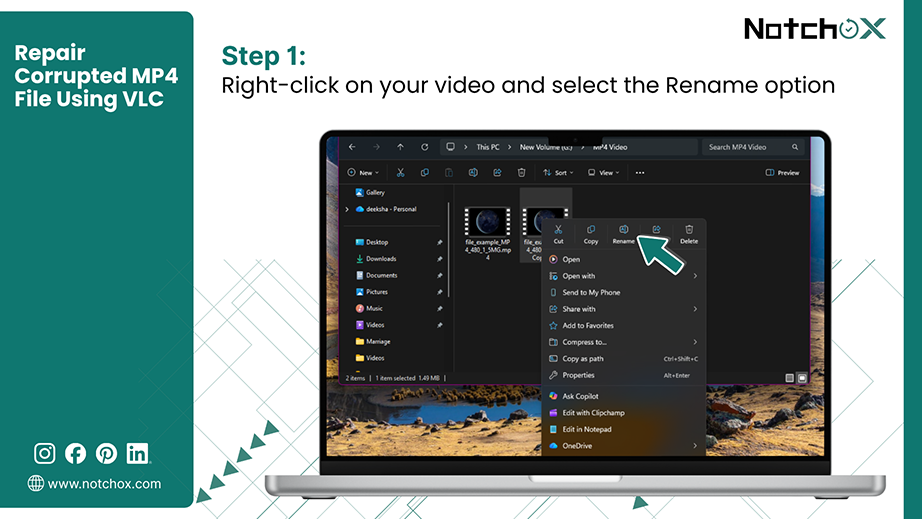
Step 2: Change the .mp4 extension to .avi.
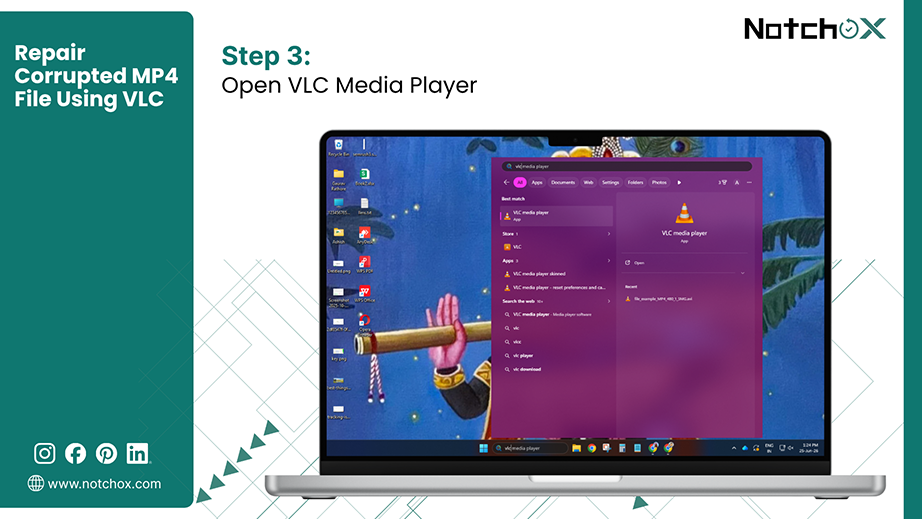
Step 3: Open the VLC Media Player.
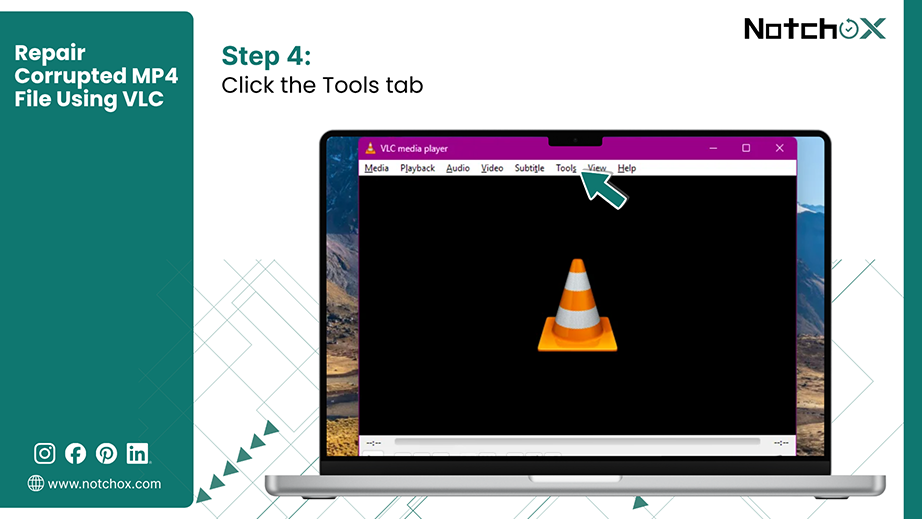
Step 4: Click the Tools tab from the menu bar.
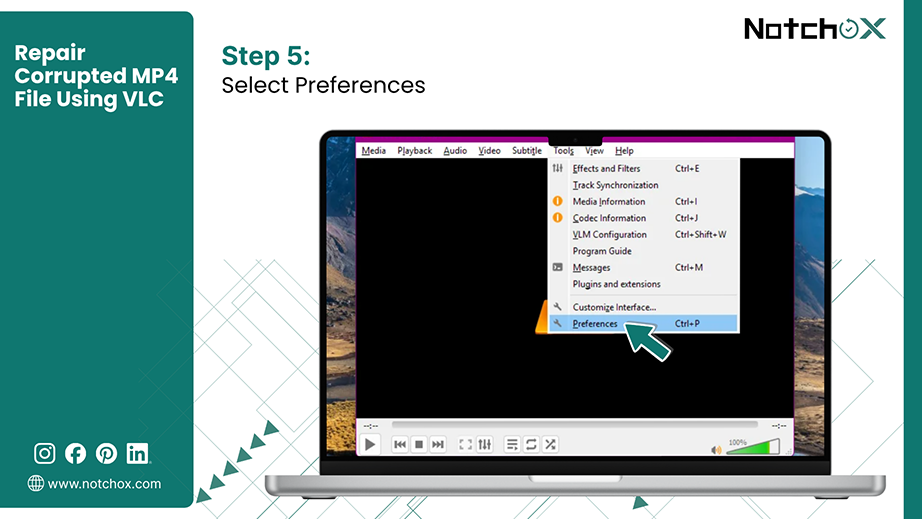
Step 5: Select Preferences.
Step 6: Click on the Input/Codecs tab.
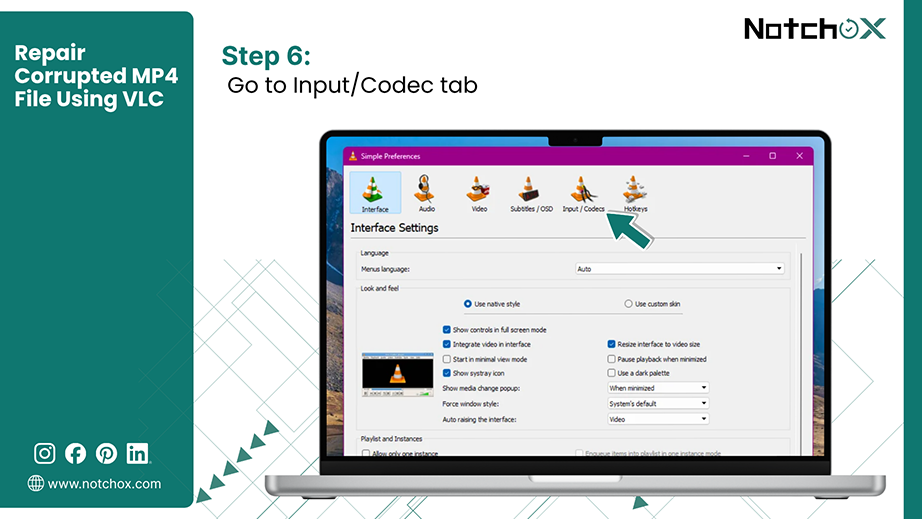
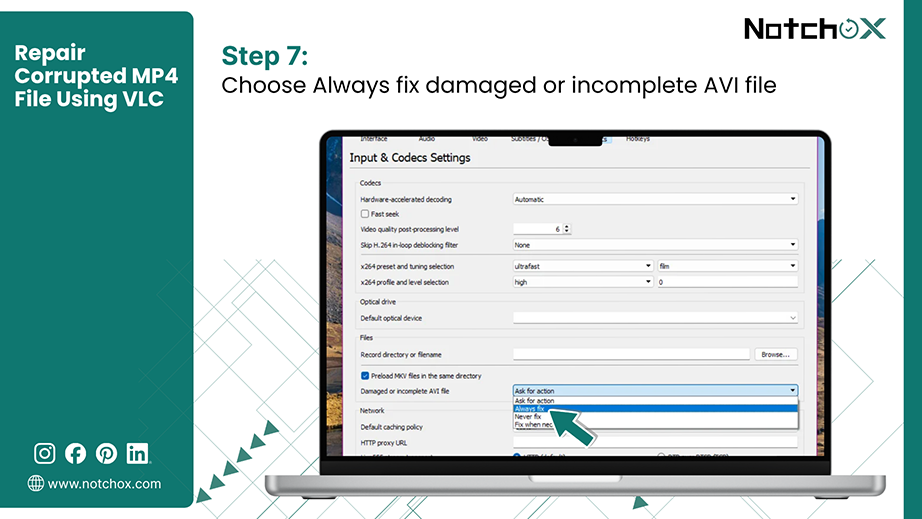
Step 7: Find the Damaged or incomplete AVI file dropdown and change its settings to Always fix.
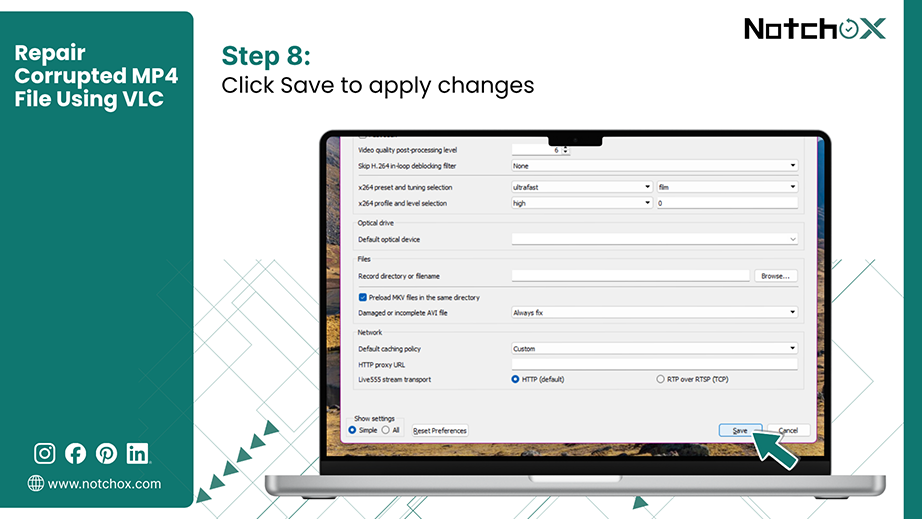
Step 8: Click the Save button at the bottom.
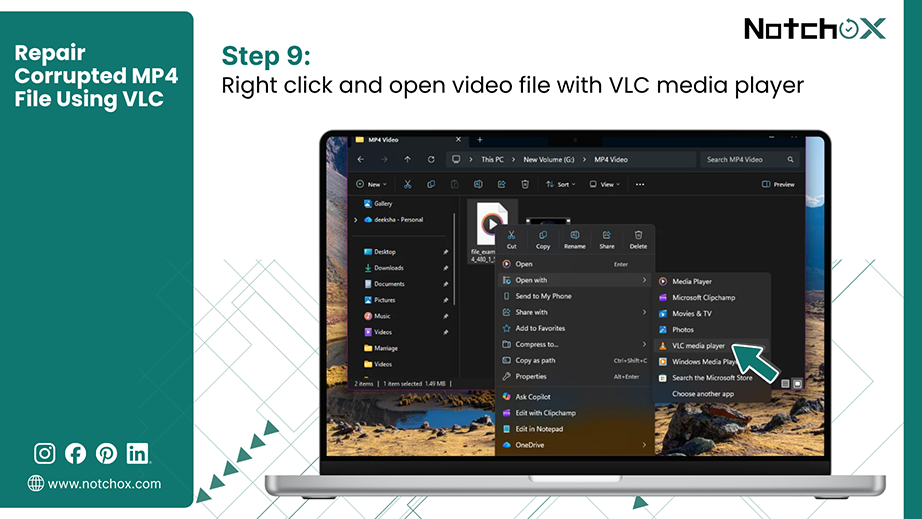
Step 9: Right-click on the newly renamed .avi file, click Open With, and select VLC Media Player.
When a video file won’t open at all, its internal “header” is likely corrupted or missing. You can use a free Hex Editor tool to manually fix it. It includes comparing the headers with a working video and adding the missing data to fix corrupted MP4 files.
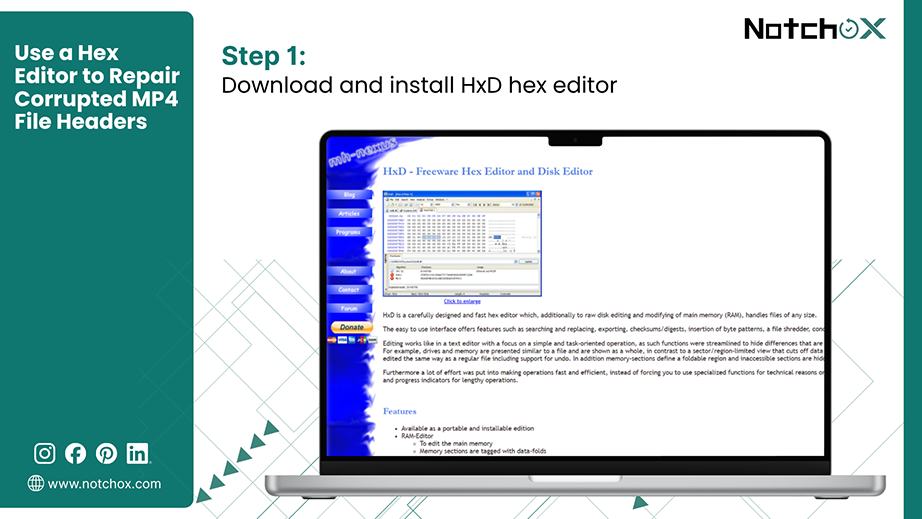
Step 1: Download and install an open-source hex editor like HxD onto your computer.
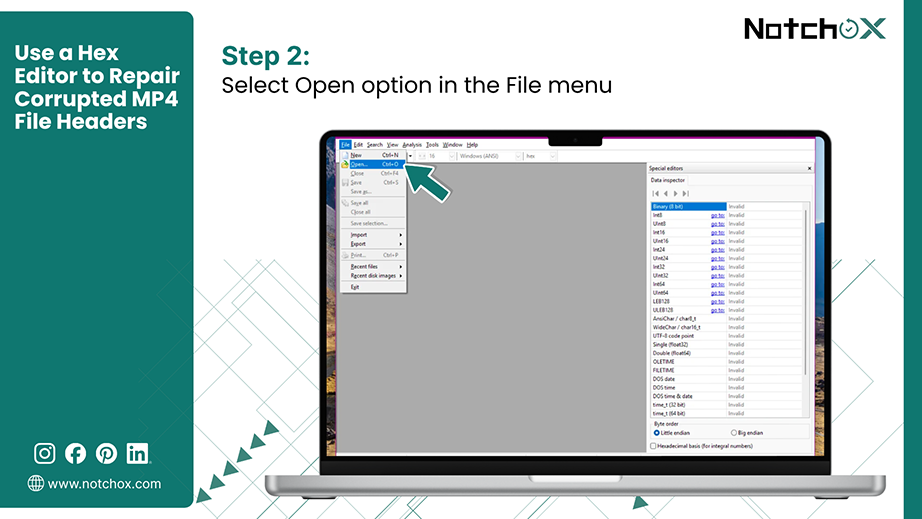
Step 2: Launch the software and click on the File Menu and select Open.
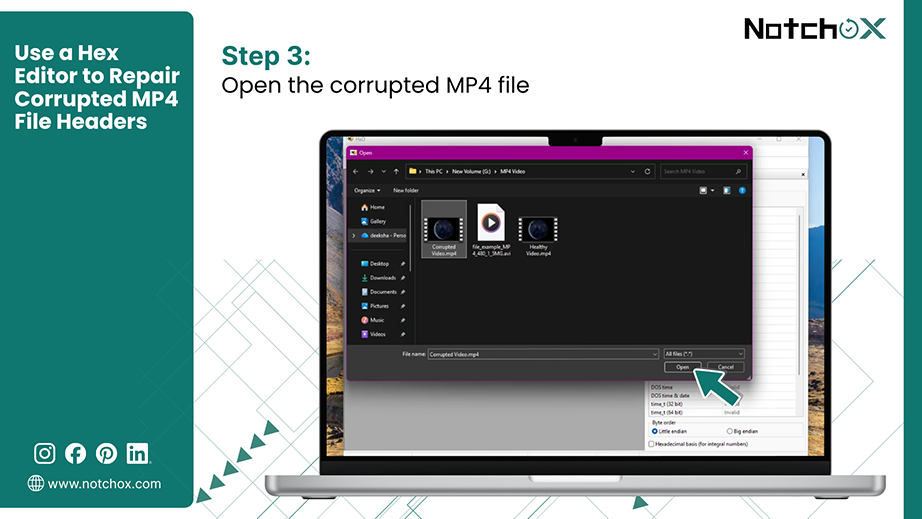
Step 3: Select the MP4 file to be fixed, and click the Open button.
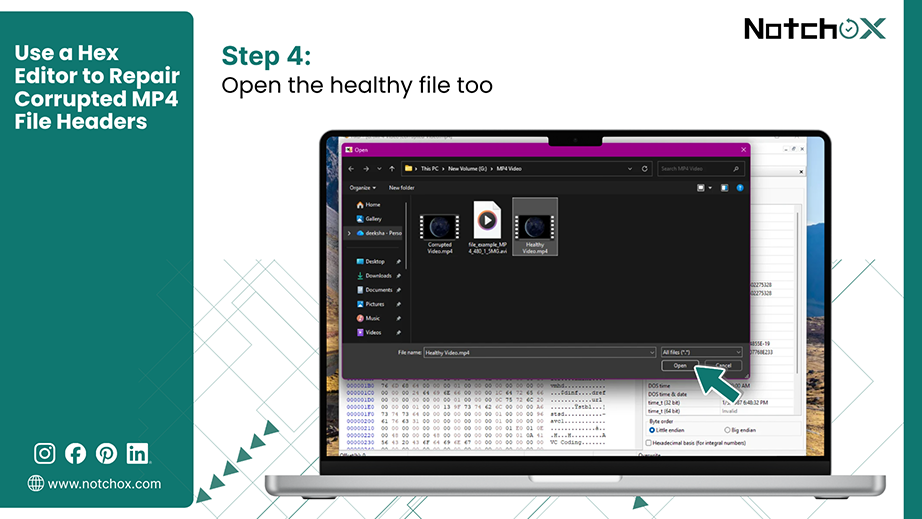
Step 4: Do the same to open a healthy video file.
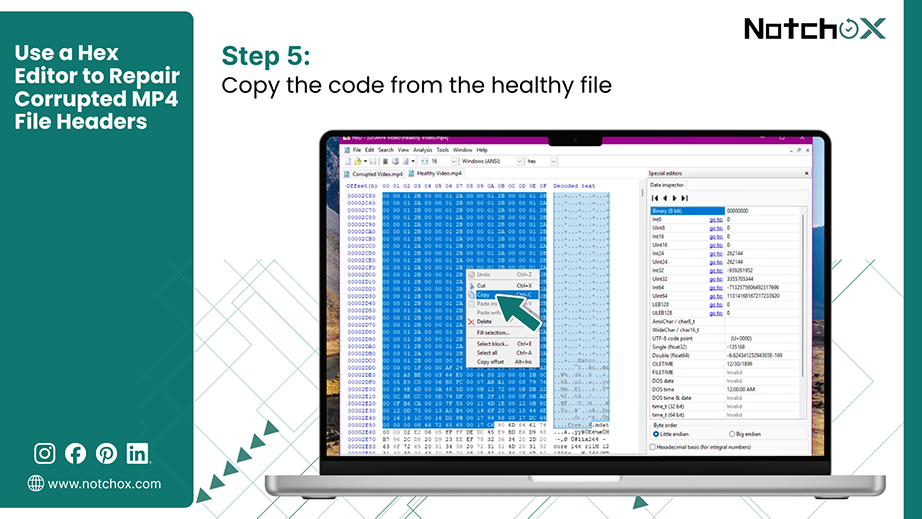
Step 5: Go to the healthy file tab and select the code rows at the very top (starting from the row 00000000) down to right before the text mdat appears on the right-hand column. Right-click and select Copy (or press Ctrl + C).
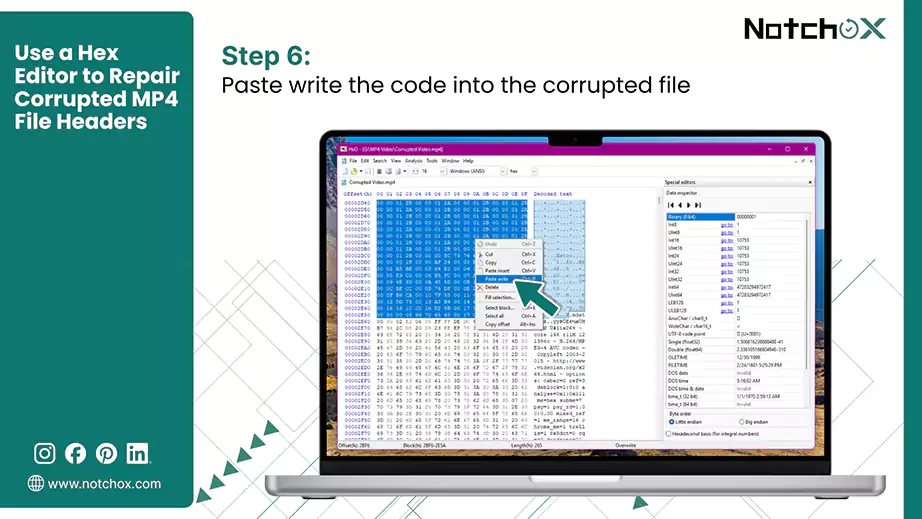
Step 6: Switch to the broken video tab. Select the exact same code block, right-click, and select Paste write (or press Ctrl + B).
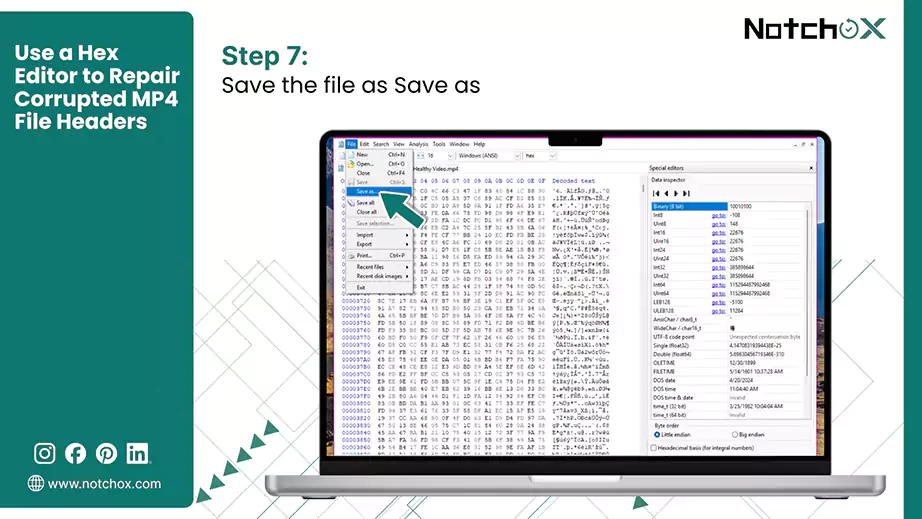
Step 7: Now, to save the file, go to the File menu and select Save as….
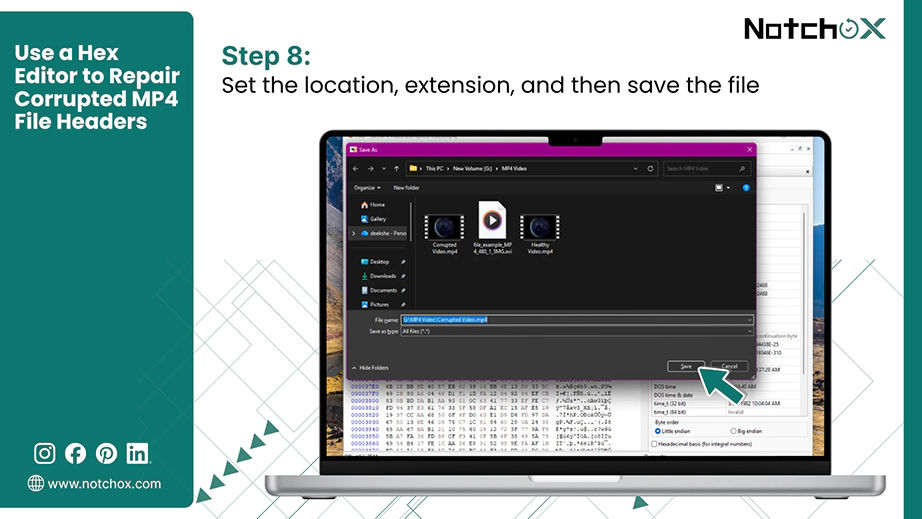
Step 8: Select the location for the file, set the extension to .mp4, and click the Save button.
Re-encoding is the process that completely dismantles the internal video stream and carefully packs it into a brand new video file. Re-encoding can be used to fix MP4 video not playing.
You can safely re-encode your broken MP4 file for free using one of these two popular tools:
How to re-encode video using VLC Media Player?
If you already have VLC Media Player installed, you can use its built-in conversion engine to re-construct and refresh your video file stream.
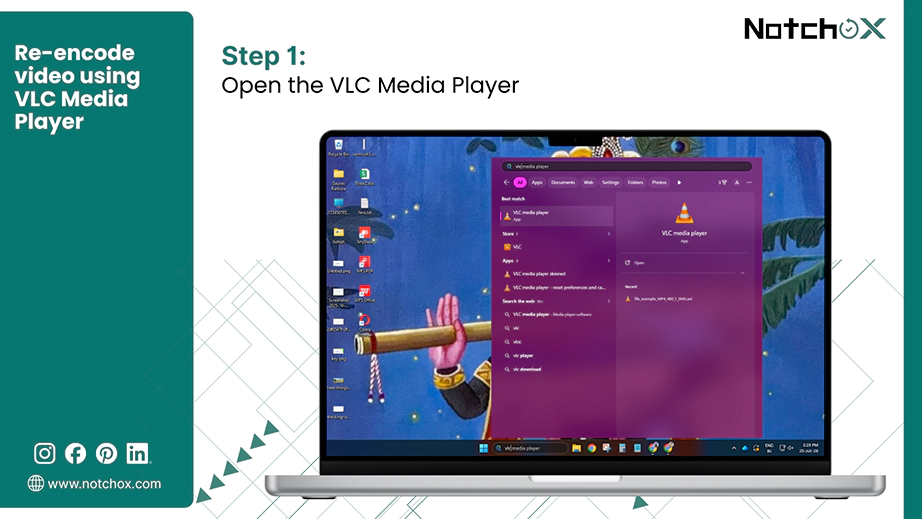
Step 1: Open VLC Media Player.
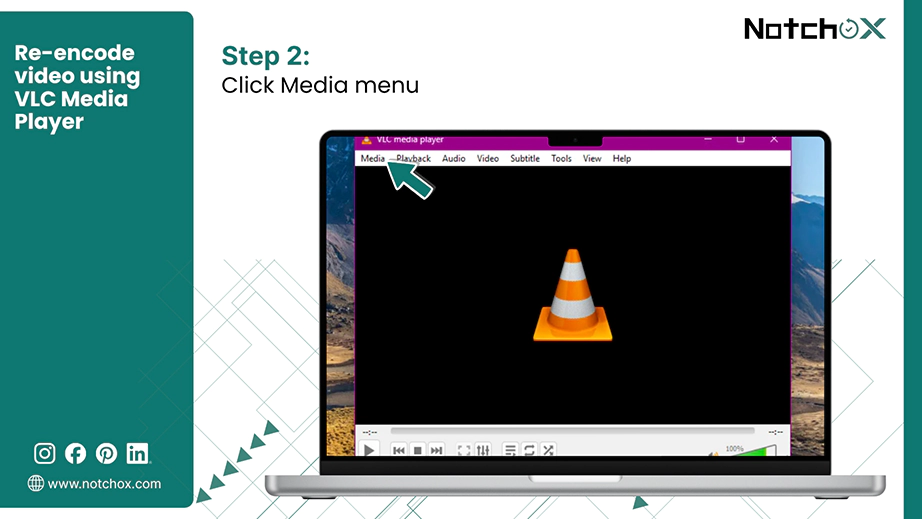
Step 2: Click on Media in the top-left menu bar.
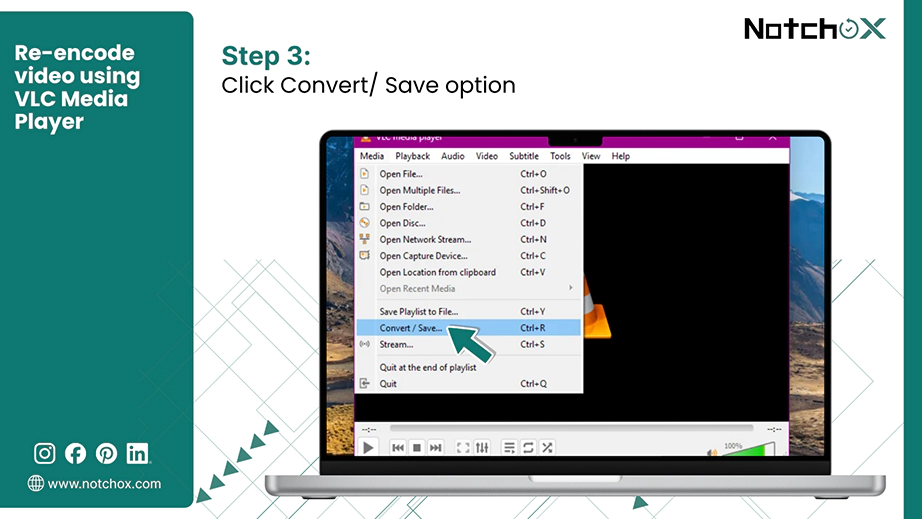
Step 3: Select Covert/Save… from the options (or press Ctrl + R).
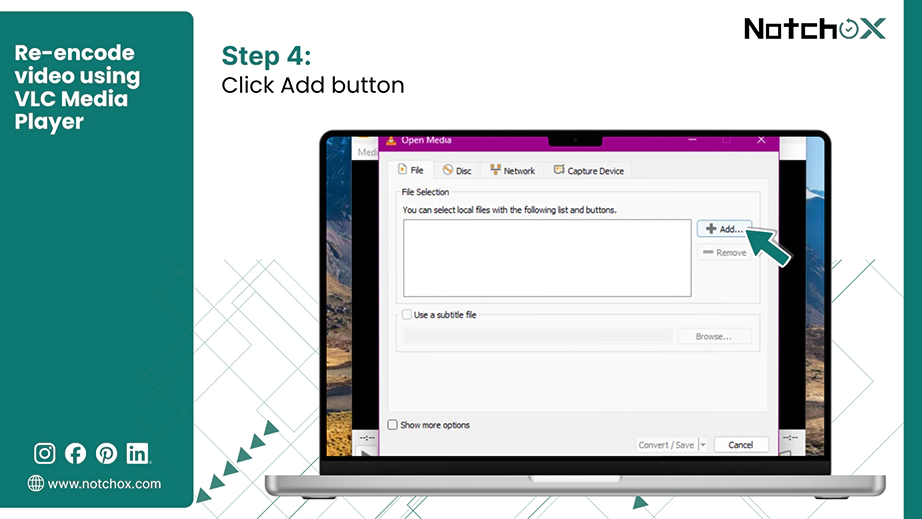
Step 4: Click the Add button.
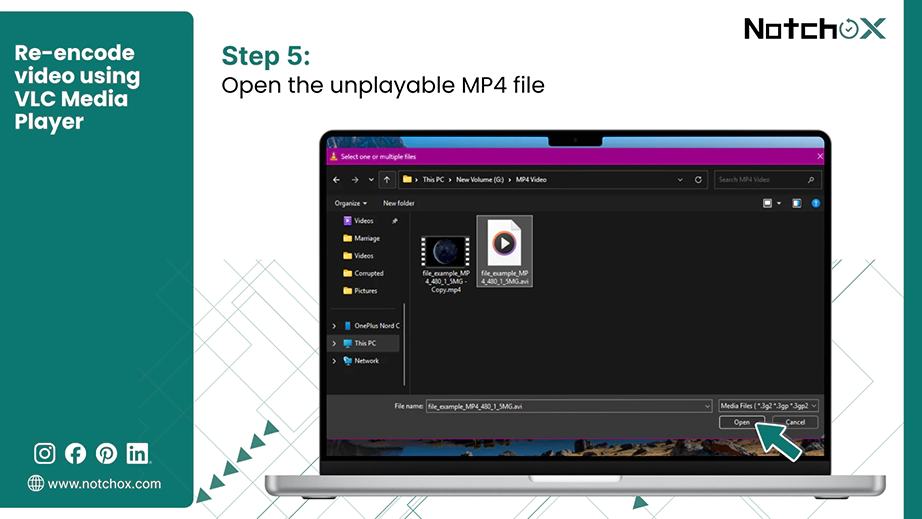
Step 5: Select your unplayable MP4 file from your computer and click Open.
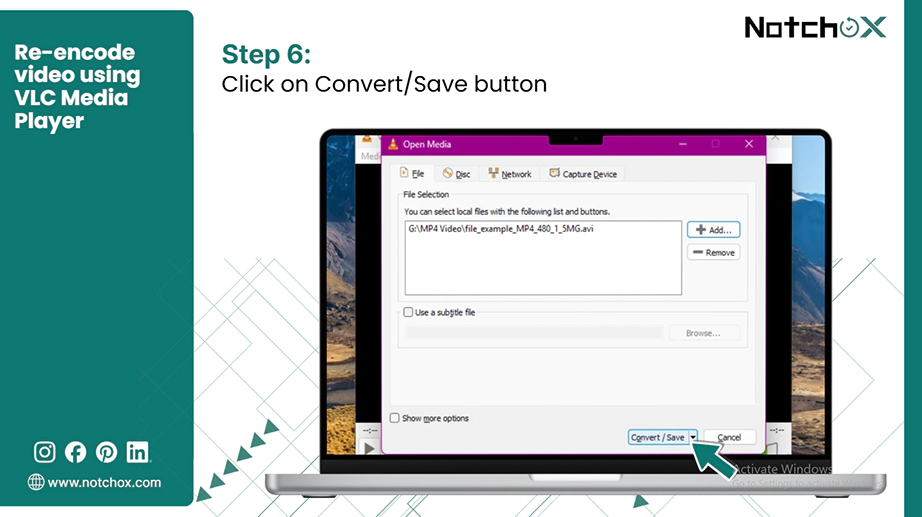
Step 6: Click on the Convert/Save button at the bottom to fix the MP4 file.
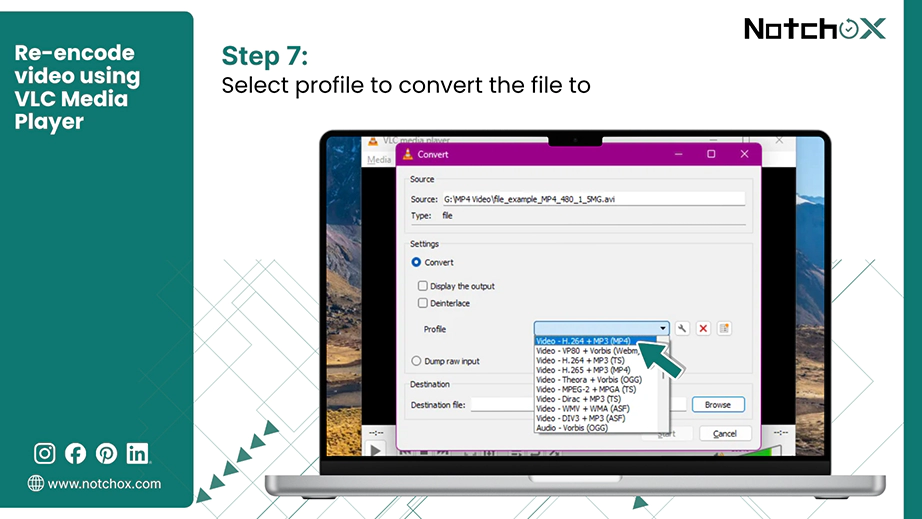
Step 7: In the convert window, look for the Profile dropdown menu and select Video-H.264 + MP4 (MP3).
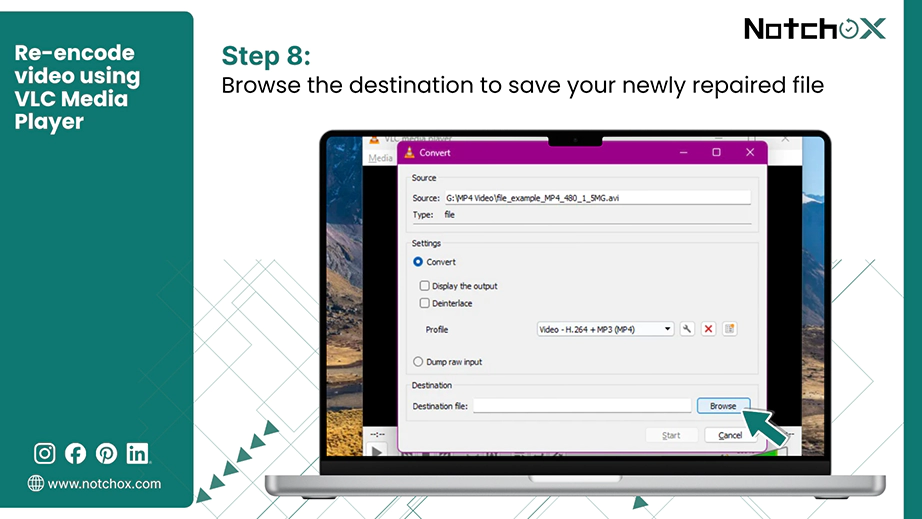
Step 8: Next, to select the destination file location, click the Browse button and choose where to save your newly repaired file.
Step 9: Click the Start button to begin the process to fix MP4 video not playing.
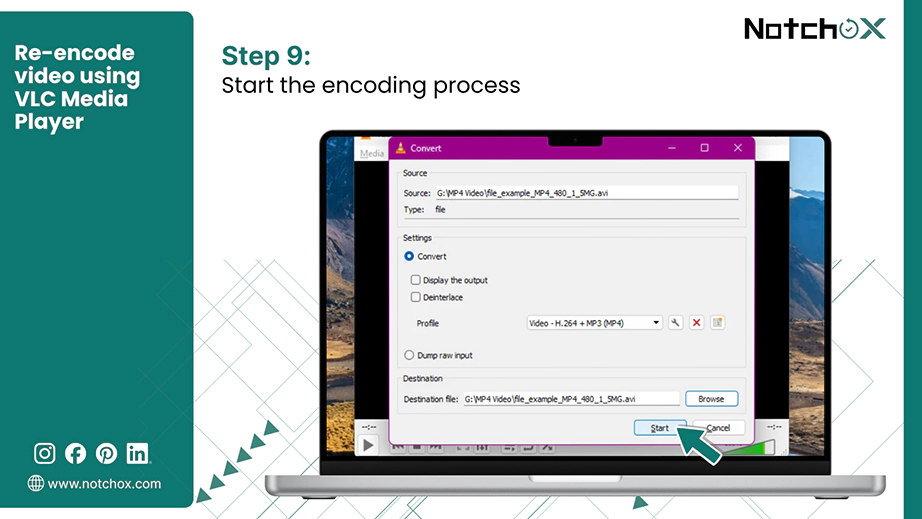
A progress bar will run across the timeline as VLC builds a fresh container file.
How to re-encode video using HandBrake?
Handbrake is a free and open-source tool built specifically for video transcoding. It is considered highly effective to fix corrupted MP4 video file.
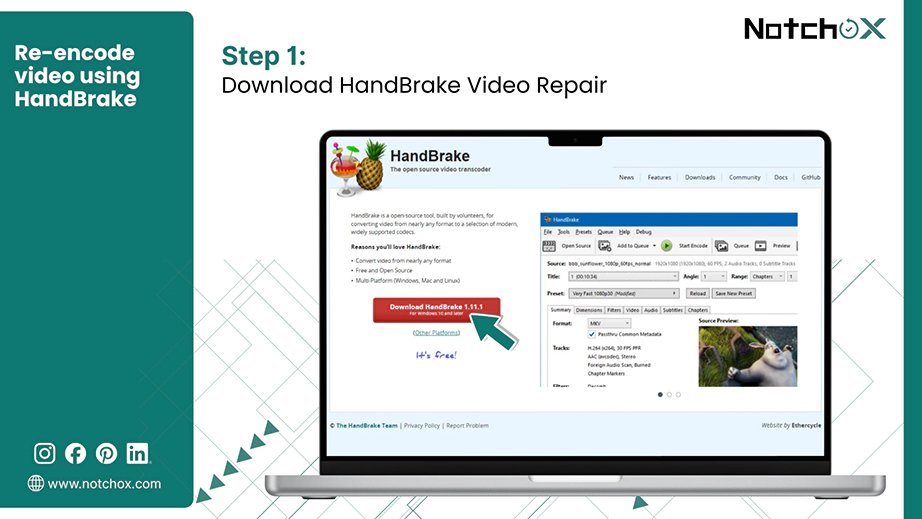
Step 1: Download HandBrake from its official website and install it.
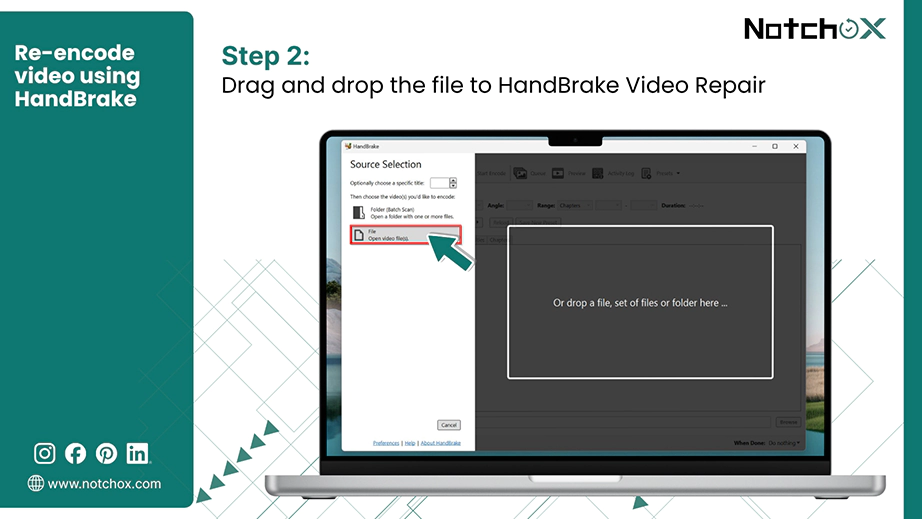
Step 2: Launch the software and drag and drop your broken MP4 file directly into the main window.
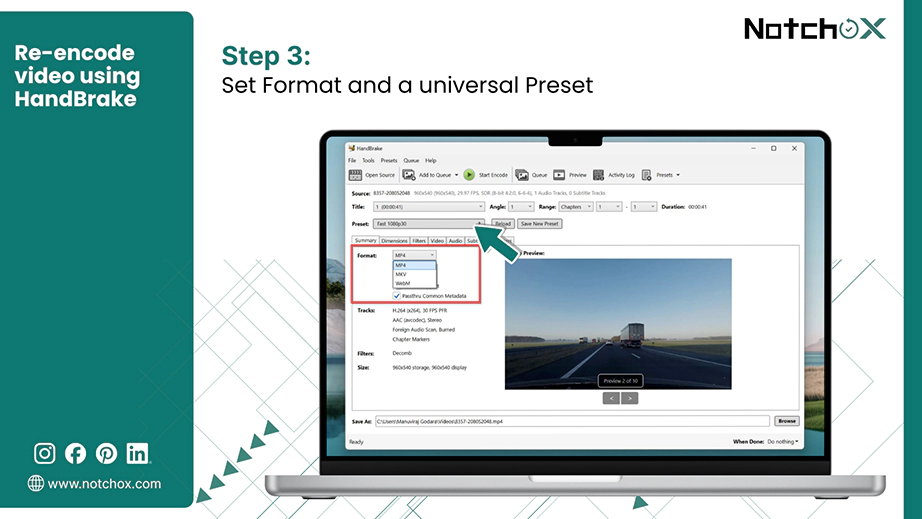
Step 3: Click the Summary tab, set the Format dropdown to MP4, and select a universal preset like Fast 1080p30.
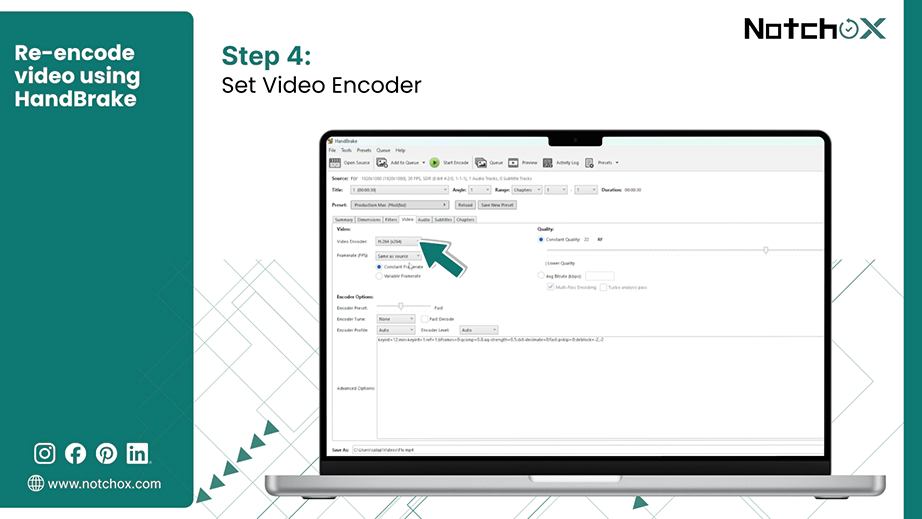
Step 4: Go to the Video tab and check that the Video Encode is set to H.264 (x264) for maximum system compatibility.
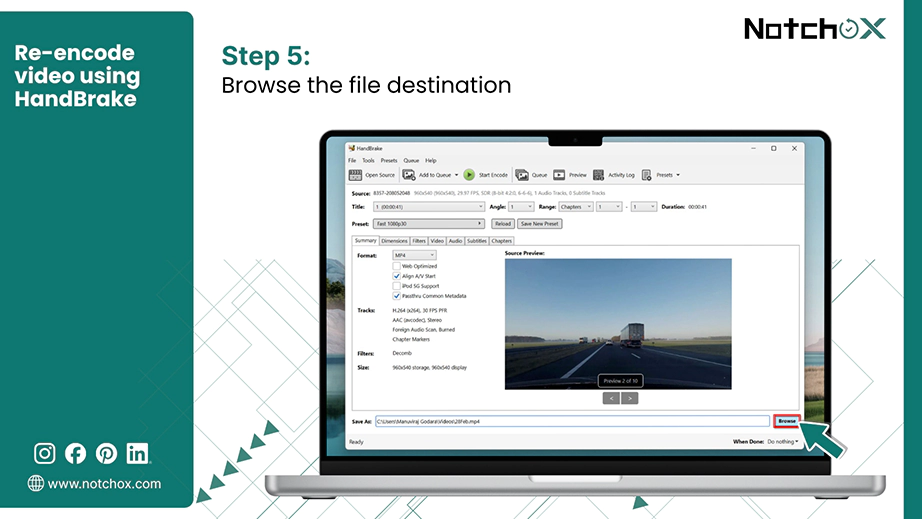
Step 5: Click the Browse button at the bottom to set a saving location.
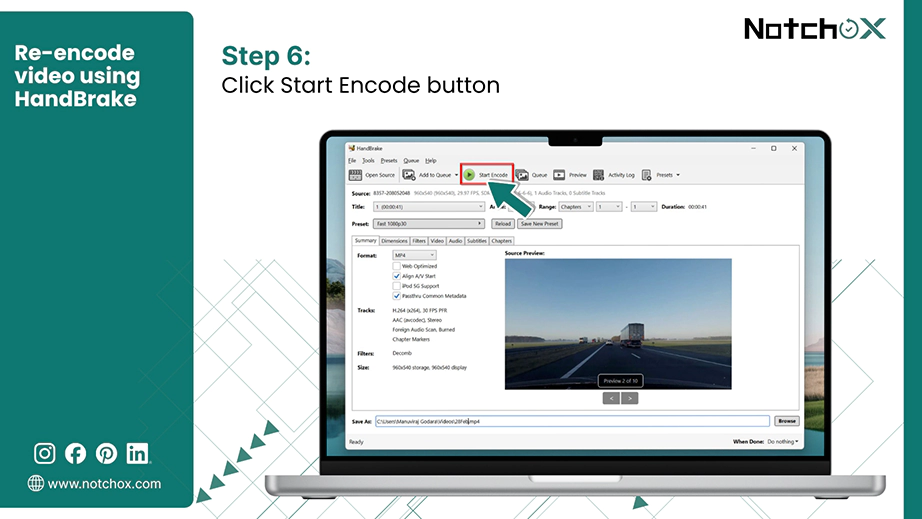
Step 6: Click the green Start Encode button at the top menu bar to start re-encoding to fix corrupted MP4 file.
If your MP4 video has become entirely unreadable due to severe header errors, viruses, or system crashes, standard media fixes won’t work. You need a specialised corrupted file recovery software like Notchox to repair video file. Rather than trying to change and patch the broken video manually, Notchox scans and recovers a clean version of your footage.
Step-by-step data retrieval process:
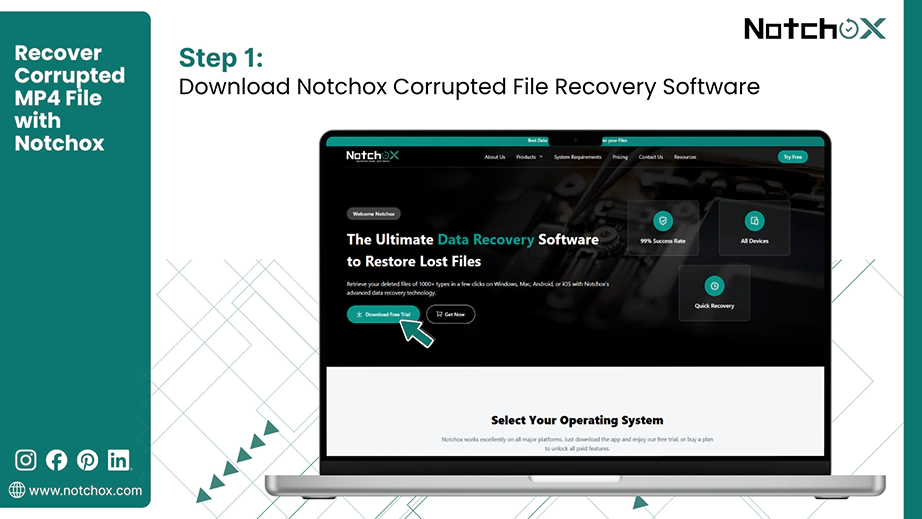
Step 1: Download and install the Notchox Corrupted File Recovery Software on your device. Notchox download is available for Windows, Mac, Android, and iOS.
Step 2: Launch the software and select the module Corrupted file recovery to fix corrupted MP4 file. It supports all the video formats, including MPG, MP4, SVI, 3GP, WebM, FLV, MPEG, WMV, and AVI.
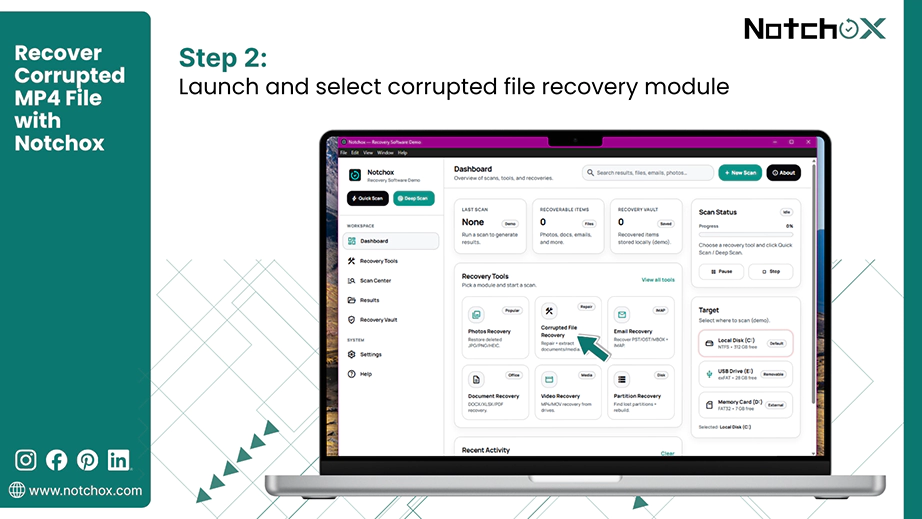
Step 3: Select your target drive, i.e., the drive that had your corrupted video file.
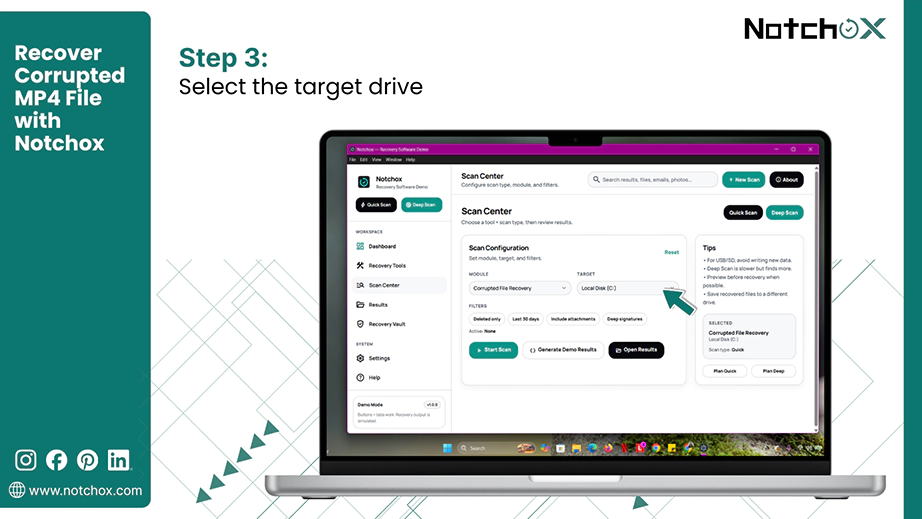
Step 4: Click the Start Scan button to begin the recovery process. Notchox offers both Quick Scan and Deep Scan to recover your files. The process will take a few minutes to hours depending on the drive size.
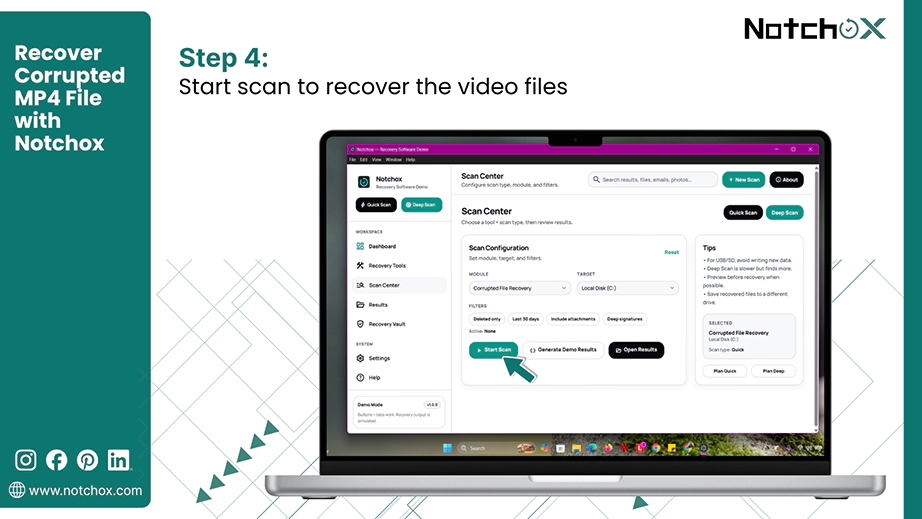
Step 5: Once the process completes, click Open Results to preview the recoverable videos and check their integrity.
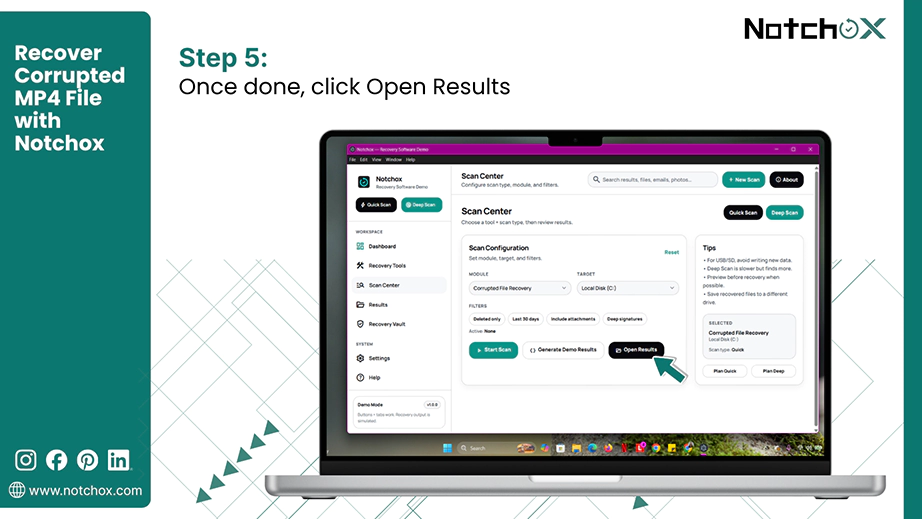
Step 6: Select the files and click the Save to Vault button to recover your MP4 video files to a safe location.
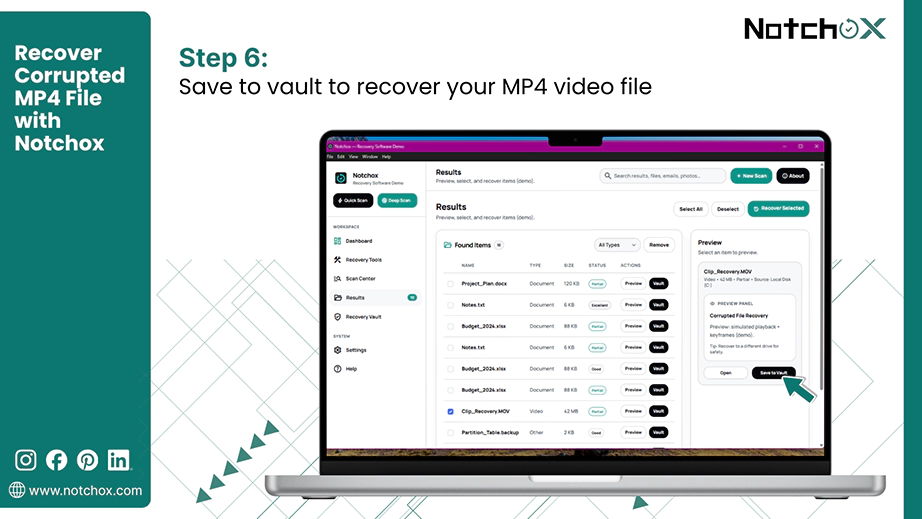
Using Notchox ensures you can completely skip the file restrictions and restore unplayable videos on any system. It is the most reliable way to recover your files.
If you don’t wish to install software on your computer, using an online video repair tool is an excellent alternative. Online repair tools like FixVideo and VideoRepair let you upload damaged files directly through your web browser. From our team personal experience, this method is good for fixing smaller MP4 files quickly on any device and come out handy in the emergency situations.
Note: A stable internet connection is mandatory to browse, upload, and download the repaired video back to your device.
How to uncorrupt a video file for free?
Online video repair tools follow a simple process to fix MP4 video not playing, freezing, lagging, or being corrupted.
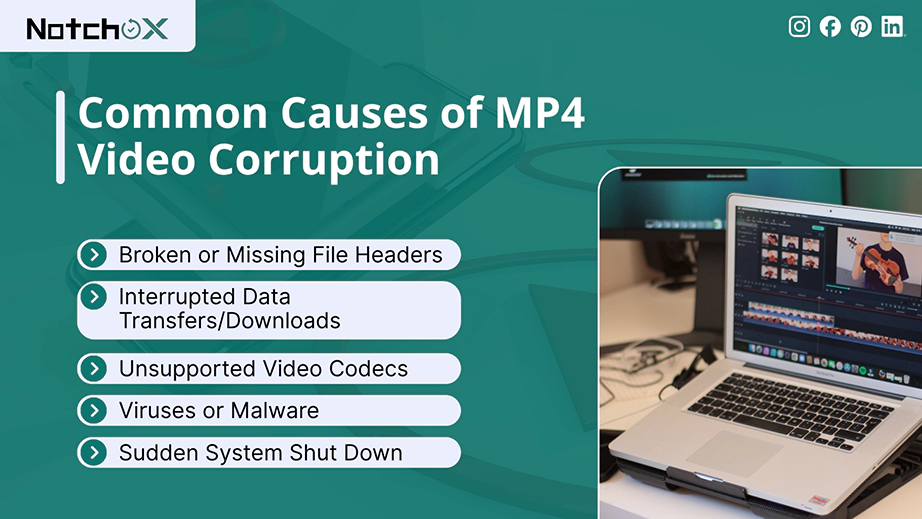
There could be various reasons behind an MP4 video files not playing. Understanding these reasons can help you know the cause and use the correct method to fix corrupted MP4 file. Here are the common technical failures and how to prevent them:
How to prevent: Complete the video shooting, downloading, or transferring process without any interruptions.
How to prevent: Maintain a stable network connection and always remove hardware safely from your device.
How to prevent: Always keep your media player updated.
How to prevent: Use anti-virus software and scan the SD card or drives before transferring files.
How to prevent: Use an Uninterrupted Power Supply (UPS) to prevent sudden power breakdown.
An unplayable video means there is a playback/media player issue or a header corruption. By working through these 8 methods: starting with a basic player swap, VLC media player repair, Hex code editing, re-encoding, and online repair tools, you can fix the MP4 video not playing. If the clip is missing rather than broken — say a downloaded archive was deleted by mistake — you can recover deleted ZIP files and pull the video back out. For fast recovery and fixing deeply corrupted files, using Notchox Corrupted File Recovery Software is the best option. Just remember to practice methods to prevent such issues in the future.
Ans: Methods to fix MP4 video not playing:
Ans: Common reasons for MP4 file corruption are:
Ans: Use free online video repair tools available and upload, scan, and download your fixed MP4 video file.
Ans: Changing the file extension forces Media Player to re-read the data and load the video file without changing the raw footage.
Ans: The safety of the online video repair tool depends on the specific website you are using. Use reputable web tools to fix corrupted MP4 file. Choose downloadable software like Notchox for highly private files.

Deeksha Arora is a Data Protection & Recovery Writer focusing on writing accurate, informative, and easy-to-understand technical articles for Notchox’s readers. Her content on the prevention of data loss, understanding risks of device failures, and guides to fix problems helps readers make the right decisions and understand the technical terms easily. She works closely with Subject Matter Experts to ensure high usability and accuracy of her writing.