Deeksha Arora Jun 25, 2026
Ans: You get this error because your computer cannot read the file’s internal data structure. This is caused by an incorrect file extension, an outdated application, or file corruption.
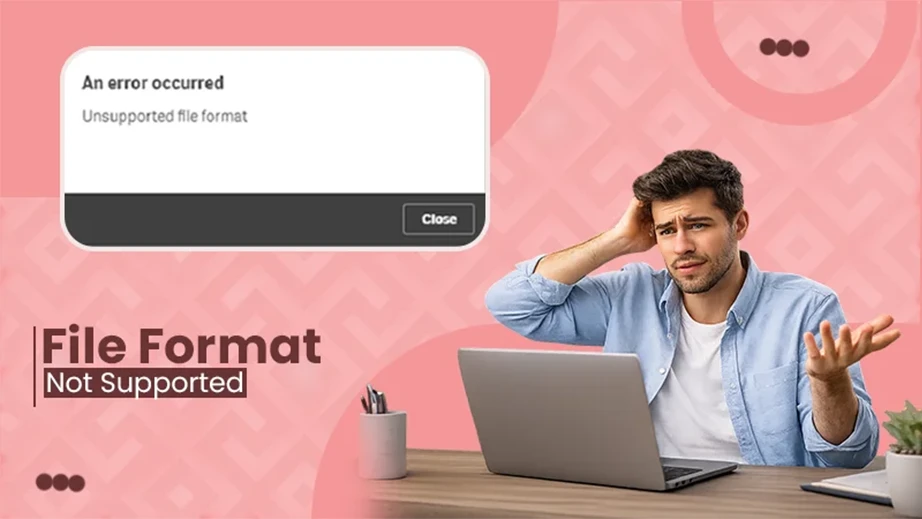
As data recovery experts, we see the “file format not supported” error causing a hurdle in daily workflows. It is a warning that you can not ignore if you want to access that particular file. This error appears when the operating system reads an incorrect file extension, or a software issue, or due to file corruption.
This file repair article will help you safely regain access to your files. We will start with simple extension fixes and software updates. Then, we will move into format-specific repairs for your images, videos, documents, etc. Finally, we will show you how to use a specialized recovery tool like Notchox Corrupted File Recovery Software to rebuild severely corrupted files.
So, let’s walk you through practical, step-by-step methods to fix file format not supported errors.
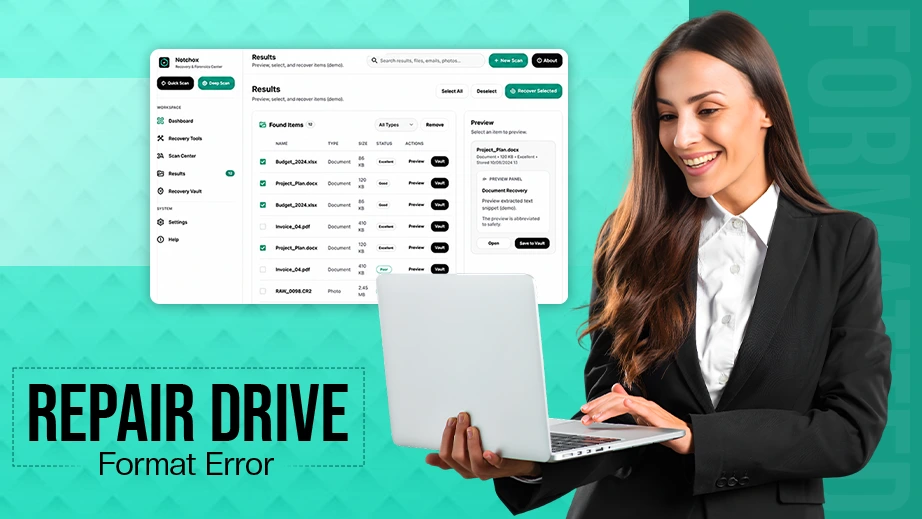
Quick Answer: To fix file format not supported errors, try changing the extension of the file or switching the application. If the file remains unsupported, run Notchox Recovery Software. Its specialised algorithms scan deep within storage sectors to safely recover corrupted files.
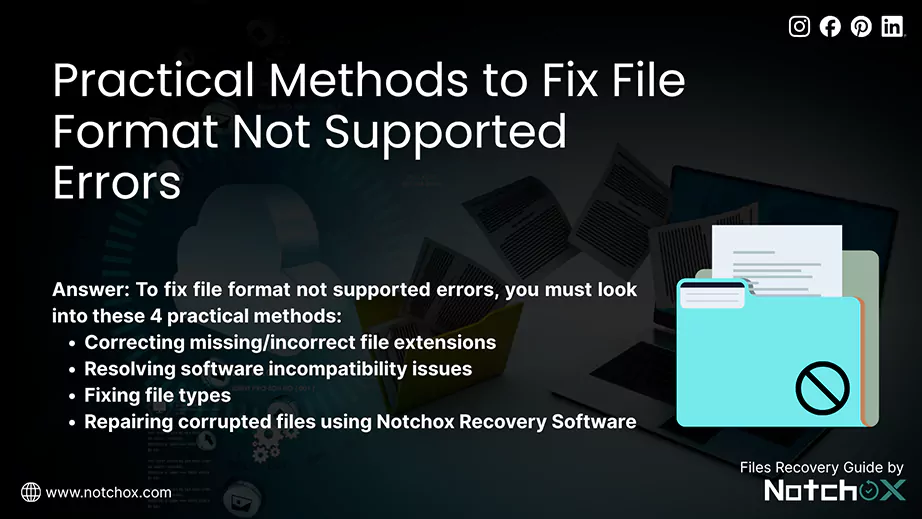
To fix file format not supported errors, you must resolve the incompatibility between your file type and software, which usually starts with wrong extensions, outdated software, and file corruption. To solve this, we will look at 4 practical methods:
Let’s begin with step-by-step instructions for each of these techniques.
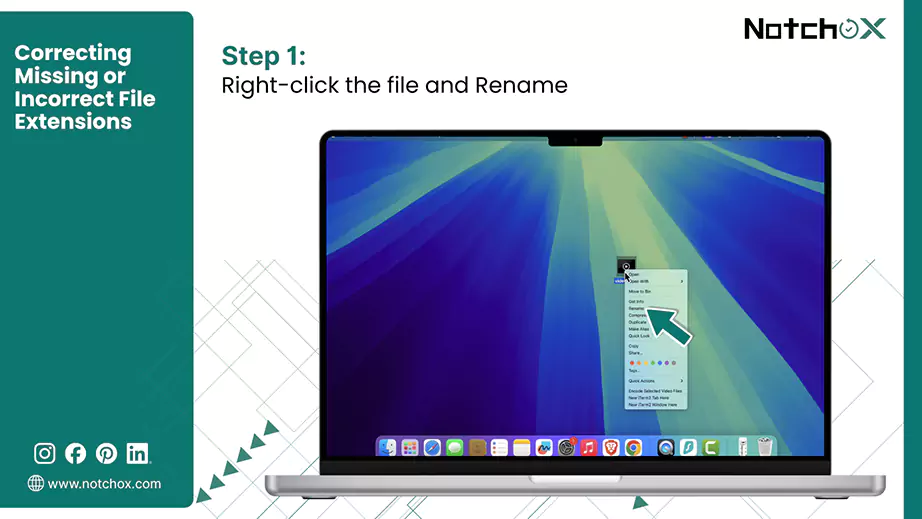
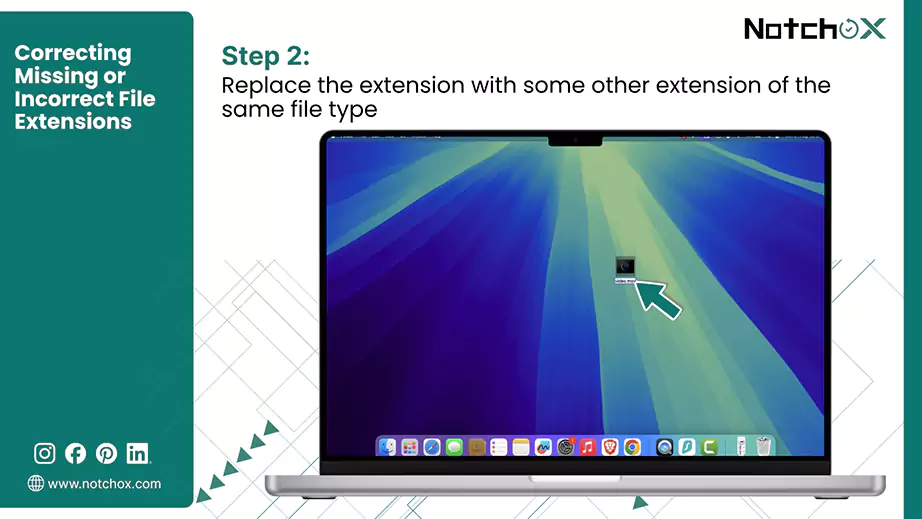
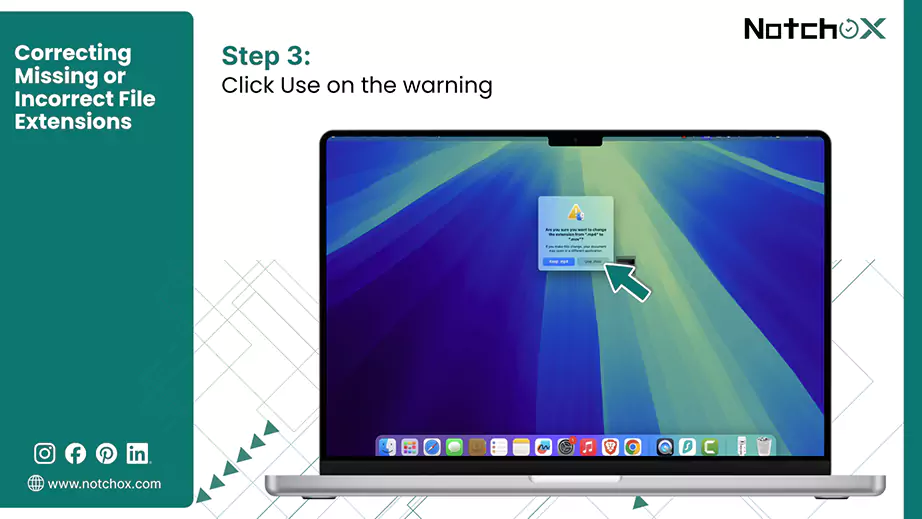
The operating systems rely completely on the file extensions (.pdf, .jpeg, .avi, .rar, etc.) to determine which application should open for your data. If the file loses its extension during download or if it is accidentally changed, the computer will reject it and show a “format not supported” error.
Before attempting deeper repairs, we always recommend verifying and correcting the file’s extension.
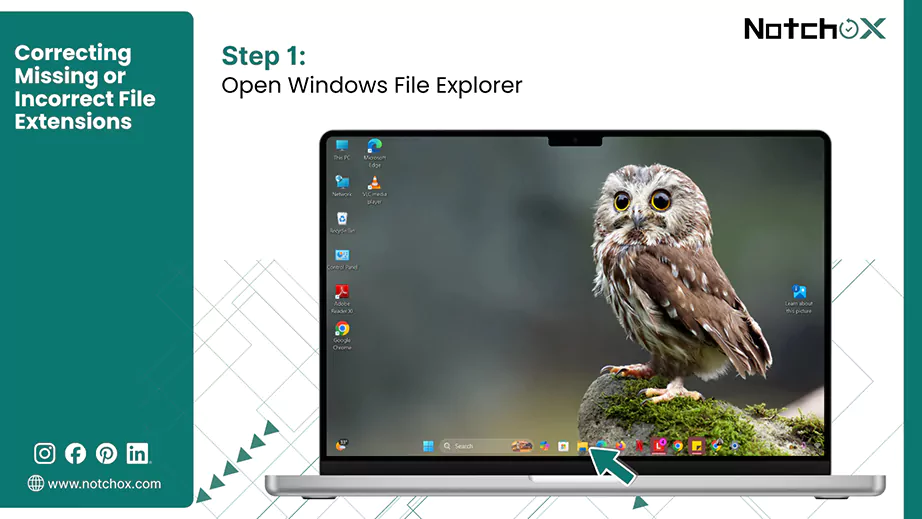
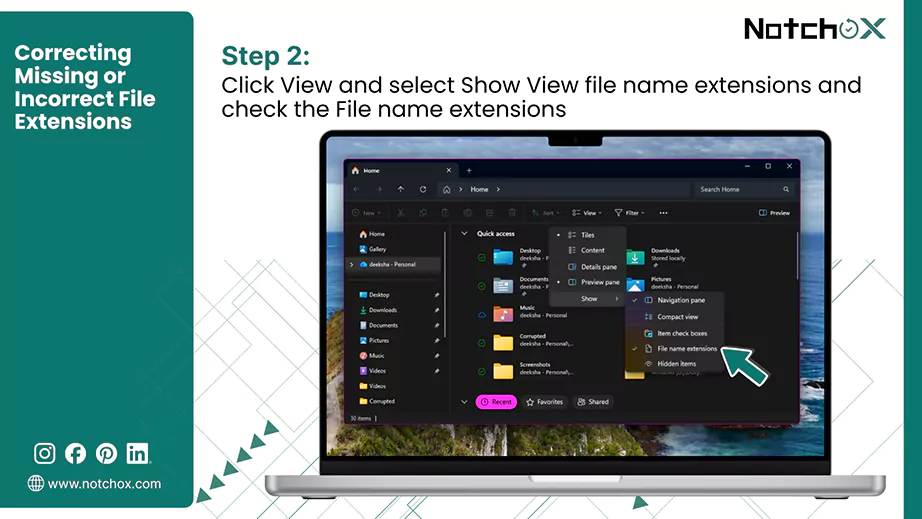
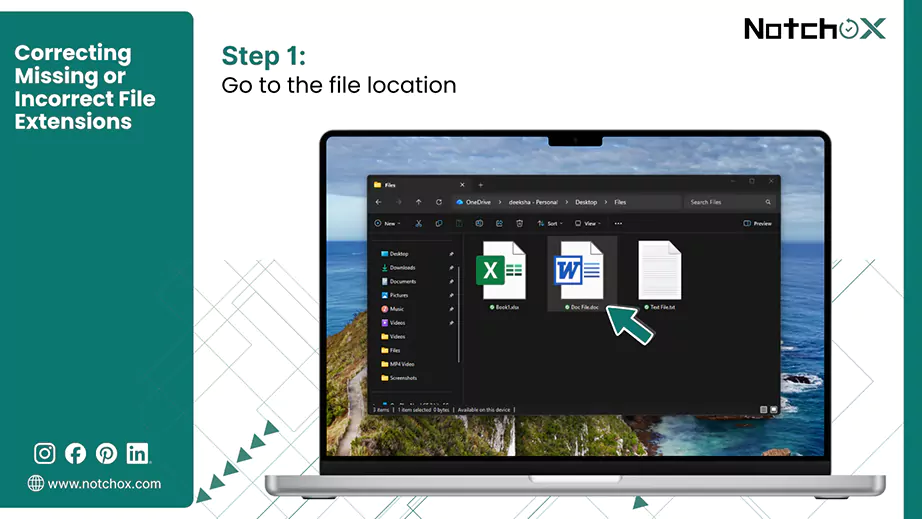
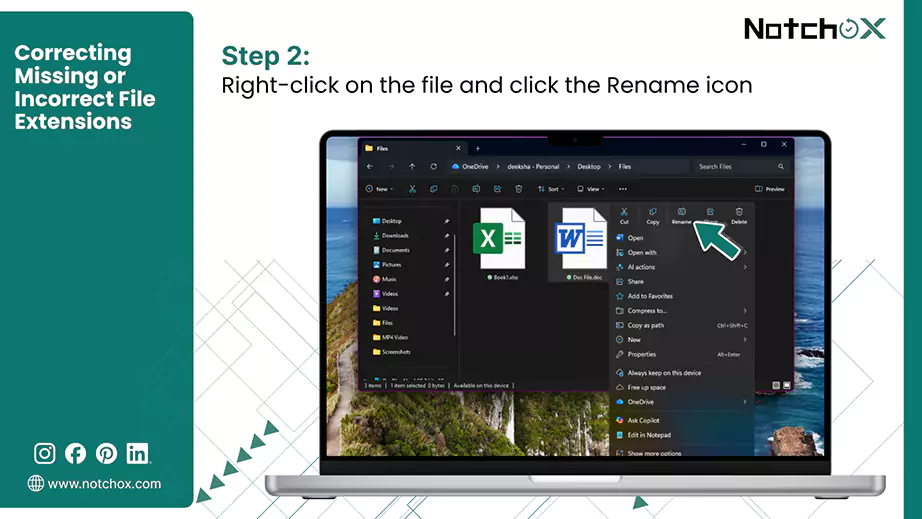
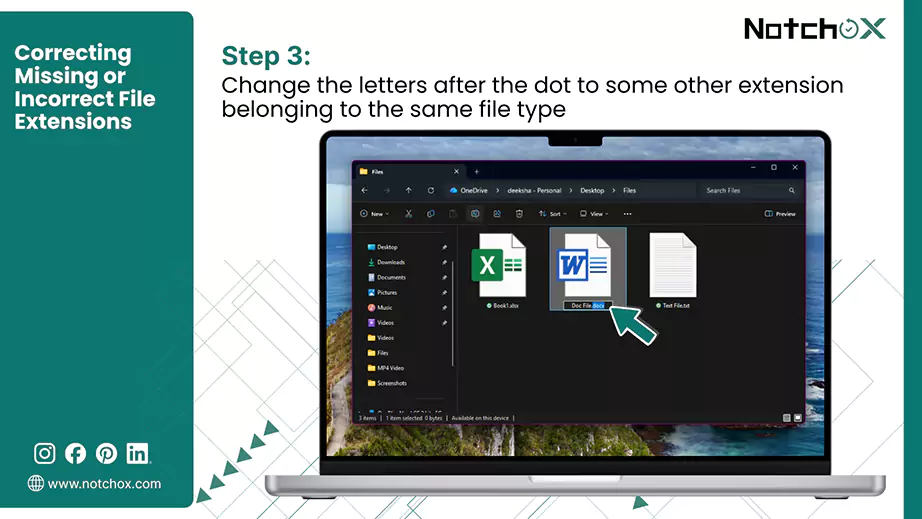
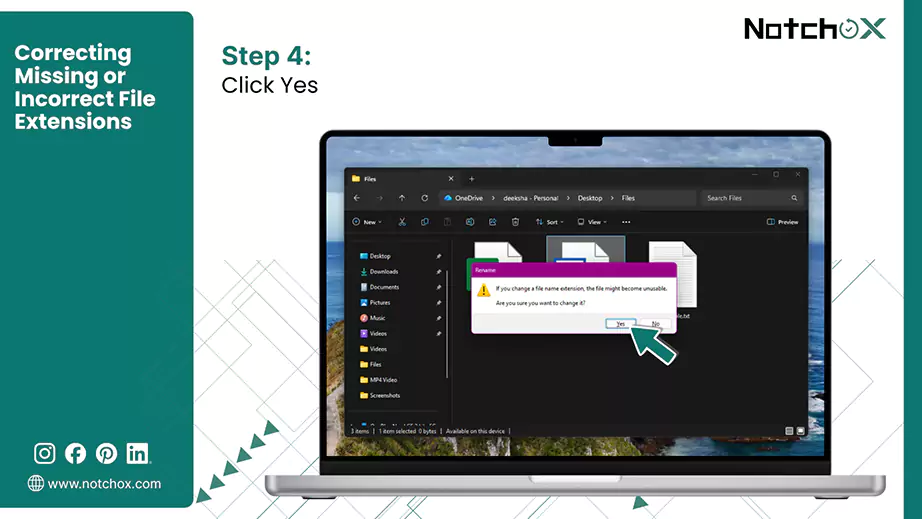
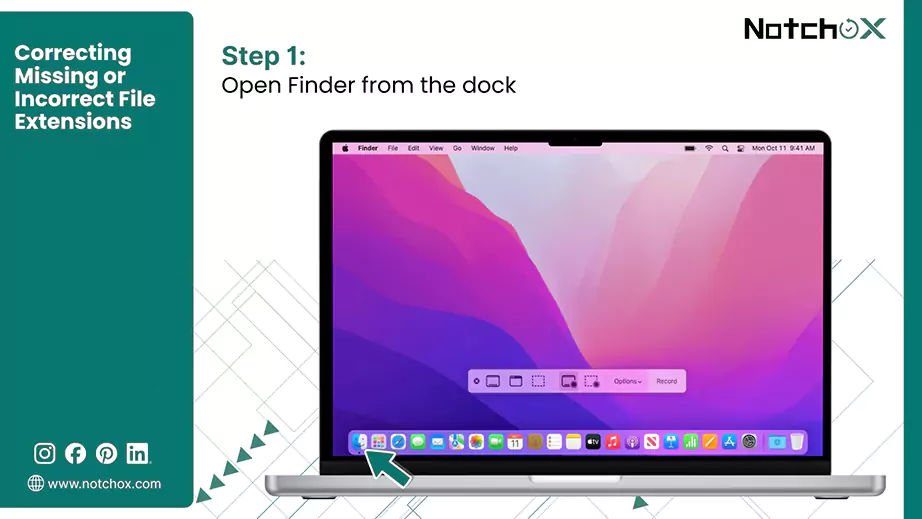
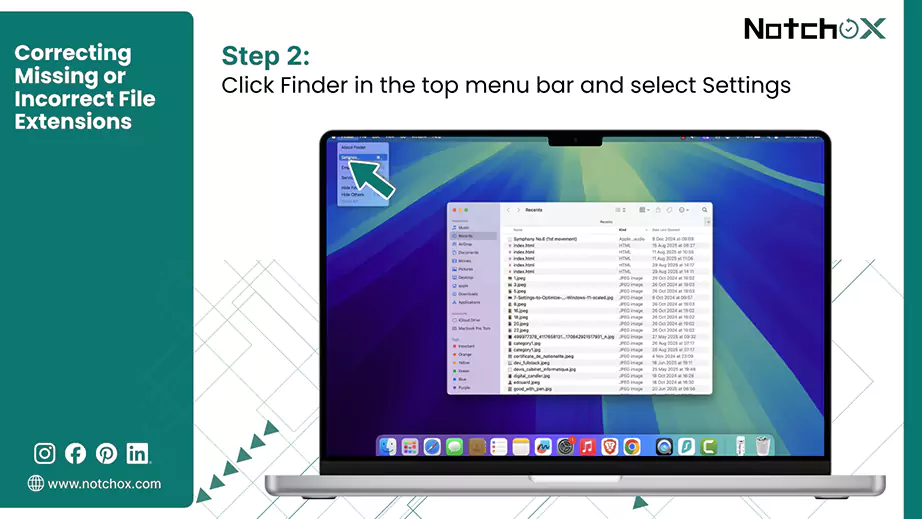
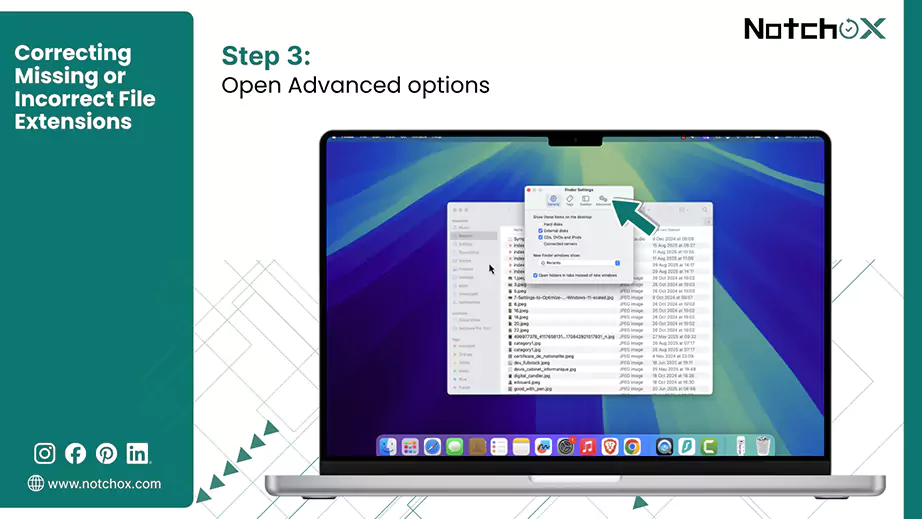
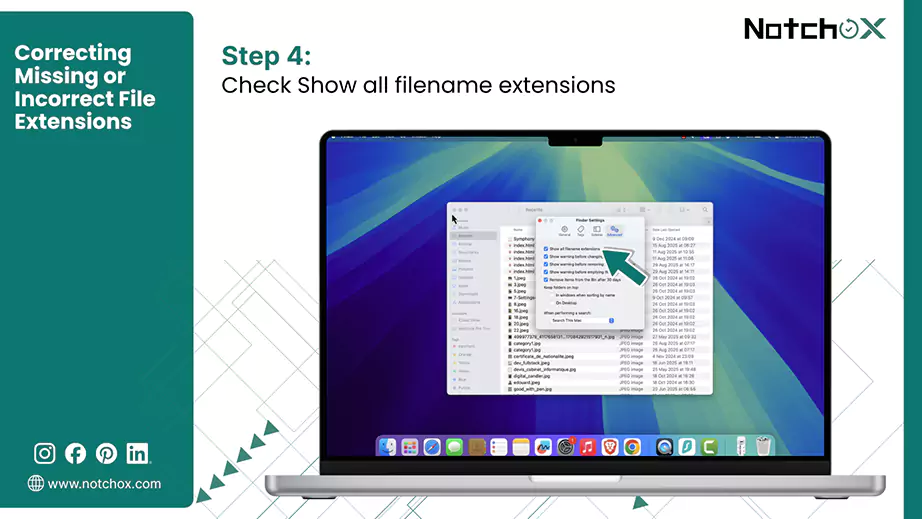
Note: Manually changing an extension can corrupt a file if the data structure does not match the new name. Always create a duplicate copy of your file before proceeding.
Sometimes, the file itself is perfectly healthy, but your operating system or the software is what is causing the problem. The outdated software can not render the files and throws the “file format not supported” error.
Updating the software makes sure your software is up to date and can successfully read the files.
Keeping your default system playback tools updated makes sure that it is compatible with playing modern files. Whether you are using a Windows PC or an Apple Mac, updating your media apps is important. Let’s look at how to update your default system players.
Updating Windows Media Player
On Windows, out-of-sync system libraries cause default media tools to reject standard file types. You can fix this error by using three native methods: updating through Windows Update, reinstalling the app via Optional Features, or updating via the Microsoft Store.
Way 1: Update via Windows Update
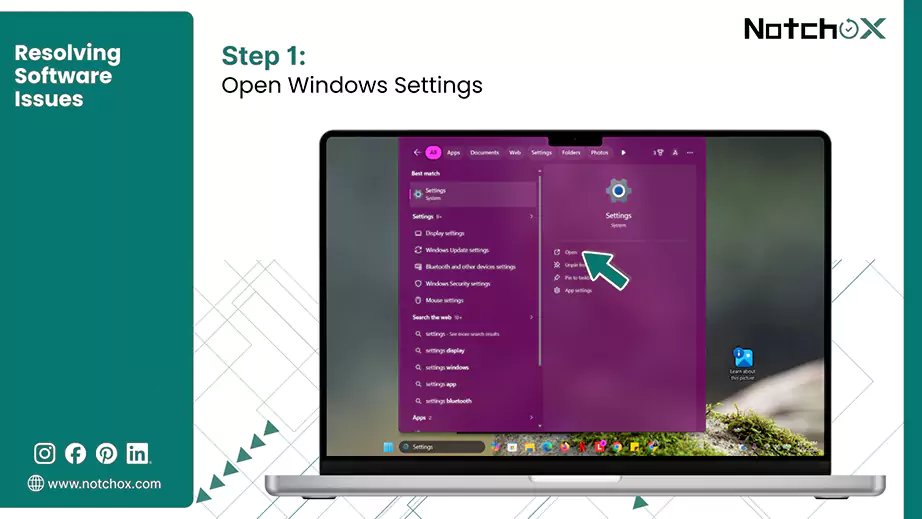
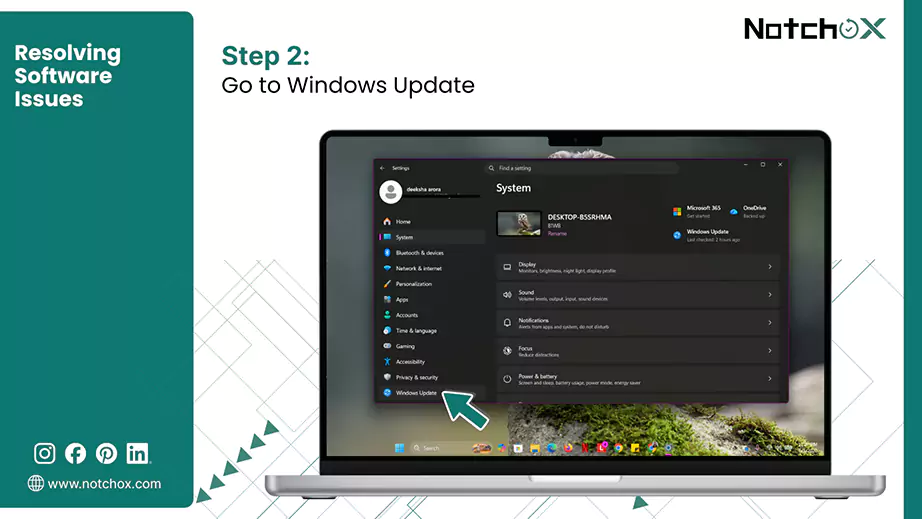
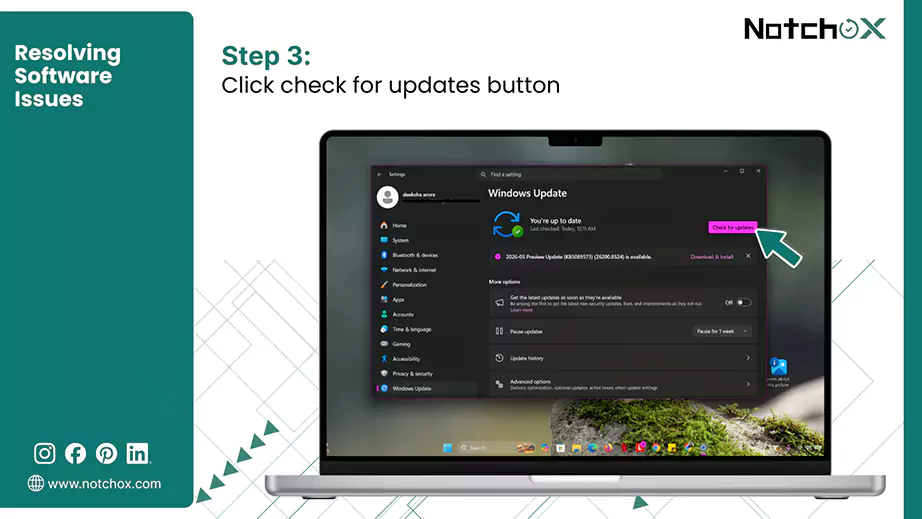
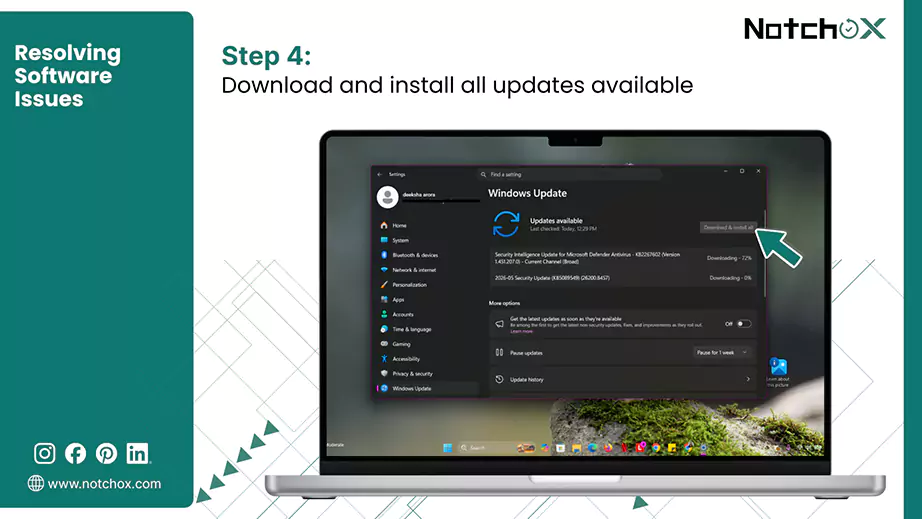
Way 2: Reinstall via Optional Features
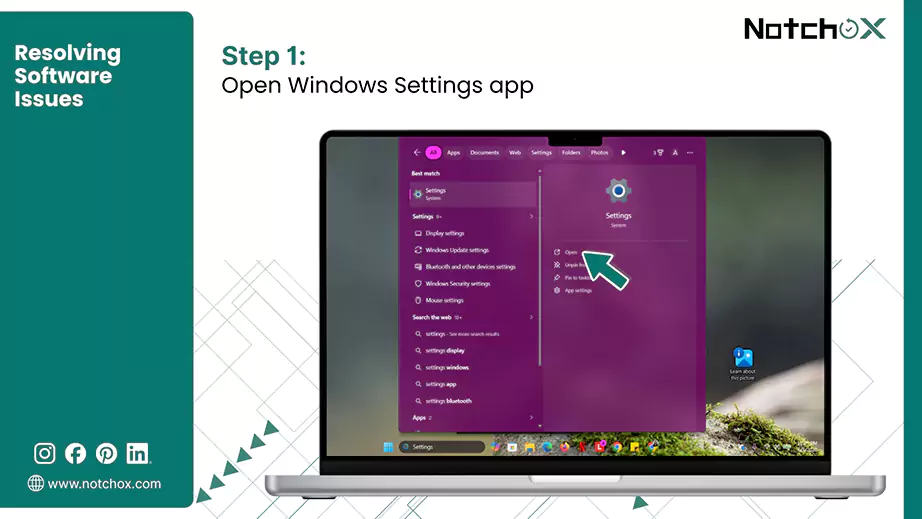
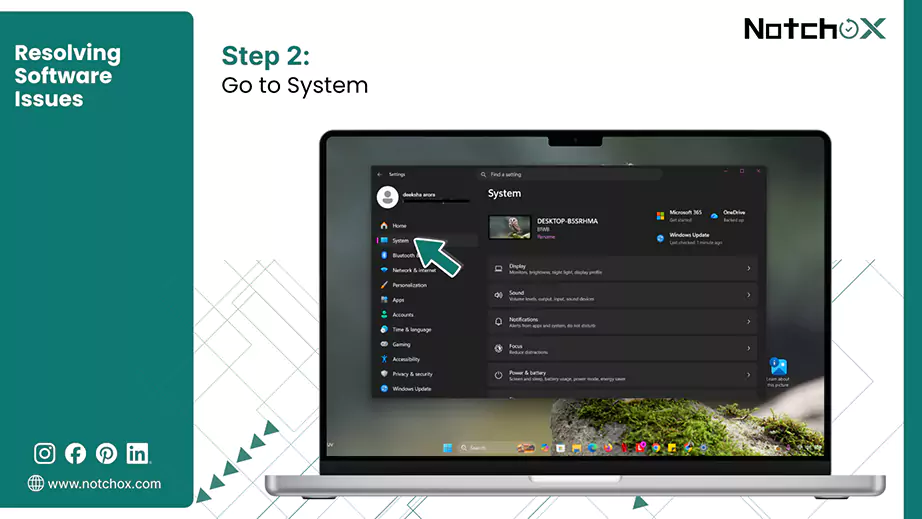
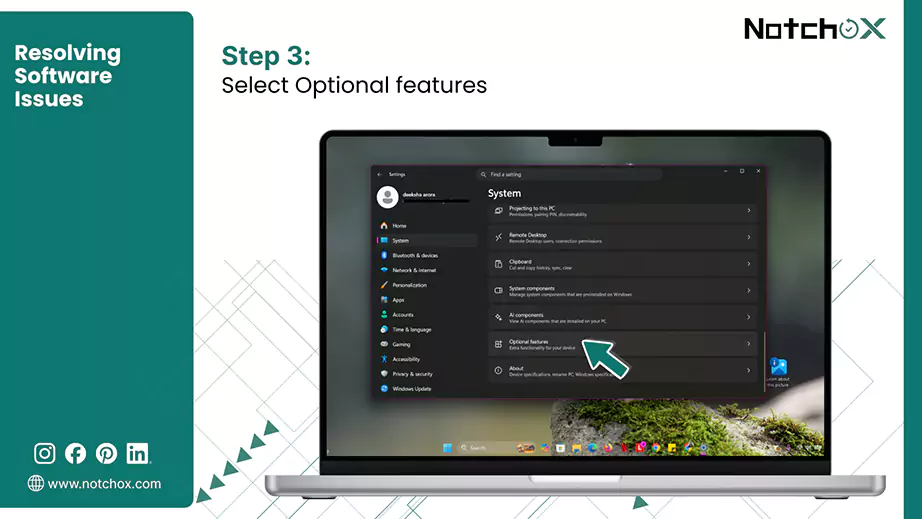
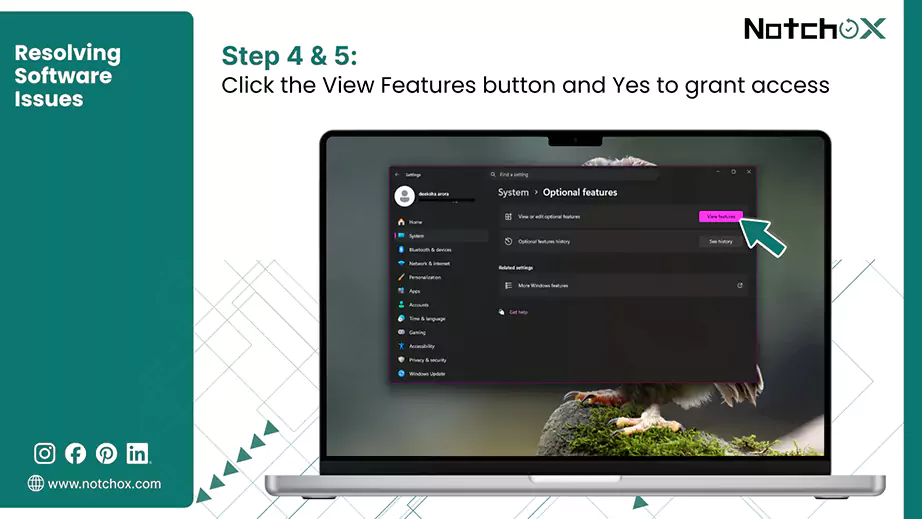
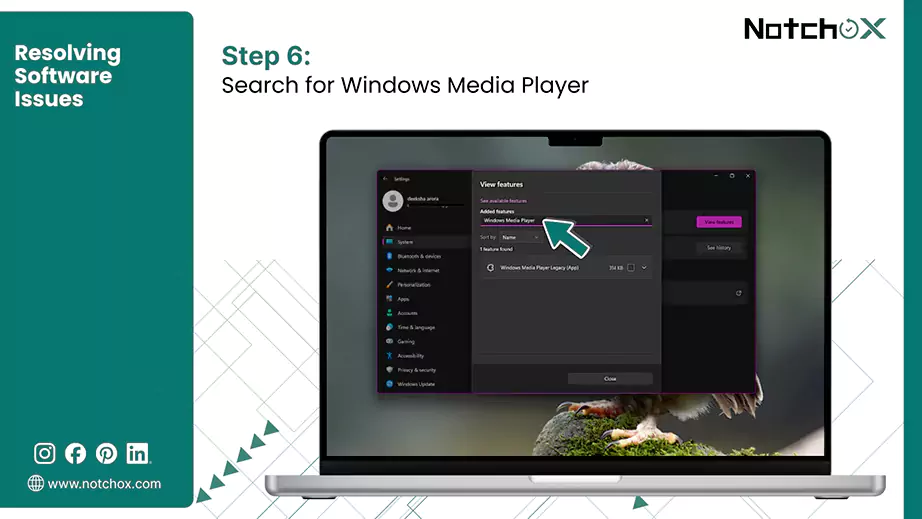
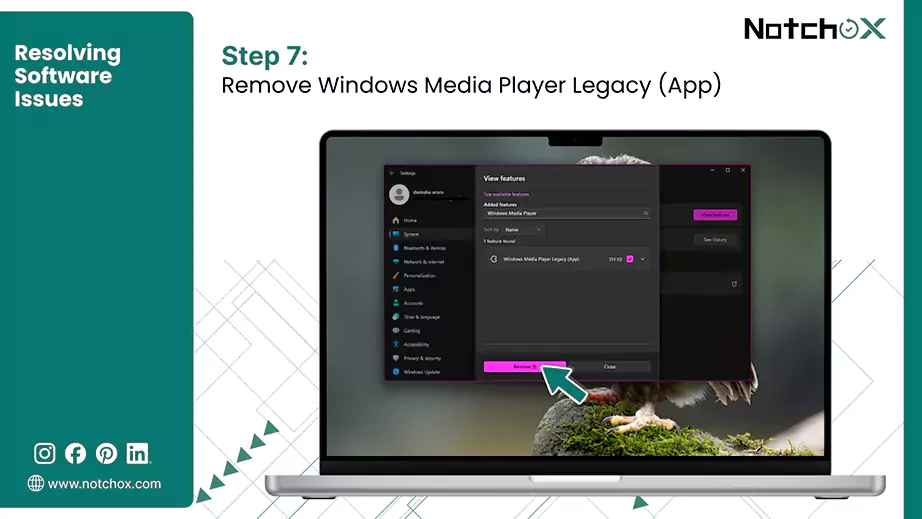
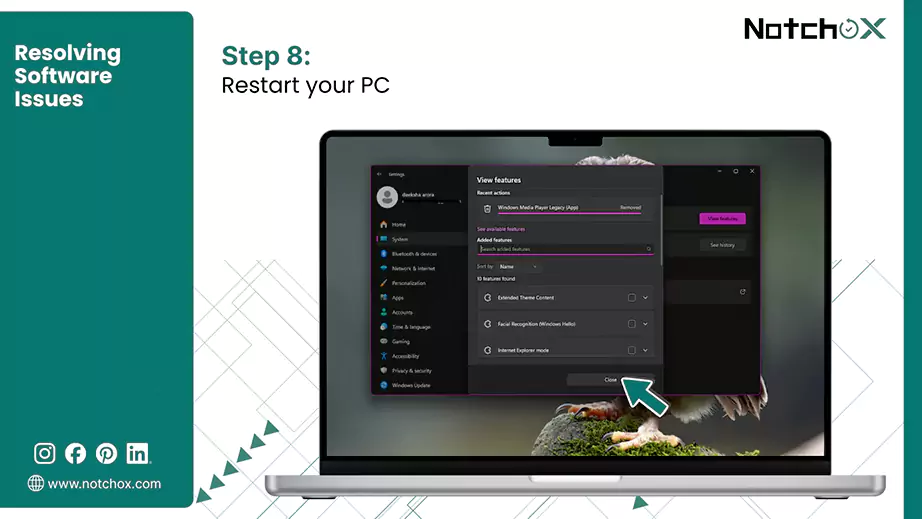
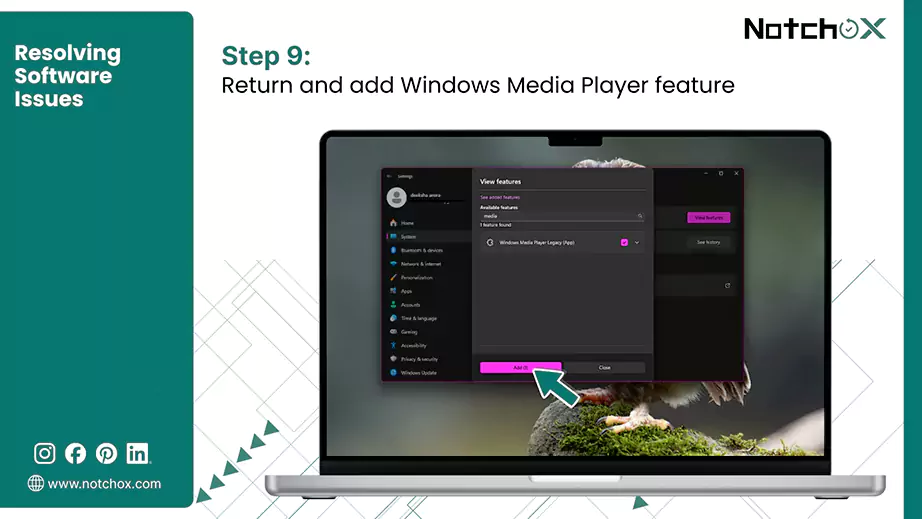
Way 3: Search and Update via Microsoft Store
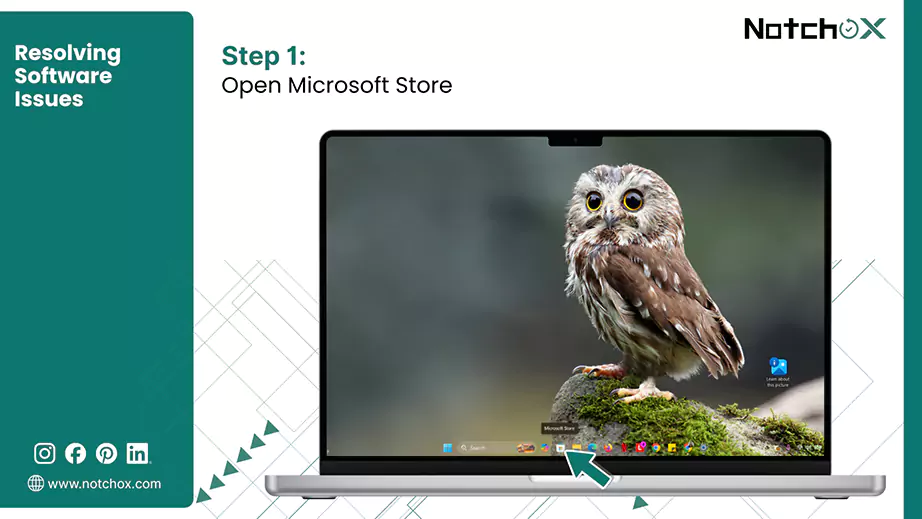
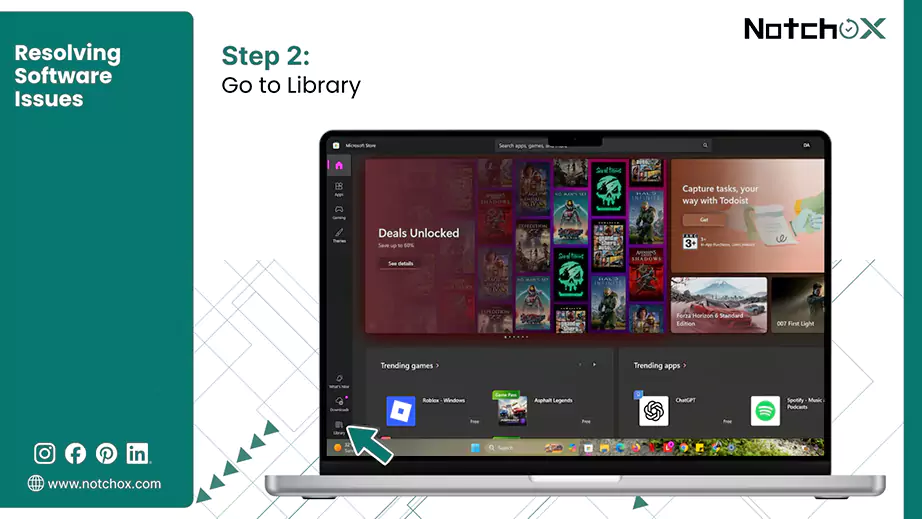
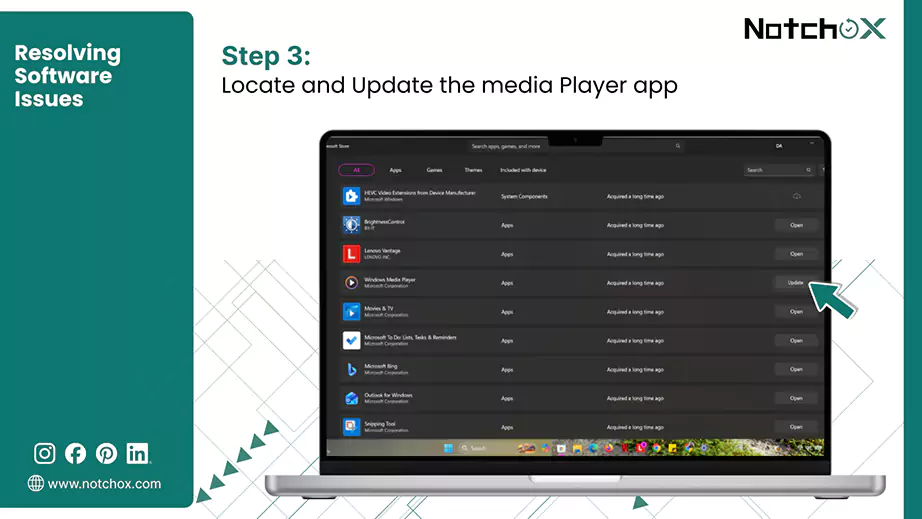
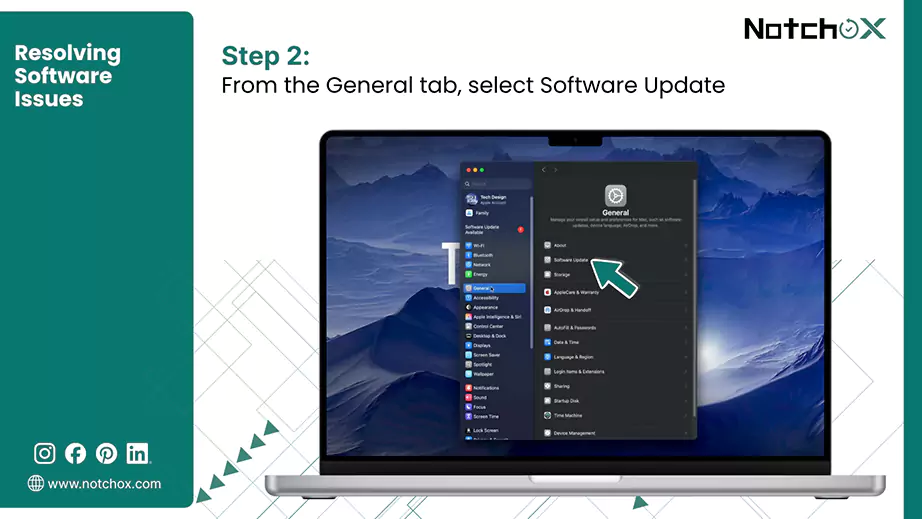
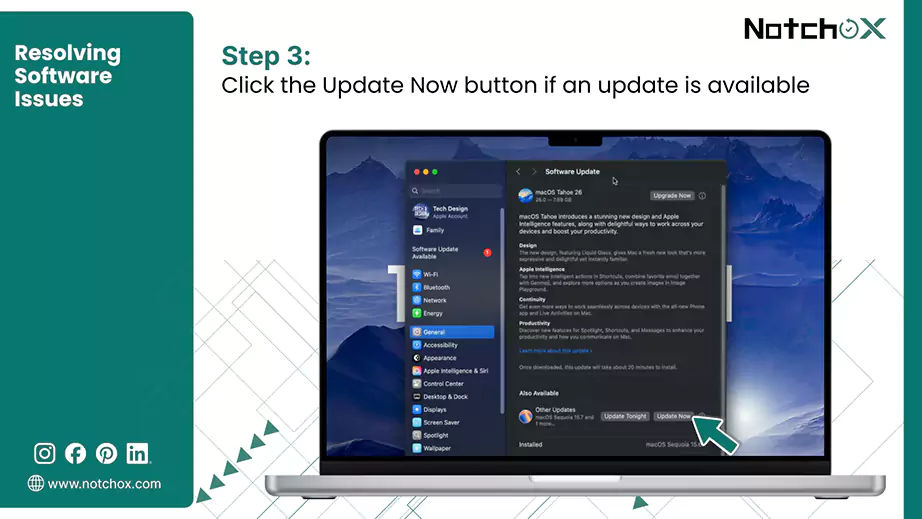
Updating Mac QuickTime Player
QuickTime is integrated directly into the core macOS, which is why you can’t find it in the App Store. Follow these steps to update your player and patch compatibility issues to fix file format not supported errors.
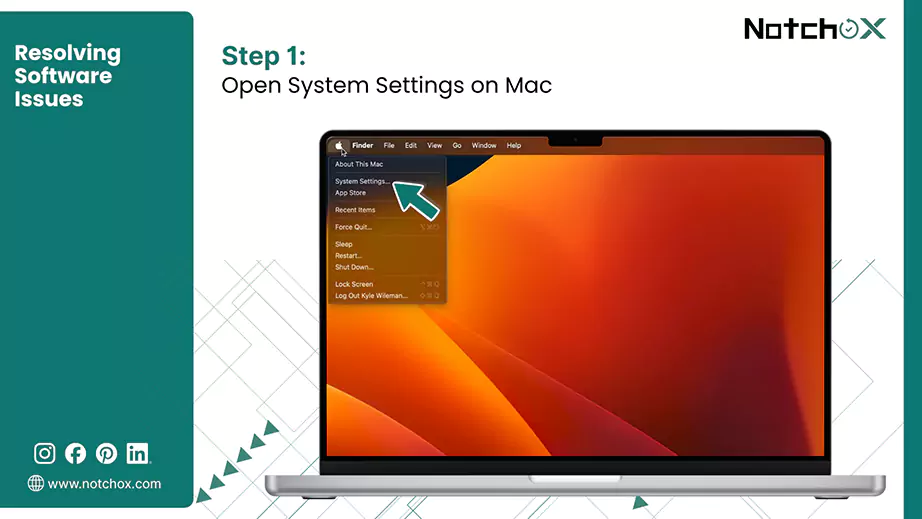
Document formats continuously evolve, so if someone sends you a file generated in the latest version of an application, but you use the outdated version, there will be an error.
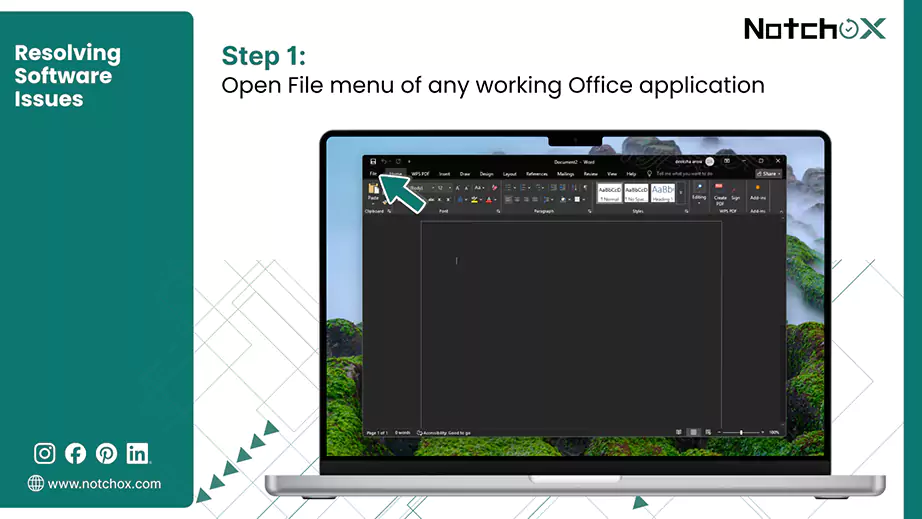
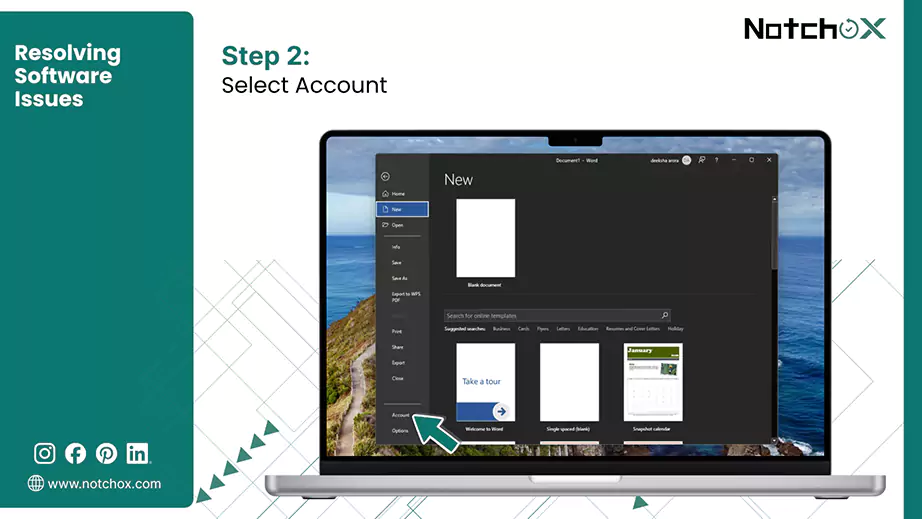
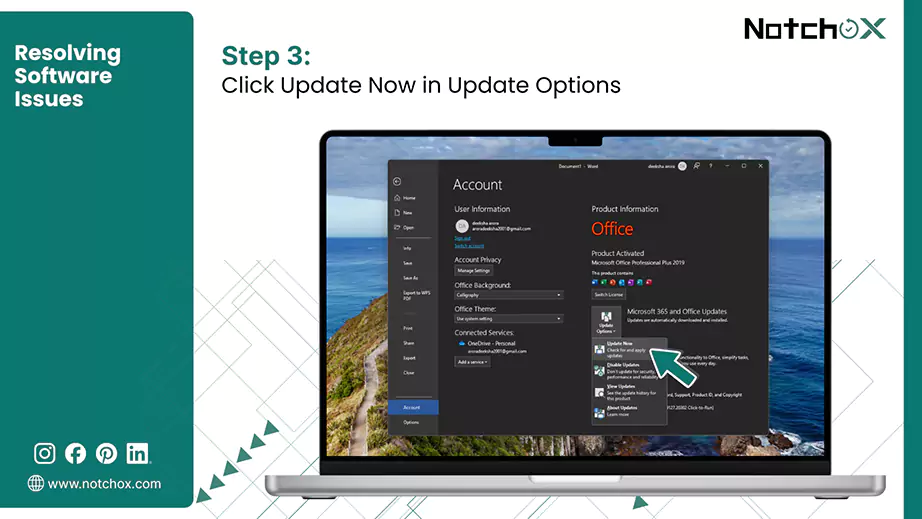
This will pull the latest security and formatting definitions from Microsoft.
When simple extension changes and software updates don’t work, the internal data arrangement of your file is likely damaged. Different file types store data differently, which means fixing a document will not work on a broken image or audio file.
Use these target repair methods to fix the errors.
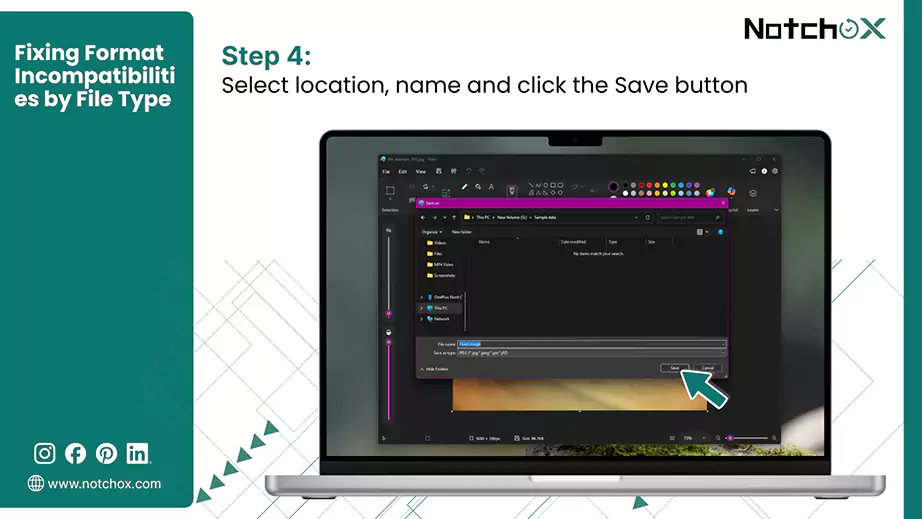
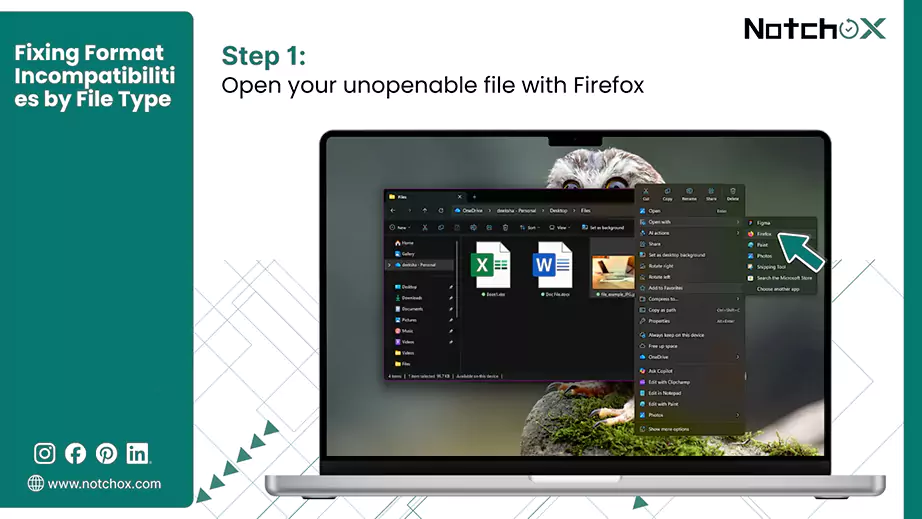
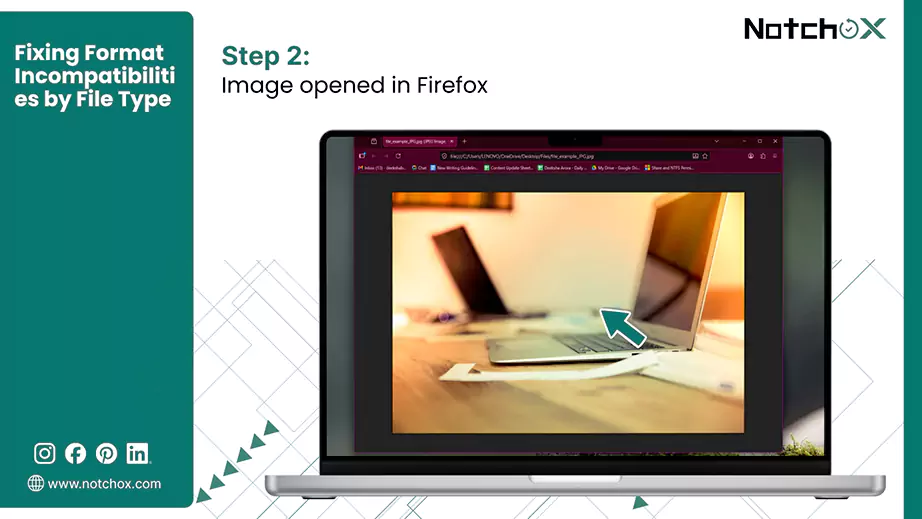
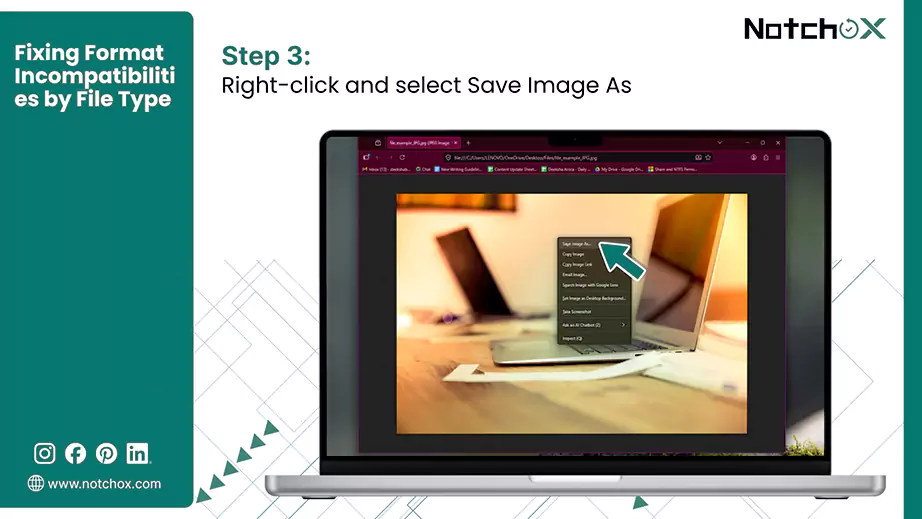
When an image shows a “photo not supported” error, the file header (the metadata) that tells the file how to render the pixels is broken. Here is how to fix it.
Open in Paint
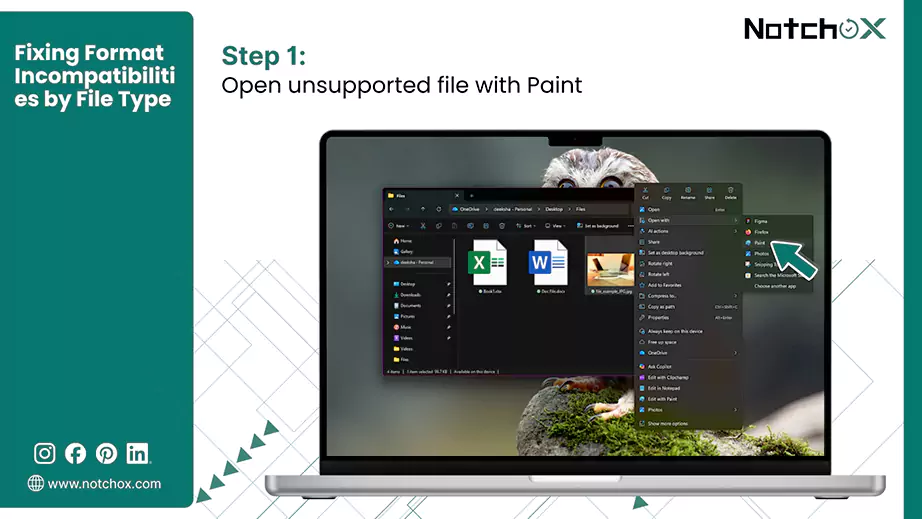
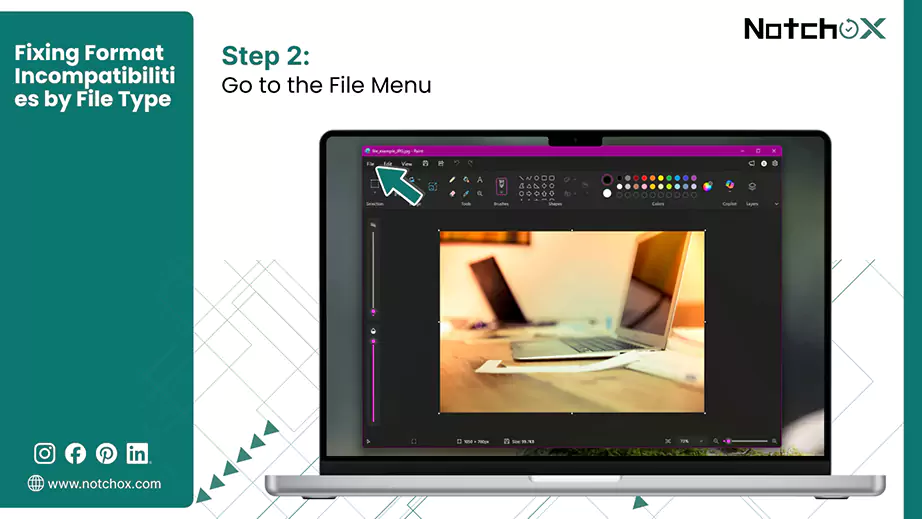
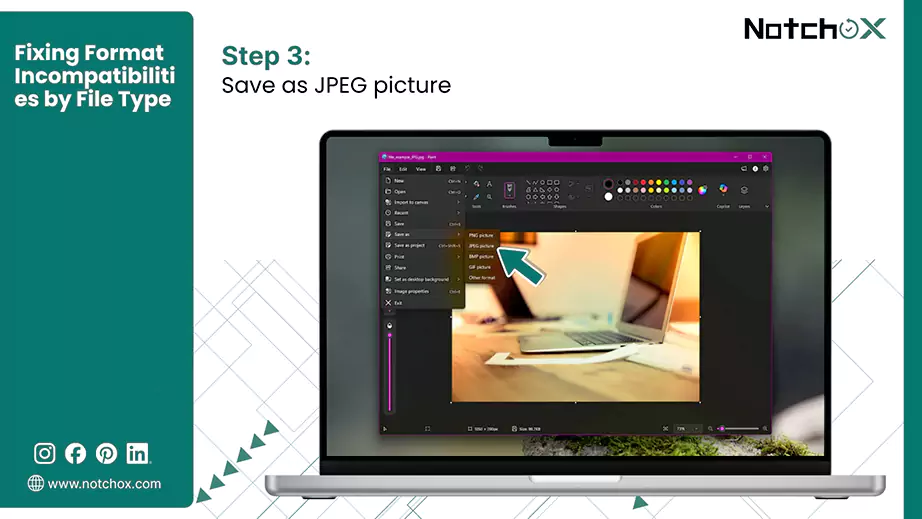
Open in Browser
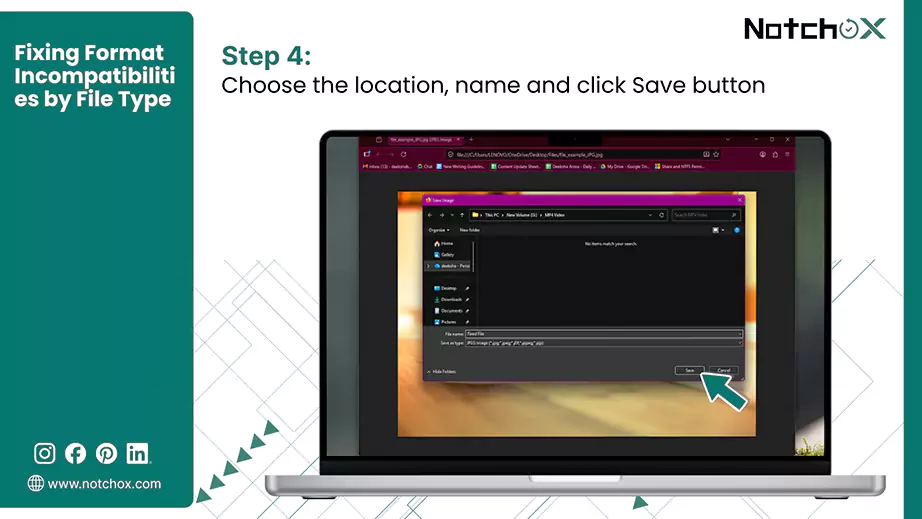
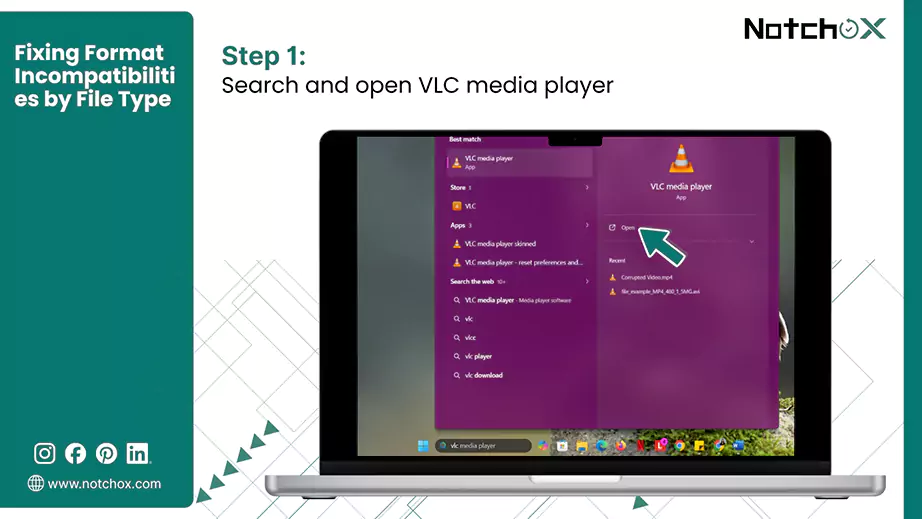
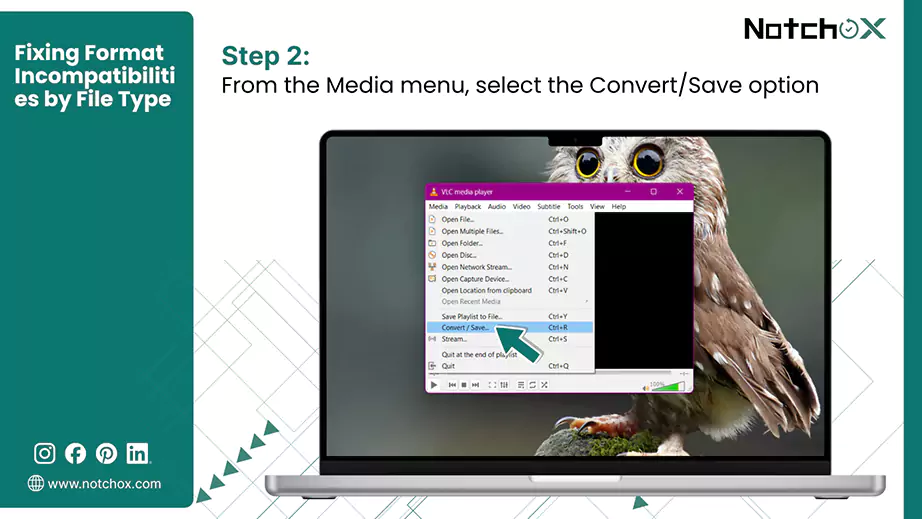
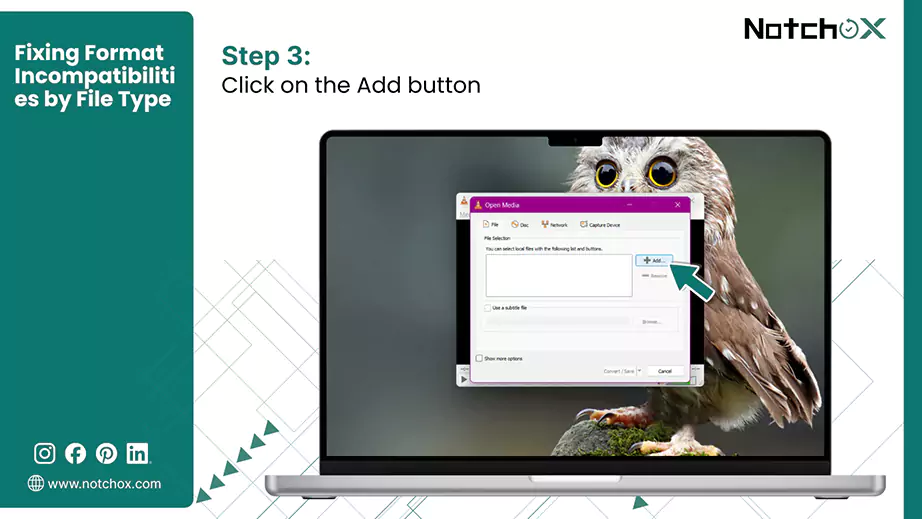
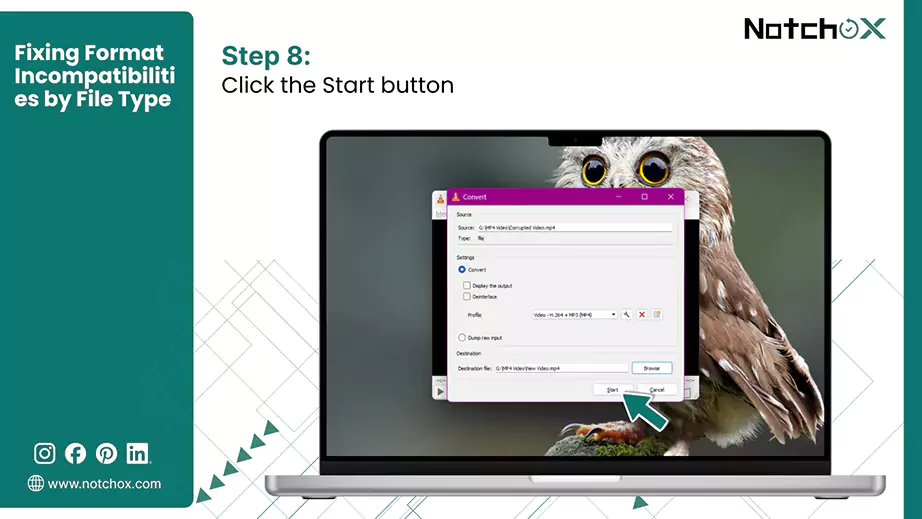
If your system warns you that the audio file format is unsupported or your video won’t load, the file index might be incomplete due to an interrupted download or transfer.
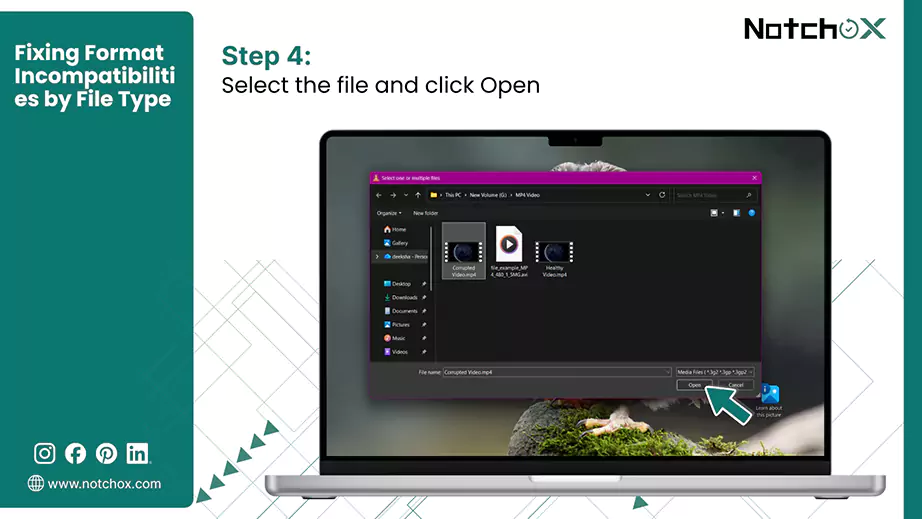
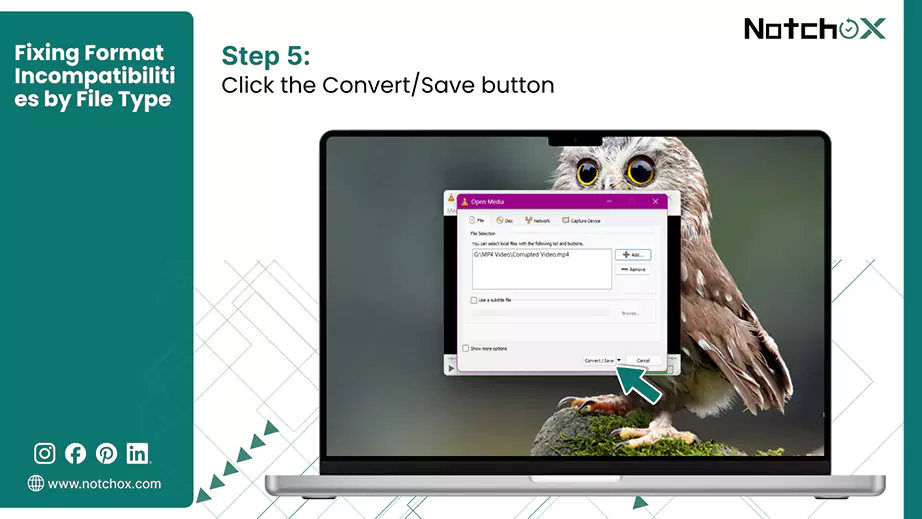
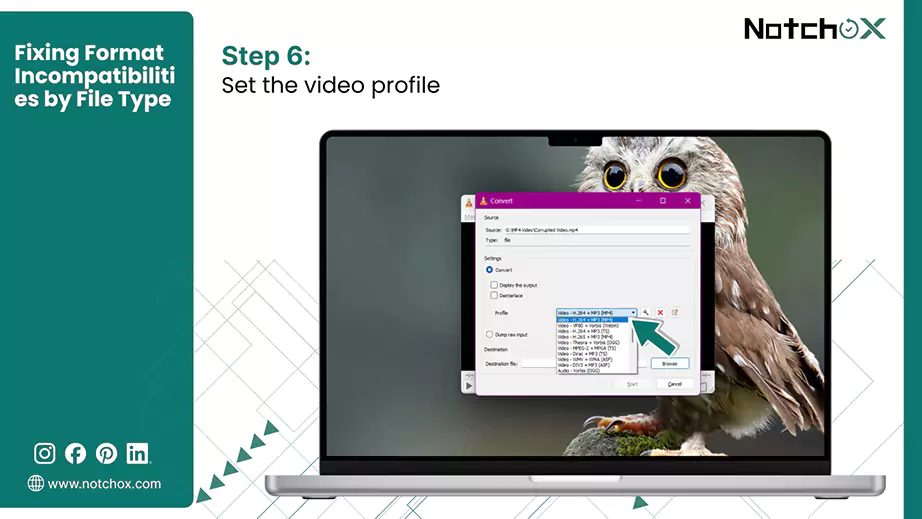
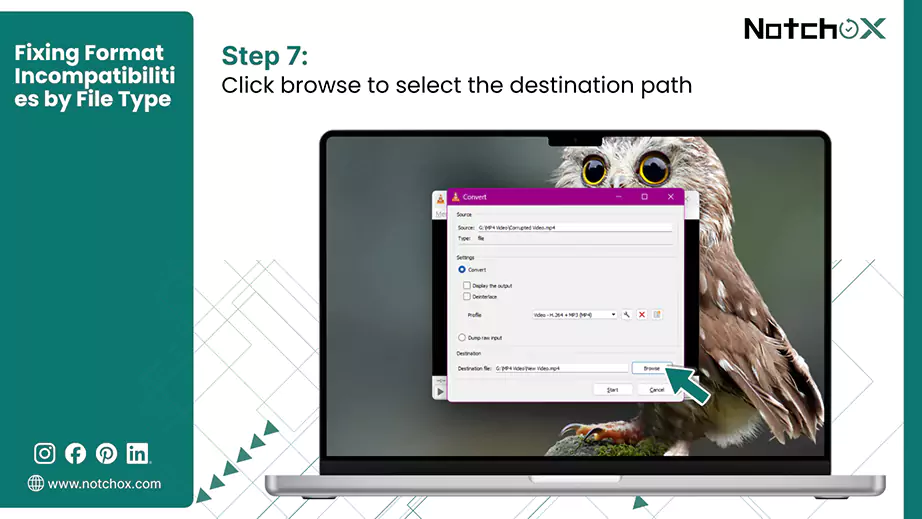
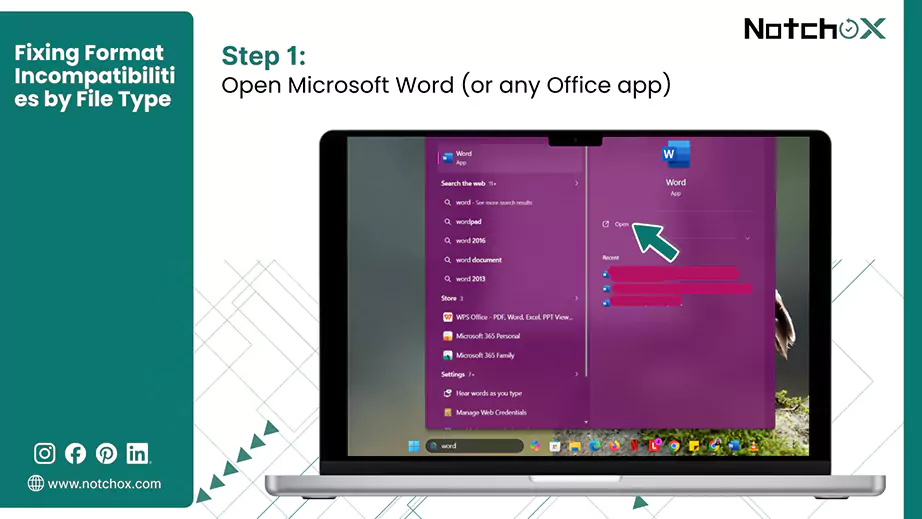
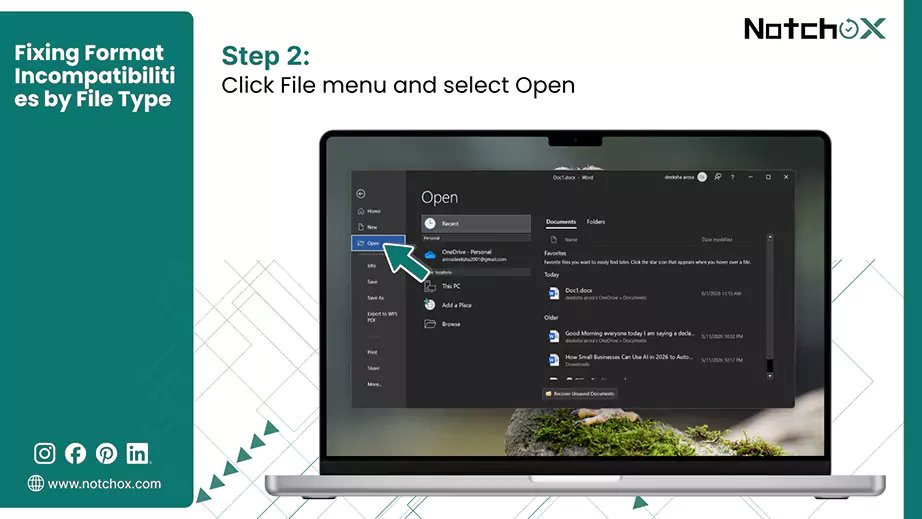
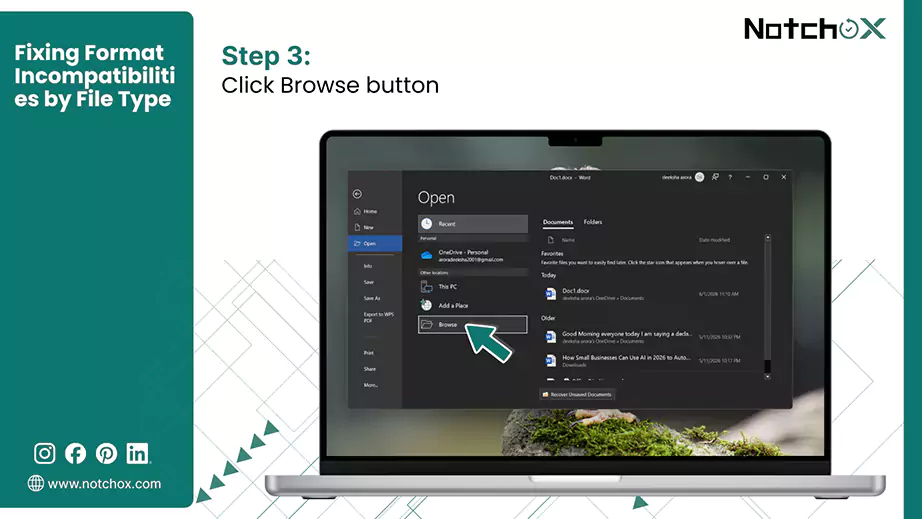
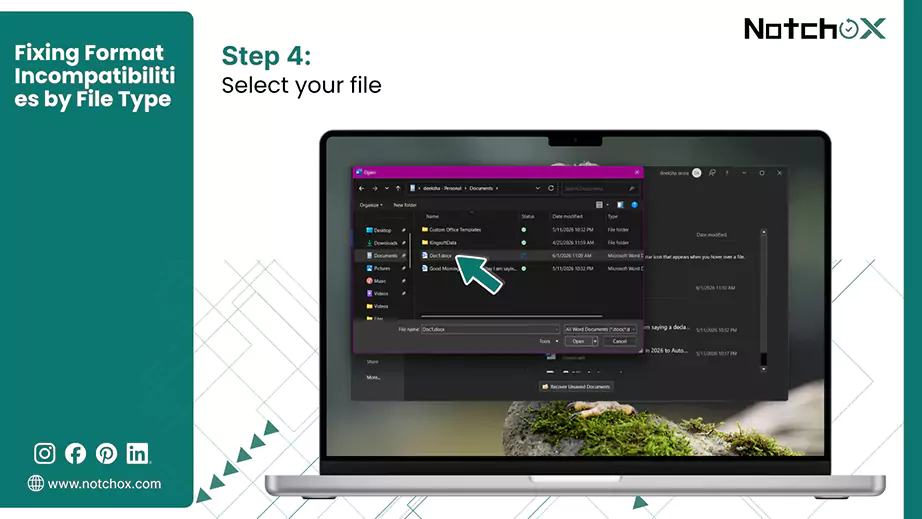
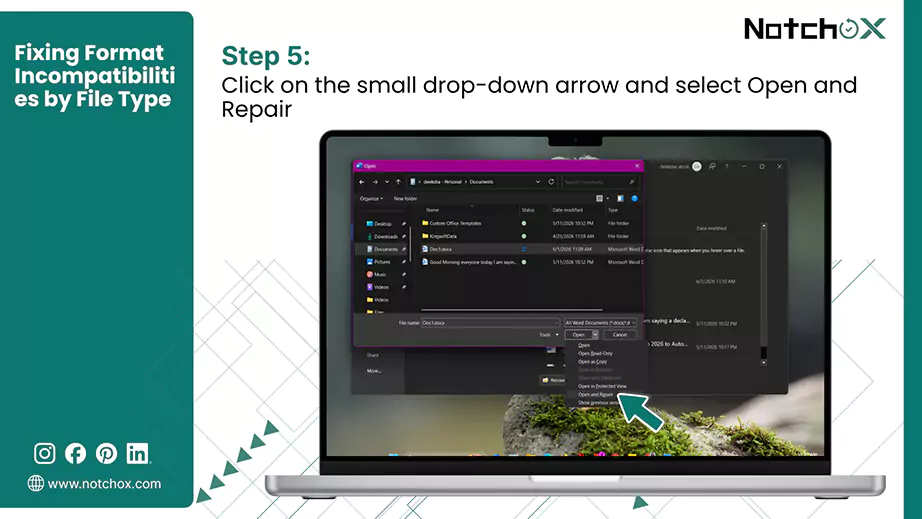
Documents show an unsupported file type error when formatting tags or XML schemas get corrupted due to a power failure or system crash. To fix file format not supported errors, you can use the built-in method in the Microsoft Office application.
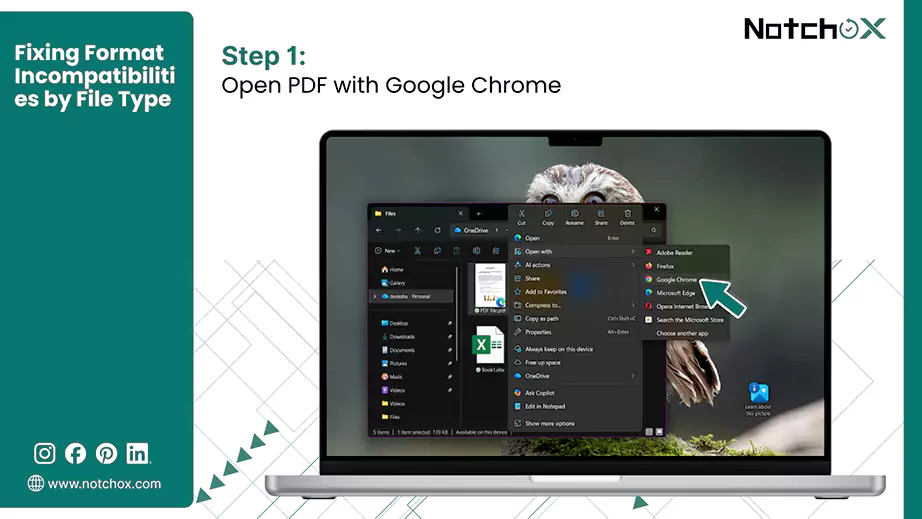
If Adobe Acrobat tells you a document is unsupported, you can try to open it in the browser.
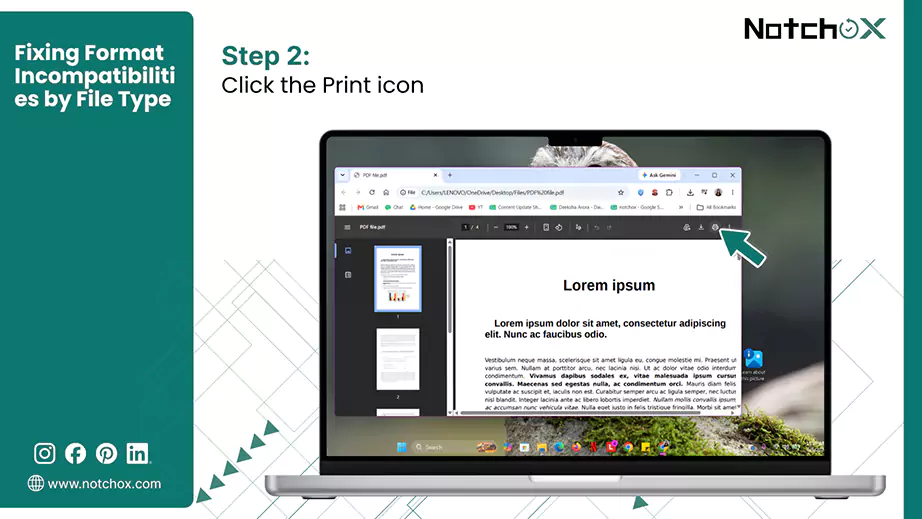
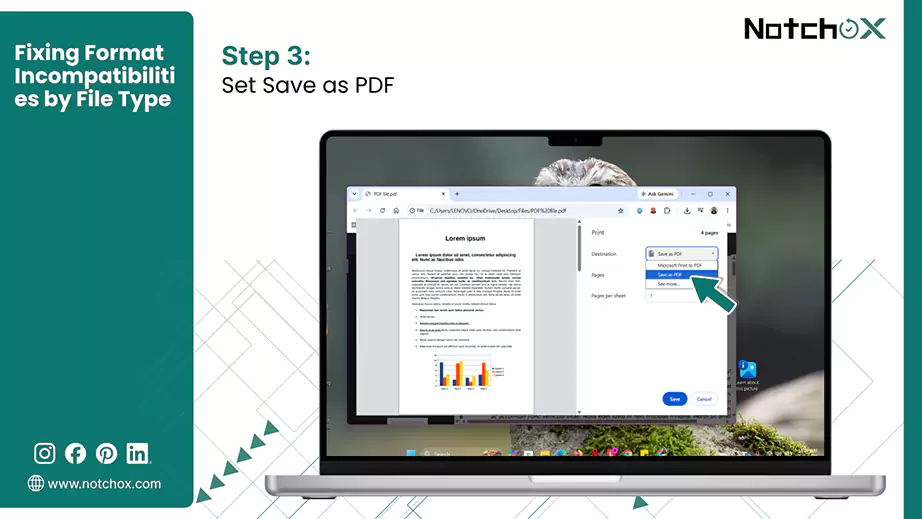
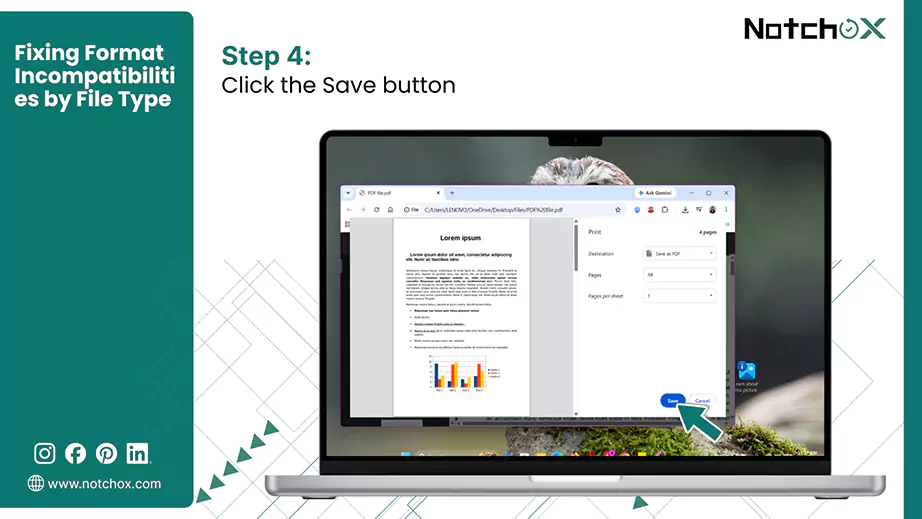
This will generate a fresh copy with a repaired layout and fix file not supported errors. Now you can safely open your PDF file.
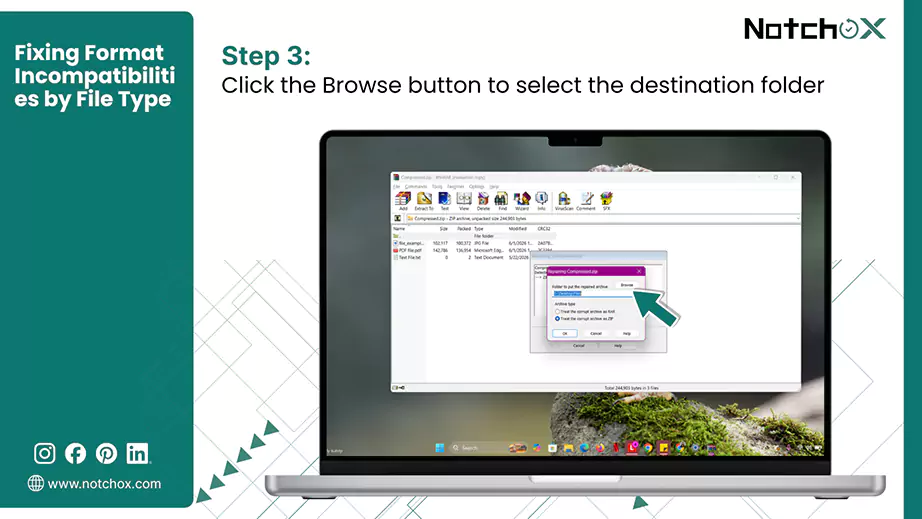
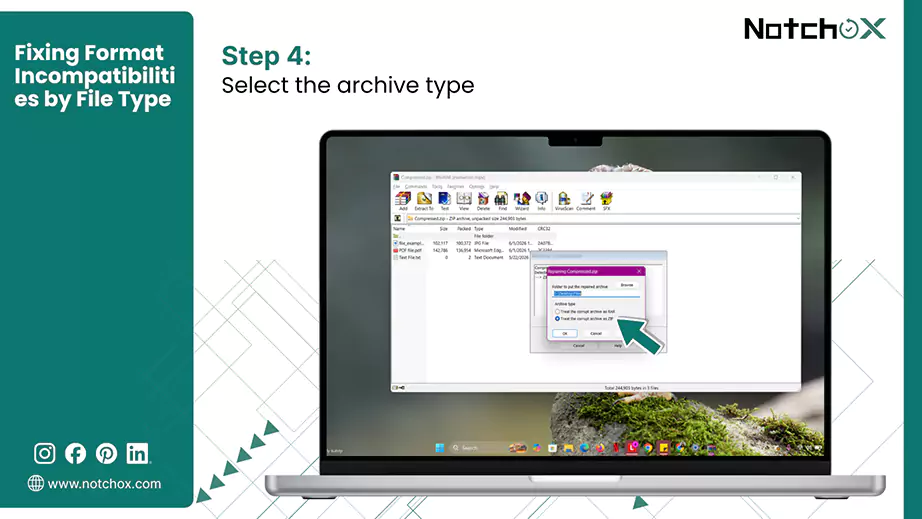
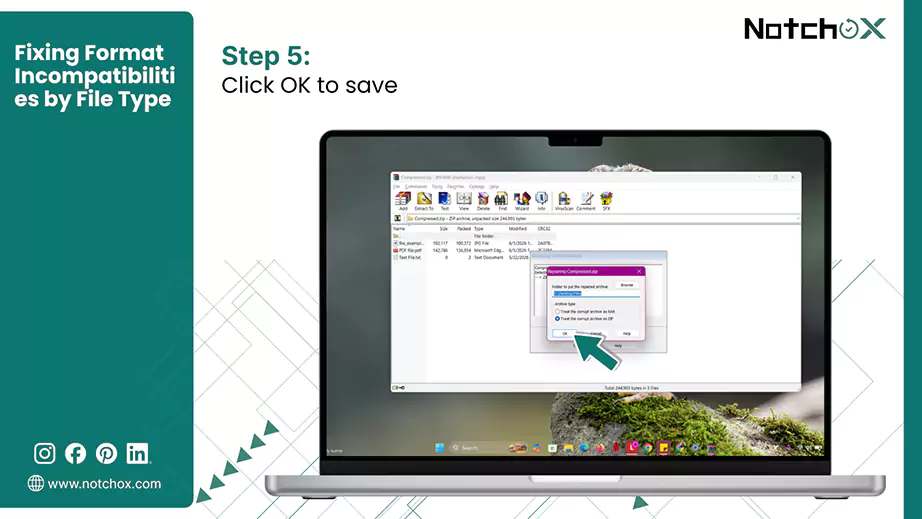
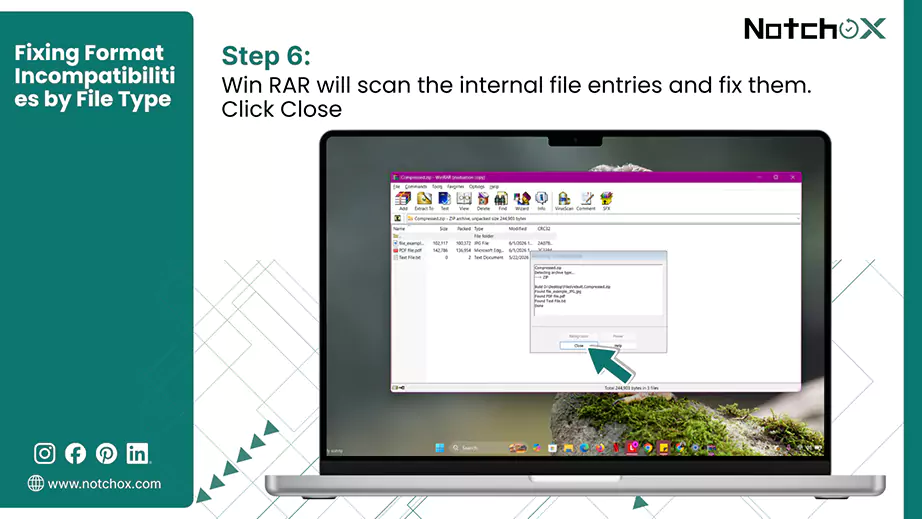
Encountering an unsupported file type or format error on a ZIP or RAR archive usually means the file was corrupted during network transfer or is compressed in an advanced compression style that your operating system tool can’t handle.
Repairing broken files via WinRAR (Windows only)
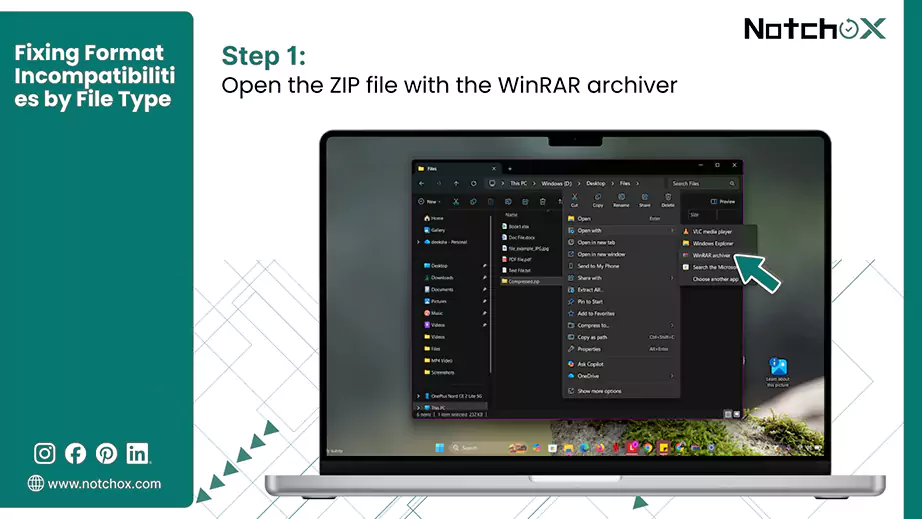
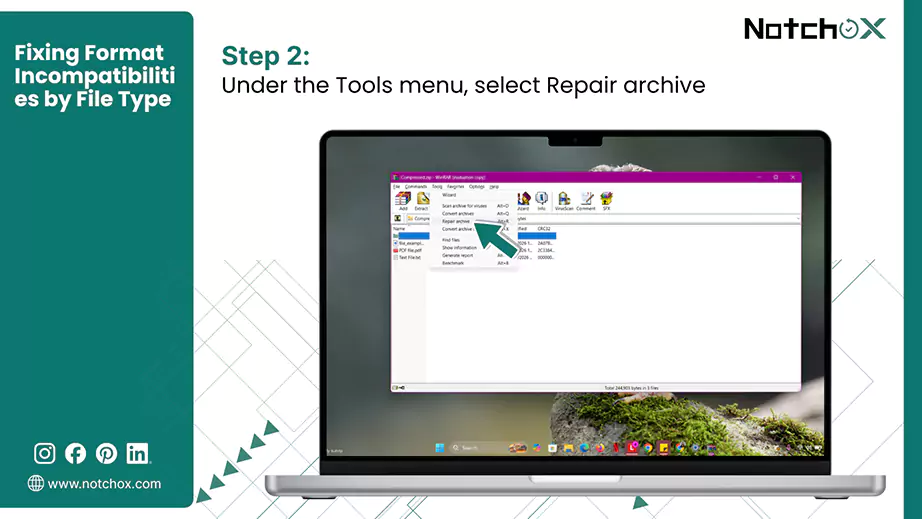
The need for data recovery software comes when the extension modifications and software updates fail. This works when you are dealing with file corruption. In these situations, too, the operating system might be showing variations of unsupported file type or photo not supported, etc., errors because the file’s binary structure has broken down.
So, when your device shows a warning stating, “It looks like we don’t support this file format,” you must install a deep-level repair tool to scan the drive and put back your file pieces.
Check out the steps below to resolve this issue using Notchox
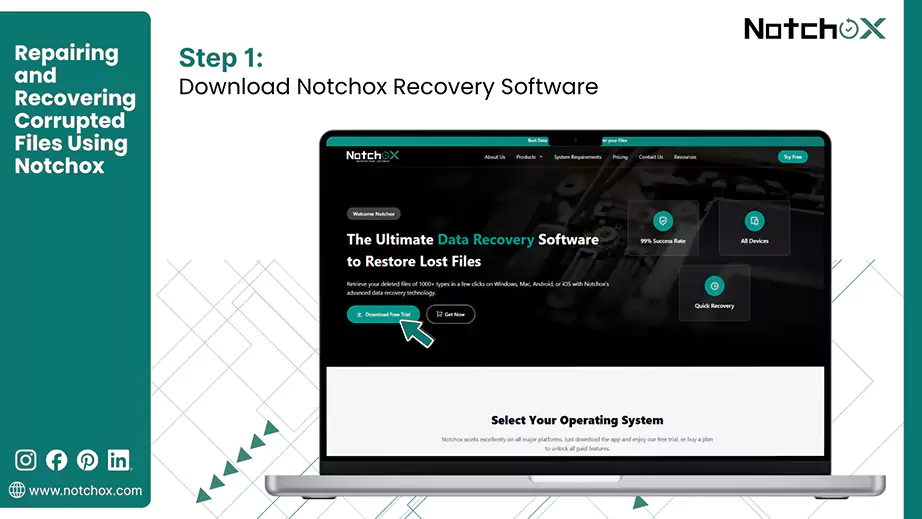
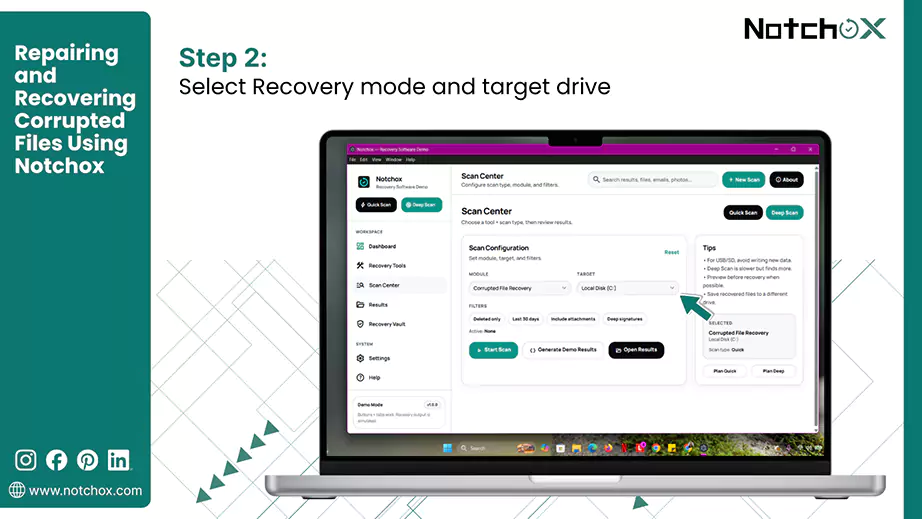
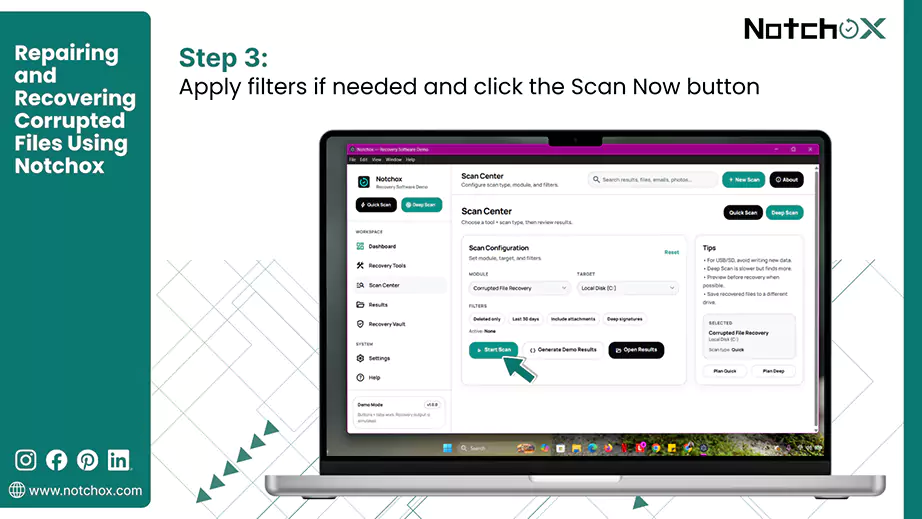
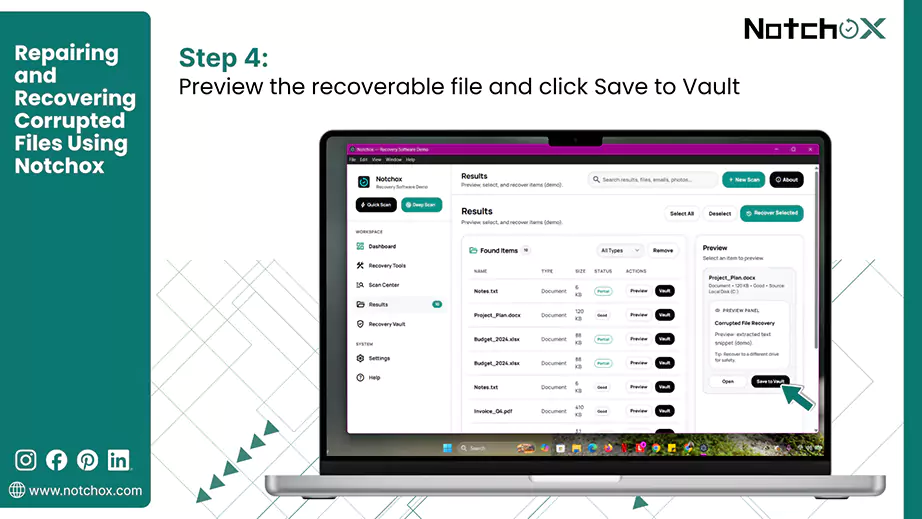
How Notchox Helps to Fix File Format Not Supported Errors?
- Find Scattered File Pieces: Look deep inside your drive or USB to find missing data. It fixes the data cut off during an interrupted download or transfer.
- Uses Specialised Algorithms: It modifies repair logic according to the device type to accurately recover the damaged, unsupported file.
- Supports 1000+ Formats: Reconstructs data blocks across more than 1000 file types, covering photos, videos, emails, and documents.
- Deep Scan Technology: Bypasses errors to scan deeply within several damaged drives and storage tracks without affecting the disk health.
- Secure File Rebuilding: Rebuilds your files quickly using 256-bit military-grade encryption with zero data sharing.
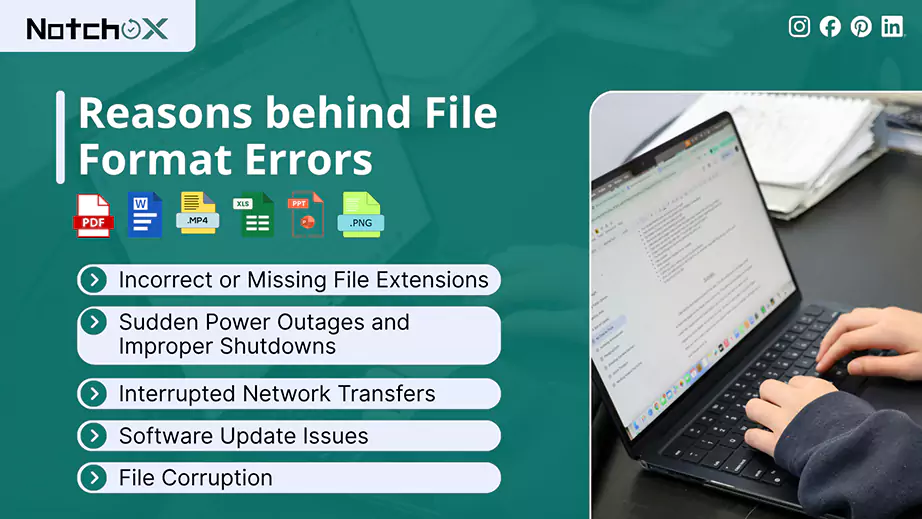
As data recovery specialists, we always tell our clients that understanding why a file is broken is the best way to safely protect their digital files and prevent it from happening again. Files rarely break without underlying reasons. Let’s look at common reasons behind these sudden formatting errors.
Fixing a “file format not supported” error is simple when you tackle it step-by-step. Many format errors disappear after a quick extension correction or software update. But when deep file corruption is the reason, manual methods won’t help. Running Notchox corrupted file recovery software gives the best solution using specialised deep scanning that safely puts back the fragmented sectors.
This file repair article covered practical workflows to fix file format not supported errors across images, videos, audio, documents, and archives. We detailed how to change extensions, update players/applications, and deploy Notchox Recovery Software to recover the corrupted files.
Ans: You get this error because your computer cannot read the file’s internal data structure. This is caused by an incorrect file extension, an outdated application, or file corruption.
Ans: First, unhide the extension and update the extension of the file. Next, try opening the file with Google Chrome or some other browser/software. For corrupted files, run Notchox Recovery Software to build internal data structures.
Ans: This happens because the video file uses an old or Windows-specific codec profile that Apple no longer supports natively. Update your macOS or open the video using a universal player like VLC.
Ans: Yes. Notchox uses specialised algorithms to bypass the surface file system and access the file’s original structure.
Ans: It means the application you are using detected that the internal data layout or code of the file does not match the software’s expectations.

Kajal Singh is a Data Recovery Writer at Notchox, specializing in data recovery, storage systems, RAID, and digital forensics. She writes technical processes, tools, and cases into clear, engaging articles, blogs, and guides. Kajal does thorough research, deep analysis, and collaborates with experts to produce high-quality and engaging content that is easy to understand for every reader.