Deeksha Arora Aug 5, 2026
Ans: Yes, data can be recovered from a Raspberry Pi corrupt SD card in most cases using logical file repairs or data recovery software like notchox.
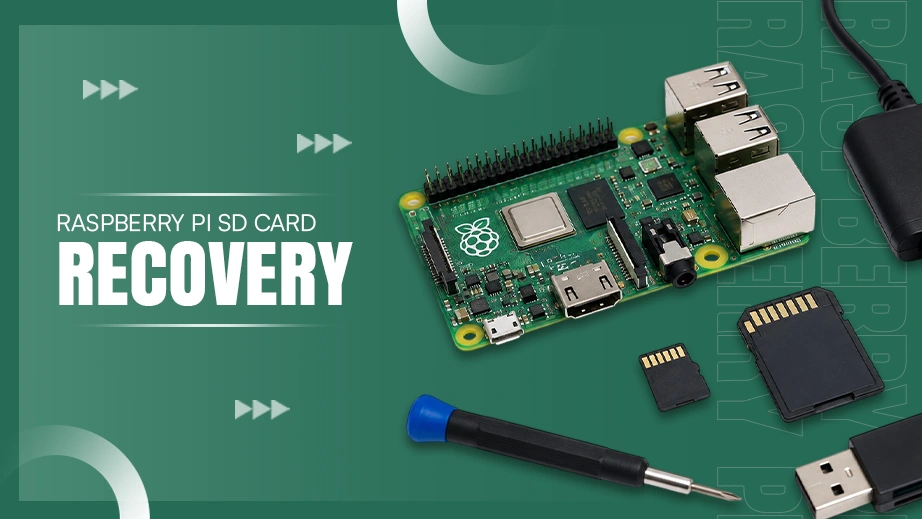
Successfully rescuing files from a Raspberry Pi microSD card is done by reading its hidden Linux filesystem using specialised extraction apps or virtual system links. Because the Pi saves your files on a special Linux partition, standard computers won’t show them automatically. This article explains the methods to navigate these sectors using graphical recovery tools like Notchox Data Recovery Software, command-line tools, and some advanced recovery methods to recover data from Raspberry Pi SD card safely.
Quick Answer: Recover data from Raspberry SD card by stopping further use of the card, connecting it to another computer, and using reliable recovery software like Notchox, TestDisk, or PhotoRec (command-line tools). If the card has file system errors, command-line repair tools or WSL can help access and restore lost files safely.
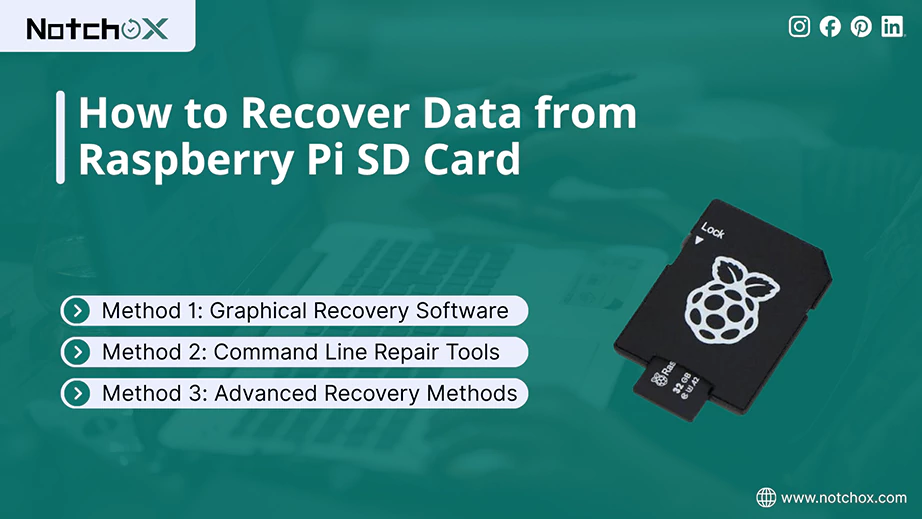
Understanding the unique storage architecture of a Raspberry Pi is essential before trying any data recovery. Unlike other drives or SD cards, a Raspberry Pi SD card is split into two partitions: a small FAT32 boot partition and a large EXT4 root partition where all your Linux operating system files and user data reside.
Windows and macOS cannot recognize or read this partition because EXT4 is the native file system for Linux used on this SD card. They will prompt you to format the card, claiming it is corrupted or unreadable, which looks exactly like a Raspberry Pi SD card failure.
So, this directly affects your Raspberry Pi data recovery strategy when dealing with typical Raspberry Pi SD card corruption. You must either use specialised file-system drivers or use a recovery tool to scan for Raspberry Pi memory card recovery. Also, using a native Linux environment, you can directly interact with the EXT4 partitions using command-line repair tools, allowing you to recover deleted files from Linux EXT4 partition.
In the following section, we will explore the methods and tools required to recover data from Raspberry Pi SD card.
Did you know? Raspberry Pi Ltd.‘s reports show over 60 million units sold in the last decade.
If you have one of them and it’s running, this recovery guide might be helpful for you today.
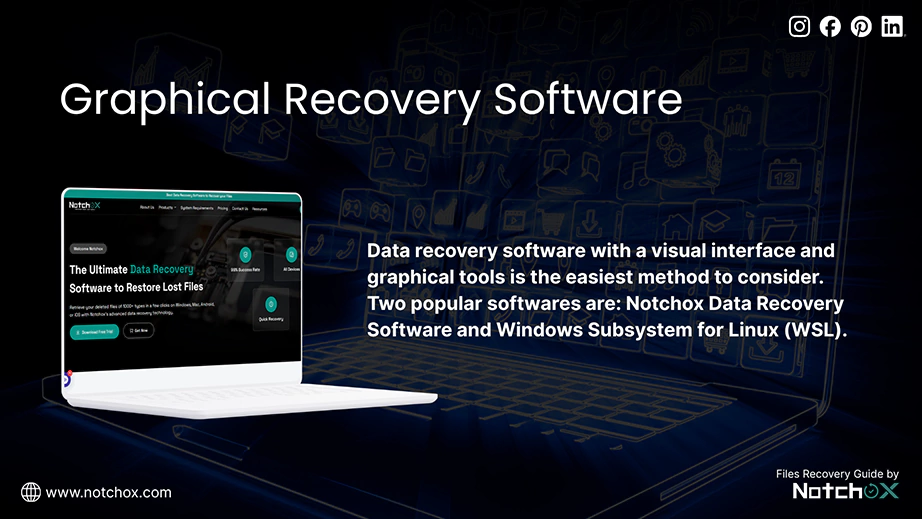
The easiest method is considered to be the data recovery software with a visual interface and graphical tools. With these, you don’t need to learn the complex terminal commands to repair Raspberry Pi SD card. We will see two software here: Notchox Data Recovery Software, which runs a specialised deep block-level scan to restore the file, and Windows Subsystem for Linux (WSL) that lets you browse raw Linux partitions directly inside a standard Windows interface when dealing with a Raspberry Pi not booting error.
Notchox Data Recovery Software is a premium solution to recover data from Raspberry Pi SD card even if it is corrupted or logically damaged. This is a cross-platform software that can be used on both Windows and Mac. It uses advanced algorithms and goes directly, overcoming the operating system limitations to scan the SD card and recover the files.
How is Notchox Data Recovery Software used to recover files from Raspberry Pi SD card?
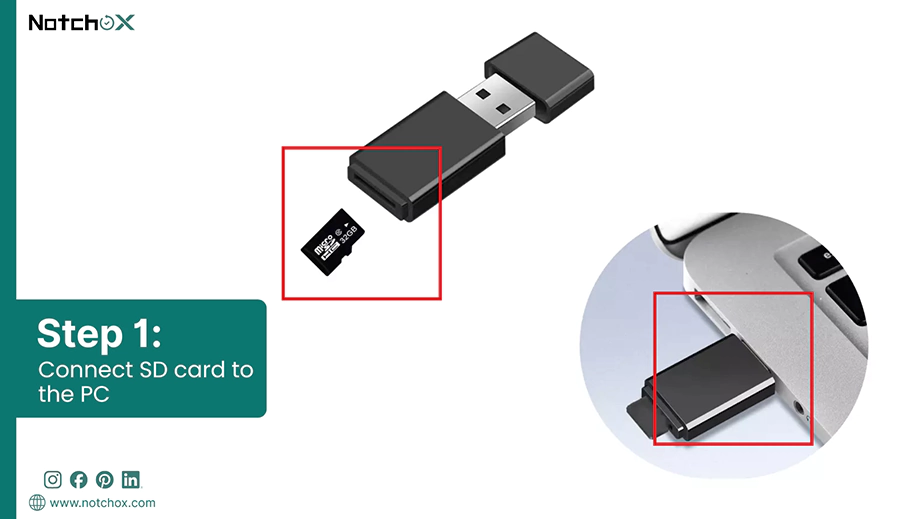
Step 1: Remove the microSD card from your Raspberry Pi. Insert it into an external USB card reader, then plug it into your computer/PC.
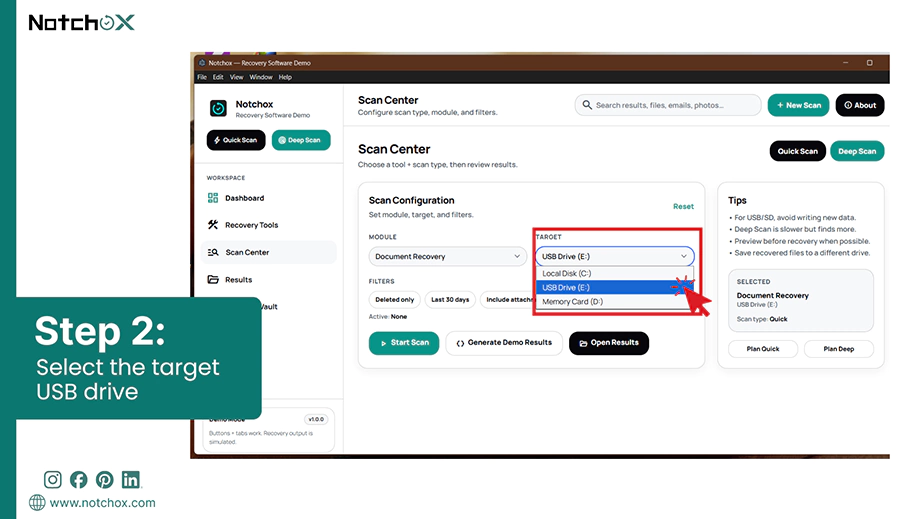
Step 2: Download and launch the Notchox Data Recovery Software. On the home dashboard, select the target drive, i.e., Raspberry Pi microSD card, from the list of available drives.
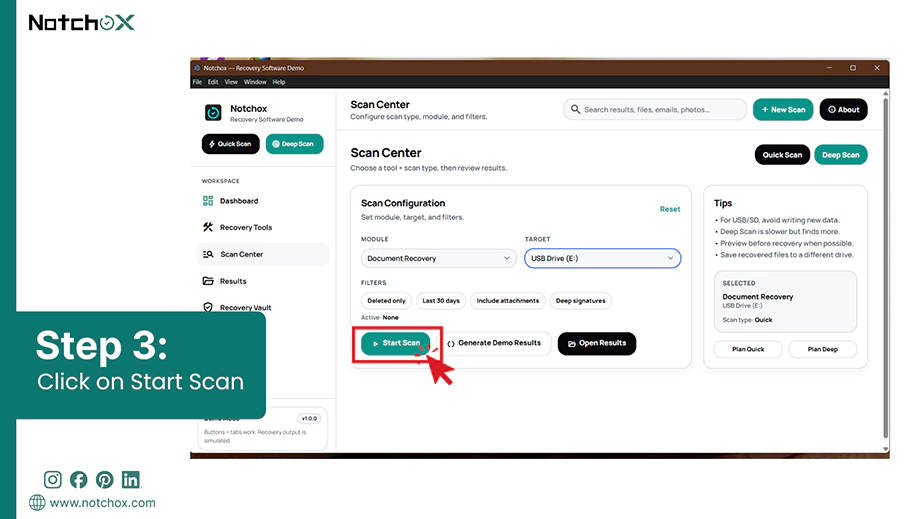
Step 3: Select Deep Scan and click on the Start Scan button. The software will bypass the broken EXT4 partition tables and begin searching the card cluster-by-cluster to reconstruct the missing data.
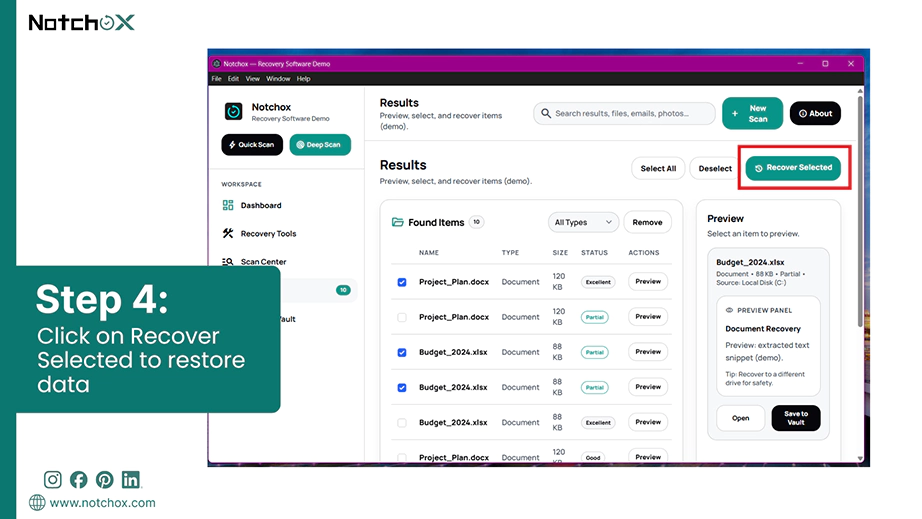
Step 4: Preview the recovered files and select the ones you want to restore. Click the Recover Select button on top to securely recover data from Raspberry Pi SD card.
The advantage of using Notchox recovery software is its safety and ease of use. The software has a complete drive-friendly retrieval process that keeps your microSD card unaffected.
Windows Subsystem for Linux (WSL) is a compatibility feature built directly into modern versions of Windows to run a genuine Linux environment (such as Ubuntu) with your standard Windows applications. Using this, you can interact with your Raspberry Pi OS file system and copy files without dual-booting.
Note: This feature is completely exclusive to Windows operating systems and cannot be used on macOS platforms.
How to recover data using Windows Subsystem for Linux (WSL)?
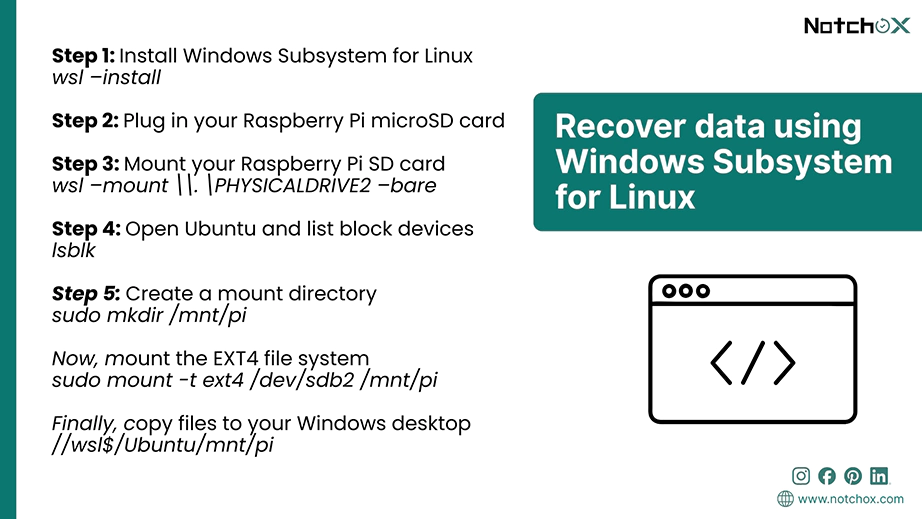
Step 1: Open Windows PowerShell as an Administrator. Type wsl –install and restore your computer. This installs the Linux kernel and the default Ubuntu distribution on your Windows PC.
Step 2: Plug in your Raspberry Pi microSD card into your computer using a USB card reader.
Step 3: Open Windows PowerShell as an Administrator again and run the command:
wsl –mount\\. \PHYSICALDRIVE2 –bare.
Replace the number with your actual disk identifier.
Step 4: Open the Linux Ubuntu app from your Windows Start menu, type lsblk, and press Enter. Find your SD card from the list and locate its large EXT4 root partition.
Step 5: Create a folder by typing sudo mkdir /mnt/pi, then mount your partition by typing sudo mount -t ext4 /dev/sdb2 /mnt /pi.
You can now open Windows File Explorer, go to \\wsl$\Ubuntu\mnt\pi, and drag your files directly to your desktop.
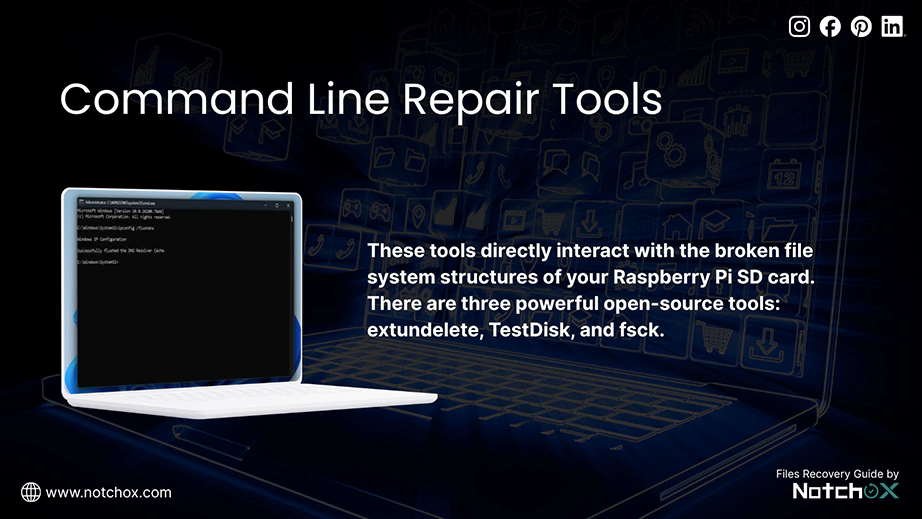
You can also use command-line repair tools to recover data from Raspberry Pi SD card. These tools directly interact with the broken file system structures of your Raspberry Pi SD card. There are three powerful open-source tools:
Extundelete is a targeted recovery tool specifically made for EXT3 and EXT4 file systems. It parses the partition’s index logs to reconstruct the recently deleted files.
TestDisk is a powerful open-source partition scanner that can be used on Windows, macOS, and Linux. It fixes broken partition tables and even restores missing EXT4 boundaries so the card can mount again.
Fsck is the standard “File System Consistency Check” tool built into Linux. It scans the card block by block to find any unreadable files or corrupted data. It also fixes the internal system files caused by improper Raspberry Pi shutdowns.
If the SD card suffered heavy file system corruption and the standard repair tools aren’t working for Raspberry Pi SD card recovery, then you must try these advanced methods that interact directly with the raw data sectors of the media to recover data from Raspberry Pi SD card. Here come the two open-source command-line tools designed for worst-case data loss scenarios: GNU ddrescue and PhotoRec.
PhotoRec uses signature-based raw files carving to scan the unallocated space and put together your data based on their binary signatures. Because it ignores the original file system, it can recover data after accidental quick format, provided the data hasn’t been overwritten.
Caution: Because PhotoRec uses raw file carving to scrape out data off the storage clusters, it cannot read the original file index names. Your files will be recovered successfully, but they will be given random numerical names.
Recovering files with PhotoRec:
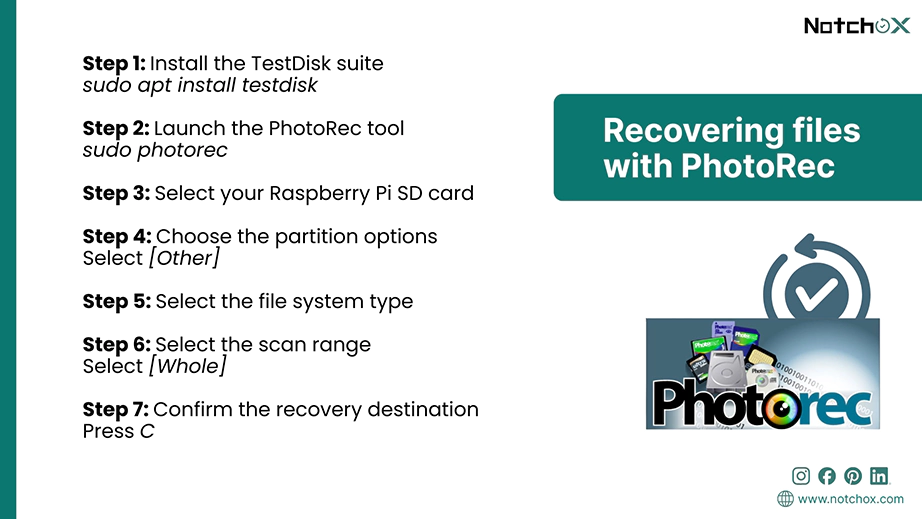
Step 1: Open your Linux or macOS Terminal (or your Windows WSL environment). Install the testdisk suite by typing sudo apt install testdisk (on Ubuntu/ Denial systems).
Note: PhotoRec is bundled inside TestDisk because they are codependent. TestDisk repairs structures while PhotoRec recovers raw files.
Step 2: Once installed, launch the tool by typing sudo photorec and pressing Enter.
Step 3: Use the arrow keys to highlight your attached Raspberry Pi SD card reader (or your cloned .img file) from the displayed disk drive list. Press Enter to proceed to the partition selection screen.
Step 4: Highlight the main partition you want to scan. If the partition table is missing, select [no partition] to command the software to run across the entire physical drive area.
Step 5: Select the file system type. Choose [Other] for Raspberry Pi’s Linux EX4 root partition.
Step 6: On the next prompt, select [Whole] to carve data from both allocated space and deleted free spaces.
Step 7: Pick a safe destination for files to be saved. Press C to confirm the path and begin automatic forensic file extraction.
Note: Never save files back onto the damaged SD card.
Now you know how to recover data from a Raspberry Pi SD card. Whether you use the automated performance of Notchox, the WSL Linux environment, or open-source tools like PhotoRec, you can restore your data in no time. These techniques carry over to other Linux-based devices too — you can even recover files from Chromebook storage the same way.
The best thing you can do now is make sure you never lose your data again. Maintain a backup and maybe think about upgrading to a heavy-duty card or an SSD for your next project.
Ans: Yes, data can be recovered from a Raspberry Pi corrupt SD card in most cases using logical file repairs or data recovery software like notchox.
Ans: The first step to take in case of Raspberry Pi SD card failure is to turn the system off and remove the SD card. This is done to prevent system logs from overwriting your lost files. Connect the card to another computer and create a complete byte-level backup before attempting any repairs.
Ans: You can repair logical errors using built-in command line tools like fsck to resolve the system corruption or use partition software like TestDisk to rebuild broken partition structures. If the card has been physically damaged and cannot be detected by any device, it must be replaced.
Ans: A Raspberry Pi OS SD card typically contains a FAT boot partition and a Linux ext4 root partition. Windows does not natively support the ext4 file system, so it may prompt you to format the unrecognized partition. Do not format the SD card if you need to recover data from it.
Ans: Though fsck is highly effective, it edits disk blocks directly and can occasionally delete unlinked life fragments to fix system consistency. Always create a raw backup of your card before executing fsck.
Ans: Notchox Data Recovery Software works via a simple graphical interface, meaning you don’t have to learn complex Linux terminal commands or set up virtual environments. It bypasses the broken partition structures entirely to automatically search and sort through over 1,000 file formats.
Ans: A standard deep scan on a 64GB microSD card generally takes between 30 minutes and 3 hours to complete.

Kajal Singh is a Data Recovery Writer at Notchox, specializing in data recovery, storage systems, RAID, and digital forensics. She writes technical processes, tools, and cases into clear, engaging articles, blogs, and guides. Kajal does thorough research, deep analysis, and collaborates with experts to produce high-quality and engaging content that is easy to understand for every reader.