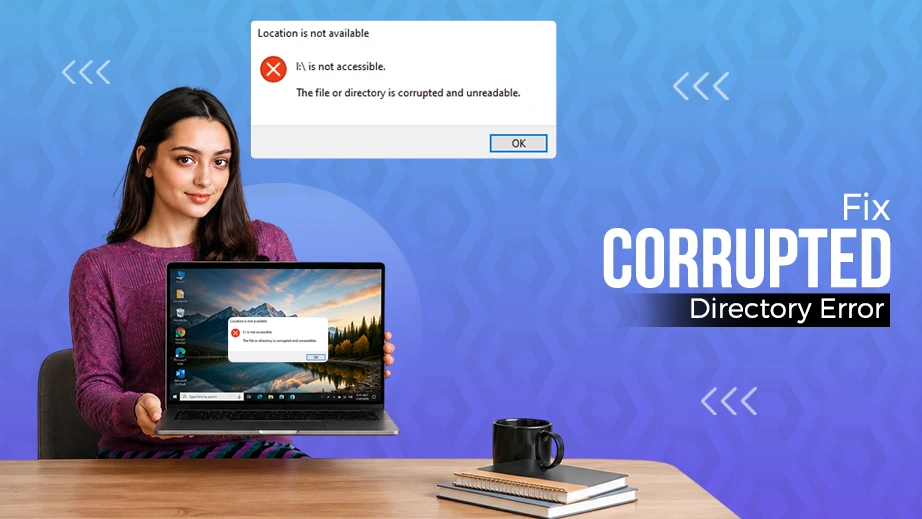
Seeing the “You need to format the disk” error means your drive’s file system is corrupted or RAW. Formatting immediately will erase your files, so you must fix it strategically. This step-by-step guide will show you how to recover your data first using Notchox recovery software, fix drive needs to be formatted error via Windows CHKDSK or Mac First Aid, troubleshoot hardware issues like faulty USB ports or drivers, and how to reformat a drive as a final solution.
Quick Answer: To fix drive needs to be formatted error, first download Notchox Data Recovery to bypass the prompt and extract your stuck file to a healthy storage. Next, troubleshoot and repair the drive. Run the chkdsk command in Windows and the First Aid utility in Mac. If this system repair fails, safely reformat hard drive disk or internal drive, completely clearing the error.
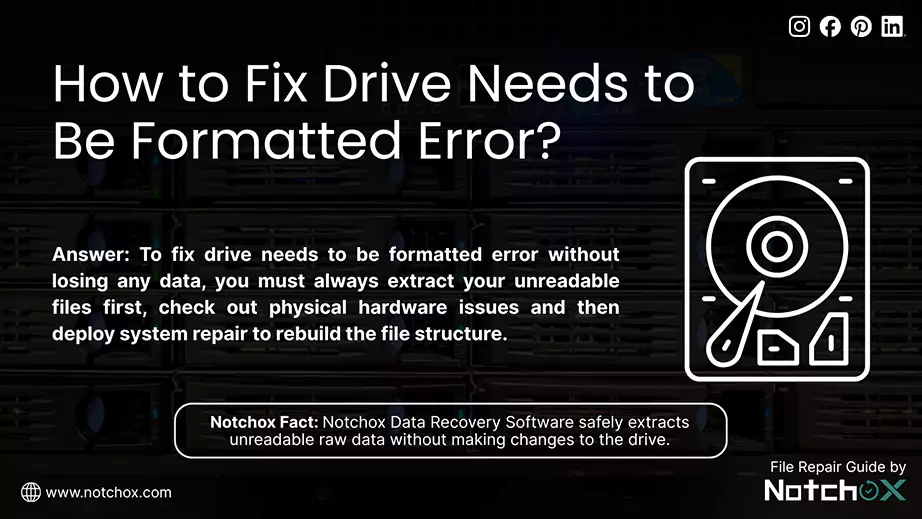
Fixing a drive that asks for formatting needs a safety-first approachto avoid permanent data loss. If you format the drive immediately as Windows or Mac prompts, all your files will be permanently erased. To fix drive needs to be formatted error without losing any data, you must always extract your unreadable files first, check out physical hardware issues and then deploy system repair to rebuild the file structure.
Method 1: Use Notchox Data Recovery Software to Extract Raw Data from Unreadable Files
Notchox Data Recovery Software safely extracts unreadable raw data without making changes to the drive. So, your files remain completely safe even if the file system is corrupted, ready to be recovered. That includes fragile item types like Outlook PST files, which need special care during recovery.
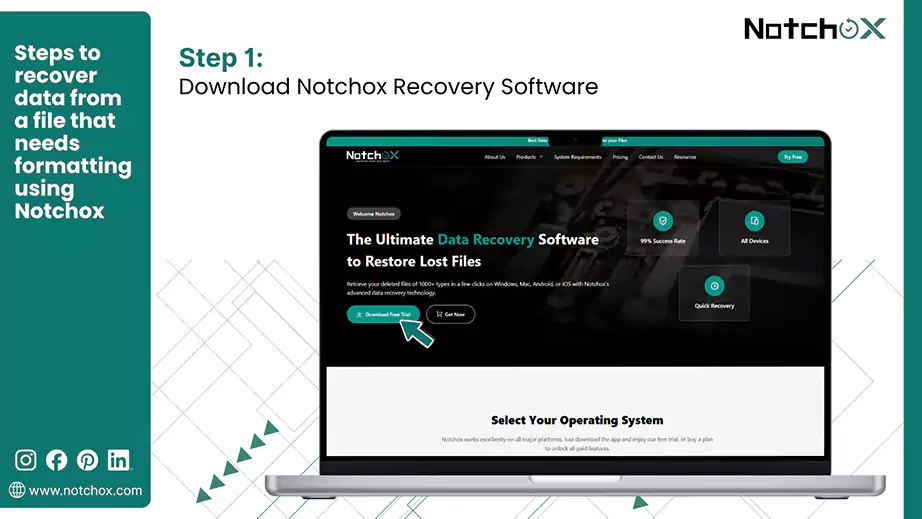
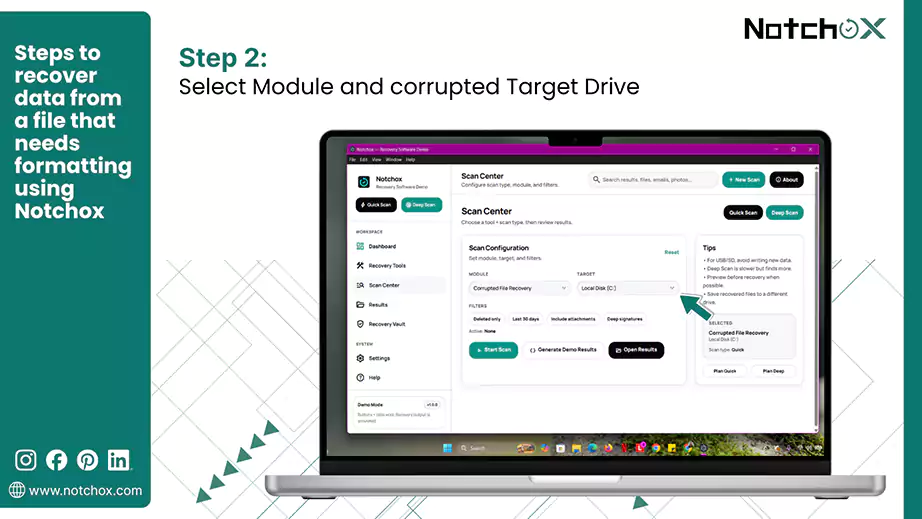
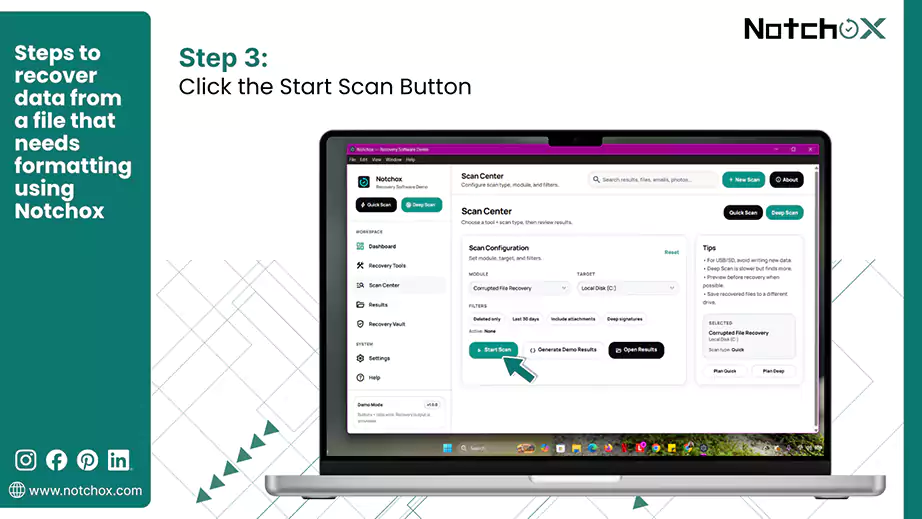
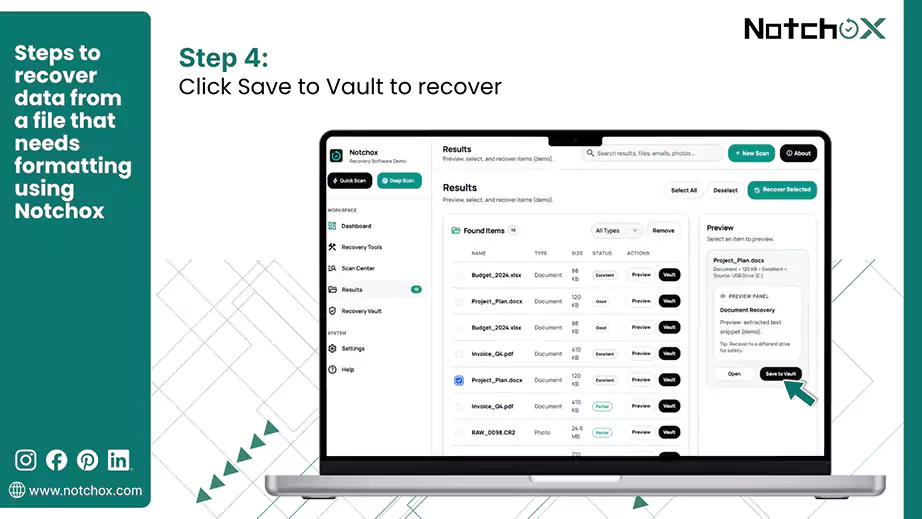
Follow these steps to recover data from a file that needs formatting using Notchox:
Open the application and choose the module and the unreadable or corrupted target drive.
Click Start Scan to perform a deep sector search for your trapped files.
Note: You can also apply filters, such as documents only, to recover specific files.
Select the items, preview then and click Save to Vault to recover them onto a separate and healthy drive.
Method 2: Troubleshoot and Repair the Drive Without Formatting
Issues in hardware, connection, driver, etc., trigger the format error. Before trying complex repairs to fix drive needs to be formatted error, use these physical checks and built-in OS tools to restore accessibility without wiping data.
Solution 1: Swap the USB Port
A faulty or unpowered USB port can cause communication drops between the computer and the file system. So, before you go to how to format a hard drive section, try switching the physical connection to fix the error.
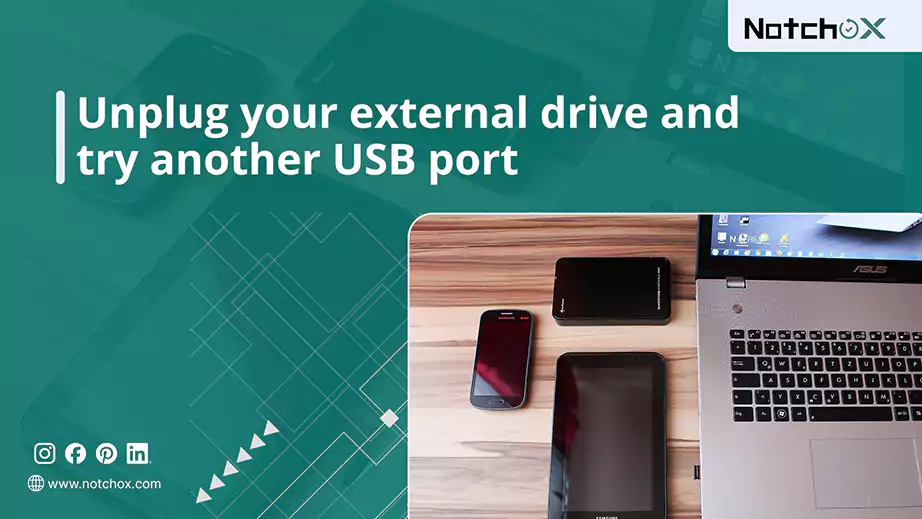
Unplug your external storage drive from the current port and plug it directly into a different USB port on your computer.
Note:Avoid using external extensions or unpowered hubs during this test.
Solution 2: Replace the USB Cable
Damaged internal wires can block file system data while still supplying power to the drive status LED. Replacing the cable can fix the connection between the drive and your PC, saving you from having to format hard drive due to a simple cord failure.
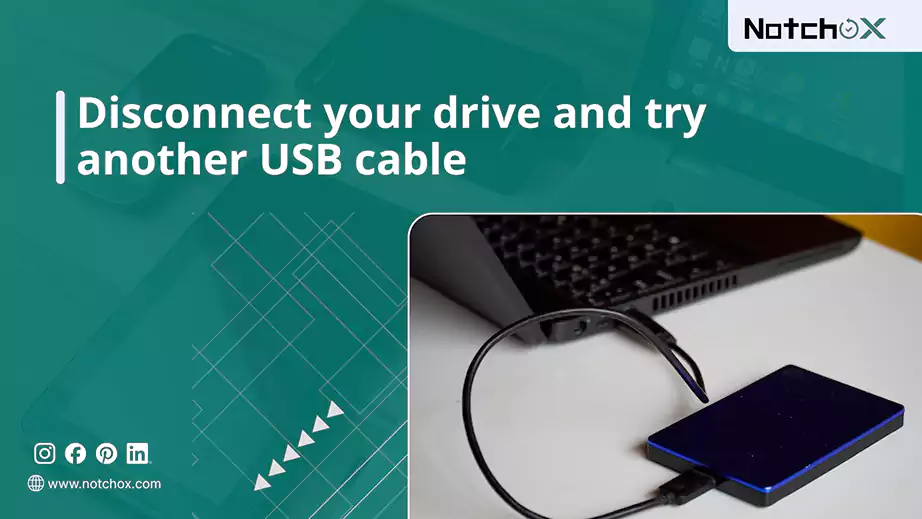
Safely disconnect your drive from your Windows PC or Mac, and replace the existing USB, USB-C, or Thunderbolt cable with a new, healthy, high-quality alternative.
Solution 3: Test on Another PC
The fault might not be in your drive, but the PC. Testing the drive on an entirely different PC will solve the error if the corruption is in your old device.
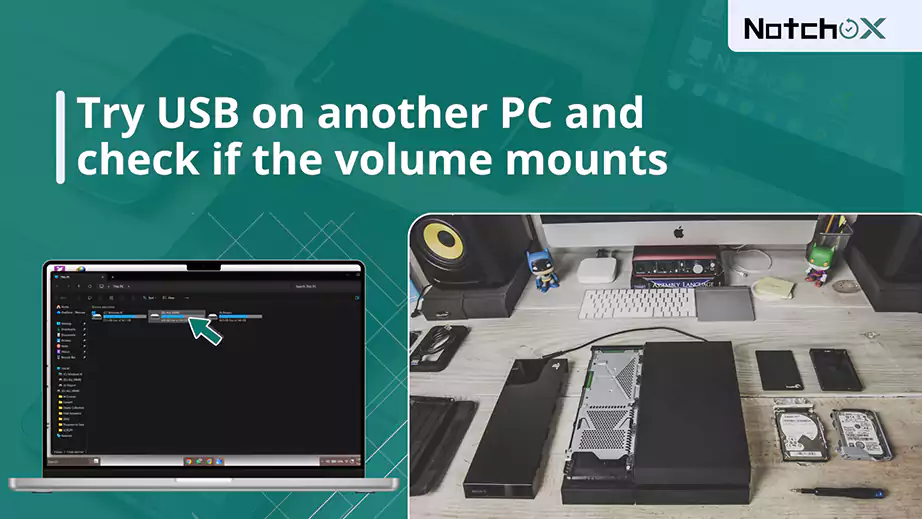
Safely disconnect the unreadable device from your current system and plug it directly into a separate machine, ideally trying it on both a Windows PC and a Mac.
Open This PC on Windows or Finder on macOS to check if the volume mounts and displays your files and folders without the error.
Note: If the drive reads perfectly on the second PC, your storage hardware is fine, and it’s a computer software issue.
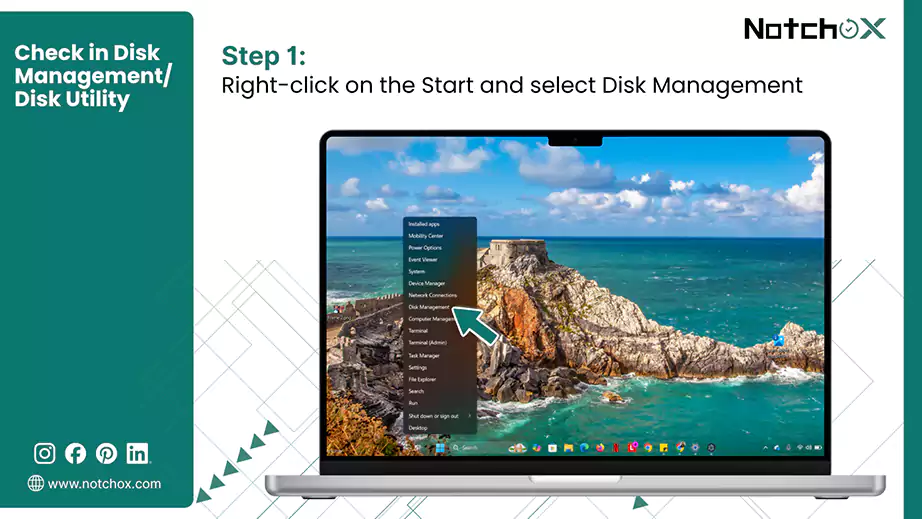
Solution 4: Check in Disk Management/Disk Utility
Your drive does not appear in the standard file browser (File Explorer in Windows and Finder in macOS); you must check its partition status using built-in system management utilities. They make sure that the computer recognizes the storage or not.
On Windows:
Right-click on the Start button and select Disk Management (or type diskmgmt.msc in Run).
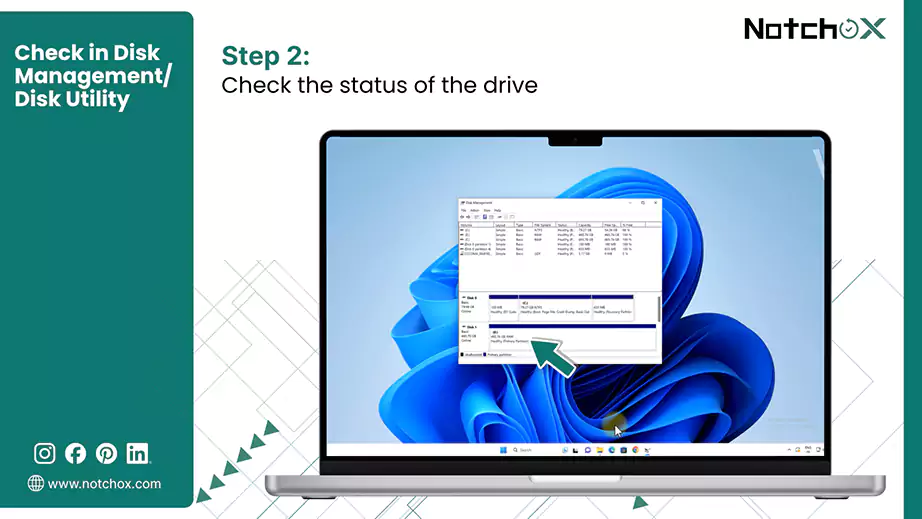
Look for your drive in the lower visual map and check the status of the drive.
Check what the status of the drive says:
RAW – Your hardware is healthy, but the file structure is corrupted.
Unallocated – The partition table has been entirely erased.
Not Initialised – The Master Boot Record (MBR) or GUID Partition Table (GPT) is corrupted.
Offline – The drive is restricted due to an OS policy conflict or power drop.
No Media – Windows detects the card reader/USB enclosure, but the internal flash memory chips are unreadable or broken.
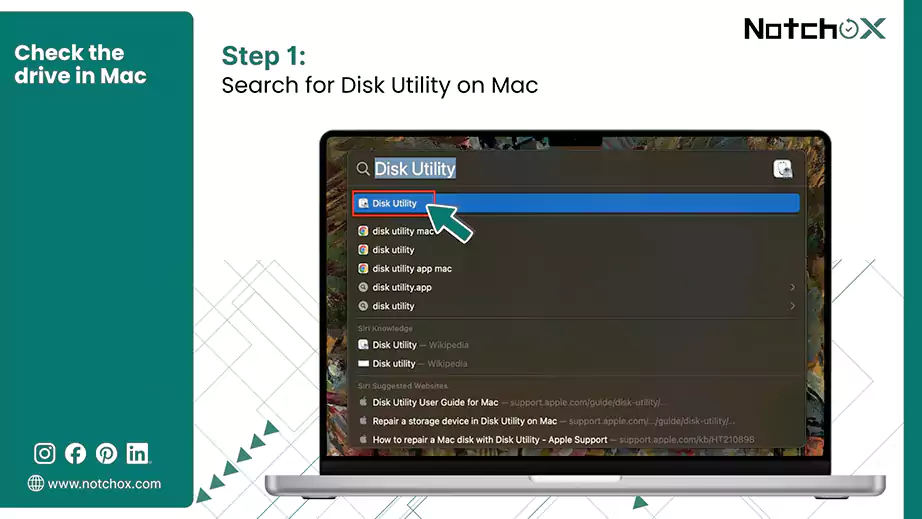
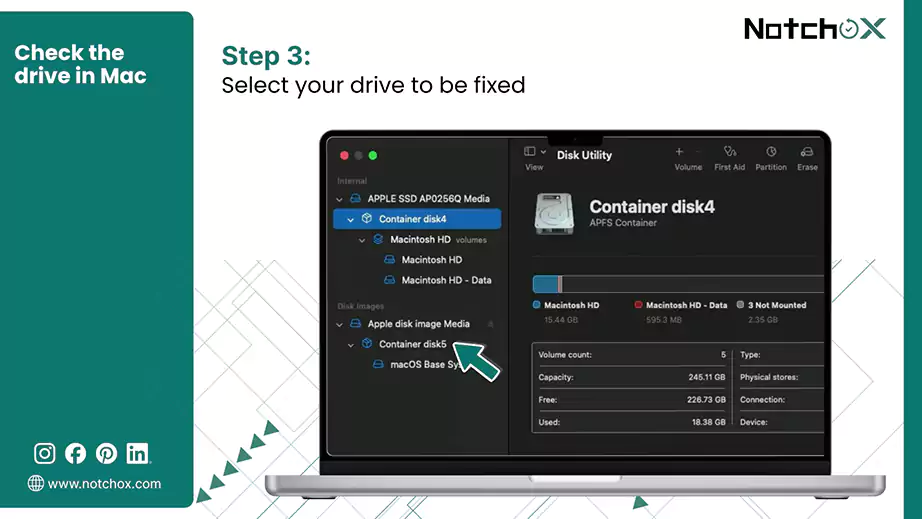
On Mac:
Press Command (⌘) + Spacebar, type Disk Utility, and press Return.
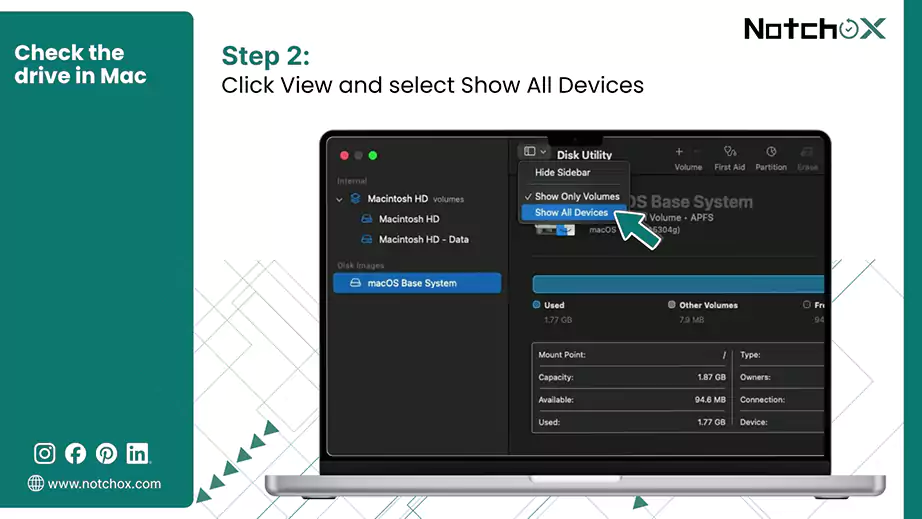
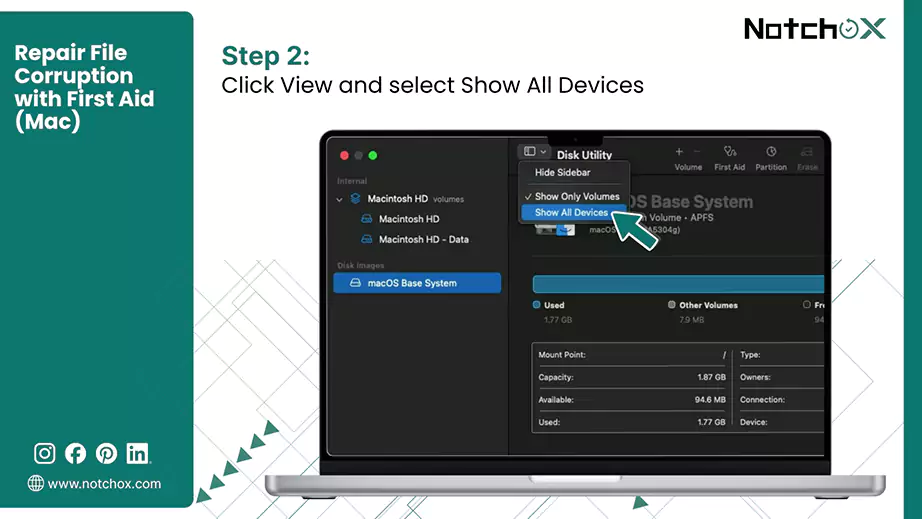
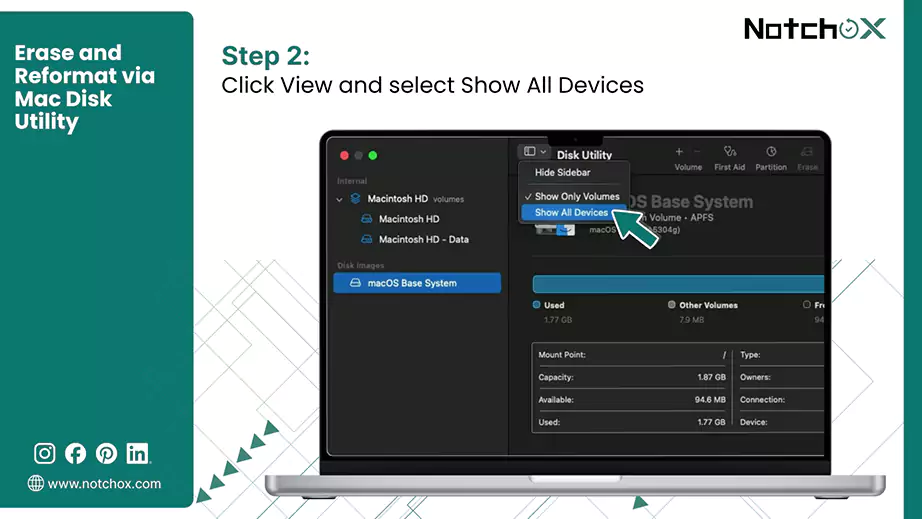
Click the Viewicon in the top-left corner and select Show All Devices.
Look for your drive in the left sidebar.
If the drive is visible but grayed out, the storage hardware is connected to your Mac, but the operating system can not mount the corrupted volume.
Solution 5: Disable USB Selective Suspend Power Setting
When an external drive is unpowered, the operating system may misread the file structure and throw an unreadable format error. You need to disable USB Selective Suspend to fix this.
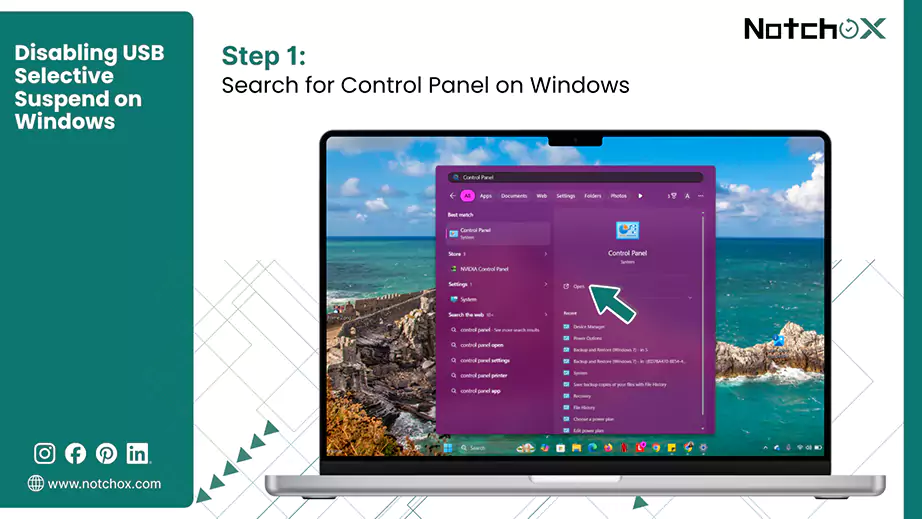
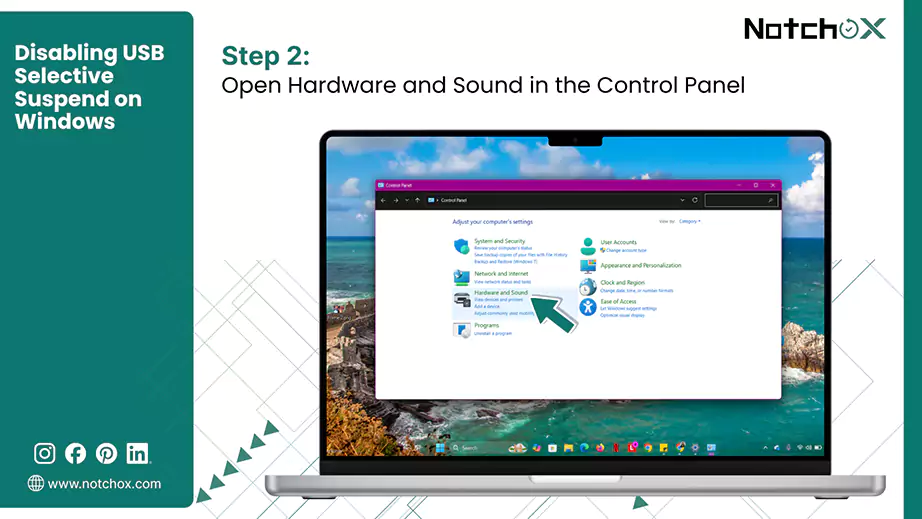
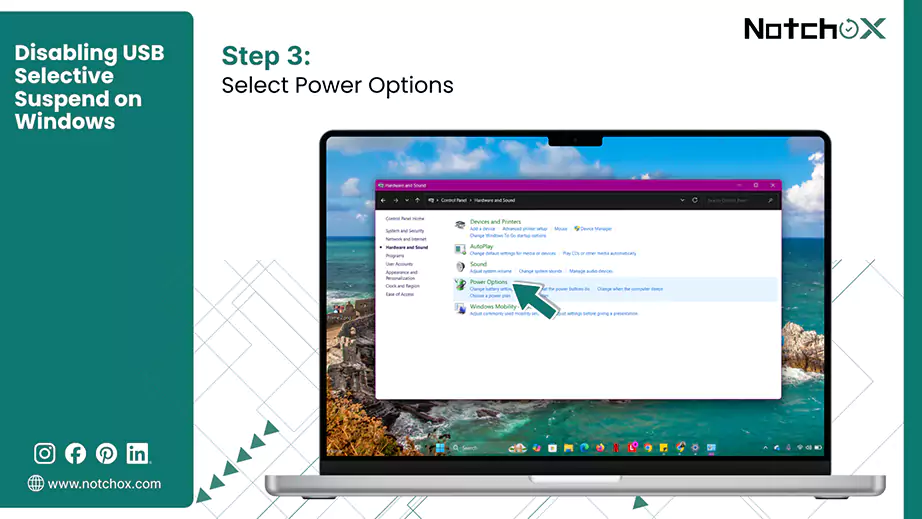
Disabling USB Selective Suspend on Windows:
Press the Windows key and search for the Control Panel. Double-click on the Control Panel to open.
Click on Hardware and Sound.
Choose Power Options.
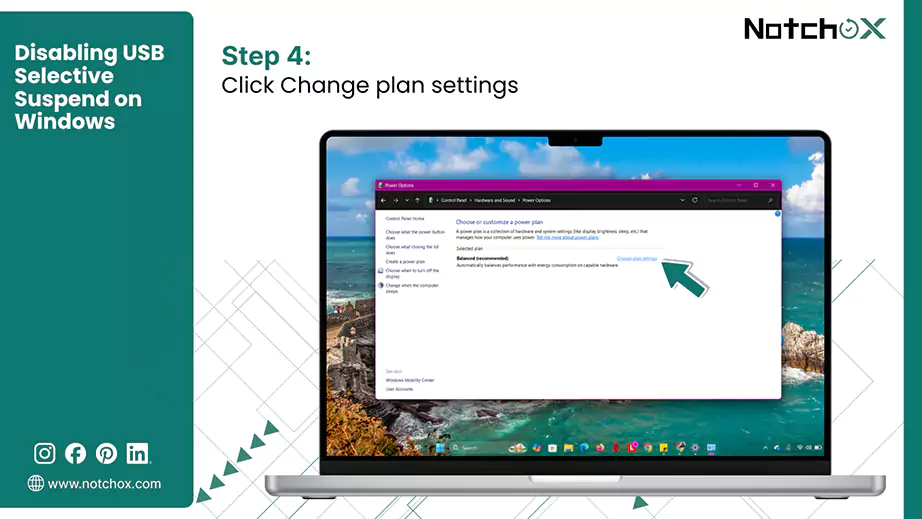
Click on the Change Plan Settings.
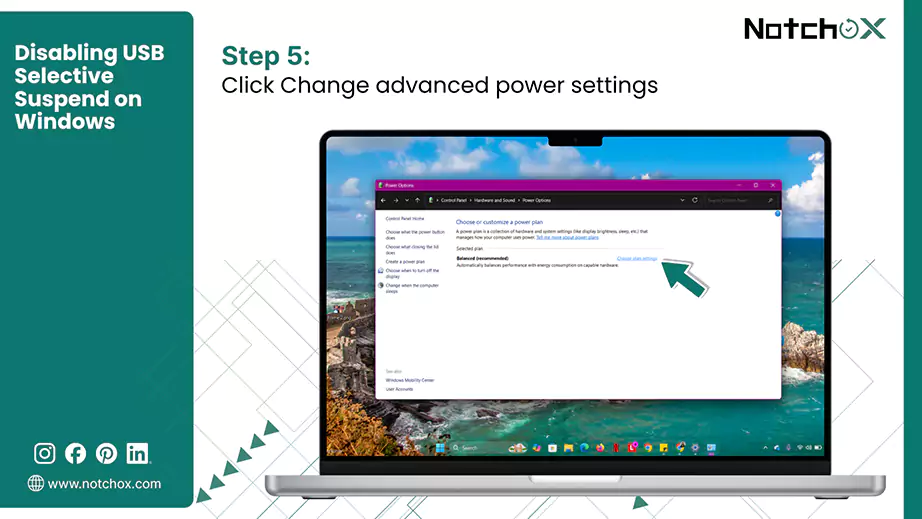
Click Change advanced power settings.
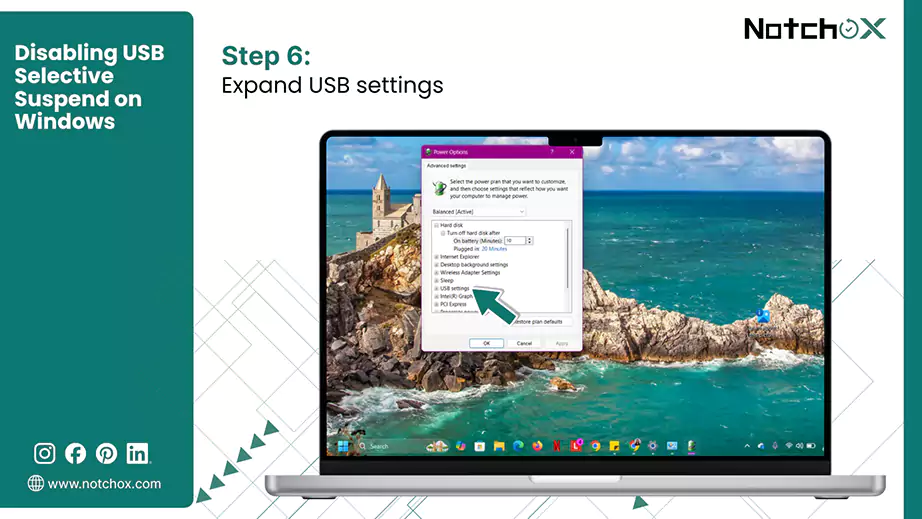
Expand the USB settings by clicking on the plus (+).
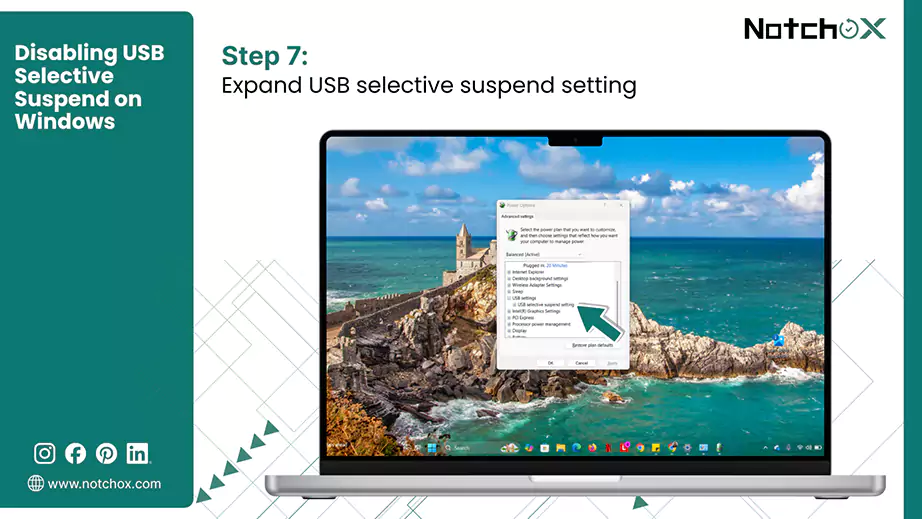
Then expand the USB selective suspend setting.
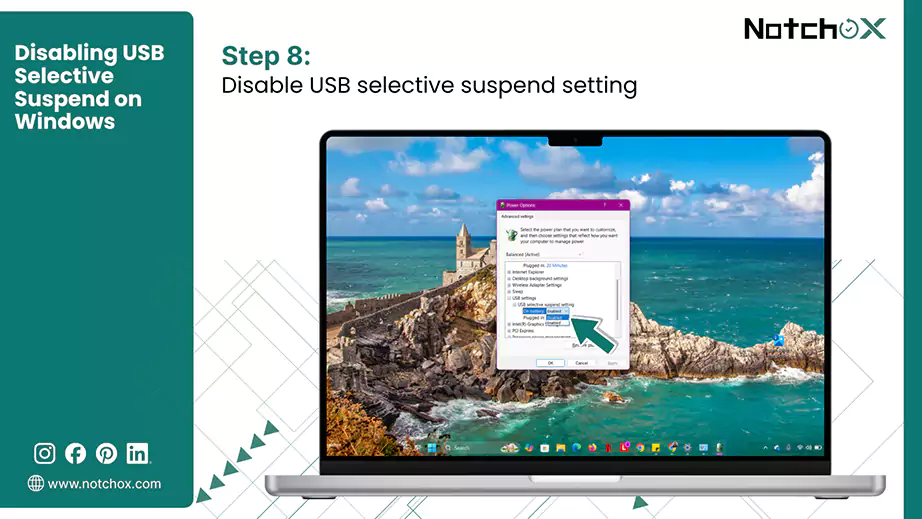
Switch both “On Battery” and “Plugged in” options to Disabled.
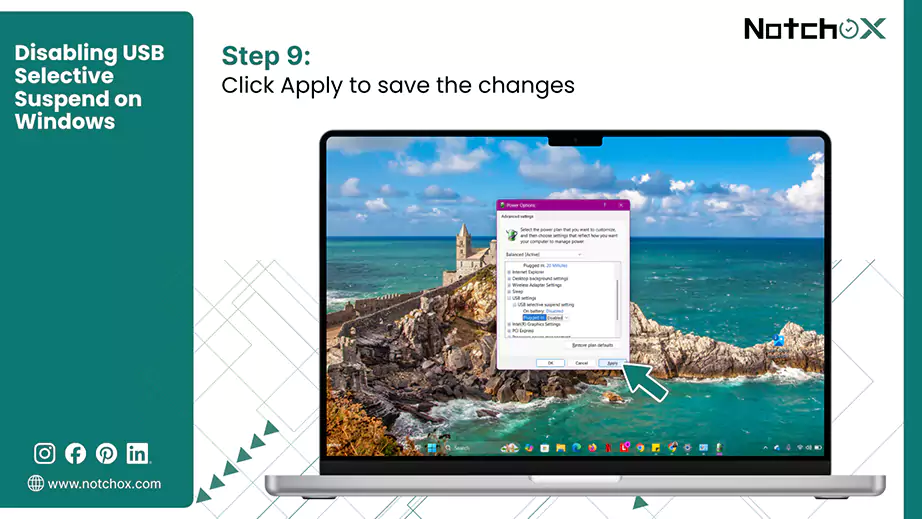
Click Apply to save the changes.
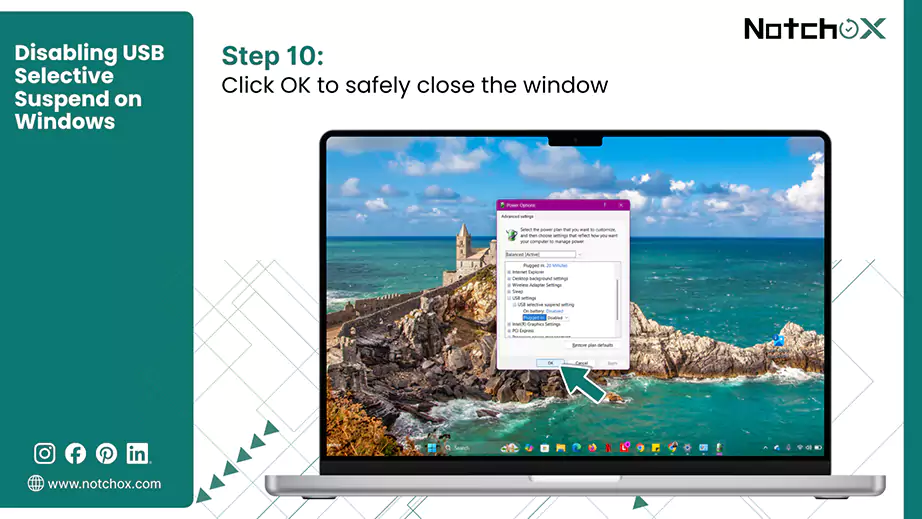
Click OK to close the Window.
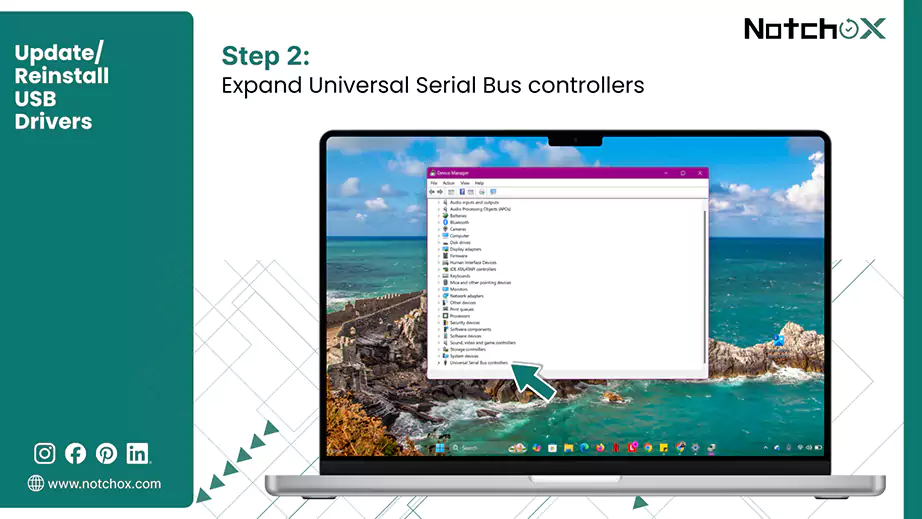
Solution 6: Update/Reinstall USB Drivers
Device drivers act as the digital translator between your computer’s operating system and your physical storage. You can try resetting these connection channels because if these become outdated/corrupted, your computer completely loses its ability to read incoming data paths.
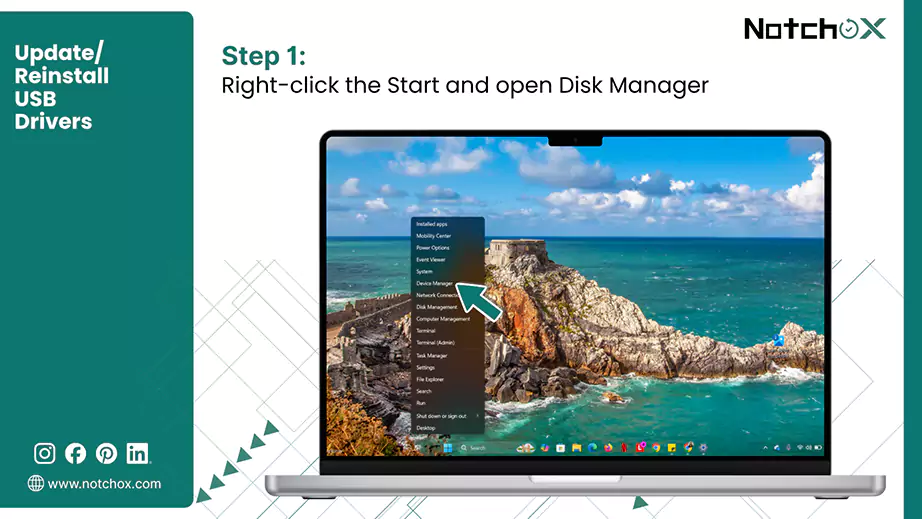
Right-click the Start button and choose Device Manager.
Scroll down to the bottom of the windows and click the arrow (>) to expand Universal Bus Controllers.
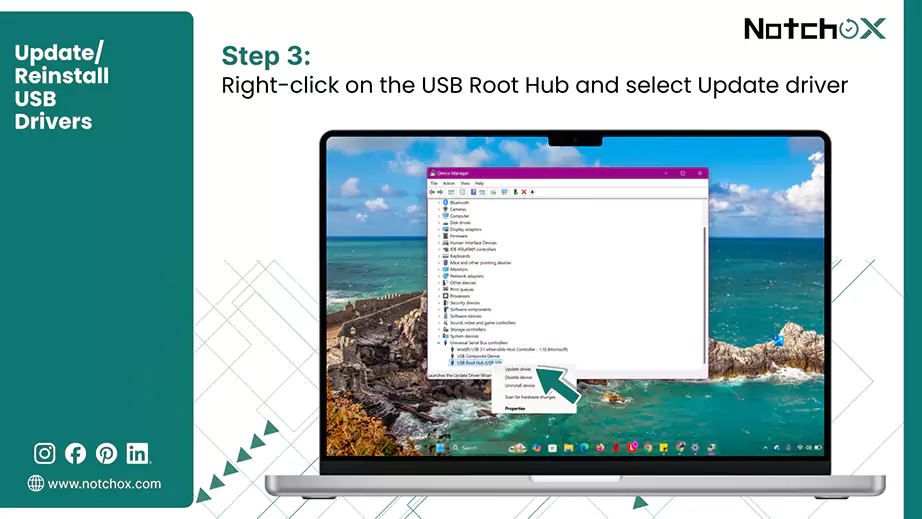
Right-click on your active USB Root Hub or Extensible Host Controller and select Update driver.
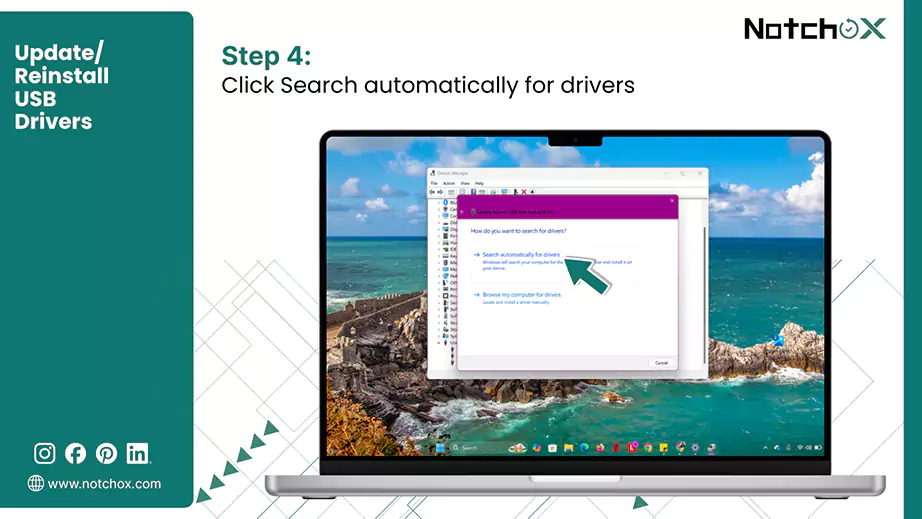
Select Search automatically for drivers.
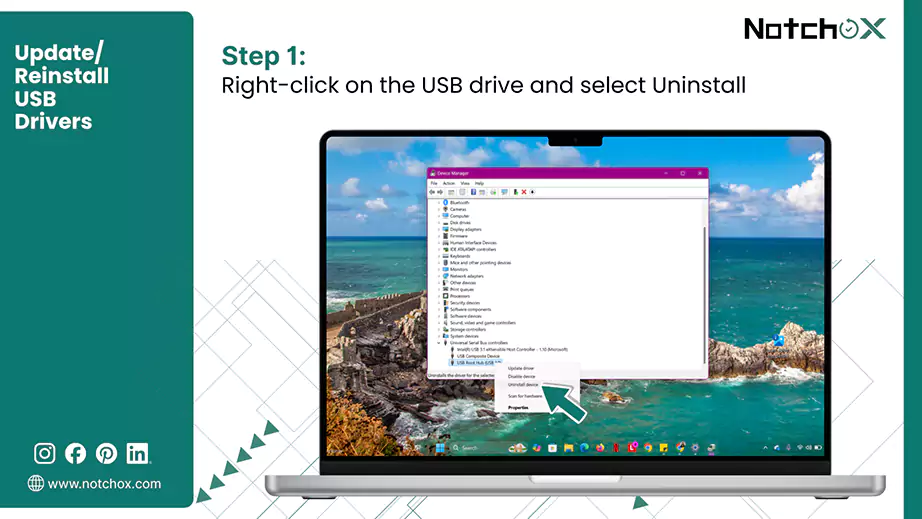
If the error remains, uninstall the driver:
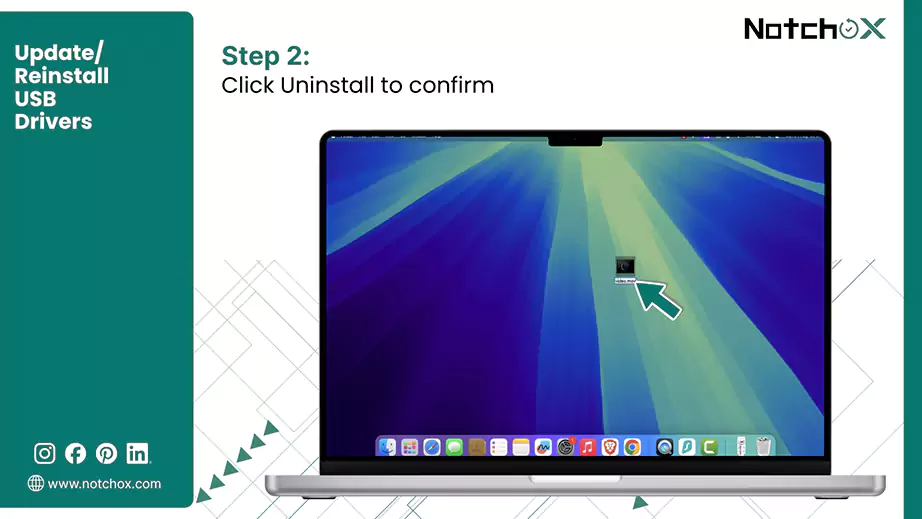
Right-click the same device and select Uninstall device.
Click Uninstall to confirm the prompt.
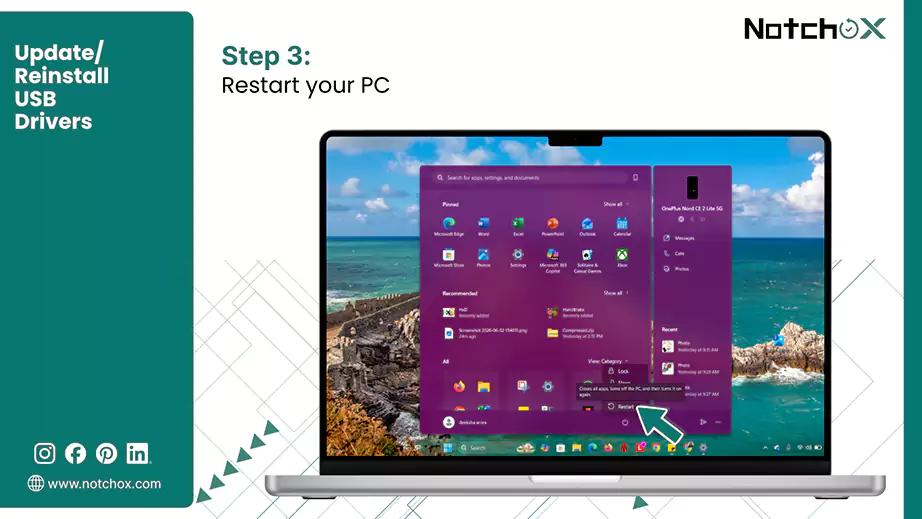
Restart your PC, so Windows forces a clean driver installation.
Note: Unlike Windows, Apple bundles all hardware and architecture controllers together into system software packages. So check macOS for System Update and update if available.
Solution 7: Repair File Corruption with CHKDSK (Windows) or First Aid (Mac)
If changing hardware components does not fix drive needs to be formatted error, you likely have logical disk fragmentation or a corrupted directory index table.
Both Windows and macOS include built-in file system repair tools that can scan internal structures and fix the issues by themselves.
Step-by-Step for Windows Users (CHKDSK Command):
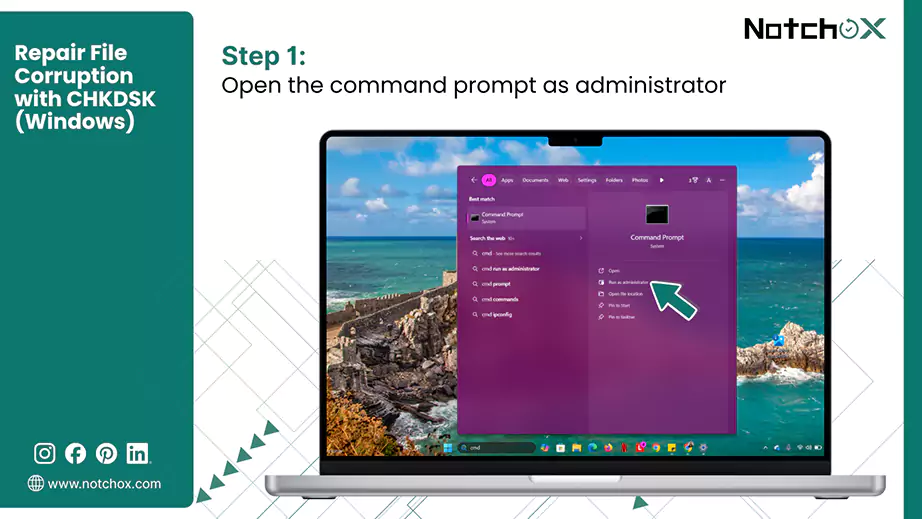
Click on the Windows Start Search bar and type “cmd”. Select Run as administrator for Command Prompt in the search results.
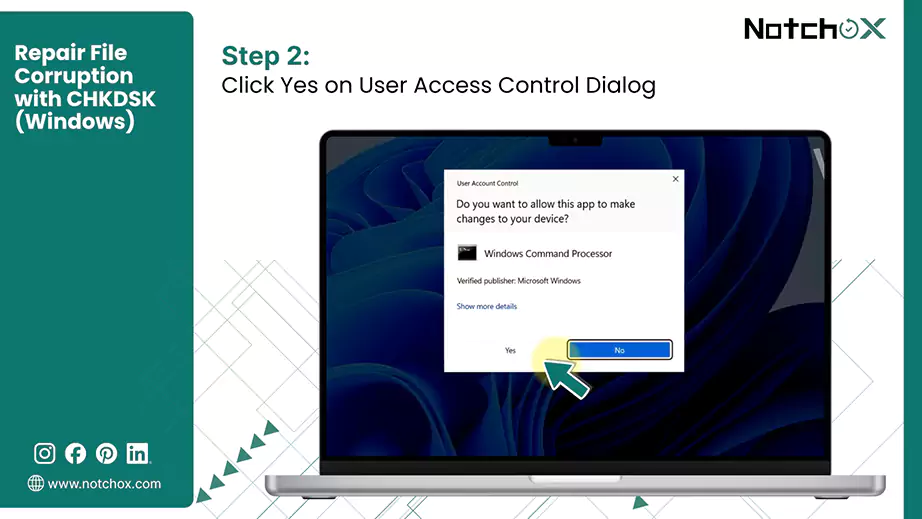
Click Yes on User Account Control to grant the permission.
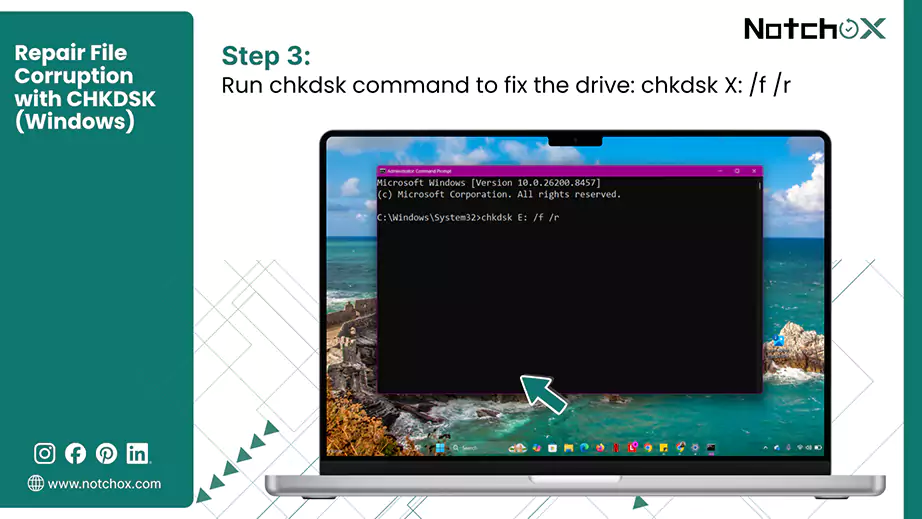
Type the following command into the command line and hit Enter. Make sure to replace X with the specific letter assigned to your unreadable drive.
chkdsk X: /f /r
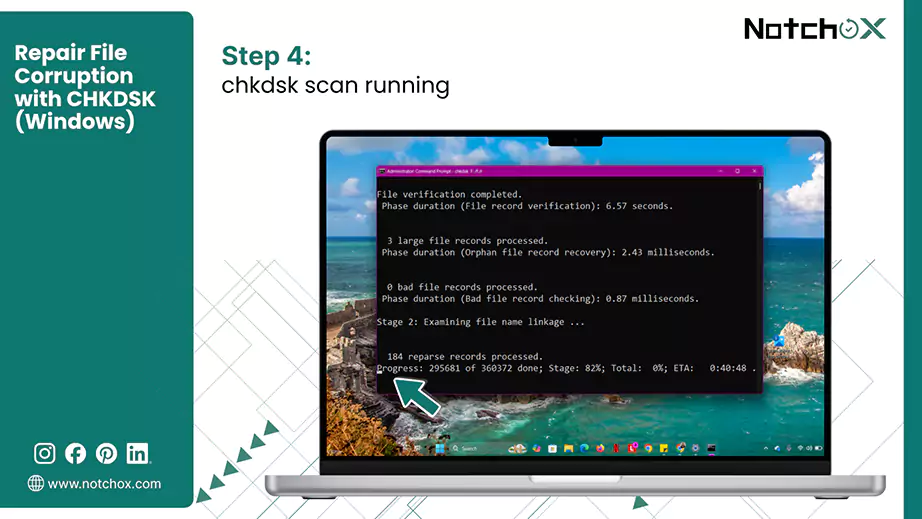
Let the tool scan the file allocation tables, fix corrupted index paths (/f), and locate physical bad sectors (/r).
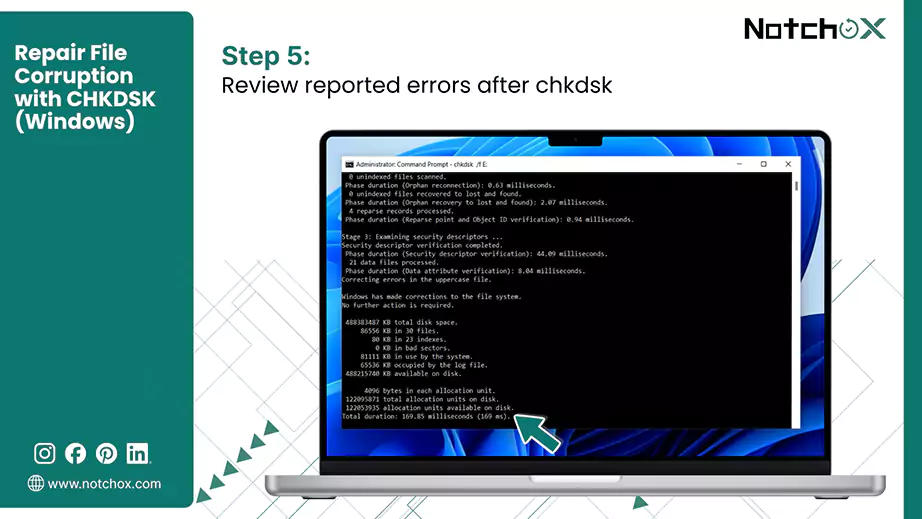
Review the exit codes that chkdsk reports after it has finished.
chkdsk Exit Codes
Exit Code
Description
What to Do Next?
0
Success: No errors were found, or all file system issues were successfully repaired.
Close CMD.Safely eject and reconnect the drive.
1
Minor changes: Errors were found and successfully fixed.
Restart your PC and check if the drive is accessible.
2
Cleanup required: The utility performed disk cleanup (like clearing unindexed indexes), but needs a reboot to finish
Restart your computer immediately to finalize the repair.
3
Critical failure: The utility could not fix the errors, ot the scan was aborted due to massive data corruption.
Skip further repairs.Restore the files and format the drive. (Step 3)
Step-by-Step for Mac Users (First Aid Tool):
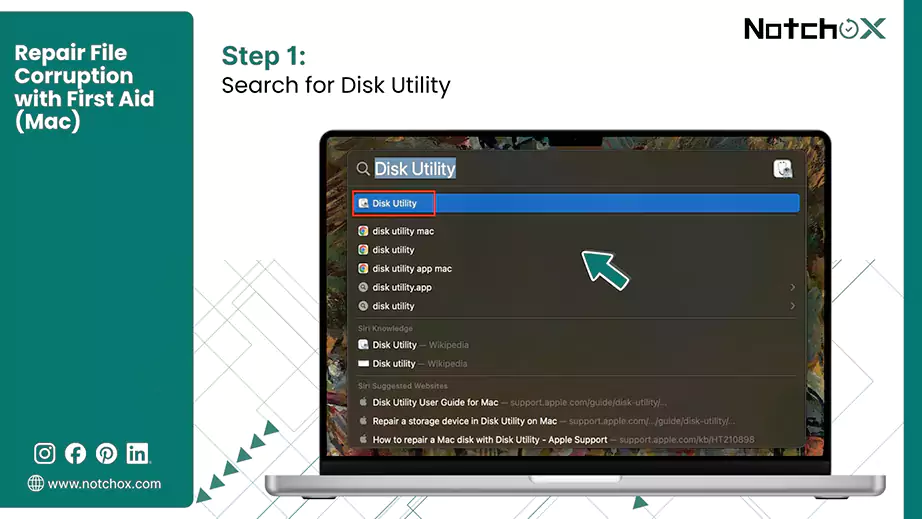
Press Command (⌘) + Spacebar to launch Spotlight Search, type Disk Utility, and press Return.
Click the View icon drop-down menu and select Show All Devices.
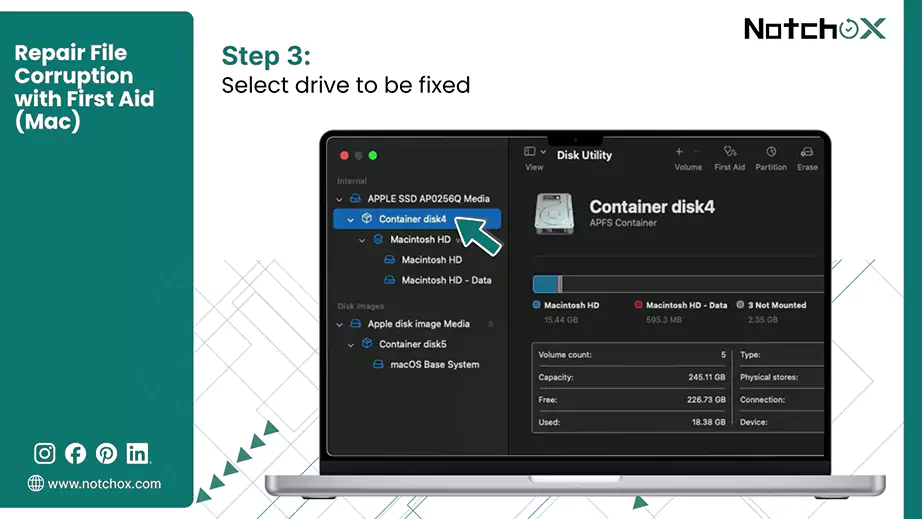
Click on the unreadable partition listed in the left-hand storage hardware sidebar.
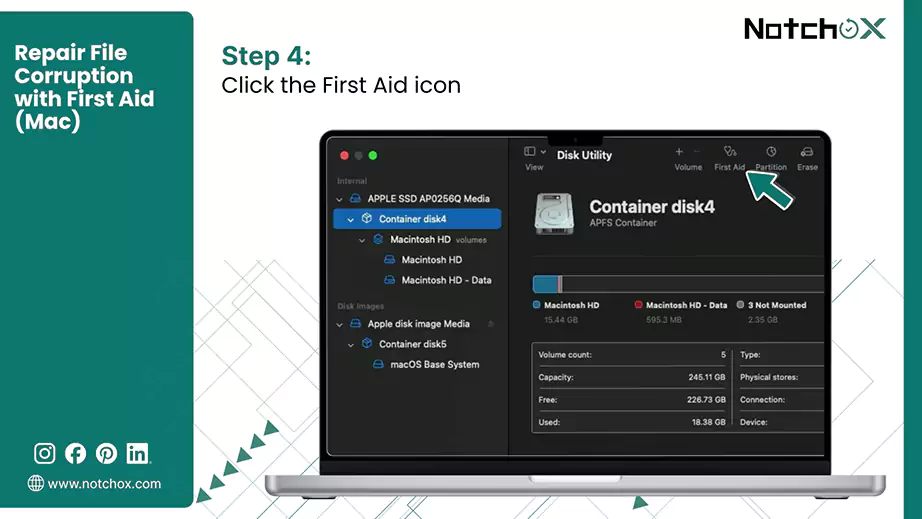
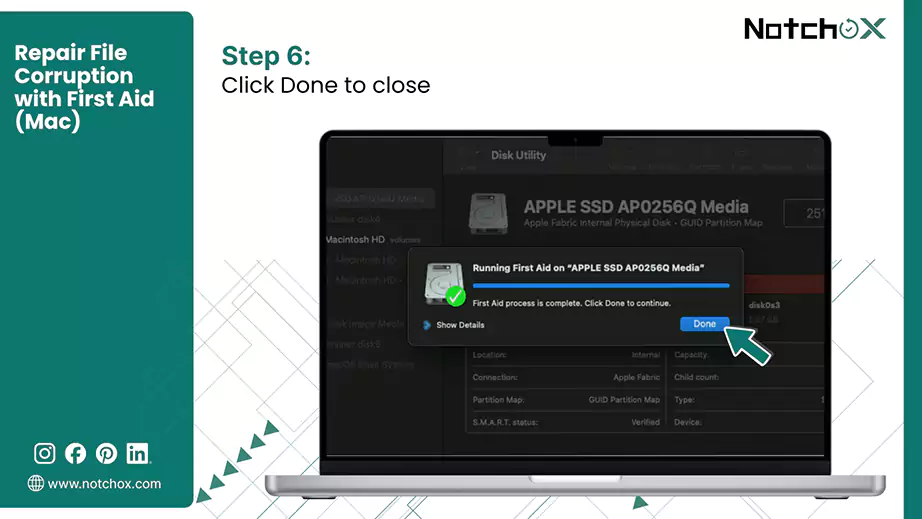
Click the First Aid icon located at the top center of the toolbar.
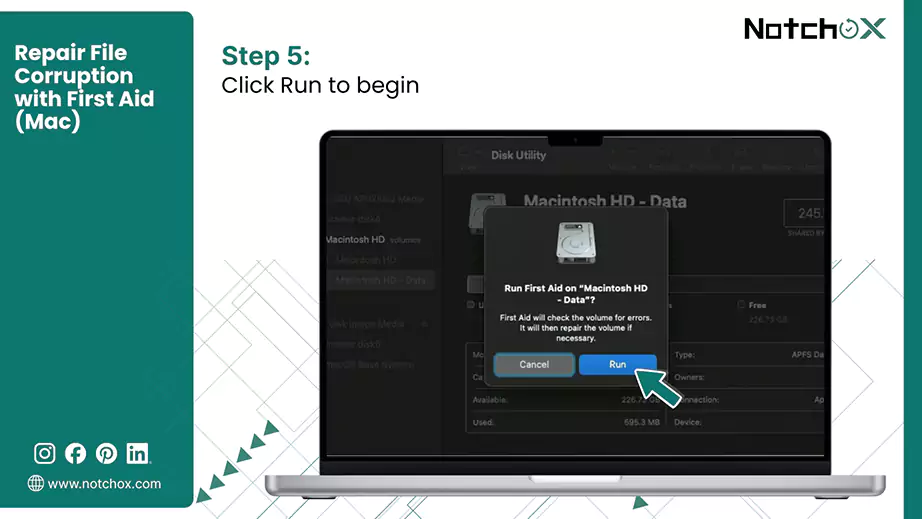
Click Run (or Repair Disk) on the confirmation pop-up window. The system will verify directory structures and fix index errors automatically.
Once the First Aid is completed, click Done to continue.
Solution 8: Windows Error Checking Tool
Windows includes a graphical version of chkdsk built into File Explorer. This tool scans the drive and attempts to fix it with a single click.
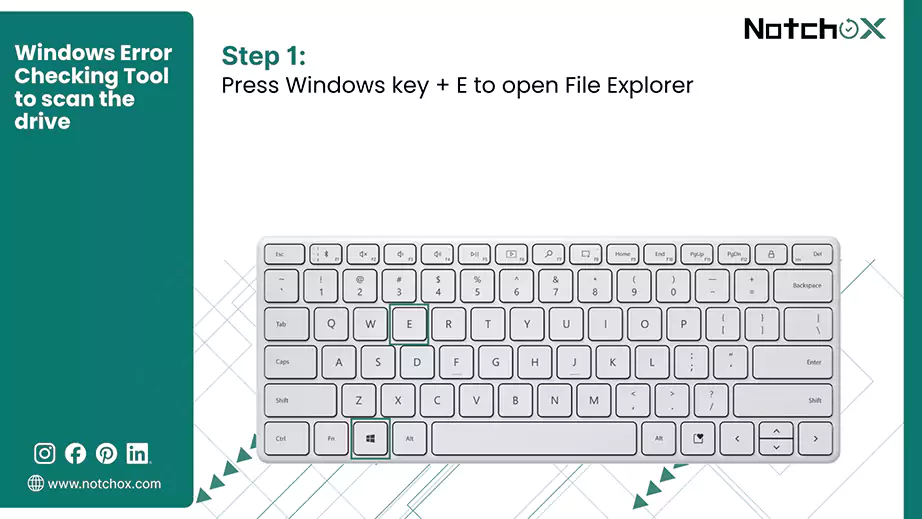
Press Windows + E to open the File Explorer.
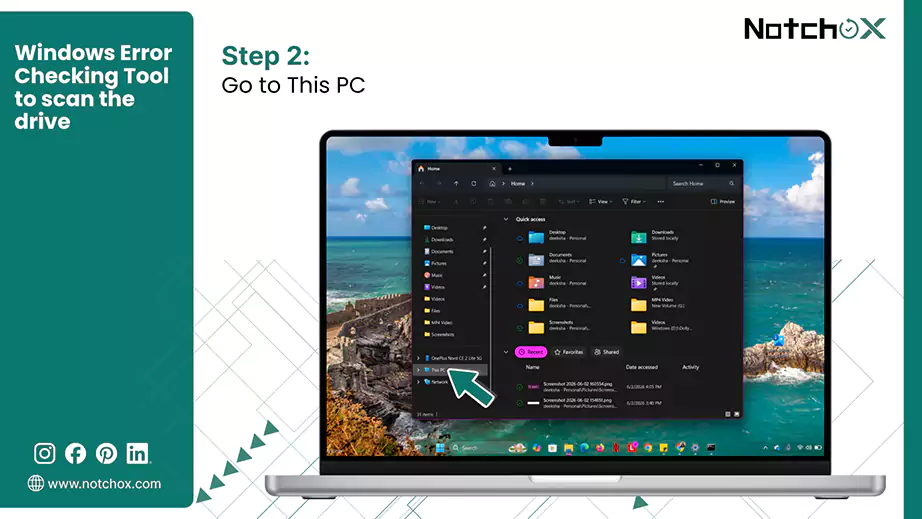
Click on This PC in the left sidebar.
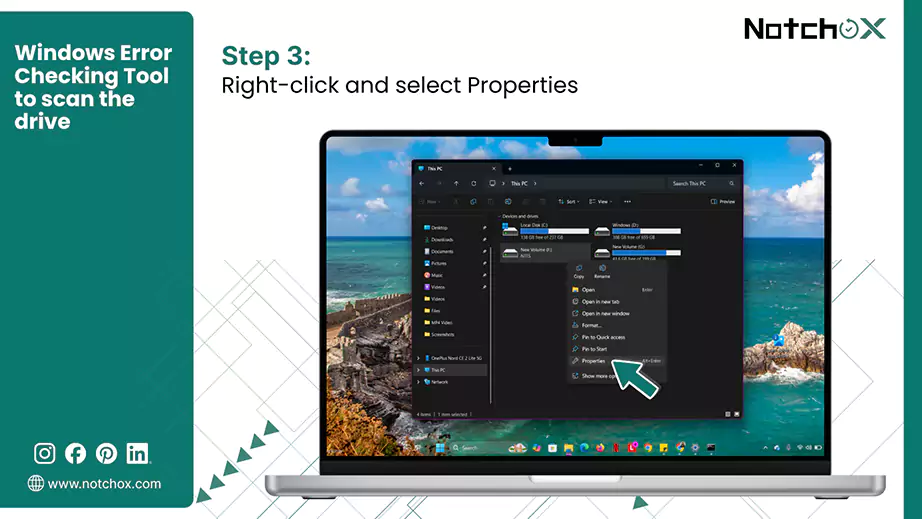
Right-click the unreadable or corrupted storage volume and select Properties from the contextual menu.
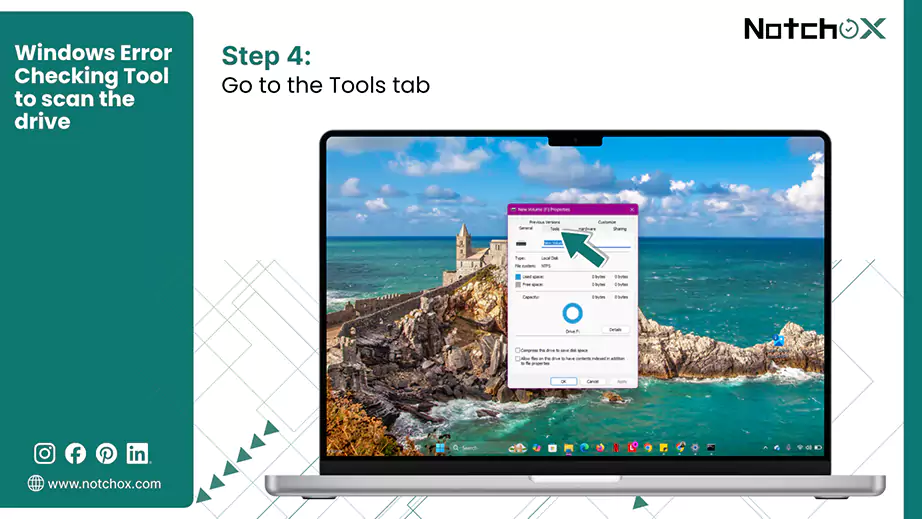
Click on the Tools tab located at the top of the Properties dialog window.
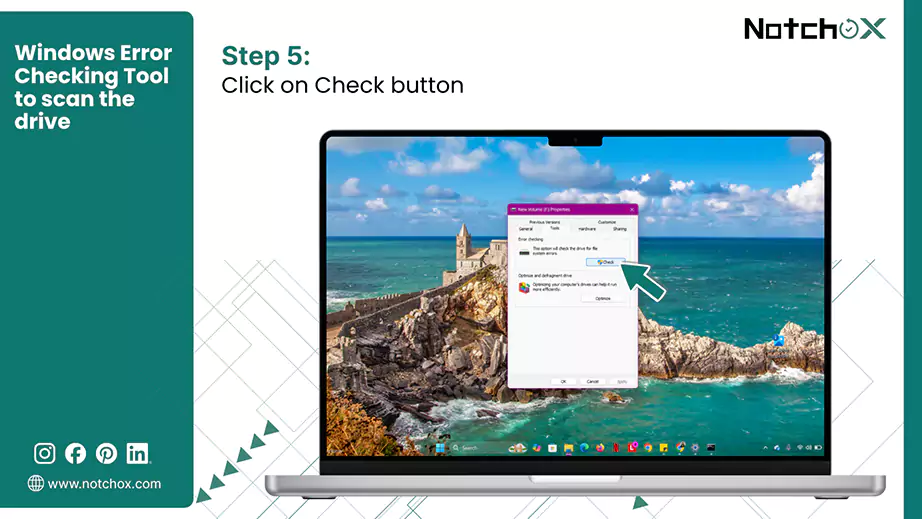
Click the Check button under the Error checking section.
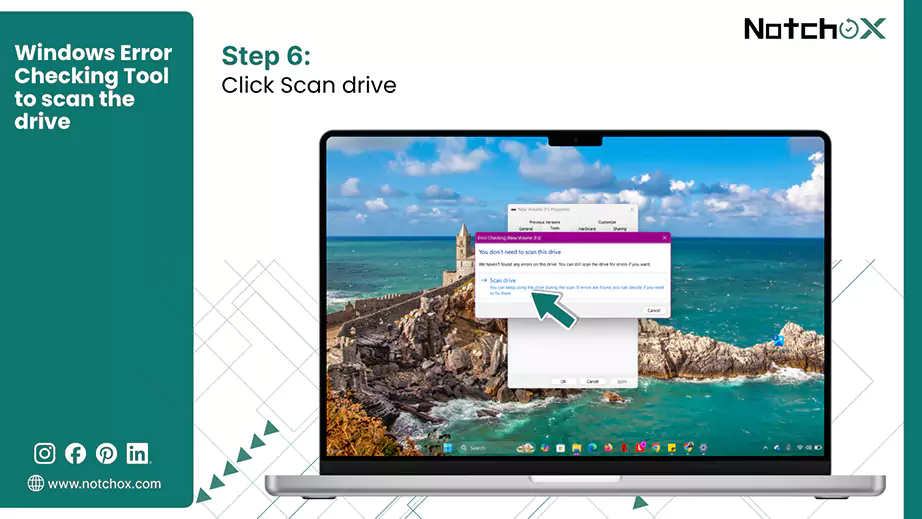
Select the Scan drive on the pop-up confirmation menu.
Method 3: Format the Drive (If Repairs Fail)
If all the system repairs fail, it means the drive’s logical partition structure is permanently broken. To make the drive stable and usable again, you must format it.
Understanding what happens during formatting is important before proceeding. A format recreates the file system structure and reduces recovery chances if new data is written to the drive afterward. Next, knowing how to format a drive is necessary to restore the storage drive when the partition table collapses.
Below are the step-by-step methods to format the hard drive on your specific device.
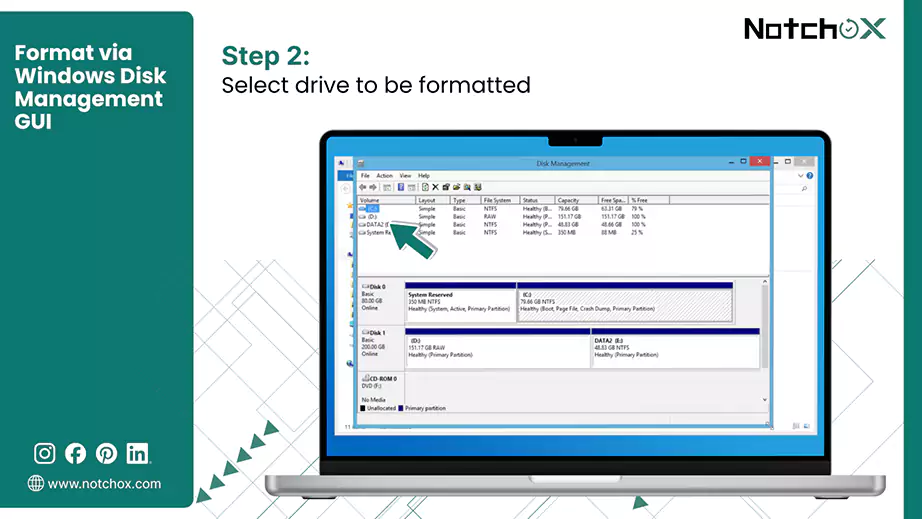
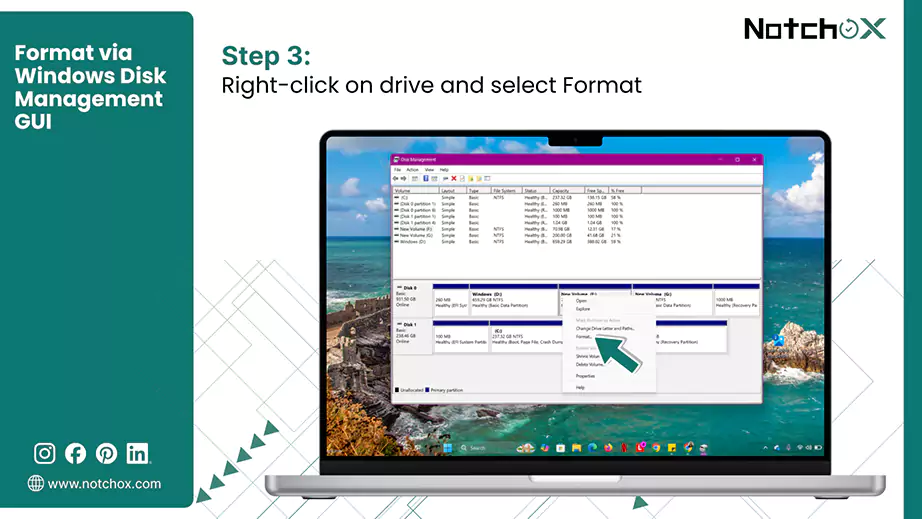
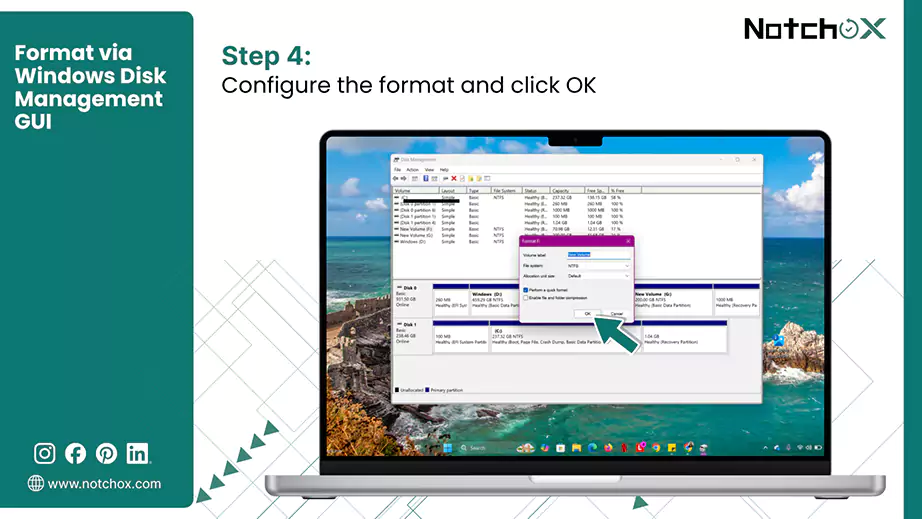
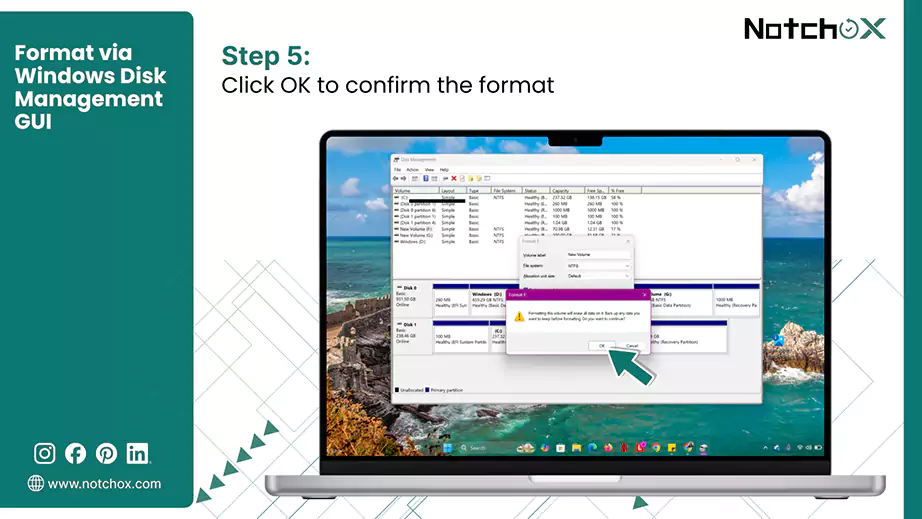
Format via Windows Disk Management GUI
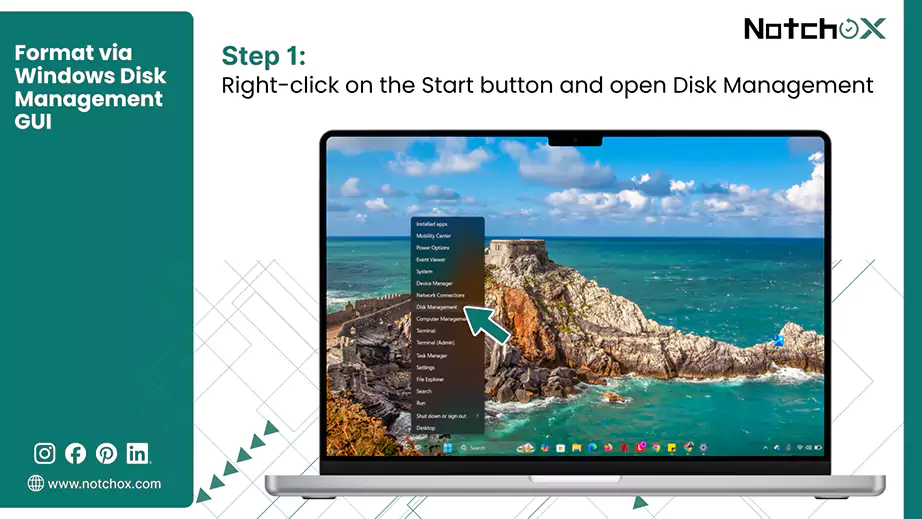
Right-click on the Windows Start button (or press Windows Key + X) and select Disk Management.
Scroll down to the bottom list and find your unreadable drive.
Right-click on the drive and select Format.
Set the volume label name, file system type, and check the Quick Format checkbox. Click on OK to begin.
Confirm the data erase prompt to complete the process by clicking OK.
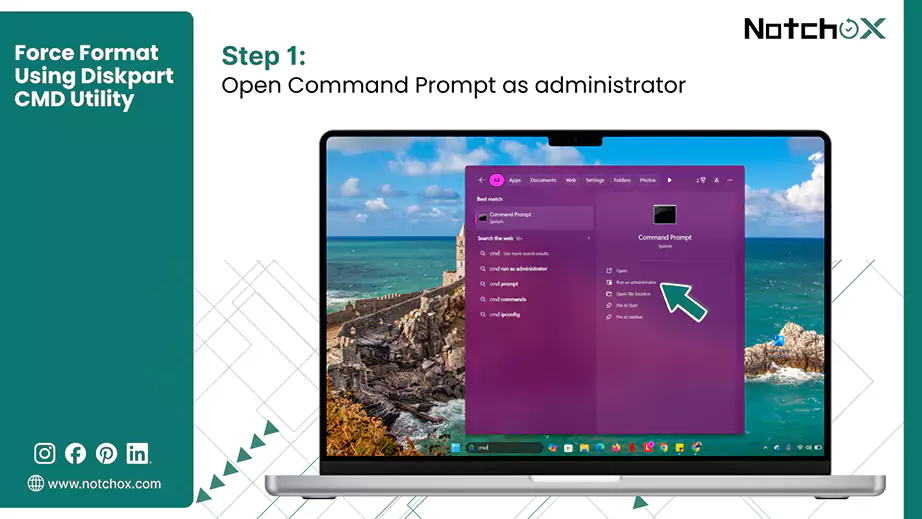
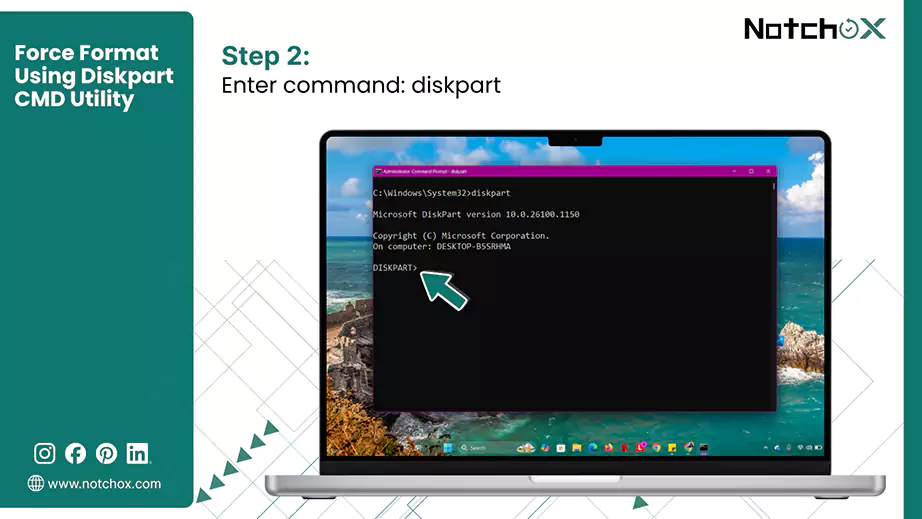
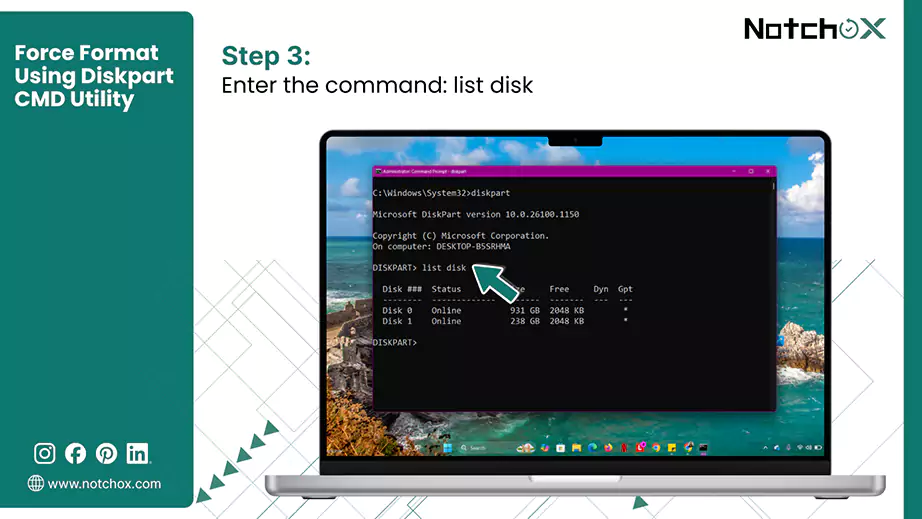
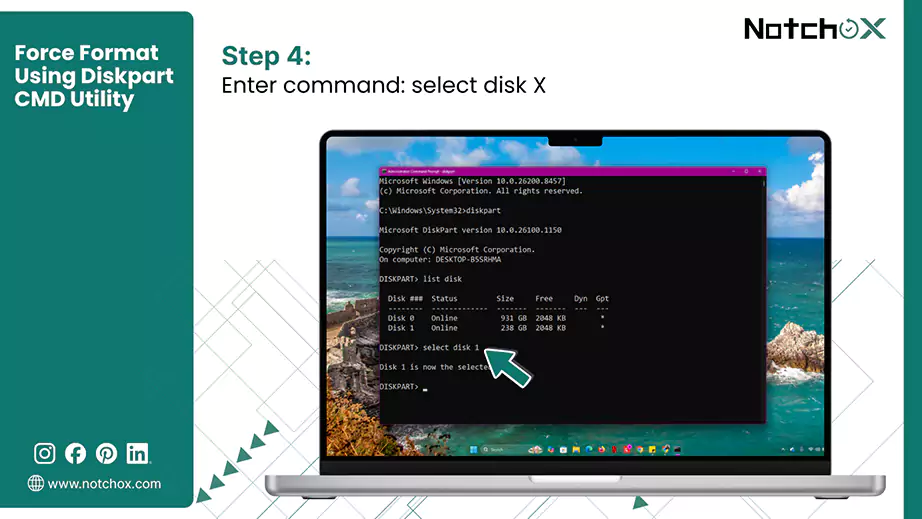
Force Format Using Diskpart CMD Utility
Search for “cmd” in your Windows search bar. Click on Run as administrator against Command Prompt from the search results.
Enter the following command:
diskpart
Type the following command to view all active hardware drives and note the specific drive number that you want to format.
list disk
Enter the command to select the drive. Replace X with the drive number.
select disk X
To format the selected drive, type the following command and press Enter.
clean
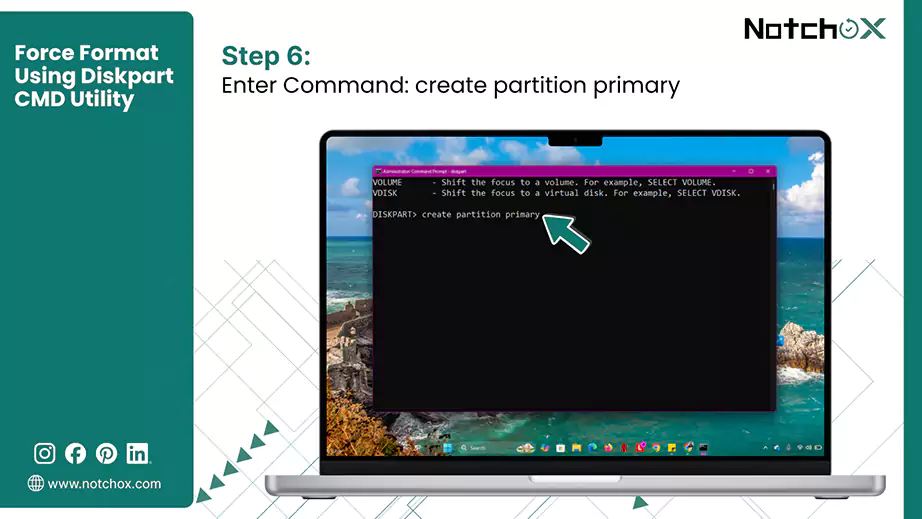
Next, you need to create a primary partition by:
create partition primary
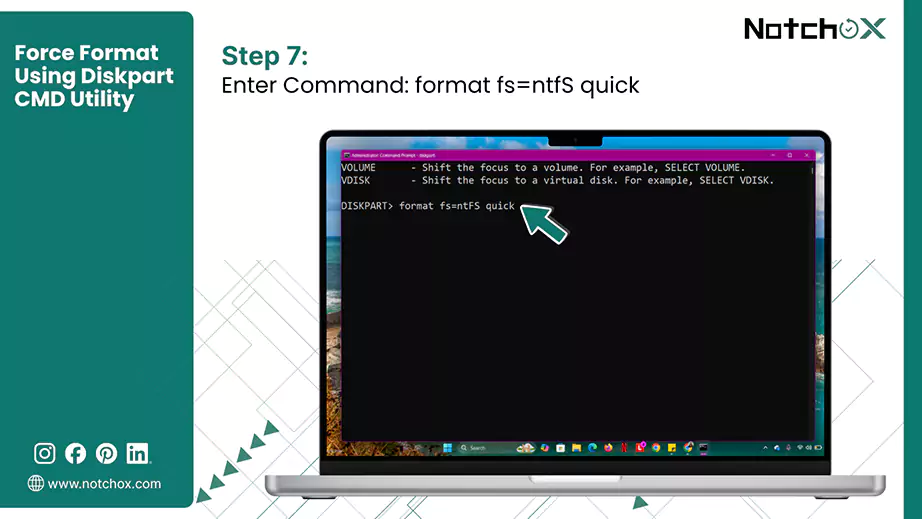
Finally, type the file type and press Enter to recreate a healthy data partition.
format fs=ntfS quick
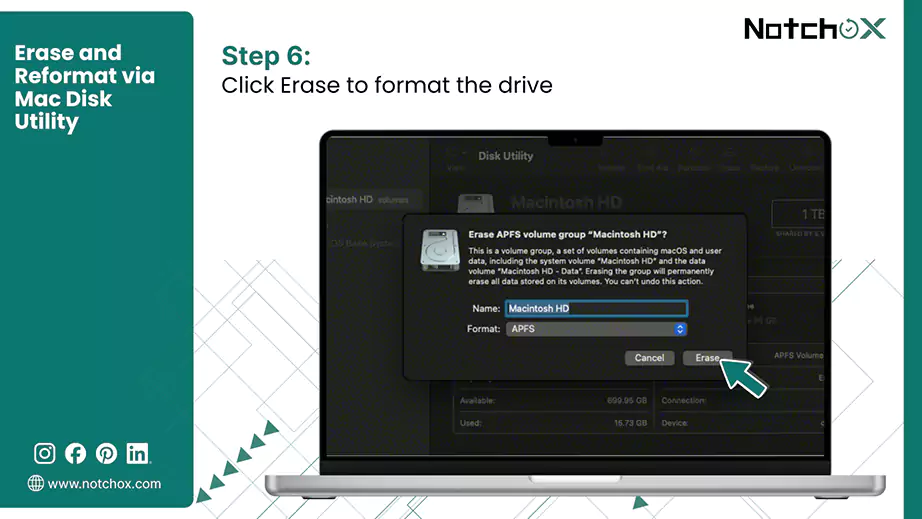
Erase and Reformat via Mac Disk Utility
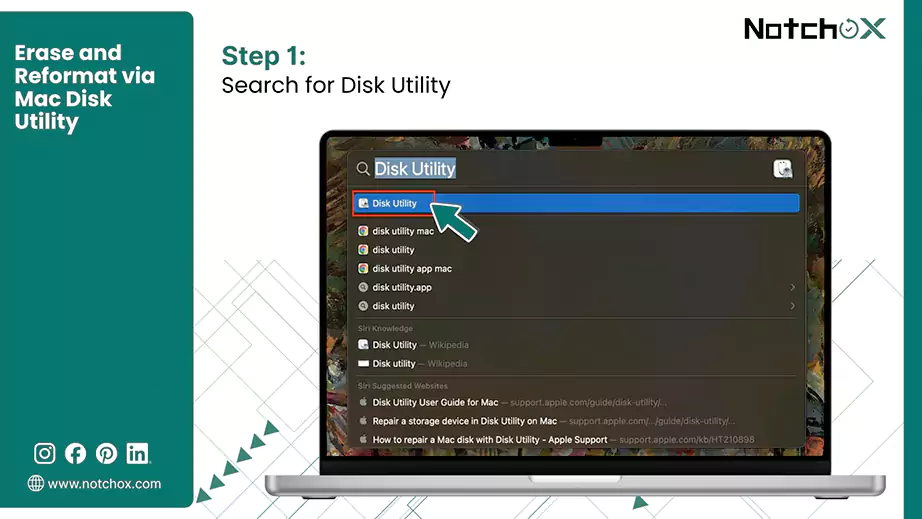
Press Command (⌘) + Spacebar, type Disk Utility, and press Enter to open.
Click the View drop-down menu button in the top left section of the window and select Show All Devices.
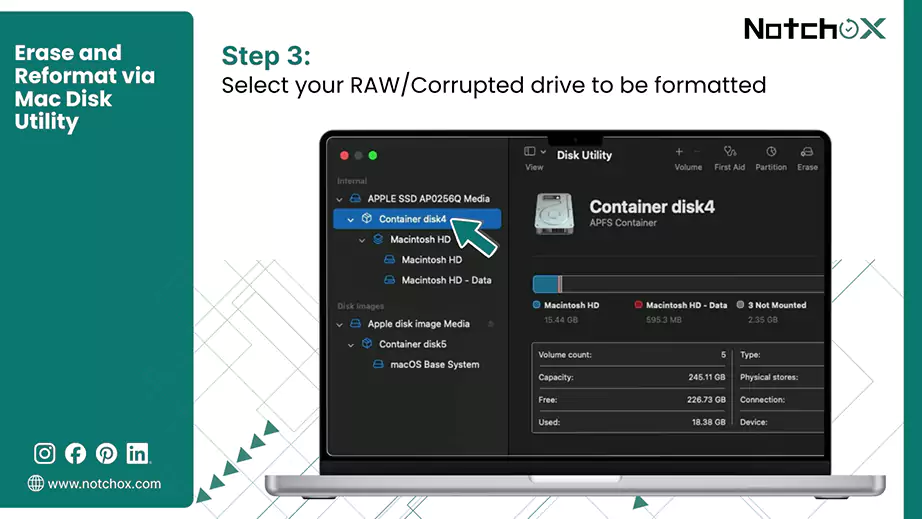
Select the main name of your corrupted drive in the left sidebar hierarchy.
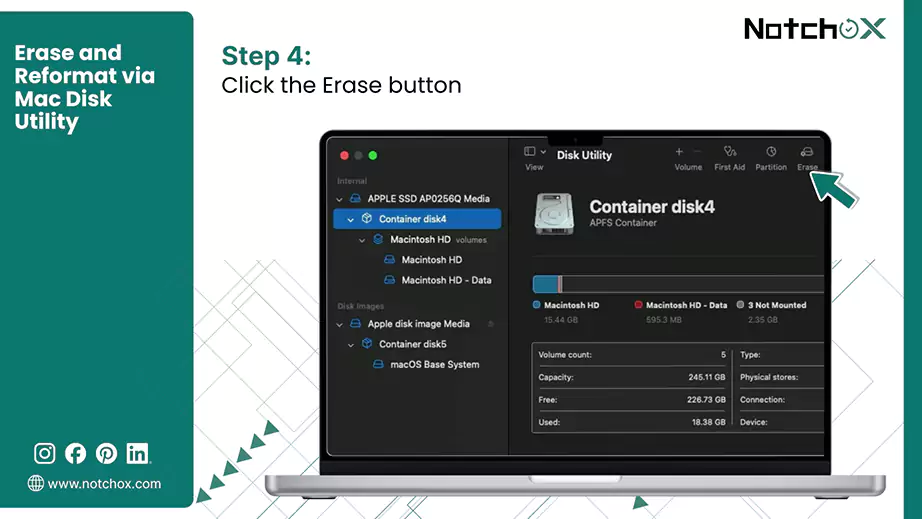
Click the Erase button in the top menu bar.
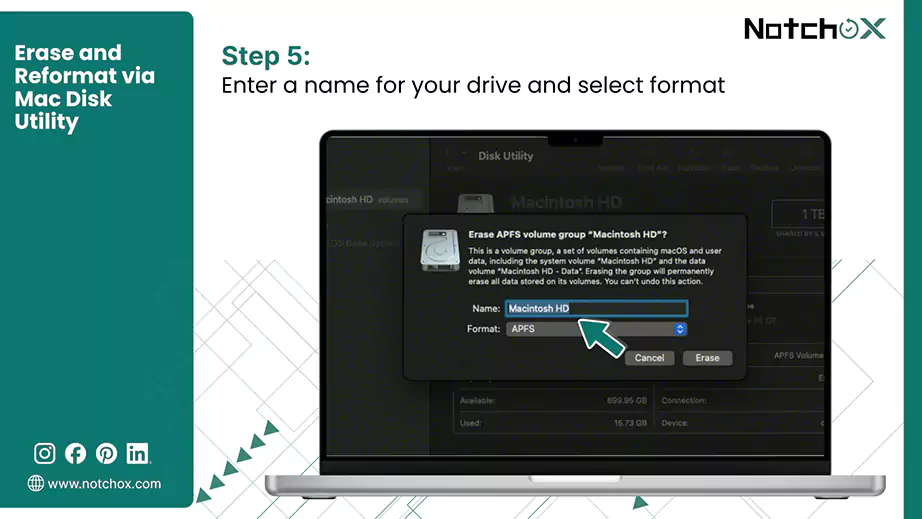
Enter a name for your drive and select the APFS file system.
Click the Erase button.
Conclusion
Fixing a corrupted dormant file error requires a strict order of operations: extract, repair, then reset. Never click “Format” when Windows or Mac prompts you because this permanently deletes your data blocks. Instead, deploy Notchox Data Recovery to safely recover the important files from the inaccessible drive.
Once your files are secure, mastering how to format a drive via command utilities is the most reliable way to fix the drive that needs to be formatted error. Format and completely restore your hardware for future use. And if you clicked Format before saving anything, all is not lost — you can still recover deleted files on Windows if you act quickly.
Frequently Asked Questions (FAQs)
Q1: How to format a hard drive?
Ans: To format a hard drive:
On Windows: Open Disk Management > right-click on the drive > select Format > Choose File System > Check Perform a Quick Format > Click OK.
On Mac: Open Disk Utility > Select drive > Click Erase > Select File System > Click Erase.
Q2: Why do I get a “Drive needs to be formatted” error?
Ans: Drive needs to be formatted error is triggered when the operating system can no longer read the drive’s partition map. The file system becomes unreadable in the RAW format. It is caused by sudden disconnections, power abruption, virus or malware.
Q3: How to fix a USB drive that says it needs to be formatted?
Ans: To fix a USB drive showing needs to be formatted error:
Run Notchox data recovery to restore your files safely before making any changes.
Check for any hardware or connection issues.
Run native repair tools like Windows chkdsk or Mac First Aid to fix drive needs to be formatted.
Q4: How to run CHKDSK to repair the hard disk?
Ans: To run chkdsk:
Open the Command Prompt as administrator.
Type “chkdsk X: /f /r”. (replace X with your exact drive letter)
Press Enter to let Windows fix the hard disk.
Q5: How to format the disk without losing data?
Ans: The only way to format a disk without data loss is to recover the data safely before formatting the disk. You can use Notchox Data Recovery to extract the files to a separate healthy drive. Then you can proceed to format the drive safely using Disk Management or Disk Utility.
Q6: How does Notchox recover data from a drive showing a “Drive needs to be formatted” error?
Ans: Notchox ignores the corrupted operating system partition table and reads the raw data directly. It then reconstructs the file data, allowing you to recover your file safely.
Q7: What are the quick troubleshooting steps to fix drive needs to be formatted error?
Ans: Troubleshooting steps to fix drive needs to be formatted error:
Deeksha Arora is a Data Protection & Recovery Writer focusing on writing accurate, informative, and easy-to-understand technical articles for Notchox’s readers. Her content on the prevention of data loss, understanding risks of device failures, and guides to fix problems helps readers make the right decisions and understand the technical terms easily. She works closely with Subject Matter Experts to ensure high usability and accuracy of her writing.