A corrupted spreadsheet can halt your entire workday because professionals depend heavily on spreadsheets daily.
Most damaged spreadsheets are easily recoverable using native features or advanced troubleshooting strategies. As a professional data recovery company, we understand the urgency of restoring corrupted workbooks safely without losing format integrity. In this file repair guide, you will read about:
Built-in Microsoft repair tools to repair Excel file
Manual data extraction techniques
Professional recovery software to restore data
Thinking, “How can I repair corrupted Excel file?” Let’s fix your spreadsheet and recover your XLS/XLSX data now.
Quick Answer: You can easily repair corrupted Excel file and recover them using Notchox Corrupted FileRecovery Software. While generic software only undeletes missing files, Notchox uses a read-only engine to reconstruct a broken workbook without risking further file damage.
How to Repair Corrupted Excel File for Free? (Built-in Methods)
Before spending money on third-party software, you should always try the diagnostic methods built into Microsoft Excel unless there is severe damage or you are unaware of the corruption reason. These tools are specially made for the rescue of data in case something goes wrong.
There are features that can:
fix broken file paths,
detect errors,
rebuild data, and
restore previous versions.
In this section, you will learn how to repair corrupted Excel file by using the free internal tools. These are the safest and fastest ways to fix corrupted XLSX file and restore data.
Method 1: Using the “Open and Repair” Feature
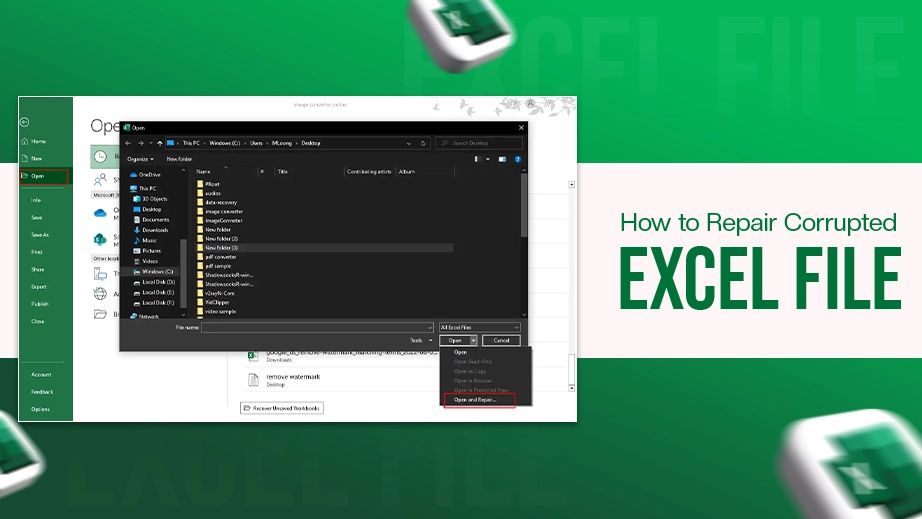
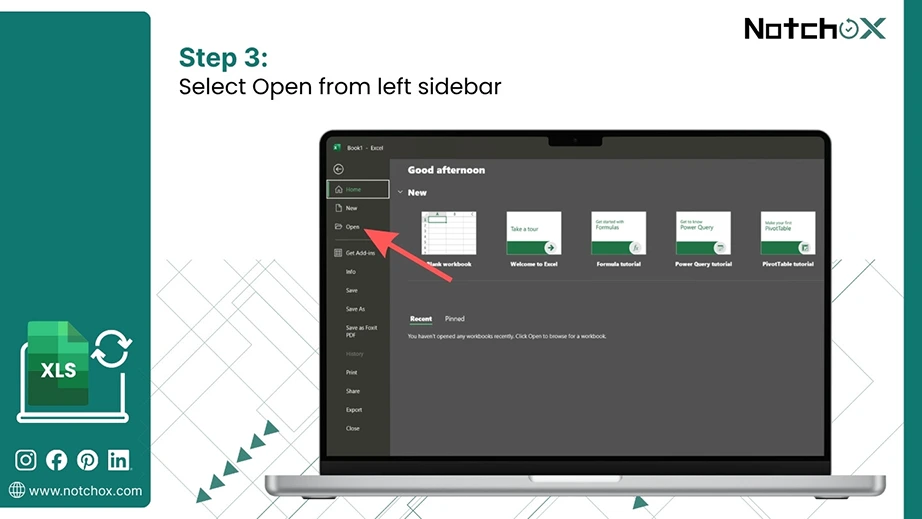
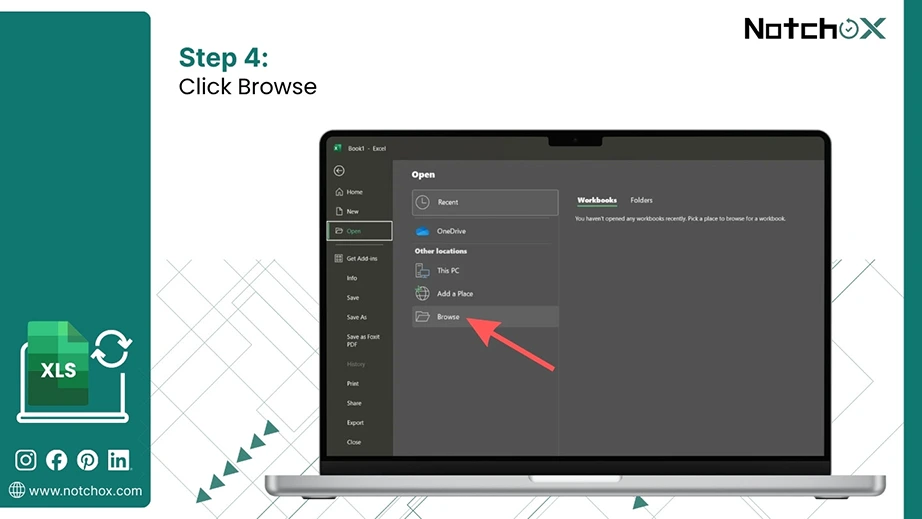
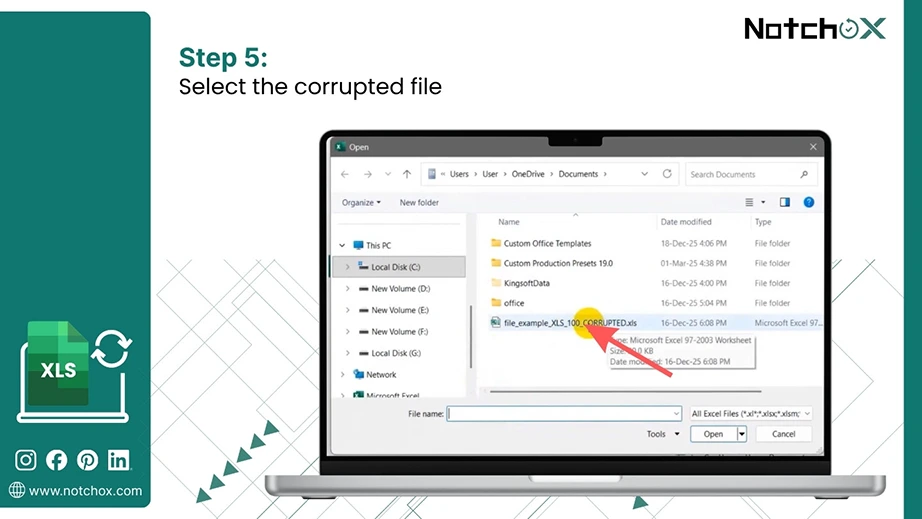
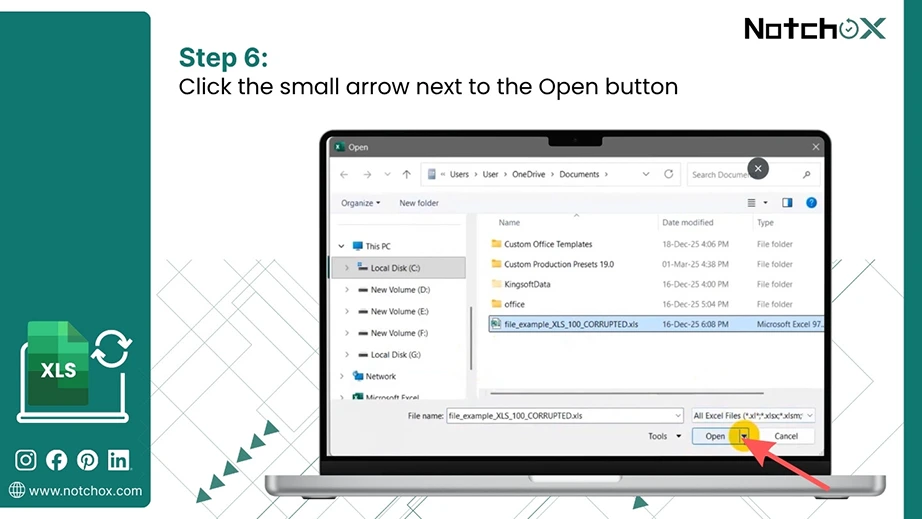
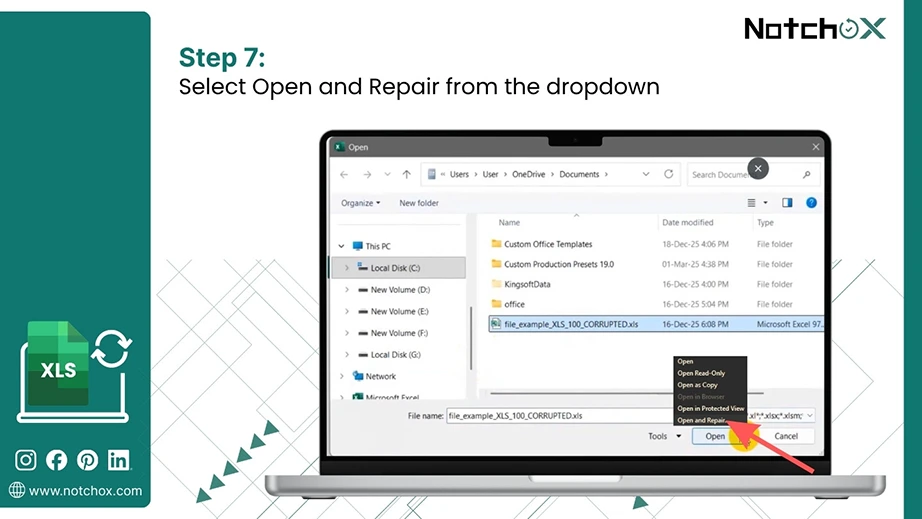
To execute the “Open and Repair” command, launch Excel, go to the File menu > select Open> browse your corrupted file > click the arrow next to the Open button > “Open and Repair.”
This native Microsoft tool is the primary defence against file corruption. It scans the internal XML structure of your .xls and .xlsx file and finds and attempts to rebuild damaged sectors. In case the corruption is minor, it completely restores your spreadsheet.
How to repair corrupted Excel file using the “Open and Repair” feature? Follow these steps to use the “Open and Repair” feature:
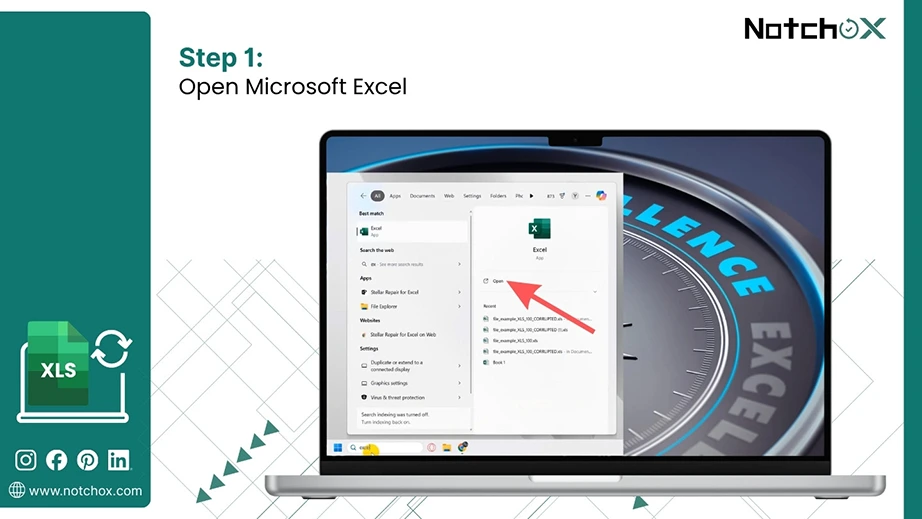
Launch Microsoft Excel.
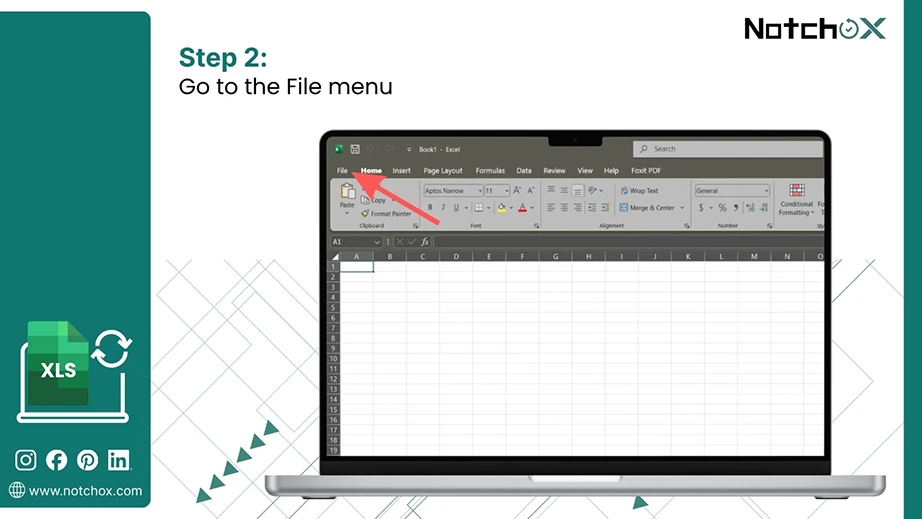
Click on the File menu.
Select Open.
Click Browse to locate your damaged file.
Click the file name once to select it.
Click the small arrow next to the Open button.
Select Open and Repair… from the dropdown list.
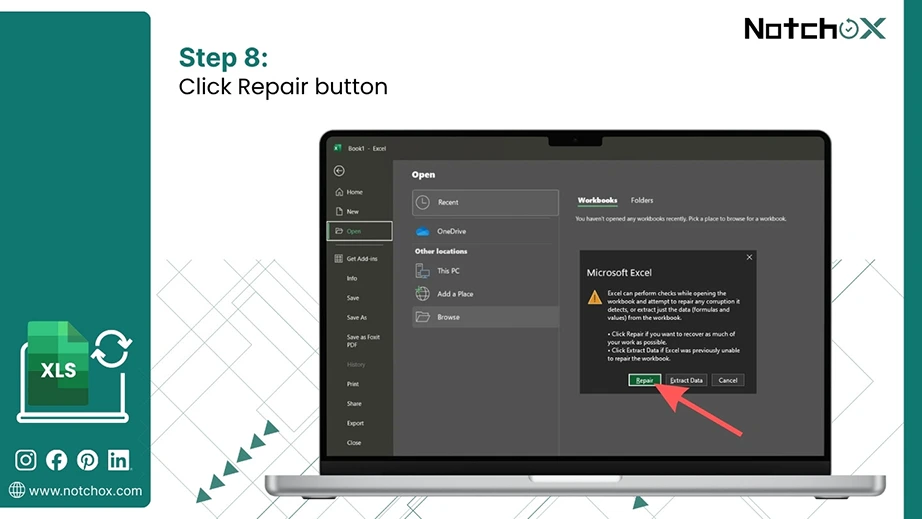
Click Repair in the confirmation dialog box.
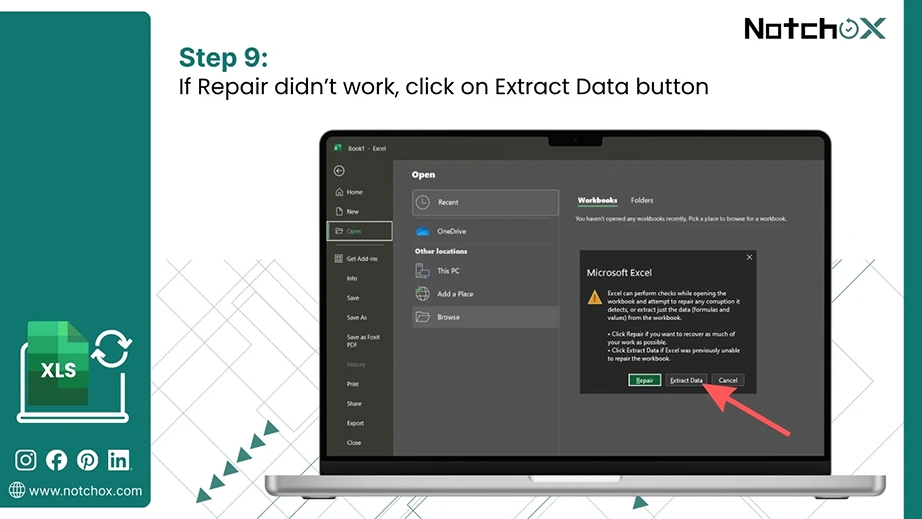
If Repair didn’t work, click on Extract Data instead of Repair when prompted.
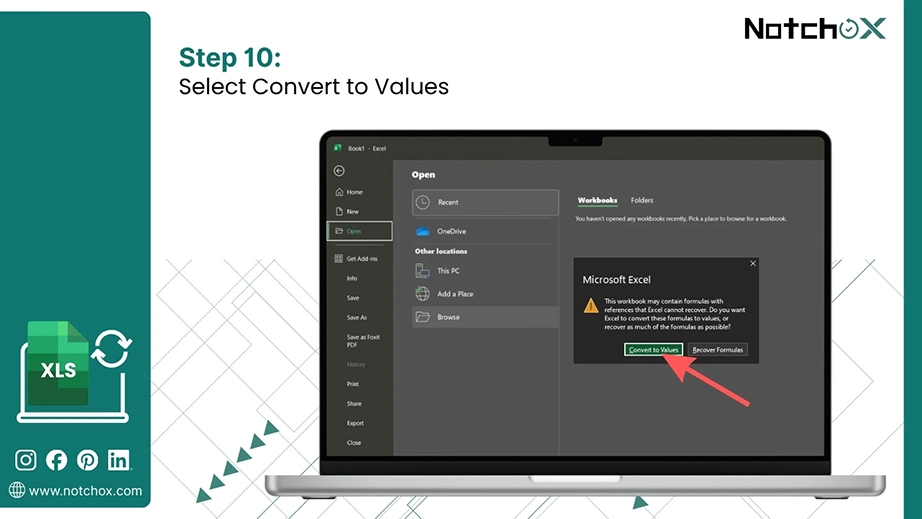
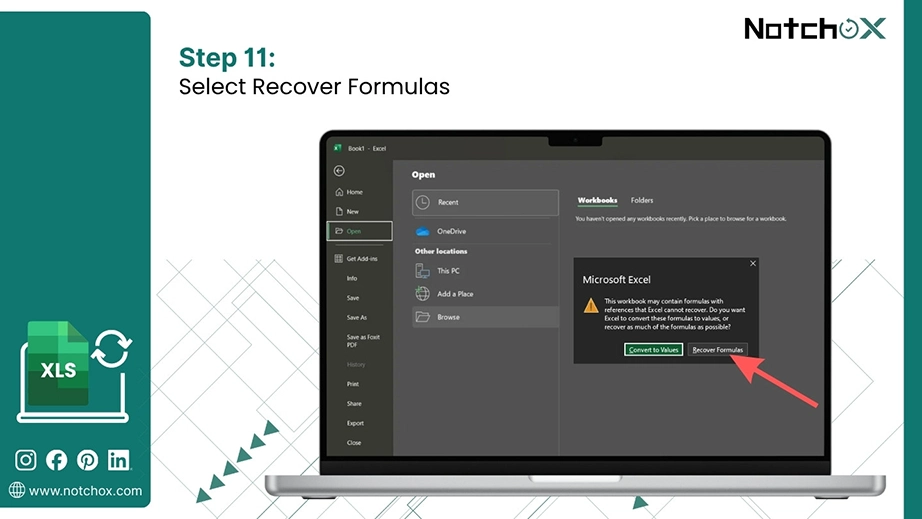
Select Convert to Values to restore text and numbers.
Select Recover Formulas to restore the script.
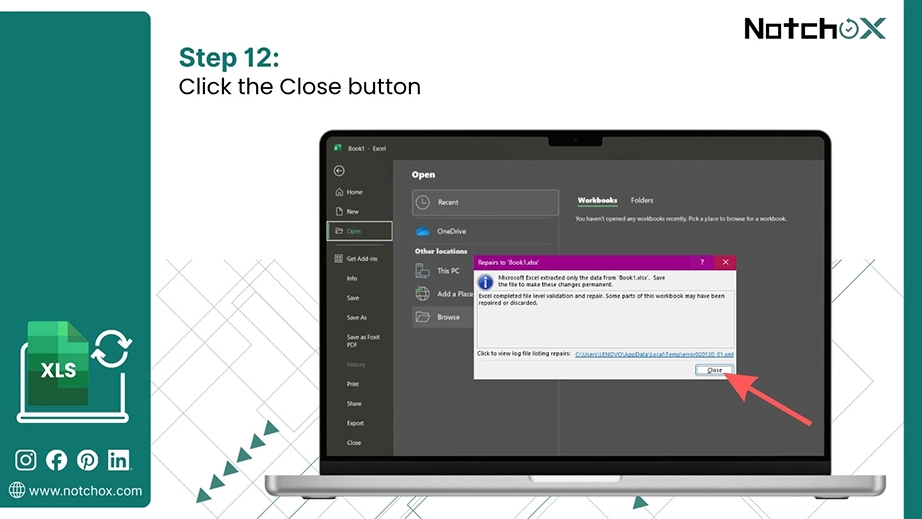
Click Close.
Method 2: Using AutoRecover Feature
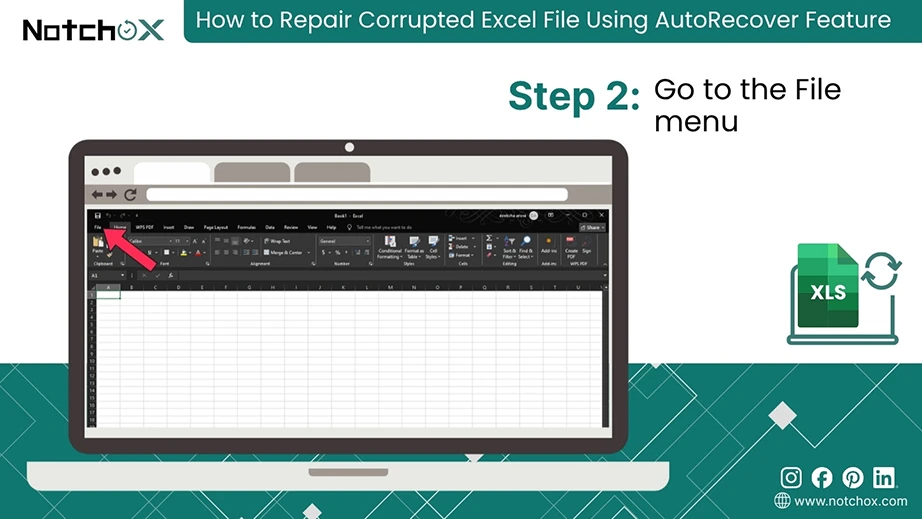
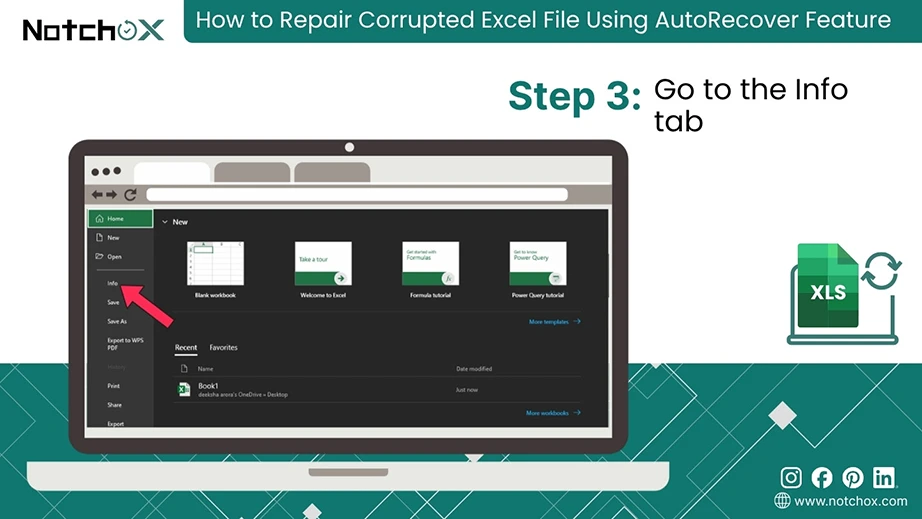
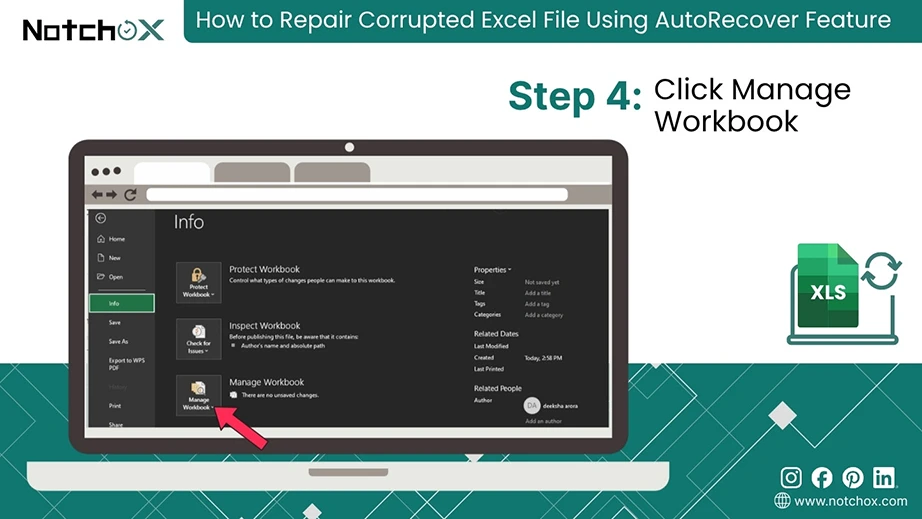
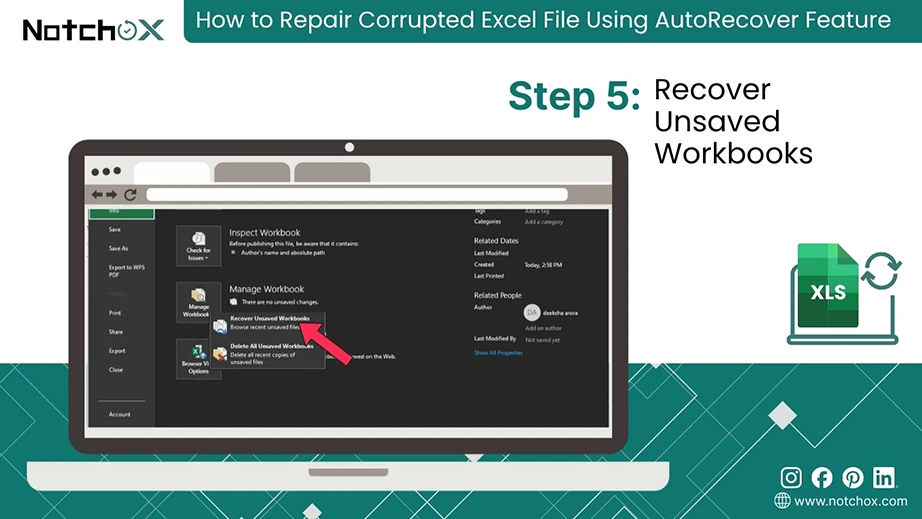
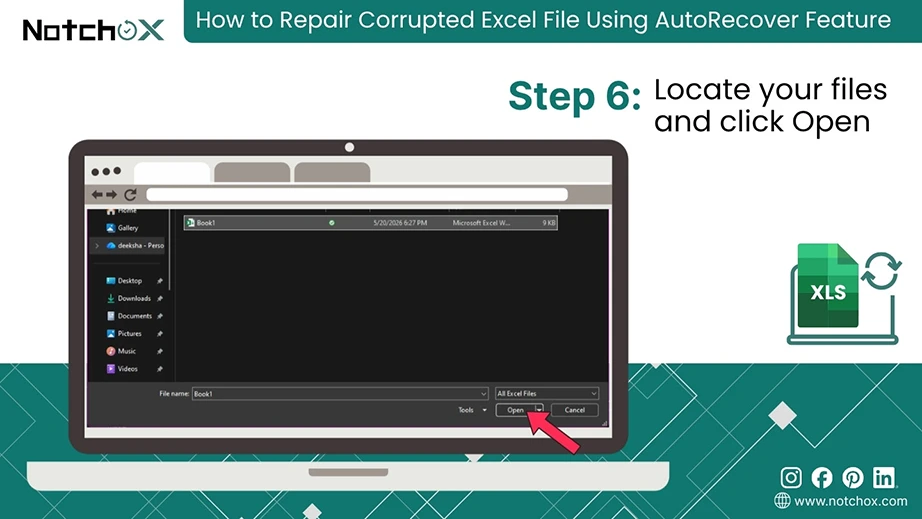
To recover an Excel file via AutoRecover, open Excel > click File > Info > Manage Workbook > click “Recover Unsaved Workbooks.”
Microsoft Excel constantly saves background snapshots of your active spreadsheets. If your file gets corrupted for any reason, these temporary files remain saved. You can use this to pull the uncorrupted version of your workbook.
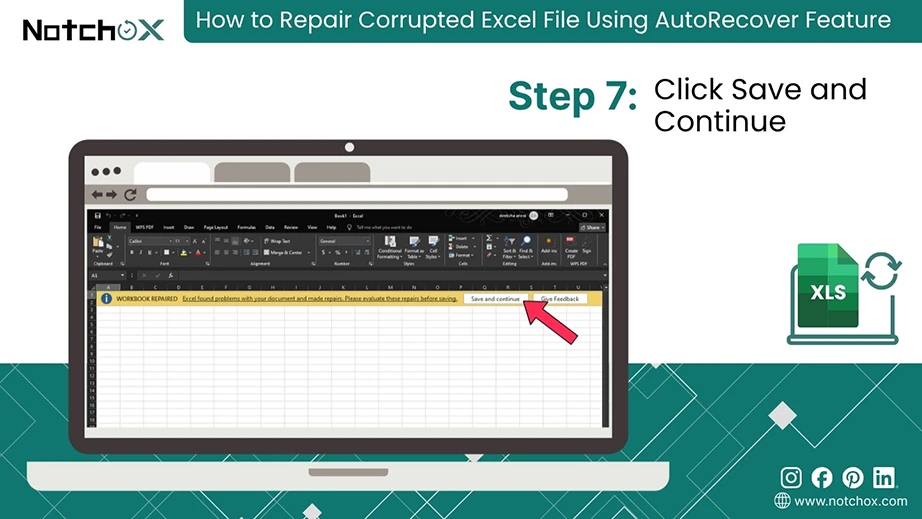
Follow these steps to recover your cached data:
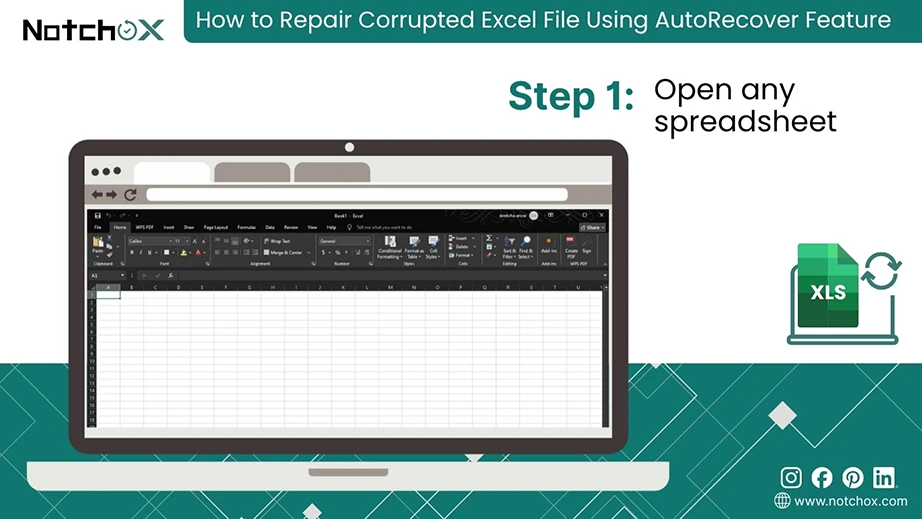
Open the file in which you were working or a blank Excel workbook.
Click on the File menu.
Select the Info tab.
Click on Manage Workbook.
Select Recover Unsaved Workbooks.
Locate your files in the folder and click Open.
In the top bar, click Save and Continue to save the file.
Method 3: Restoring Previous Version of an Excel Spreadsheet
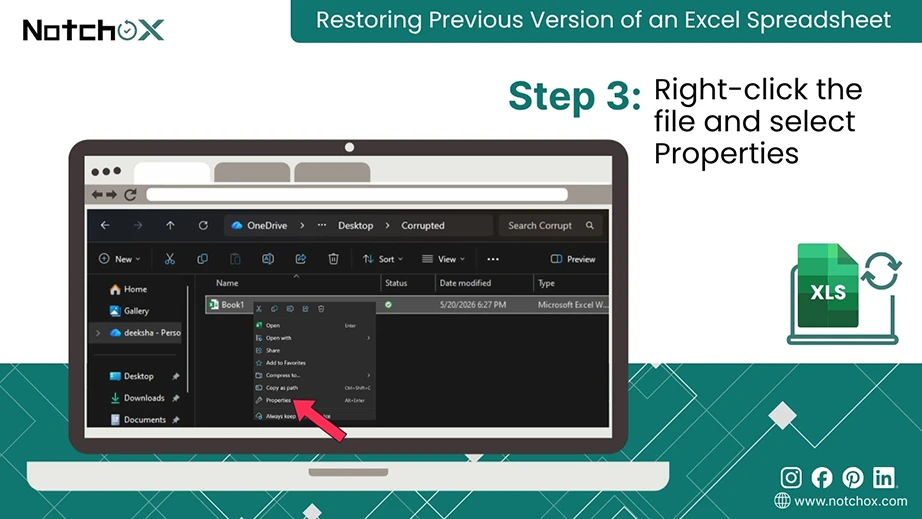
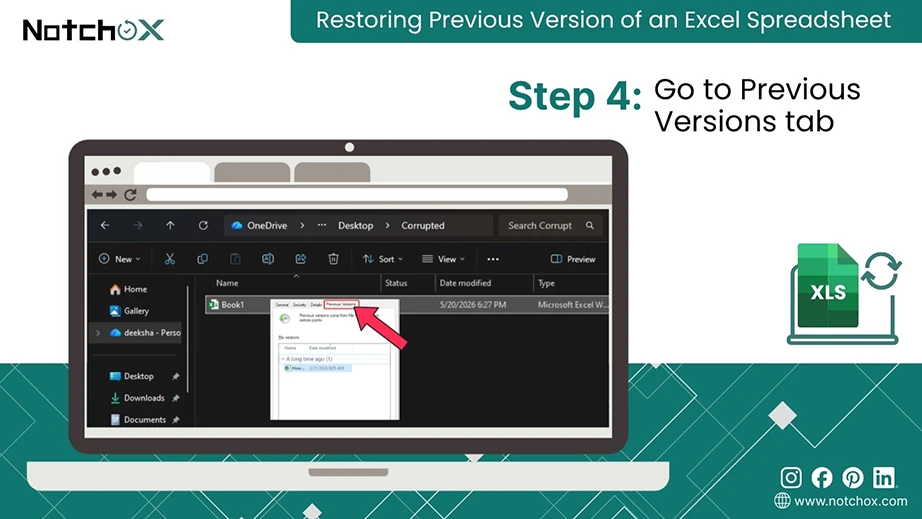
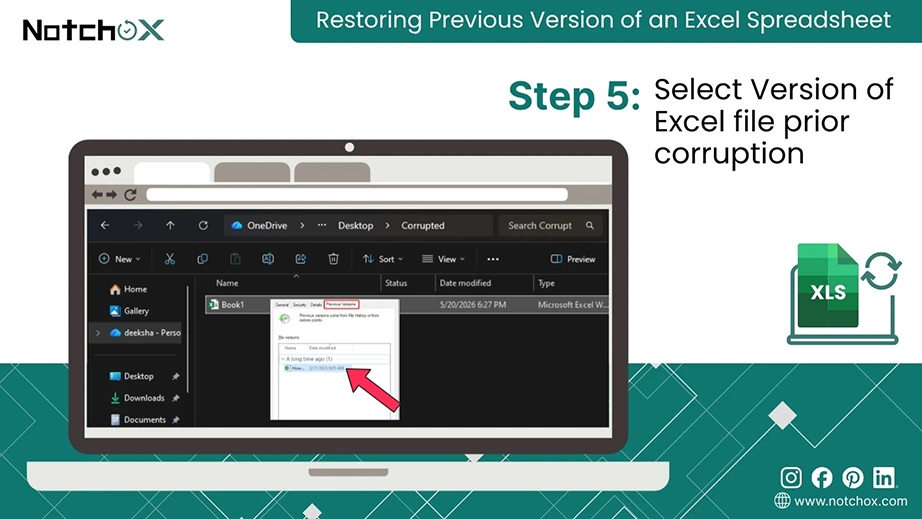
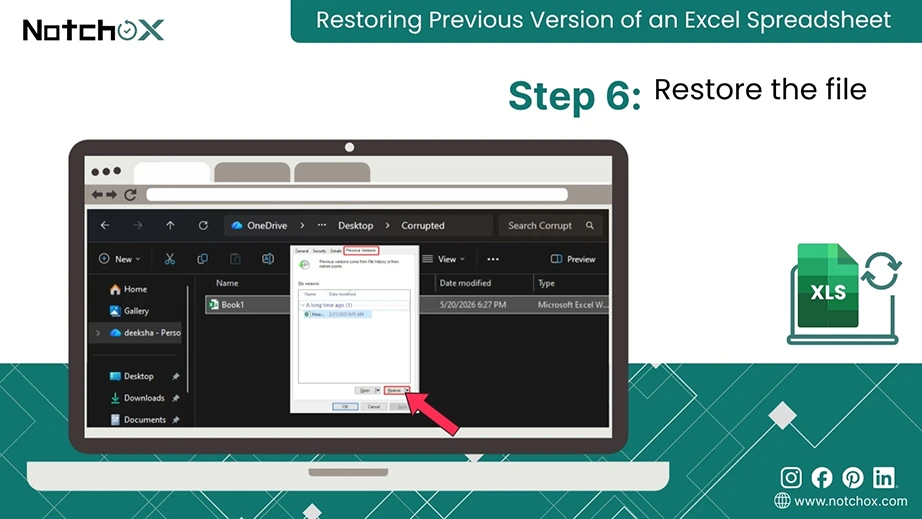
To restore a previous version of an Excel file, right-click the file in Windows Explorer > Properties > Previous Versions tab > choose the version > click “Restore.”
If the file corruption occurs after a recent save, you can roll back to the earlier version of the spreadsheet, which was healthy. Using this, you can fix corrupted XLSX file to a previous version that was working. Windows automatically takes snapshots while Microsoft 365 tracks real-time file histories. This method bypasses corrupted data and loads files as they existed before corruption. If the spreadsheet was deleted outright rather than corrupted, the standard ways to recover deleted files on Windows apply first.
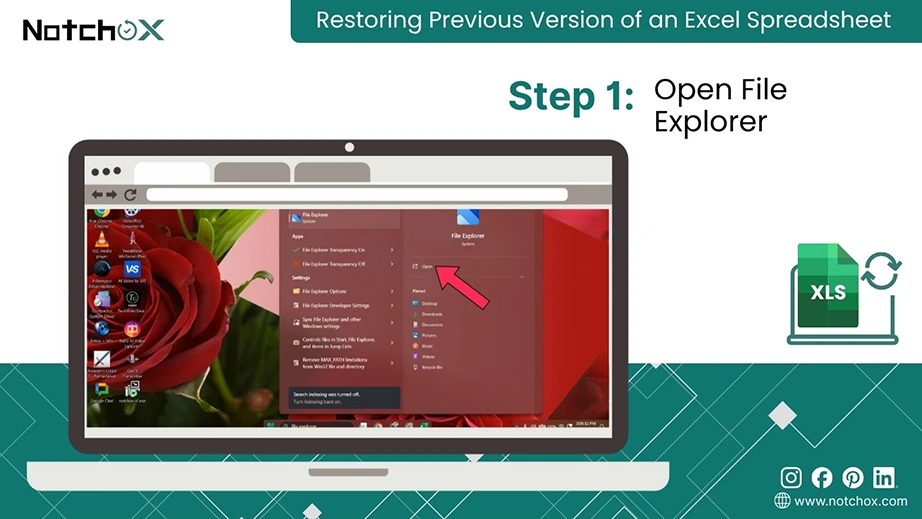
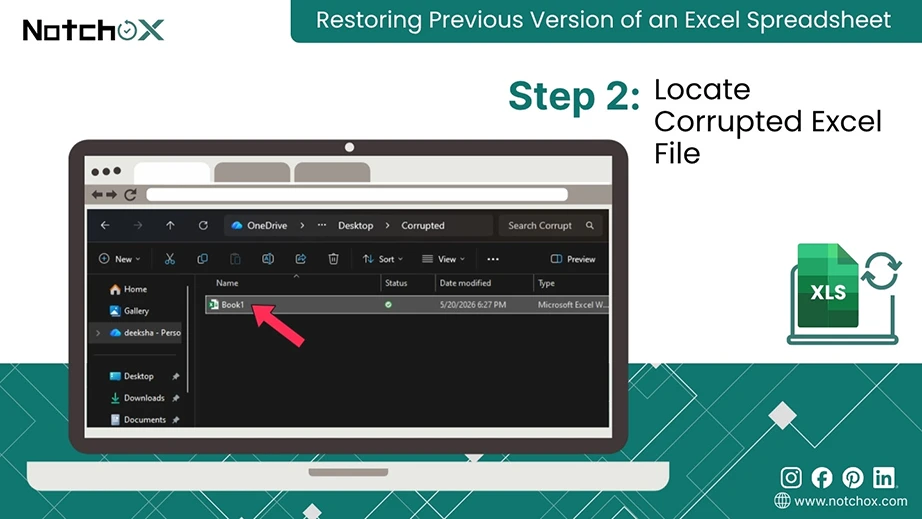
Follow these steps to restore an earlier version of your corrupted spreadsheet:
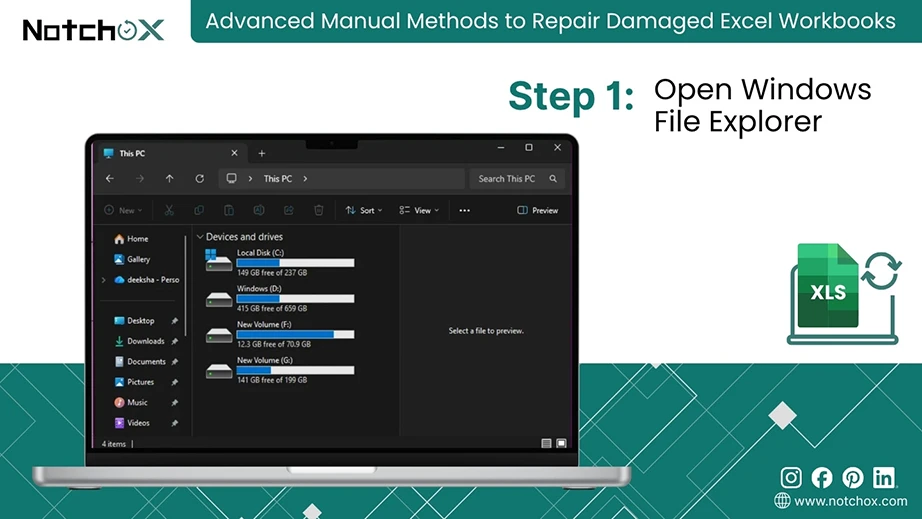
Open Windows File Explorer.
Go to your corrupted Excel file.
Right-click the file and select Properties.
Click the Previous Version tab.
Select a version date prior to the corruption.
Click Restore to overwrite, or Restore To to save a separate copy.
Advanced Manual Methods to Repair Damaged Excel Workbooks
“How do I fix a corrupted Excel file when all the native methods failed?”
When built-in Microsoft methods fail, the file structure itself requires manual intervention. These change how the operating system reads the code of your spreadsheet. Here, we will see how to manually manipulate file properties and access protocols to repair corrupted Excel file.
Method 1: Changing the File Extension to Bypass Validation Errors
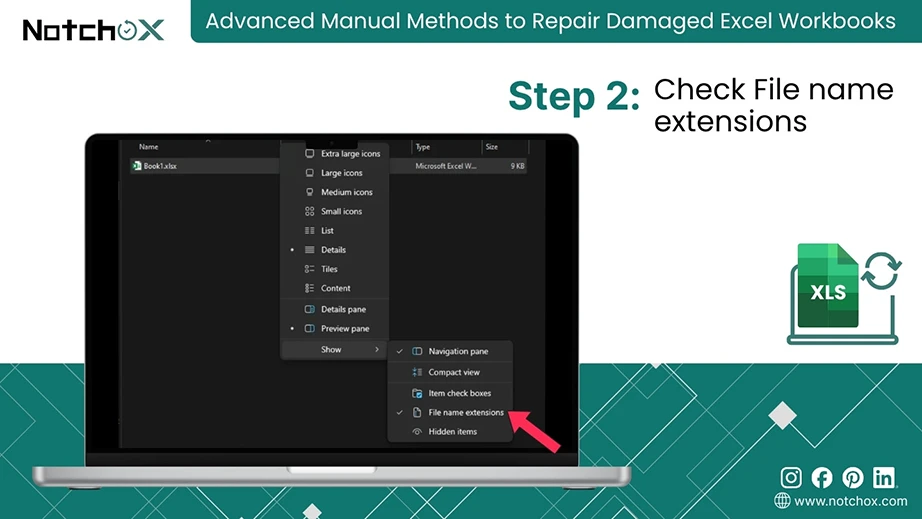
To fix an extension validation error, change the file extension from .xls to .xlsx (or vice versa) by checking File name extensions in Windows Explorer and renaming the suffix.
Sometimes Excel files are not actually corrupted. It is the application that fails to recognise the file format due to an incorrect or mismatched suffix. This can happen after an improper software upgrade or a flawed file download. Changing the extension can repair Excel file and make Excel read the file using a different coding engine.
The steps to safely rename your file extension:
Open Windows Explorer.
Go to the View tab at the top menu bar, click Show and check File name extensions.
Note: Layout might be different for Windows 10 and older.
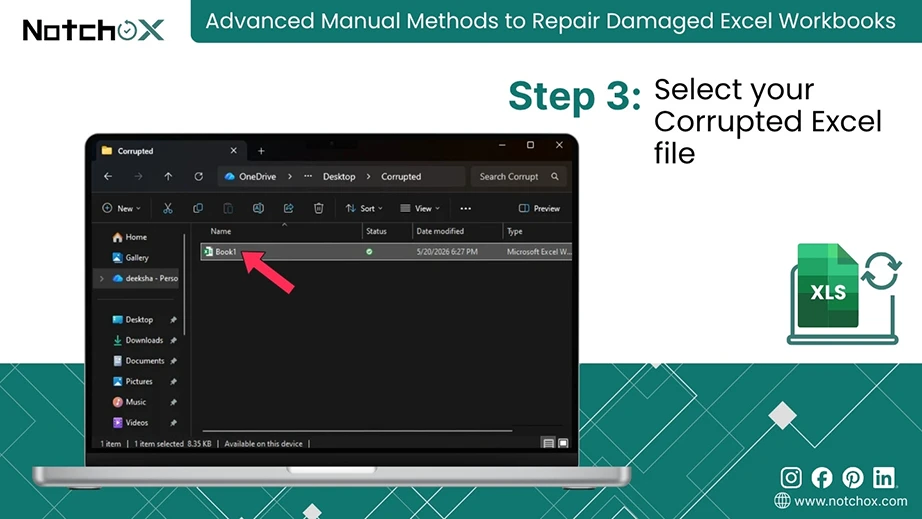
Navigate to your corrupted .xls or .xlsx file.
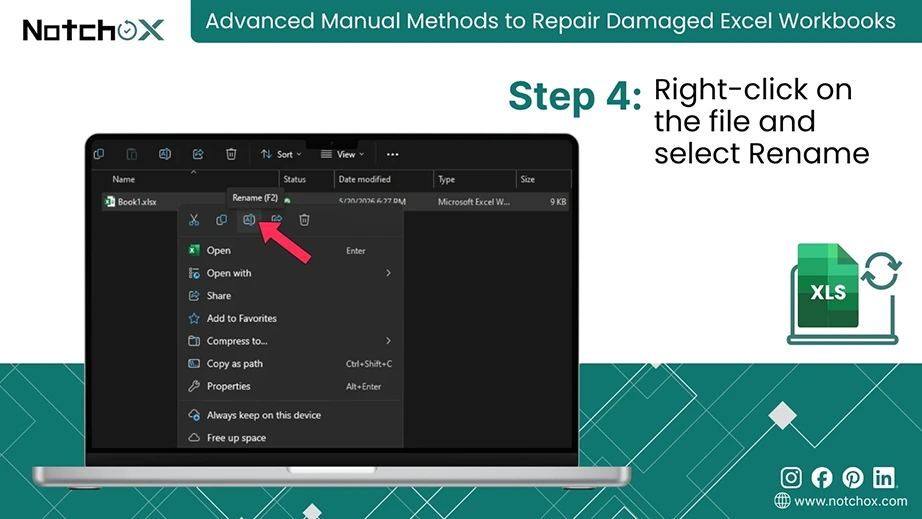
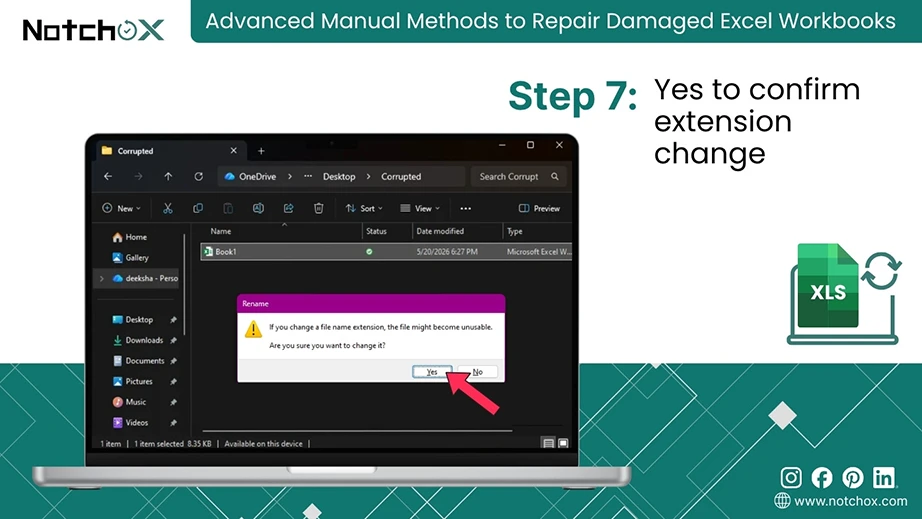
To rename the file simply right-click on the file and select Rename or the rename icon.
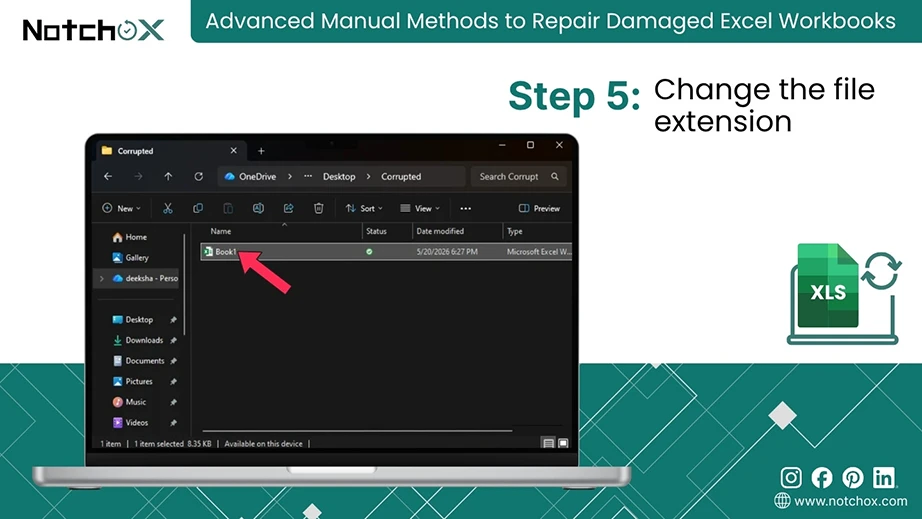
Change .xls to .xlsx (or change .xlsx to .xls).
Press Enter.
Click Yes on the warning pop-up box.
Now try opening the file in Excel.
Method 2: Using Safe Mode to Open Excel
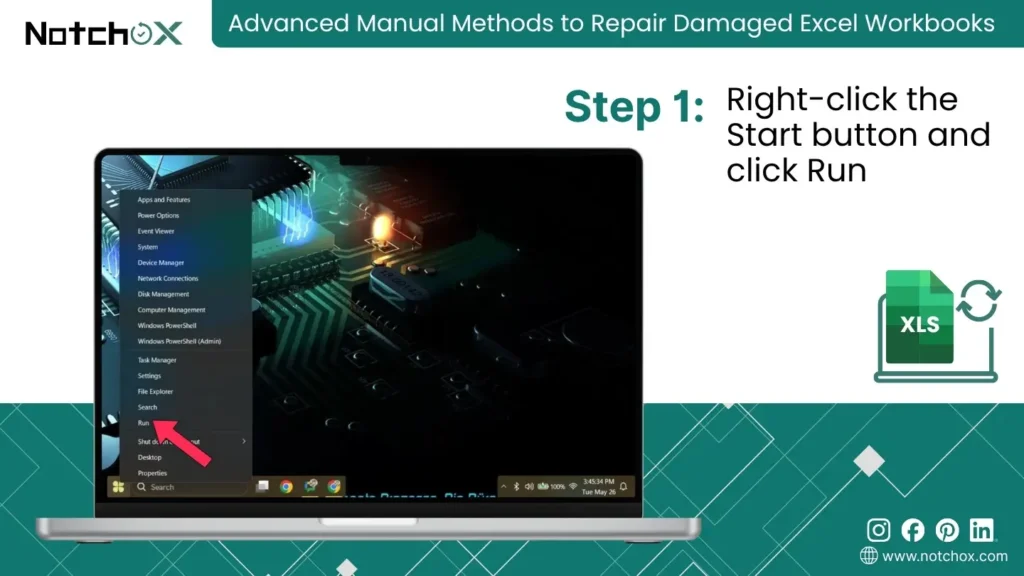
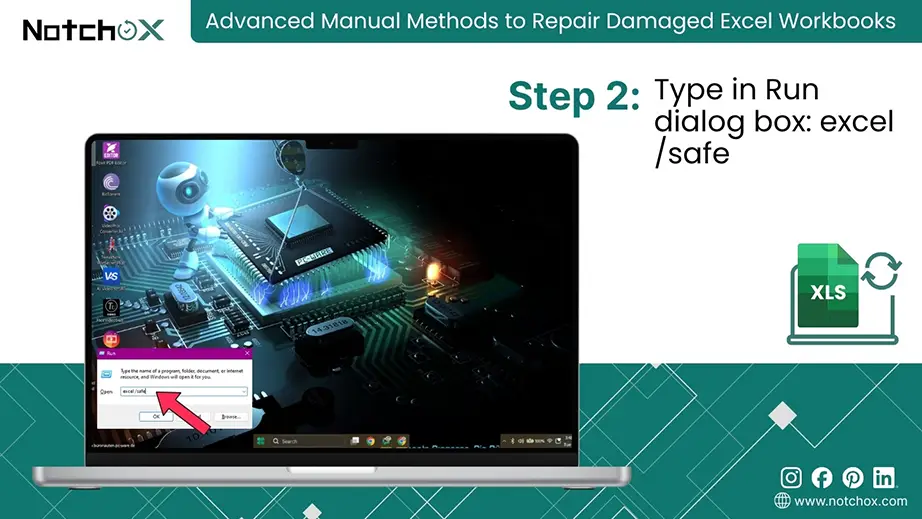
To open Excel in Safe Mode, press the Windows Key + R and type excel /safe into the Run box. Press Enter.
Running Excel in Safe Mode will bypass all third-party add-ins and plugins and help you opening a corrupt Excel file. This can be used to see if it is your file that is corrupted or if background software is causing Excel to crash.
How to open corrupted Excel file in safe mode?
1. Using Windows Run Command
Right-click the Start button in Windows and select Run.
Shortcut: Press Windows Key + R to launch Run
Type excel /safe in the open field.
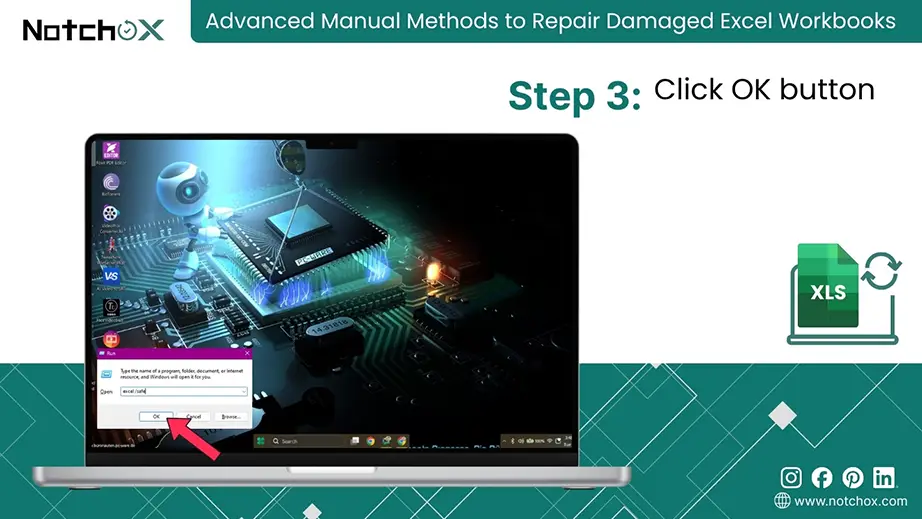
Click OK or press Enter.
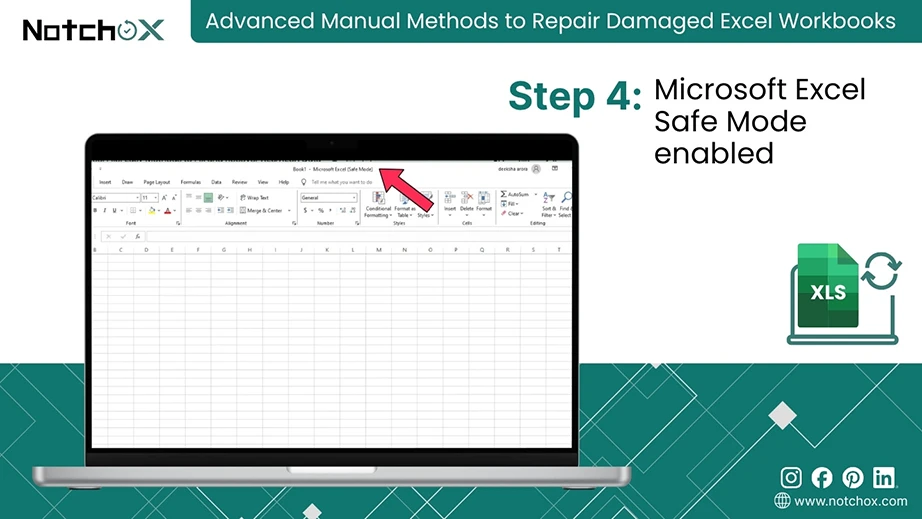
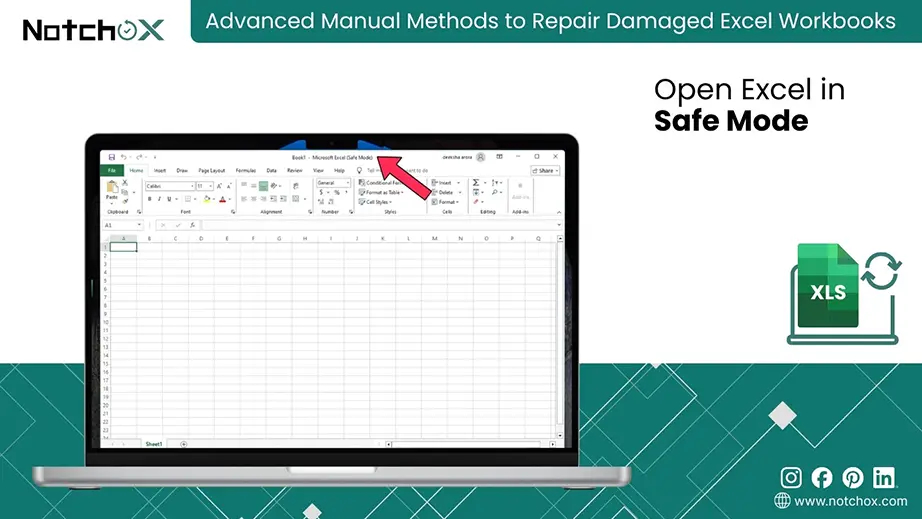
You can see at the top bar: Microsoft Excel (Safe Mode).
2. Using the Ctrl Key Shortcut
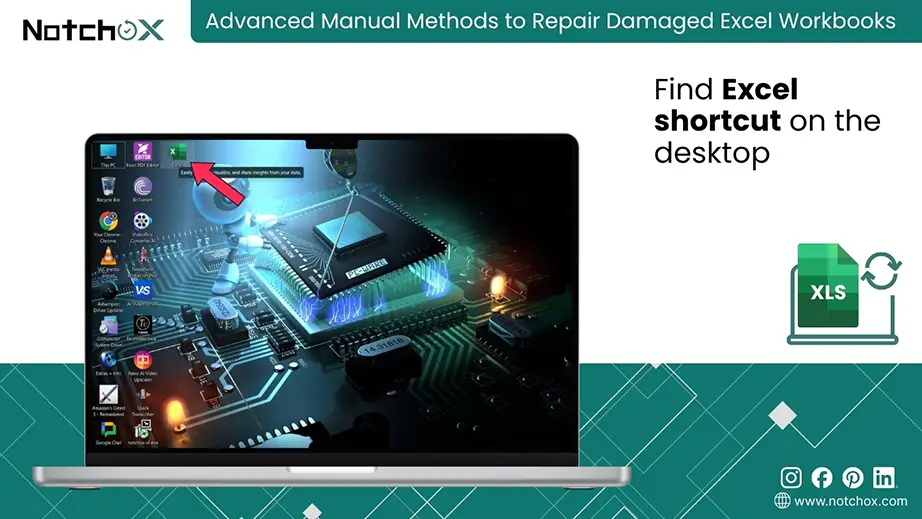
Find the Excel shortcut icon on your Desktop or Start Menu.
Press and hold the Ctrl key and double-click the Excel icon.
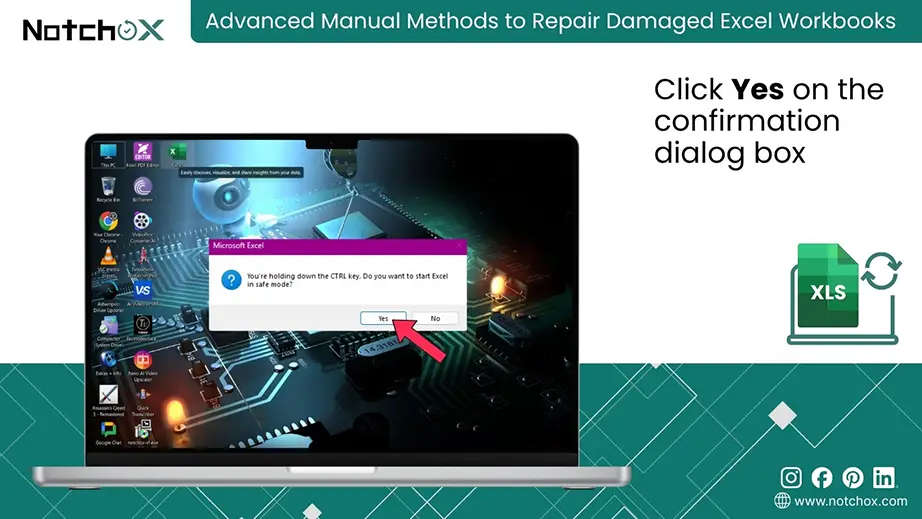
Release the key when a window appears asking if you want to start Excel in Safe Mode.
Click Yes.
Note: To stop the Safe Mode, exit and restart Excel.
Method 3: Disabling Problematic Add-ins
To disable problematic add-ins, open Excel > File > Options > Add-ins > Select add-ins from the Manage menu > Go > Uncheck active plugins > OK.
Third-party plugins can cause the application to crash or trigger false file corruption errors. If your file opens smoothly in Safe Mode, a background add-in is the reason behind the corruption error. Deactivating these can make your files open safely.
Follow these steps to remove conflicting software:
Open Excel in Safe Mode.
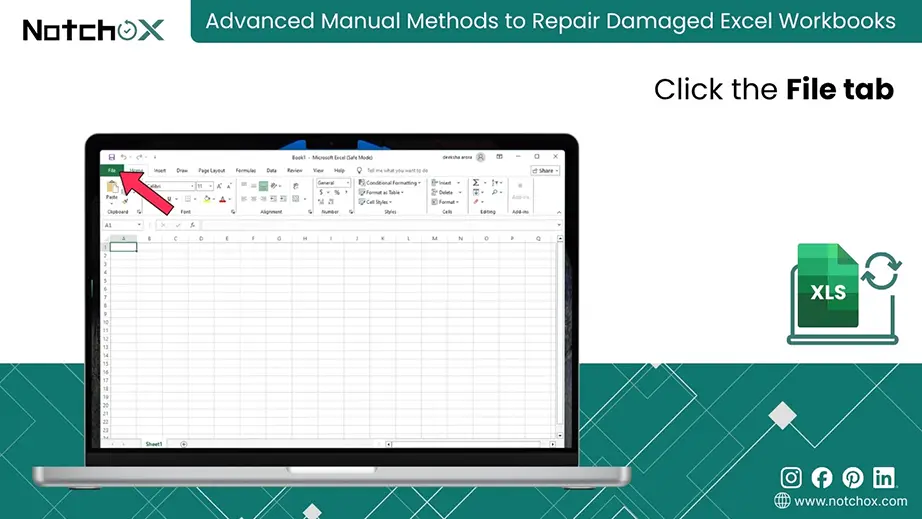
Click the File tab in the Menu bar.
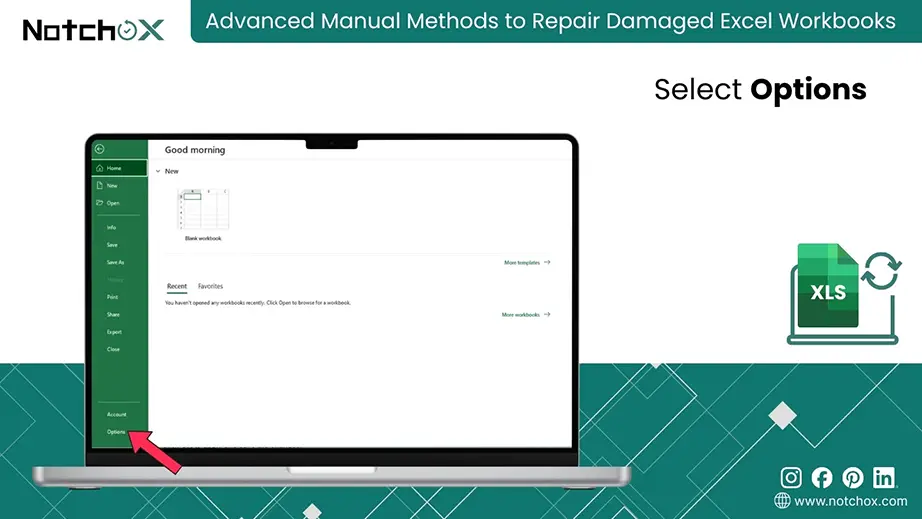
Select Options from the bottom of the left sidebar.
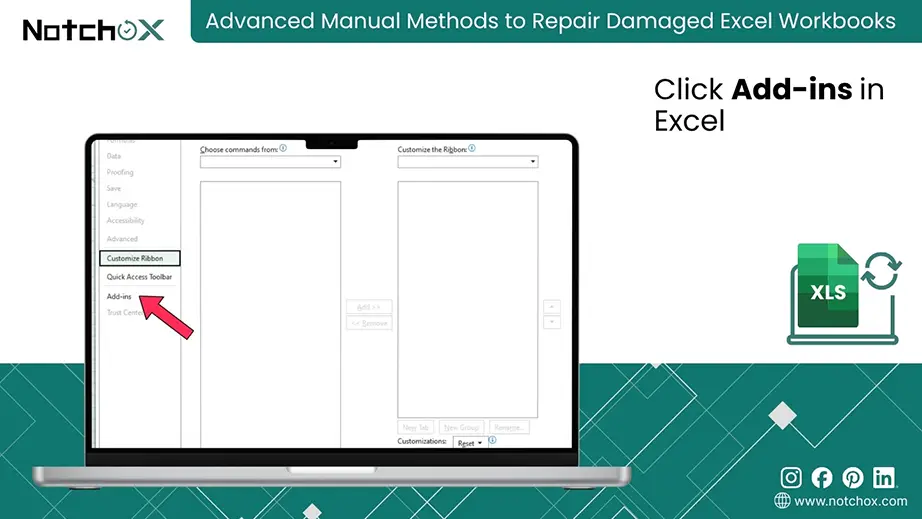
Click Add-ins inside the options window.
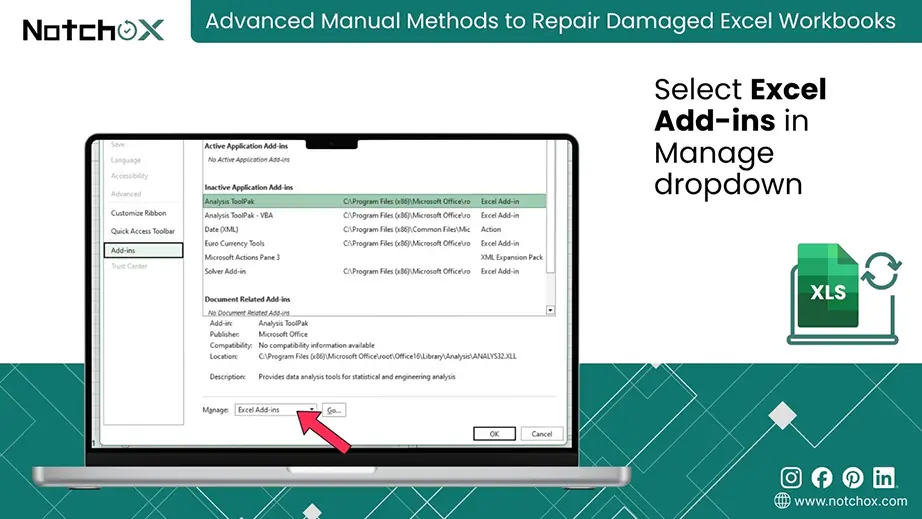
From the Manage drop-down, select Excel Add-ins.
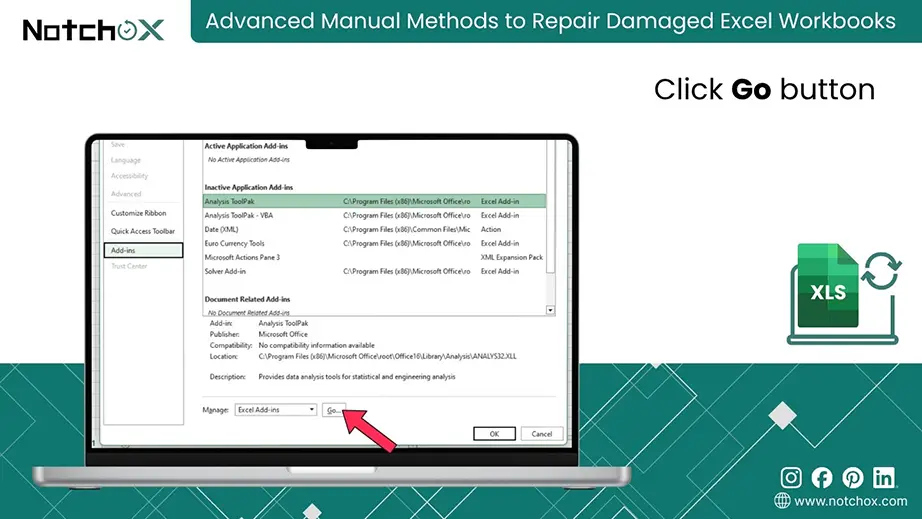
Click the Go… button.
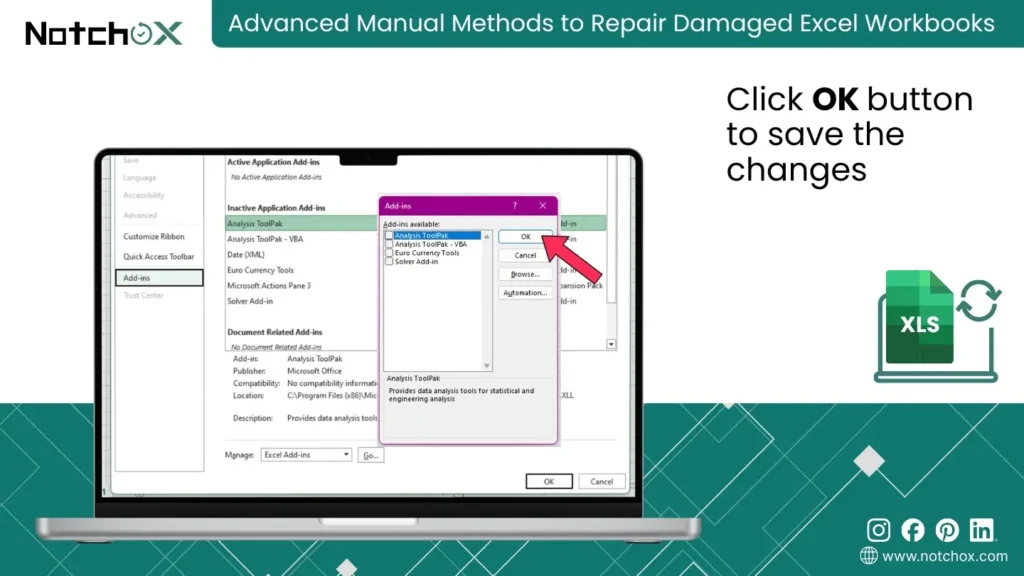
Uncheck all the active checkboxes and Click OK to save the changes.
Close Excel and relaunch it normally. Re-enable the add-ins one by one under the same menu. Identify the exact plugin that triggers the crash. This will help to repair corrupted Excel file.
What is the Best Corrupted Excel Recovery Software?
The best corrupted file recovery software is Notchox, which excels at restoring corrupted files, including Excel spreadsheets and their elements like formulas and charts.
When native Microsoft tools and manual system methods fail, third-party software is the only solution to get back your files and repair corrupted Excel file.
How to Choose Corrupted Excel File Recovery Software?
To choose the best corrupted Excel file recovery software, look for specialised file recovery capabilities that keep the drive safe and give a clear preview of data before recovery.
Here are a few important things to keep in mind while choosing a corrupted file recovery software:
Data Repair vs Basic Extraction: It’s important here for the data recovery software to have a feature of data repairing, i.e., fix corrupted JPEG, Excel, Word, or any other file type, because corrupted files, if extracted as they are, will be of no use.
File Type Compatibility: Choose a software that is compatible with your file type. Make sure it recovers older .xls along with modern .xlsx files.
Risk-Free File Preview: Make sure the tool also has a free preview that displays full data before complete recovery, so that your time is saved.
Read-Only Execution: The software must run in a strictly read-only mode, i.e., it should not overwrite the data and recover the exact same data without losing integrity.
Recover Corrupted XLS/XLSX Data Using Notchox
To recover corrupted Excel files using Notchox Corrupted File Recovery Software, download the desktop software, select the drive containing your spreadsheet, run a deep scan, preview the .xls or .xlsx files and move them to safe storage.
The Notchox Document Recovery Suite gives a four-step recovery process that scans the damaged sectors to trace lost, unreadable, corrupted and missing documents. It uses smart filtering algorithms to isolate clean data from corrupted system spaces. The same suite can recover deleted Word files as well as spreadsheets.
Follow the steps to recover your corrupted spreadsheet using Notchox:
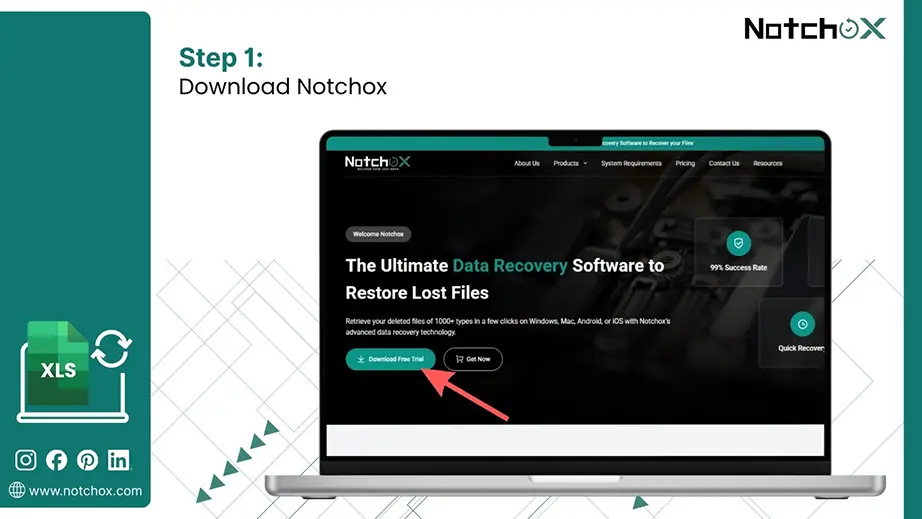
Download the official installer from Notchox and open the Software application on your computer.
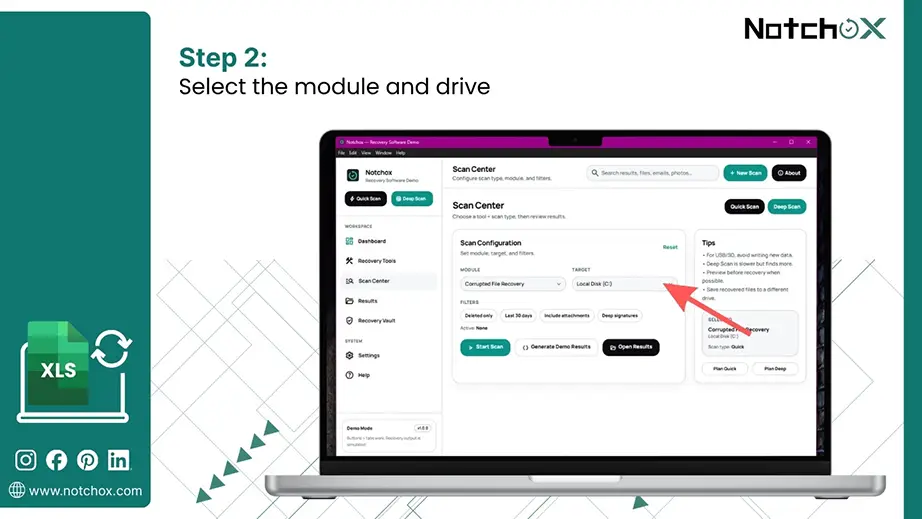
Select the module and your drive that has your corrupted Excel file.
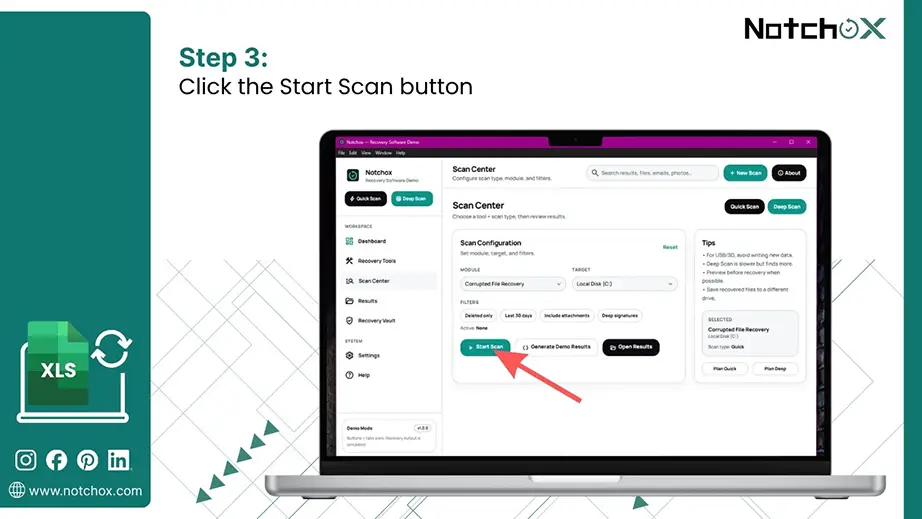
Click the Start Scan button to begin inspecting the drive.
Preview and extract the recovered files.
Go to the Results tab and click Preview to inspect the integrity of the file.
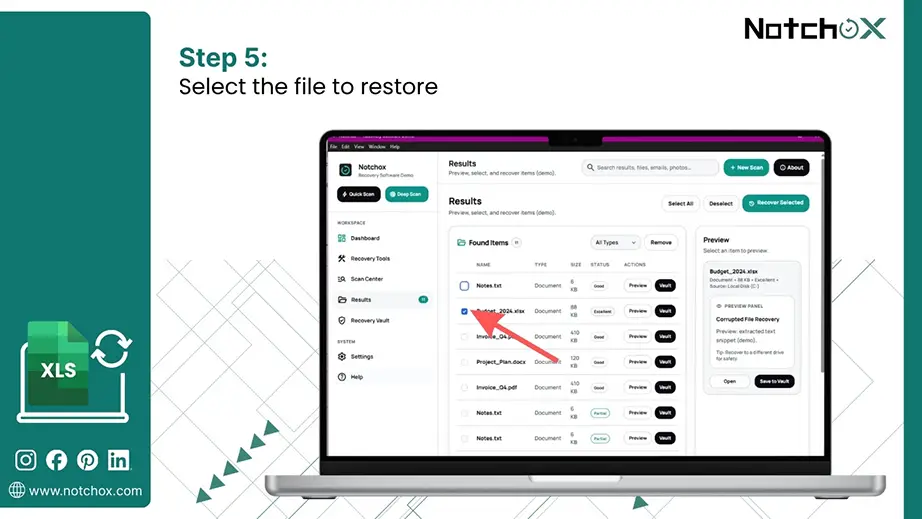
Select the file you want to restore.
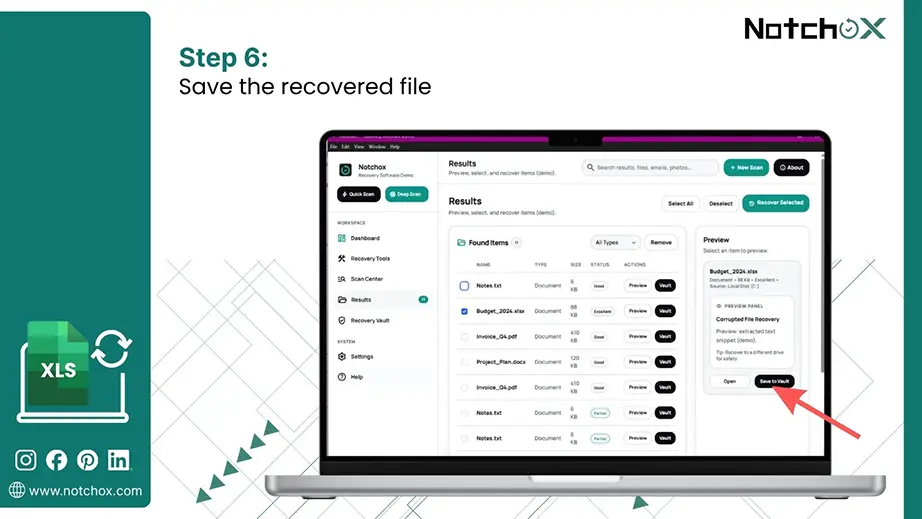
Click the Save to Vault button to save the recovered file in a secure place.
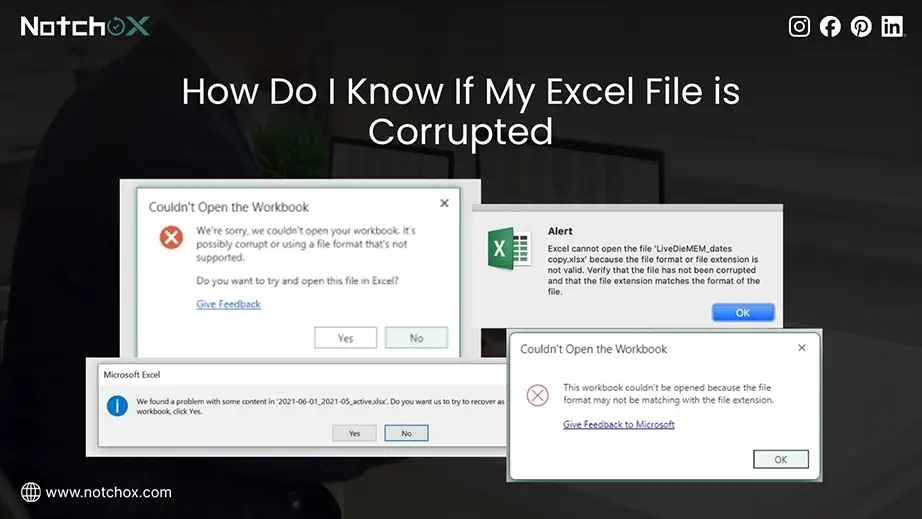
How Do I Know If My Excel File is Corrupted?
File corruption happens when the underlying binary or XML code of a workbook becomes unreadable. Excel is highly sensitive to structure. So, even a single misplaced character in its core formatting can prevent the entire spreadsheet from opening. Therefore, knowing the signs helps you take action quickly and prevent permanent data loss.
Common warning signs and symptoms that you get to see while opening a corrupt excel file:
Invalid Extension Alert
Unreadable Content Prompts
The Blank Workspace
Why do spreadsheets corrupt suddenly?
Sudden Power Loss
Faulty Storage Drives
Third-party background software add-ins
Software Crashes
Malware Attacks
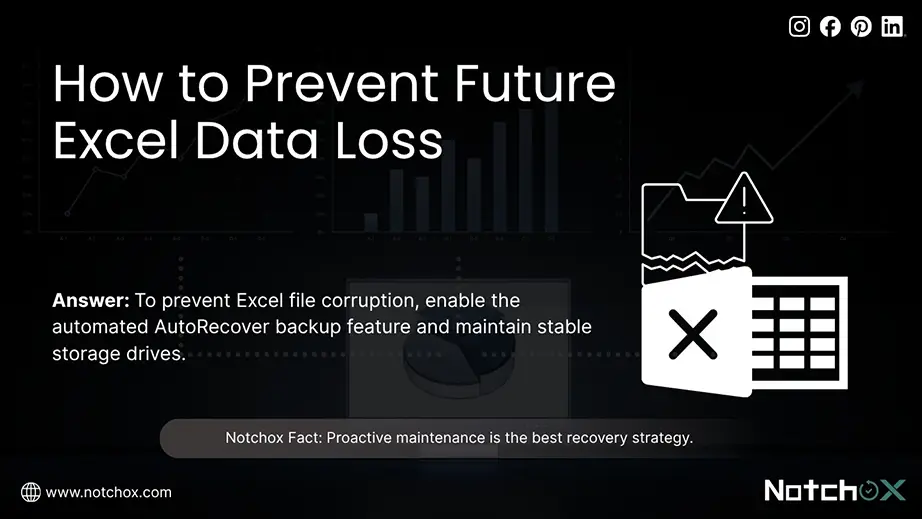
How to Prevent Future Excel Data Loss?
To prevent Excel file corruption, enable the automated AutoRecover backup feature and maintain stable storage drives. Always close your workbooks before shutting down your computer.
Proactive maintenance is the best recovery strategy. Taking simple precautions saves you from the stress of opening a corrupt Excel file.
Enable Automatic Backup: Configure Excel’s built-in AutoRecover feature to save snapshots of your active spreadsheets every few minutes.
Safe File Handling: Always save your files to your local drive and close the application properly before turning off your computer.
Storage Drive Maintenance: Regularly scan your drive for bad sectors using the Windows chkdsk command to keep your storage healthy.
To Conclude
Most corrupted spreadsheets can be rescued using simple and free built-in tools. If you are facing severe data corruption, specialised software like Notchox can help to recover your files safely.
Moving forward, keep your auto-backups enabled and follow safe file habits to protect your Excel data from future disruptions.
Frequently Asked Questions (FAQs)
Q1: How do I fix a corrupted Excel file?
Ans: To repair corrupted Excel file, use Excel’s native repair utility.
Steps to fix corrupted XLSX file:
Open a blank Excel window.
Click File > Open.
Select corrupted Excel file.
Click the arrow next to the Open button and choose Open and Repair.
If you are still not able to repair corrupted XLSX file, use Notchox Corrupted File Recovery Software.
Q2: Is there a way to uncorrupt an Excel File?
Ans: Yes, you can reconstruct the broken file structure of the Excel file. You can restore a previous version from AutoRecovery history, manually alter the file extension, or use a third-party recovery software such as Notchox.
Q3: What causes an Excel file to be corrupted?
Ans: Causes of Excel file corruption:
Abrupt power losses
Third-party background software add-ins
Interrupted saving processes
Faulty storage drive
Malware attacks
Q4: What software is used to repair Excel files?
Ans: Use a specialised binary reconstruction software to repair and recover Excel files. Use dedicated utility programs such as Notchox corrupted file recovery software.
Q5: How do I open Excel file in Safe Mode?
Ans: There are 2 ways to open Excel in Safe Mode:
Press Windows Key + R, type excel /safe and press Enter.
Hold the Ctrl key and double-click on the Excel shortcut on the Desktop or Start menu.
Kajal Singh is a Data Recovery Writer at Notchox, specializing in data recovery, storage systems, RAID, and digital forensics. She writes technical processes, tools, and cases into clear, engaging articles, blogs, and guides. Kajal does thorough research, deep analysis, and collaborates with experts to produce high-quality and engaging content that is easy to understand for every reader.