Best Data Recovery Software to Recover your Files
Share
Resources » File Repair » How to Repair a Corrupted PowerPoint File?

How to Repair a Corrupted PowerPoint File?

Written By   Deeksha Arora
|
Jatin Kumar
Reviewed By  Jatin Kumar
| Updated On August 29, 2026
How to Repair a Corrupted PowerPoint File

PowerPoint showing warnings/error messages like “PowerPoint found a problem with content,” “PowerPoint can’t read the file,” “The file is damaged and cannot be opened” can leave you confused. These indicate internal structural disruptions. You can easily repair corrupted PowerPoint file using many built-in Microsoft methods or hacks, should we call it. These include the Open and Repair tool, PowerPoint Safe Mode, Reusing Slides, whitelisting, and many more.

By the end of this self-contained tutorial, you will know how to deploy these methods, how to handle unsaved drafts, and when to rely on specialised third-party recovery tools to completely rebuild a severely damaged PPT file.

Quick Answer: 

For a quick and instant fix to repair corrupted PowerPoint file, deploying Notchox Corrupted File Recovery Software is the most effective solution. This specialised tool scans deep hex layers and automatically reconstructs your original slide back into a healthy file. You can also use native Microsoft features to fix minor glitches. The built-in Open and Repair feature located within the File menu can fix it. Also, launching PowerPoint in Safe Mode successfully bypasses faulty add-ins, and using Reuse Slides pulls content directly into a clean template.

How to Repair a Corrupted PowerPoint File: Step-by-Step Methods for Different Repair Scenarios 

Alt: Step-by-Step Methods on How to Repair a Corrupted PowerPoint File

Repairing a corrupted presentation requires deploying distinct recovery paths based on the state of your file. We will look at three specific scenarios below to help you with recovery of a corrupted PowerPoint file.

  1. Damaged File Repair
  2. Unsaved File Recovery
  3. Automated Software Fix

Scenario 1: Repairing a Damaged PowerPoint Presentation 

When the file is physically present, you can see it but cannot open it; it shows some error messages or crashes upon opening. This means the internal code structure must be rebuilt or bypassed.
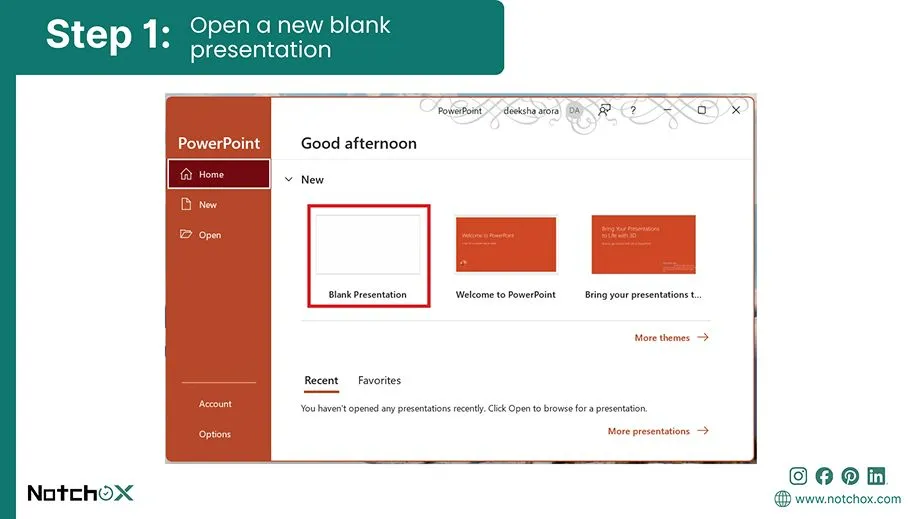
Method 1: The Built-In “Open and Repair” Feature

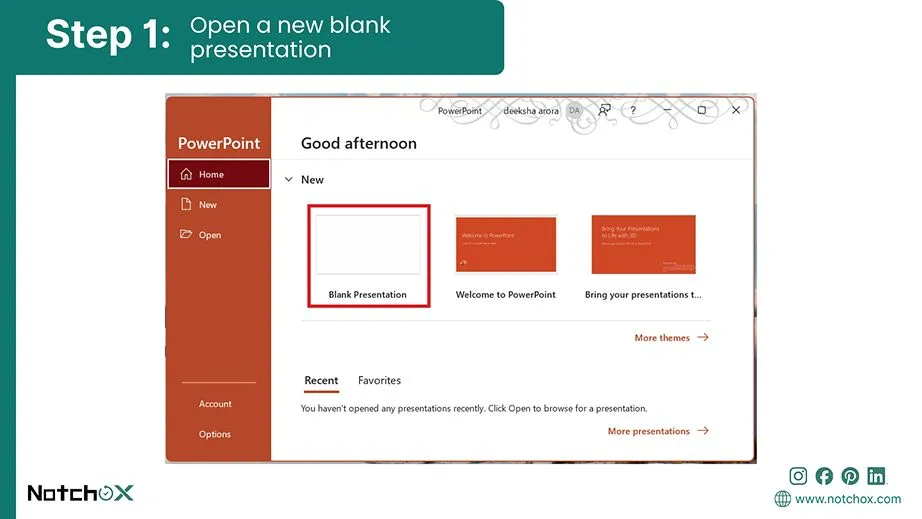
open a new blank presentation
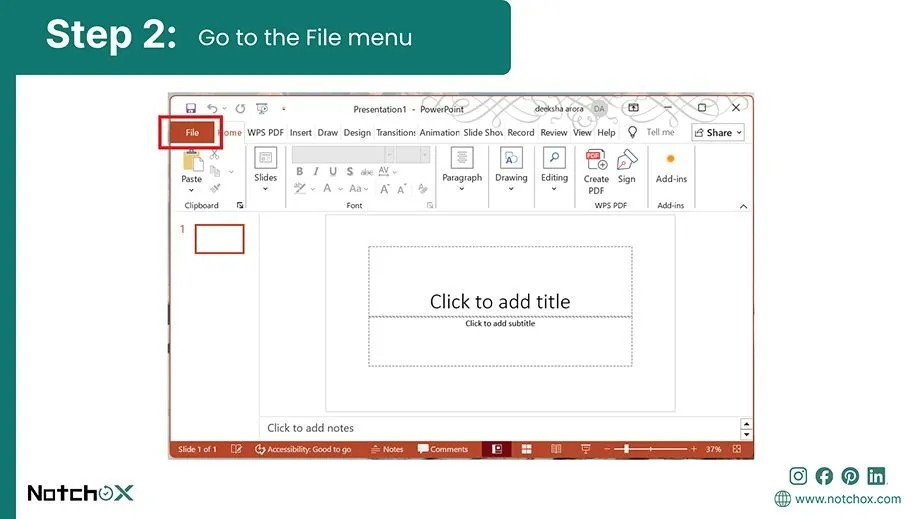
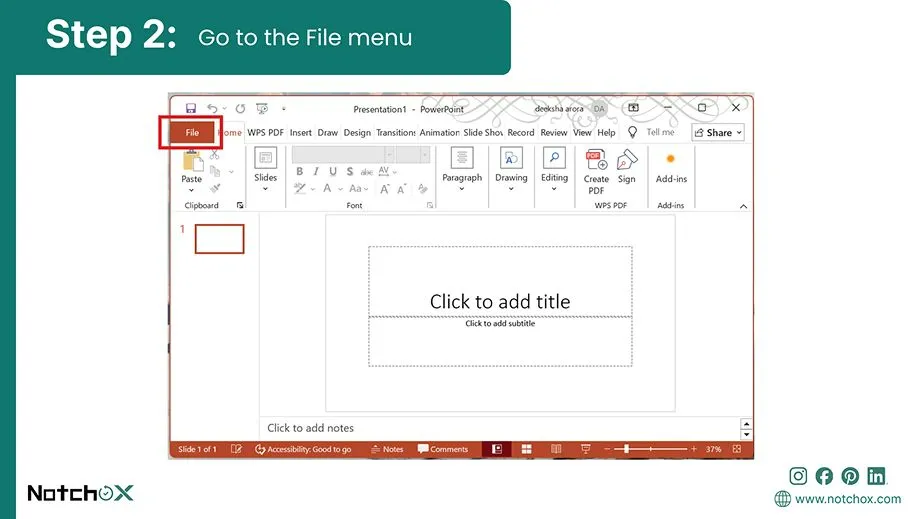
go to the file menu
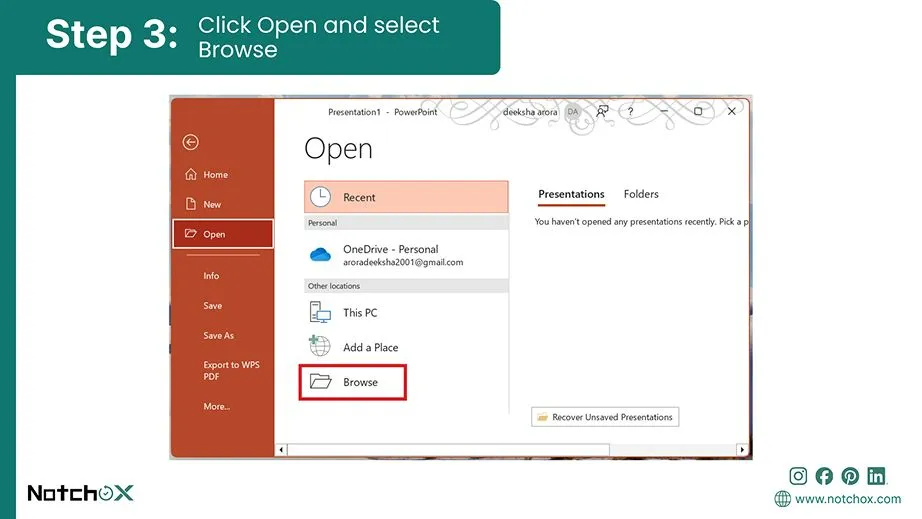
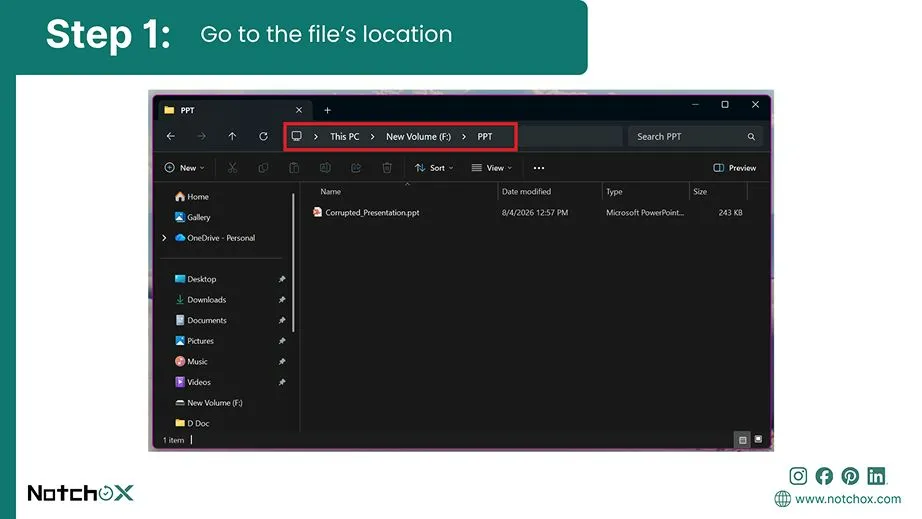
click open and select browse
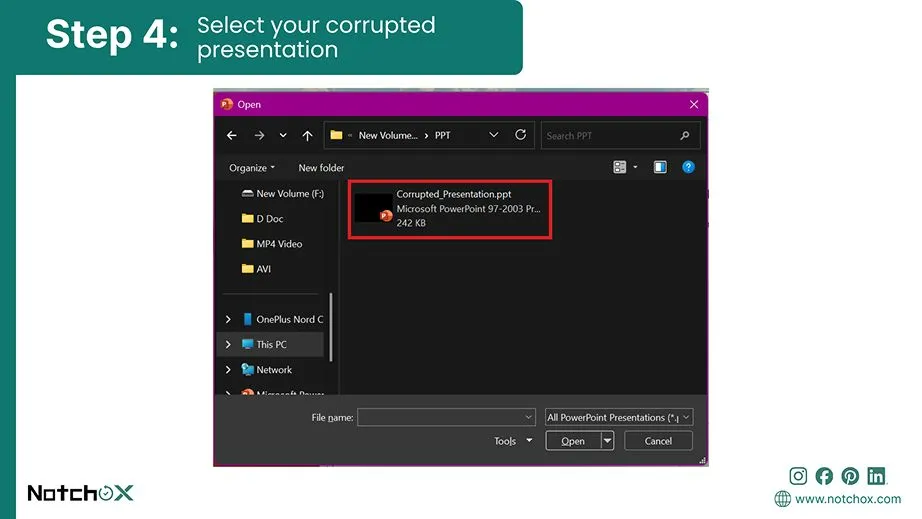
select your corrupted presentation
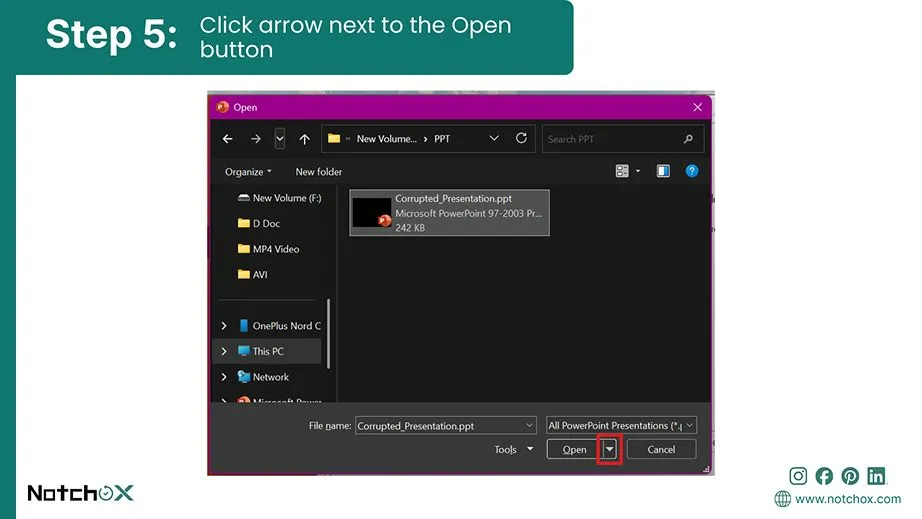
click arrow next to the open button
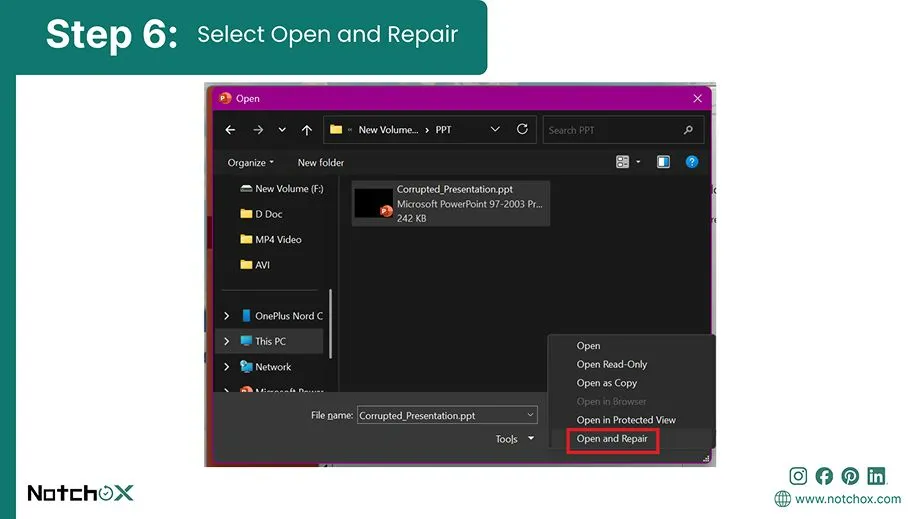
select open and repair

Microsoft PowerPoint has a built-in feature to scan damaged files and fix minor code errors automatically. If your presentation crashes or shows a warning message upon opening, try this solution first. It rebuilds the broken file structure.
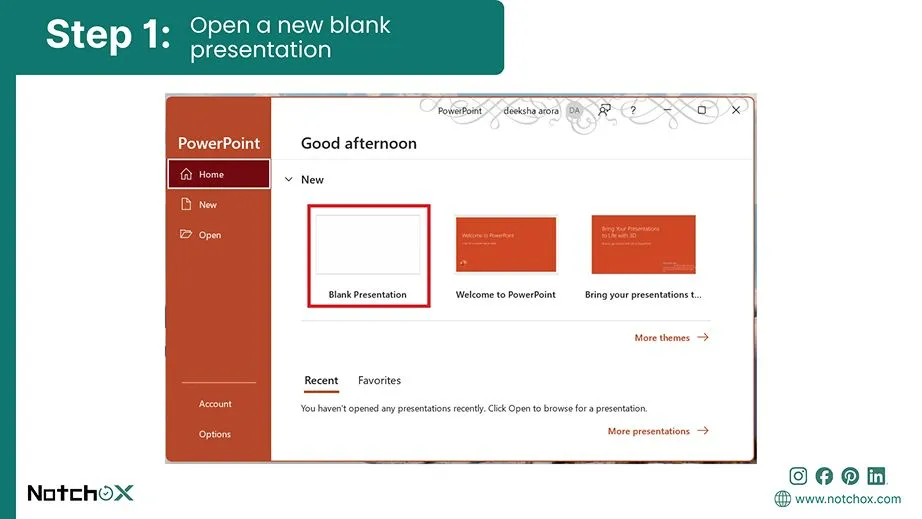
  1. Open a blank file of Microsoft PowerPoint on your desktop.
  2. Click File in the top ribbon menu.
  3. Select Open and click Browse.
  4. Go to the local folder where your corrupted presentation file is stored.
  5. Click on the arrow next to the Open button in the bottom right of the dialog box.
  6. Select Open and Repair from the context menu to launch the automatic fix.

Method 2: Extract and Reuse Slides in a Blank Presentation

Open a new blank Presentation
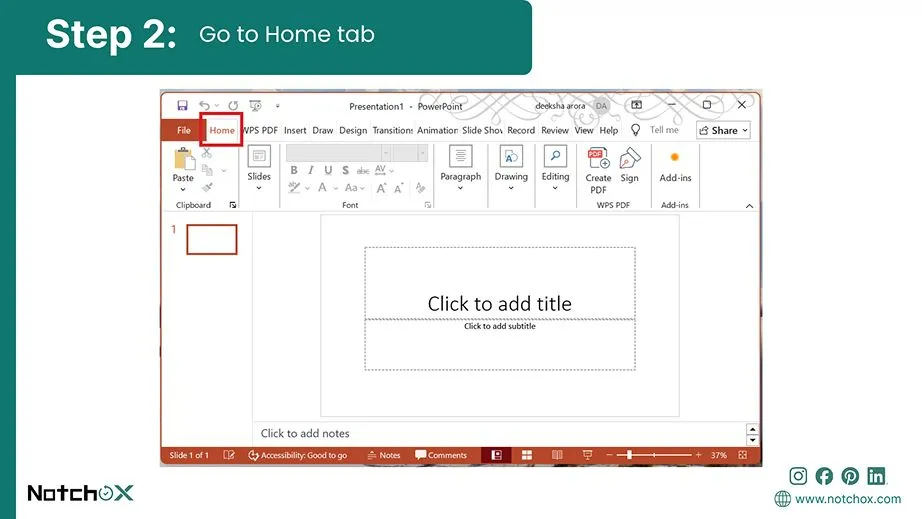
Go to Home tab
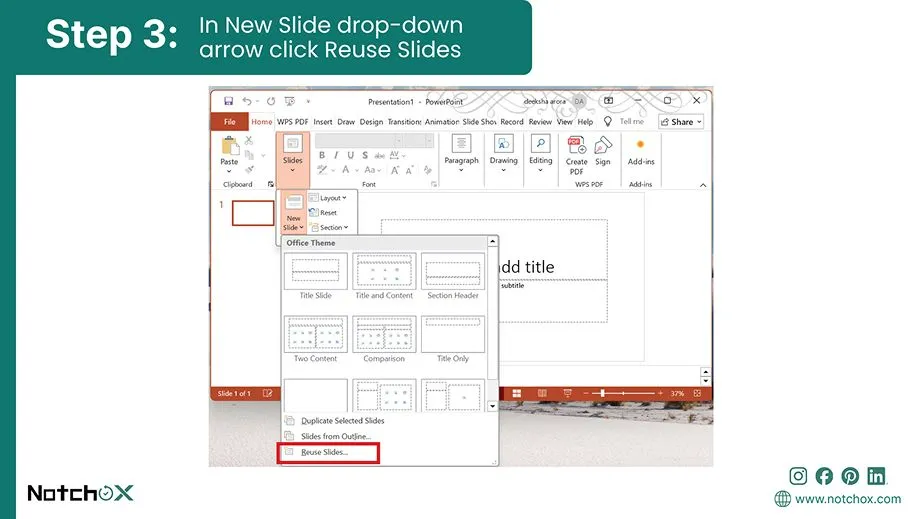
In New Slide drop-down arrow click Reuse Slides
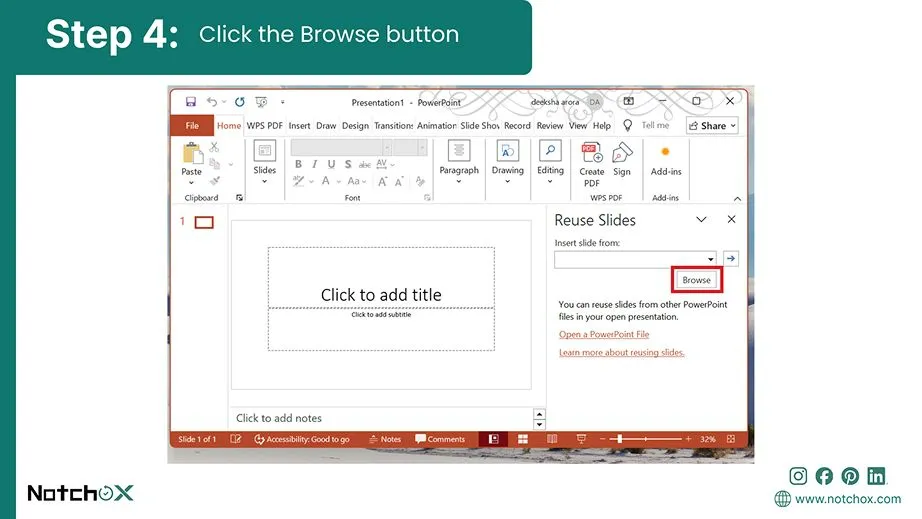
Click the Browse button
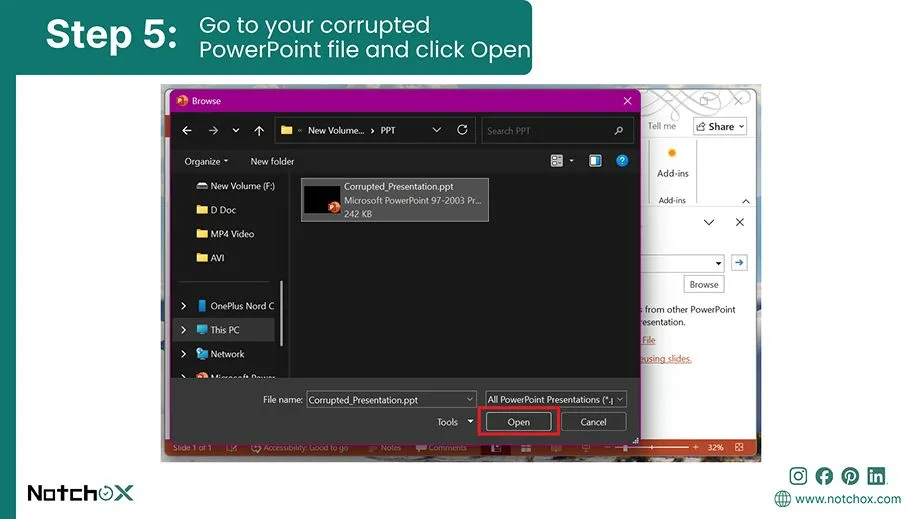
Go to your corrupted PowerPoint file and click Open
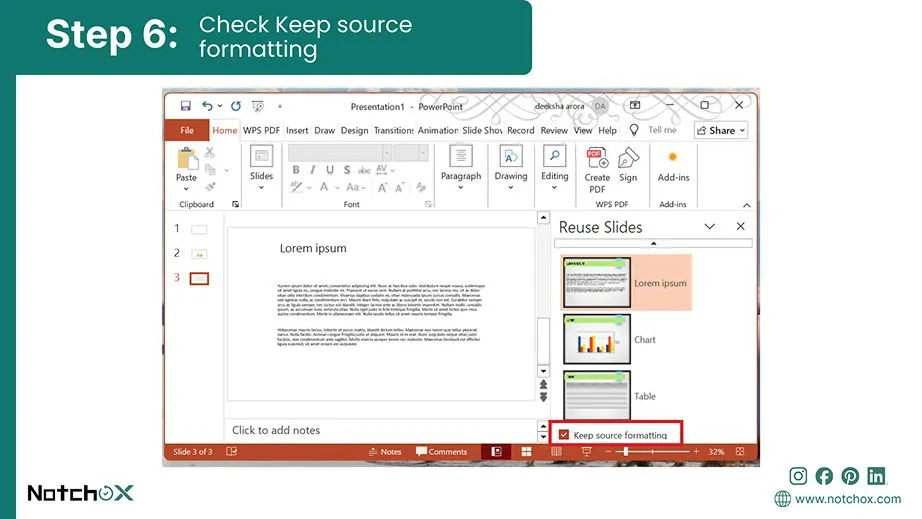
Check Keep source formatting
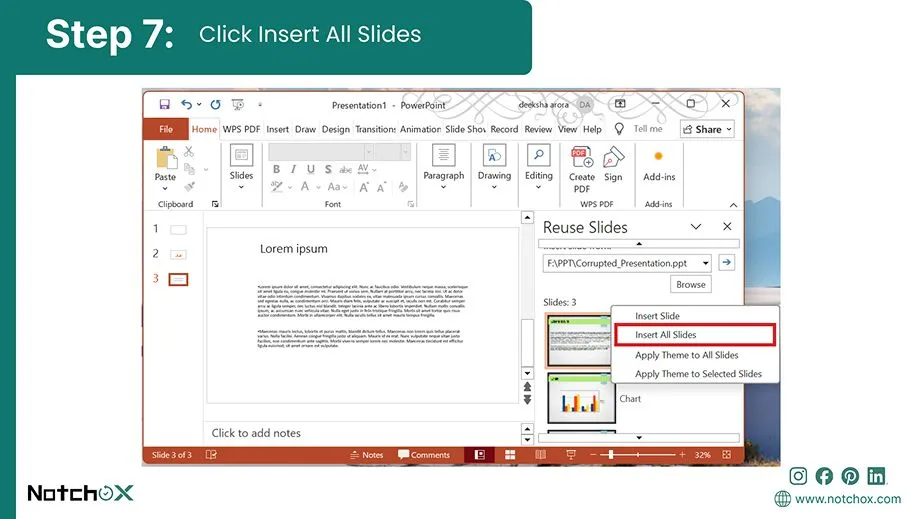
Click Insert All Slides

You need to escape the corrupted file container entirely when a PowerPoint file is too damaged that it can’t be opened using the Open and Repair method either. This method treats the damaged presentation as a raw database, and you can pull the healthy slide layouts, text, and media directly into a new presentation.
  1. Open a new blank PowerPoint presentation on your desktop.
  2. Ensure you are on the Home tab of the main configuration ribbon.
  3. Click the New Slide drop-down arrow and select Reuse Slides at the bottom of the list.
  4. Click Browse (or Insert Slides from File) in the panel that opens on the right side of your screen.
  5. Go to your folder and select the corrupted PowerPoint file, and click Open.
  6. Check the box at the bottom that says Keep source formatting.
  7. Right-click any slide preview in that panel and select Insert All Slides to safely pull your content into a clean file.

Method 3: Open PowerPoint in Safe Mode 

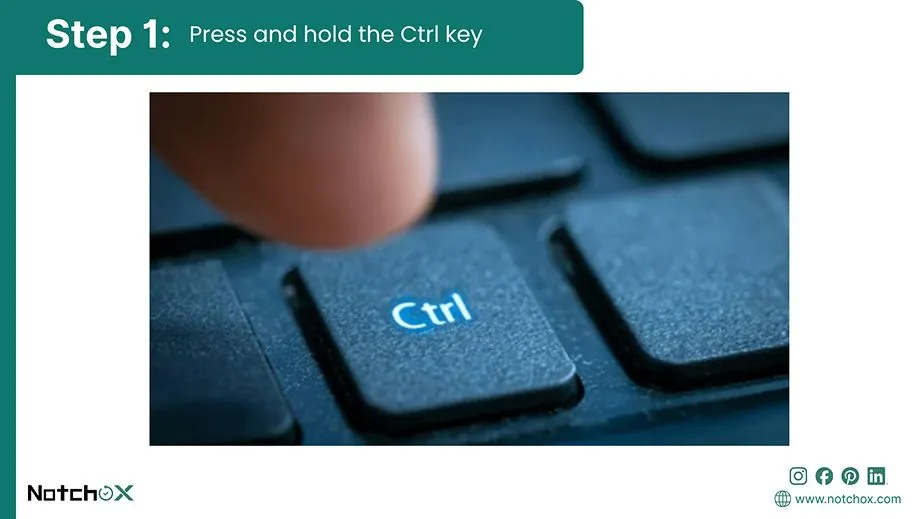
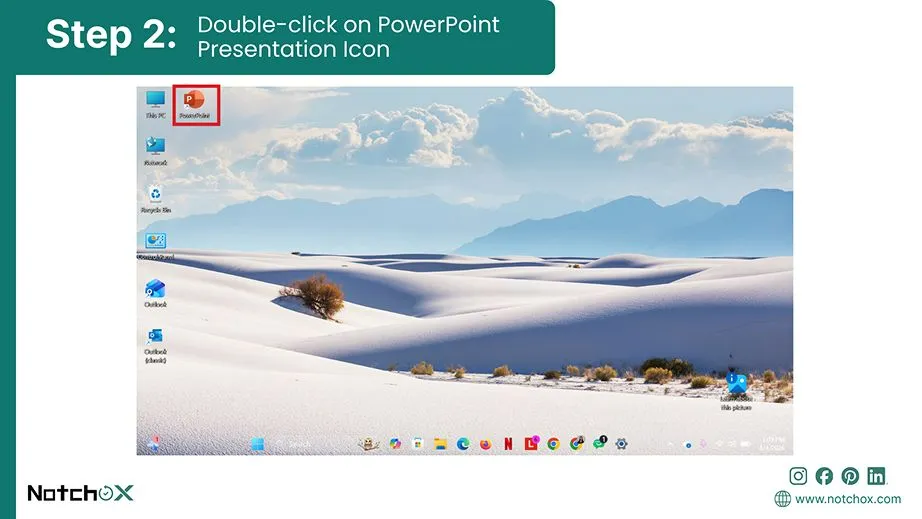
Press and hold the Ctrl key
Double click on PowerPoint Presentation Icon
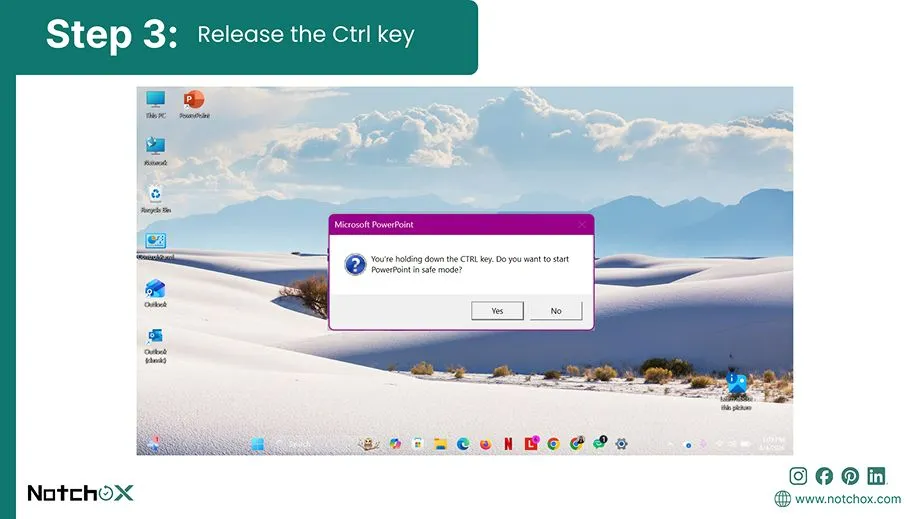
Release the Ctrl key
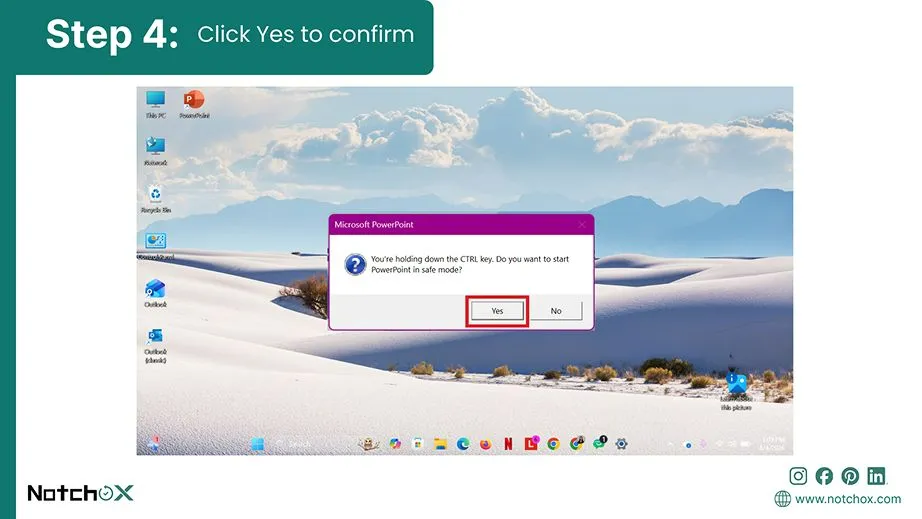
Click Yes to confirm
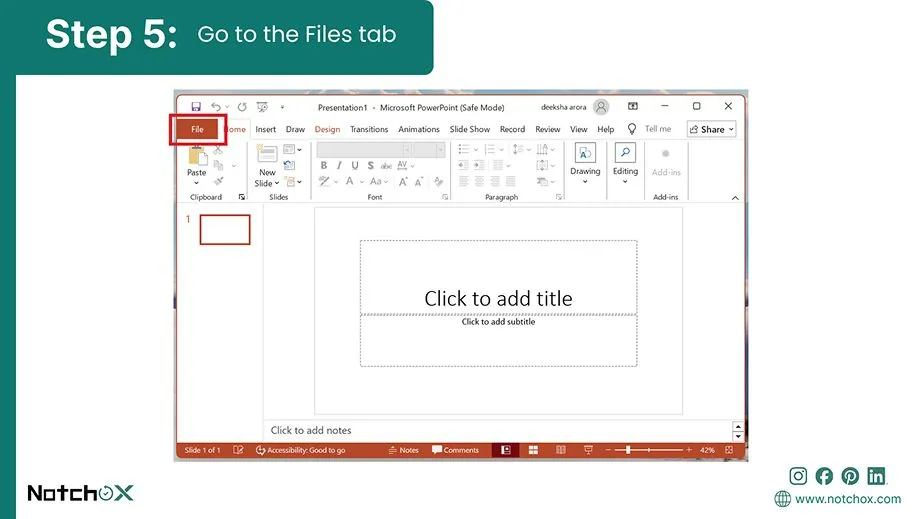
Go to the Files tab
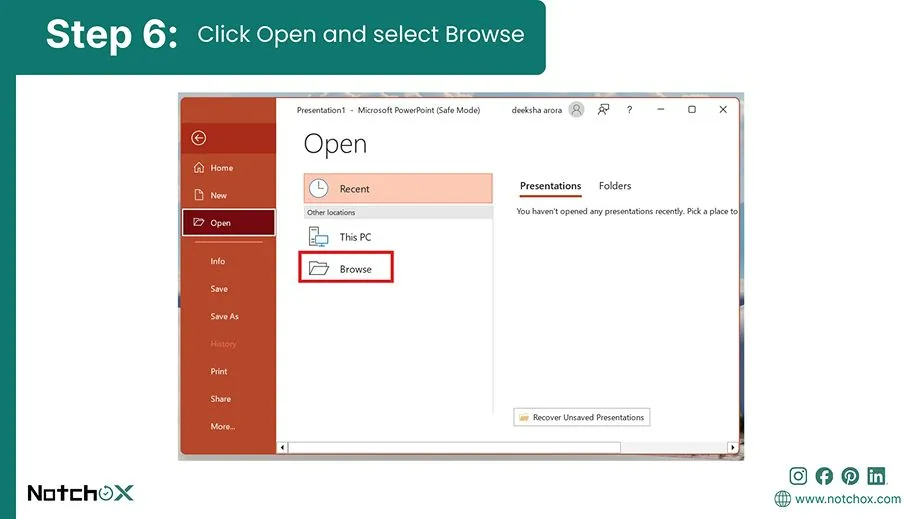
Click Open and select Browse
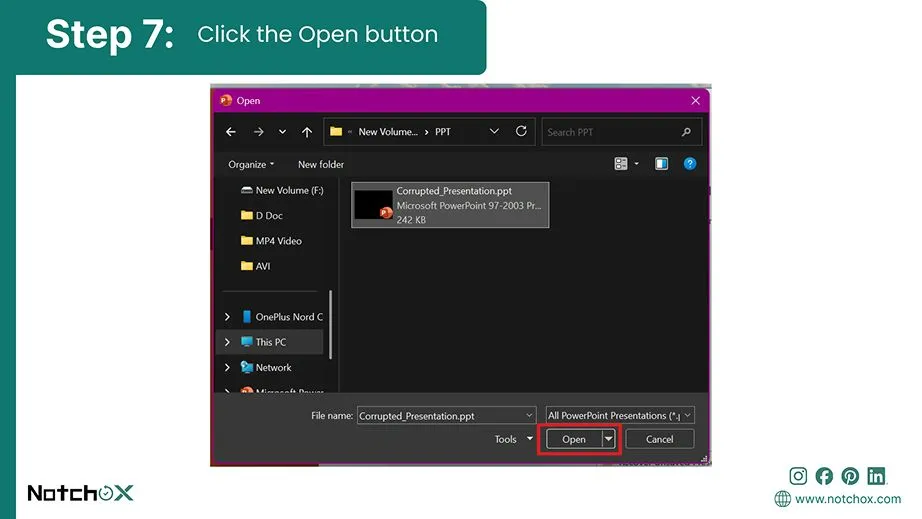
Click the Open button

If your file still refuses to open, the issue might be caused by an active add-in, a corrupted system font, or a custom plugin glitching inside the background environment. Safe mode is what allows you to load PowerPoint in its most stable state to isolate and open your files securely.

  1. Press and hold the Ctrl key on your keyboard.
  2. While holding the Ctrl key, double-click the Microsoft PowerPoint icon on your desktop or Start menu to launch it.
  3. Release the Ctrl key when a pop-up window appears asking you if you want to start the application in Safe Mode.

Alternate Run Command Path:

You can also launch Safe Mode by pressing Windows Key + R, typing powerpnt /safe into the Run box, and hitting Enter.
  1. Click Yes to confirm and open PowerPoint in its isolated environment.
  2. Click File in the top ribbon menu of the Safe Mode window.
  3. Select Open and click Browse to choose the file to be opened in Safe Mode.
  4. Click the Open button to access and repair the corrupted PowerPoint file.

Method 4: Whitelisting Your Presentation in Trust Center

Open a new blank presentation
Go to the File menu
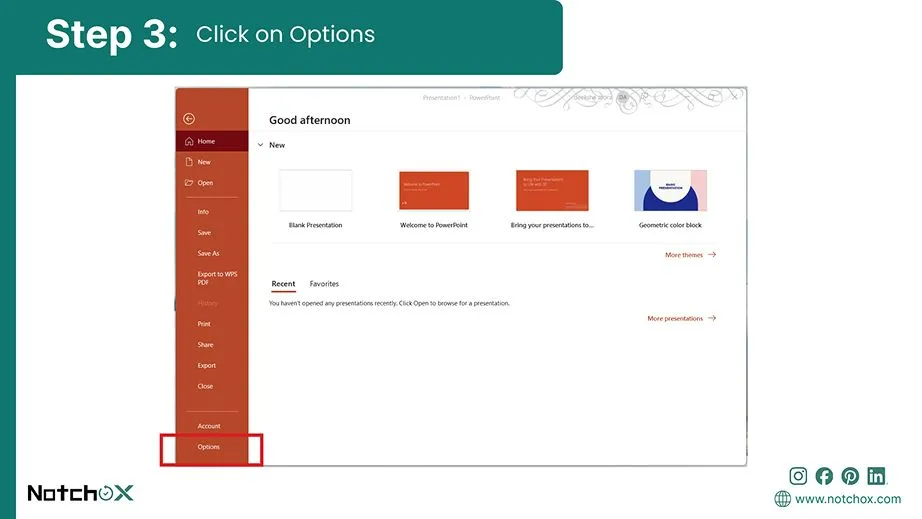
Click on Options
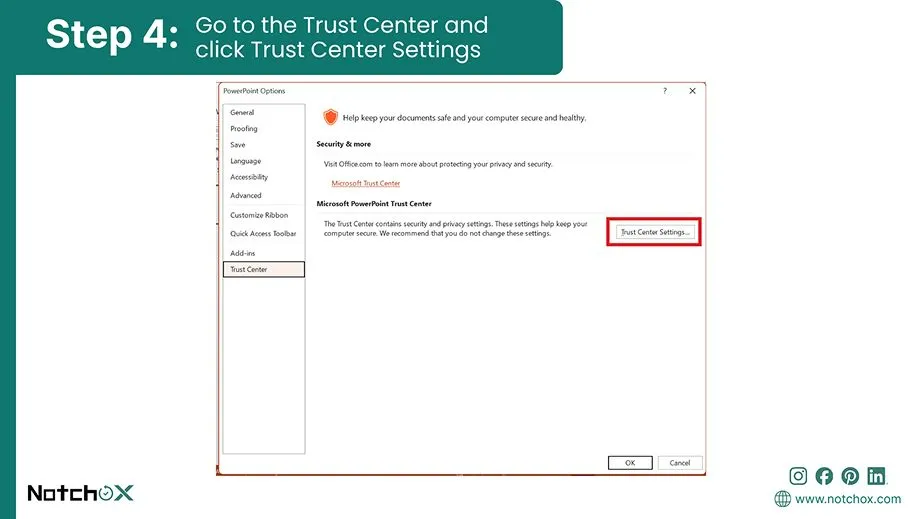
Go to the Trust Center and click Trust Center Settings
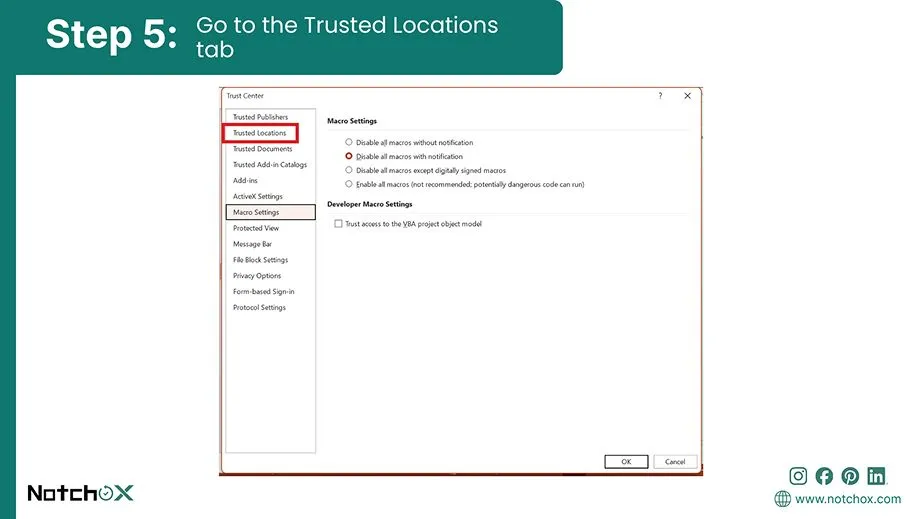
Go to the Trusted Locations tab
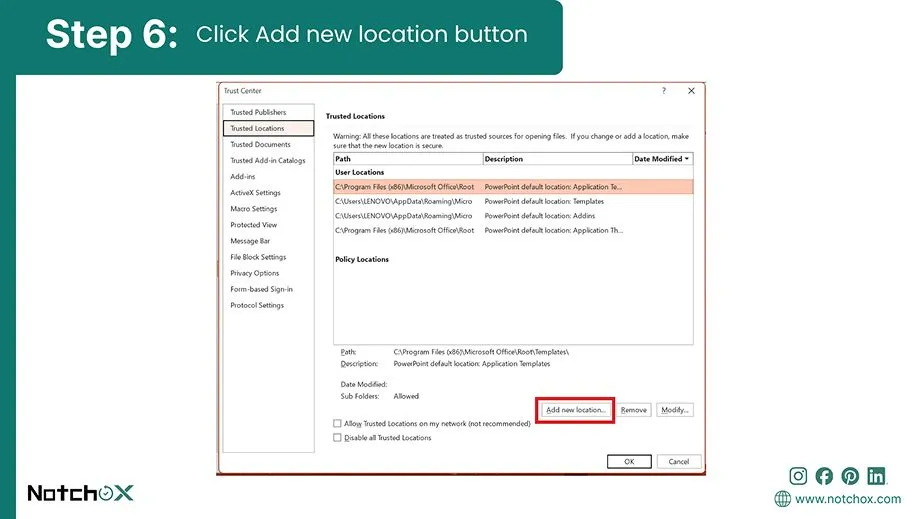
Click Add new location button
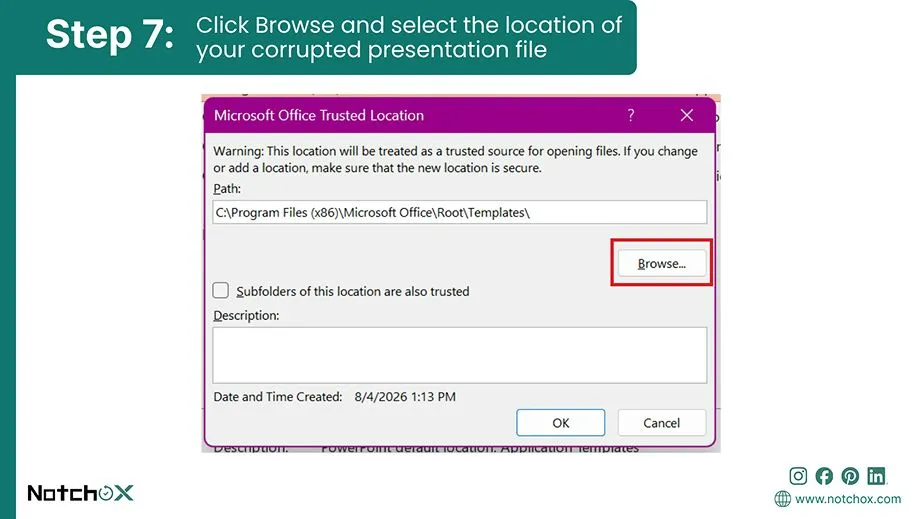
Click Browse and select the location of your corrupted presentation file
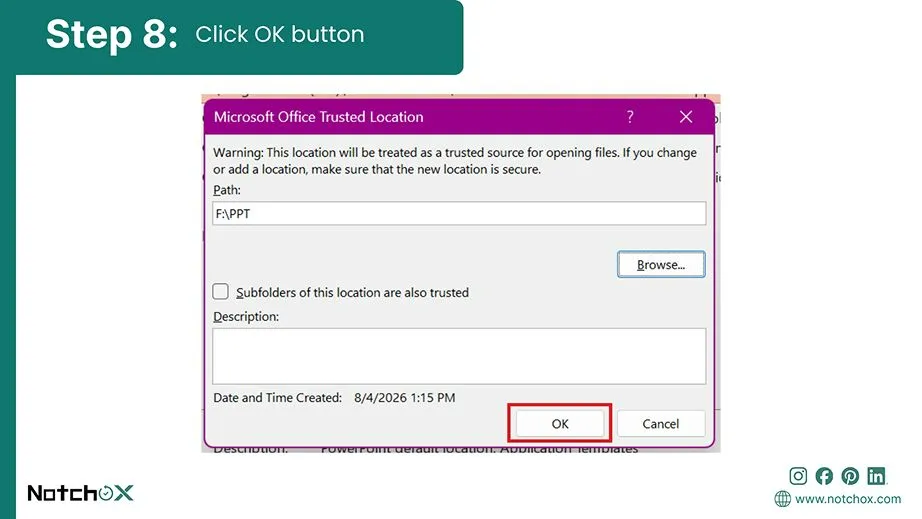
Click OK button

Local administrative policies or system restrictions may block PowerPoint from executing specific macro scripts or media assets, and this might lead to your file corruption. Adding a new trusted location inside the application settings whitelists that entire folder. This way, PowerPoint will treat file contents as safe and allow it to open normally.

  1. Open a blank PowerPoint presentation on your computer.
  2. Click File in the top ribbon menu.
  3. Click on Options at the bottom of the left-hand navigation pane.
  4. Click on Trust Center from the sidebar menu, then click the Trust Center Settings button.
  5. Choose the Trusted Locations tab located near the top of the left-hand sidebar.
  6. Click the Add new location button at the bottom of the screen.
  7. Click Browse and select the location of your corrupted presentation file.
  8. Click OK to close all options windows. Then reopen your PowerPoint file directly from that folder.

Fun Fact: Beyond PPT and PPTX, PowerPoint natively supports alternative formats like PPSX (Show), POTX (Template), PDF layout, and many more.
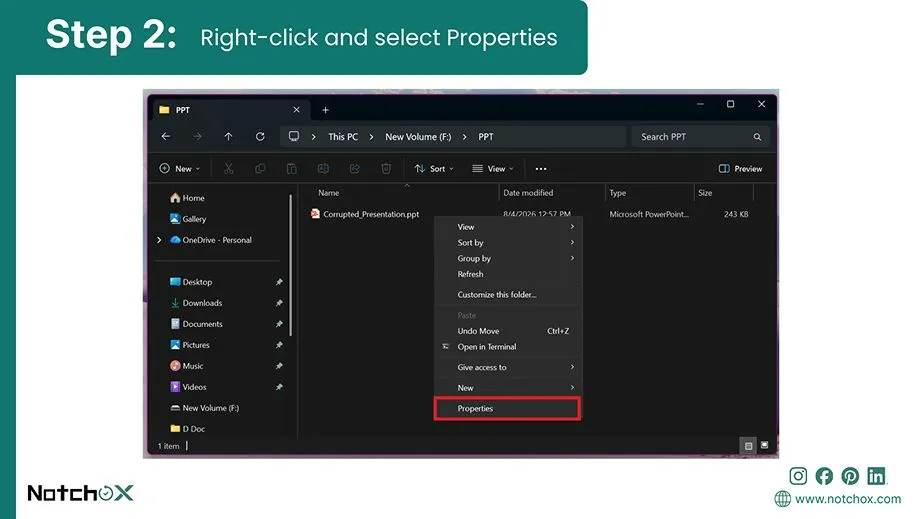
Method 5: Unblocking the Presentation File via Windows Properties

go to the files location
right click and select properties
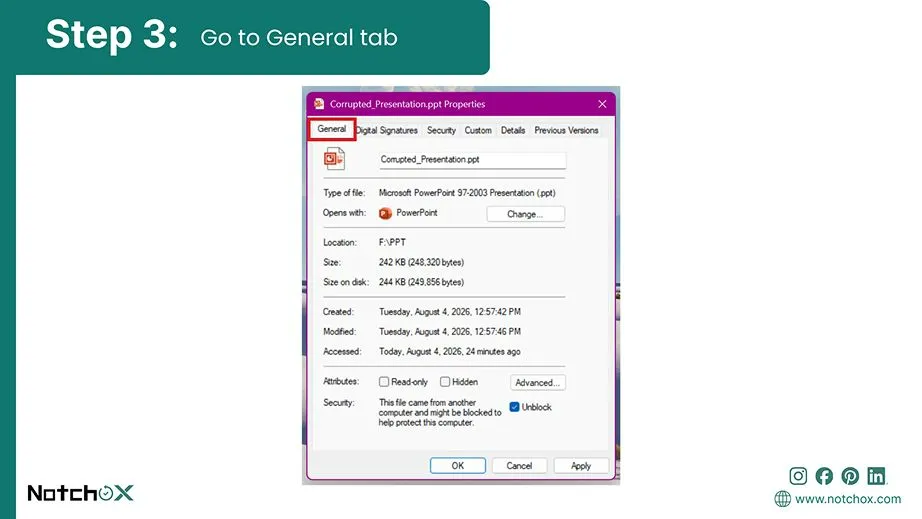
go to the general tab
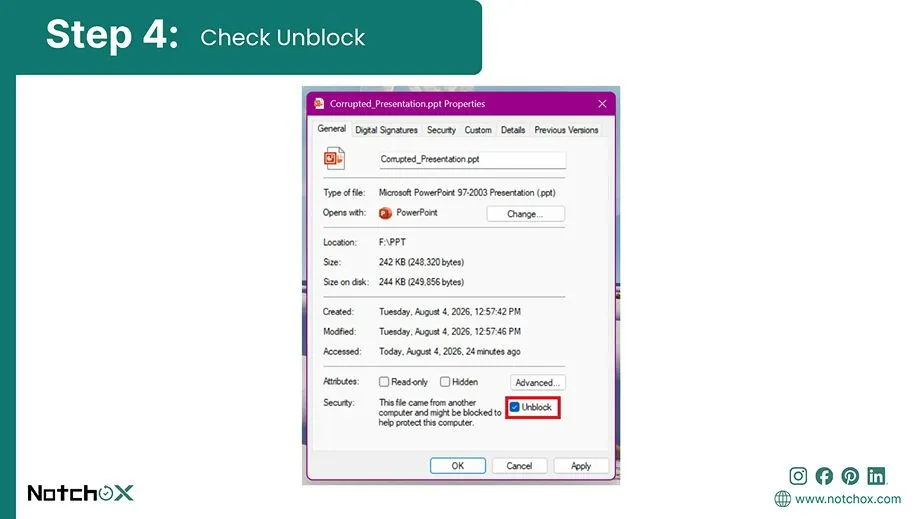
check unblock
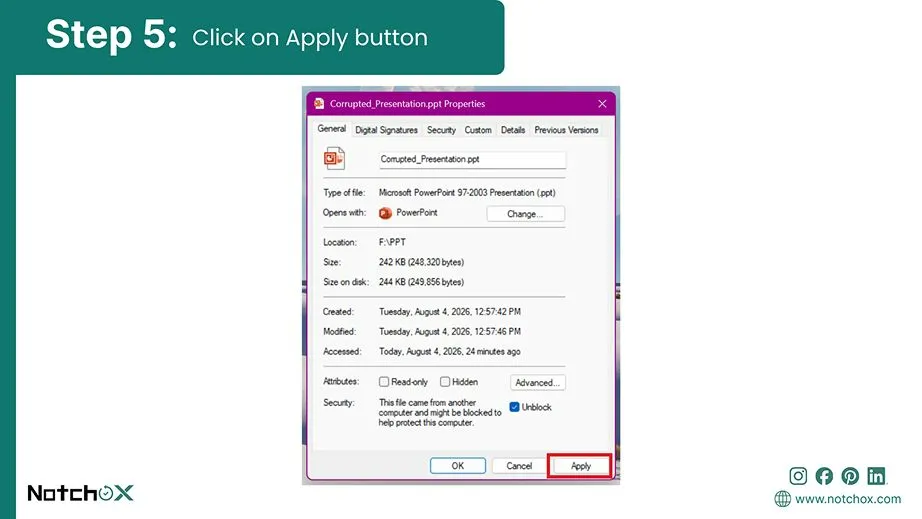
click on apply button
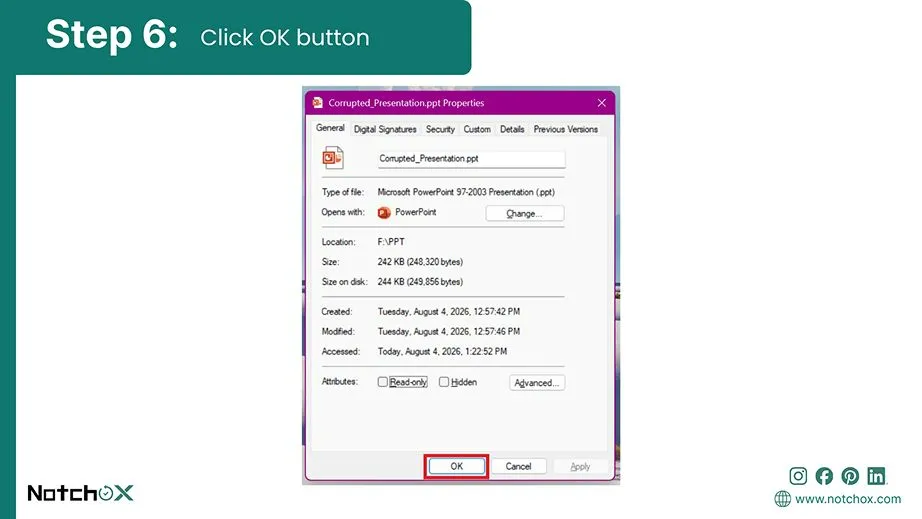
click ok button
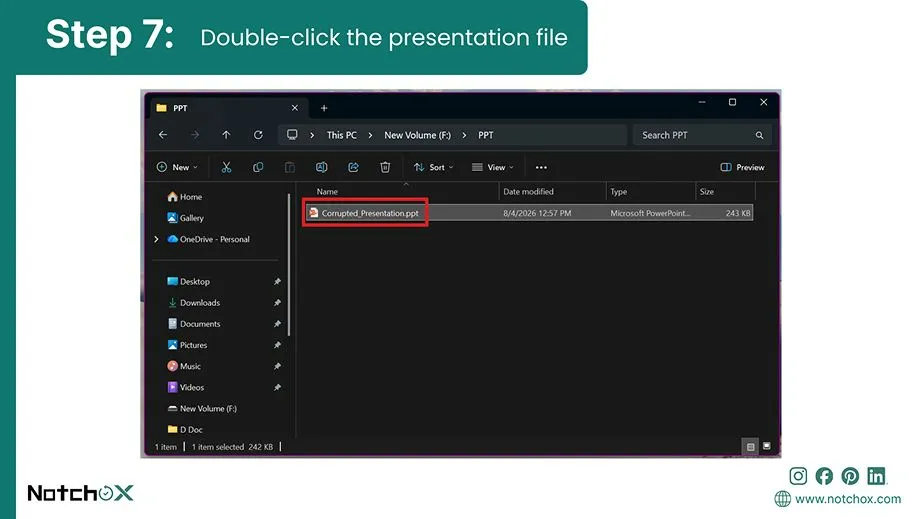
double-click the presentation file

There’s another way to unblock your PowerPoint file from Windows Properties.
  1. Open Windows File Explorer and go to the folder where your presentation is saved.
  2. Right-click on the corrupted PowerPoint file and select Properties from the contextual menu.
  3. Stay on the General tab and look at the very bottom Security section.
  4. Check the box next to Unblock (or click the Unblock button, depending on your Windows version).
  5. Click Apply to save the changes.
  6. Click OK to permanently save the security permissions.
  7. Double-click the file to open your presentation natively.

Method 6: The “ZIP Archive” Extension Rename

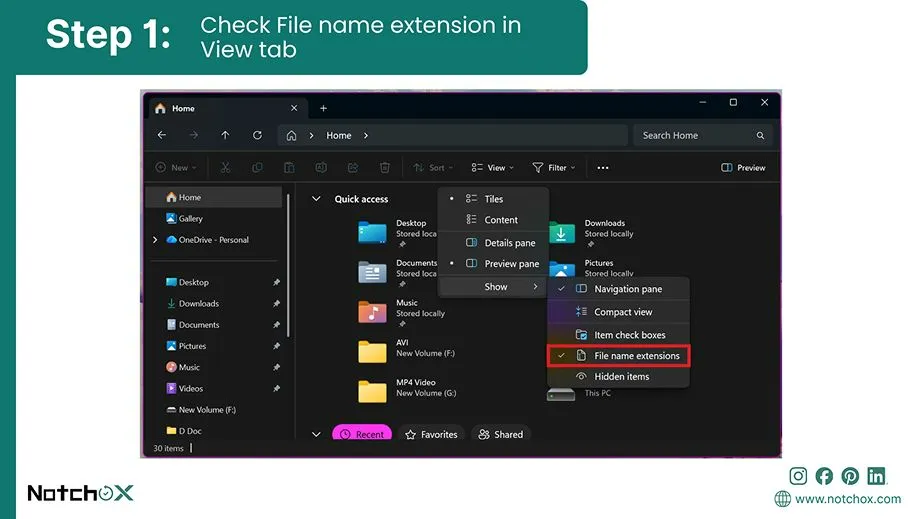
Check File Name Extension in View Tab
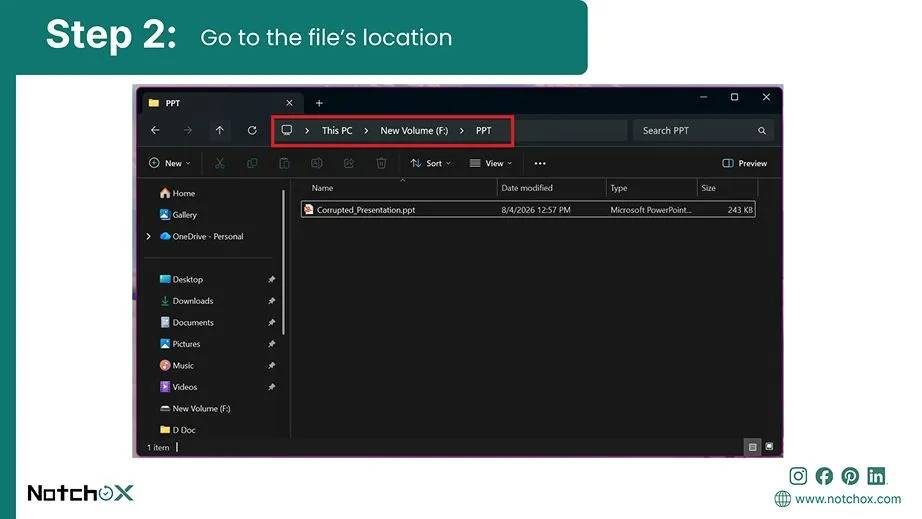
go to the files location
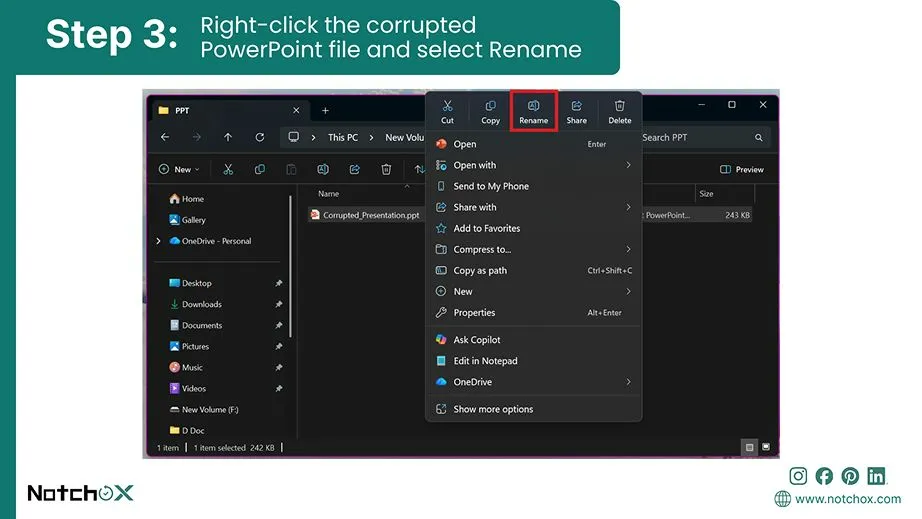
Right-click the corrupted PowerPoint file and select Rename
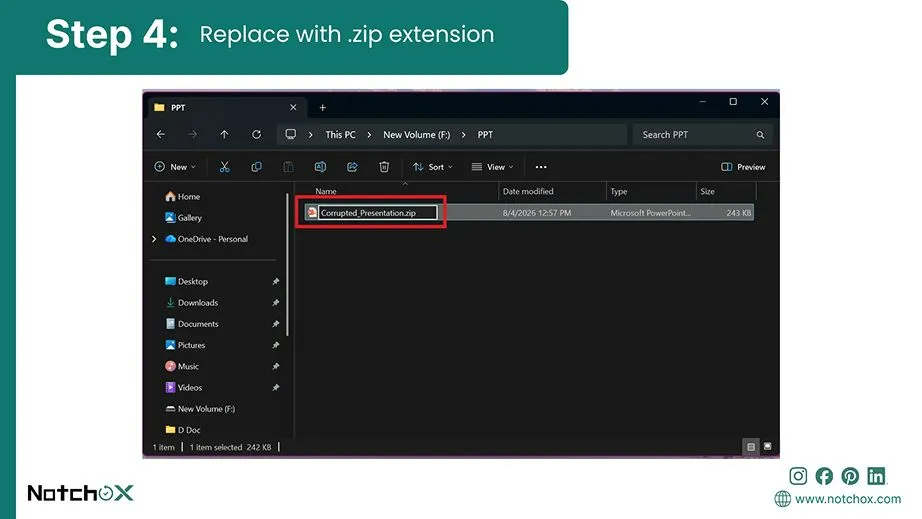
replace with .zip extension
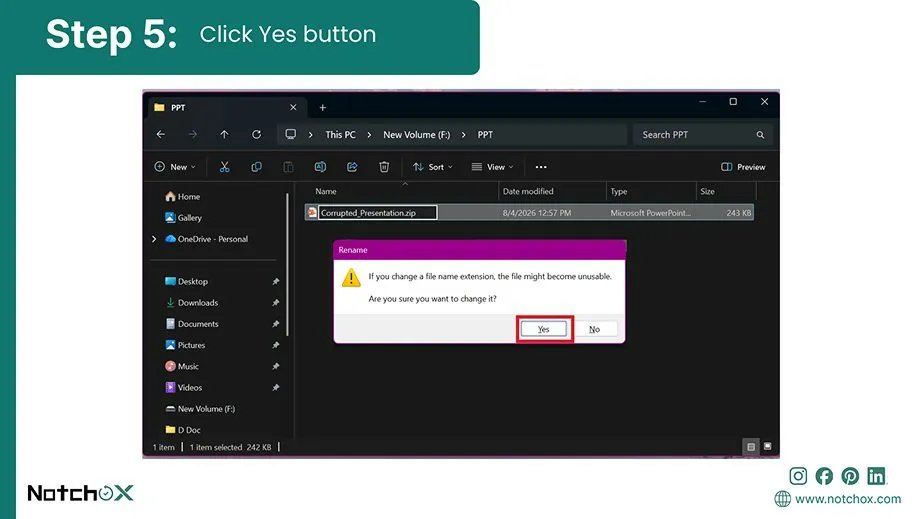
click yes button
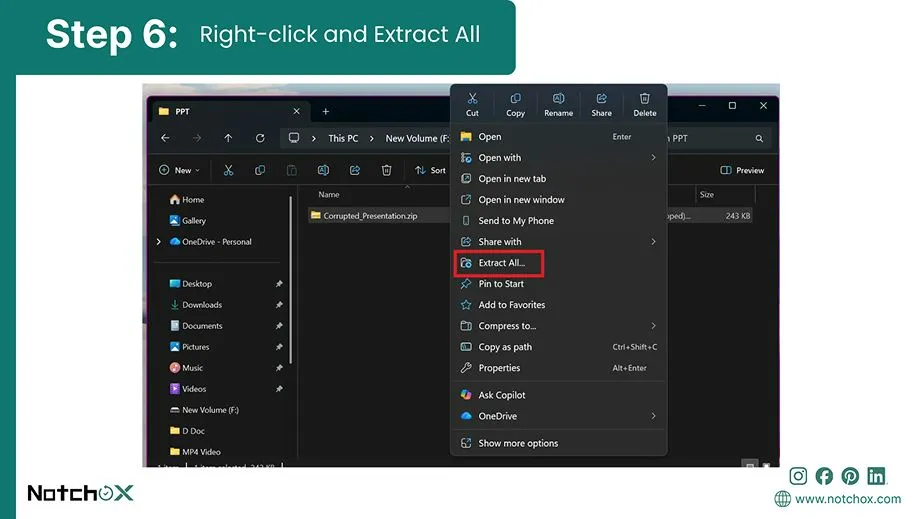
Right-click and extract all
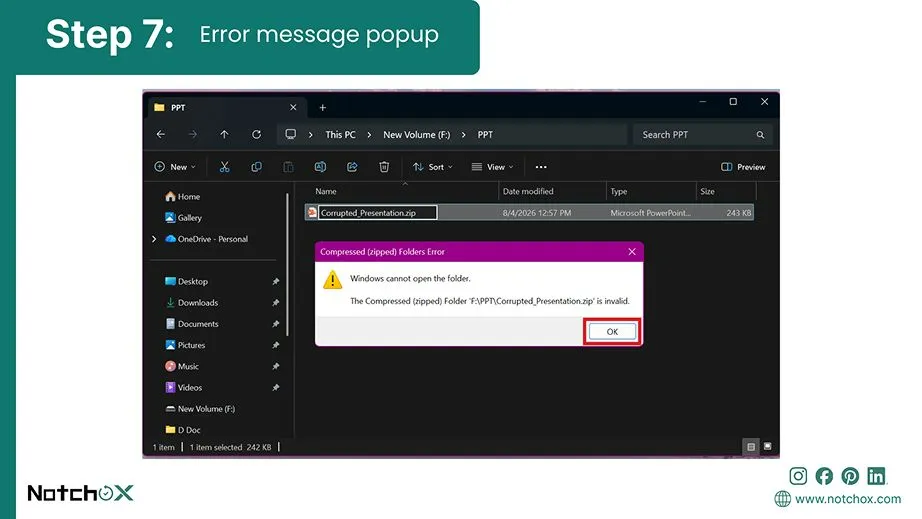
Error message popup

A damaged presentation can be repaired by manually changing the file into a ZIP container. If it is corrupted, the application interface cannot read the presentation shell. So, making a ZIP file lets you open the file’s core architecture and rescue your original media objects.

Did You Know? Modern PowerPoint documents (.pptx) are fundamentally compressed XML folder packages.

  1. Open Windows Explorer and click View (or Options) in the top menu bar to verify that File name extensions are checked and visible.
  2. Go to the directory folder containing your damaged presentation file.
  3. Right-click the corrupted PowerPoint file and select Rename (or select the file and press F2).
  4. Delete the trailing .pptx letters from the very end of the file name. Type .zip in their place and press Enter.
  5. Click Yes when a Windows security prompt pops up warning you that changing file extensions might make the file unstable.
  6. Right-click your newly created .zip folder and choose Extract All.
  7. Open the extracted folder. Go to the subfolder labeled ppt and double-click the media folder. Here you will find all your original embedded presentation graphics and media files.

Note: This method may not always work. Severe code corruption can trigger errors like “cannot complete compressed folder extraction” or “Windows cannot open the folder.”

Scenario 2: Recovering Work When the PowerPoint File Was Not Saved

Suppose your computer suddenly crashed or lost power without saving the PowerPoint file. You might not find the files saved. So in such a scenario, you can check the temporary cache or background backup file, if any. Let’s see how.

Industry Update: McKinsey consultants are increasingly using generative AI tools to automate slide creation and significantly reduce their everyday dependence on PowerPoint presentations.
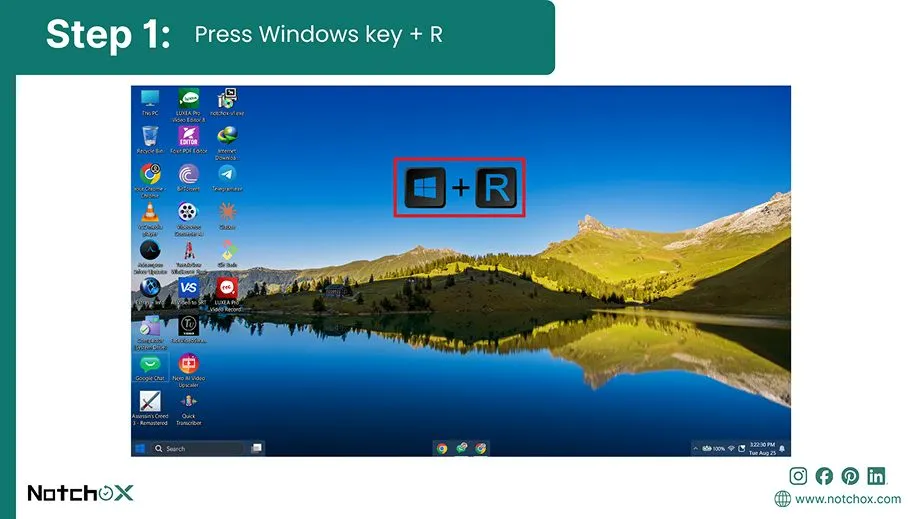
Method 1: Using Windows Temporary Folder

press windows key R
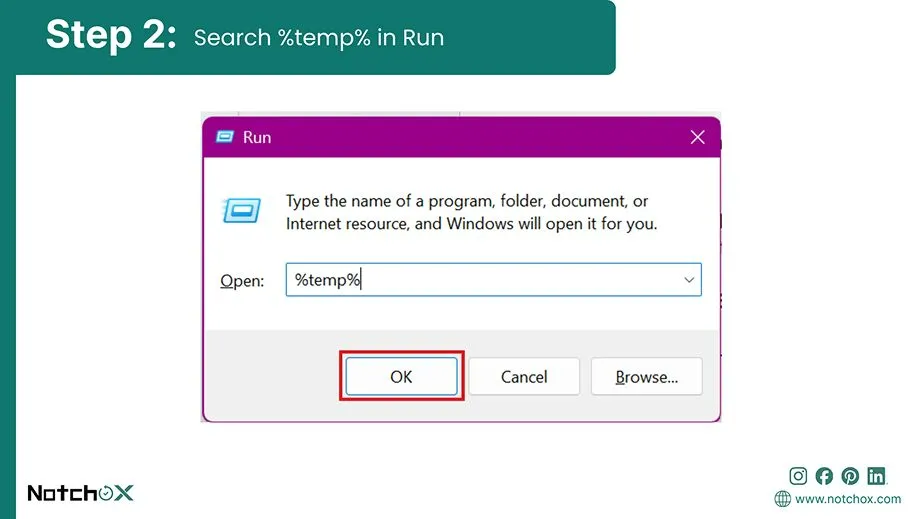
search temp in run
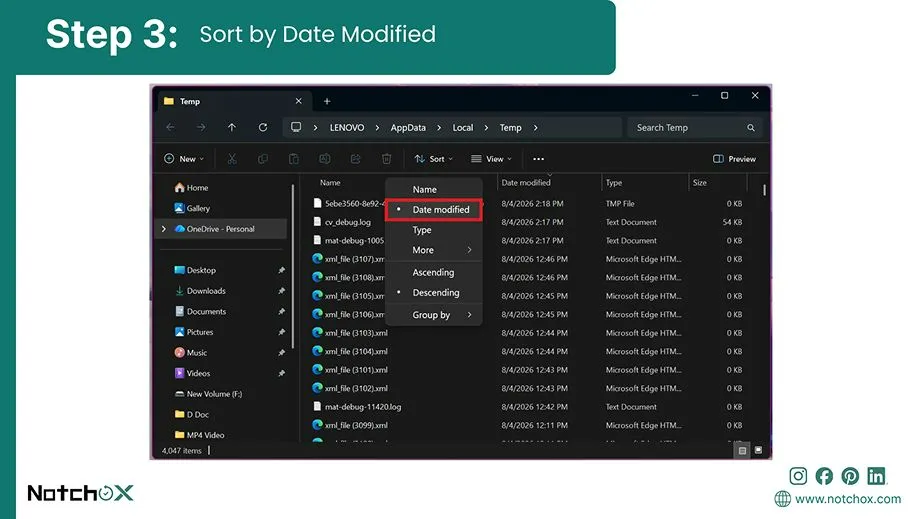
sort by date modified
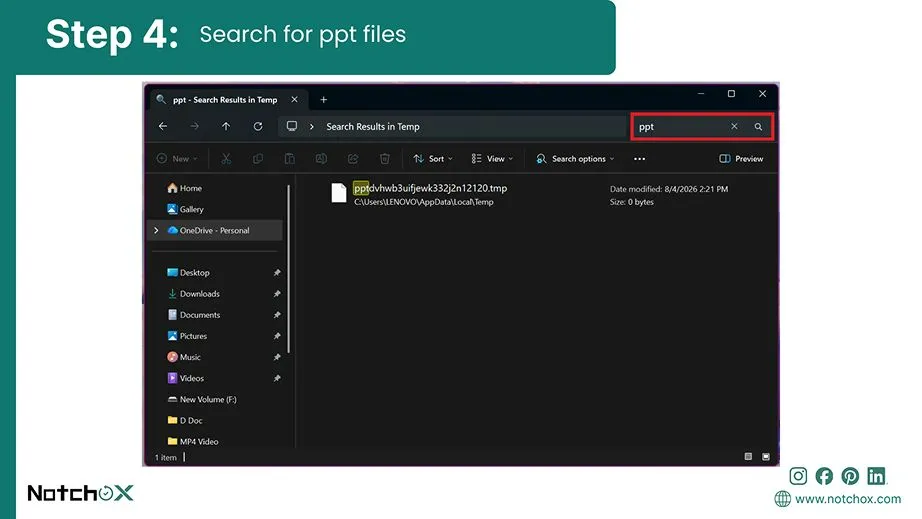
search for ppt files
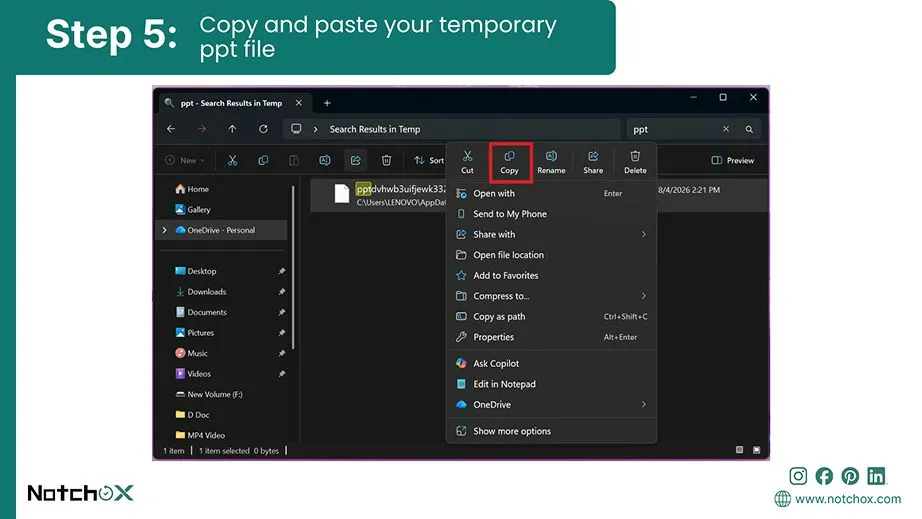
copy and paste your temporary ppt file

There’s this Temp folder in Windows where the system dumps active application data to manage memory allocations, which you can use for temporary file recovery. Because your file code is not broken, you can manually search this local folder to copy and restore your presentation data.

  1. Press the Windows Key + R shortcut on your keyboard to launch the Run command dialog box.
  2. Type %temp% into the open text field and press Enter (or click OK).
  3. Once the temporary folder opens in File Explorer, click the Date modified column to sort the files with the most recent entries at the very top.
  4. Scan the file names or use the search bar to locate files with a .tmp extension or entries starting with the prefix ppt.
  5. Right-click your target temporary presentation file, select Copy, and paste it to the destination folder.
  6. Double-click the file to restore your presentation.

Method 2: Using OneDrive Version History

Sign in to OneDrive
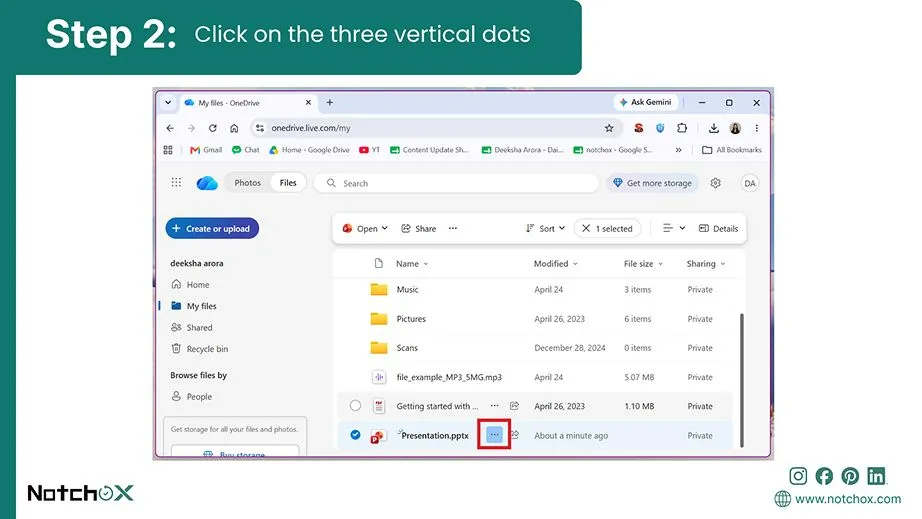
click on the three vertical dots
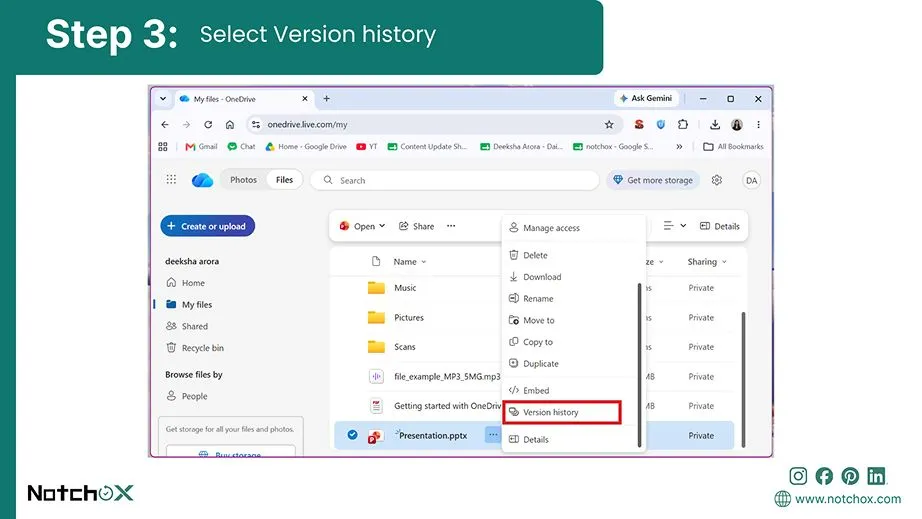
select version history
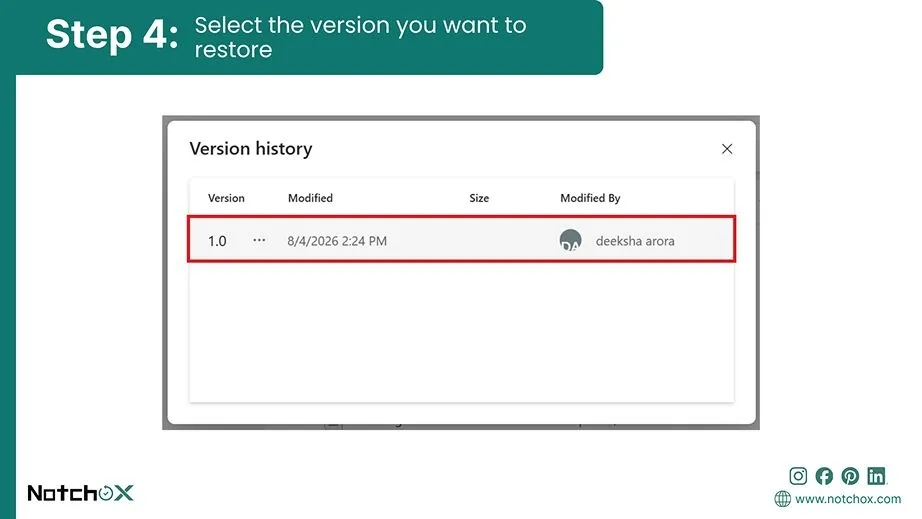
select the version you want to restore
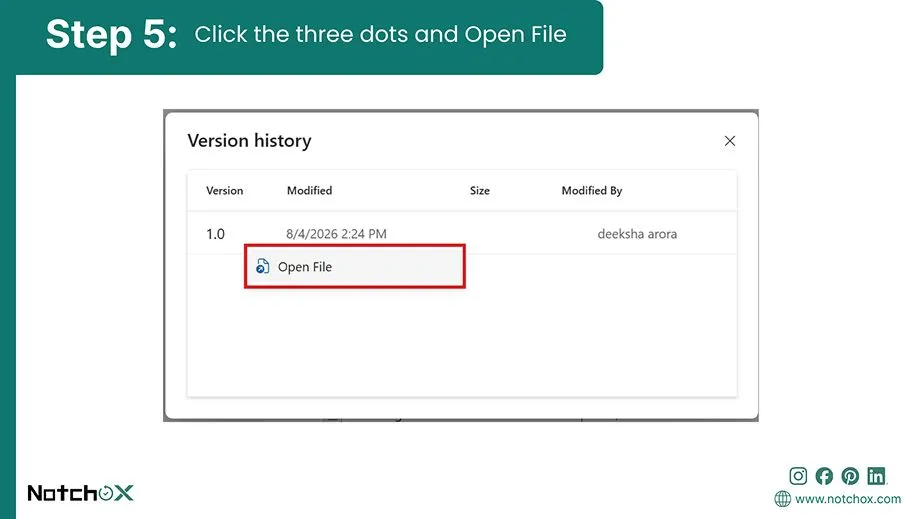
click the three dots and open file

Microsoft OneDrive, the cloud infrastructure, automatically tracks changes every time an edit is made. When an unexpected closure occurs, you can simply roll back time in OneDrive and download the auto-saved copy of your presentation from a few minutes before the crash.

Note: Cloud backups are safe and can be used to recover files after virus attack or from a RAW partition.

  1. Open your web browser and visit the Microsoft OneDrive website. Sign in to your account.
  2. Hover your mouse pointer over the document line entry and click the three vertical dots (Action menu).
  3. Select Version history from the drop-down contextual menu to launch the timeline.
  4. Review the timestamps and select the version you want to restore.
  5. Click the three dots next to that chosen version and select Open File.

Scenario 3: Automated Solution: Using Third-Party Recovery Software

Now, if you want a direct solution to repair corrupted PowerPoint file, professional corrupted file recovery software is what you need. It fixes all the critical hex strings or core XML database relationship tables within the document and restores your healthy file.

Among all professional options in the market, Notchox Corrupted File Recovery Software stands out as the best choice for fixing severely broken .pptx and .ppt layouts. With an interactive and easy-to-use interface, it isolates corrupted code blocks without changing the healthy slide objects.

How Notchox helps repair corrupted PowerPoint files:
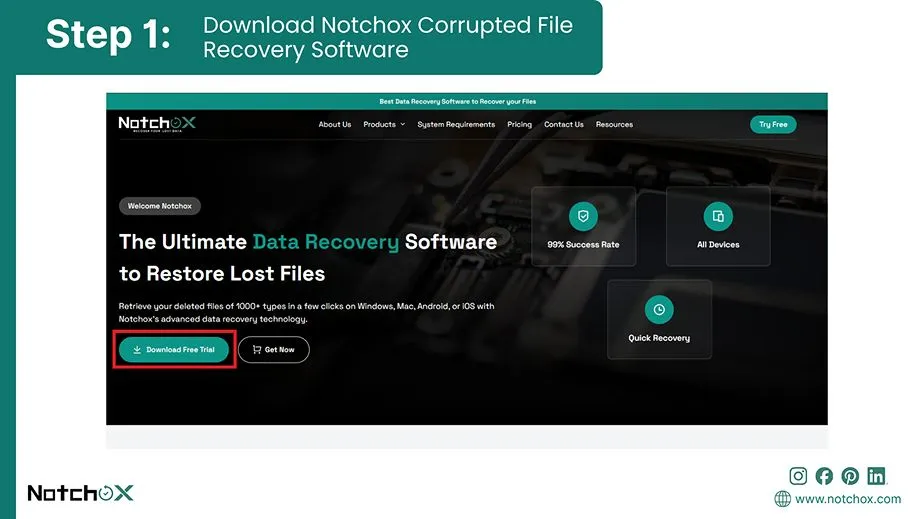
  1. Download, install, and open Notchox Corrupted File Recovery Software on your computer.
    Download Notchox Corrupted File Recovery Software
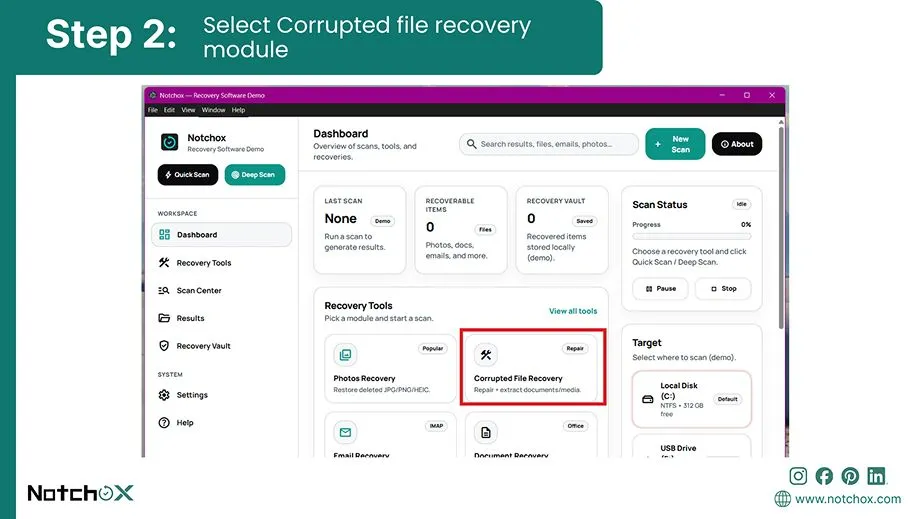
  2. Select the module: Corrupted File Recovery from the main home interface panel.
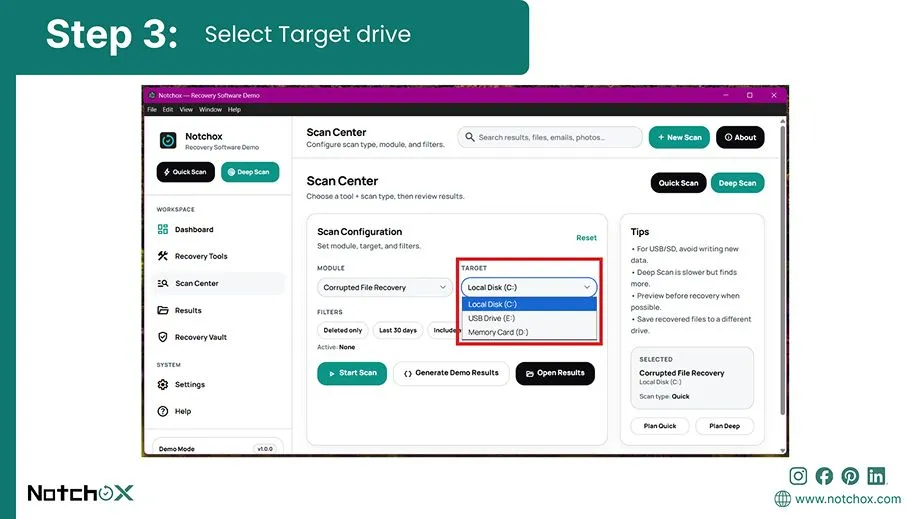
  3. Now select the target drive, the drive that contains your corrupted presentation.
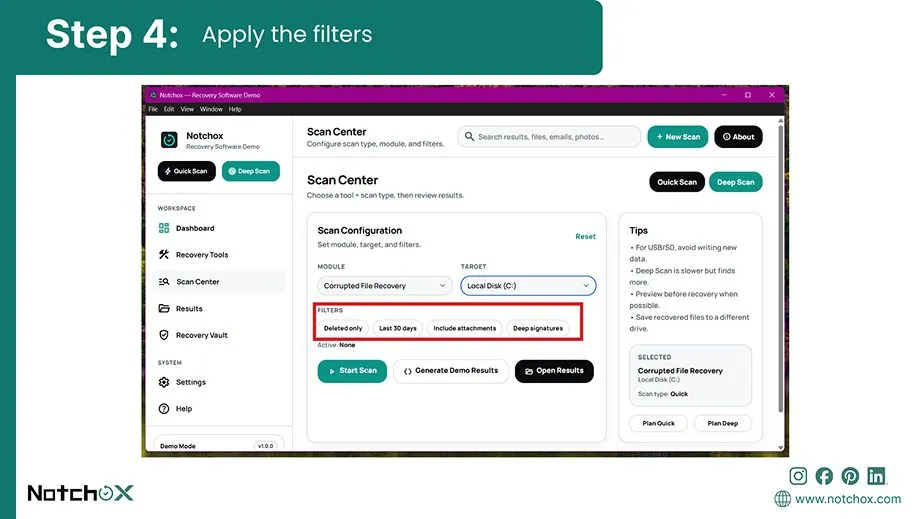
  4. Apply the filters. Here we want only the recent corrupted PowerPoint file to be recovered, so select Last 30 days.
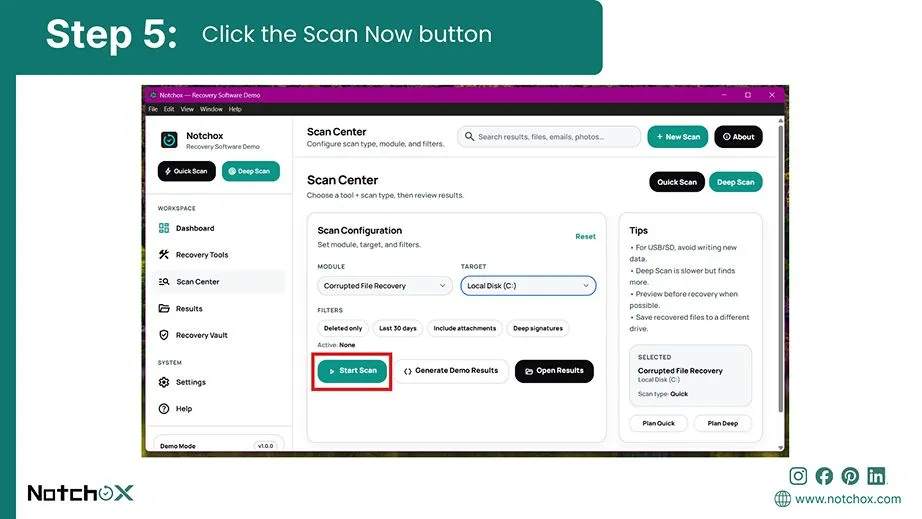
  5. Click the Scan Now button to begin the scan. This will repair corrupted PowerPoint file and restore it.
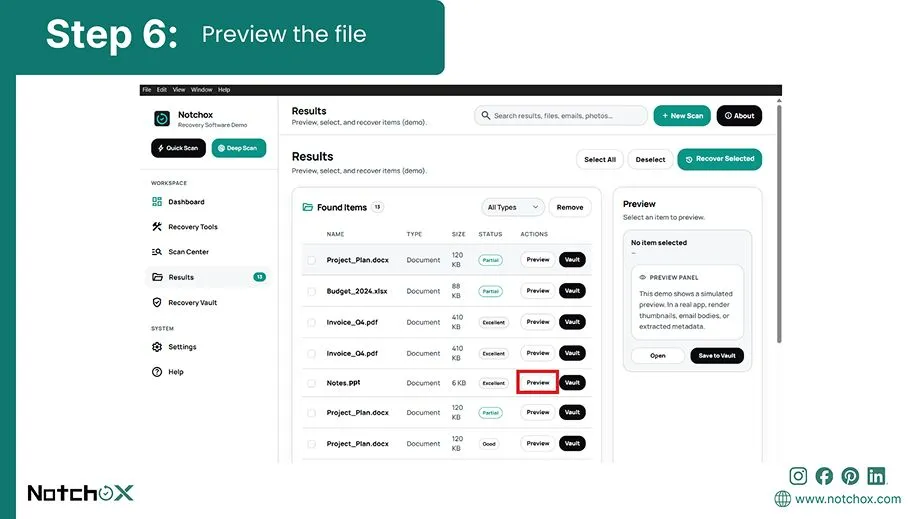
  6. Wait for the scan to finish, then review your files in the real-time Preview pane to verify the fix.
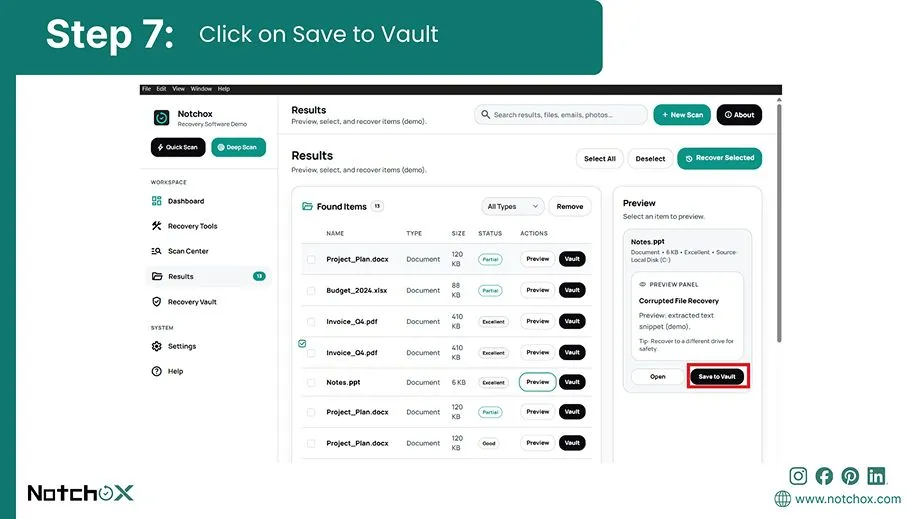
  7. Click on the Save to Vault button to export the newly reconstructed presentation file as a clean copy to your local drive.

Conclusion

Repairing your presentation, whether you are dealing with an error message or a system crash, is within your control. The steps we covered here give a direct fix for almost any scenario.

Native solutions like Open and Repair can quickly fix and open your file. For severe cases where you want to maintain the integrity of your file, Notchox corrupted file recovery software shows incredible results in rebuilding your slides automatically.

Frequently Asked Questions

Q1: How to repair a corrupted PowerPoint file?

Ans: Methods to repair corrupted PowerPoint file:

  • Open and Repair tool
  • Launch the application in Safe Mode
  • Reuse Slides
  • Unblock the presentation file
  • Notchox Corrupted File Recovery Software
Q2: Will repairing my file delete my original pictures and videos?

Ans: No. Proper repair methods preserve your multimedia assets. Native tools and trusted recovery software extract existing data without deleting any media.

Q3: How do I know if my file is corrupted or just unsaved?

Ans: A corrupted file exists on your drive but triggers error pop-ups or crashes when opened. An unsaved file is a healthy document that closed unexpectedly due to a system crash.

Q4: What is PowerPoint Safe Mode?

Ans: PowerPoint Safe Mode is a diagnostic environment that launches PowerPoint with all third-party plugins and extensions. This isolated state helps you find out if a background software conflict or a faulty template is blocking your healthy presentation file from opening

Q5: How does a PPT file differ from a PPTX file?

Ans: PPT is an older binary format introduced before 2007, while PPTX is the newer XML-based format. Because PPTX files are ZIP-based, they are generally smaller and easier to repair than PPT files.

Q6: Can a computer virus cause PowerPoint file corruption?

Ans: Yes, malware can maliciously modify or delete parts of a file’s internal code, making it unreadable. If a virus corrupts your presentation, run a full system security scan first.

Published by
Deeksha Arora

Deeksha Arora is a Data Protection & Recovery Writer focusing on writing accurate, informative, and easy-to-understand technical articles for Notchox’s readers. Her content on the prevention of data loss, understanding risks of device failures, and guides to fix problems helps readers make the right decisions and understand the technical terms easily. She works closely with Subject Matter Experts to ensure high usability and accuracy of her writing.


Related Posts

Link copied successfully!