Deeksha Arora May 29, 2026
Ans: Recover files after a virus by scanning with an updated antivirus and restoring from backup or data recovery software.
If a virus attacks your system, the priority is to isolate the machine to prevent further damage. Then, perform a deep, updated antivirus scan to remove the threat. Once cleaned, you can recover data from backup, File History or folders, or use secure data recovery software. This article provides a detailed guide on how to recover files after virus attack, with methods and steps explained.
Quick Answer: If a virus attacks, immediately disconnect from the internet to prevent further damage and run a full antivirus scan. To recover files effectively, restore from recent backups first; otherwise, use robust data recovery software such as Notchox to restore encrypted or deleted files and remove hidden attributes.
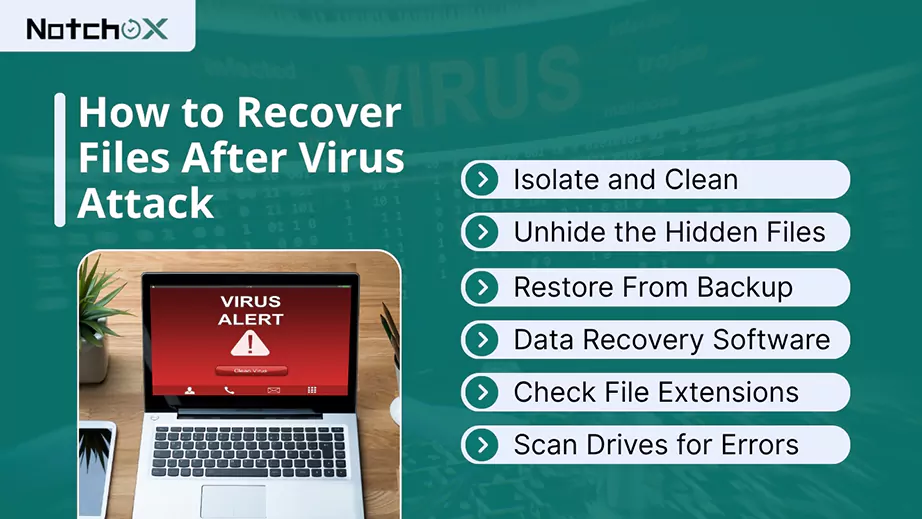
Now that you have an idea of how to recover files after virus attack, let’s learn about them in detail. We’ll explore methods and steps for restoring files when the system is affected by any type of virus.
Viruses and malware encrypt your files, but fortunately, your data is still retrievable. Running an antivirus or anti-malware scan to remove threats and prevent further damage is the first step before attempting restoration. Let’s see how to run an antivirus scan.
How to run an MS Defender virus scan?
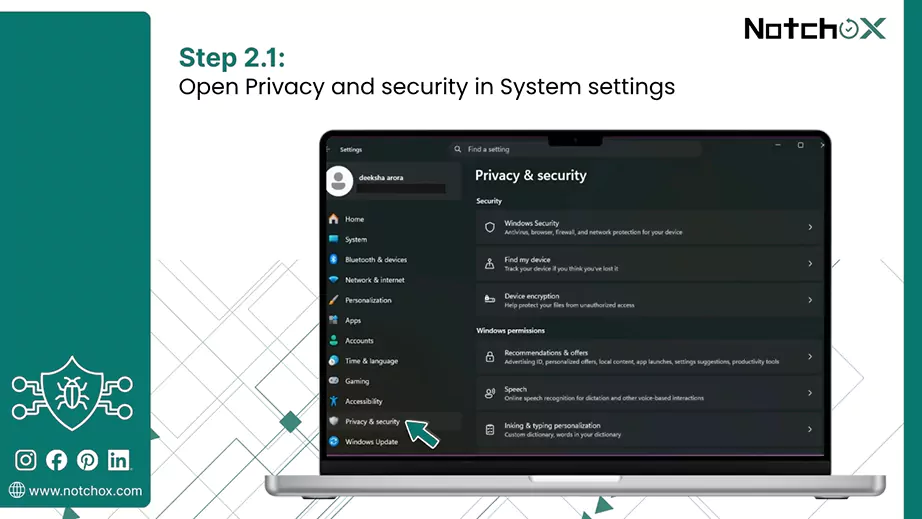
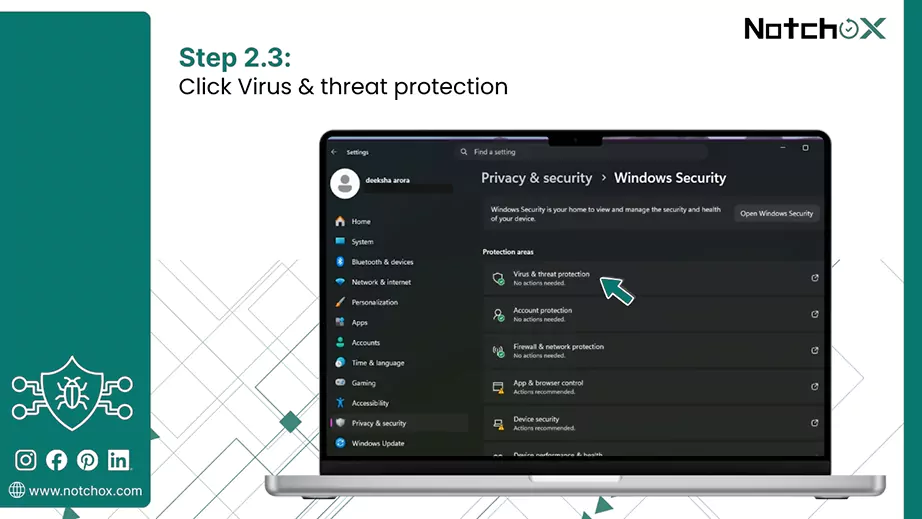
- Open System settings and go to Privacy & Security.
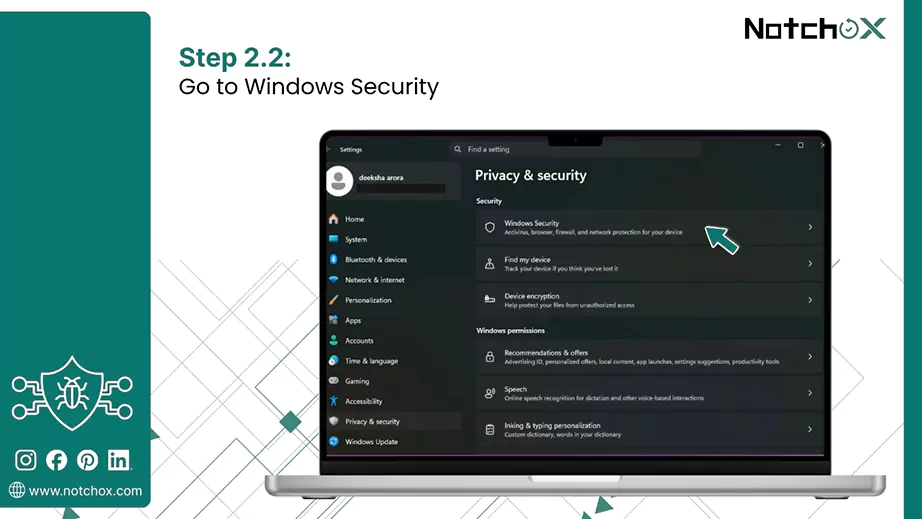
- Click Windows Security.
- Open Virus & Threat Protection.
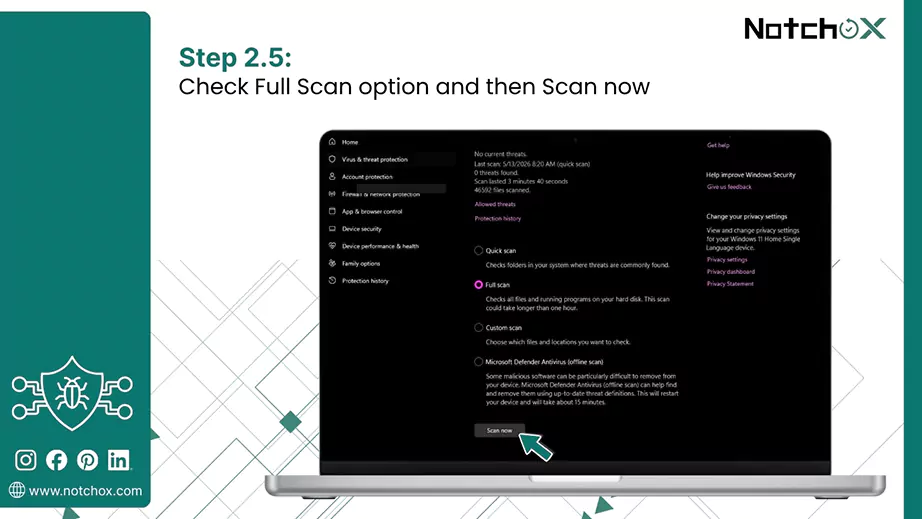
- Select Scan Options.
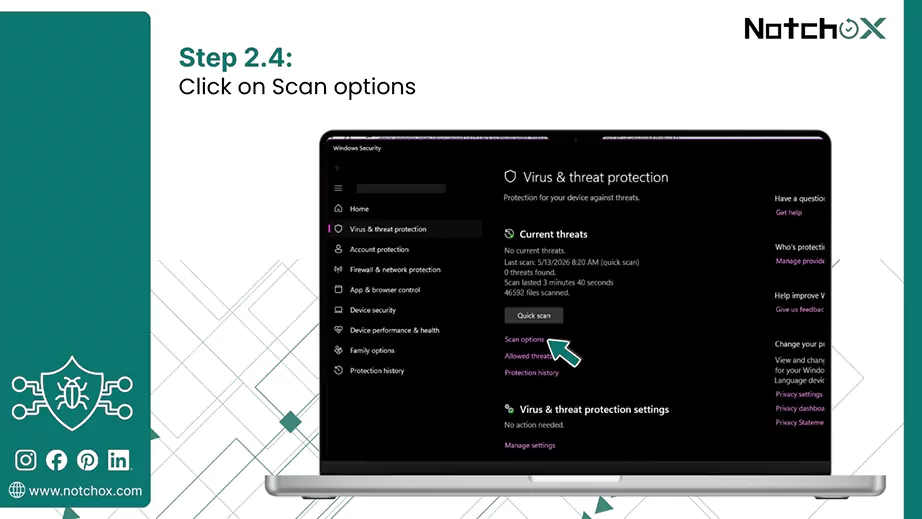
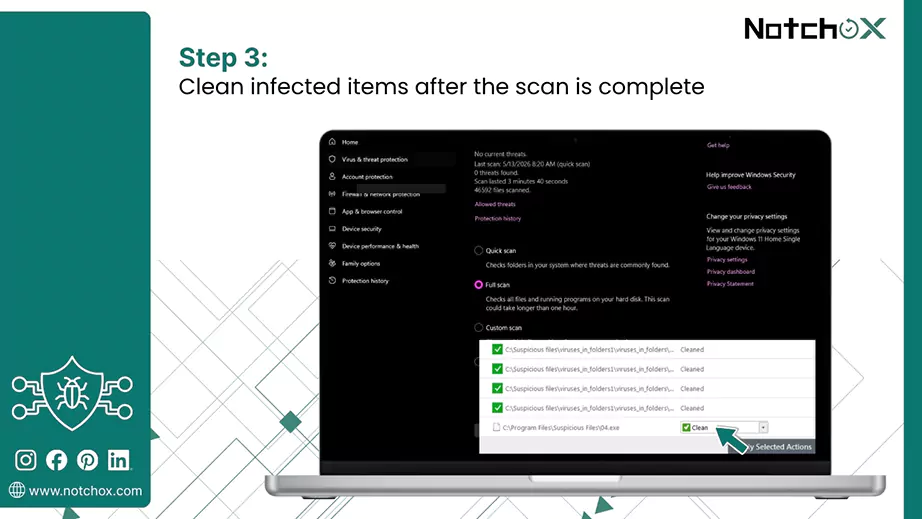
- Check the Full Scan and click Scan now.
- Once the scan is complete, Windows will show the scan results and threats if found.
A virus attack does not necessarily mean files are deleted. They often make files invisible, replacing them with shortcuts. The actual data remains on the drive. Files can be unhidden using the “hidden” and “system” attributes by:
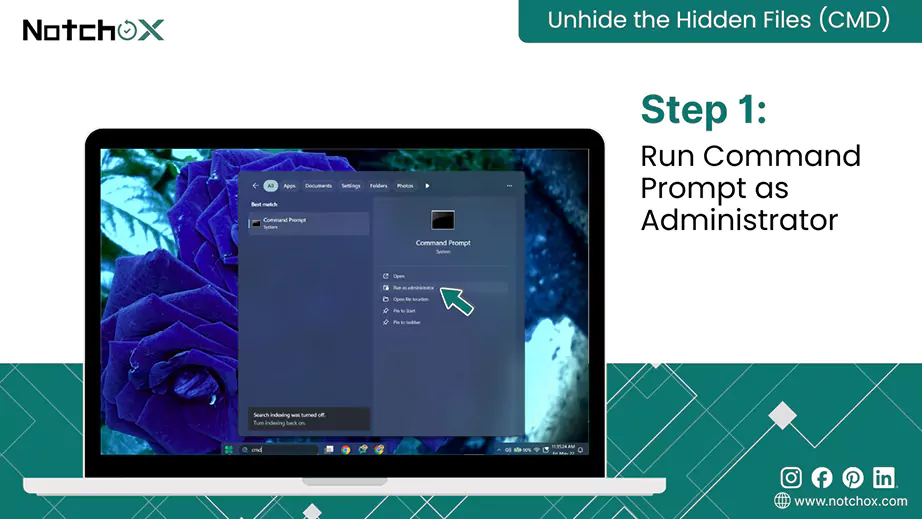
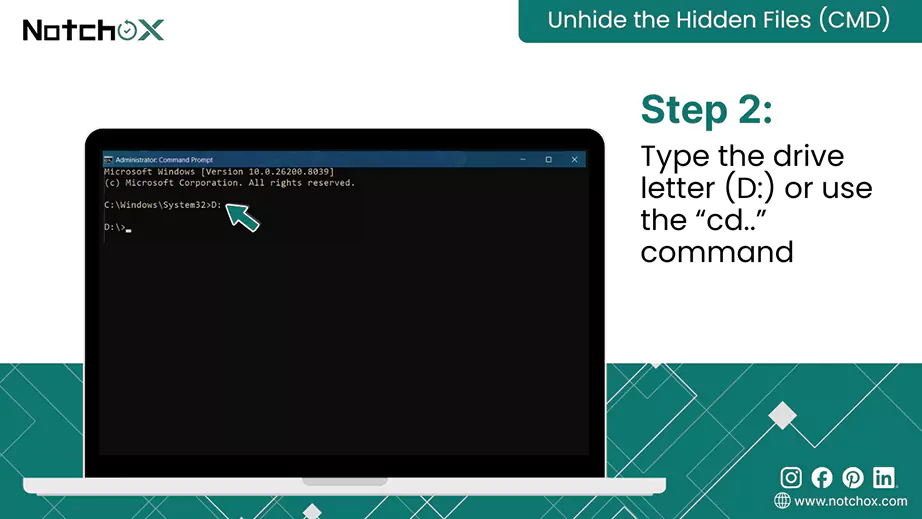
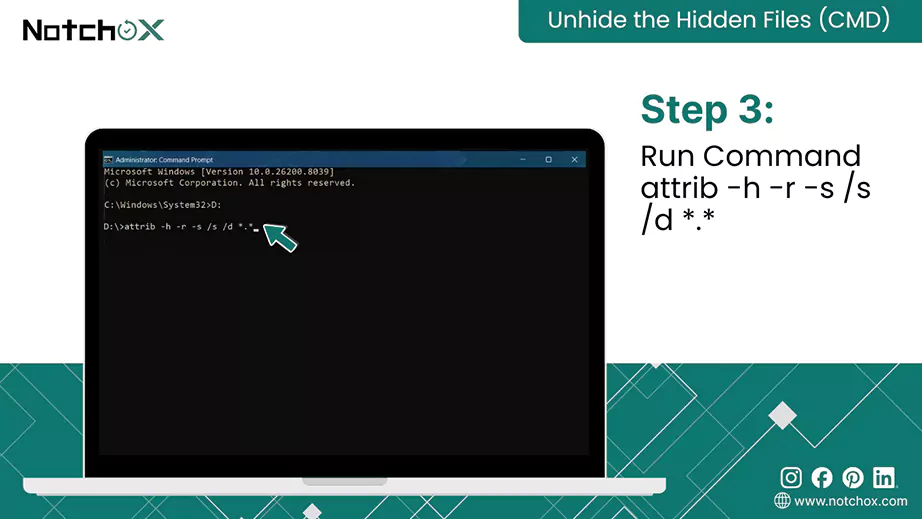
attrib: Displays or changes file attributes.
The “+” and “–“ signs indicate whether you want to activate or deactivate the specified attribute.
-h: Clears the Hidden file attribute.
-r: Clears the Read-only file attribute.
-s: Clears the System file attribute.
/s: Processes matching files in the current folder and all subfolders.
/d: Processes folders as well.
*.*: Applies the command to all filenames with any extension.
Here are the best ways to get your data back from internal storage, starting from easiest to most advanced.
Recovery from File History
If you enable File History in Windows, you can restore files to a state before the virus infection.
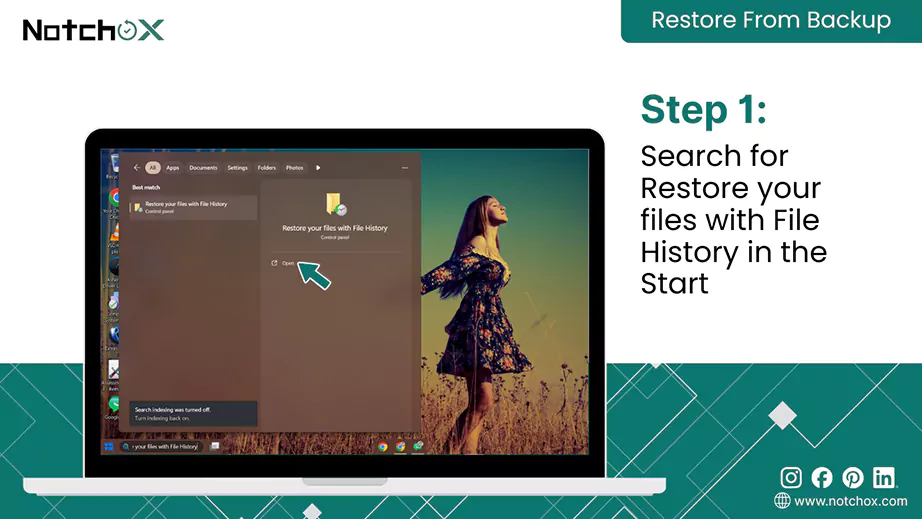
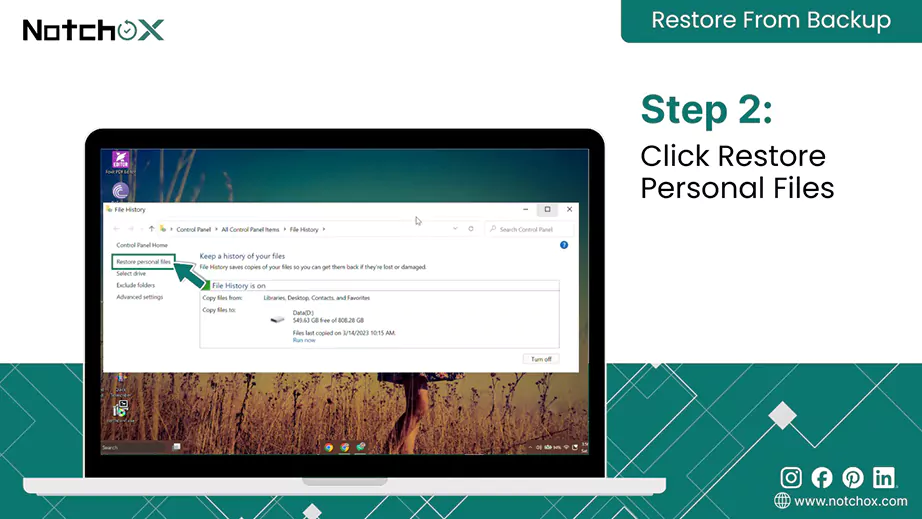
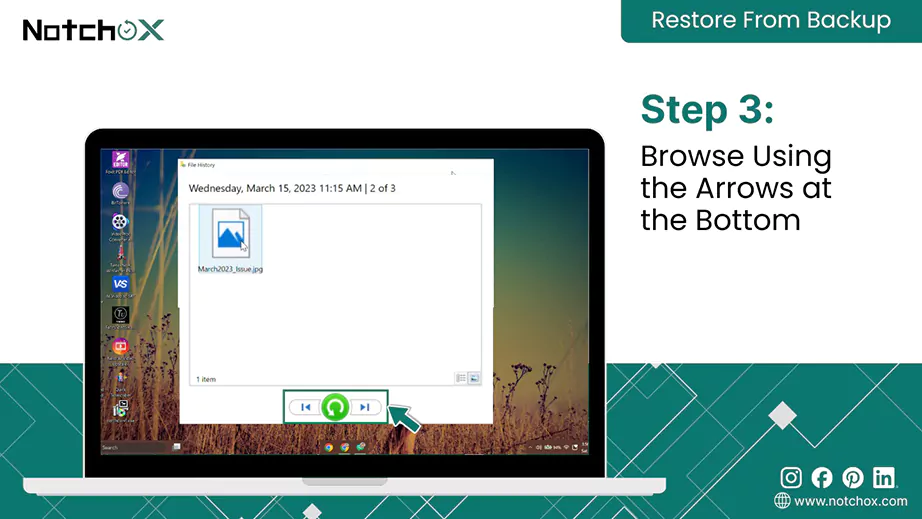
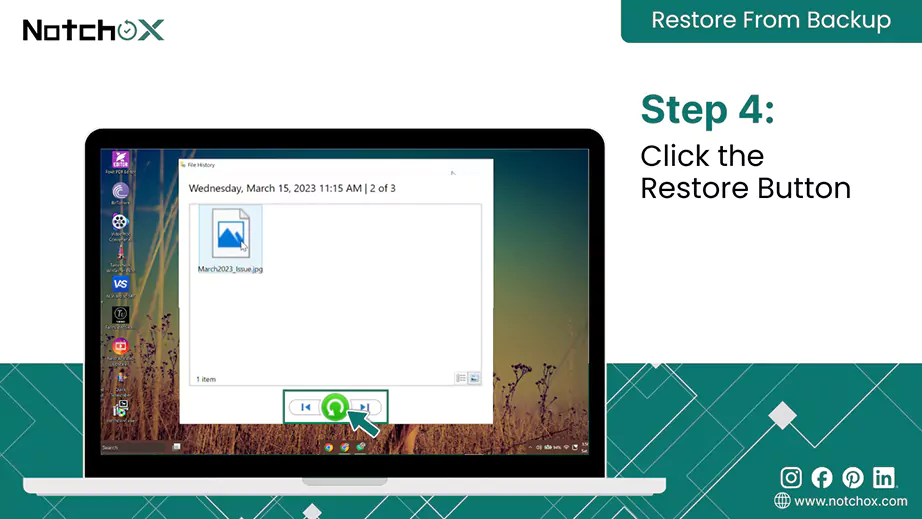
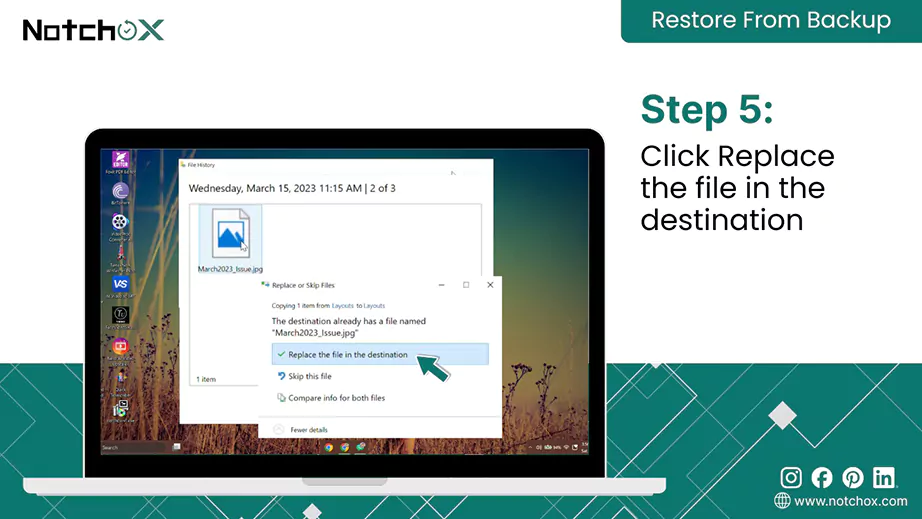
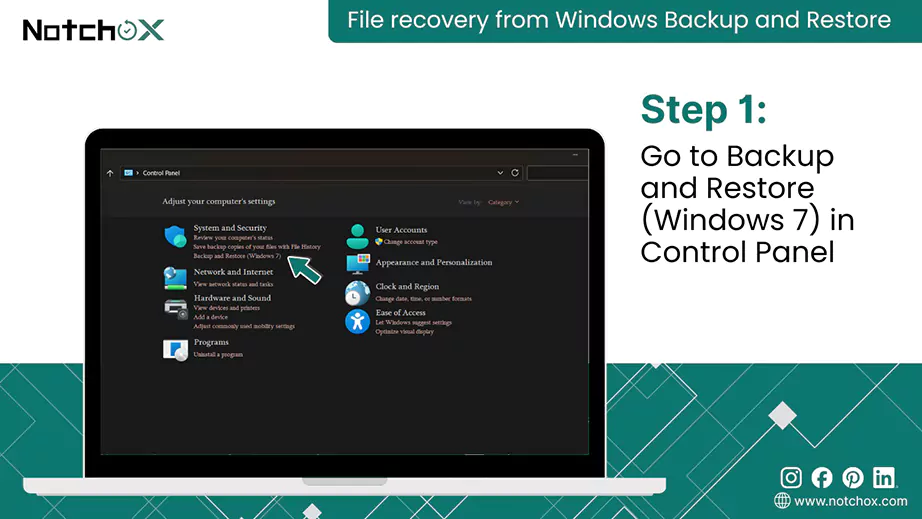
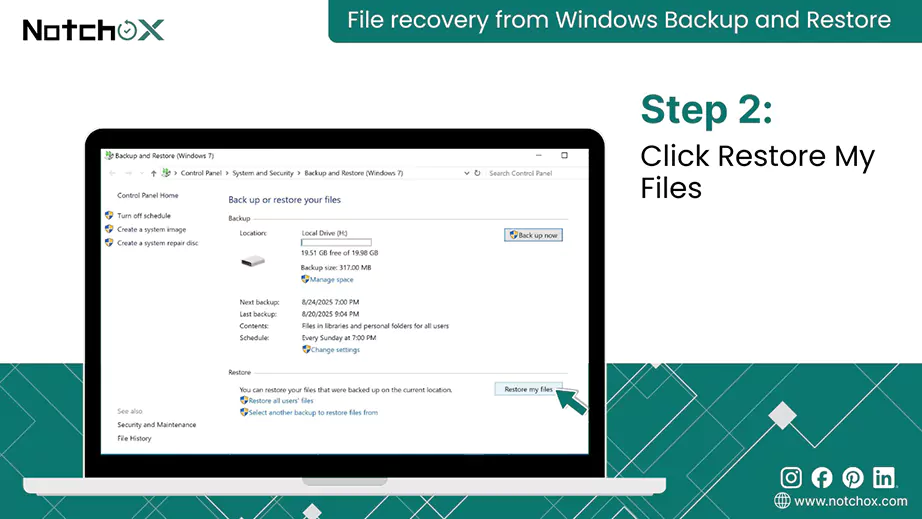
File recovery from Windows Backup and Restore
Windows Backup and Restore is a robust built-in feature in Windows 10/11, which you can use if you created a full system backup to an external drive.
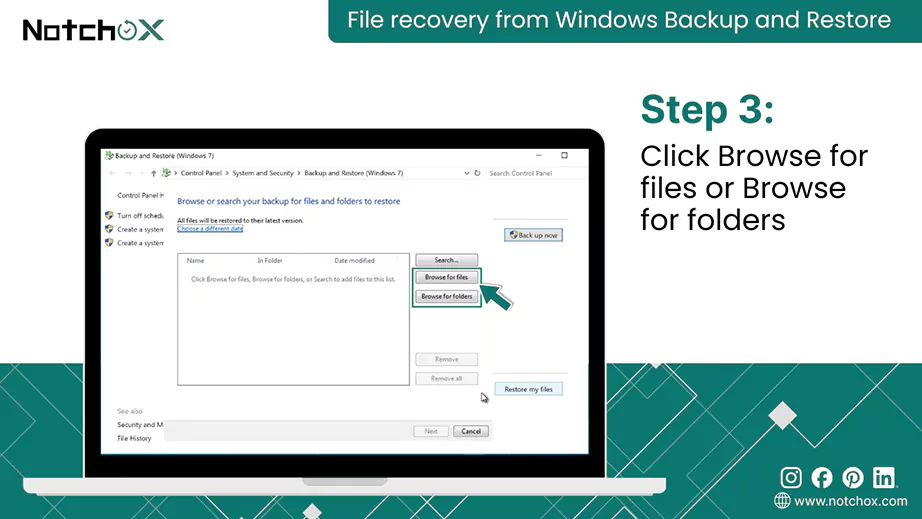
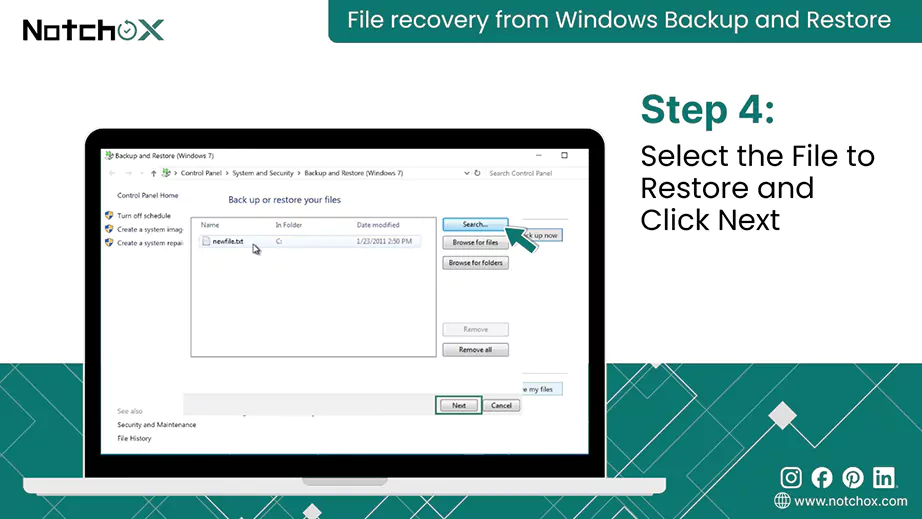
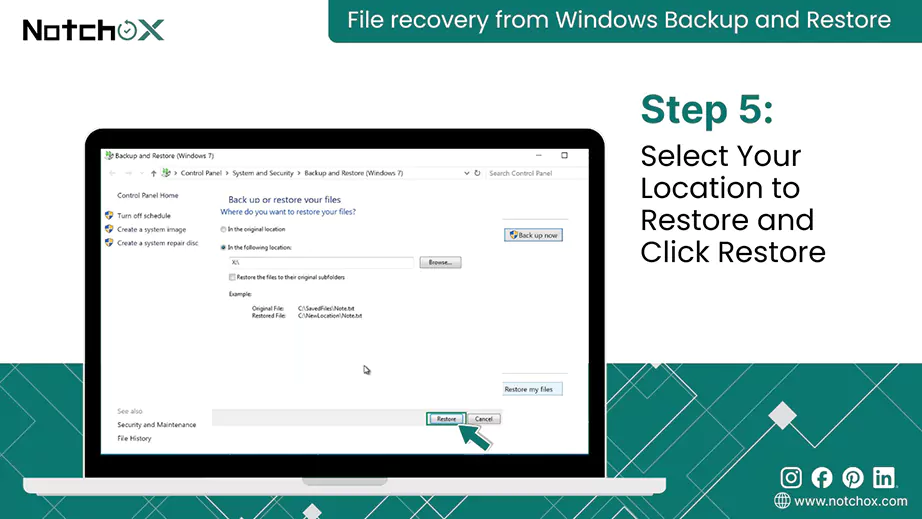
When affected by a virus, you think your files are lost forever. Think again! Let’s uncover the truth and bring them back.
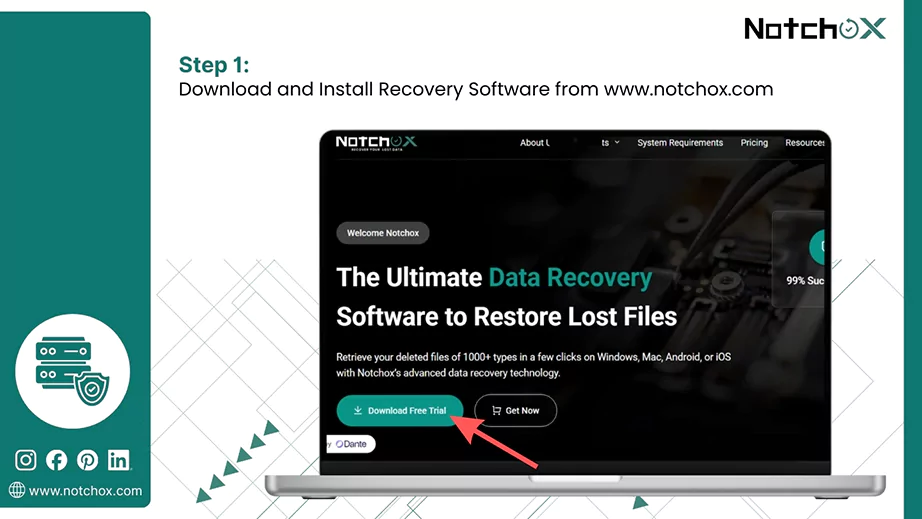
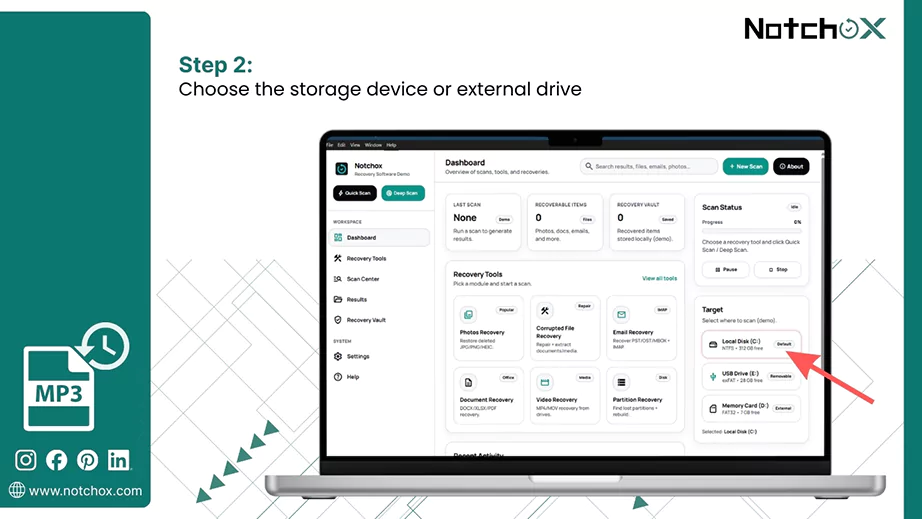
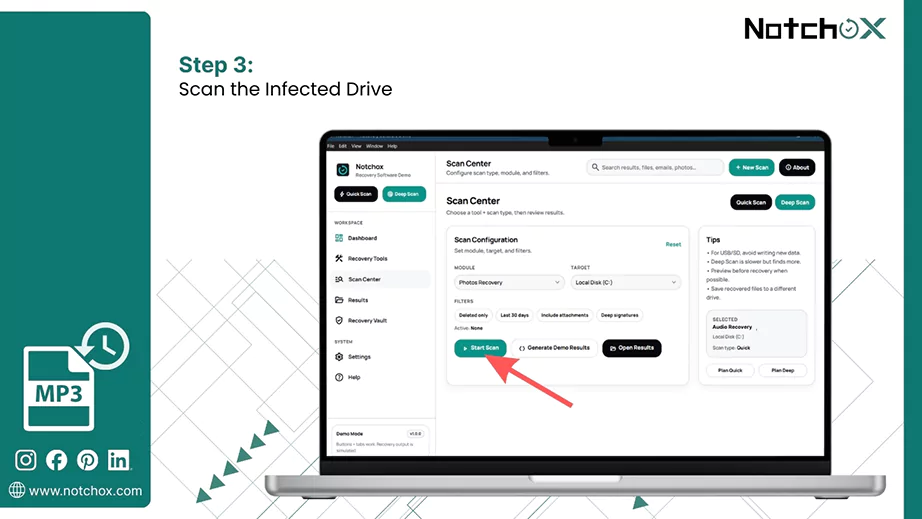
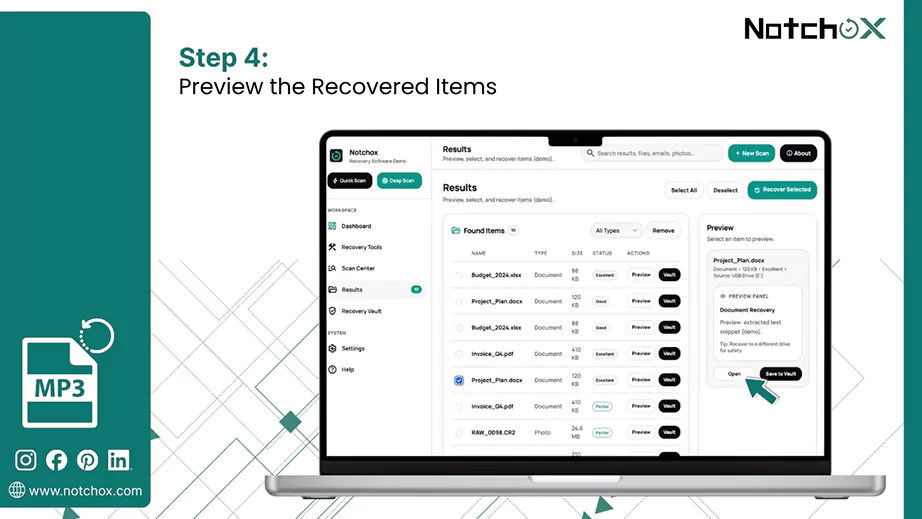
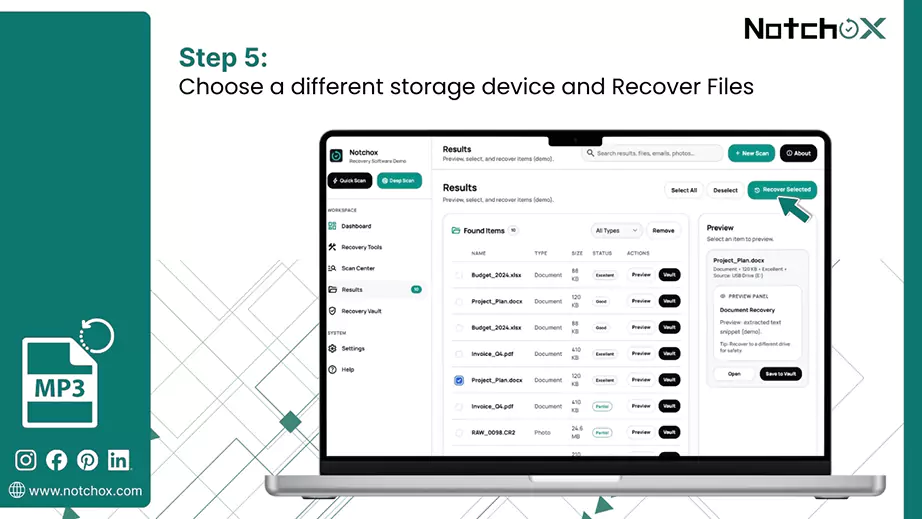
Case Study: As per Carsonnow, Nevada completed a 28-day recovery from a statewide cyber incident in August 2025, restoring approximately 90% of the impacted data. The rapid recovery was handled by pre-approved plans and specialised tools to recover data loss.
When a virus strikes, it changes your file extensions from, for example, .docx to .locked or .ecc, which makes the files unreadable. So, manually fixing these extensions can get you back your files.
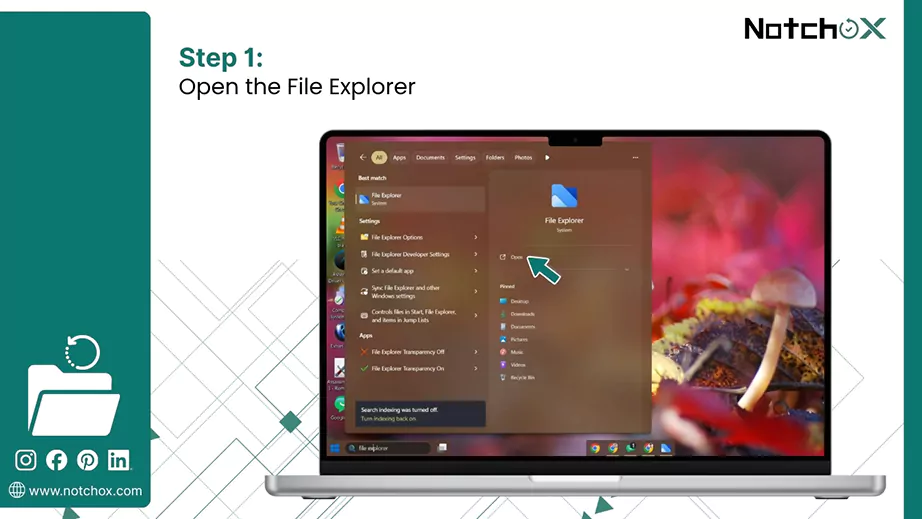
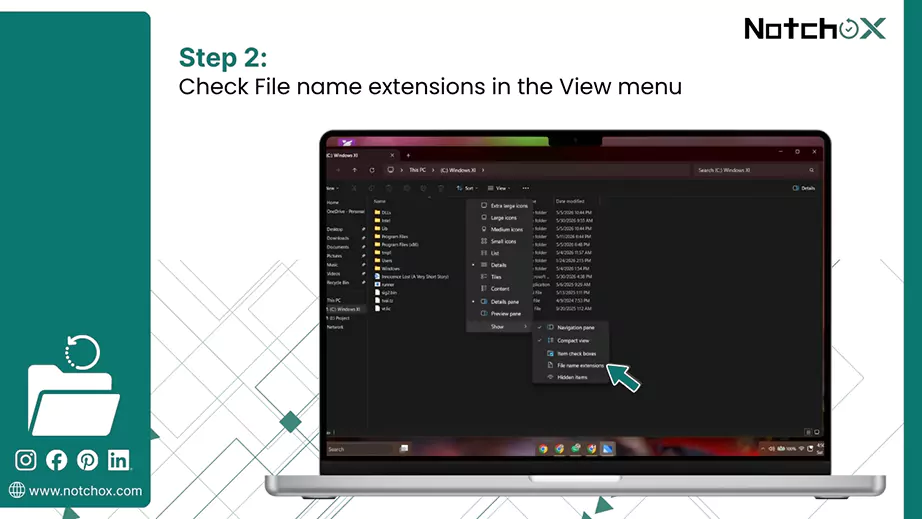
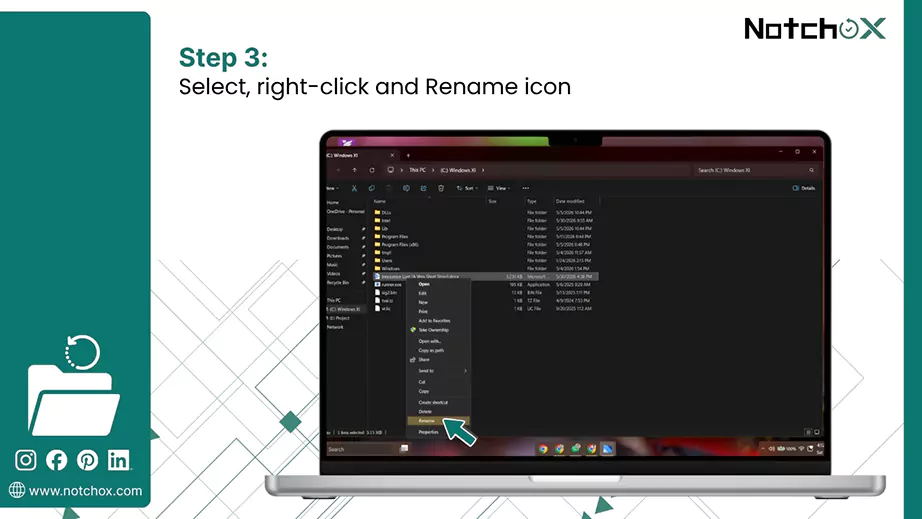
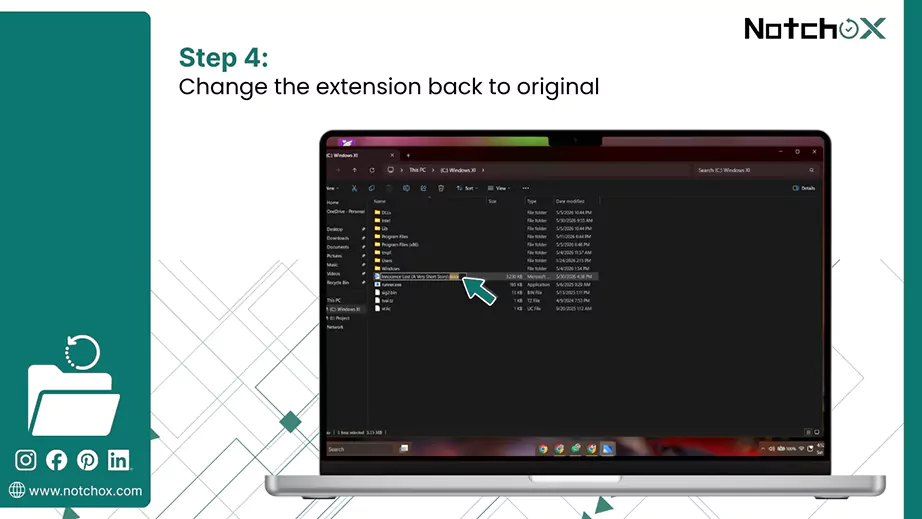
chkdsk can be used to fix file system errors and repair bad sectors. To recover files from a virus-infected USB drive using chkdsk, follow these steps:
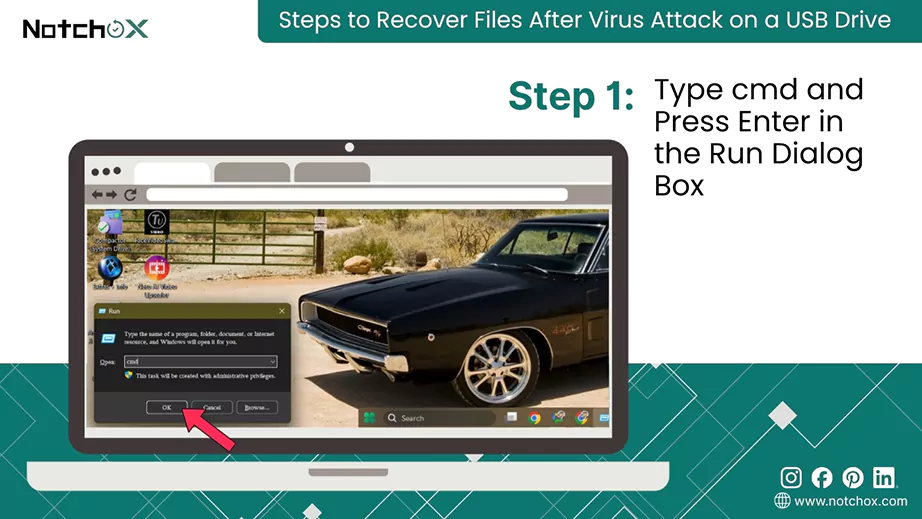
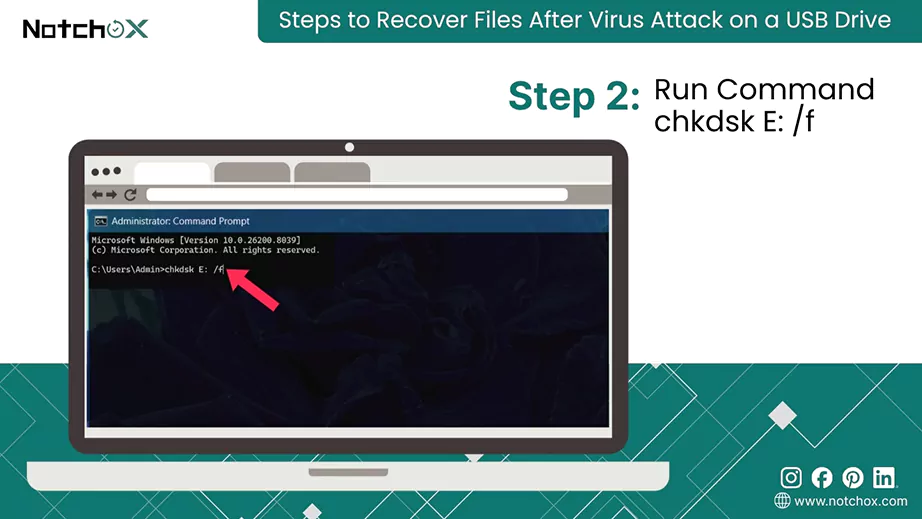
Note: If needed, type “chkdsk E: /f /r /x” to fix any errors, locate bad sectors, or force the drive to dismount.
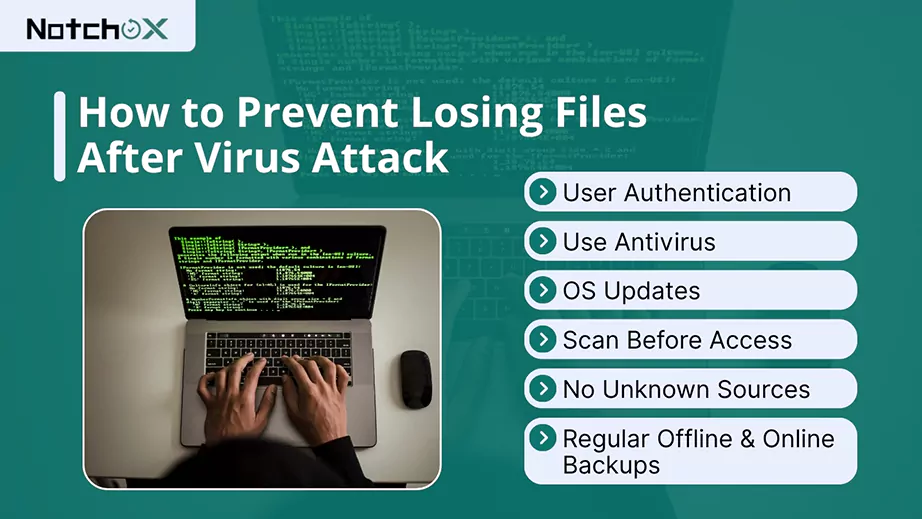
Preventing file loss from a virus attack requires combining proactive security measures with regular backup habits. Here are the best proven techniques to avoid losing files in case of a virus or malware attack.
A virus or ransomware attack is one of the most critical threats faced by modern organisations, serving as a wake-up call to weak digital infrastructures. Data recovery after such an event is rarely a simple “restore” process.
Recovering files after a virus attack is crucial. The primary goal is to stop the spread of the virus and avoid overwriting of the data. Having discussed how to recover files after virus attack and preventive measures for the same, you now have clarity on what to do if your system faces a virus attack. For a direct, easy solution, use data recovery software that guarantees successful data retrieval and offers comprehensive solutions.
Ans: Recover files after a virus by scanning with an updated antivirus and restoring from backup or data recovery software.
Ans: To recover files from a virus-infected USB, open a command prompt. Type chkdsk <drive letter>: /f and press Enter.
Ans: Ransomware deletes or encrypts the files, making them unreadable. But they may be recoverable using data recovery software.
Ans: Virus-infected files are generally not safe to recover without proper precautions as they can re-infect your system. You must isolate, scan with a reliable antivirus and stop running files to prevent further damage.
Ans: Immediately stop using the device and disconnect from the internet, then let the antivirus do the scanning, and afterwards you can recover files using version history, CMD, or data recovery software.
Ans: Steps to follow to recover after a malware attack:
Ans: The first thing you should do after a cyber incident is to disconnect the affected device from the network. Isolate and stop using it to prevent spreading and data overwriting.

Deeksha Arora is a Data Protection & Recovery Writer focusing on writing accurate, informative, and easy-to-understand technical articles for Notchox’s readers. Her content on the prevention of data loss, understanding risks of device failures, and guides to fix problems helps readers make the right decisions and understand the technical terms easily. She works closely with Subject Matter Experts to ensure high usability and accuracy of her writing.