PST (Personal Storage Table) Outlook files deletion may happen due to deliberate user action, automated policies, or as a result of data corruption. This includes removing a file from the system or removing items within the file, which can lead to permanent data loss if not managed properly. To recover deleted Outlook PST files, check the Deleted Items & Recoverable Items folder, AutoArchive files, and run the Microsoft ScanPST.exe tool to fix corrupted PST files. Furthermore, there are various Windows methods and data recovery toolsto recover deleted Outlook data file.
This article explains all the methods with step-by-step processes to get back your PST files.
Quick Answer: Recover deleted PST files by checking the Deleted Items folder, Recoverable items (via “Recover Deleted Items from Server”), or AutoArchive Files. If moved, search for “*.pst”. Use ScanPST.exe to check for corruption; restore from the Windows Recycle Bin, Previous Versions, or recovery software such as Notchox for the best data recovery. Finally, Open/Import the PST.
How to Recover Deleted Outlook PST Files: All Proven Methods
To recover deleted Outlook PST files, you can use built-in Windows features, internal Outlook recovery tools, or advanced Notchox recovery software. We will start with a basic Windows folder check, previous versions, inbox repair tools, and move to advanced methods. Finally, we will also cover how to import recovered Outlook PST files back to the Outlook app.
Method 1: Checking the “Deleted Items” Folder
The first method to recover deleted Outlook PST files is checking the Deleted Items folder. Whether you have deleted emails, calendar invites, contacts, tasks or notes, these items go directly to the Deleted Items folder.
Let’s see how to restore deleted PST files in Outlook 365.
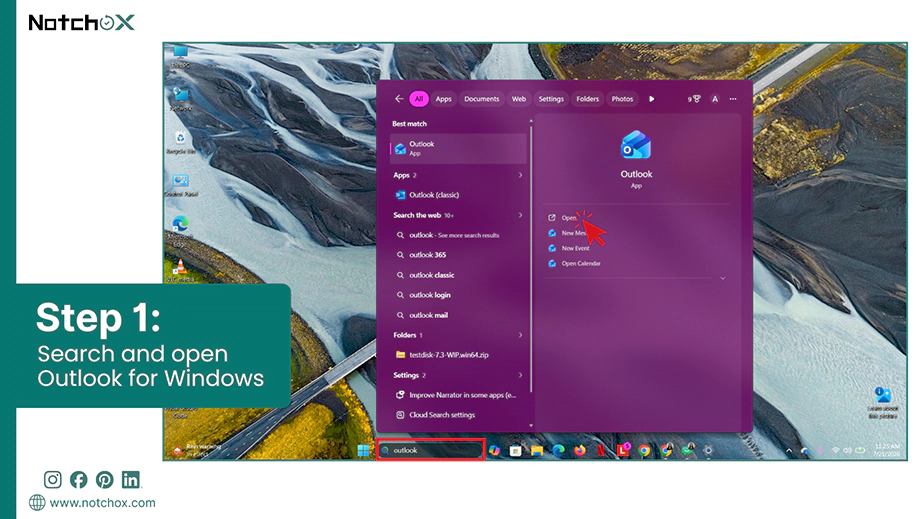
Open Outlook on your computer.
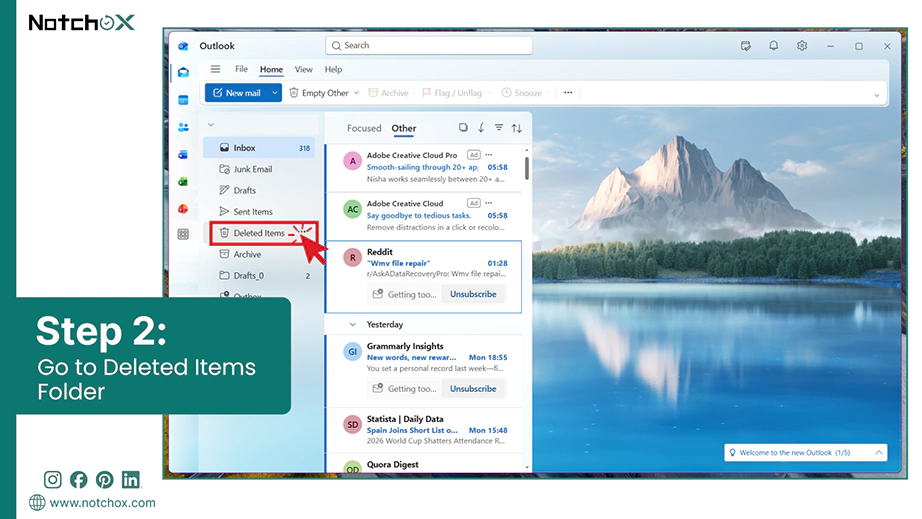
Show the navigation pane (☰) and select the Deleted Items Folder from the File Menu.
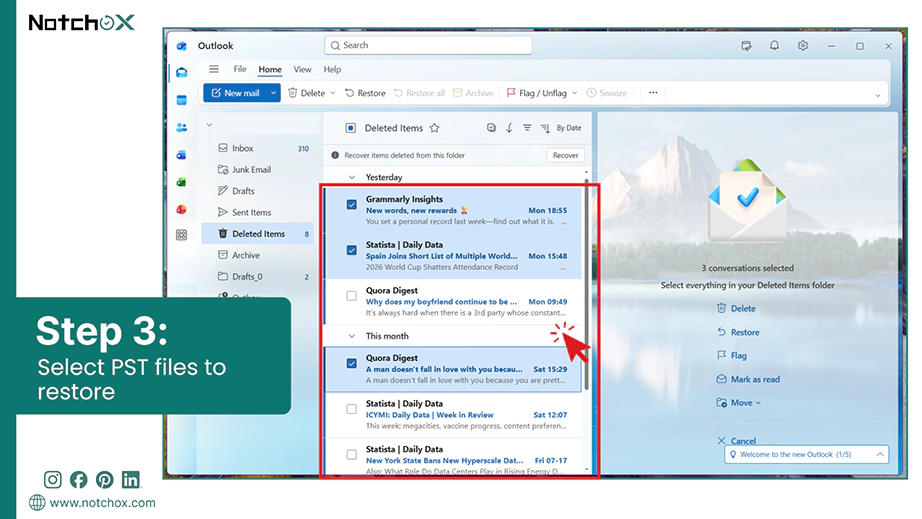
Select the PST files you want to restore.
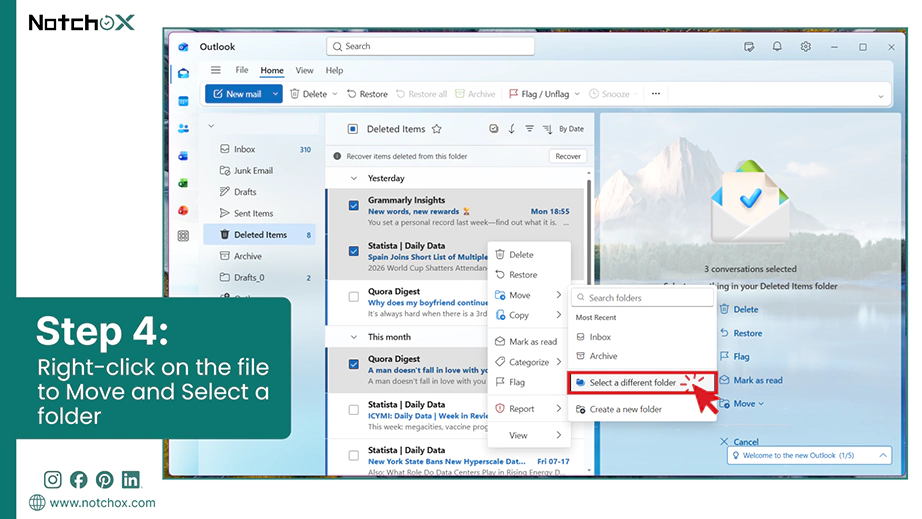
Right-click on the file, hover over Move, and click Select a folder.
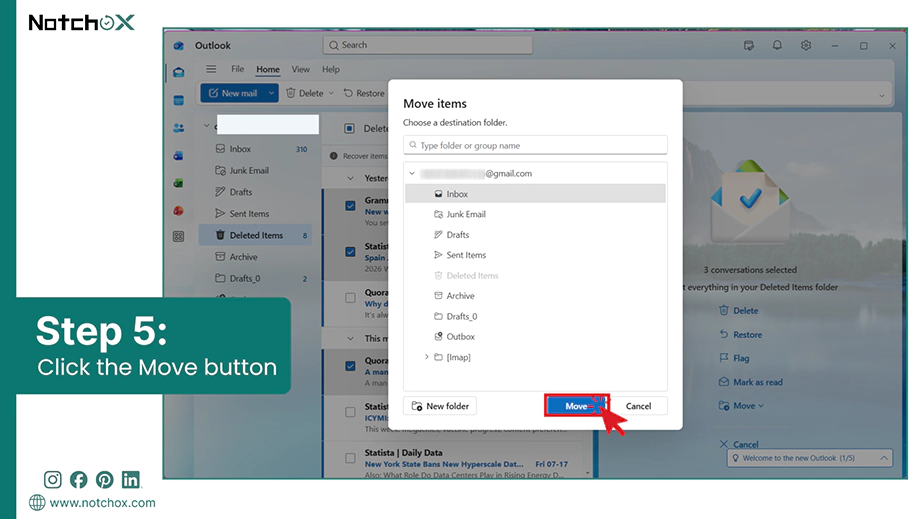
Select the folder where you want to restore deleted Outlook PST files. Click the Move button.
Method 2: Utilizing the “Recoverable Items” Folder
If you can’t find the deleted PST file in the Deleted Items folder, the next place to look is the Recoverable Items folder. It contains all the deleted, lost, or corrupted Outlook files that can be recovered, including PST files.
Here’s how to restore deleted PST files in Outlook 365 that are not in the “Deleted Items” folder.
Open Outlook for Windows.
Show the navigation pane (☰) and select the Deleted Items Folder from the File Menu.
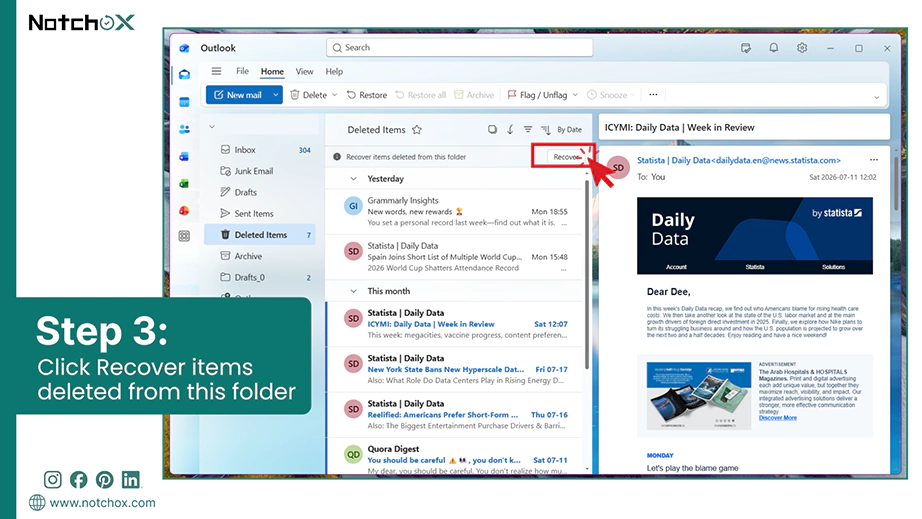
Click Recover next to recover items deleted from this folder.
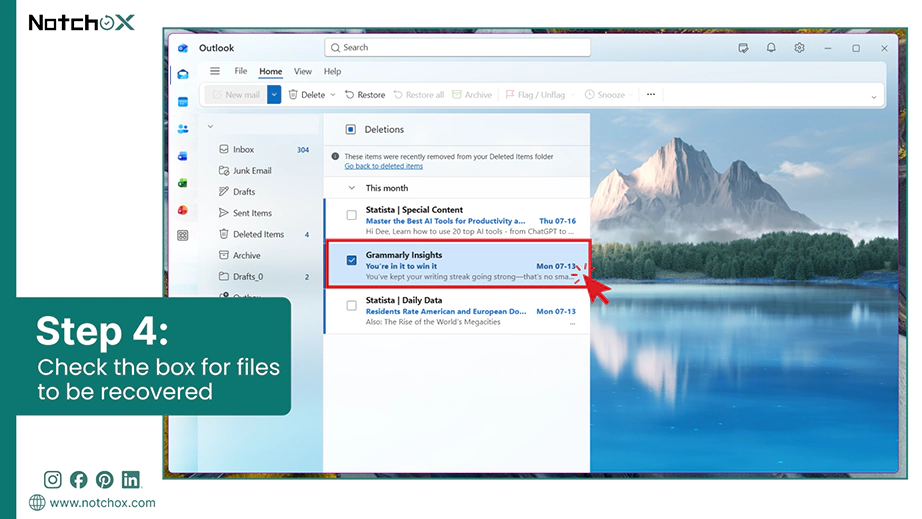
Check the box next to the PST file you want to recover.
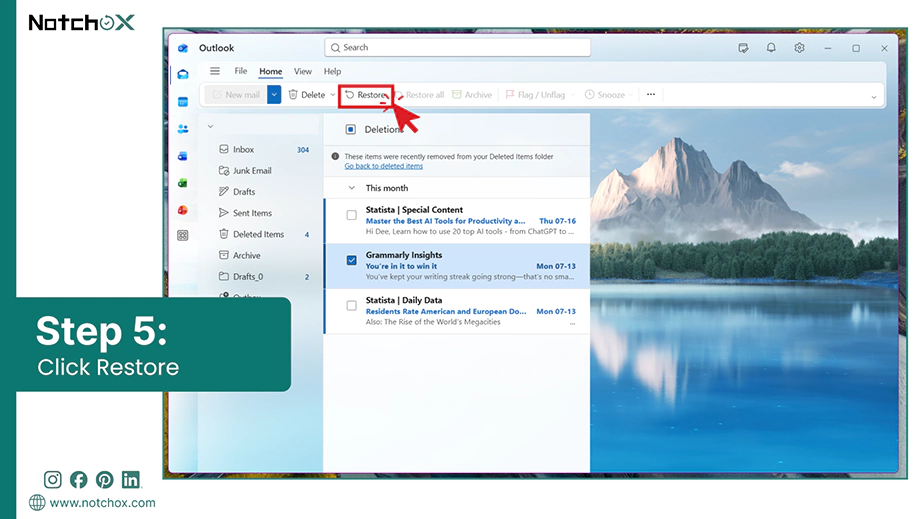
Click Restore from the Home tab.
The item is now restored to its original folder. You can locate it again by simply searching your inbox.
Method 3: Checking AutoArchive Files
Locating the AutoArchive setting in Microsoft Outlook is a straightforward process that gives you powerful control over your mailbox organization. By accessing the AutoArchive folder, you can look for your deleted PST files there.
Let’s see how to do it.
Open Outlook for Windows.
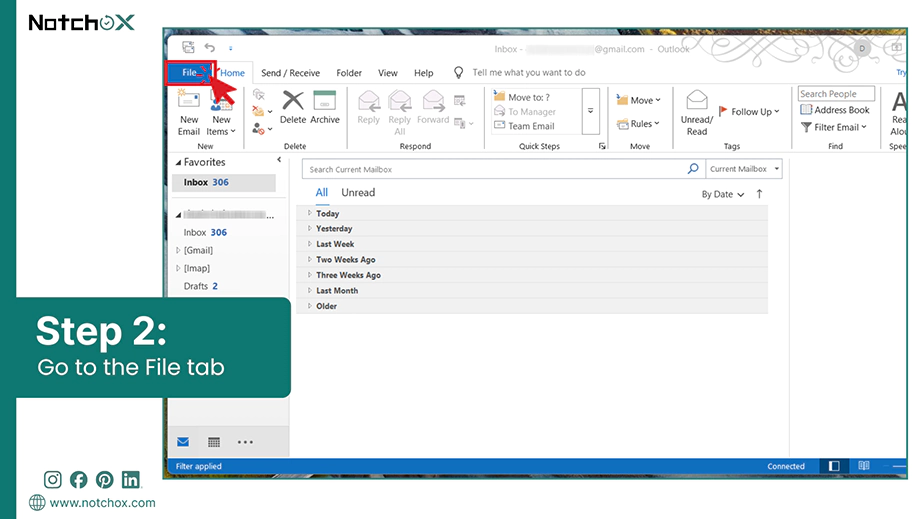
Start by navigating to the File tab in Outlook’s top ribbon.
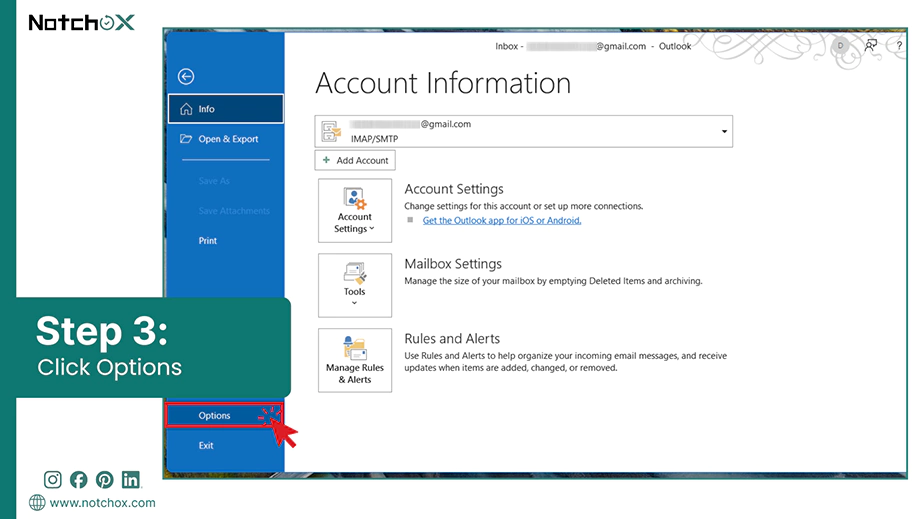
From there, click on Options.
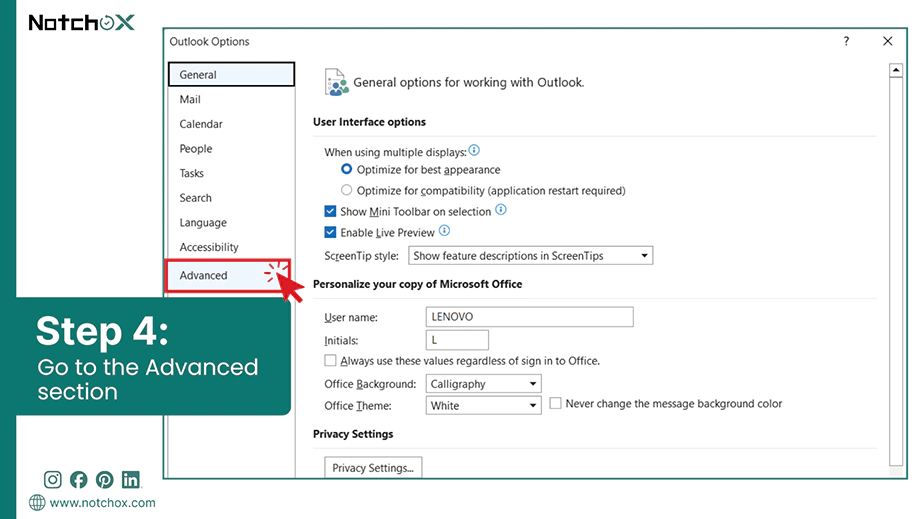
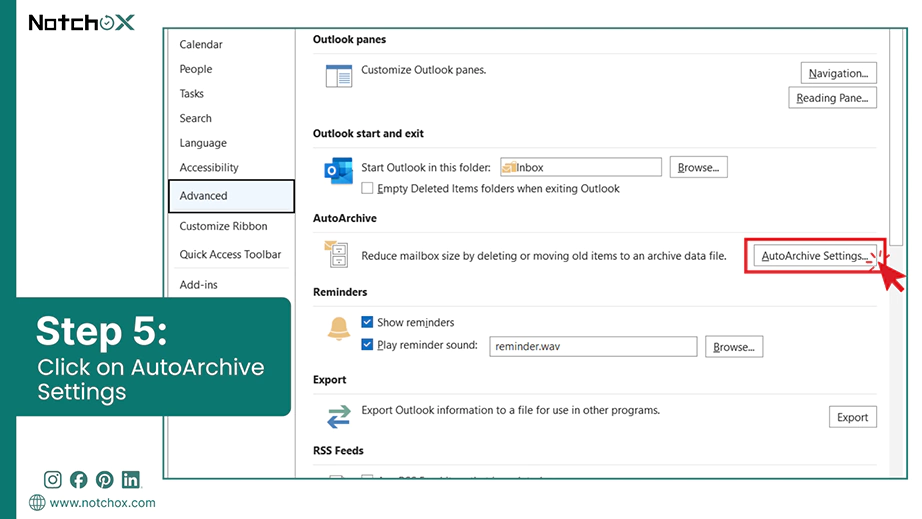
From Outlook options, select the Advanced section.
Click the AutoArchive Settings button.
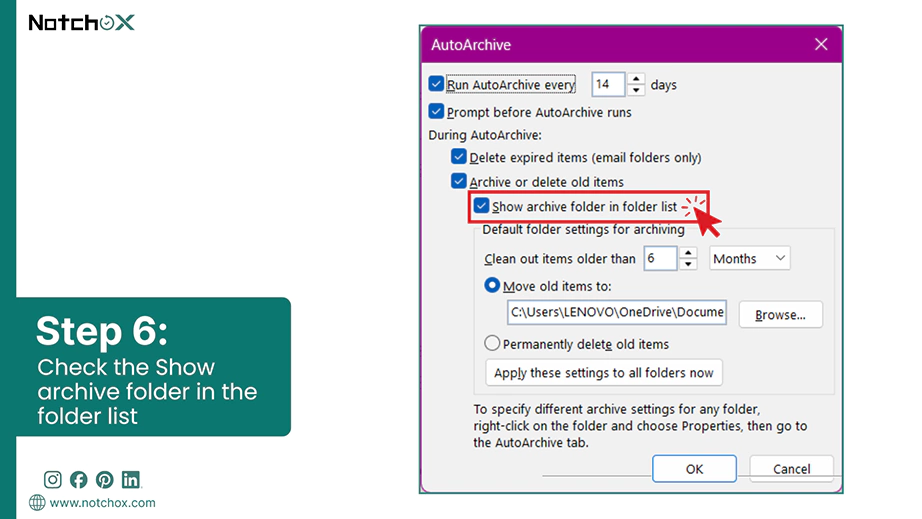
Make sure Run AutoArchive every option is checked, and then check the Show archive folder in the folder list to access the AutoArchives folder.
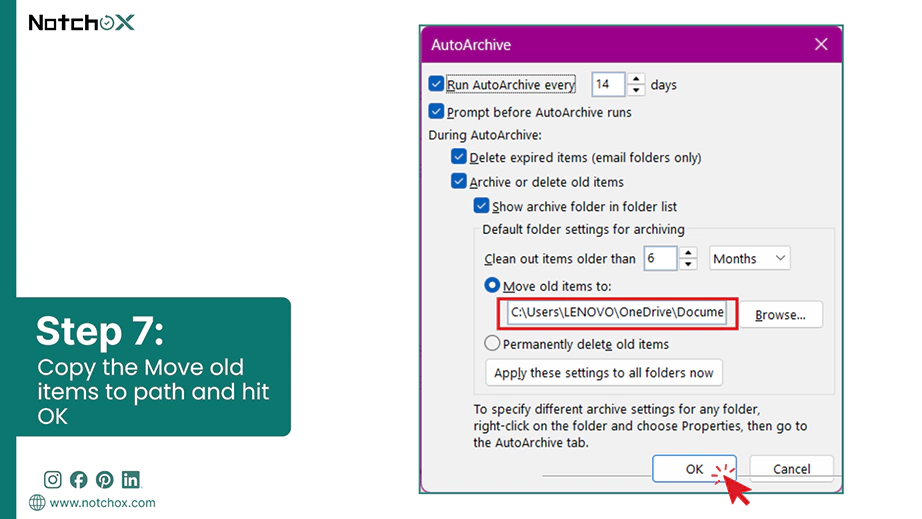
Copy the Move old items to path and hit the OK button.
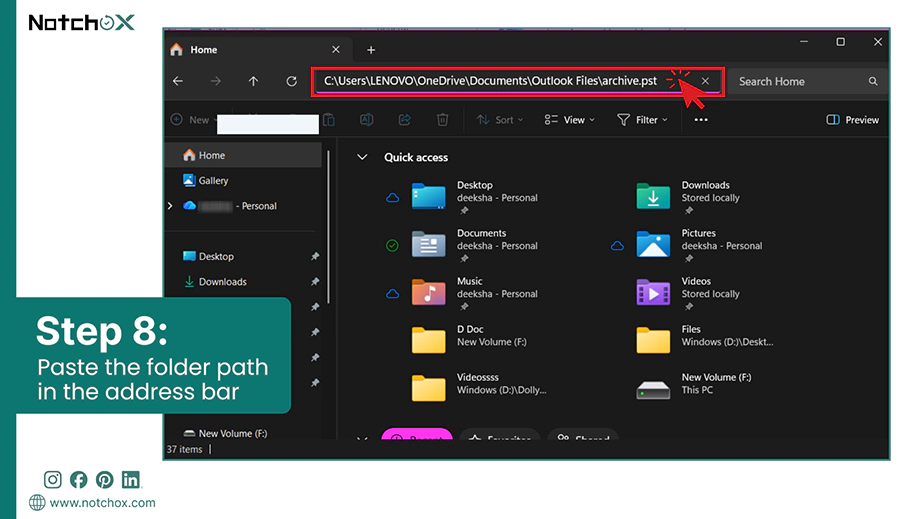
Open File Explorer and paste the copied path in the address bar and press Enter.
Look for your deleted Outlook data file and open it in Outlook.
Note:AutoArchive is only available in Classic Outlook for Windows (desktop app via Microsoft 365, 2021, 2019, etc.), not the “new” Outlook.
Insight: According to Forbes, a new Windows update is causing classic Outlook to freeze, potentially corrupting PST files. If you are experiencing this issue, use the recovery steps below to repair the data.
Method 4: Using the Inbox Repair Tool
Let’s now understand how to fix the Outlook file corruption problem. It occurs when data files responsible for storing your emails, calendar events, contacts, etc., known as PST or OST, become damaged. When this happens, Microsoft Outlook can not read/write to those files correctly. Here we will see the steps to recover data files when the file is not an Outlook data file OST.
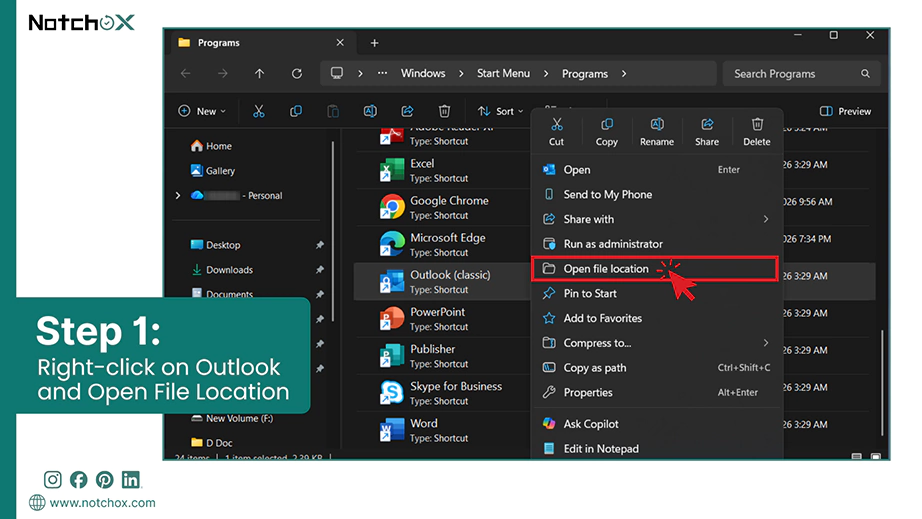
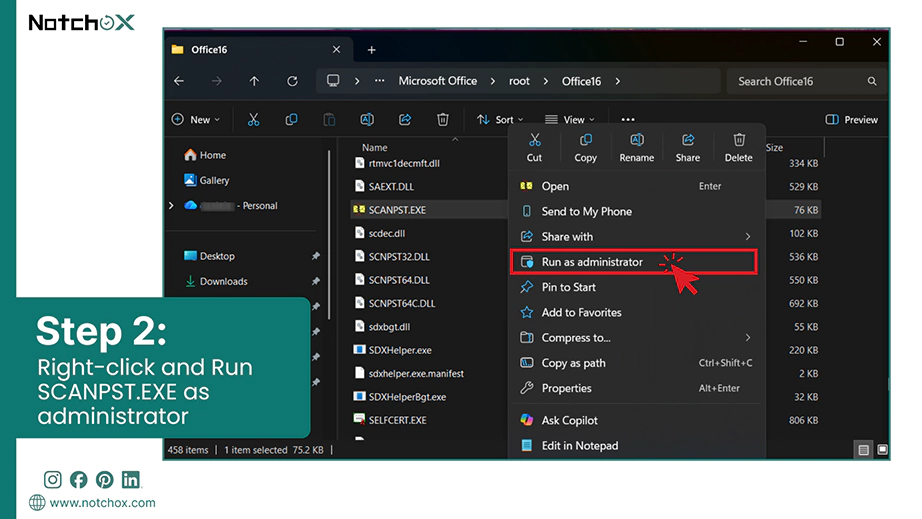
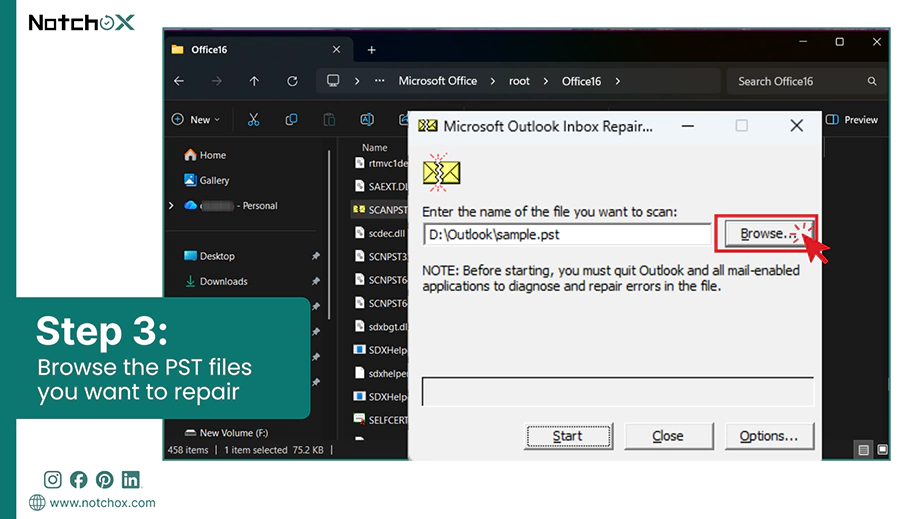
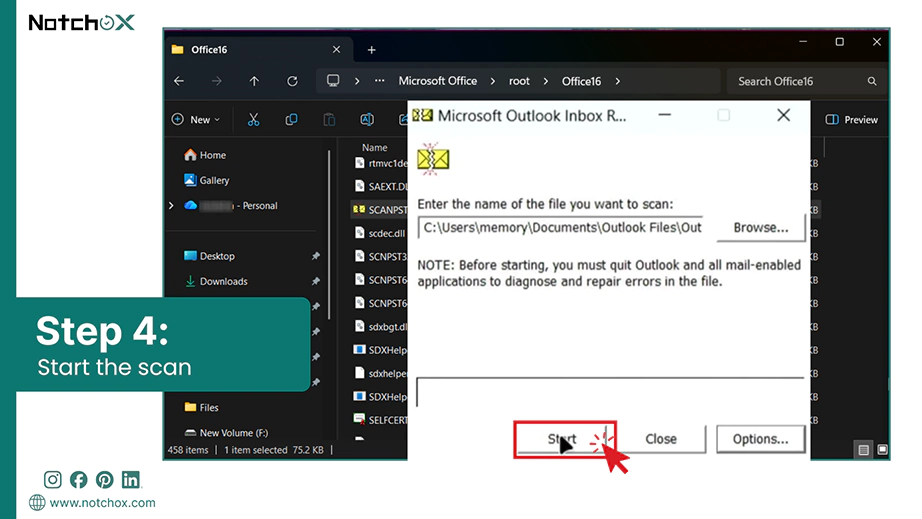
Steps to fix the Outlook file corruption problem:
Right-click on Outlook and select Open file location.
FindSCANPST.EXE. Right-click on it and select Run as administrator to solve the Outlook file corruption problem.
Click on Browse to select the corrupted PST file you want to recover.
Click the start button to start the repair scan.
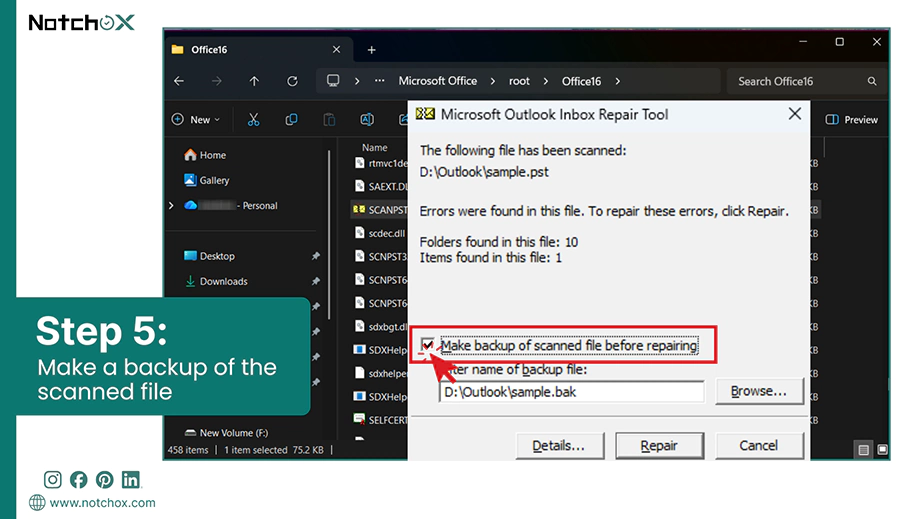
Your PST file is scanned. Now proceed to repair. You can also make a backup of the scanned file before repairing.
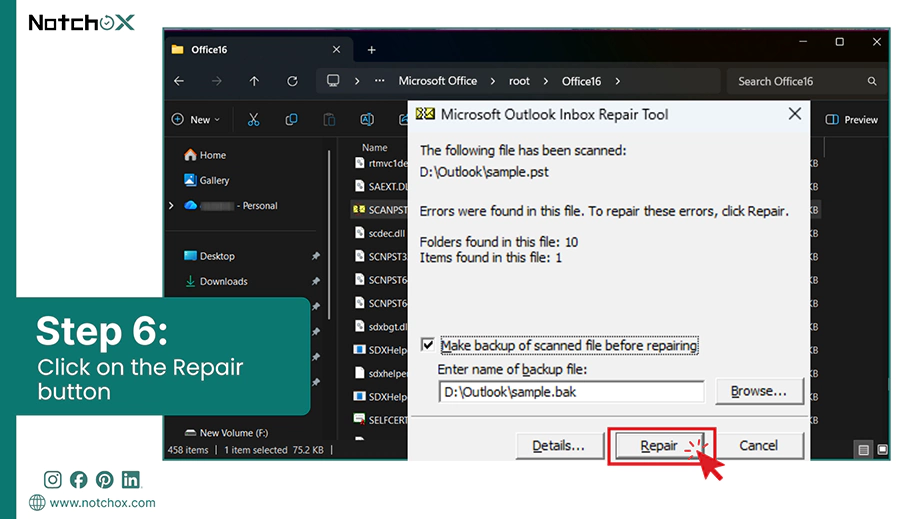
Click the repair button to fix the corrupted PST file.
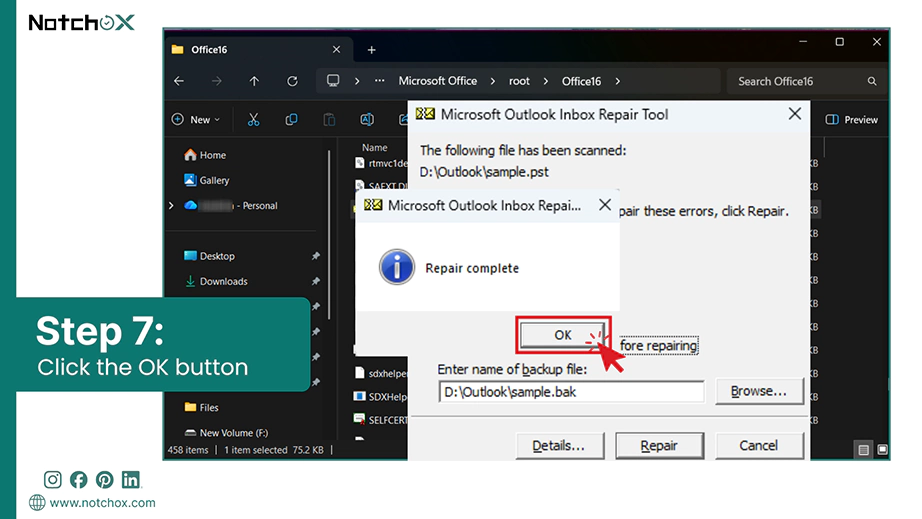
Repair complete. Click OK to close.
Method 5: Using the Windows Recycle Bin
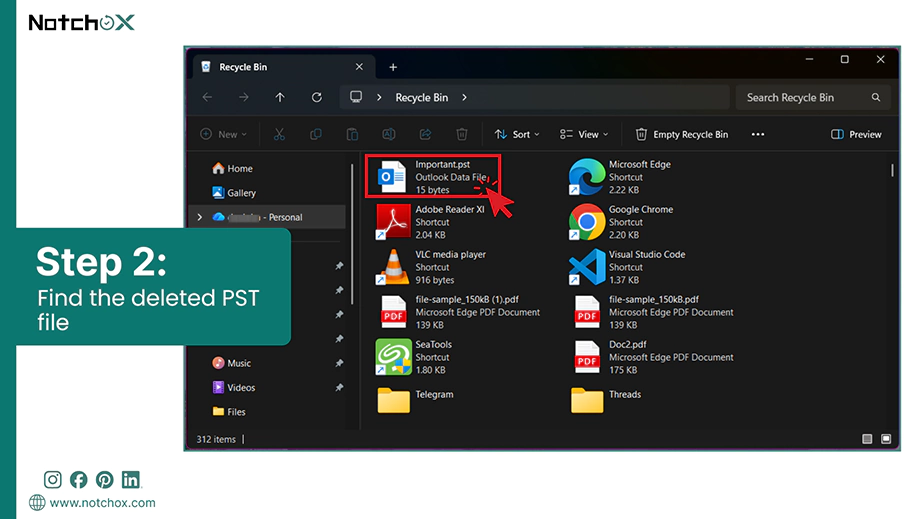
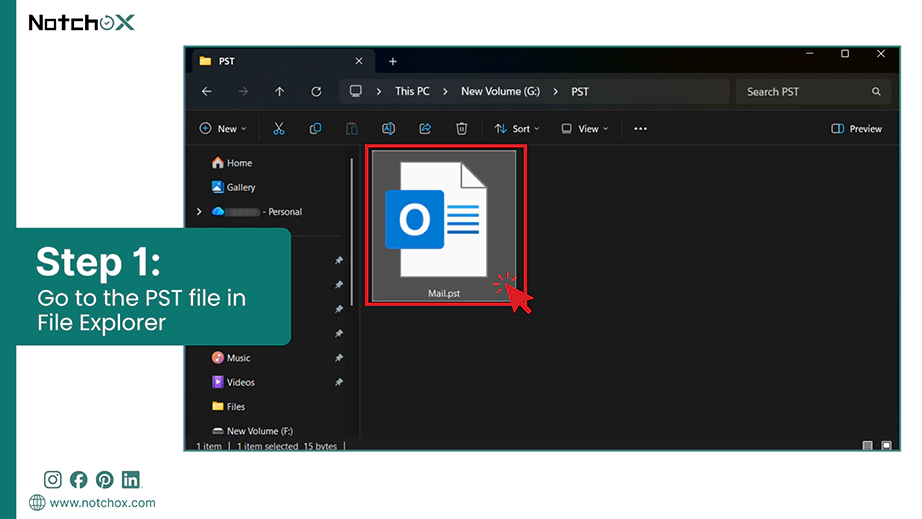
Any file deleted on Windows goes to the Recycle Bin when deleted, only if not permanently deleted or deleted using Shift + Delete. Hence, you can restore your recently deleted file from Windows Recycle Bin easily using these steps.
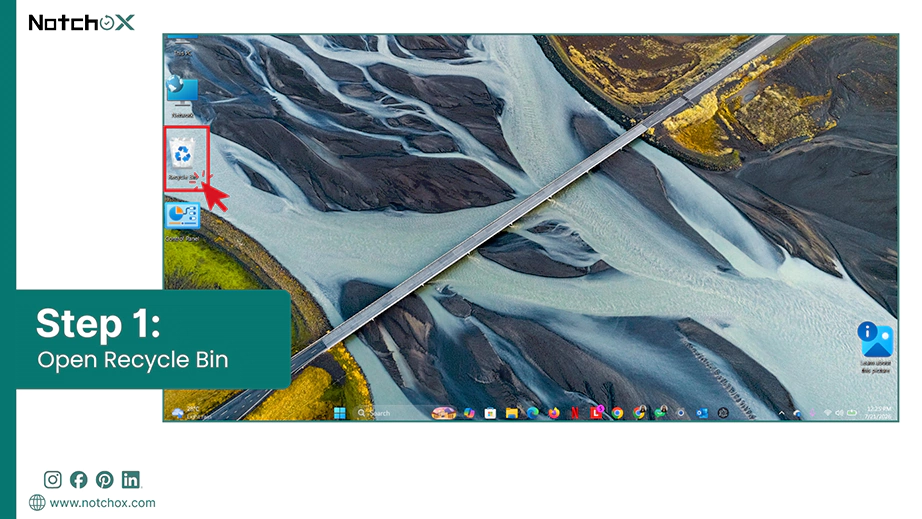
Open the Recycle Bin on your computer.
Check the Recycle Bin to see if the deleted PST file is still there.
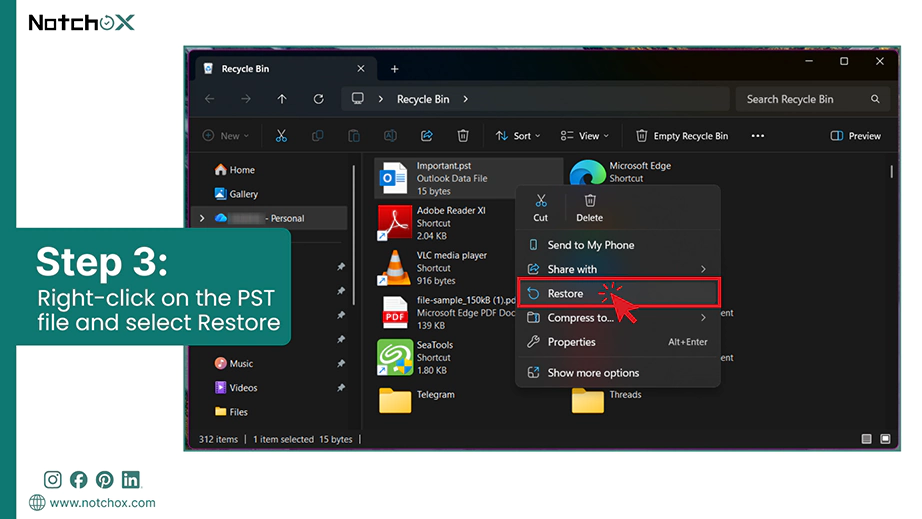
Once found, select the PST files to recover and right-click on them. Select the Restore option.
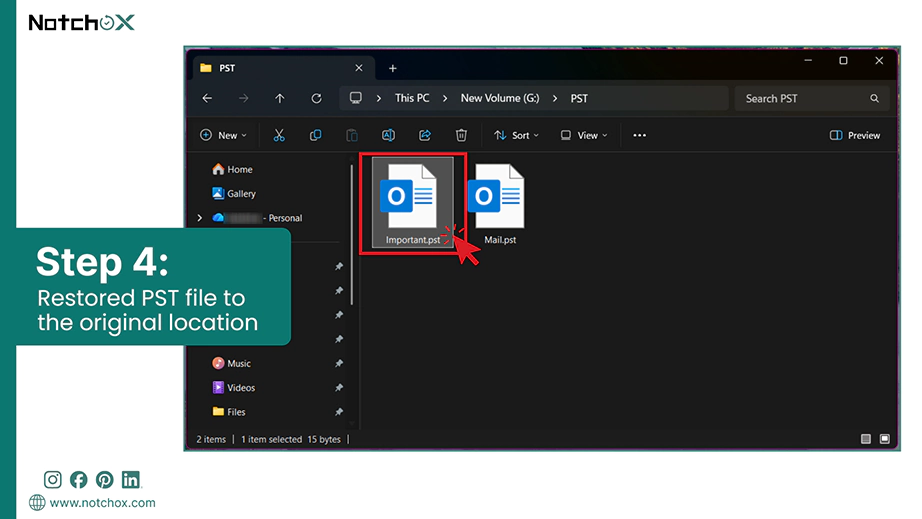
The file will be restored to the original location.
Method 6: Restoring Previous PST Versions
If you have deleted the content of the PST files, they can be easily restored using Windows File History, which keeps all changes in the files as recoverable versions. To do this, close Outlook and follow these steps:
Locate the PST file in the File Explorer.
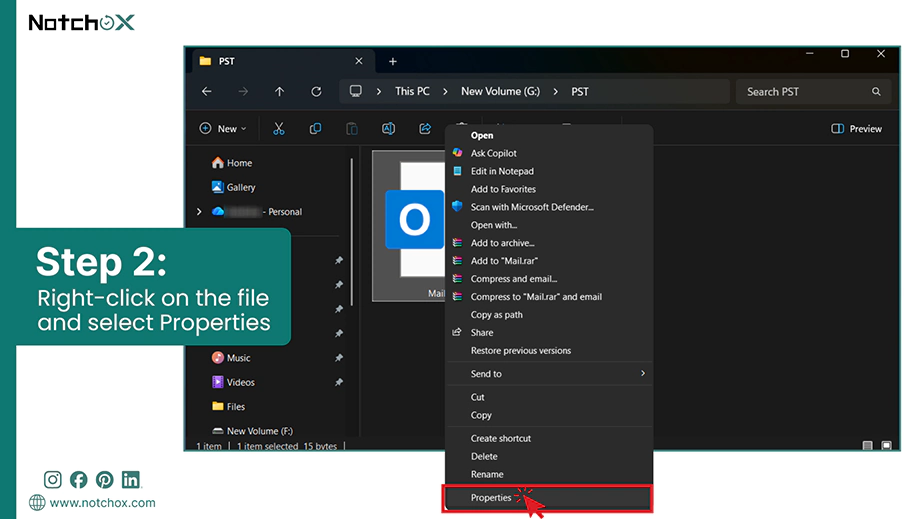
Right-click on the Outlook PST file and select Properties.
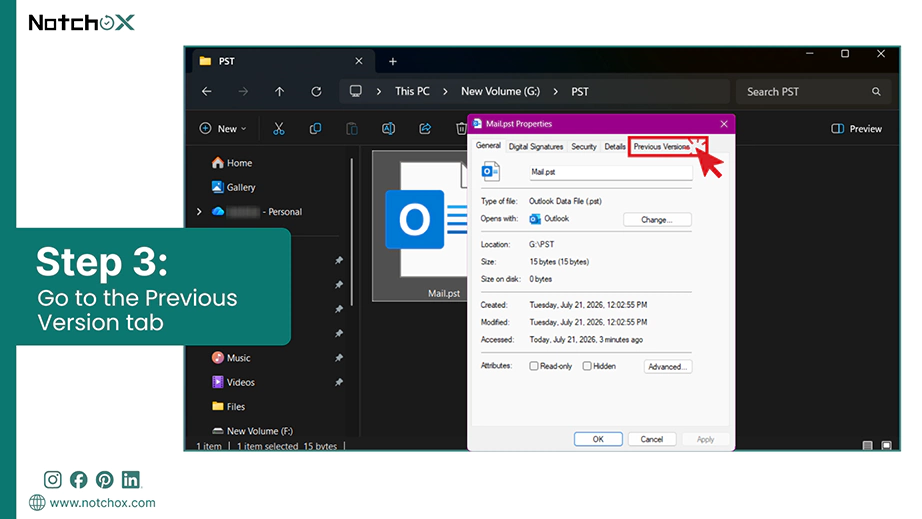
Navigate to the Previous Versions tab.
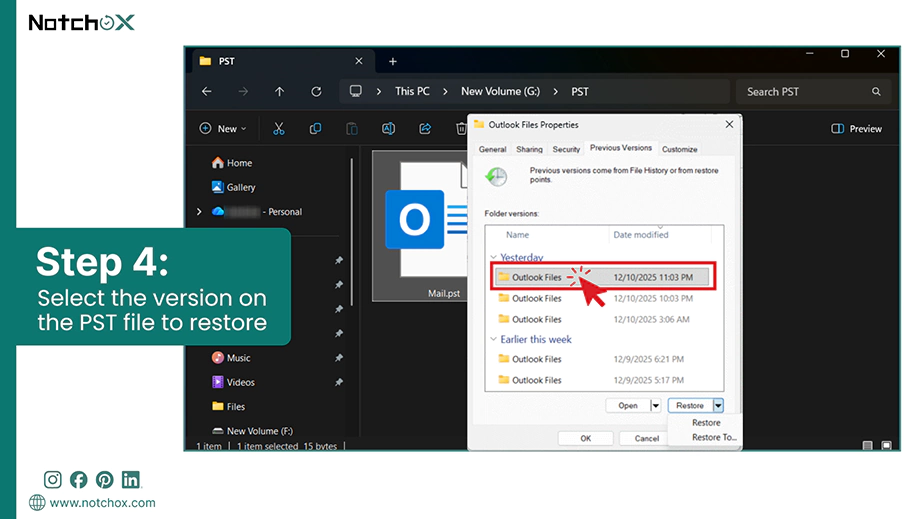
Select the version of the file you want to restore.
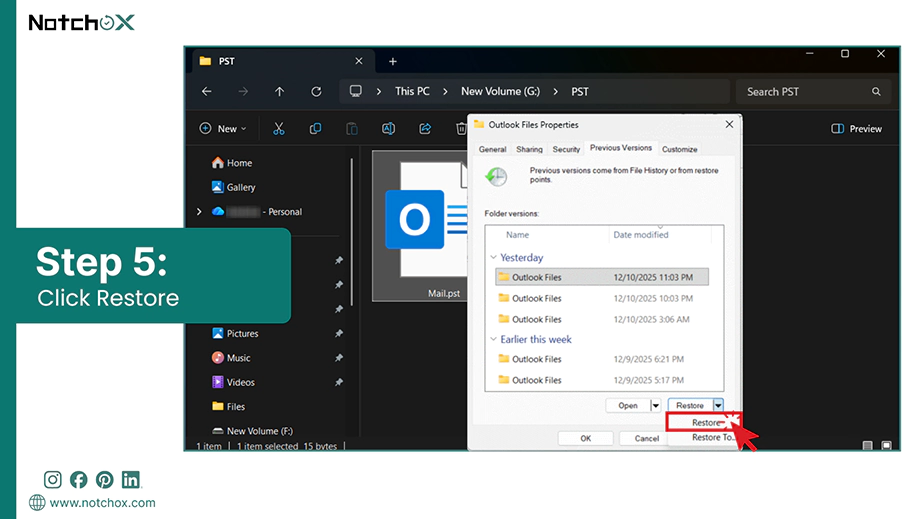
Click the Restore button to retrieve the PST file.
To restore the PST file to another location, click on the arrow (⏷) adjacent to the Restore button and click Restore to. Select the desired location.
Method 7: Searching for .PST Files
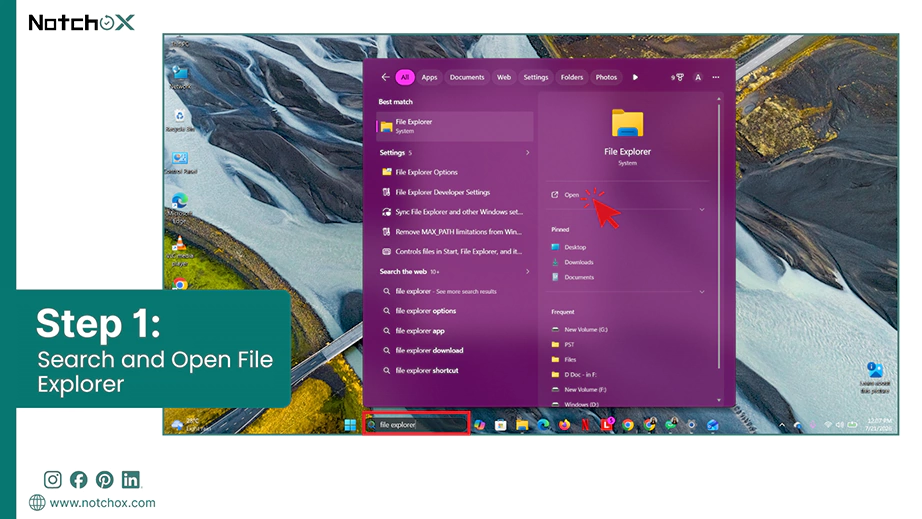
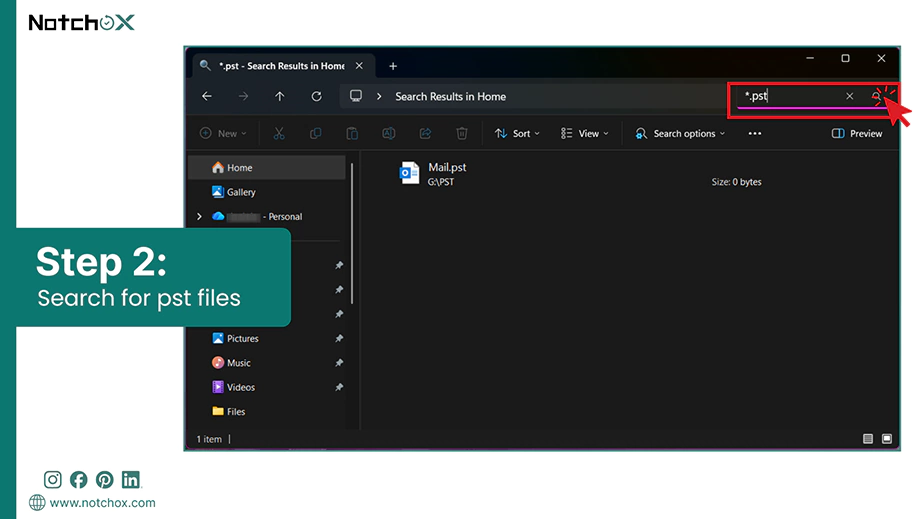
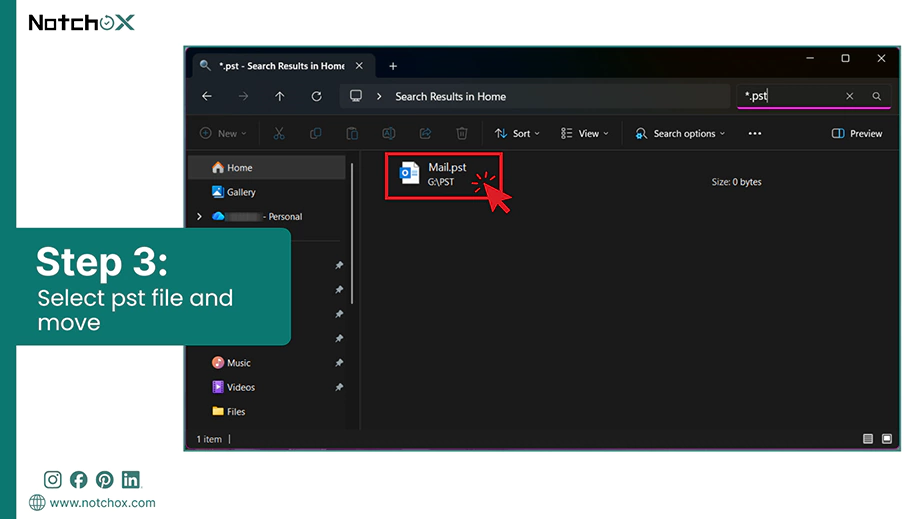
Sometimes, you are not able to find or locate the PST file, because it has been moved to some other location. You can search the .PST files using the following steps. Once found, you can re-add them to the Outlook files.
Steps on how to recover lost Outlook PST files.
Open the File Explorer.
Search for *.pst to find all the Outlook data files on your PC.
Find the desired Outlook PST file and move it to the desired location.
Method 8: Using Notchox Data Recovery Software
“How can I recover permanently deleted PST files?”
Using Notchox Email Recovery software, you can recover your emails, conversations, and attachments, i.e., any PST file lost mistakenly. It supports email recovery from various file types like PST, MSG, EDB, OST, EML, and MBOX. To download Notchox email recovery software, visit Notchox’s official website.
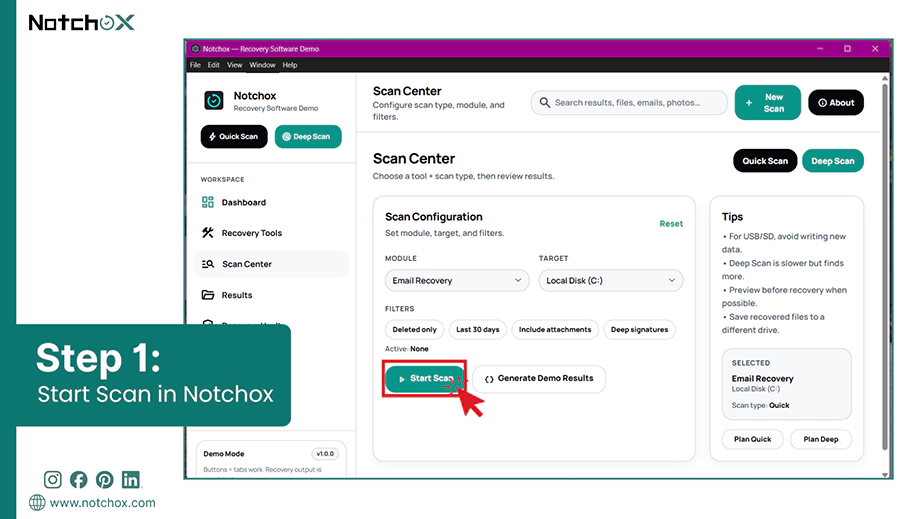
How to recover lost Outlook PST files using Notchox in a 4-step process.
Step 1: Select the drive and apply filters if needed. Click the Start Scan button to begin the scan.
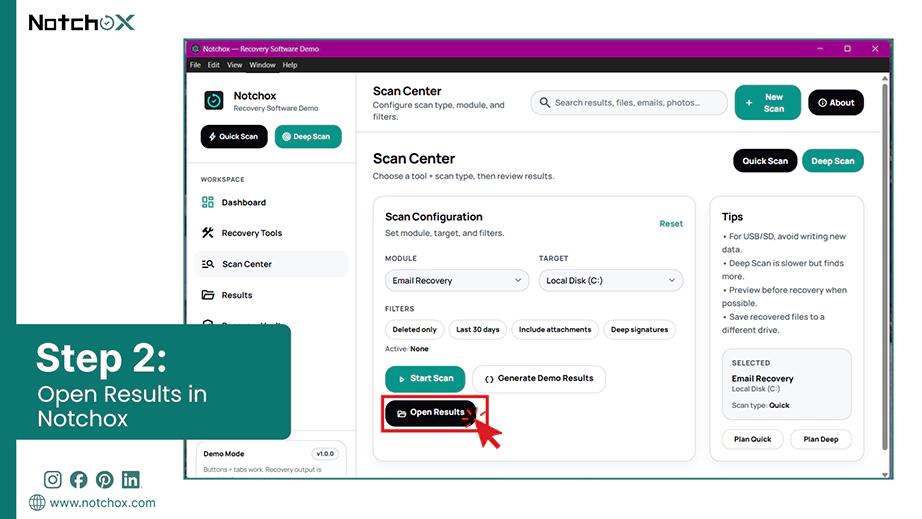
Step 2: Once the scan is completed, click Open Results to see the recovered Outlook PST files.
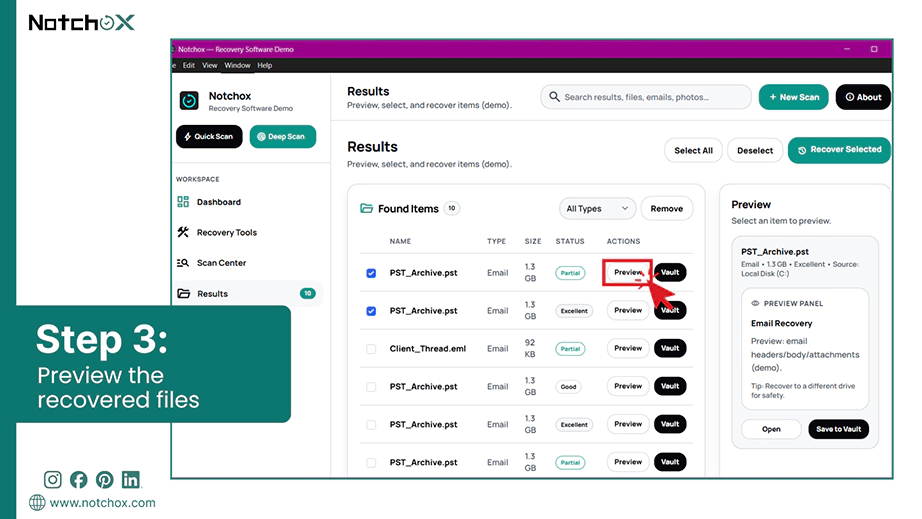
Step 3: Use the Preview feature to check the recovered files. Once selected, click on Vault to retrieve the selected files.
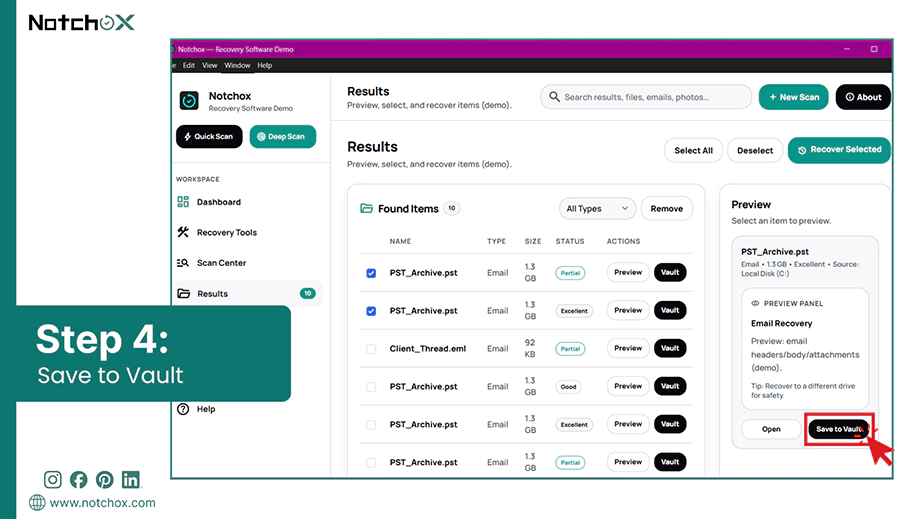
Step 4: Click on Save to Vault and move the selected files to a secure location to retrieve them.
Recovering deleted, lost, or corrupted files is simple and easy with Notchox email recovery software, specially designed to reconstruct the lost or corrupted Outlook files of all formats.
Method 9: Opening/Importing Recovered PST into Outlook
Once the process to recover deleted Outlook data file is done, you can easily open/import them into Microsoft Outlook. Make sure you extracted the PST files and saved them on your computer.
Open Microsoft Outlook for Windows.
Go to the File menu.
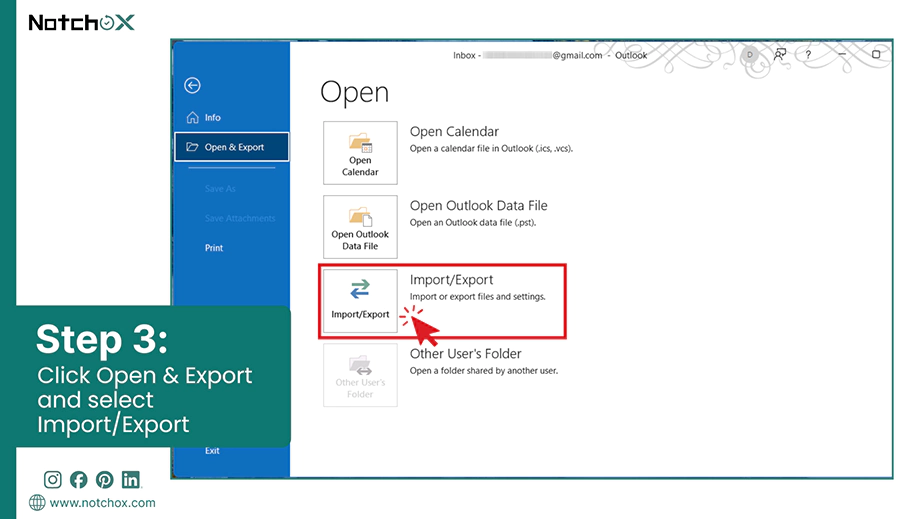
Click Open & Export and select Import/Export, as we will be importing the PST files to Outlook.
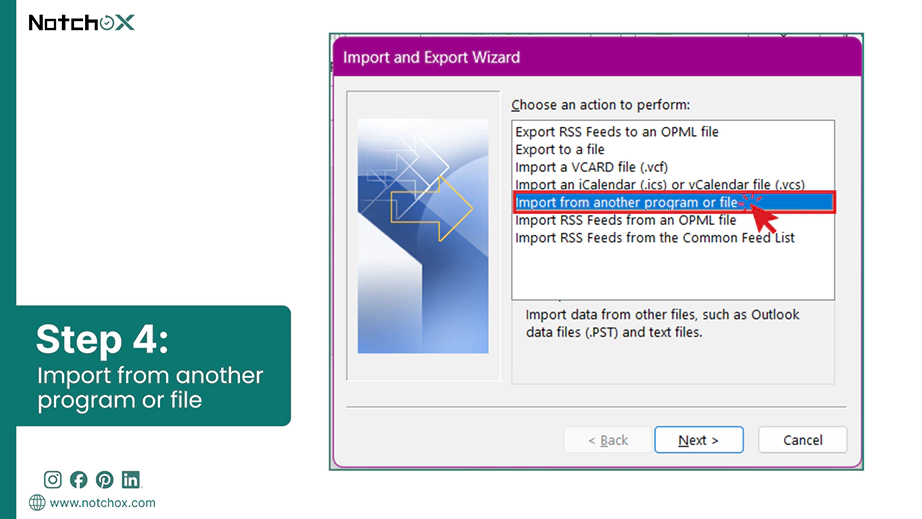
Import and Export Wizard opens, select “Import from another program or file” and hit Next.
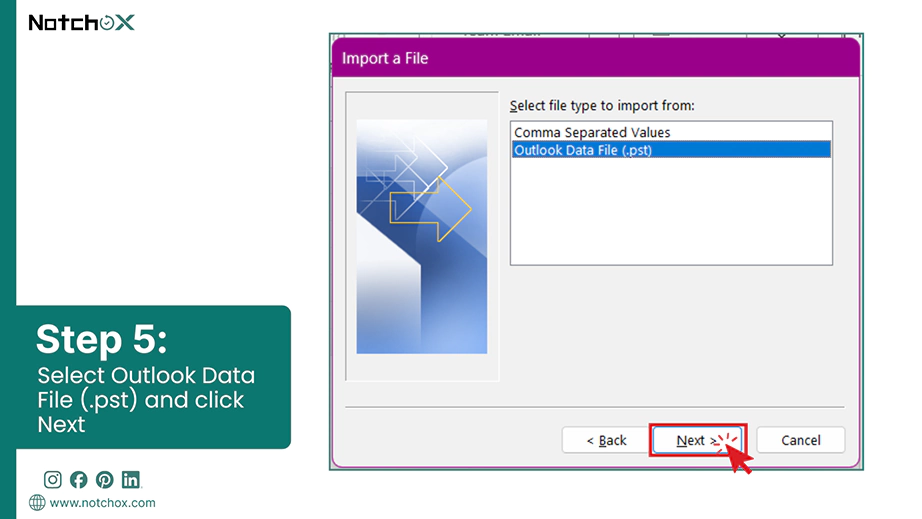
Next, select the file type to import, i.e., Outlook data file (.pst), and click Next.
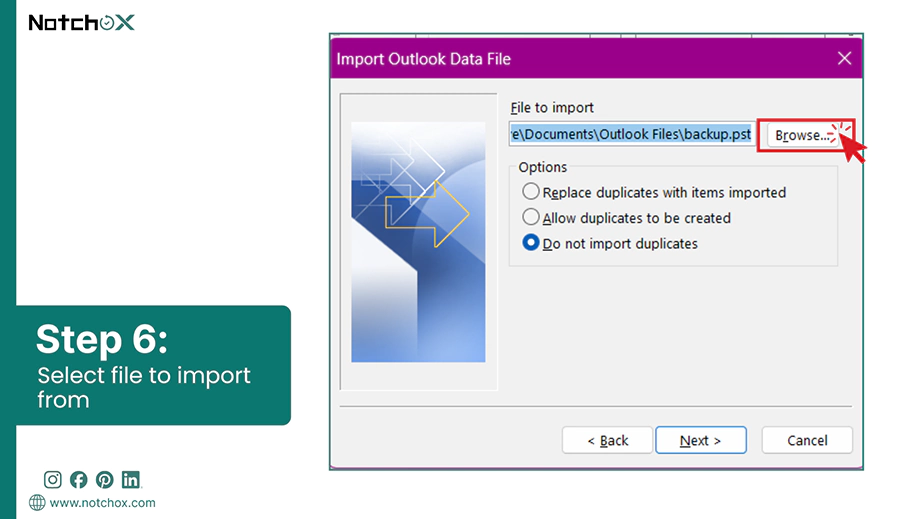
Browse the file to import from the saved location. Select from the options if you want to replace files, allow duplicate files, or do not want duplicates, and click next.
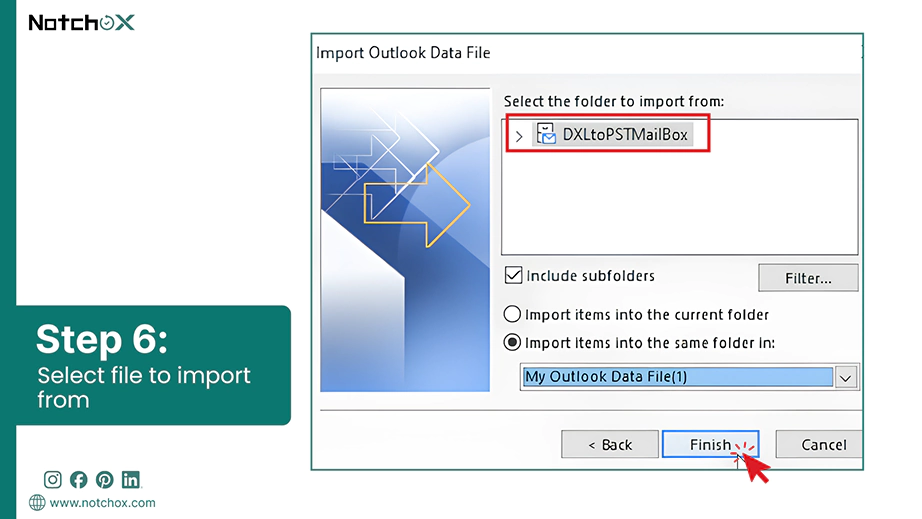
Select the folder you want to import the file to and click the Finish button.
You can see the imported files under My Outlook Data Files.
Wrapping Up Your Data Restoration
As discussed, you can recover deleted Outlook data files through various ways, including Outlook and Windows built-in tools and data recovery software for effective recovery. We have covered all the methods that ensure minimal data loss. Keep in mind that storage type matters too — if your archive lives on an SSD, the extra steps to recover data from a SATA SSD are worth knowing.
For severe corruption or an instant solution, use Notchox professional PST recovery software because your files are prone to damage, and such tools offer necessary deep scan capabilities to recover them without further loss.
Frequently Asked Questions (FAQs)
Q1: How to recover the Outlook .pst file when deleted?
Ans: To recover a deleted Outlook PST file, first check the Windows Recycle Bin. If the PST file is no longer there, restore it using Windows File History or use data recovery software to scan the drive where the file was stored.
Q2: What happens if you delete a PST file?
Ans: Deleting a PST file removes local email/data, forcing Outlook to display errors upon opening. If the PST file was deleted from File Explorer, you may be able to recover it from the Windows Recycle Bin.
Q3: What is the best way to recover PST files?
Ans: The best way to recover PST files is to use a specialised recovery software solution, such as Notchox, to securely recover lost or damaged data.
Q4: Which tool is used for PST repair?
Ans: ScanPST.exe (Inbox Repair Tool) is used tofix the Outlook file corruption problem.
Q5: How can I recover permanently deleted PST files?
Ans: To recover permanently deleted PST files, use Notchox, a dedicated email recovery software designed to deep scan, recover, and fix corrupted PST files. If the PST sits on a drive that Windows says needs to be formatted, rescue the drive first.
Q6: How to restore deleted Outlook items in Microsoft 365?
Ans: Check the Deleted Items folder first. If the item is no longer there, use the Recoverable Items option, when available, to restore deleted emails, contacts, calendar items, or tasks.
Deeksha Arora is a Data Protection & Recovery Writer focusing on writing accurate, informative, and easy-to-understand technical articles for Notchox’s readers. Her content on the prevention of data loss, understanding risks of device failures, and guides to fix problems helps readers make the right decisions and understand the technical terms easily. She works closely with Subject Matter Experts to ensure high usability and accuracy of her writing.