When I’m in a situation where I need to repair a corrupted Word file, my go-to trick is opening Word, going to File > Open, selecting the damaged document, clicking the dropdown next to “Open”, and selecting “Open and Repair.”
I created this Repair Corrupted Word File Guide to share the exact step-by-step methods I use to fix a corrupted Word document. Ahead, I will show you how to use tools like Notchox, extract raw text using built-in converters, restore previous versions, change file formats, and run Office quick repairs.
Quick Answer: To repair a corrupted Word file, use built-in tools like Word’s Open and Repair feature or switch file format to RTF. But if you want fast and reliable recovery, downloading a specialised tool like Notchox is the best solution.
There are various methods, like built-in Word tools, data recovery software, and basic troubleshooting tricks like switching file formats, that can fix Word document corruption. Here, I’ll explain all the steps you need to follow when you see the “File is corrupted and cannot be opened” error, as I encountered it. These document failures are caused by sudden system crashes, interrupted downloading or saving, bad storage sectors, and software corruption.
My first choice for fixing a corrupted document is using a simple yet powerful software called Notchox to scan the broken file. I use this tool first because it does not need Microsoft Word to work, i.e., you can recover files using Notchoxeven when your native software is malfunctioning. It looks deep inside the drive to find the file and its data, fixes the broken code, and separates clean writing from damaged parts. Thus, recovering a healthy Word document. Beyond standard file corruption, you can use Notchox to recover data after an accidental quick format on your devices.
Here is how to recover corrupted files Word using Notchox.
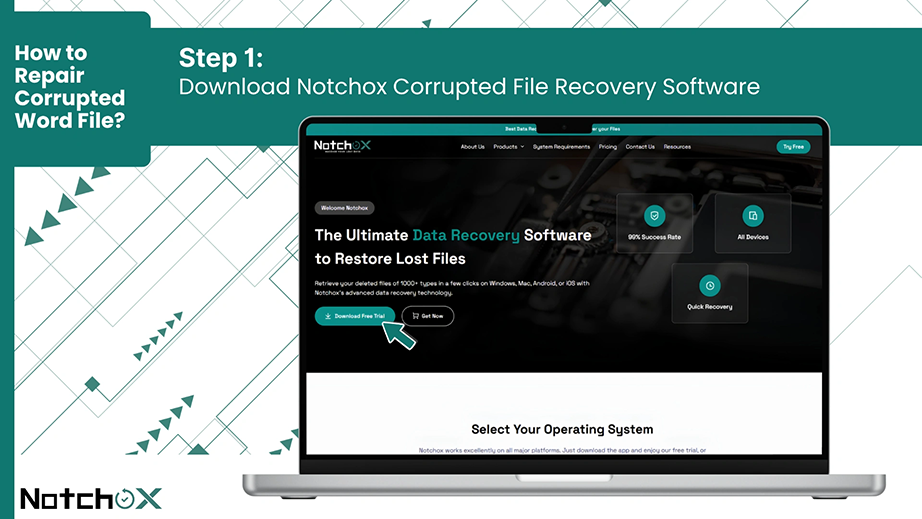
Step 1: Download the Notchox software from its official website. Install it on your drive.
Step 2: Launch the software and select the “Corrupted File Recovery” module from the dashboard.
Step 3: Now, under the Scan Configuration, select your target drive (the drive that has your corrupted Word file).
Step 4: Apply filters. Here, I want only my Word document file, so I will select Documents only to narrow down the scan search.
Step 5: Click the Start Scan button to begin the recovery. This process will take a few minutes to complete.
Step 6: Now Open Results and preview the files. Notchox lets you preview the files before restoring to check their integrity.
Step 7: Once checked, select the file and click Save to Vault to successfully restore the Word document.
Fact: Word was created in 1983 under the name “Multi-Tool Word.”
Method 2: Use Microsoft Word’s Built-In Repair Tools
If you are looking for how to repair Word document without downloading extra software, Microsoft Word actually has its own tools to fix broken files. I always try these built-in features next because they are already installed on your computer.
In this section, I’ll explain four different ways on how can I recover a corrupted Word document using Microsoft Word’s built-in tools, which include the “Open and Repair” function, the “Recover Text from Any File” converter, how to turn off bad add-ins that cause crashes, and how to fix security blocks using Protected View.
Using the “Open and Repair” Feature
I use this feature to repair corrupted Word files when the document is corrupted but can still be recognized by Word. This tool tells Microsoft Word to look at the file, find the broken parts, and fix them automatically as it opens.
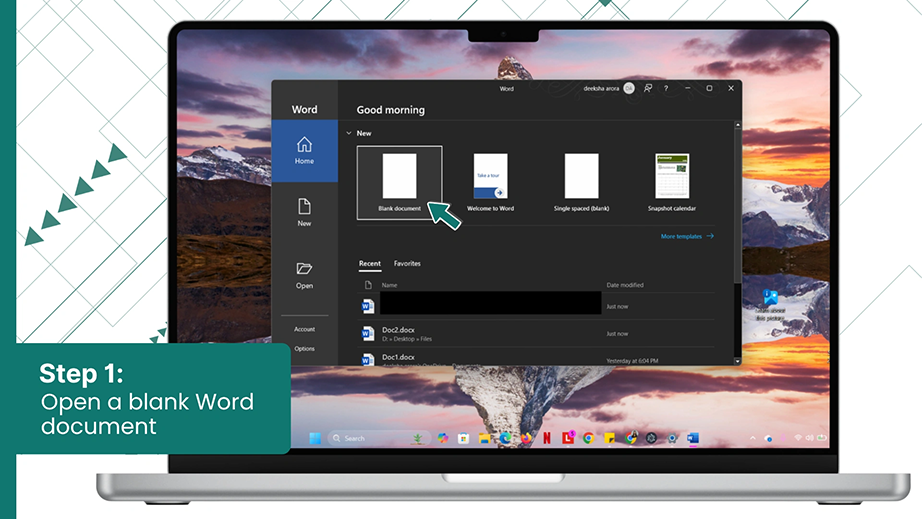
Step 1: Open a blank Microsoft Word document on your PC.
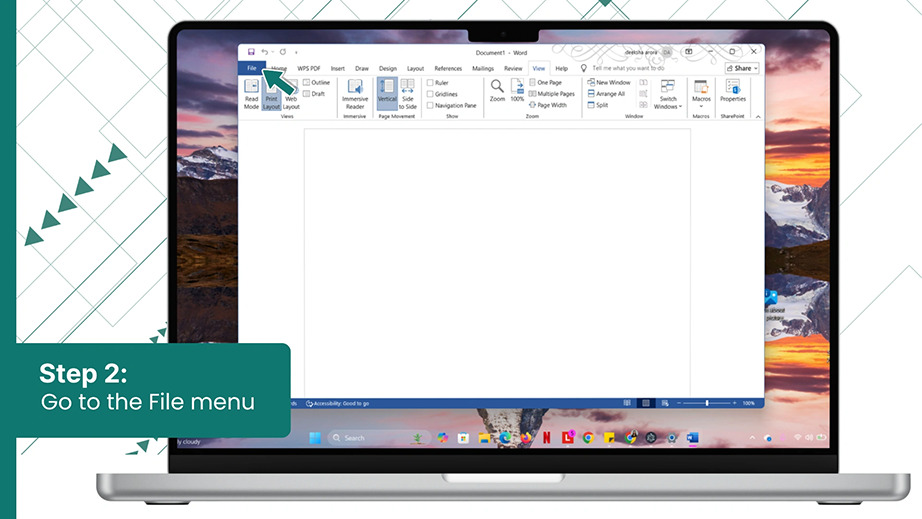
Step 2: Click on File in the top left corner of the screen.
Step 3: Select Open and then click the Browse icon to look for the corrupted Word file.
Step 4: Select the corrupt Word document, click on the small arrow next to the Open button, and click Open and Repair from the dropdown list.
Using the “Recover Text from Any File” Converter
Next in the Repair Corrupted Word File guide is using the “Recover Text from Any File” converter. When a file is completely broken and throws a critical error, you can switch to this method. It acts like a digital filter that separates the bad formatting, broken images, etc., only keeping the plain text from the corrupt Word document.
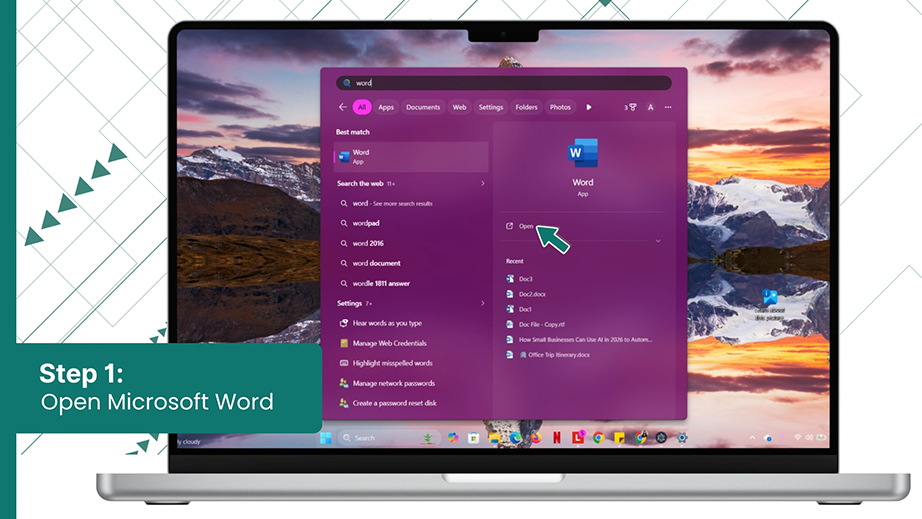
Step 1: Open Microsoft Word on your computer.
Step 2: Go to the File menu in the top left corner.
Step 3: Click Open and click the Browse button.
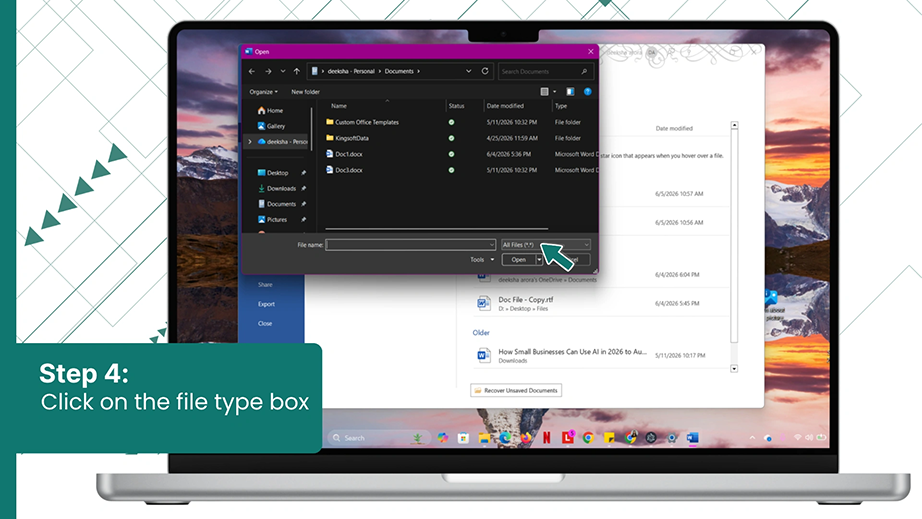
Step 4: Click the file type box next to the File Name field.
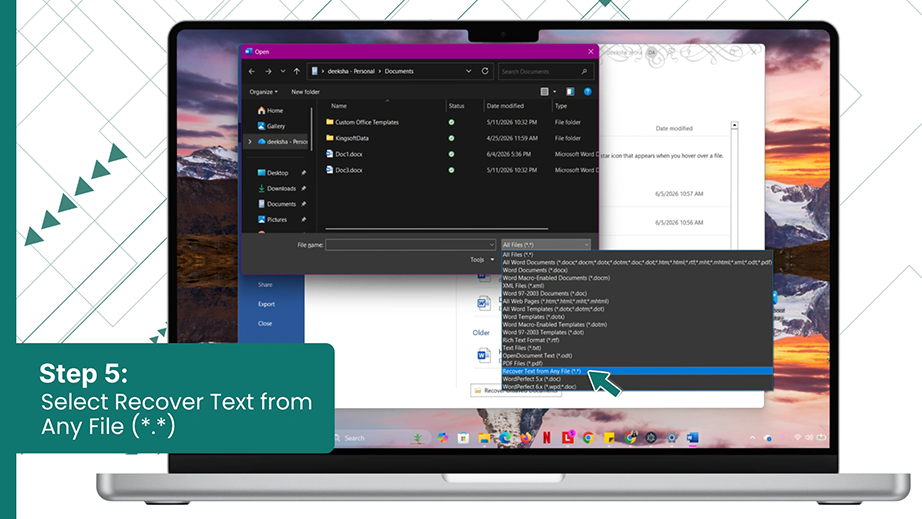
Step 5: Change the setting from “All Word Documents” to “Recover Text from Any File (*.*)”.
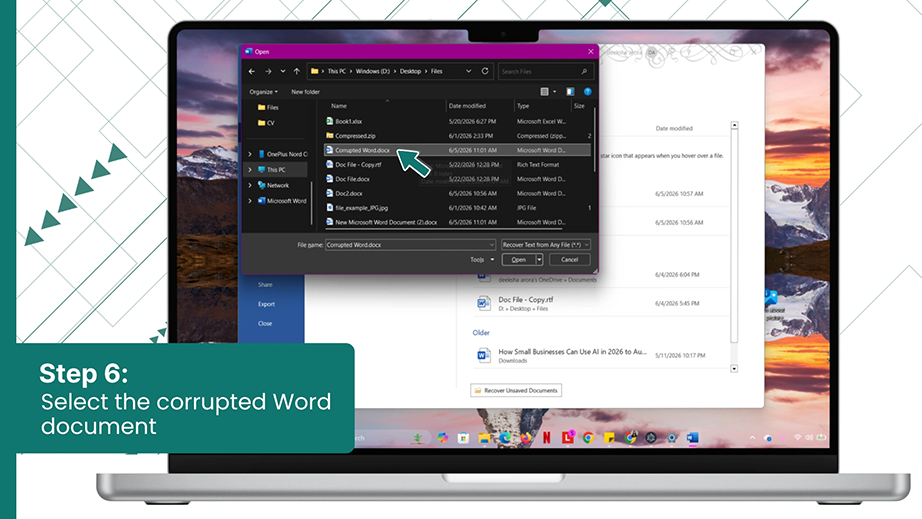
Step 6: Choose your corrupted Word document from the list.
Step 7: Click Open to extract and view raw, unformatted text.
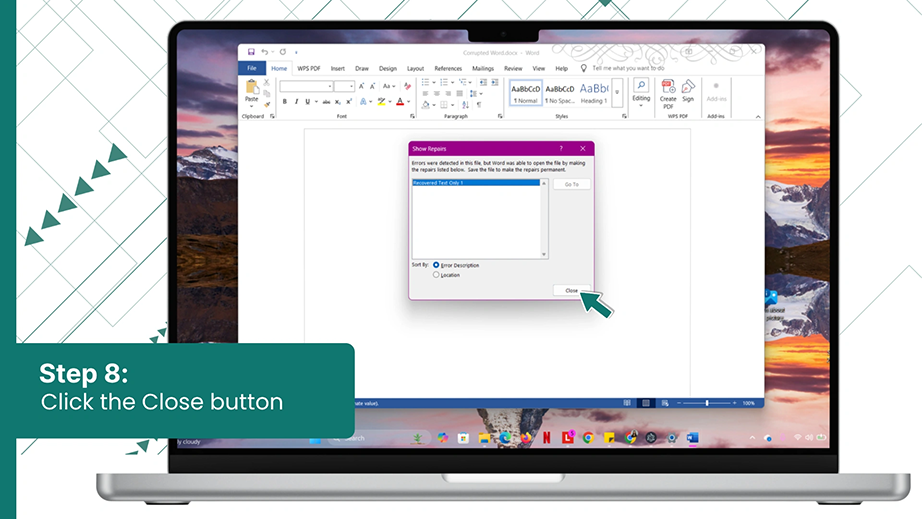
Step 8: The Show Repairs dialog box will open, showing that your file is repaired. Click the Close button.
Note: This tool removes all of your document’s pictures, tables, text styles, etc. Use it as a backup plan to rescue your textual content when a file refuses to open any other way.
Troubleshooting the Third-Party Add-Ins
Hidden third-party browser plugins or custom office tools cause Microsoft Word to crash. Use this diagnostic approach to load the file.
Step 1: Open the Word app on your computer.
Step 2: Go to the File menu.
Step 3: Click Options from the bottom left corner of the window.
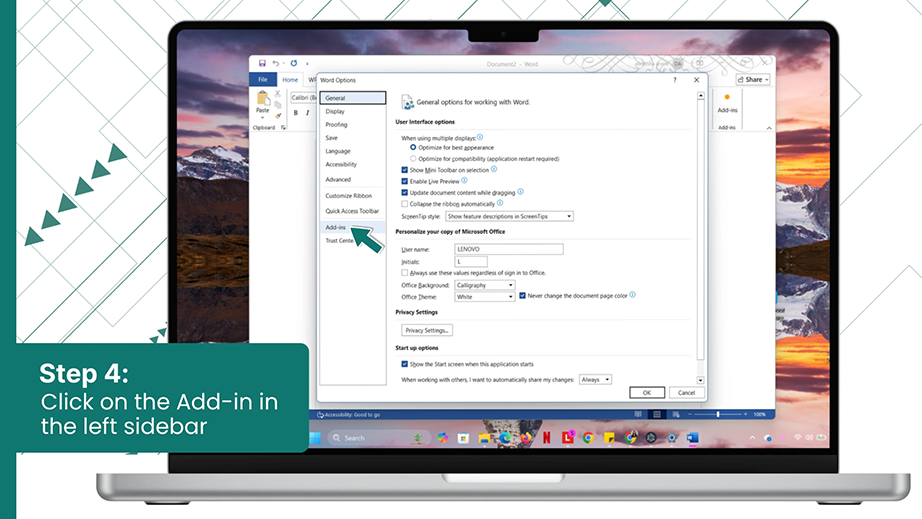
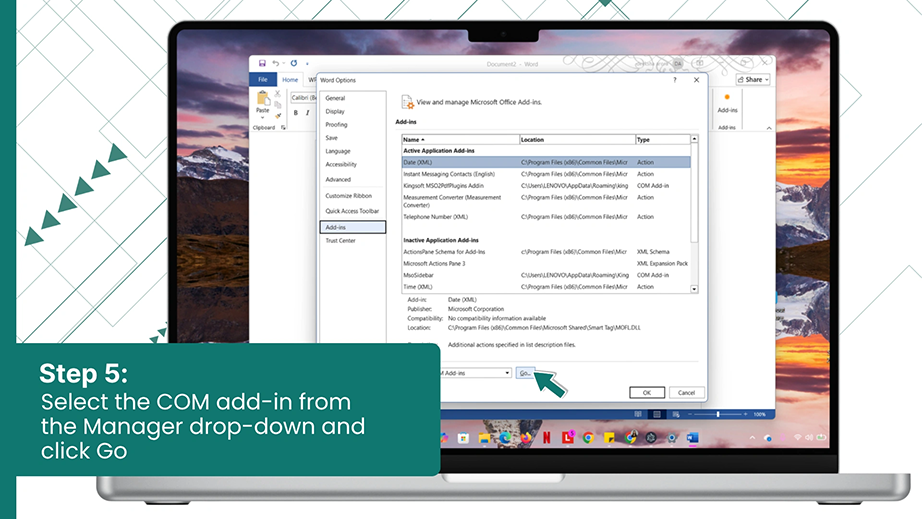
Step 4: Select Add-ins from the left sidebar of the options window.
Step 5: In the Manage dropdown, select COM Add-ins, and click Go.
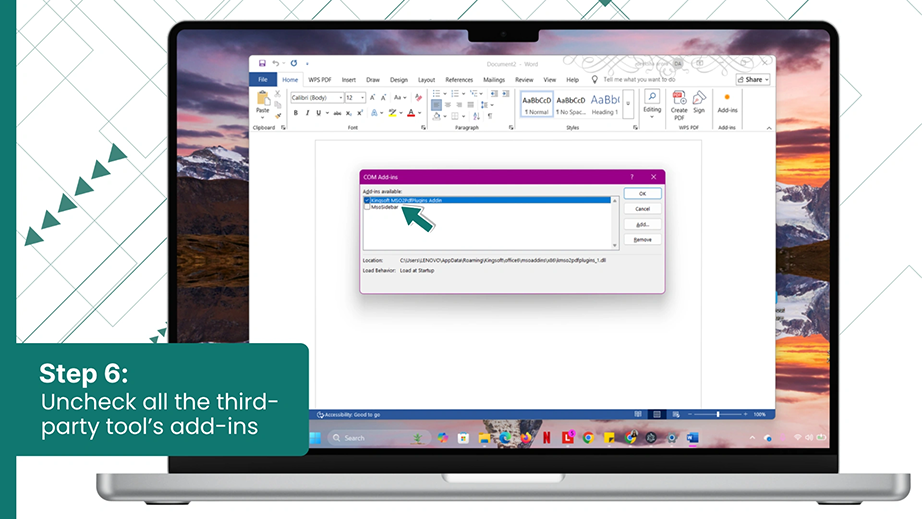
Step 6: Uncheck the boxes next to your third-party tools to disable them or select and remove them completely.
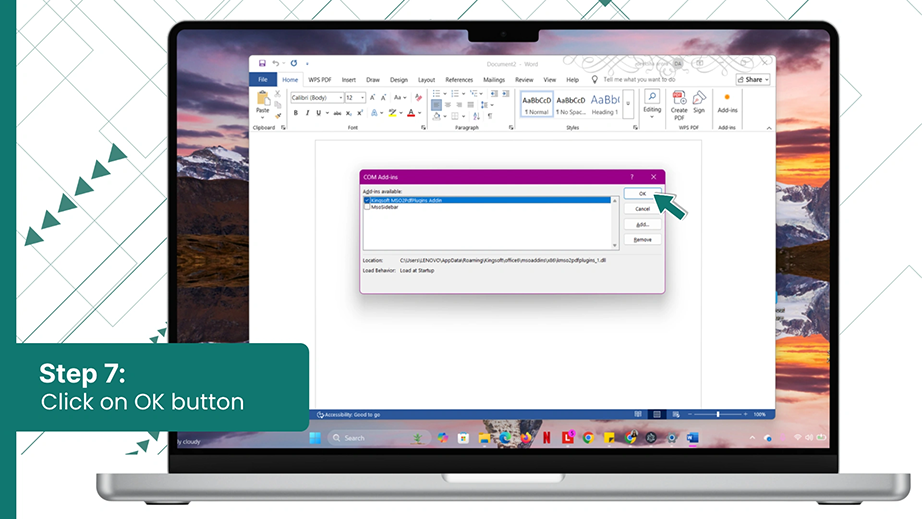
Step 7: Click on the OK button.
Changing the Protected View Settings
When you download a document from an email or the internet, Word mostly locks it down for security. I use this trick to unblock the file’s properties so Word can open the file like a normal document.
Step 1: Open Microsoft Word on your PC.
Step 2: Go to the File menu in the top left corner of the window.
Step 3: Click on Options at the bottom of the sidebar.
Step 4: On the Word Options window, click on the Trust Center tab on the sidebar and click Trust Center Settings….
Step 5: Go to the Protected View.
Step 6: Uncheck “Enable Protected View for files originating from the internet” and “Enable Protected View for Outlook attachments.”
Step 7: Click the OK button to save the changes.
Now, try to open the file again. If it opens, immediately save the file.
Note: Only use this method for documents you trust.
Method 3: Restore the Previous Version of the Corrupted Word File
If the current version of your document is completely broken, you can fix the problem by going back in time. I use this method to replace the corrupted/ non-working file with an older, working copy that the system saved. Windows’ File History can be used to restore the previous version of the corrupted Word document — the same feature that helps recover deleted files on Windows.
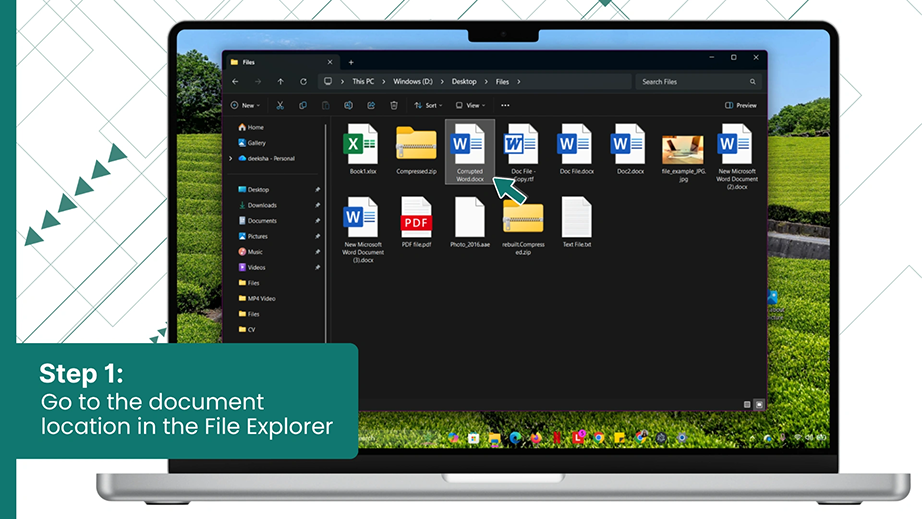
Step 1: Open the folder in the File Explorer where your corrupted Word document is saved.
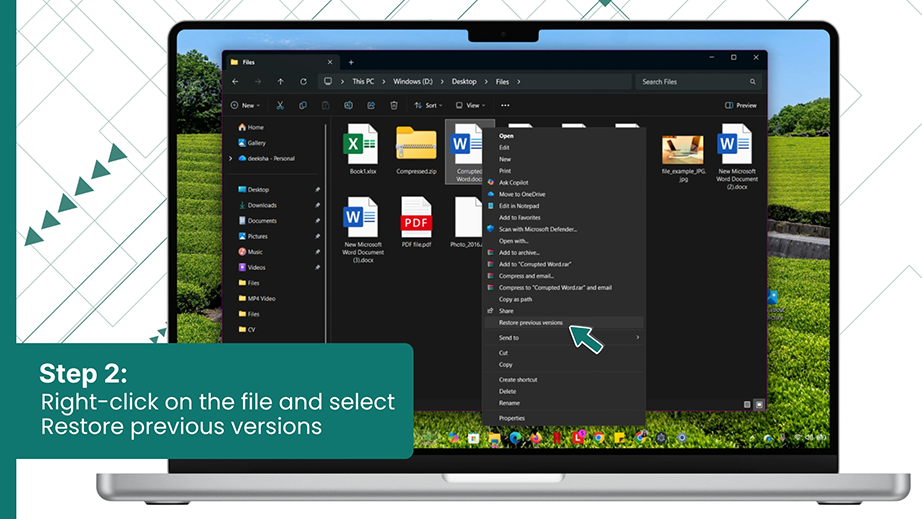
Step 2: Right-click on the broken file (click the ” Show more options ” in Windows 11) and select Restore previous versions.
Step 3: From the list of previous versions available, select the version before the file corruption.
Step 4: Click Restore to pull that clean copy of your Word document.
Remember: Windows File Version History works only if the File History backup feature is turned on before the Word document corruption.
Method 4: Change the File Format to Extract Content
Sometimes, Microsoft Word cannot read its own standard .docx layout, leading to a common question: how do you recover a corrupt Word file that Microsoft Word won’t read? You can change the file type entirely to overcome the corruption. Changing the formats to Rich Text Format (.rtf) forces the computer to read the file in that particular format and ignore the complex XML layout and macro-coding blocks, which cause corruption.
Rich Text Format (.rtf): Exports documents and formatting to a format that other applications can read and interpret
Step 1: Go to your Word file location in the File Manager.
Step 2: Click on the View tab, click Show, and select the File name extensions. (Note: Skip this if you already see .docx/.doc at the end of your file)
Step 3: Right-click on the corrupt Word document to be fixed and click the Rename icon (or press F2).
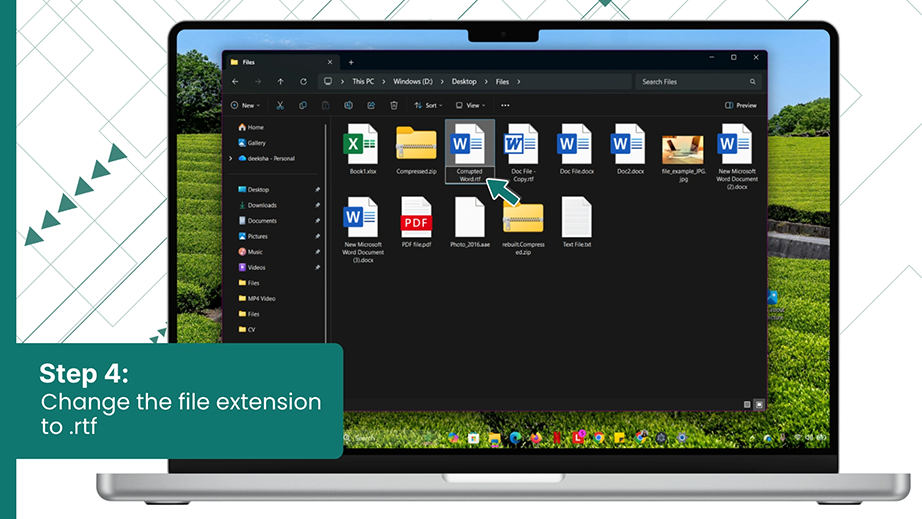
Step 4: Erase only the docx/doc at the very end of the file and type “rtf” in place of those letters. The file now ends in .rtf.
Step 5: Press Enter on your keyboard to lock in the name change.
Step 6: Click Yes to confirm the name change.
Now double-click the new RTF file to open a fresh Word document.
Note: If changing the text to .rtf still fails to open the document, change the extension letters to .txt instead. This will turn the document into a completely raw Notebook document.
Method 5: Use Microsoft Office Quick Repair
The issue isn’t always with your Word document; sometimes, Microsoft Word itself might be broken or glitchy. Use this method to fix the Office software rather than the document. Try this when multiple documents show the same error, or when Word crashes completely when trying to open a file. This repair runs a diagnostic scan that checks the core installation files and fixes the errors.
Step 1: Click the Windows Start button and select the Settings gear icon.
Step 2: Click on Apps from the left-hand sidebar menu.
Step 3: Click on Installed Apps (or Apps & Features) to view your software list.
Step 4: Scroll down to find your version of Microsoft Office or Microsoft 365.
Step 5: Click on the three horizontal dots (• • •) next to it and select Modify.
Step 6: Click Yes on “Do you want to allow this app to make changes on your device?”
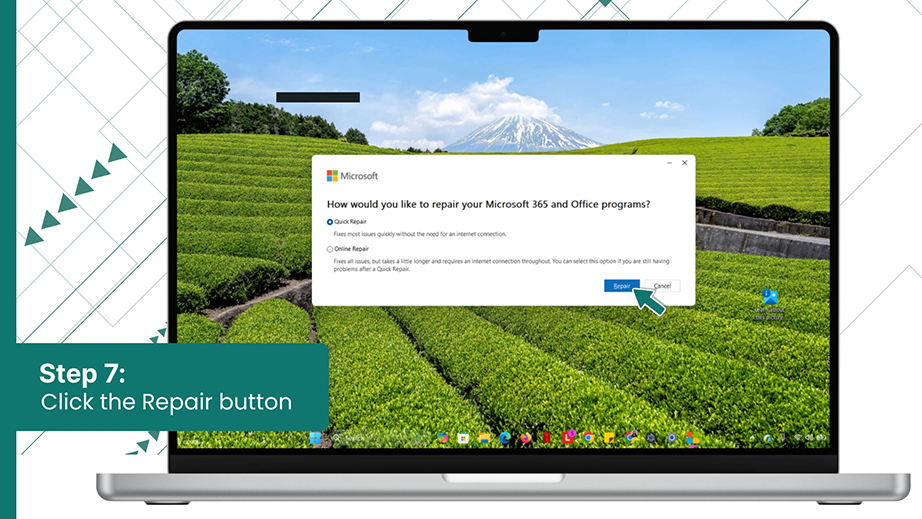
Step 7: Select the Quick Repair option from the window that pops up. Click on the Repair button to let Windows scan and fix the software.
Method 6: Insert the File in a New Document
In case of only file header corruption of the document, inserting the text directly into a fresh document can help repair a corrupted Word file. By creating a fresh template and pulling the text of the corrupted document into it, you force Word to construct a new XML foundation.
Step 1: Open a new Word document on your PC.
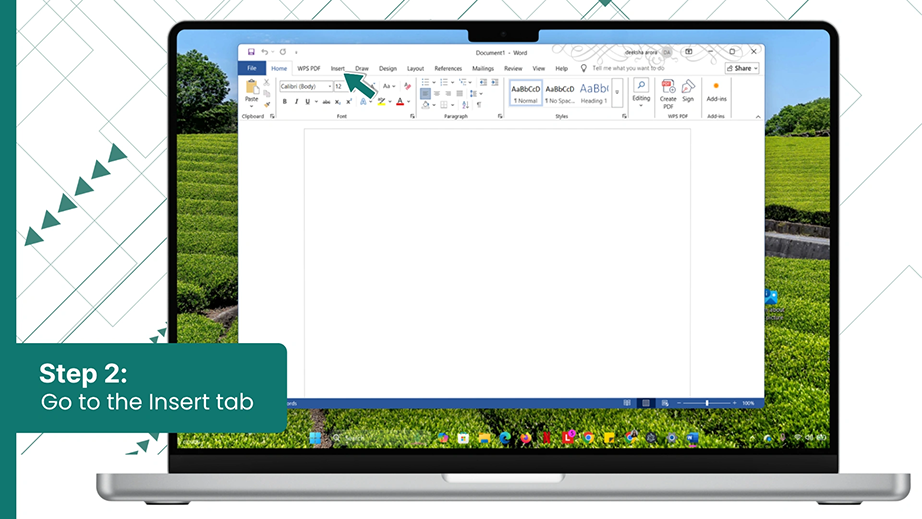
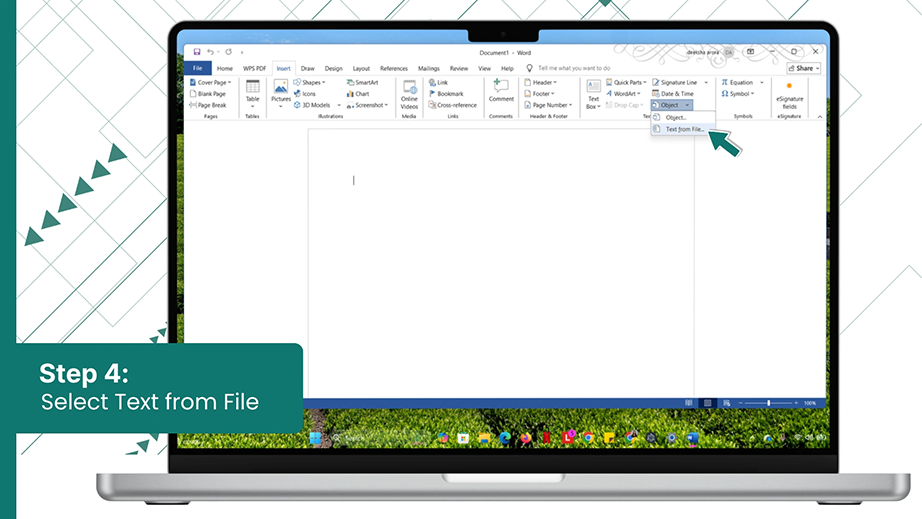
Step 2: Navigate to the Insert tab on the main ribbon menu at the top of your screen.
Step 3: Go to the Text section and click on the small arrow next to the Object button icon.
Step 4: Select Text from file… from the dropdown options.
Step 5: Now select your corrupted file in the File Explorer and click the Insert button to force Word to extract and insert the text content into your new document.
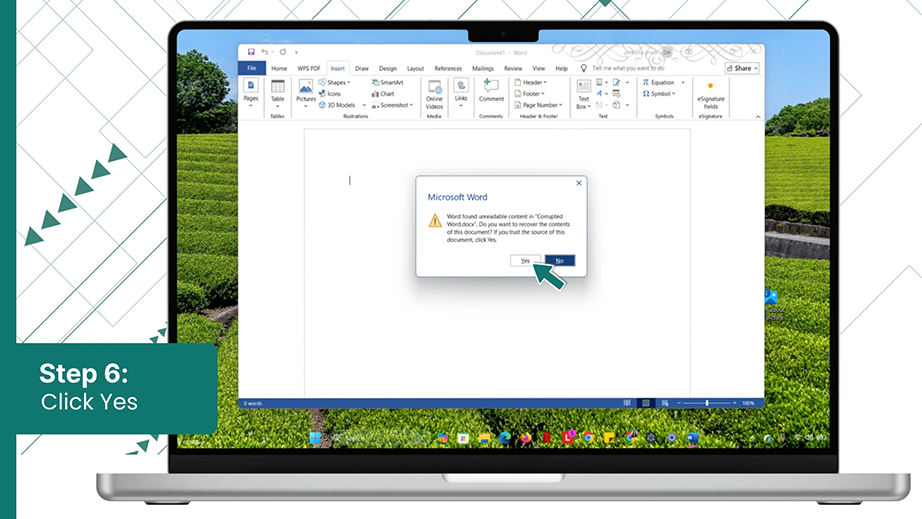
Step 6: Click Yes on the warning pop-up.
Note:
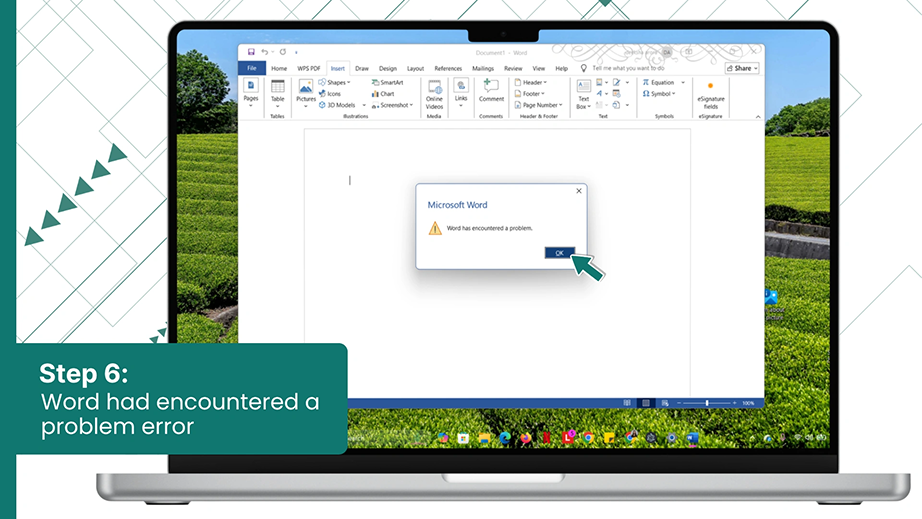
This method may not always work. Sometimes, it may show a “Word had encountered a problem” dialog box.
Final Summary
You can almost fix and recover Word documents if you know which method to follow when. By walking through my personal checklist in this Repair Corrupted Word File guide, starting with Notchox for heavily damaged files instead of the built-in features of Word, I have saved countless hours of writing without starting from scratch. While there are other methods to try, like Word’s built-in repair tools, version history, changing file format, and Microsoft Office’s quick repair, which can help you get back your corrupted Word document.
Frequently Asked Questions (FAQs)
Q1: How can I recover a corrupted Word document?
Ans: To recover a corrupted Word document, use Notchox Corrupted File Recovery software.
Q2: How to repair a Word document?
Ans: To repair a Word document, you can use:
Word’s built-in “Open and Repair” feature
The “Recover Text from Any File” Text Converter
Troubleshooting and disabling faulty app add-ins
Changing the file format to RTF
Running Microsoft Office quick repair
Q3: Why does my Word document say it is unreadable?
Ans: Your document shows an unreadable error because something interrupted the saving process, which affected the file’s code structure. This happens when you interrupt file transfer or download.
Q4: Can a permanently corrupted Word file be completely recovered?
Ans: Yes, a permanently corrupted Word file can be completely recovered. Using Notchox Recovery Software, you can recover any corrupted file safely.
Q5: Does changing the file extension damage the document further?
Ans: No, changing the extension letters (like switching a file from .docx to .rtf) will not harm your writing. It will just change how your computer reads the document structure.
Deeksha Arora is a Data Protection & Recovery Writer focusing on writing accurate, informative, and easy-to-understand technical articles for Notchox’s readers. Her content on the prevention of data loss, understanding risks of device failures, and guides to fix problems helps readers make the right decisions and understand the technical terms easily. She works closely with Subject Matter Experts to ensure high usability and accuracy of her writing.