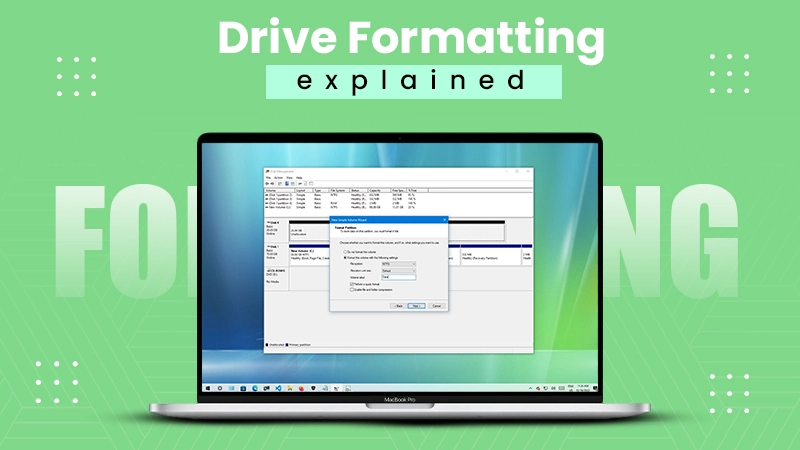
Deeksha Arora Jun 23, 2026
Ans: NTFS is Microsoft’s primary modern file system used by Windows to manage files on internal drives like HDDs and SSDs.
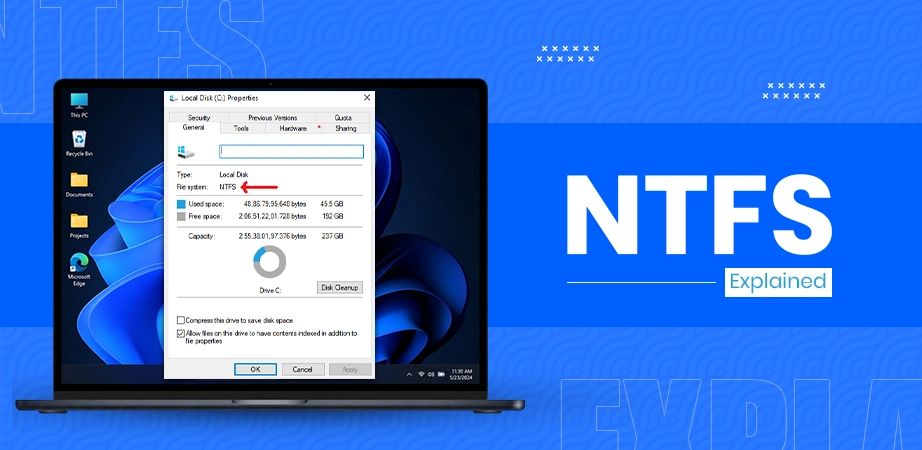
Welcome to the beginner’s guide to NTFS (New Technology File System), the invisible librarian that handles every single file, folder, byte of data, and more on your Windows computer. This guide is built directly based on official documentation and updated for the modern storage devices, explaining how NTFS mechanism works in the background.
You will learn what is the NTFS file system and how NTFS works, which includes how the Master File Table (MFT) tracks files, how NTFS permissions guard your privacy, NTFS’s role in file compression, and how it secures your data from corruption during sudden power outages. So let’s begin, how NTFS works beginner guide!
Quick Answer: NTFS (New Technology File System) works like a highly organized digital database engine to manage your files in 3 steps. First, theMaster File Table (MFT) logs every file’s name, size, and location. Second, Access Control Lists (ACLs) check the user security code (SID) to block or allow access. Finally, a transactional log file that tracks data intentions before saving to prevent system corruption.
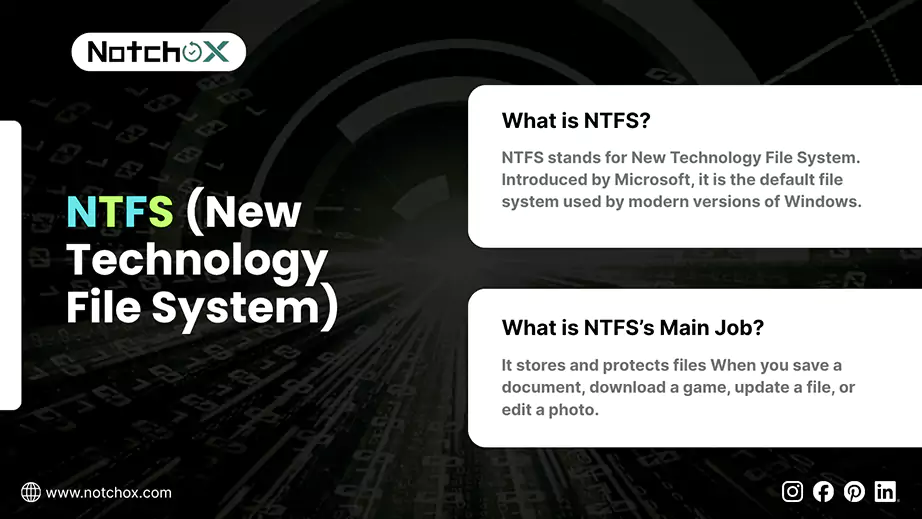
When you save a document, download a game, update a file, or edit a photo, your computer’s operating system cannot just throw that data randomly into your hard drive; it needs a highly organized system to store and protect those files. That is where NTFS comes in.
Now, what does NTFS stand for? NTFS stands for New Technology File System. Introduced by Microsoft, it is the default file system used by modern versions of Windows (including Windows 10 and 11).
While older systems like Windows 95 used the FAT32 file system, Microsoft transitioned to the NTFS file system because modern computing demands heavy-duty reliability. Windows relies on NTFS by default because it handles massive hard drives effortlessly.
The absolute main job of NTFS can be broken into four tasks:
To understand NTFS meaning and how NTFS operates, you must look at how it manages the full lifecycle of your data. This section breaks down the exact mechanics behind how NTFS finds, stores, protects, and optimizes files on your drive.
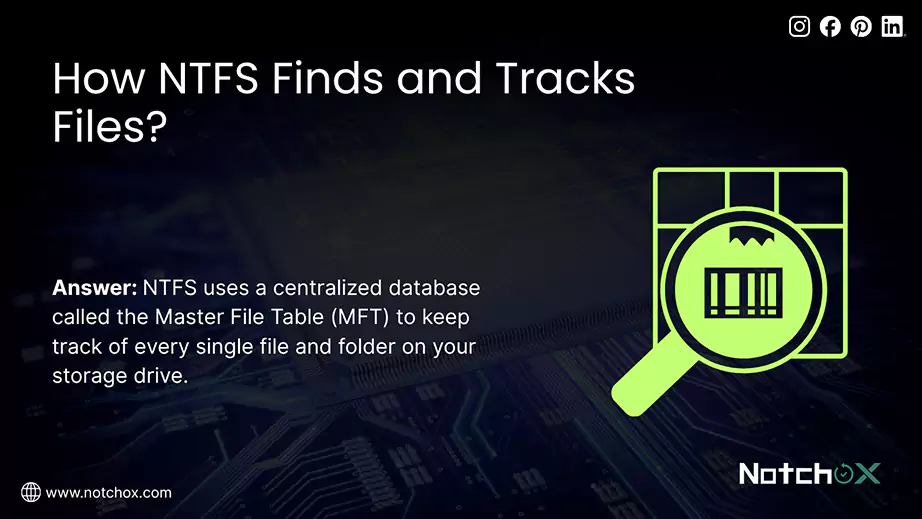
NTFS uses a centralized database called the Master File Table (MFT) to keep track of every single file and folder on your storage drive. Think of MFT as a highly organized digital spreadsheet where every row is a specific file, and every column is an attribute of that file.
| File ID | Attributes (Metadata & Data Blocks) | |||
| File 0001 File 0002 | Name: ABC.docx Name: XYZ.png | Size: 24KB Size: 2KB | Data: Cluster 402-407 Data: [Resident Data] | … |
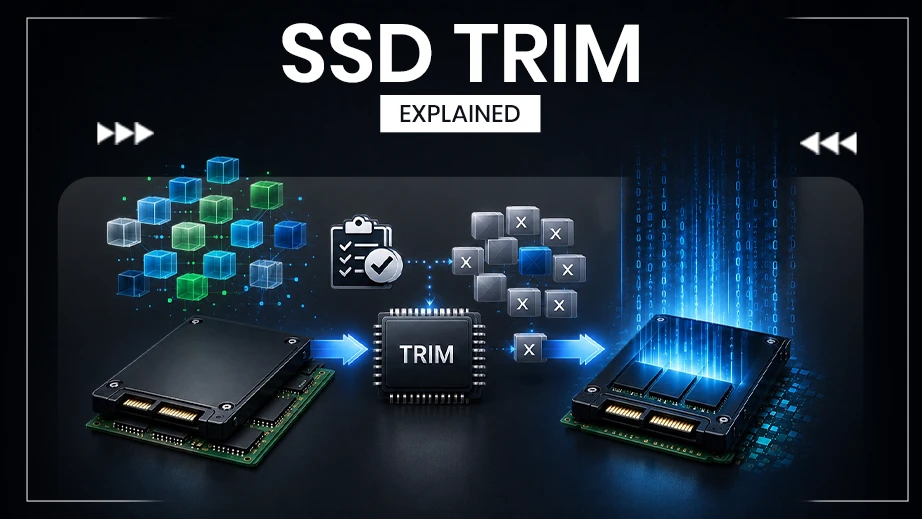
When you save a file, NTFS does not write it as one massive block. Instead, it breaks the file down into small chunks, namely sectors and clusters. On solid-state drives, this process works alongside the TRIM command, which quietly clears those clusters once their files are deleted.
Sectors vs. Clusters
The Impact of Allocation Unit Size
NTFS provides security directly at the file system layer. It guarantees that even if a malicious user pulls a hard drive out of one computer and plugs it into another, they cannot access protected files without breaking cryptographic blocks or administrative controls.
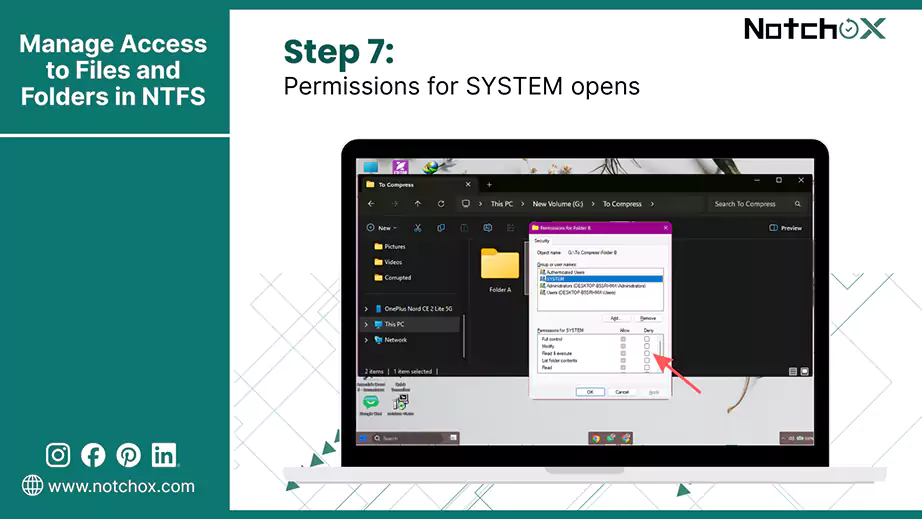
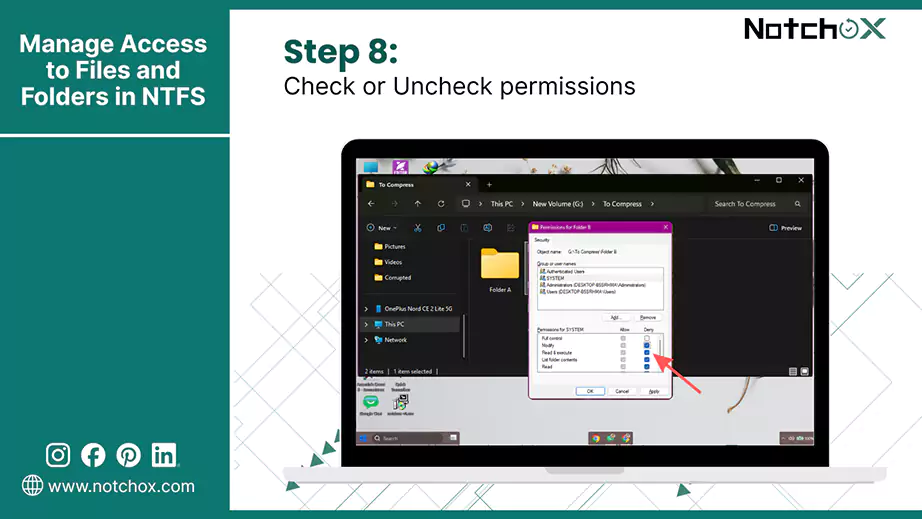
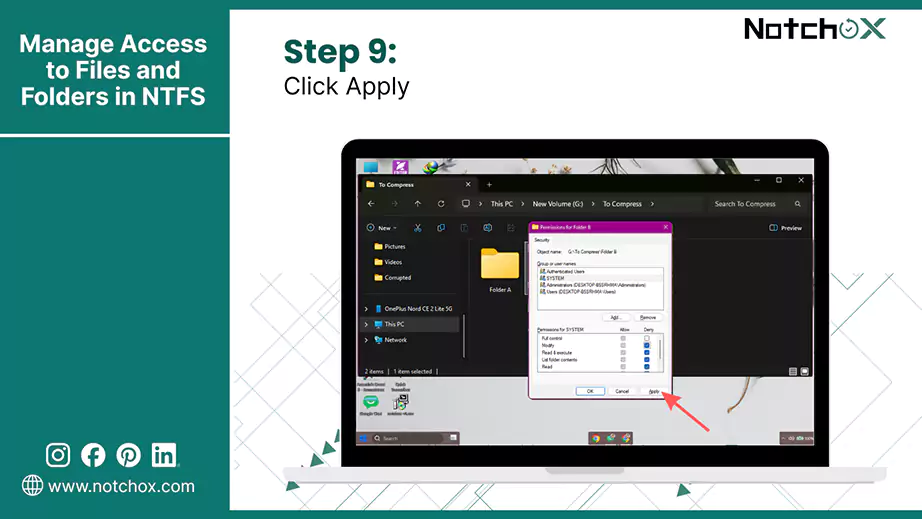
Standard permissions are simple combinations of individual grants that Windows provides in the file or folder security properties menu.
Standard NTFS Permissions Matrix
| Action | Full Control | Modify | Read & Execute | List Folder Contents | Read | Write |
| View File Names & Folders | ✅ | ✅ | ✅ | ✅ | ✅ | |
| Open & View File Contents | ✅ | ✅ | ✅ | ✅ | ||
| Run Programs/ Scripts | ✅ | ✅ | ✅ | |||
| Create Files/ Folders | ✅ | ✅ | ✅ | |||
| Edit File Contents | ✅ | ✅ | ✅ | |||
| Delete Files/ Folders | ✅ | ✅ | ||||
| Change Permissions | ✅ | |||||
| Take File Ownership | ✅ |
If an administrator clicks the advanced security button in Windows, they configure 14 individual permissions.
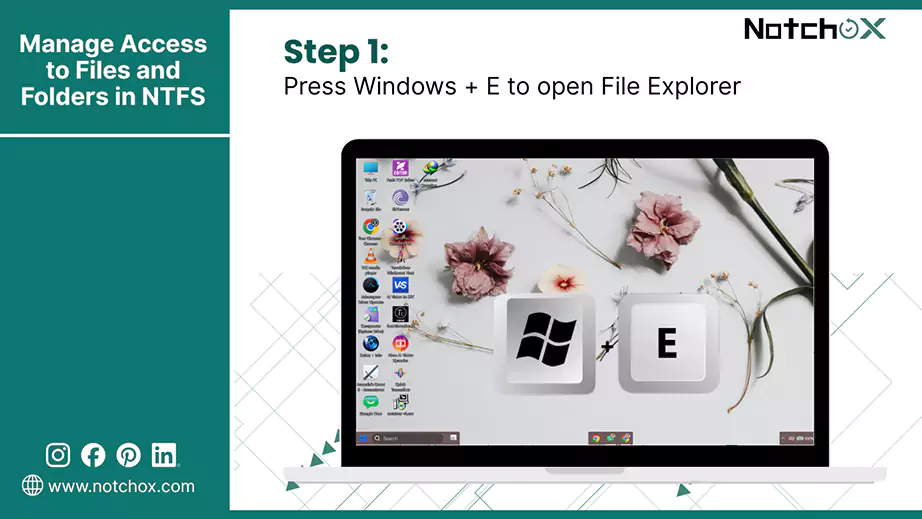
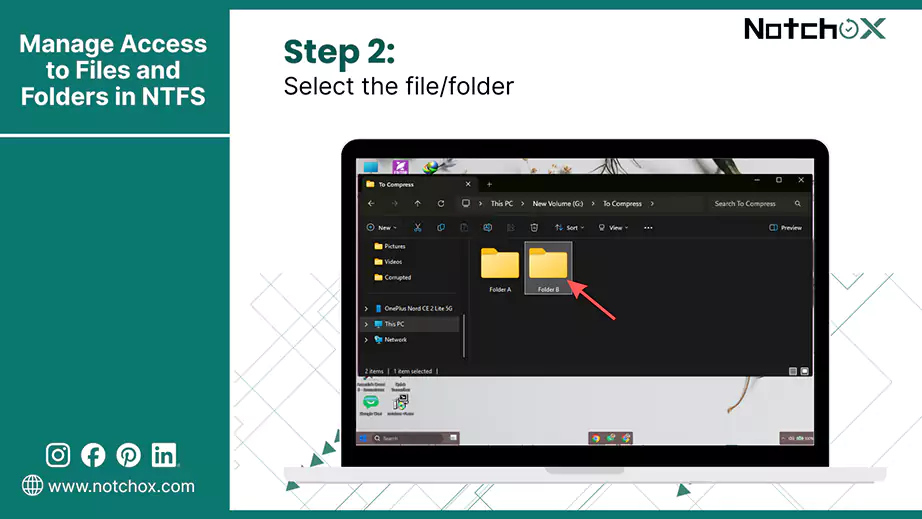
As seen, NTFS allows different users to interact with your storage differently. By assigning the permissions to users, you can instantly control who has the authority to view, edit, manage, or delete data.
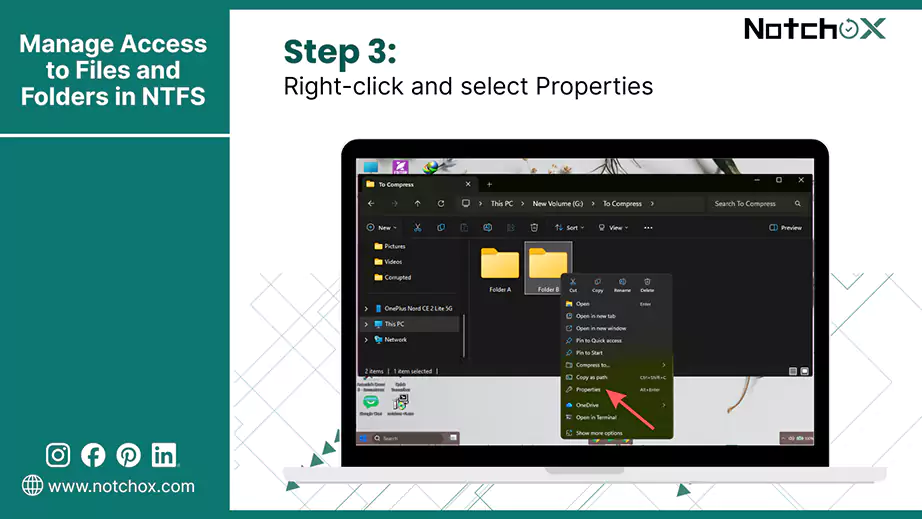
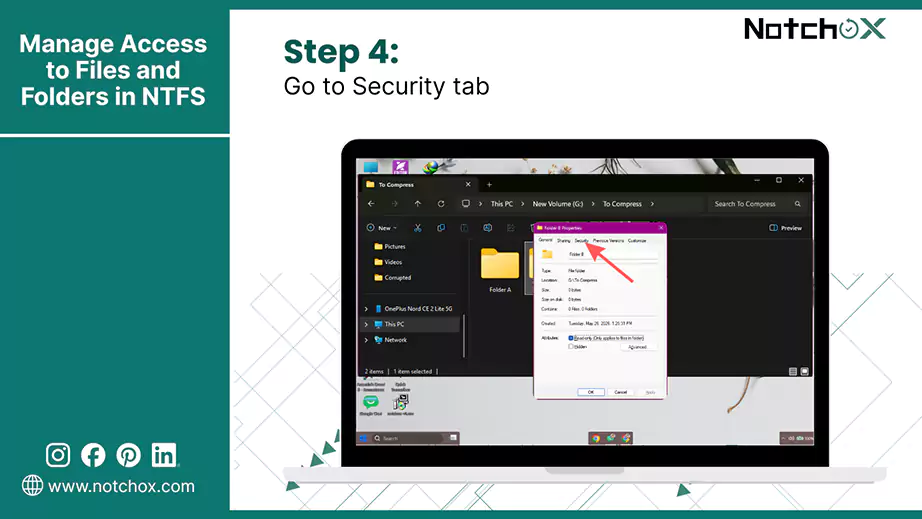
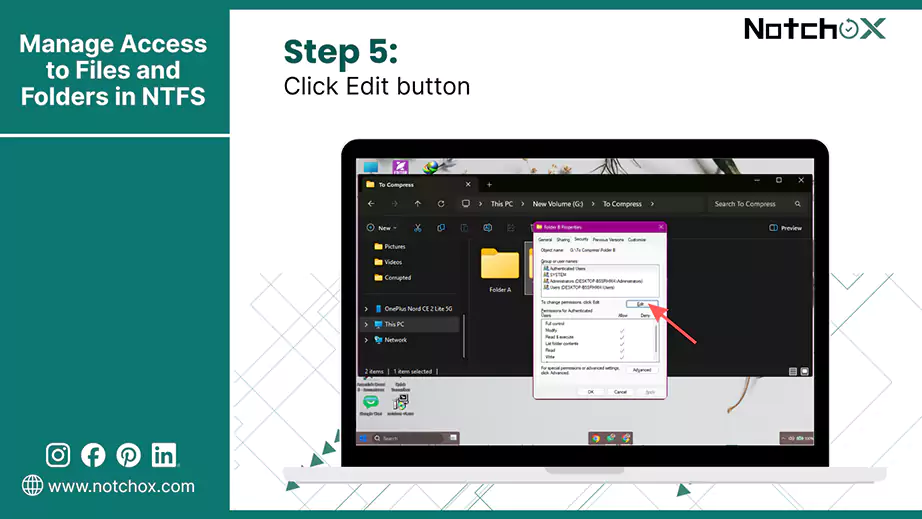
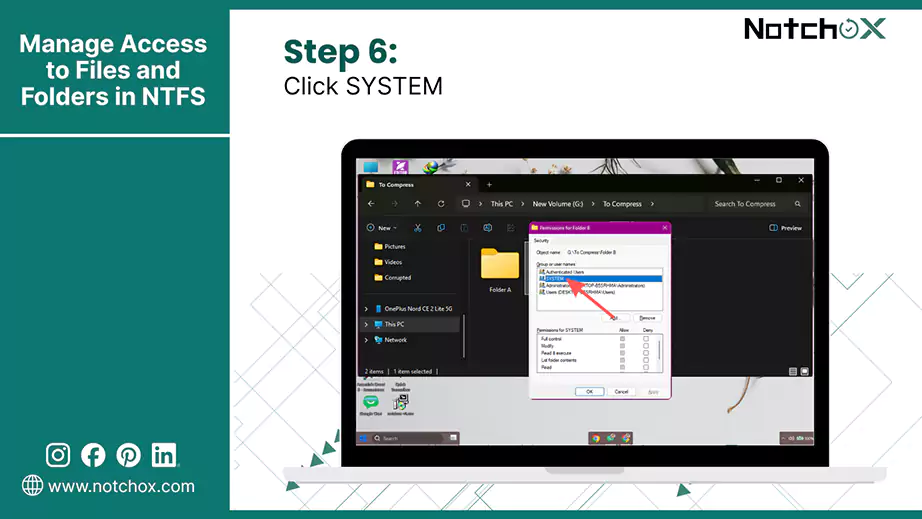
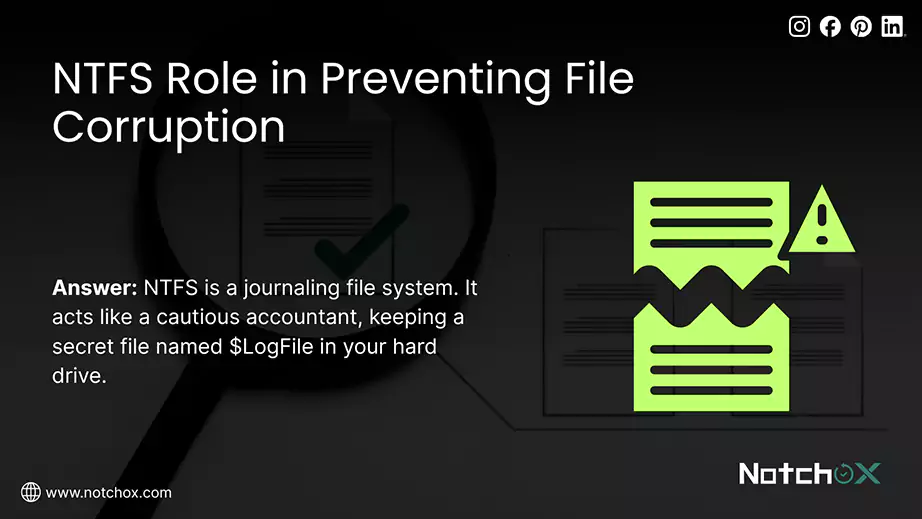
If your computer suddenly loses power or crashes/freezes while saving a file or folder, older systems like FAT32 would have corrupted the entire drive, but NTFS is built to prevent this from happening.
NTFS is a journaling file system. It acts like a cautious accountant, keeping a secret file named $LogFile in your hard drive.
When NTFS Security is Not Enough?
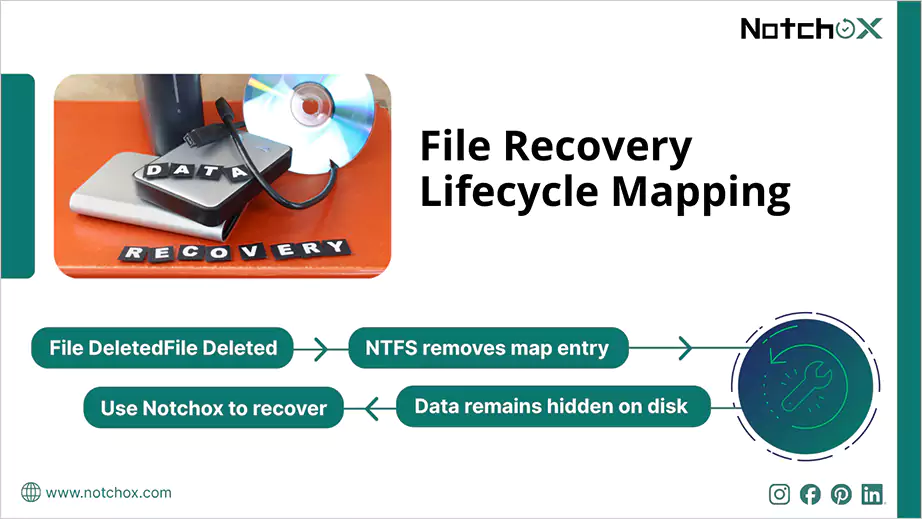
While the NTFS file system protects from system-wide corruption, it cannot protect you from everything. The file system cannot stop accidental deletions, virus attacks, formatting, hardware failure, etc., so to safely pull that invisible data back, you need specialised data recovery software such as Notchox Data Recovery Software.
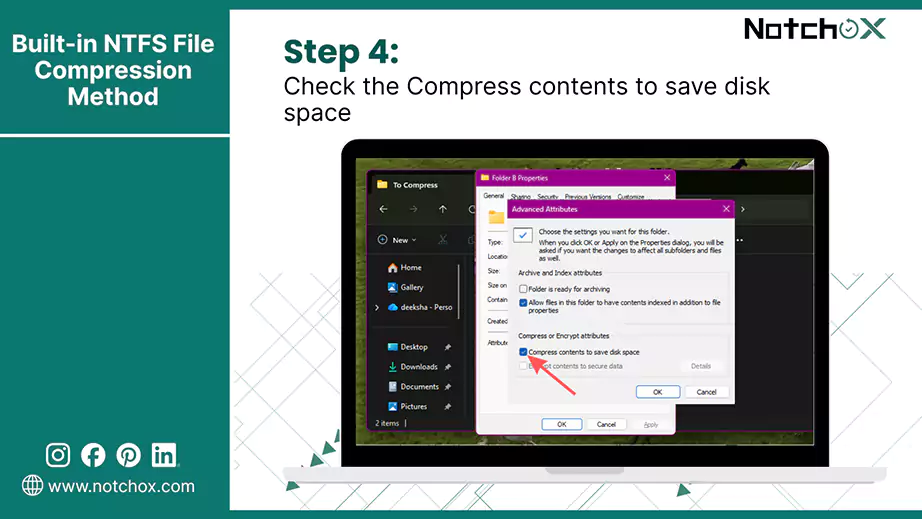
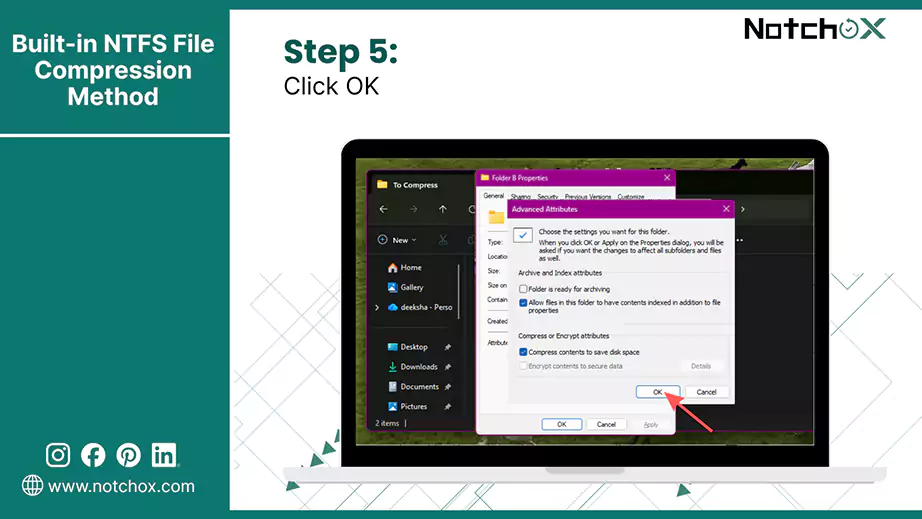
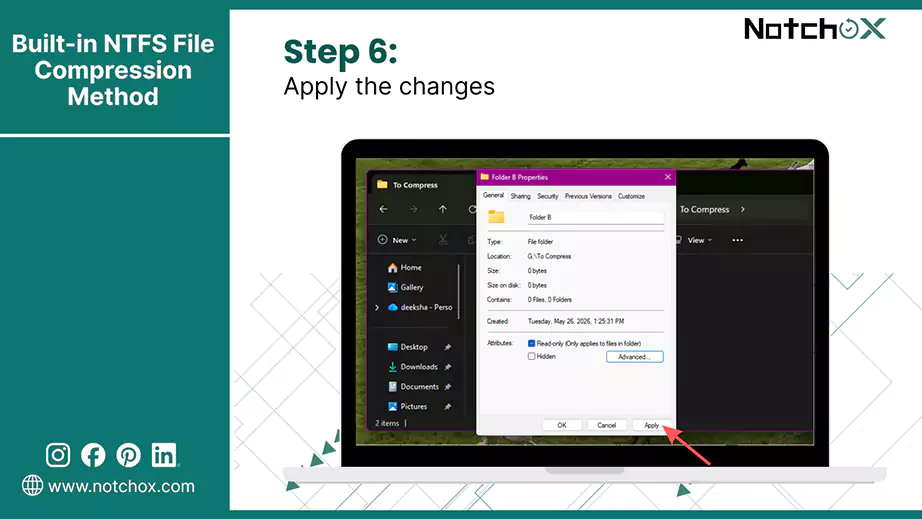
Hard drives and SSDs fill up quickly. NTFS includes a smart built-in compression feature to shrink your data and clean up empty space automatically.
Unlike a manual .zip or .rar folder, NTFS features a tool called Transparent Compression. Using this, you can shrink files or your entire hard drive directly through the Windows Properties menu.
Follow these steps to shrink your files:
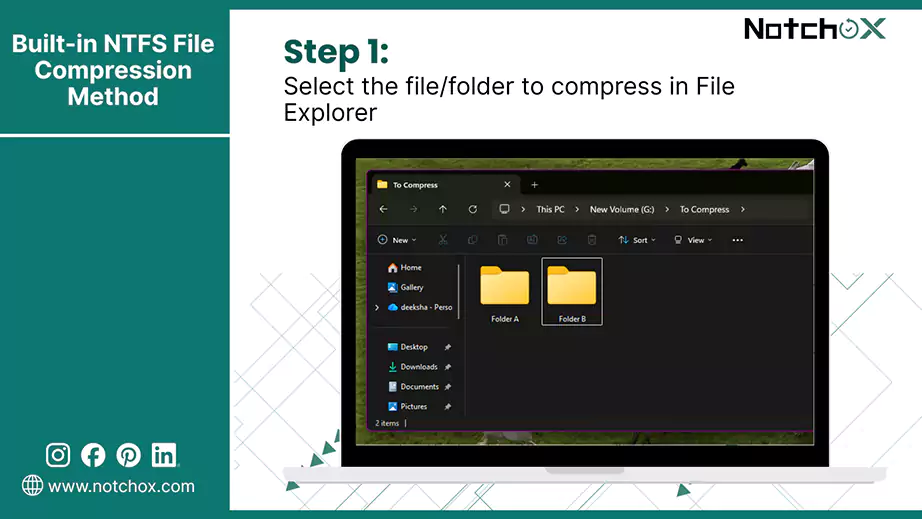
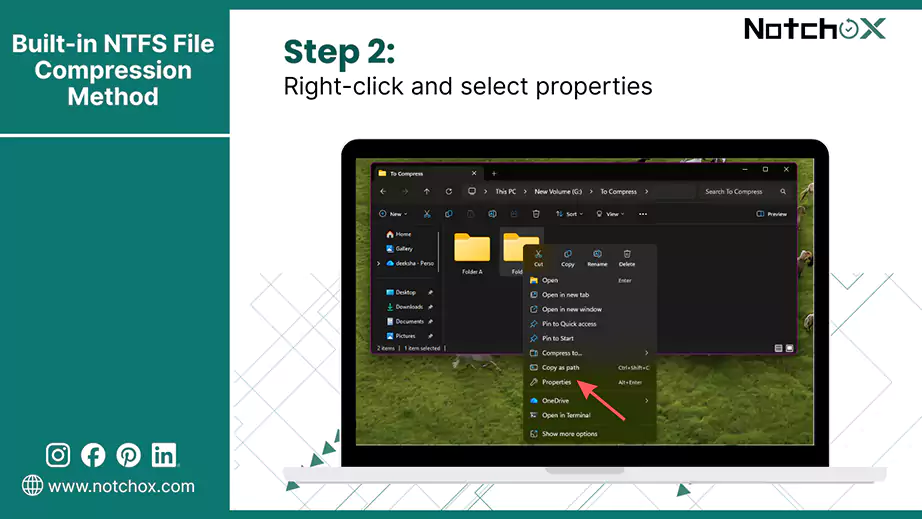
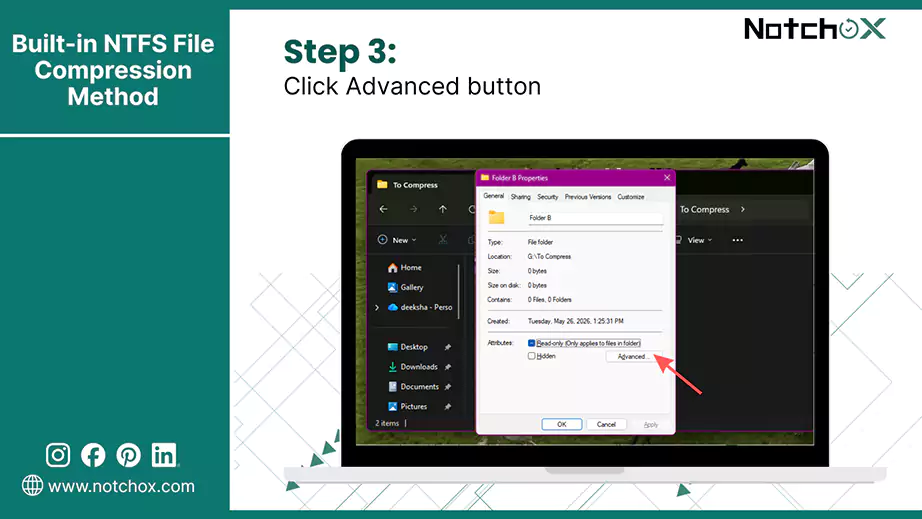
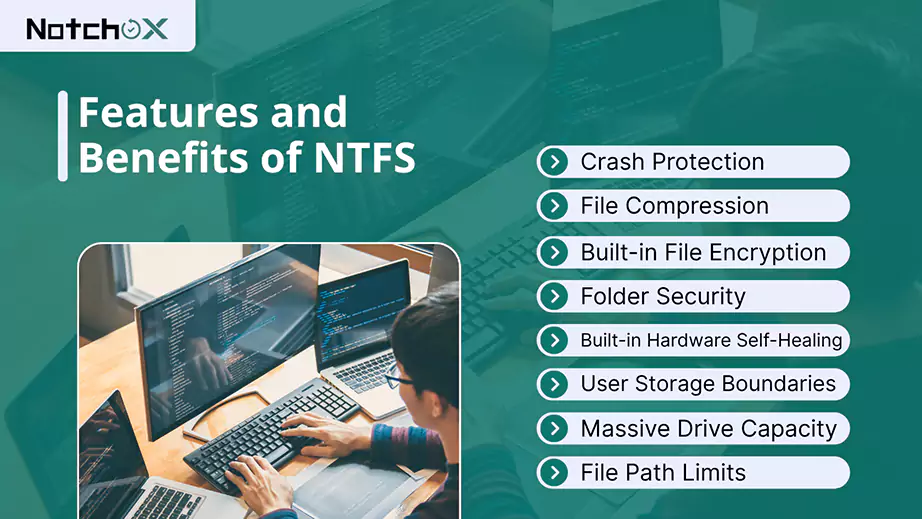
NTFS is not just a storage map. It is a highly advanced data management platform. By looking at the core features, you can see why it is the gold standard for modern computing.
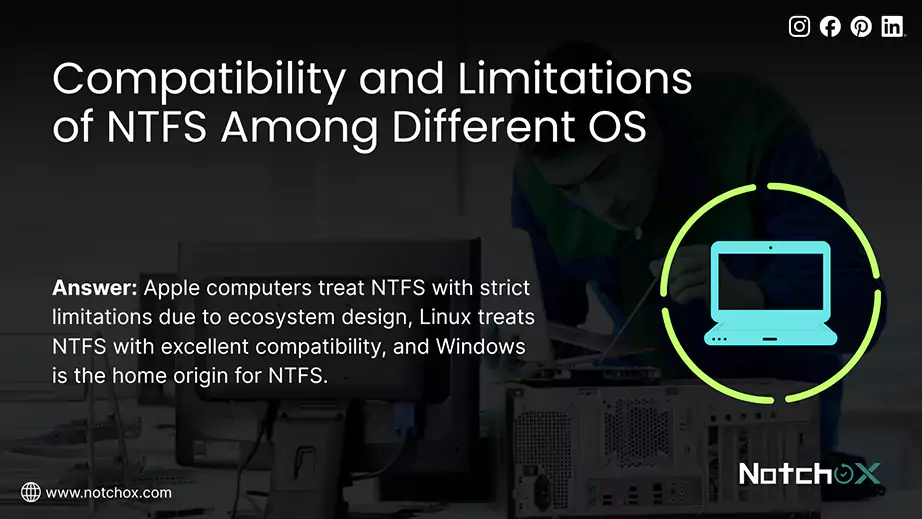
While NTFS is the ultimate file system for Windows drives, there are operating systems like macOS and Linux. When you plug an NTFS drive into non-Windows hardware, compatibility changes; therefore, understanding these limitations will save you from sudden data blockages.
| Feature | MacOS | Windows | Linux |
| Access Level | Read & Write Access | Read-Only Access | Read & Write Access |
| Setup | Automatic mounting, but files cannot be modified or deleted | Native support | Native support on modern kernel |
| Data Integrity | No journaling feature without third-party tools | Full journaling via $LogFile to prevent corruption during a system crash | Modern drivers support checking and basic journaling safety |
| How to Change Permissions | Requires paid softwares | Managed natively | Managed via Mount flags |
| File Optimization | Can not compress or optimize NTFS volume natively | Supports native compression and encryption | Can read compressed files, but optimization is limited |
Because NTFS is a Microsoft technology, its ability to read and write data changes drastically depending on which operating system you use.
MacOS:
Apple computers treat NTFS with strict limitations due to ecosystem design and software licensing boundaries.
Windows:
Windows is the home origin for NTFS. The operating system has complete access to the file system’s entire feature set.
Linux:
Linux treats NTFS with excellent compatibility, but only because of open-source software drivers built into the operating system.
News: The Linux 7.1 update includes a new speedy NTFS driver
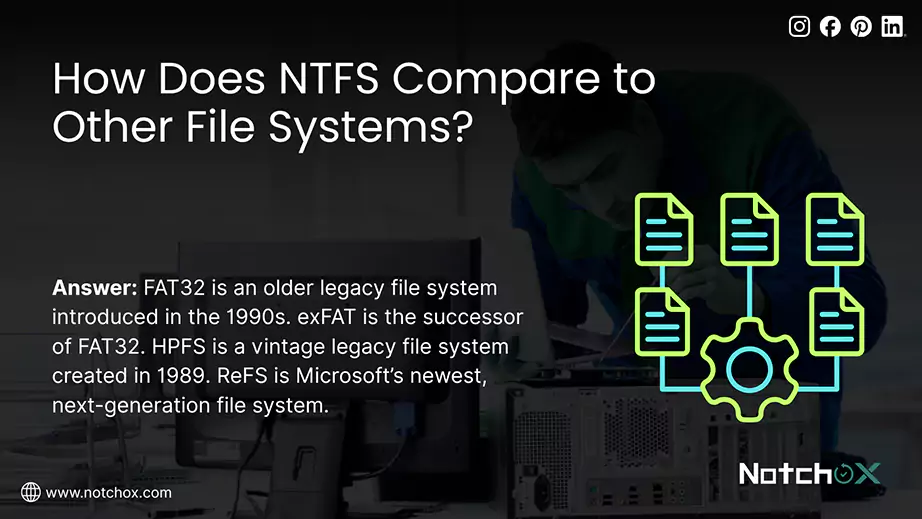
Choosing the right format for your hard drive can feel confusing, so let’s balance out between features and compatibility to help you.
FAT/FAT32 (File Allocation Table)
FAT32 is an older legacy file system introduced in the 1990s. It was used to manage early computer drives and storage media. Because it has been around for decades, it is almost universally compatible with every electronic device on Earth. However, it cannot save any file larger than 4GB.
exFAT (Extended File Allocation Table)
exFAT is the successor of FAT32 in the FAT family of file systems. It is Microsoft’s specialised solution designed to act as the ultimate format for modern external hard drives, SD cards, USB flash sticks, etc. It completely removes that 4GB file size limit but still maintains cross-platform capability.
HPFS (High Performance File System)
HPFS is a vintage legacy file system created in 1989 by IBM and Microsoft to overcome the limits of very early FAT systems. But less common today, it used smart data organization techniques, which led to modern layouts like NTFS.
ReFS (Resilient File System)
It’s Microsoft’s newest, next-generation file system. It is built for large enterprise cloud servers and data centers. It focuses entirely on maximum data survival. It regularly scans for background data corruption and automatically repairs broken data.
Quick Side by Side Comparison Matrix
| Feature | NTFS | FAT32 | exFAT | HPFS | ReFS |
| Primary Target | Internal Windows OS Drives | Legacy Devices | External Hard Drives & USBs | Antique OS/2 Systems | Enterprise Server Arrays |
| Developer | Microsoft | Microsoft | Microsoft | IBM & Microsoft | Microsoft |
| Max File Size | 256TB | 4GB | 128PB | 2GB | 35PB |
| Max Drive Size | 8PB | 2TB | 128PB | 64GB | 35PB |
| Windows Support | Full Read & Write | Full Read & Write | Full Read & Write | Read-Only | Read-Only |
| Mac Compatibility | Read-Only | Full Read & Write | Full Read & Write | Unsupported | Unsupported |
| Linux Support | Full Read & Write | Full Read & Write | Full Read & Write | Read-Only | Read-Only |
| File-Level Security | Yes | No | No | Yes (Basic) | Yes |
| Native Protection | Yes | No | No | No | No |
Microsoft builds all the required diagnostics directly into the operating system, so managing an NTFS drive in Windows is straightforward. Here is how to check your drive health and fix system errors (if any).
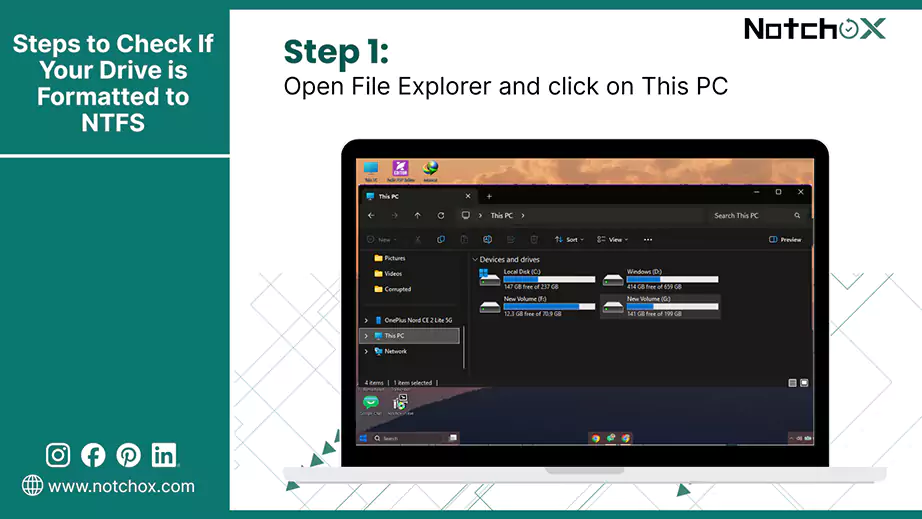
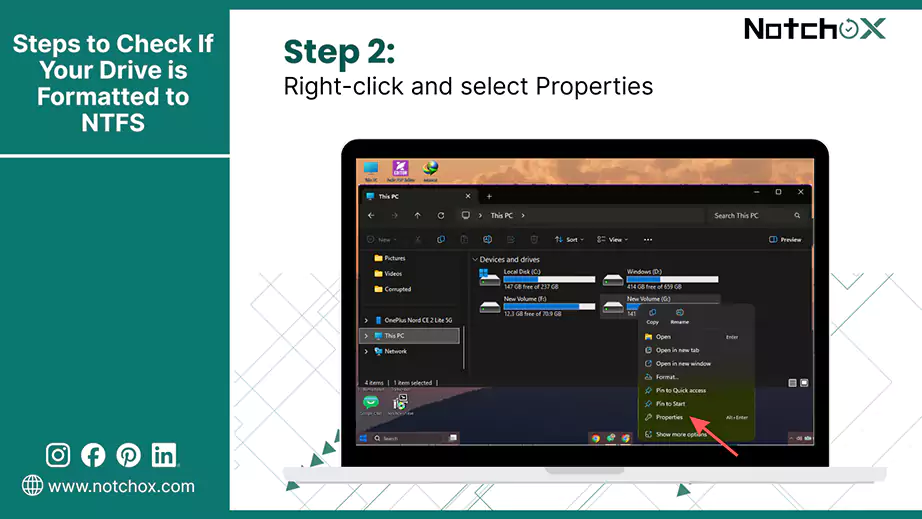
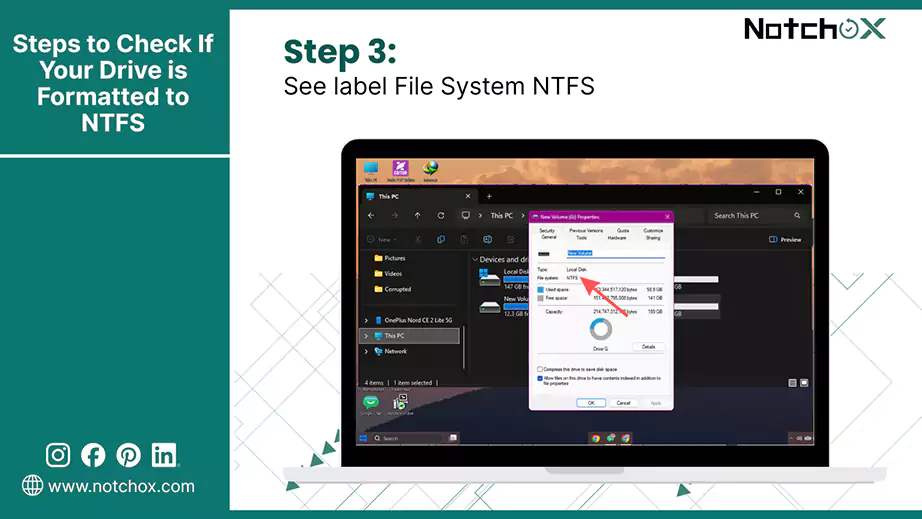
Before managing a storage drive, you need to verify its current file system architecture. If you are using Windows 11, most probably you will have an NTFS file system.
You can check this in three simple steps:
CHKDSK is the main solution for Blue Screen. So if your computer faces sudden blue screens or disappearing files, your NTFS map might be corrupted.
Step-by-step guide to use CHKDSK:
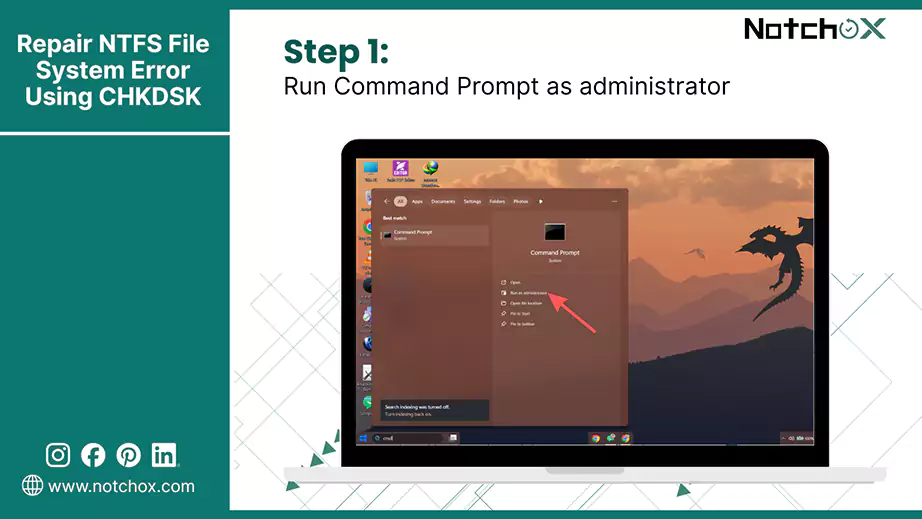
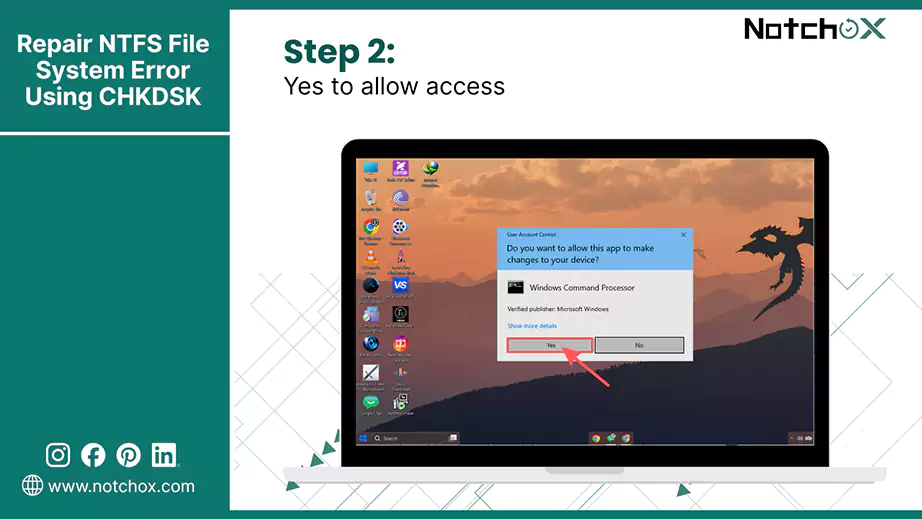
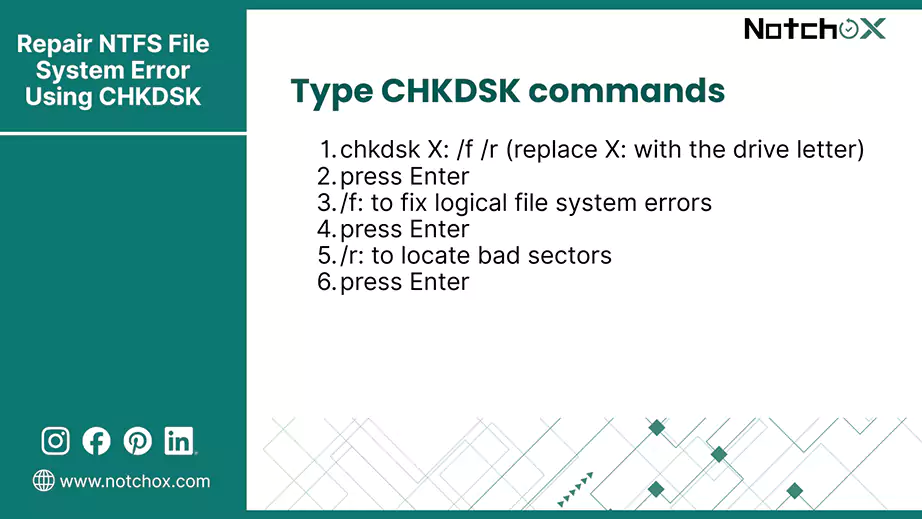
chkdsk X: /f /r (replace X: with the drive letter)
/f: to fix logical file system errors
/r: to locate bad sectors
What happens during formatting is that formatting clears out old data structures and applies a fresh NTFS framework to a storage drive.
Step-by-step guide to format a Drive to NTFS
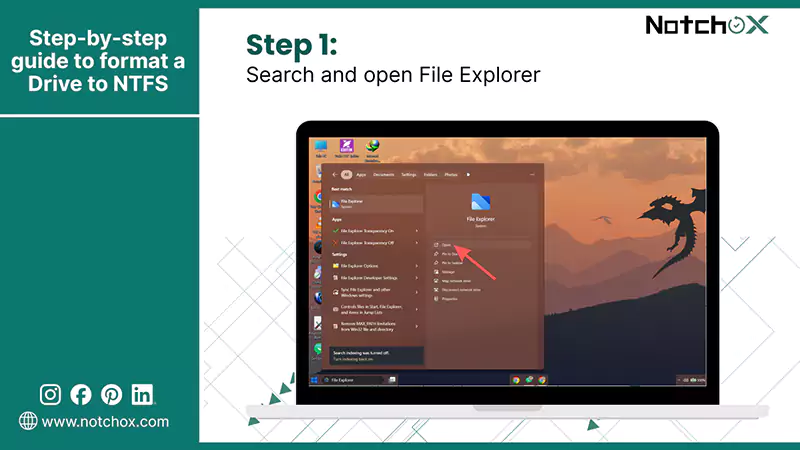
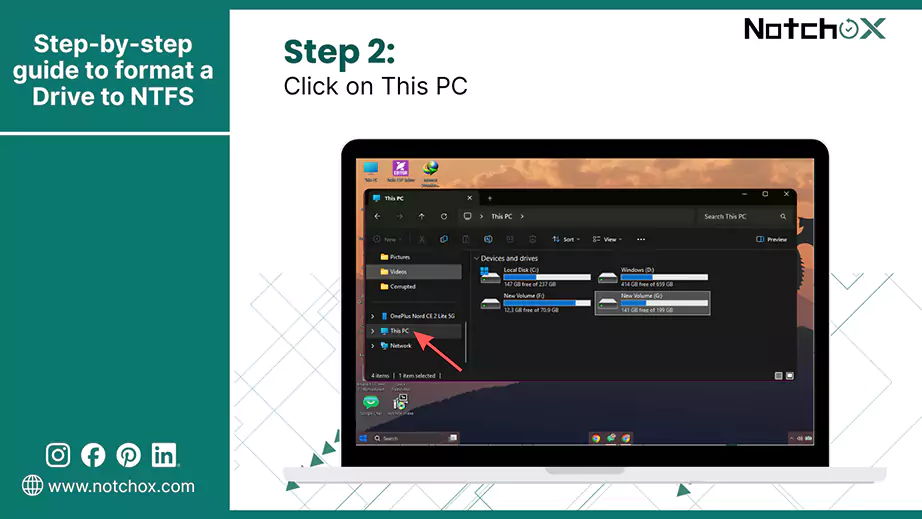
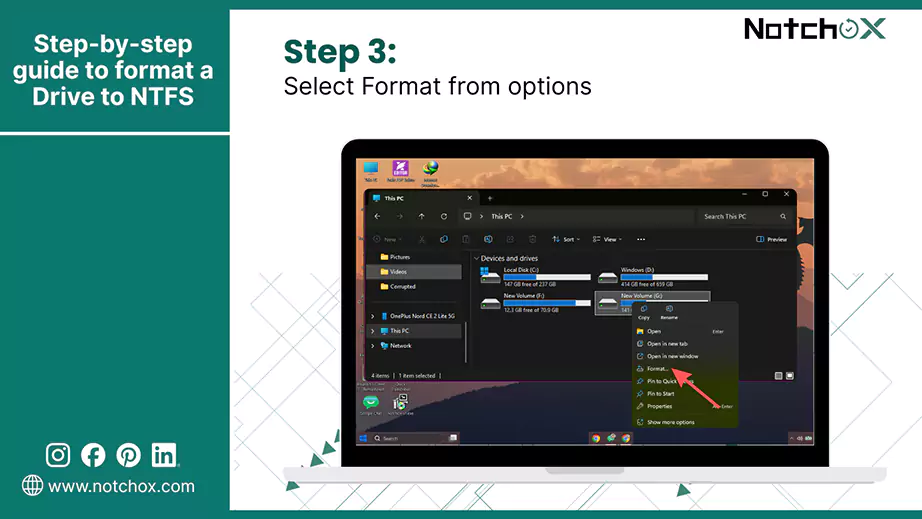
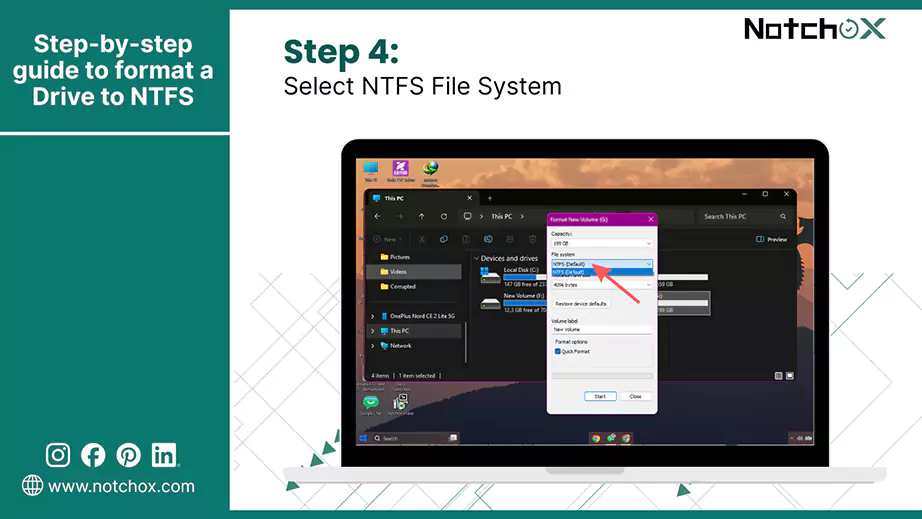
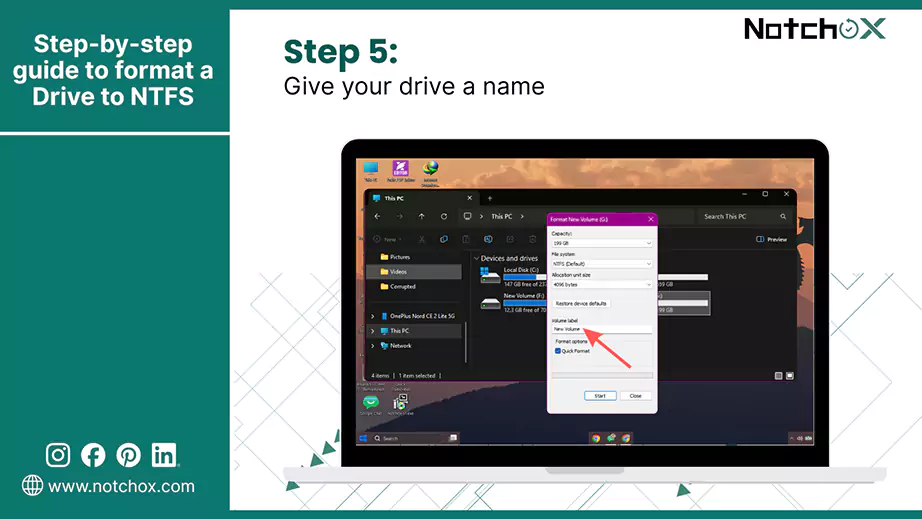
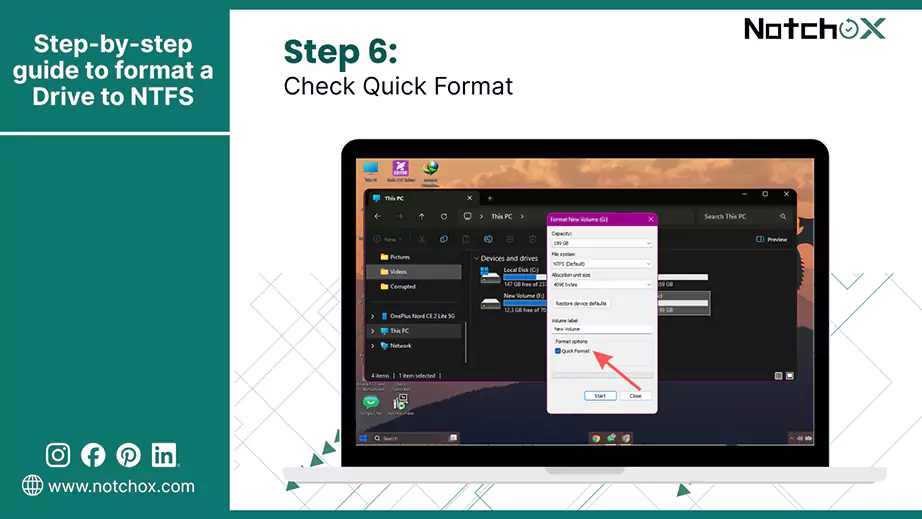
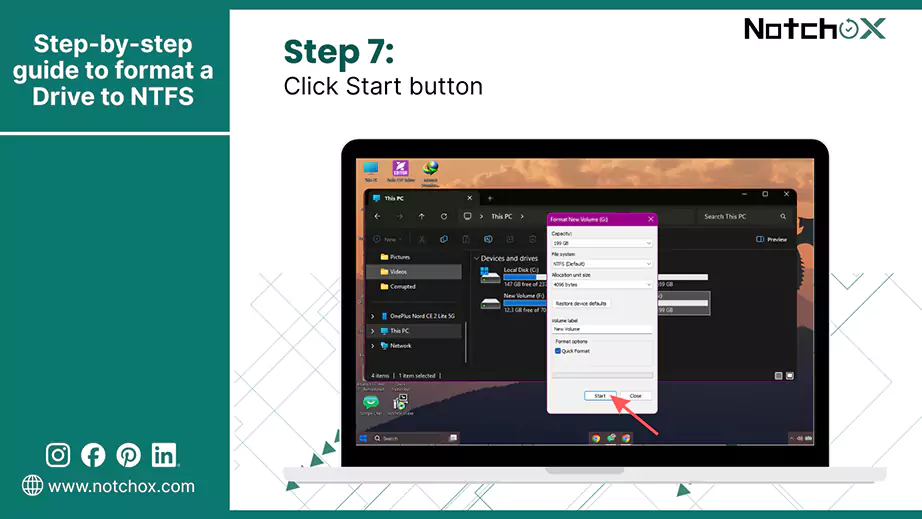
Warning: Formatting completely wipes the NTFS index layout, marking files invisible to Windows. If you accidentally format the wrong drive, immediately stop writing data on it and launch Notchox Recovery Software to deep-scan the raw clusters and rebuild your missing data.
NTFS is the silent powerhouse behind the Windows operating system. It keeps everything in place, instantly indexing the file you saved, protecting against unauthorized access, protecting the system from sudden system crashes, and more. This Notchox learning hub explored how NTFS works and how its internal architecture handles your data.
Ans: NTFS is Microsoft’s primary modern file system used by Windows to manage files on internal drives like HDDs and SSDs.
Ans: NTFS stands for New Technology File System. Microsoft introduced it to replace the older FAT32 file system format, which was less stable.
Ans: NTFS works as a digital database. It uses a master index called the Master File Table (MFT) to track file locations and permissions. NTFS also works with a real-time transaction log ($LogFile) that prevents file corruption during sudden power loss.
Ans: Yes, NTFS is better than FAT32. It supports massive file sizes over 4 GB, user permissions, and uses transactional journaling to stop file corruption during sudden power losses.
Ans: Mac provides partial support for NTFS drives. Mac can only read files from an NTFS drive. To edit, delete, or write files, you must install third-party drivers.

Deeksha Arora is a Data Protection & Recovery Writer focusing on writing accurate, informative, and easy-to-understand technical articles for Notchox’s readers. Her content on the prevention of data loss, understanding risks of device failures, and guides to fix problems helps readers make the right decisions and understand the technical terms easily. She works closely with Subject Matter Experts to ensure high usability and accuracy of her writing.