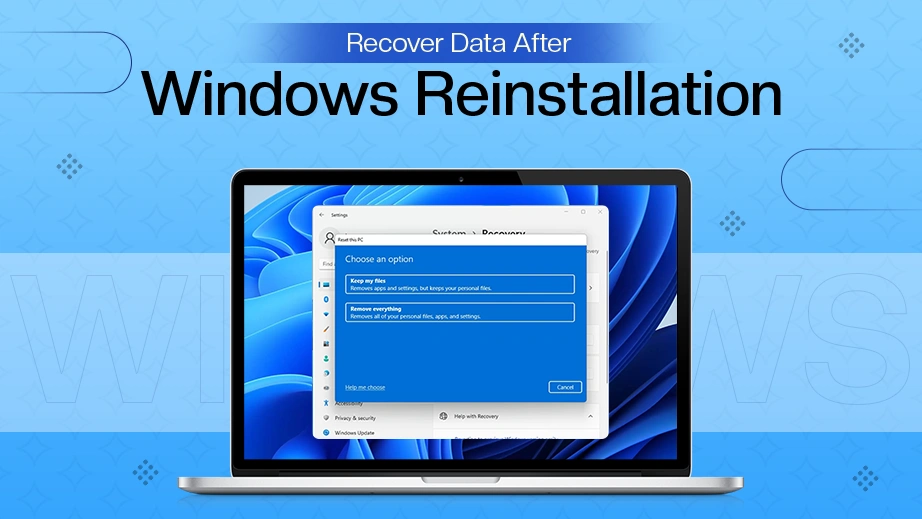
To understand how to recover files after Windows reinstallation, you must check the C:\Windows.old folder. If not there, use Notchox data recovery after Window installation before new system data overwrites your storage sectors.
Yesterday, I reinstalled Windows to clean up my laptop. But it booted into a completely blank desktop. All my files, photos, projects, audio, and documents had vanished. Thankfully, the data wasn’t gone permanently yet.
In this blog, I will share my rescue strategy that can recover your files too after Windows reinstallation. We will cover three methods on how to recover files after Windows installation, starting with the Windows rescue folder.
Quick Answer: To recover files after Windows reinstallation, you must immediately check your primary storage drive for the native C:\Windows.old directory or log in to your cloud account to sync down your previous folders. In case your drive partitions were completely formatted or deleted during the reinstallation, use Notchox data recovery software because the system index no longer tracks your files.
How to Recover Files After Windows Reinstallation?
Whether you performed a quick reinstall, deleted your drive partition, created one, or formatted the entire disk, your missing data is highly recoverable. Windows setup handles data differently depending on your choice:
A standard reinstall preserves files in hidden system directories,
Partitioningand full format erase file paths but leave raw data intact.
Here is how to recover files after Windows reinstallation:
Method 1: Check for Windows.old Folder
If you reinstalled Windows without formatting your drive, your files are likely saved in the Windows.old directory. It is the folder that Windows automatically creates as a safety net to store your previous operating system data.
How to Locate the Windows.old Folder?
Finding the Windows.old folder requires navigating your root directory, as Windows often hides system archives to prevent accidental deletion. Follow these steps to find the folder on your primary drive.
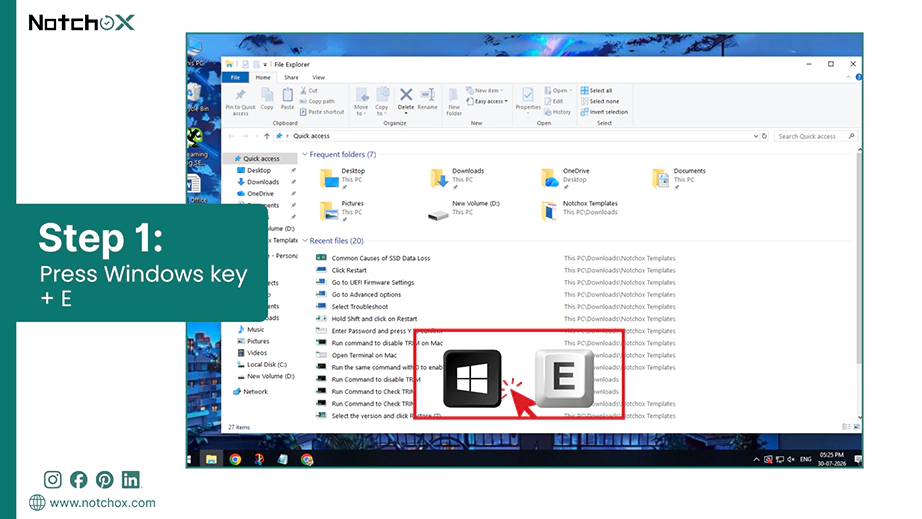
Open File Explorer (Press Windows Key + E).
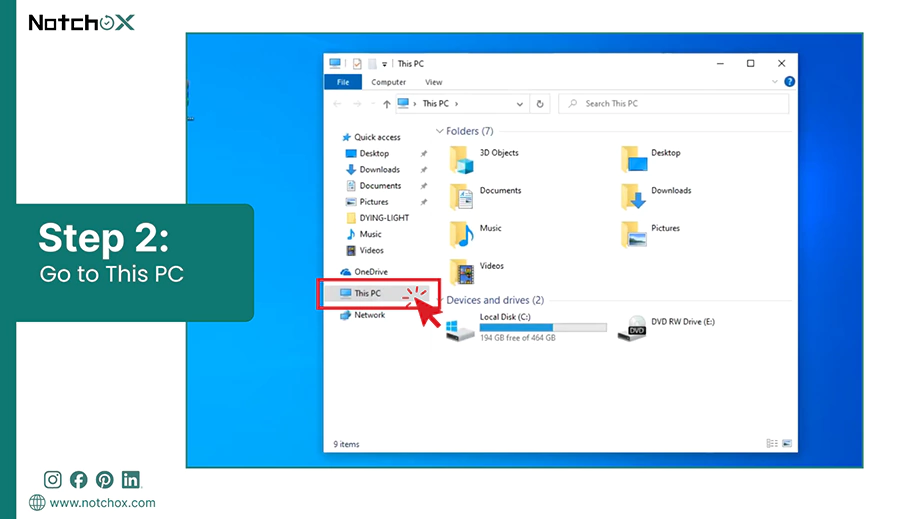
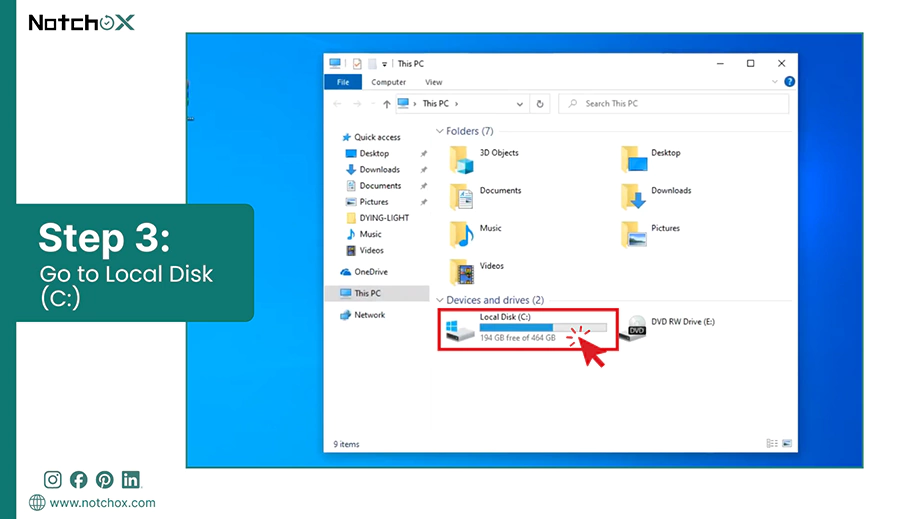
Click on This PC on the left sidebar.
Double-click your main Local Disk (C:).
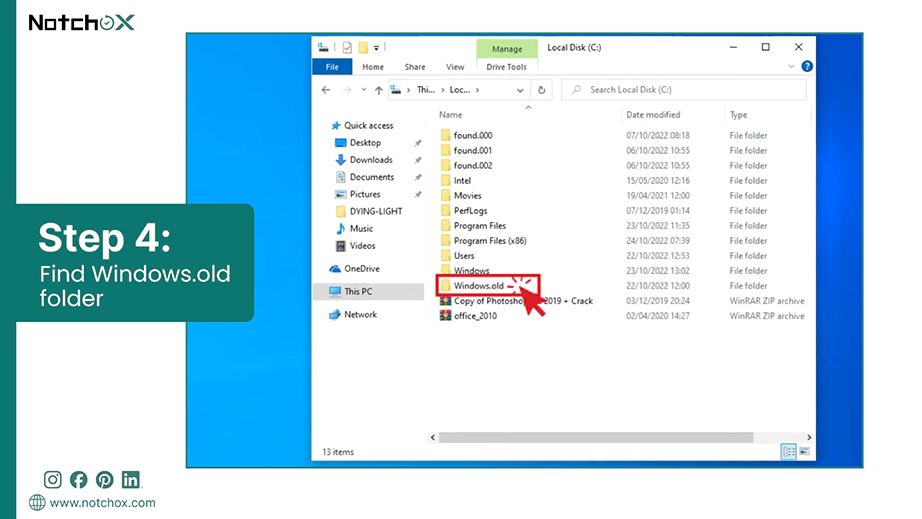
Look for a folder named Windows.old.
Note: If you do not see it, click View at the top menu, hover over Show, and ensure Hidden items is checked.
Copying and Restoring Files Manually
Once you find your old user files inside the archived directory, you must safely move them into your active user profile to make them accessible again.
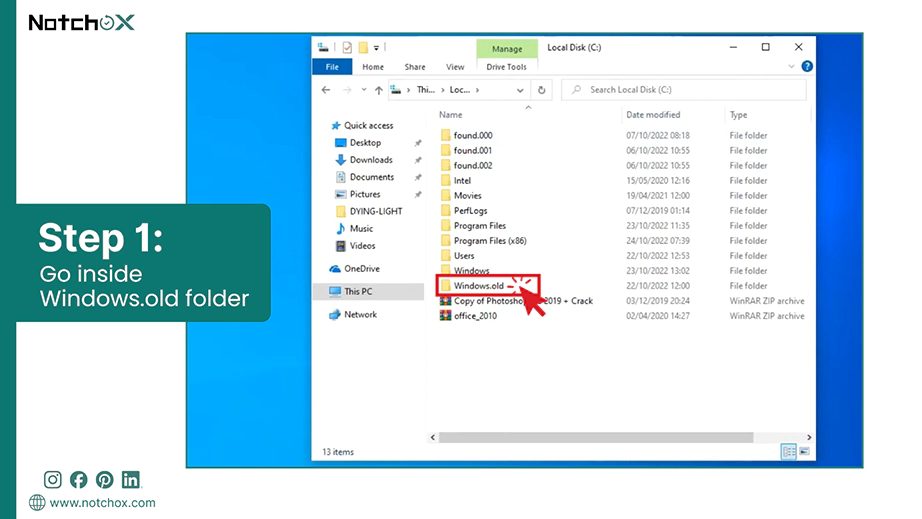
Double-click the Windows.old folder.
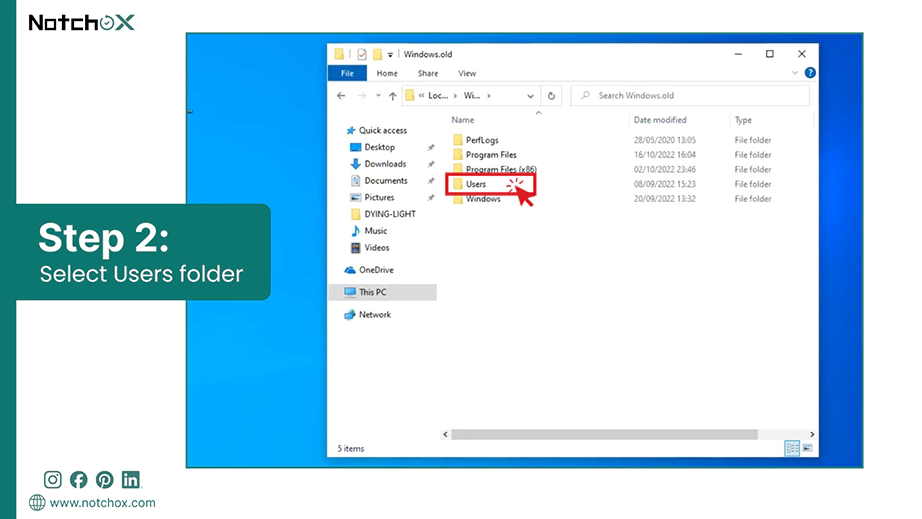
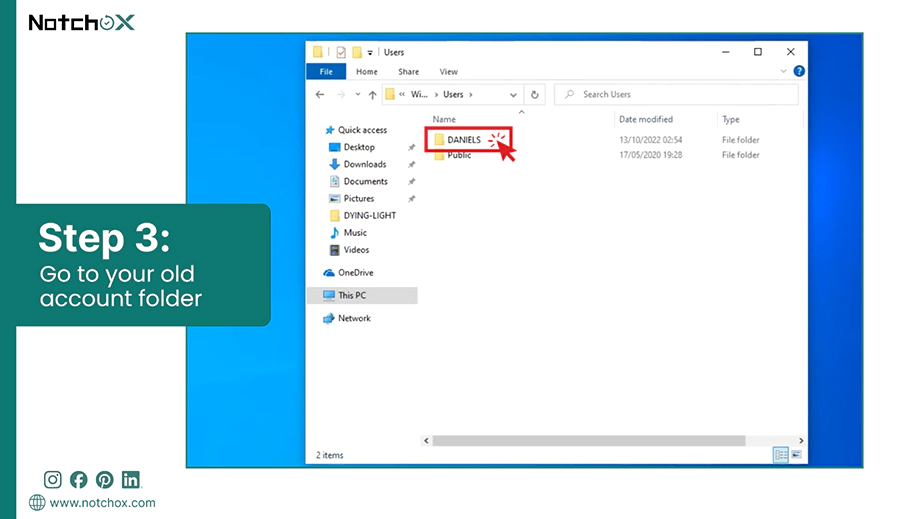
Go to the Users folder.
Then double-click your old account name.
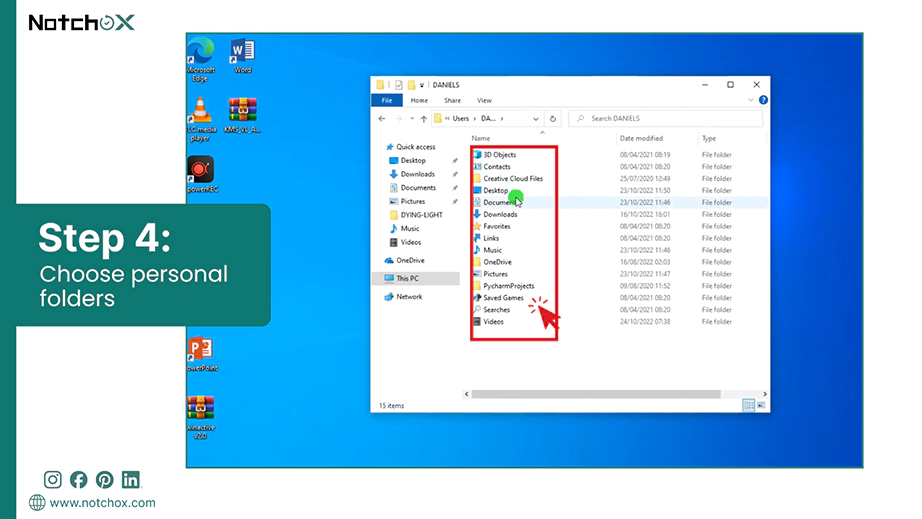
Locate your personal folders (Desktop, Documents, Downloads, Pictures).
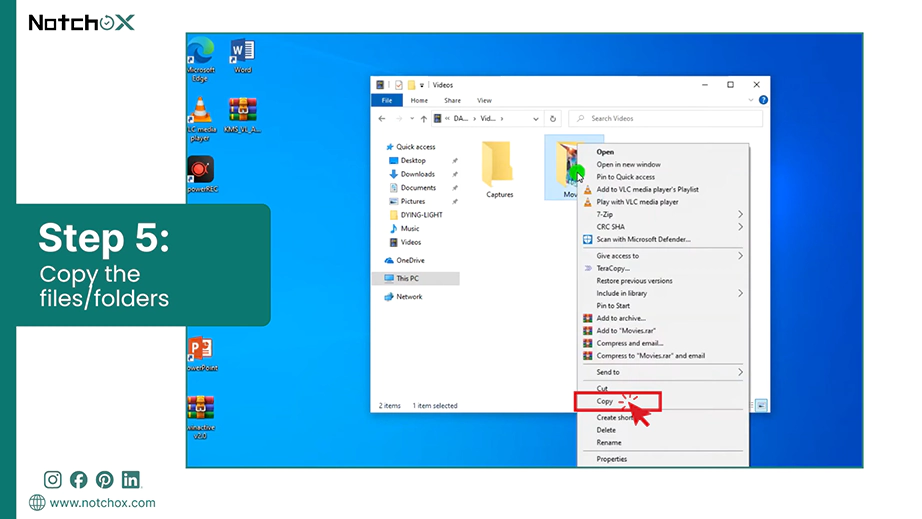
Select the folders you need. Right-click and choose Copy.
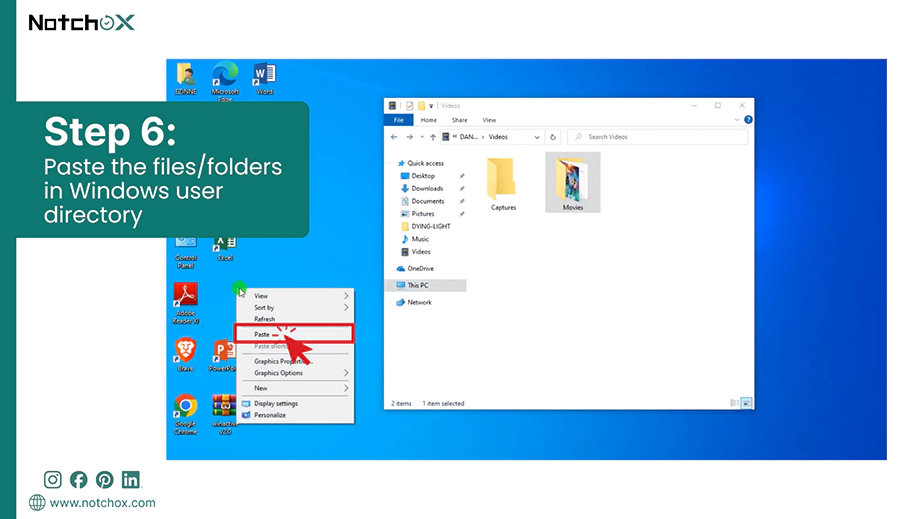
Now go to your new Windows user directory. Right-click and select Paste to restore them.
Method 2: Restore from Native Windows Backups
If the Windows.old folder is missing or empty, your next best option is pulling data from native Windows backup features. Windows includes built-in tools that automatically save copies of your files to external drives or cloud storage. If you had these safety features active before the operating system reinstallation, data recovery files after Windows reinstall is simple. You can retrieve your lost documents, photos, and other data through your Microsoft account profile or Windows file history.
Recover Files After Windows Reinstallation via OneDrive Cloud Sync
OneDrive integrates directly into your user profile to sync your desktop, documents, and pictures folder automatically. Logging back into your account restores immediate access to your cloud-saved items.
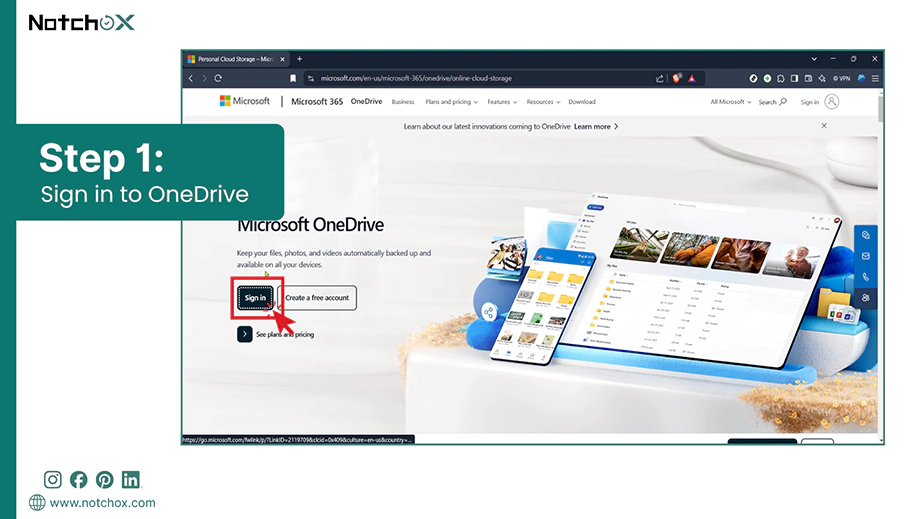
Sign in to the OneDrive website at onedrive.com. Use the same Microsoft account login you used before the Windows reinstallation.
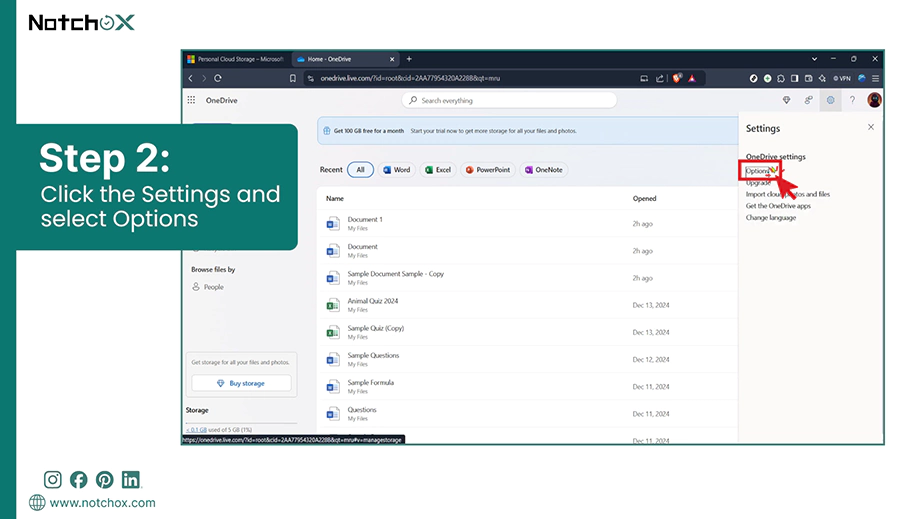
Click the Settings gear icon in the top right corner and select Options.
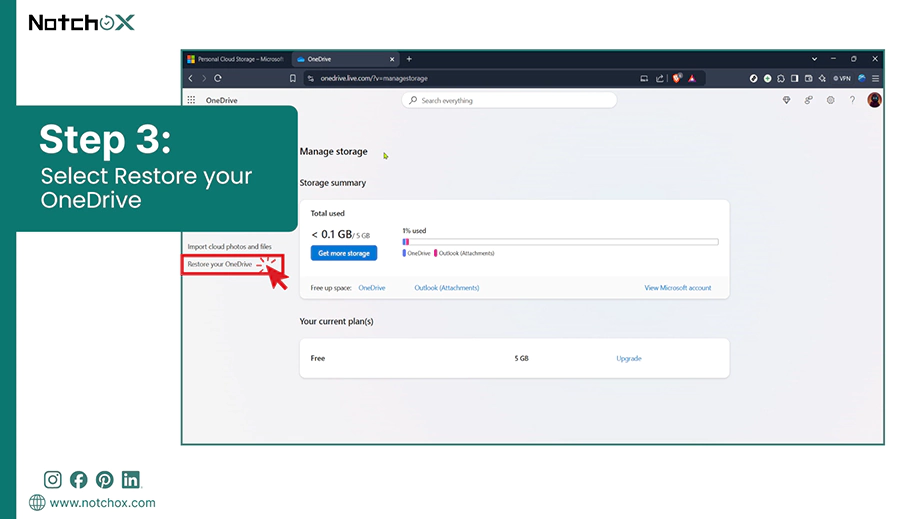
Select Restore your OneDrive from the left navigation panel.
Choose a verification method to confirm your identity if prompted by Microsoft security.
Click the dropdown menu to choose a date (like Yesterday or Custom date and time) from just before you reinstalled Windows.
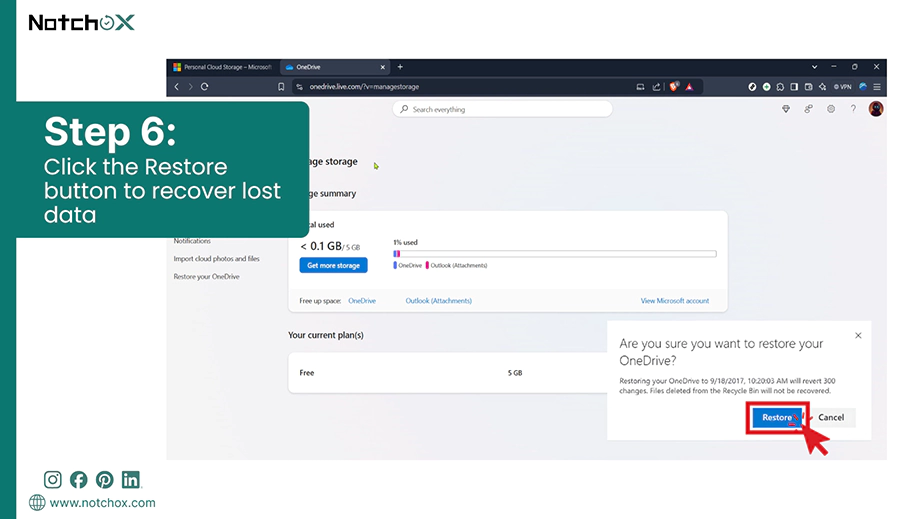
Review the activity chart to see the files you want to revert, then click the blue Restore button to recover lost data after reinstalling Windows 10 or 11 to that exact moment.
Using Windows File History
File History takes regular snapshots of your files and saves them to an external storage device. Connecting your backup drive allows you to roll back your folders to the exact state they were in before the OS setup.
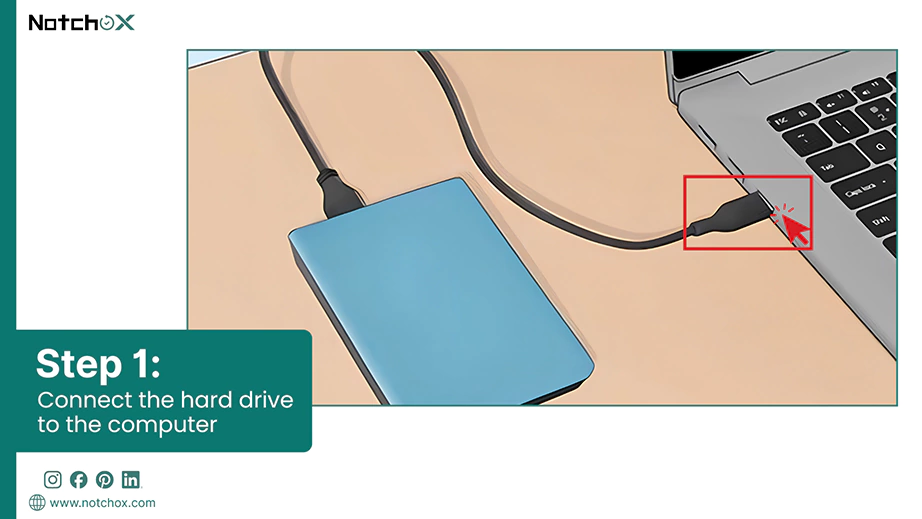
Connect the external hard drive you previously used for Windows backup to your PC.
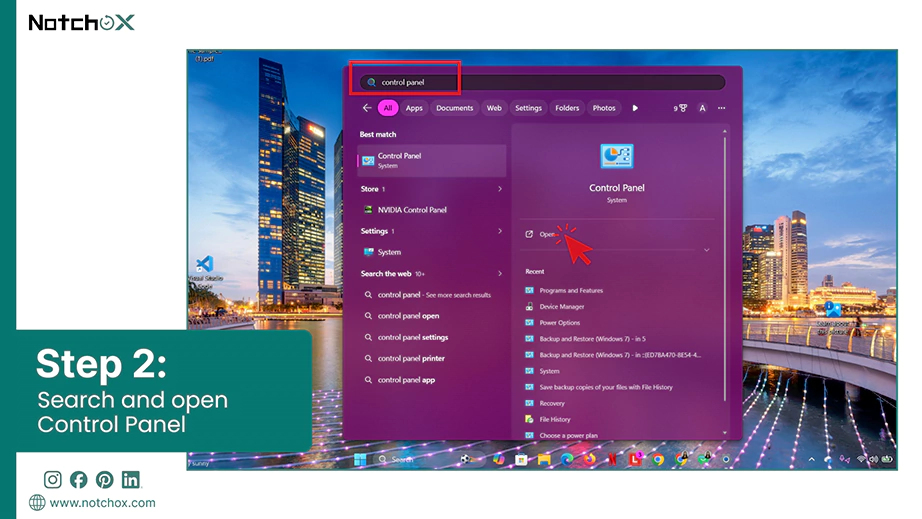
Open the Start Menu, type Control Panel, and press Enter.
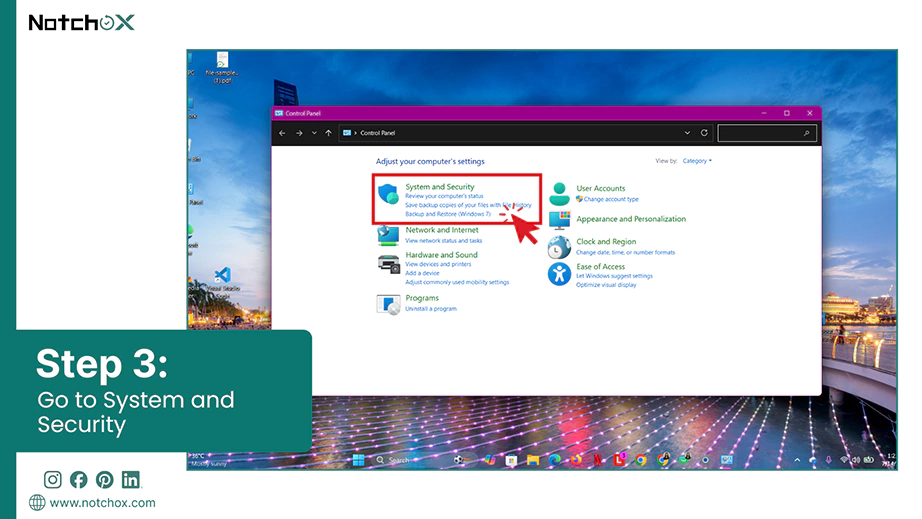
Click on System and Security.
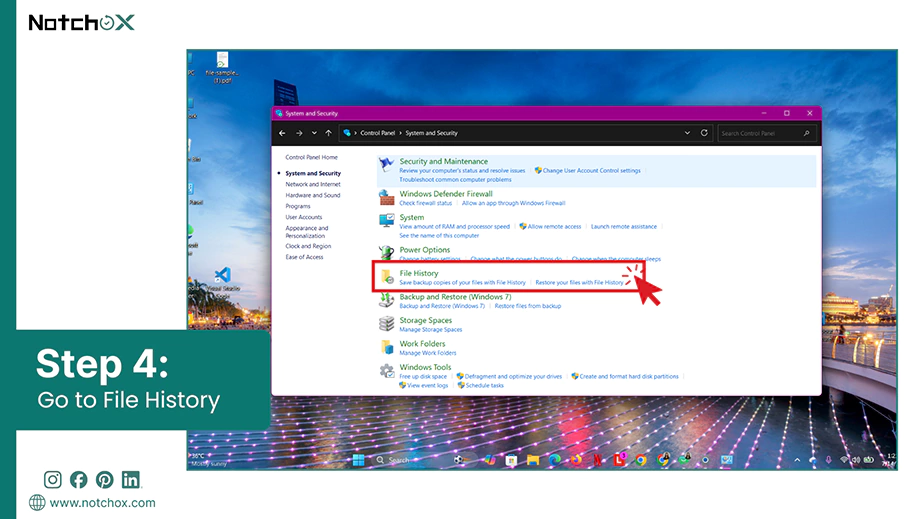
Select File History.
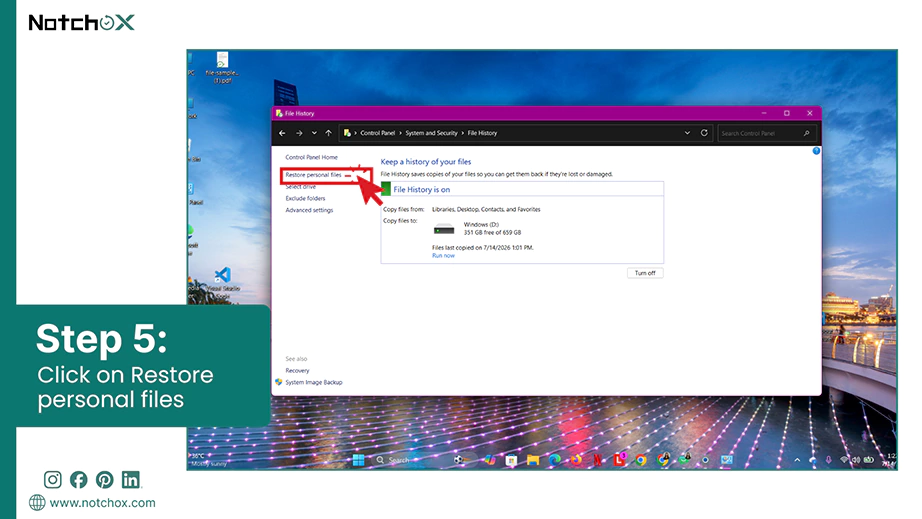
Click Restore personal files from the menu on the left side of the window.
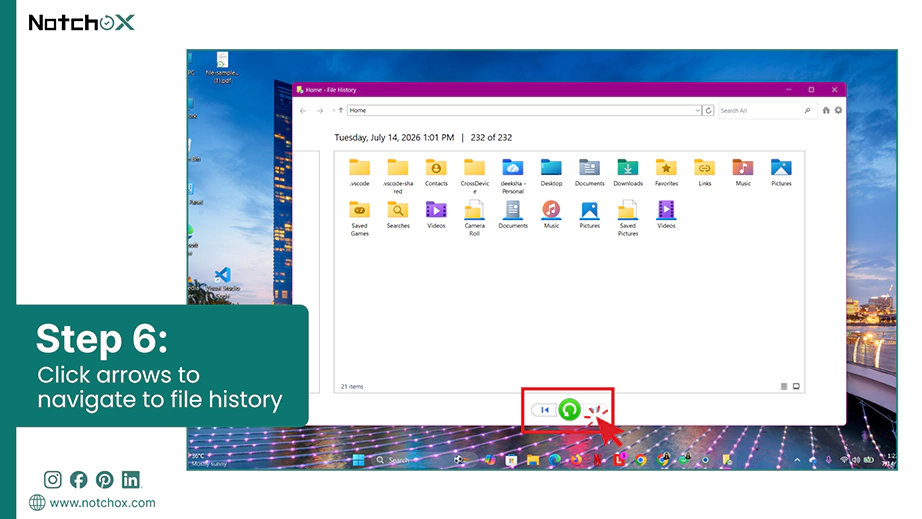
Use the arrow keys at the bottom to scroll through your past backup dates.
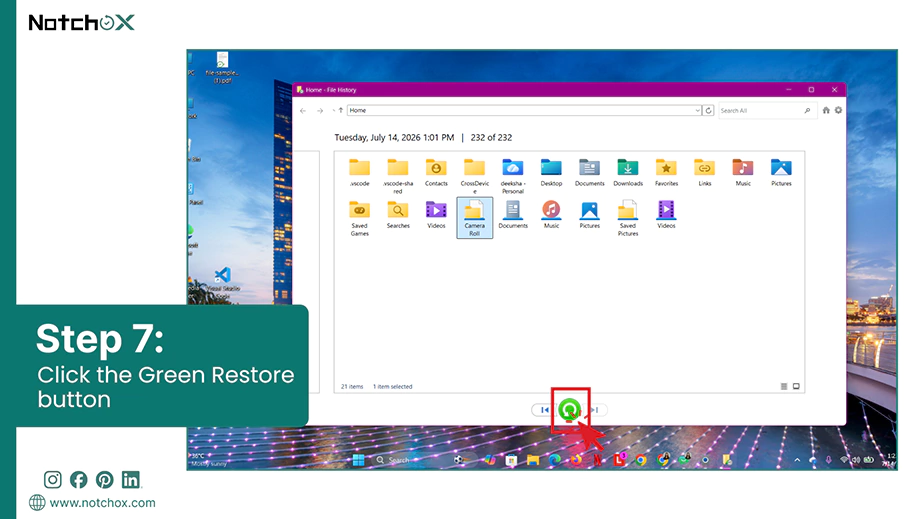
Select your lost folders and click the green Restore button to return them to their original location.
SSD vs HDD Recovery Challenges
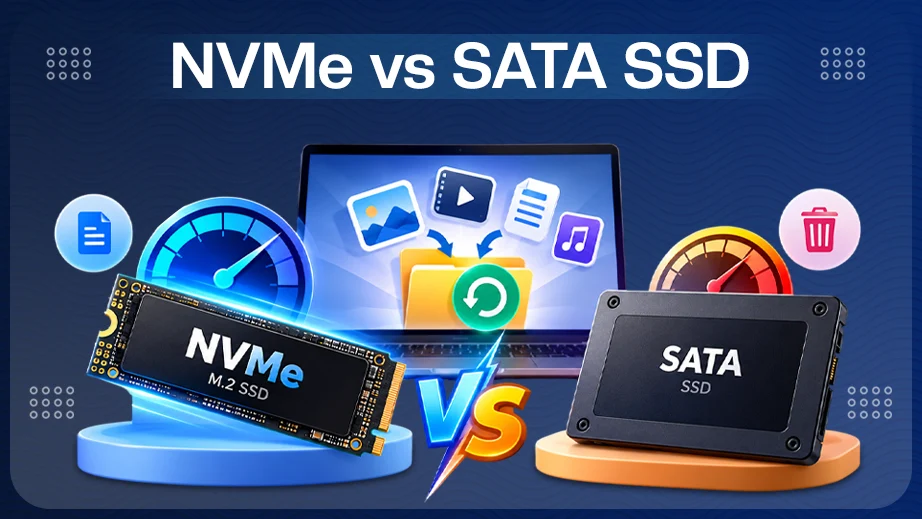
Your data rescue success depends heavily on your hardware drive. Traditional Hard Disk Drives (HDDs) are highly recoverable. When the data is deleted during Windows reinstallation, the raw data stays there on magnetic platters until new applications overwrite those sectors manually.
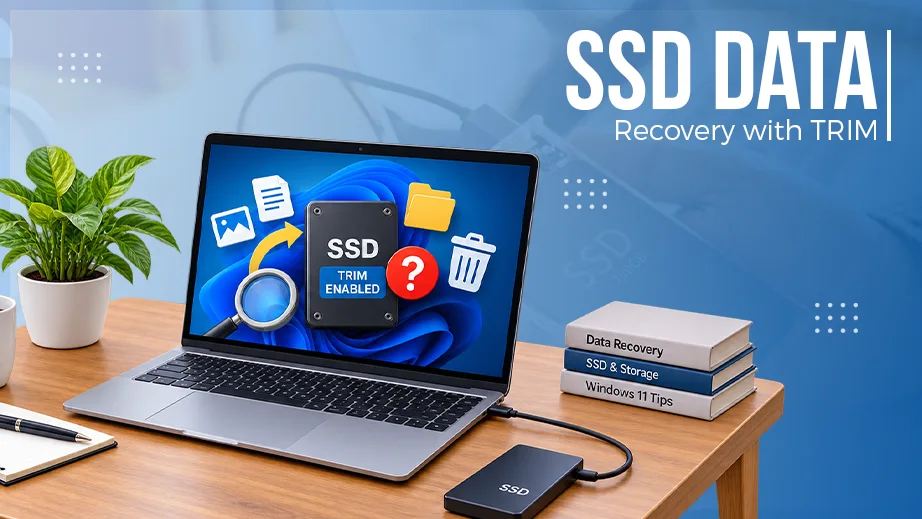
Solid State Drives (SSDs) present as much of a tougher challenge due to an automated system command called TRIM. The moment Windows reinstalls or deletes files on an SSD, TRIM instantly wipes those inactive storage cells to keep drive write speed high; that’s how SSD TRIM works. To recover data from an SSD, you must power down the computer immediately and run recovery software before the next automated maintenance cycle occurs.
Method 3: Using Notchox Data Recovery Software
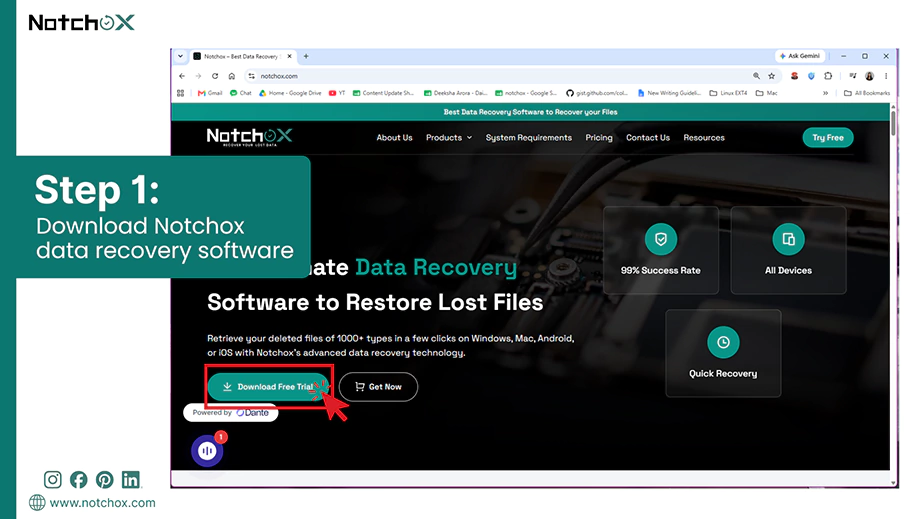
What if you didn’t have any backup? In such situations, I recommend Notchox Data Recovery Software, which is the best solution to recover files after Windows reinstallation and scans your drive sectors directly. It will recover all your data left behind by your old operating system.
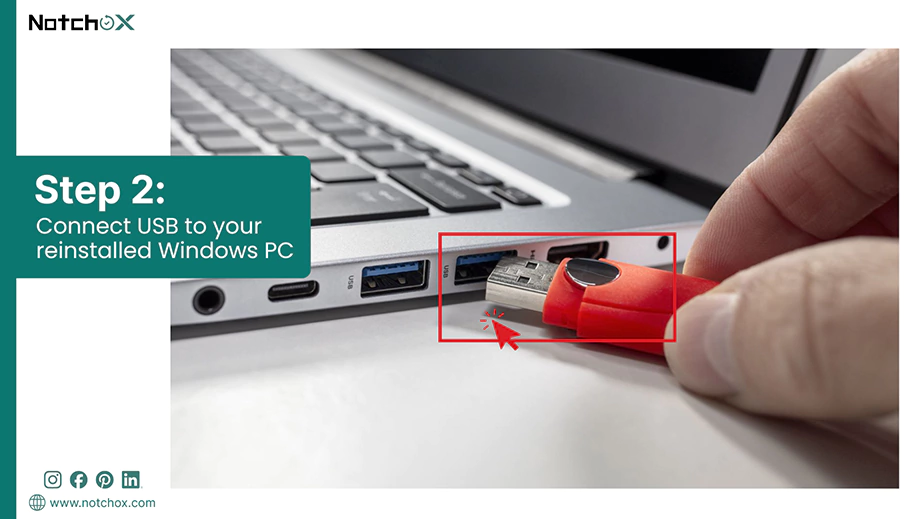
Install the application directly into a portable USB flash drive, then connect that USB to your reinstalled Windows PC.
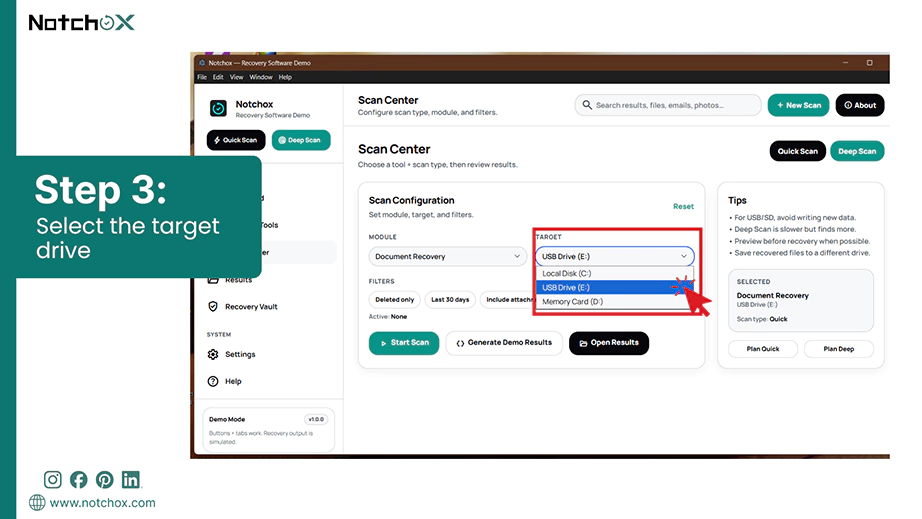
Launch the program and select your primary storage drive (typically USB Drive (E:)) as the target scan location.
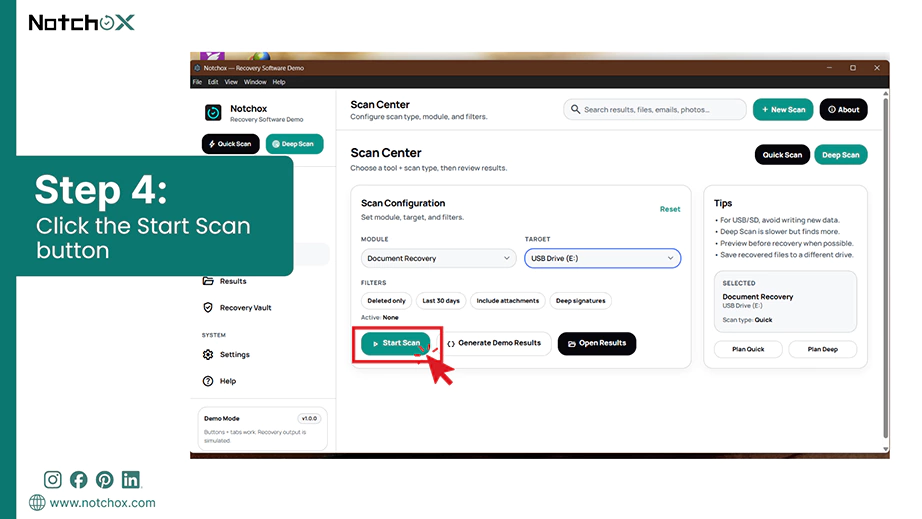
Choose a Deep Scan to search past the newly installed system files and find the older file structures. Click on Start Scan.
Wait for the scanning process to complete fully without closing the program or letting your computer enter sleep mode.
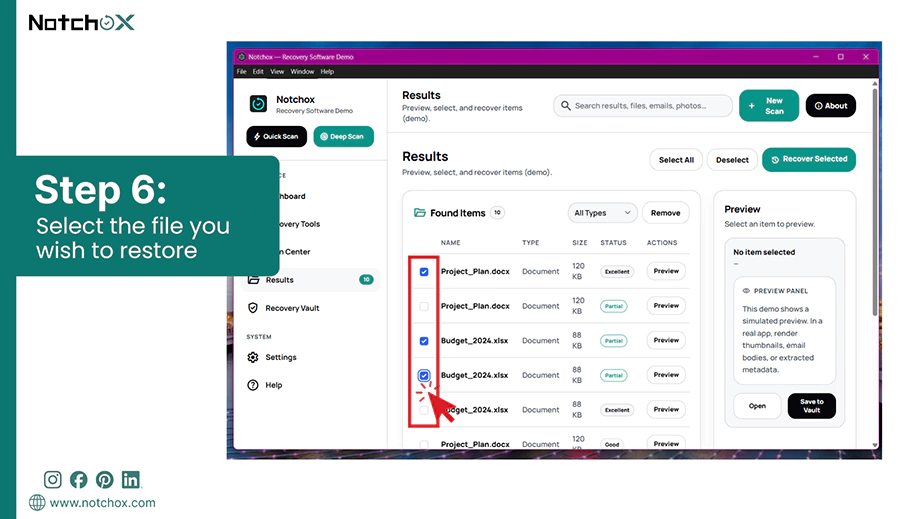
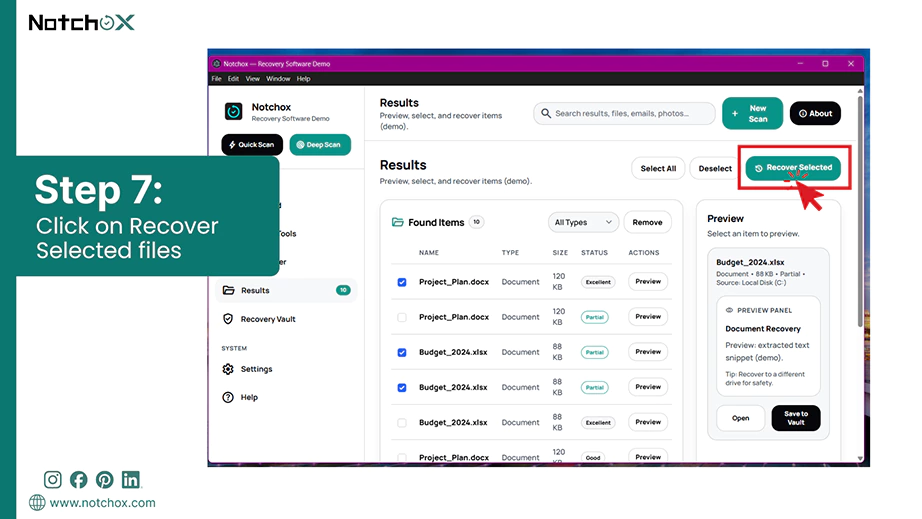
Browse the scan results and preview them to select the files you need.
Click Recover Selected and select an external storage drive or USB as the saving destination.
Note: Never save the recovered files back onto the same C: drive.
Summary
I lost my files after reinstalling Windows, but I successfully recovered them. Your files are not instantly erased. They stay on your hard drive until new data overwrites them. The same is true when a reinstall was forced by a failure — you can still recover files after an OS crash using identical principles.
If you need a quick fix, check your C: drive for a folder named Windows.old or log into your OneDrive account. In case you formatted your drive, use Notchox Data Recovery Software. Always download the software onto a separate USB drive so you do not accidentally overwrite your lost data.
Frequently Asked Questions
Q1: Can I recover lost data after reinstalling Windows 10?
Ans: Yes, you can recover files after Windows reinstallation. When you install a new operating system, your old documents and photos remain intact on the drive sectors. You can retrieve them by checking the system’s Windows.old directory or by running a deep drive scan.
Q2: How can I recover files after Windows reinstallation if the drive was formatted?
Ans: To recover files after Windows reinstallation on a formatted drive, you must use specialised data recovery tools. The software recognises old file signatures and rebuilds files and folders.
Q3: What is the best tool for Windows file recovery after a system reset?
Ans: The best tool for Windows file recovery depends on your needs and budget. Notchox data recovery software comes with a deep scan at an affordable price and lets you recover original folder structures after a system reset.
Q4: Does the Windows file recovery process work differently on SSD?
Ans: Windows file recovery is different on an SSD because of an automated background feature called the TRIM command. Traditional hard drives leave data as it is until it is manually overwritten, but an SSD uses TRIM to actively wipe deleted blocks to maintain high drive speed. When working with SSDs, try to run the scan before the system executes its automated cleanup cycle.
Q5: Can I recover files after reinstalling Windows without a backup?
Ans: Yes, you may be able to recover files after reinstalling Windows without a backup. Try these steps:
Check the Windows.old folder, if available.
Stop using the affected drive to reduce the risk of overwriting files.
Use data recovery software to scan for recoverable data.
Q6: What are the options for data recovery after reinstalling Windows?
Ans: There are three main ways to recover files after Windows reinstallation:
Check for the Windows.old folder
Restore from native Windows backup
Use Notchox data recovery software
Q7: How can I prevent data loss during Windows reinstallation?
Ans: To avoid data loss during Windows reinstallation, remember to follow these:
Back up all files to external drives
Set up an automatic cloud backup
Create a manual Windows system restore point
Select the Keep personal files option during setup
Deeksha Arora is a Data Protection & Recovery Writer focusing on writing accurate, informative, and easy-to-understand technical articles for Notchox’s readers. Her content on the prevention of data loss, understanding risks of device failures, and guides to fix problems helps readers make the right decisions and understand the technical terms easily. She works closely with Subject Matter Experts to ensure high usability and accuracy of her writing.