Deeksha Arora Jun 5, 2026
Ans: If your local backups are hit, check for offline or cloud-based backup. You can also try Shadow Volume Copies in Windows.
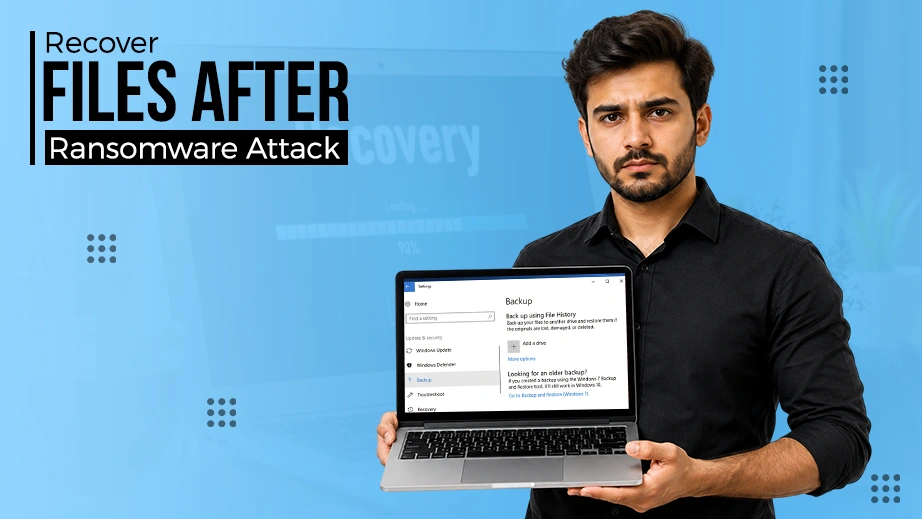
Ransomware has evolved from simple screen-lockers to sophisticated cyber-extortion that encrypts your valuable files, documents, photos, databases, and more with unbreakable AES-256 encryption.
This article explains how exactly ransomware works, how to isolate the infection and crucial steps to recover files after ransomware attack on Windows and MacBook, covering both free tools and professional-grade solutions.
Quick Answer: To recover files after ransomware attack, firstly, disconnect the internet to stop the ransomware from spreading. Next, identify the ransomware strain. Finally, download and use Notchox – the best data recovery software for ransomware attacks immediately. It safely restores your locked files, bypassing the encryption.
As of 2025, nearly 63% of businesses worldwide were affected by ransomware attacks, highlighting the urgent need for robust security measures. Ransomware finds its way into a system through simple mistakes, such as clicking a suspicious link in an email, downloading an unverified attachment, using outdated software, etc. These Entry points allow attackers to lock your files and demand payment, spreading infection to every device connected to the network.
Because this threat moves quickly, taking immediate action is the only way to minimize the damage and stop the encryption process. To help you go through this situation, we have listed the essential steps below that will help you isolate the threat, assess the impact and begin to recover data files after a ransomware attack carefully.
If you suspect or detect a ransomware attack, you must act within a few minutes to stop the encryption from spreading to your entire network. Disconnect and isolate any device showing signs og infection from the network.
ChipSoft urged Dutch hospitals to disconnect its system during ransomware attack – highlighting that isolation is the first step in containment.
Before you can safely use your computer again, you must ensure the malware is completely gone. Use reputable antimalware programs (such as Malwarebytes and Bitdefender) to find and delete every trace of the ransomware. If the infection was a classic virus rather than ransomware, the process to recover files after a virus attack is slightly different.
For maximum security, experts often recommend wiping infected drives and reinstalling the operating system from scratch because reusing a potentially tampered system can lead to a second attack later.
Once ransomware is removed, damage assessment is important to assess the impact of the security breach, which includes data loss and exfiltration (theft). Damage assessment is done to analyse:
For damage assessments, many organizations offer Ransomware Risk Assessments to conduct the assessment after a ransomware attack.
If feasible, use decryption tools provided by law enforcement agencies or security researchers to recover without paying ransom. Analyze and scan your backup file and ensure they are free of ransomware or any other malware.
Before initiating the restoration from backup, ensure that they are not themselves tampered with malware.
Never restore data directly to the production environment. Create a separate environment to validate data before introducing it to the network.
Reporting malware or malicious websites is an immediate action needed to prevent further victimization.
Once you have recovered, continuously monitor your systems for any suspicion of possible reinfection. Things you must keep monitoring:
Attack Vector: The attack began after an employee’s account was compromised through an AI platform called Context.ai, which the employee was using, Vercel founder and CEO Guillermo Rauch said.
When malicious software locks your data, the goal is to restore access without paying the extortionists, as payment doesn’t guarantee data recovery. The most reliable method is restoring from offline or immutable backups. If backups are unavailable, you must identify the specific ransomware variant to check for a decryption tool. While the process is difficult, a systematic approach (as discussed above): isolating the system, identifying threats, reporting, and applying recovery methods, gives the best chances of rescuing digital assets.
Here are the primary ways on how to recover ransomware encrypted files:
Restoring from a secure backup is the most effective method for recovering data after ransomware attack, prioritizing the replacement of encrypted files over decryption. Key steps include:
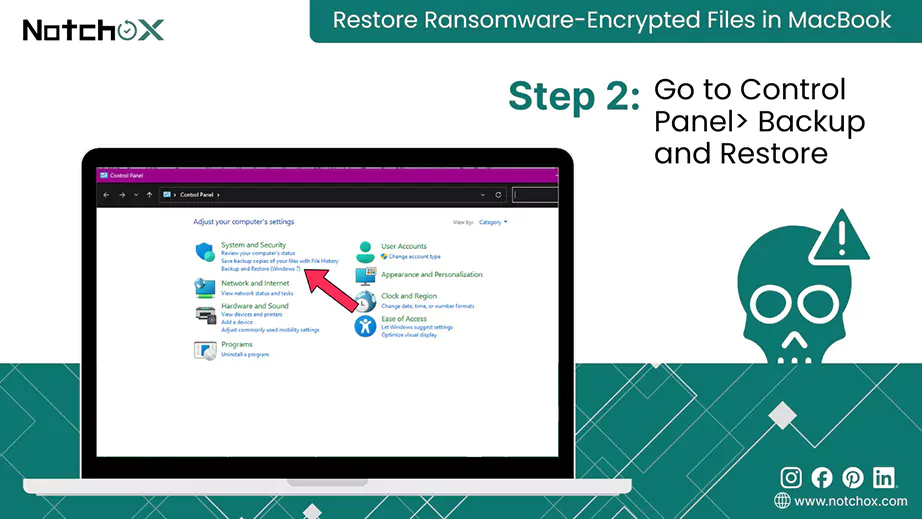
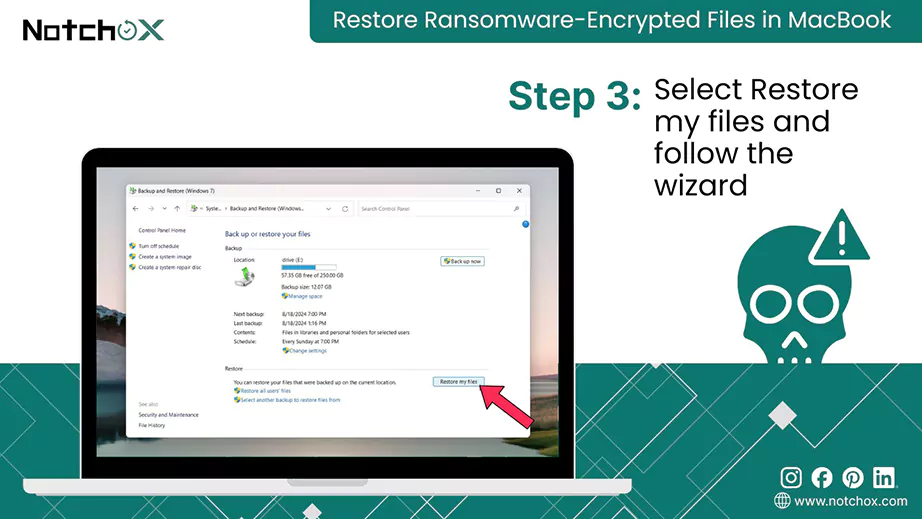
If you used the built-in Windows Backups (connected to OneDrive) or have an external drive backup, use these steps.
Restore via Windows Backup (OneDrive):
Restore from External Drive:
Mac users primarily use Time Machine for both full-time and individual file recovery.
Restore Your Entire Mac (Full System):
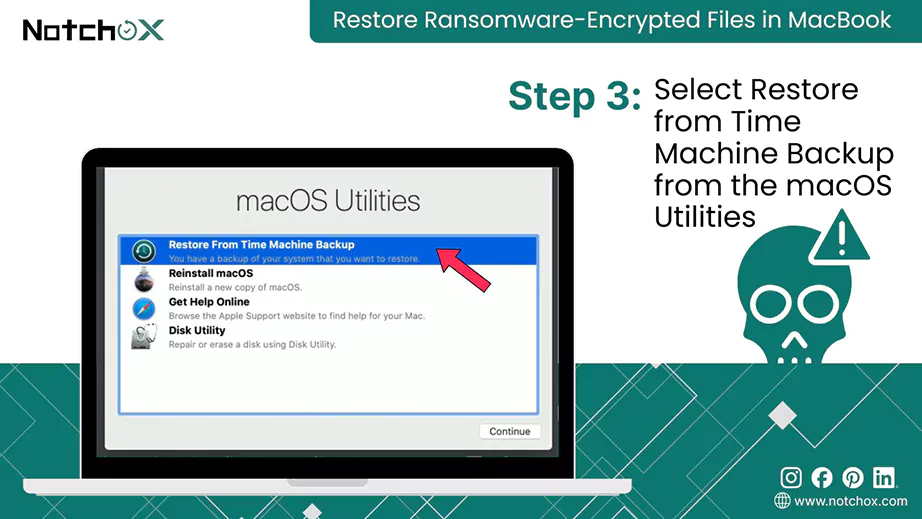
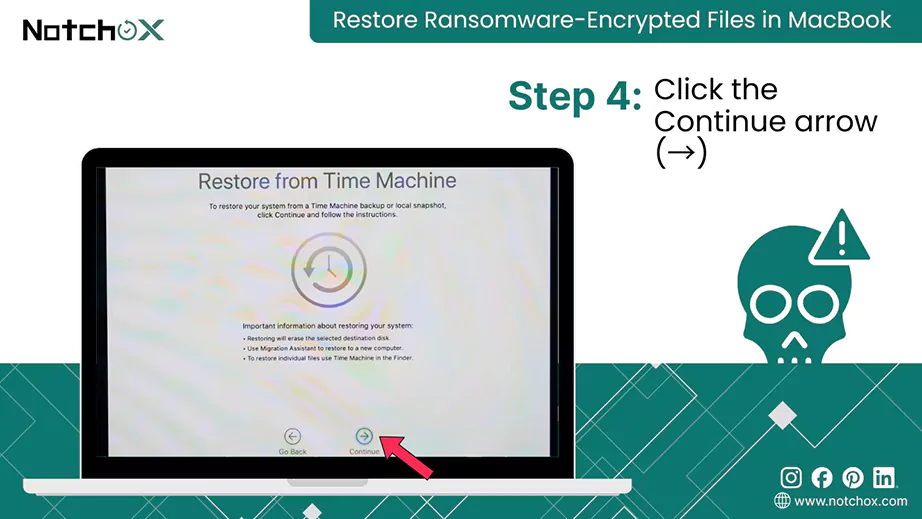
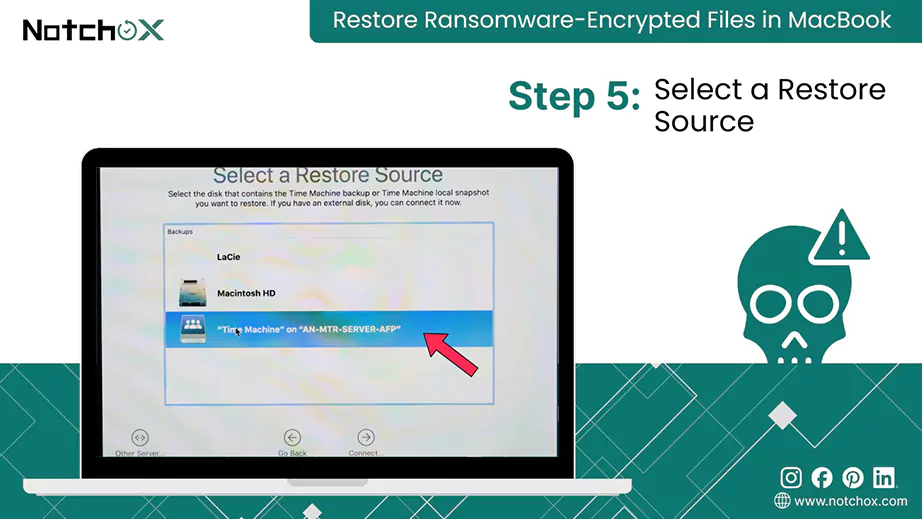
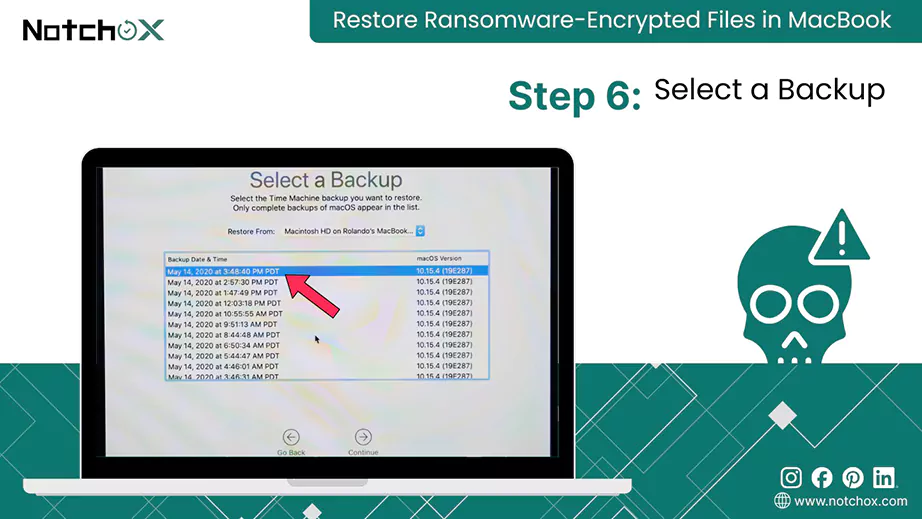
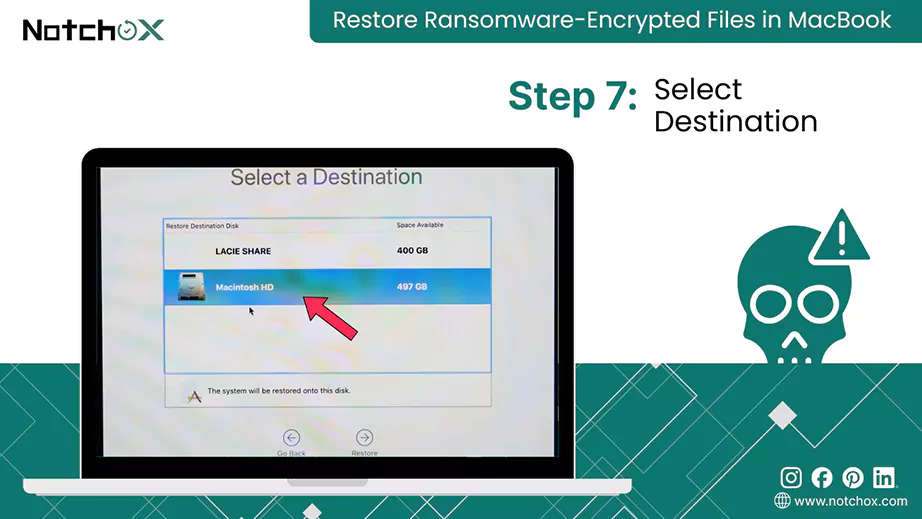
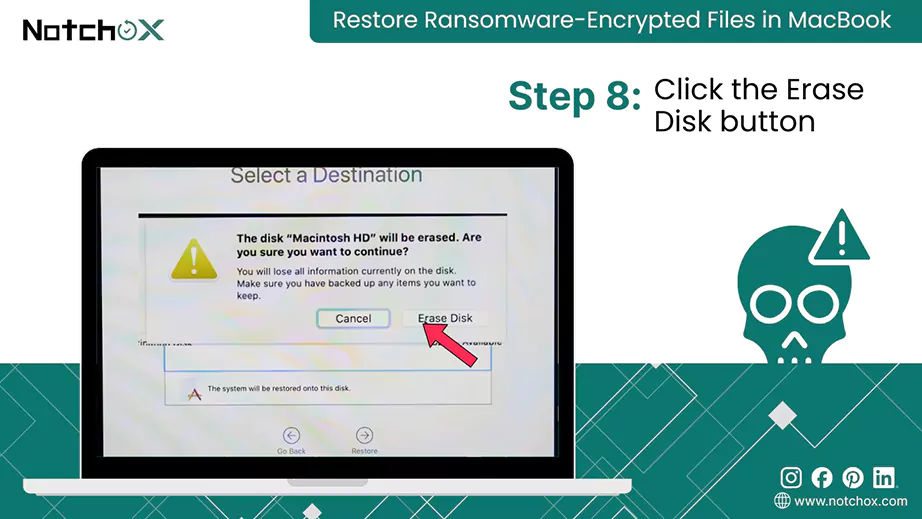
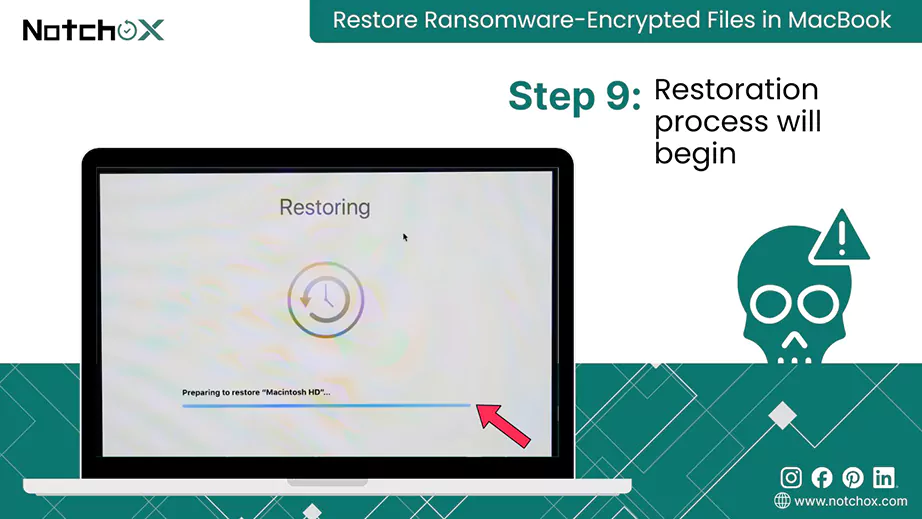
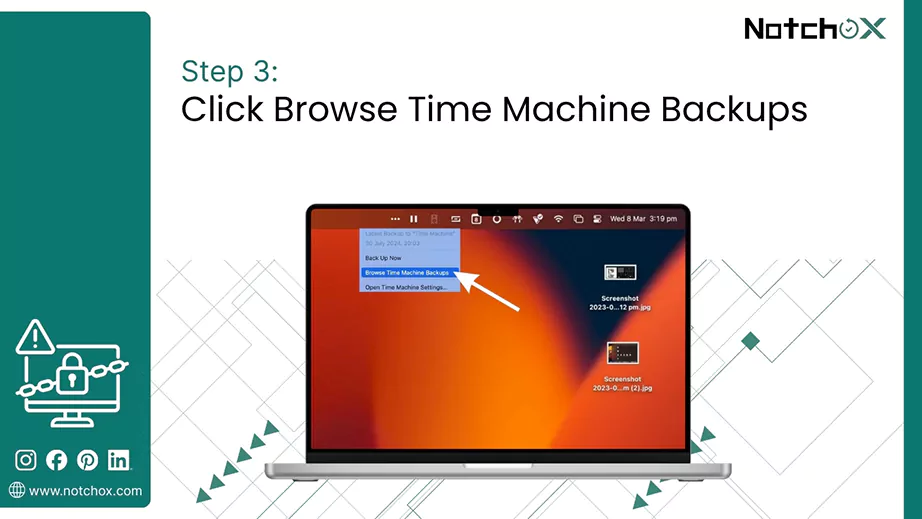
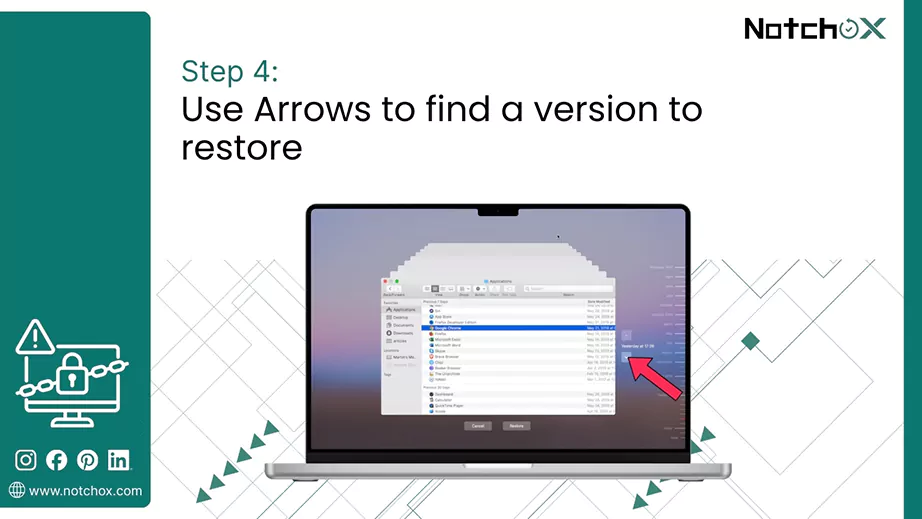
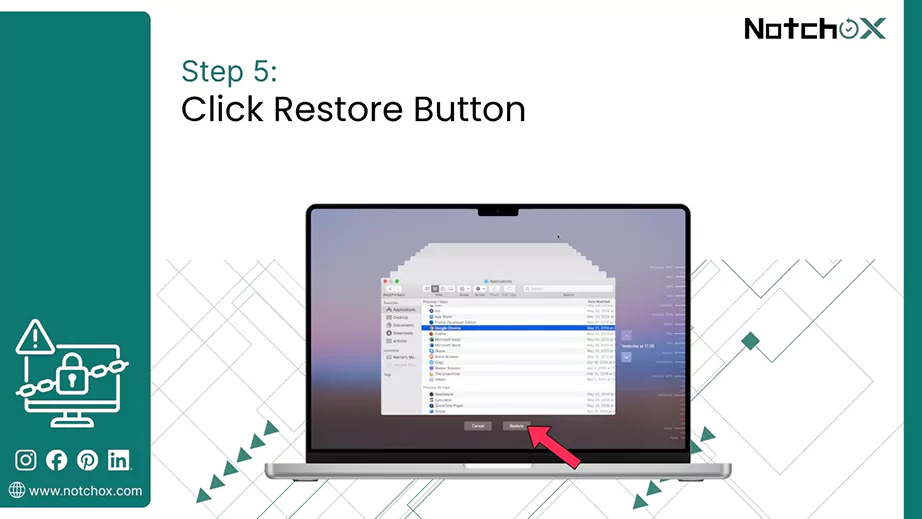
Restore Specific Files Using Time Machine:

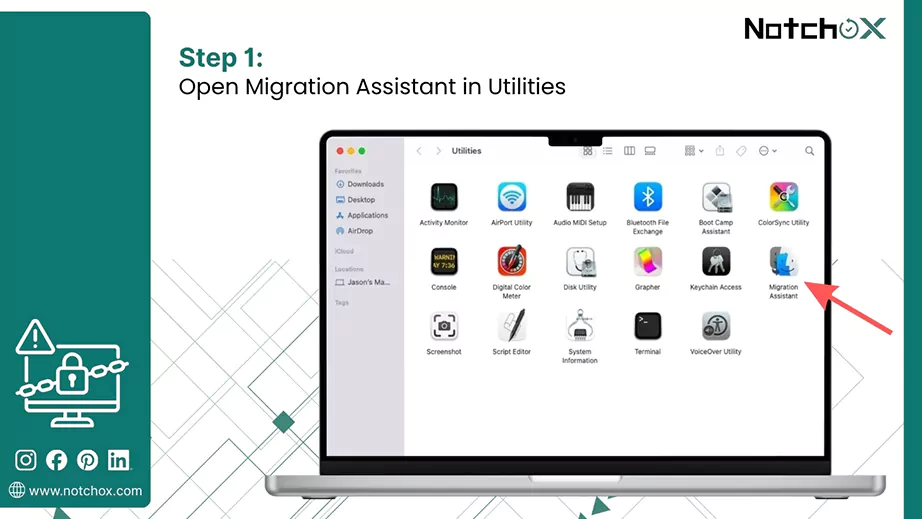
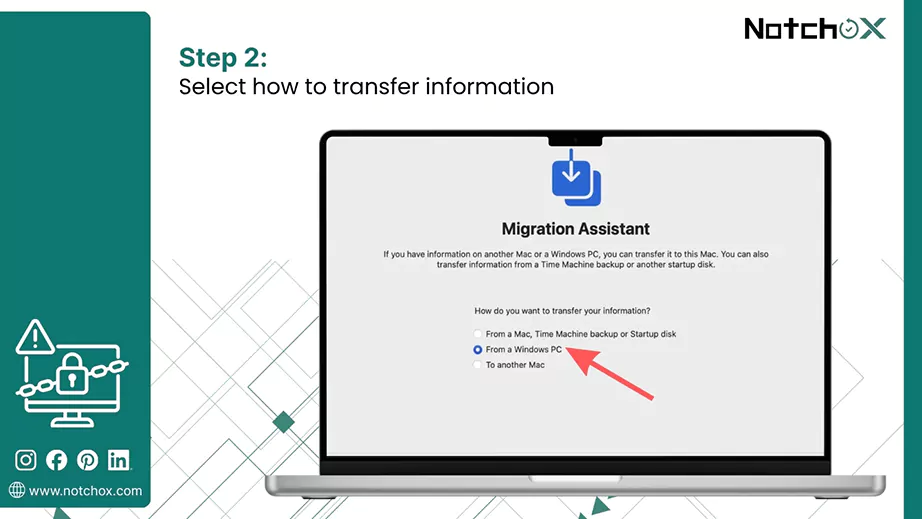
Using Migration Assistant:
To recover files after ransomware attack, search for “Create a restore point” in the taskbar, open it, click System Restore, and search for a date before the infection. This restores system files encrypted by ransomware but may not decrypt personal data. It is best paired with external backups.
Here is a detailed step-by-step process to recover files encrypted by ransomware using Windows System Restore after a Ransomware attack.
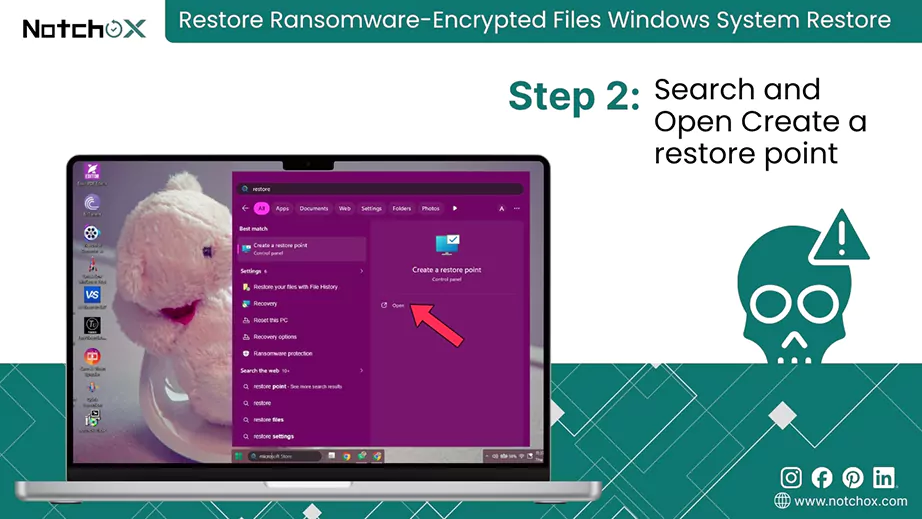
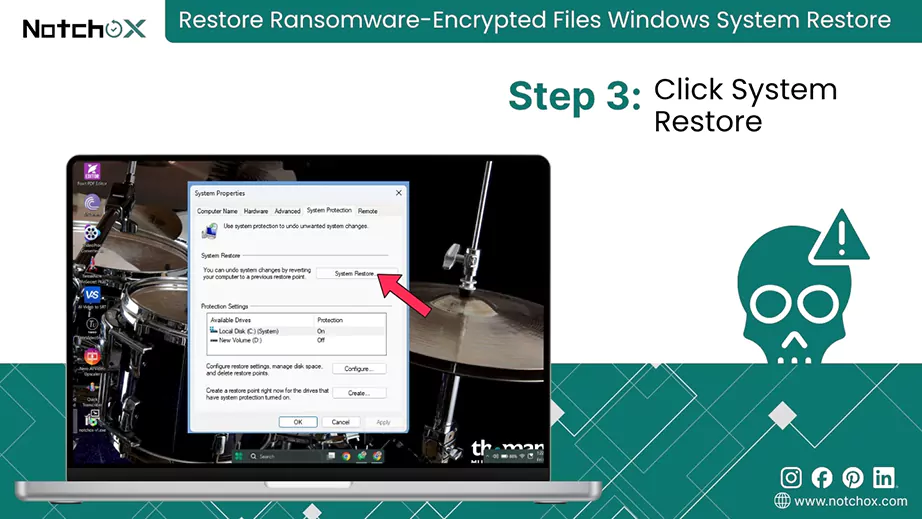
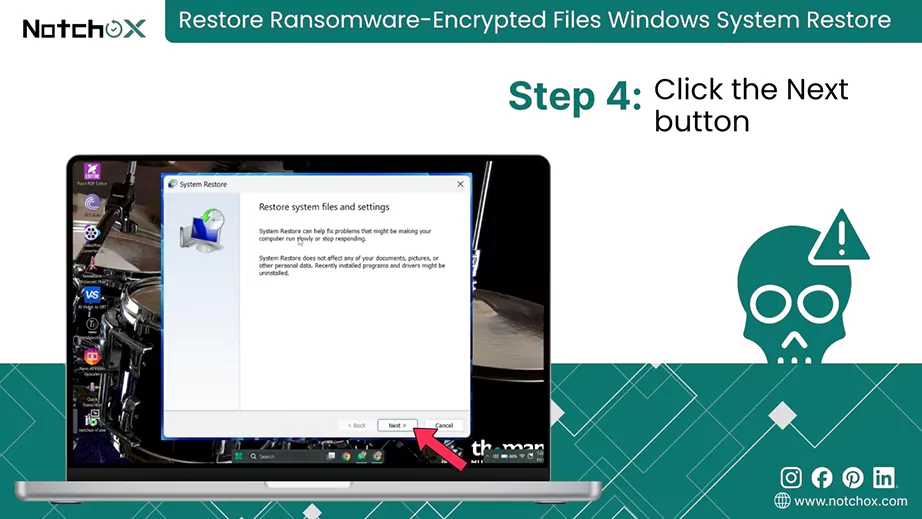
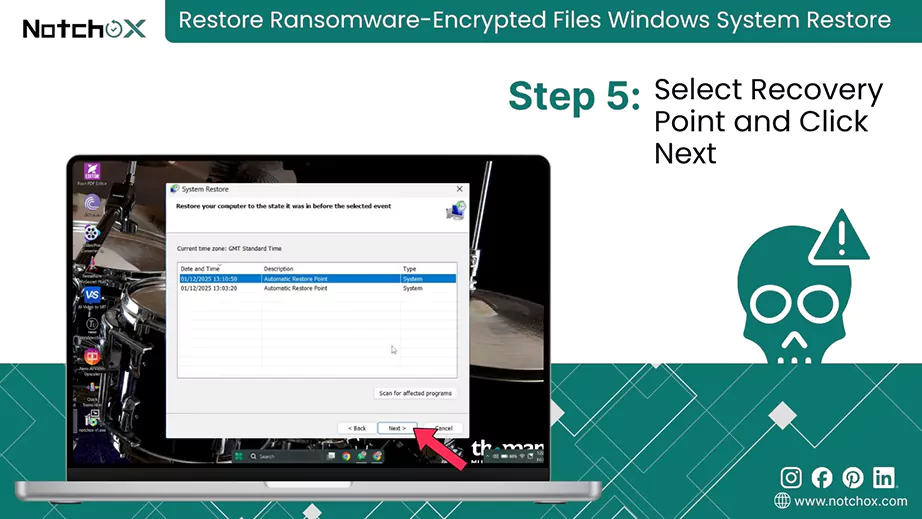
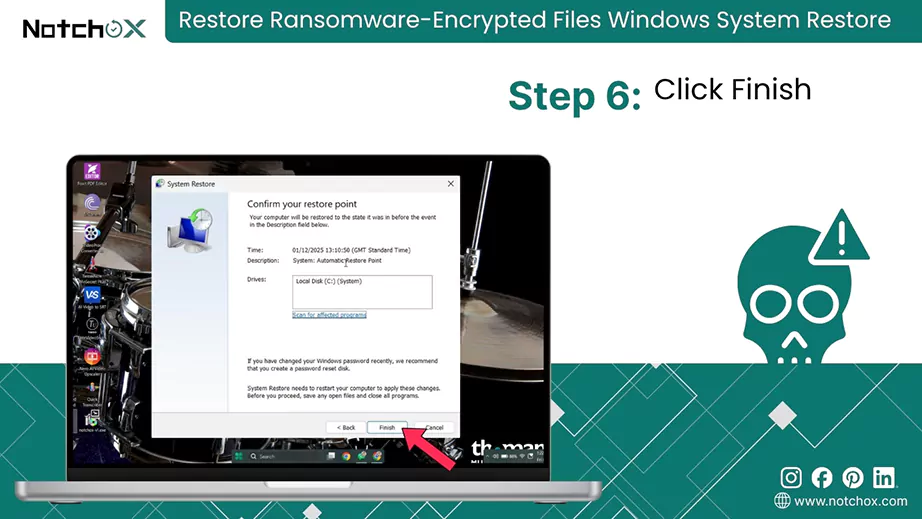
Note: This will reinstall programs removed and uninstall programs added after this date.
Note: Modern ransomware often deletes Windows System Restore points. If the restore fails, you should restore from external or offline backups.
Windows File Versions act as an automatic “Time Machine” for your data. Rather than replacing a file entirely, Windows can be configured to keep older copies of files as they evolve over time.
If you accidentally saved your document or deleted a folder, File History creates a snapshot of the original file. You can roll back to the last good state anytime to get back your data.
Once the system is clean, follow these steps to use these automated snapshots to recover files after ransomware attack:
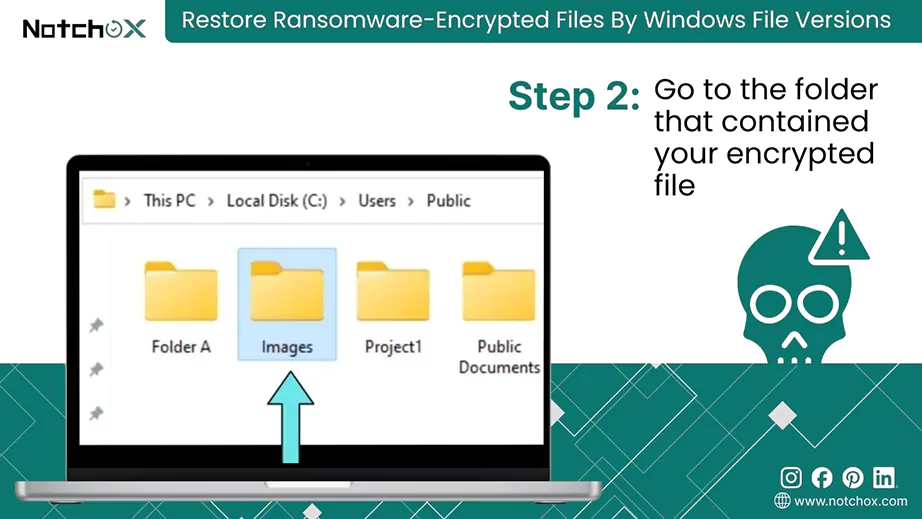
Windows 10: Right-click the folder and select Restore previous versions directly.
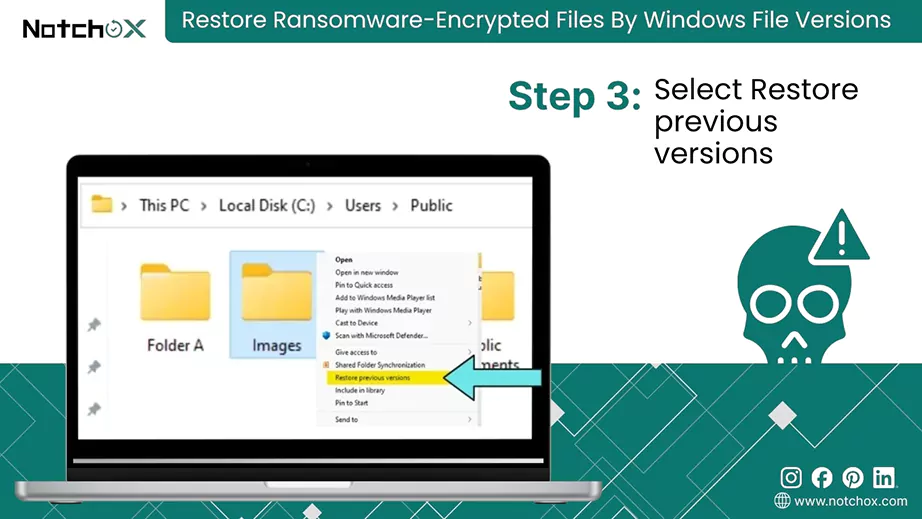
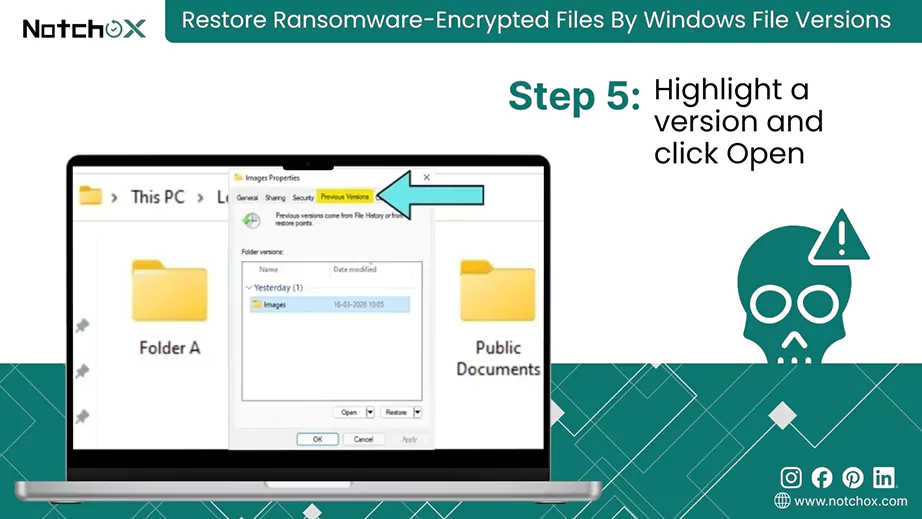
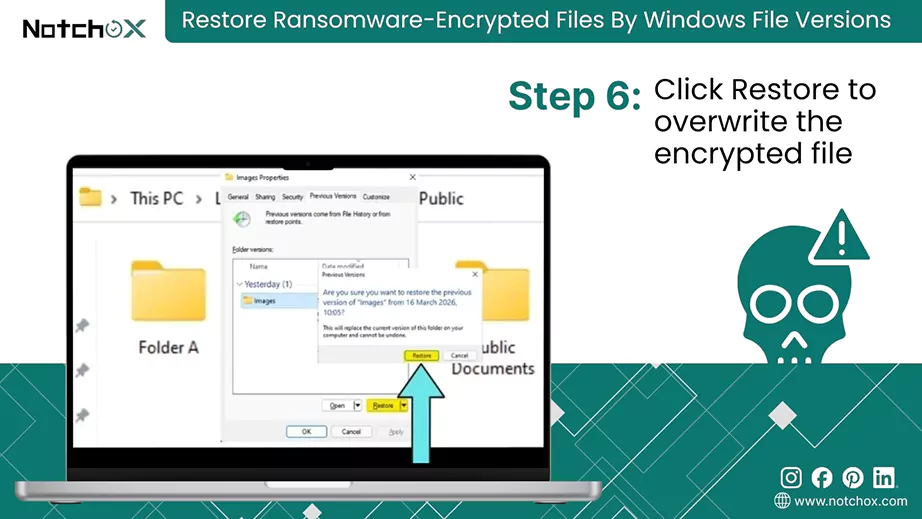
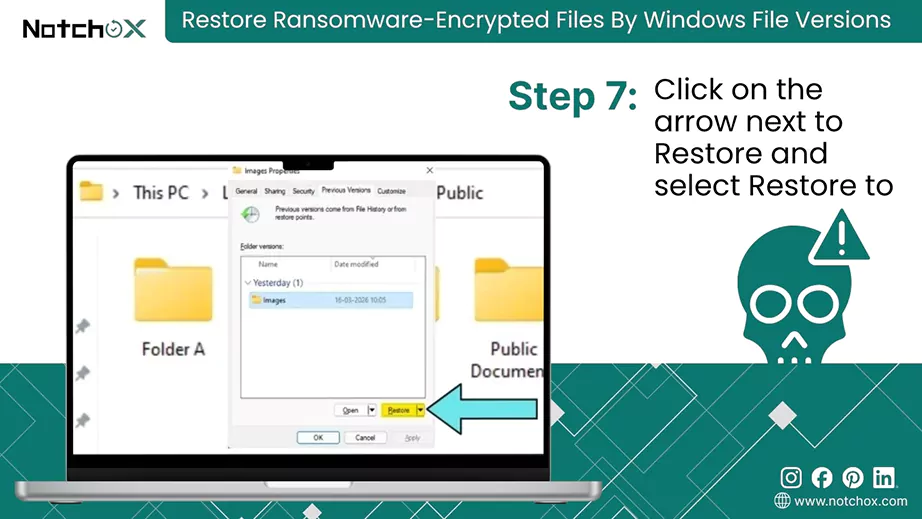
Note: This method only works if File History or System Protection was turned on before the infection.
VPS Deletion: Some advanced ransomware strains specifically target and delete Volume Shadow Copies (the technology behind Previous Versions) to prevent this type of recovery.
If no backup exists or no decryptor is available, protect your files encrypted by ransomware and wait for future developments, as new decryption tools are released over time. Notchox Data Recovery Software, the best tool for ransomware attacks, can help you.
Notchox helps in these scenarios by scanning storage devices for unencrypted remnants of your data or identifying uncorrupted file versions that the ransomware failed to erase completely.
Here is how Notchox data recovery software can help:
Ransomware often makes a copy of a file, encrypts it, and then deletes the original. Data recovery tools can retrieve these original files before they are overwritten.
Ransomware may fail to delete Windows Volume Shadow Copies. Data recovery tools can scan for and restore these uninfected versions.
In cases where ransomware fails to encrypt an entire file due to system interruption or timeout, recovery software can sometimes reconstruct the unencrypted segments of the file.
Advanced software, such as Notchox and R-Studio, can perform a deep scan to reconstruct file structures that have been damaged or fragmented during the encryption process.
Steps to recover data using Notchox Recovery Software:
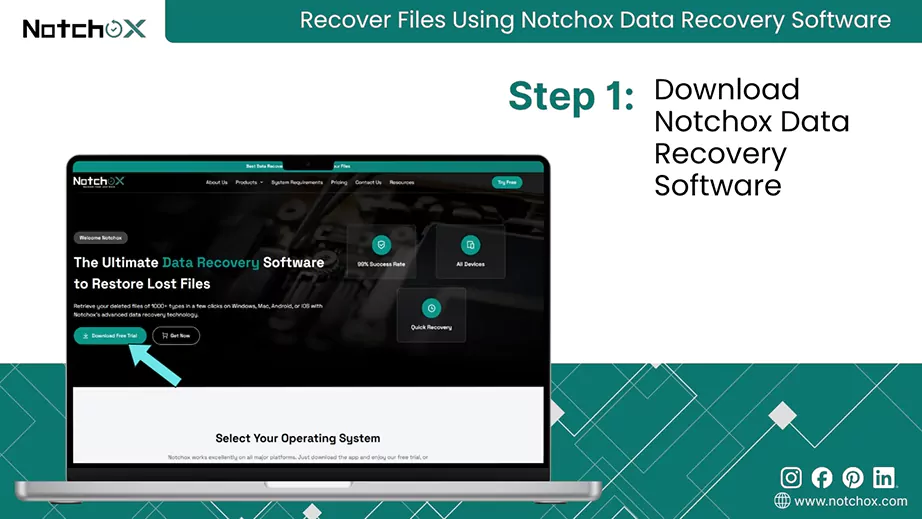
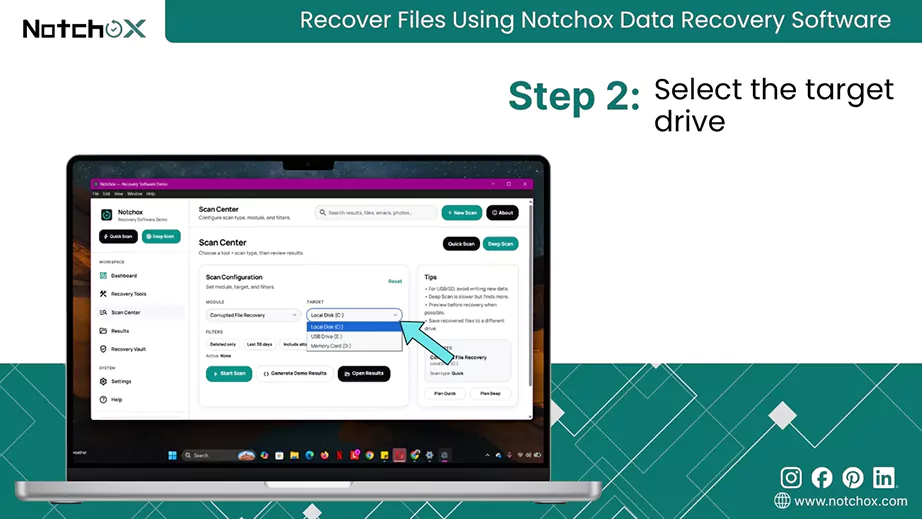
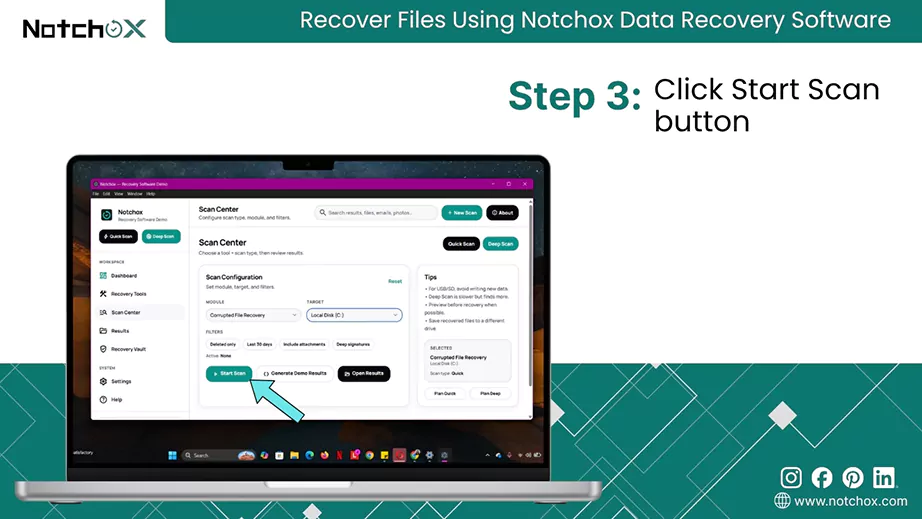
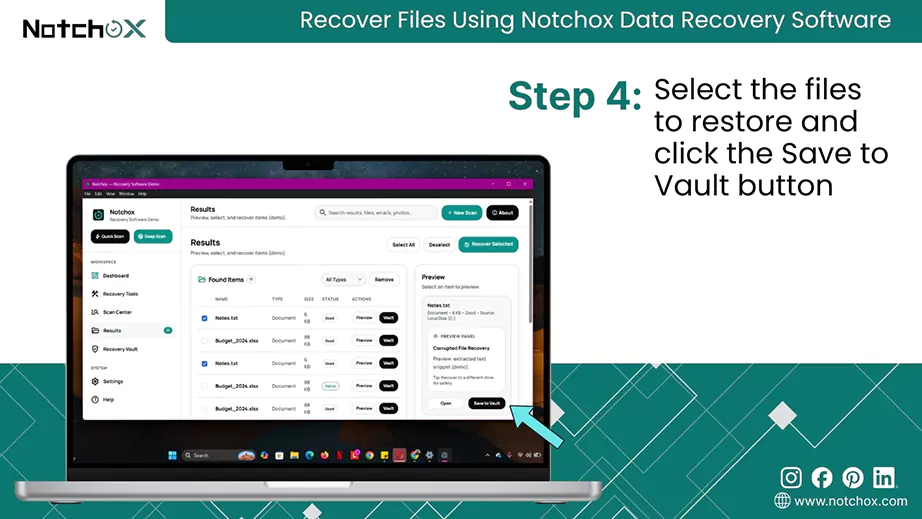
Note: Data recovery software is not a replacement for secure backups and may not succeed against advanced full-stack encryption.
Decryption tools are specialised programs designed to reverse the specific mathematical algorithm used by hackers to lock your files. Unlike general recovery software that hunts for the deleted leftovers, these tools use the known “keys” or vulnerabilities in the ransomware’s code to unlock the encrypted data directly to its original state without paying ransom.
Since every ransomware strain uses a unique signature, you must first identify the specific malware before trying to use a decryptor. Using the wrong one could permanently corrupt your files.
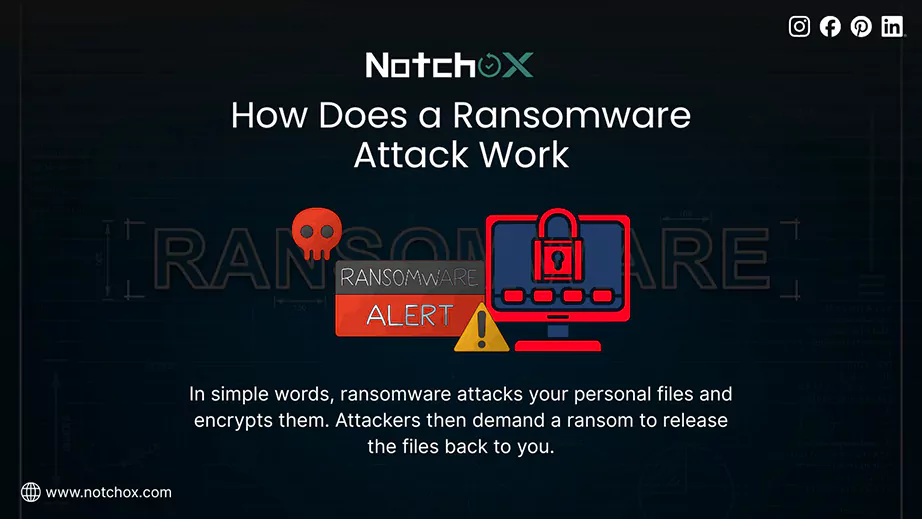
A ransomware attack is a type of malicious software that locks or encrypts your files. Hackers using ransomware make the files unusable and demand payment to restore them. Attackers often enter systems via phishing emails, infected links, software vulnerabilities, etc.
Let’s understand how a ransomware attack works:
Ransomware locks your personal files, and attackers demand payment to give them back. Because hackers rarely guarantee recovery even if paid, the best defence is to always have a backup in a separate, secure place.
While prevention is your first line of defence, recover files after ransomware attack is a challenging process. Whether you are restoring from a backup or utilizing system versions, acting quickly and methodically is important.
By combining robust backups with the right restoration tools, you can restore files after ransomware attack. Stay vigilant, stay backed up, and keep your data within reach with Notchox, the best data recovery software for ransomware attacks.
Ans: If your local backups are hit, check for offline or cloud-based backup. You can also try Shadow Volume Copies in Windows.
Ans: Yes, System Restore is a built-in tool that can rewind system settings to a point before infection. This may help you reclaim your control over the OS. File Version/History, if enabled before the attack, can help you restore previous versions of files.
Ans: Yes, in some cases. When ransomware encrypts files, it often deletes the original and saves the encrypted copy. Software like Notchox and Recuva can find and restore the deleted original unallocated disk space.
Ans: This is typically for “Crypto-ransomware.” It leaves the OS functional so you can see the ransom note and proceed with payment, but it replaces the content of your files with unreadable data.
Ans: No. Our security experts and law enforcement (like the FBI) strongly discourage paying. There is no guarantee you will get your files back, and payment fuels the criminal business model and makes you a repeat target.

Kajal Singh is a Data Recovery Writer at Notchox, specializing in data recovery, storage systems, RAID, and digital forensics. She writes technical processes, tools, and cases into clear, engaging articles, blogs, and guides. Kajal does thorough research, deep analysis, and collaborates with experts to produce high-quality and engaging content that is easy to understand for every reader.