The best way to safely recover data from a corrupted SD card is using Notchox data recovery software. By installing this program onto your primary hard drive, you can scan the storage cells and pull your files to safety. Also, check for any native or cloud backups like Google Drive, iCloud, or OneDrive to see if they have your data saved.
For Windows users, the Windows File Recovery tool can be used to restore the native backup (if enabled) without any cost. Following, in the blog, we will see steps for each of these methods to recover data and repair the corrupted SD card one by one.
Quick Answer: If your screen shows an error and your SD card is corrupted, use Notchox data recovery software to restore the data first because this tool goes straight to raw storage cells to find the missing data and extracts it safely.
This recovery phase saves your data when your SD card suddenly reads “RAW,” demands formatting, is not at all detected by your device, or is affected by issues like virus attacks and software glitches.
To make sure you have every possible way covered, we are going to see three different data rescue tracks. First, we will see how the best data recovery software provides successful data recovery from corrupted SD card. Next, we will see how backup can be restored. Finally, we will uncover Microsoft’s official Windows File Recovery tool. Let’s walk through how to use each method safely.
Method 1: Notchox Data Recovery Software
When you want faster, no-hassle recovery, professional data recovery software is your ultimate solution to recover data from corrupted SD card. This specially designed software bypasses file system corruption to read the raw data sectors directly. So whether you have a RAW SD card or a corrupted one, data recovery software is always there to back you up. Notchox data recovery software is the most reliable tool to recover data from RAW SD card, HDDs, laptops, mobile devices, etc.
Step-by-Step Data Recovery Using Notchox:
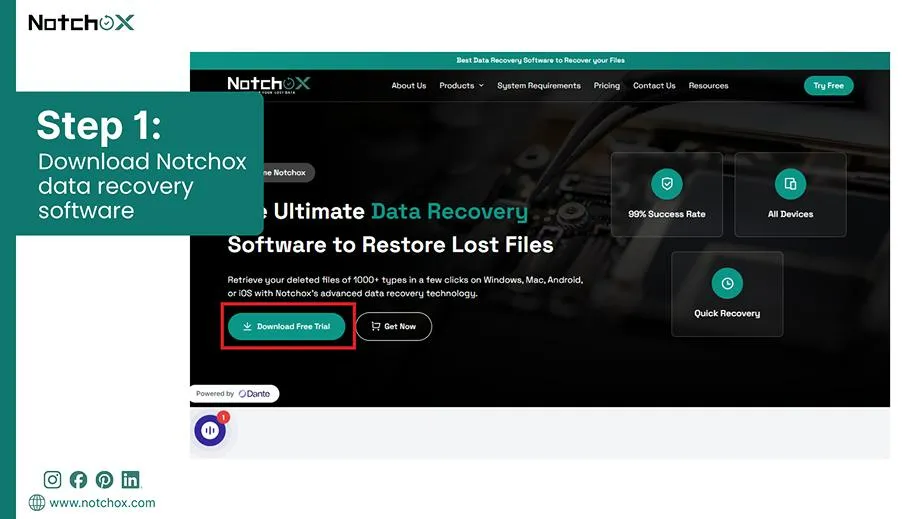
Download and install Notchox data recovery software on your computer’s hard drive. Never install it onto the corrupted SD card itself.
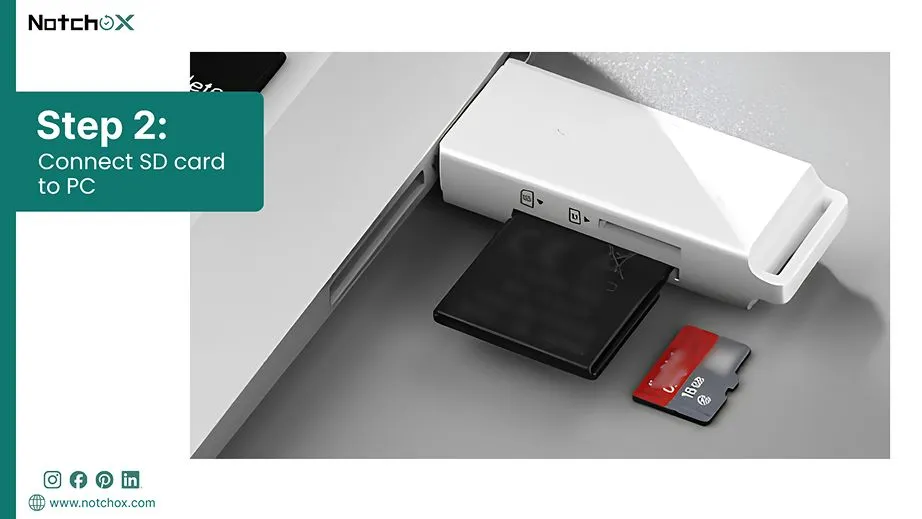
Connect your SD card using a USB reader port.
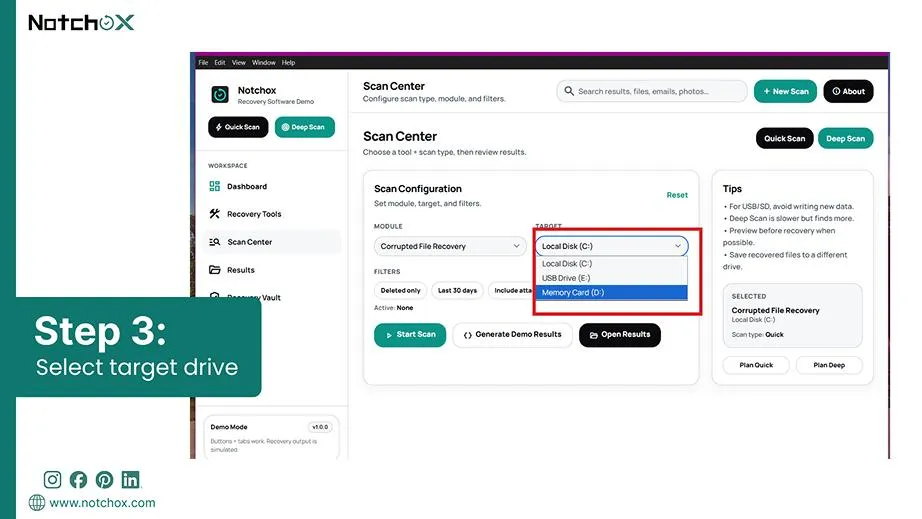
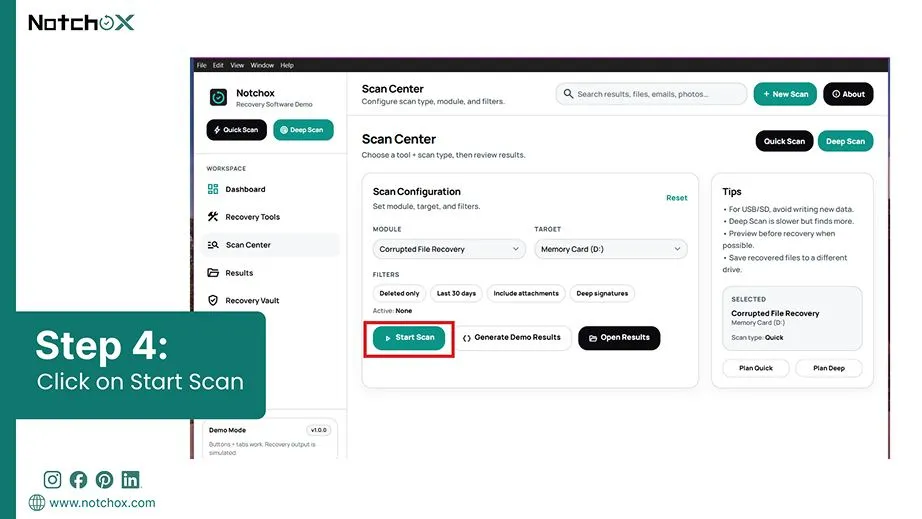
Launch the software and select your connected SD card as the target drive to scan
Click the Start Scan button and initiate a deep search for lost partitions and files.
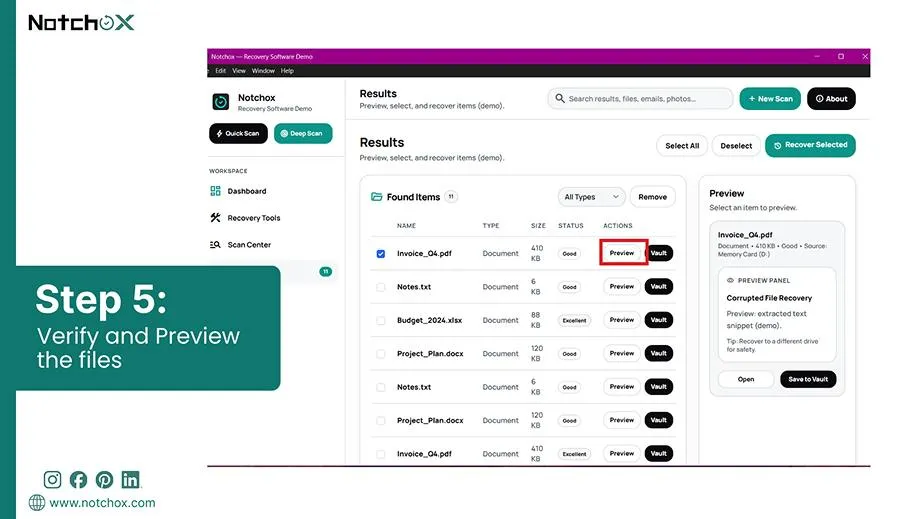
Preview the recovered files once the scan finishes to verify they are intact and readable.
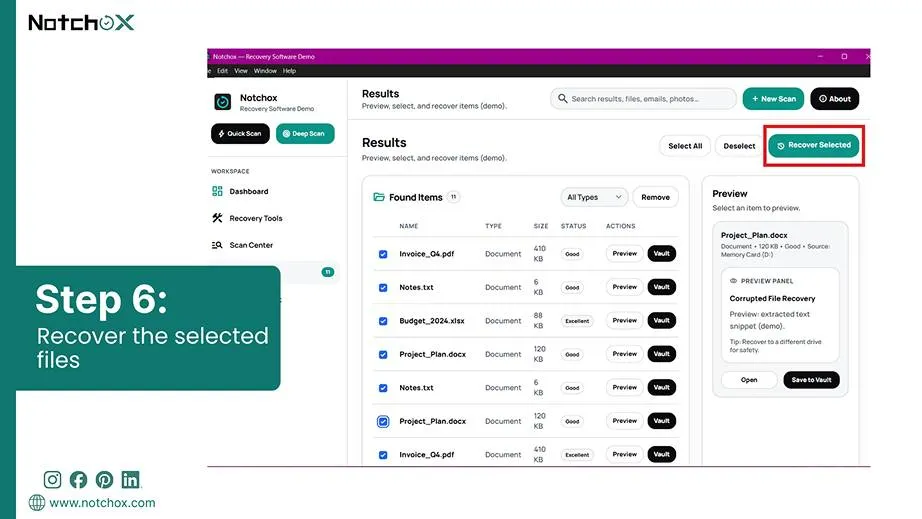
Select the file to be recovered and click the Recover Selected button at the top.
Method 2: Checking for Hidden Backups
Before you spend money on premium software, you might already have a secure way to recover the data. This is the backup. Well, chances are lost that you backed up your external SD card to a PC. But if yes, you can claim your lost data instantly.
Recover Data from Corrupted SD card’s Backup:
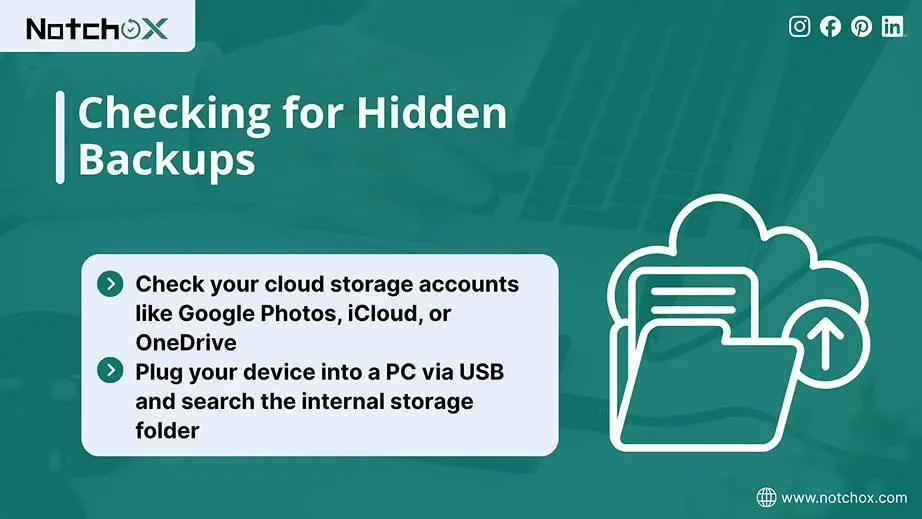
Check your cloud storage accounts like Google Photos, iCloud, or OneDrive to see if your files auto-synced before the corruption happened.
Plug your device into a PC via USB and search the internal storage folder for temporary app caches or duplicate preview folders.
Method 3: Using Windows File Recovery (Free Command Line Tool)
Windows File Recovery is Microsoft’s official, free command-line tool designed to recover lost data. It is available on Windows 10 and 11. It is used directly when an SD card becomes unreadable, RAW, or suffers accidental formatting.
Note: You should use it right after data loss occurs, provided the PC still recognises the card’s drive letter.
Here’s how to recover data from corrupted SD card using Windows File Recovery.
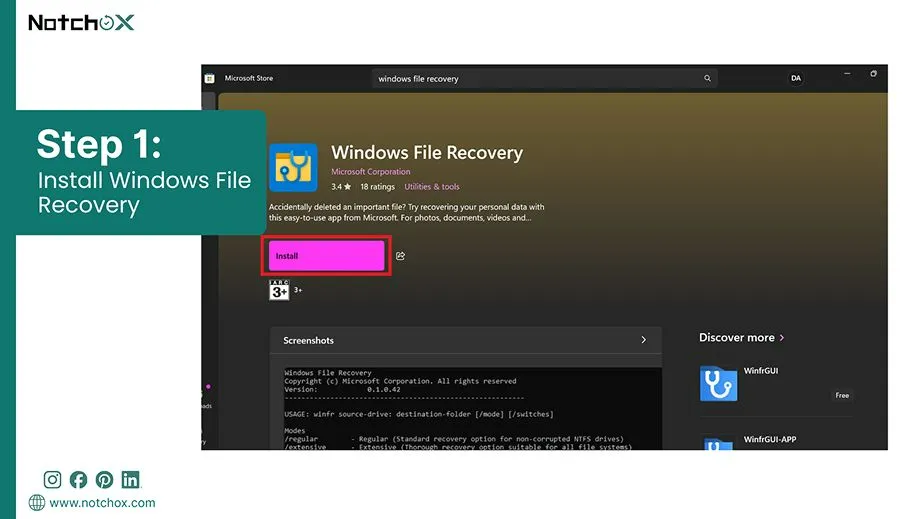
Download and install Windows File Recovery from the official Microsoft Store.
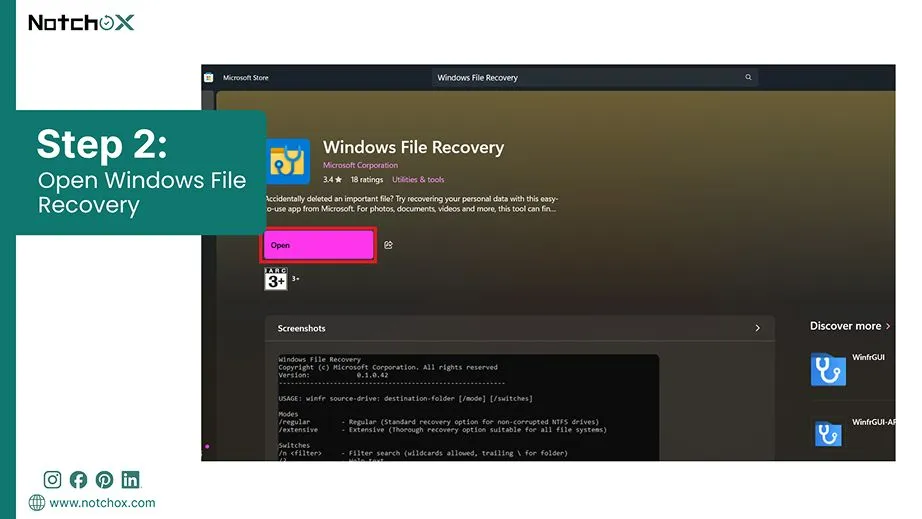
Open the app or type cmd in your Start menu, right-click Command Prompt, and choose Run as Administrator.
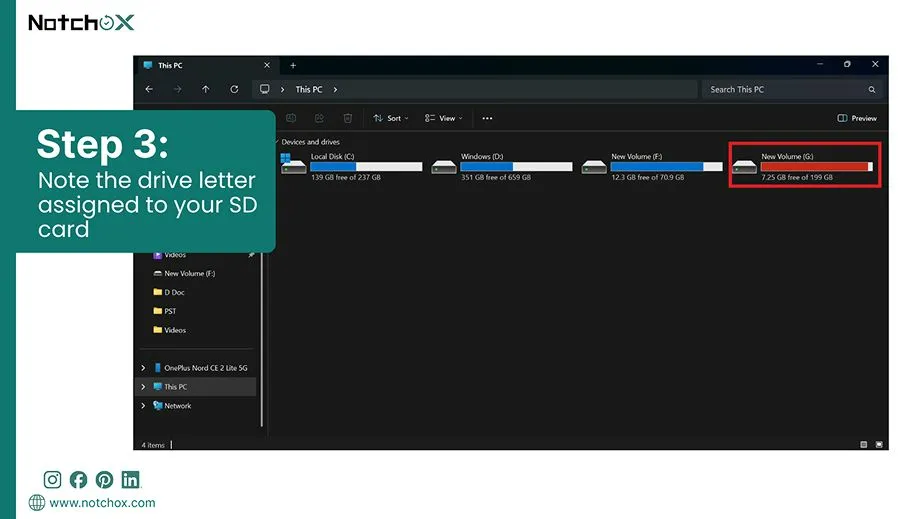
Identify your drive letters by checking “This PC” to see which letter is assigned to your SD card (like E: ) and your local drive (like C:).
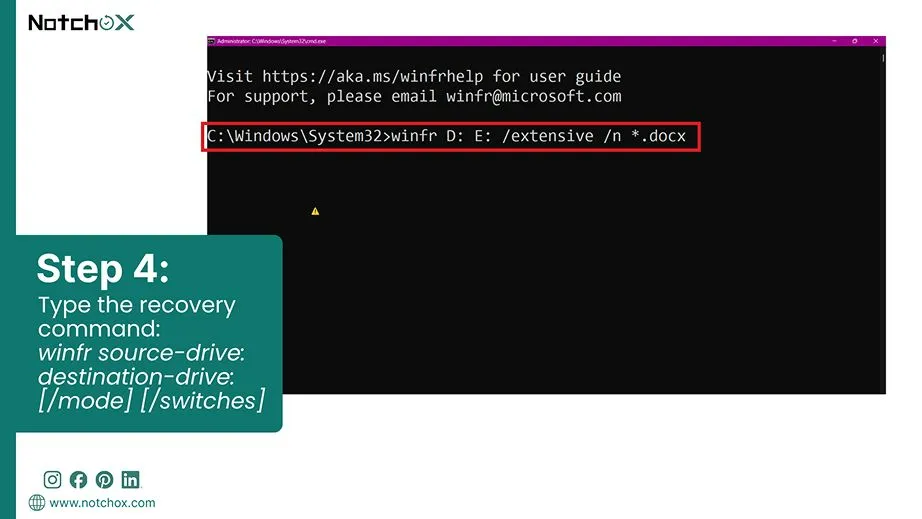
Type the recovery command using regular mode or extensive mode:
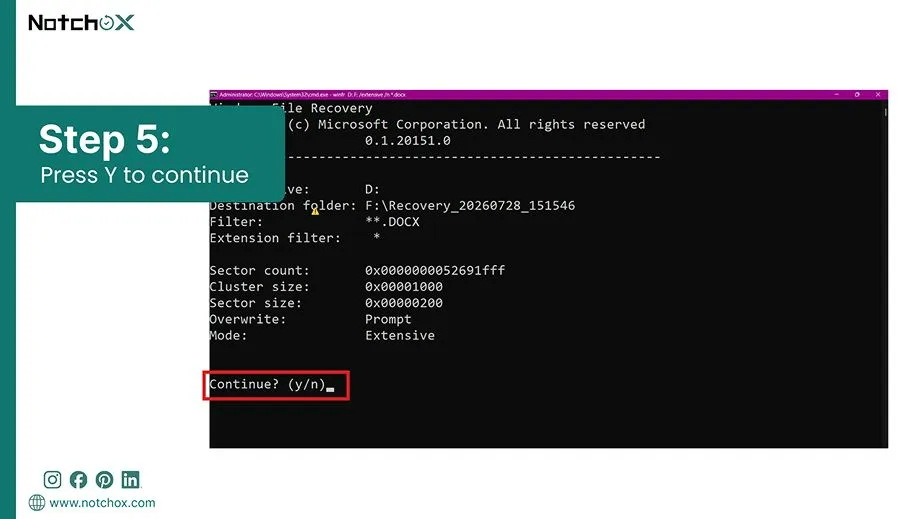
Press Enter and type Y when prompted to start the scanning and carving process.
Open the destination folder automatically created on your computer drive to view and verify your recovered files.
Note: Always create a byte-to-byte backup before running software scans because this process creates your entire card into a safe file, letting recovery tools scan the copy without overwriting.
How to Recover Data from Corrupted SD Card Without Data Loss
Trying to fix a corrupted memory card before securing its content is the fastest way to lose your files forever. In situations where the SD card shows an error, the underlying data is usually still safe, but the file directory system is broken. Using tools to fix the SD card before recovering the data might lead to permanent data loss.
Why Must You Recover Data Before Attempting Any Repairs?
Running built-in system repair tools like Windows CHKDSK or First Aid might seem like a smart first step, but these tools are designed to save the file system structure, not your individual files. They work by scanning the drive for logical errors and forcing the card back into an operational state.
File Stripping: Repair tools delete pieces of corrupted files that do not perfectly align with the system’s logic.
System Rewrites: The repair process forces the card to write new data blocks. This corrupts raw file structures.
Forced Directory Wipes: Tools clear out the entire Index File Directory to restore card readability. As a result, the SD card becomes completely empty.
The Risk of Permanent Data Overwriting
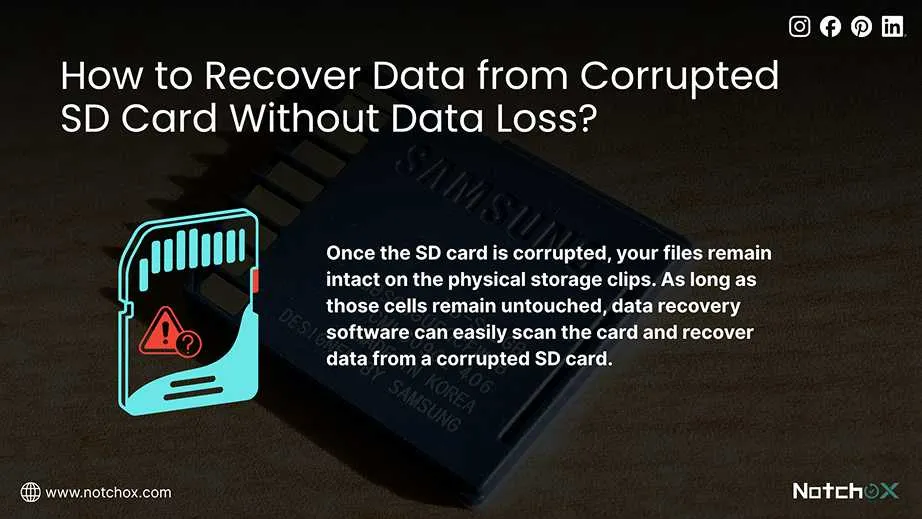
Once the SD card is corrupted, your files remain intact on the physical storage clips. The card just lost its map to find them. As long as those cells remain untouched, data recovery software can easily scan the card, find the raw file signatures, and recover data from a corrupted SD card.
But if you start clicking buttons or executing fixes without recovering data safely, you might start an irreversible process called overwriting. Because the system views the corrupted space as free, it will write this new information on top of your old files, destroying them forever.
Once a file is physically overwritten for any reason, it is permanently gone. No amount of lab work can reconstruct data that has been overwritten.
This is why securing your data first is an absolute necessity.
Diagnosing the Issue: Physical vs Logical Damage
Now that you have recovered the data using the above methods, it is time to figure out what went wrong with your card. Memory card failures generally fall into two types: logical glitches or physical damage.
Knowing this and identifying a card reader vs device fault prevents you from wasting hours running software scans on a snapped or broken card. Let’s look at the clear warning signs to identify what kind of failure you are dealing with.
Scenario 1: Connection Issues
Before assuming your card is broken, you must check the connection between the SD card and the machine. The gold metal contacts on the back of the SD card can collect oils from your fingers or dust over time, which blocks the electric current.
Similarly, cheap USB card readers or worn-out computer ports make it difficult to read the SD card.
Tip: Wipe the gold pins gently with a microfiber cloth and a drop of isopropyl alcohol, then plug it into a different USB port or device.
Scenario 2: Logical Corruption
Logical corruption occurs when the card’s physical hardware is perfectly fine, but its digital architecture is what has the problem. This mostly happens when the card is abruptly pulled out of the camera or PC, or if the device loses battery mid–save.
Because the file allocation table gets scrambled, the OS is now unable to read the data structure.
Scenario 3: Physical Damage
Internal flash memory chips or the external casing have suffered some mechanical issue, meaning there is physical damage to the SD card. Though built strongly, an SD card can crack under pressure or heat. Also, the internal memory components have a finite lifespan and will eventually burn out after thousands of read-write cycles.
How to Repair the Corrupted SD Card?
With your files safely recovered, now we can proceed to fixing the corrupted SD card. Here are the five progressive, powerful repair methods, starting with basic everyday troubleshooting. In case you don’t have anything important on the SD card, you can format it, making a fresh new empty card ready for use.
Let’s revive your SD card now.
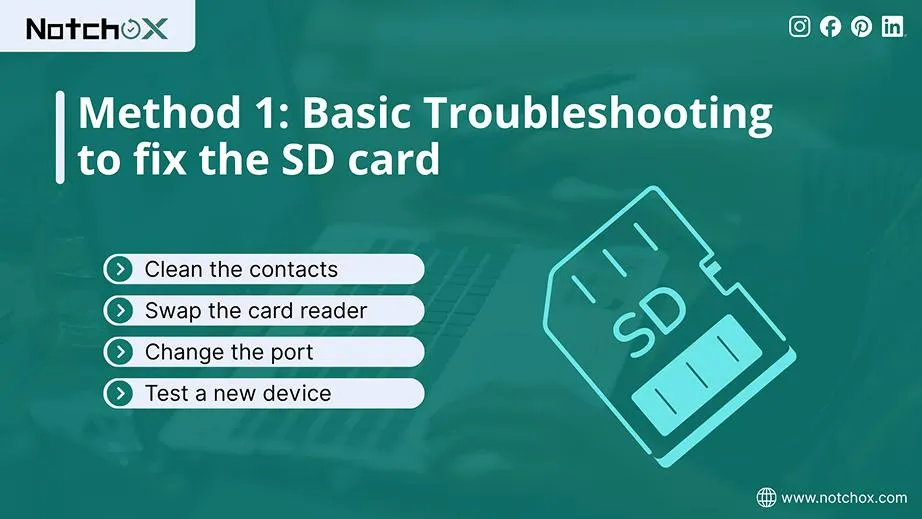
Method 1: Basic Troubleshooting
Let’s start with the basic troubleshooting that is to fix the connection issues.
Clean the contacts: Use a microfiber cloth with a drop of 90% isopropyl alcohol to wipe the gold pins clean.
Swap the reader: Low-quality card adapters burn out quickly. Try a premium external USB-C reader instead.
Change the port: Try a different port on the device. And if trying on a PC, plug directly into the motherboard at the back.
Test a new device: Plug the SD card into a different computer or camera and check if the issue lies with the SD card or your system settings.
Method 2: Assigning a New Drive Letter in Disk Management
Your SD card may be completely healthy, but Windows may get confused and forget to give it a pathway to show up in File Explorer. This pathing issue happens frequently when you mix devices like cameras and PCs. By using Disk Management for drive letter assignment, you can manually assign a fresh drive letter. This way, Windows recognizes the storage volume.
Steps for Drive Letter Assignment to the SD Card:
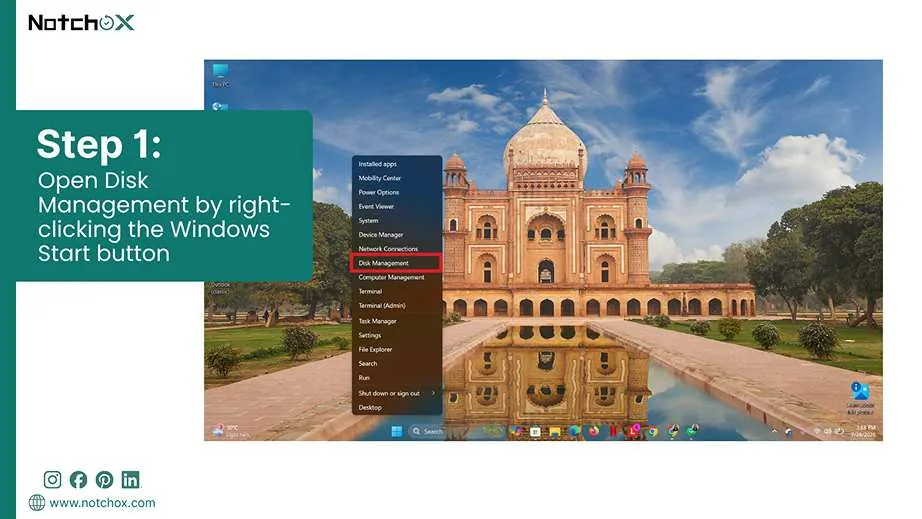
Open Disk Management by right-clicking the Windows Start button and selecting Disk Management from the Power User menu.
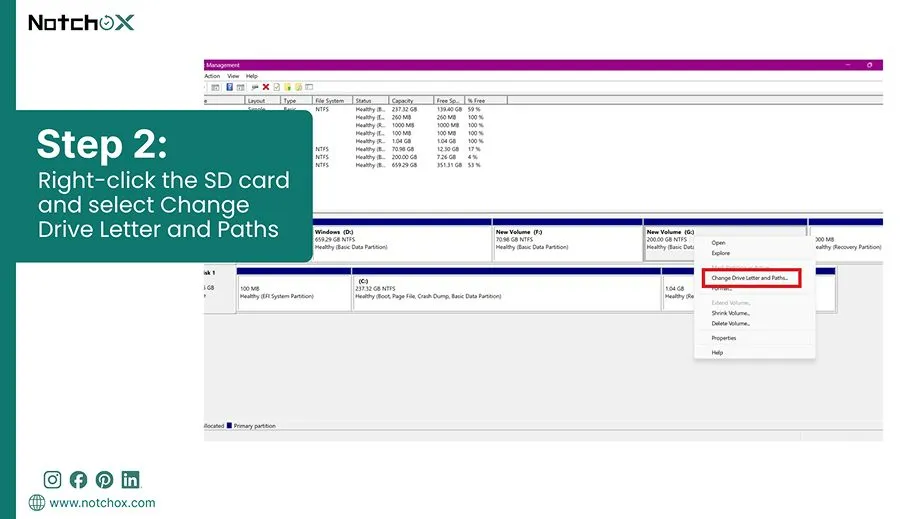
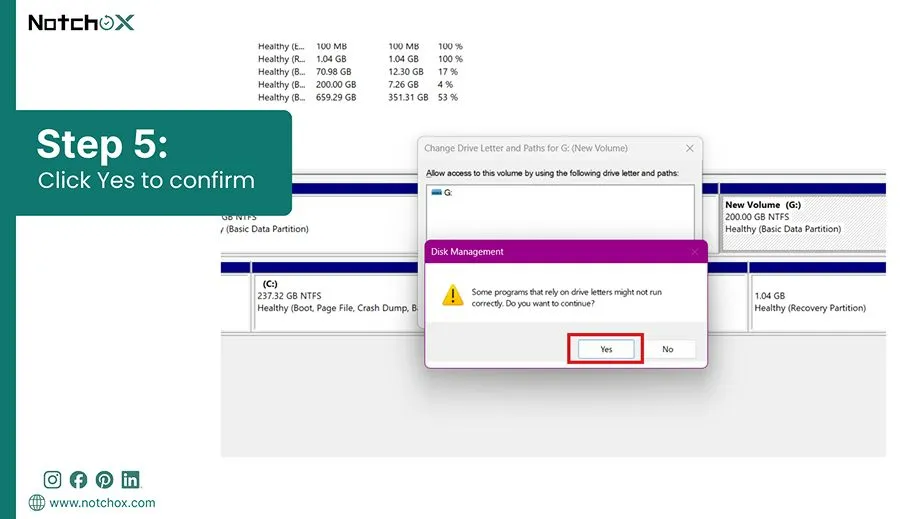
Right-click the SD card (the long rectangular bar showing the storage drive) and select Change Drive Letter and Paths.
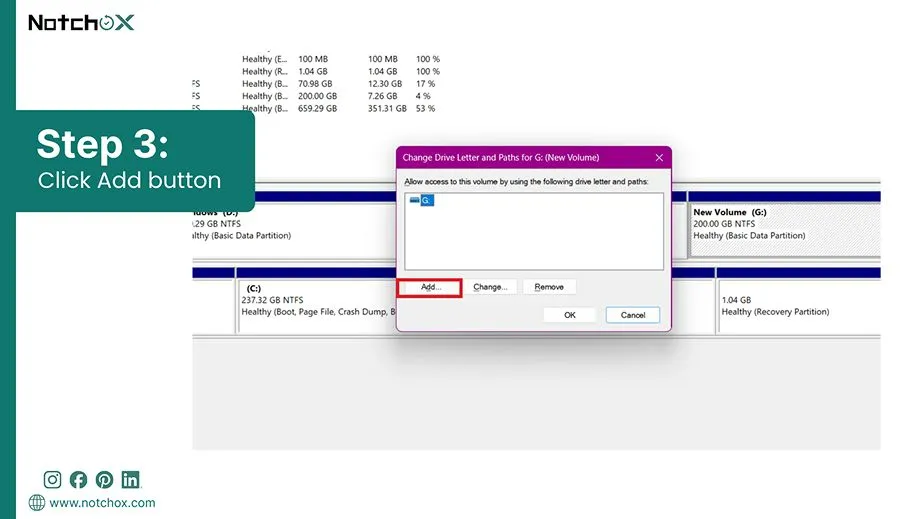
Click the Add button (or click Change if it already has an incorrect letter assigned to it).
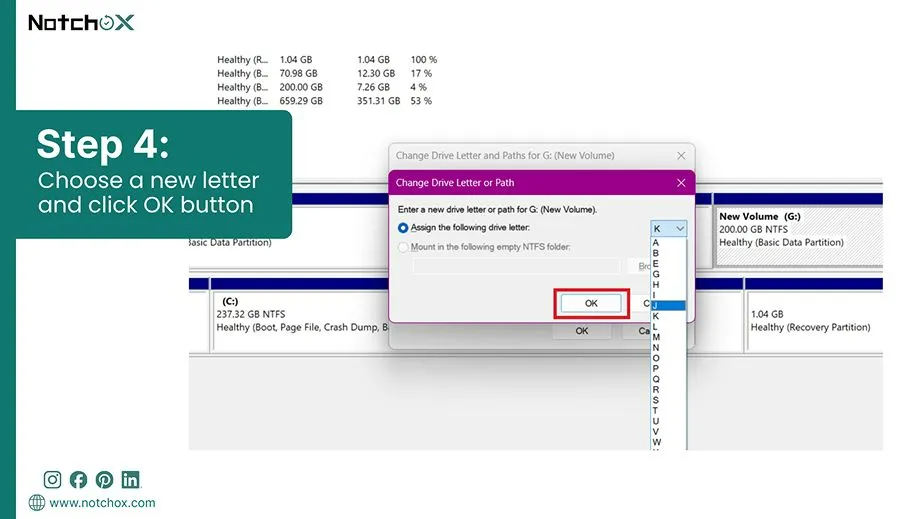
Choose a new letter from the drop-down menu and click OK to save changes.
Confirm any system prompts. Then open “This PC” to access your SD card volume.
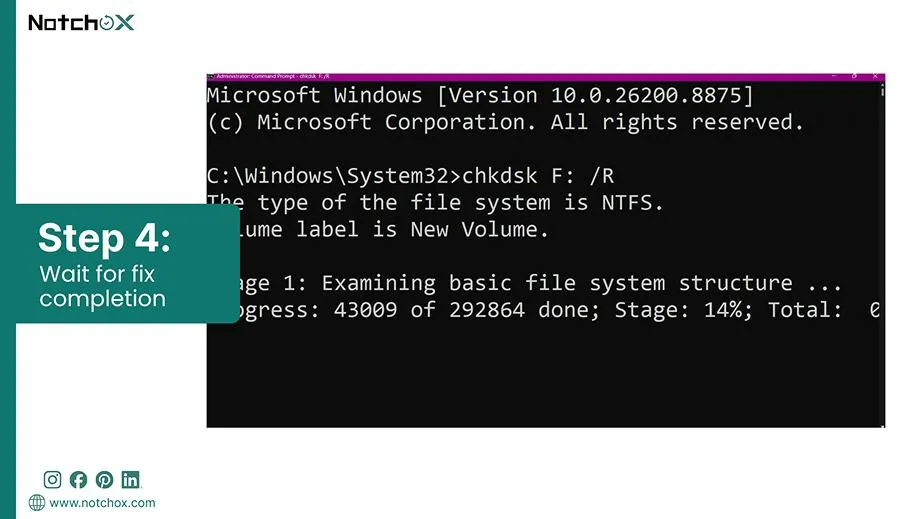
Method 3: Running Windows CHKDSK to Fix File System Errors
If your SD card is unreadable or shows up as “RAW,” the Windows CHKDSK tool must be your go-to option because it deep scans the structural integrity of your volume and automatically repairs any bad sectors. So your computer can access and read the SD card correctly.
How to Use CHKDSK to Fix a Corrupted SD Card:
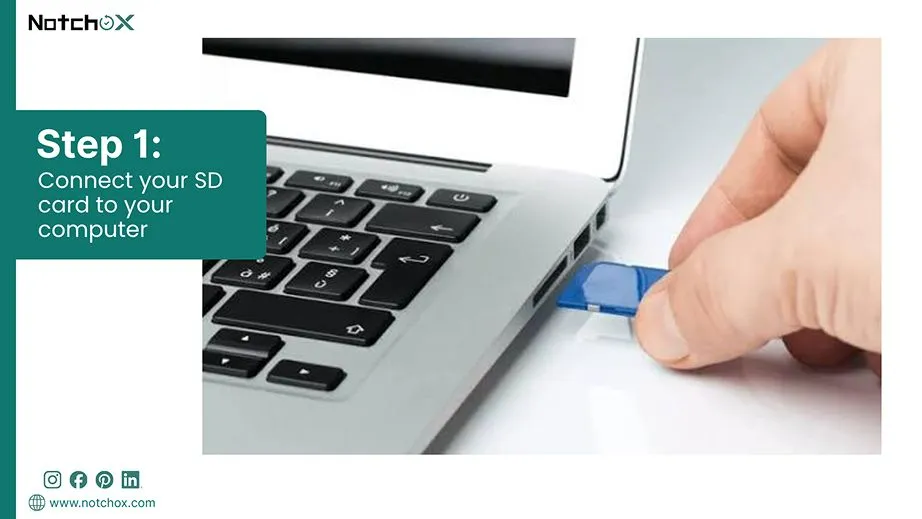
Connect your SD card to your computer using a working card reader.
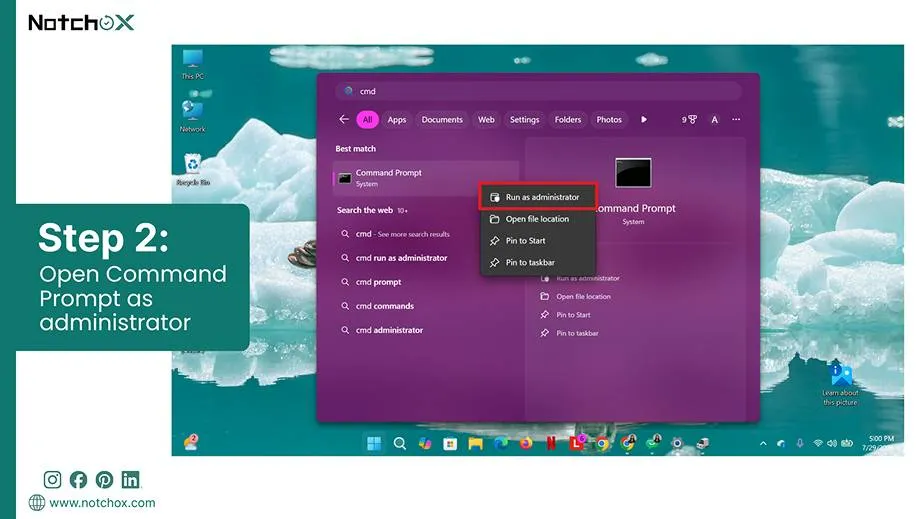
Search for cmd in the Windows Start menu, right-click Command Prompt, and select Run as administrator.
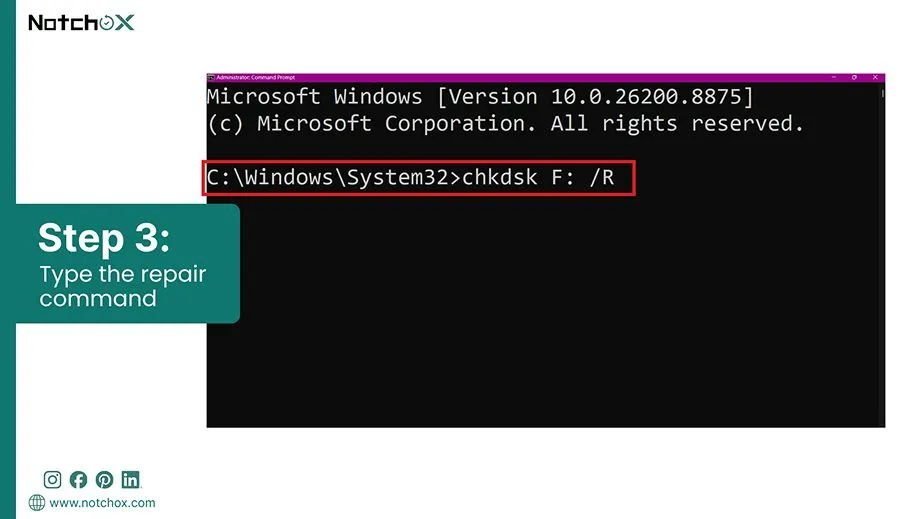
Type the repair command and press Enter:
chkdsk X: /R
(Make sure to replace X: with your actual SD card letter)
Wait for completion without unplugging the SD card. Then check if your SD card opens normally in File Explorer.
Method 4: Using the Windows Error Checking Tool
If you prefer to avoid typing commands into terminal windows, the Windows Error Checking tool is the best graphical alternative to CHKDSK. It is built right into the standard Windows operating system layout.
Here’s How to Fix a Corrupted SD card using the Windows Error Checking Tool.
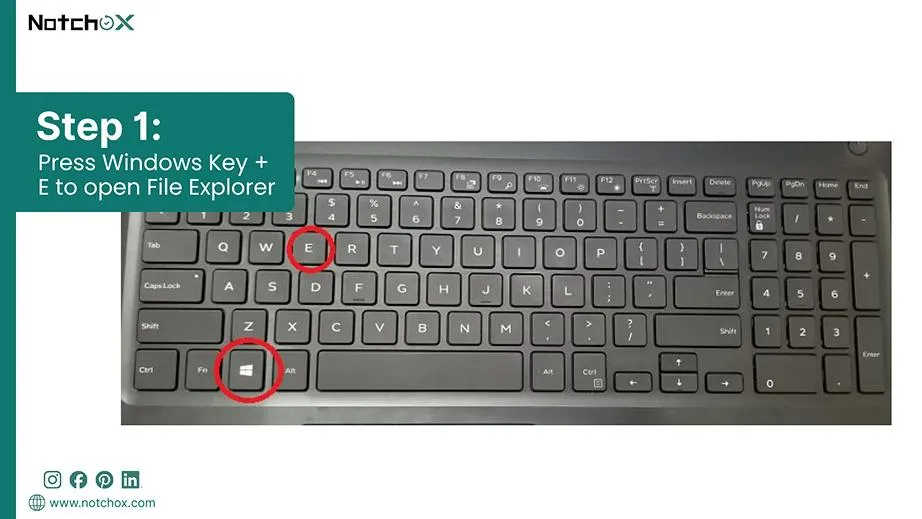
Open File Explorer by pressing Windows Key + E.
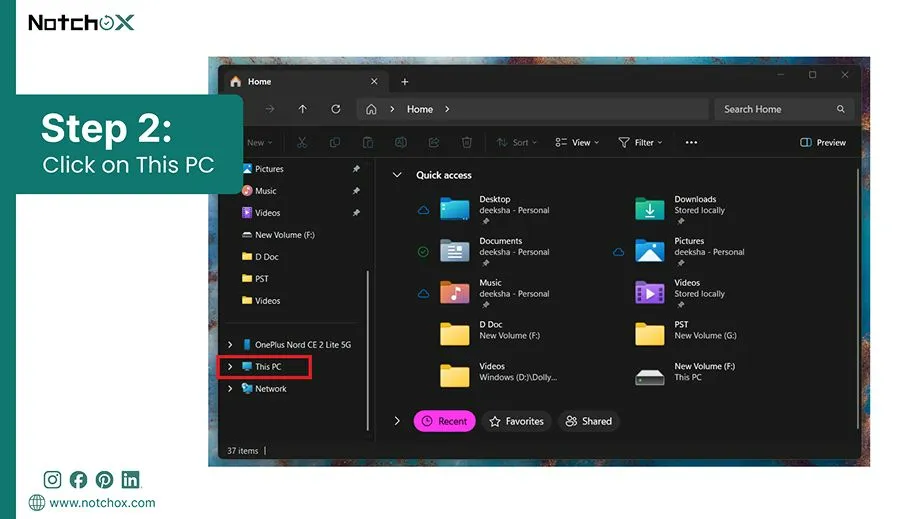
Click on This PC in the left-hand navigation panel.
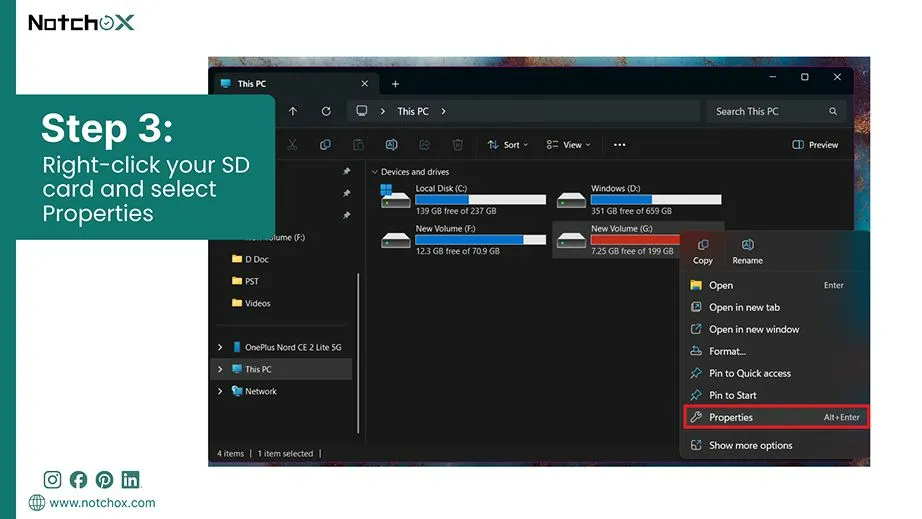
Right-click your SD card and select Properties from the context menu.
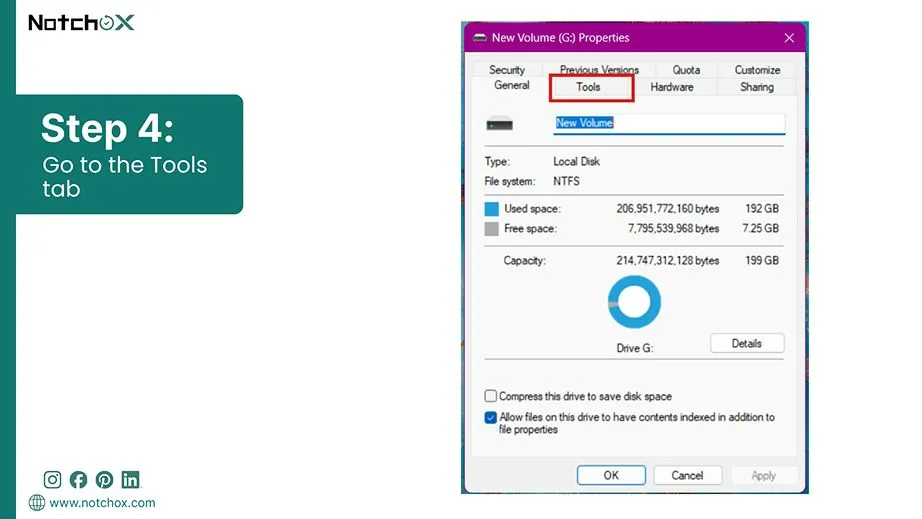
Go to the Tools tab located at the top of the Properties pop-up window.
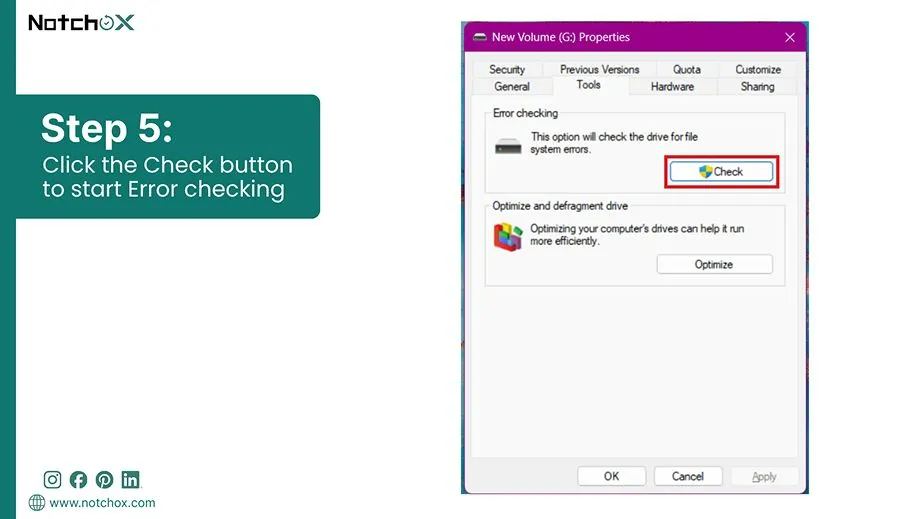
Click the Check button inside the “Error checking” section box.
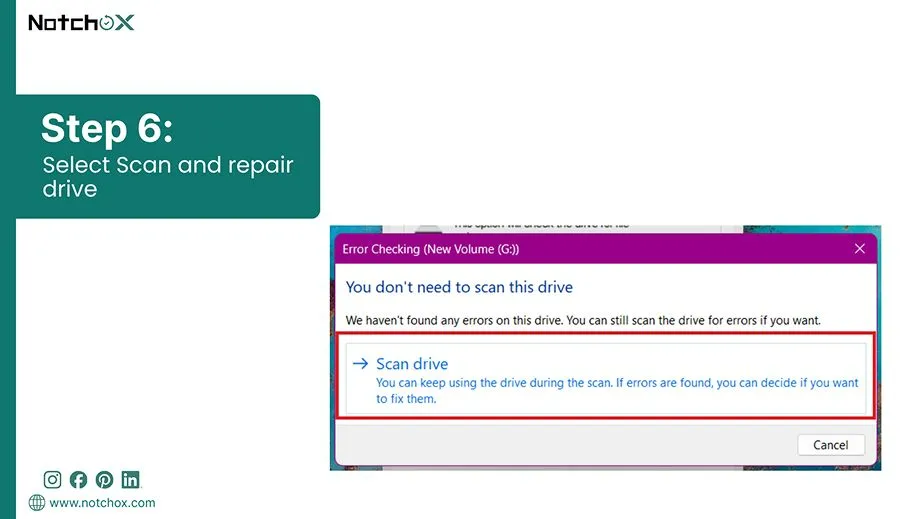
Select Scan and repair drive when prompted by the system. Select it even if Windows states that it hasn’t found any immediate errors.
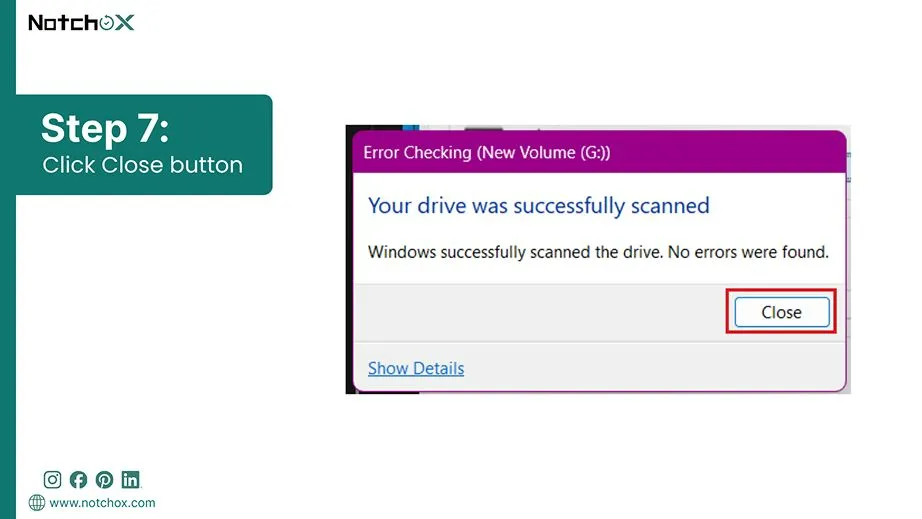
Let the scan complete. Click Close once the success message appears.
Method 5: Reformatting the SD Card
This is your solution when all the tools fail to fix file system errors. Reformatting completely clears the broken digital infrastructure of your SD card and makes a fresh one from scratch. This is highly effective at clearing bugs and fixing the SD card.
Note: Because this completely clears the storage chips, it should only be performed once your data has been safely recovered and backed up elsewhere.
Reformatting on Windows (Using Windows Explorer)
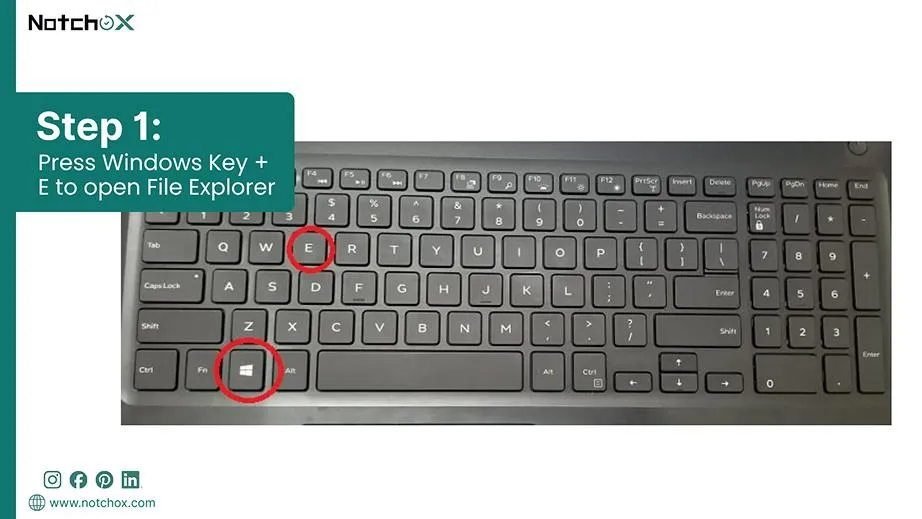
Press Windows key + E on the keyboard to open File Explorer.
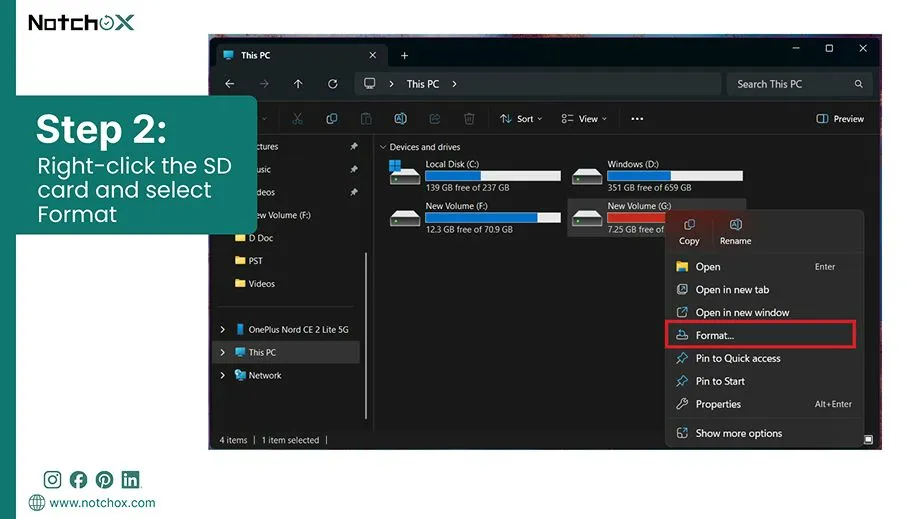
Right-click the SD card and select Format… from the contextual menu.
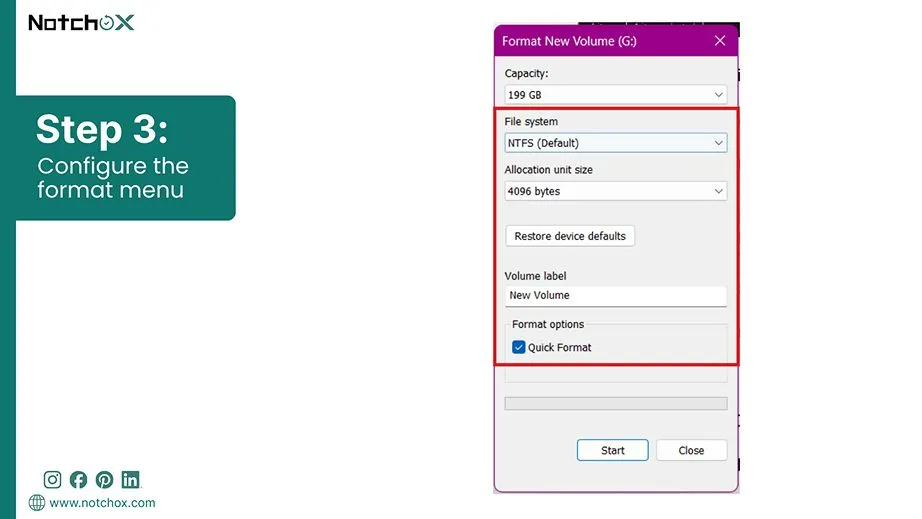
Choose the File System (exFAT for cards 64GB or larger, or FAT32 if your card is 32 GB or smaller), create a new name for your memory card, and make sure “Quick Format” is checked.
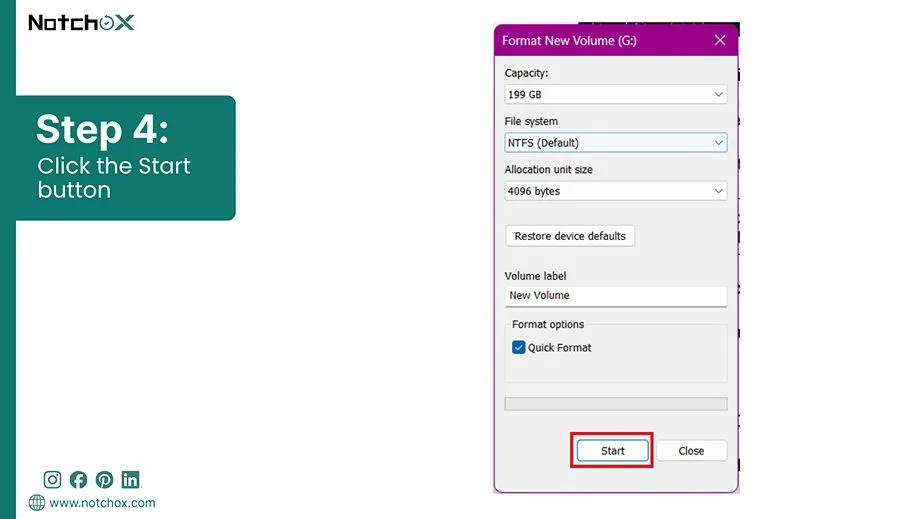
Click the Start button.
Note: If your SD card doesn’t show up in File Explorer, you can use the Diskpart command tool method to format it instead.
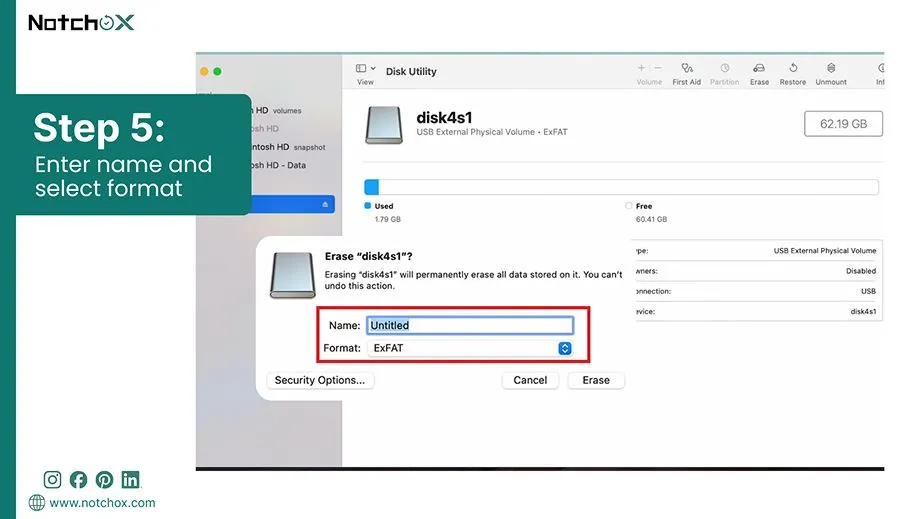
Reformatting on Mac (Using Disk Utility)
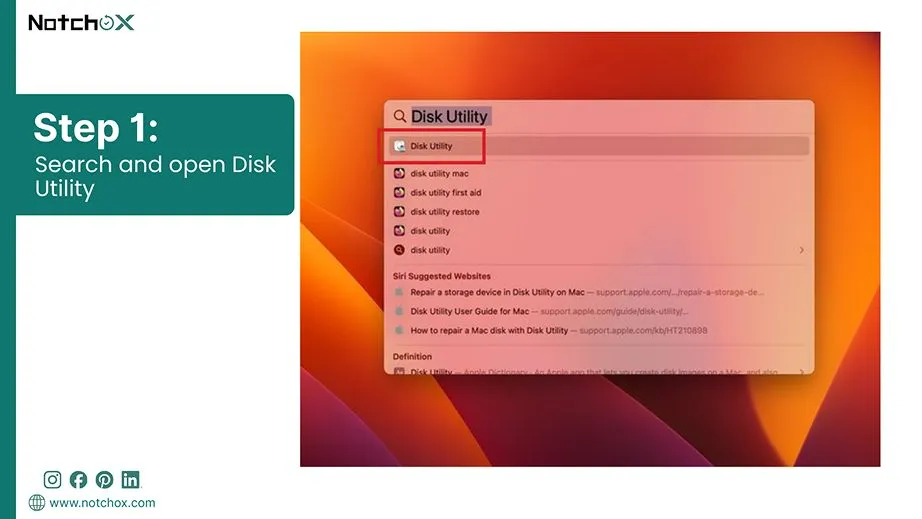
Press Command + Spacebar, type “Disk Utility,” and press Return to open Disk Utility on Mac.
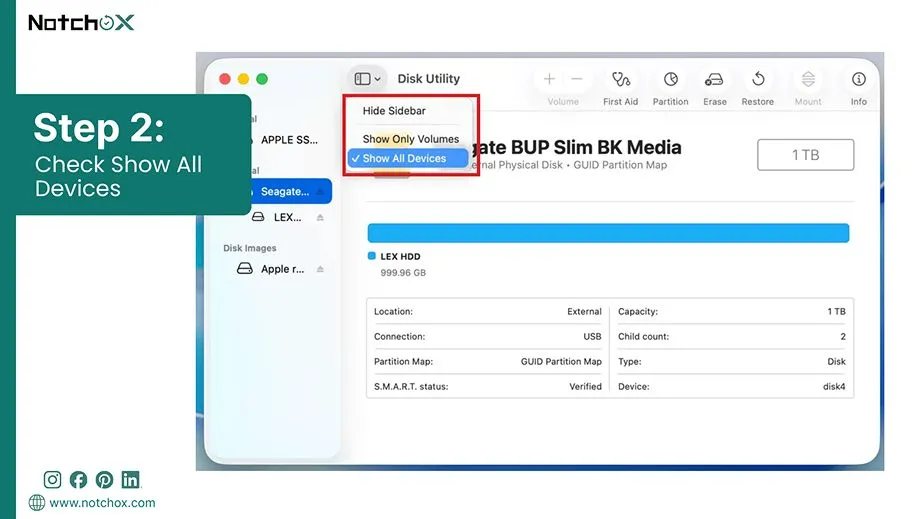
Click the View dropdown menu in the top-left corner and select Show All Devices. This will list your SD card, even if it is hidden.
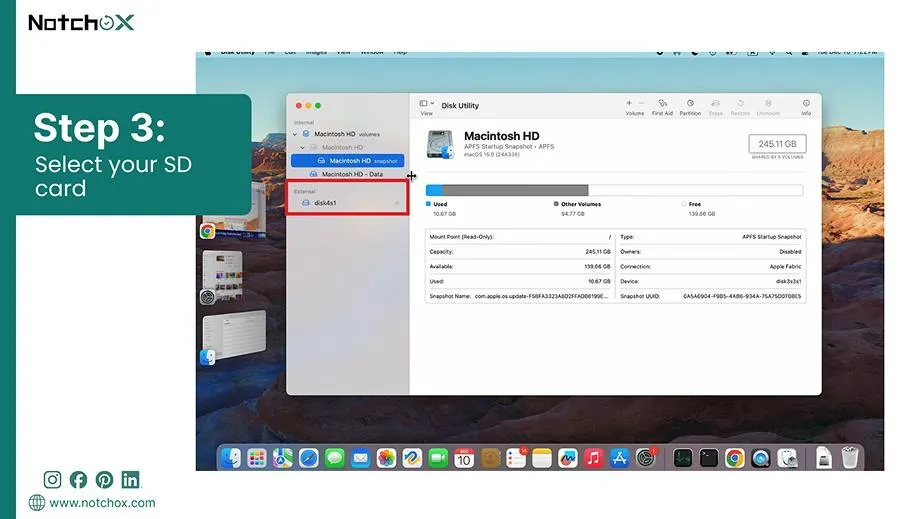
Select your SD card from the external storage list located on the left-hand sidebar.
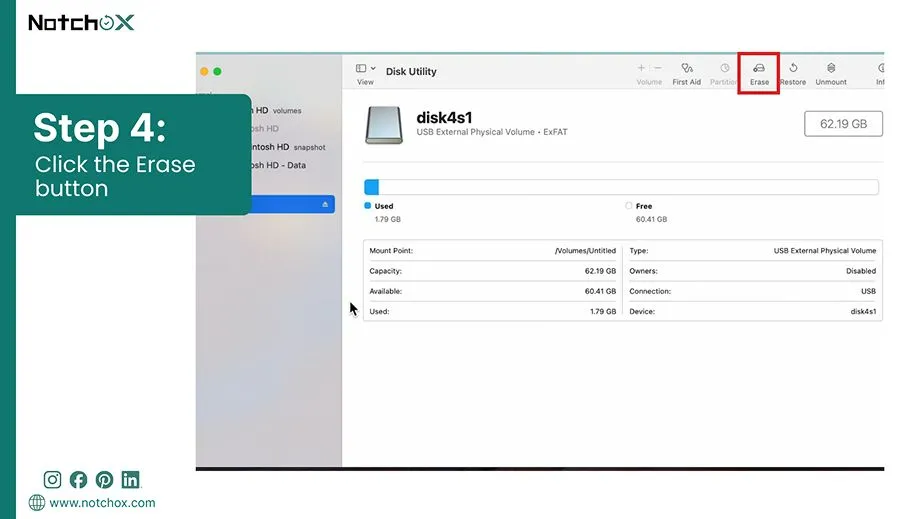
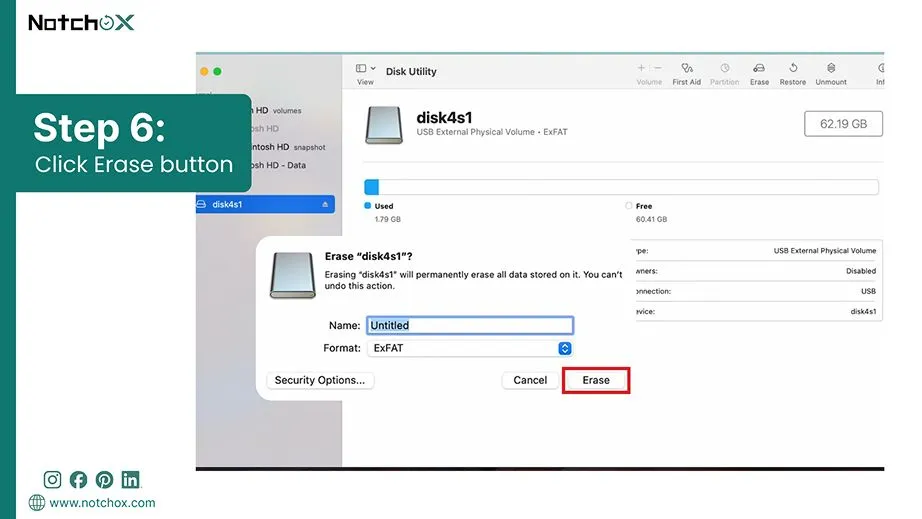
Click the Erase button in the top menu bar of the Disk Utility window.
Now choose the correct format (ExFAT), and set the scheme option to GUID Partition Map.
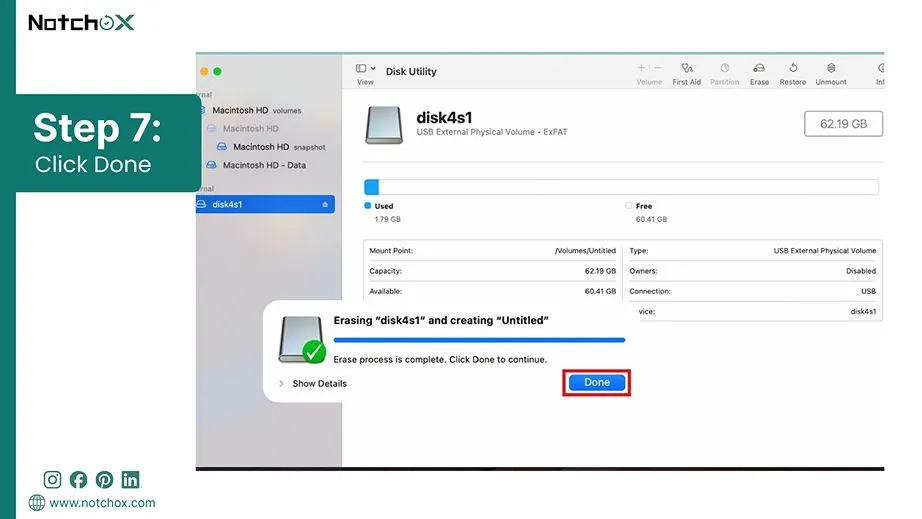
Click the Erase button to confirm and begin formatting the SD card.
Click Done once the completion status bar finishes.
Quick Recap
And that’s everything you need to know to recover data from corrupted SD card. In this guide, we learned how to save your files, look for hidden backups, and use tools like Windows File Recovery and Notchox Data Recovery Software. We also looked at how to diagnose the card’s problem and how to safely repair it on both Windows and Mac.
The most important rule to remember is to always copy your files first before trying any DIY repair methods. If you found this guide helpful, share it on your socials. Keep your files safe and see you in the next guide!
Frequently Asked Questions About SD Card Recovery
Q1: Can corrupted SD card data be recovered?
Ans: Yes, it is possible to recover data from corrupted SD card, but only if the card is in a physically healthy state. You can try these methods to recover your data:
Notchox data recovery software
Checking for hidden backups
Using Windows File Recovery
Q2: Can I recover data from SD card that won’t read at all?
Ans: Yes. If your computer does not show the card, the problem might just be a dirty gold contact or a broken card.
Try cleaning the metal pins with a cloth
Plug it into a different computer.
If the card shows up in Disk Management but cannot be opened, Notchox data recovery software can still scan it and pull your files out safely.
Q3: Is it safe to run CHKDSK before recovering my files?
Ans: No, it is not safe to run CHKDSK before recovering files. CHKDSK is a tool designed to repair the file system layout, not to save your data. During a fix, it can delete corrupted parts of a file or overwrite sectors.
Q4: Why does my SD card say it needs to be formatted?
Ans: This happens when the digital index of your card gets scrambled. It occurs when you pull out the SD card in between file saving or if your device loses battery while writing.
Q5: What should I do if my SD card is cracked?
Ans: If there is any visible physical damage, stop using it immediately and do not force it into a computer or phone. Doing this can damage the internal memory chip completely. Your best option is to send it to a professional lab for physical extraction.
Q6: Can a corrupted SD card damage a phone?
Ans: No. Logical corruption will not harm your phone. It may cause the phone’s software to slow down or drain the battery as the OS continuously loops to read the unreadable files.
Q7: Can corrupted data be recovered?
Ans: Yes, in most cases. When an SD card is corrupted, the data still remains safely inside the memory storage cells until it is overwritten.
Q8: How to fix a corrupted SD card for free?
Ans: You can fix corrupted SD card for free using built-in tools like:
Deeksha Arora is a Data Protection & Recovery Writer focusing on writing accurate, informative, and easy-to-understand technical articles for Notchox’s readers. Her content on the prevention of data loss, understanding risks of device failures, and guides to fix problems helps readers make the right decisions and understand the technical terms easily. She works closely with Subject Matter Experts to ensure high usability and accuracy of her writing.