
Jatin Kumar Nov 23, 2026
Ans. DBCC CHECKDB checks pages, rows, indexes, and verifies allocation structure.
There are many factors that can make SQL Server databases corrupt. These include storage disk errors, sudden system crashes, or just a server shutdown. If you want to check and resolve issues related to corruption in MDF and NDF files, you should use Microsoft’s built-in DBCC CHECKDB command. These types of commands often confirm the logical and physical integrity of all database objects such as:
If any logical or physical checks fail, DBCC CHECKDB reports errors related to page-level corruption, storage driver failures, or internal SQL Server engine issues.
When DBCC CHECKDB fails, you should carefully check the errors and reasons by following these steps:
You can try running the CHECKDB command with the NO_INFOMSGS option to inspect only the problematic part, i.e., the consistency errors detected by the command.
DBCC CHECKDB(john) with NO_INFOMSGS;
Once you’ve detected the particular error, determine if the issue is logical or physical.
DBCC CHECKDB(john) WITH PHYSICAL_ONLY;
Now, find out the actual cause of the logical or physical error by checking the SQL error log.
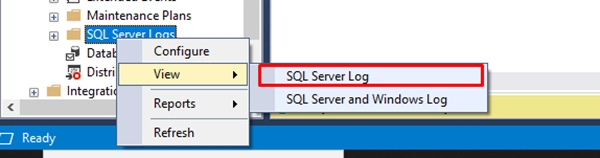
If DBCC CHECKDB integrity and consistency checks fail, then you can use the following methods to resolve them.
When consistency problems occur, you should first focus on following the specific repair option suggested by the command output itself. When DBCC CHECKDB identifies corruption, it analyzes the severity of the errors and automatically recommends the minimum repair level needed to fix the database (such as REPAIR_REBUILD or REPAIR_ALLOW_DATA_LOSS). Before executing any of the repair commands, you should first check the database in single-user mode by running the command below:
ALTER DATABASE john SET SINGLE_USER;
Next, if the command suggests REPAIR_REBUILD, then do the following command:
If it has suggested REPAIR_ALLOW_DATA_LOSS, then to repair the SQL database, run the command below:
DBCC CHECKDB (N ’john’, REPAIR_ALLOW_DATA_LOSS) WITH ALL_ERRORMSGS, NO_INFOMSGS;
GO
After repairing the database, keep it in multi-user mode by using the command below:
ALTER DATABASE john SET MULTI_USER;
Challenges with DBCC CHECKDB with the REPAIR_ALLOW_DATA_LOSS option include:
To avoid the data loss, if you have an updated and readable database backup file, then you can restore it. To test the integrity of the backup, use the RESTORE VERIFYONLY command. To restore the backup file, run the following command:
BACKUP DATABASE [john]
TO DISK = N’D:\BackupSQL\john_Full.bak’
GO
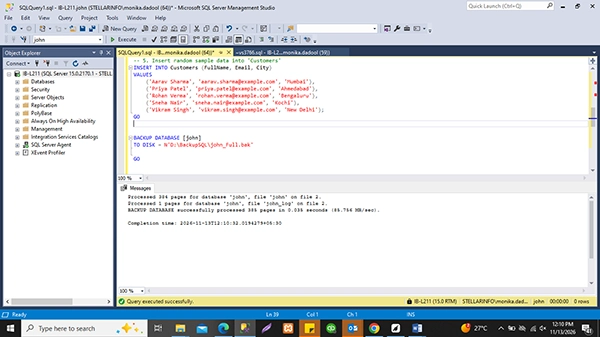
If, through the error messages, you detect that the error has information related to problematic pages in the SQL database, then you can perform a page-level restore. This aids you in restoring only the corrupt or damaged pages. Before this, you must have the File ID and the Page ID of the corrupted page.
Here is the T-SQL command to perform a page-level restore in SQL Server:
RESTORE DATABASE john
PAGE = ‘1:57’
FROM DISK = N’C:\Backups\john_full.bak’
WITH NORECOVERY;
GO
This page-level restore method does not help in restoring the following elements in the database:
Method 3- Use a Professional SQL Repair tool
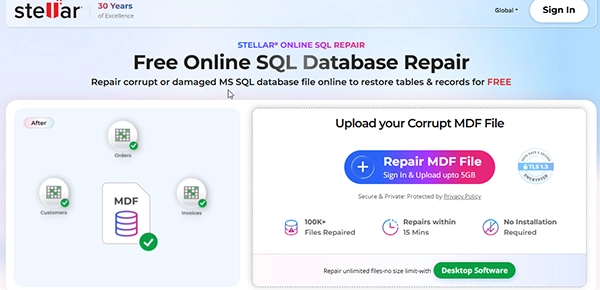
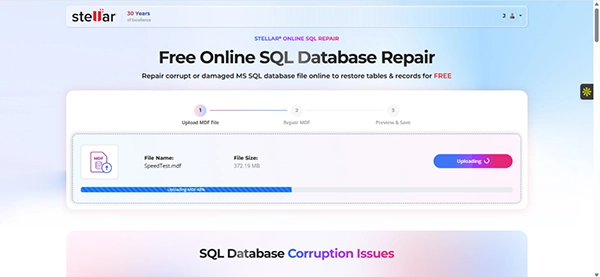
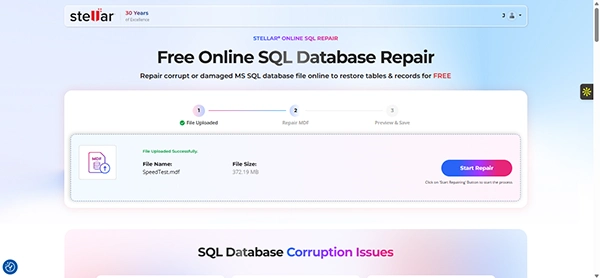
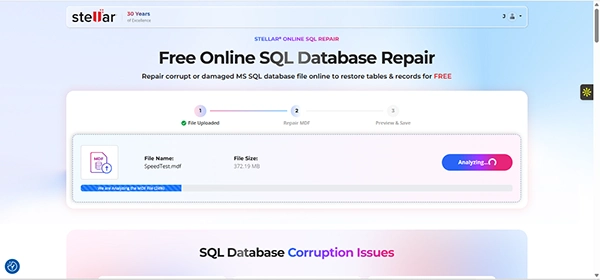
If the DBCC CHECKDB repair options fail or you do not want to risk data loss, you can use Stellar Online SQL Repair. This service repairs corrupt MDF files without needing SQL Server. It restores all database objects with full integrity, including boot pages, allocation pages, indexes, and stored procedures. It also recovers deleted records. You can repair a single MDF file under 500 MB for free, while files bigger than 500 MB require the premium version.
Here are the steps to repair or recover a SQL database file online for free:

Otherwise, click Save SQL File to download the file.
You can find the downloaded repaired file in the default Downloads folder. Now you can open or import the SQL file into any SQL Server. To operate this, you can use SSMS’ Import Data option.
The online service only repairs one file at a time. To repair various MDF files with no size limits, use the desktop tool Stellar Repair for MS SQL. It immediately recovers severely corrupted databases with zero data loss. It repairs all page types and fixes complex errors like 823, 824, and 825. Also, it allows you to save the repaired file in many formats.
If the DBCC CHECKDB check fails due to corruption in the SQL database, you can check the error logs, analyze the error message, and follow the methods explained above to restore the database. You can restore your backup file or run the DBCC CHECKDB repair tools to resolve the inconsistency problems in the database. If the backup file is not readable or you want to repair the database without any data loss, use a professional MS SQL repair tool, for example, Stellar Repair for MS SQL. The tool can repair MDF/NDF files in any condition. Also, it helps you perform specific object recovery with full integrity.
Ans. DBCC CHECKDB checks pages, rows, indexes, and verifies allocation structure.
Ans. DBCC stands for Database Console Commands in Microsoft SQL Server.
Ans. Some examples of SQL Server commands are DBCC CHECKDB, DBCC OPENTRAN, and DBCC SQLPERF.