Accidentally deleting a file or folder is a near-universal experience for Windows PC users. It can happen during routine system cleaning or everyday use- all it takes is a small error in judgment or just an unintended keystroke.
However, to understand how to recover deleted files on windows, analyze the Windows 11 built-in methods that assists in recovering deleted files.
In addition, to assist you in discovering how to find deleted files on windows, and tips to avoid permanent data loss when dealing with accidental file deletion, read our comprehensive article below.
In most cases, deleted files can be recovered in Windows 11 PCs, depending on the method of deletion and what actions were taken afterwards.
However, successful recovery is not guaranteed- it depends on factors such as how the file was deleted, whether backups are available, and how much time has passed since file deletion.
Quick answer
Yes, in most cases, files that have been accidentally deleted can be restored in Windows 11 PCs, provided that they were recently deleted and are not permanently overwritten or erased. Files that were deleted normally can be restored from the Recycle Bin or by using existing system backups. Files that were permanently deleted using Shift + Delete can be harder to recover, and may require specialised recovery tools.
Where Do Deleted Files Go in Windows 11?
Learning how to restore files depends primarily on how the file was deleted, as it could be sent to any of the locations, including:
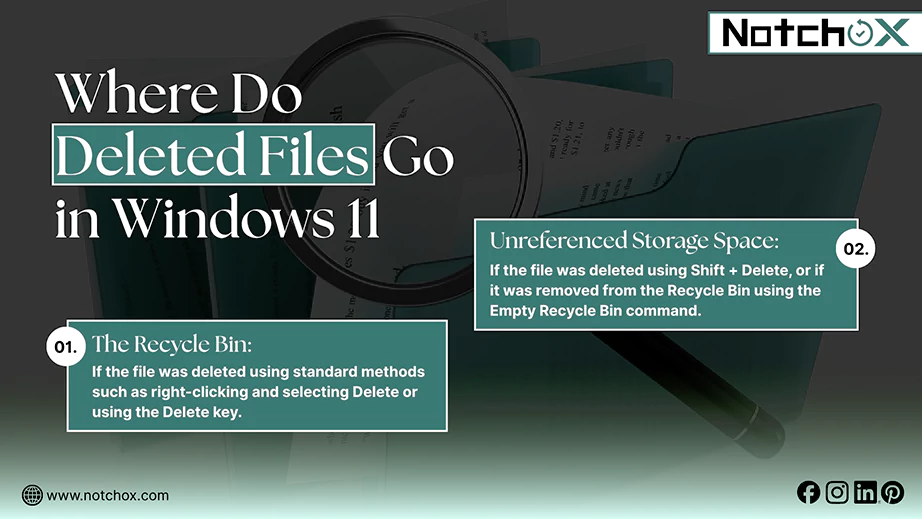
The Recycle Bin: If the file was deleted using standard methods such as right-clicking and selecting Delete or using the Delete key, Windows sends it to the Recycle Bin. Files stored in here will remain available for restoration until the bin is manually emptied or automatically cleared by the system to manage storage space.
Unreferenced Storage Space: If the file was deleted using Shift + Delete, or if it was removed from the Recycle Bin using the Empty Recycle Bin command, it will become inaccessible to the user. Windows removes the file’s references from the file system and marks the space as available for reuse.
In this case, the file is considered deleted for all practical purposes. However, the underlying data may still exist on the storage device until it is overwritten by new data.
How To Recover Deleted Files On Windows?
The method of recovery for deleted files depends on where the file was sent after deletion.
If the file exists in the Recycle Bin, it can be treated as a temporarily deleted file. If it has bypassed the bin or has been cleared from it, it is a permanently deleted file. The procedures for restoring these files are very different and operate at different levels.
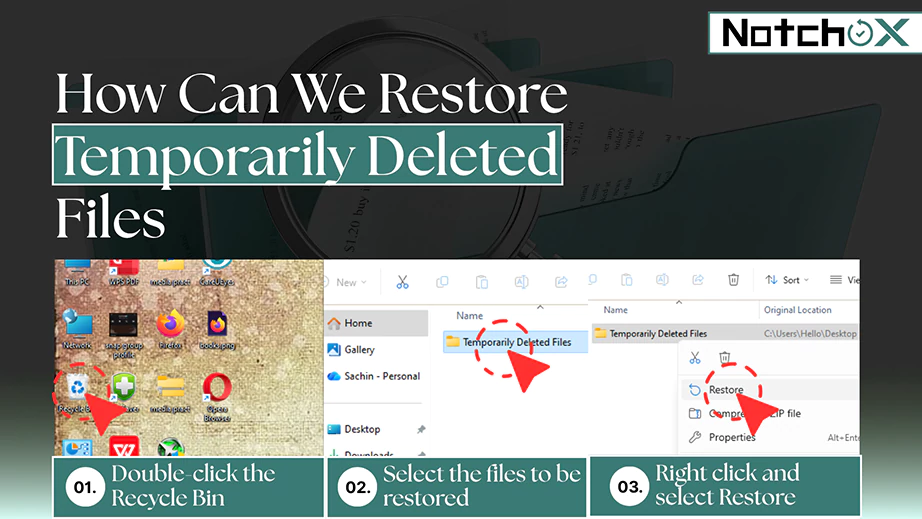
How Can We Restore Temporarily Deleted Files?
If you are wondering how do I recover a file that I accidentally deleted, you can simply follow the steps mentioned below that will help you easily restore temporarily deleted files.
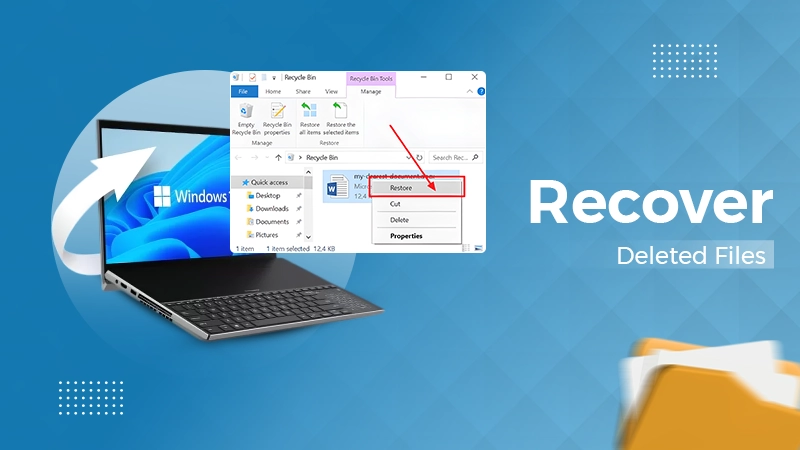
Double-click the Recycle Bin on the Desktop
Select the files to be restored.
Right click and select Restore OR drag and drop the files to the destined location.
If the user is attempting to restore a file immediately after accidentally sending it to the Recycle Bin, simply right-click anywhere in the folder from which the file was deleted and press Undo Delete. Alternatively, the Ctrl + Z command can also be used.
Quick answer
In case the file has been deleted using standard methods such as right-clicking and pressing delete, or using the delete key, it can be recovered from the Recycle Bin by right-clicking the file and pressing restore. If no actions have been performed after the deletion, the user may also right-click the folder and select Undo Delete, or use the Ctrl + Z shortcut to Undo the action.
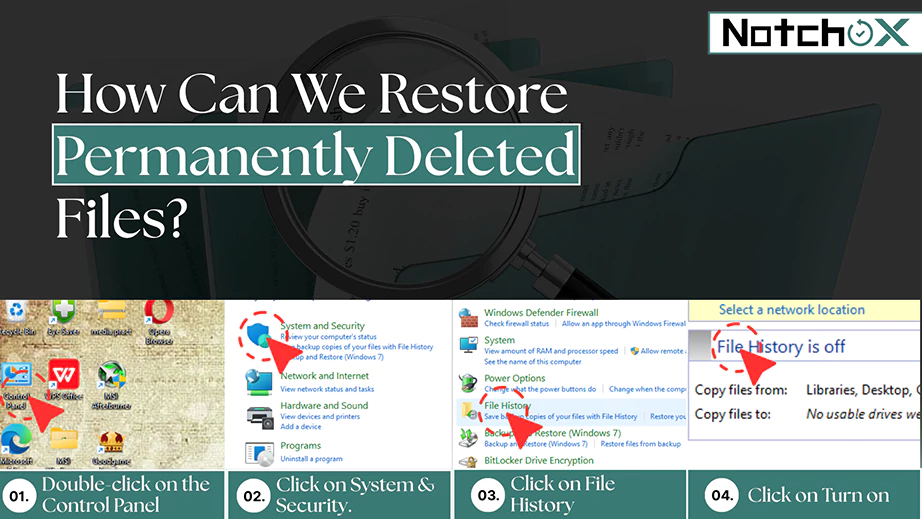
How Can We Restore Permanently Deleted Files?
While you have gained an understanding of how to retrieve deleted documents from the recycle bin, permanently deleted files are rather harder to recover, and may not always be restored successfully. Once a file bypasses the Recycle Bin, Windows no longer tracks it, thus making recovery uncertain.
Furthermore, the chances of restoring such files depend on backup availability, storage type, and whether the data has been overwritten.
However, you can still try out the steps below for setting up file recovery for permanently deleted files on Windows:
Double-click on the Control Panel icon present on the desktop.
Click on System & Security.
Click on File History.
Click on Select a network location and set up your backup drive.
Click on Turn on to activate your back up for permanently deleted files.
Quick Answer
If backup options such as File History, cloud sync, or external drive backups were enabled before deletion, permanently deleted files can often be restored losslessly. In the absence of backups, recovery attempts rely on scanning the storage device for residual data fragments. Success in such cases depends heavily on storage type, system activity, and whether the deleted data has been overwritten.
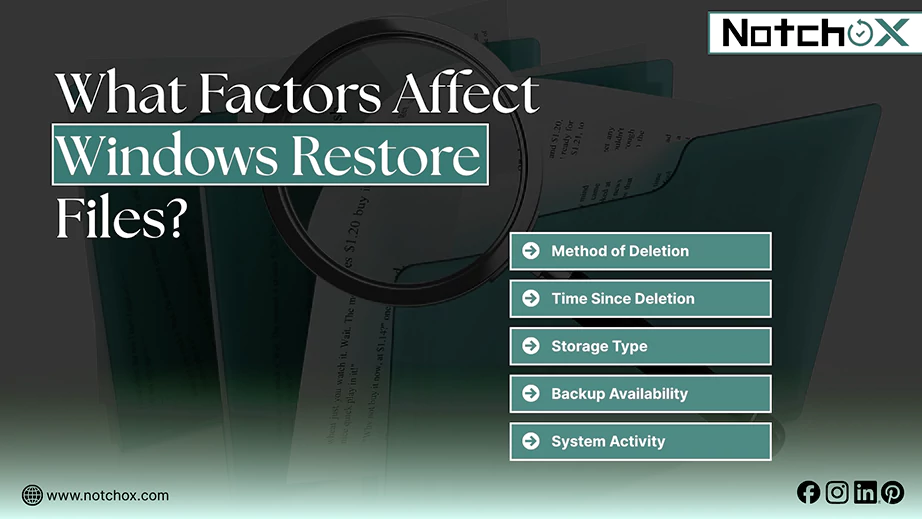
What Factors Affect Windows Restore Files?
From the method of deletion, the time since you have deleted the files, to the availability of backup options, several factors influence whether can you recover deleted files on Windows 11.
Method of Deletion: Files deleted through standard deletion methods end up in the Recycle Bin and are very easily restored. However, if they are deleted using Shift + Delete, recovery can be comparatively difficult.
Time Since Deletion: Attempting restoration immediately after deletion improves chances of file recovery, as the lost data will be less likely to be overwritten. The earlier the recovery attempt is made, the less the risk of losing data.
Storage Type: Most storage devices preserve data fragments until they are overwritten. However, some newer SSDs erase even residual fragments of any deleted data to preserve drive longevity and efficiency. File recovery from such devices is difficult, if not impossible.
Backup Availability: If a recent backup of the file system is available at hand, data recovery becomes extremely easy. The chances of successful data restoration will be very high with readily available backups.
System Activity: If the storage device has been in use after the file was deleted, the data would likely have been overwritten and thus rendered permanently lost. The longer a device is used after an accidental deletion, the less recoverable the data.
File size and Fragmentation: Larger files, or files that were stored in fragmented blocks across the storage device, are generally harder to recover. If portions of the file have already been overwritten, the restored file may be incomplete or corrupted. Smaller, less fragmented files typically have a higher chance of being recovered intact.
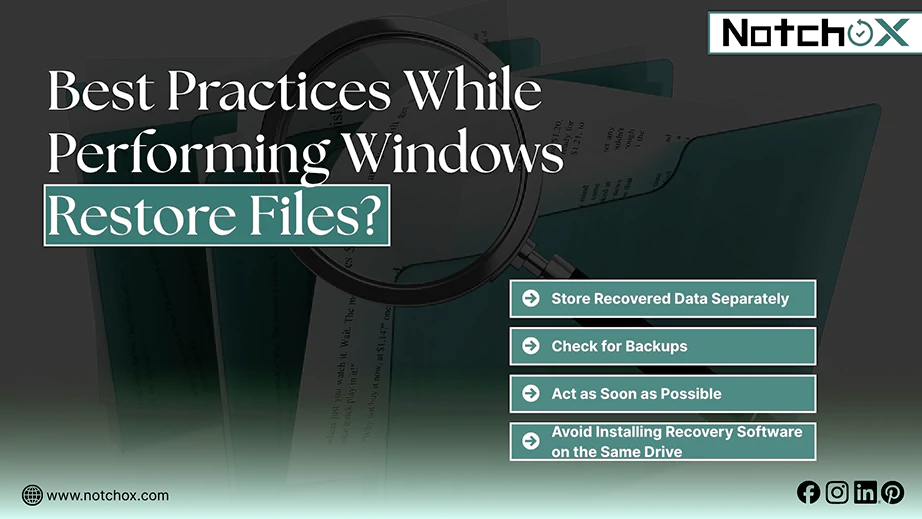
What are the Best Practices While Performing Windows Restore Files?
Along with analyzing how to recover recently deleted files on Windows, its essential to follow certain best practices to ensure efficient and smooth retrieval of deleted folders or files.
Store Recovered Data Separately: Recovered files should be stored on another device. Storing them in the same disk from which data loss occurred can rewrite the remaining deleted data.
Check for Backups: Before attempting recovery, always check for the availability of any system restore points or cloud backups. This will save the user time and ensure reliable recovery.
Act as Soon as Possible: Immediate remedial actions can increase the chances of successful file restoration. Users should immediately stop using the device once data loss is detected and proceed to recovery methods.
Avoid Installing Recovery Software on the Same Drive: If specialised recovery tools are required, they should not be installed on the same drive from which the data was deleted. Installing software on the affected drive increases the risk of overwriting recoverable data.
Wrapping Up
To understand how to recover deleted files on Windows and efficiently perform it, utilize Recycle Bin, as it stores all of your temporarily deleted content.
However, file recovery is not always guaranteed. Factors such as the method of deletion, storage type, and system activity play a critical role in determining recovery success.
Furthermore, the most reliable way to protect against permanent data loss remains prevention, through regular backups and cautious system use.
Frequently Asked Questions (FAQs)
Q1: Will I lose data after reinstalling Windows 11?
Ans: Reinstalling Windows 11 can result in data loss, especially if the installation involves formatting the system drive. If files are not backed up beforehand, recovery may be difficult or impossible. Backups should always be created before reinstalling Windows 11 or any other operating system.
Q2: How find out what I just shift deleted?
Ans: Files deleted using Shift + Delete bypass the Recycle Bin and are not visible through standard Windows interfaces. Recovery may still be possible using backups or specialised recovery methods, provided the data has not been overwritten.
Q3: Can you recover permanently deleted files?
Ans: Once the Recycle Bin is emptied, files are considered permanently deleted. Recovery may still be possible if the data has not been overwritten, but success is not guaranteed.
Q4: Can I recover deleted files without any backup?
Ans: Yes, recovery may still be possible without backups if the deleted data has not been overwritten. However, success is uncertain and depends on storage type, system activity, and time since deletion.
Q5: What is the difference between deleting and permanently deleting a file?
Ans: Deleting a file usually sends it to the Recycle Bin, from where it can be easily restored. Permanently deleting a file, such as by using Shift + Delete or by emptying the Recycle Bin, removes file references from the system and makes recovery more difficult.